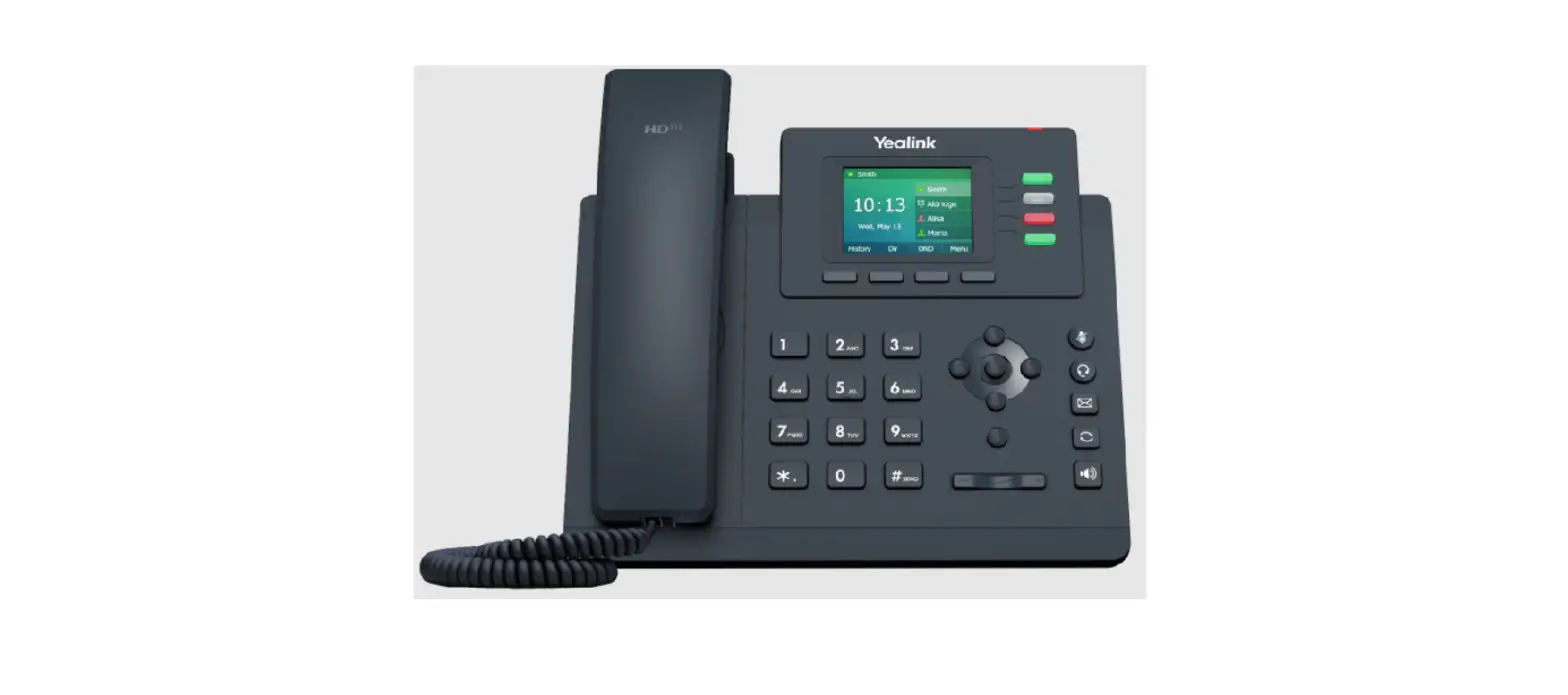
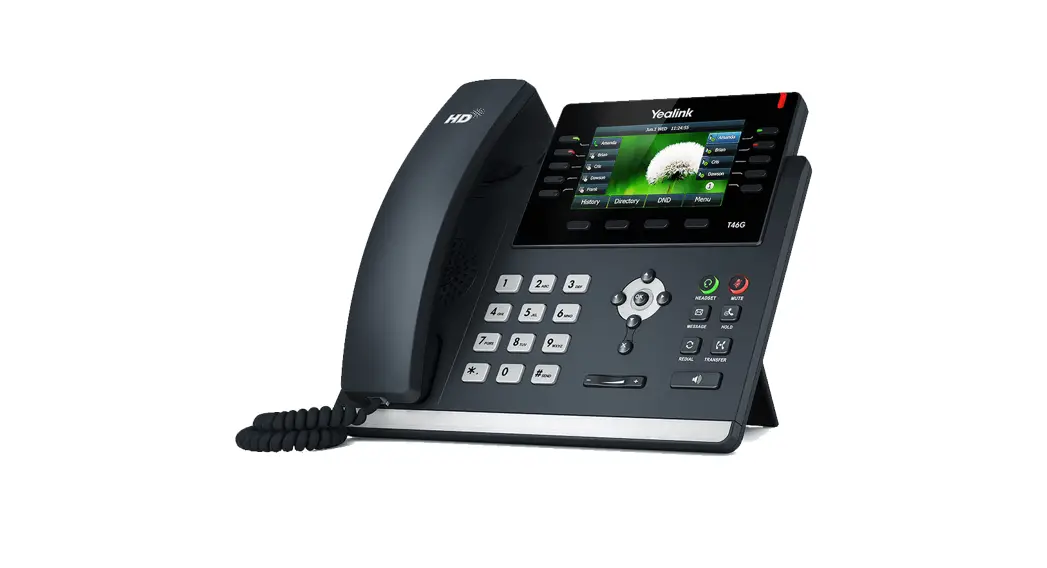
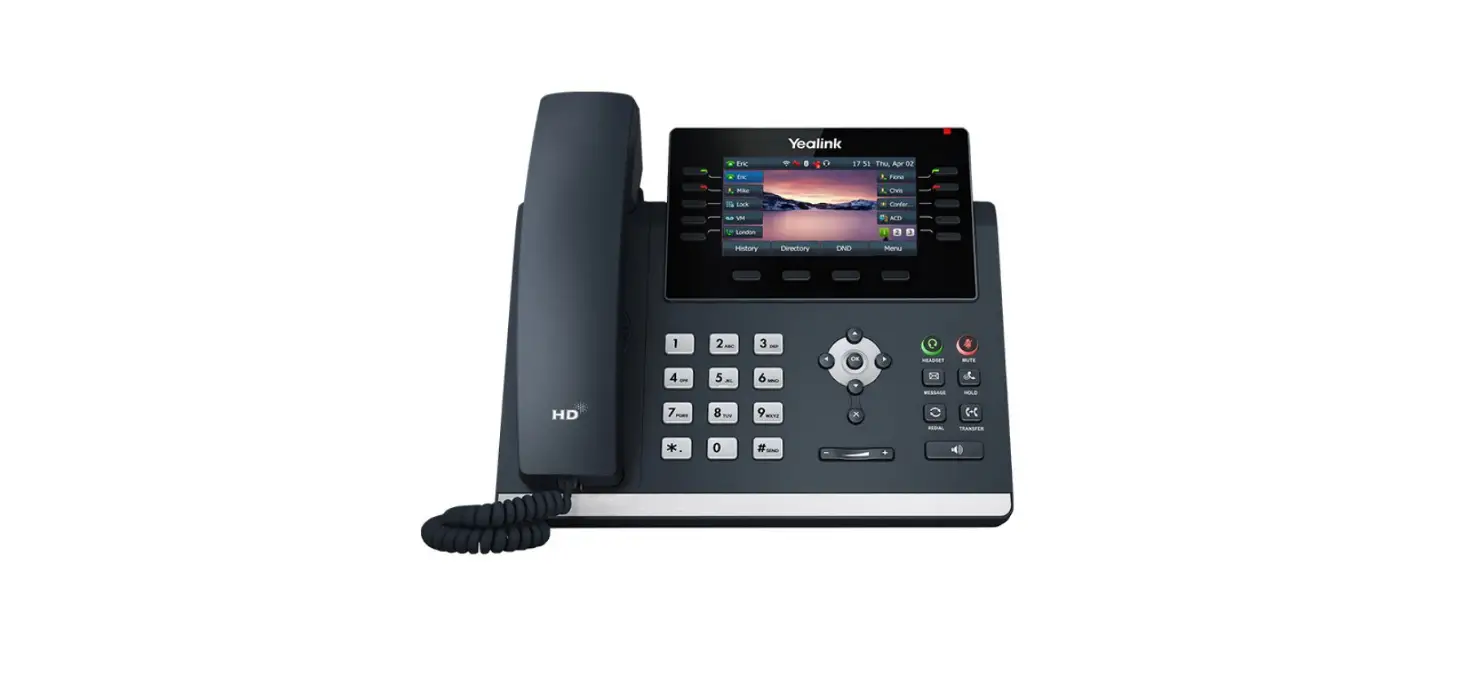
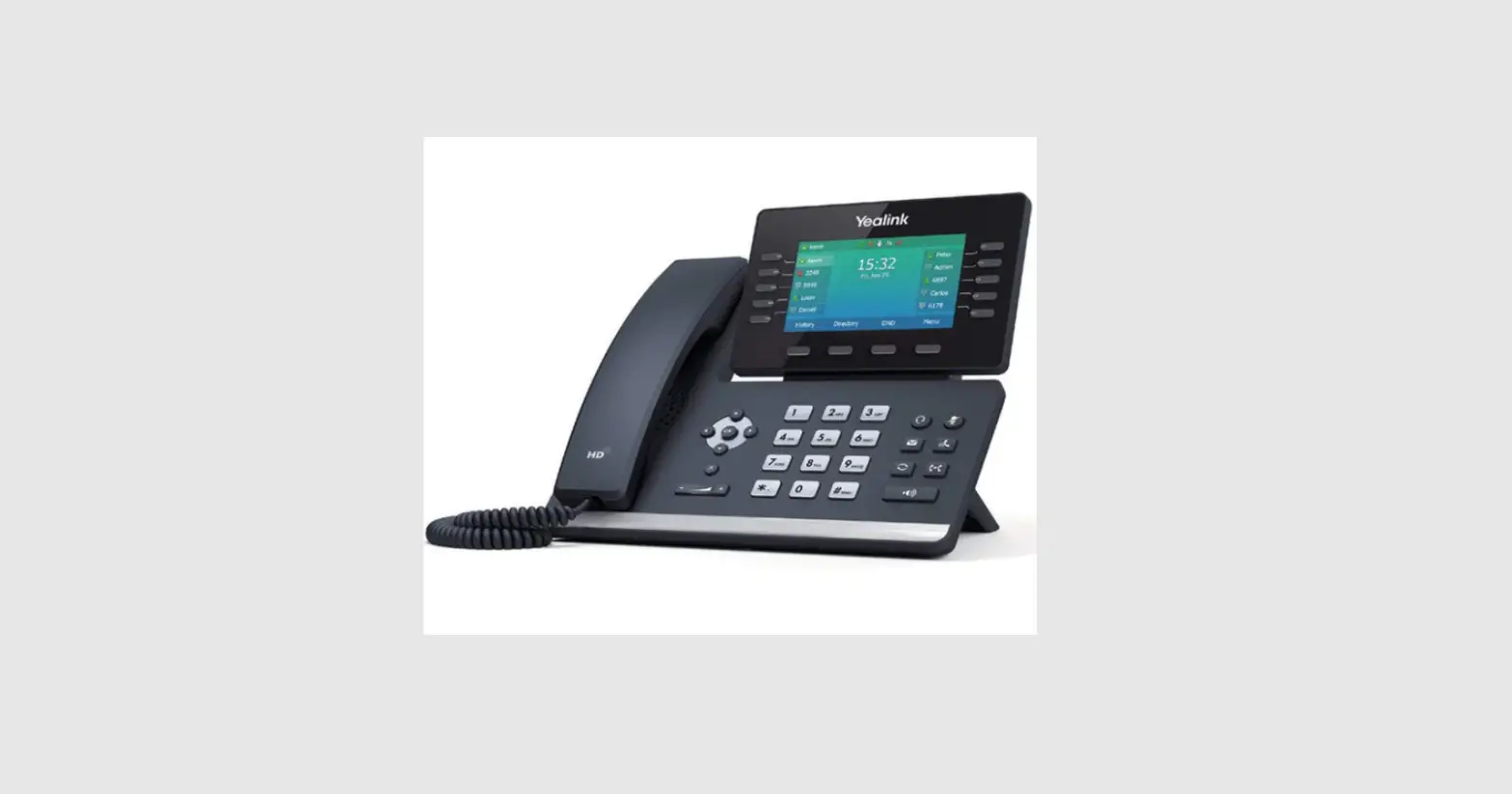
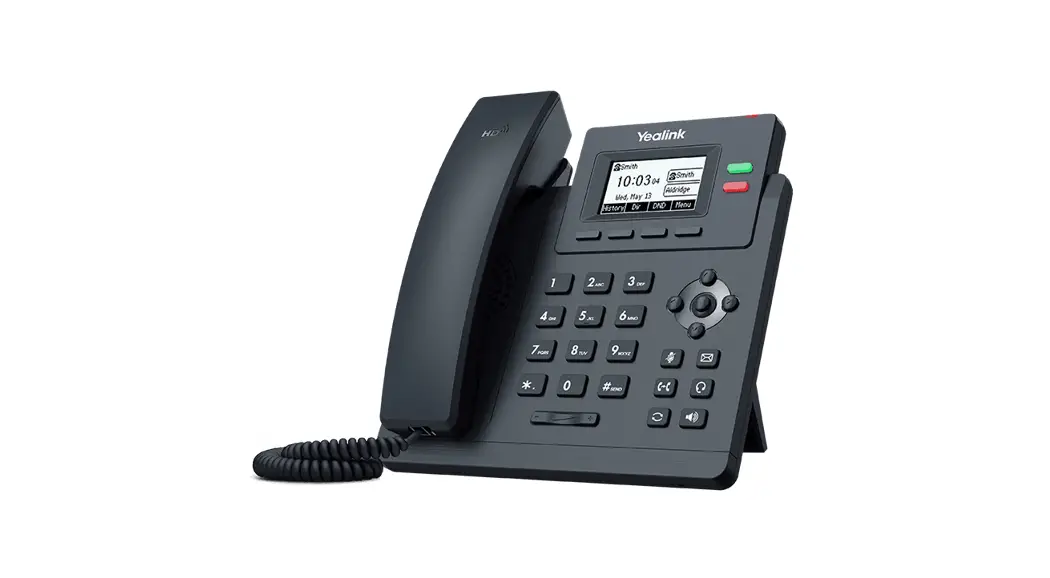
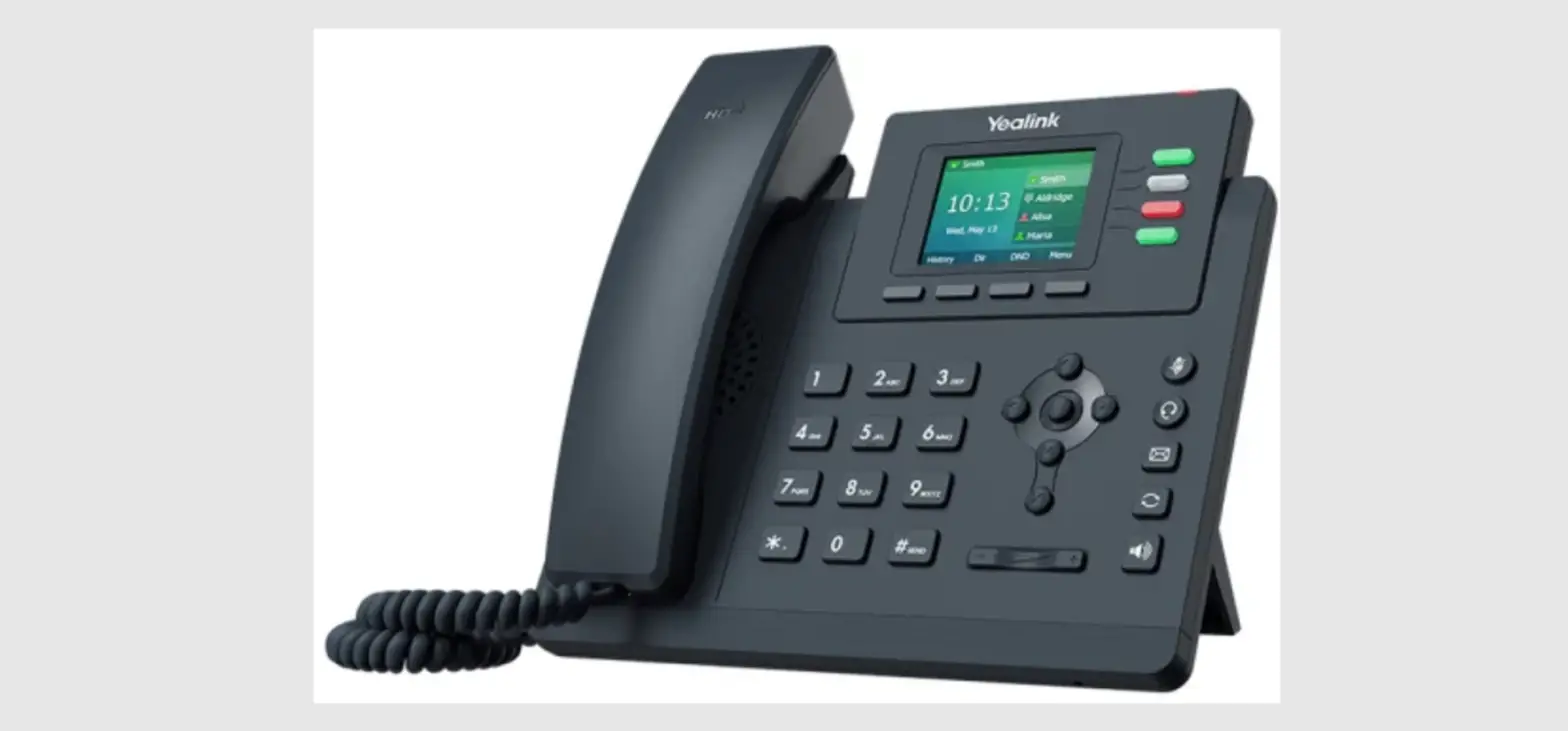
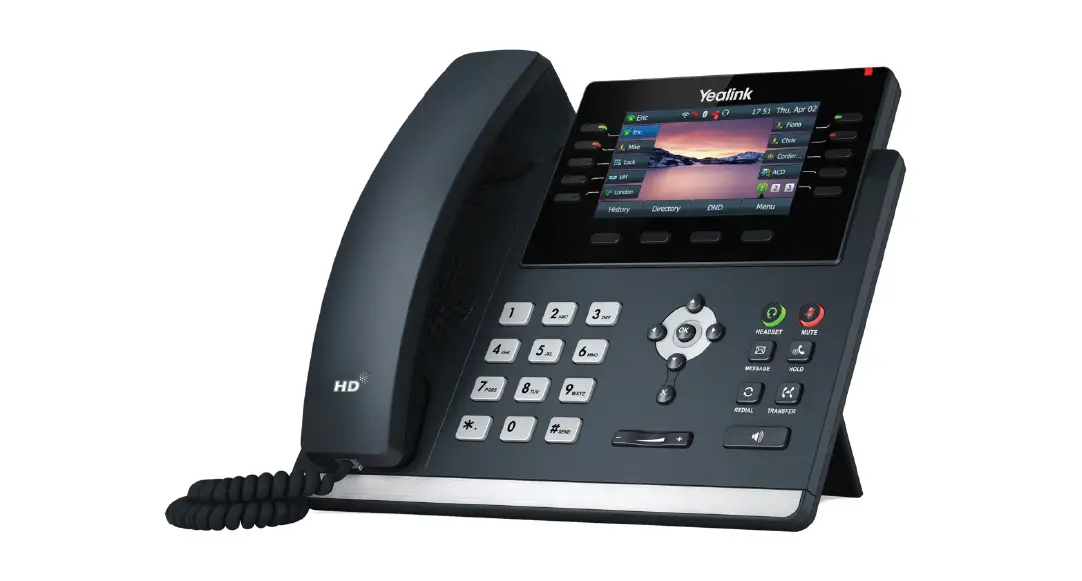
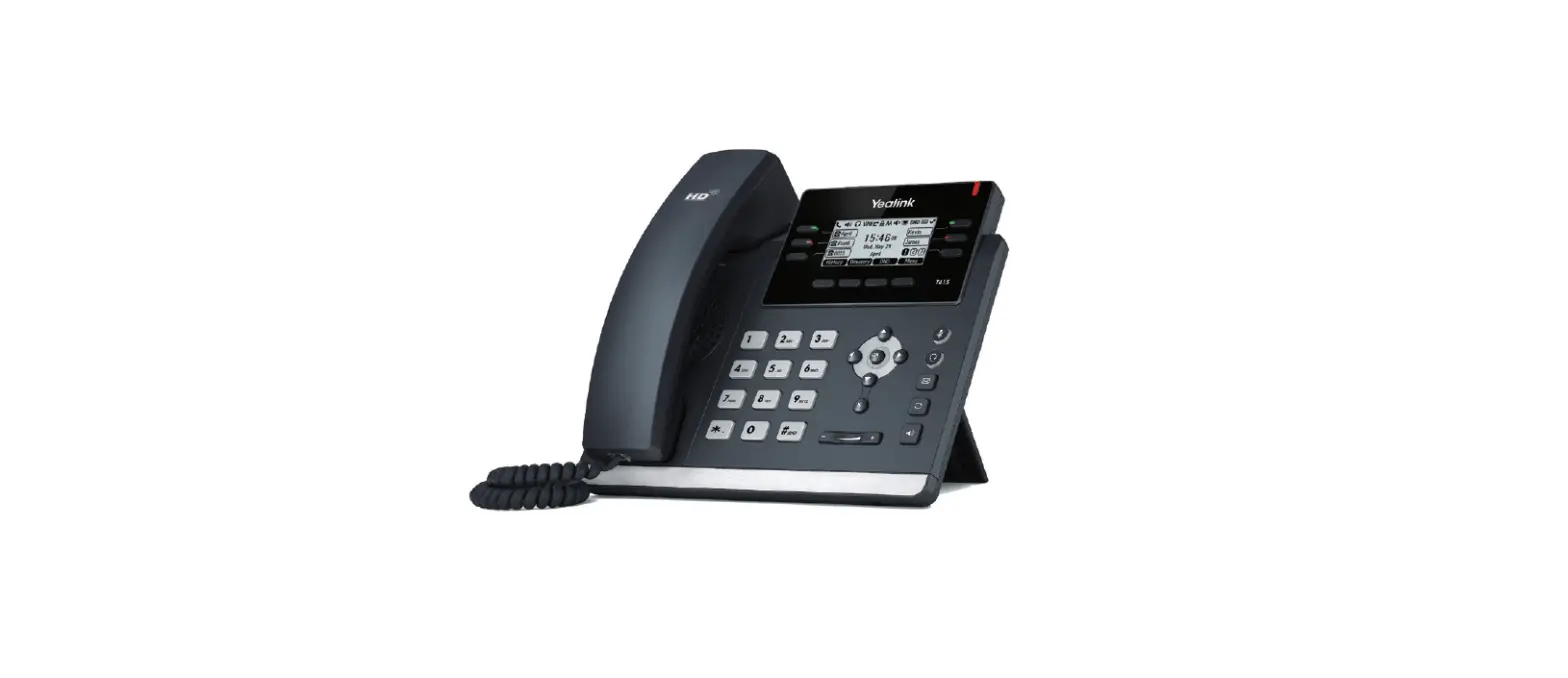
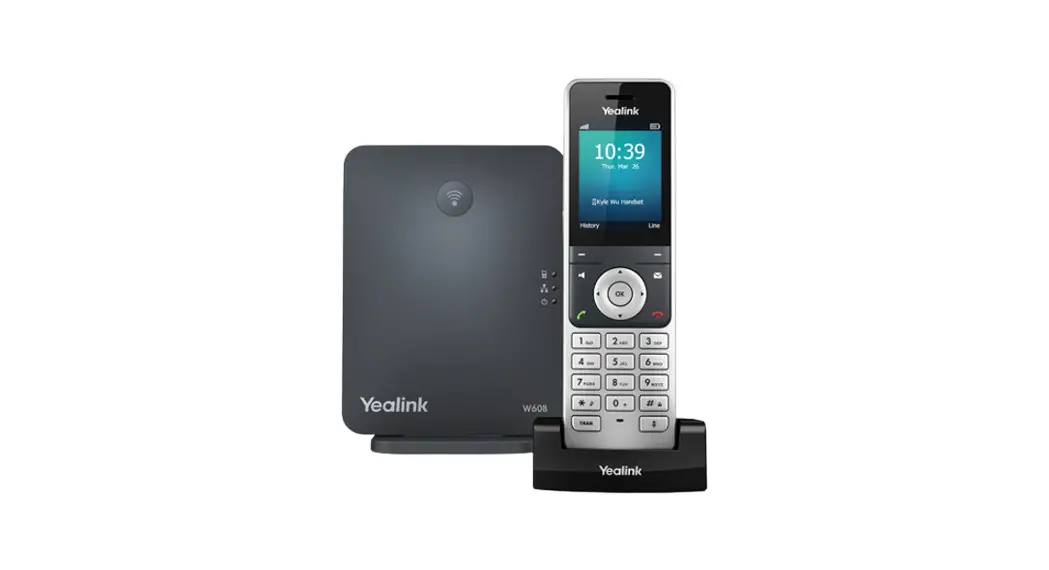
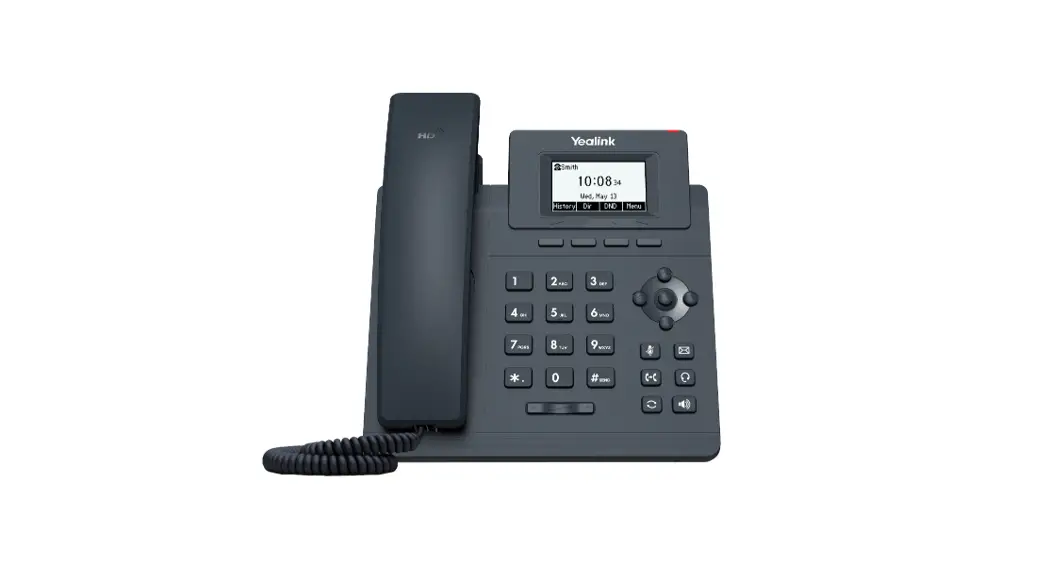
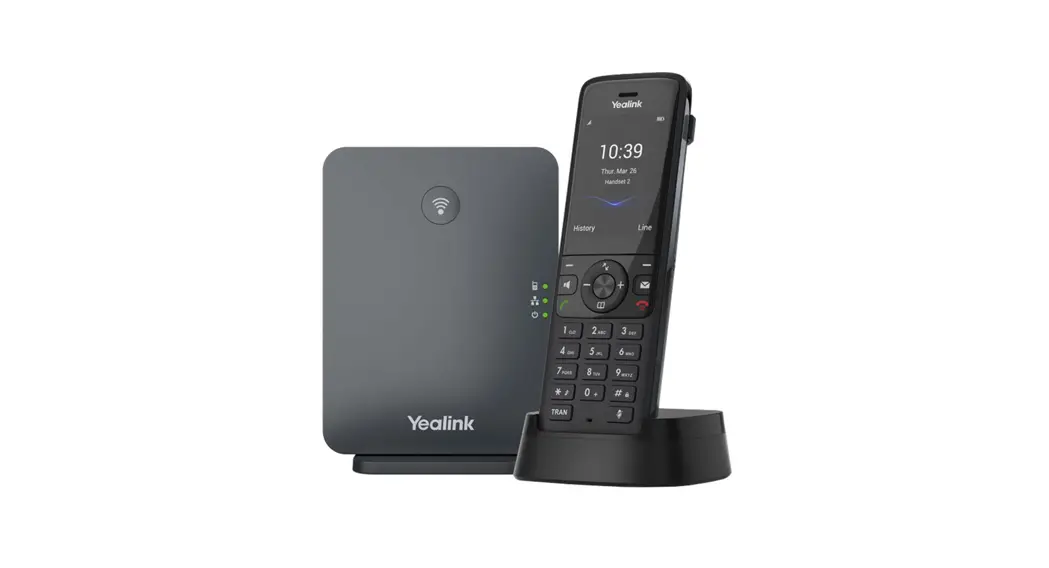
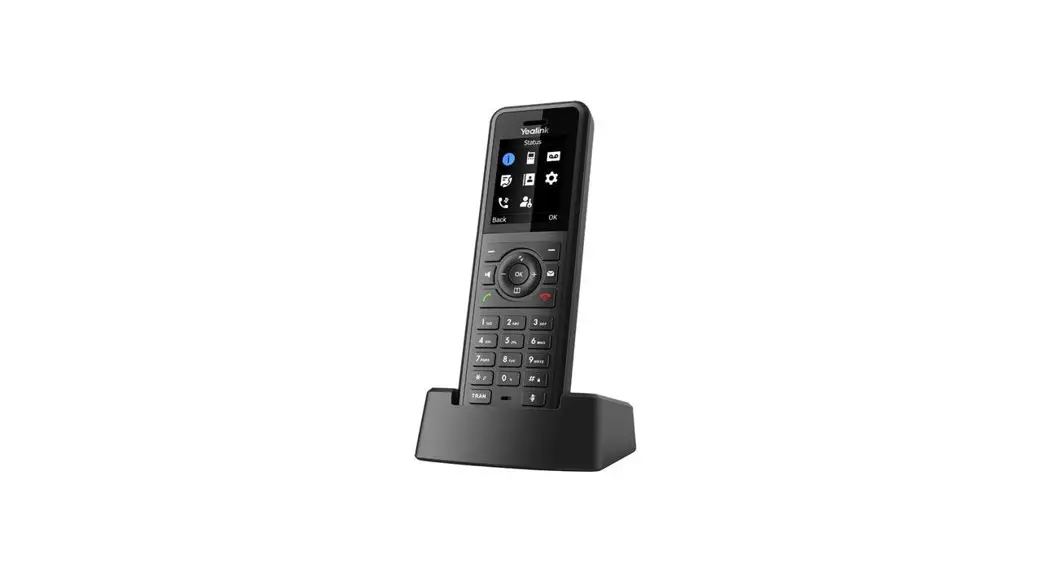
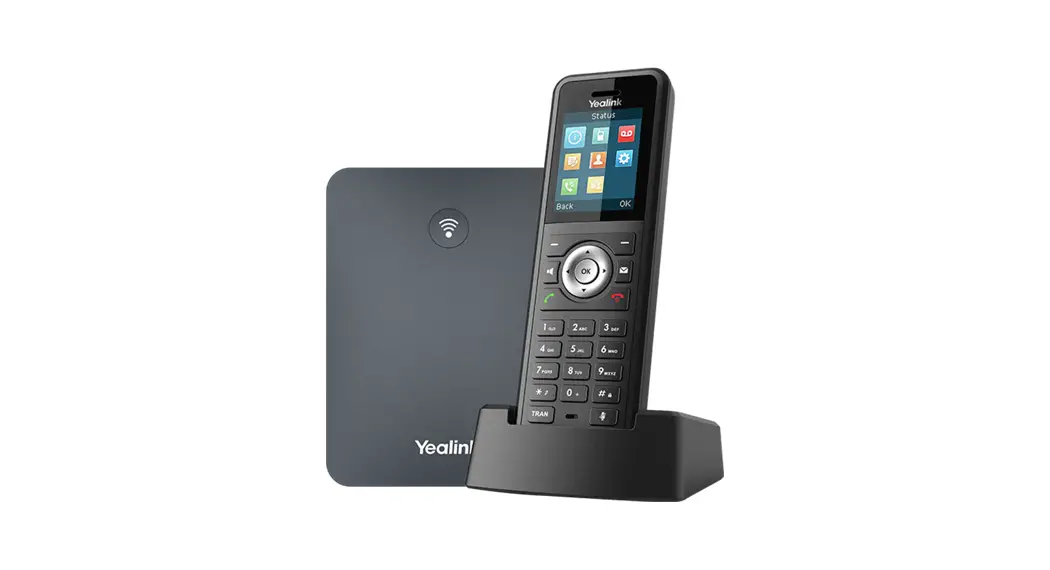
T40G HD Business IP Phone
Product Information
The product is a phone with multiple features that include:
- Park button to hold a call and pick it up from another
extension - Blind Transfer and Consult Transfer options to transfer calls
to another extension or voicemail - Audio Control to change the ringer volume, handset volume, and
speaker phone volume - Message Waiting Light to indicate new voicemails
- Call Forwarding options such as Always Forward and No Answer
Forward - Ringtones and Call History options
- Soft Keys and Hard Keys for easy navigation and access to
features
Product Usage Instructions
To hold a call and pick it up from another extension, press the
red Park button.
Call Transfer
To transfer a call:
- For Blind Transfer, press the Transfer button and dial the
extension or voicemail number. - For Consult Transfer, press the Transfer button, dial the
extension or voicemail number, and wait for the recipient to answer
before completing the transfer. - To transfer a call directly to voicemail, press the Transfer
button followed by the Voicemail button.
Audio Control
To change the ringer volume while the phone is on the hook, use
the Audio Control button and adjust the volume using the navigation
keys.
To change the volume of the handset or speaker phone during a
call, press the Audio Control button followed by either the Handset
button or Speaker button. Adjust the volume using the navigation
keys.
Message Waiting Light
The Message Waiting Light is located in the Upper Right Corner
of the phone. A new voicemail will light up this indicator in
red.
Call Forwarding
To set up call forwarding:
- For Always Forward, press the Forward button followed by the
All Calls button and enter the forwarding number. - For No Answer Forward, press the Forward button followed by the
No Answer button. Enter the number of rings before forwarding and
the forwarding number.
Ringtones
To change the ringtone, press the Settings button followed by
the Ringtone button. Select a ringtone from the list.
Call History
To view call history, press the History button. Use the
navigation keys to scroll through the list. Press the Options
button to get call detail such as duration, add to Contacts, edit
info, blacklist contact or Delete.
Soft Keys and Hard Keys
The Soft Keys and Hard Keys allow for easy navigation and access
to various features. Use them to select options and perform actions
as needed.
PHONE USER GUIDE Yealink T40G
Placing a Call · Lift handset, pr ess
or press
· Dial a number, extension or press a speed dial
Answering a Call · Lift handset OR
· Pr ess or Hold
· While on a call, press Retrieving a Held Call
· Press Resume to retrieve the call Redial
· Pr ess tw ice to redial the last number
· Pr ess once to get to the placed calls li st
Do Not Disturb · Pr ess DND
Turning Off DND · Pr ess DND Again
Park
· While on a call, press More · Pr ess Park Retrieving a Held Call · To retrieve the Parked Call, press the
red Park button
Conference Calls · While on a call, press Conference · Dial number or press a speed dial · Pr ess Conference again and all parties w ill be connected
Transferring a Call Blind Transfer
· While on a call, press · Dial number or press a speed dial · Hang up to complete the transfer
Consult Transfer
· pr ess · Dial number or press a speed dial · Talk to the person · Hang up to complete the transfer
Transfer to Voicemail
· pr ess · Dial *+extension · Hang up
Audio Control
· Pr ess
to Change the
r inger volume w hile your phone is on
the hook
· Pick up the handset and Press
to Change the volume of the handset
· Pr ess
then Press
to Change the volume of the Speaker phone
· Pr ess then Pr ess to Change the volume of the headset
Message Waiting Light
Located in the Upper Right Corner of phone, New voicemai ls will li ght thi s up r ed
Forwarding Calls
· Pr ess Menu · Select Features · Choose Call Forwarding · Choose the type of forw arding:
o Always Forward- All calls forw ard all the time
o Busy forward Only forw ards w hen line is in use
o No Answer Forward- Calls are forw arded if not answ ered after a period of time
· Turn the forwarding on · Type in a number to forward to · Press Save
Turning off Call Forwarding · Pr ess Menu · Select Features · Choose Call Forwarding · Choose the type of Forw arding · Select Off
Ringtones
· Pr ess Menu · Select Basic · Select Sound · Choose Ringtones · Choose the tone you want · Select Save
Call History
· Pr ess History · Scroll through the list · Select an entry · Select the Person to call back or press
options to get call detail such as duration, add to Contacts, edit info, blacklist contact or Delete
Soft Keys
History Access your call histor y Directory Save/ Access your Contacts DND Sends calls dir ectly to voicemail Menu Br ings you to your settings Send dials the number Delete backspaces one number w hile di al i ng Cancel r emoves the partially dialed number and hangs up Transfer Tr ansfer s a call Hold Places a call on Hold Resume takes a call off hold status Conference Init iat es/ completes a confer ence Split Splits a confer ence call apar t Manage Manage the confer ence call Far Mute – Mutes highlighted par ty Remove Removes highlighted part y Far Hold -Puts t he highlighted par t y on hol d 000 List s mor e opt ions w hile on a call End Call Hangs up an active call BXfer-Blind Transfer to another user Park Par ks a call on t he system that anyone can pick up by dialing the par k extension listed when the call is placed on par k Call Flip- Flips the call to the Desktop or Cell phone app Back Br ings you back one scr een Cancel backs out of tr ansfer or confer ence scr een Reject Transfers call to your voicemail or for w ar ding condition
Hard Keys
Headset Pr ess t his t o use a headset Mute Makes it so people can’t hear you Messages Calls Voicemail Hold Places a call on Hold Redial Pr ess twice to r edial the last person you called Transfer sends a call to third party Speaker Takes phone off hook Bottom of Circle Dir ectory/ Volume Top of Circle- Call hist ory/ Volume + Center of Circle Select/ OK X -br ings you back one screen