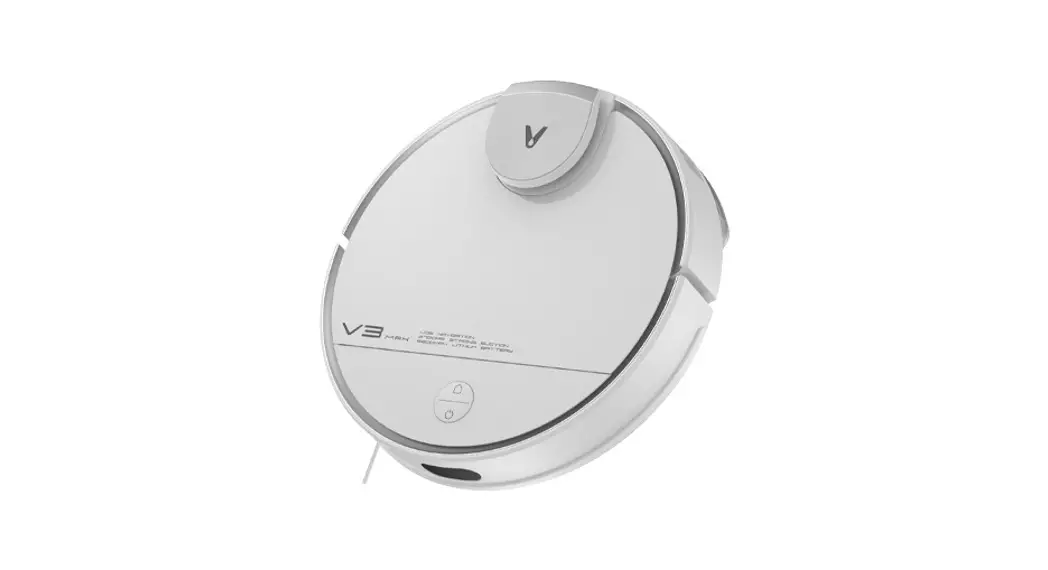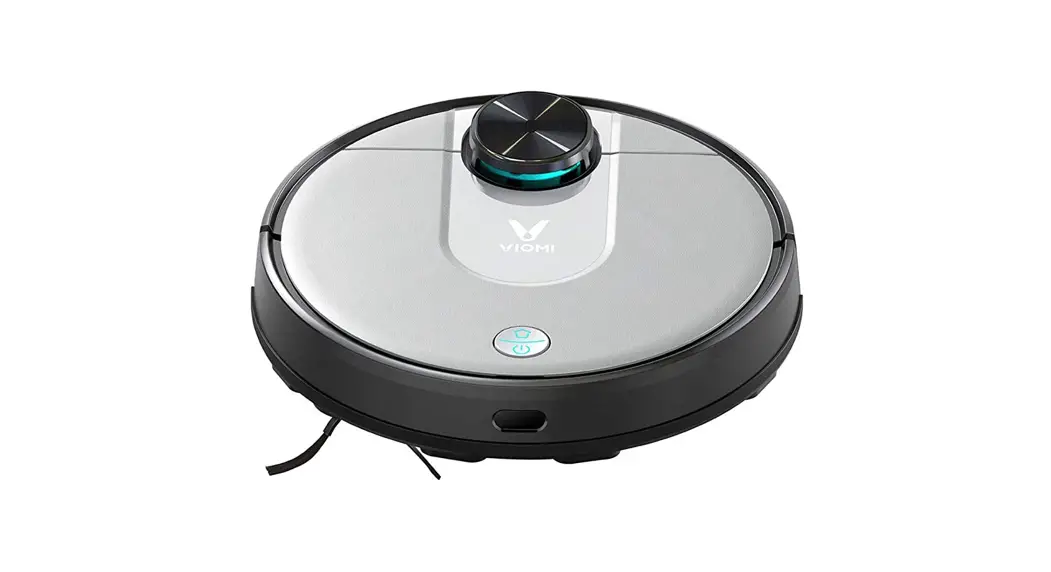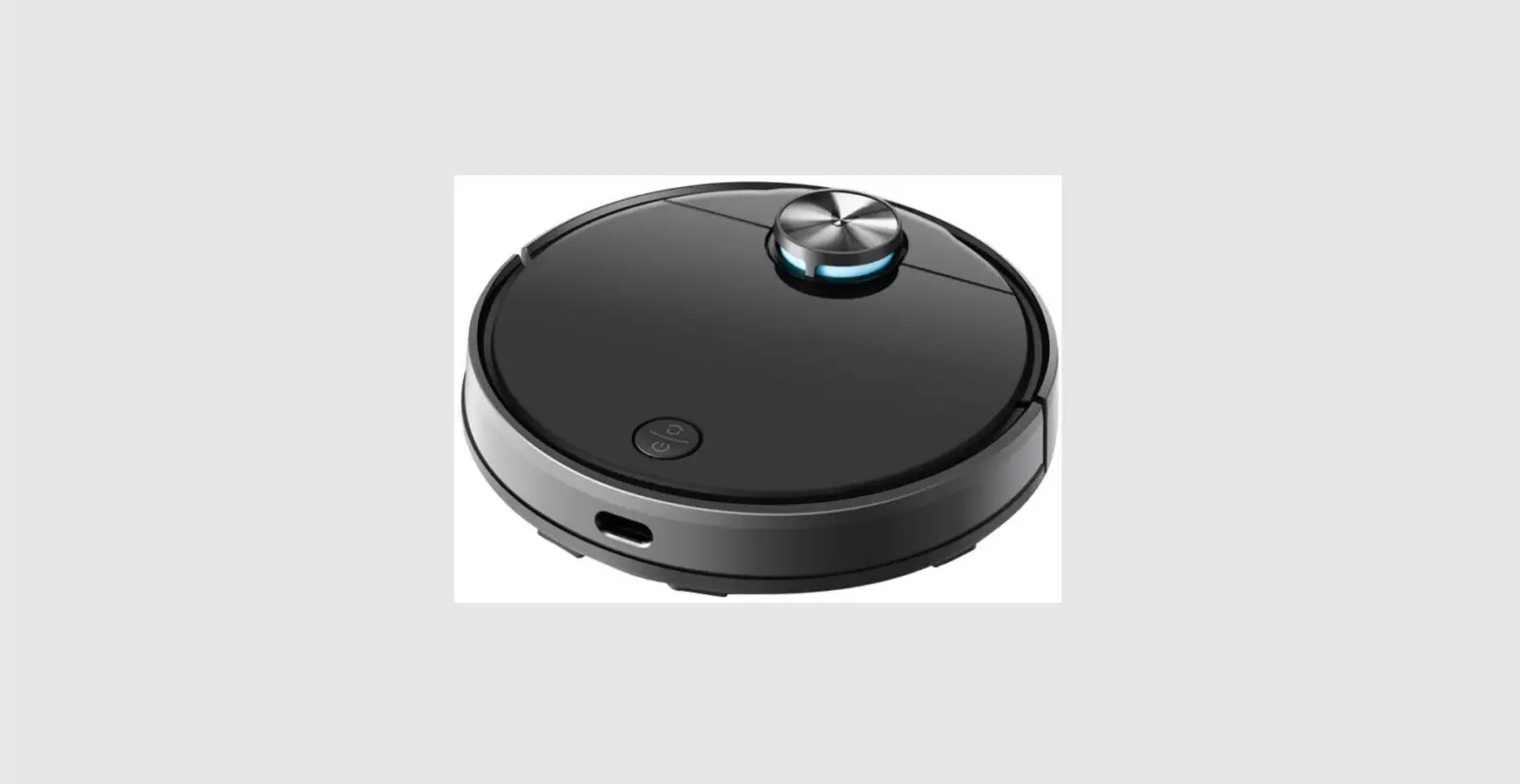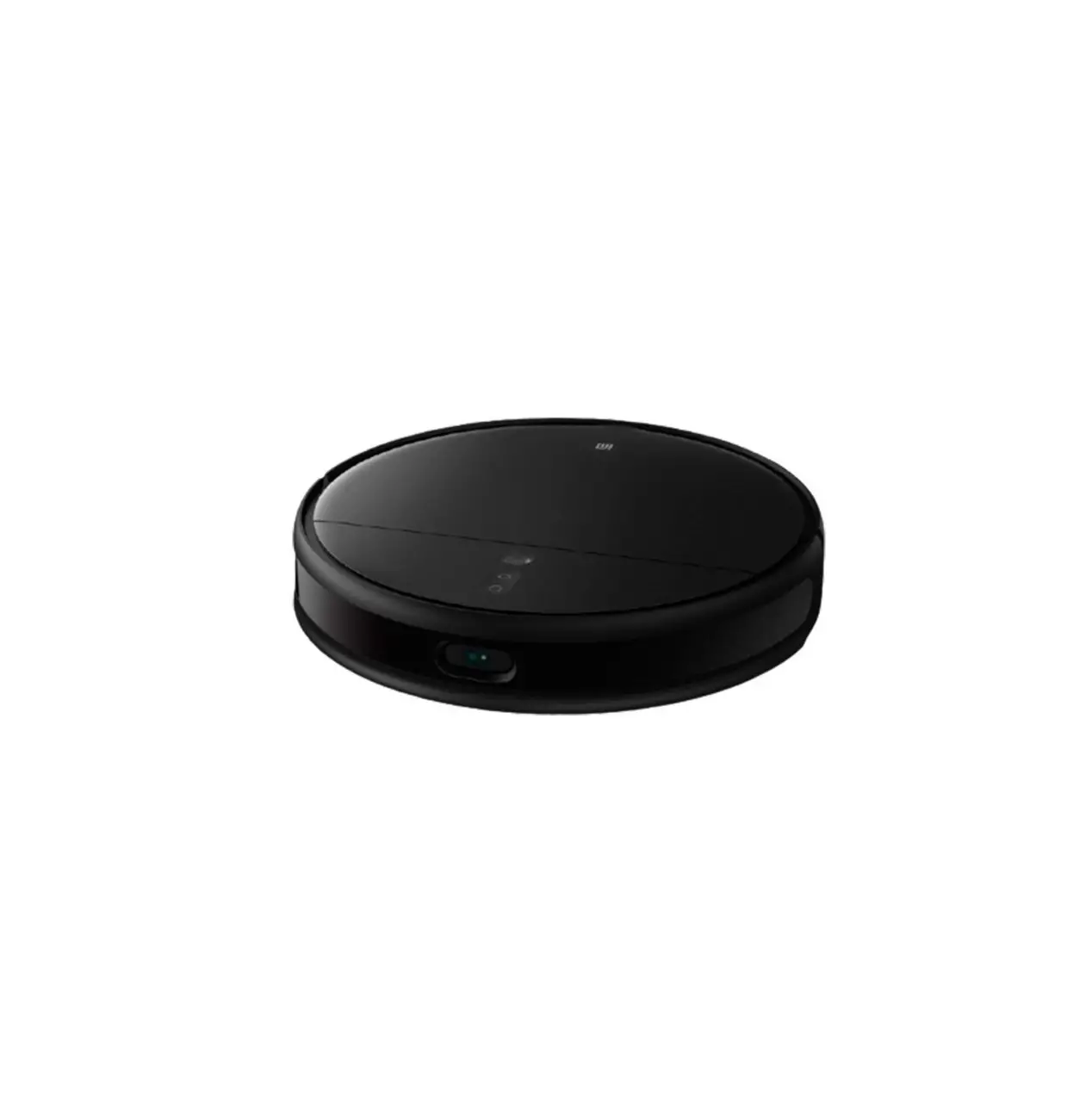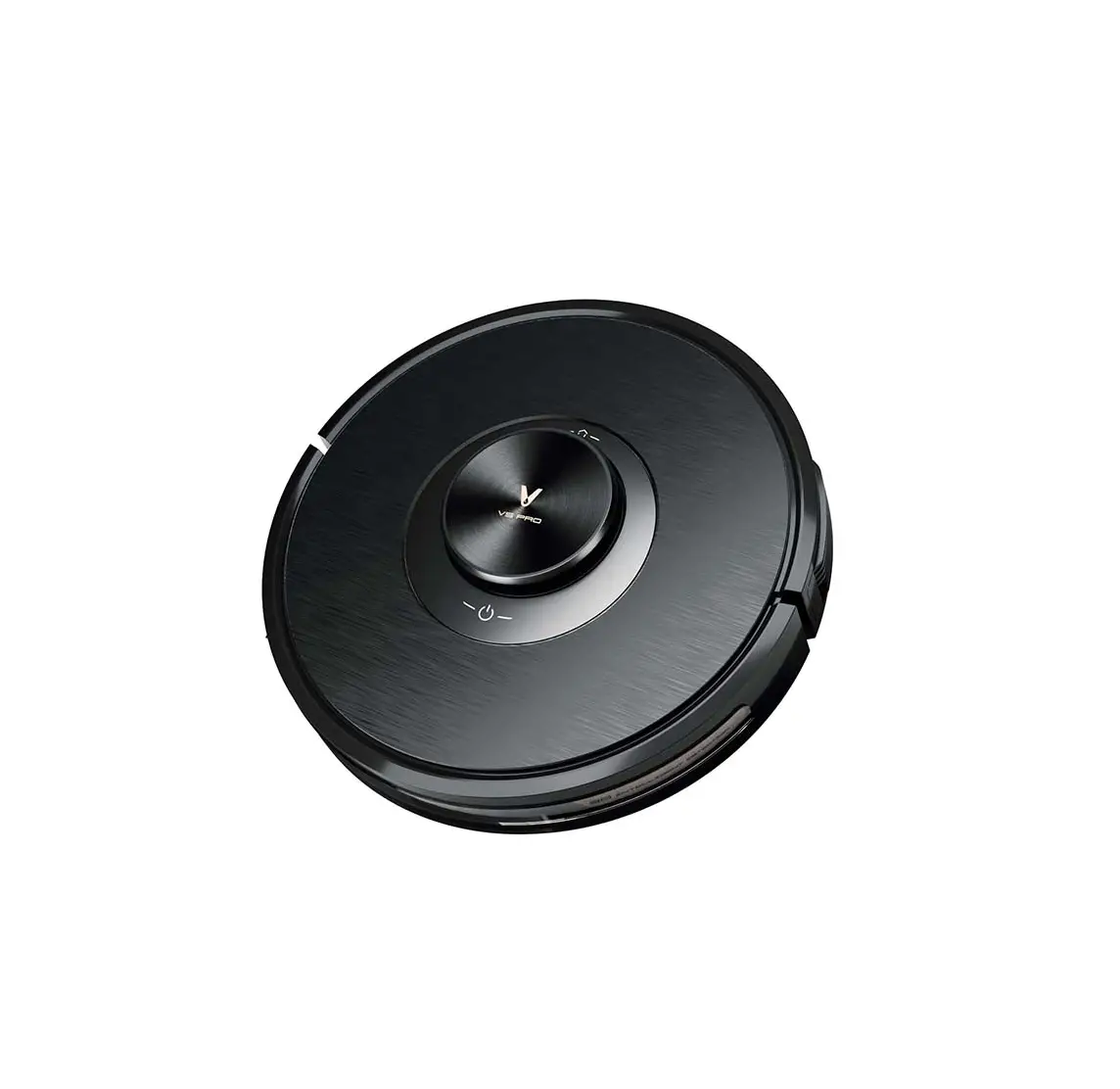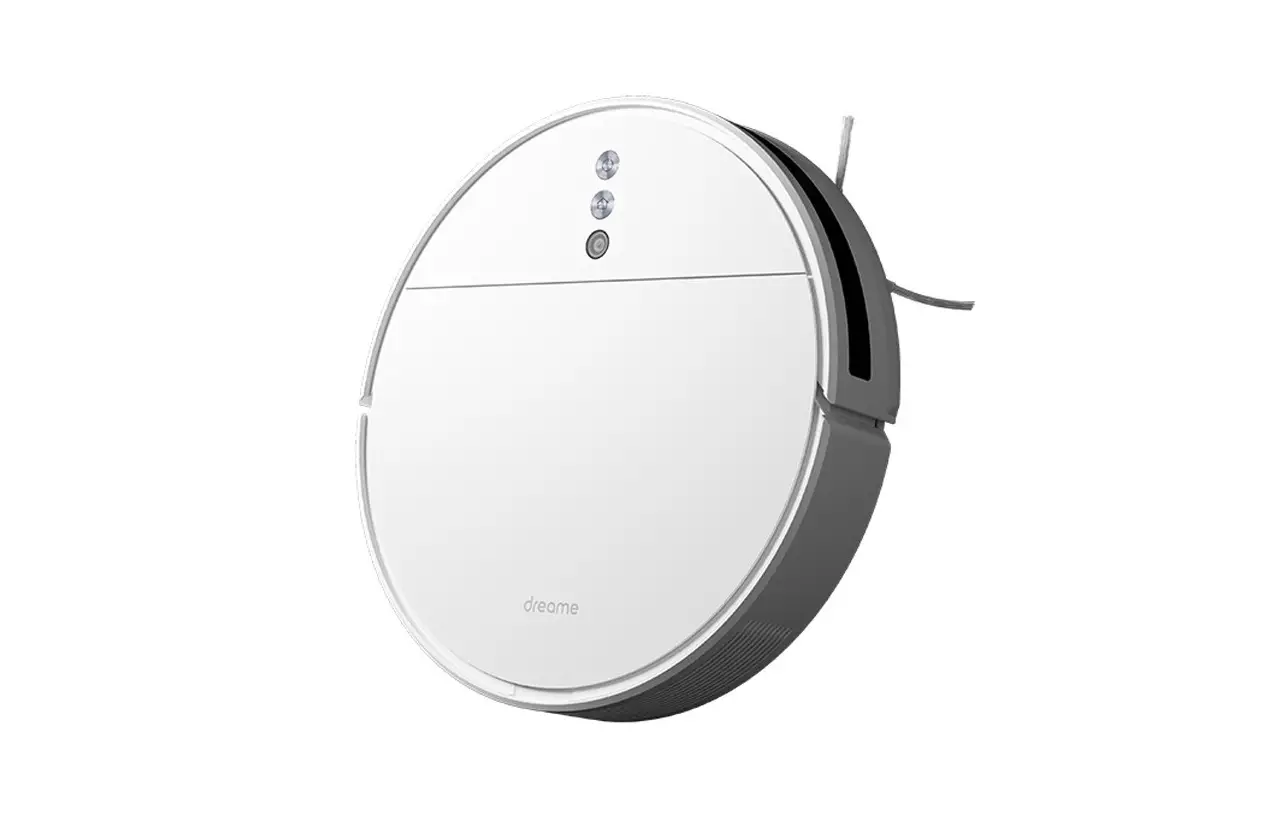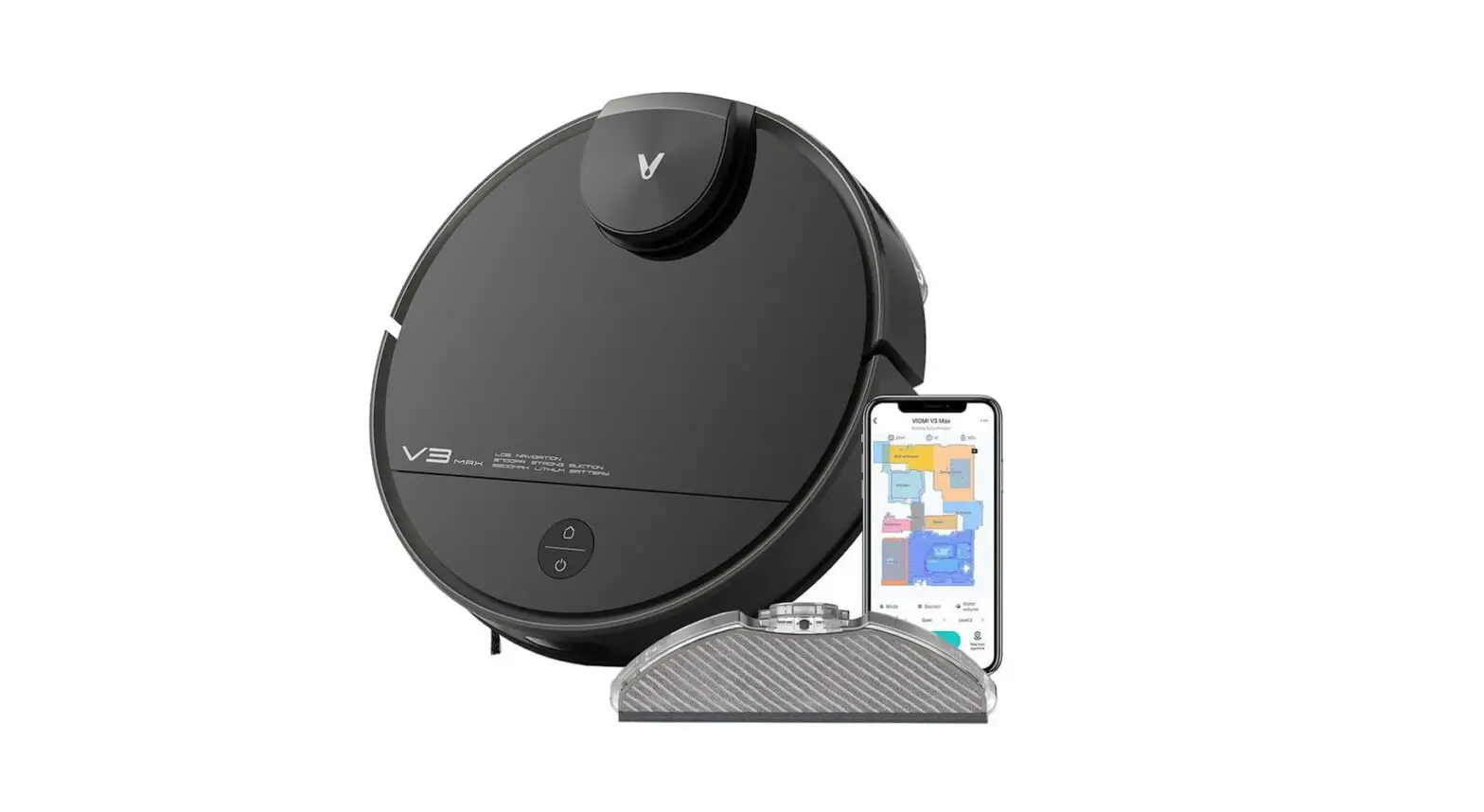

Viomi V3 Max


Viomi V3 Max User Manual
Safety Information
1. Instructions for use
Please pay attention to the following basic safety precautions before using the product:
- Read the user manual carefully and follow the instructions in the user manual when using the product.
- Keep the user manual well for future reference.
- If you need to transfer the product to a third party, please attach the user manual along with the product.
- Any operation not in conformity to the instructions in the user manual may result in serious personal injury or damage to the product itself.
 Warning: Instructions against incorrect product use that may lead to death or serious injury.Caution: Instructions against incorrect product use that may lead to minor injury or product damage.
 Read operator’s manual
2. Safety precautions
Warning
- This product can only use the adapter, batteries and charging dock that are provided with this product. Failure to do so may result in damage to the product, electrical shock, or fire caused by high voltage.
- Do not use this product if the host machine and accessories of this product are found to be damaged. Contact our after-sales service department Except for the service technicians designated or authorized by our company, no one may disassemble, repair or modify this product.
- Unplug the product before maintenance.
- Do not touch the power plug or the product when your hands are wet, as this may result in electrical shock.
- If the power cord is damaged, it must be replaced by the manufacturer, its service department or a similar professional to avoid danger.
- To prevent the product from falling accidentally, do not use this product in a suspended place without a protective fence, which may result in personal injury.
- The user shall not replace the batteries privately.
- Prevent clothing or any part of your body (hair, fingers, etc.) from getting caught in the brush or wheel of the vacuum cleaner. Failure to do so may result in personal injury.
- Do not place the product near fire or flammable/explosive/corrosive materials.
- If the user manual is missing, please contact your local dealer or call the after-sales service department to obtain an electronic user manual.
Caution
- This appliance contains batteries that are only replaceable by skilled persons.
- For the purposes of recharging the battery, only use with <BLJ38W240150P-V> detachable supply unit provided with this appliance.
- Check whether there are cigarette butts, matches and other inflammable and explosive items in the room. If there is one will need to manually clean up yourself before use of the robot. Flammable items inhaled sweeper, the body in the use of the process will heat damage sweeper.
- Clean edge brushes and rollers regularly, clean the dust box regularly, clean the filter regularly.
- The appliance must be disconnected from the supply mains when removing the battery.
- The battery is to be disposed of safely.
- This vacuum-mop is only intended to clean floors in a home environment. Please do not use it outdoors such as on an open balcony or on a surface that is not a floor like a sofa, or in a commercial or industrial setting.
- Prevent the suction of water, oil or other liquids, which may damage the vacuum cleaner.
- Arrange scattered wires on the floor before use for fear of affecting the normal operation of the vacuum cleaner.
- Remove fragile objects before use.
- The charging dock shall be placed against the wall and on a flat floor for fear of affecting product functionality.
- Unplug the charging dock if it remains unused for a long time.
- When the product is working, removal of the charging dock will affect the normal recharging of the machine.
- Do not use the product to suck in sharp objects (e.g. shattered glass and nails) for fear of damage to the product.
- Do not use the product at an ambient temperature above 40°C or below 0°C or in a wet, flammable, explosive or corrosive environment.
- Do not charge at an ambient temperature above 35°C or below 0°C.
- Do not pick up the product by its laser radar cover.
- Make sure the product is turned off and the charging dock is unplugged before cleaning or performing maintenance.
- Do not place children, pets, or any item on top of the product while it is stationary or moving.
- Do not spray any liquid into the vacuum-mop(make sure the dust compartment is thoroughly dry before its reinstalling).
- Do not place the vacuum-mop upside down (laser radar housing should never touch the ground).
- Only use this product as directed in the user manual or quick start guide. Users are responsible for any loss or damage arising from improper use of this product.
3. About child safety
- This appliance can be used by children aged from 8 years and above and persons with reduced physical, sensory or mental capabilities or lack of experience and knowledge if they have been given supervision or instruction concerning use of the appliance in a safe way and understand the hazards involved.
- Children shall not play with the appliance.
- Cleaning and user maintenance shall not be made by children without supervision.
- Please keep the main brush cleaning tools out of reach of children.
4. About the batteries

- This product contains a lithium-ion battery pack.
- Do not expose the appliance or battery to excessive temperatures.
- Be aware of the risk of terminals of the battery-operated appliance or battery being short-circuited by metal objects.
- Before disposing of the appliance, the battery must be taken out of the appliance. Take-out steps:
A. Use a screwdriver to loosen the screws of the side brush and the base decorative plate.
B. Remove the base trim panel.
C. Take out the battery and unplug the connection line between the battery and the host. - The batteries shall be removed when the product is discarded.
- If you need to replace the battery of the host machine, please contact our after-sales service department. Use of wrong batteries may cause a safety accident.
- If the batteries leak, prevent the contact of the liquid with the skin or clothing. Immediately wipe it with a dry cloth and send it to the recycling station or designated maintenance point. Do not discard it.
- Please properly dispose of the old batteries of the product The batteries contain hazardous substances harmful to the environment. Please follow the local environmental regulations and send them to the designated recycling site.
5. Scope of use of the product
The product is suitable for the following floors:
Wooden floor, Ceramic tile and Short-staple carpet.
6. Disclaimers
Under any of the following circumstances, the product will be excluded from the scope of free warranty, but paid repair can be provided:
A. Damage due to the user’s failure to operate the product in strict accordance with our user manual or due to improper storage;
B. The machine or parts have exceeded the free warranty period;
C. Damage due to disassembly by those other than the maintenance personnel of our company or authorized by our company;
D. A valid purchase voucher number cannot be provided;
E. Damage caused by irresistible factors such as natural disasters;
F. Product failure or damage caused by unexpected factors or man-made causes (including operational errors, liquid ingress, improper plugging/unplugging, scratching, handling, bumping, input of inappropriate voltage, etc.)
Product Overview
1. Product & Accessories List
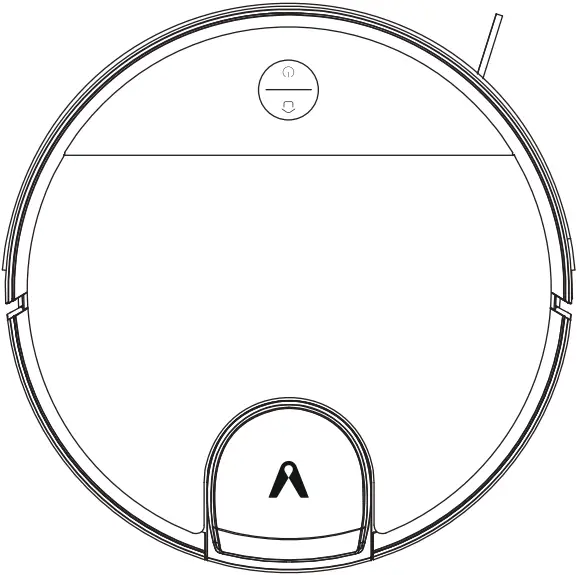
Viomi V3 Max
Vacuum-Mop Accessories
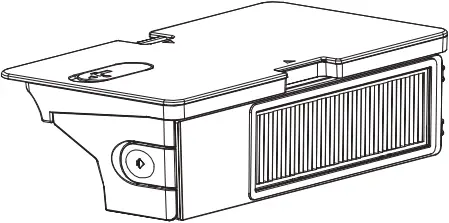
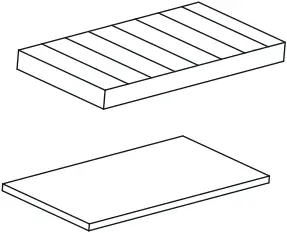
2-in-1 Dust Compartment Filter Combination
with Water Tank
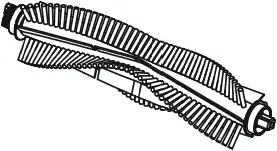
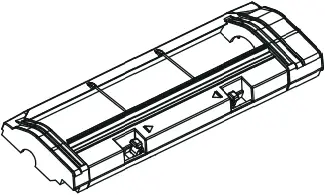
Main Brush Main Brush Guard
Accessory Box Contents
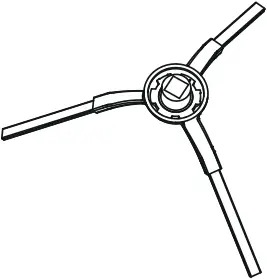
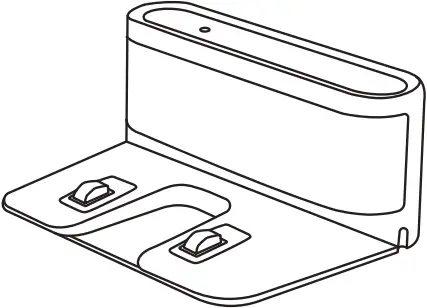
Side Brush (x2) Charging Dock
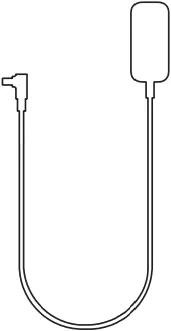
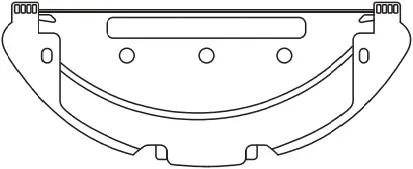
Power Adapter Mop Holder
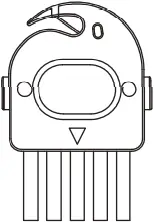
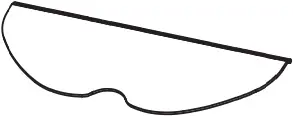
Cleaning Brush Wet Mop(x2)
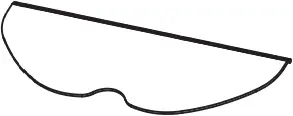
Disposable Mop(x10)
Note: Illustrations of product, accessories, and user interface in the user manual are for reference purposes only Actual product and functions may vary due to product enhancements.
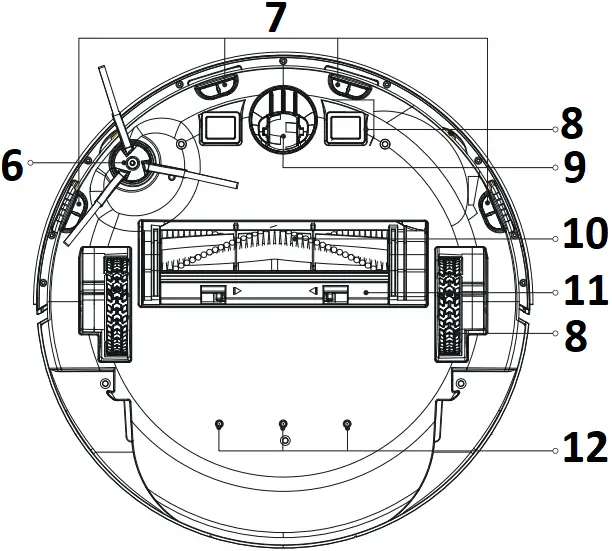
2. Machine and its sensors
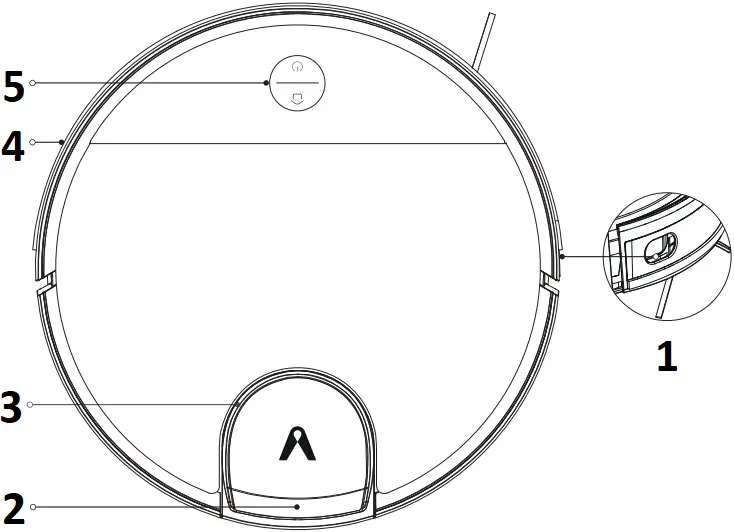
- Along-wall sensor
- Lidar module
- Pressure sensor
- Collision bumper
- Function Buttons
- Side brush
- Anti-drop sensor
- Caster
- Charging electrode
- Rolling brush
- Rolling brush cover
- Water outlet
 Dock
Dock
- Press to return for charging Press again to pause.
 Power / Cleanup Button
- Press to start/pause cleaning
- Press and hold for 3 seconds to turn on or off (Not charging state)
- Press and hold for 10 seconds to force shutdown(Not charging state)
+ Dock + Power/ Cleanup Button
- Press and hold both buttons simultaneously for 3 seconds to reset Wi-Fi connection.
- Press and hold both buttons simultaneously for 10 seconds to restore factory settings (For more details, please refer to >Installation>Restoring factory settings).
Indicator Status
| Blue | Working /Standby | Breathes blue | Starting up |
| Blinks fast blue | Waiting for the network configuration | Blinks fast red | Error |
| Blue blinks slowly | Upgrading firmware / Restore factory settings | ||
Indicator Status
| Breathes yellow | Charging | Blinks slowly yellow | Recharging/low battery |
3. Machine and 2-in-1Dust Compartment with Water Tank
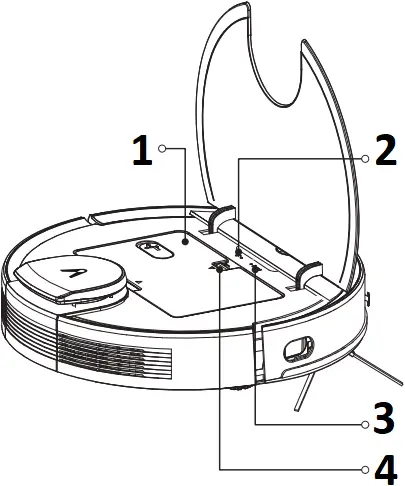
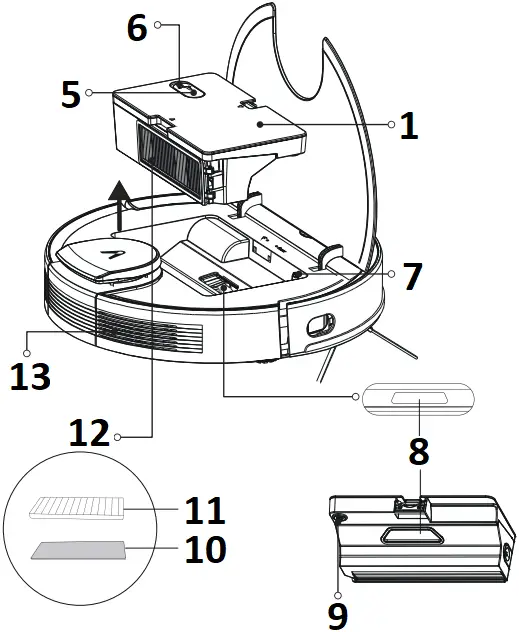
- 2-in-1Dust Compartment with Water Tank
- Wi-Fi indicator:
Blinking slowly white: Wait for connection
Blinking fast white: Being connected to Wi-Fi
White: Wi-Fi connected - Reset button
- Button for taking out 2-in-1Dust Compartment with Water Tank
- Water inlet cap
- Water inlet
- Water outlet adapter
- Suction inlet
- Water tank outlet
- Foam filter
- High-performance filter
- Filter
- Air outlet
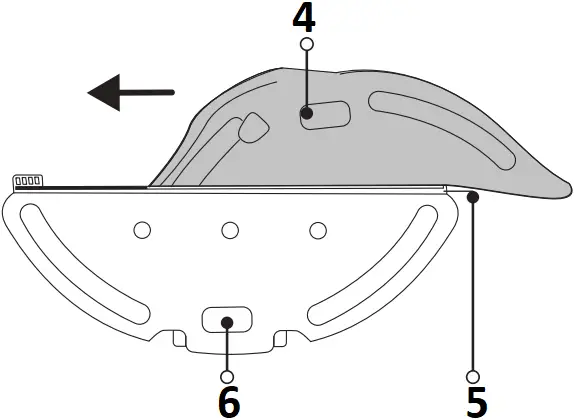
4. Mop module
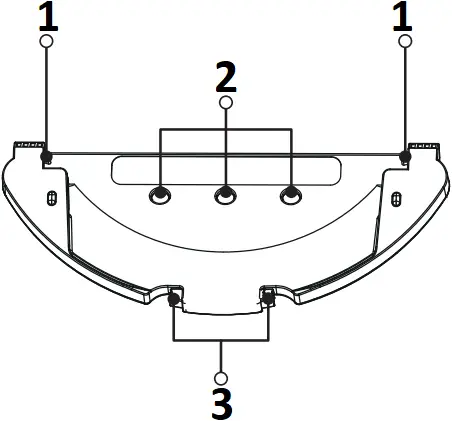
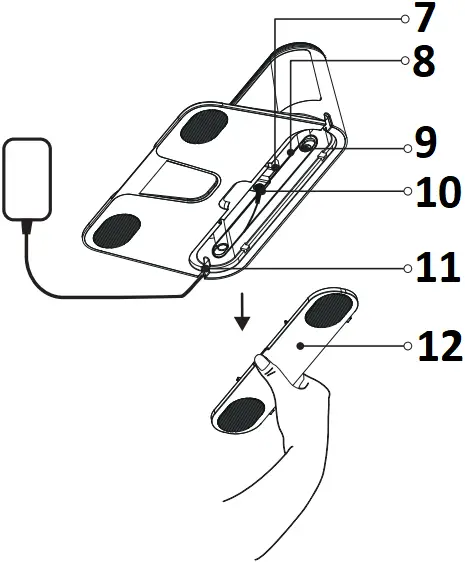
- Buckle
- Water outlet
- Removal button
- Mop
- Slot
- Stick a mop here
- Power cord take-up bin
- Power cord
- Wiring terminal
- Power socket
- Wire outlet
- Cover
5. Charging dock
Charging dock indicator
White: The charging dock has been connected to a power supply (when the machine is not connected to the charging dock)
White light off: The machine is correctly connected with the charging dock.
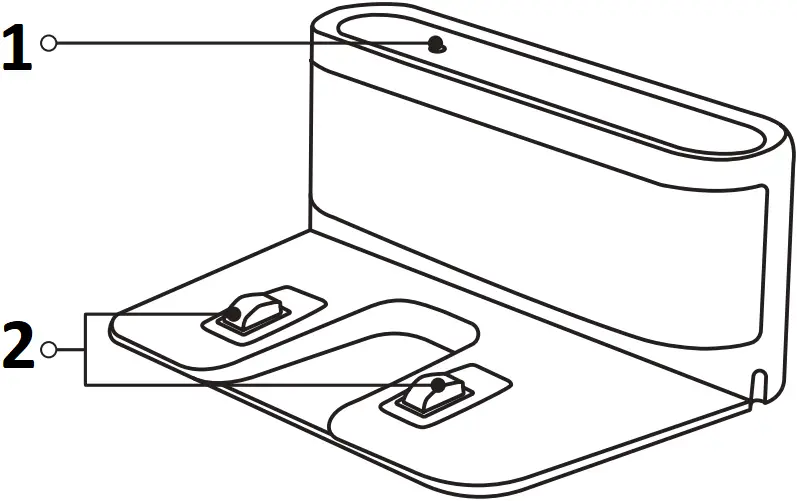
- Status indicator
- Charging electrode
Installation
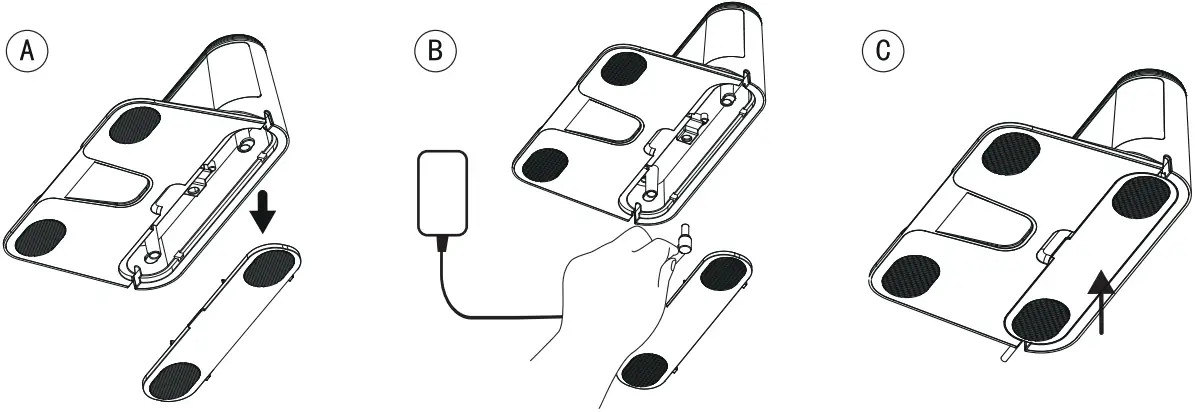
1. Connect the charging dock with the adapter. Prevent the adapter wire from winding the machine during sweep.
2. Based on your personal needs, decide whether to install a waterproof pad. After installation, connect the adapter to the wall socket and keep the power on.
The waterproof pad is not included with the product, this accessory needs to be purchased separately.
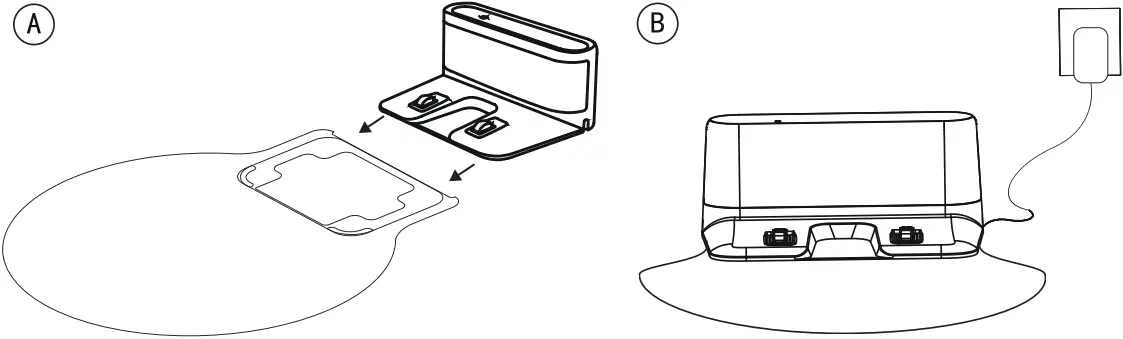
Waterproof pad (optional)
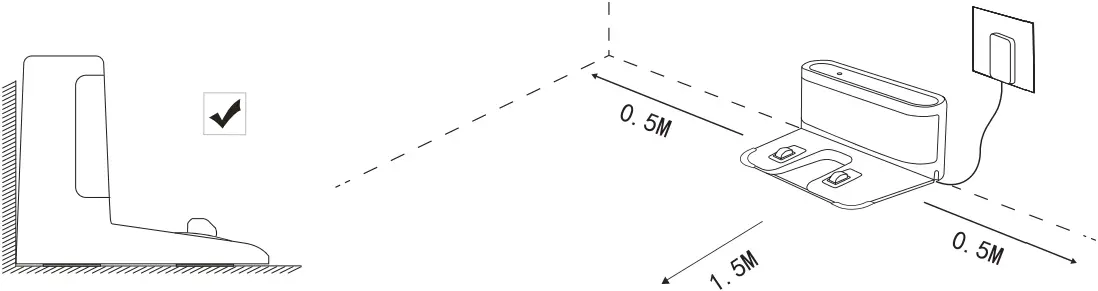
3. Place the charging dock on a flat hard ground perpendicular to a wall and keep it clear of obstacles within 1.5 meters in front of it and within 0.5 meters on its left and right.
Note:
- Install the charging dock at a location easily accessible by the machine. It is recommended to place the charging dock on a hard ground, instead of a carpet, against a wall.
- Keep the charging dock powered, or the machine will not automatically return
- To ensure normal charging, do not move the charging dock frequently. Once the machine location is changed, the machine may regenerate a map due to repositioning failure.
4. Startup and charging
Press and hold on the machine for 3 seconds to turn it on. Before use for the first time, the machine shall be fully charged (about 4 hours) to ensure normal operation.
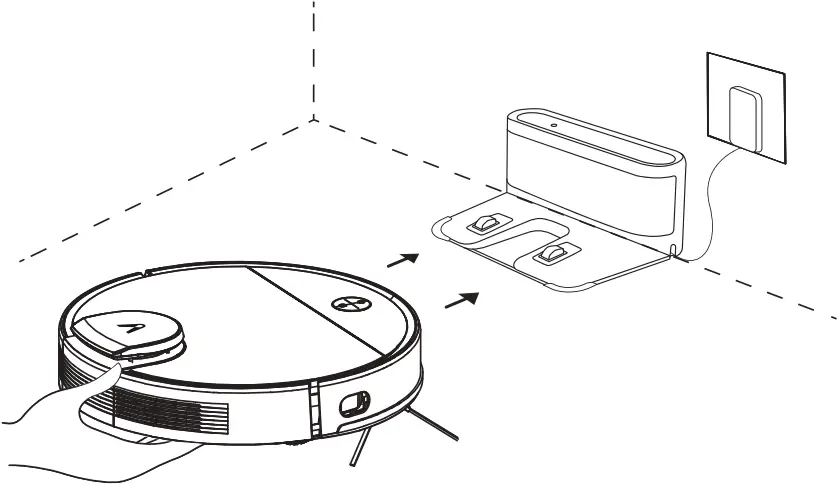
- Place the machine on the charging dock and align it with the charging port.
When the white indicator on the charging dock goes off, charging will begin.
Note:
- You may not be able to start the machine when the battery is low. Please fully charge it and try again.
- To ensure the service life of the battery, please charge and discharge at least once every six months.
5. Start sweep by operating it from the app or pressing manually.
The machine automatically returns to the charging dock for charging under the following conditions:
A. The machine has completed sweep;
B. Sweep has not been completed yet but the battery power level is insufficient; Once the battery is charged to 80%, the machine will resume to complete the remaining sweep work.
Note:
- Do not move the charging dock during sweep, and make sure the charging dock is powered on, or the machine may not be able to return for charging.
- If automatic recharge fails, you shall manually connect it to the charging dock.
- Do not place the charging dock in an area with direct sunlight.
- If the vacuum-mop is unable to turn on due to low battery place it directly onto the charging dock to recharge.
- The vacuum-mop will automatically turn on when it is on the charging dock.
- The vacuum-mop cannot be turned off when it is on the charging dock.
- Remove the water tank and mop holder when the vacuum-mop is charging or not in use.
- Use the virtual wall or set restricted areas for carpeted areas to prevent the vacuum-mop from getting caught on the carpet
- Regularly clean the dust compartment to prevent excess dirt accumulation. This can avoid reducing the cleaning performance of the vacuum-mop.
System reset
- If the machine does not respond after pressing any button thereon, it is an option to reset the system.
- Ensure that the machine is not on the charging dock;
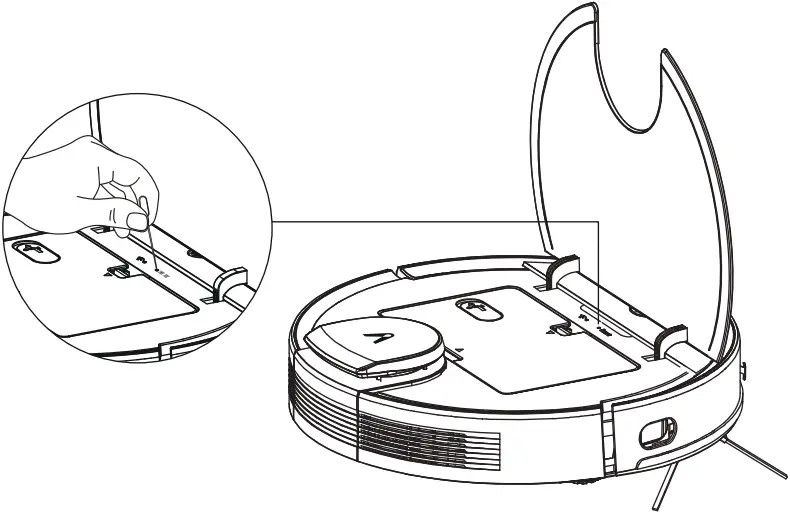
- Press the reset button with a paper clip and the machine will shut down automatically.
- Connect the machine to the charging dock or press and hold the key
 for 3 seconds to turn it ON and system reset will be completed.
Note:
- After resetting the system, the machine may lose maps and original settings including the virtual boundary.
Restoring Factory Settings
When the machine is not charging, press and hold both + buttons for 10 seconds. When you hear a voice saying “Factory settings will be restored”, press and hold the buttons again for 10 seconds until it says “Factory settings restored successfully”, the settings are successfully restored, all user data will be cleared.
6. Use of mop module
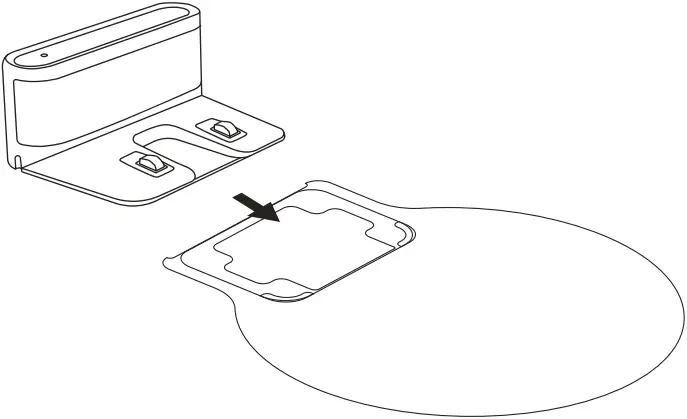
(1) Install the charging dock on the waterproof pad (optional).
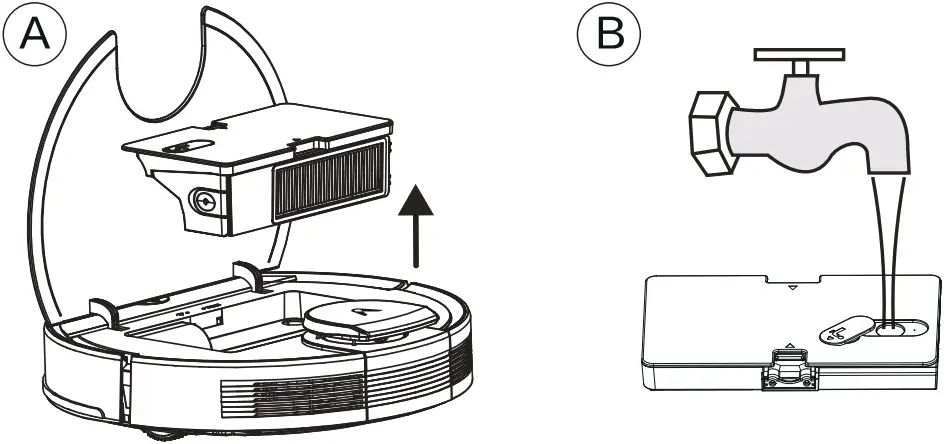
(2) Take out the water tank and add water.
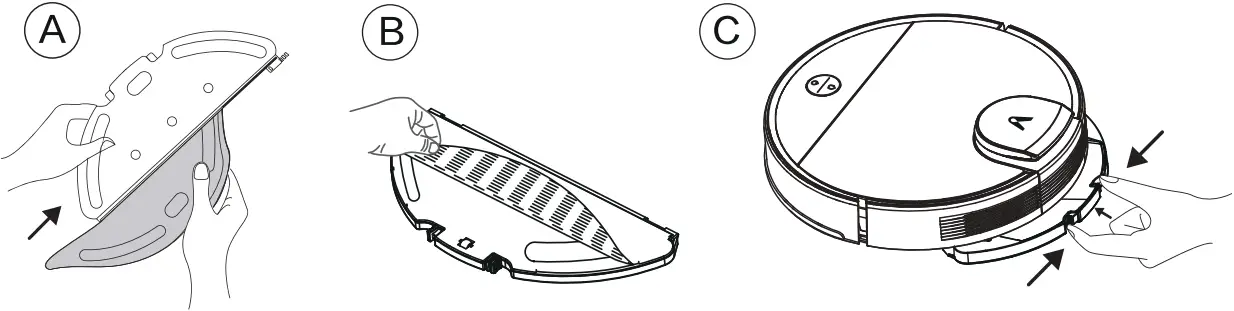
(3) Install the mopping cloth on its holder, and then install the holder to the machine bottom. (In order to ensure mopping results, the machine’s obstacle-crossing performance will be reduced after the mopping cloth is put in.)
(4) Select a sweep mode to start sweep, and select the amount of mopping water (3 levels) in the app as necessary. (To prevent the machine from wetting any of your carpets when mopping your floor, it is recommended to place virtual wall (for no mopping) around carpet areas using the app to protect your carpets)
(5) When the machine returns to the charging dock after completing its work, hold buckles on both sides by hand and drag backward to remove the mop module.
Note:
- Please do not use the mopping mode on any carpet.
- It is recommended to wash the mopping cloth after each mopping.
- When the machine is being charged or idle, please remove the mop module.
- In order to achieve better mopping results, it is recommended to sweep your floor with the machine before installing the mop module.
- To avoid damaging your wood floor, please make sure to take out the mop module immediately after floor mopping is complete. Or install the charging dock onto the waterproof pad (optional).
- When mopping is paused or finished, the machine will automatically cut off water. However, the mopping cloth remains wet and should not be left in place for too long but removed in time.
- Do not use any detergent, disinfectant or solid cleaning agent, which may corrode or block the 2-in-1 tank. Clean the nozzle filter regularly.
- Do not rinse or soak the tank! Do not fill the tank with hot water, which may cause it to deform.
- When filling up with water, be sure to remove the tank separately, and fill it only with clean water at small flow rate through the inlet.
- Due to quality testing there may be a little water in the tank, which is acceptable.
Connect with Mi Home/Xiaomi Home App
This product works with Mi Home/Xiaomi Home app*. Control your device, and interact it and other smart home devices with Mi Home/Xiaomi Home app.

Scan the QR code to download and install the app. You will be directed to the connection setup page if the app is installed already. Or search ”Mi Home/Xiaomi Home in the app Store to download and install it.
Open Mi Home/Xiaomi Home app, tap “+” on the upper right, and then follow prompts to add your device.
- The app is referred to as Xiaomi Home app in Europe. The name of the app displayed on your device should be taken as the default.
Note:
The version of the app might have been updated, please follow the instructions based on the current app version.
Resetting Wi-Fi
When switching to a new router or changing your Wi-Fi password, you will need to reset the vacuum-mop’s Wi-Fi connection. Turn on the vacuum-mop, then simultaneously press and hold the buttons and for 3 seconds until you hear a voice saying “Waiting for the network configuration”. Once the Wi-Fi connection is successfully reset, you can reconnect the vacuum-mop.
Note:
- Only the 2.4GHz band, but not the 5GHz one, is supported in the Wi-Fi connection.Please switch to the 2.4GHz band if your Wi-Fi network is dual-band and try again.
- If the connection between your phone and robot vacuum fails, you can reset Wi-Fi again and add it again after entering the network configuration mode.
- As version upgrade and update may be made, please follow internal guidelines in the app for operation.
How to Use
Turning On/Off
When the vacuum-mop is on the charging dock, it will automatically turn on and cannot be turned off.
To manually turn on the vacuum-mop, press and hold the button until the indicator lights up. When the vacuum-mop is in standby mode and not on the charging dock, press and hold the button to turn it off.
Cleaning
Turn the vacuum-mop on, then press the button . Depending on the accessory installed, the vacuum-mop will automatically begin vacuuming or mopping.
Recharging
Turn the vacuum-mop on, then press the button to send the vacuum-mop to the dock to recharge.
When the vacuum-mop completes the cleaning task, it will automatically return to the dock for recharging, and the indicator is blinking yellow. If the vacuum-mop starts running low battery during a cleaning task, it will automatically return to the charging dock to recharge. Once the vacuum-mop is fully charged, it will resume cleanup where it left off.
If the vacuum-mop automatically shuts down due to low battery, manually place it onto the charging dock, and make sure the charging terminals have a good contact.
Pausing
While the vacuum-mop is running, press any button to pause it, then press the button to resume cleaning. Pressing the button will end the current cleaning task and send the vacuum-mop back to the charging dock.
Zoned Area
You can use the app to set up the zoned area, then the vacuum-mop will clean up within the zoned area you selected.
Sleep Mode
The vacuum-mop will automatically enter sleep mode after 5 minutes of inactivity To wake it up, press any button or use the app.
- The vacuum-mop will not enter sleep mode while on the charging dock.
- The vacuum-mop will automatically turn off after being in sleep mode for 6 hours.
Fault Status
If the vacuum-mop encounters an error during operation, the indicator will blink red and you will hear a voice alert. To check for a solution, please refer to the Troubleshooting section.
If no action is taken within 5 minutes the vacuum-mop will automatically enter sleep mode.
Adding Water or Cleaning Mop During Cleaning
If you need to add more water to the vacuum-mop or clean the mop during a cleaning task, press any button to pause the vacuum-mop then remove the water tank. After adding water or cleaning the mop, reinstall the water tank and mop, then press the button to resume the cleaning task.
Cleaning Preferences
Four suction modes are available in the Mi Home/Xiaomi Home app: Silent, Standard, Medium, and Turbo. The default mode is Standard.
Do Not Disturb Mode
In the Do Not Disturb mode, the vacuum-mop will not resume cleanup, perform scheduled cleanup, or issue voice alerts. Do Not Disturb Mode is enabled by default and can be disabled via the app.
Resuming Cleanup
The vacuum-mop has a feature of resuming cleanup. If the vacuum-mop starts running low battery during a cleaning task, it will automatically return to the charging dock to recharge. Once the vacuum-mop is fully charged, it will resume cleanup where it left off. If the cleaning task is manually ended while the vacuum-mop is charging, cleanup will not be resumed.
Clean There
You can set a specified area on the map via the app, then the vacuum-mop will automatically navigate to the area and clean a square-shaped area of 2 x 2 meters.
Scheduled Cleanup
You can schedule cleaning times in the app. The vacuum-mop will automatically start cleaning at the scheduled times, then return to the charging dock after the cleaning is completed.
Note: The vacuum-mop will not do the scheduled cleanup during the Do Not Disturb period if Do Not Disturb mode is enabled.
Virtual Walls/Restricted Areas
You can set up virtual walls and restricted areas in the app to prevent the vacuum-mop from entering areas you wish not to clean.
Smart Mapping
You can use the app to enable smart mapping. This allows the vacuum-mop to automatically update its map after completing a cleaning task and recharging.
Care & Maintenance
1. Clean the 2-in-1Dust Compartment with Water Tank
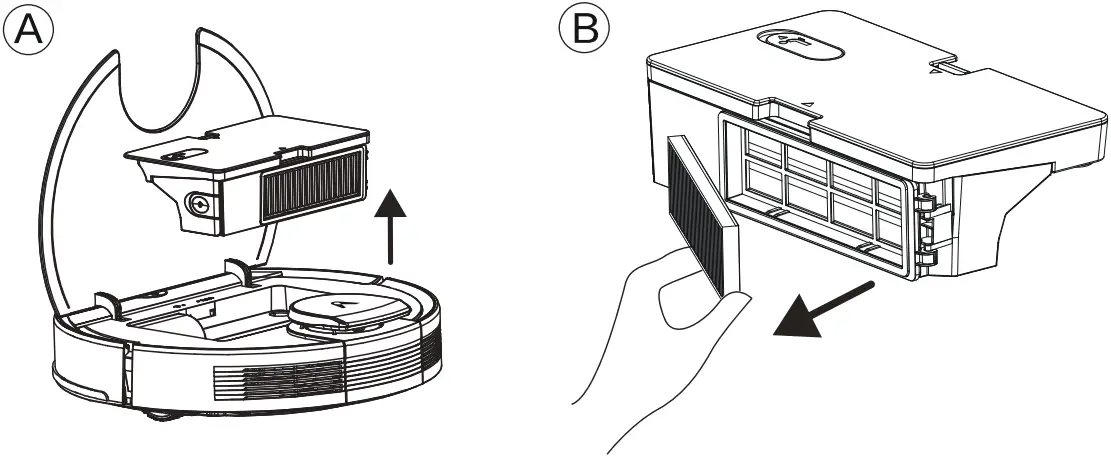
A. Open the machine top cover and remove the 2-in-ldust compartment with water tank. Remove the filter module.
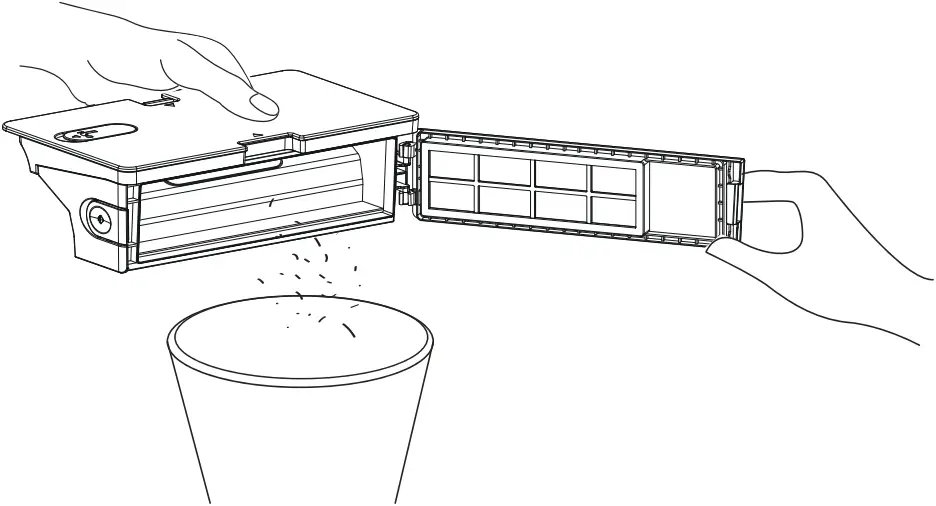
B. Empty the dust box. Put the dust box against a dustbin, tap the box to knock off excess dirt.
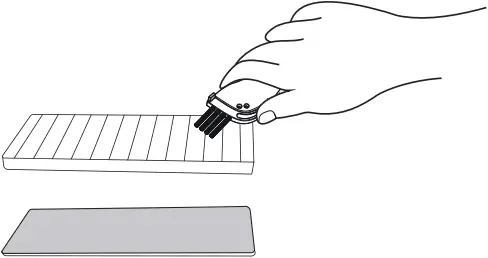
C. Disassemble the removed filter, remove the foam filter and high-performance filter, and clean filters with a cleaning brush.
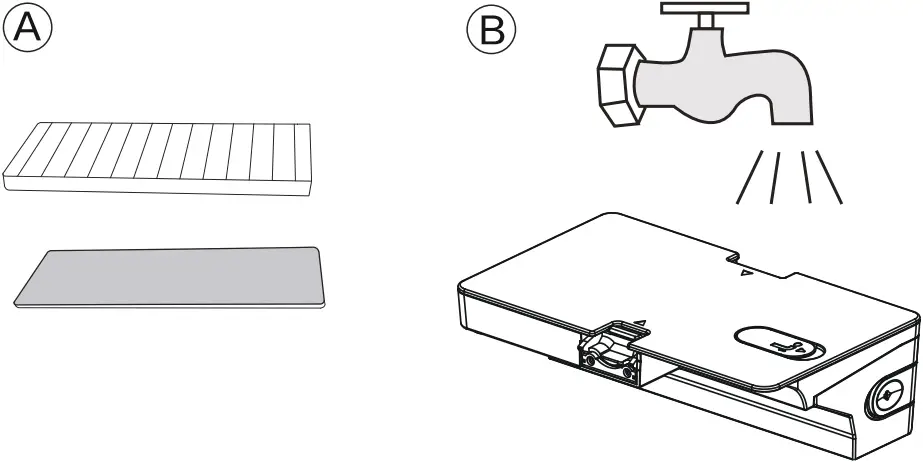
D. Flush the water tank, dust box and filter module thoroughly with water as necessary.
Note: Filters shall not be cleaned with hot water or detergent.
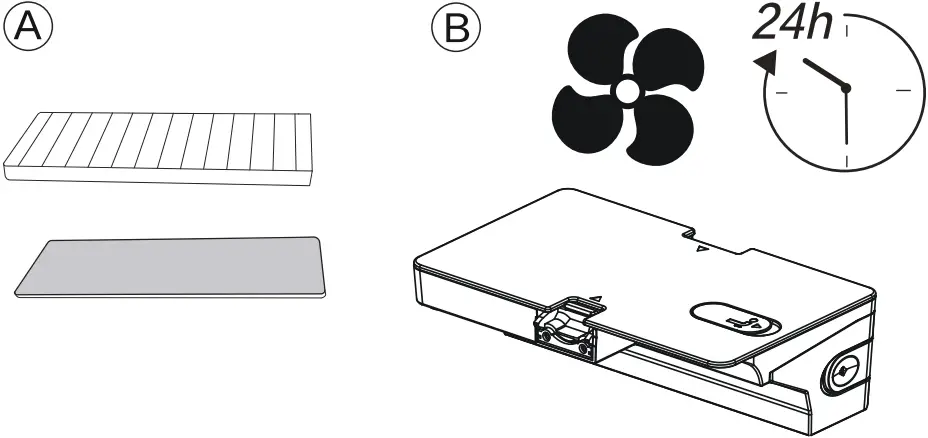
E. After cleaning, the 2-in-lDust Compartment with Water Tank and the filter module shall be thoroughly air-dried.
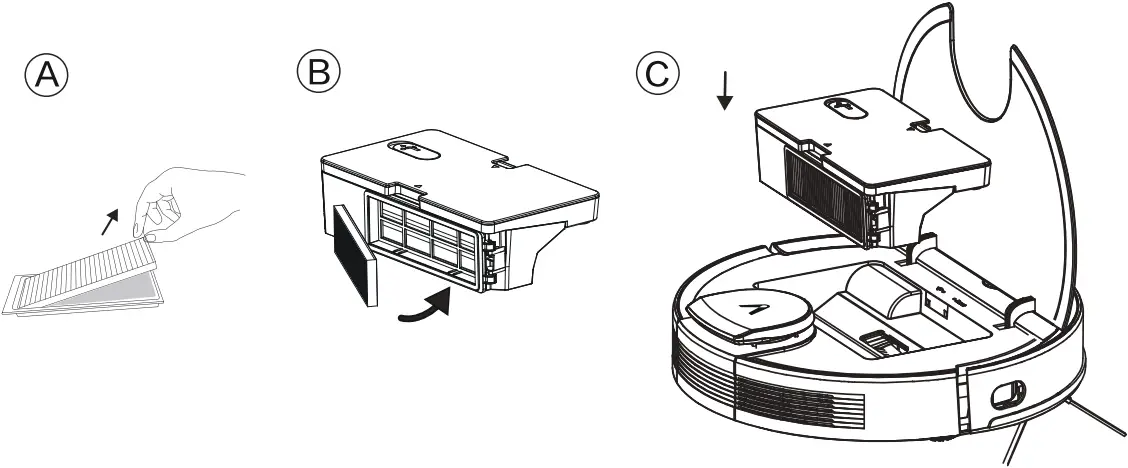
F. Reassemble the air-dried 2-in-1Dust Compartment with Water Tank and filter module, and install them back into the machine.
2. Clean the main brush
A. As shown in the following figure, press down the buckle to take out the protective cover, and take out the rolling brush upwards.
B. Clean the rolling brush with cleaning tools included in the accessories.
C. Put one end of rolling brush into the corresponding hole first.
D. Press the brush cover and fix it with the buckle.
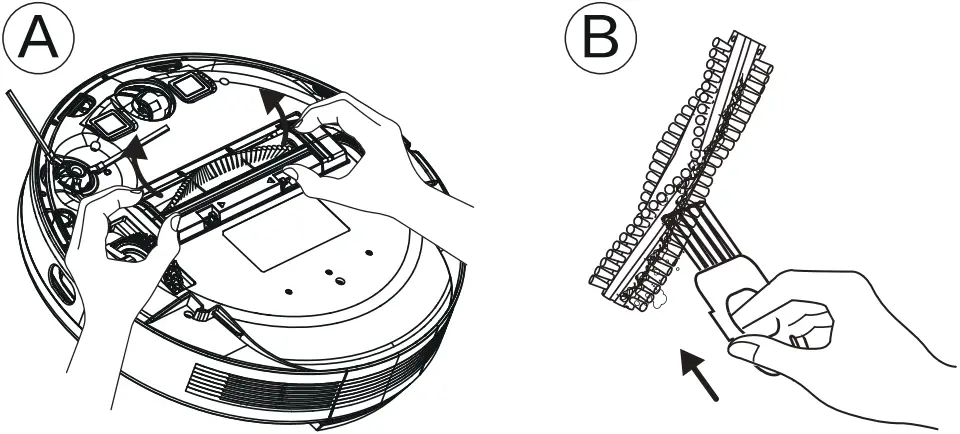
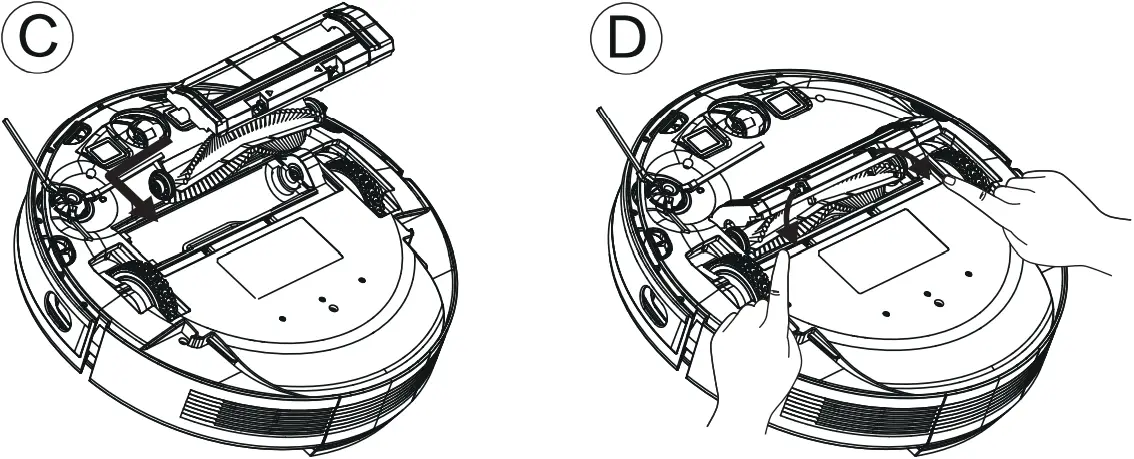
3. Clean its side brush
Foreign matter such as hair is easily tangled in a side brush, and dirt may attach to it. Please be sure to clean it regularly.
A. Turn over the machine and remove screws with a Phillips screwdriver.
B. Remove side brushes, clear them of hair or foreign matters, and decide whether to use a wet cloth based on your personal needs.
C. Install side brushes back and tighten screws.
Note:
- It is recommended to replace side brushes every 3-6 months to ensure cleaning results.
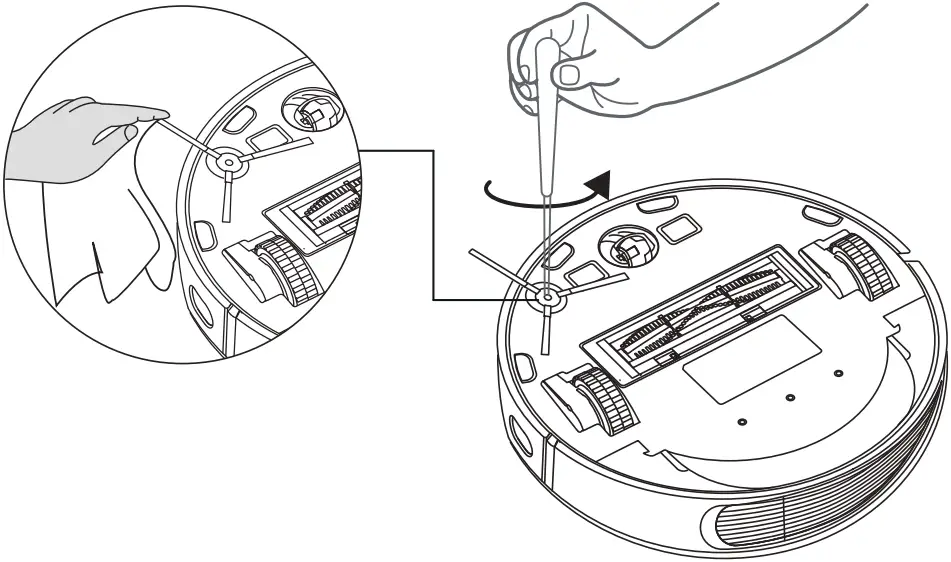
4. Clean casters
Hair or dust particles tend to be entangled around casters. Clean them regularly or as needed.
A. Pull up casters to take them out.
B. Clean any hair or sundries entangled around casters or in any caster chamber.
C. Reinstall casters and push them in till they click into place.
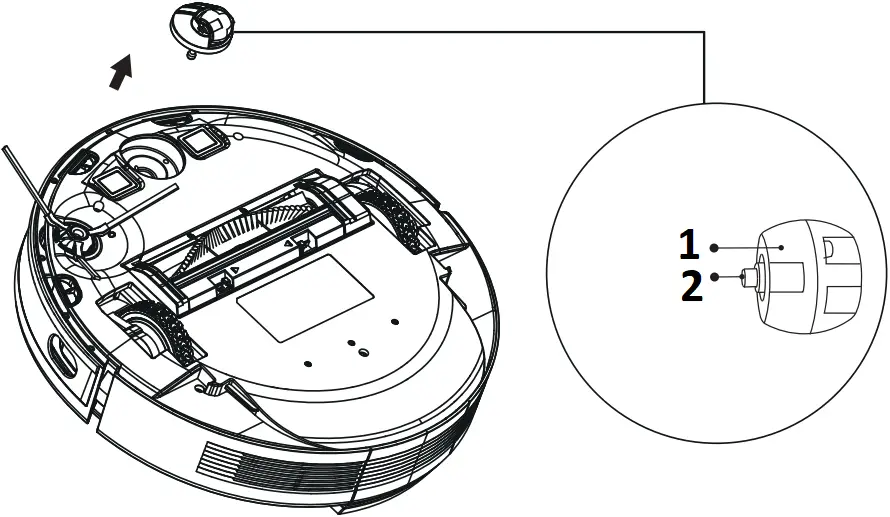
- Caster
- Shaft
5. Clean sensors and charging electrodes
In order to ensure optimum operating conditions, please clean sensors and charging electrode regularly, and wipe dust off them with a soft dry cloth or sweep brush.
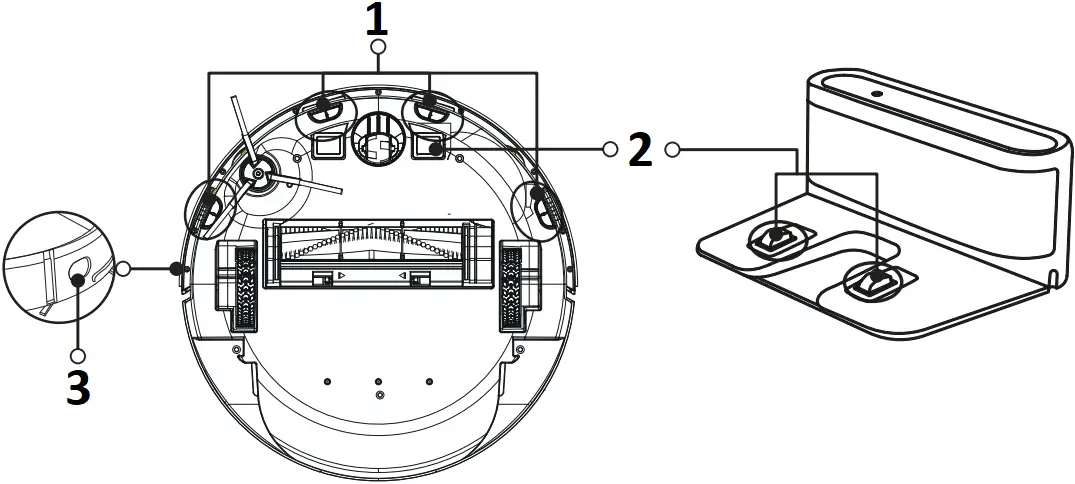
- Anti-drop sensor
- Charging electrode
- Along-wall sensor
6. Clean the mop module
It is recommended to empty the water accumulated in the water tank, wash the mopping cloth with water, and air dry it after using the mop module every time to avoid mildew or peculiar smell.

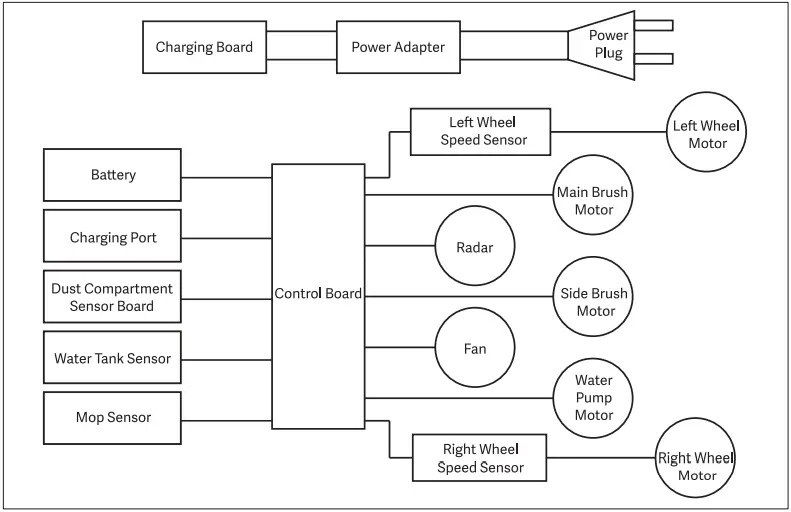
Electrical Diagram
FAQ
When the machine fails, the red indicator on the machine will blink and relevant voice prompts will be heard.
Follow the voice prompts to resolve your problem.
| Voice Prompts | Solution |
| Please check and remove any foreign matter from the collision sensor. | The collision sensor is stuck. Please tap repeatedly to remove foreign matters. If there is no foreign matter, please relocate it and then start it. |
| Please check whether the main wheel is stuck. | If any wheel is stuck, please check whether any foreign matter is stuck in the wheel, or move it to near its home position to start it. |
| Please check whether the side brush is stuck. | The side brush may be entangled with foreign matters. Please clean and restart it. |
| Please check whether the main brush is stuck. | The rolling brush may be entangled with foreign matters. Please remove and clean it, its connections, its cover and the suction inlet. |
| Please remove any obstacles around the vacuum-mop and try again. | The machine is trapped. Please clear obstacles around. |
| Please wipe the cliff sensors clean and move the vacuum-mop to a new location to start. | The machine may be suspended. Please relocate it and start. If the cliff sensor is too dirty, it may also cause the fault. Please wipe the cliff sensor to eliminate the fault. |
| Please place the vacuum-mop on floor to start. | A wheel is suspended. Please move it to near its home position to start it. |
| Low power and power off. | The power is too low, and the system is about to shut down automatically. Please charge it. |
| Please confirm whether the recharge sensor is blocked. | The recharge sensor is covered by dust. Please wipe it. |
| Please wipe the wall sensor in the right side. | The right wall sensor is blocked. Please wipe it. |
| Please move the vacuum-mop to a level surface and start again. | The machine is tilted during startup. Please put the machine on the horizontal ground to start. |
| Please make sure the 2-in-1 dust compartment with water tank has been installed. | Please install the 2 in 1 water tank and filters back, and make sure that filters and the 2 in 1 water tank are installed in place. Then please restart the machine. |
| Please start it up again away from the restricted area. | The machine is too close to a restricted area during starting. Please relocate it to start. |
| The radar cover is squeezed. | The pressure sensor for laser cover is pressed or stuck. Please relocate it to start. |
| Please confirm whether the laser distance sensor is stuck or entangled. | The laser distance sensor is stuck by foreign matter. Please clear it. |
| Please make sure the laser distance sensor is not blocked. | The laser distance sensor is blocked, please clear the blocking. Too spacious environment and multi-reflection environment such as metal mirrors also affect the normal operation of a laser distance sensor. Please relocate it to start. |
| There seems to be something wrong with the battery. |
|
| Main wheel has problem. |
|
| Side brush has problem. |
|
| There seems to be something wrong with the fan. |
|
| Main brush has problem. |
|
| There seems to be something wrong with the pump. |
|
| There seems to be something wrong with the laser distance sensor. |
|
Troubleshooting
When any abnormality occurs to the machine in operation, the power indicator will blink fast in red and voice prompt will be provided. Please consult the following table for troubleshooting.
| Fault | Solution |
| Cannot start the machine. |
|
| The machine suddenly stops working. |
|
| Cannot make a sweep schedule. |
|
| Suction too weak. |
|
| Cannot charge the machine. |
|
| The machine cannot return to the charging dock. |
|
| The rolling brush does not rotate. |
|
| Abnormal action or sweep route of the machine. |
|
| No water released during mopping. |
|
Specifications
Vacuum-Mop
| Model | V-RVCLM27A/V-RVCLM27B |
| Dimensions | ϕ350 x 105 mm |
| Rated Input Voltage | 24 V⎓ |
| Rated Input Current | 1.5 A |
| Rated Power | 35 W |
| Battery Capacity | 5200 mAh |
| Battery Voltage | 14.4 V⎓ |
| Net Weight | 3.6 kg |
| Wireless Connectivity | Wi-Fi IEEE 802.11b/g/n 2.4 GHz |
| Operation Frequency | 2412-2472 MHz |
| Maximum Output Power | ≤18.5 dBm |
Charging Dock
| Model | V-RVCLM27A/V-RVCLM27B |
| Rated Output Voltage | 24 V⎓ |
| Rated Output Current | 1.5 A |
| Dimensions | 197 x 143 x 84 mm |
Power Adapter
| Model | BLJ38W240150P-V |
| Input | 100-240 V~, 50/60 Hz, 1.0 A |
| Output | 24V⎓ 1.5 A |
- Our company reserves the right to make any technical or design changes to the product due to continuous product improvement needs.
- The right of interpretation belongs to our company.
- Under normal use of condition, this equipment should be kept a separation distance of at least 20cm between the antenna and the body of the user.
Faults in Wi-Fi connection
If you fail to control the machine with your smartphone, please try the following solutions.
If the problem persists, please contact our customer service.
| Wi-Fi Status Indicator | Cause | Solution |
| White indicator normally on | The machine has been connected to the router, but cannot connect to the network. |
|
| Flashing rapidly in white | The machine cannot connect to your wireless router. |
|
| Flashing slowly in white | Your Wi-Fi connection has been reset or not yet set previously |
|
| Off | The machine is powered off. The machine power is low. |
|
Note:
- Before setting up Wi-Fi, ensure that the machine and your Wi-Fi network meet the following requirements.
Wi-Fi setup requirements:
A. Machine:
- Machine fully charged.
- Wi-Fi status indicator white and flashing slowly.
B. Wi-Fi network:
- Use the correct wireless network password.
- Do not use any VPN (Virtual Private Network) or proxy server.
- Your Wi-Fi router supports 802.11b/g/n and IPv4 protocols.
- The band of your router is 2.4GHz or use a dual-band router supporting 2.4GHz band. The machine does not support the 5GHz band.
- If the machine cannot connect in the 2.4/5GHz dual-band Wi-Fi network, please switch to the 2.4G Hz network for Wi-Fi settings. After setting is completed, you can switch it back.
- When connecting to a hidden network, be sure to enter the correct network name
—SSID (case sensitive) and connect to a 2.4GHz wireless network. - When using a wireless extender/repeater, be sure that the network name (SSID) and password are the same as the main network.
- Set the firewall and ports of Wi-Fi router to allow machine to connect with the app server.
Network security requirements:
- WPA and WPA2 networks encrypted with TKIP, PSK, AES/CCMP.
Manufactured by: Foshan VIOMI Electrical Technology Co., Ltd.
Address: 2nd Floor, No.1 Building And 4th Floor of No.7 Building, North of Four Xinxi Street Lunjiao, Shunde, Foshan, Guangdong, P.R. China
For detailed e-manual, please go to https://drive.google.com/drive/folders/13ebtaqE-JMctxP1ULfCYKqq0r7iNcIXN2