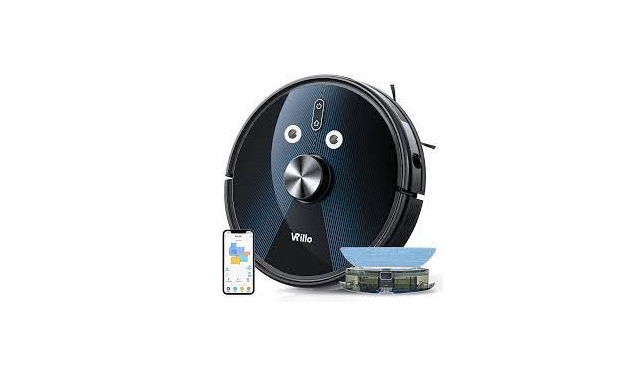
VRillo J300-B Robot Vacuum and Mop Cleaner Instruction Manual
Common router setting method
If your router supports both the 2.4 GHz and 5 GHz bands, but only one Wi-Fi name is displayed on the Wi-Fi search page of your mobile phone, follow the setup steps as below:
- Go to the Wireless page of the router. (The entry address is usually provided on the label attached to the back of the router).
- Go to the 2.4 GHz setting page, and set the Wi-Fi name (SSID) to xxx-2.4G (xxxindicates the Wi-Fi name you set). Save setting.
- Go to the 5 GHz setting page, and set the Wi-Fi name (SSID) to xxx-5G (xxx indicatesthe Wi-Fi name you set). Save setting.
- The xxx-2.4G and xxx-5G Wi-Fi names will appear on the Wi Fi settings page of your mobile phone after the settings are complete.
Note: Please reconnect the devices using this wireless router due to the change of Wi-Fi name. The password is the same as before if you do not make any change for it.
The following files describe how to configure the routers of some popular brands.
Configure a Netgear router
- On the BASIC tab page, click Wireless.

- In the Wireless Network (2.4GHz b/g/n) area, set Name (SSID) to <xxx&rt;-2.4G , where xxx indicates the Wi-Fi name. Saving setting.

- In the Wireless Network (5GHz a/n/ac) area, set Name (SSID) to <xxx&rt;-5G , where xxx indicates the Wi-Fi name. Saving setting.

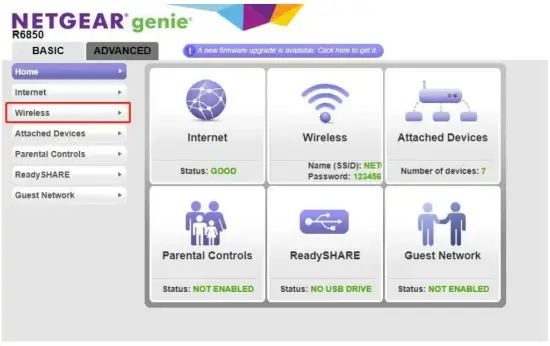
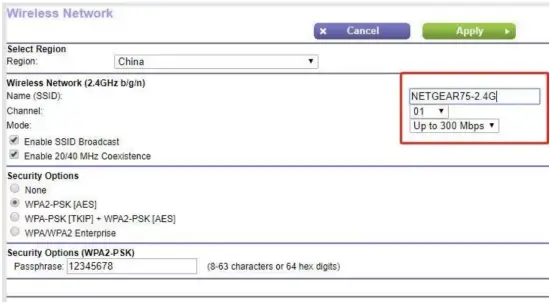
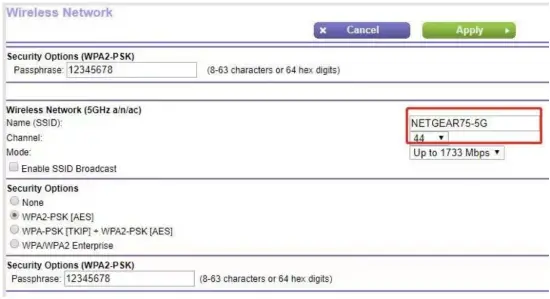
When the preceding settings are complete, the new Wi-Fi names will Appear on the Wi-Fi settings page of your mobile phone.
Note: After the Wi-Fi names are changed, you need to reconnect the devices that use this wireless router. The password remains the same if it has not been changed.
Configure an ASUS router
- In the Advanced Settings area, click Wireless.

- On the General tab page, check whether Enable Smart Connect is On. If Smart Connect is enabled, disable it to separate the SSIDs for the 2.4 GHz and5 GHz bands.
- In the Band drop-down list, select 2.4GHz and then set Network Name(SSID) to <xxx&rt;-2.4G , where xxx indicates the Wi-Fi name. Save the setting.

- In the Band drop-down list, select 5GHz and then set Network Name (SSID)to <xxx&rt;-5G . Save the setting.

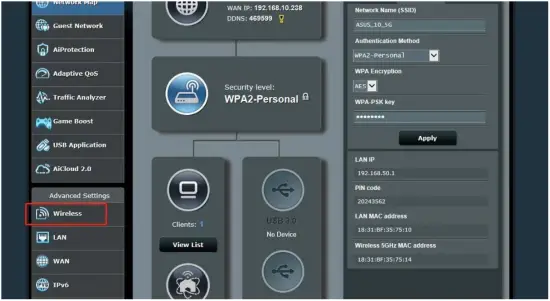
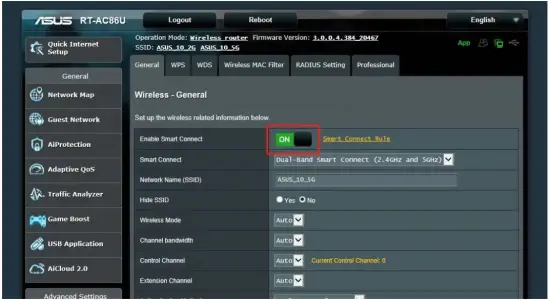
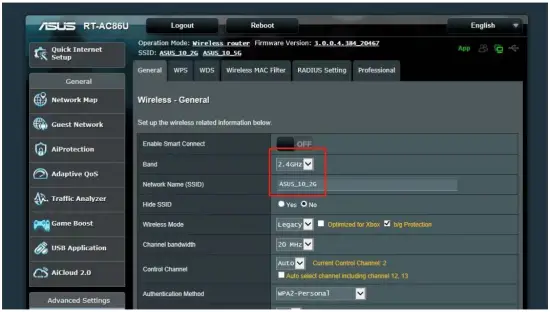
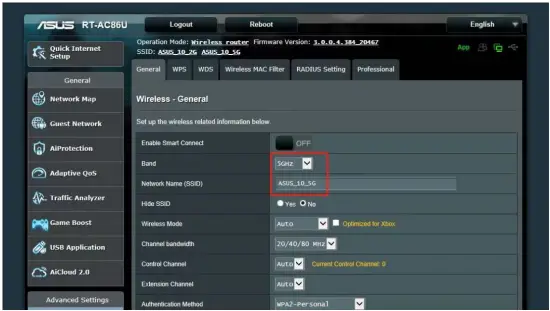
When the preceding settings are complete, the new Wi-Fi names will Appear on the Wi-Fi settings page of your mobile phone.
Note: After the Wi-Fi names are changed, you need to reconnect the devices that use this wireless router. The password remains the same if it has not been changed.
Configure a D-Link router
- On the D-Link home page, click the Settings tab and select Wireless.

- In the 2.4GHz area, set Wi-Fi Name (SSID) to < xxx&rt;-2.4G; and in the 5GHz area, set Wi-Fi Name (SSID) to < xxx&rt;-5G, where xxx indicates the Wi-Fi name.

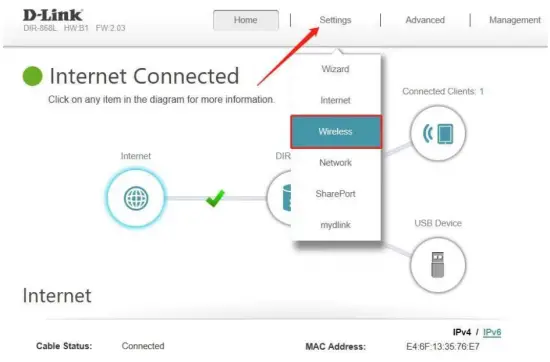
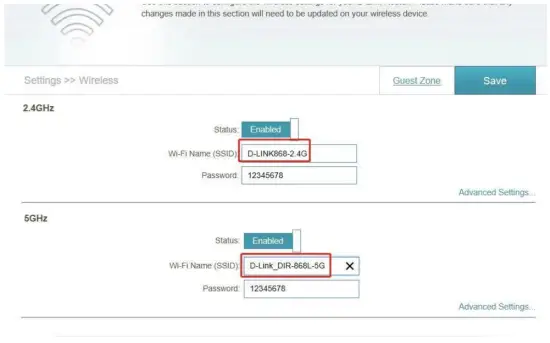
The last step is to Save the settings。When the preceding settings are complete, the new Wi-Fi names will Appear on the Wi-Fi settings page of your mobile phone.
Note: After the Wi-Fi names are changed, you need to reconnect the devices that use this wireless router. The password remains the same if it has not been changed.
Configure a TP-Link router
By default, the TP-Link router Wi-Fi names (SSID) for the 2.4 GHz and 5 GHz bands are the same. To distinguish the SSIDs for the two bands, follow these steps:
- In the lower-right corner of the page, click Setting.

- Click Wireless.

- In the 2.4G Wireless area, set SSID to(XXX)-2.4G , where xxx indicates the Wi-Fi name. Saving setting.
- In the 5G Wireless area, set SSID to (XXX)-5G , where xxx indicates the Wi-Fi name. Saving setting.

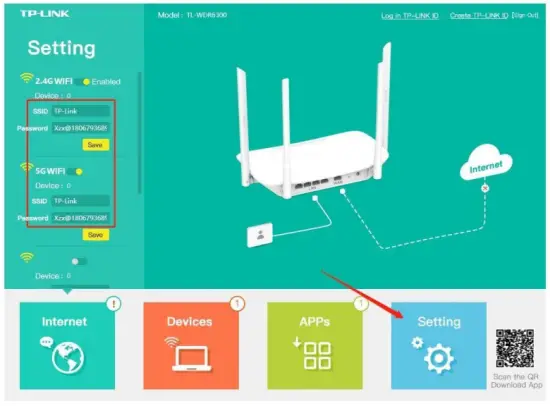
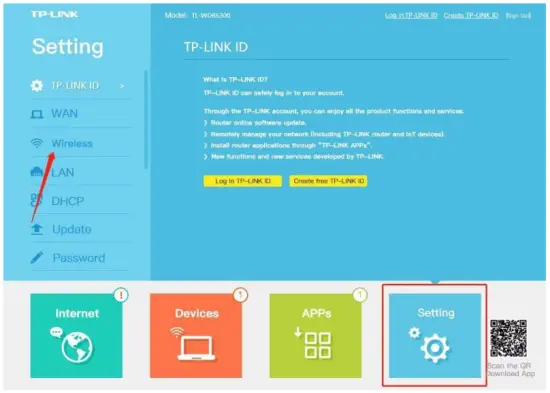
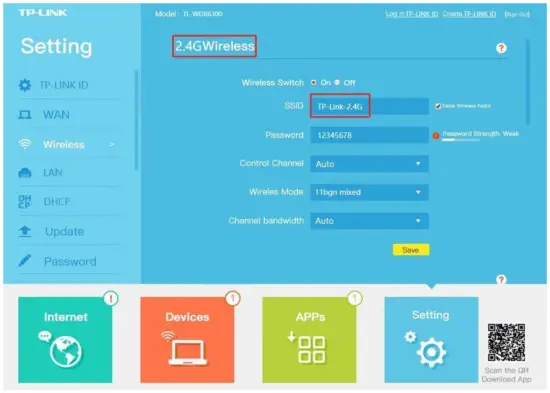
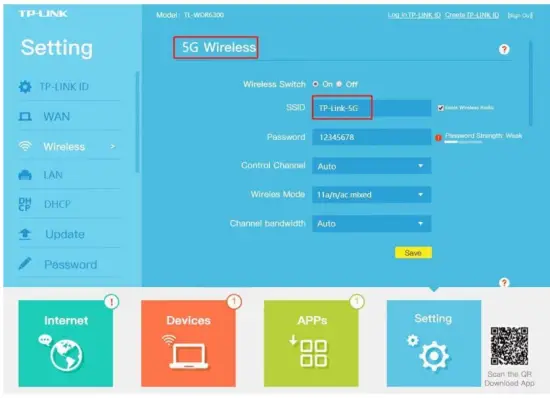
When the preceding settings are complete, the new Wi-Fi names will Appear on the Wi-Fi settings page of your mobile phone.
Note: After the Wi-Fi names are changed, you need to reconnect the devices that use this wireless router. The password remains the same if it has not been changed.