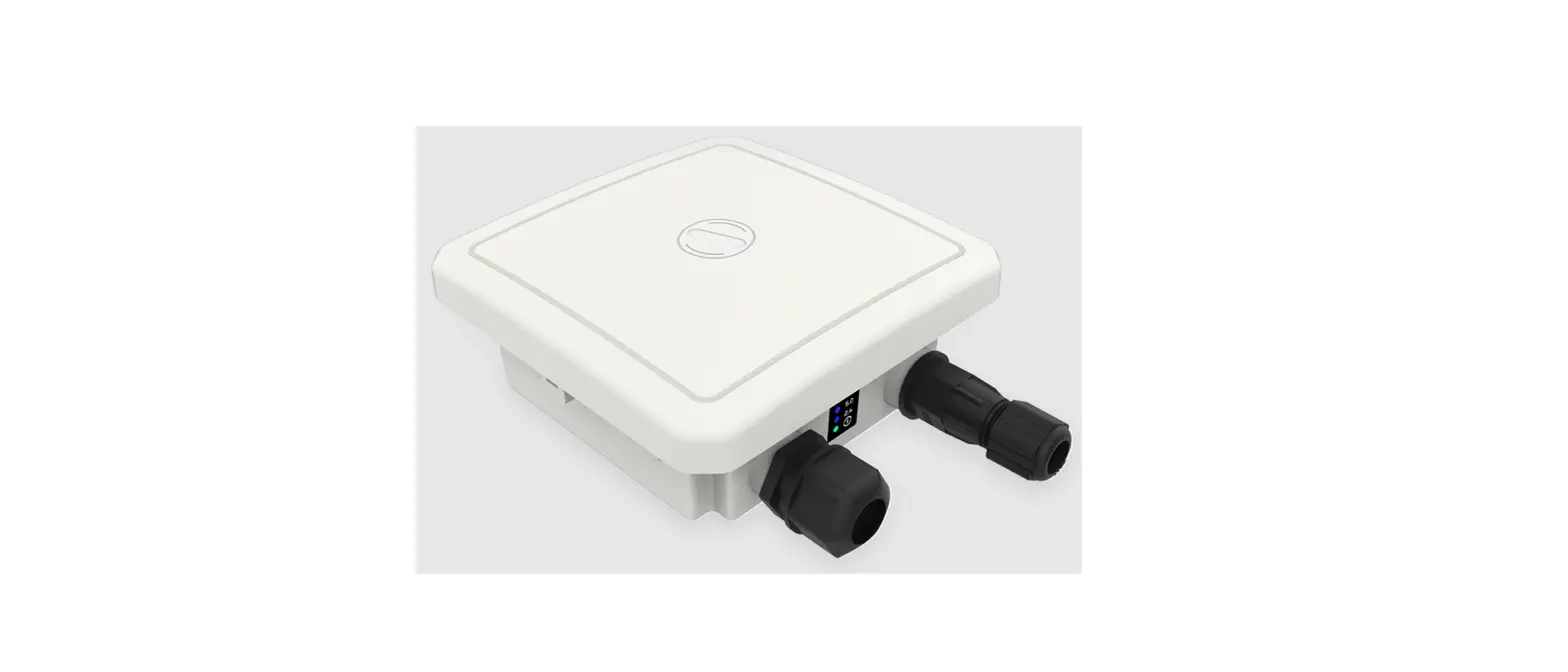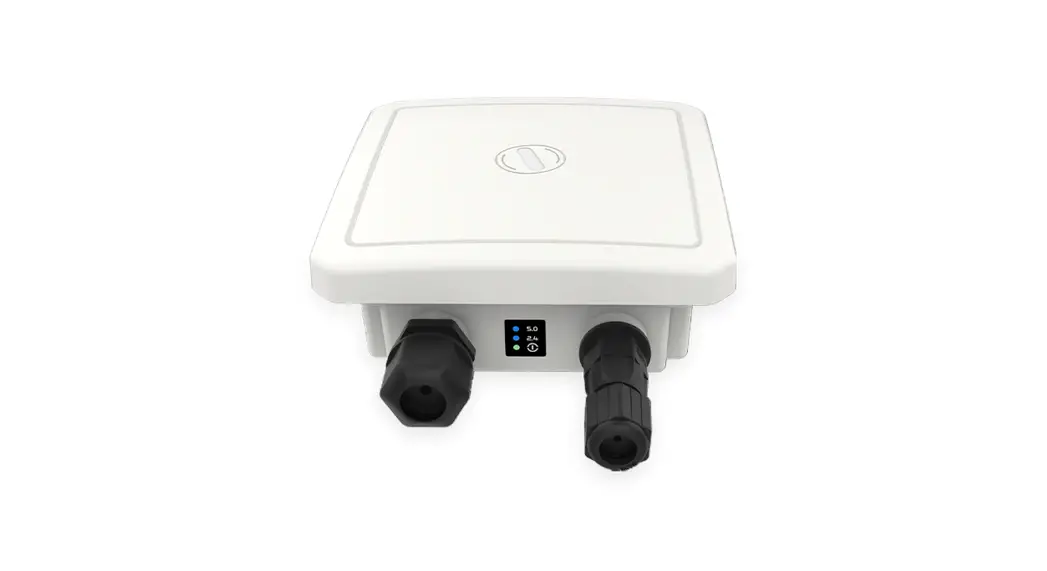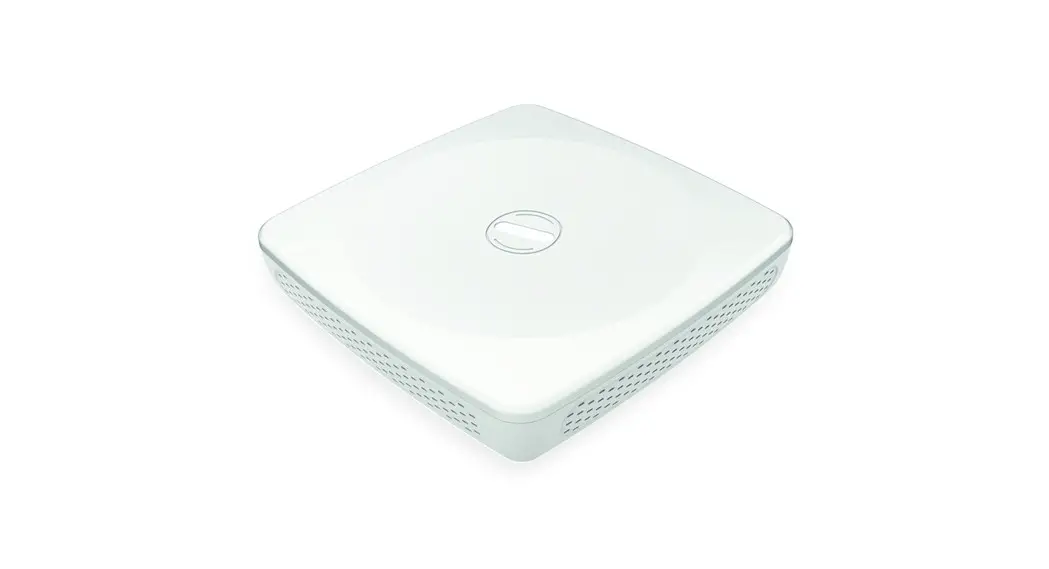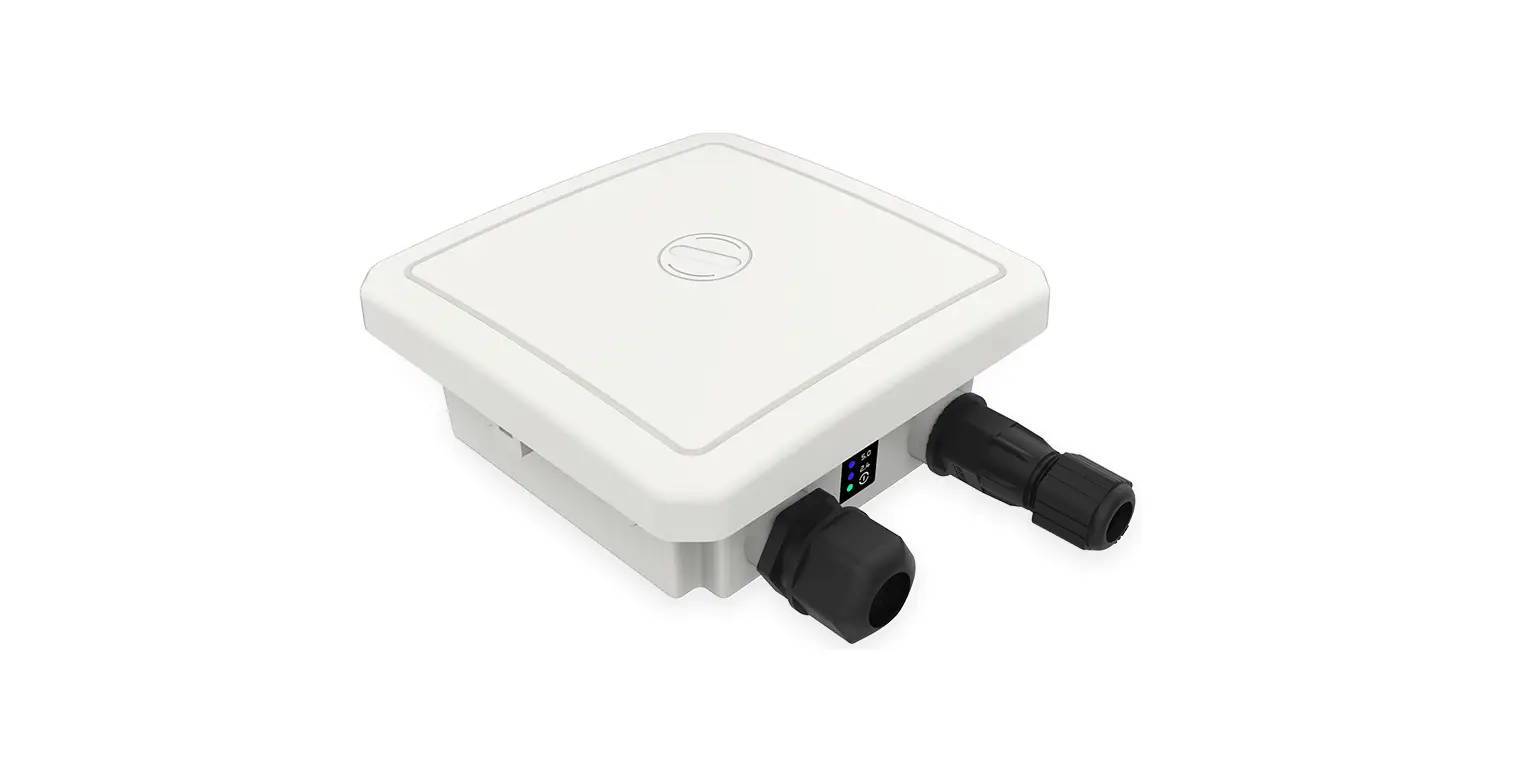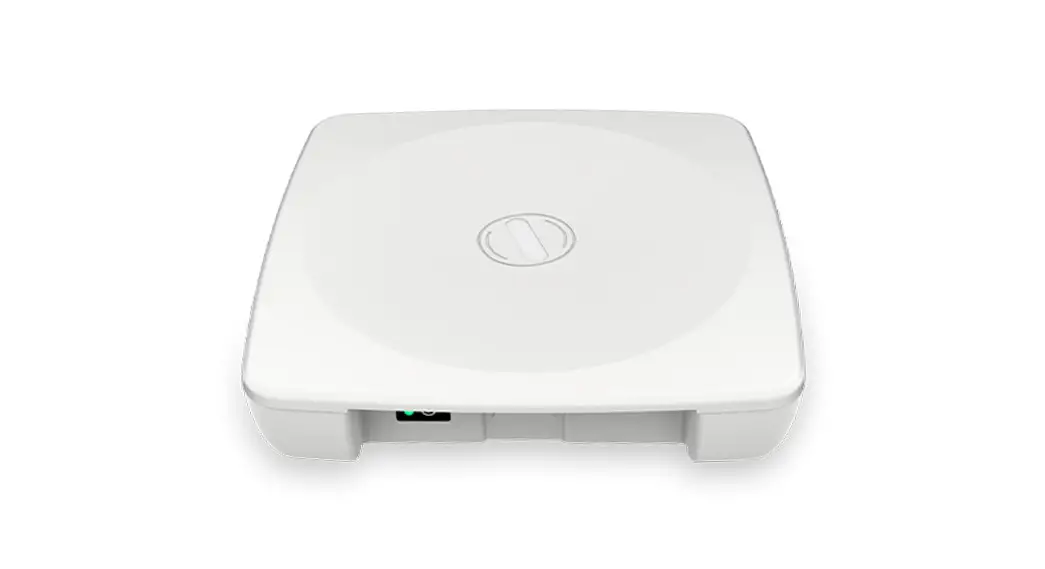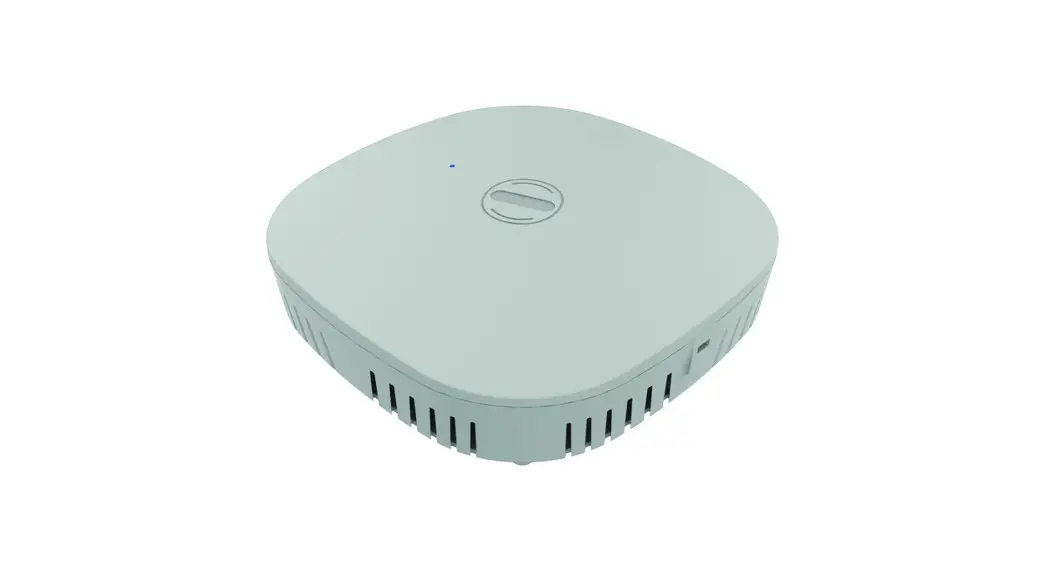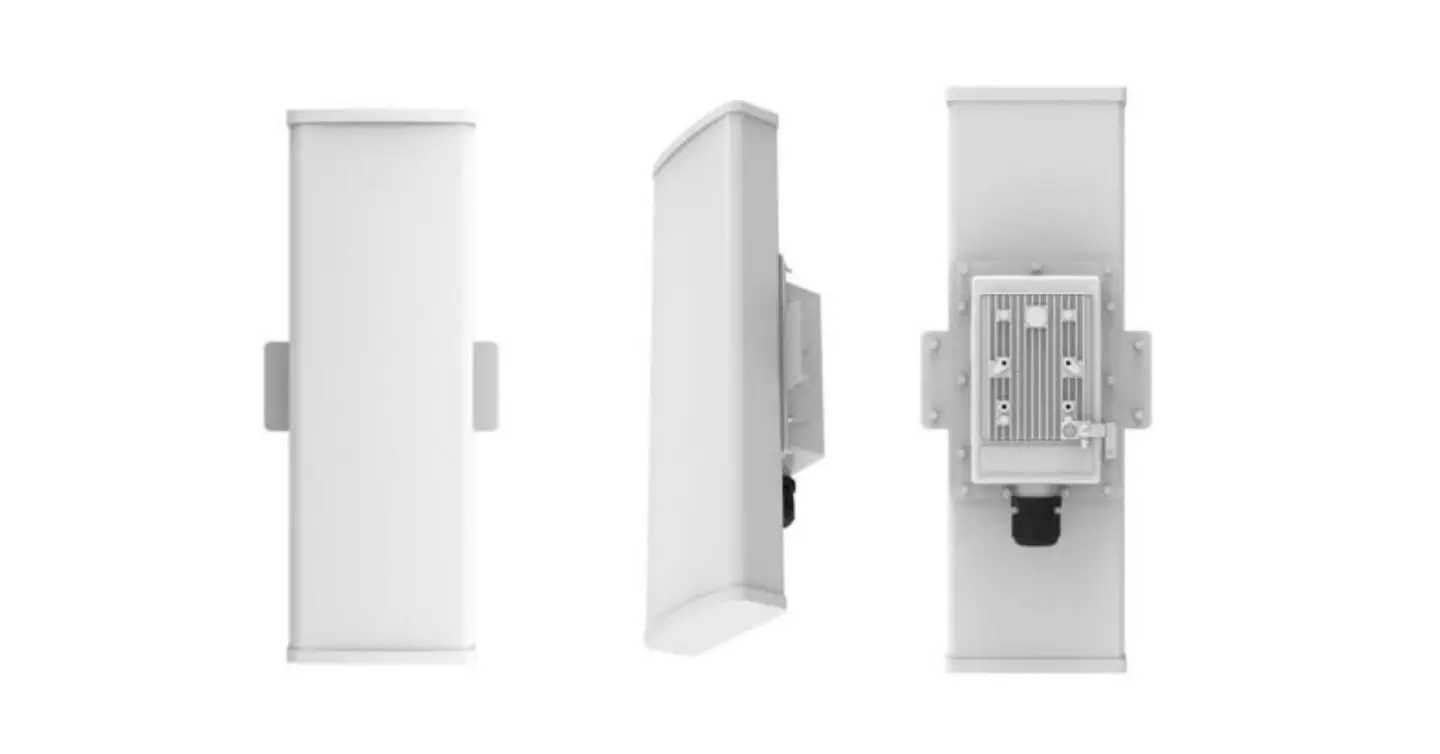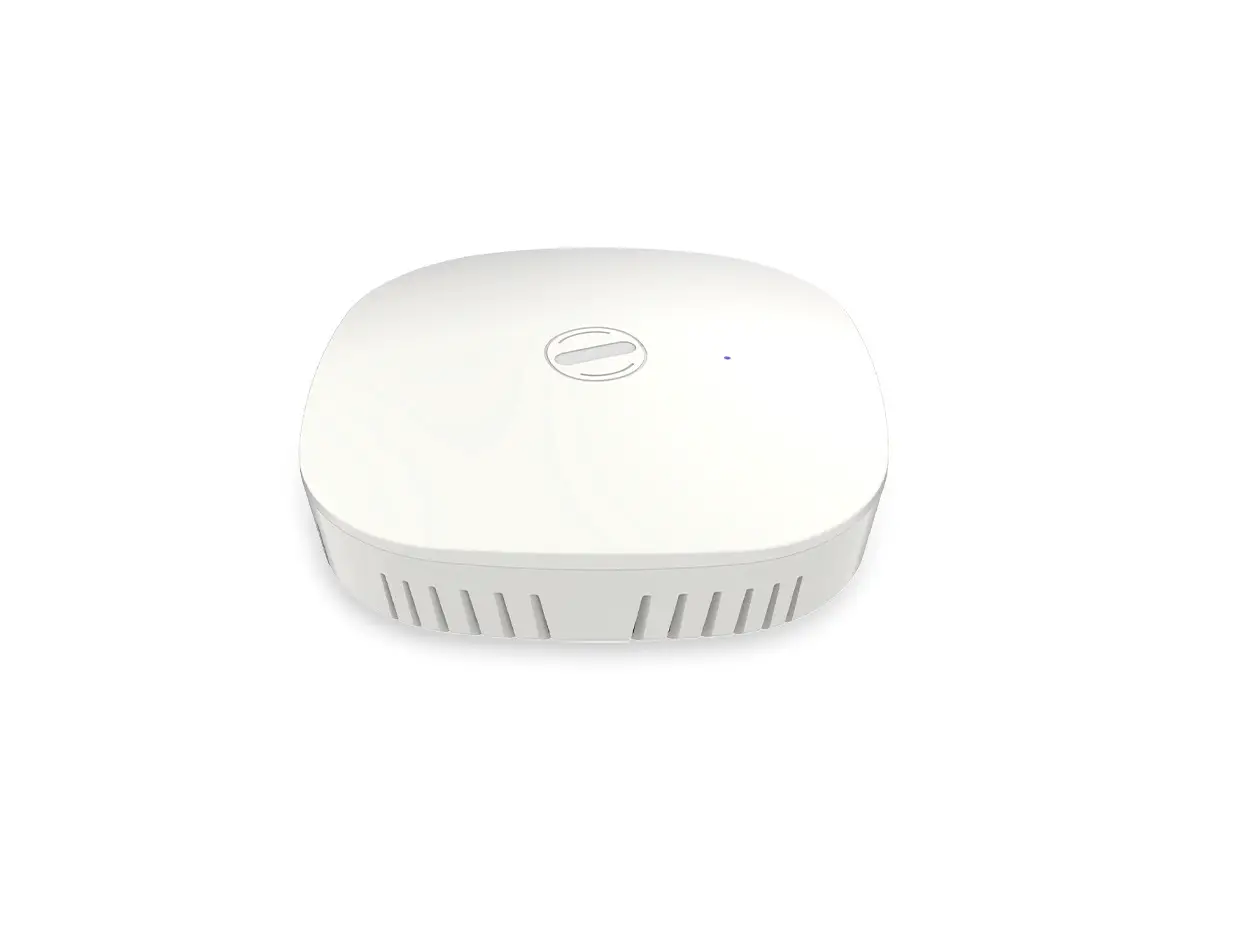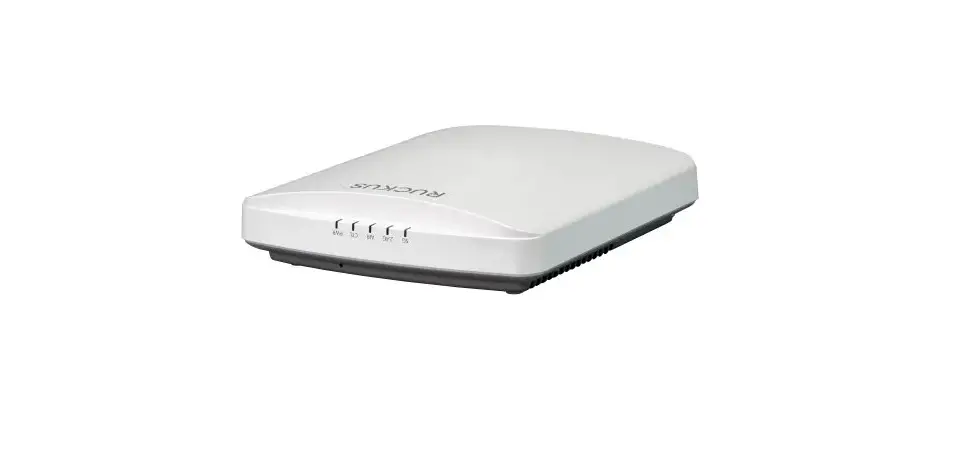
HFCL ion4-2 Access Point Owner’s Manual

ANYWHERE EVERYWHERE
Introduction
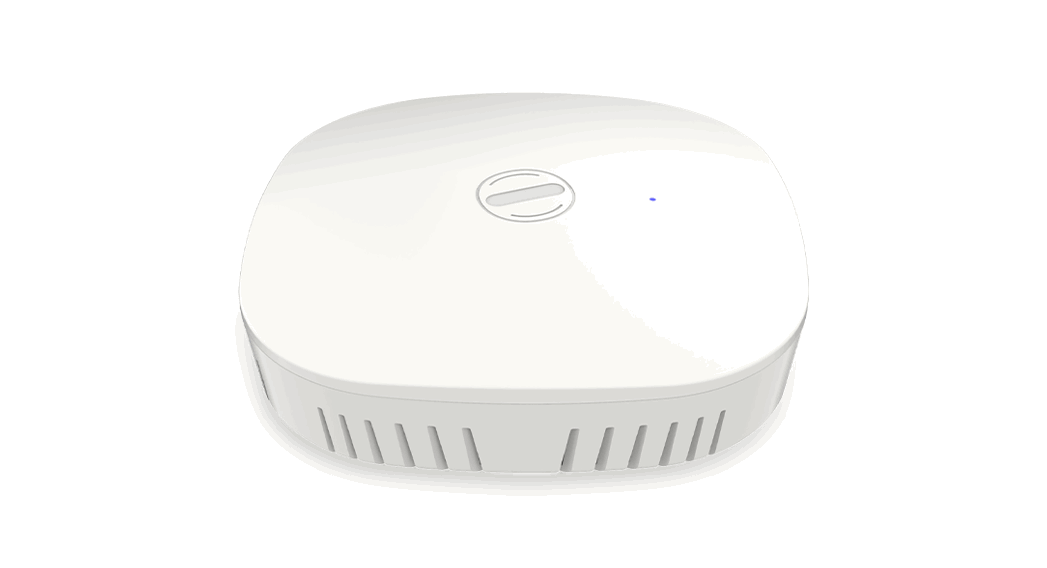
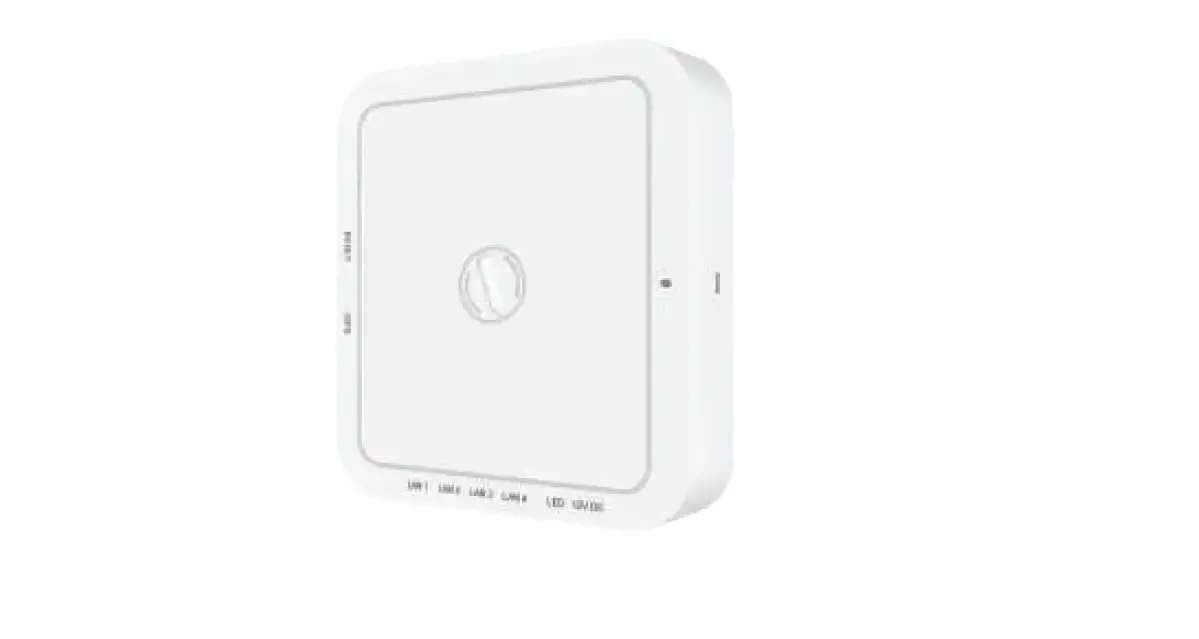
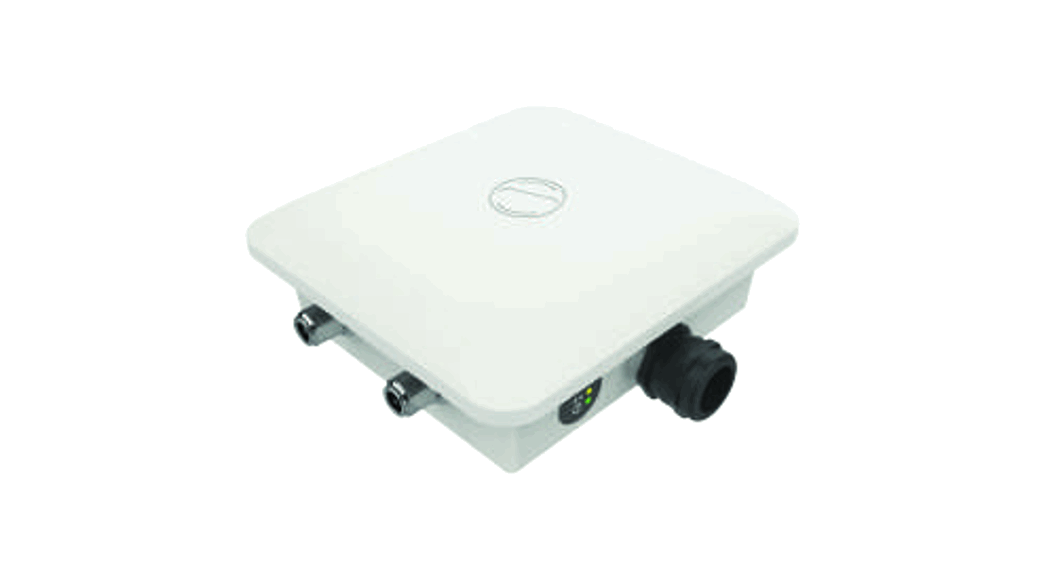
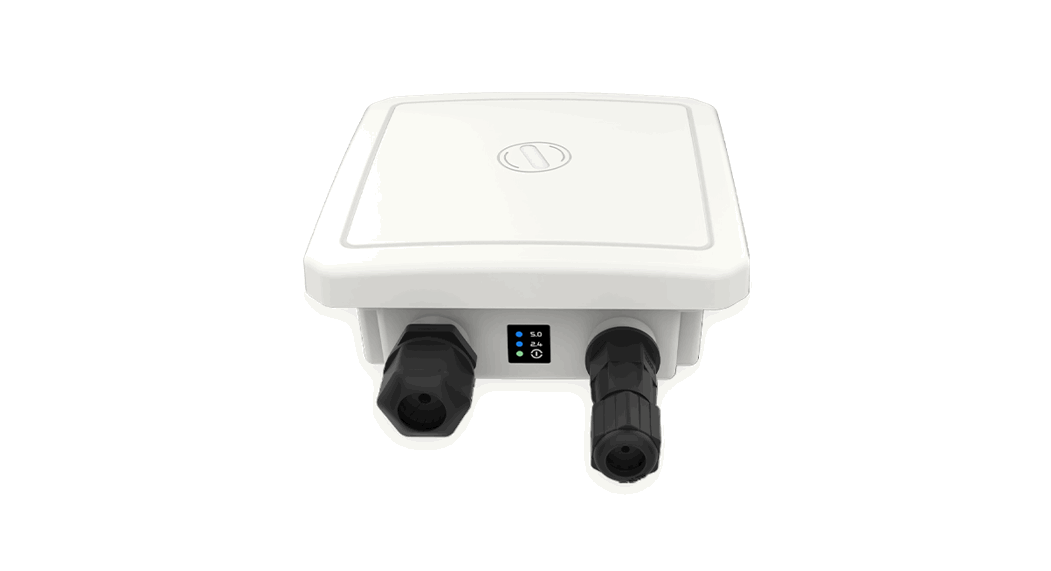
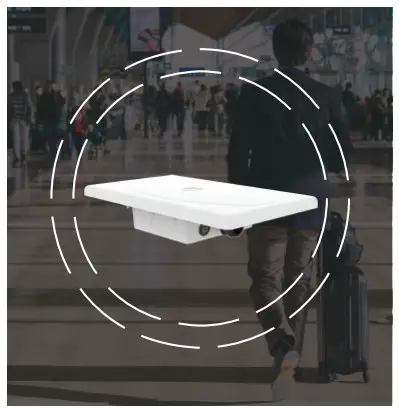
Thank you for purchasing our ion4_2 Access Point. ion4_2 is a cloud-managed 2×2:2 MU-MIMO Wi-Fi 5 certified Access Point that raises the bar for wireless performance and efficiency.
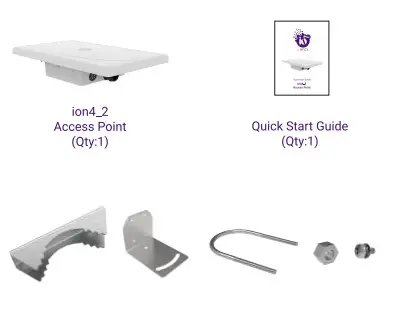
Packaging Content
ion4i Specifications
| Peak Throughput(aggregate) | Up to 1.27 Gbps (867 Mbps for 5 GHz and 400 Mbps for 2.4 GHz) |
| Wi-Fi Standard Support | 802.11 a/b/g/n/ac/ac Wave 2 |
| Interface | 1 X 10/100/1000 BASE-T Ethernet |
| Radio Mode | 2×2 MU-MIMO with 2 spatial streams |
| Mesh Support | Self-creating, Self-healing Mesh |
| Maximum number of SSID (per radio) | 16 |
| Maximum User Support | 128 on 5 GHz and 64 on 2.4 GHz |
| Power Supply | IEEE 802.3af PoE |
| Power Consumption (Max) | 12 W (approx.) |
| Max Transmit Power | 23 dBm for 2.4 GHz, 27 dBm for 5 GHz (will depend on country specific guidelines) |
| Antenna Type | Integrated Omnidirectional Antennas |
| Antenna Gain | 4.5 dBi for 5 GHz, 4 dBi for 2.4 GHz |
| Management | Standalone (via GUI) or through on-premise based solution or cloud-based |
| Enclosure Dimensions | 175 x 175 x 37 mm or 6.89 x 6.89 x 1.46 inches |
| Weight | 0.35 kg |
| Operating Temperature | 0°C to 50°C |
| Certifications | FCC Class B, CE, Passpoint 2.0, RoHS 3.0 |
Product Overview
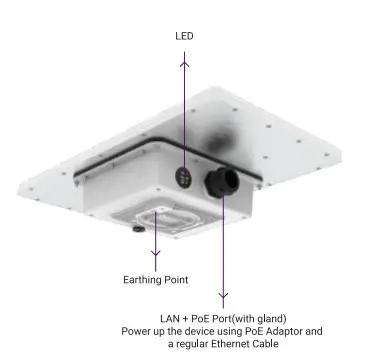
Mounting of ion4_2 Access Point
The ion4_2 can be mounted on a pole or to a wall. Perform the following steps for appropriate installation.
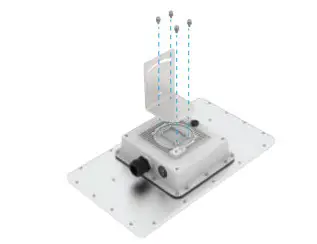
- Align L Plate with the holes at the back of Access Point
- Use the provided screws to fix the plate onto the Access Point.
The mounting bracket is fixed onto the mounting holes on the Access Point
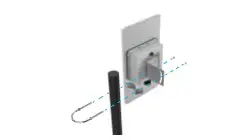
Pole Mount
- Align the L Plate mounted Access Point with pole clamp & U-Bolt
- Pass the U-Bolt through the cuts of pole clamp & L Plate. Secure it in place with Hex Nuts.

- Access Point has the freedom of movement along with the vertical & horizontal axis

- The final alignment of Access Point on a pole mounting as shown below

- Note: The pole mounting is designed for poles of diameter 40 mm to 60 mm. For mountings on larger size poles upto 140 mm, contact at [email protected]
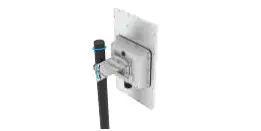
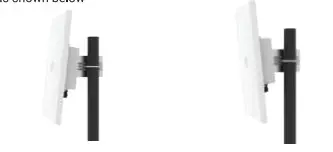
Note: The pole mounting is designed for poles of diameter 40 mm to 60 mm. For mountings on larger size poles upto 140 mm, contact at [email protected]
Wall Mount
To mount the ion4_2 on a wall, use the wall mounting bracket, drywall screws, and screw anchors(* The entire wall mounting assembly is sold seperately}.
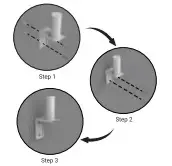
- Take the reference from the wall mounting bracket and mark the position of the holes on the wall.
- Use the drill machine to drill 2 holes on respective marked positions.
- Push the screw anchors into the holes with a hammer.
- Align the drilled holes with the holes of wall mounting bracket.
- Insert the drywall screws through the holes of mounting bracket into the wall.
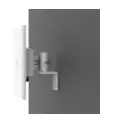
- Wall mounting bracket is fixed to the wall.
- Mount the device on to the wall mounting bracket as discussed in pole mounting process.

WARNING: HFCL is not held liable for any damages incurred during the process.
Getting the ion4_2 Online
Step 1 : Power up
The Access Point can be powered up using PoE adaptor (48V} as shown below:
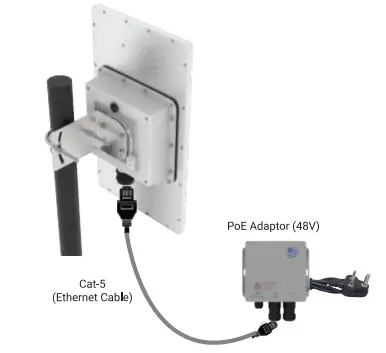
Note: Plug and Adaptor will vary by country/ region
— Power up using PoE Adaptor —
Step 2: Connect to the network
Section 1 : Standalone AP
Follow the steps mentioned below and connect the Access Point to a network :
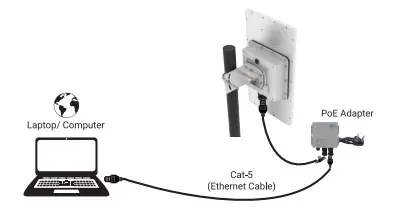
- Connect an ethernet cable to the computer.
- Connect the other end of ethernet cable to the data port on PoE adapter
- Connect ion4_2 PoE supported ethernet port to PoE adapter power port. Device will be powered on

- Configure the computer with a same domain static IP 192.168.1 .X and a subnet mask of 255.255.255.0 (Xis from 2 to 255}
- Open the web browser and enter the Access Point static IP address in the address bar: 192.168.1.1
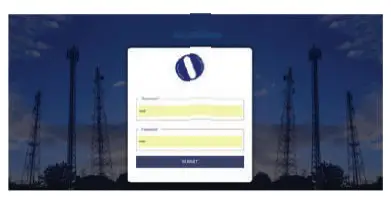
- A login screen will appear.
- Enter the default login credential details: User- root, Password- hfcl!@ion

Section 2: Controller Managed AP
Follow the steps mentioned below and connect the Access Point to a network :
- Power-up the AP through PoE adapter or PoE switch
- Connect the AP to DHCP network and Internet
- Login to HFCL 10 cloud controller (cNMS} cnms.ionetworks.in with credentials provided
- Refer our website io.hfcl.com for detailed information to configure AP through cNMS
Step 3: Check the LED status
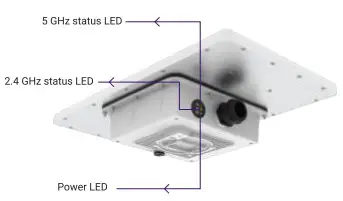
| LED Color | Status |
| Power LED Green | Green color notifies the user that the device is powered ON |
| 2.4 GHz Status LED | Solid yellow color notifies the user that the 2.4 GHz radio is active and blinks while data is being transmitted on 2.4 GHz radio |
| 5 GHz Status LED | Solid red color notifies the user that the 5 GHz radio is active and blinks while data is being transmitted on 5 GHz radio |
Safety Precautions
Observe the following safety precautions to avoid damage to the ion4_2 Access Point: Do not power the device during installation Keep away from high voltage cablesDo not power off the unit in the middle of an upgrade processThe gland should be ground facing all the timeDo not open the enclosureFasten the device tightlyMake sure the earthing wire is connected properly to the earthing points