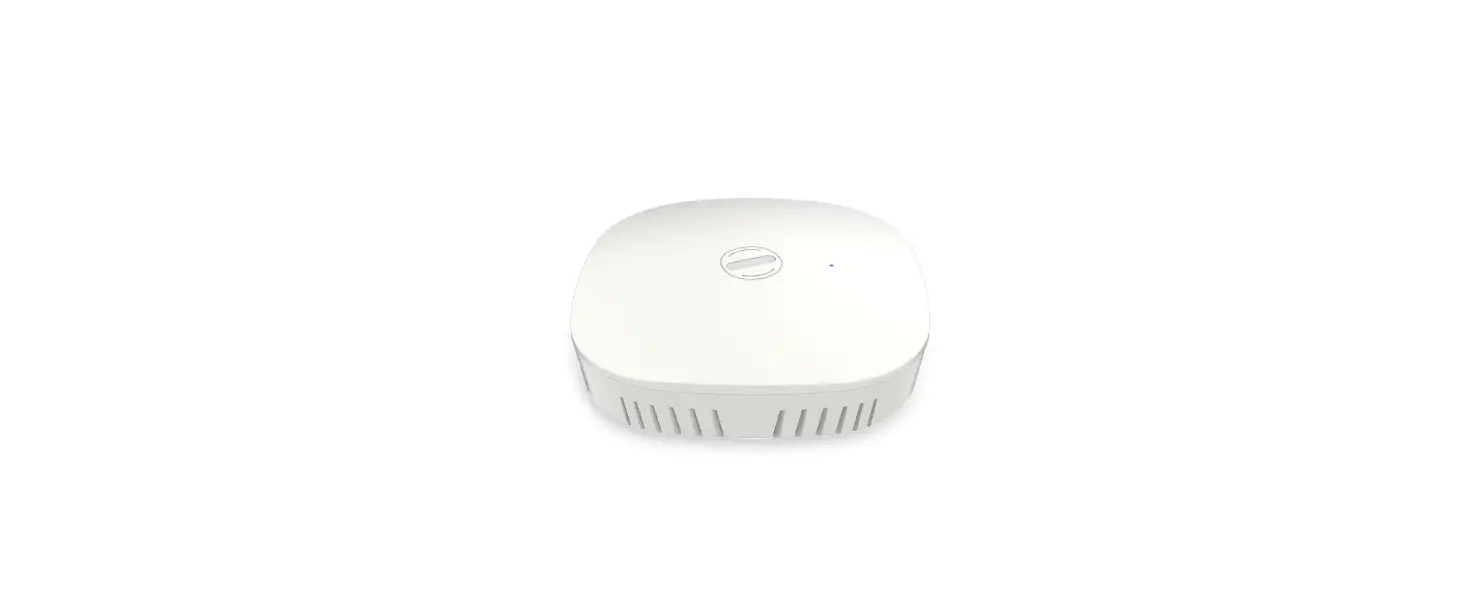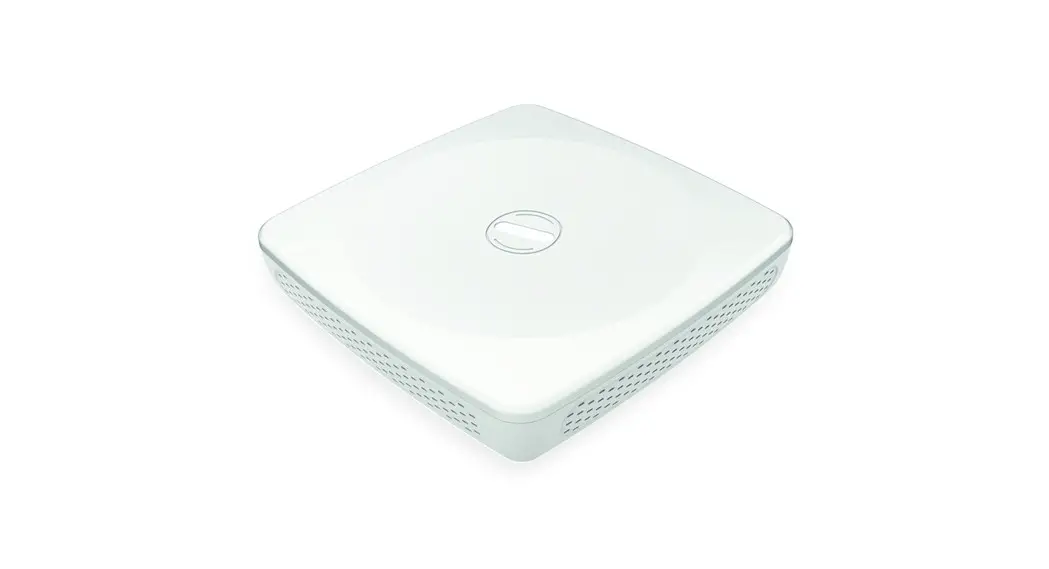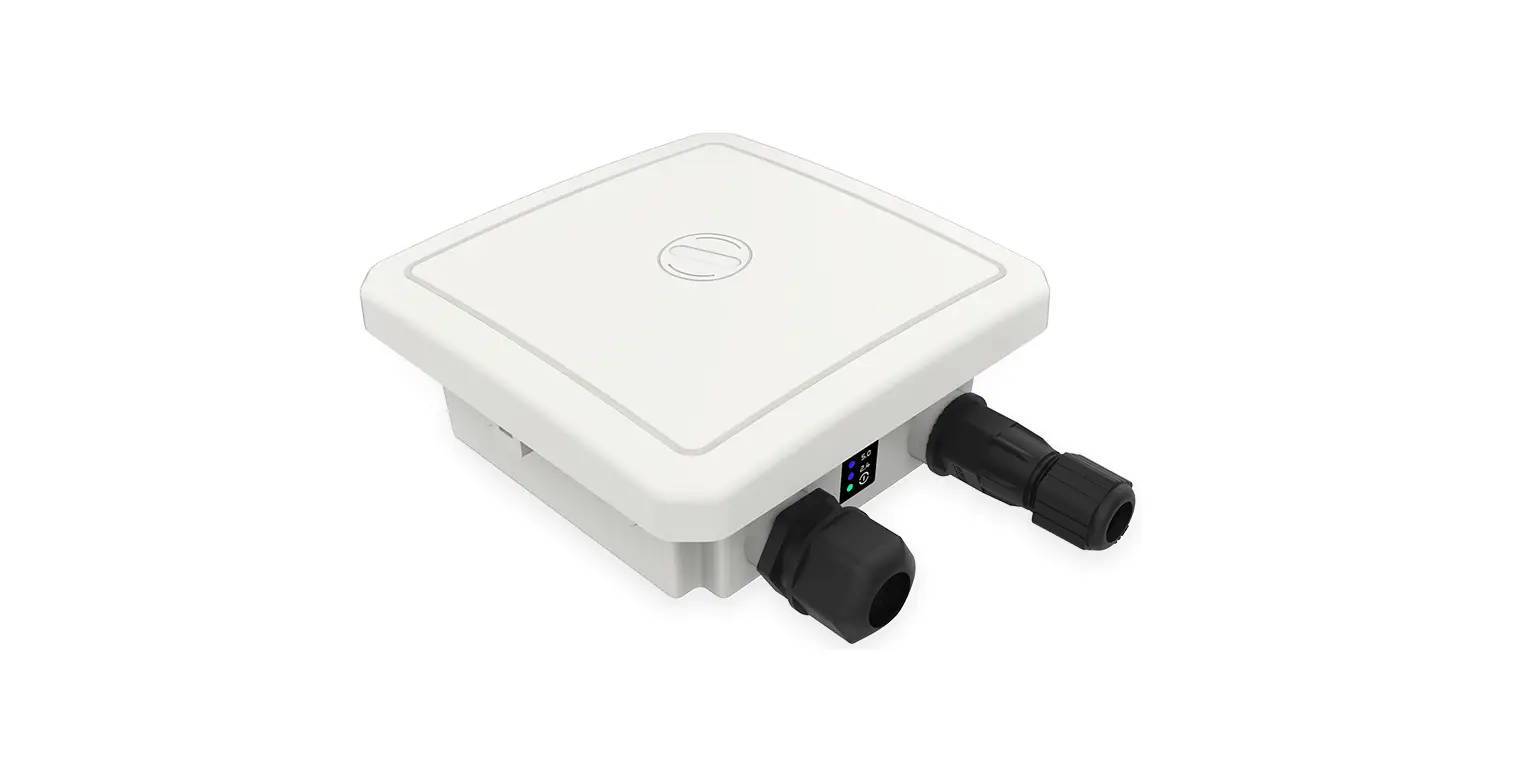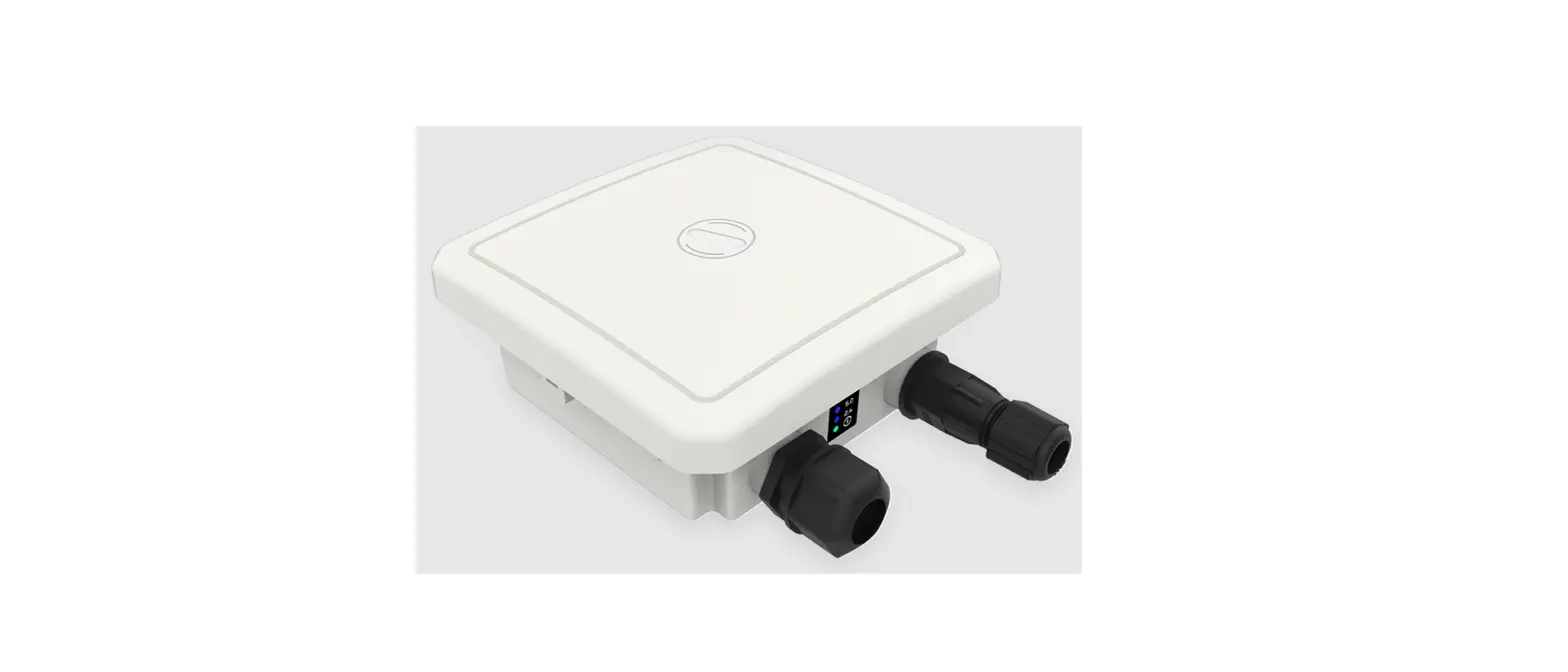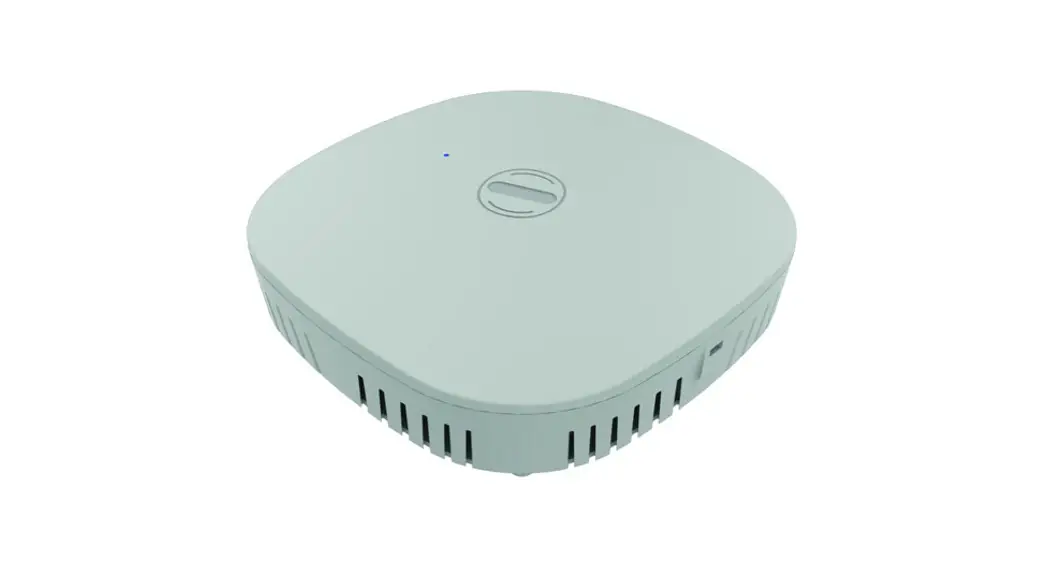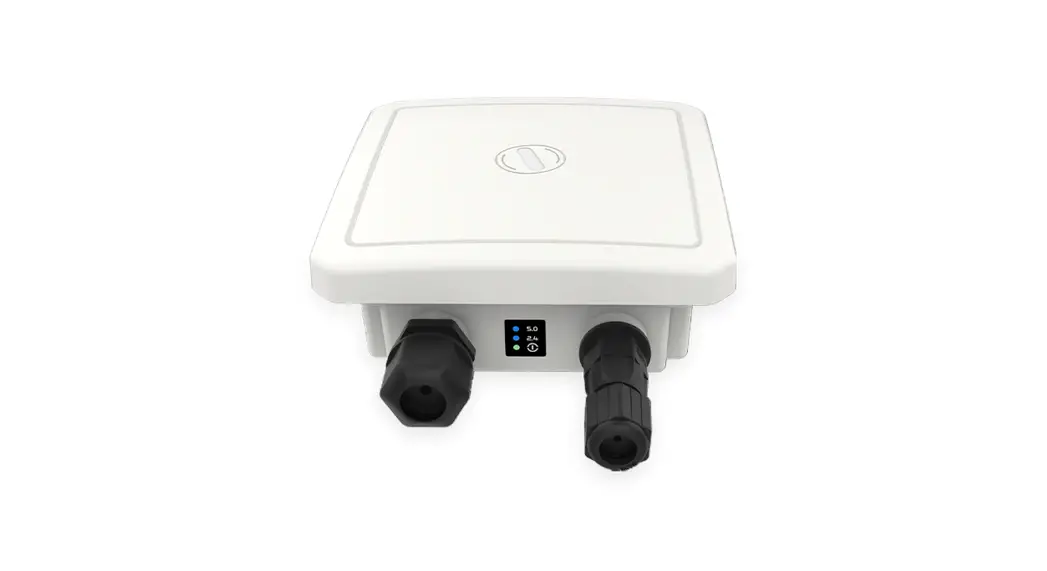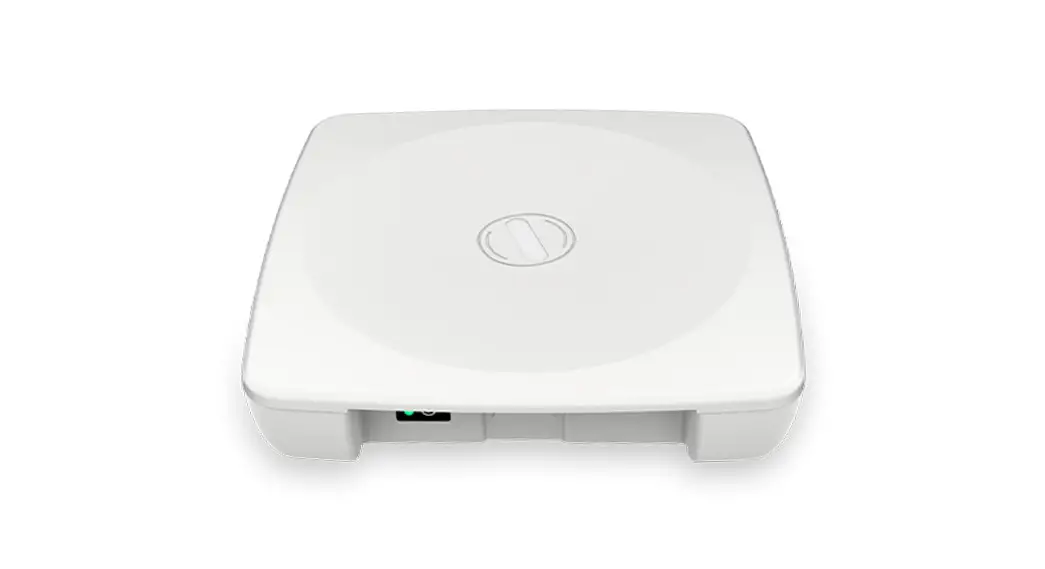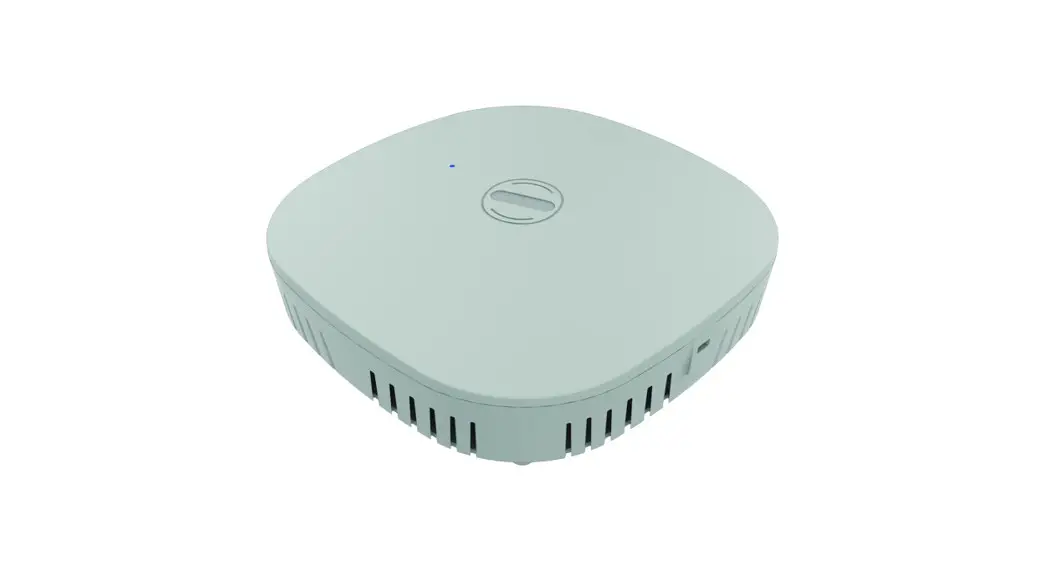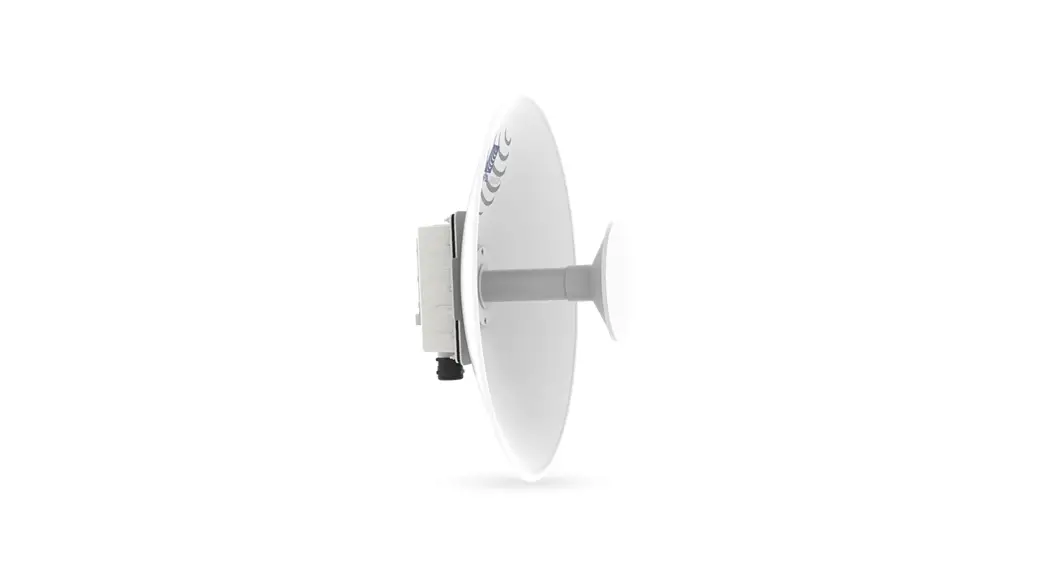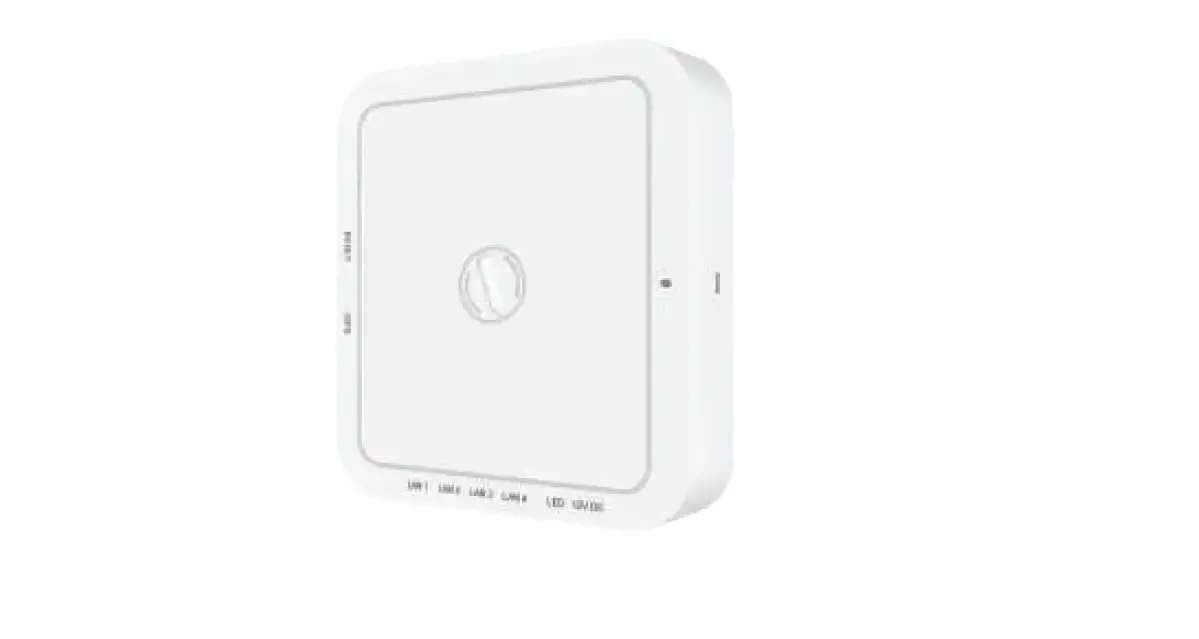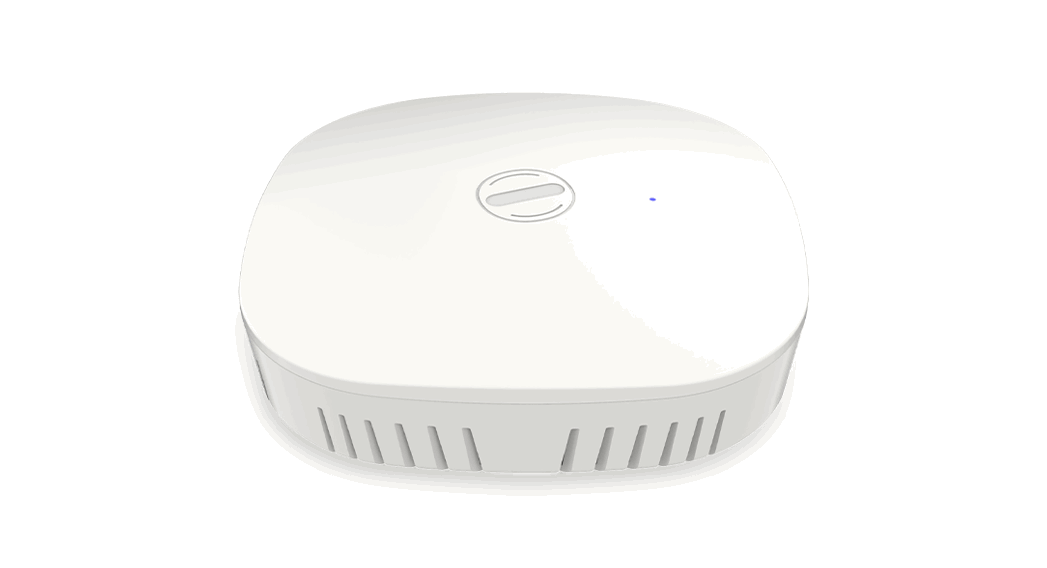

HFCL ad infinitum ion4xi
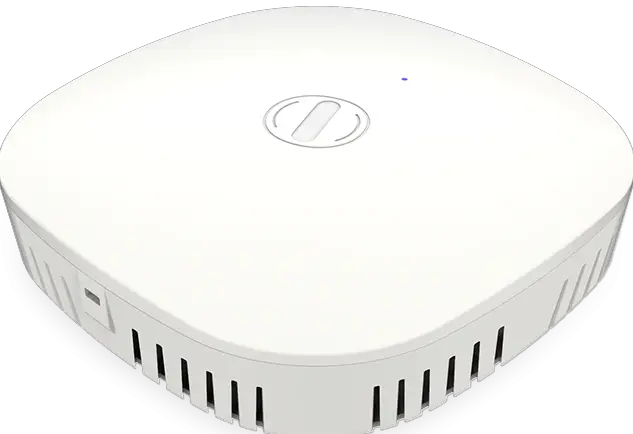
Introduction
Thank you for choosing ion4xi Wireless Access Point with 2×2:2
Multi-User MIMD and 802.11 ax compliance.
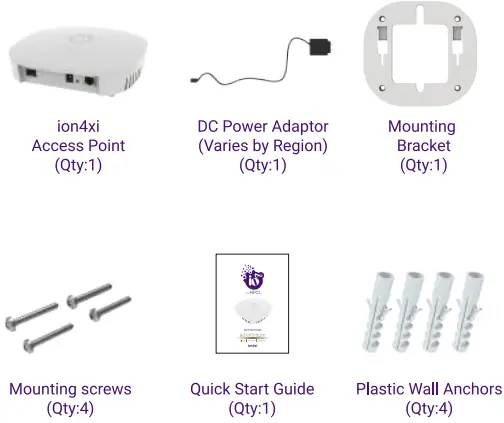
Packaging Content
ion4xi Specifications
| Peak Throughput(aggregate) | Up to 1.78 Gbps |
| Wi-Fi Standard Support | 802.11 a/b/g/n/ac/ac Wave 2/ax |
| Ethernet support/ Ports/Interface | 1 X 10/100/1000 BASE-T Ethernet 1 X 2500 Base X Optical Ethernet SFP DC Power jack |
| MU-MIMD | 2×2:2 |
| Mesh Support | Self-creating, Self-healing EasyMesh |
| Maximum number of SSID (per radio) | 16 |
| Maximum User Support | 1024 |
| Power Supply | IEEE 802.3at PoE/PoE+ or + 12V DC Power Adaptor |
| Power Consumption (Max) | 20 W (approx.) |
| Max Transmit Power | 2.4 GHz- up to 30 dBm & 5 GHz- up to 30 dBm (will depend on country specific guidelines) |
| Antenna Type | Integrated antennas |
| Antenna Gain | 4 dBi for both 2.4 GHz and 5 GHz |
| Management
Enclosure Dimensions | Standalone (via GUI) or through on-premise based solution or cloud-based 180 x 180 x 50 mm (7.09 x 7.09 x 1.97 inch) |
| Weight | 0.60 kg |
| Operating Temperature | o·c to so·c |
| Certifications | FCC Class B, CE, Passpoint 2.0, EasyMesh, WPA3, RoHS 3.0 |
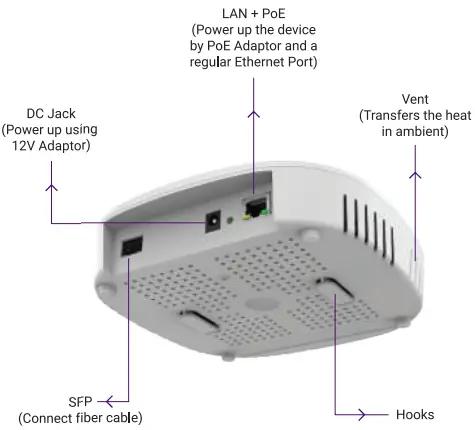
Product Overview
Mounting of ion4xi Access Point
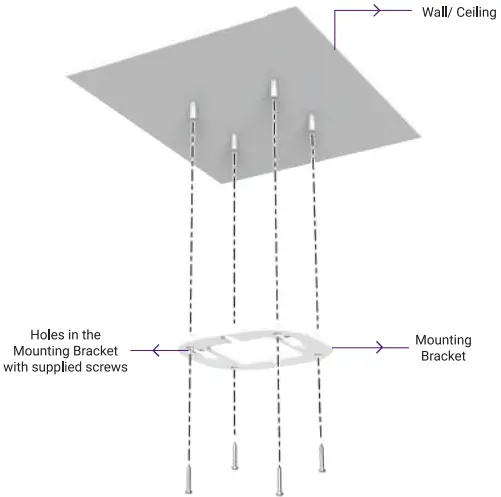
- Place the mounting bracket which came with the package on a wall or ceiling and mark holes with a marker where you will insert thescrews. Drill holes in the marked points and insert the plastic wall anchors.
- Use supplied screws and attach mounting bracket on the wall.
Note: Make sure that mounting bracket is tightly installed before mounting the Access Point on the wall or ceiling
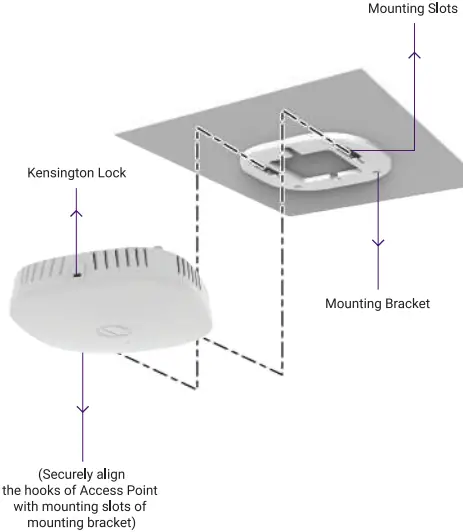
- Align the mounting slots of Access Point with the hooks of the mounting bracket, ensure that it is properly hinged

Unmounting of ion4xi Access Point
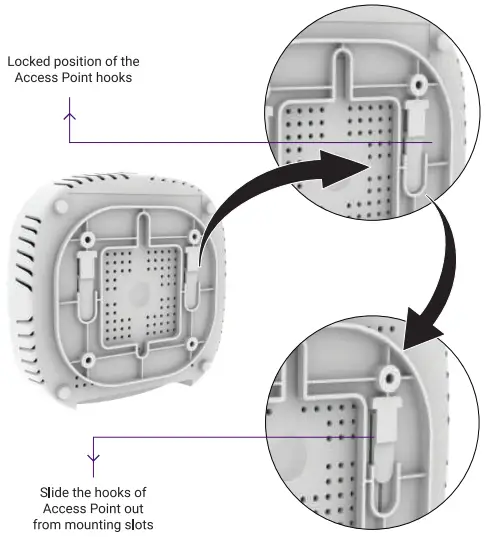
- Slide the hooks of Access Point out from the mounting slots of mounting bracket

WARNING: HFCL is not held liable for any damages incurred during the process
Getting the ion4xi Online
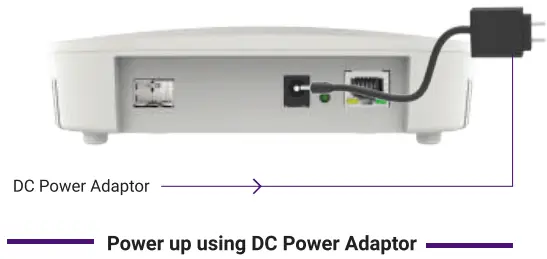
Step 1: Power up
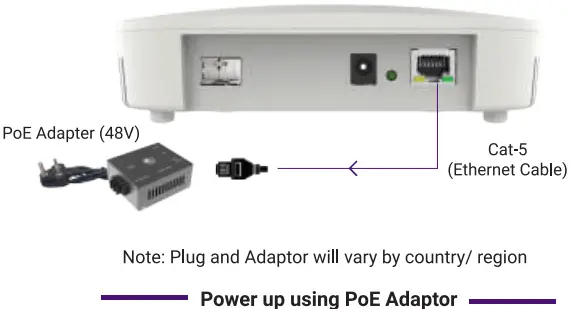
The Access Point can be powered up using PoE adaptor (48V) or DC adaptor (12V) as shown below
Step 2: Connect to the network
Section 1: Standalone AP
Follow the steps mentioned below and connect the Access Point to a network :
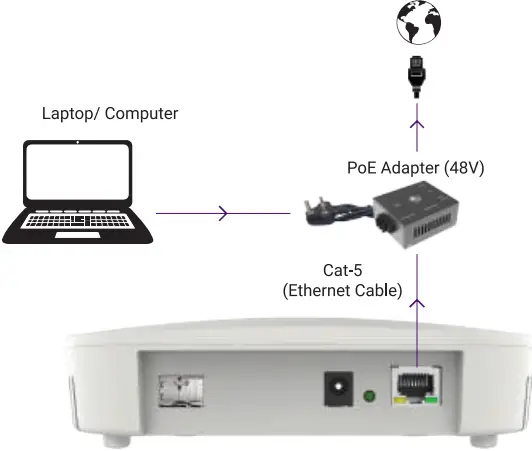
- Connect an ethernet cable to the computer.
- Connect the other end of the ethernet cable to the LAN port on the ion4xi Access Point or use a PoE adaptor to do so.

- Open the web browser and enter the Access Point static IP address in the address bar: 192.168.1.1
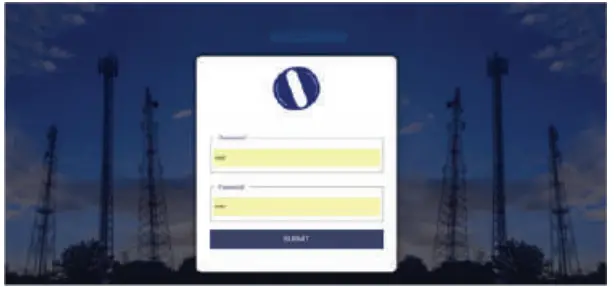
- A login screen will appear.
- Enter the default login credential details: User- root, Passwordhfcl!@ion

Section 2: Controller Managed AP
Follow the steps mentioned below and connect the Access Point to a network :
- Power-up the AP through PoE adapter or PoE switch
- Connect the AP to DHCP network and Internet
- Login to HFCL 10 cloud controller (cNMS) cnms.ionetworks.in with credentials provided
- Refer our website io.hfcl.com for detailed information to configure AP through cNMS
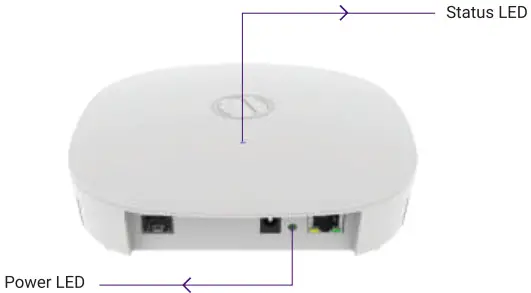
Step 3: Check the LED status
| LED Color | Status |
| Power LED Green | Green color notifies the user that the device is powered ON |
| Status LED Green | Green color notifies the user that the 2.4 GHz radio is active and blinks while data is being transmitted on 2.4 GHz radio |
| Status LED Blue | Blue color notifies the user that the 5 GHz radio is active and blinks while data is being transmitted on 5 GHz radio |
| Status LED Cyan | Cyan color notifies the user that both 2.4 GHz & 5 GHz radio are active and blinks while data is being transmitted on both radios |
Safety Precautions
Observe the following safety precautions to avoid damage to the ion4xi Access Point
- Do not subject the device to high temperatures CD
- Keep away from high voltage cables CD
- Disconnect the device before cleaning it CD
- Do not wipe the device with a damp cloth CD
- Do not open the enclosure of the Access Point CD
- Fasten the device tightly with the mount
Contact Us:
Email: [email protected] Website: www.hfcl.com
www.io.hfcl.com
8, Commercial Complex, Masjid Moth, Greater Kailash-II, New Delhi- 110048
HFCL Limited All Rights Reseived.10 Networks and the 10 logo are registered trademarks of HFCL Limited. Specifications are subject to change without notice.