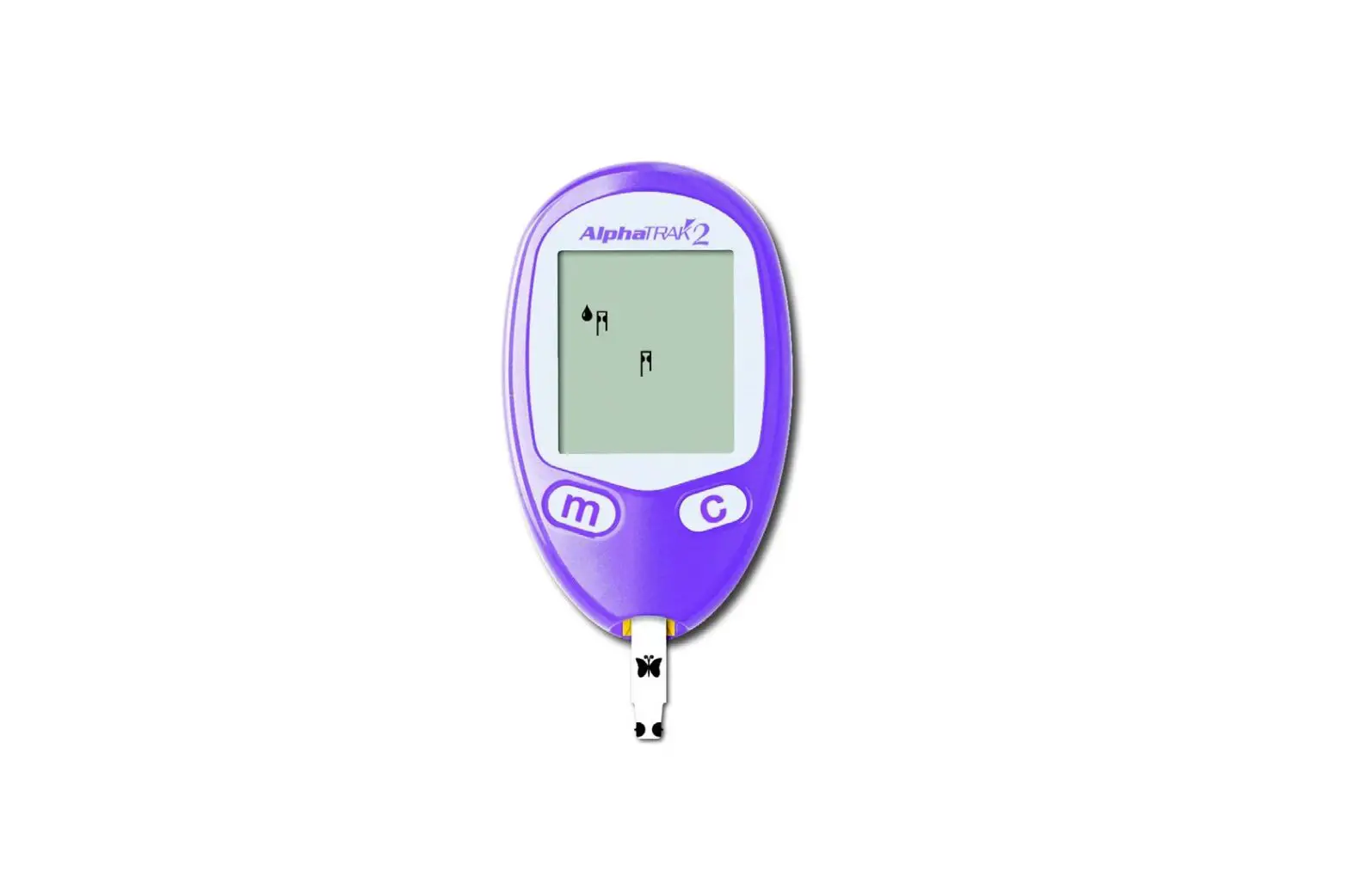
AlphaTrak 3 Blood Glucose Monitoring System
Blood Glucose Monitoring System
The Blood Glucose Monitoring System is a device that allows you
to monitor your blood glucose levels. It features Bluetooth
technology for easy connectivity with your mobile device.
Product Usage Instructions:
- Enable discovery mode on your meter:
- Make sure the meter is turned off.
- Press and hold the “c” button for more than 3 seconds.
- The “mem” icon will appear blinking on the screen, indicating
that automatic Bluetooth discovery is enabled. - Press the button for less than 3 seconds to turn on the
meter. - Press the button again for less than 3 seconds to view the
result history. - To toggle every result, press and hold both the “+” and “-”
buttons together for 3 seconds.
- Open the application on your mobile device.
- Tap on “Device” at the bottom navigation.
- Tap on “Add a Meter” to search for your meter.
- If your meter is not automatically found, tap on “Scan” to
initiate the search manually. - Select your meter from the list and tap on “Click to
Pair”. - Enter the 6-digit pairing key displayed on your meter into the
application.
- Tap on “Dashboard” at the bottom navigation.
- Tap on “Get Result” to retrieve test results from your
meter. - The application will confirm successful synchronization of test
results.
For additional information, please contact Zoetis Inc. Customer
Service:
Customer Service: 1-888-963-8471
Customer Service for Canada: 1-800-461-0917
Zoetis, 333 Portage Street, Kalamazoo, MI 49007, USA
Website: AlphaTrak.com
BLOOD GLUCOSE MONITORING SYSTEM
Bluetooth’
Bluetooth® Setup Guide
1. Enable discovery mode on your meter
mem
mem
will appear blinking on the
While meter is off, press and hold “c” for more than 3 sec to enable/disable automatic Bluetooth discovery with
screen.
every result.
Press for less than 3 sec to turn on your meter.
Press again for less than 3 sec to view result history.
Press and hold both and together for 3 sec to toggle
Bluetooth® discovery mode.
2. Pair with your mobile
Application will confirm that you’ve successfully connected. On the meter, the Bluetooth® icon will stop blinking.
Open the application.
Tap Device at the bottom navigation. Tap Add a Meter to find your meter.
Tap if you don’t automatically find your meter. Select your meter and tap Click to Pair.
Enter the 6-digit pairing key, now displayed on your meter, to the application.
3. Import test data
When getting test results, if the Bluetooth® mode is set to turn on automatically, you will see the blinking Bluetooth® icon once the result is ready. This indicates that Bluetooth® is on and ready to pair with the AlphaTrak App.
Tap Dashboard at the bottom navigation.
Tap Get Result to get test results from your meter.
Application will confirm that test results successfully synced.
For additional information, please contact Zoetis Inc. Customer Service: 1-888-963-8471 Customer Service for Canada: 1 800 461 0917 Zoetis, 333 Portage Street, Kalamazoo, MI 49007, USA
AlphaTrak.com
All trademarks are the property of Zoetis Services LLC or a related company or a licensor unless otherwise noted. © 2023 Zoetis Services LLC. All rights reserved. ATK-00363