SmartLink C V2.0 Remote Diagnosis Interface
Product Information: SmartLink Remote Diagnostics System
The SmartLink Remote Diagnostics System is a newly developed
powerful service system dedicated to remote vehicle diagnosis and
service. It consists of the SmartLink Service Platform and the
SmartLink C Dongle. The SmartLink C Dongle connects with a
vehicle’s Data Link Connector (DLC) to obtain vehicle information
before submitting repair orders.
Working Principle
In this system, a SmartLink C user, as a SmartLink Service
Subscriber, can submit remote repair orders to vehicle repair
companies (SmartLink B, the SmartLink Service Provider) via
SmartLink Service Platform (http://smartlink.x431.com). The
SmartLink C applies to vehicles that comply with CAN/DoIP/CAN
FD/J2534 diagnostic protocol standard.
Controls & Accessories
The SmartLink C V2.0 Dongle is the main component of the system.
It comes with a diagnostic cable, a CAT-6 crossover cable, and a
data cable. The diagnostic cable is used to connect the dongle to
the vehicle’s DLC. The CAT-6 crossover cable connects the dongle to
the network modem. The data cable connects the dongle to the PC
when used as a J2534 PassThru device. The device also features a
3.97-inch touch screen, LAN/WAN port, and a DB-15 diagnostic
connector.
Technical Parameters
- Working voltage: DC 9-36V
- Power consumption: 6W
- Working temp.:0-50
- Dimension: 200mmx110mmx47mm
- Communication: wireless and wired
Usage Instructions
- Connect the SmartLink C dongle to the vehicle’s DLC using the
diagnostic cable. - Connect the dongle to the network modem using the CAT-6
crossover cable. - Connect the dongle to the PC using the data cable when used as
a J2534 PassThru device. - Open a web browser on a tablet or computer and visit the
SmartLink Service Platform website at
http://smartlink.x431.com. - Click on “Register now” and follow the instructions to create
an account. - Once registered, log in to the SmartLink Service Platform and
submit remote repair orders to vehicle repair companies.
*Note: Orders can be submitted only after the SmartLink C dongle
is successfully bound to the SmartLink Service Platform.
For more detailed instructions, please refer to the online
Operation Guideline available on http://smartlink.x431.com.
V2.0
Remote Diagnosis Interface
User Manual
Contents
1
Working Principle
2
Controls & Accessories
3-5
Operations
6
Other Applications
7
FAQ & Appendix
Working Principle
The SmartLink Remote Diagnostics Systemisanewly developed powerful service systemdedicated to remote vehicle diagnosis and service. In this system, SmartLink C user, as a SmartLink Service Subscriber, can submit remote repair orders to vehicle repair companies (SmartLink B, the SmartLink Service Provider) via SmartLink Service Platform (http://smartlink.x431.com). The SmartLink C applies to vehicles that comply with CAN/DoIP/CAN FD/J2534 diagnostic protocol standard.
The SmartLink C system consists of the following two parts: SmartLink Service Platform — For binding the SmartLink C dongles and posting the remote repair orders (*Note: Orders can be submitted only after the SmartLink C dongle is
successfully bound). SmartLink C Dongle — Connects with vehicle’s Data Link Connector (DLC) to obtain vehicle information before submitting repair orders.
The working principle of the SmartLink C dongle is as follows:
SmartLink C V2.0
Diagnostic Cable
Vehicle’s DLC
SmartLink Service Provider
LAUNCH-specific/thirdparty diagnostic tool
/
(The communication method varies with the VCI and diagnostic tool)
VCI included with the diagnostic tool
SmartLink B V2.0 /SmartLink B
PC
SmartLink
Service Platform
Crossover Cable
SmartLink Service Subscriber 1
Internet
Internet
Crossover Cable
AC Outlet
Power Adaptor
Controls & Accessories
1. Components & Controls
1
2
3 4
5
1. DB-15 Diagnostic Connector Connect the diagnostic cable.
2. 3.97 Inch Touch Screen
3. DC-IN Port *Warning: Generally, the SmartLink C V2.0 dongle obtains power through the vehicle’s DLC (Data Link Connector) via the DB-15 diagnostic connector. Do NOT connect the DC-IN port to an external DC power supply if the dongle can be powered up normally. If the pin of the DLC is damaged or the DLC has insufficient power, connect the DC-IN port to an external DC power supply. No responsibility can be assumed for any damage or loss caused as a result of not strictly following the above method.
4. LAN/WAN Port Connect it to the modem via the crossover cable.
5. Data I/O Port Connect the dongle to the diagnostic tablet to perform vehicle diagnosis when as a VCI device./Connect the dongle to the PC when as a J2534 PassThru device.
Technical Parameters
Working voltage: DC 9-36V
Power consumption: 6W
Working temp.:0-50
Dimension: 200mmx110mmx47mm
Communication: wireless and wired
2. Packing List
The following accessory items are for reference only. For detailed items, please consult from local agency or check the packing list supplied with the device.
SmartLink C V2.0 Dongle (For SmartLink Service Subscriber.)
Diagnostic Cable
(Connect the dongle to adaptor cable. It can be separated into two parts: DB15F
to HD15F data cable and OBD II adaptor. )
CAT-6 Crossover Cable
(Connects the dongle to the network modem.)
Data Cable (Connects the dongle to the PC via the data cable when as a J2534 PassThru device.)
User Manual (An instruction manual on how to use the
dongle.)
*Disclaimer: Due to continuing improvements, actual product may differ slightly from the product described herein.
2
Operations
1. Register & Post Remote Diagnostics Orders
* Due to continuing development and improvements of the SmartLink Service Platform, the user interfaces and functions will be updated periodically. A full version of operation guideline on this platform will be available on the following website http://smartlink.x431.com. For more details, please refer to the online Operation Guideline.
1. Open a web browser on a tablet or computer, visit the SmartLink Service Platform website http://smartlink.x431.com, the following screen will appear. Click Register now.
3. Enter all the required information (items with * must be filled). Select the “I agree” checkbox after reading”Link Platform Register Protocol”, and then click Register now.
4. Input the product S/N (Serial Number) and Activation Code (where the Product S/N and Activation Code can be found from the Password Envelope). Click OK. After finishing the registration, the system will automatically log in and navigate to the “My Post” page.
2. Choose the user type (Common user) and then click Next Step to go to step 3.
* The remote diagnosis can only be performed after the SmartLink C user has submitted the request, and this request has been accepted by the remote technician expert.
3
Operations
5. On the “My Post” page, click Create an appointment. Fill in the required information and then click Submit.
2. Start Diagnostics
1. Turn off the vehicle ignition. 2. Use the included diagnostic cable (DB15F to HD15F data cable + OBD II adaptor)
to connect the dongle to the vehicle’s DLC port. * For more information of DLC location, please refer to the Appendix.
3. There are two kinds of methods available for the SmartLink C to connect the Internet. Method 1: Via crossover cable (strongly recommended) Plug one end of CAT-6 crossover cable into the LAN/WLAN port of SmartLink C V2.0 dongle, and the other end into the LAN port of network modem.
* The network broadband of 100MB and above is required for this operation.
Method 2: Via WLAN
Tap -> WLAN. Choose the target wireless network to proceed until Connected appears.
Local Diagnosis
S/N: 989348200022
Version Language
Firmware repair
WLAN
The equipment is ready!
System update
Send 0.00 B
Receive 0.00 B
Link
Remote Diagnostic Mode
UBOOT upgrade Cancel
4. After a successful network connection, tap Remote Diagnostic Mode, the system will automatically generate a random connection code and read the vehicle VIN information, and then connect to the remote diagnosis server.
* Each SmartLink C V2.0 dongle can only accept one remote diagnostic operation at one time.
SN: 989570000082 Connection code: 145018
1. Read VIN
LFVZZZ8R2GA065034
2. Connect to the server
Please make sure the network is normal
3. Wait for remote connection
Handshake ok
4
Operations
5. Turn the ignition on. * After receiving the order, the SmartLink B V2.0/SmartLink B master technician will accept
the order and contact you via phone or E-mail address. Please make sure that you can be reached via the contact information provided by you. * If you select the designated service technician when posting your remote order, please notify him/her of the connection code. The service technician will use it to directly retrieve your order with the and check the details of your order .
6. After a successful connection between the SmartLink C V2.0 and SmartLink B V2.0/SmartLink B is established, the following message will be displayed on the SmartLink C V2.0 screen.
Network delay status (Different colors represent different delay status)
Serial number of SmartLink C
Task name
Vehicle VIN Diagnostic mode (Set by SmartLink B)
Delay: 80ms C-989570000082 B-989560000062
Please ensure the ignition switch is in ON or START position
Task: Volkswagen-Other Models Time: 11min Send: 27.89 KBytes Receive: 8.38 KBytes VIN: LFVZZZ8R2GA065034 Voltage: 11.6V Mode: Expert mode
Serial number of SmartLink B
Duration of diagnosis process and transmission data package size
* Please do not disconnect the vehicle or network connection during a remote diagnostic process.
* Please make sure that you are well connected with the internet when performing a remote online reprogramming process.
7. Unplug the crossover cable when a diagnostic session is completed.
5
System Settings
Tap to enter the following system setting screen.
Version
Language
Firmware repair
WLAN
System update
UBOOT upgrade
Cancel
Version: Checks the system version information. Language: Sets the preference system language. Firmware repair: Fixes the firmware of the dongle when it can not work properly. When performing this operation, please do not cut power or exit the interface. WLAN: Connects the dongle to wireless network. Wired network connection is recommended since it has more stable and solid signals than wireless network. System update: Updates the current system version to the latest version. * This function requires a network connection. UBOOT upgrade: Updates the UBOOT loader program. * This function requires a network connection.
Other Applications
1. Work as a VCI (Vehicle Communication Interface)
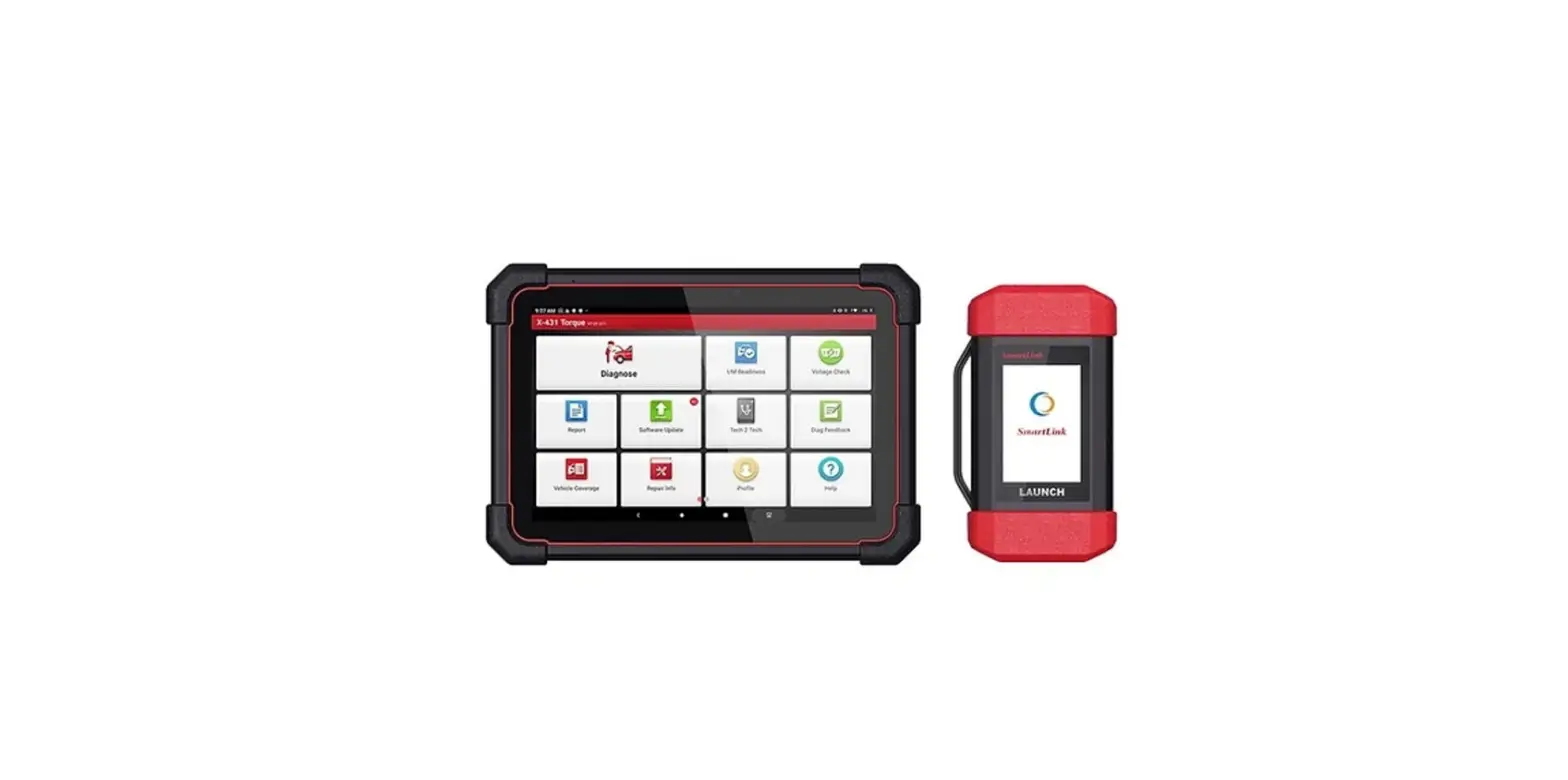
When as a VCI, the SmartLink C V2.0 dongle needs to work in conjunction with the LAUNCH-specific diagnostic tool, which is used to obtain vehicle data, and then send it to the tool for analysis via wired/wireless communication.
/
/
3. Work as a Remote J2534 PassThru Device
Additionally, the SmartLink C V2.0 dongle can also be used as remote J2534 PassThru device while performing remote ECU reprogramming function.
*Before diagnosing, please make sure the following conditions are met: Y The SmartLink C V2.0 dongle is connected to the
Internet and has a strong and stable network signal. Y The OEM diagnostic software has been installed on
the PC. Y The LAUNCH’s J2534 tool also needs to be
installed on the PC. This tool and its associated operation instruction document can be downloaded from www.cnlaunch.com.
2. Work as a Local J2534 PassThru Device
Except that the SmartLink C V2.0 acts as a VCI device and a SmartLink dongle, it also can be used as a local J2534 PassThru device, working together with the PC installed with the OEM diagnostic software to perform the J2534 reprogramming. In this case, the PC needs to install with the LAUNCH’s J2534 tool, which can be downloaded from www.cnlaunch.com.
Ensure that the remote J2534 reprogramming operation is performed after the SmartLink C dongle V2.0 is connected to the vehicle’s DLC port and the Internet, and has been switched to the super remote diagnosis mode.
For specific operations, please refer to other associated documents. 6
FAQ & Appendix
1. What’s the minimum requirement for network conditions? The remote SmartLink operation requires a network broadband of 100 MB or above.
2.What does “Delay” displayed on the SmartLink C V2.0 screen mean? The Delay (network delay) indicates the quality of the current network. Different colors represent different delay status. There are three states of network delay:
Green: Indicates the network is normal. It is recommended that the diagnosis operation be performed when the network delay is green. Otherwise, the communication with the vehicle may fail or the incorrect system detection may occur. Yellow: Indicates the network is not stable. Please keep it stable. Red: Indicates the network delay is serious and not suitable for remote diagnosis or the network is disconnected.
3.Why is my network connection so poor? If the displayed network is poor, there may be too many people using the network in the LAN (Local Area Network) at the same time and some users are downloading. It is recommended to use a stable network for remote SmartLink diagnosis.
4. Why is there a sign in the upper right corner? Some networks have firewall restriction which leads to a longer delay of connection. You are most likely to see this sign while your system is in connection with networks managed by communities or companies. It is recommended to use the networks directly installed by telecommunication operators where there is no firewall restriction.
5. Some systems of certain old vehicles can not be tested. The SmartLink C V2.0 dongle supports CANBUS and DoIP communication protocols, but some old vehicle uses K-Line communication protocol.
6. Is it necessary to re-ignite the car after the diagnostic system starts working?
For the sake of some vehicle’s conditions, the re-ignition will provide you a more detailed analysis after OBD diagnosis.
7. Can I use SmartLink C V2.0 to test heavy-duty vehicles? Due to vehicle voltage limits, only a few heavy-duty vehicles are supported.
7
8. Can I charge SmartLink C V2.0 through an external DC power supply? No. The SmartLink C dongle obtains power only through a vehicle’s OBD diagnostic socket. Getting power through an external DC power supply could result in system malfunction. 9.Does SmartLink C V2.0 support Bluetooth communication? Not yet. 10.Can I use SmartLink B to perform remote diagnostics on SmartLink C V2.0? Yes.
Appendix – DLC Location
For passenger cars, the DLC is usually located 12 inches away from the center of the instrument panel, under or around the driver’s side for most vehicles. For some vehicles with special designs, the DLC may vary. Refer to the following figure for possible DLC location.
A. Opel, Volkswagen, Audi B. Honda C. Volkswagen D. Opel, Volkswagen, Citroen E. Changan F. Hyundai, Daewoo, Kia, Honda, Toyota, Nissan,
Mitsubishi, Renault, Opel, BMW, MercedesBenz, Mazda, Volkswagen, Audi, GM, Chrysler, Peugeot, Regal, Beijing Jeep, Citroen and most prevailing models
For commercial vehicles, the DLC is generally located in driver’s cab. If the DLC cannot be found, refer to the vehicle’s service manual for the location.
If you have any questions or comments on the operation of the product, please contact the seller or send Email to our after-sale service email address: [email protected].
FCC Statement
This equipment has been tested and found to comply with the limits for a Class A digital device, pursuant to part 15 of the FCC rules. These limits are designed to provide reasonable protection against harmful interference in a residential installation. This equipment generates, uses and can radiate radio frequency energy and, if not installed and used in accordance with the instructions, may cause harmful interference to radio communications. However, there is no guarantee that interference will not occur in a particular installation. If this equipment does cause harmful interference to radio or television reception, which can be determined by turning the equipment off and on, the user is encouraged to try to correct the interference by one or more of the following measures: -Reorient or relocate the receiving antenna. -Increase the separation between the equipment and receiver. -Connect the equipment into an outlet on a circuit different from that to which the receiver is connected. -Consult the dealer or an experienced radio/TV technician for help. To assure continued compliance, any changes or modifications not expressly approved by the party. Responsible for compliance could void the user’s authority to operate this equipment. (Example- use only shielded interface cables when connecting to computer or peripheral devices).
Any Changes or modifications not expressly approved by the party responsible for compliance could void the user’s authority to operate the equipment.
This equipment complies with Part 15 of the FCC Rules. Operation is subject to the following two conditions:
(1) This device may not cause harmful interference, and (2) This device must accept any interference received, including interference that may cause undesired operation.
FCC Radiation Exposure Statement: The equipment complies with FCC Radiation exposure limits set forth for uncontrolled enviroment. This equipment should be installed and operated with minimum distance 20cm between the radiator and your body.
Copyright © 2023 by LAUNCH TECH CO., LTD. All rights reserved. No part of this publication or any artwork contained herein may be reproduced in any shape or form without the express written consent of LAUNCH TECH CO., LTD.
Due to continuing improvements, actual product may differ slightly from the product described herein and this publication is subject to change without notice.
V1.00.000
107013663
 Smart link
 元征
元征