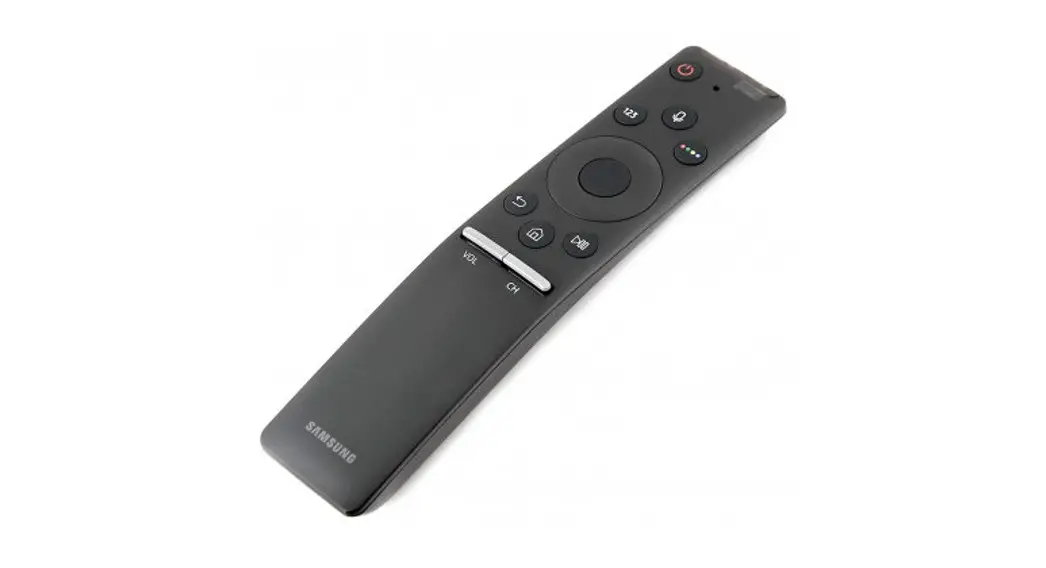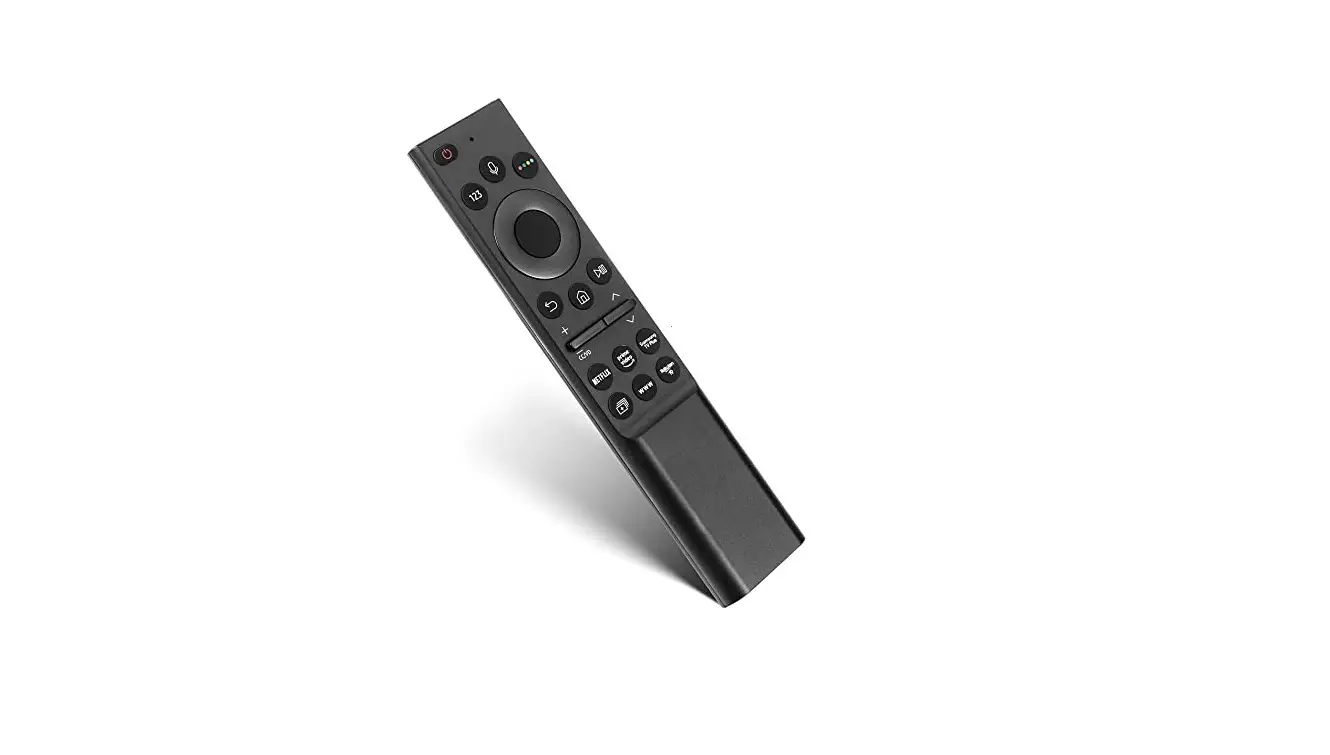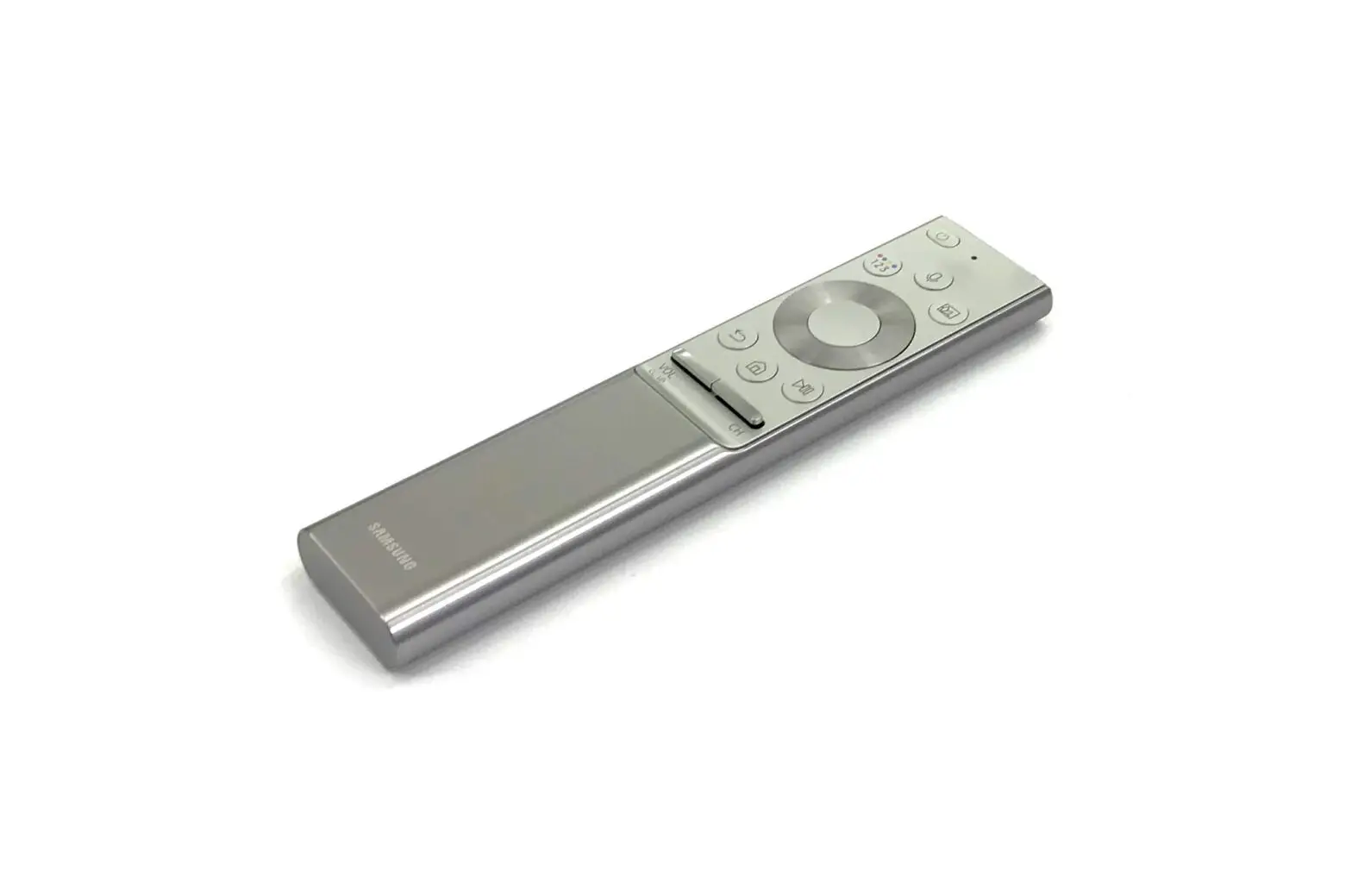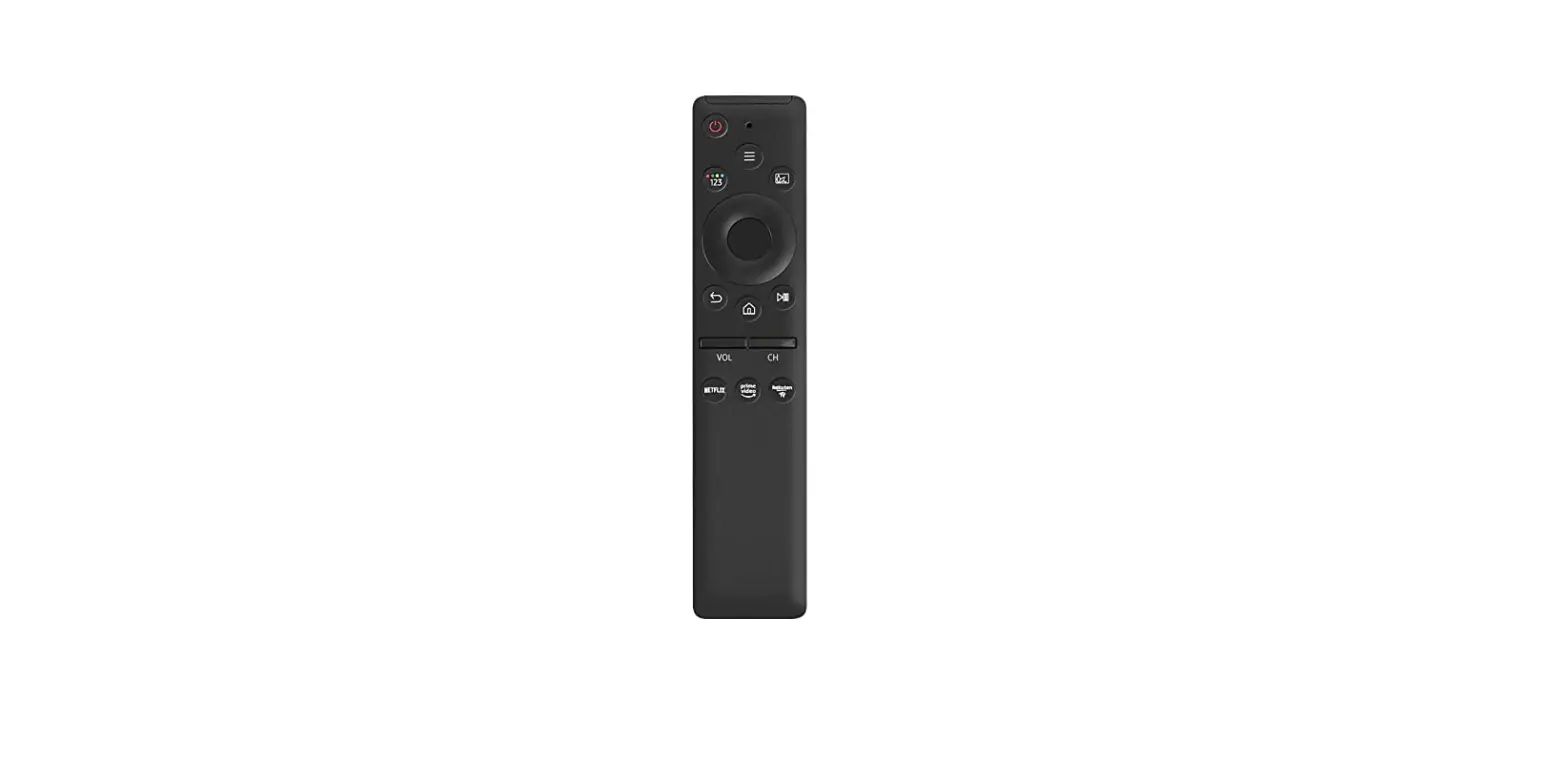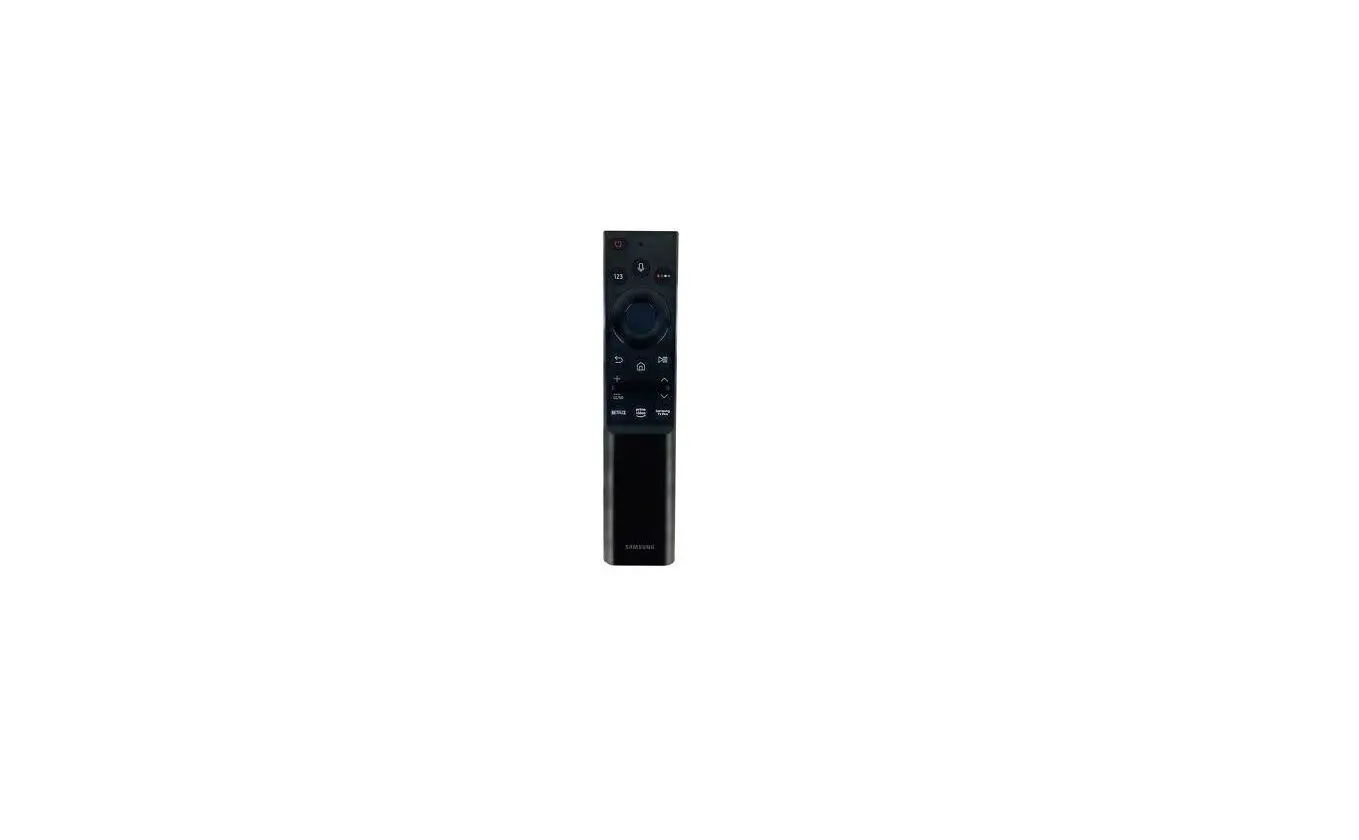

Samsung Smart Remote
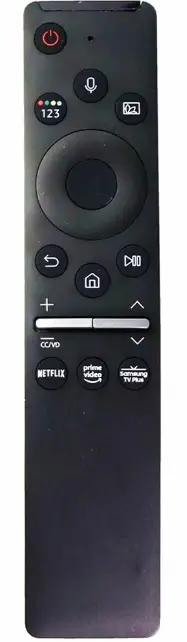
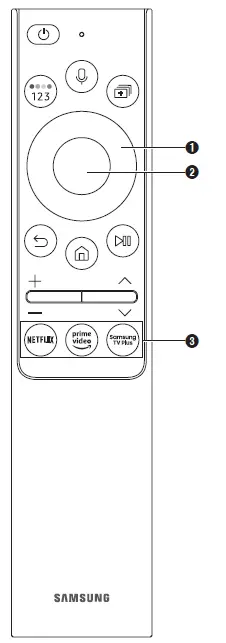
| Button | Description |
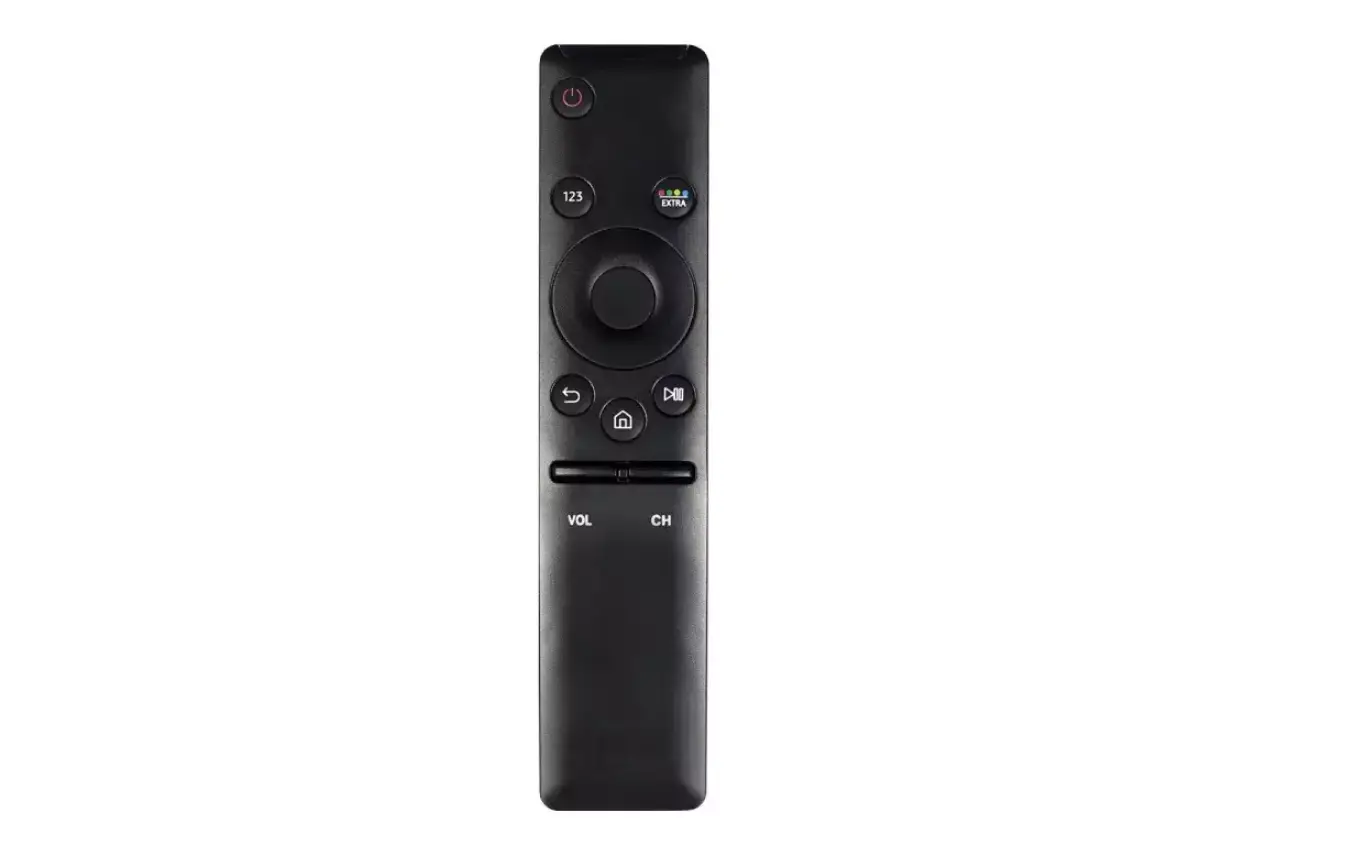
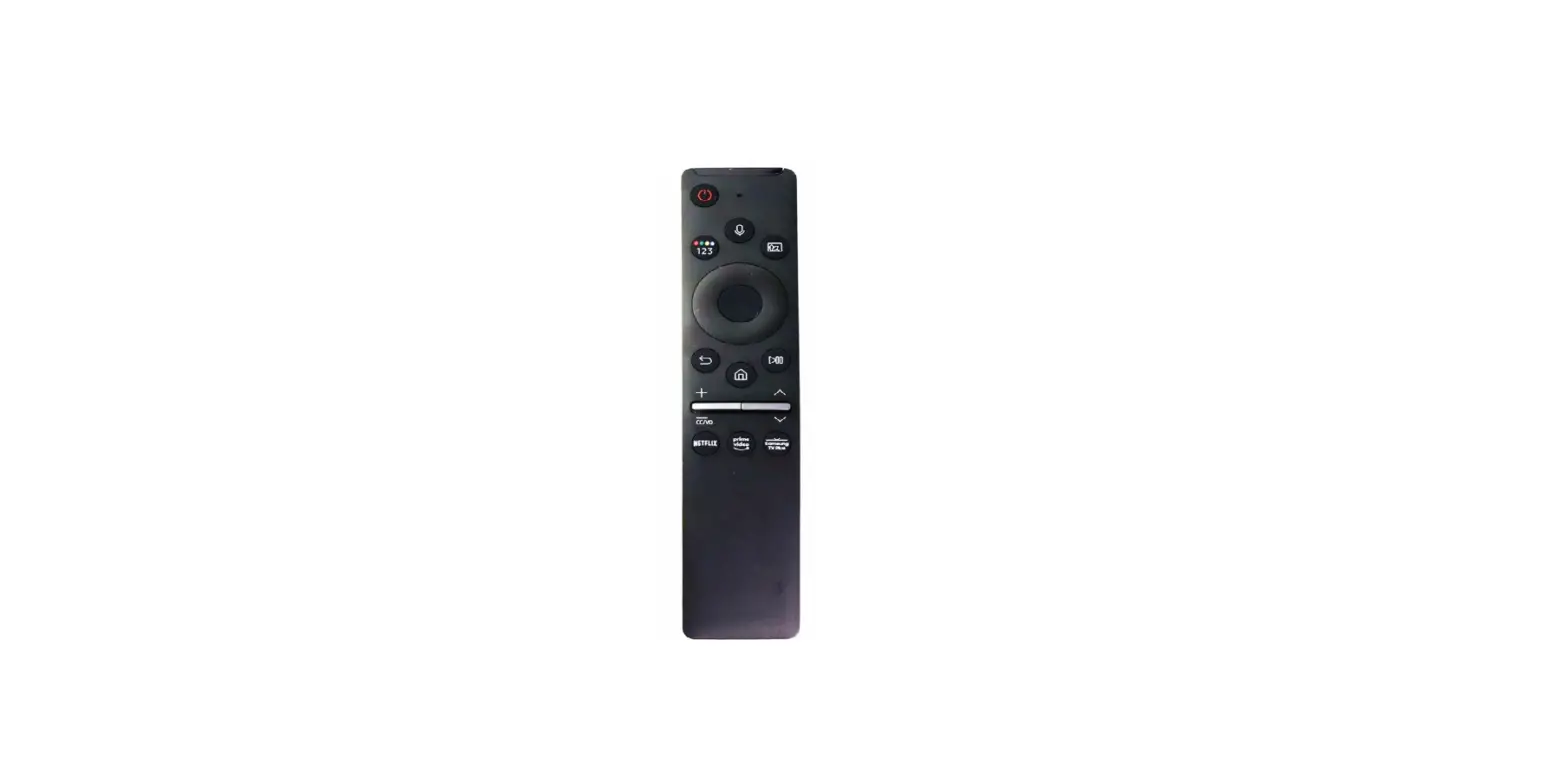
 (Power) (Power) | Press to turn the TV on or off. |
|
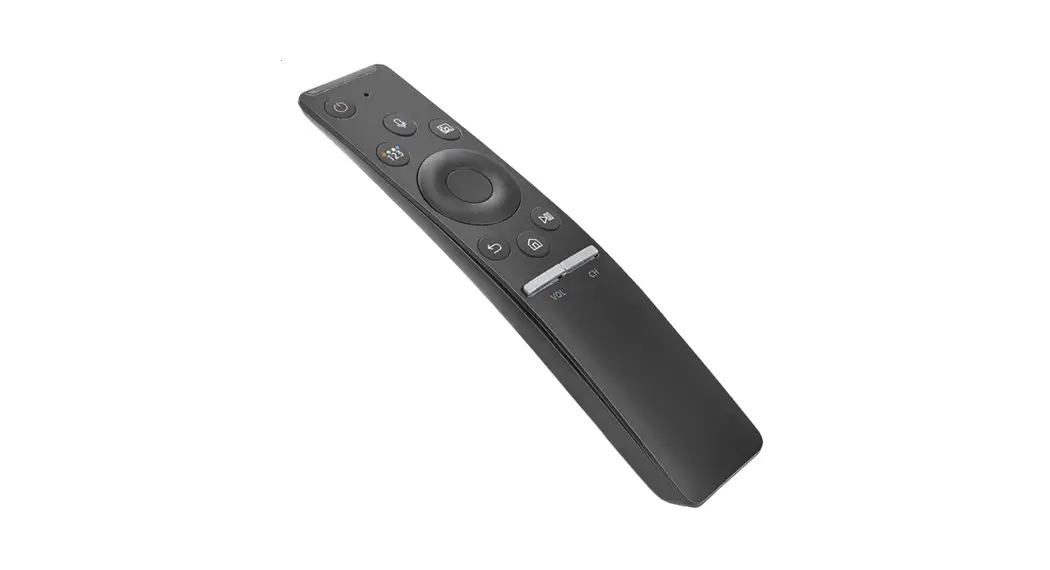
| Runs Voice Assistant. Press and hold the button, say a command, and then release the button to run Voice Assistant. • The supported Voice Assistant’s languages and features may differ by geographical region. |
|
| Each time you press this button, the coloured buttons window and the virtual numeric pad are displayed alternately. • Use these coloured buttons to access additional options specific to the feature you are using. • Press to bring up the virtual numeric pad on the screen. Use the numeric keypad to enter numeric values. Select numbers and then select Done to enter a numeric value. Use to change the channel, enter a PIN, enter a ZIP code, etc. • When pressed for1 second or more, the TTX menu appears. |
|
| Press the button to directly enter the Multi View function. • When pressed for1 second or more, the Shortcuts menu screen appears. |
| 1 Directional button (up, down, left, right) | Moves the focus and changes the values seen on the TV’s menu. |
| 2 Select | Selects or runs a focused item. When pressed while you are watching a broadcast programme, detailed programme information appears. |
|
| Press to return to the previous menu. When pressed for1 second or more, the running function is terminated. When pressed while you are watching a programme, the previous channel appears. |
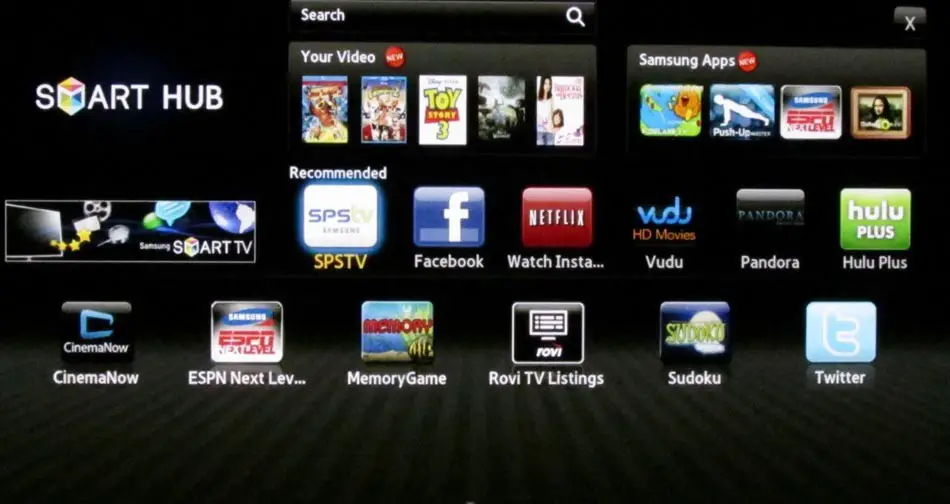
 (Smart Hub) (Smart Hub) | Returns to the Home Screen. |
|
| When pressed, the playback controls appear. Using these controls, you can control the media content that is playing. To use Game Bar, press and hold the button in Game Mode. • Game Bar may not be supported depending on the model or geographical area. |
|
| Move the button up or down to adjust the volume. To mute the sound, press the button. When pressed for1 second or more, the Accessibility Shortcuts menu appears. |
|
| Move the button up or down to change the channel. To see the Guide screen, press the button. • When pressed for1 second or more, the Channel List screen appears. |
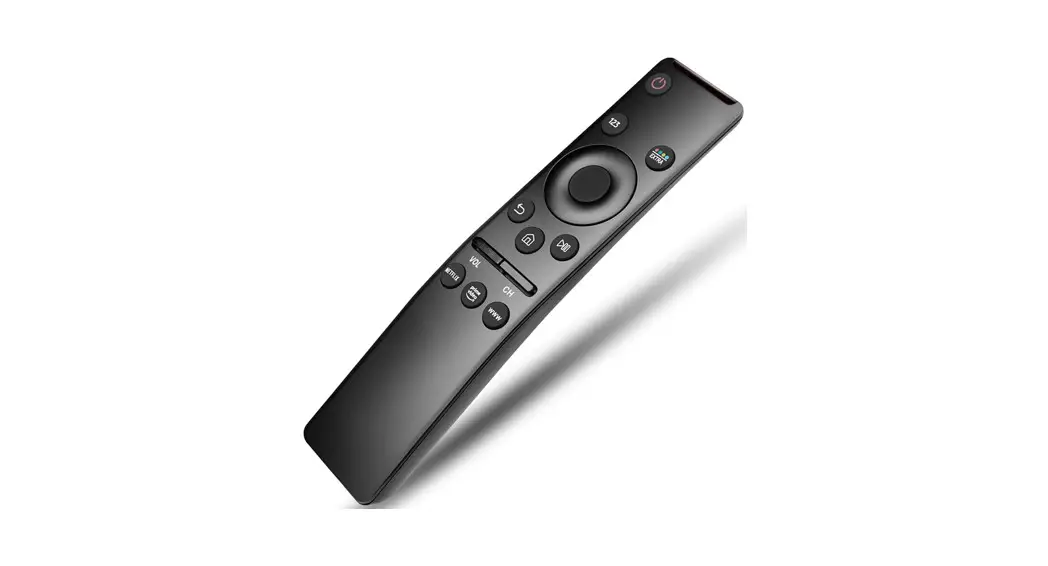
| 3 (Launch app button) | Press each button to run its function. |
|
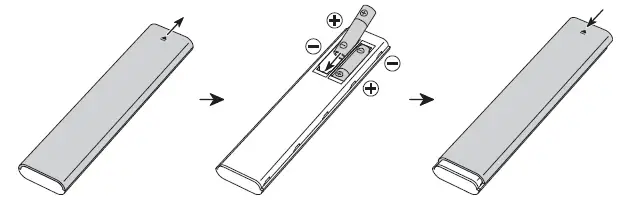
| If the Samsung Smart Remote does not pair to the TV automatically, point it at the front of the TV, and then press and hold the buttons simultaneously for 3 seconds or more. |
 (Voice Assistant)
 (Colour / Number button)
 (Multi View)
 (Return)
 (Play/pause)
 (Volume)
 (Channel)
 (Pairing)
- Use the Samsung Smart Remote less than 6 m from the TV. The usable distance may vary with the wireless environmental conditions.
- The images, buttons, and functions of the Samsung Smart Remote may differ with the model or geographical area.
- The Universal Remote function operates normally only when you use the Samsung Smart Remote that comes with the TV.
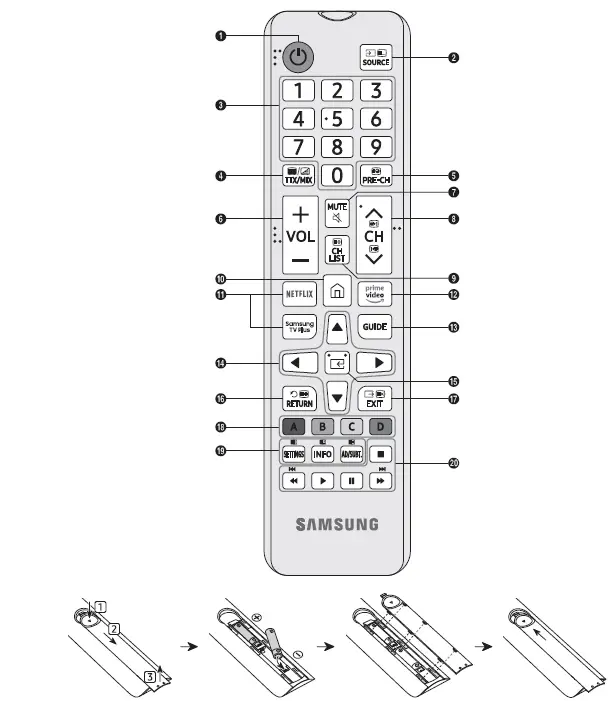
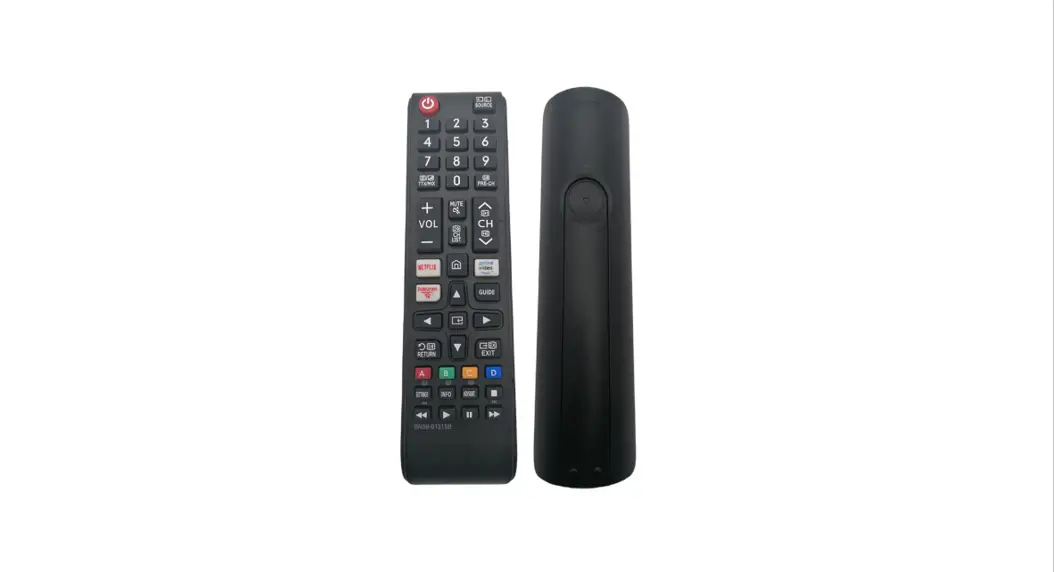
| Number | Description |
| 1 | P (Power) Turns the TV on and off. |
| 2 | Displays and selects available video sources. |
| 3 | Gives direct access to channels. |
| 4 | Alternately selects Teletext mode, Full TTX / Double TTX / Mix / Live TV. |
| 5 | Returns to the previous channel. |
| 6 | Adjusts the volume. |
| 7 | Turns the sound on/off. |
| 8 | Changes the current channel. |
| 9 | Launches the Channel List. |
| 10 | Launches Home Screen. |
| 11,12 | Press each button to run its function. |
| 13 | Displays the Guide screen. |
| 14 | Moves the cursor, selects the on-screen menu items, and changes the values seen on the TV’s menu. |
| 15 |  (Select) (Select)Selects or runs a focused item. |
| 16 | Returns to the previous menu or channel. |
| 17 | Exits the menu. |
| 18 | Use these buttons according to the directions on the TV screen. |
|
19 | SETTINGS Displays the main on-screen menu. INFO Displays information about the current programme or content. AD/SUBT. Displays the Accessibility Shortcuts. |
| 20 | Use these buttons with specific features. Use these buttons according to the directions on the TV screen. |
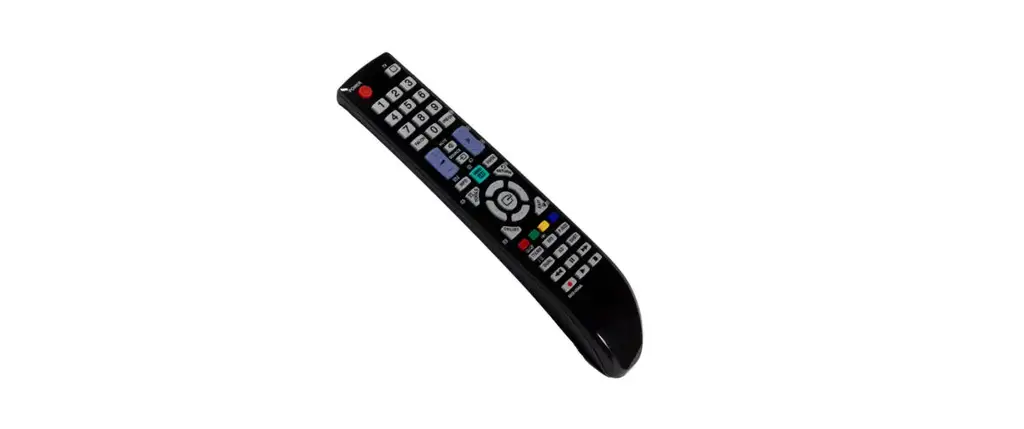
- The images, buttons, and functions of the remote control may differ depending on the model.
- This remote control has Braille points on the Power, Channel, Volume, and Select buttons and can be used by visually impaired persons.
- If you use the remote control that comes with your TV to control another TV, some functions may not operate normally.