
 Was this document helpful?
smarttech.com/docfeedback/171848
User interface comparison
SMART Remote Management
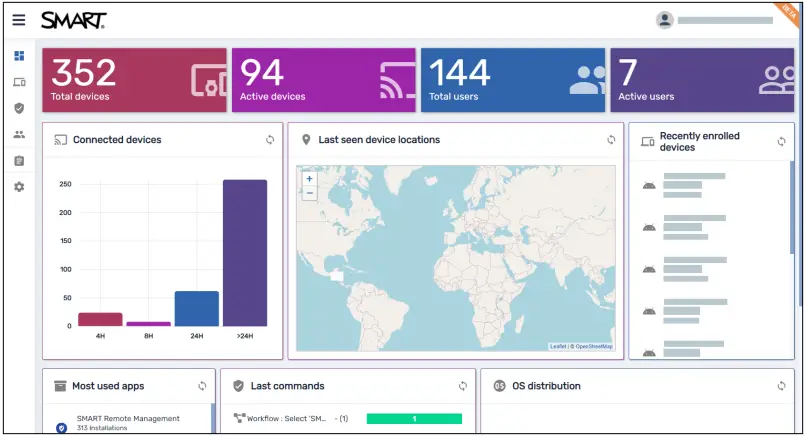
When you first sign in to SMART Remote Management, a window appears. This window includes information about the new user interface and allows you to switch to it.
The new use interface is faster, more secure, and provides new features and capabilities.
This table lists the main differences between the new and existing user interfaces:
| Area | New user interface | Existing user interface |
| Single sign-on (SSO) | Users can sign in to SMART Remote Management using their Google™ or Microsoft® accounts rather than having to use their SMART Remote Management accounts (if set up first by admins). | Users can only sign in to SMART Remote Management using their SMART Remote Management accounts. |
| Dark theme | You can switch between light and dark themes in the new user interface. | You can’t switch between light and dark themes in the existing user interface. |
| Languages | The new user interface is available in the same languages as the existing one as well as Catalan. | The existing user interface is available in the following languages:
|
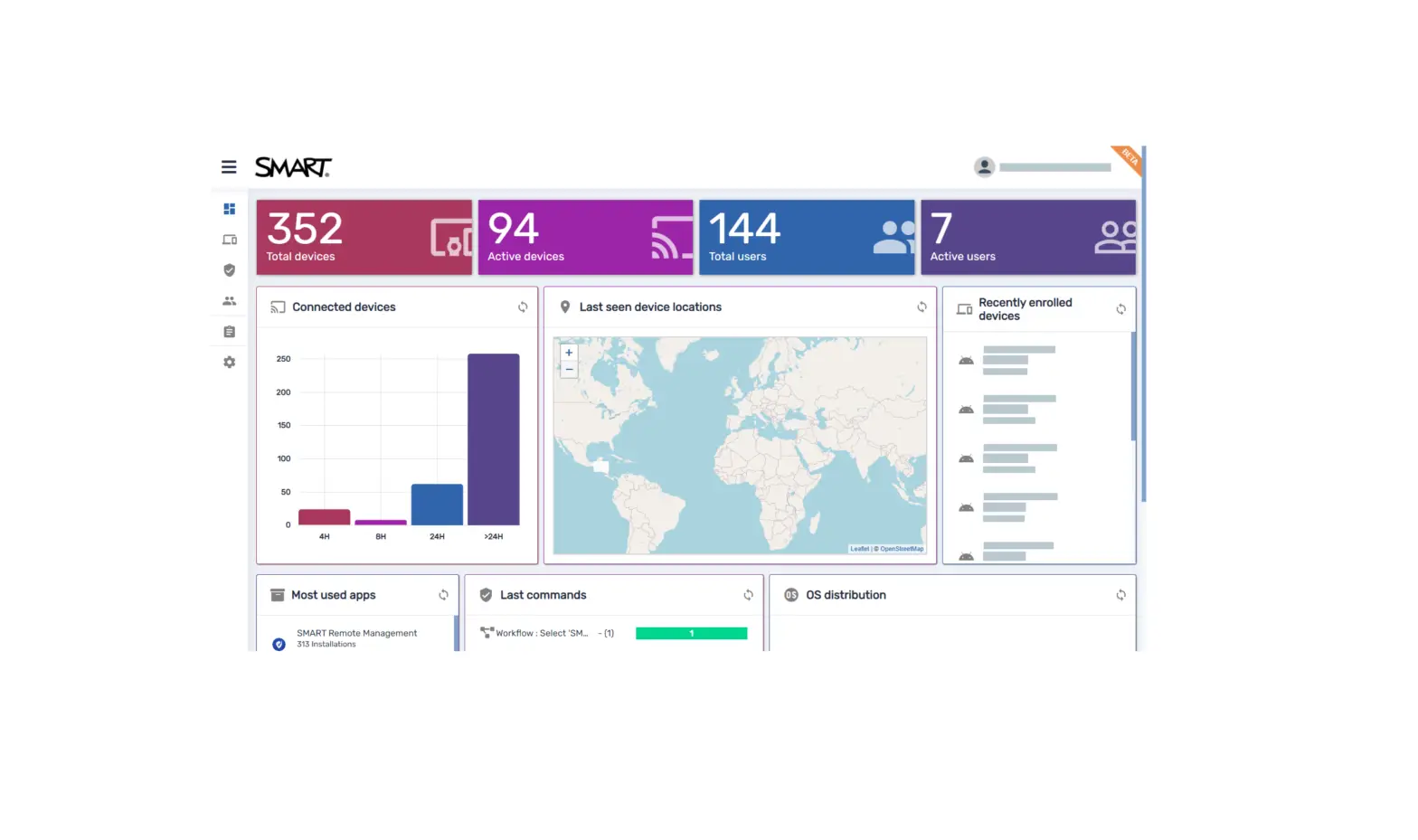
| Dashboard | The Dashboard view includes the following panels in the new user interface:
| The Dashboard view includes the following panels in the existing user interface:
|
| Command access in the Devices view | The following commands are accessible from the toolbar in the Devices view:
All other commands are accessible from the More actions | All commands are accessible from the Actions  menu. menu. |
| Device dashboard | In the device dashboard, you can view detailed information about a device and its apps, and you can enable, disable, start, stop, and clear data for specific apps. | In the device dashboard, you can view less detailed information about a device and its apps than in the new user interface, and you can enable, disable, start and stop (but not clear data for) specific apps. |
| Groups | You can find groups by clicking Groups in the Devices view. | You can find groups in the Groups view. |
| Filters | You can create and save filters using the Filters  button in the Devices view. button in the Devices view. You can also filter the OS, Policy-Kiosk, and Tags columns. | You can create and save filters by clicking FILTERS & GROUPS in the Devices view. |
| Triggers | Triggers are referred to as “Schedulers and triggers” in the new user interface. | Triggers are referred to as “Triggers” in the existing user interface. |
 menu, and you can pin commonly used commands to the top of the menu.
smarttech.com/support
smarttech.com/contactsupport
© 2023 SMART Technologies ULC. All rights reserved. The SMART logo, smarttech, and all SMART taglines are trademarks or registered trademarks of SMART Technologies ULC in the US and/or other countries. All third-party product and company names may be trademarks of their respective owners. Contents are subject to change without notice. June 21, 2023.
 docs.smarttech.com/kb/171848
 Contact Support | SMART Technologies
 Contact Support | SMART Technologies