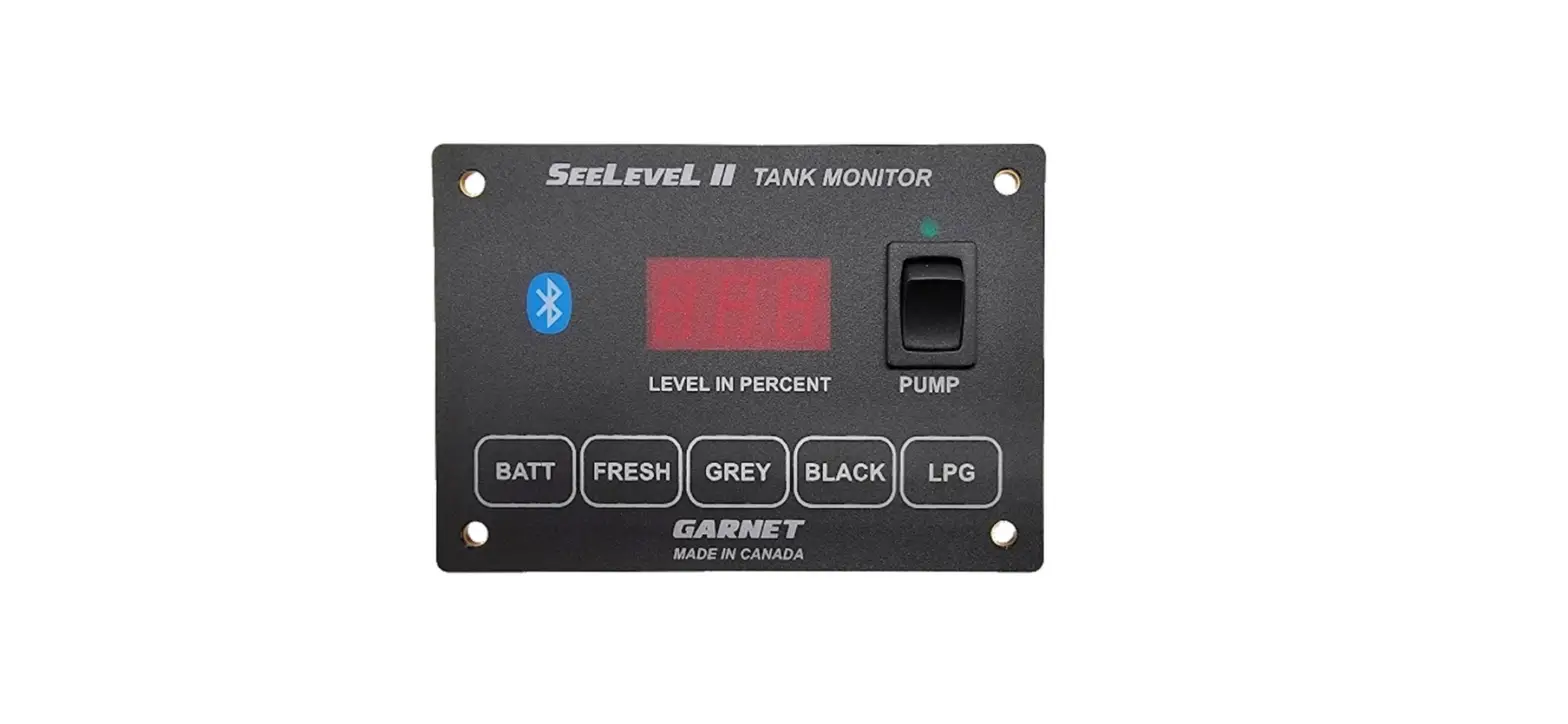
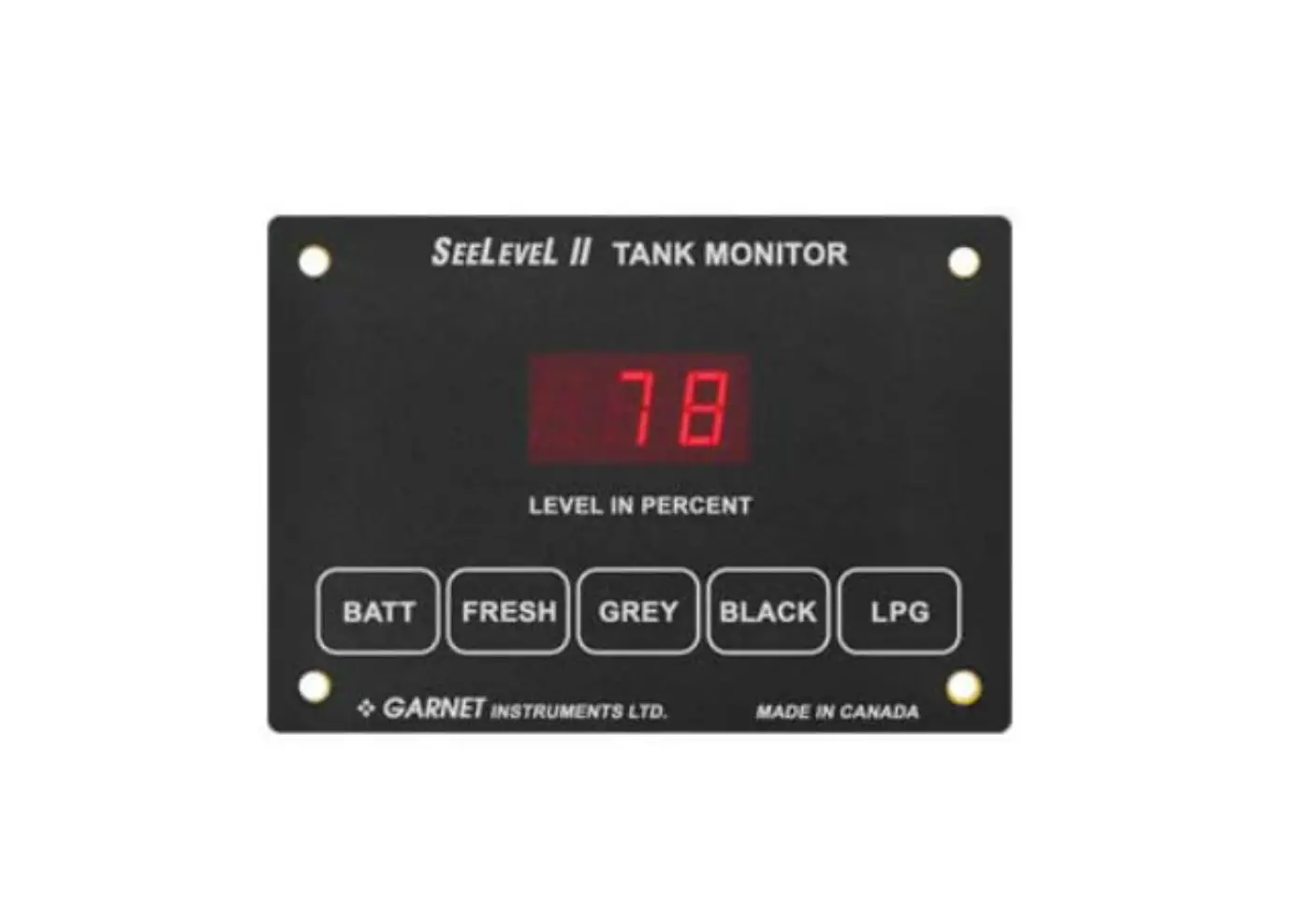
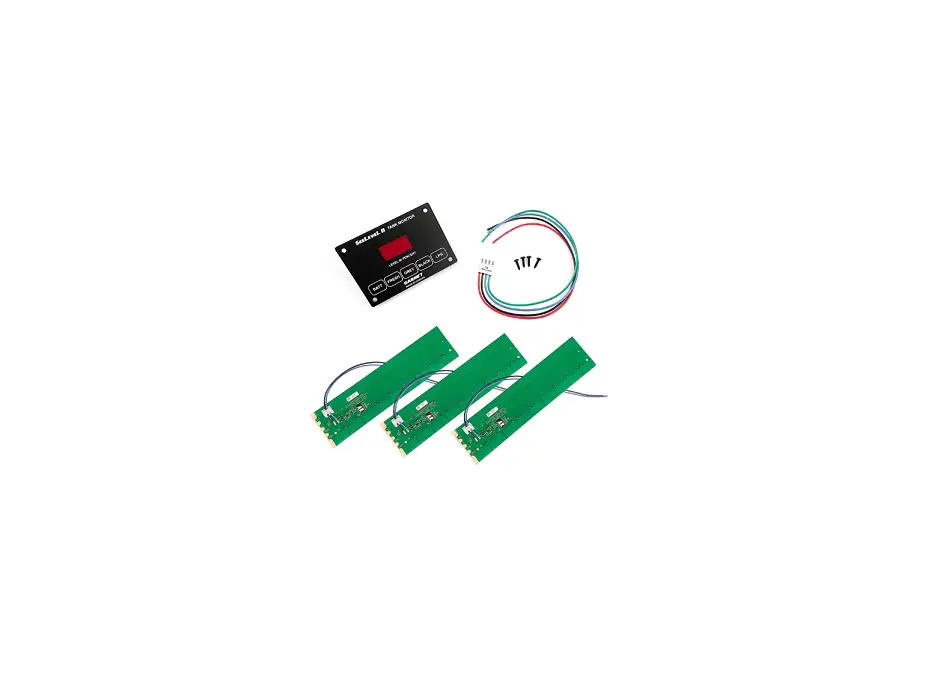
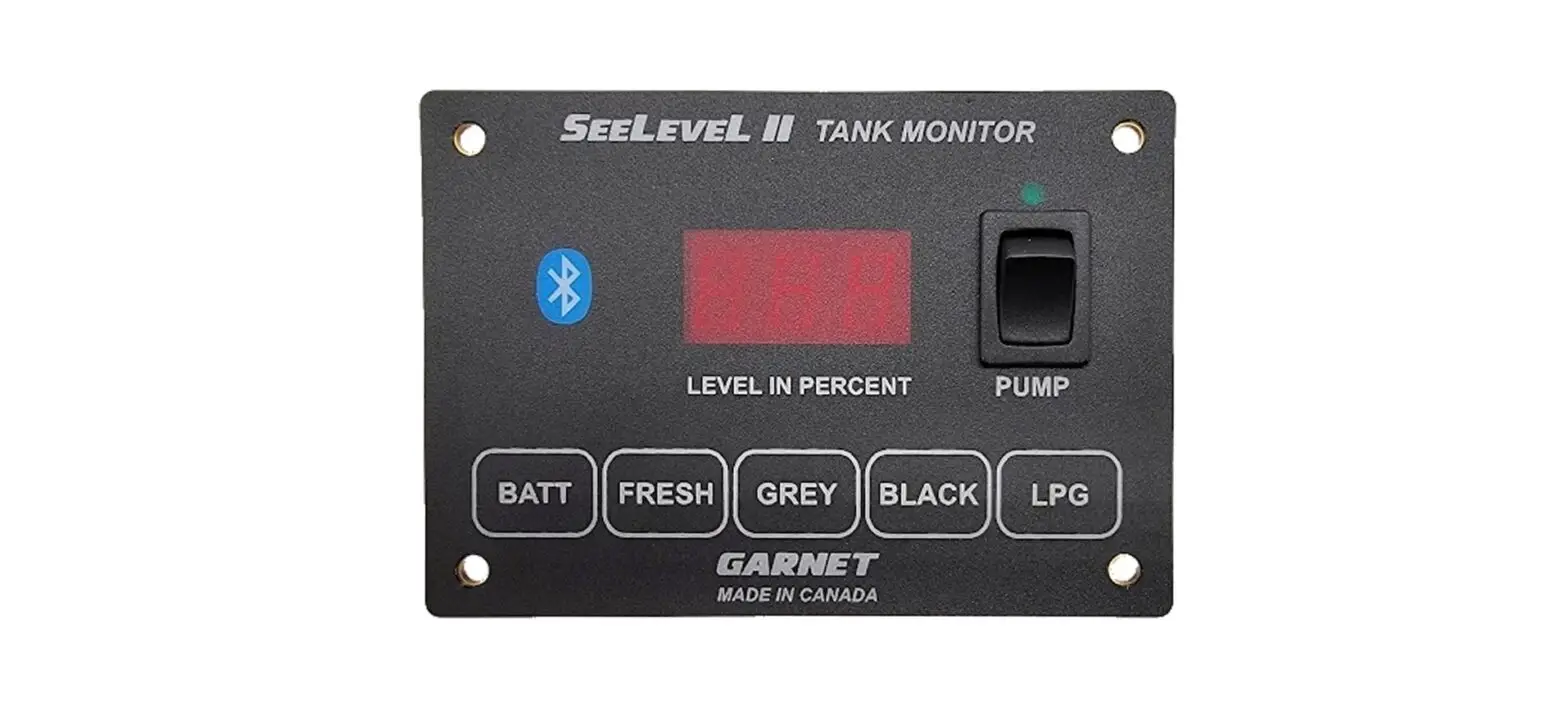
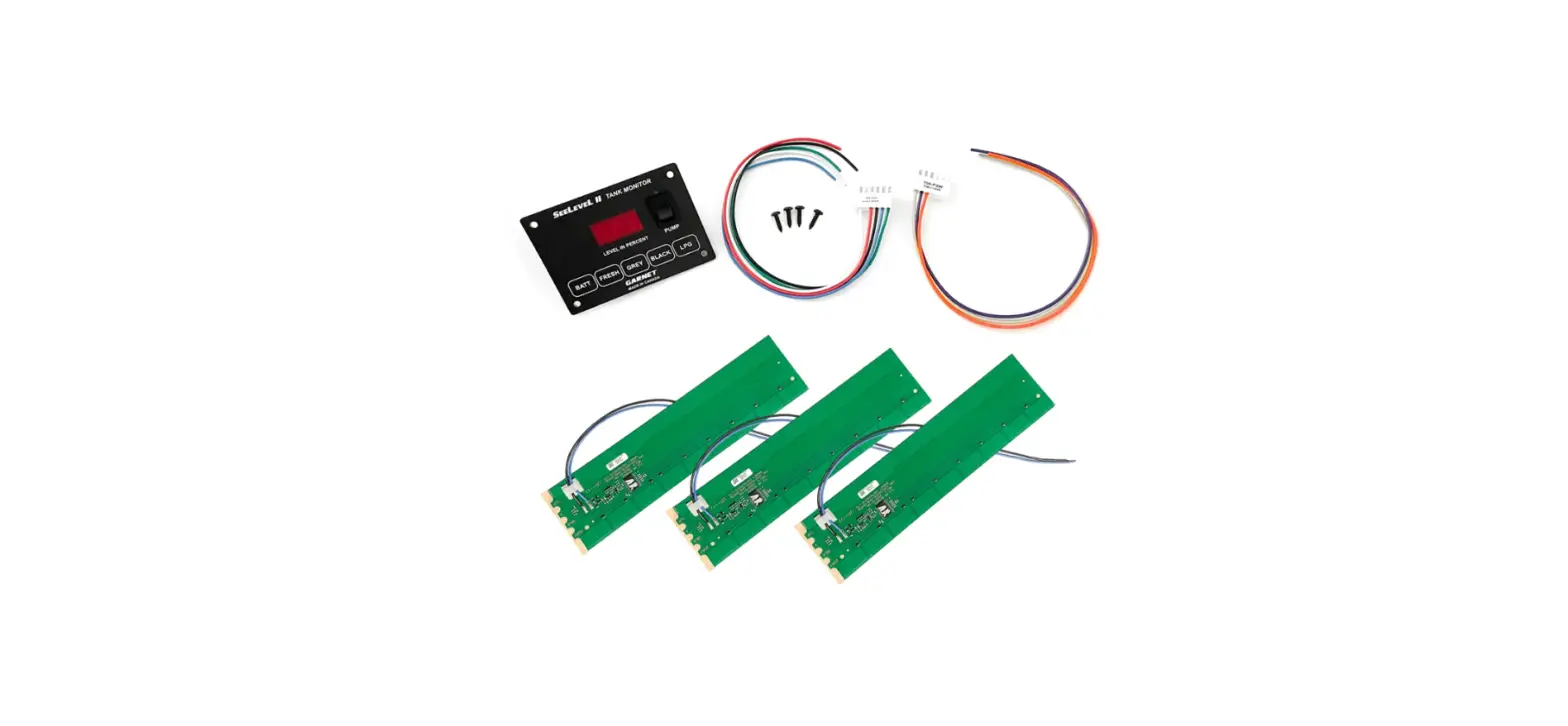
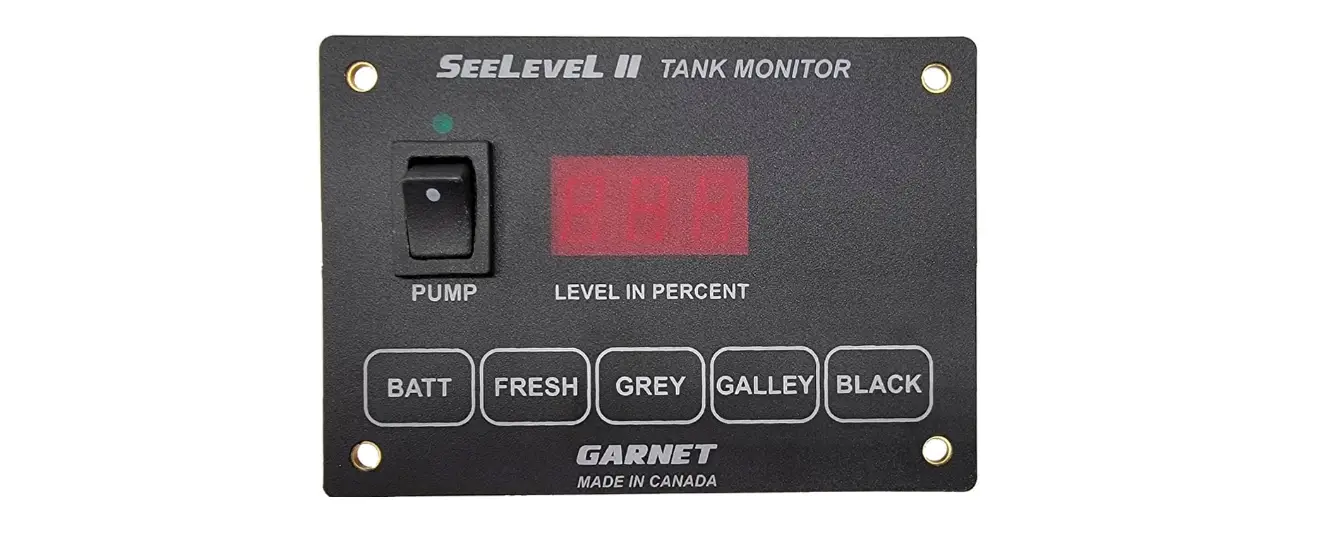
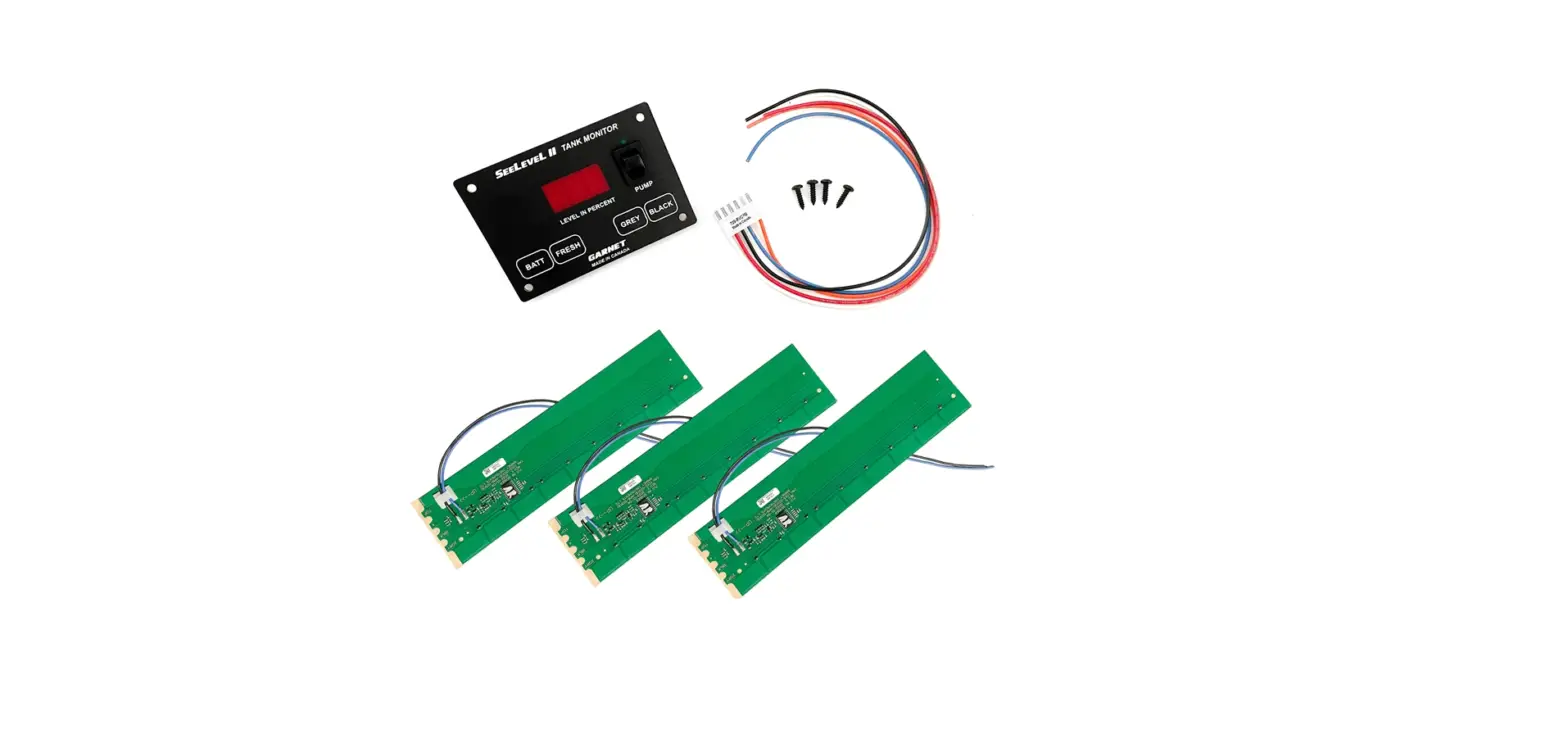
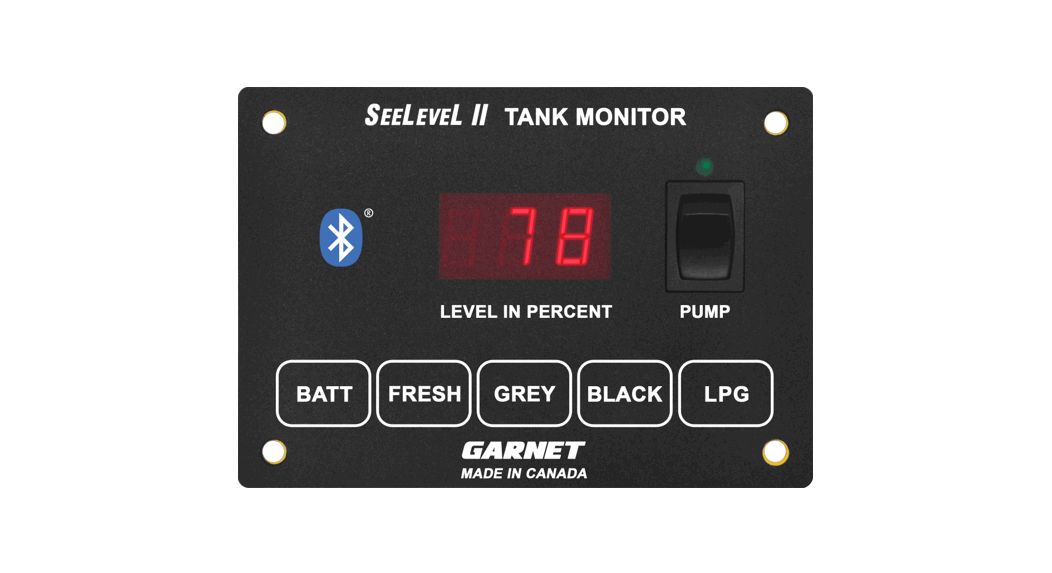
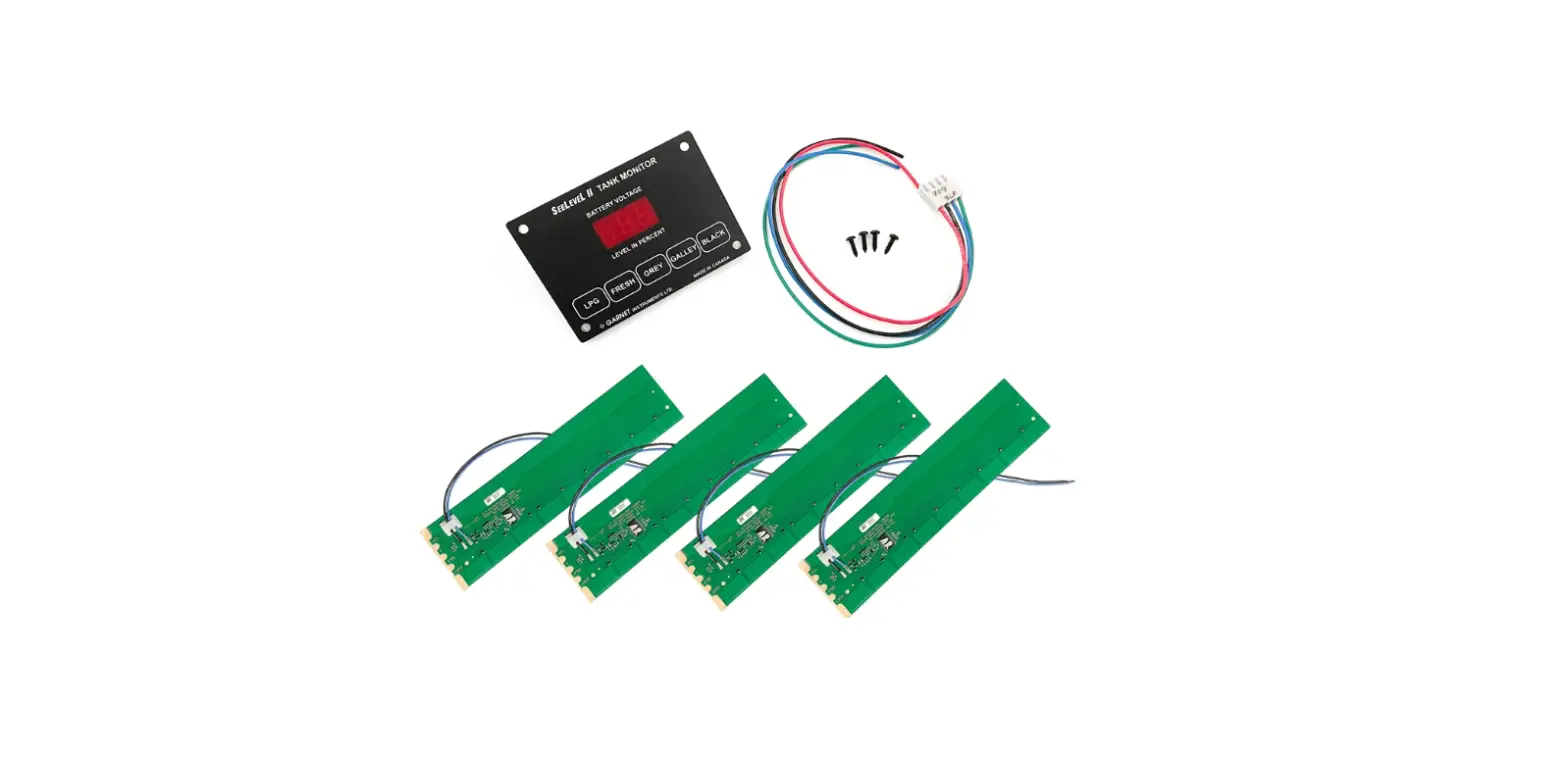
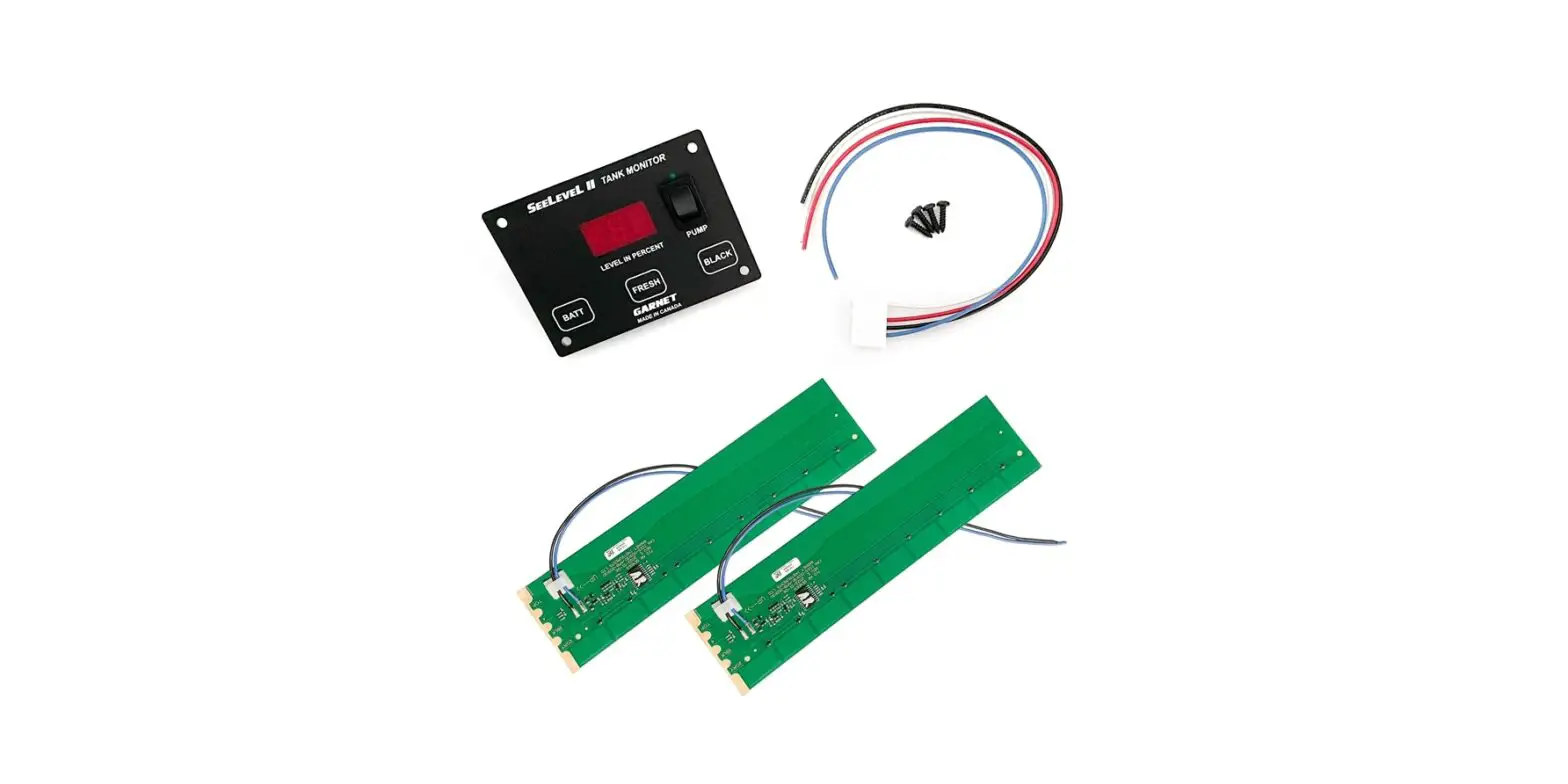
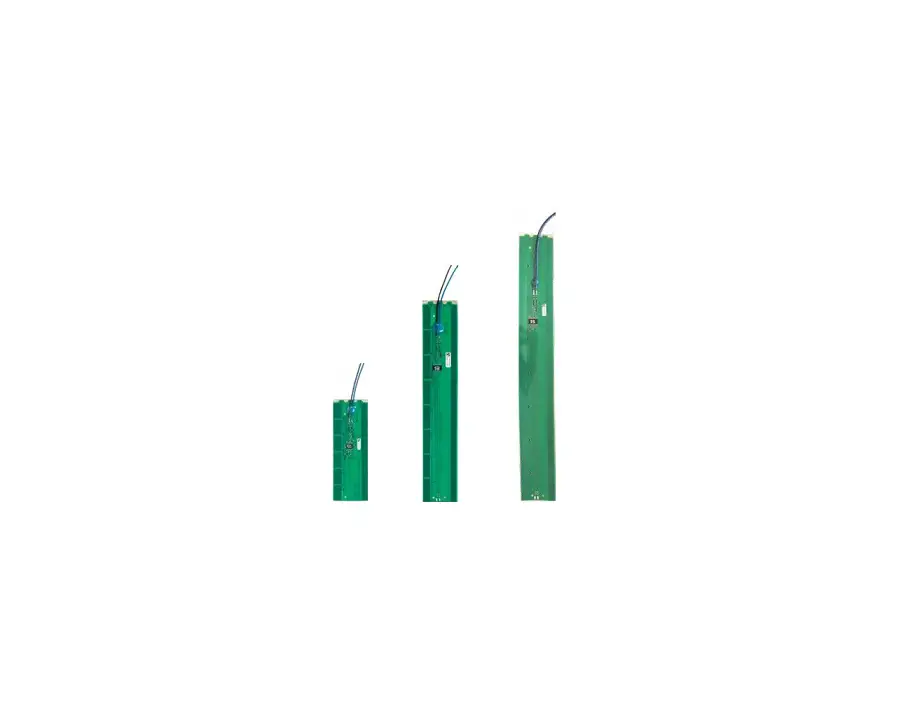
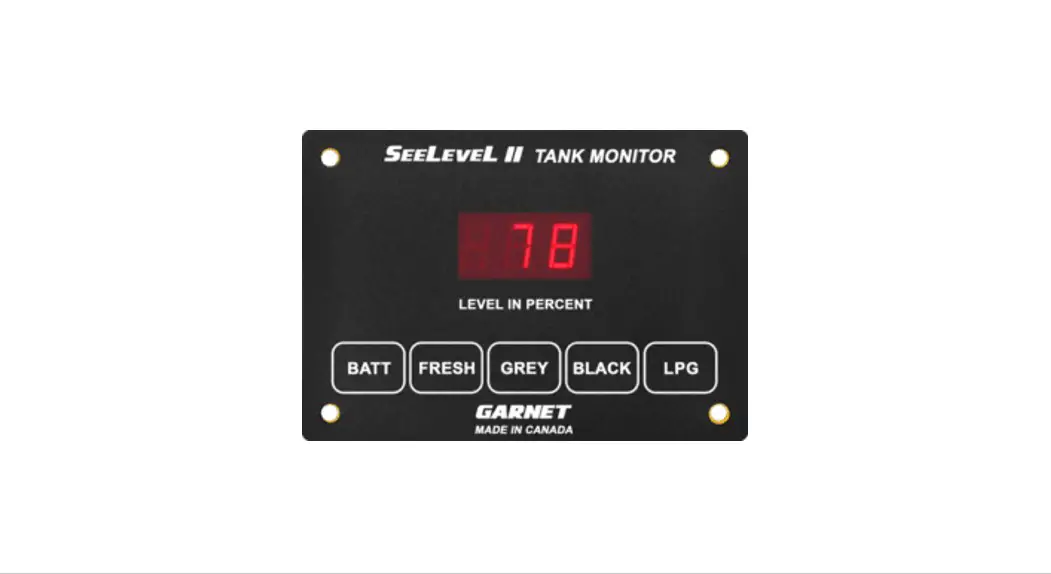
709-BTP3 SeeLevel Tank Monitor
Product Information: RV 2.0 Mobile Application
The RV 2.0 Mobile Application is a user-friendly app designed to
work with the SeeLeveL tank monitor system. It is compatible with
model 709-BTP3. The application is available for Apple iOS devices
and can be downloaded from the Apple App Store.
About the Application
The mobile application allows users to monitor tank levels and
access various features of the SeeLeveL tank monitor system. It
provides real-time information and notifications related to tank
levels.
Version Information
Version: 1.0 – 01-Aug-2023
Contact Information
CANADA: Garnet Instruments, 286 Kaska Road, Sherwood
Park, AB T8A 4G7
USA: Garnet US Inc., 5360 Old Granbury Road, Granbury, TX
76049
Product Usage Instructions
Getting Started
To use the RV 2.0 Mobile Application, follow these steps:
- Download and install the application from the Apple App
Store. - Ensure that auto-update is enabled or manually check for
updates to avoid missing out on app updates. - Allow necessary permissions and settings for optimal
functionality, such as notifications and device positioning.
Find My Tanks Screen
To connect your device and locate your tanks, follow these
steps:
- Launch the SeeLeveL RV App on your mobile device.
- Select the “Find My Tanks” button to access the Find My Tanks
screen. - Tap on the find icon to start the scanning process. The app
will search for available SeeLeveL tank monitor devices within
range. - Once the scanning process is complete, a list of detected
SeeLeveL tank monitor devices will be displayed. Select the correct
device by comparing the app tank levels to the levels shown on the
tank monitor.
My Tanks Screen
After successfully connecting to your tank monitor device, you
will be redirected to the My Tanks screen. Here, you can monitor
your tank levels and access other features. If the scan is
unsuccessful, follow the instructions on the screen.
To enable Auto-Connect feature:
- Switch on the Auto-Connect feature in the app’s settings.
- Once the connection is established, you can conveniently access
tank level information directly from the app’s Home Screen using
the My Tanks button while in Bluetooth range.
Configuration
To edit the device name:
- From the My Tanks screen, tap on the edit button located
at…
RV 2.0
Mobile Application User Manual
Compatible with model 709-BTP3
Mobile Device Compatibility
Apple iOS An Apple iPhone or iPad with Bluetooth® running iOS version 13 or newer.
CANADA
Garnet Instruments 286 Kaska Road Sherwood Park, AB T8A 4G7
USA
Garnet US Inc. 5360 Old Granbury Road Granbury, TX 76049
SeeLeveL RV 2.0 App User Manual – iOS Version
ABOUT THE APPLICATION
The SeeLeveL RV 2.0 app offers a wide range of powerful features to enhance your RV monitoring experience. With seamless compatibility for Apple iOS devices, this app allows you to effortlessly connect and monitor your tank levels and battery voltage right from your mobile device. The app provides real-time updates on up to four holding tanks, including fresh, grey, black, and LPG tanks. You can customize tank and device names, choose graphical tank fluid colors, and set personalized tank level alarms for timely notifications (see note below). The intuitive interface and AutoConnect feature ensure easy access to vital information directly from the Home Screen. With the SeeLeveL RV App, managing your resources and maintaining peace of mind while on the road has never been easier.
W NOTE: The iOS alarm feature is currently in Beta and has the following limitations: · The alarm will not function while the app is closed or in the background. · The alarm can only stay active for a few minutes (15 minutes or less) These limitations will be addressed in a future update. expands on information for any procedures.
Contents
Getting Started……………………………………………………………………………………………………….. 2 Home screen…………………………………………………………………………………………………………… 2 Find My Tanks screen ……………………………………………………………………………………………. 3 My Tanks Screen…………………………………………………………………………………………………….. 3 Configuration………………………………………………………………………………………………………….. 4 Alarm Settings (Beta)…………………………………………………………………………………………….. 6 Troubleshooting …………………………………………………………………………………………………….. 8 App Help Info …………………………………………………………………………………………………………. 9 User Guide ………………………………………………………………………………………………………………. 9
“The Bluetooth® word mark and logos are registered trademarks owned by the Bluetooth SIG, Inc. and any use of such marks by Garnet Instruments Ltd. is under license. Other trademarks and trade names are those of their respective owners.”
Version: 1.0 – 01-Aug-2023
Page 1
GETTING STARTED
Download and Install App
For Apple iOS devices go to the Apple App Store and search “SeeLeveL RV 2.0”. Download and install the application.
W NOTE: DON’T MISS OUT ON UPDATES The app will be updated periodically. To avoid missing out on these updates, make sure to enable auto-update in your app store or manually check for updates.
Ensure Bluetooth®is Enabled
Once you have completed the installation, check that Bluetooth® is enabled in your device settings.
Permission Requests
When you launch the SeeLeveL RV App for the first time, there are a few permissions and settings that you need to allow to ensure optimal functionality. Notifications, Device Positioning. Here are some examples of these screens.
HOME SCREEN
From the home screen, you can select the following button options:
Find and connect your mobile device to your tank monitor.
Select to go to the alarms settings.
Select to view your tank levels.
Download user guide or watch tutorial.
Selecting the icon from the bottom of the screen will take you to this page.
Selecting this icon at the bottom right of the screen will allow the user to navigate to the About Us screen shown below.
The bottom of some screens have these options.
Settings Home
Help
Back
SeeLeveL RV 2.0 App User Manual – iOS Version
Page 2
FIND MY TANKS SCREEN
Connect your Device
1. After launching the SeeLeveL RV App on your mobile device, locate and select the “Find My Tanks” button. This will take you to the “Find My Tanks” screen. On the this screen, you should see a “find” icon, near the bottom of the screen.
2. Tap on to start the scanning process. The app will begin scanning for available SeeLeveL tank monitor devices within range. Wait for a moment as the app searches for and detects the available devices.
3. Once the scanning process is complete, the app will display a list of detected SeeLeveL tank monitor devices on the screen, and you can select one of them. Comparing the app tank levels to the levels shown on the tank monitor will ensure that you selected the correct device.
MY TANKS SCREEN
Tank Information
Once the connection is successfully established, you will be redirected to the “My Tanks” screen of the app, where you can start monitoring your tank levels and accessing other features. If the scan is unsuccessful, follow the instructions on the screen.
Switch on Auto-Connect
The Auto-Connect feature eliminates the need for manual connection attempts each time you use the app. Enable the Auto-Connect feature by switching it to the “On” position. Once the connection is established, you can conveniently access tank level information directly from the app’s Home Screen using the “My Tanks” button while in Bluetooth range.
Tap icon to scan.
Select the correct device. Device not connected.
W NOTE: Bluetooth has a typical range of up to 9 meters (30 feet) in order to function well inside the RV and its immediate surrounding area. Please ensure that your mobile device remains within this range of the tank monitor for optimal connectivity and reliable communication between the app and the tank monitor system. It is important to note that the actual range may vary depending on factors such as environmental conditions, obstructions, and the specific Bluetooth capabilities of your mobile device. Metal objects are a leading cause for Bluetooth disruption.
SeeLeveL RV 2.0 App User Manual – iOS Version
My Tanks screen view.
Auto-Connect switch.
Page 3
CONFIGURATION
Edit Device Name
It is advised that you change the default device name “709-BTP3” to a unique name so that you can distinguish your RV from other nearby RVs that are also equipped with a SeeLeveL system, for example, “My RV”, or “John’s RV”, etc. 1. From the “My Tanks” screen, tap on the “edit” button located at
the top right corner of the screen. The app will display an edit window where you can modify the device name.
Device Settings Options
Selecting the “gears” icon at the bottom of the screen allows you to do the following:
1. Change the Bluetooth scan mode. 2. Change the name of an individual
tank.
3. Change the fluid color of an individual tank.
4. Choose whether or not to display an individual tank.
Tap “Edit” button.
Edit window.
2. Once you have entered the new name, select the ‘ button to save the changes, or ” to cancel.
Select Bluetooth Scan Mode
Selecting different scan modes give you the ability to trade-off how quickly an app updates and how much battery life it uses. Battery consumption will rise with higher scan modes.
In device settings, select the “Scan Mode” dropdown menu. Select from the Power Saver; low, medium, or high.
Select the ‘ button to save the changes, or ” to cancel.
Tap “Edit” button.
New name.
SeeLeveL RV 2.0 App User Manual – iOS Version
Page 4
Edit Tank Names
In device settings, scroll through to find the tank you want to change. Tap
the edit button next to “Edit name?”, enter the desired name. Select the ‘ button to save the changes, or ” to cancel.
Select edit icon.
Enter a new name.
New name example changed to Fresh.
Change color of fluid in the tank
In device settings, scroll through to find the tank you want to change. Tap the edit button next to “Edit Color?”, using the dropdown list of color
options, select a color you wish to designate for that tan. Select the ‘ button to save the changes, or ” to cancel.
Select Color dropdown.
List of color options.
Enable Display Tank
In device settings, turn the toggle switch on or off to enable the tanks you want to appear on the “My Tanks”screen.
Example of designated colors.
SeeLeveL RV 2.0 App User Manual – iOS Version
Page 5
ALARM SETTINGS (BETA)
Setting alarms for each tank in the SeeLeveL RV App is a valuable feature that allows you to proactively monitor your tank levels. Once an alarm is setup you will receive notifications when tank levels reach specific thresholds, alerting you to take necessary action promptly. Before setting alarms, make sure you are within the appropriate range. From the home screen of the app, locate and select the “Alarms” button. This will take you to the “Alarms” screen. Once you have selected the tank, you can customize the alarm settings for that tank. To select a tank
To Select a Tank
Tap on the “add” + button to create an alarm. Tap on the “Select Tank” dropdown menu to expand options to open the “Set Alarm” screen. Scroll through to choose the tank from the list and tap to select.
About Alarm Types
Different fluids in tanks require different alarm level settings. For tanks that lose volume, like the fresh water or LPG tank, set low-level alarms to alert you when levels drop. Tanks that gain volume, such as black or grey tanks, should have high-level alarms to warn you when levels approach capacity. By setting the appropriate high-level or low-level alarms based on the fluid type in each tank, you can effectively monitor the fluid levels and take necessary actions
To Select Alarm Type
On the “Set Alarm” screen, locate the “Alarm Type” dropdown menu, select either “Low Level or High Level” based on the type of alarm you want to set.
Tap “add” button.
Tap on “Select Tank”.
Choose tank from list.
SeeLeveL RV 2.0 App User Manual – iOS Version
Select high or low.
Example of Fresh set low.
Enter Alarm Activation Value
Please enter the percentage value at which the alarm will be activated when the tank level is reached.
Once alarms have been configured on
a tank, select the ‘ button to save the changes, or ” to cancel.
Activated value example.
Page 6
Enable an Alarm
To enable the alarm, select the button. To disable, select the button.
The alarm will stay active for a short amount of time while the app is in the foreground. However, scanning for a device or navigating to the “My Tanks” section will disable the alarm, as these actions require Bluetooth usage.
Alarm Notifications
When a tank has reached its set threshold you will receive a notification. Selecting the notification will take you the App’s home screen.
Delete an Alarm
To delete an alarm select the
“remove” – button, select ‘ to save, select ” to cancel.
SeeLeveL RV 2.0 App User Manual – iOS Version
Page 7
TROUBLESHOOTING
Bluetooth Disabled
If you disable Bluetooth services on your device, you will be prompted to enable it.
Solution
Enable Bluetooth in device system settings.
Error! Icon
An error icon as shown below will be displayed if there is an issue with the users 709-BTP3 device.
Error Description
A pop-up dialogue box with the error description will appear when you select the error icon.
Auto Connect Disabled
If you select “My Tanks” from the home screen and Auto-connect is disabled, this error message is shown.
Failed to Start Alarm System
If you try to use the apps alarm feature without enabling auto-connect, this error message is shown.
Device Out of Range Move within the appropriate distance.
SeeLeveL RV 2.0 App User Manual – iOS Version
Page 8
APP HELP INFO
Help
Selecting the “help” icon at the bottom of the screen will display the following help options:
Device Scanning Device View
Alarm Feature
USER GUIDE
User Guide Screen
Selecting the “Guide” button from the home screen will open a web browser and take you to Garnet’s Resource library page where you can select the App user guide to view or download.
Coming Soon: The “Video” button will take you to a tutorial video from Garnet’s YouTube page.
SeeLeveL RV 2.0 App User Manual – iOS Version
Page 9