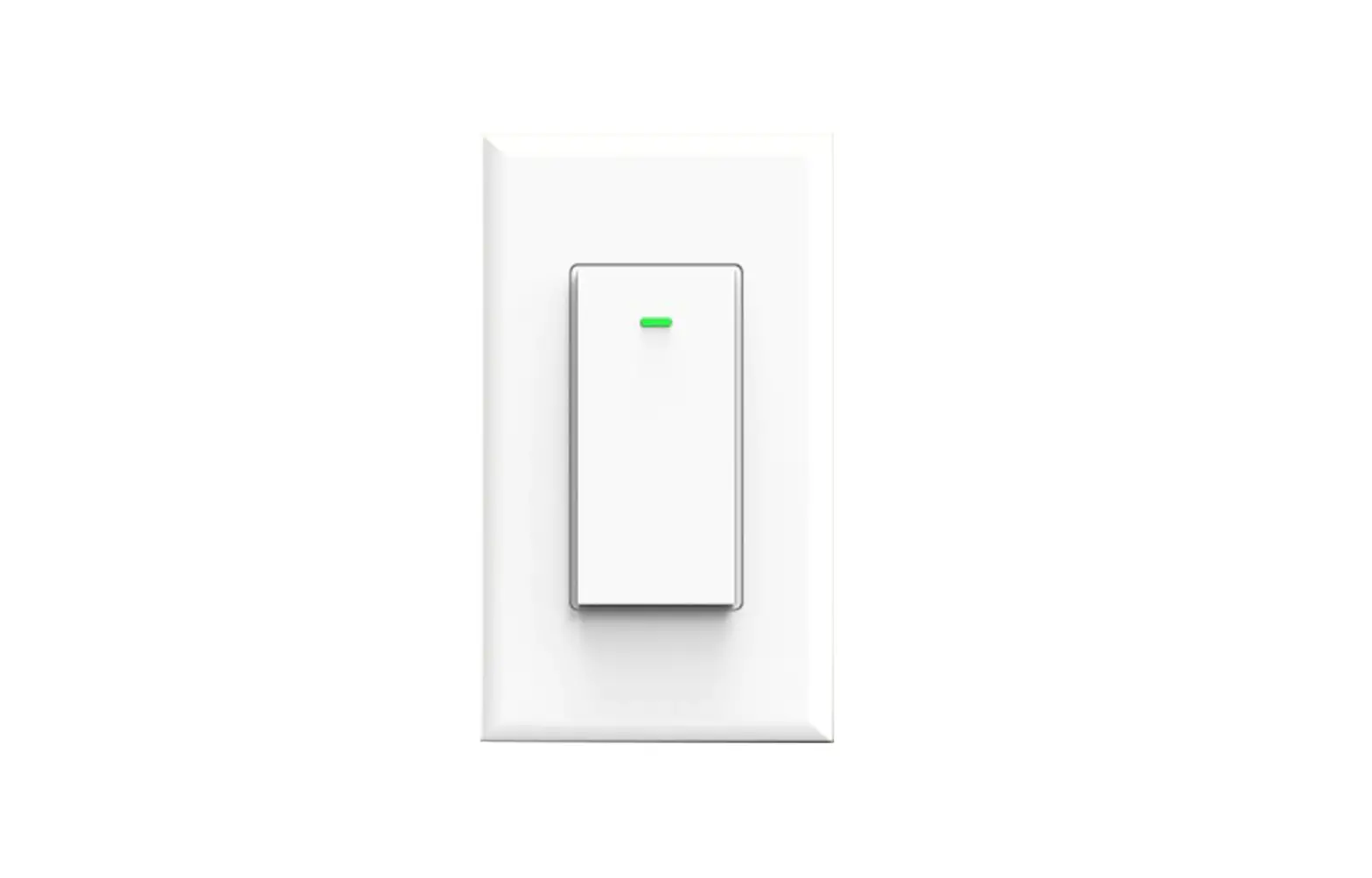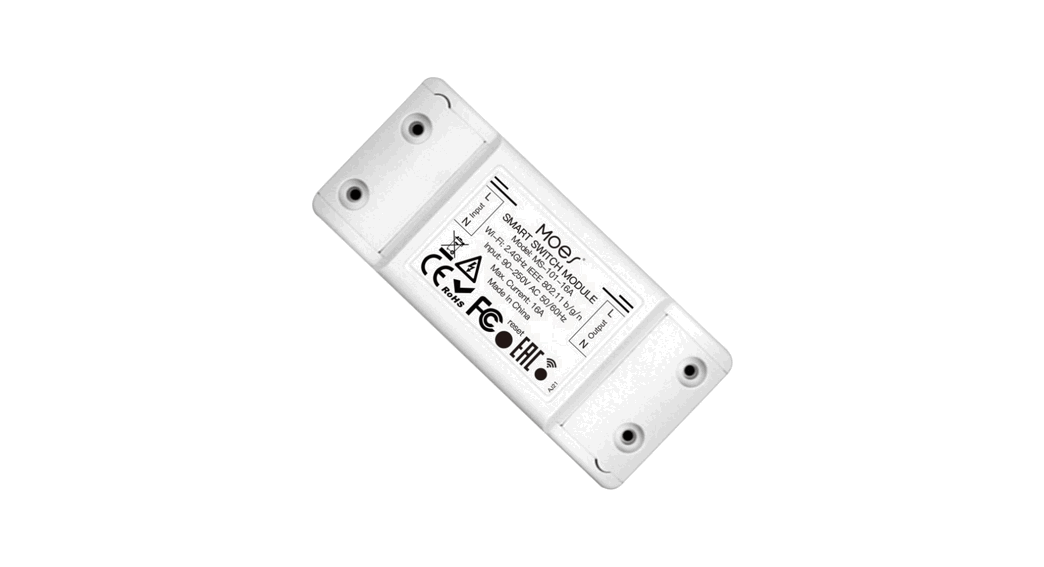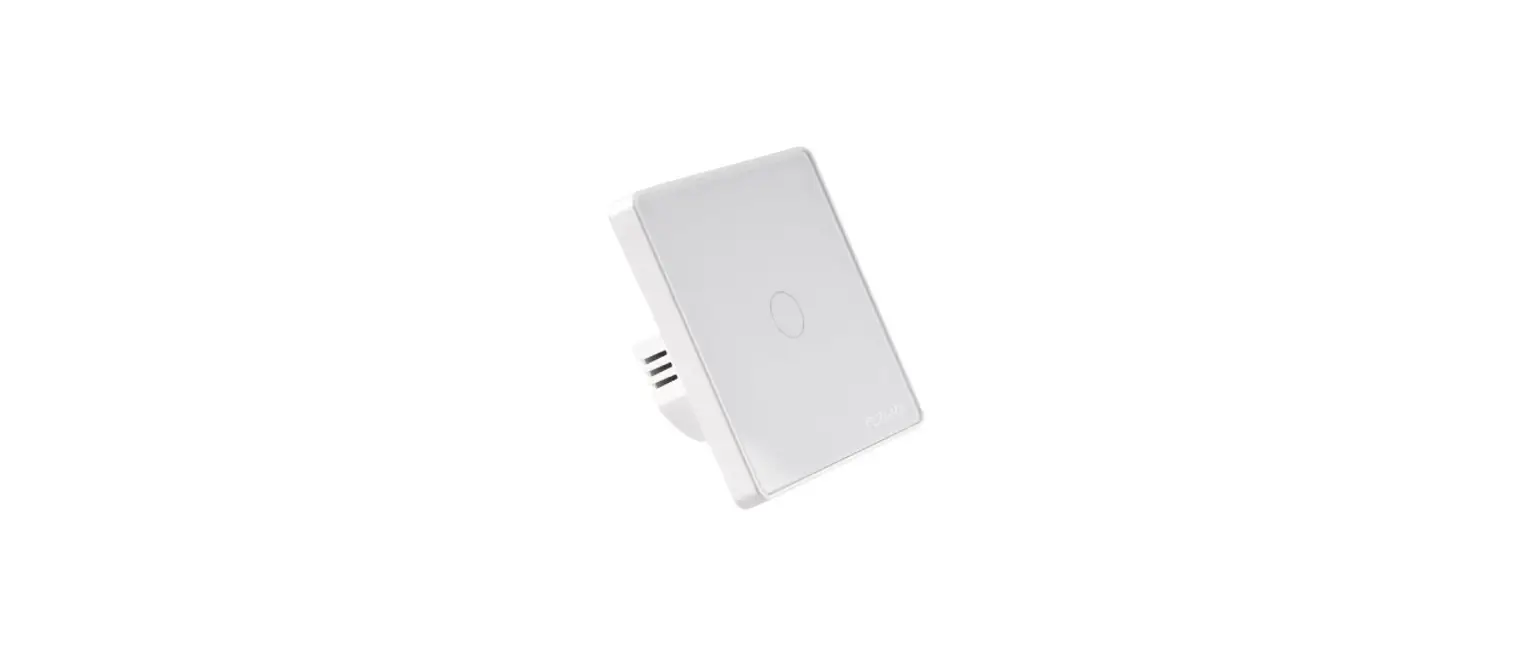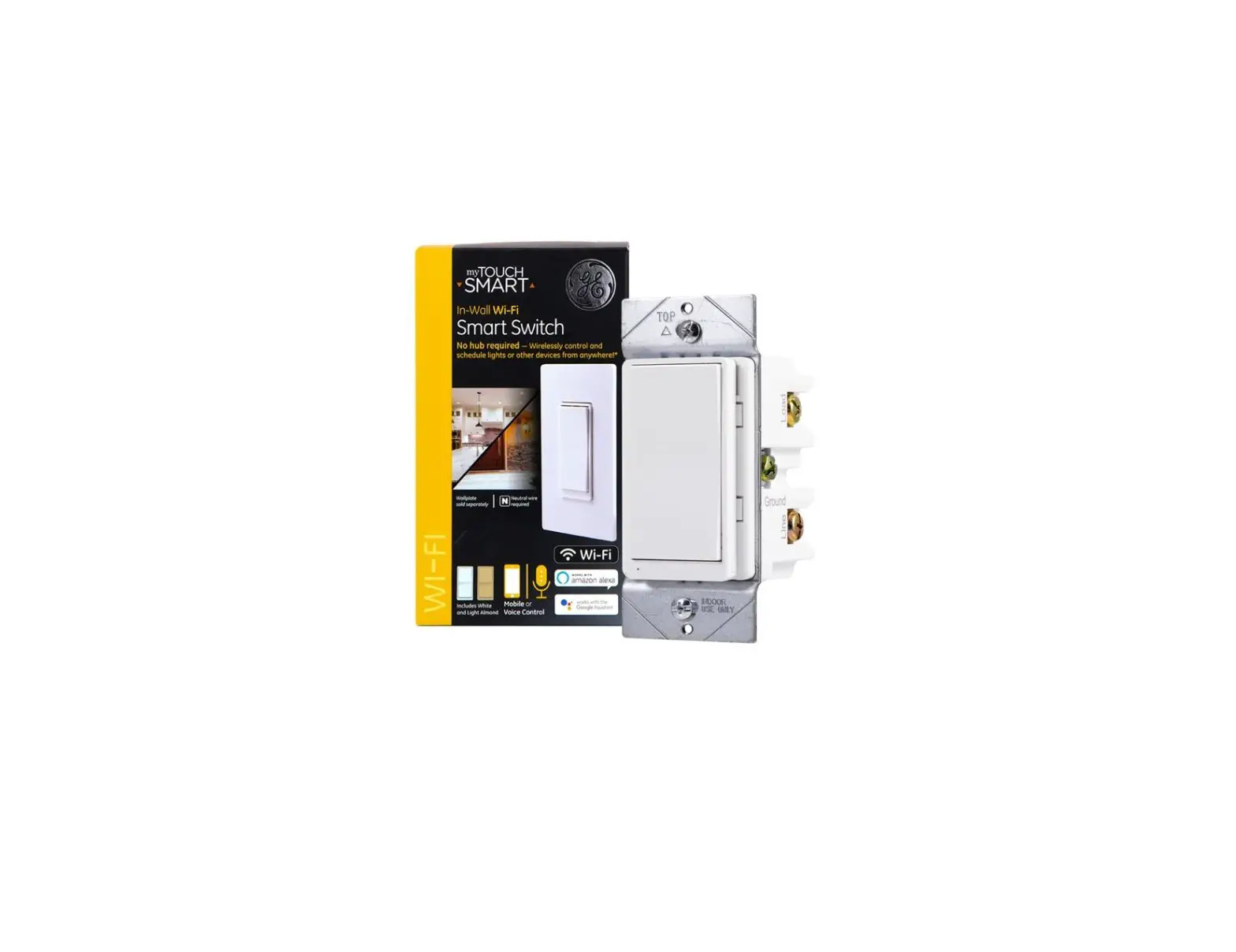

Enjoy Our Smart Life
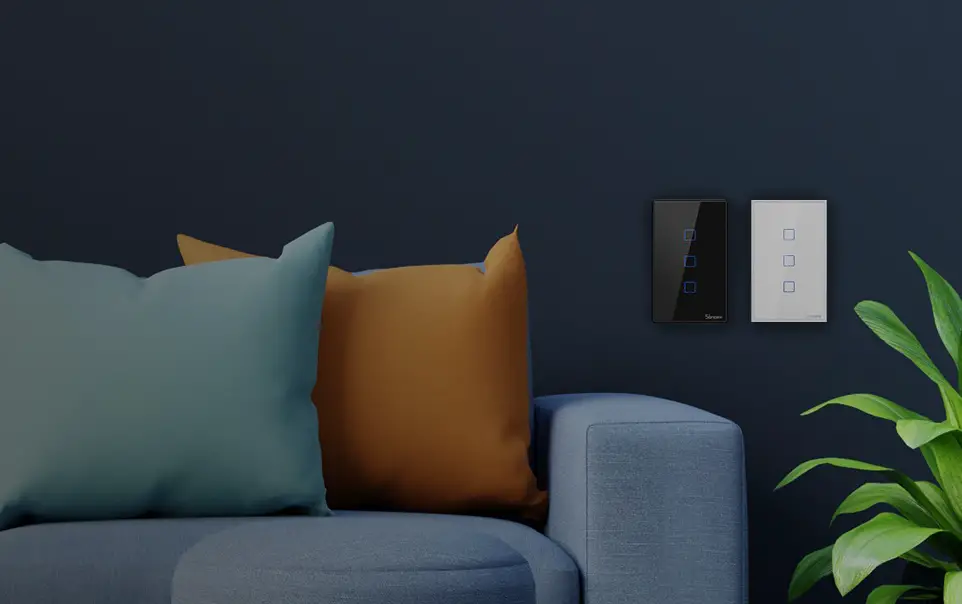
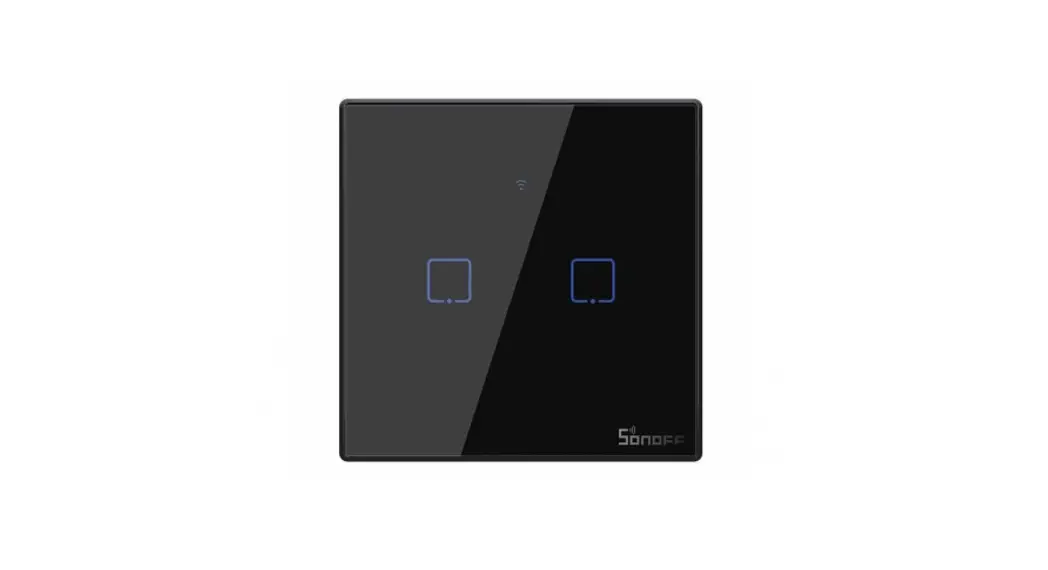
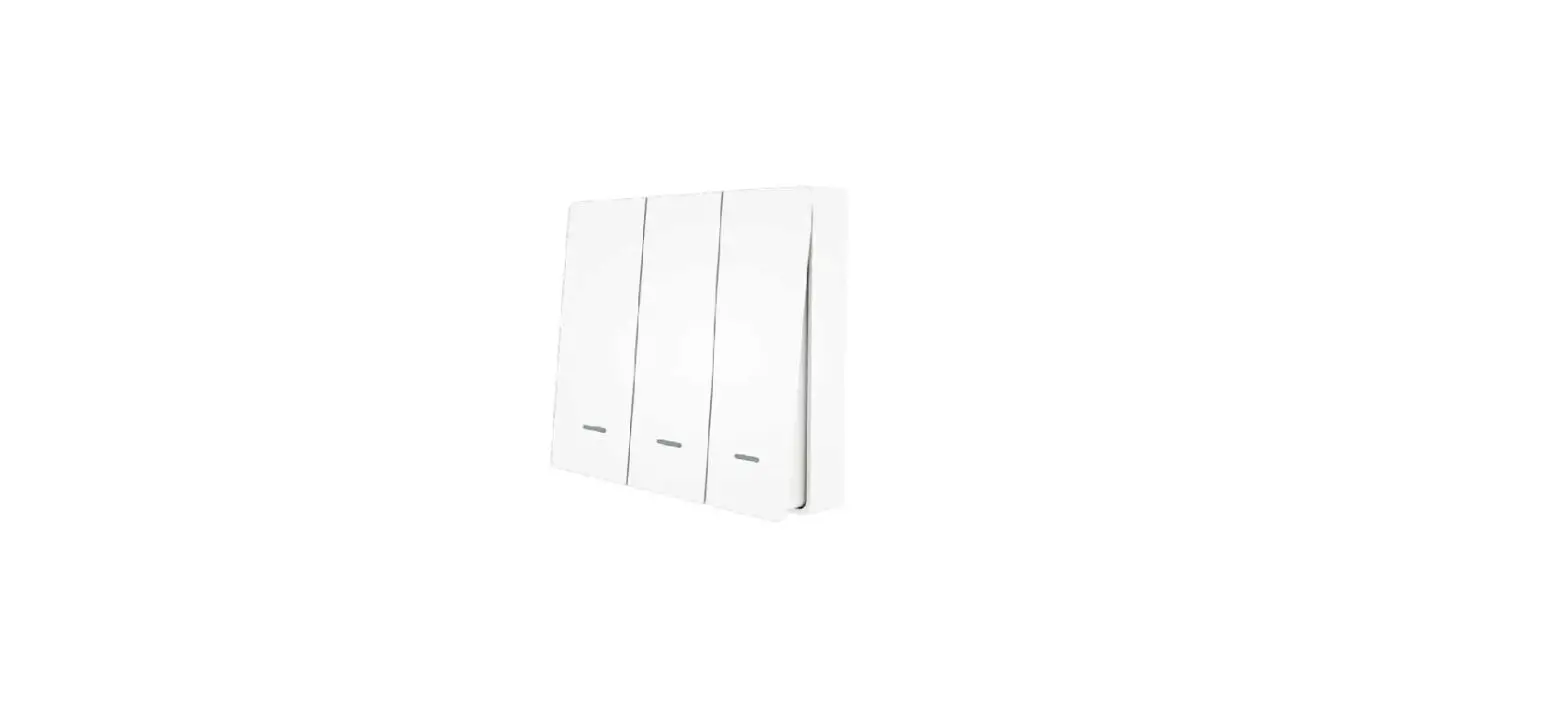
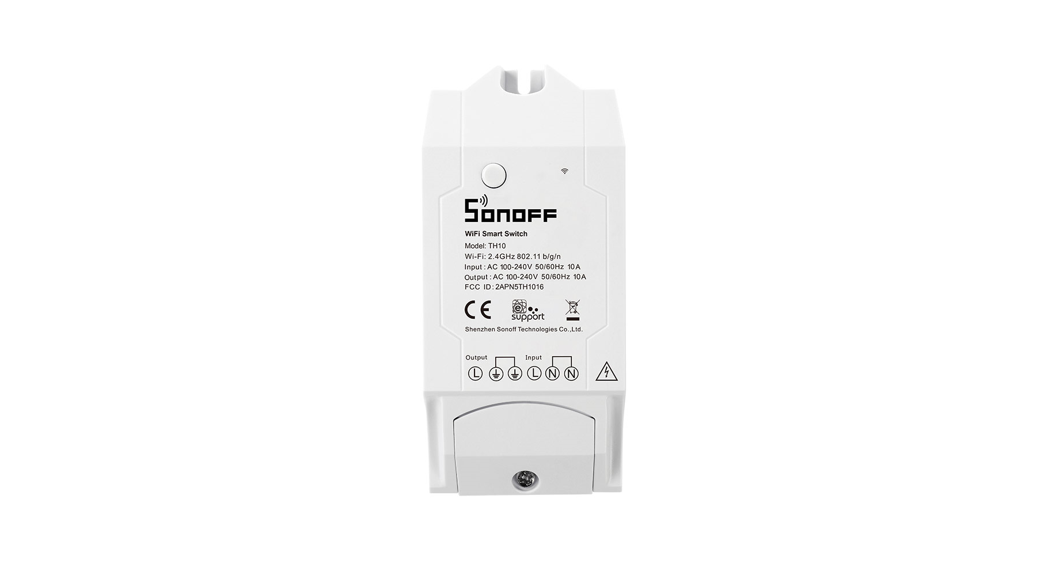
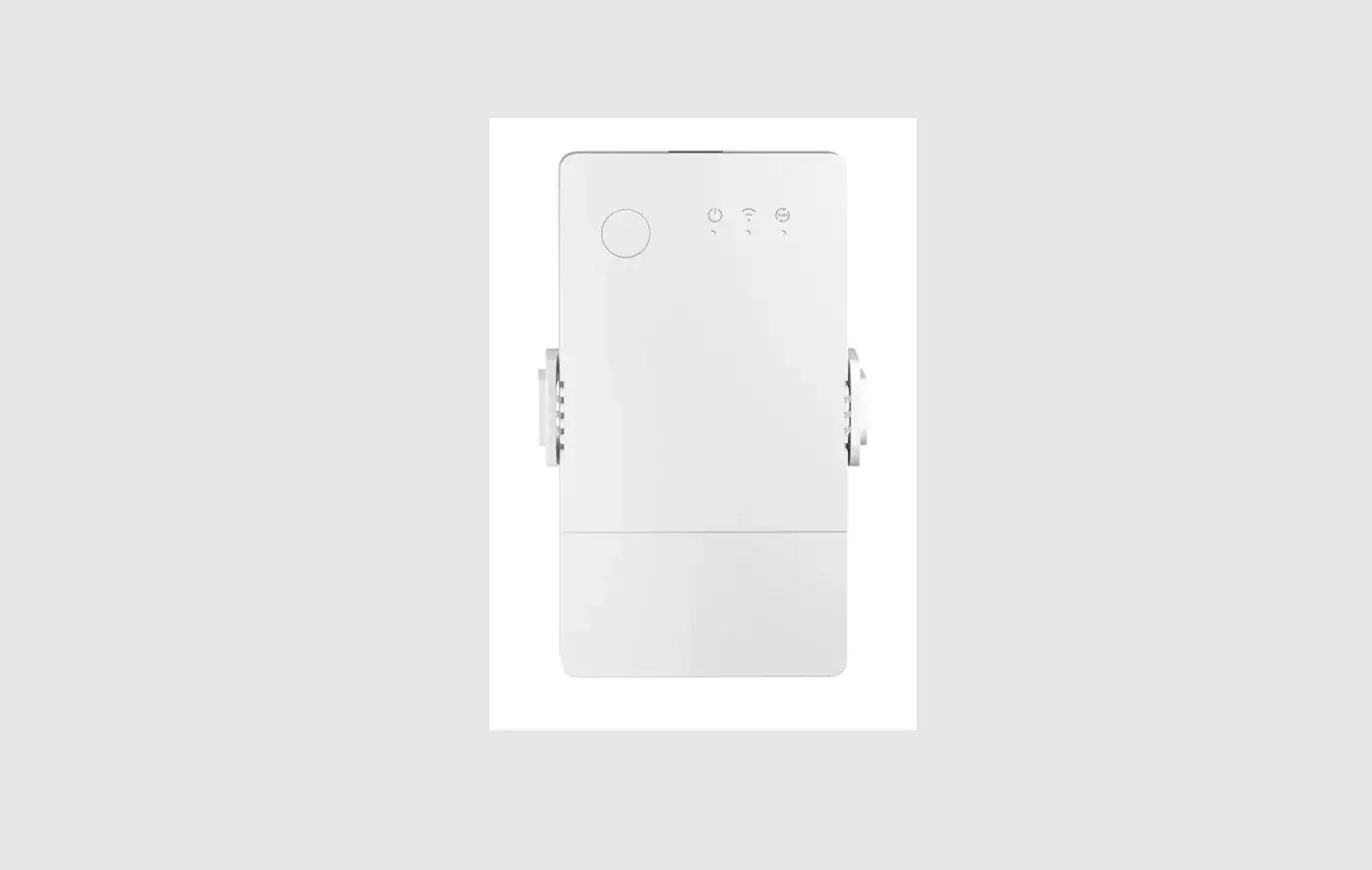
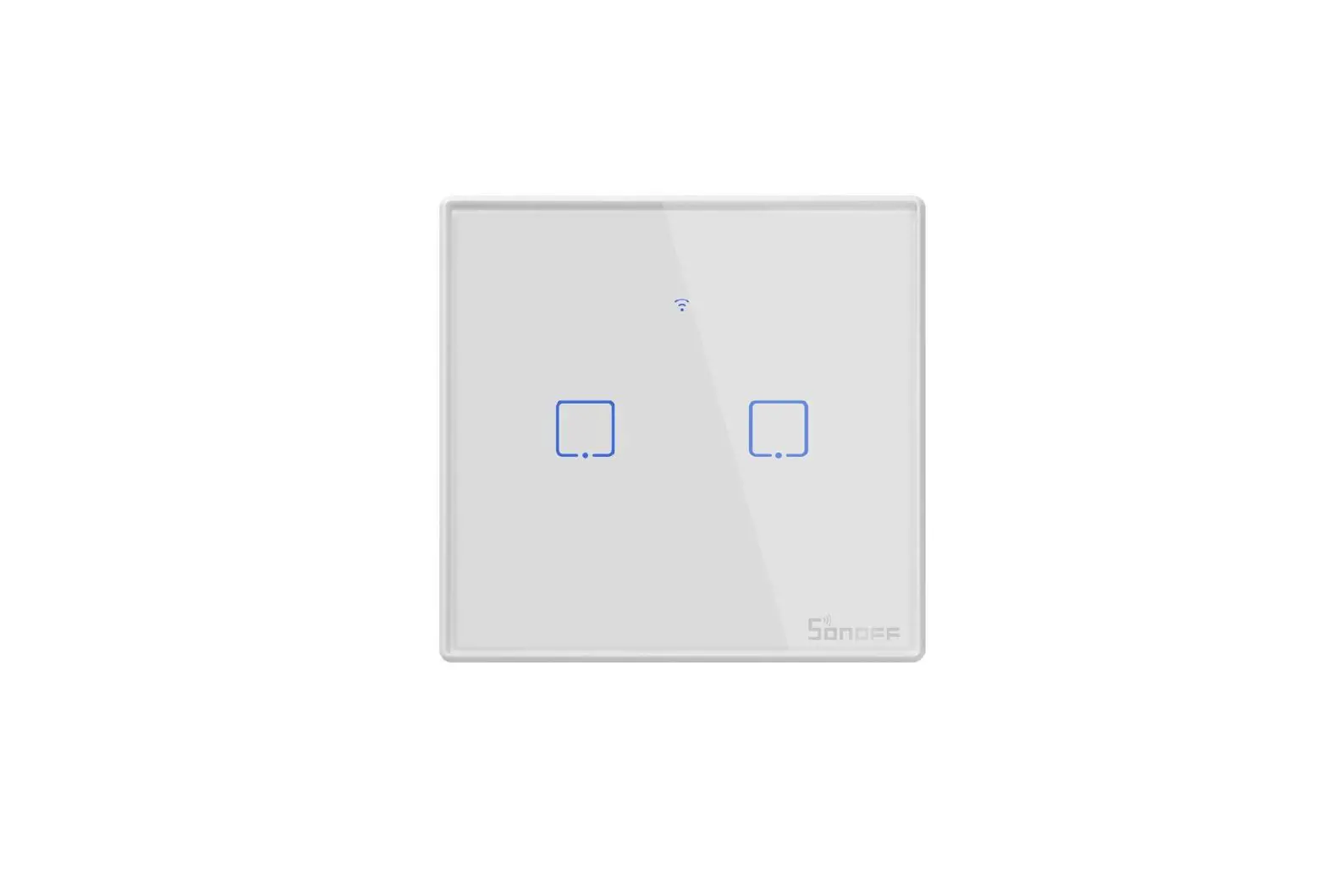
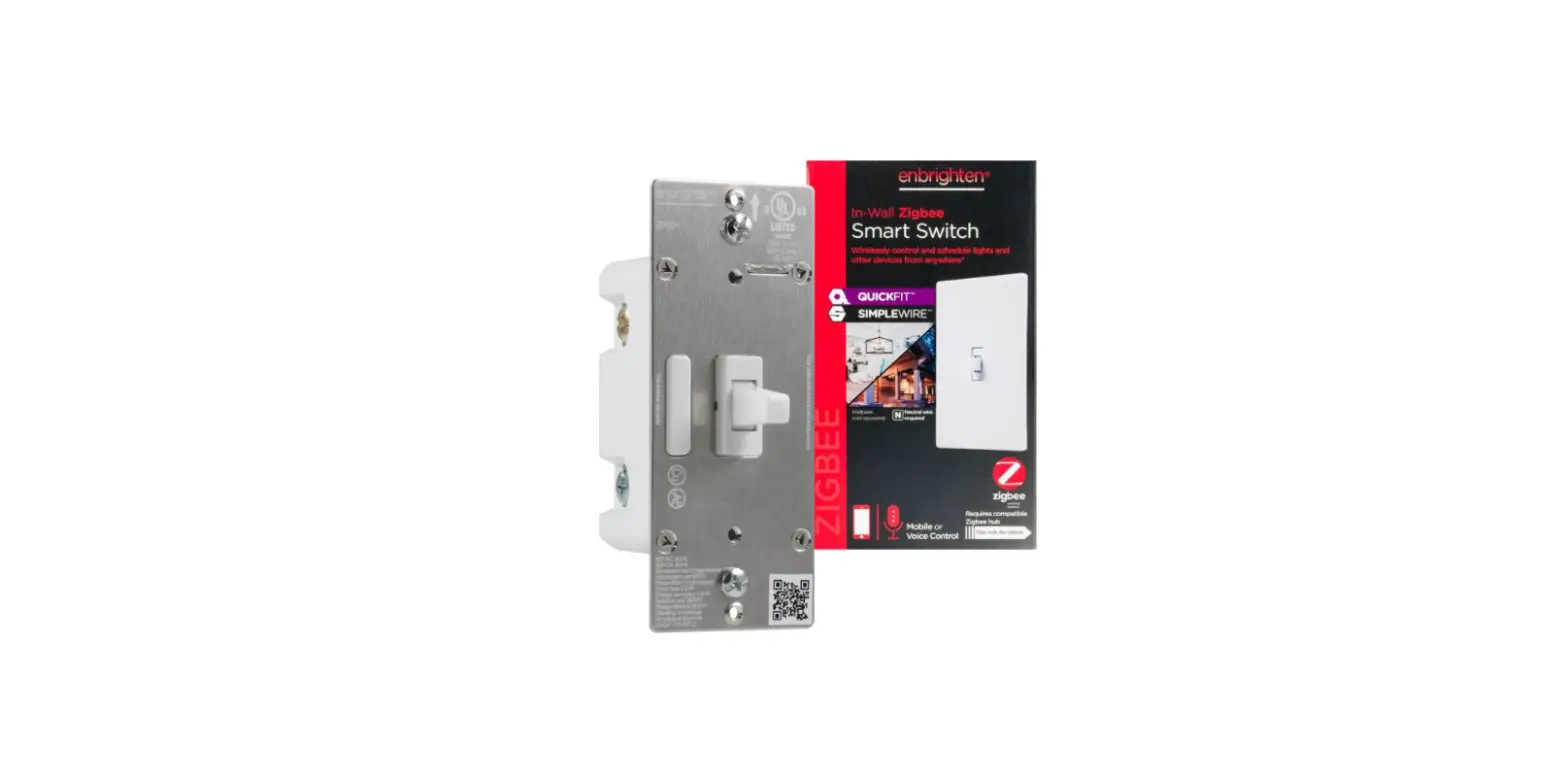
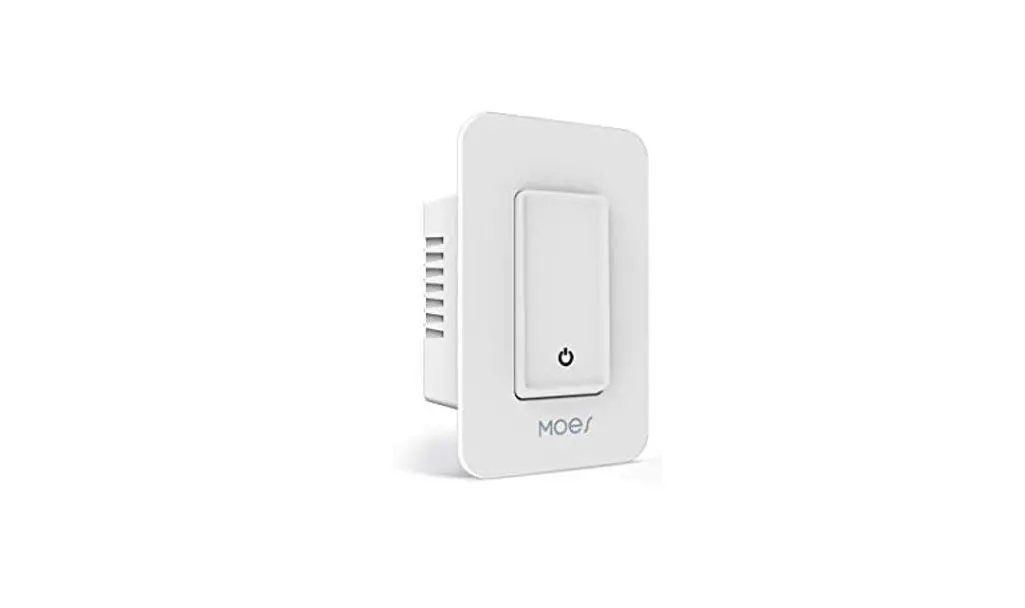
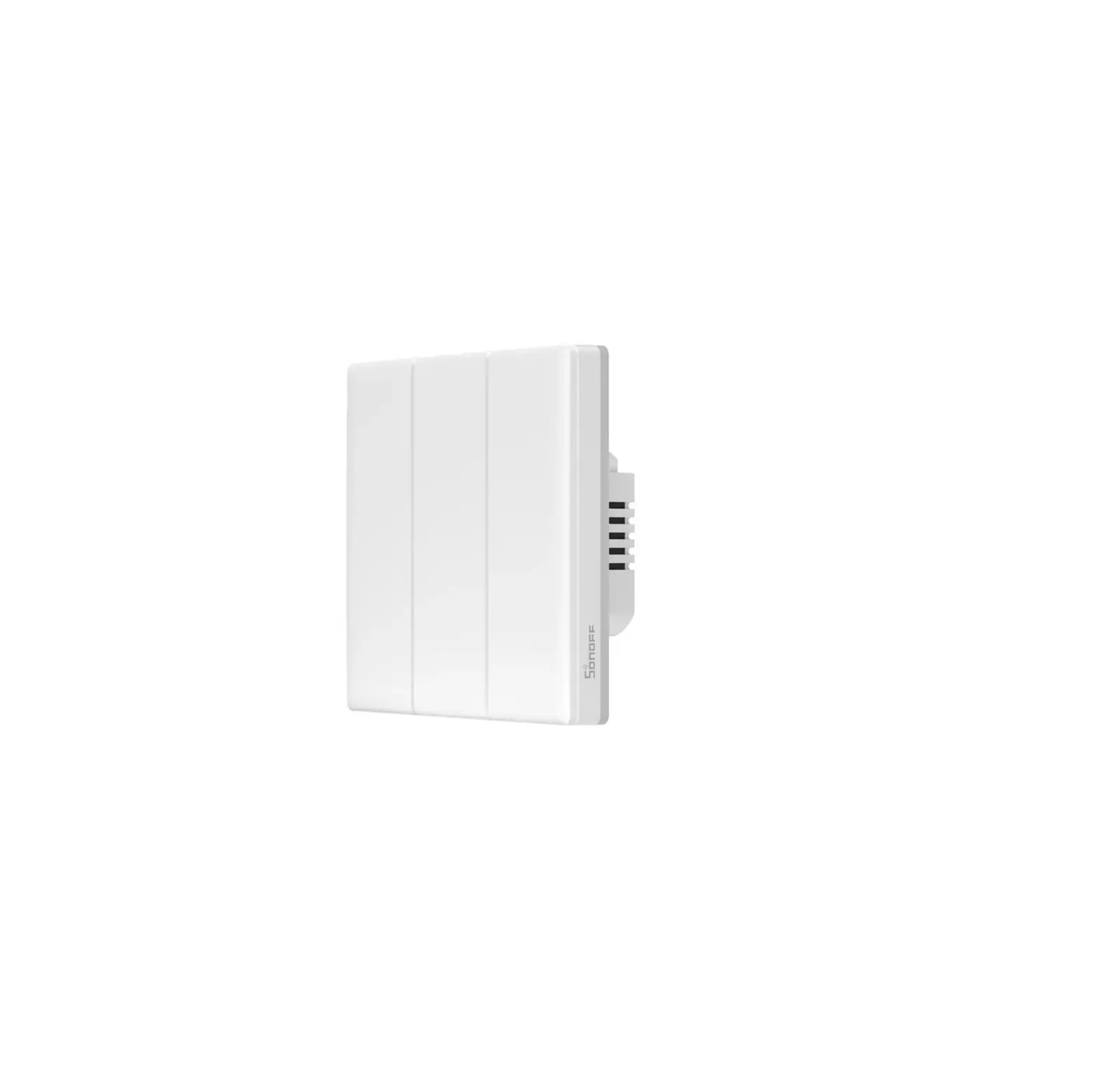
Smart WiFi Wall Switch
User Manual
Attention:
- Products can only be paired on 2.4G-wifi-router, don’t accept the 5G-wifi-router
- Please set your home WiFi account name and passwords use numeric and letters, don’t use special symbols

Installation Guide
Installation
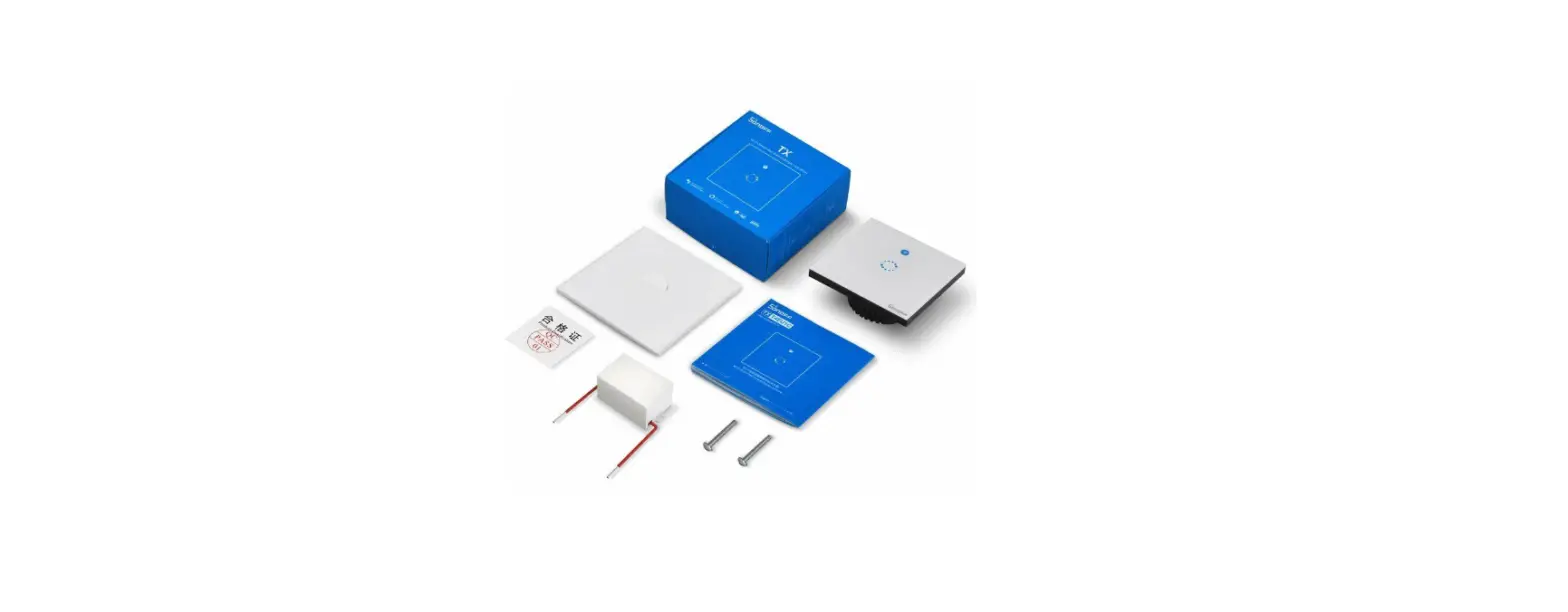
Separate the upper and lower parts from the switch by a screwdriver
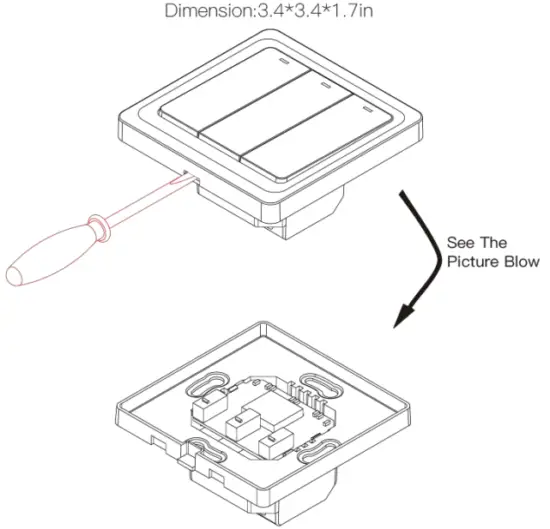
(Noted: Distinguish between each corresponding slot)
Attention
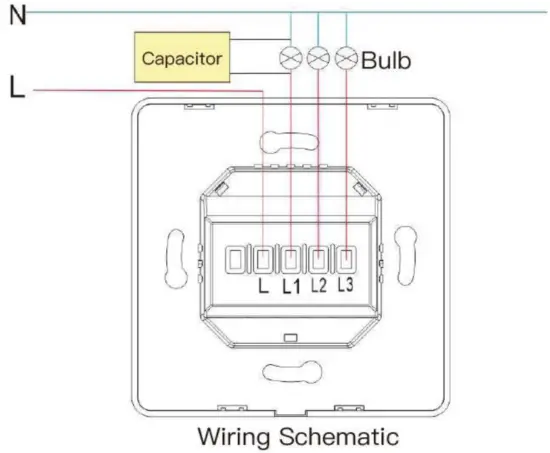
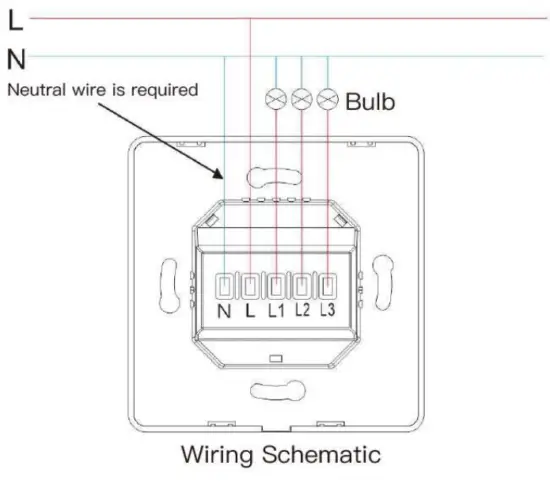
There are two types of the wiring below, (2a)Without neutral wire and,(2b)Neutral wire is required. en Prepare to install wiring Attention: Without neutral wire2a.1 Live Wire connects the “L” terminal. 2a.2 Bulb Wire connects the “L1, L2, L3” terminal, the capacitors are connected to the “L1” and the neutral.
• 1 gang connects the “L1” terminal.
• 2 gang connects the “L1, L2” terminal.
• 3 gang connects the “L1, L2, L3” terminal.
2b. Prepare to install wiring
Attention: Neutral wire is required.
2b.1 Live Wire connects “L1” Terminal.
2b.2 Bulb Wire connects “L1,L2,L3” terminal.
2b.3 Neutral Wire connects “N” terminal (Attention: Neutral wire is required).
• 1 gang connects the “L1” terminal.
• 2 gang connects the “L1, L2” terminal.
• 3 gang connects the “L1, L2, L3” terminal.
3. Fix the switch onto the wall
3.1 Put the switch lower parts into the switch box in the wall
3.2 Mount the two side screws
3.3 Install the upper top case (install from up above)
3.4 Cover the upper top case into the switch
3.5 Turn on electricity and then the LED light will be flashed quickly for pairing
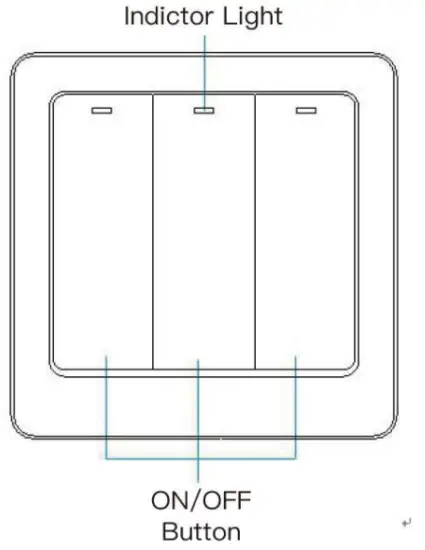
Indicator light status:
- The WiFi indicator light went out -The switch is connected successfully with the mobile phone APP
- The WiFi indicator light blinking slowly
-The switch is not connected to the network - The WiFi indicator light flashes continuously and quickly
-The switch is currently on the status of matching with the mobile phone APP. - The WiFi indicator light flashes 1 time every 3 seconds
-The switch is into AP pairing Mode
How to download App?
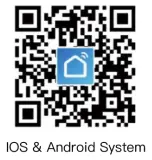
Scan the QR code below or search Smart Life in the IOS APP store or Google play.
How to Register and Login
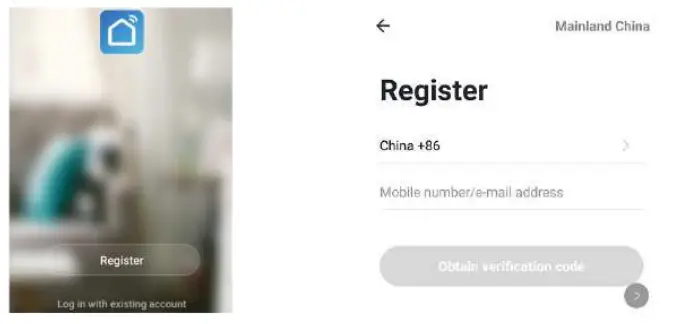
- Download or Scan the QR Code and install Smart Life APP
- Once download or Scan the QR Code, the App will ask you to register your device

- Enter your phone number or email which you prefer and select the country you live in.
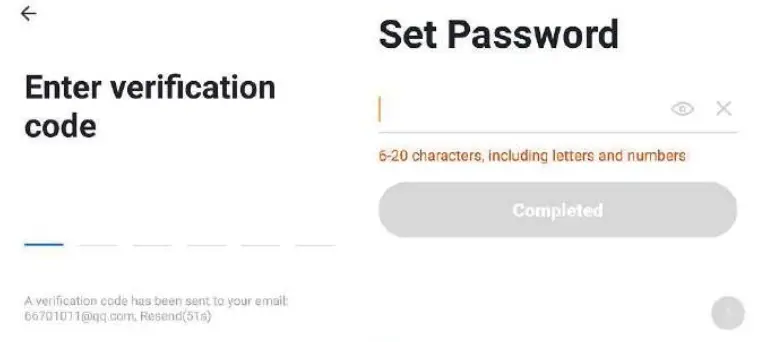
- Obtain verification code
- Enter verification code
- Set Password

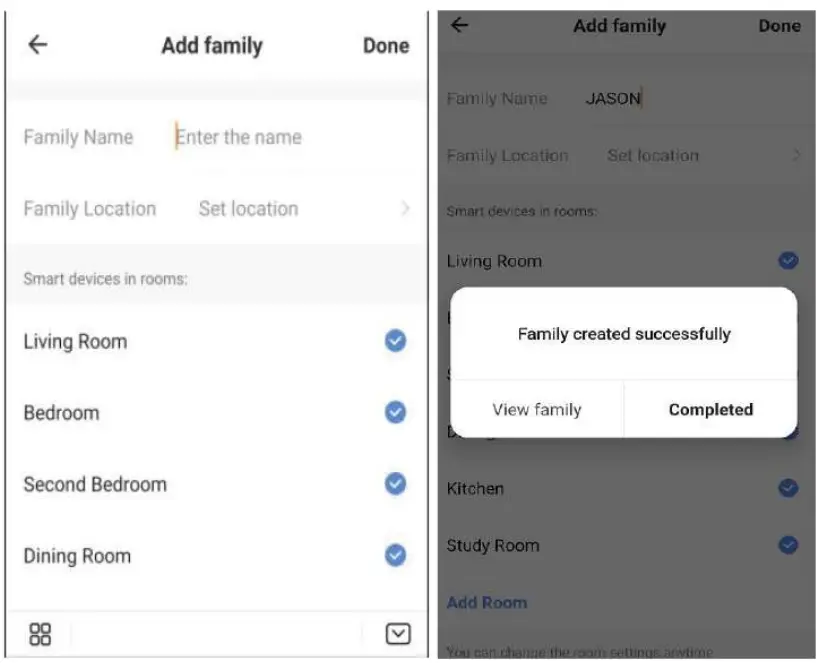
- Great family
- Enter the family name and select the room
- Family create sucessfully
How to add a new device in a quick connection?
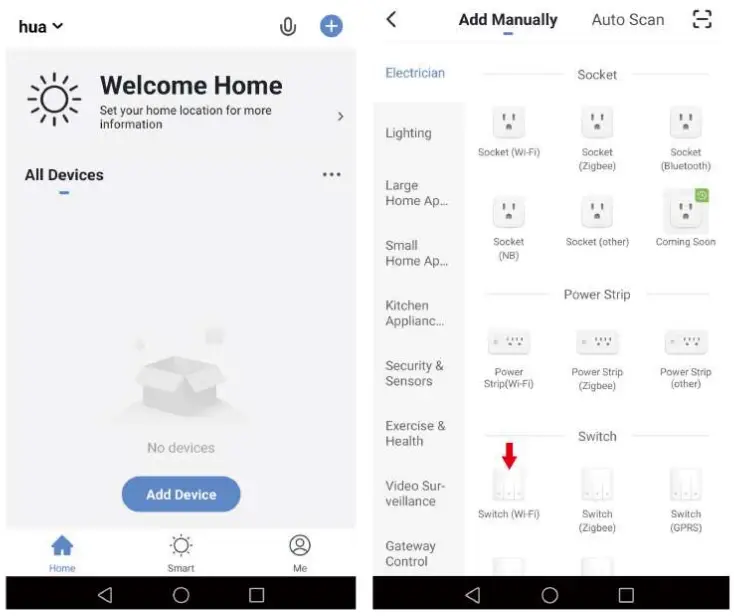
- WiFi version and APP connect to network
1.1 Connect the switch with power.
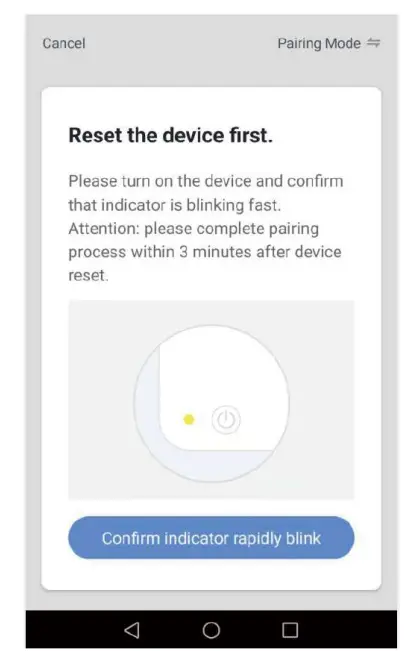
1.2 Hold the switch power button for 5-8 seconds, the Wi-Fi indicator flashes quickly, and The Wi-Fi indicator blinks twice a second.
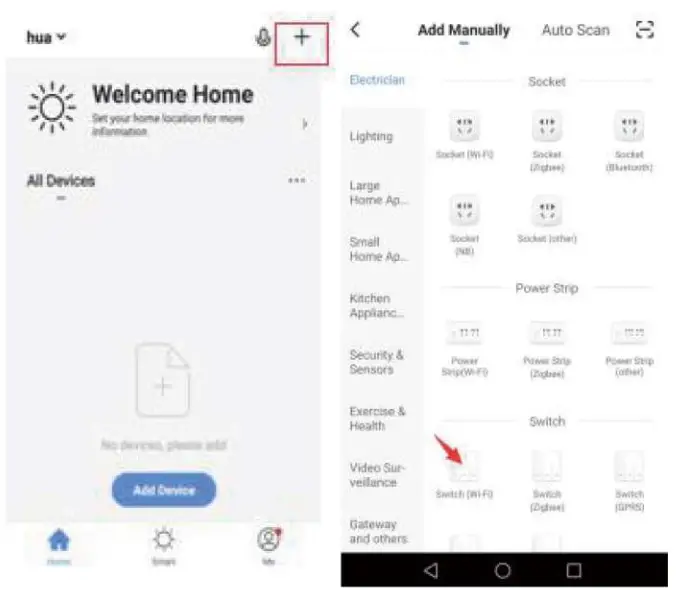
1.3 Open App and tap “Add Device or upper right corner +1′ and select “Wi-Fi switch” to add.

- Confirm indicator rapidly blink
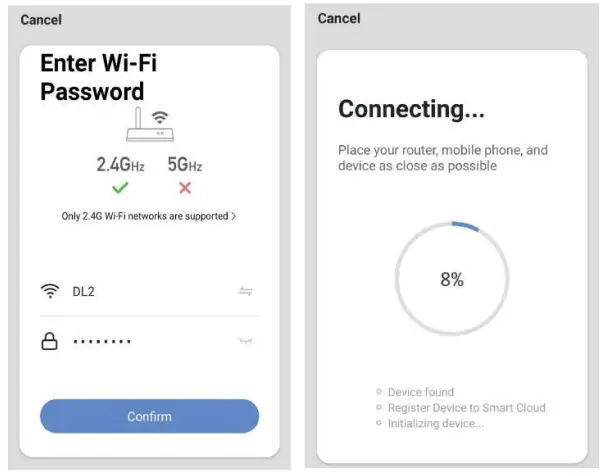
- Select Wi-Fi network, input Wi-Fi password, and confirm that will prompt the connection

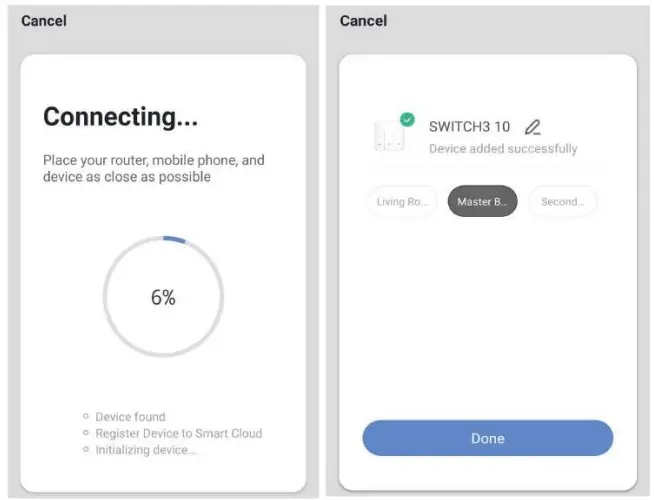
- Once connected the app will prompt the connection

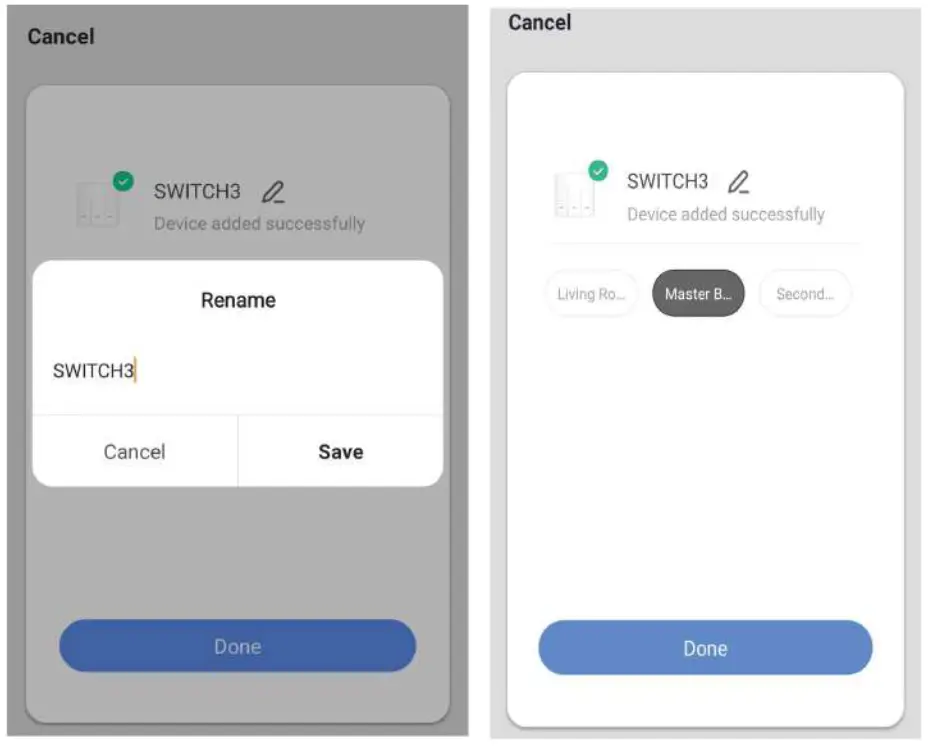
- Rename the device and select the room then tap completed
(Attention: The name should use numeric and letters, don’t use special symbols.)
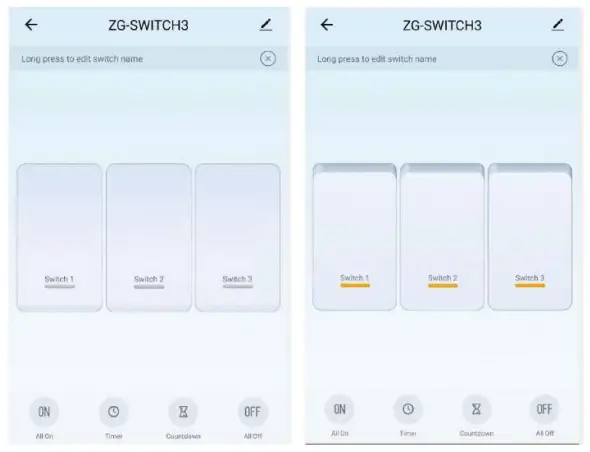
- Long press switch to edit switch name,
(Attention: The name should use numeric and letters, don’t use special symbols.)
Adding a New Device in AP Mode
- “Wi-Fi” switch and APP pairing network
1.1 Connect the switch with power.
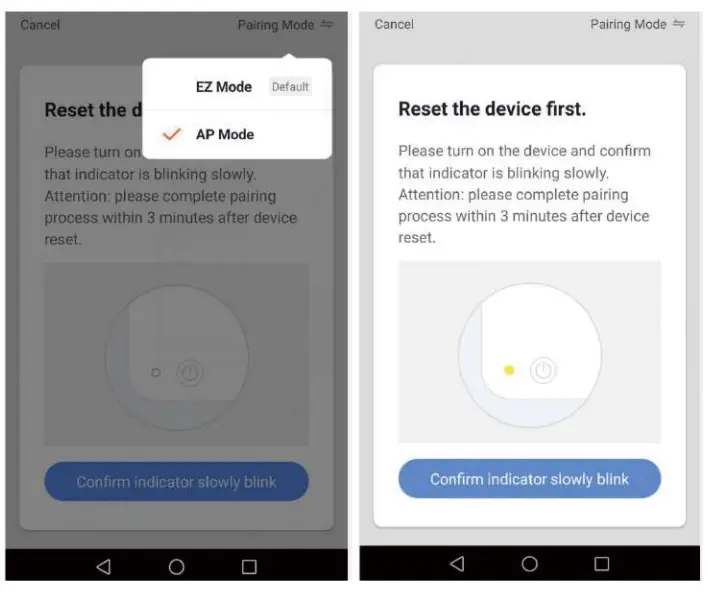
1.2 Hold the switch power button for 5-8 seconds, Wi-Fi indicator flashes quickly.
1.3 Hold the switch again for 5-8 seconds, Wi-Fi indicator flickers slowly, Wi-Fi indicator flashes three times per second.
1.4 Press “+” in the main menu of APP and selsct “Wi-Fi switch” to add

- Tap”AP Mode” and “Confirm indicator slowly blink”
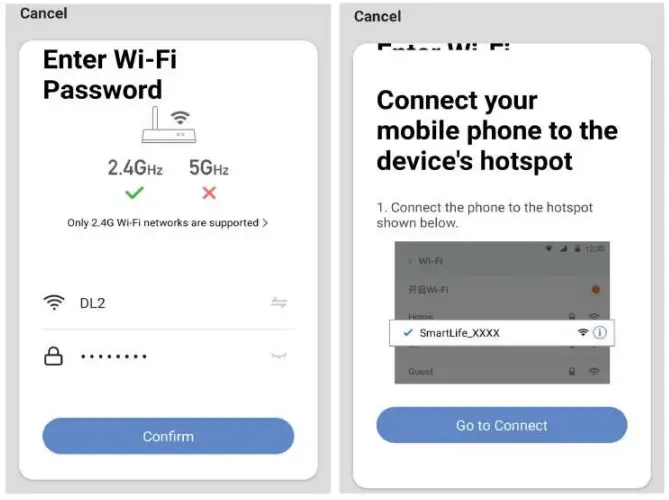
- Select Wi-Fi and input Wi-Fi password, press”Confirm”.
- Press”Go connect”

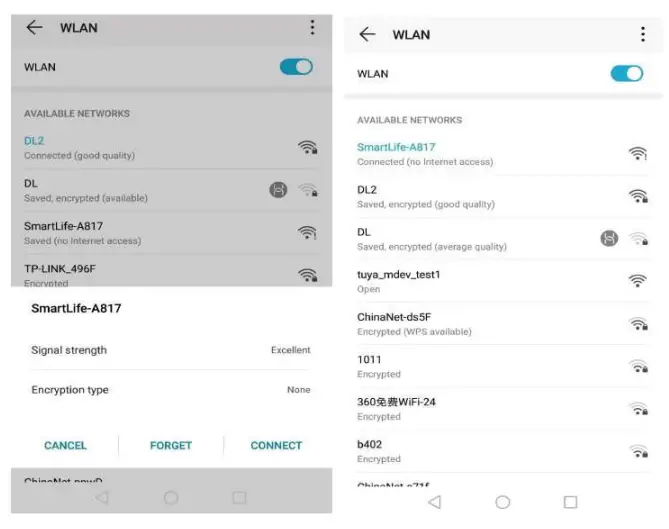
- Select “SmartLife-XXXX” and tap “CONNECT”

- After connected “SmartLife-XXXX”,tap the ” ← ”

Thank you for your support and purchase at we Moes, we are always here for your complete satisfaction, just feel free to share your great shopping experience with us. If you have any other needs, please do not hesitate to contact us first, we will try to meet your demand.

 @moessmart @moessmart |  moes moes |
 @moes_smai @moes_smai |  @moes_smart @moes_smart |
 @moes_smart @moes_smart |  moes.net moes.net |
 Wenzhou Nova New Energy Co., Ltd
Address: Power Science and Technology Innovation Center,
NO.238, Wei 11 Road, Yueqing Economic Development Zone,
Yueqing, Zhejiang, China
Tel:+86-577-57186815
Email:[email protected] AMZLAB GmbH
Laubenhof 23,45326 Essen