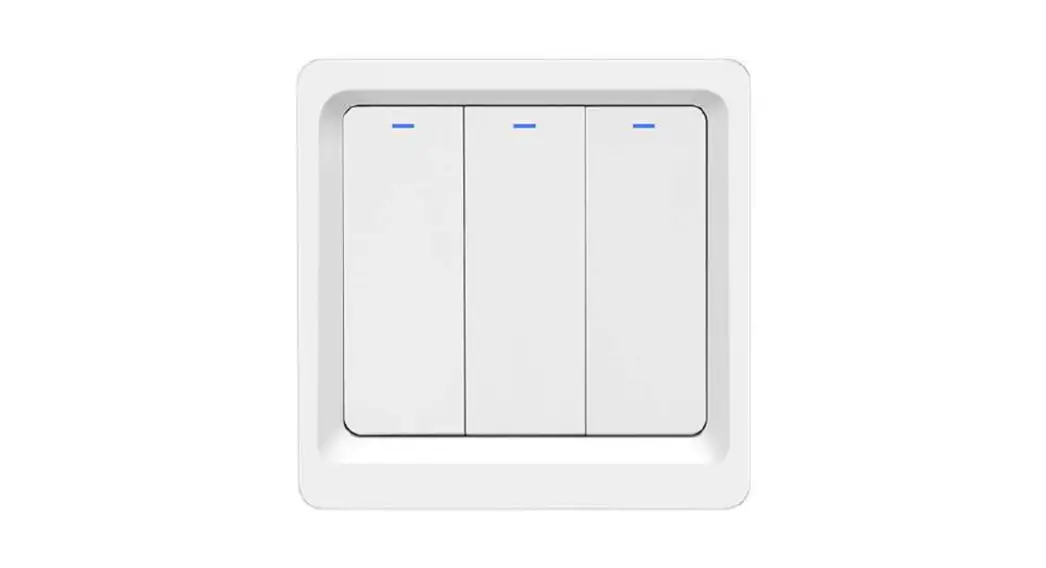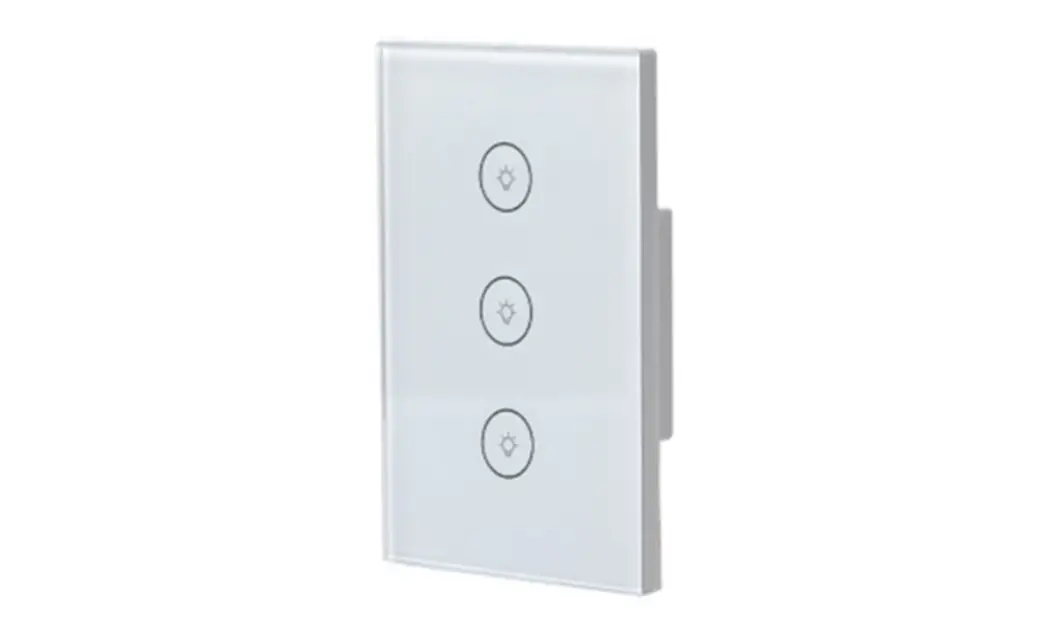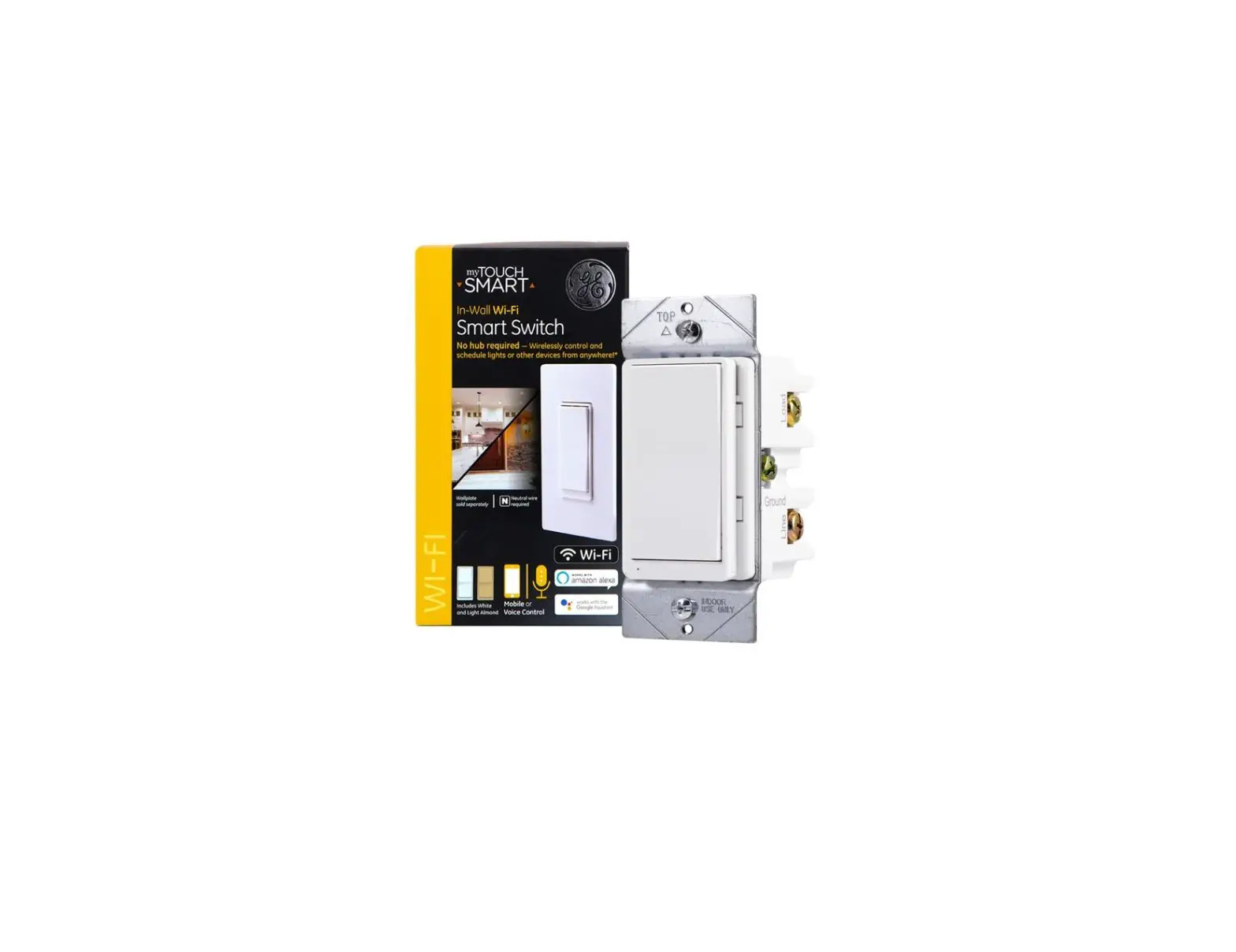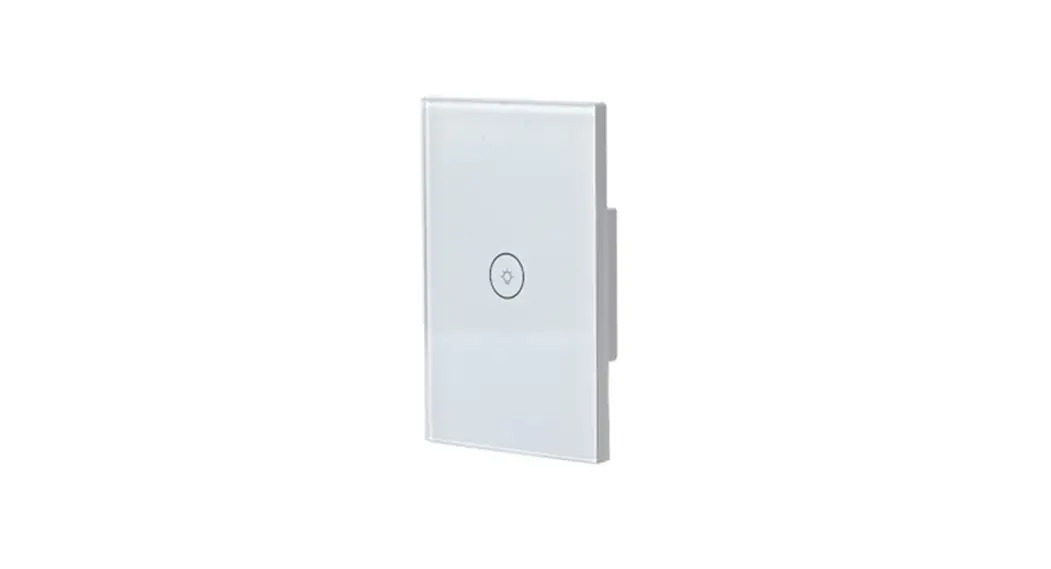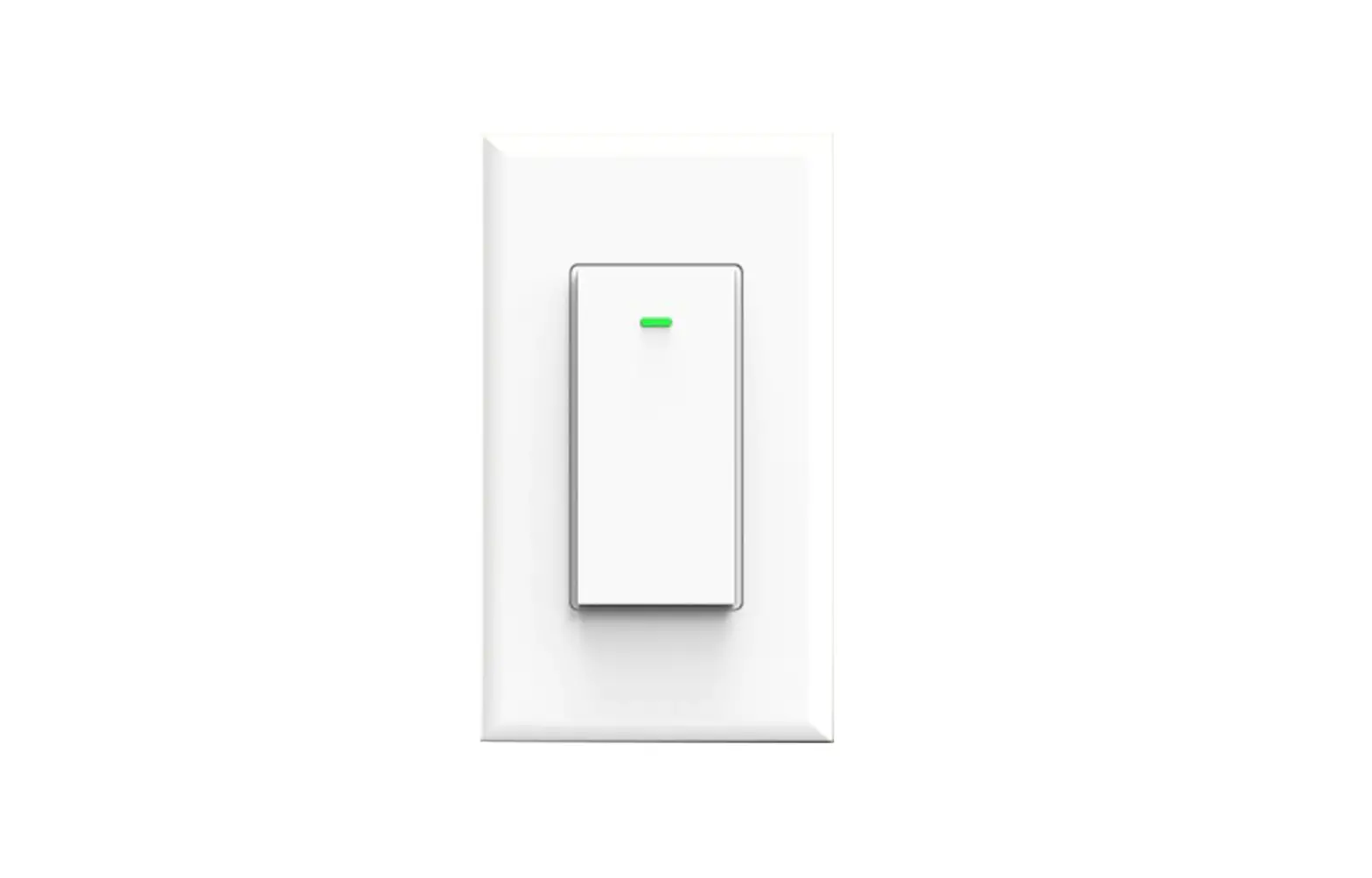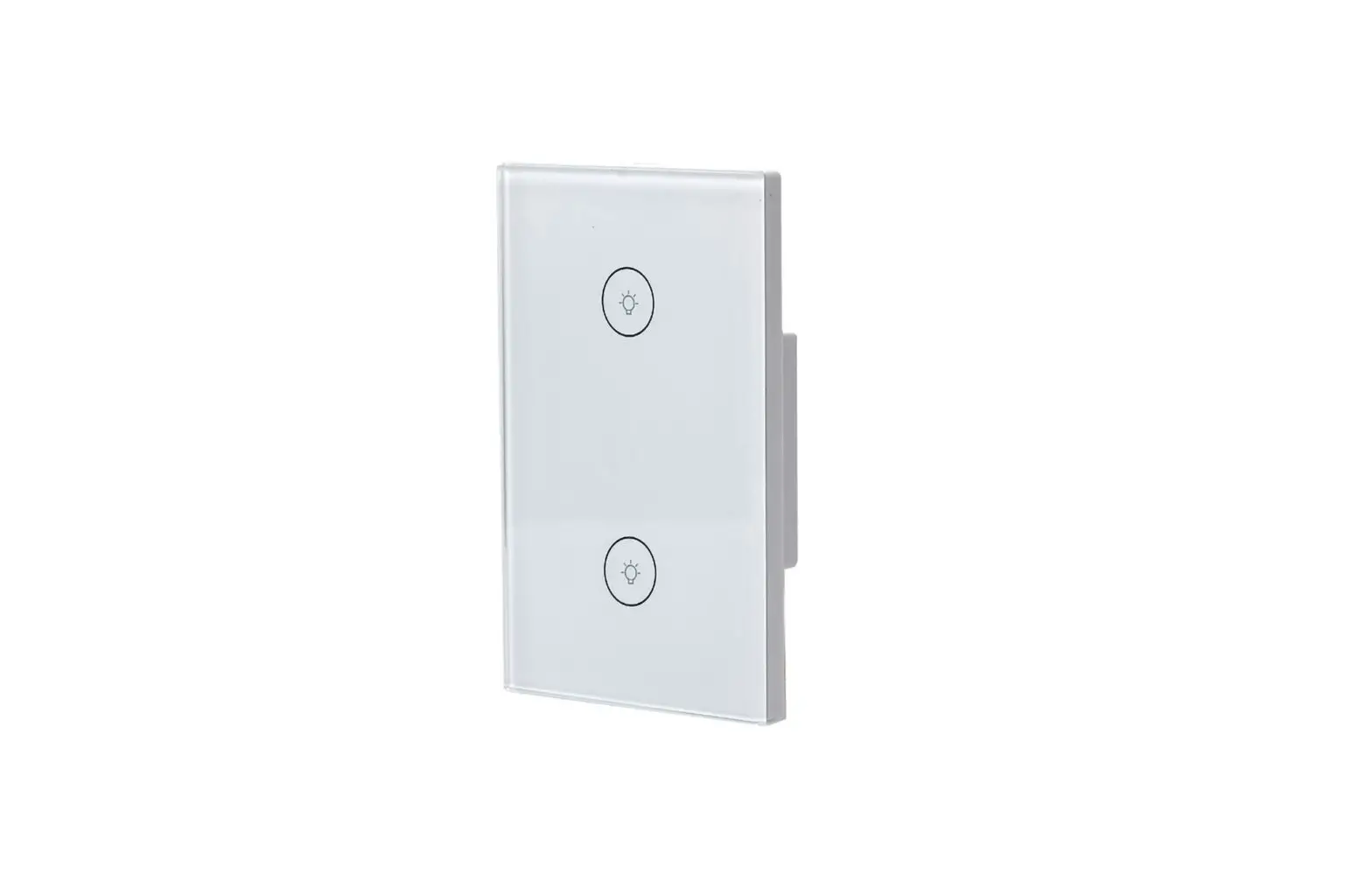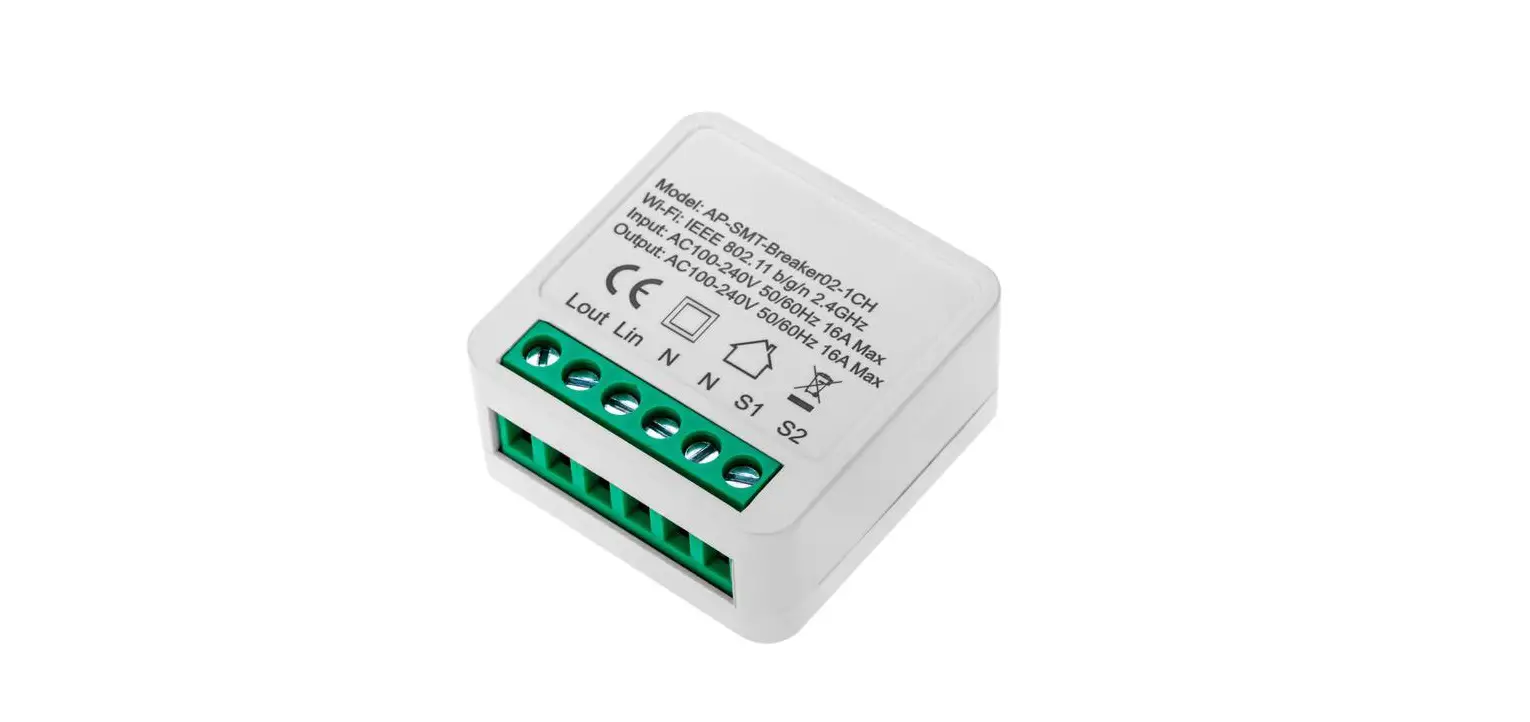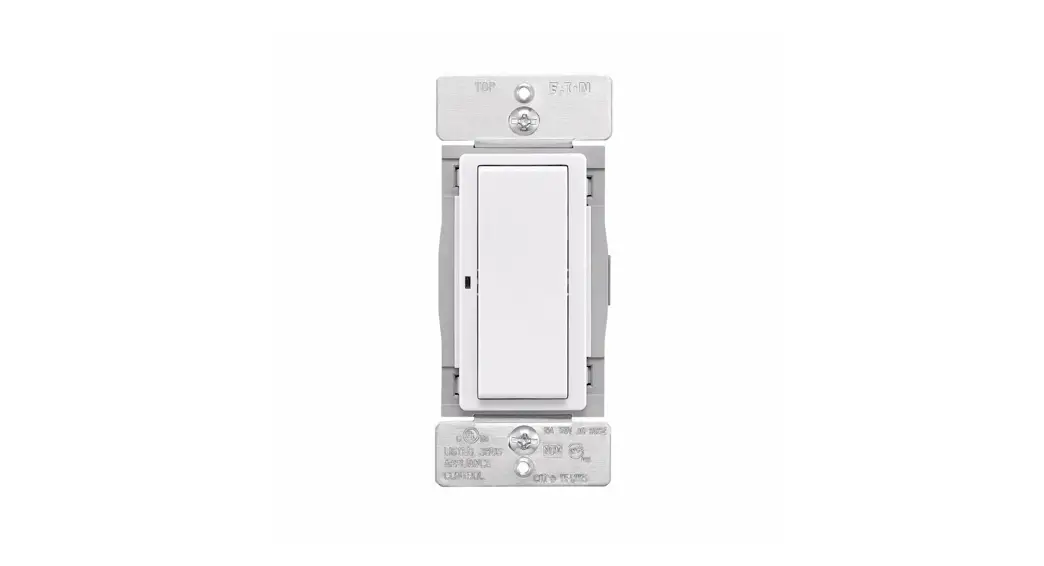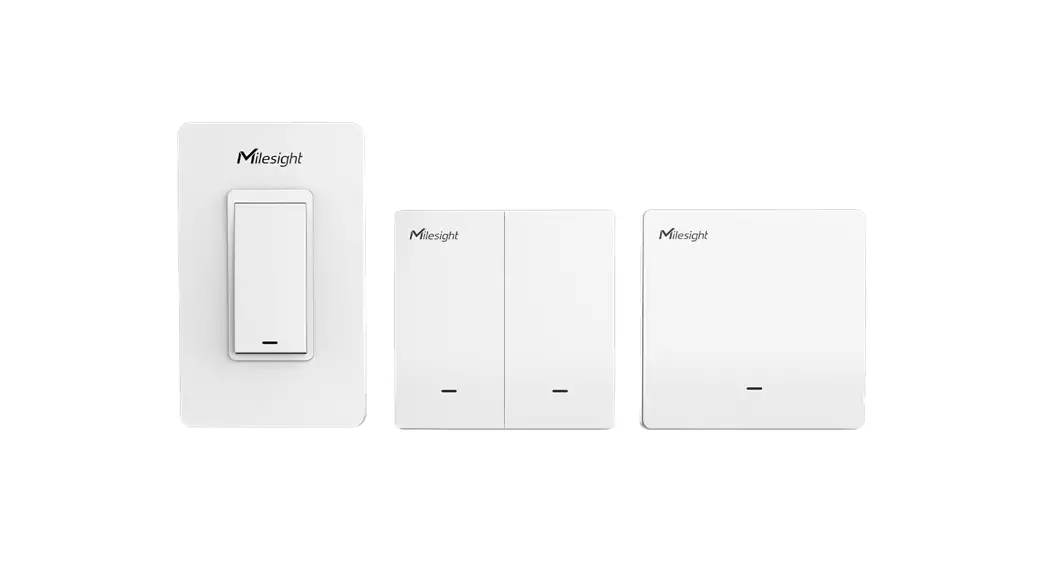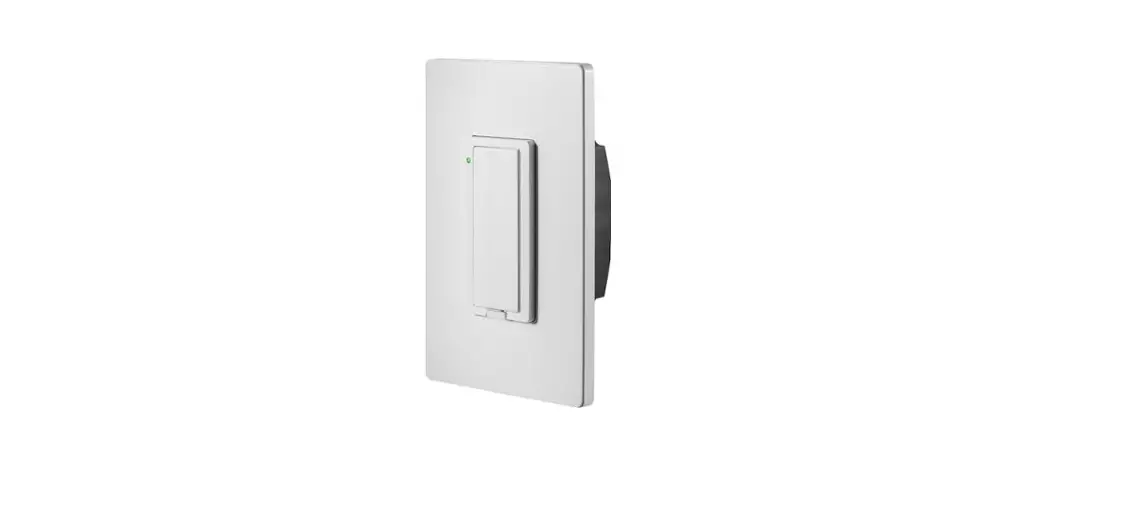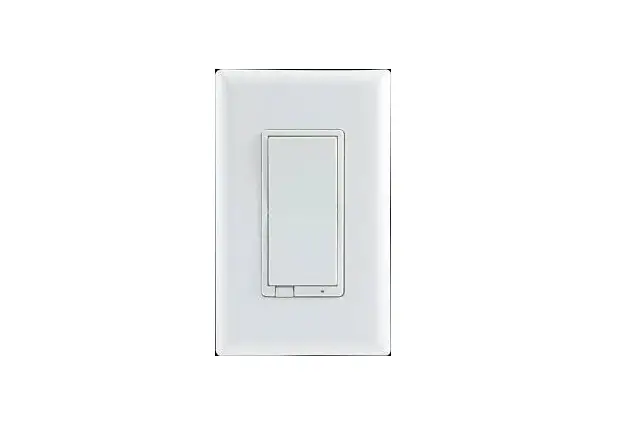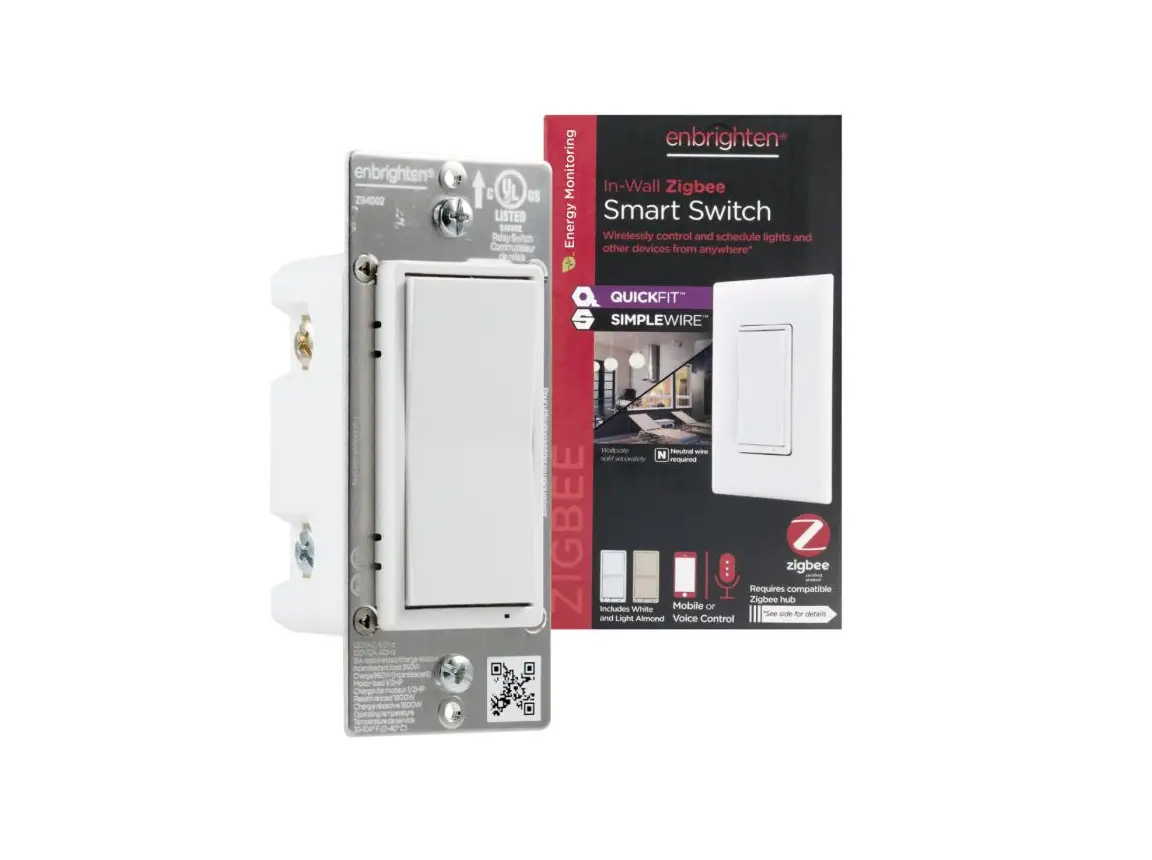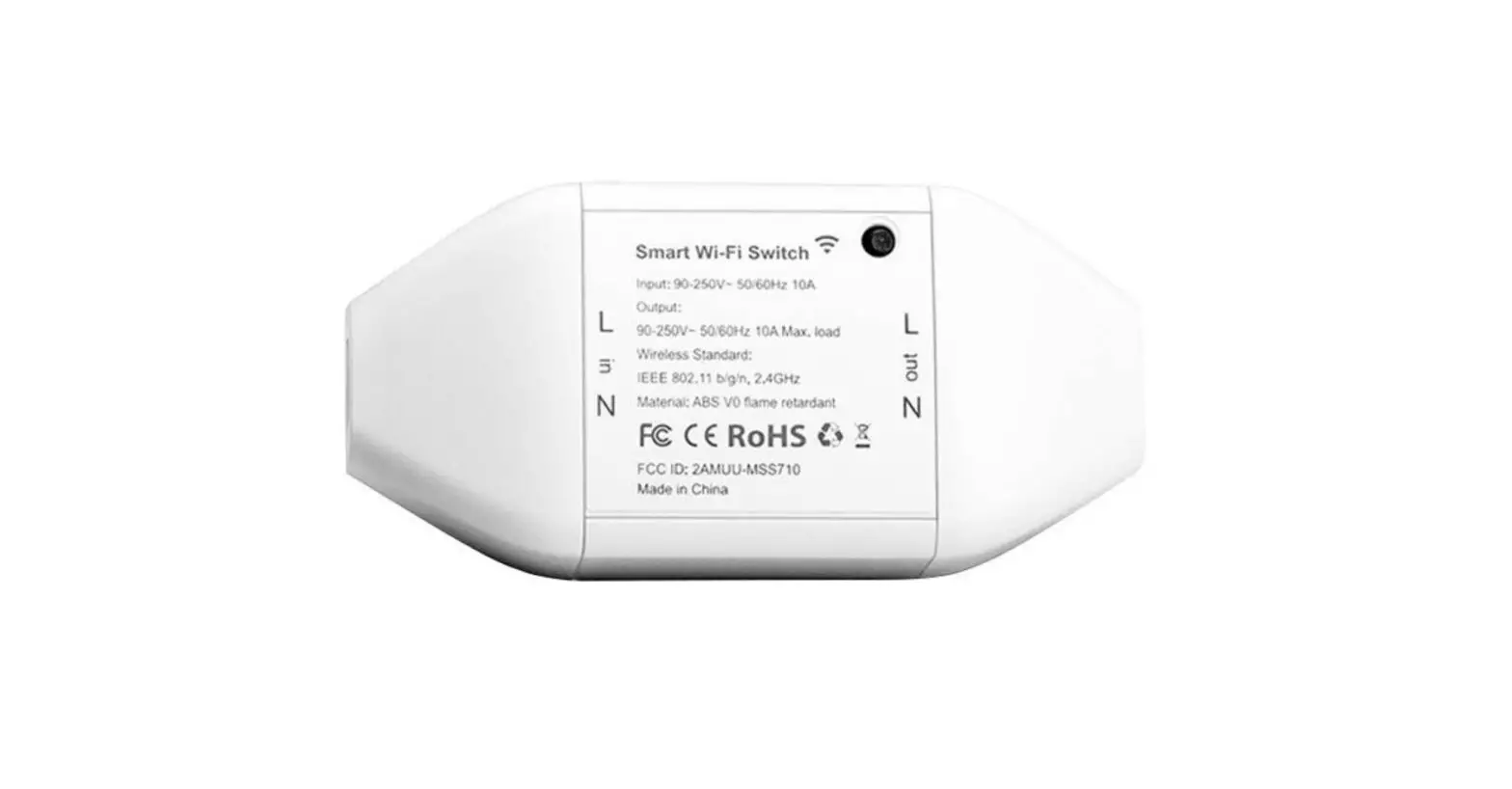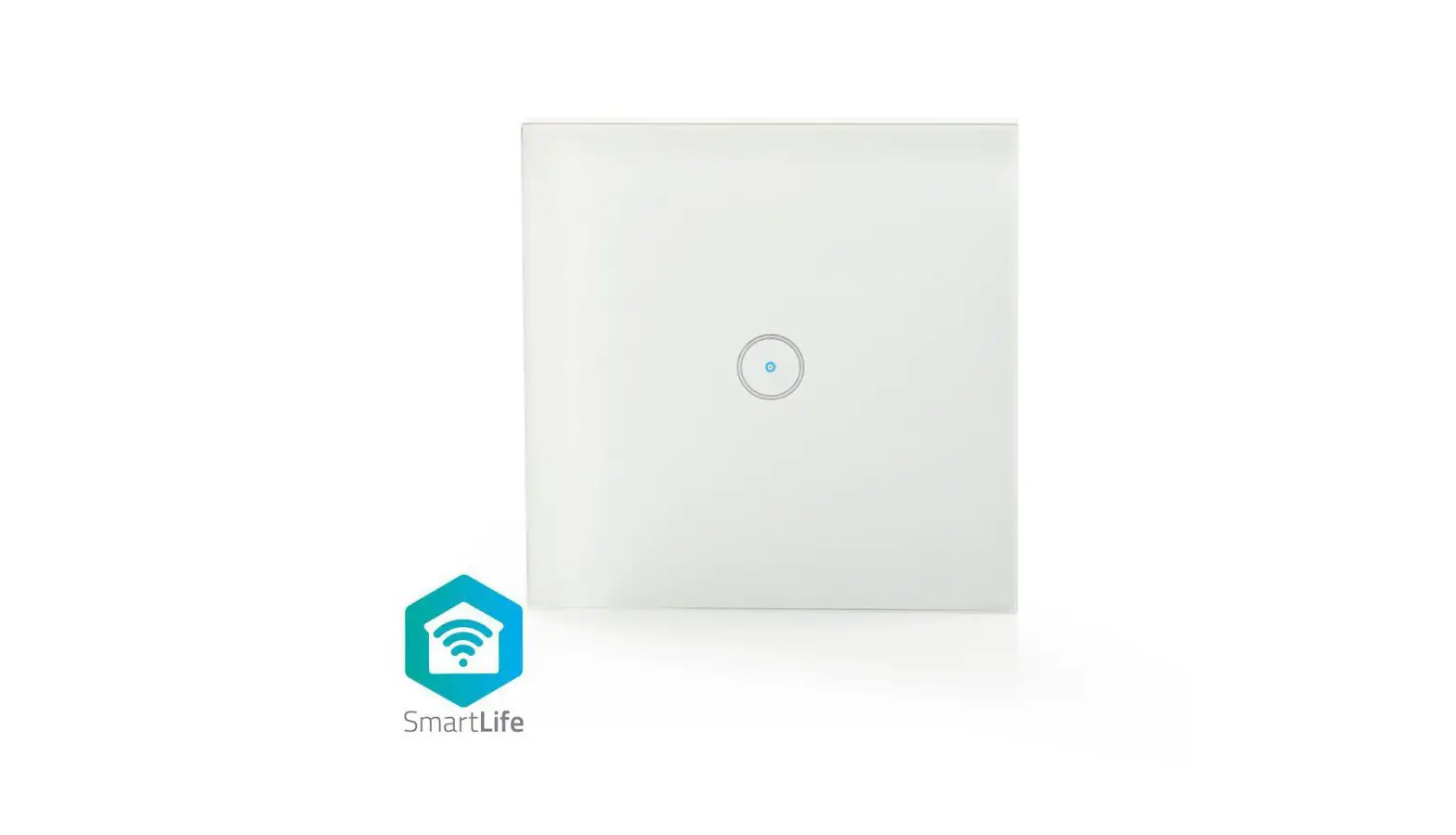
WIFI WALL SMART SWITCH /SOCKET
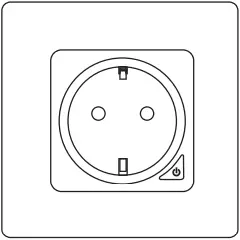
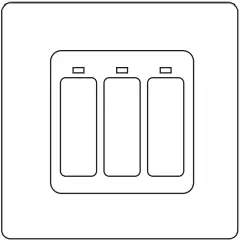
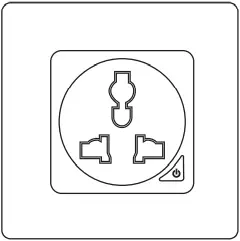
User Guide
UK
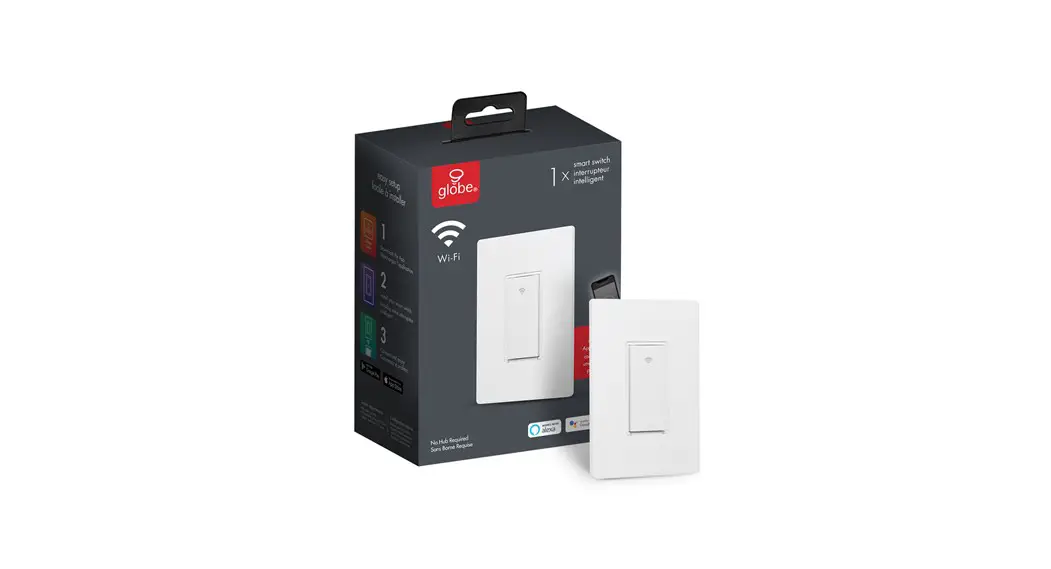
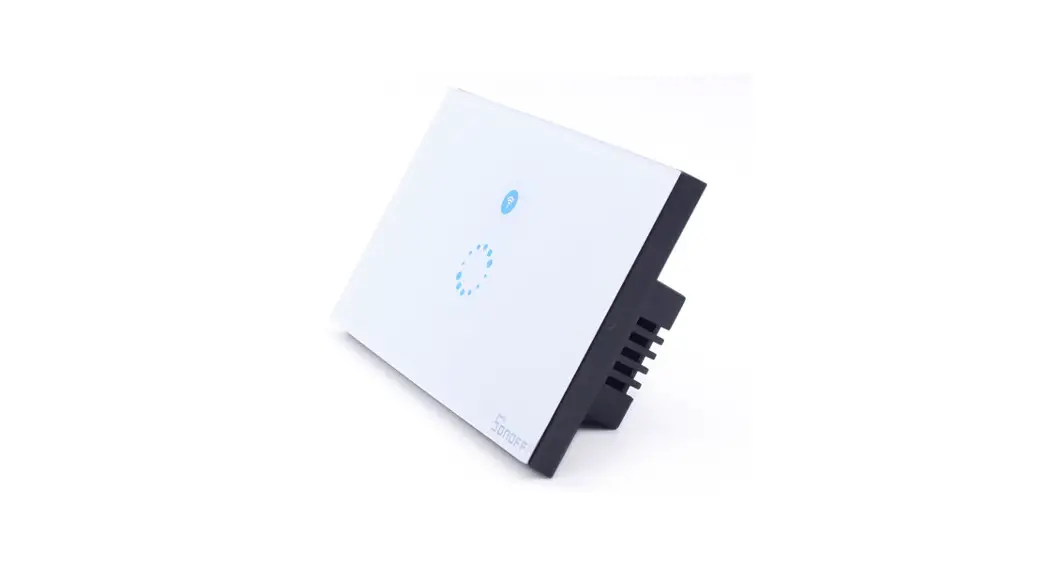
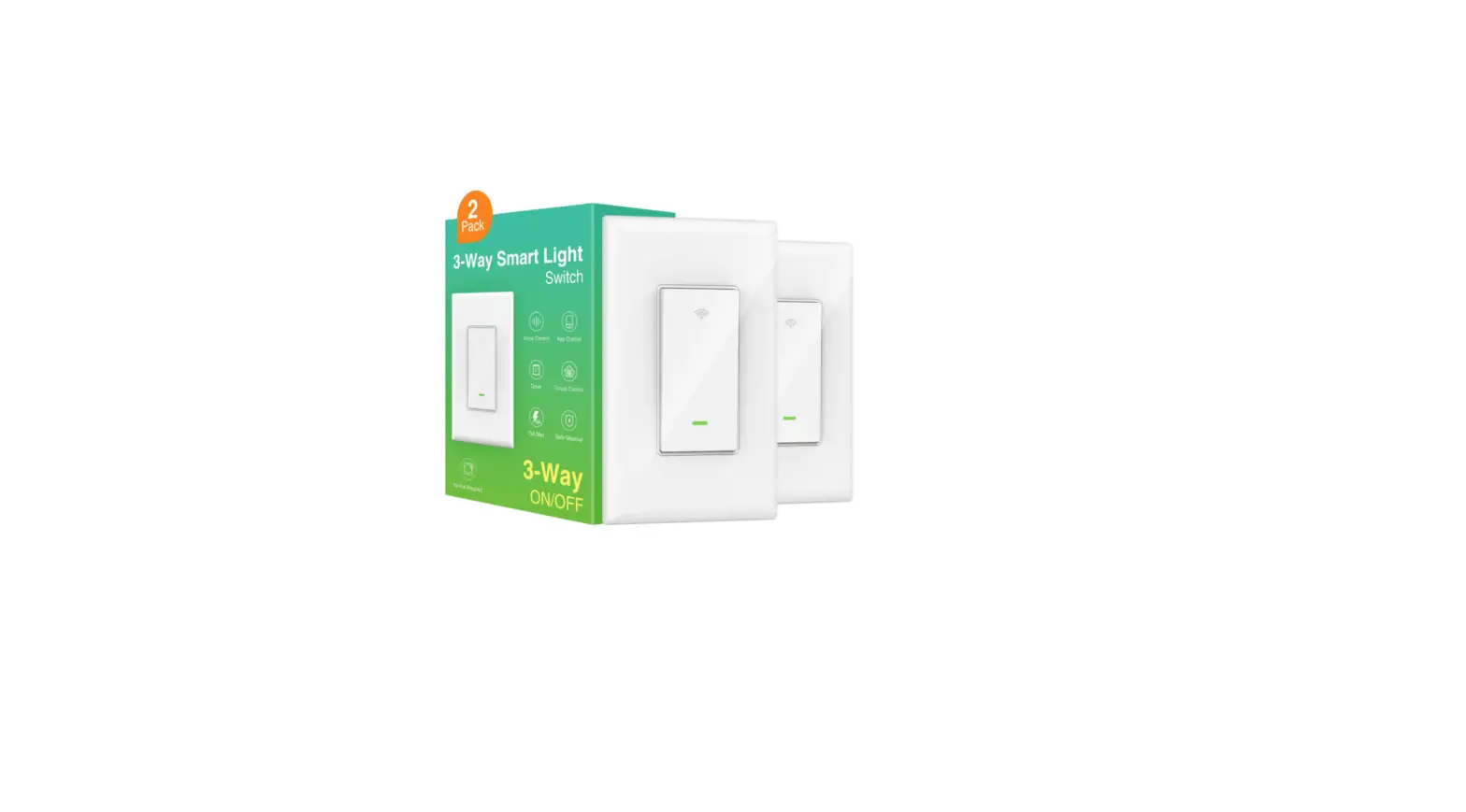
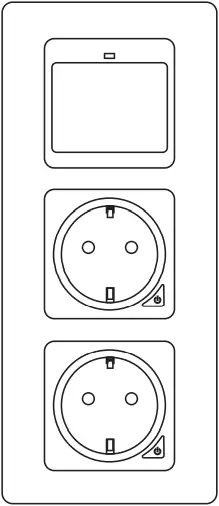
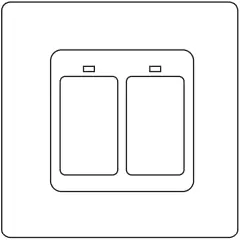
1. WiFi/Zigbee Smart Switch
Working Voltage: AC 110-240V (50/60Hz)
Normal Load Power: ≤800W
Maximum peak current: 10A
Maximum peak power: 1100W
Wireless Protocol: WiFi 2.4GHz
Wireless standard: IEEE802.11 b/g/n
1.1 Installation method
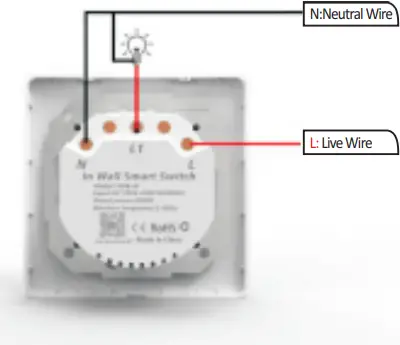
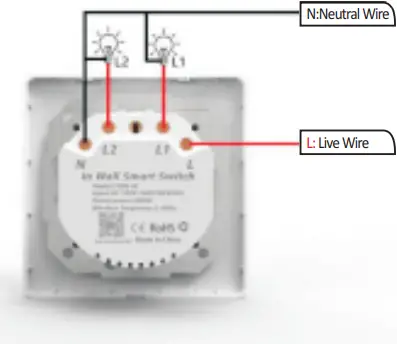
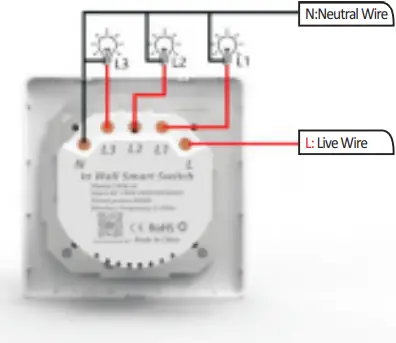
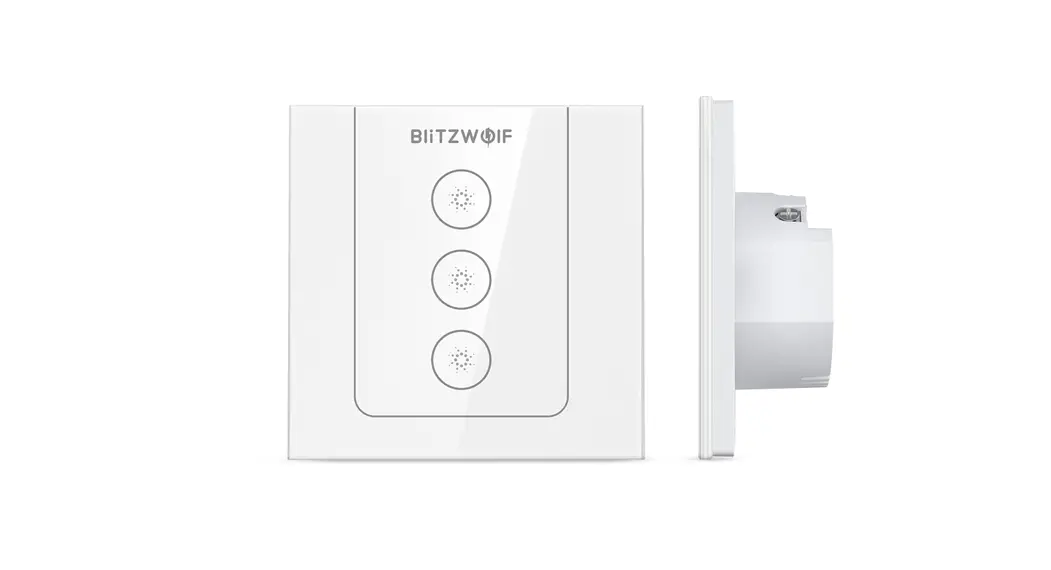
1 Gang Switch 2 Gang Switch 3 Gang Switch
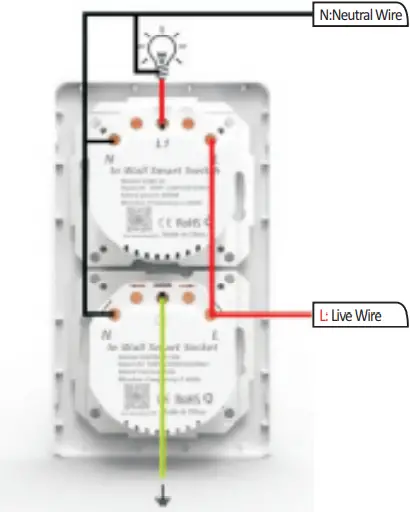
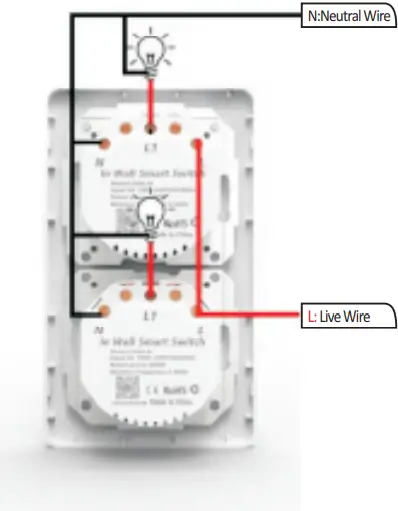
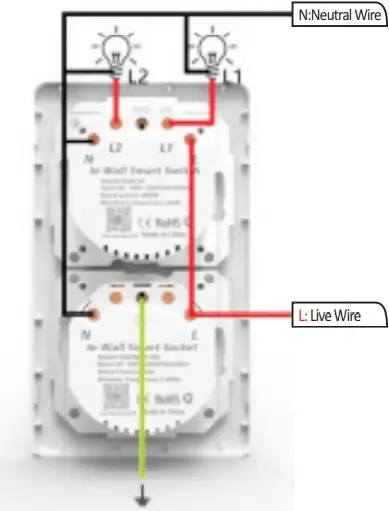
1.1.1 Touch switch installation method
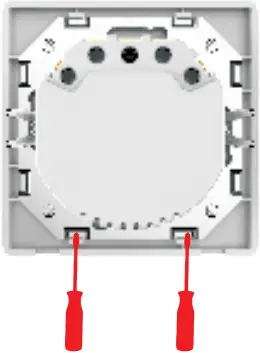
1. Use a screwdriver and turn both screws 90 degrees in order to open the frame
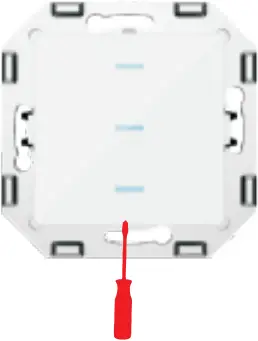
2. Use a screwdriver to lift the control panel carefully
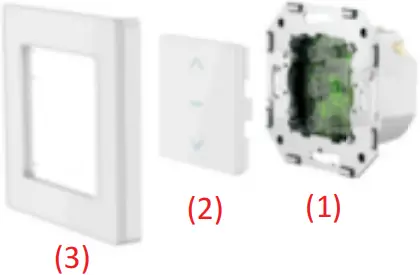
3. After connecting the wires, tighten 2 screws and put back on the control panel and the frame
1.1.2 Modified installation method after touch switch
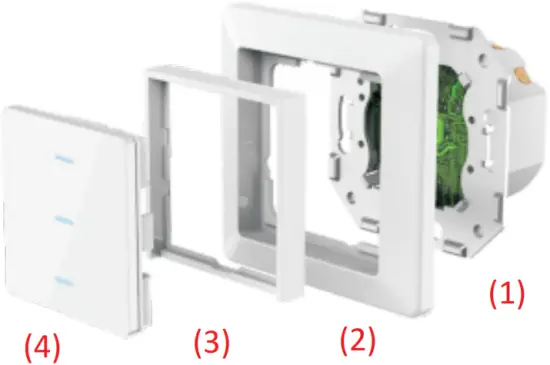
- Fix the back cover
- Put on the original switch frame
- Insert the adapter frame
- Put on the control panel and the installation is complete
1.2 Recovery reset status operation instructions:
- Press the button for 20 seconds.
- The signal indicator light will flash quickly or slowly
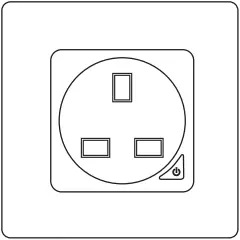
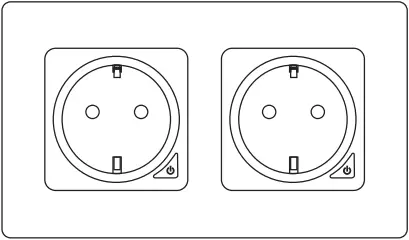
2. WiFi/Zigbee Smart Socket
Working Voltage: AC 110-240V (50/60Hz)
Normal Load Power: ≤3000W
Output: 16A(Max)
Maximum peak power: 3600W
Wireless Protocol: WiFi 2.4GHz
Wireless standard: IEEE802.11 b/g/n
2.1 Installation Guide
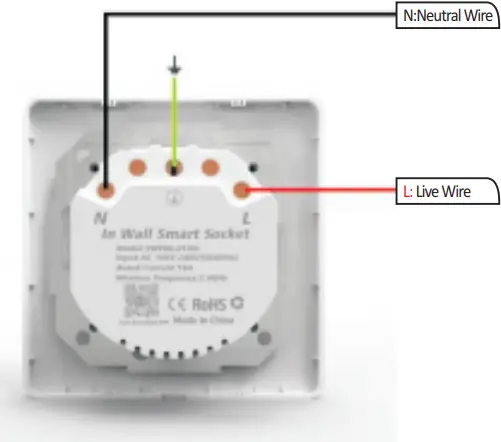
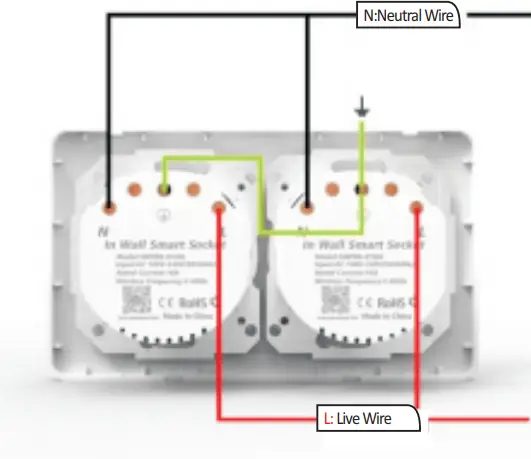
2.1.1 Installation method for touch switch and retrofit, please refer point 1.1.1 and 1.1.2
2.2 Operation instruction for recovery reset status
- Press the button for 5 seconds.
- the signal indicator light will flash quickly or slowly
3. Download and Install App
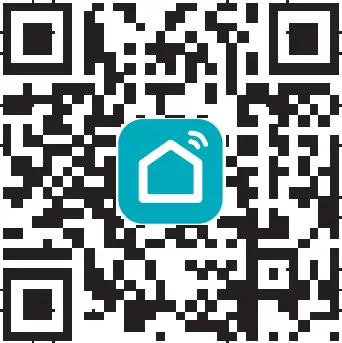
Use your mobile phone to scan the QR code below or enter search keyword “Smart Life” in the App Store or Google Play Store to download the App
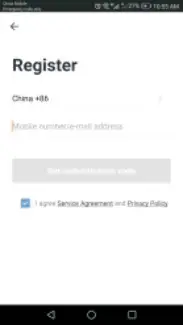
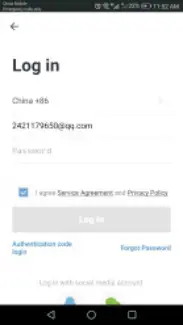
Input account name and password to log in. If you don’t have an account, please create an account first. The System will identify your location (country) automatically
You can use your mobile phone number or Email address as your account name
Tap on “Next” to get a verification code via SMS on your mobile phone. Enter a desired password. Tap on “Confirm” to finish your registration.
4 1 Add New WiFi Device
- Connect your phone to the local WiFi
- Press the switch button for 20 seconds till the light flashes to reset
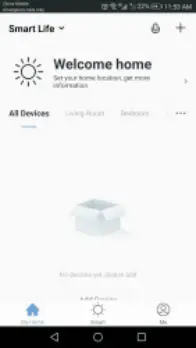
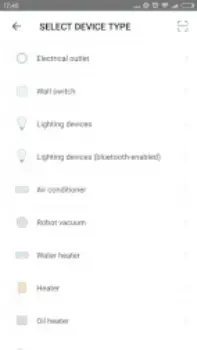
- Tap on “+” in the homepage of your “smart Life” App and select “wall switch”
- Enter WiFi password and confirm
- Wait until the configuration is complete
4 2 Add New Zigbee Device
- Ensure that the devise is in fast flashing state
- Open the Tuya ZigBee Smart Gateway
- In the Zigbee smart gateway, click to add a sub-device
- Discover the device and add it, the addition is successful
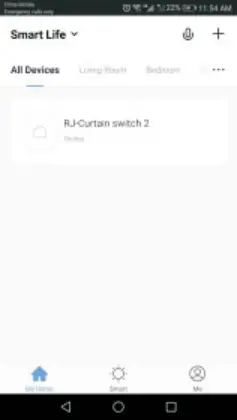
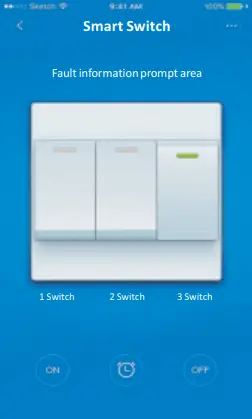
5. Control with App
After successful configuration, you can control the WiFi switch/socket with App.
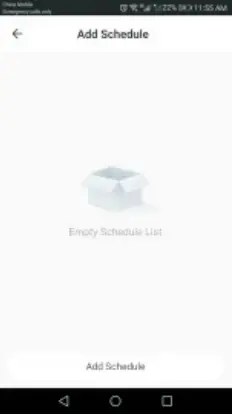
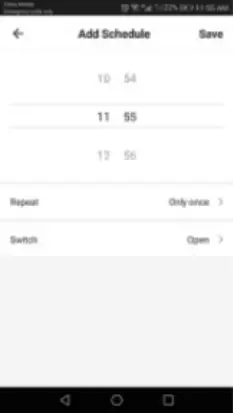
6. Set Timer
You can set a schedule to open/close your switch/socket
- Select ” Device Sharing” in Profile
- Tap on “Add”
- Enter the cell phone number/email you want to share with
- Device will automatically be listed in your shared account
8. Manually reset the curtain switch
Repeat step 2 to rest the device
9. How to control the device with Amazon Alexa
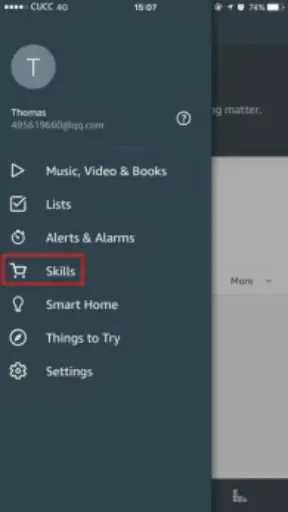
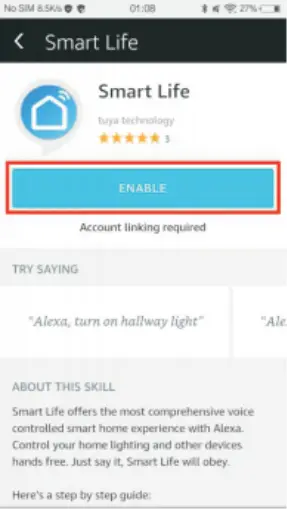
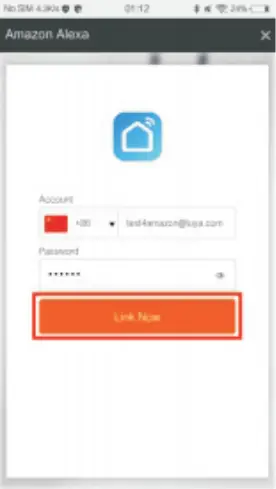
Open the “Amazon Alexa” APP. Go to “Home” and select “Skills”. Input “Smart Life” in the search bar. Tap on “Enable” to add the skill. Enter your “Smart Life” APP account name and password. Then tap on “Link Now” to continue. After the link succeeds, close the window and go back on the Alexa APP.
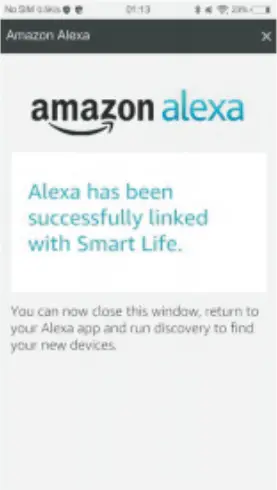
Tap on “Smart Home and then on “Devices” and then on “Discover”. After about 20 seconds, Amazon Alexa will automatically detect the device and list it in the device list.
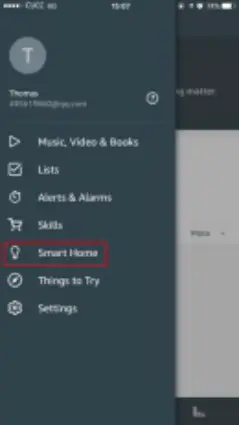
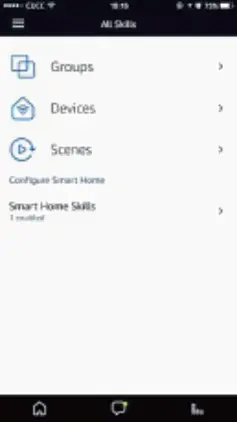
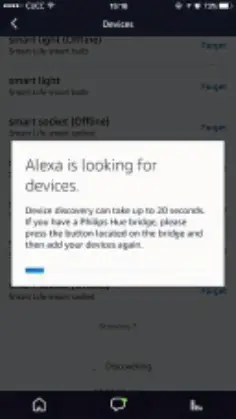
Now you can use your Alexa to voice control your Smart devices. “Alexa, turn on/off bedroom switch/socket.”
10. How to voice-control the device with Google Home
Open the “Google Home” or “Google Assistant” APP. Go to “Home” and select “Home Control”. Tap on “+” on the lower right corner to add skill. You can find “Smart Life” in “Add devices” list.
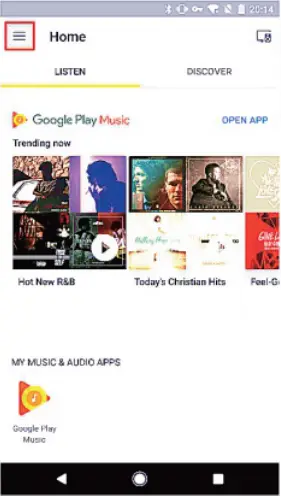
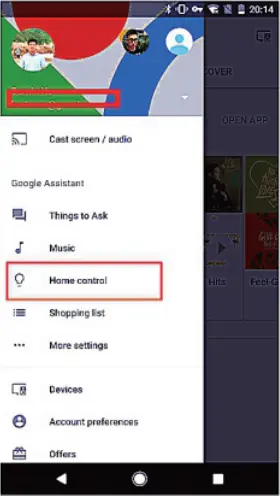
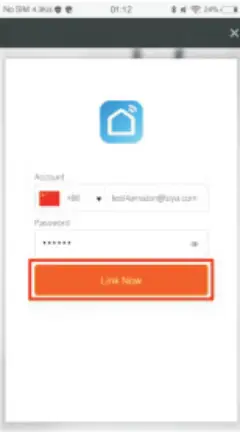
Select your country code. Enter your “Smart Life” APP account name and password. Then tap on “Link Now” to continue. After the link succeeds, you can assign rooms for your smart devices. Later you can find the smart devices in the Home Control list.
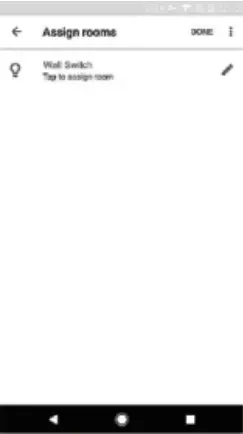

Now you can use your Google Home to voice control your smart devises. “Ok Google, turn on/off switch/socket.”