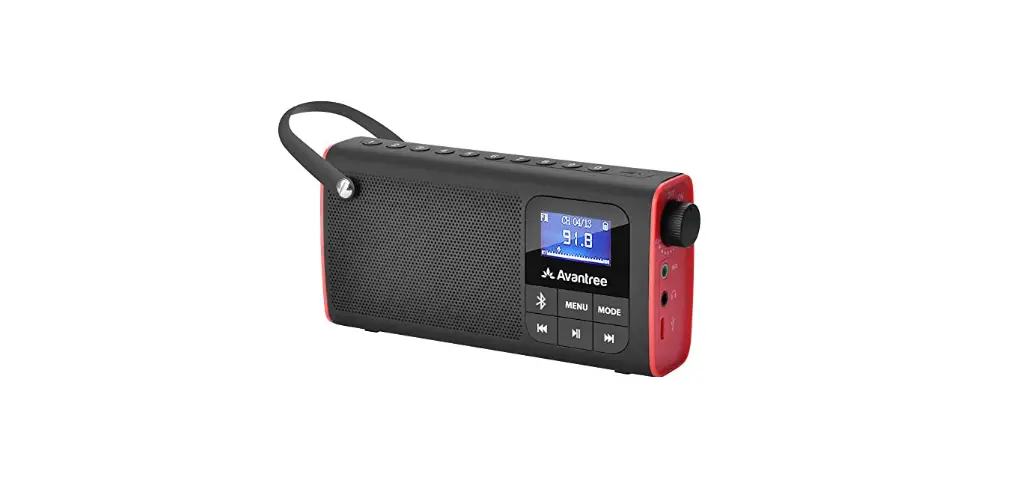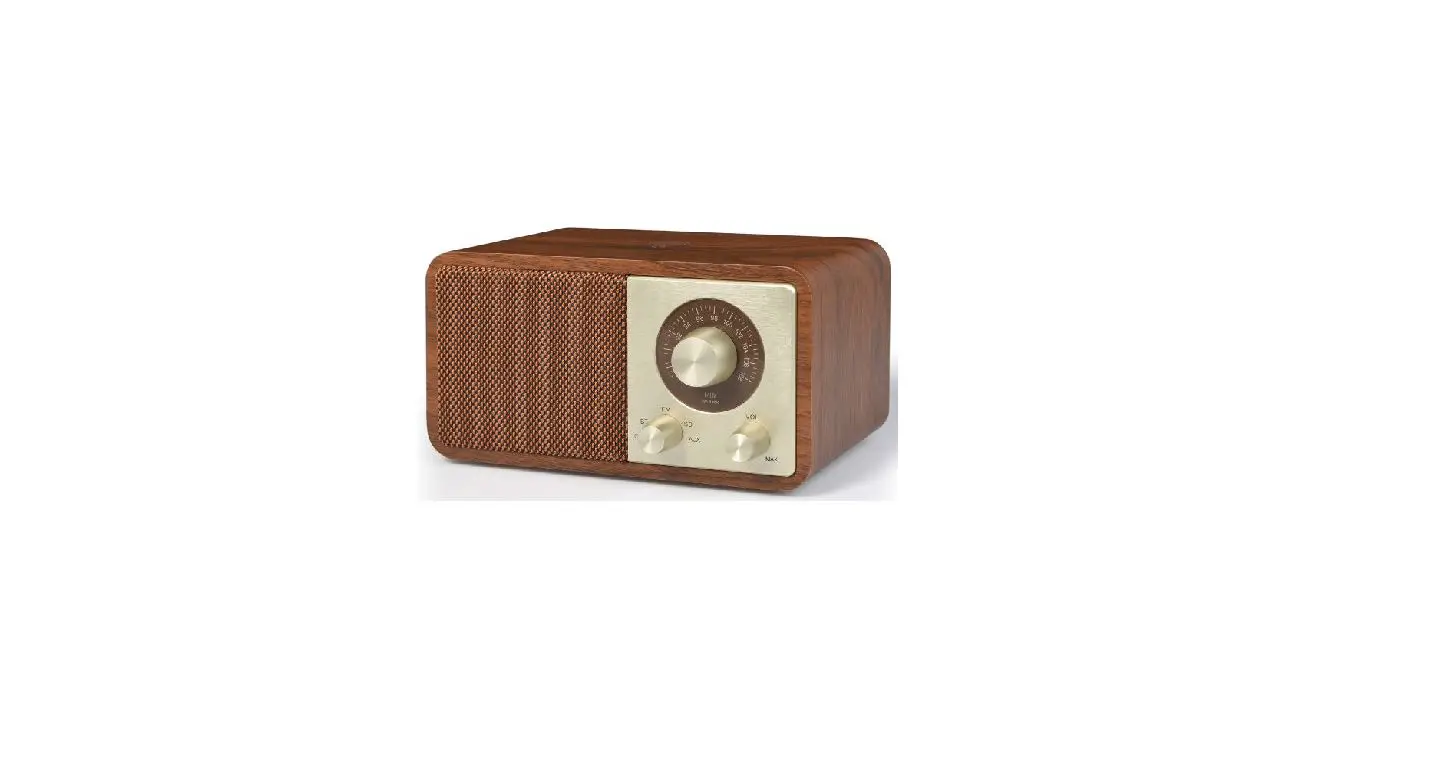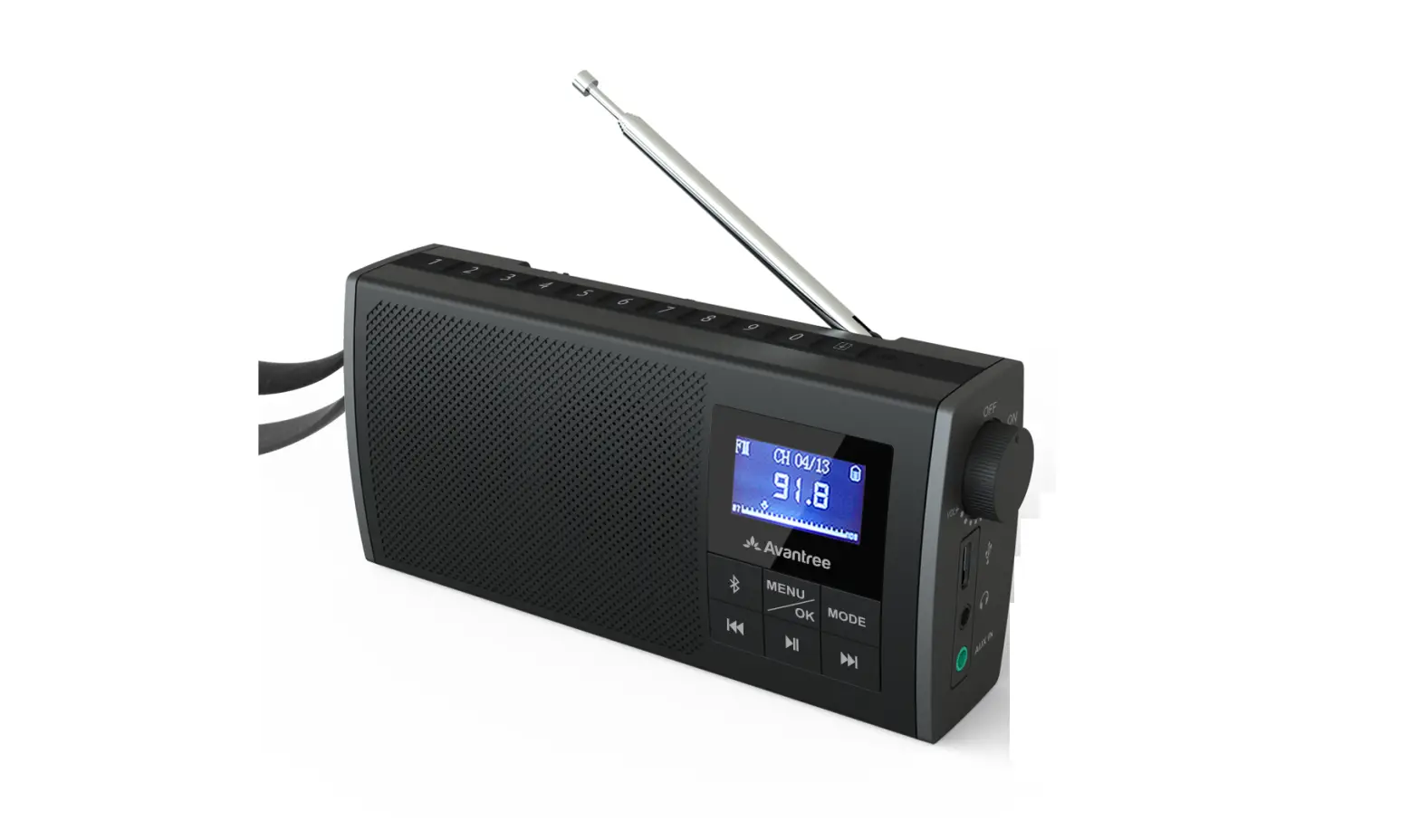
Avantree BTSP-860-BLK Wireless Portable Radio Speaker User Manual
What’s in the box?
- SOUNDBYTE (SP860)

- USB Type C Charging Cable
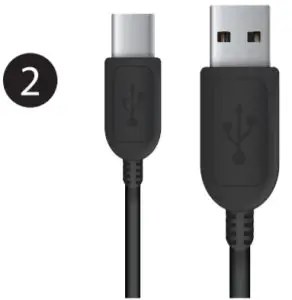
- 3.5mm AUX Audio Cable

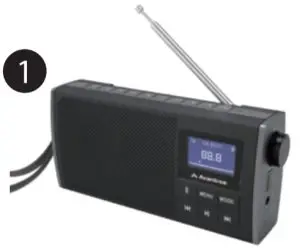
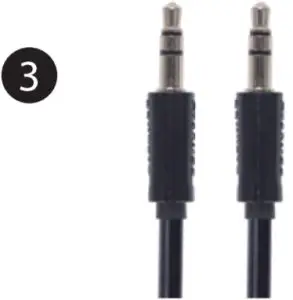
Basic Operation
| Power ON | Rotate 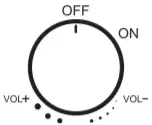 clockwise to ON clockwise to ON |
| Power OFF | Rotate counterclockwise to OFF |
| Volume up | Rotate clockwise |
| Volume down | Rotate counterclockwise |
| Play/pause (Bluetooth mode) Mute/unmute(FM/wired speaker mode) | Press  once once |
| Next/Previous track/channel (Bluetooth/FM mode) | Press once once |
| Switch between FM/AUX mode | Press MODE once |
| Enter Bluetooth mode | Press  once once |
Use as FM Radio
Turn on the Soundbyte
By default it will enter the last mode used. If this is not the FM radio mode press the MODE button once.
Select/search for FM channels
Manually select channel – Directly input the channel frequency using the number pad, e.g. for FM102.5, press the number sequence 1- 0 – 2 – 5.
Auto-search for channels – Press  once, then press
  to select “Auto – search”, now press again to confirm and start auto-search. It will now search and auto save all available channels. Press the to choose different channels.
Save your favorite channels
Save channels to number pad for quick access – Find local FM channels as described above, then save any channel for quick access by pressing and holding  until the screen displays “channel saved”. Channels are assigned to the number pad buttons in sequential order 1, 2, 3……15. You can save up to 15 channels.
Play the saved channels – Press the corresponding number pad button (for channels 10-15, press 1 followed by 0-5). Or you can press once, the screen will display “Show saved channels”, then press the to choose the desired channel.
Delete saved channel – While playing channel, press and hold until the LCD screen displays “channel deleted”. Now the saved channel is deleted from your saved channel list.
Exit the saved channel list – From the saved channel list, press and the LCD screen will display “Exit saved list” and return to main menu.
Use as Bluetooth Speaker
Pair and connect
Click once for Bluetooth mode, then activate Bluetooth on your device (i.e. phone, tablet, laptop etc.) and search for “Avantree Soundbyte” to pair and connect.
To reconnect
Each time you turn it on, the Soundbyte should automatically reconnect to the last connected device. If not, either click to manually reconnect or select “Avantree Soundbyte” on your device.
Basic Bluetooth operation
Manually reconnect | Press once |
Disconnect | Press & hold for 2 seconds |
| Answer/end a call | Press |
| Reject a call | Press |
Use as Wired Speaker
Turn the Soundbyte on, then plug the AUX 3.5mm audio cable into the (light green) audio port labeled “AUX IN”. Now you can use the Soundbyte as a wired speaker.
Charging
Please charge the Soundbyte if you hear the “low battery” voice prompt. You can charge using any standard USB charger with 5V/ 1A output via the Type – C charging cable included.
The battery icon  on the LCD screen will flash while charging and stop once charging is complete. It takes about 3 hours to fully charge the Soundbyte and you can still use it normally while it’s charging.(N.B. You can also charge via a computer USB port but the charging time may be longer.)
Factory Reset
Factory resetting the Soundbyte will clear all the FM channels saved as well as its Bluetooth pairing history.
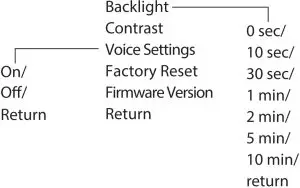
To reset, power on the device then press & hold the button for 2 seconds to enter “System Settings”. Press to select “Factory Reset”, then press again to confirm.
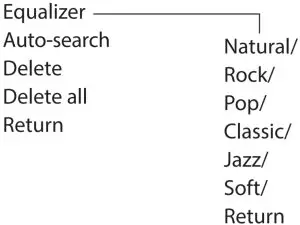
FM mode– Press once to enter the settings interface
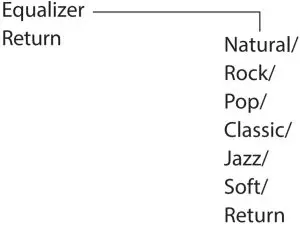
Bluetooth mode – Press once to enter the settings interface
System Setting – Press & Hold to enter the settings interface
Remarks:
To exit the settings interface at any time, press to select “Return” then press .
Specifications
- BT Version: 5.0
- Operating range: 30ft/10m
- Operating time: 15hrs
- Charging voltage: 5V /1A
- Battery: 18650 lithium rechargeable 2200mAh battery
- Supported profiles: A2DP, AVRCP, HFP
- Frequency range: 160Hz – 20KHz
- FM frequency range: 87MHz – 108MHz
- Driver size: 40mm
- Product size: 156.2 x 71 x 37.5mm
- Net weight: 265g
Customer Support
Scan for FAQ
Any questions? Please visit:
support.avantree.com
(User Manuals, FAQ, Video Tutorials and more)
Email support: [email protected] (Response Time: 1 working day)
Live chat: www.avantree.com

 Support Center | Avantree
 Wireless TV Headphones, Devices, and Audio Solutions | Avantree