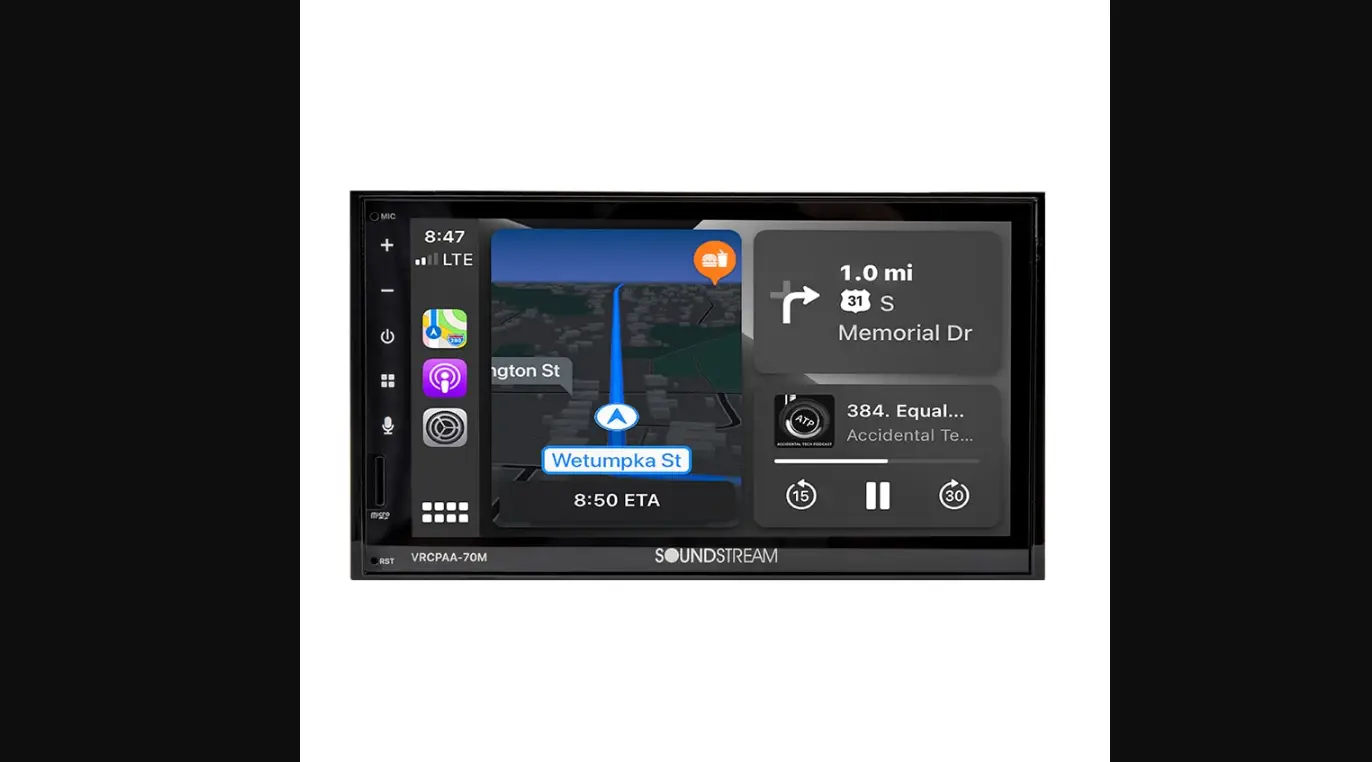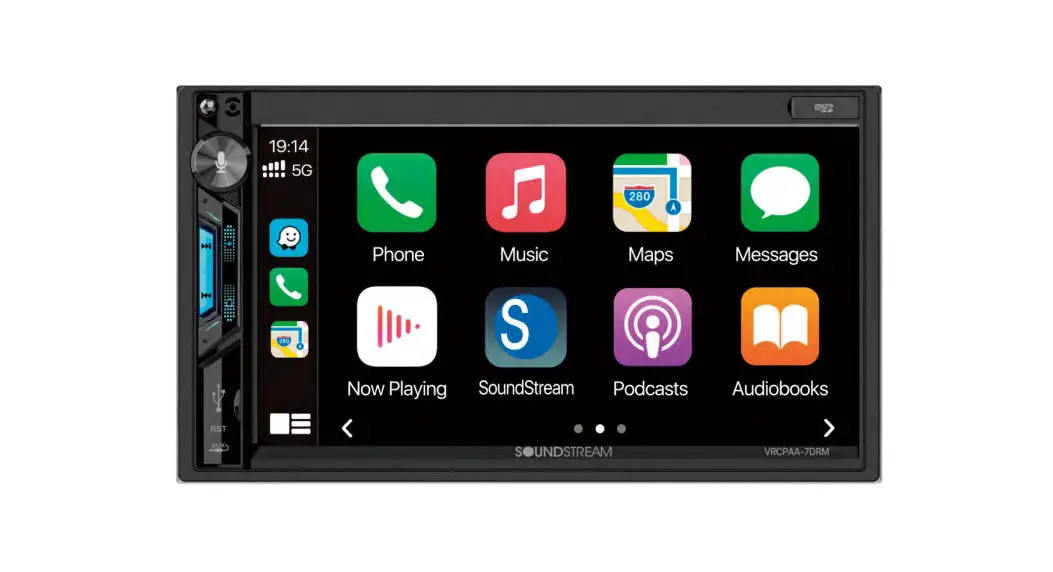
 VRCPAA-7DRM 2-Din Head Unit
Owner’s Manual
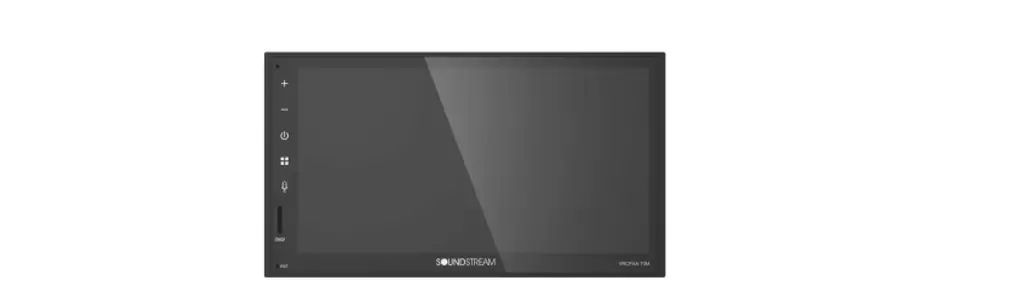
| 2 DIN 7″ Monitor | AM/FM Radio |
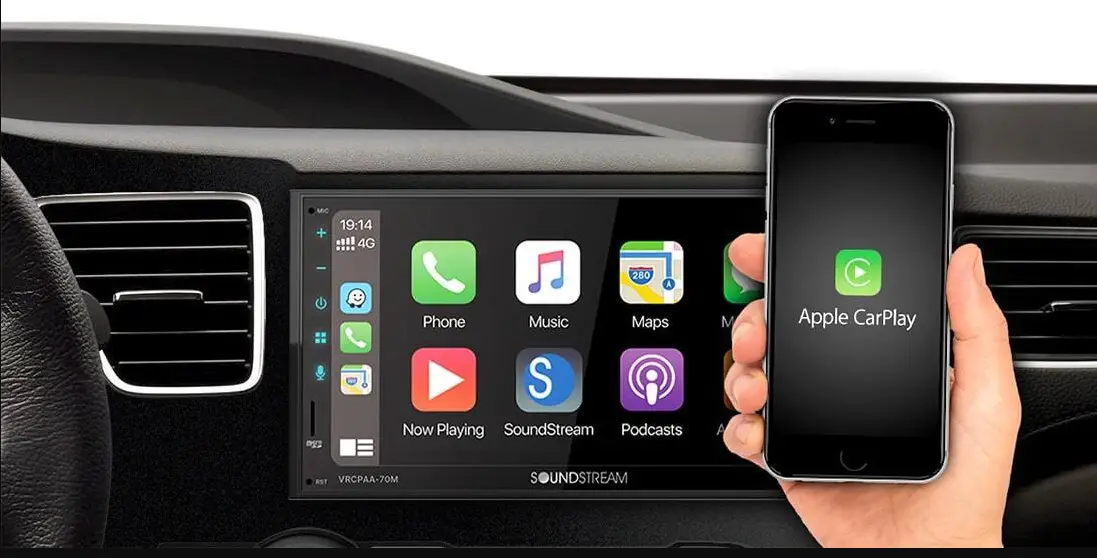
| Touch screen | Support Apple CarPlay™ |
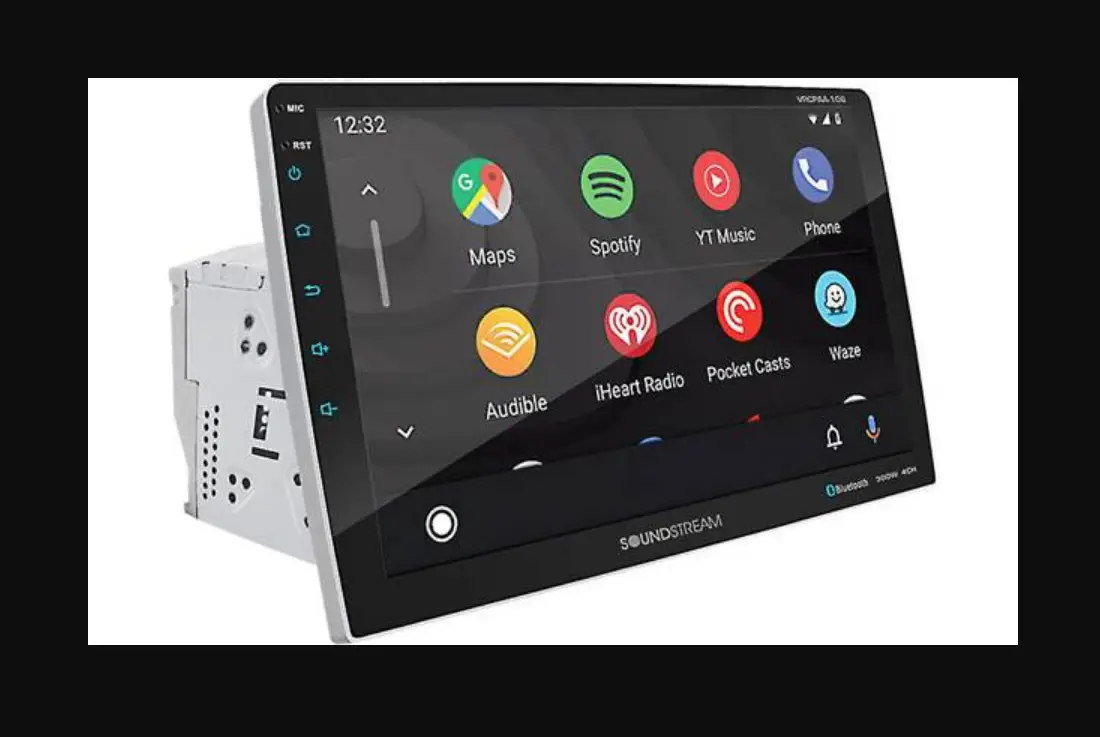
| MP3/MP4 | Support Android Auto™ |
| USB/SD | Support Bluetooth |
 Appearance
 Appearance
Main Menu 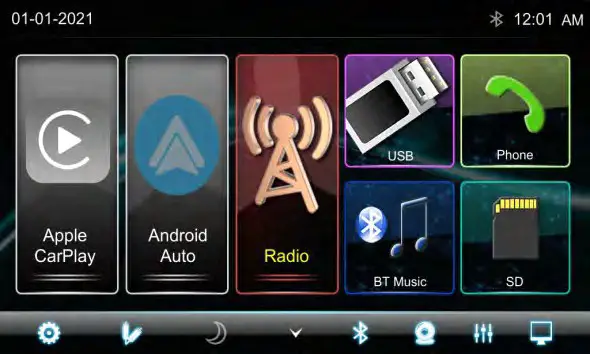
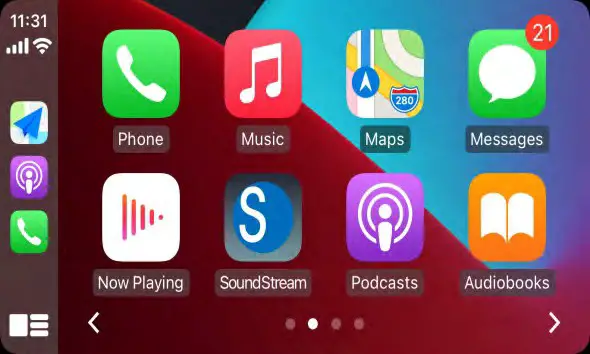
Carplay Menu
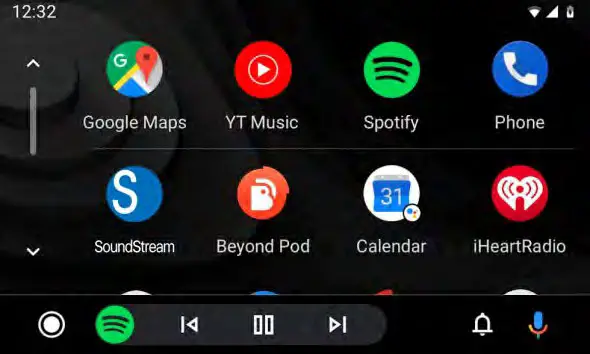
Android Auto Menu
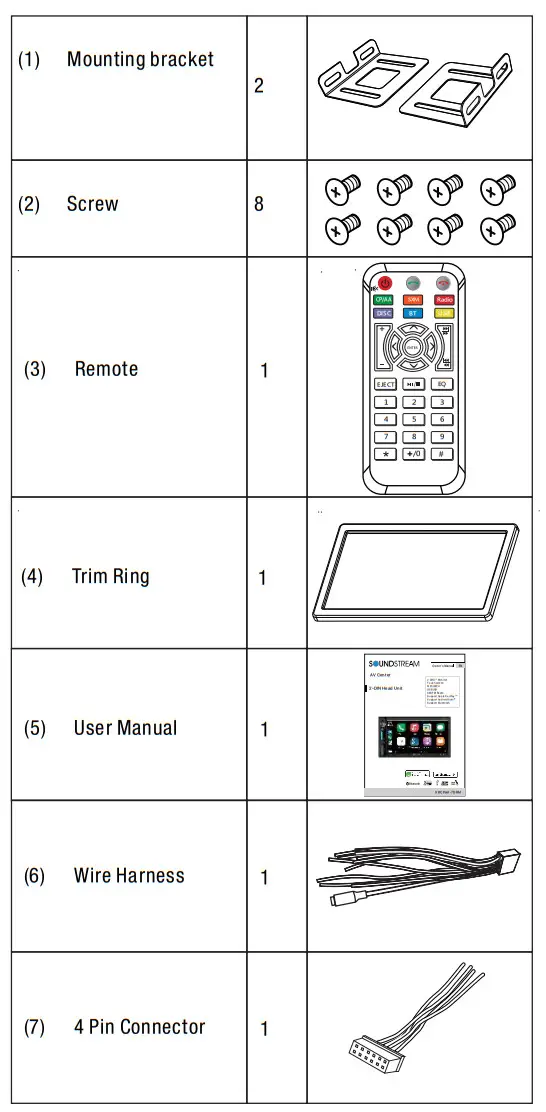
Accessories & Installation
The package contains the following accessories for the installation and operation of the unit.
Installation 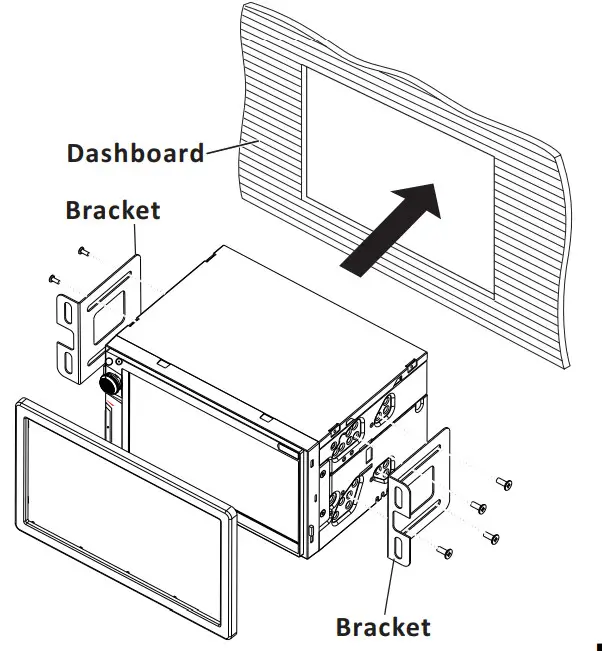
- Put the 2 brackets to the left and right side of the head unit.
- Use screws to fix the brackets to the unit.
- Install the body chassis into the dashboard via the 2 brackets.
- Install the trim ring to the body chassis.
Note:
- Make sure the ignition is turned off, and disconnect the cable from the vehicle batteryʼs negative (-) terminal.
You never want electricity running when you install this 2-DIN car receiver. - Before installation, disconnect the wire harness and the antenna.
- Attach the brackets on both sides of the car receiver with screws as shown as the installation drawing. Please buy from your dealer according to the drilling of hole size.
- Consult with your nearest dealer if installation requires the drilling of holes or other modifications of the vehicle.
- Install the car receiver in the dashboard.
- Connect the wire harness & antenna to the car receiver being careful not to pinch any wires or cables.
- Install the plastic outer trim ring onto the car receiver.
- Reconnect the battery and run through all of the options on this car receiver you intend to install it in. Please choose the correct installation method according to the actual situation of your car. Always contact the car dealer or manufacturer if you have any questions.
Parking wire
Note: The parking wire is connected with a brake signal; for safety, the programs can be seen on the monitor after braking the car..
Note: To watch the video the parking wire should be connected to the brake signal. 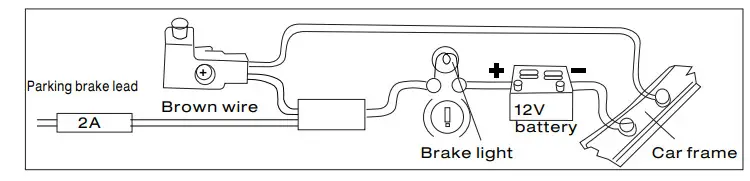
Connecting the reversing line to the taillight on the car
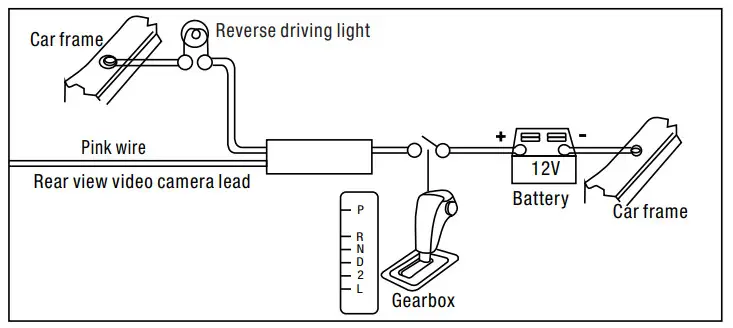
After connecting, when you start up the reverse gear, the unit will receive the picture from car rear view camera.
Wiring
Speaker Connection
Connect the speakers according to the following diagram, incorrect connections will damage the unit or your loudspeakers. 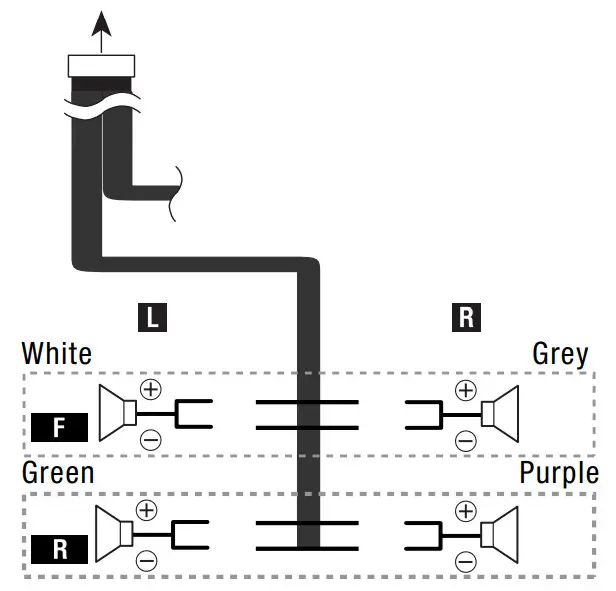
Wiring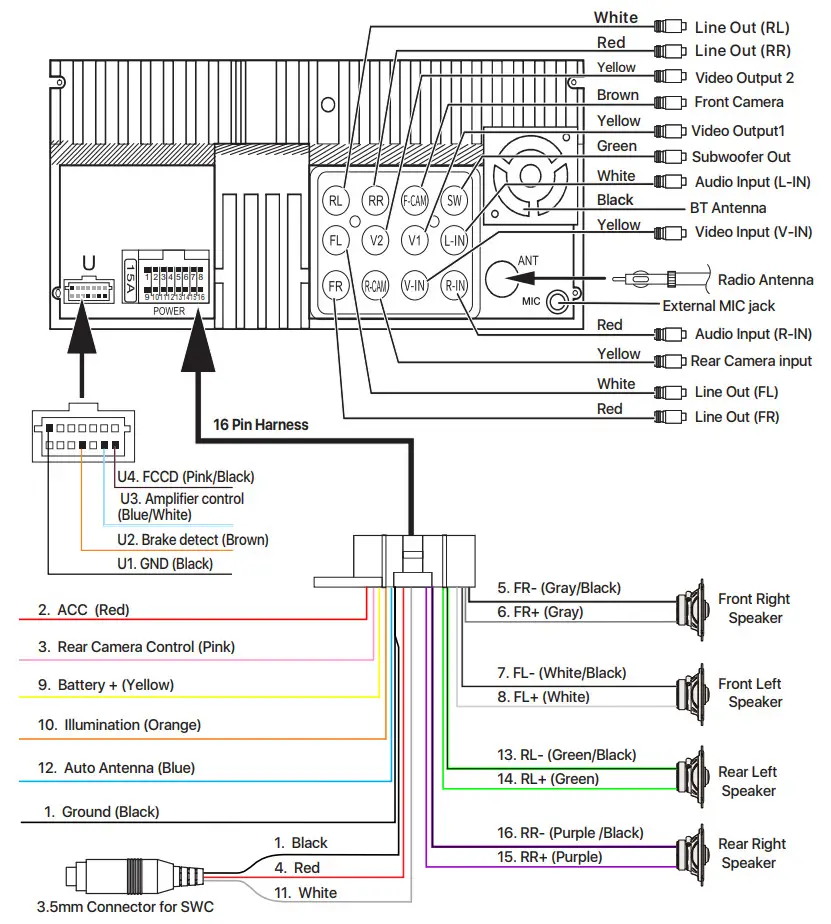
Note: To use the steering wheel control feature, you need a universal remote adapter (not supplied) to match your car.
Fuse: Max 15 Ampere
Voltage: 12V(DC); Negative Ground
Front panel Description
Front panel 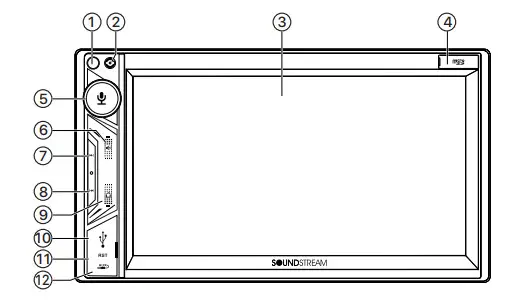
- IR Sensor of Remote
IR remote control signal receiving window. - Mic
Built-in Microphone. - 7-inch TFT LCD
- Micro SD slot
Insert micro SD for playback.
Rotary Control
On/Off button
Short press to switch On the source unit.
Long press to switch Off the source unit. - In operation, rotate to adjust the sound output level.
Siri button
When Apple CarPlay or Android Auto is available, press the Siri button to start the voice control function. - Mute Button
Press to Mute or Un-mute.  /button
- [Radio] Press to select the previous/next preset radio station for broadcasting.
Press and hold to seek downward or upward.
 /
/ button
REMOTE CONTROL
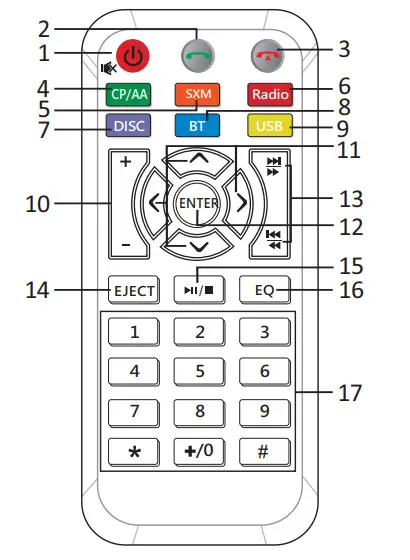
- Press and hold to power it on or off.
A short press of this button mutes the volume output when the unit turns on.
Long press is the Power OFF function when the unit turns on. 
[Bluetooth ]: Press it to make a call after inputting a phone number or answering an incoming call.
[Bluetooth ]: Press it to reject a coming call or hangup while calling- CP/AA
Press it to switch to CarPlay or Android Auto mode; Head Unit will show the string “invalid operation” when CP/AA is not plugged in Head Unit. - SXM
*This button has not to function for VRCPAA-7DRM. - Radio
Press it to switch to RADIO mode. - DISC
*This button has not to function for VRCPAA-7DRM. - BT
Press it to switch to Bluetooth mode. - USB
Press it to switch to USB mode. - VOL+/-
Press it to increase or decrease the volume level. 
It is UP /Down/Left/Right Arrow, use this button to select the menu item, the title track, or to show the next frame.
[Radio] Press to seek upward/downward.- ENTER
Press it to confirm the selection. 
[Radio] Press to select the next/previously preset radio station for broadcasting.
[USB/SD]: short press it to skip to the next track or previous functions.
Long press to activate fast forward or fast review in a track. [Bluetooth Music]: short press it to skip to the next track or previous functions.- EJECT
Press it to eject the disc. 
[USB/SD]: short press it to switch play or pause.- EQ
Press it to Equalizer functions. - 0-9 * #
[Radio ]: Select 1-6 desired preset station.
[USB/SD ]:Input 0-9 for selecting track number.
[BT Phone ]:Input 0-9/*/# for desired phone number.





Note:
- SXM just for include SiriusXM function models.
- * #these functions for Bluetooth.
Remark: VRCPAA-7DRM has no Disc function.
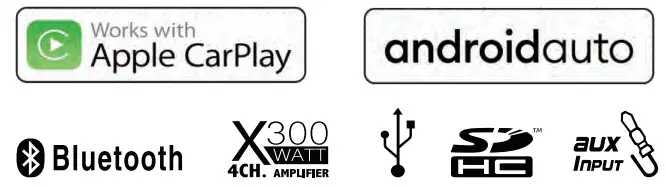
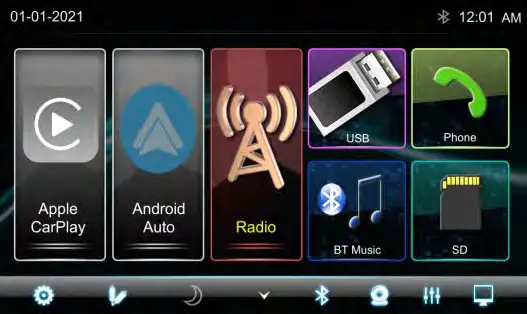
VRCPAA-7DRM is 2-DIN car audio with the following functions: Apple CarPlay, Google Android Auto, Radio, Bluetooth, USB, and SD.
The Mode icon in gray means the corresponding function is not ready or the proper device has not been connected. Touch the corresponding Mode icon to enter playing mode.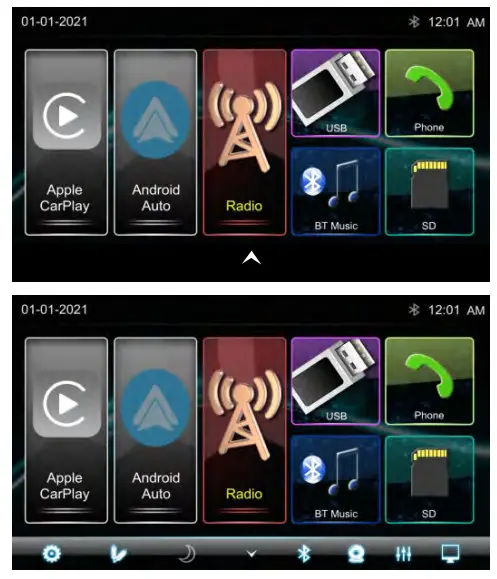
The hidden soft button bar
A hidden pop-up soft button bar is located at the bottom. Touch the icon  to show the soft button bar. Touch the
 to hidden
 | Hidden the pop-up soft button bar. |
 | Pop up the soft button bar. |
 | Setup, to enter the Settings Menu. |
 | AUX IN, to enter the AUX and A/V IN interface |
 | Dimming, to change Daylight or Night (If lighting detect is OFF in Display Setting) |
 | Bluetooth pairing. |
 | Front Camera, to enter the front camera. |
 | EQ, to enter the Equalizer setting mode. |
 | Turn off the TFT display. TFT enters black mode and touches any zone returns to TFT on. |
Settings
Touch the icon to enter the Setup menu.
The Setup menu is included System Settings, Display Settings, Audio & EQ Settings, Bluetooth Settings and Rear Camera Settings 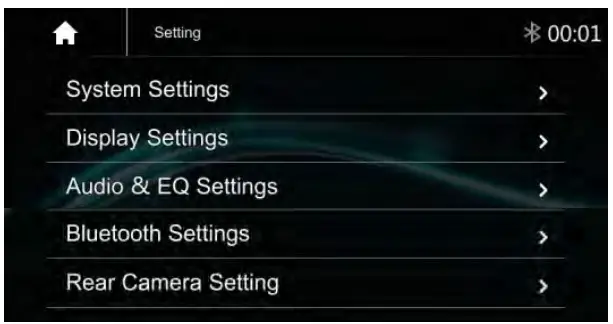
System Settings
The System Settings allow the user to set up the Language, Date & Time, Key Beep, Factory Reset, and About 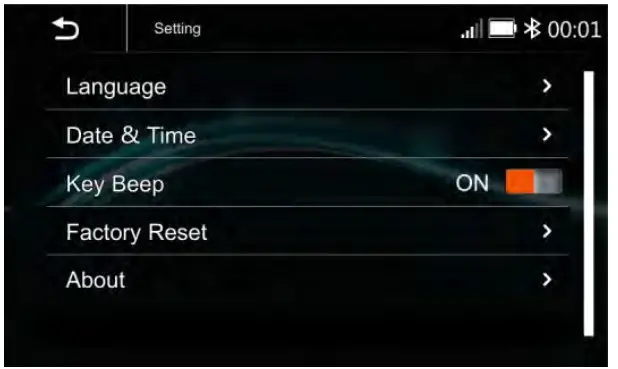
Language
The Language Settings allow the user to select the desired Language. 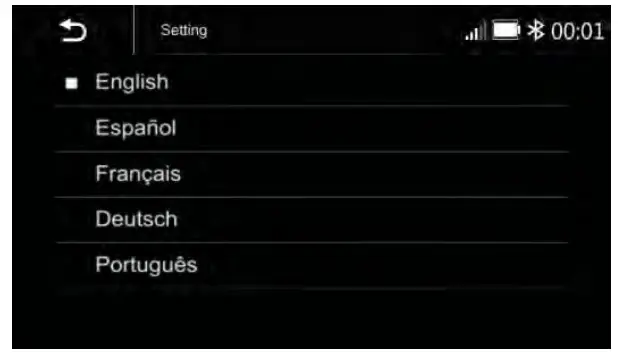
Date & Time:
To setting Time display format (12H or 24H), and set the correct date and time. Settings 2:05 AM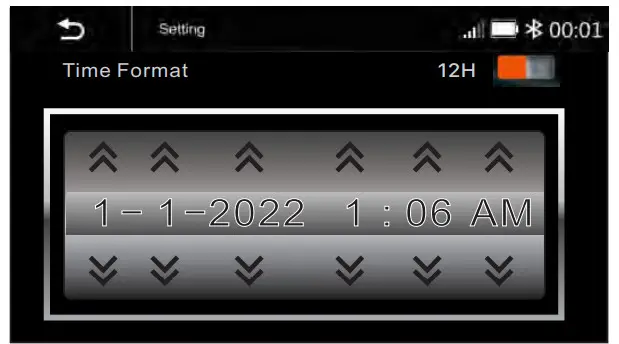
Beep Tone: On/Off
To set the touch button beep tune On or Off
Factory Reset
To reset the default factory setting.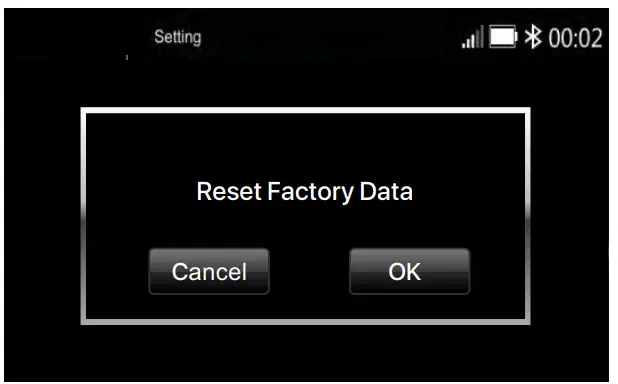
About
To display the Unit Hardware and Firmware version.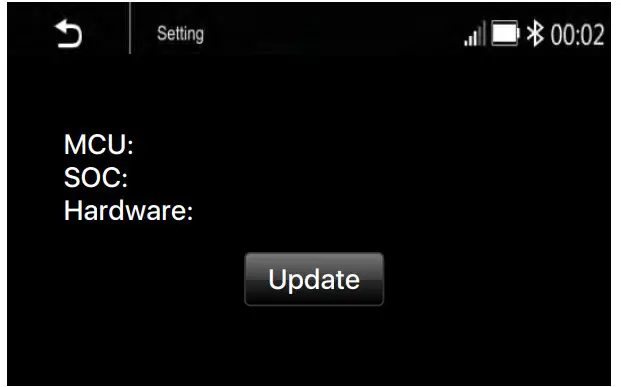
Display Settings :
Below is the Display setting menu, user can select Lighting Detect, Daylight Dimming Level, Night Dimming Level, Illumination and Wallpaper. 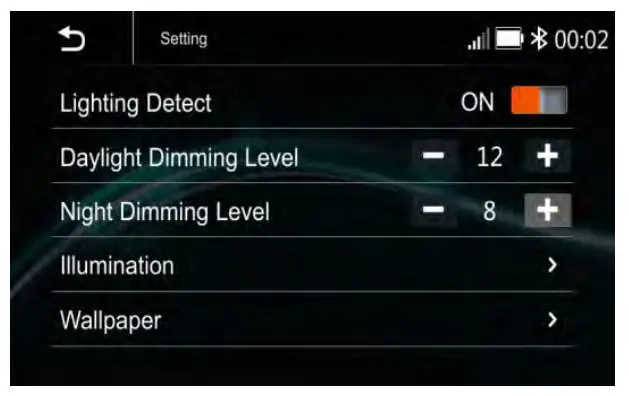
Lighting Detect: On/Off
Daylight Dimming Level: 8 – 15
Night Dimming Level: 0 – 8
Illumination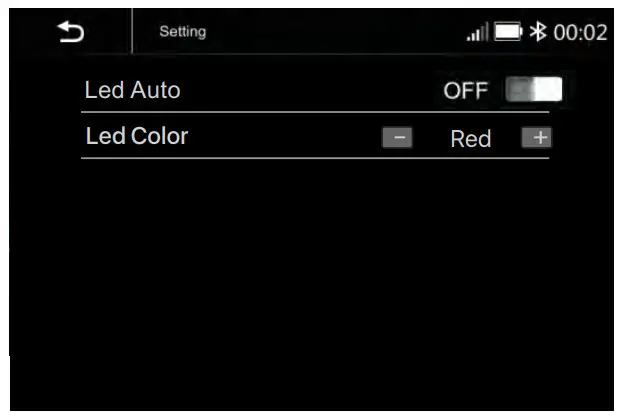
Led Auto: On/Off.
ON: The Led color will change automatically.
OFF: You press the button  or
or to select the desired color.
Color: White/Red/Yellow/Blue/Green/Purple/Light Green
Wallpaper
User can select the preset wallpaper or select the picture in USB driver as the wallpaper.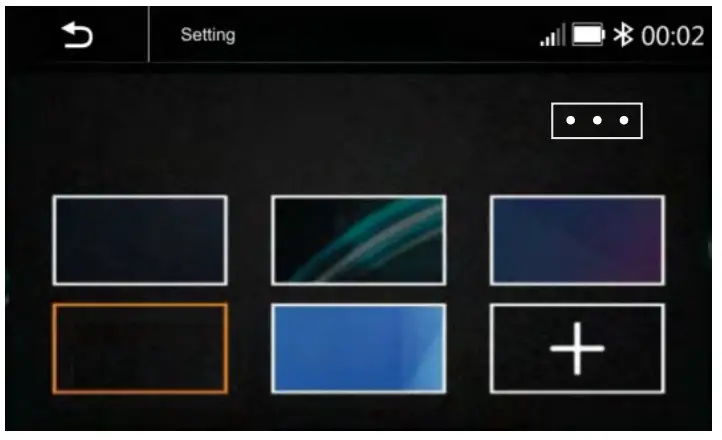
Touch the corresponding picture to select the preferred background.
Touch “ + “, and the head unit will search the USB photo file for wallpaper.
Select a picture and touch OK to add the wallpaper.
…Select another picture for replacing the current wallpaper.
Audio & EQ Settings:
Below shown is the Audio Setting Menu.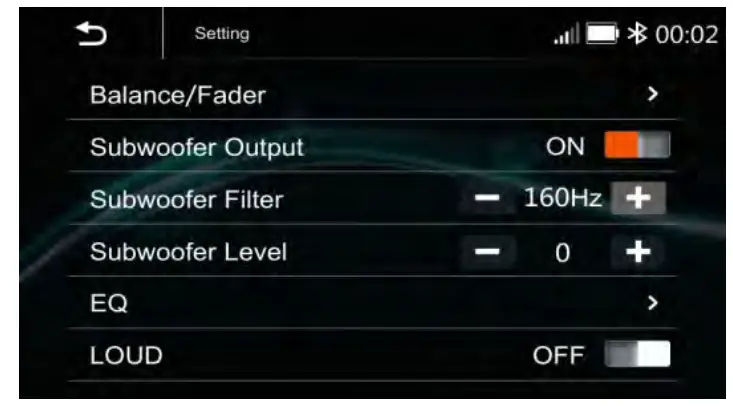
Balance/Fader:
Touch the + or – of Balance/Fade to tune for the driver and passenger preference.
The value of Balance (Left 12 – Right 12) and Fade (Front 12 – Rear 12) Touch Reset to set both Balance and Fade to zero.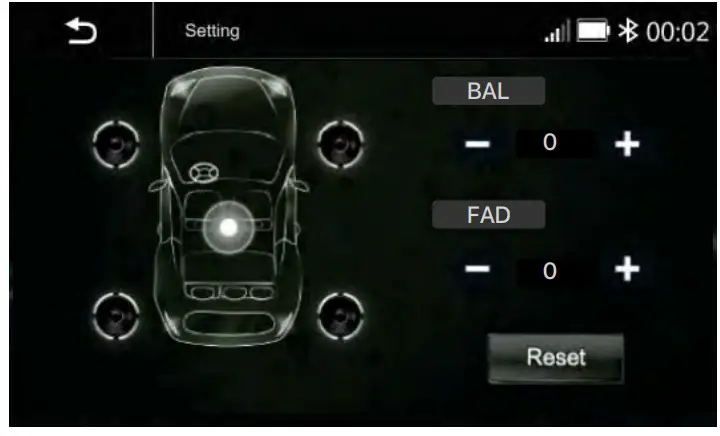
Subwoofer Output: On/Off
Subwoofer Filter: 50Hz/ 80Hz/120Hz/ 160Hz
Subwoofer Level: -10 – +10
10-Band Equalizer :
10 band of EQ tuning, slide the EQ bar to tune each band frequency level according to user preference.
Touch Reset to set all Band to 0.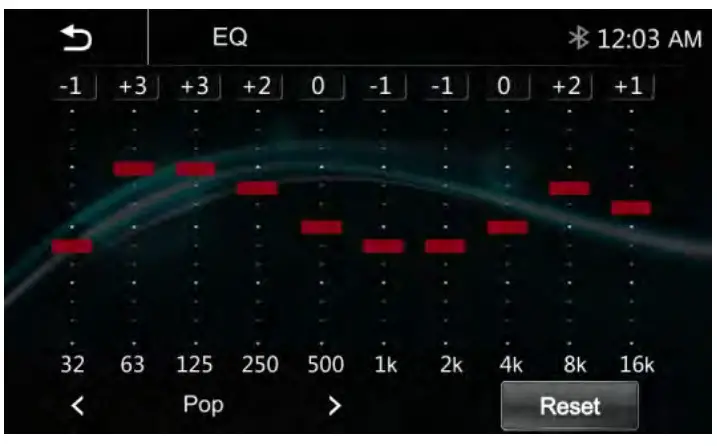
Or user can touch “<” or “> “at the bottom to select the following preset EQ:
off/ Soft Rock/ Pop/ Electric/ Jazz/ EQ Custom.
LOUD: On/Off
Bluetooth Settings :
Touch the Bluetooth Settings from the setting menu will be shown below.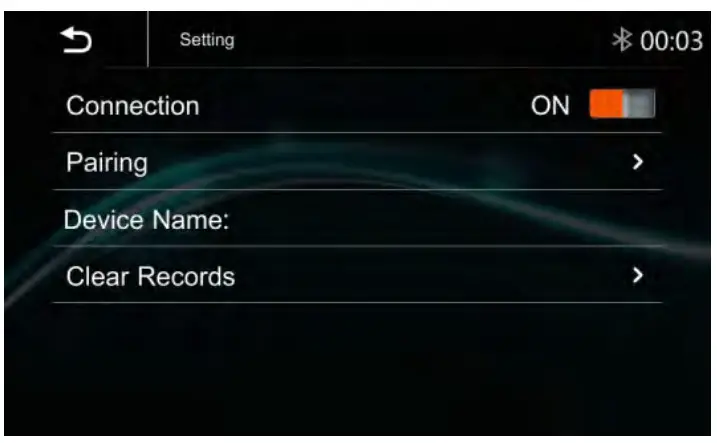
Connection: On/Off (Select Bluetooth connection on or off)
Pairing : (To start the pairing) 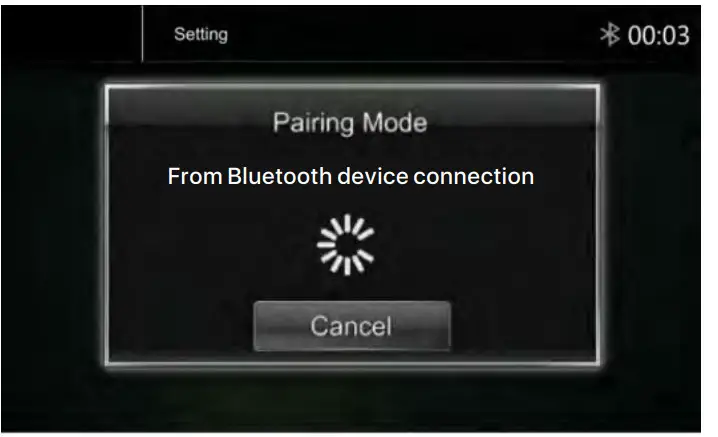
Device Name: show the connected phone or device
Clear Records: (To clear the device list records)
Rear Camera Setting:
Touch Rear View Camera in the Setting Menu to enter the rear camera setting interface as follow: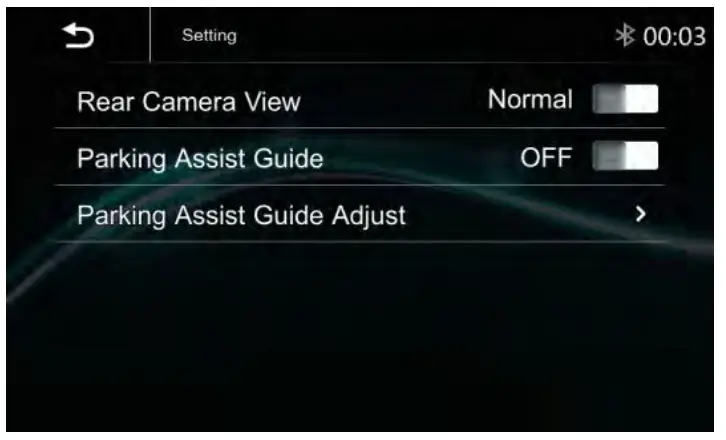
Rear Camera View: Normal/Reverse
Parking Assist Guide: On/Off
Parking Assist Guide Adjustment
Touch “>” to enter the Parking Assist Guide Adjustment interface to show the below screen: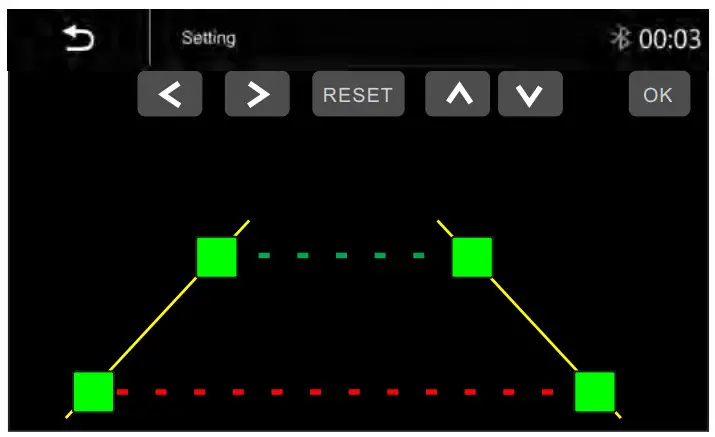
Select the adjust position and Touch to adjust.
Touch OK to confirm.
Touch Reset to resume the default Parking Assist Line.
CarPlay & Android Auto
Apple Carplay
Plug the iPhone (iPhone 5 or later models, and IOS 7.1 or above) through the lightning cable to the USB port of the source unit.
The iPhone will be shown the “CarPlay”.
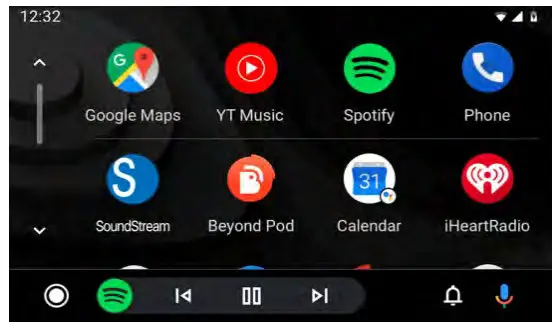
The source unit will enter the CarPlay interface, and the APP that supports the CarPlay feature will be displayed on the source unit as shown below. Touch the corresponding APP can operate, and touch the button to go back the CarPlay interface.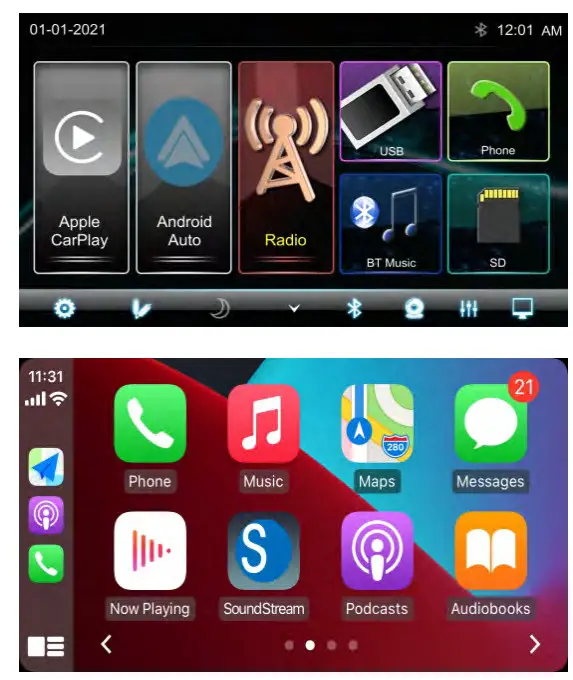
Siri
In Apple Carplay mode, users can talk to SIRI to control the Apple CarPlay functions. Press to start the SIRI function, or touch the button for 2 seconds or the HOME button of the iPhone. Now you can talk to Siri for playing music, I am going…
Note: For the SIRI function in the source unit, the Microphone has to be connected.
In CarPlay mode, touch the” Home” button or icon to go back to the main menu of the source unit.
Android auto Operations
Android Auto enables you to use functions of your Android device convenient for driving. You can easily access route guidance, make calls, listen to music, etc. For details about Android Auto, visit https://www.android.com/auto or https://support.google.com/androidauto.,
Compatible Android devices You can use Android Auto with Android devices of Android version 5.0 or later. Note: Android Auto may not be available on all devices and is not available in all countries or regions.
Operations:
- Connect an Android device via a USB terminal. To use the hands-free function, connect the Android device via Bluetooth.
When an Android device compatible with Android Auto is connected to a USB terminal, the device is connected iva Bluetooth automatically, and the Bluetooth smartphone currently connected is disconnected. - Unlock your Android device
- To enter Android Auto mode, touch the Android Auto icon on the head unit screen.
You can perform the operations of the Apps of the connected Android device. - In the Android Auto model, touch “Home” on the head unit main menu.

Radio mode
Radio mode
Touch the Radio mode icon to enter Radio. 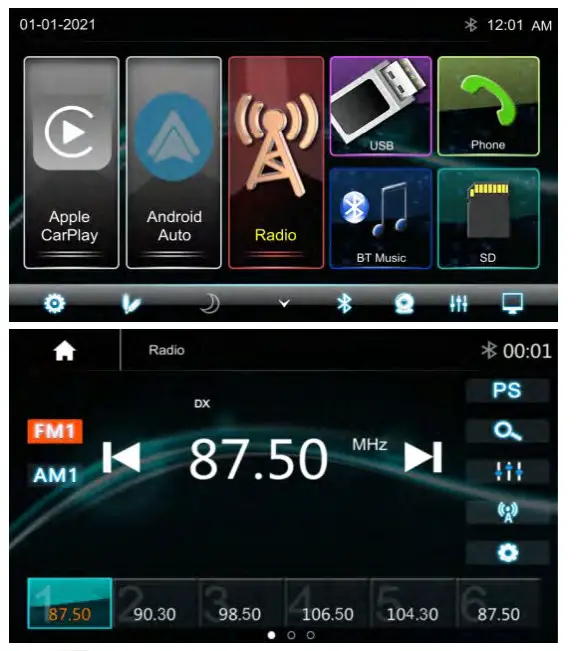
 Touch FM can change between FM1=>FM2=>FM3.
 Touch AM can change between AM1=> and AM2.
 Touch for Prescan search, each scanned station will be playing for 10 seconds, touch again to stop.
 Touch to auto-scan searching.
 Touch to enter EQ settings.
 Touch to switch LOCAL or DX.
 Touch to enter Radio settings.
 Short touch to Seek-, long touch for Tune
 Short touch to Seek+, long touch for Tune+
Preset channel, Six preset buttons store, and recall stations for each band. Touch and slide the preset channel can switch to the next band FM1 / FM2 / FM3 or AM1 / AM2.
USB
Store a Station
- Tune the radio to the desired station.
- Touch and hold one of the preset stations for more than 3 seconds, then the reset button will be highlighted on the screen, and the preset station will be stored.
Radio Setting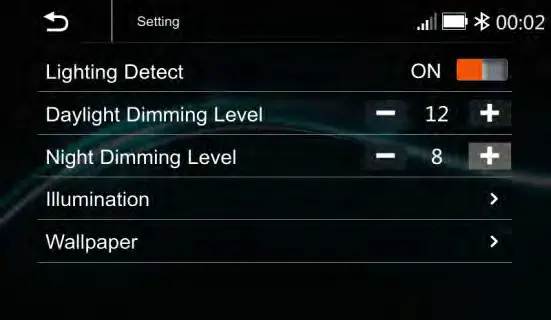
Radio Area: select the region, American/Europe/Eastern Europe/ Japan/Southeast Asia/Latin America/Asia / Australia.
RDS: Switch ON or OFF.
TA: Switch ON or OFF.
AF: Switch ON or OFF.
PTY: Select the PTY list.
Note: AF is only for the Europe region.
USB
Plug the USB, the USB icon will be colorful. Touch the USB icon to enter the USB playback mode. The source unit default plays the Audio on the USB device.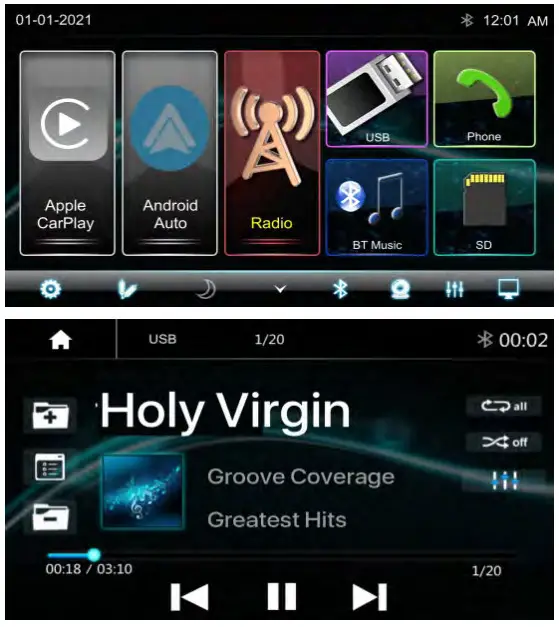
 Press to go to the next folder.
 Press to search Audio, Video or Picture files.
 Press to go to the previous folder.Short press to skip previous track, Long press to fast reverse.
 Play or pause the button.
 Short press to skip next track, Long press to fast forward.
 Press to select Repeat All > Repeat 1> Repeat Directory.
 Press to switch Random is On or Off.
 Press to select an Audio setting or set the preferred EQ of each band in custom mode.
File List browsing
Support to play pictures and videos. If there are other multimedia files in the USB, touch to browse the folder and file list of the USB driver.
Select the multimedia type
Touch  to browse the folder and file list of the USB device.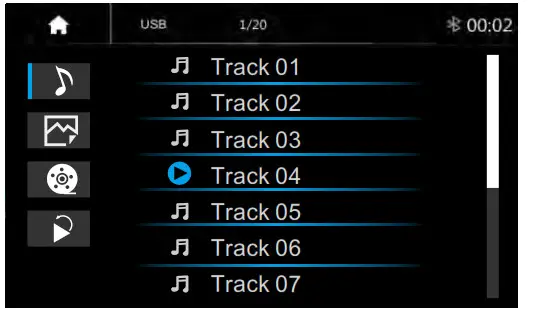
 Select Audio or Music files.
 Select Picture files.
 Select Movie or Video files.
 Return to playing the previous file.
Picture Playback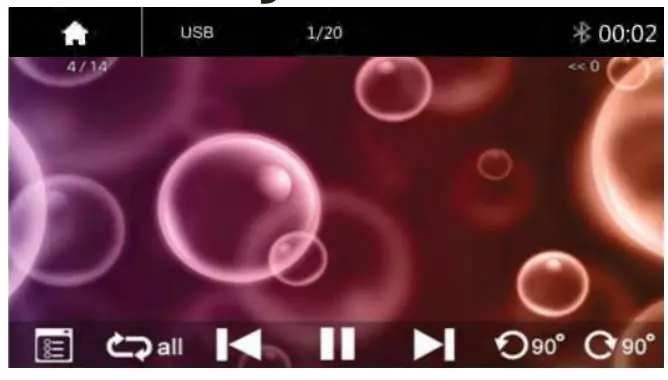
Bluetooth Audio
 Touch to rotate the picture anticlockwise for 90 degrees (for picture playback)
 Touch to rotate the picture clockwise for 90 degrees (for picture playback)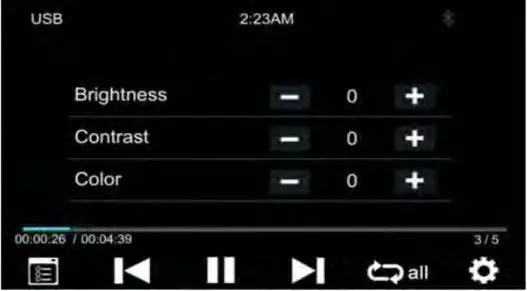
 Touch to set the video Brightness,
Contrast and Color (for video playback)
Bluetooth Music
Touch the BT Music icon to enter Bluetooth Music playing mode. If the Bluetooth is connected, the music will be playing as following shown:
Bluetooth Music Playback
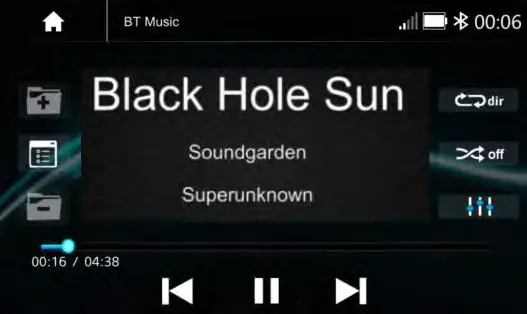
 Press to go to the next folder.
 Press to search Audio, Video, or Picture files.
 Press to go to the previous folder.Short press to skip next track, Long press to fast forward.Play or pause the button.Short press to skip next track, Long press to fast forward.Press to select Repeat All > Repeat 1> Repeat Directory.Press to switch Random is On or Off.Press to select an Audio setting or set the preferred EQ of each band in custom mode.
Bluetooth Connect
If the Bluetooth is not connected, press Reconnect the paired phone or paring to pair the new device. 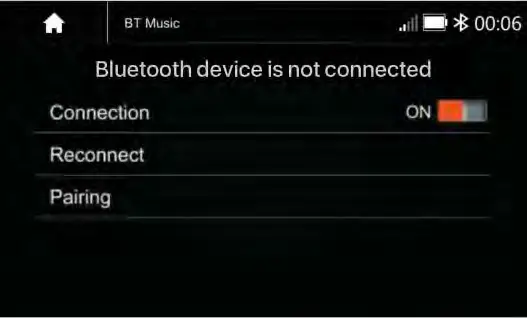
Bluetooth Pairing
Press Pairing the Pairing Mode screen will be shown as below: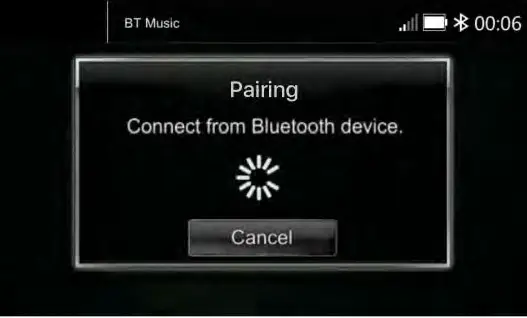
Turn On the Bluetooth of the Mobile phone/Bluetooth device, and you can see the VRCPAA-7DRM. Select the VRCPAA-7DRM for pairing and connection.
Bluetooth Phone
Bluetooth Phone
Touch the Phone icon in the main menu to go to Phone mode. After the mobile phone is connected to the source unit via Bluetooth (HFP), the user can through the source unit to make a phone call. Please note it needs to connect the microphone for a phone call.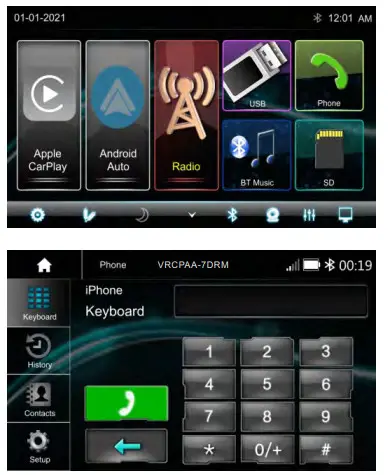
 Keyboard. tap it to enter call mode.
 History, to show the call record, missed, received, and dialed calls
 Contact, tap to show the phonebook connected phone.
 BT Setup, to set auto answer and microphone gain.
 Make a Call or Accept the Incoming Call.
 Backspace, to clear the previous dial digit.
Make a Call
- Touch the
 icon to enter the below screen.
 - Using the keypad, touch 0-9,*,#, and enter the phone number you wish to dial. If you input an incorrect number, touch the
 icon on the keypad to delete the incorrect number.
 - Once the correct number appears on the screen, touch the
 icon. To go to the dialing interface.
 - To end the call, touch the icon
 on the screen.
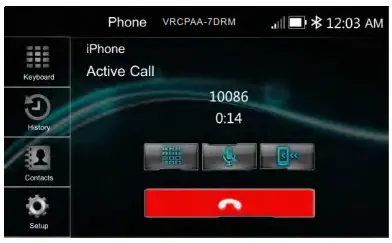
Receive an incoming call
If the phone is connected to the source unit via Bluetooth, when an incoming call, below screen, will be shown: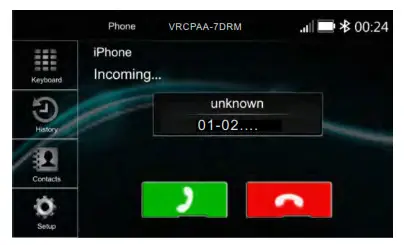
Press to answer the incoming call.
Press to reject the incoming call.
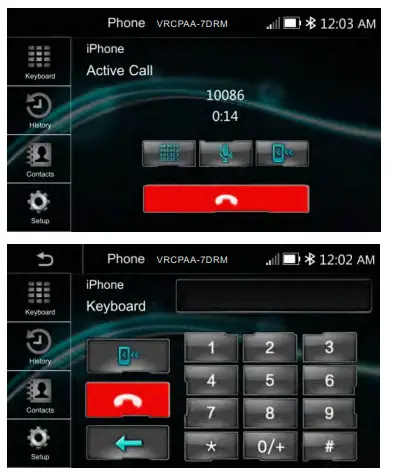
 The interchange between phone and source unitON/OFF the Microphone function
 Display the Keypad.
Call History
Touch the icon to display the Call combined list. 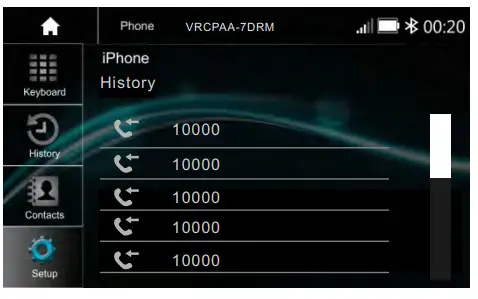 Slide the bar on the right side up and down to display call logs up to 20 records.
Contacts
Touch the icon to access the phone book of the connected mobile phone.
To make a call from the phonebook, simply touch the contact name.
BT Setup
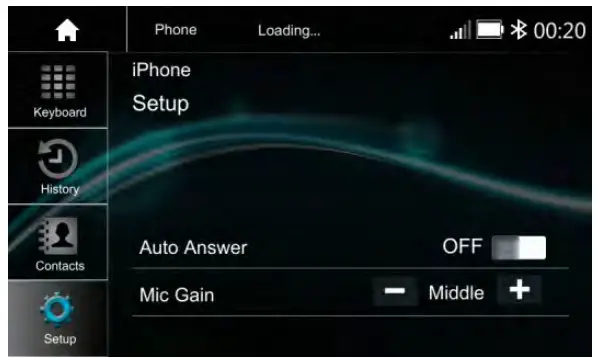
Auto Answer On/OFF, incoming call auto answer.
MIC Gain, Low/Middle/High
Specification
General
Power Supply …………………. DC10~16Volts
Grounding System ..………..…….. Negative Ground
Current Drain …………………. 15A(Max.)
Max Power Output …………4×75W/channel
RMS Power Output ……………………. 4x25w/channel
Speaker Impedance……….. 4~8ohms per channel
Frequency Response.………………. 20Hz~20KHz
Operating Temperature.………………….. -20~+60℃
Dimensions ……………………..…178mm(W)x135mm(D)x100mm(H)
TFT Display
TFT Screen size…………………. 7inch
Resolution.………….…1024×600 pixels
FM Radio
Frequency Range (USA) ………..….…87.5~107.9MHz
Frequency Range (Europe) ………………..…….87.5~108MHz
Usable Sensitivity (S/N=30dB)……..…….….…≤15dB
S/N Ratio…………………………………….……≥55dB
Stereo Separation…………………………………≥30dB
AM
Frequency Range (USA) …………….……….…530~1710KHz
Frequency Range (Europe) ……………….522~1620KHz
Usable Sensitivity(S/N=20dB)…………….…≤40dB
S/N Ratio…………………………………≥45dB
Frequency Range (USA) ……………….…530~1710KHz
Frequency Range (Europe) …………….522~1620KHz
Usable Sensitivity(S/N=20dB)……..…….…≤40dB
S/N Ratio………………………….≥45dB
Line-Out/Subwoofer Output
Maximum Output Level (10K ohms load)………≥4Vrms
Subwoofer Time Align………………………………0~18ms
AV IN
AV IN
The Audio/Video source with an RCA cable can through the source unit to play the Audio/ Video. Plug the RCA to the corresponding A/Vsocket.
Touch the to pop up the function bars and touch  to view the playing Audio/Video.
The Audi and Video will be via the RCA cable to the source unit.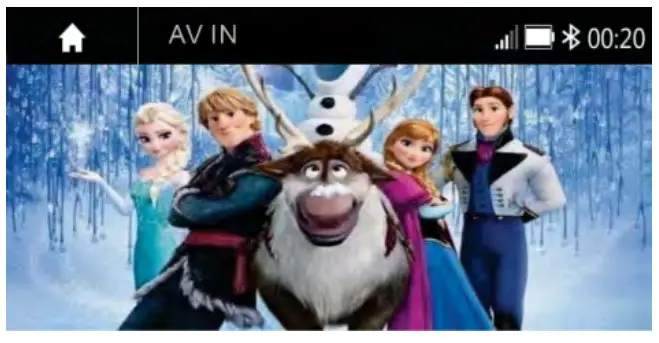
If there is no Video signal the below screen will be shown: AV IN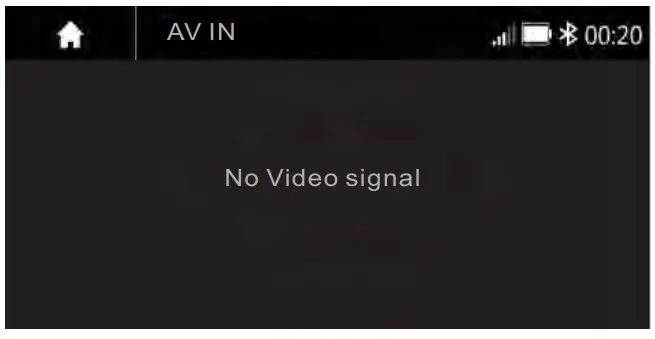
Camera
There is an RCA socket for the Rear camera video signal to display on the Head unit.
The Reverse wire in the High level (+12V) is reverse; the low level (ground or NC) is normal Touch the to pop up the function bars and touch to view the playing Rear camera.
Rear Camera Setting:
Touch Rear View Camera in the Setting Menu to enter rear camera setting interface as follow: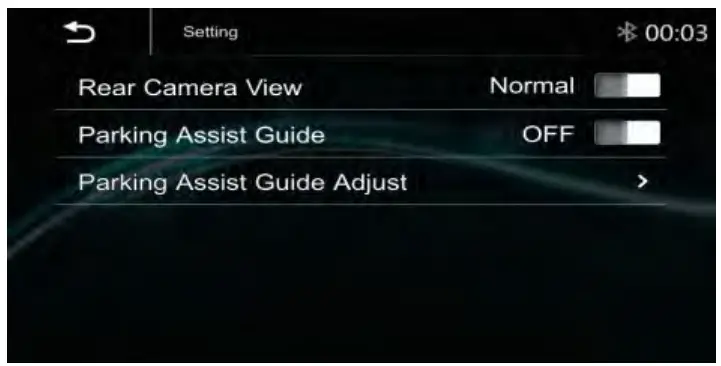
Rear Camera View: Normal/Reverse
Parking Assist Guide: On/Off
Parking Assist Guide Adjustment
Touch “>to enter the Parking Assist Guide Adjustment interface to show the below screen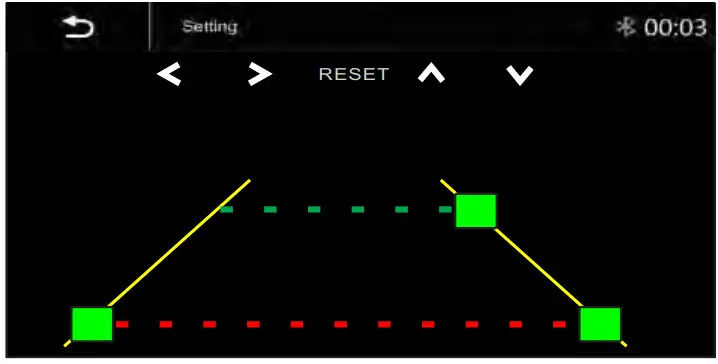
FCC Notes
WARNING! Changes or modifications to this unit not expressly approved by the party responsible for compliance could void the userʼs authority to operate the equipment.
NOTE: This equipment has been tested and found to comply with the limits for a Class B digital device, pursuant to Part 15 of the FCC Rules. These limits are designed to provide reasonable protection against harmful interference in a residential installation. This equipment generates, uses and can radiate radio frequency energy and, if not installed and used in accordance with the instructions, may cause harmful interference to radio communications.
However, there is no guarantee that interference will not occur in a particular installation. If this equipment does cause harmful interference to radio or television reception, which can be determined by turning the equipment off and on, the user is encouraged to try to correct the interference by one or more of the following measures:
- Reorient or relocate the receiving antenna. -Increase the separation between the equipment and receiver.
- Connect the equipment into an outlet on a circuit different from that to which the receiver is connected.
- Consult the dealer or an experienced radio/ TV technician for help.
LIMITED 90-DAY CONSUMER WARRANTY
LIMITED ONE-YEAR CONSUMER WARRANTY WITH PURCHASE AND INSTALLATION BY A SOUNDSTREAM AUTHORIZED DEALER
Soundstream promises to the original purchaser, to repair or replace this product with a new or refurbished unit (at Soundstreamʼs sole and absolute discretion) should it prove to be defective in workmanship or material under normal use, for a period of one-year from the date of purchase from the Soundstream authorized dealer, PROVIDED the product was purchased and installed by a Soundstream authorized dealer. During this one-year period, there will be no charge for product repair or replacement, PROVIDE the unit is returned to Soundstream, return shipping pre-paid, along with the required proof of installation, the bill of sale or other dated proof of purchase, and the consumerʼs contact information.
If the unit is installed by anyone other than a Soundstream authorized dealer, the warranty period will be 90-days from the date of purchase. This warranty is non-transferable and does not apply to any unit that has been modified or used in a manner contrary to its intended purpose, and dose not cover damage to the unit caused by installation or removal of the unit. During this 90day period, there will be no charge for the repair or replacement PROVIDED the unit is returned to Soundstream, return shipping prepaid, along with the bill of saleor other dated proof of purchase, and the consumer contact information.
This warranty is void if the product has been damaged by an accident or unreasonable use, neglect, improper service or other causes not arising out of defects in materials or construction. This warranty does not cover the elimination of externally generated static or noise, or the correction of antenna problems or weak reception, damage to speakers, accessories, electrical systems, cosmetic damage or damage due to negligence, misuse, failure to follow operating instructions, accidental spills or customer applied cleaners, damage due to enviromental causes such as floods, airborne fallout, chemicals,salt, hail, lightning or extreme temperatures, damage due to accidents, road hazards, fire, theft, loss or vandalism, damage due to improper connection to equipment of another manufacturer, modification of existing equipment, or Product which has been opened or tampered for any reason. Units that are found to be damaged by abuse resulting in thermally damaged voice coils are not covered by this warranty but may be replaced at the absolute and sole discretion of Soundstream. The unit must be returned to Soundstream, postage pre-paid, with bill of sale or other dated proof of purchase bearing the following information: consumer name, telephone number, and address, authorized dealerʼs name and address, and product description. Please contact the Soundstream warranty office at 800724-1377 or [email protected] to obtain a Return Authorization number prior to shipping the product.
Note: This warranty does not cover labor costs for the removal and reinstallation of the unit. IN ORDER FOR THE ONE-YEAR WARRANTY TO BE VALID, YOUR UNIT MUST BE SHIPPED WITH PROOF OF INSTALLATION BY A SOUNDSTREAM AUTHORIZED DEALER. ALL UNITS RECEIVED BY SOUNDSTREAM FOR WARRANTY REPAIR WITHOUT PROOF OF SOUNDSTREAM AUTHORIZED DEALER INSTALLATION AND PURCHASE WILL BE COVERED BY THE LIMITED 1-YEAR WARRANTY.
BY PURCHASING THIS PRODUCT, ALL WARRANTIES INCLUDING BUT NOT LIMITED TO EXPRESS WARRANTY, IMPLIED WARRANTY, WARRANTY OF MERCHANTABILITY, FITNESS FOR PARTICULAR PURPOSE, AND WARRANTY OF NON-INFRINGEMENT OF INTELLECTUAL PROPERTY ARE EXPRESSLY EXCLUDED TO THE MAXIMUM EXTENT ALLOWED BY LAW, AND SOUNDSTREAM NEITHER ASSUMES NOR AUTHORIZES ANY PERSON TO ASSUME FOR IT ANY LIABILITY IN CONNECTION WITH THE SALE OF THE PRODUCT. SOUNDSTREAM HAS ABSOLUTELY NO LIABILITY FOR ANY AND ALL ACTS OF THIRD PARTIES INCLUDING ITS AUTHORIZED DEALERS OR INSTALLERS. BY PURCHASING THIS PRODUCT, THE CONSUMER AGREES AND CONSENTS THAT ALL DISPUTES BETWEEN THE CONSUMER AND SOUNDSTREAM SHALL BE RESOLVED IN ACCORDANCE WITH CALIFORNIA LAWS IN LOS ANGELES COUNTY, CALIFORNIA. Some states do not allow limitations on how long an implied warranty lasts. In such states, the limitation or exclusions of this Limited Warranty may not apply.
Some states do not allow the exclusion or limitation of incidental or consequential damages. In such states, the exclusion or limitation of this Limited Warranty may not apply to you. This Limited Warranty gives you specific legal rights, and you may have other rights which vary from state to state.
 Android Auto | Android