 MODEL
MODEL
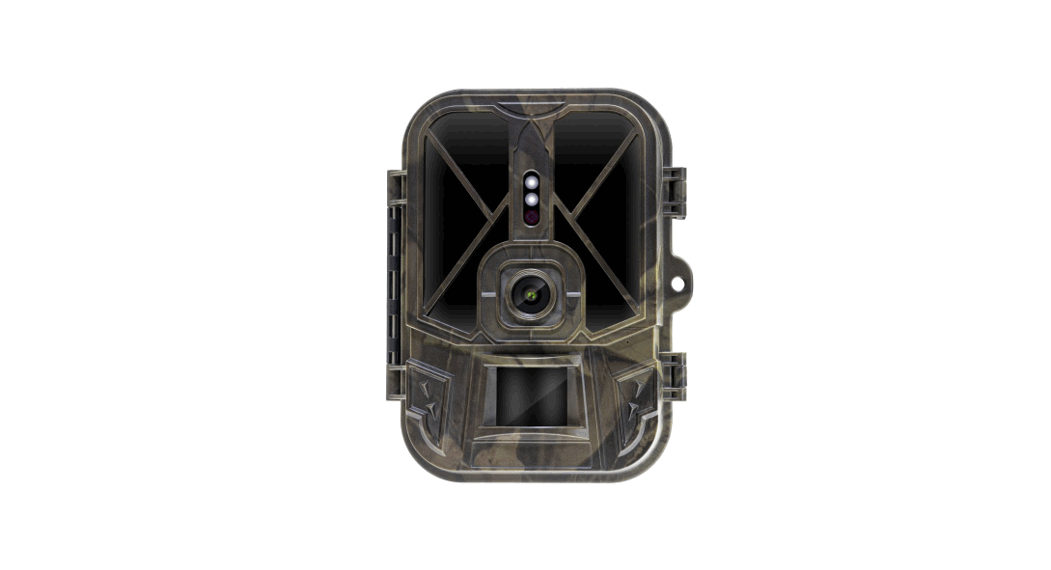
StrongVision WiFi
VERSION / DATE
ll. / 25.4.2022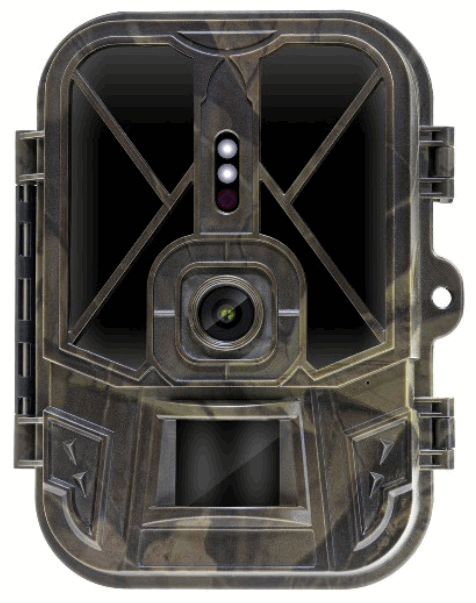
Quick Start and Settings
1.13. To control the device, download the EVOLVEO WiFi Application from the appropriate Apple Appstore or Google Play application store. The application is intended only for devices with Apple iOS (from version 13.1 and above) and Google Android (from version 9 and above)!!
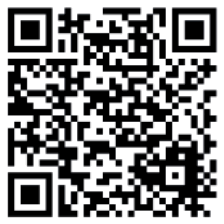 https://www.evolveo.com/app/evolveo-strongvision-wifi/
1.14. After installing the application, the camera must be started, select the TEST mode on the main switch of the camera. A 10,000 mAh Li-Ion battery is inserted into the device from the factory, remove, and fully charge before use.
The battery has a charging connector and a charging status LED. The battery can be charged even if it is inserted into the device!
TIP: For easier operation, a spare SVG CAM-BAT2 battery can be purchased, which you can pre-charge using the integrated charging connector and replace an already discharged one at the installation site.
1.15. Open the EVOLVEO WiFi application on your phone, the main menu of the application consists of 5 main icons. Icons for Bluetooth, WiFi, and camera also act as status icons.
The moment the icon is red, the function is inactive, green when active.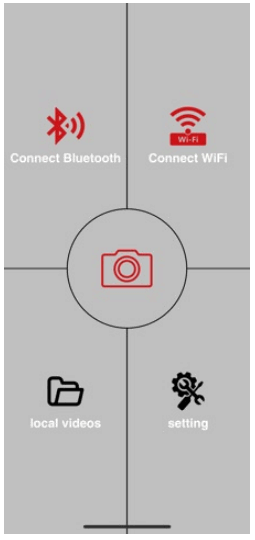
1.16. Bluetooth activation – to connect to the camera, it is first necessary to activate the WiFi module of the camera via Bluetooth. Click the Bluetooth connection icon. In the Bluetooth menu, select the camera Bluetooth and select to connect in the bottom left. Return to the home screen using the arrow in the left top corner, if everything went well, the Bluetooth icon is green.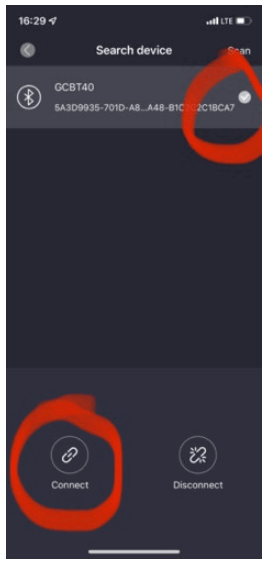
WARNING: For proper functioning, Bluetooth on your phone must be active!
1.17. WiFi connection – Select the WiFi button on the main screen (the Bluetooth button must be green), and the WiFi settings on your phone will open. Select a WiFi network that has the same name as the one displayed on the camera screen (SSID: CAM XXXX) enter the password, if it has not been changed yet, the default password is “12345678” and return to the EVOLVEO WiFi application.
WARNING: The WiFi network of the camera does not have an internet connection, therefore you may be asked by your device whether it should still be connected to this network – choose to keep connected!!! For older Android phones, it is necessary to turn off mobile data, otherwise, the application will not connect to the camera! 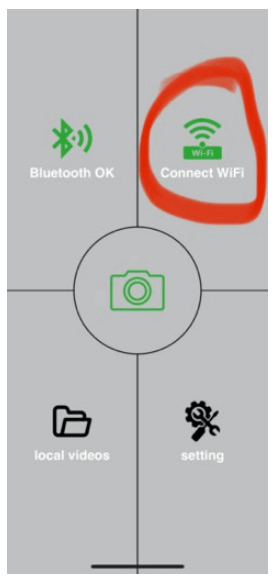
Now that the camera is connected to the application, you can select the middle icon of the camera, which is green when the connection is active and view the images stored in the camera, or the live view from the camera.
This feature can also be used as a viewfinder to mount the camera, to know exactly where the camera is pointing.
You can adjust the camera properties by pressing the settings button, more about the settings can be found in the Settings chapter of this manual.
1.18. Camera Activation
To activate the camera, set the main switch to the ON position, and the camera will operate according to the settings.
Now you no longer have to remove the camera from the protection box or remove it from its location to download the captured images or adjust the settings. You only have to be near it and use the procedure described above to connect to the camera according to steps 1.4. and 1.5.
WARNING: The range of WiFi and Bluetooth is 20–30 m in open space, depending on the environment. The longer the distance from the camera, the slower the transfer.
Technical Specifications
| Display | Colour TFT 2.4” |
| Movement sensor | PIR (Passive Infrared) – adjustable sensitivity (3 levels) |
| Detection angle of the movement sensor | 120° |
| Night illumination | IR LED 940 nm, 58 LED under the front antireflective cover |
| IR LED beam distance | 20 m * |
| Dimensions | H x W x D 175 x 118 x 87 mm |
| Operating temperature | -10°C to +50°C |
| Storage temperature | -15°C to +60°C |
| Ingress protection | IP65 |
| Security | 4-digit optional password |
| Operating temperature | -10°C to +55°C |
* Night images may be dark if there are no other objects in the area in front of the camera from which the IR illumination may be reflected. Ideally, there should be objects in the area in front of the camera from which the IR illumination can be reflected, such as stones, shrubs, trunks, and the like. The optimal beam distance is 8–12 m from the camera.
2.9. Photograph
| Imager | 8 Mpix color CMOS (night photo black and white) |
| Lens | F = 3.1; FOV = 120° |
| Photography resolution | 30/24/20/16/12 MP |
| Exposition (ISO) | Auto/100/200/400 |
| Timelapse mode | 5 min / 30 min 1/2/3/6/12/24 h |
| Burst mode | 1/3/6 or 9 images |
| Photo information | Time and date, Temperature (°C, °F), Moon phase, an optional title |
| Record mode | Photograph, Photo, and Video, Timelapse |
| File format | .JPEG |
| Activation speed | 0.5 s * |
| Delay interval | The amount of time the device is inactive after the last motion-based start. Immediately, 10 s, 1/3/5/10/15 or 30 min |
* PIR sensor distinguishes movement based on changes in surface temperatures. This is ideal when the subject in front of the camera has a sufficient surface temperature difference and intersects the recorded area perpendicularly (passes from side to side). If the subject approaches the camera frontally, it will take longer to detect the motion.
2.10. Video
| Video resolution | VGA, 720 p, 1080 p, 2K, 4K 30 fps |
| Record length | 5/10/30/60 or 90 seconds |
| File format | MP4/H.264 |
| Liveview | < 180 kBps ** |
2.11. Power Supply
| Integrated battery * | 10,000 mAh Li-Ion is designed for the SVG CAM-PRO and SVG CAM-WiFi models. The battery is equipped with a separate charging connector |
| Power supply | DC 12 V 1.5 A – charges the built-in battery! |
| Connector for external charging | DC Jack 3.5 x 1.3 mm |
| External battery | 12 V battery can be connected to the external charging connector using a cable |
2.12. Connectivity
| WiFi | IEEE 802.11b/g/n |
| Memory card | SD up to 256 GB |
| Internal memory | The device does not have an internal memory |
| USB | Can be connected to a PC using a mini USB cable (not included in the package) |
* Battery life decreases depending on the mode used, the number of videos and photos taken, and 3–4 months of life are calculated using only day mode photo recording and 10 photos per day. In the winter period with temperatures below 0°C, the battery life decreases more significantly than at normal summer temperatures, this is a feature of batteries.
Device Description
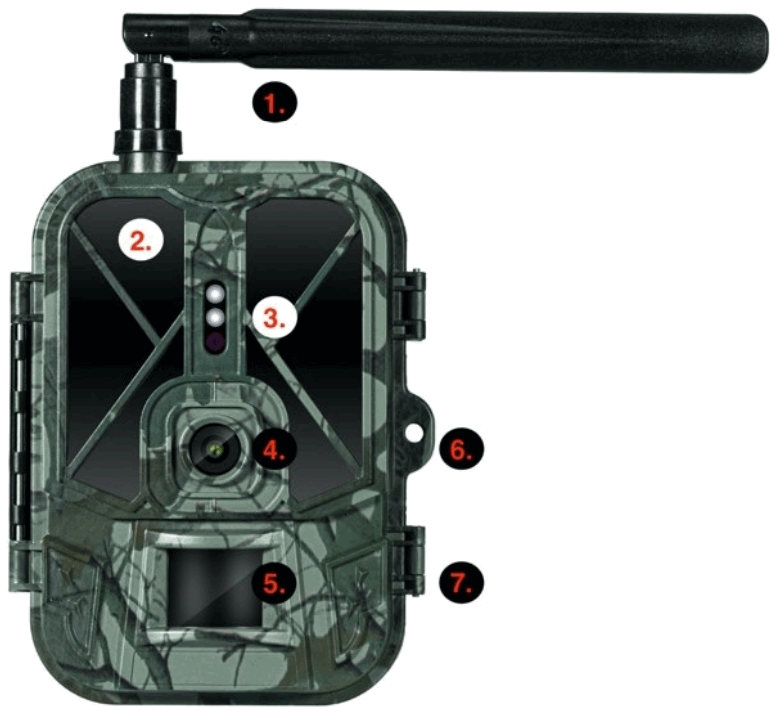
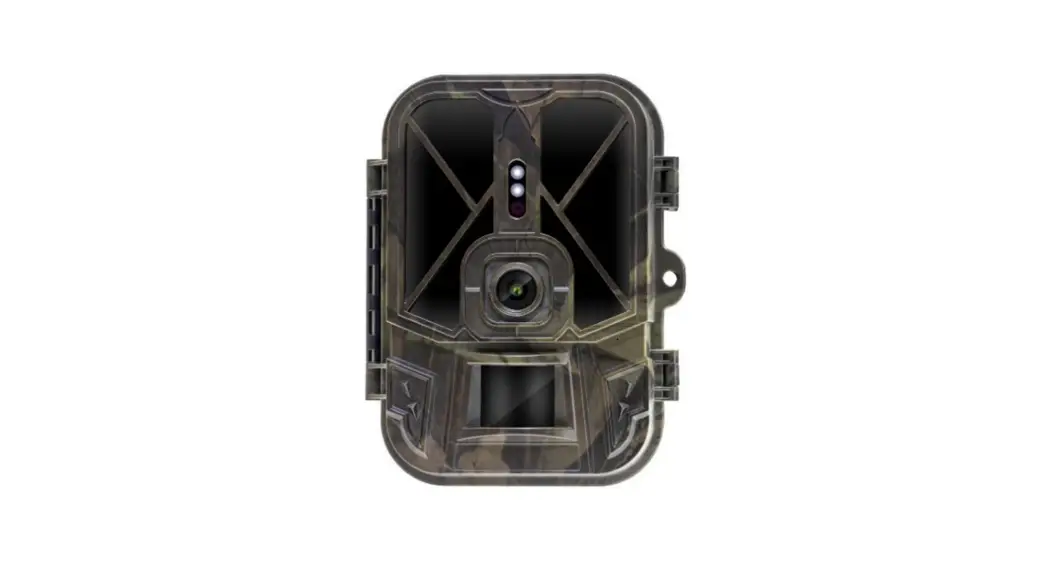
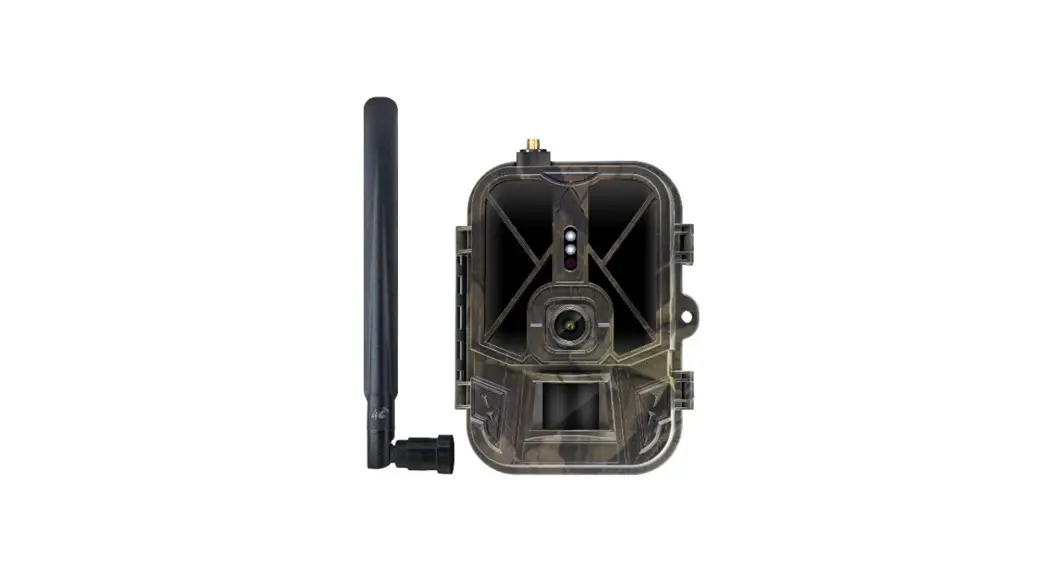
| 1 | Antenna (Only the model with 4G network support) |
| 2 | IR illumination |
| 3 | Indication LED, Ambient light sensor |
| 4 | Camera lens |
| 5 | PIR sensor (Movement sensor) |
| 6 | Locking spot |
| 7 | Latches |
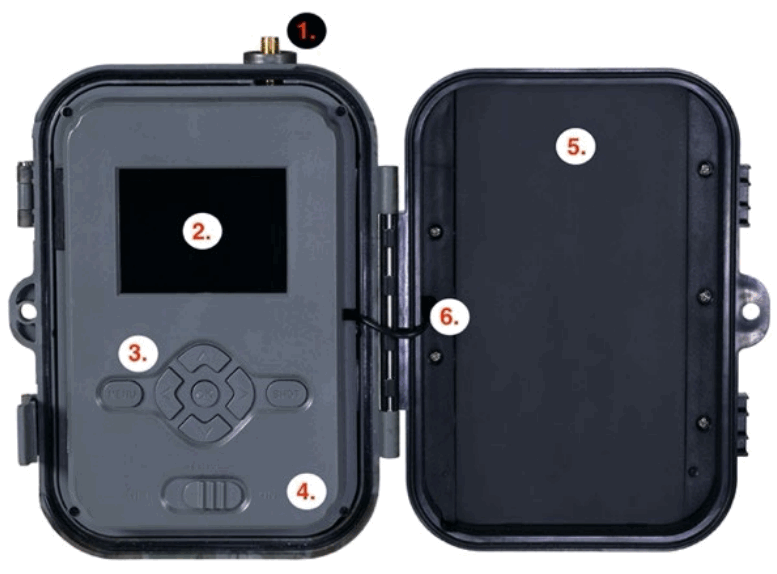
| 1 | Antenna (Only the model with 4G network support) |
| 2 | 2.4” color LCD display |
| 3 | Control buttons |
| 4 | Main position switch: OFF – TEST – ON |
| 5 | 10,000 mAh Li-ion battery |
| 6 | Power supply connection cable – must not be damaged. In case of damage, remove the battery and send the device to an authorized service. |
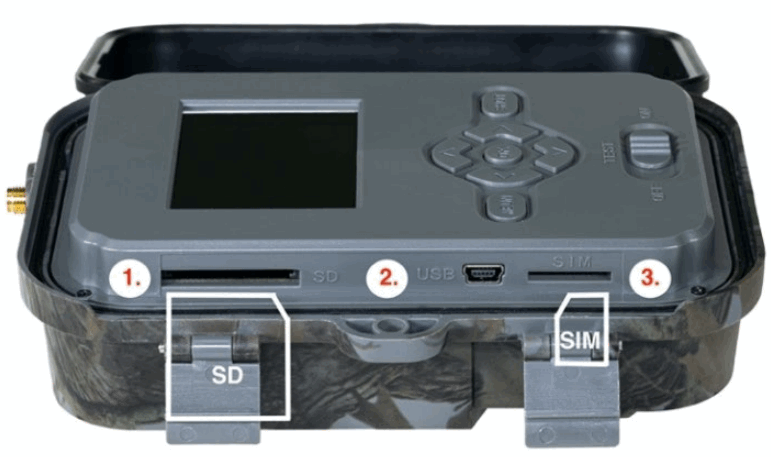
| 1 | SD card slot (max. 256 GB) |
| 2 | Mini USB connector for PC connection (Mass Storage) |
| 3 | SIM card slot (only the 4G support model) |
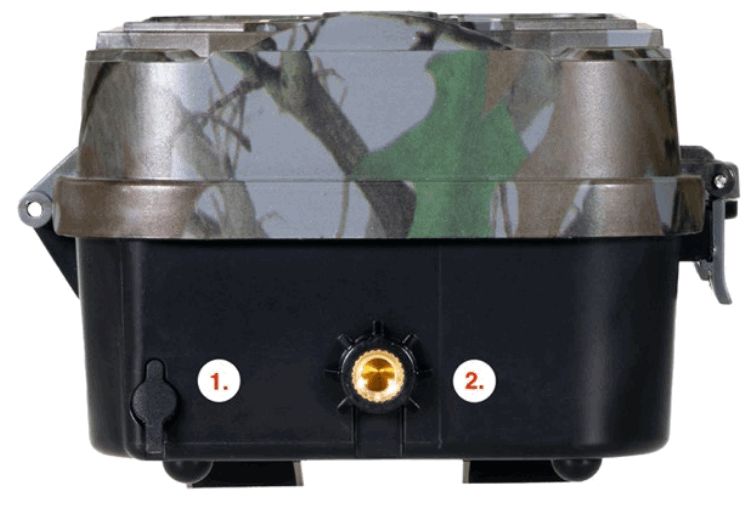
| 1 | Connector for DC 12 V / 1.5 A power supply (It charges the inserted battery!) |
| 2 | ¼” tripod thread |
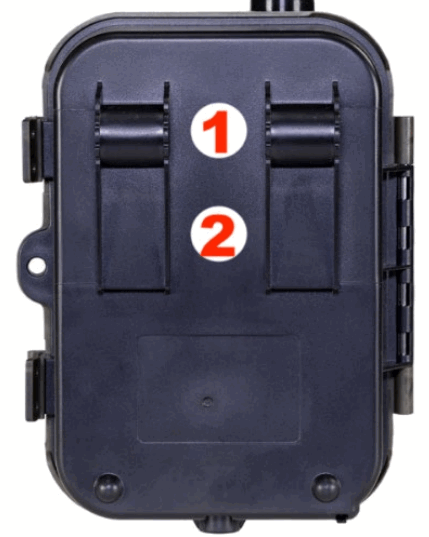
| 1 | Attachment for rope lock (SVG CAM-LOCK) max. diameter 12 mm |
| 2 | Belt attachment |
| 1. Mode | Camera | In this mode, the camera takes only photos |
| Video | In this mode, the camera takes only video | |
| Camera & Video | The camera takes both photos and video. | |
| Timelapse photos | In this mode, the camera takes photos according to the selected timelapse interval. | |
| 2. Resolut ion | Resolution settings for Video recording: 4K, 2K, 1080p, or 720p or VGA. | |
| 3. Video Length | Settings of the length of recorded video: 5 s, 10 s, 30 s, 60 s, or 90 s | |
| 4. Audio Recording | If activated, it records audio when recording. | |
| 5. Image Size | Changes the resolution at which all acquisitions will be made images, selectable between 30, 24, 20, 16, 12, 8, 5, 3 MPX photos, the larger the higher the resolution, the larger the file will be saved on the SD card! | |
| 6. Interval | The interval is time data that indicate the period of inactivity after the detected movement. If the camera is activated using the PIR sensor, it performs the required action and waits for the specified time after the movement before it is possible to take another picture again. Values: 1 s, 10 s, 1 min, 3 min, 5 min, 10 min, 15 min, or 30 min. | |
| 7. Timelapse Interval | Shooting interval setting in the Timelapse mode. Photos will be taken at the selected time interval. The following values can be set: 5 min, 30 min, 1 h, 2 h, 3 h, 6 h, 12 h, or 24 h. | |
| 8. Sequence | In the Photography, Photo & Video, and Timelapse mode, it sets the number of photos taken at the moment of the camera activation. The following number can be set: 1, 3, 6, or 9 photos | |
| 9. ISO | ISO sensitivity, simply put, the darker the surroundings, the higher value. If unsure of the settings, leave it in the automatic mode. The following number can be set: Automatic, ISO 100, ISO 200, ISO 400, ISO 800 ISO 1600 | |
| 10. Rewrite | On – The oldest files are rewritten when the SD card is full. Off – New photos are not saved when the SD card is full. | |
| 11. PIR Sensitivity | Sensor PIR sensitivity settings. If unwanted activation by remote objects occurs, the sensor sensitivity can be reduced. The following number can be set: Low, Medium, High, or Off | |
| 12. Language | Allows the language settings in the menu. | |
| 13. Frequency | The frequency filter of artificial light. If the screen flickers during the video recording, settings can be changed to see if this phenomenon is minimized. Options are 50 or 60 Hz | |
| 14. Transfer Frequency | Settings for the transfer of recordings taken from the camera to the Cloud. 1x, 2x, 6x, 12x a day, or every photo was taken. The fewer transfers, the longer the operation time. | |
| 15. Camera ID | A name is shown in the stamp in the photos taken. | |
| 16. Password/PIN | Security of the camera with a PIN code, when the function is switched on, you enter a new PIN, which the device will request every time it starts up. | |
| 17. Timer | The operating time of the device – on the display, set the time range when the device should be active, the device will not take photos for the rest of the day. | |
| 18. Date/Time | It sets the date, time, and format. Move the arrows to choose and set, and confirm by pressing the OK button. | |
| 19. Formatting | It formats the memory of the SD card inserted in the device – data on the Cloud will not be deleted. | |
| 20. Default Settings | It deletes all settings made on the camera, but the device will download the settings from the Cloud the next time you sync. | |
| 21. Version | It shows the current FW version |
Media Browser
Photos taken can be viewed directly on the camera display.
For viewing, switch to the TEST mode and press the Right arrow button on the home screen.
Arrow control keys:
- Next photo: arrow up
- Previous photo: arrow down
- Play video: left arrow
- Stop video: right arrow
- Return to the main menu: SHOT button
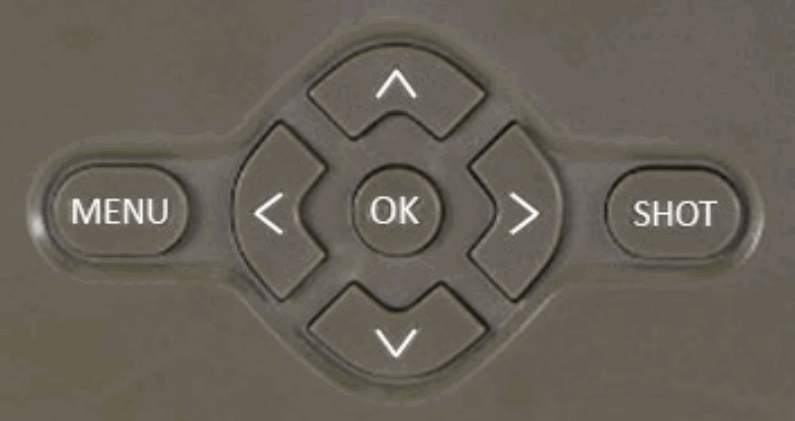
The camera can take photos or videos using buttons only. Switch the camera to the TEST mode. Follow these steps to control the camera:
- The arrow up or down switches between the Photography and Video modes
- Press the SHOT button to take a picture
Troubleshooting
7.1 The Camera Does Not Record Photographs/Video during the Movement Detection
- Check the PIR sensor for damage or a leaf blocking the view.
- Try the camera in places without hot surfaces. The PIR sensor detects movement based on the temperature difference, if the surroundings of the camera are overheated, the sensor will not be activated.
- In some cases, the water surface may cause the PIR sensor to activate unintentionally, in which case turn the camera away from the water surface.
- Set the camera not to directly face the ground.
- Attach the camera so that it does not move and there are no large moving objects, such as a large tree.
- At night, the device can detect movement outside the beam distance of the IR illumination, so no moving subject will be recorded in the photos.
- Sunset or sunrise may cause the recording to start unintentionally – change the position of the camera.
- If the animal/person in front of the camera is moving fast, the camera may not detect them – move the camera further away from objects (for example, away from the trail on which the game is moving)
7.2 The Camera Takes No Photos
- Make sure there is enough free capacity on the inserted SD card. If the function of old files overwrite is switched off, the device no longer records after the SD card is full.
- Make sure the Li-Ion battery has enough power to operate the trail camera.
- Make sure the switch is in the ON position and not OFF.
- Format the card on your computer to FAT32 before using it for the first time
7.3 The Night Illumination Does Not Have Sufficient Range
- Make sure the battery in the device is charged; at lower capacities, typically below 15%, the night illumination may not activate
- For good night-time quality, place the camera in a dark place without additional light sources.
- Try to use the camera in places where it will be surrounded by other objects that can reflect the IR illumination. If you place the camera in an open space, the resulting photo will be poorly lit. It is the same as shining a flashlight in the night sky, you will not see anything, even if the flashlight is very powerful.
Support and Warranty
Firstly, read the “FAQ – Frequently Asked Questions” at: https://eshop.evolveo.com/strongvision-wifi/ or contact EVOLVEO Technical Support at: [email protected]
The warranty DOES NOT APPLY to:
- use of the device for purposes other than those for which it is designed,
- installing firmware other than that installed on the device
- electrical or mechanical damage caused by improper use
- damage caused by natural influences such as water, fire, static electricity, fluctuations in electrical current, and the like 13
- damage caused by repairs performed by an unqualified person
- illegible serial number
- battery capacity decreases after 6 months of use (6 months battery life guarantee)
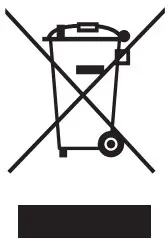 Disposal: The crossed-out container symbol on the product, in the enclosed documentation, or on the packaging means that all the electric and electronic equipment, batteries, and storage cells in the European Union must be disposed of as sorted waste at the end of their service life. These products must not be disposed of as unsorted municipal waste.
 DECLARATION OF COMPLIANCE
Abacus Electric, s.r.o. hereby declares that EVOLVEO StrongvisioWiFi complies with the requirements of standards and regulations relevant to this type of device.
For the full wording of the Declaration of Compliance see http://ftp.evolveo.com/ce/
Importer
Abacus Electric, s.r.o.
Planá 2, 370 01, Czech Republic
Manufacturer
Naya Limited
No. 5, 17/F, Strand 50, 50 Bonham Strand, Sheung Wan, Hong
Kong
Made in China
Copyright © Abacus Electric, s.r.o.
www.evolveo.com
www.facebook.com/EvolveoCZ
All rights reserved.
Product appearance and technical specifications are subject to changes without prior notice.
 Index of /ce
 EVOLVEO.com ׀ official eshop brand