
Strong Vision PRO A Security Camera
User Manual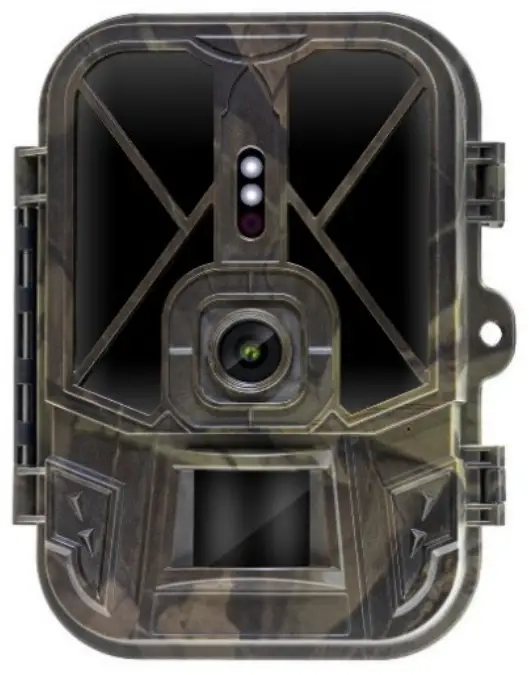
MODEL
VERSION / DATE
Strong Vision PRO A
l. / 2. 11. 2022
Strong Vision PRO A Security Camera
Turn on
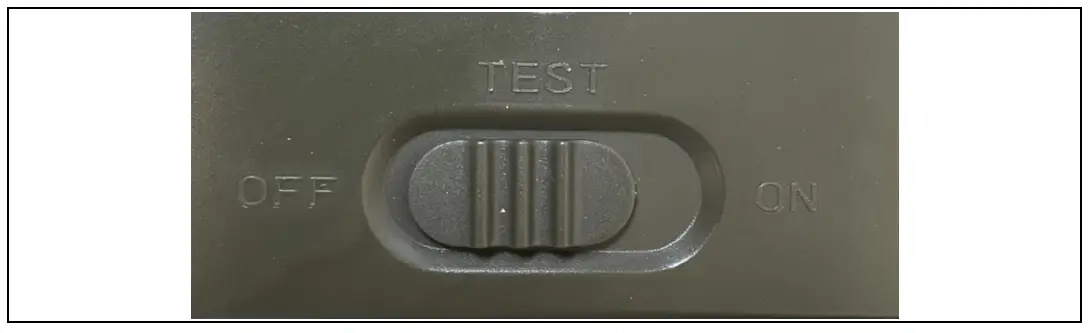
Slide the switch from the OFF position to the TEST position to put the device into setup mode, where the camera image preview will be displayed on the screen.
1.1. Language settings
Press the “MENU” button to switch to English as the base language and all menu items are in this language, to select another language, scroll down the menu to the “Language” item and confirm with the “OK ” button and select your preferred language in the menu.
1.2. To move around the device menu
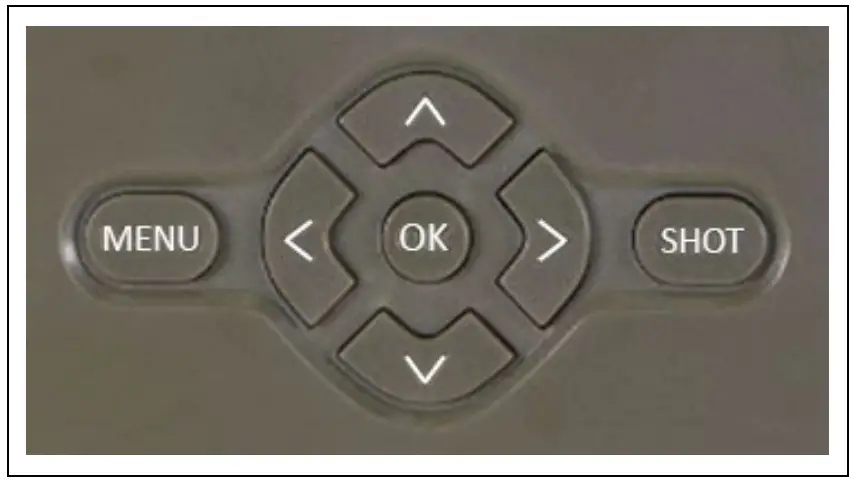
Press the MENU button to set up the device. When you press the button, you will see the individual setting items described in Chapter 4. You can scroll through the menu using the up and down arrows, confirm the selection with the “OK” button, return to the previous menu with the “MENU” button
1.3. Start-up/Activation
Once you have completed the setup, you can put the camera into an active state where it will take Photos/Videos based on the motion detection, according to the settings you have specified. To activate the camera, slide the switch from “TEST” to “ON”, the display will start counting down and at the same time the red LED on the front panel will flash. Once the countdown runs out the device is active. If motion is detected by a “PIR” sensor, the camera will record. An SD card must be installed in the camera, otherwise the camera will not work see chapter 1.5 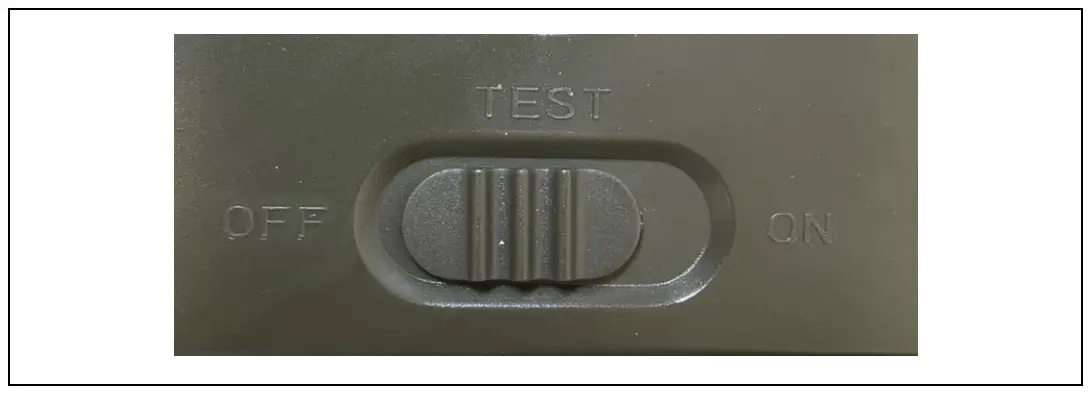
1.4 Power supply
Strong Vision PRO A needs 10x AA 1.5V alkaline batteries or Lithium batteries with 1.5V voltage for its operation. You can also purchase an 8000mAh Li-Ion battery for the device, which will extend the battery life and allow for more economical operation. Li-Ion batteries can be found at www.evolveo.com under the code SGV CAM-BAT3. The batteries are placed in the battery case, which is secured with two locks. To release, the locks must be moved to the “UNLOCK” position 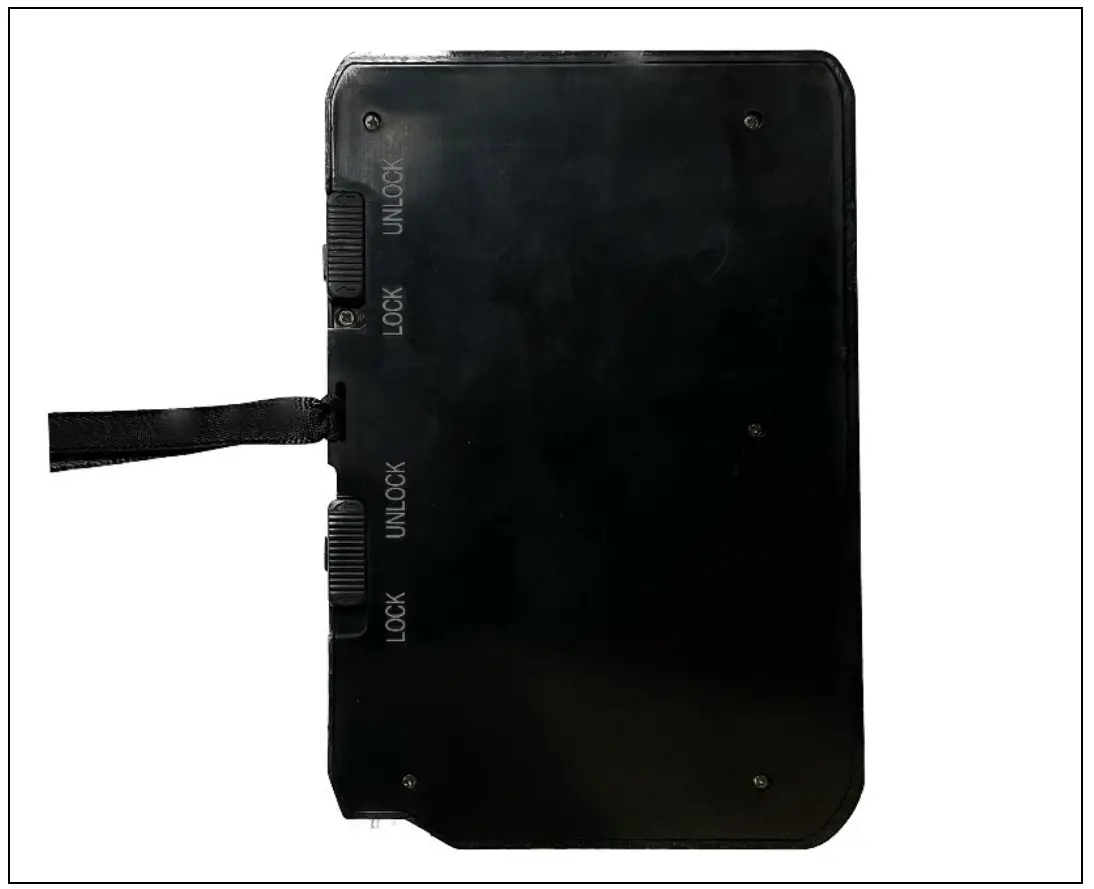
► The batteries must be inserted exactly as indicated in the battery compartment, if you turn the battery over, the device will not work and you may damage it.
► Always use AA batteries of the same type and manufacturer, and the batteries must always have the same charge. If you use different types of batteries, the device may be damaged. Such damage is not covered by the statutory warranty.
► If you know that you will not be using the device for an extended period of time, remove the batteries from the device. Leaving them in the device may cause damage to the device that is not covered by the warranty.
► Due to the large number of modes and settings, the battery life of an active device cannot be specified exactly. Night mode or video recording have high power consumption requirements and significantly reduce battery life. We can only recommend the use of high quality Alkaline or Lithium rechargeable batteries for longer battery life.
Warning: Insert batteries into the device when it is switched off
1.5 Memory card
The camera supports SD memory cards up to 256GB.
Before inserting or removing a memory card, the device must be switched off by moving the switch to the “OFF” position.
If you handle the card while it is switched on, the data on the card may be corrupted.
► The camera does not have any built-in memory, you must insert a memory card into the device to use it. For proper operation, it is a good idea to format the memory card to FAT32 format before use.
► A maximum of 256GB memory card can be used, 256GB cards and larger will not be recognized by the device.
► For the card to function properly, avoid contact with moisture. Ensure that the device is not exposed to vibration or that the cards are exposed to direct sunlight for extended periods of time.
► The camera supports cyclic overwriting, in which case the camera will start overwriting the oldest files when the SD card memory is full.
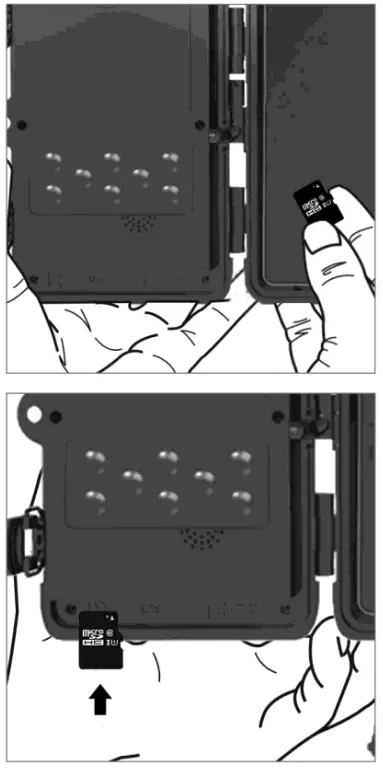
► Insert the SD card carefully into the slot, pushing it gently until the card slot mechanism clicks.
► To remove the SD card, press the edge of the card until it slides out of the camera body. After that, you can safely remove it – the camera must always be in the OFF position.
Technical specifications
| Display | Colour TFT 2.4″ |
| Motion sensor | PIR – adjustable sensitivity (3 levels) |
| Motion sensor detection angle | 120° |
| Night light | IR LED 940nm, 6x 3W IR LEDs under front anti-reflective cover |
| IR LED range | 20 m * |
| Dimensions | H x W x D. 175x118x87mm |
| Operating Temperature | -10 °C to +50 °C |
| Storage Temperature | -15 °C to +60 °C |
| Coverage | IP65 |
| Security | 4-digit optional password |
| Operating temperature | -10°C – +55°C |
*If there are no other objects in the area in front of the camera from which the IR light can reflect, night images may be dark. Ideally, the area in front of the camera should contain objects from which the IR light will reflect, such as rocks, bushes, logs, etc. Ideal range is between 8-12 m from the camera
2.1. Photo
| Sensor | 8Mpix color CMOS (night photo black and white) |
| Lens | F=3.1; FOV=67 ° |
| Photo resolution | 30/24/20/16/12MP |
| Time-lapse mode (Time-lapse) | 1s-24h |
| Burst shooting | 1/2/3 or 10 frames |
| Information on the photo | Time and Date, Temperature (°C, °F), Moon phase, optional name |
| Recording modes | Photography, Photography & Video, Time-lapse |
| File format | .JPEG |
| Activation speed | 0,8 s * |
| Delay interval | The amount of time the device is inactive after the last motion- based start. Instantly, the range is 5-59s and 1-60minutes |
*The PIR sensor detects movement based on changes in surface temperatures. This figure is in an ideal environment, when the object in front of the camera has a sufficient surface temperature difference, and crosses perpendicularly the scanned area (passes from side to side) If the object will approach the camera frontally, it will take longer to recognize the motion.
2.2. Video
| Video resolution | VGA, 720 p, 1080 p, 2K, 4K |
| Record length | 3-59s or 1-10min |
| File format | MP4/H.264 |
2.3. Power
| Built-in Battery * | 10 x AA 1.5V. Or SGV CAM- BAT3 – Li-Ion battery 8 000mAh |
| Power source | DC 12V 1.5 A – charges the built-in battery! |
| Connector for external power supply | DC Jack 3.5×1.3 mm |
| External batteries | Can connect a 12 V battery to the external power connector using a cable |
2.4. Connectivity
| Memory card | SD up to 256 GB |
| Internal memory | The device has no internal memory |
| USB – Type C | Can be connected to a PC using a USB-C cable (not included) |
*Battery life decreases depending on the mode used, number of videos and photos taken, 3- 4 months of battery life is calculated using only photo recording in day mode and 10 photos per day. In the winter months with temperatures below 0°C, battery life drops significantly more than in normal summer temperatures, this is a characteristic of batteries.
Description of the device
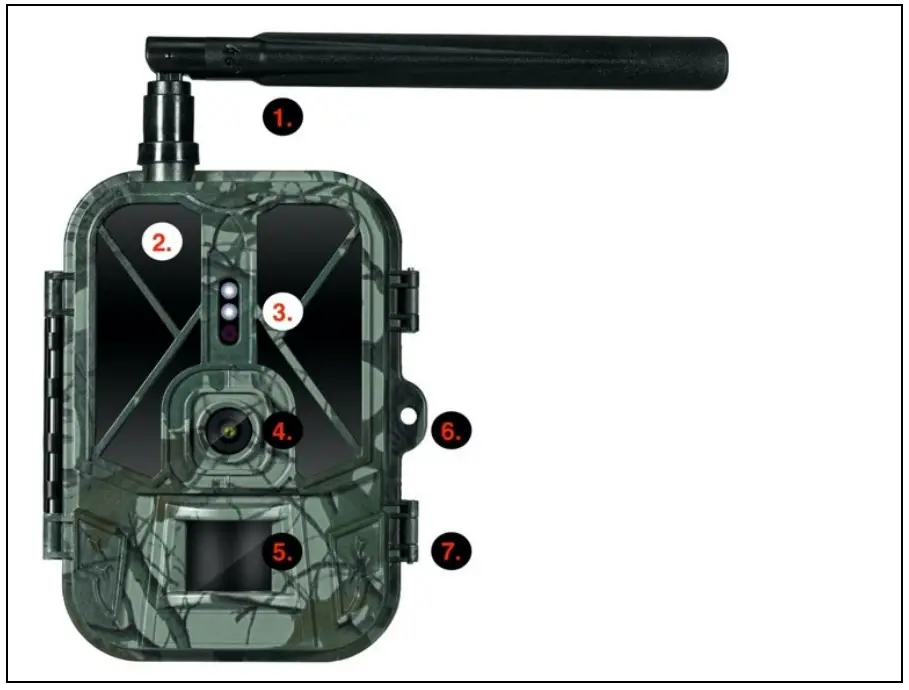
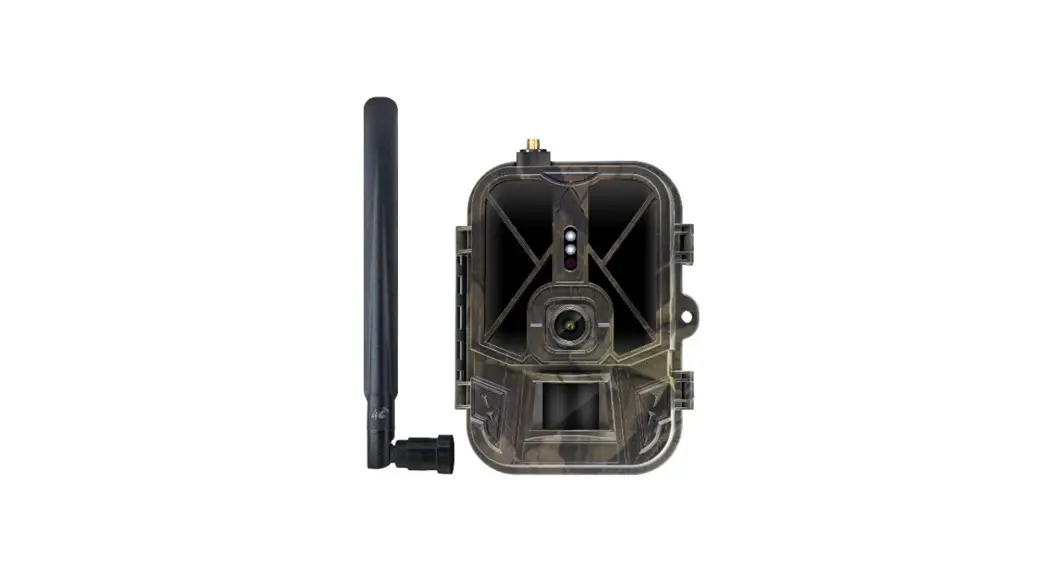
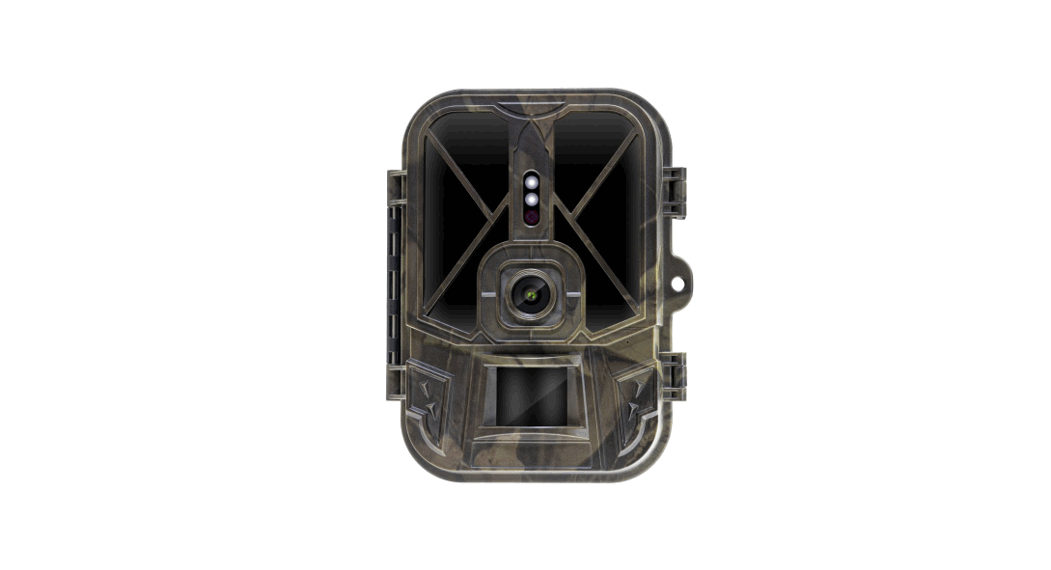
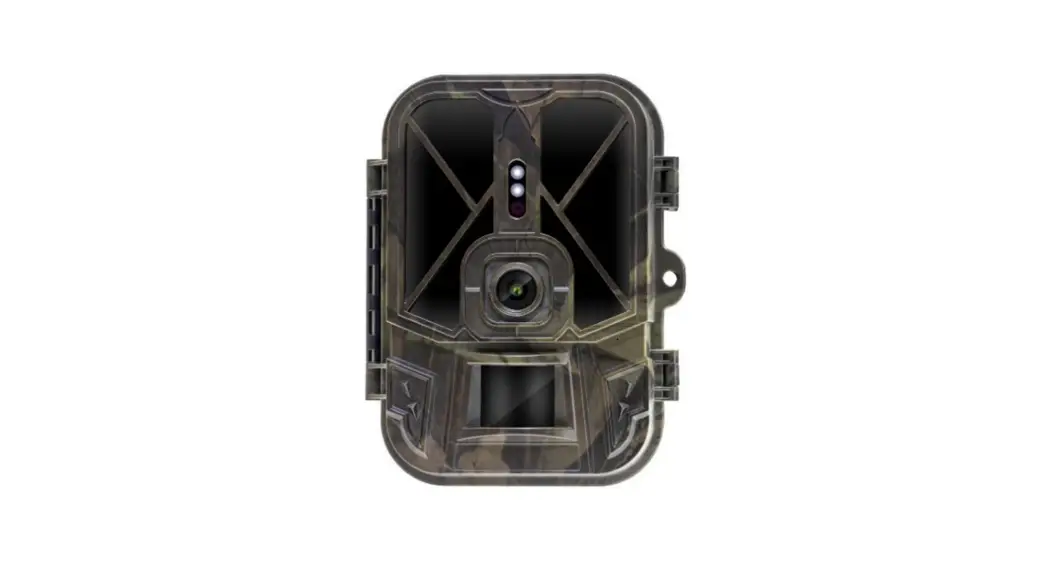
| 1. | Antenna (4G model only) |
| 2. | IR Illuminator |
| 3. | Indication LED, Ambient light sensor |
| 4. | Camera lens |
| 5. | PIR sensor (Motion sensor) |
| 6. | Place for locking |
| 7. | Latches |
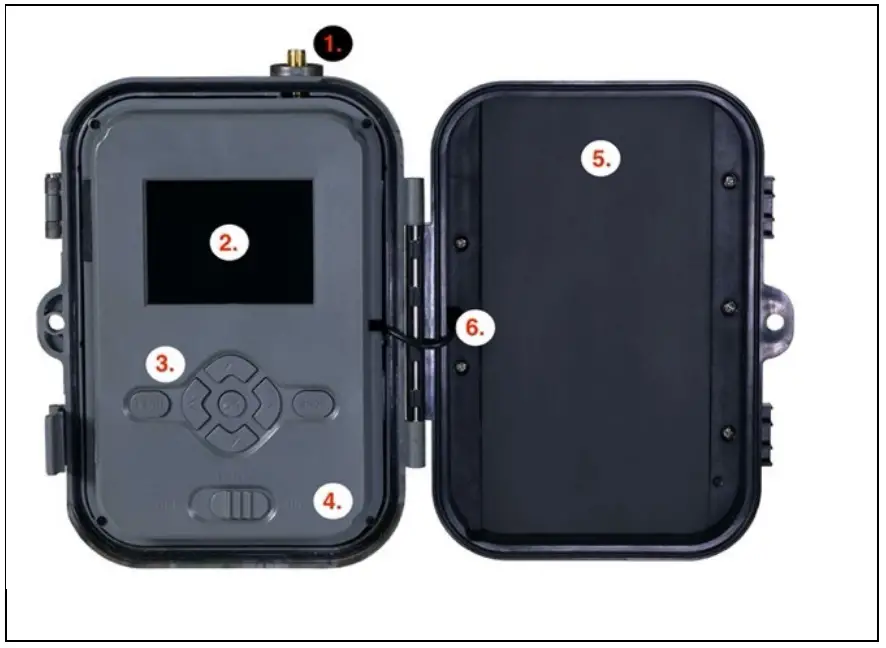
| 1. | Antenna (4G model only) |
| 2. | 2.4″ Colour LCD display |
| 3. | Control buttons |
| 4. | Main position switch: OFF – TEST — ON |
| 5. | Case for 10 x 1.5V AA batteries |
| 6. | Power connection cable – must not be broken. In case of damage, remove the battery and send the device to an authorized service center. |
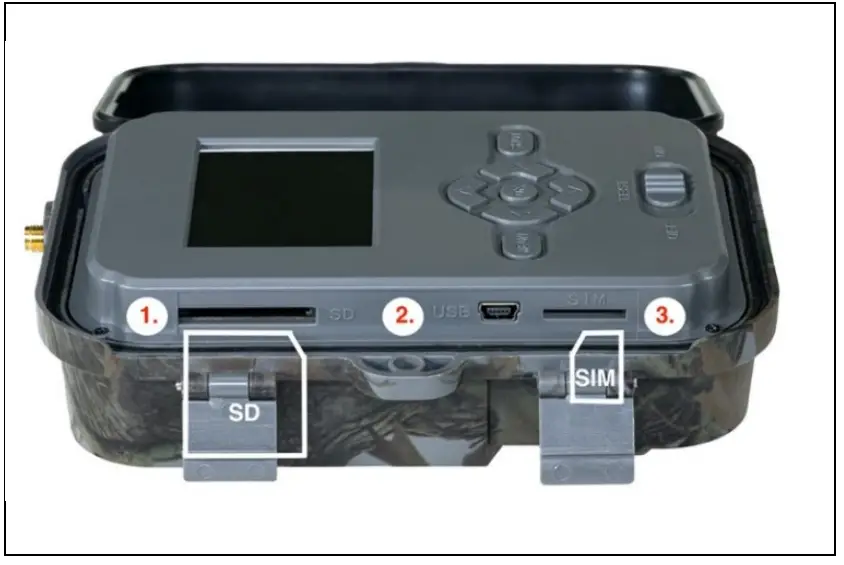
| 1. | SD card slot (max. size 256 GB) |
| 2. | USB-C connector for connection to a PC (Mass Storage) |
| 3. | SIM card slot (4G model only) |
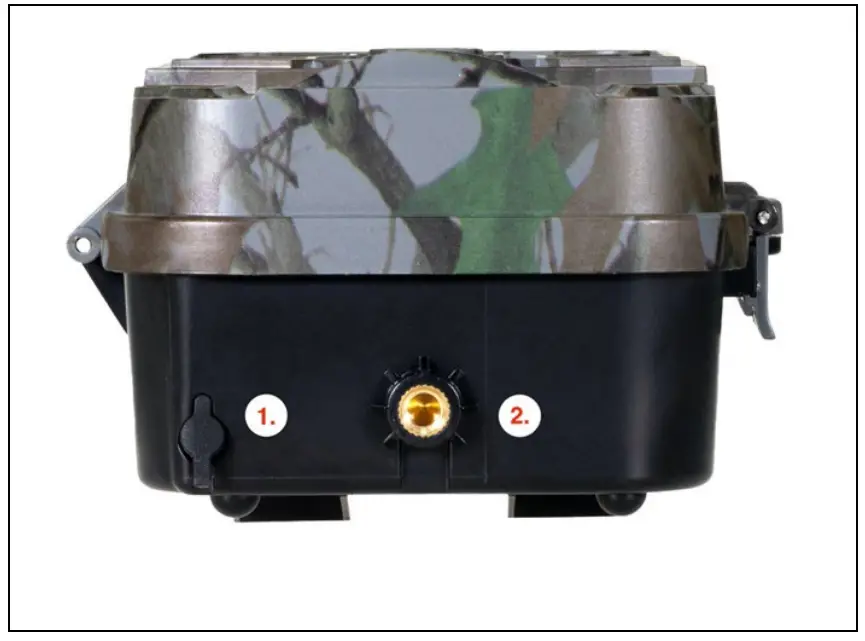
| 1. | Connector for DC 12V/ 1.5A power supply (Charges the inserted battery !) |
| 2. | Thread for ¼” tripod can be purchased SGV CAM-H1bracket |
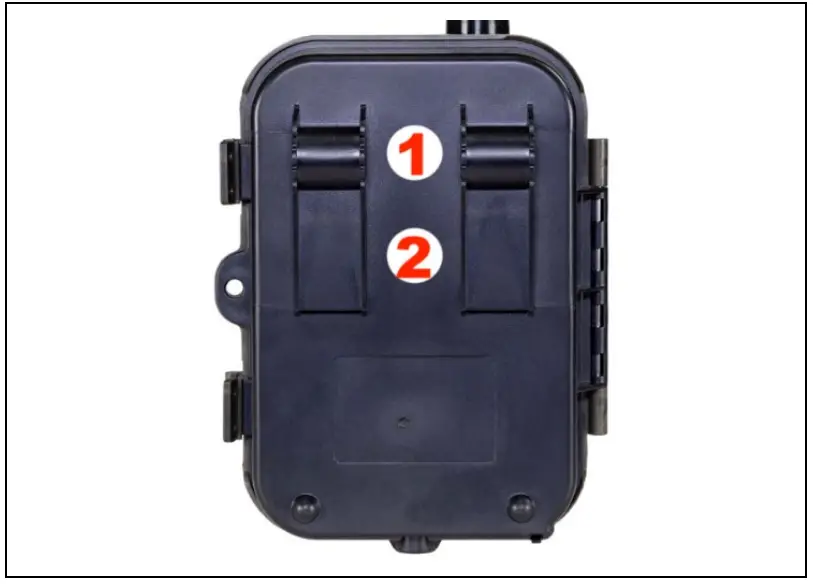
| 1. | Attachment for rope lock (SGV CAM-LOCK) max. diameter 12 mm |
| 2. | Fastening for belt |
| 1. Fashion | Camera | In this mode, the camera will only take pictures |
| Video | In this mode, the camera will only record video | |
| Camera & Video | The camera will capture both images and video. | |
| 2. Photo resolution | Changes the resolution at which all images, you can choose between 30, 24, 20, 16, 12, 8, 5, 3 MPX photos, the larger resolution, the larger the file will be stored on the SD card! | |
| 3. Video length | Set the length of the video recording: 5s, 10s, 30s, 60s or 90s | |
| 4. Sound recording | If you select on, it will record sound when recording video. | |
| 5. Image size | Resolution setting for Video recording: 4K, 2K, 1080p, or |
| 720p or VGA. | ||
| 6. Interval | The interval is a time value that indicates the time of inactivity after a detected movement. If the camera is activated by a PIR sensor, the camera performs the desired action and waits for a specified time after the motion is over before taking another picture. The range is 5-59s and 1-60minutes | |
| 7. Timing interval | Setting the capture interval in Time Lapse mode. Images will be taken at the selected time interval. The following values can be set: 1s-24h | |
| 8. Sequence | In Photo, Photo &Video and Time-lapse mode, it sets how many pictures to take when the camera is activated. Can be set: 1,2,3 or 10 pictures | |
| 9. Rewrite | Zap. – When the SD card is full, the oldest files are overwritten. |
| OFF – When the SD card is full, no more images are stored | ||
| 10. PIR sensitivity | PIR sensor sensitivity setting. If unwanted activation by distant objects occurs, the sensitivity of the sensor can be reduced. Can be set: Low, Medium, High or Off | |
| 11. Language | It is used to set the language in the menu. | |
| 12. Camera ID | The name that appears in the stamp on the captured images. | |
| 13. Password/PIN | Camera security with PIN, when you turn on the function, you enter a new PIN, which the device requests every time it starts up. | |
| 14. Active mode | Working hours of the device. In the menu, you set the time range when the device should be active, during the rest of the day the device will not take |
| pictures. | ||
| 15. Date/Time | Set the date, time and format. Move the arrow keys to select and set, confirm by pressing the OK button. | |
| 16. Formatting | Format SD memory cards inserted in the device | |
| 17. Default settings | Deletes all settings made in camera. | |
| 18. View Full Version | Displays the current FW version |
Media Browser
It is possible to view the recorded footage directly on the camera display.
To view, switch to TEST mode, press the Right Arrow button on the Home screen.
Control by arrow keys:
- Next picture: up arrow
- Previous picture: down arrow
- Play video: left arrow
- Stop Video: right arrow
- Return to main menu SHOT button
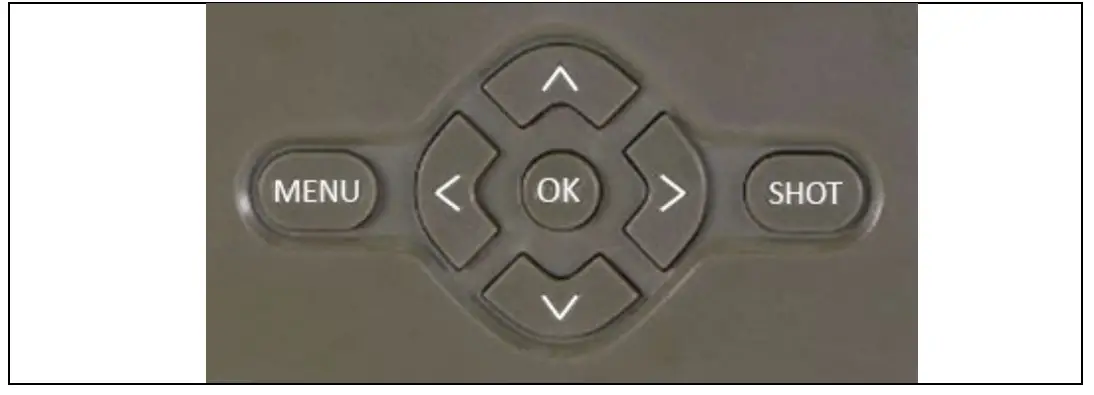
The camera can also be used to take photos or record video using only the buttons. Switch the camera to TEST mode. It is then serviced afterwards:
- The up or down arrow switches between Photo or Video mode
- Press the SHOT button to take a picture
Troubleshooting
7.1 The camera does not record photos/videos when moving
- Check the PIR sensor to see if it is damaged or blocked, for example by a leaf.
- Test the camera in places where there are no hot spots. The PIR sensor detects motion based on temperature difference, if the camera environment is overheated, the sensor is not activated.
- In some cases, the water level may cause the PIR sensor to activate unintentionally, in which case turn the camera away from the water level.
- Set the camera so that it is not pointing directly at the ground.
- Position the camera so that it does not move and large moving objects, such as a large tree, are not in the frame.
- At night, the device can detect movement outside the range of the IR night light, so no moving object will be detected in the photos.
- Sunset or sunrise may cause the recording to start unintentionally – change the camera position.
- If the animal/person in front of the camera is moving quickly, the camera may not record them – move the camera further away from the objects (e.g. further away from the path where the animals are moving)
7.2 The camera does not produce any images
- Make sure there is enough free space on the inserted SD card. If the old file overwrite function is disabled, the device no longer records after the SD card is full.
- Check that the battery has enough power to operate the photo trap.
- Make sure the switch is in the ON position and not OFF.
- Before using the card for the first time, format the card on your computer to FAT32 format
7.3 Night light does not have sufficient range
- Make sure the battery in the device is charged, if the capacity is below 15%, the night light may not activate
- For good quality night shots, place the camera in a dark environment with no other light sources.
- Try to use the camera in locations where it will be surrounded by other objects that can reflect IR light. If you place the camera in an open area, the resulting photo will not be sufficiently illuminated.
It’s the same as shining a flashlight on the night sky, you won’t see anything either, even if the flashlight is very powerful.
Support and warranty
First, read the “FAQ” at: https://eshop.evolveo.com/strongvision-wifi/ or contact EVOLVEO Technical Support at: [email protected]
The warranty does NOT cover:
– using the equipment for purposes other than those for which it is designed,
– installing firmware other than that installed on the device
– electrical or mechanical damage caused by improper use
– damage caused by natural elements such as water, fire, static electricity, power surges, etc. 13
– damage caused by repairs carried out by an unqualified person
– illegible serial number
– battery capacity drops after 6 months of use (6 month battery life guarantee)
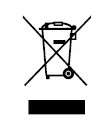
 Disposal: The crossed-out container symbol on the product, in the accompanying documentation or on the packaging reminds you that in EU countries, all electrical and electronic equipment, batteries and accumulators must be disposed of separately at the end of their useful life as part of sorted waste. Do not dispose of these products in unsorted municipal waste.
 DECLARATION OF CONFORMITY
Abacus Electric, s.r.o. hereby declares that the EVOLVEO Strong vision PRO A product meets the requirements of the standards and regulations that are relevant for the type of equipment.
The full text of the Declaration of Conformity can be found at
ftp://ftp.evolveo.com/ce
Importer / Importer / Importer / Importer
Abacus Electric, s.r.o.
Plane 2, 370 01, Czech Republic
Producer / Producer / Manufacturer / Gyrate
Naxya Limited
No.5, 17/F, Strand 50, 50 Bonham Strand, Sheung Wan, Hong Kong
Made in China
Copyright © Abacus Electric, s.r.o.
www.evolveo.com
www.facebook.com/EvolveoCZ
All rights reserved.
The appearance and technical specifications of the product are
subject to change without notice.
 Index of /ce
 EVOLVEO.com ׀ official eshop brand