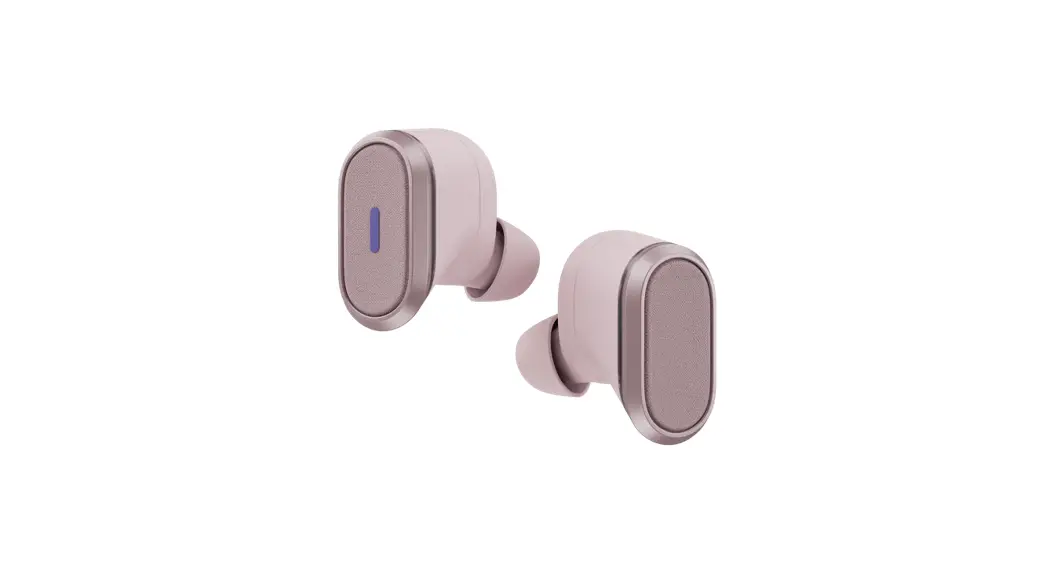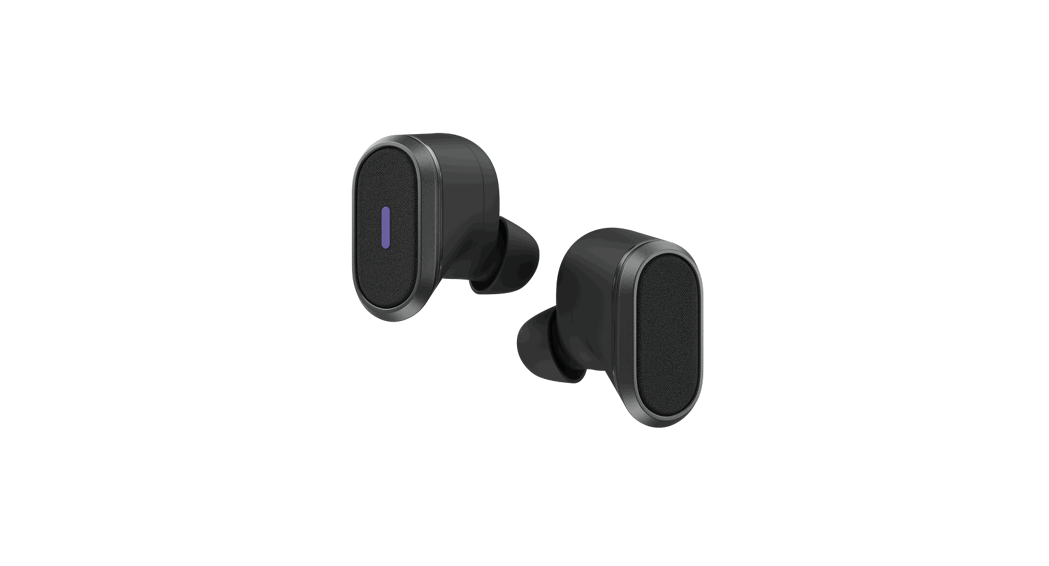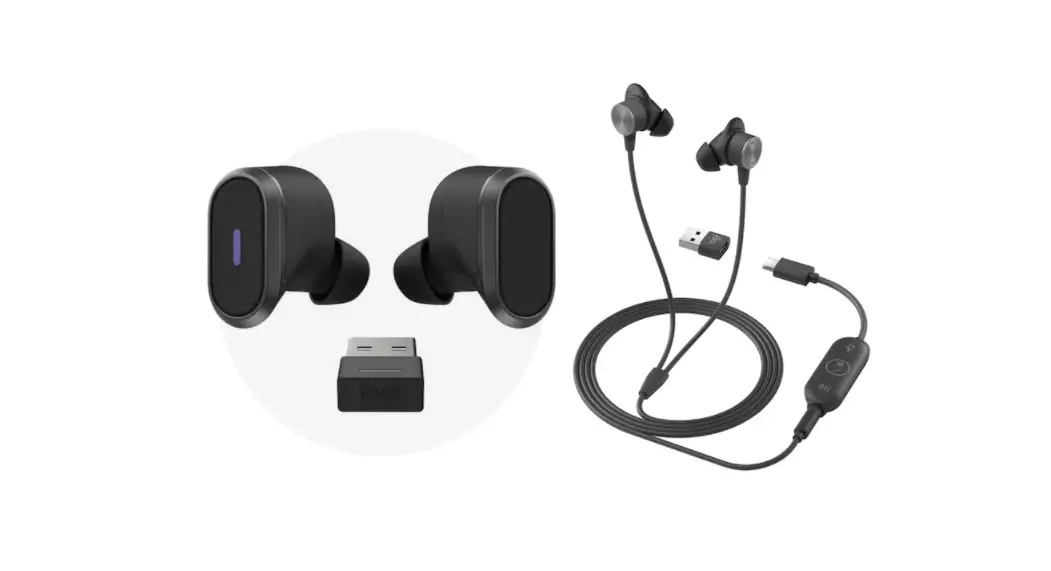

LOGITECH ZONE TRUE WIRELESS
Complete Setup Guide
Panduan Pemasangan Lengkap
KNOW YOUR PRODUCT
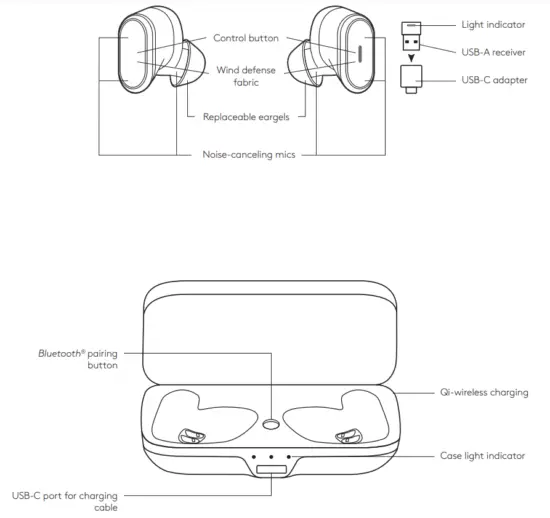
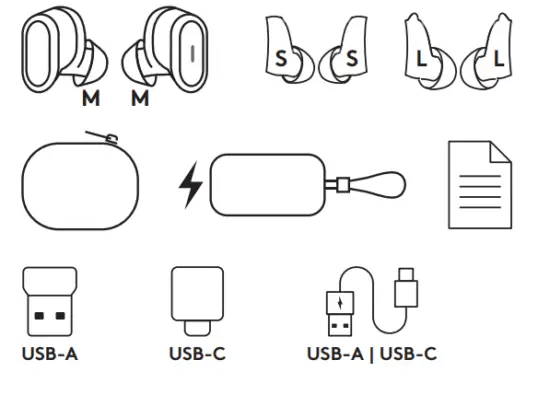
WHAT’S IN THE BOX
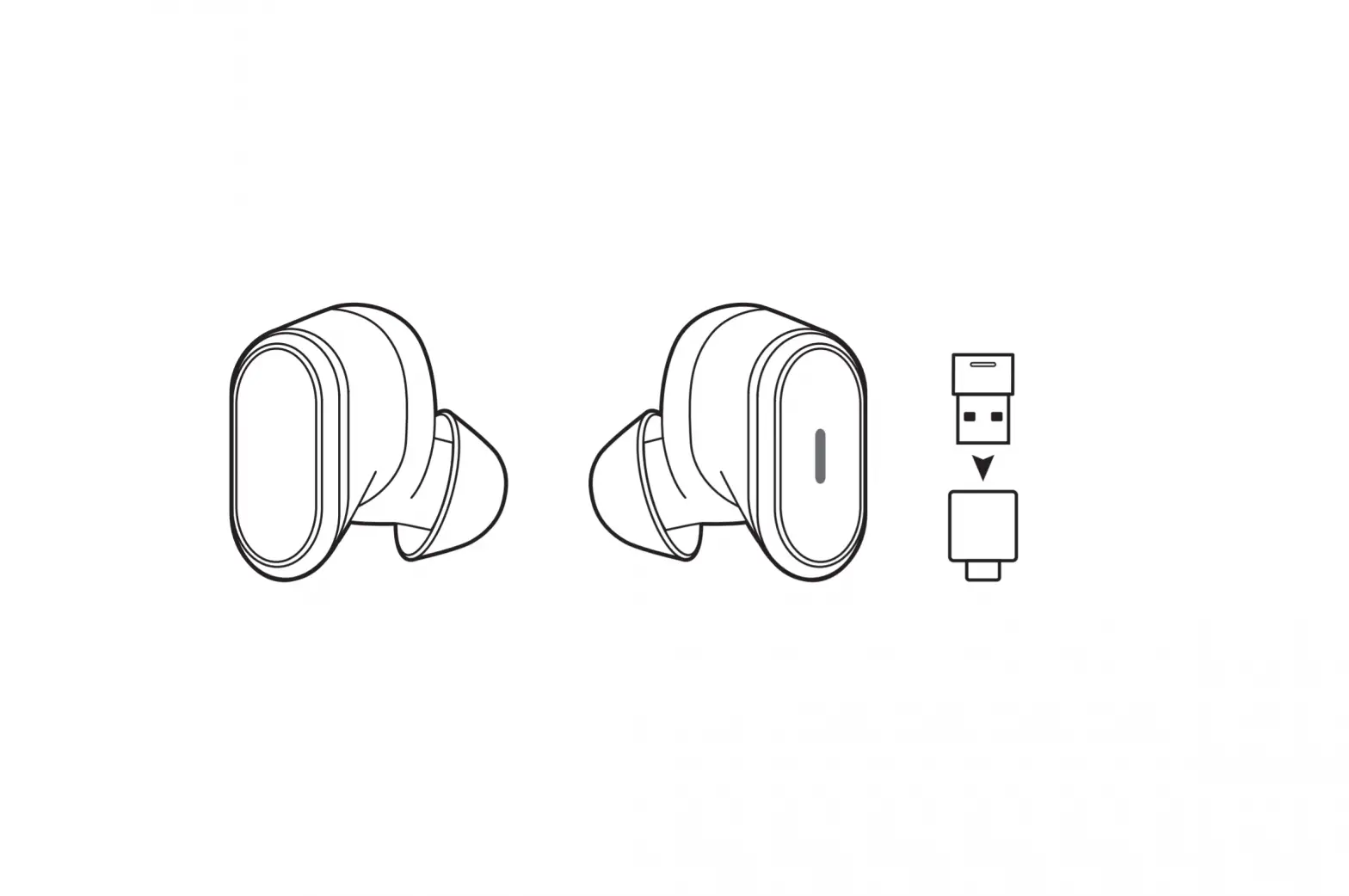
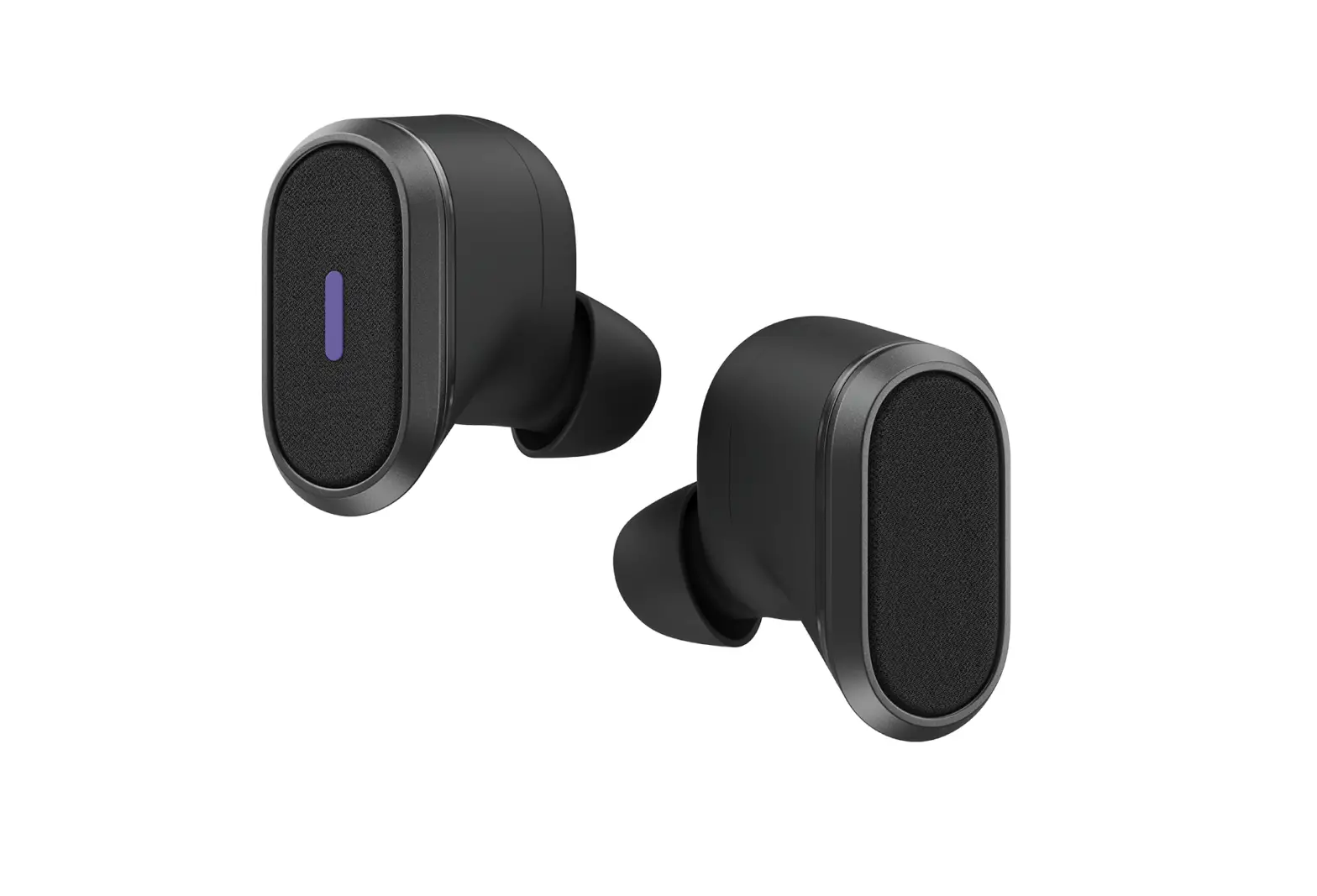
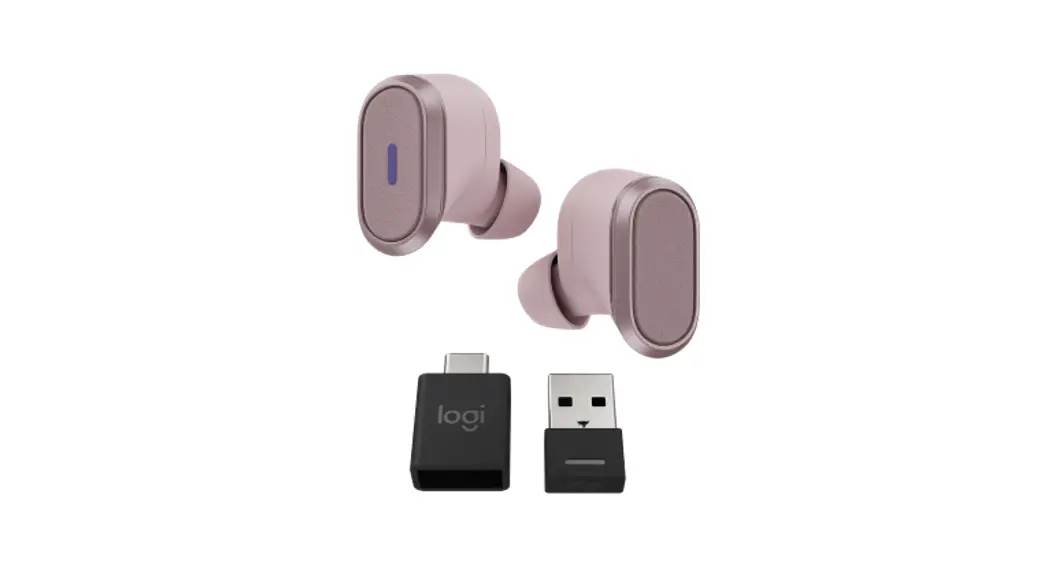
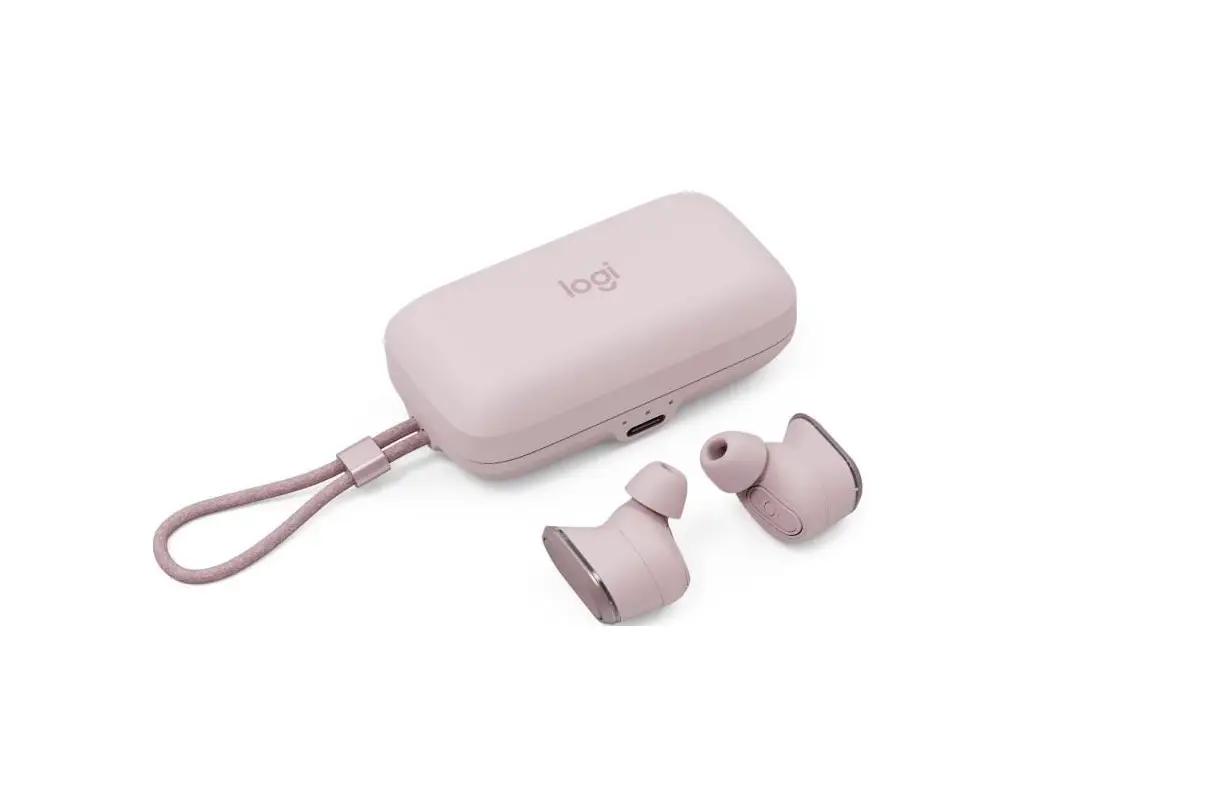
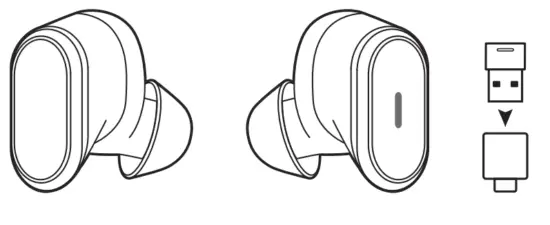
- Left & right earbuds
- Replaceable eargels (total of 3 pairs):
• Small left & right eargels without ear fins
• Medium left & right eargels with ear fins (premounted on the earbuds)
• Large left & right ear gels with ear fins - Cloth travel bag
- Wireless charging case
- User documentation
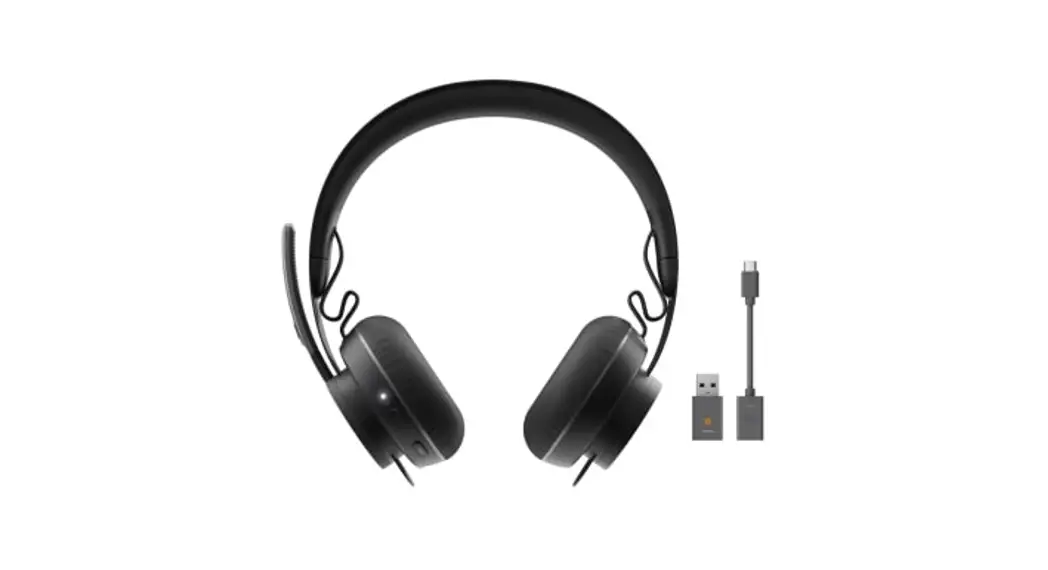
- USB-A receiver
- USB-C to A adapter
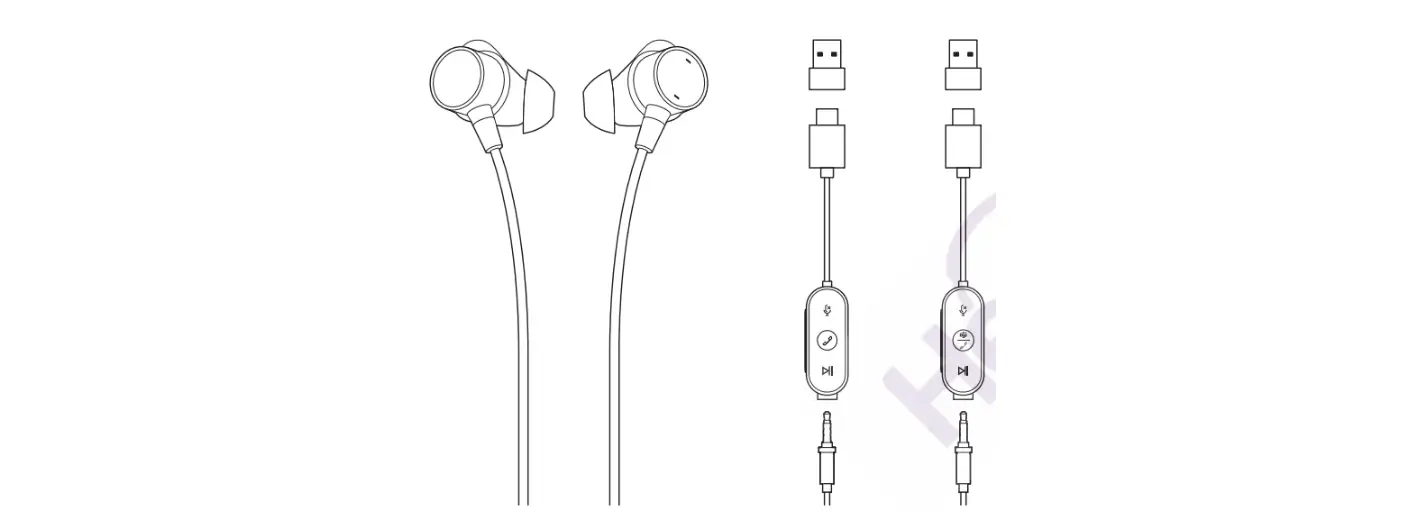
- USB-C to A charging cable (0 79 ft)
CHARGING
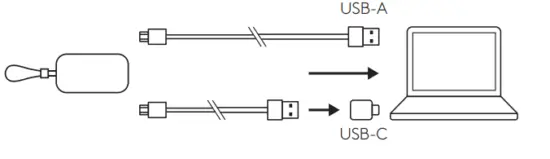
Charging via USB cable
- Place the earbuds in the charging case and close the lid
- Plug the USB-C cable end into the USB-C port on the front of the charging case
- Plug the USB-A end into the USB-A charging port on your computer or plug the USB-A end into the USB-C adapter and plug the USB-C adapter
into the USB-C port on your computer - Case light Indicator will be a pulsing, white light for charging
- Case light Indicator will be solid white when fully charged
• 2 5 hrs for full earbuds charge
• 2 5 hrs for full case charge
• 5 mins quick charge provides up to 1 hr talk time or listening time*
• Battery life was measured from fully charged to automatic shutoff, utilizing 50% volume for both talk time and listening time with in-ear detection off
Charging via Qi wireless charger
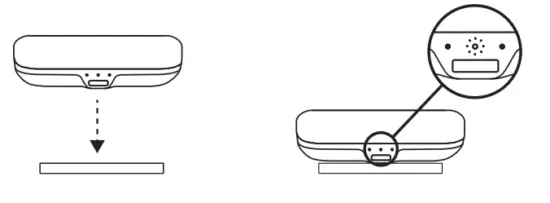
- Place the charging case on top of any Qi-certified wireless charging pad (min 5 watts) *
- Case indicator light will be a pulsing, white light when charging
- Case Indicator light will be solid white shortly when fully charged
• Qi wireless charging base is not included
HOW TO SET UP YOUR DEVICE
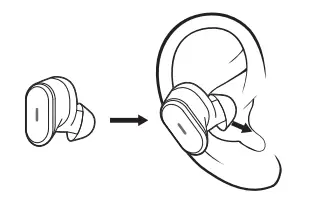
- Remove the earbuds from the charging case
- Insert the earbuds into your ears
PAIR TO COMPUTER VIA USB RECEIVER
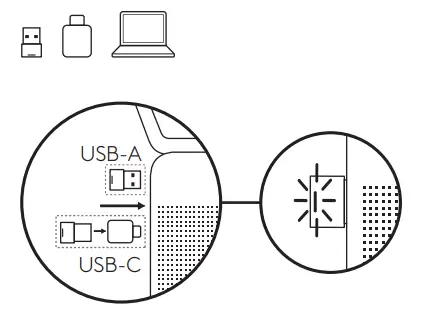
- USB-A
Insert the USB-A receiver into the computer USB-A port
USB-C
Insert the USB-A receiver into the USB-C adapter
Then insert the adapter into the computer USB-C port - Earbuds are pre-paired to the receiver included in the box Once successfully paired, the light indicator on the receiver will remain solid
PAIR TO SMARTPHONE VIA BLUETOOTH®
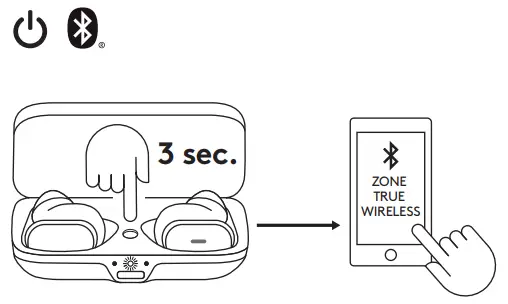
- Press the Bluetooth® pairing button in the charging a case for 3 seconds Case light indicator in the middle will blink in white rapidly
- Open Bluetooth® settings on your device
- Select Zone True Wireless in discoverable devices
FIND YOUR PERFECT FIT
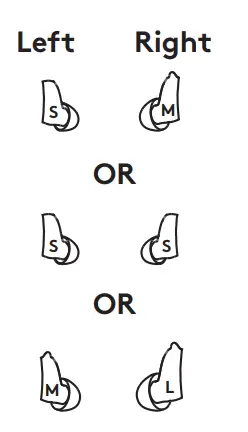
For the optimized performance of ANC and comfort, select among the three large sizes (S, M, L) to find the ones that best fit your ears Earbuds ship with medium largely
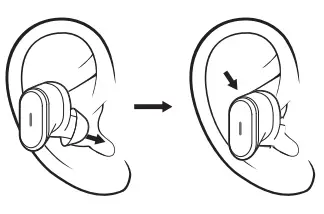
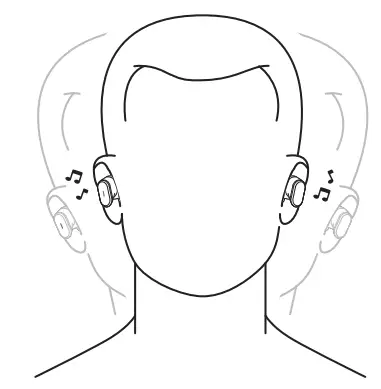
- Place the earbuds firmly within your ears Adjust the angle and depth of the earbuds for the best seal and comfort

- Size down if you feel too much pressure on your ear, or size up if the earbuds are too loose
• Note: It is common to use different sized ear gels for different sides of your ears
- Fit Trial
• The earbuds should remain secured and tight even after shaking your head in all directions
• Play the same music as a fair comparison of noise isolation
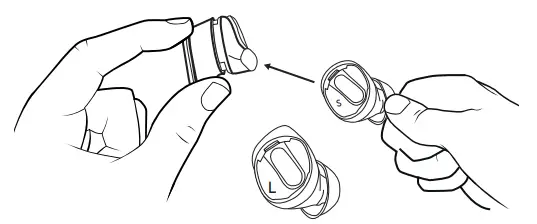
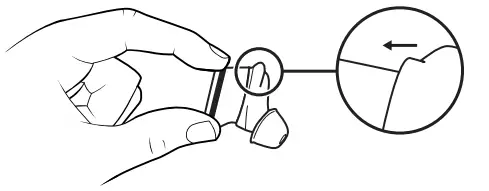
REPLACE THE EARGEL
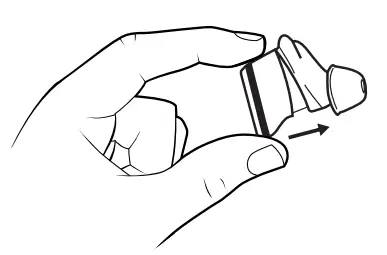
- Hold the body of the earbud with one hand

- ith the other hand, gently pull the whole eargel away from the body of the earbud

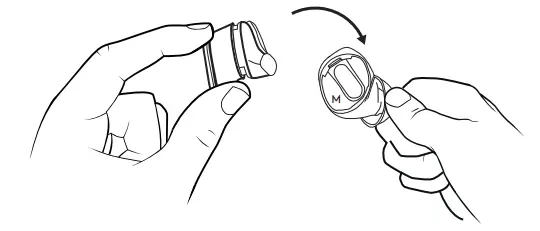
- Grab alternative sized ear gels

- Gently stretch the eargel onto the earbud, until there is no gap between eargel and body of the earbud

CALL AND MUSIC CONTROLS
| For UC: | Incoming call situations | Active call situations | Non-call situations | |||
| Action | Left earbud | Right earbud | Left earbud | Right earbud | Left earbud | Right earbud |
 Short press Short press | – | Answer call | Mute on / off | End call | Play / Pause | – |
 2 seconds press | – | Reject call | – | – | Next song | Invoke voice assistant |
 Double taps/press Double taps/press | ANC / Transparency Toggle | ANC / Transparency Toggle | ANC / Transparency Toggle | |||
| For Microsoft Teams: | Incoming call situations | Active call situations | Non-call situations | |||
| Action | Left earbud | Right earbud | Left earbud | Right earbud | Left earbud | Right earbud |
| – | Answer call | Mute on / off | End call | Play / Pause | Invoke Teams |
| 2 seconds press | – | Reject call | – | – | Next song | Invoke voice assistant |
| Double taps/press | ANC / Transparency Toggle | ANC / Transparency Toggle | ANC / Transparency Toggle | |||
Note:
- Teams activities are only functional when Teams is running on an unlocked computer
- Media control and voice assistant functionality depend on device models and platforms
- Call activities are always the first priority When two Bluetooth® devices are connected, the last active device will override the other
Tip: Button customizations and Music EQ controls are available in Logi Tune
ACTIVE NOISE CANCELLATION (ANC)
ANC blocks out the noise around you to help you concentrate on the task at hand
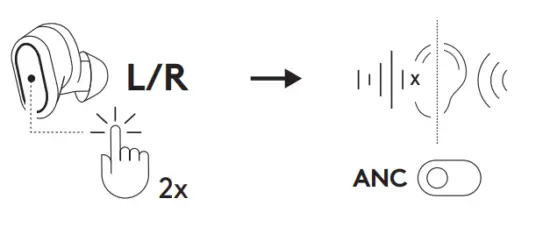
- Double-tap/press the left/right earbud under non-call situations to switch between ANC and Transparency mode
- There will be a voice prompt when turning ANC or Transparency mode on 3 You can also switch between ANC and Transparency mode via Logi Tune
• Note: Turn ANC off via Logi Tune if needed
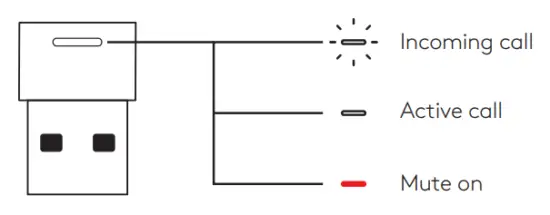
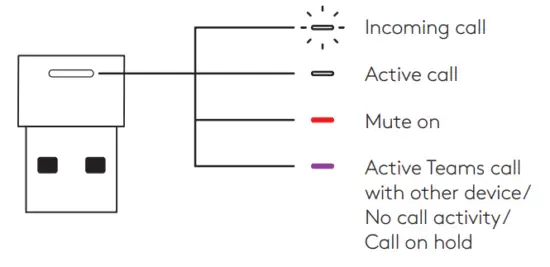
RECEIVER LIGHT INDICATOR
| For UC: | ||
| Light | Status | |
| White | Flashing | Incoming call |
| Solid | Active call | |
| Red | Solid | Mute on |
| For Microsoft Teams: | ||
| Light | Status | |
| White | Hashing | Incoming call |
| Solid | Active call | |
| Red | Solid | Mute on |
| Purple | Solid | Active Teams call with other device / No call activity / Call on hold |
CASE LIGHT INDICATOR
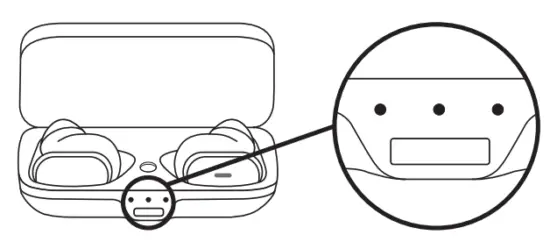
| State | Light Indicator | Status | |||
| Left | Middle | Right | Color | ||
| Plug into power source |
|
|
| Solid White | Left earbud is fully charged |
|
|
| Case is fully charged | ||
|
|
| Right earbud is fully charged | ||
|
|
|
Pulsing White | Left earbud is charging | |
|
|
| Case is charging | ||
|
|
| Right earbud is charging | ||
| Insert earbuds in the case |
|
|
| Pulsing White for 3 seconds | Earbuds inserted |
| Low battery |
|
|
| Solid Red | Case battery <20% |
| Long press the pairing button for 3 seconds |
|
|
| Blinking White | Pairing mode |
| Long press the pairing button for 20 seconds |
|
|
| Blinking White | Factory reset |


LOGI TUNE
Logi Tune helps boost your earbud performance with periodic software and firmware updates Learn more and download Logi Tune at www.logitech.com/tune, the Apple App Store® or Google Play™ store
SLEEP SETTINGS
By default, your earbuds will automatically power off when not in use for one hour Adjust the sleep settings in Logi Tune
RECONNECT EARBUDS
Reconnect earbuds to receiver via Logi Tune
- Plug USB-A receiver into computer
- Open Logi Tune
- Select the receiver from the dashboard Press “Reconnect earbuds”
- To initiate Bluetooth® pairing, press, and hold the Bluetooth® pairing button in the charging case for 3 seconds The light indicator on the receiver will
flash white - Once successfully paired, the light indicator on the receiver will remain solid white
FACTORY RESET
- Place the left and right earbuds in the charging case
- Long press the Bluetooth ® pairing button in the case The middle case light indicator will blink in white
- All three case light indicators will blink in white to confirm the reset
DIMENSIONS
Earbuds:
Height x Width x Depth: 15 9 x 27 4 x 26 3 mm
Weight (a pair of earbuds): 13 g
Charging case:
Height x Width x Depth: 25 0 x 39 8 x 74 5 mm
Weight: 46 g
Receiver:
Height x Width x Depth: 21 5 x 13 6 x 6 0 mm
Adapter:
Height x Width x Depth: 25 2 x 16 5 x 9 5 mm
USB-A to C charging cable:
0 79 ft (24 cm)
SYSTEM REQUIREMENTS
- Works with common calling applications across almost all platforms and operating systems Works with Windows®, Mac, or Chrome™ based computers via USB-C, USB-A, Bluetooth®, and iOS or Android™ Bluetooth® enabled devices
TECHNICAL SPECIFICATIONS
Microphone Type: Omni-directional, dual MEMS mics array with beamforming plus an inward-facing mic
Frequency response (Earbuds): 20-20kHz (music mode), 100-8kHz (talk mode)
Frequency response (Microphone): 100-8kHz
Battery type: Built-in battery (Lithium ion)
Earbud battery life (talk time): Up to 5 hrs (ANC on), up to 6 hrs (ANC off)
Earbud battery life (listening time): Up to 6 hrs (ANC on), up to 10 hrs (ANC off)
Charging case battery life: 2 full recharges for earbuds Bluetooth®
version: 5 0
Wireless range: Up to 30 m / 100 ft (open field line of sight)
Qi-wireless charging: Works with Qi-certified wireless chargers (min 5 watts)
www.logitech.com/support/zonetruewireless
© 2022 Logitech Logitech, Logi, and the Logitech logo are trademarks or registered trademarks of Logitech Europe S A and/or its affiliates in the US and other countries Apple and the Apple logo are trademarks of Apple Inc, registered in the US and other countries and regions App Store is a service mark of Apple Inc Google Play and the Google Play logo are trademarks of Google LLC The Bluetooth® word mark and logos are registered trademarks owned by Bluetooth SIG, Inc and any use of such marks by Logitech is under license.
WEB-621-002020 007
 Logitech Support + Download