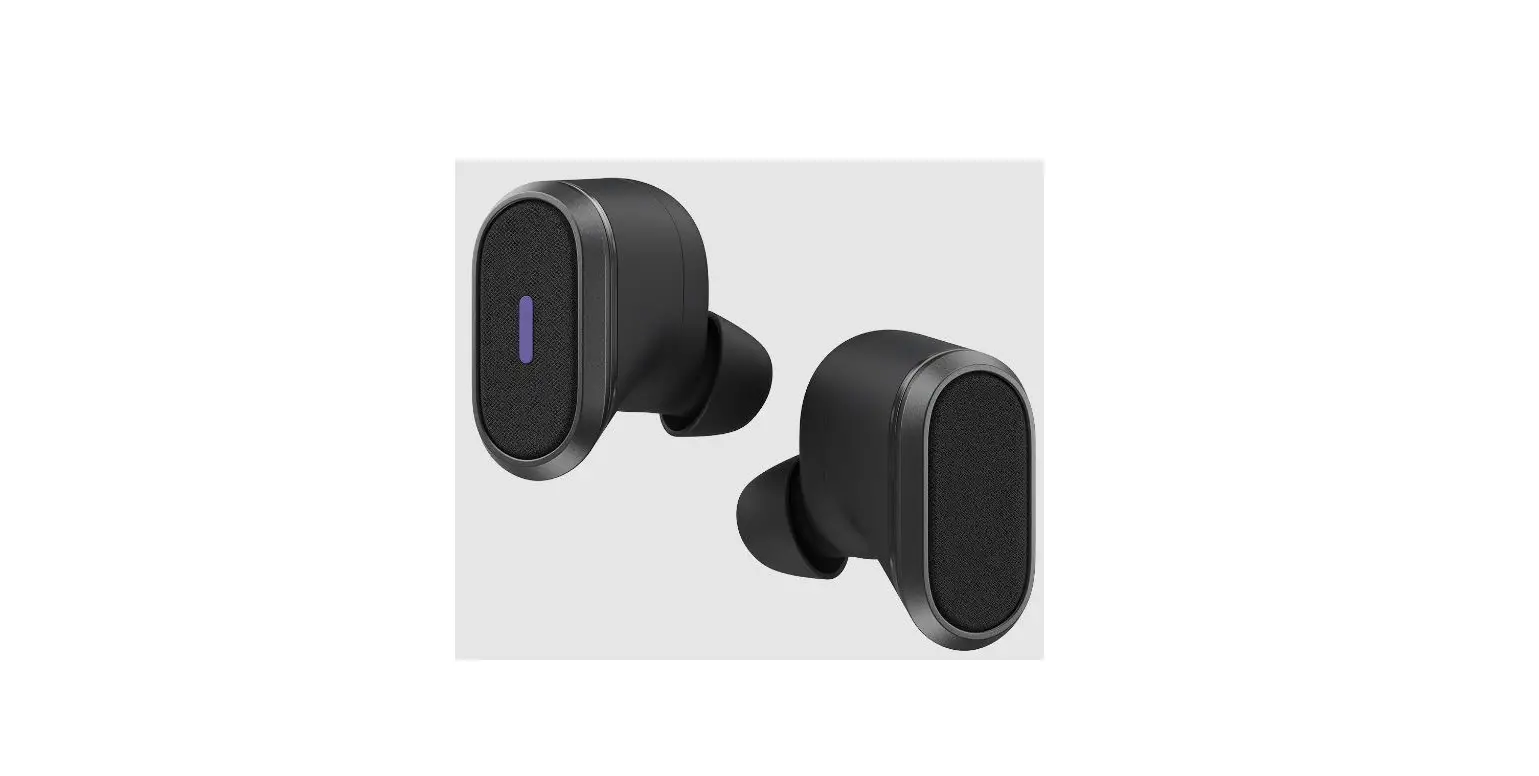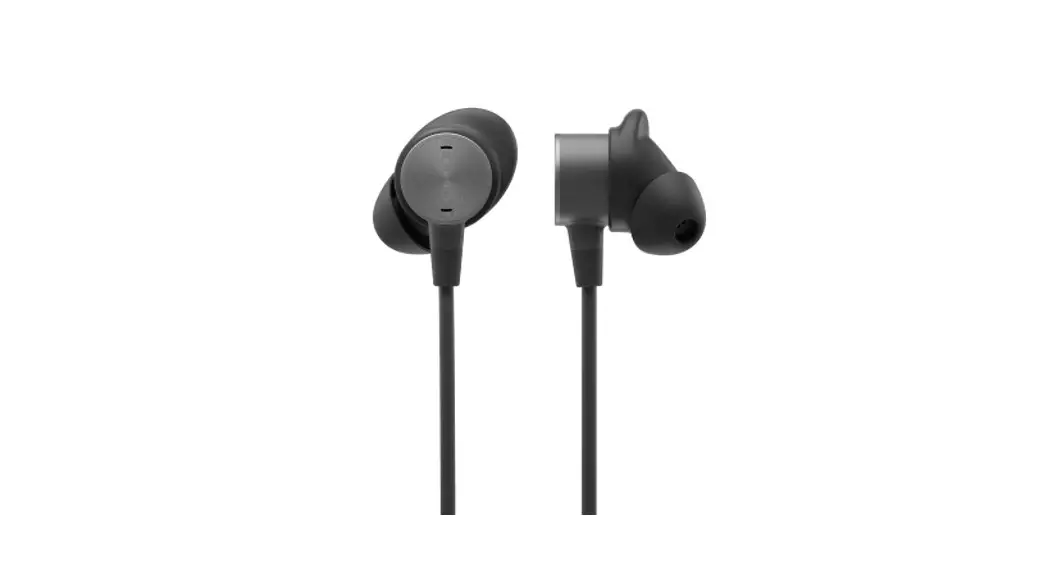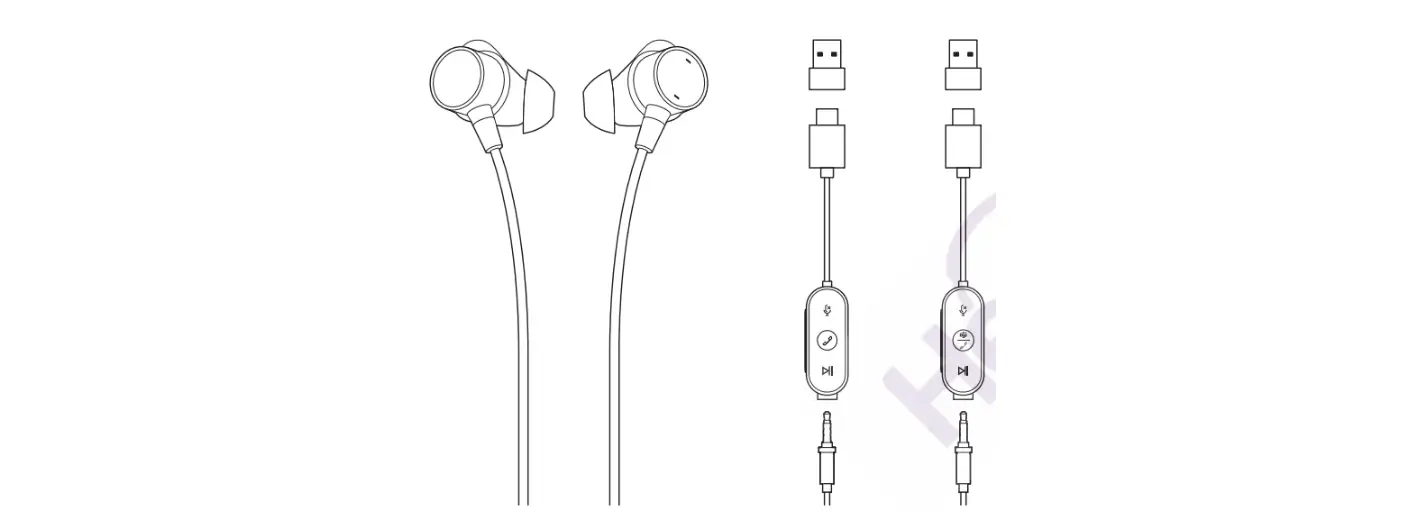

logitech 1637175621 Zone Wired Earbuds
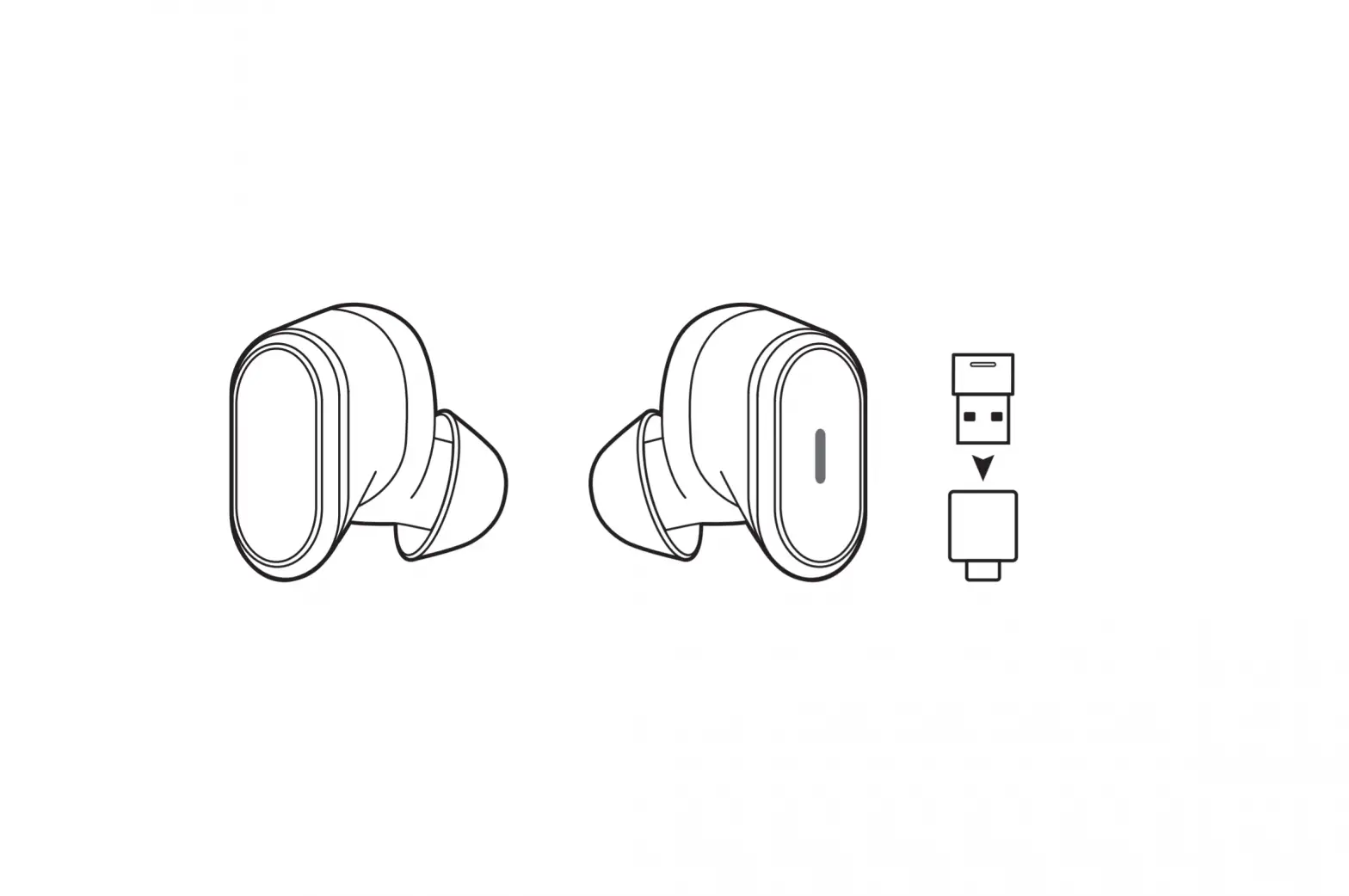
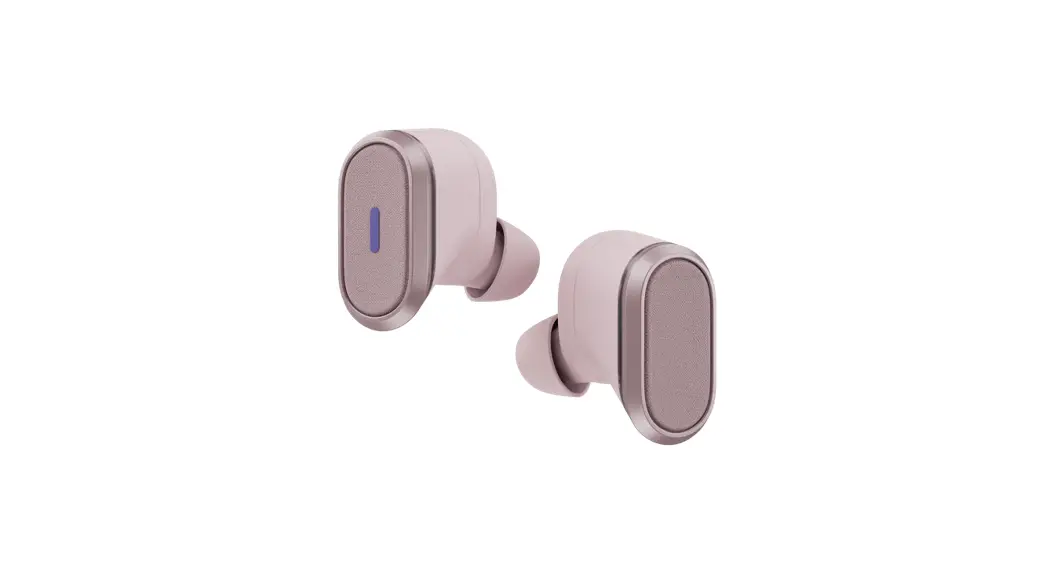
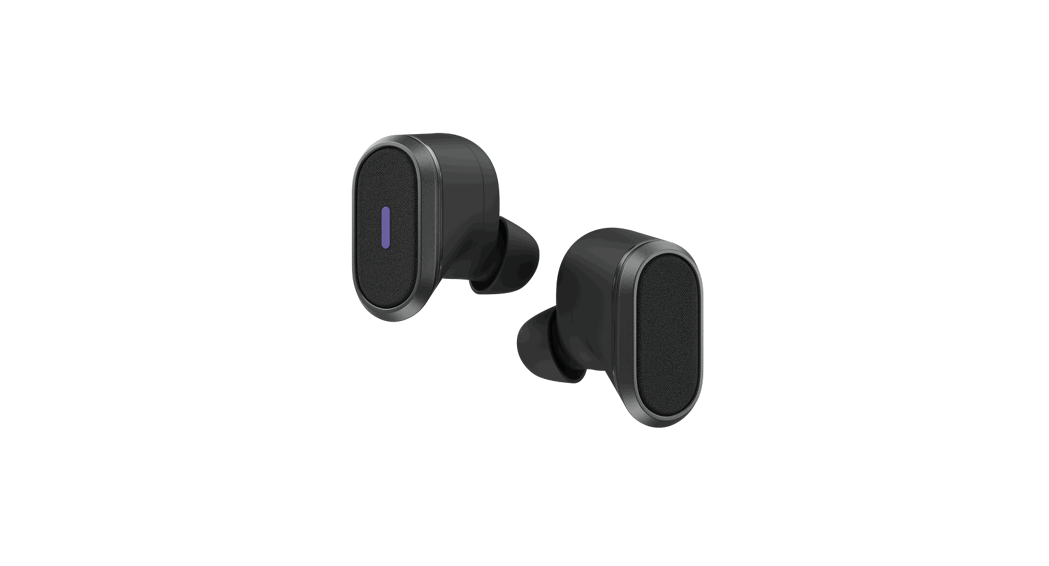
 KNOW YOUR PRODUCT
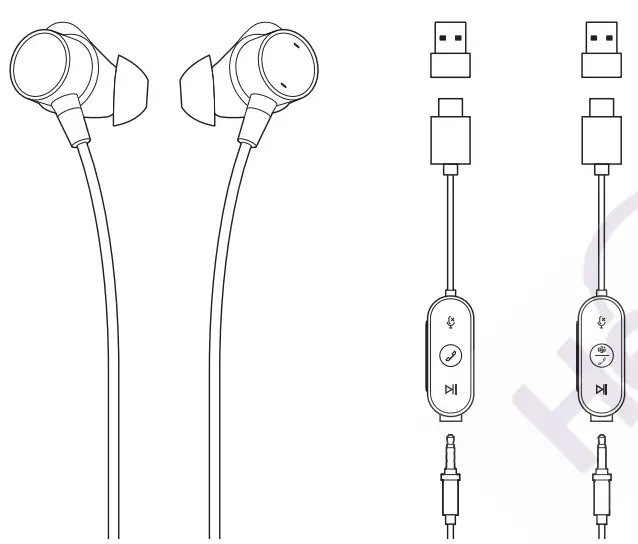 KNOW YOUR PRODUCT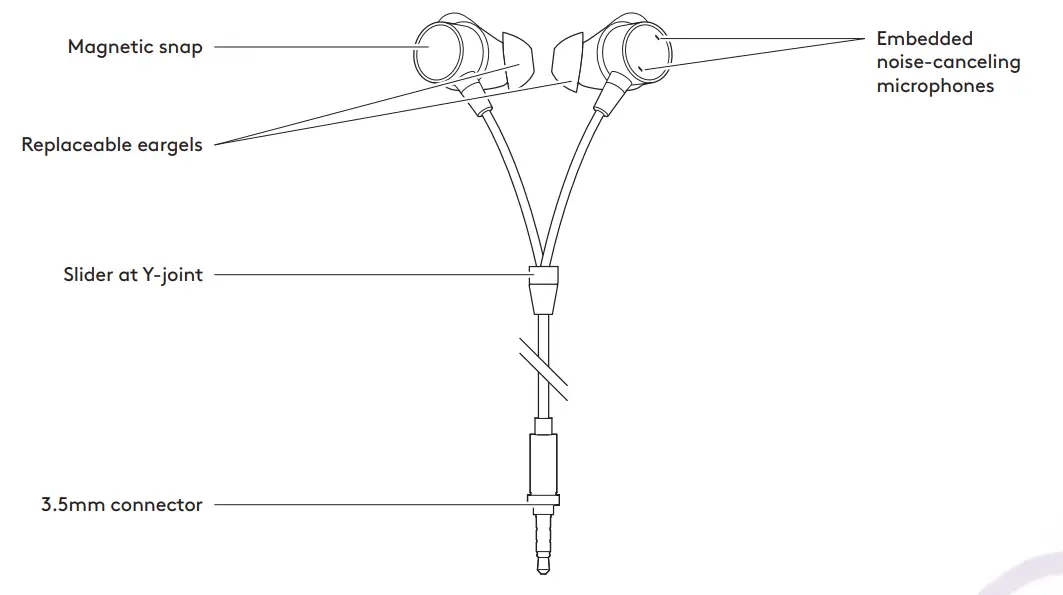
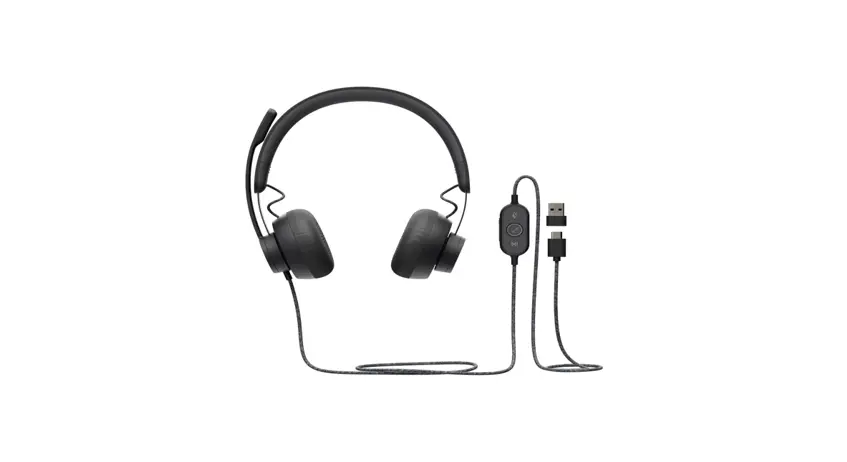
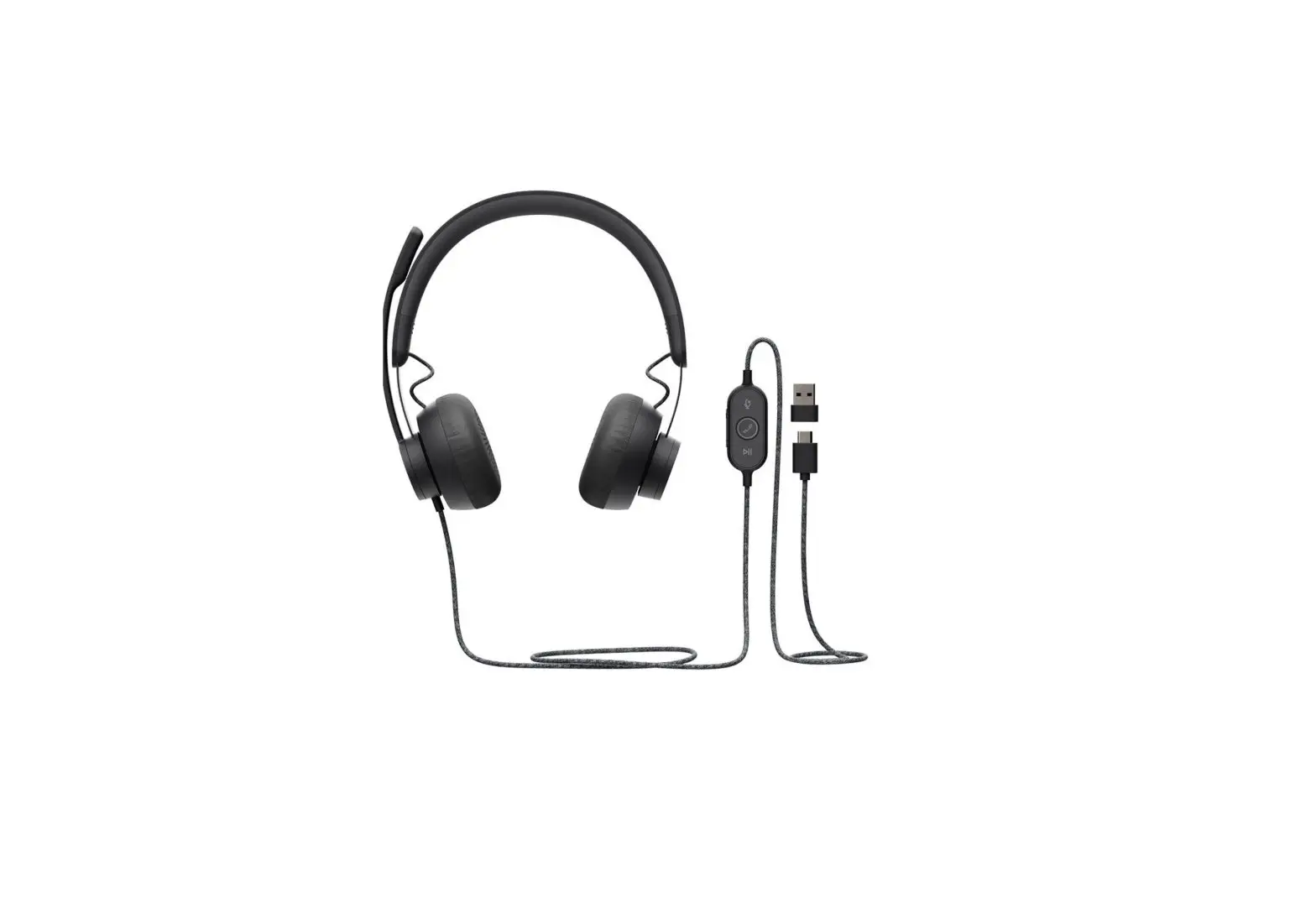
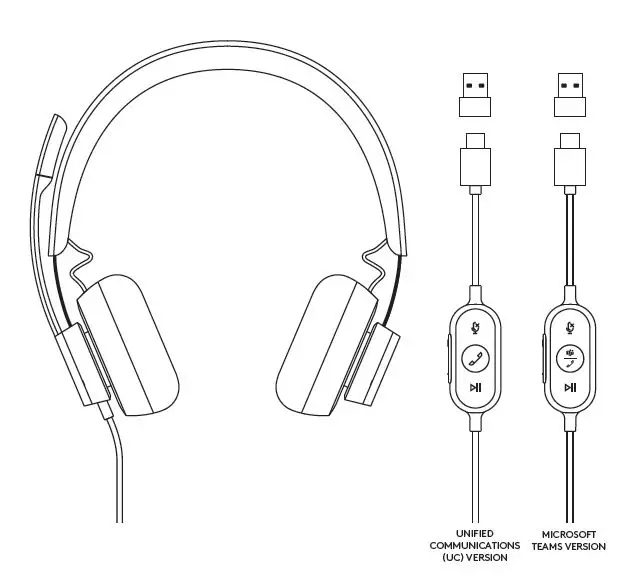
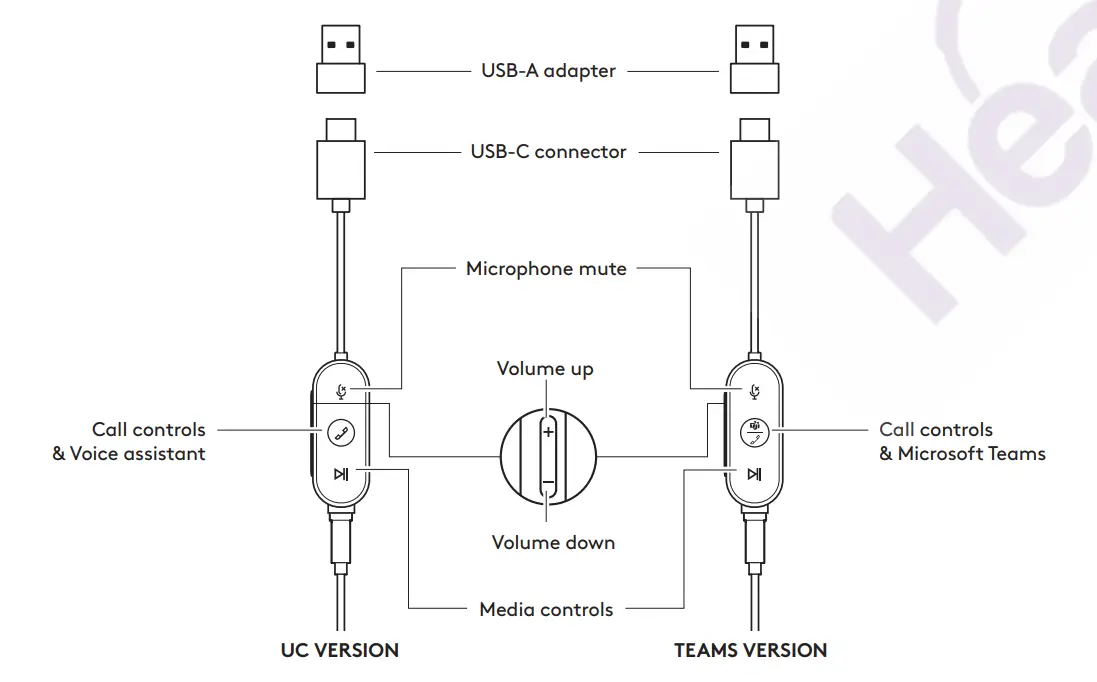
IN-LINE CONTROLLER
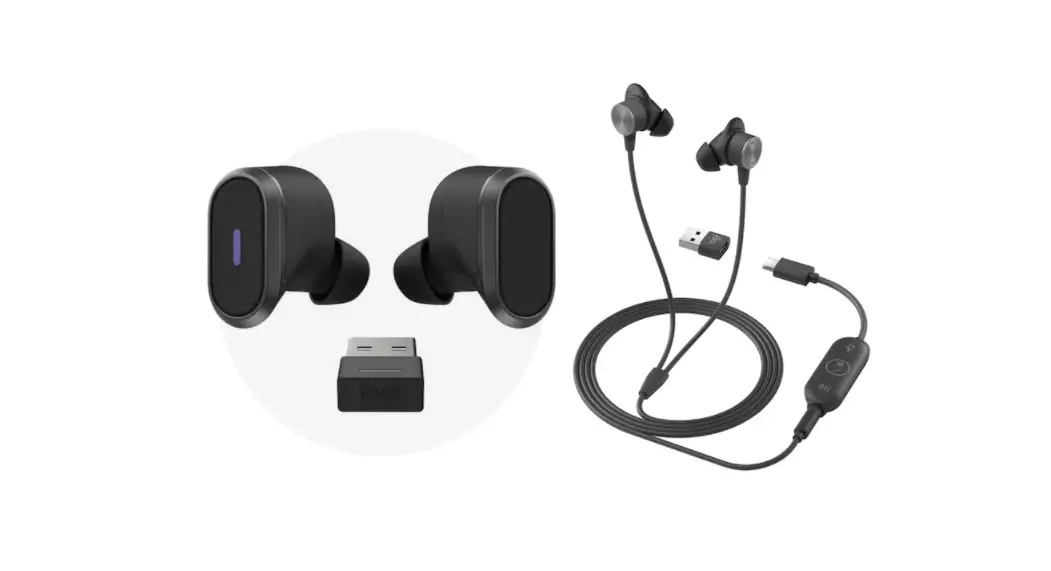
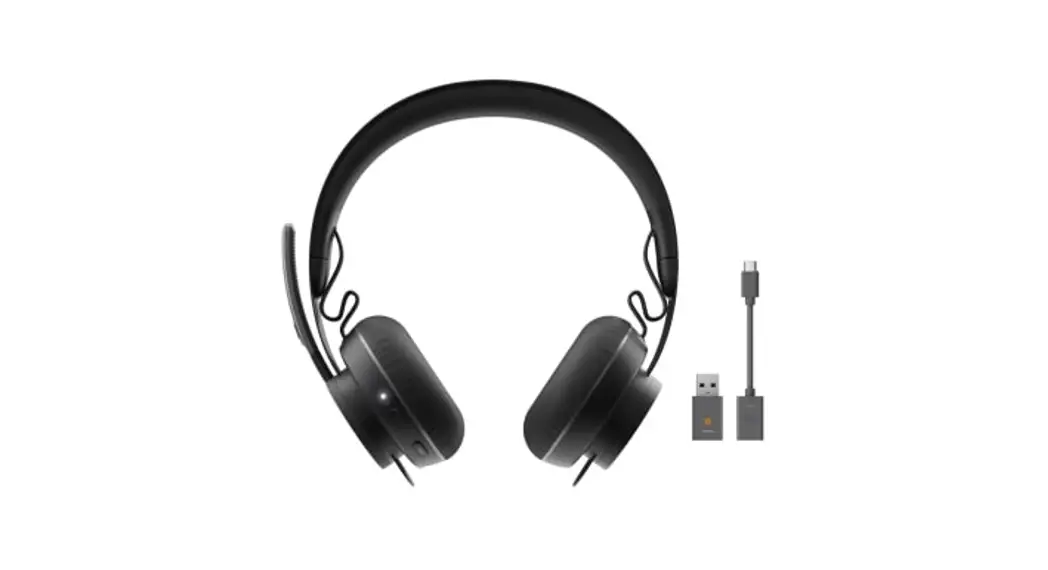
WHAT’S IN THE BOX
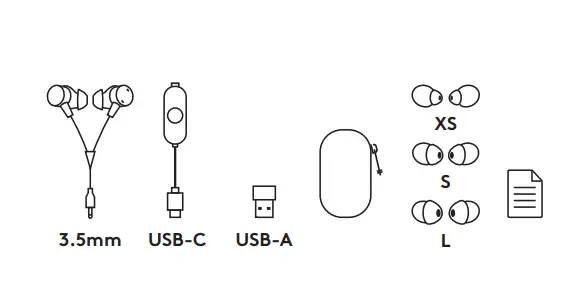
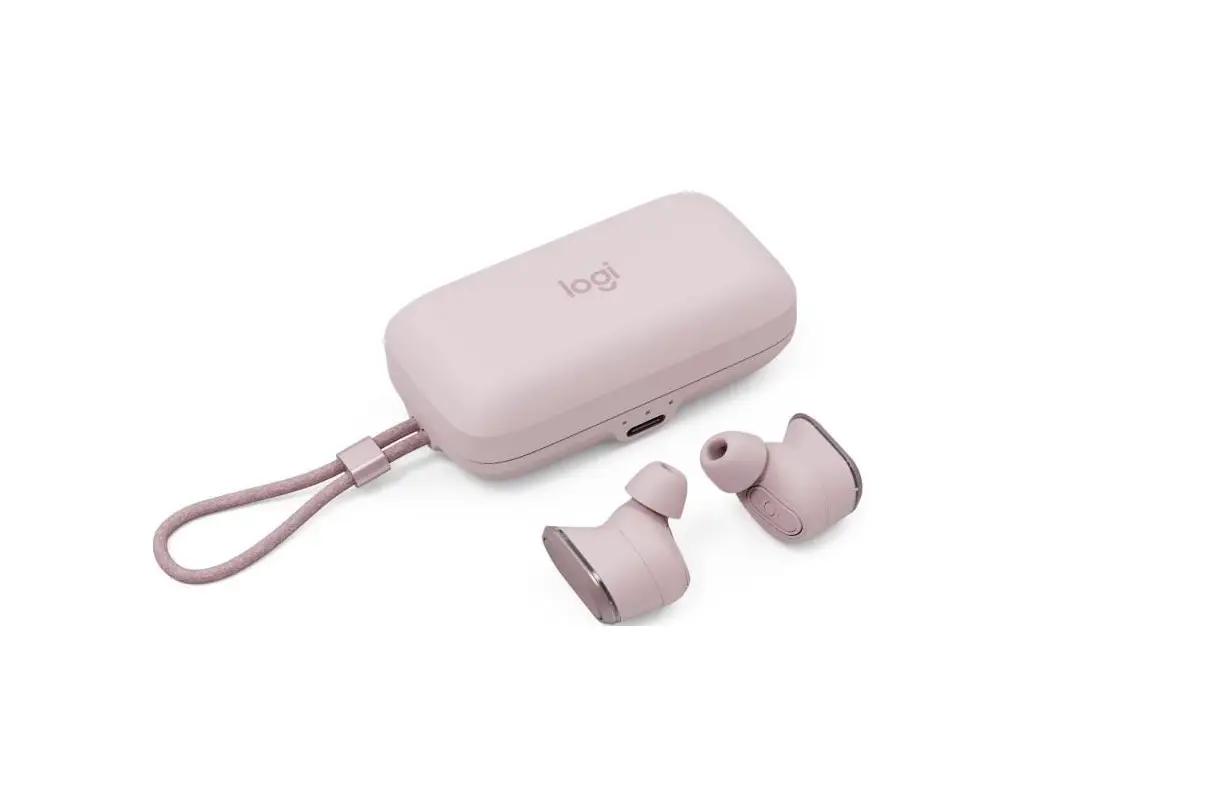
- Wired earbuds with M size eargels and 3.5mm connector
- In-line controller with USB-C connector
- USB-A adapter
- Travel bag
- Replaceable eargels (1 pair per XS/S/L size)
- User documentation
CONNECTING THE EARBUD
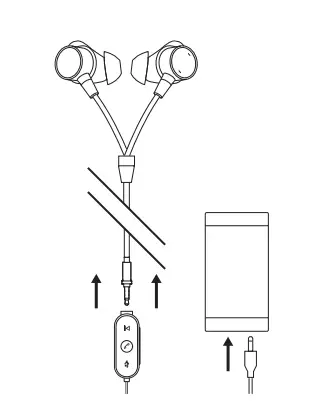
Connect via 3.5mm
- Unplug 3.5mm connector from the in-line controller.
- Plug the 3.5mm connector into your mobile or tablet 3.5mm port.
Note: Compatibility may depend on device models. Mic and audio quality will convert to analog with 3.5mm connector.
Connect via USB-C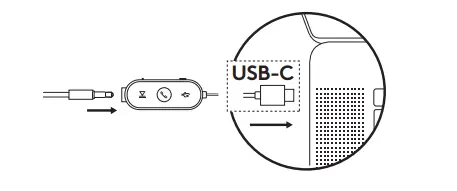
Plug the 3.5mm connector into the controller.* 2. Then plug the USB-C connector into your computer USB-C port.
Note: Compatibility may depend on device models.
Connect via USB-A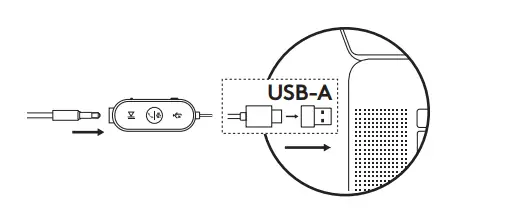
- Plug the 3.5mm connector to the controller.
- Plug the USB-C connector into the USB-A adapter.
- Plug the USB-A connector into your computer USB-A port.
Note: Only use the USB-A adapter with the provided earbuds.
* Make sure 3.5mm connector is fully inserted into the controller.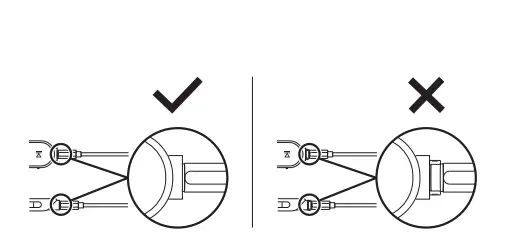
EARBUD FIT
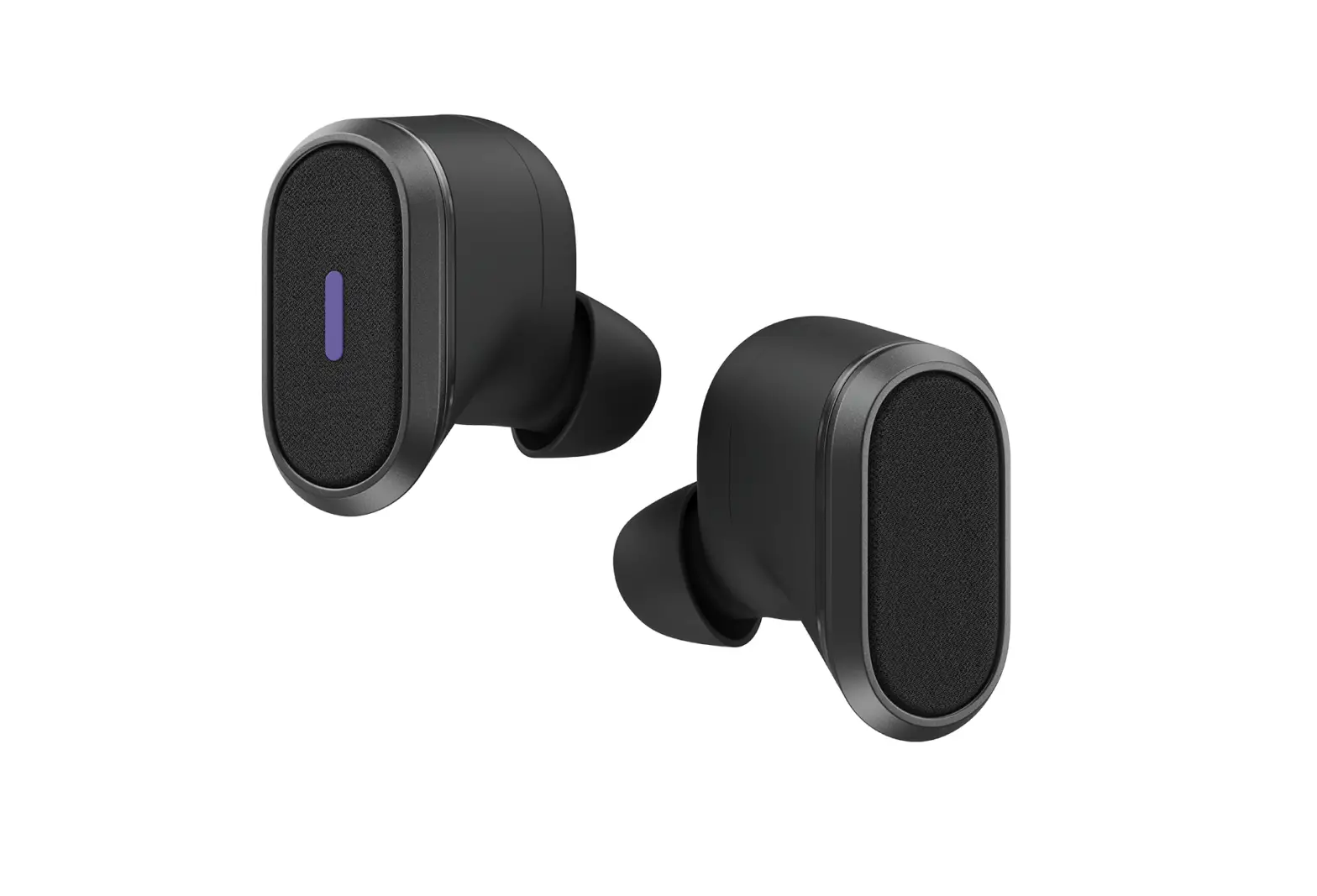
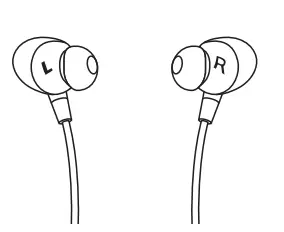
- Earbuds are marked ‘L’ and ‘R’ for the left and right ear. Earbuds are fitted with medium size eargels out of the box.

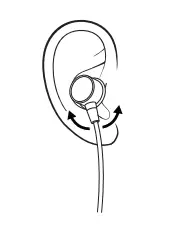
- Slightly move the earbud around to be securely positioned in your ear. If your earbuds are not comfortable, change to alternative sized eargels.
See next section for the replacement steps.
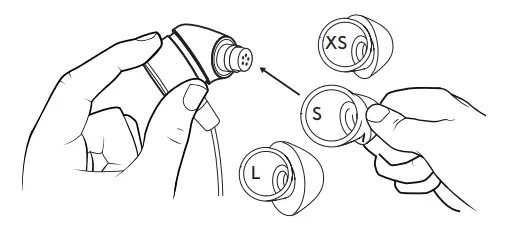
- Try a small size if you feel too much pressure on your ear, or large size if the earbuds are too loose.
- Note that you may use different sized eargels in each ear as your ears may not be the same size.

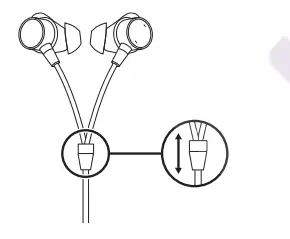
- Move the slider at the Y-joint up and down to adjust the cable length.

REPLACING THE EARGEL
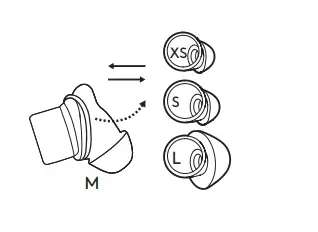
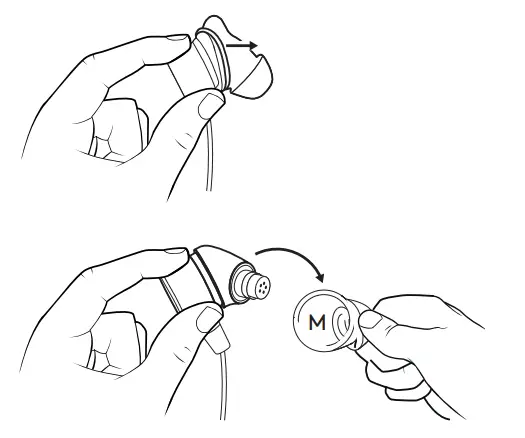
- Hold the body of the earbud with one hand.
- With the other hand, gently pull the whole eargelaway from the body of the earbud.

- Grab alternative sized eargels. Please find the size inside the eargel.

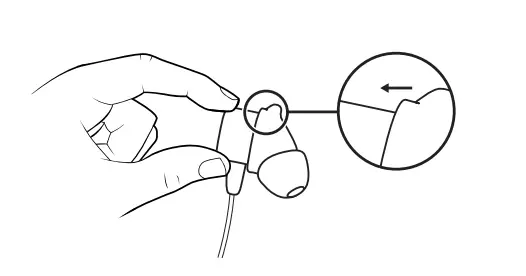
- Gently stretch the eargel onto the earbud, until there is no gap between eargel and body of the earbud.

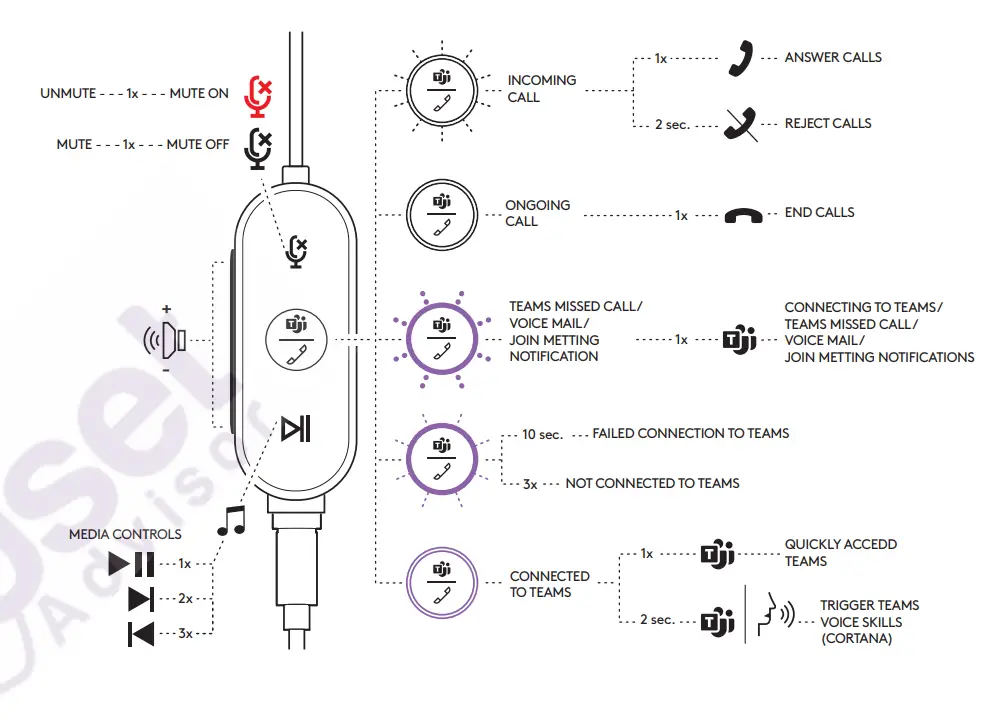
HEADSET IN-LINE CONTROLS AND INDICATOR LIGHT
| TEAMS version | ||||
| Button | Usage | Indicator Light | Action | |
|
Mute | Mute on | Solid RED |
Short press to mute / unmute | |
| Mute off | No light | |||
| Call Controls | Incoming calls | Flashing WHITE | Short press to answer calls | |
| 2 seconds press to reject calls | ||||
| Ongoing calls | Solid WHITE | Short press to end calls | ||
|
Teams Activities | Connecting to Teams | Pulsing PURPLE | Short press to check connection to Teams | |
| Failed connection to Teams | Flashing PURPLE for 10 secs then off | |||
| Not connected to Teams | Flashing PURPLE 3 times then off | |||
| Connected to Teams | Solid PURPLE | Short press to quickly access Teams | ||
| 2 seconds press to trigger Teams voice skills (Cortana) | ||||
| Teams Missed call / Voice mail / Join meeting notifications | Pulsing PURPLE | Short press to Respond to Teams notifications | ||
| Media Controls | No light | Short press to play / pause | ||
| Double press to track forward | ||||
| Triple press to track backward | ||||
| + | Volume | No light | Short press to volume up | |
| – | Short press to volume down | |||
Note: Teams activities are only functional when Teams is running on unlocked PC or Mac.