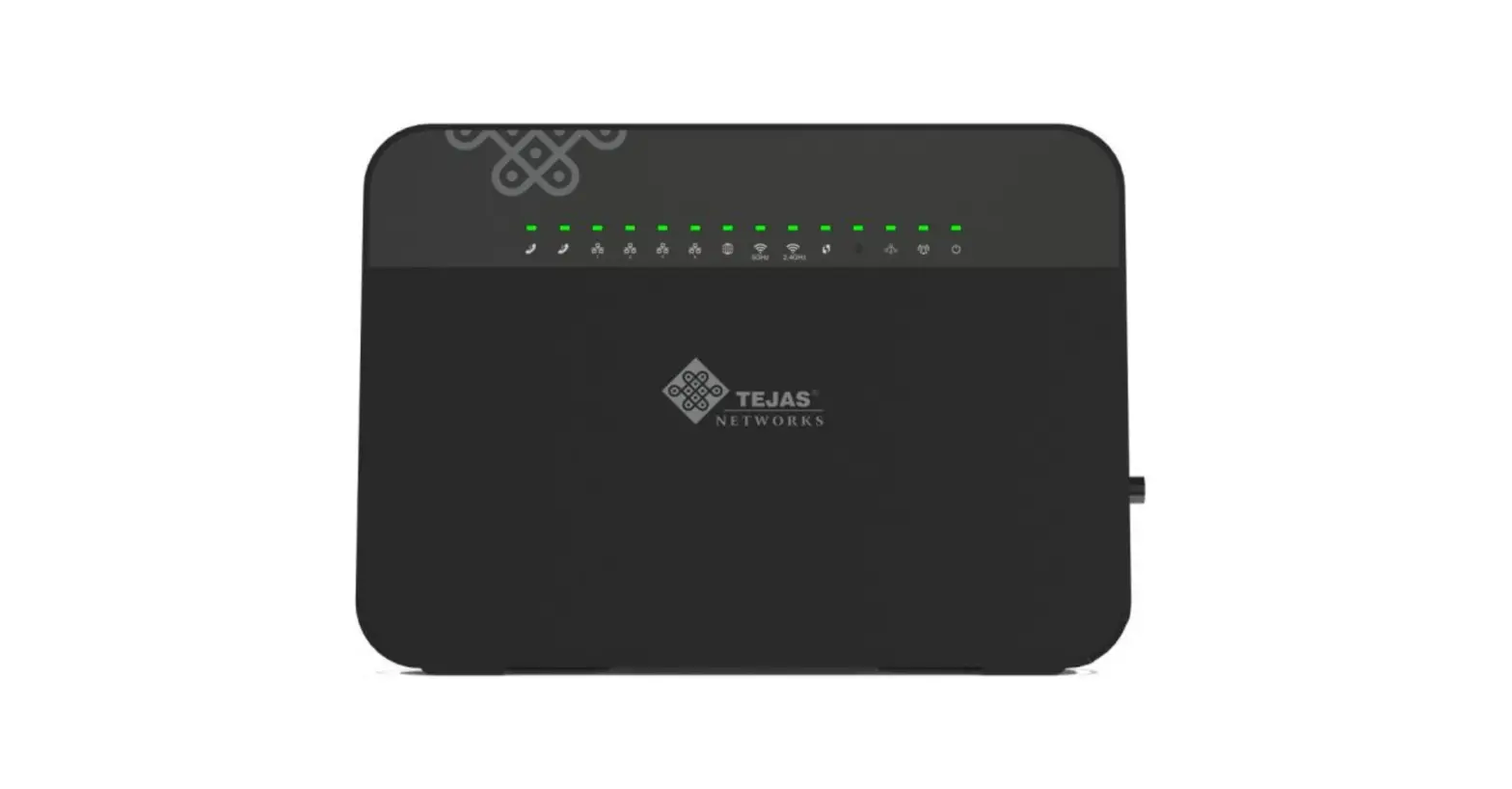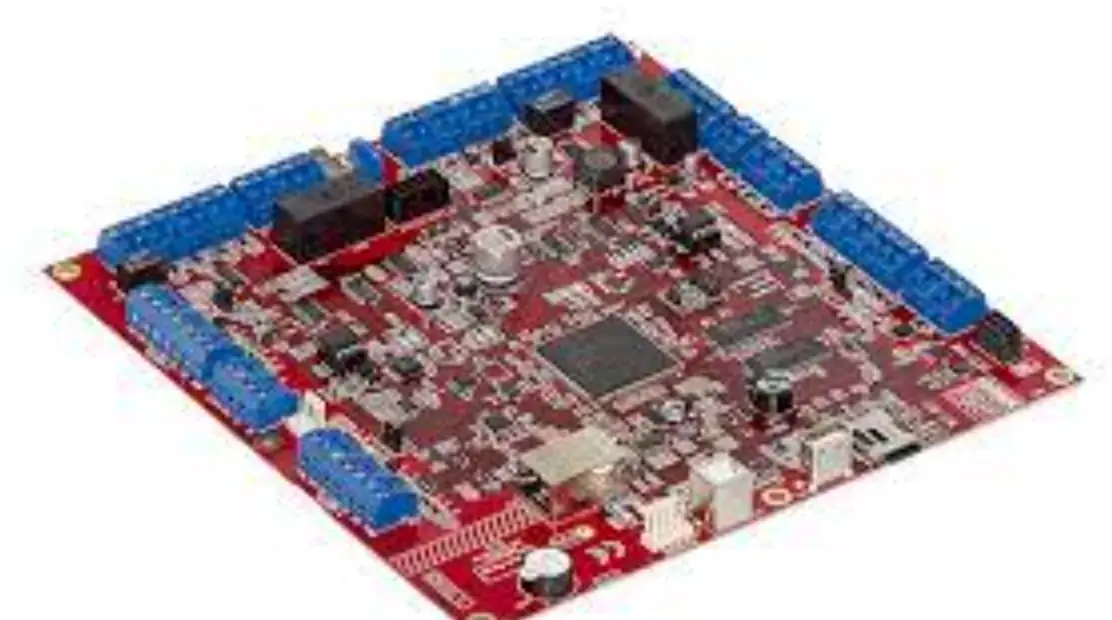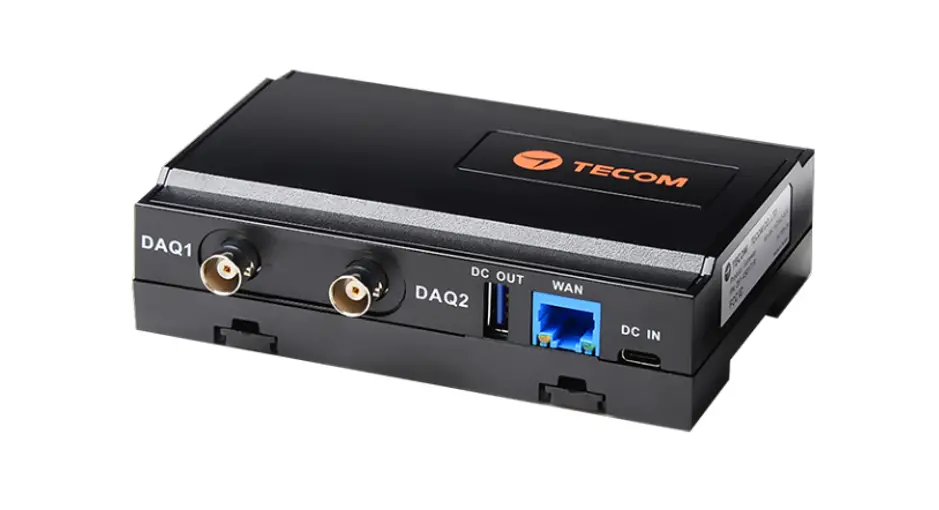
 AG-868 Kanban System
Installation Guide
AG-868 Kanban System
Kanban System (AG868 + VB168) Quick Installation Guide
AG-868 Settings
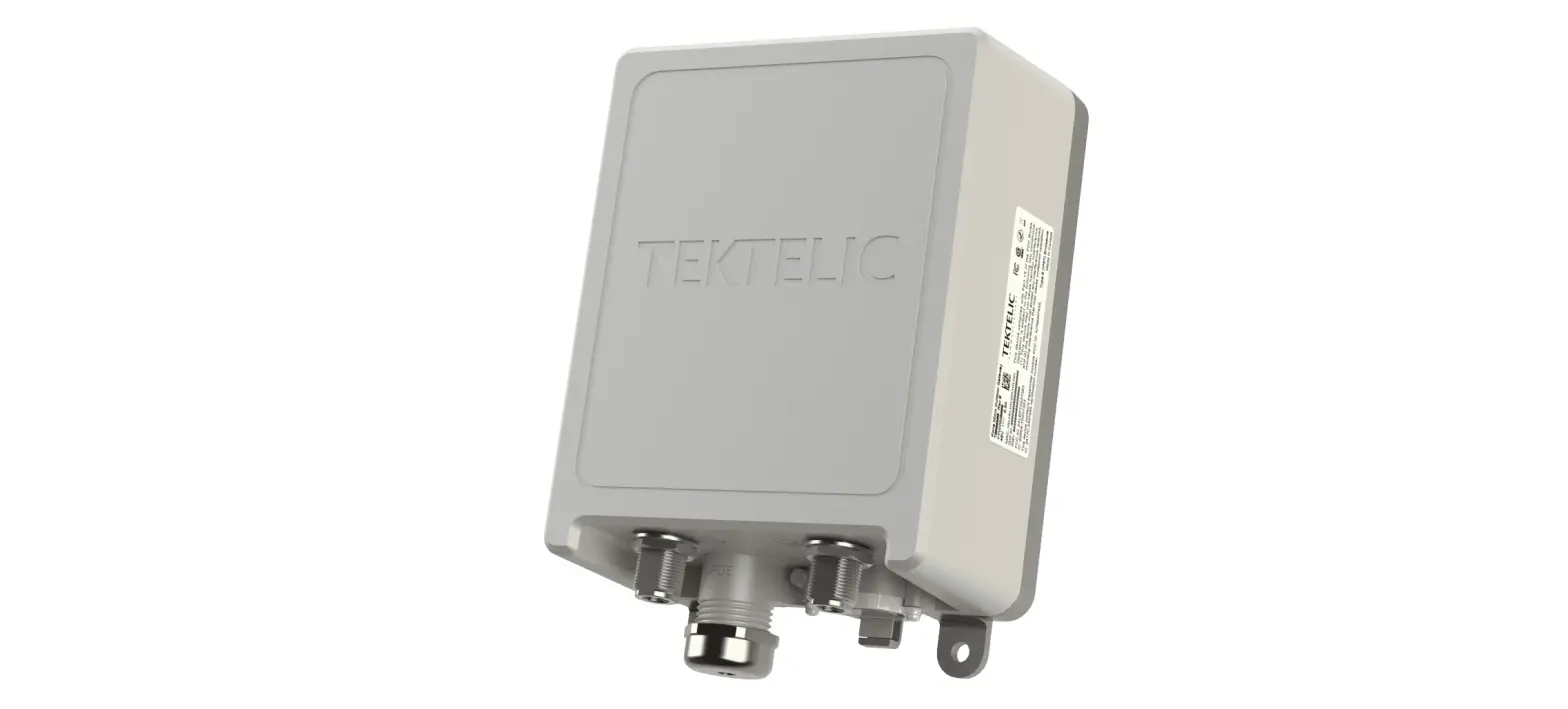
1. Use an Ethernet cable to connect PC/Notebook’s Ethernet port to AG868 LAN Port (Yellow color).
2. Open a browser and key in “192.168.168.10”, and key in “admin” for Username, “IP585xAdmin” for Password, then click “Sign in” to enter the management page of AG-868 Gateway.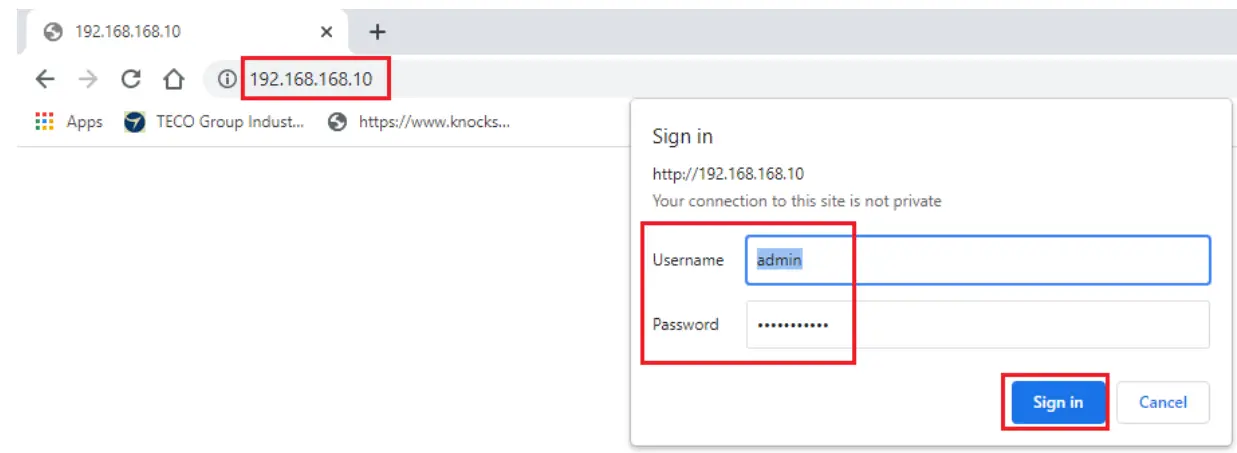 3. Setup the Motor and VB-168 Vibration Temperature Sensor
i. Click “Settings” → “RS485” → “Motor” → “Add” to enter Motor information page.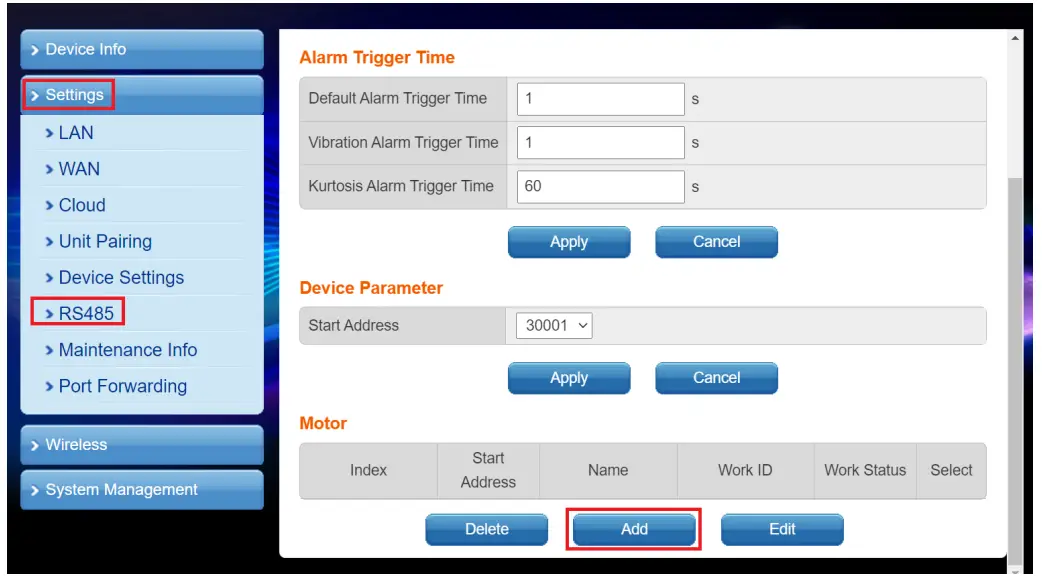 ii. Key in detailed Motor information as picture below.
 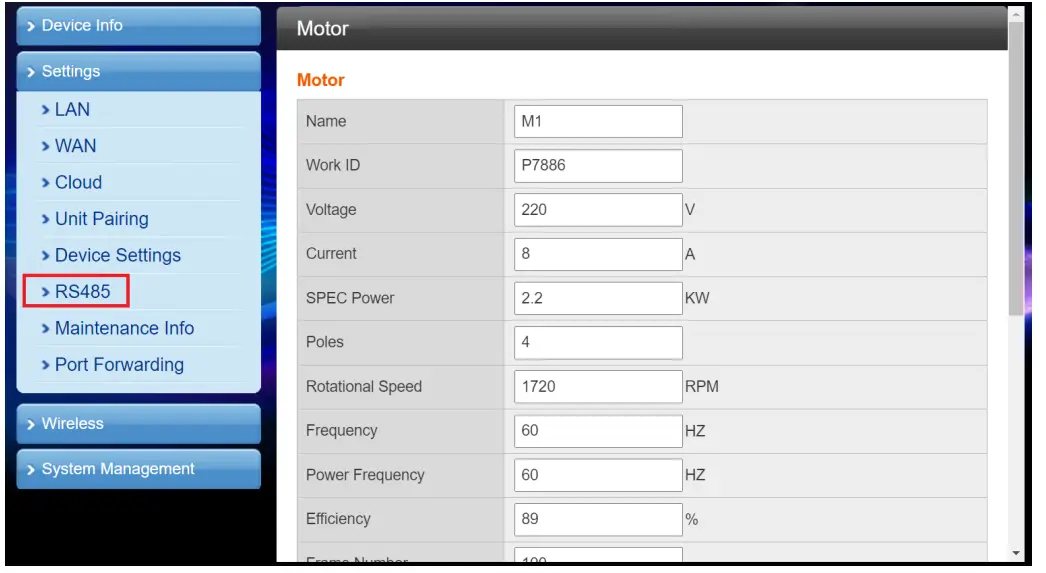 iii. Click “Save” to save this page after Motor information data is filled.
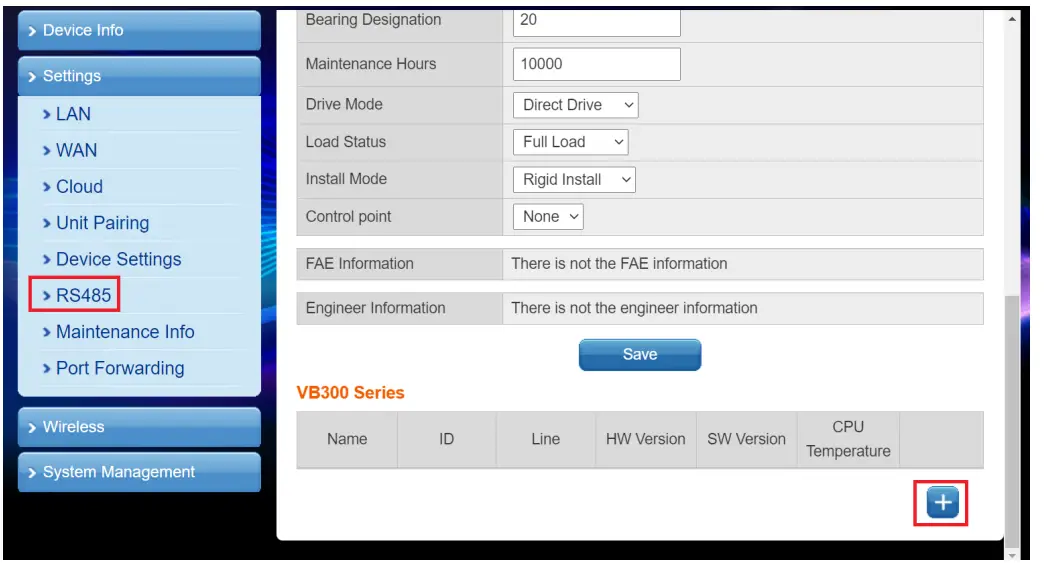
 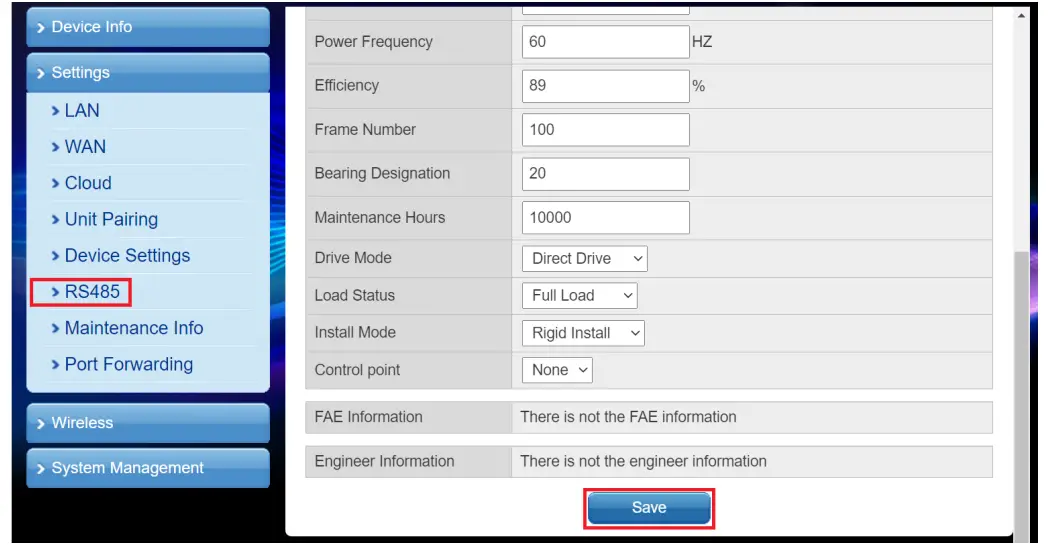 iv. Click “+” to add VB-168 Vibration and Temperature Sensor.
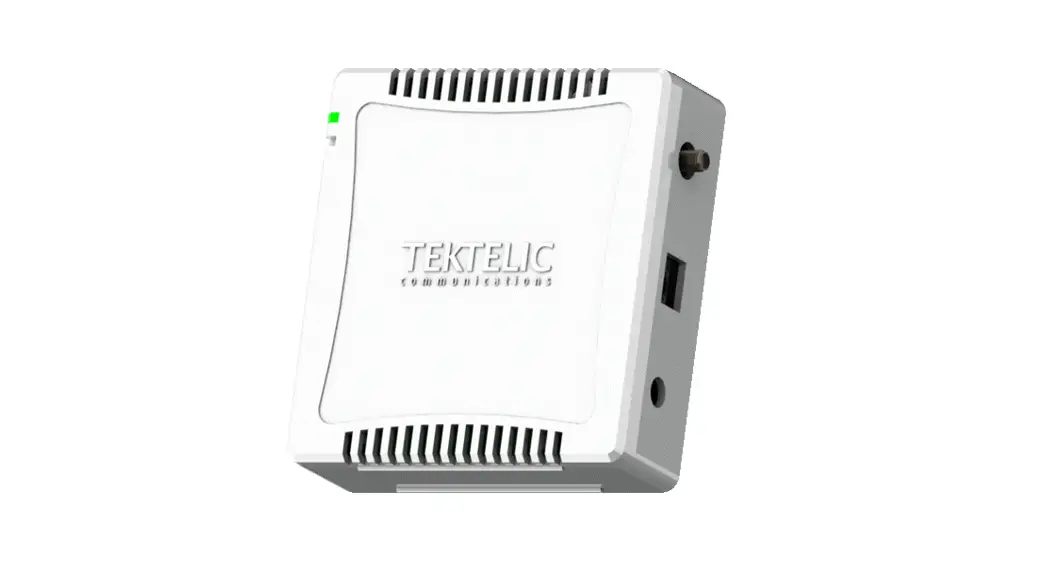
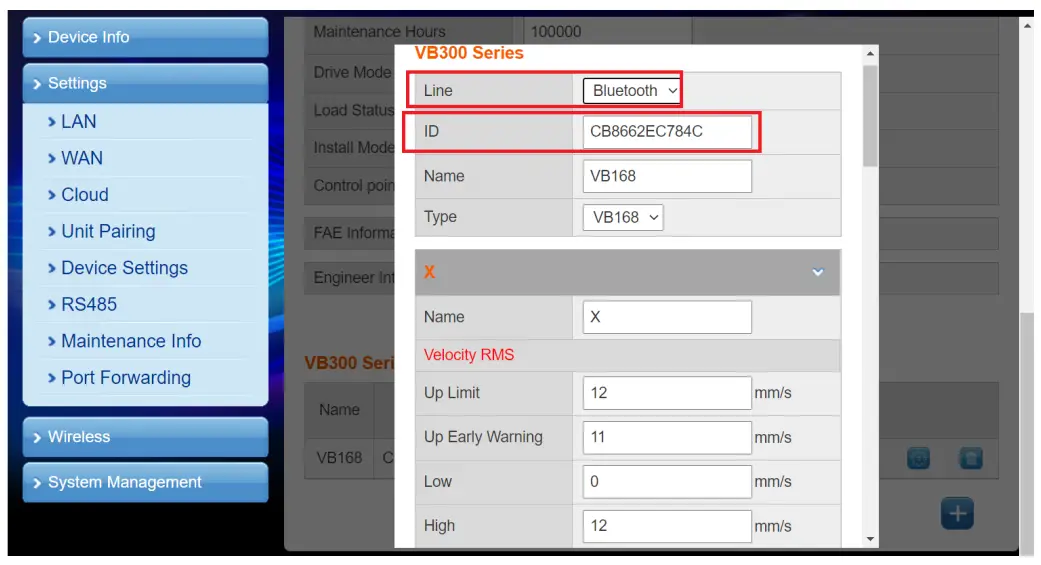
 v. Select “Bluetooth” for “Line” field, key in ID of VB-168. (The ID of VB-168 is on the side of the device.) Y-axis and Z-axis settings are the same as X-axis settings.
 vi. Key in parameters for Temperature and click ‘Save” as picture below.
 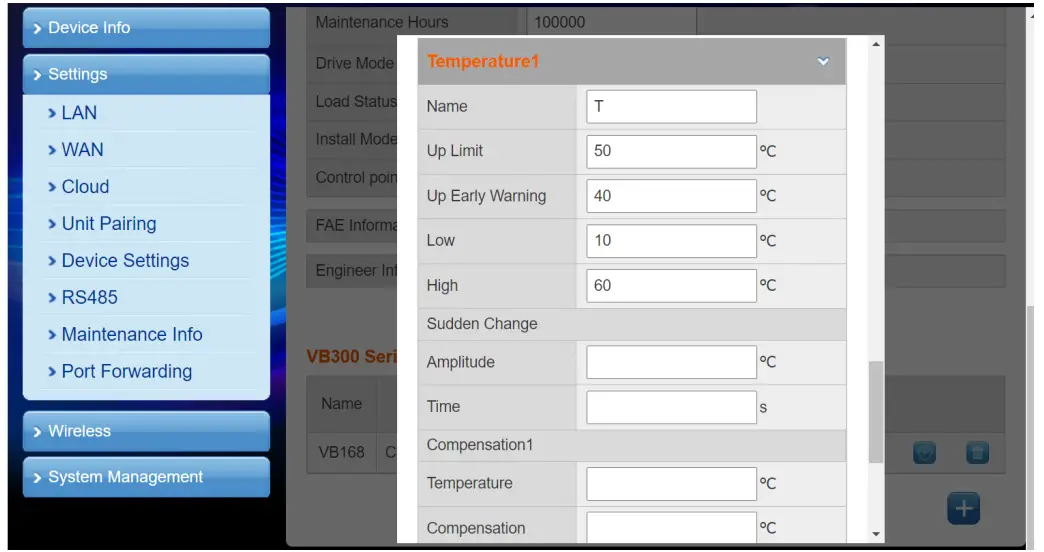 vii. Install battery into the VB-168 Vibration Temperature Sensor, and you will see the VB-168 Sensor is added in the list as picture below.
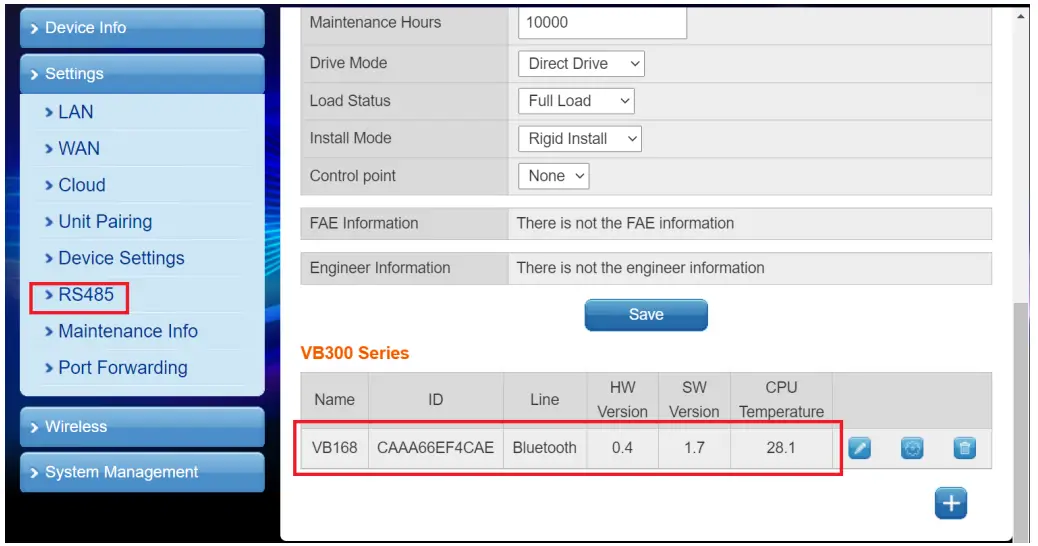 4. Connect with Smartphone APP
i. Click “Settings” → “Unit Pairing” → “Add” to pair a Smartphone.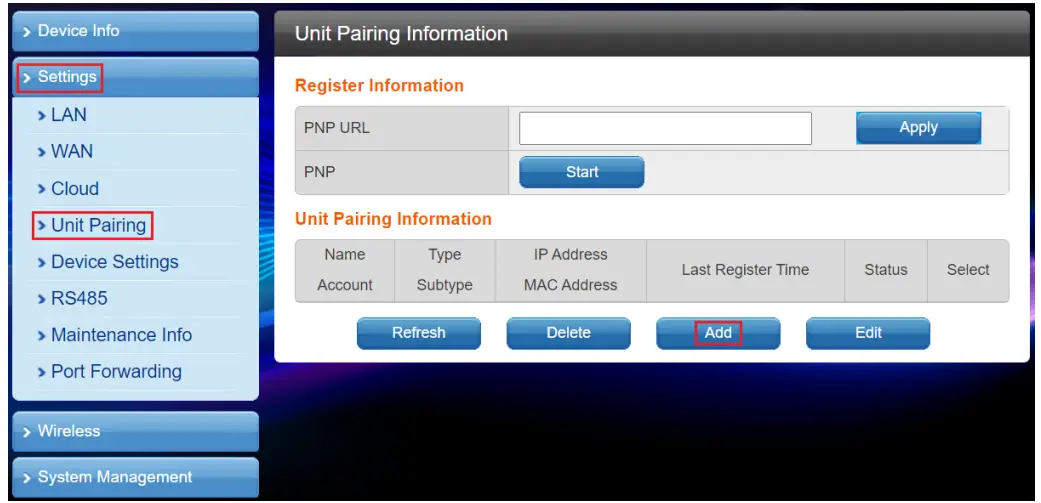 ii. Check the box at the Select field of the newly added device, and then click “Edit”.
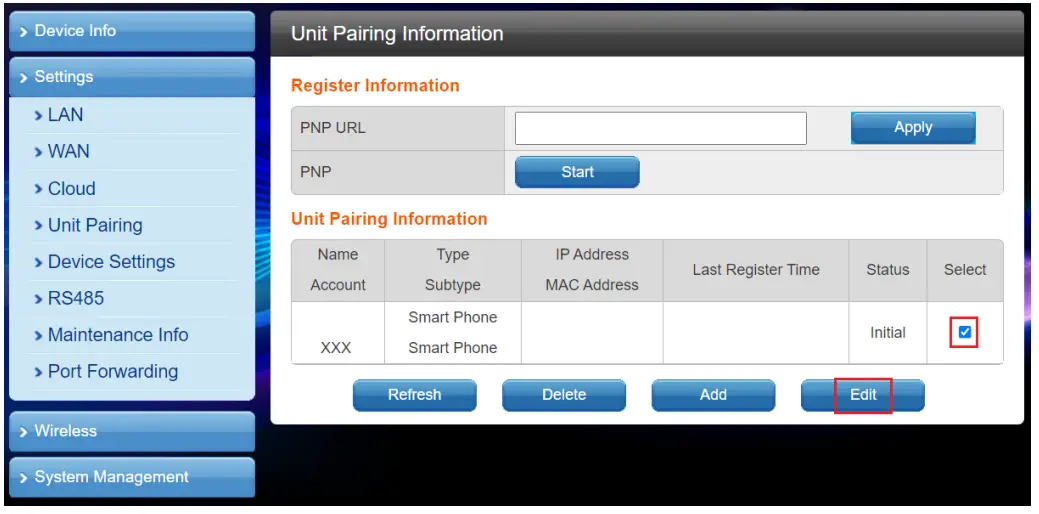 iii. Edit the Unit (smartphone) Information
○1 Name: User-selected name
○2 Type: Smart Phone
○3 Account: Assign an account in the range 100 ~ 119
○4 Password: Any three digits
Then click “Save”.
Note: When Smartphone APP registers with this AG-868 Gateway, the “Account” and “Password” set in the Smartphone APP need to be the same as the “Account” and
“Password” set here. iv. Click “Start Pairing”
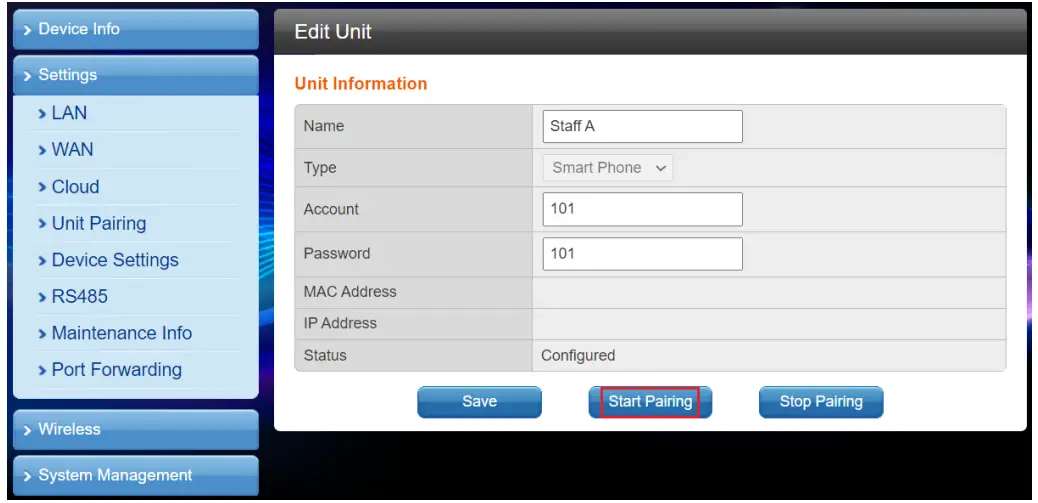 When the registration information from a Smartphone APP is consistent with the Unit Information of this item, the Smartphone APP would be registered with this AG-868 Gateway.
Install AG-868 TV APP (Tecom UPI) on TECO 50 inch Android TV (TL50U12TRE)
1. Android TV Specification requirement: Android system 5.0 or above.
2. Connect TV’s Wi-Fi to AG-868 Gateway’s Wi-Fi SSID : Tecom_XXXXXX, “XXXXXX” is the last 6 digits of MAC address. (MAC address is on the label which is on the side of AG-868 Gateway.)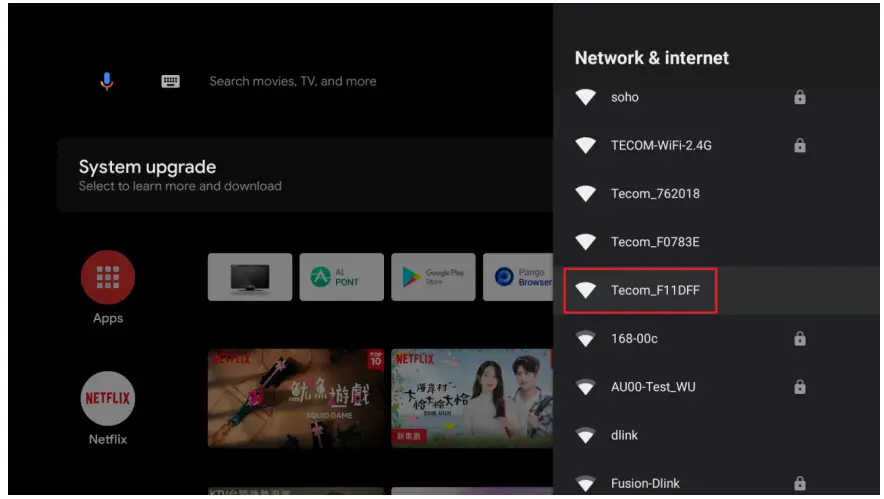 3. Insert AG-868 TV APP (Tecom UPI) software USB drive to the USB port of TV.
4. Open “Media Player” and enter USB drive, choose “IOM_AG868_V0.x_xxxxxx_TV.apk”.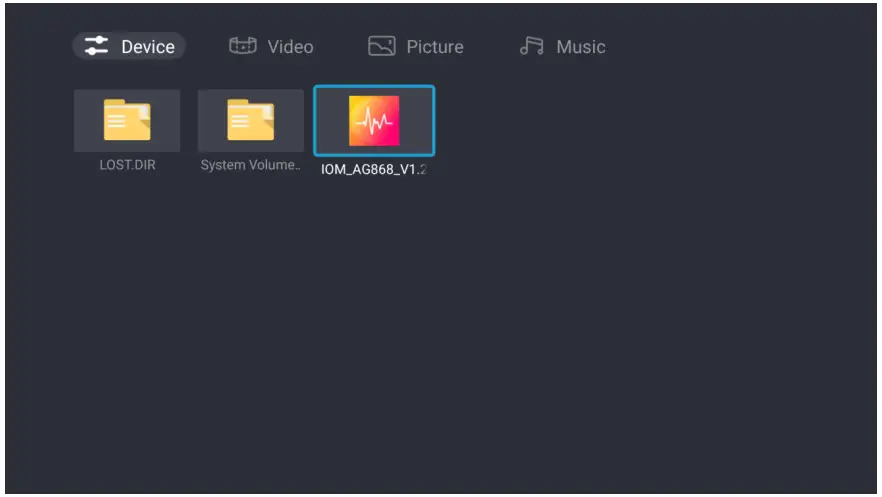 5. Choose “INSTALL” to install Tecom UPI APP.
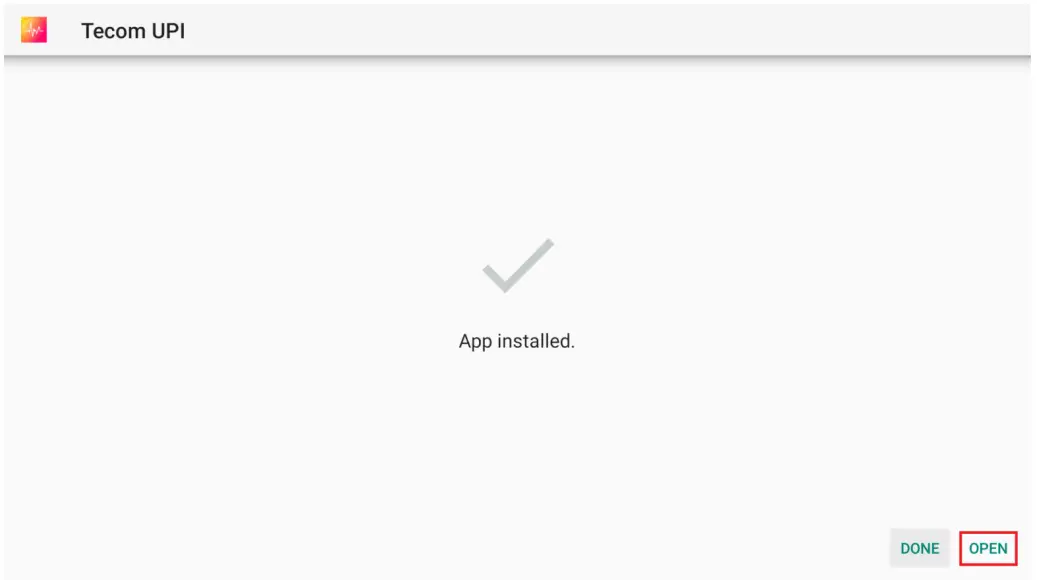
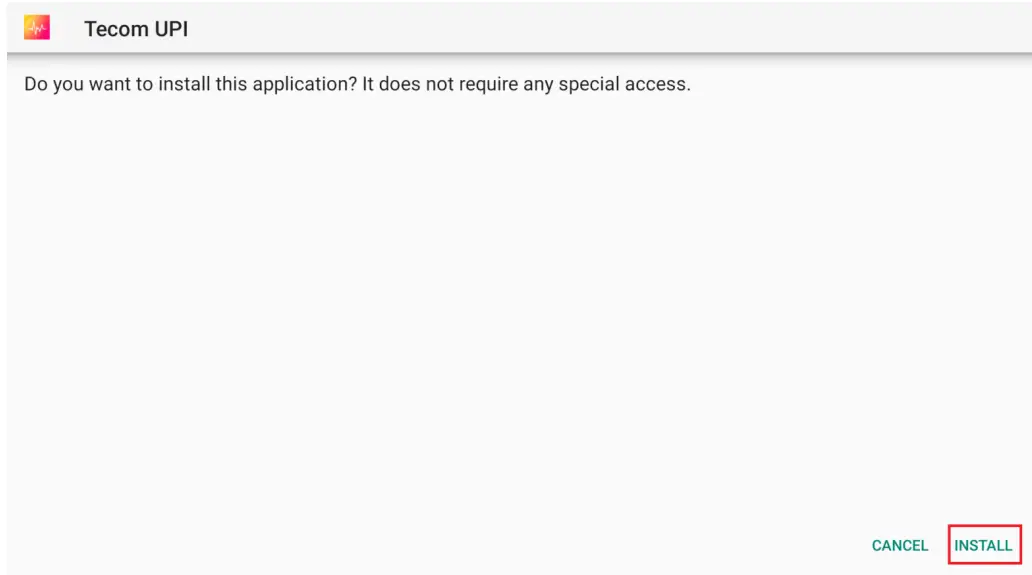 6. Choose “OPEN” to execute Tecom UPI APP.
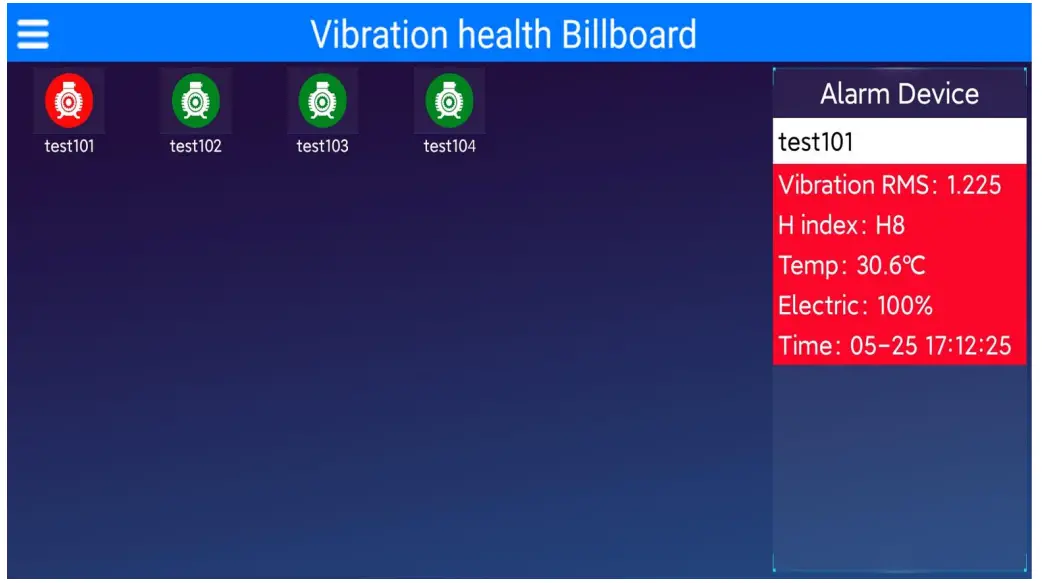
 7. After the Tecom UPI app is installed on the Android TV, the screen is as shown in the picture below. All VB-168 devices are displayed on the left of the TV homepage. 30
pieces of VB-168 can be assigned and programmed by an AG-868 Gateway. 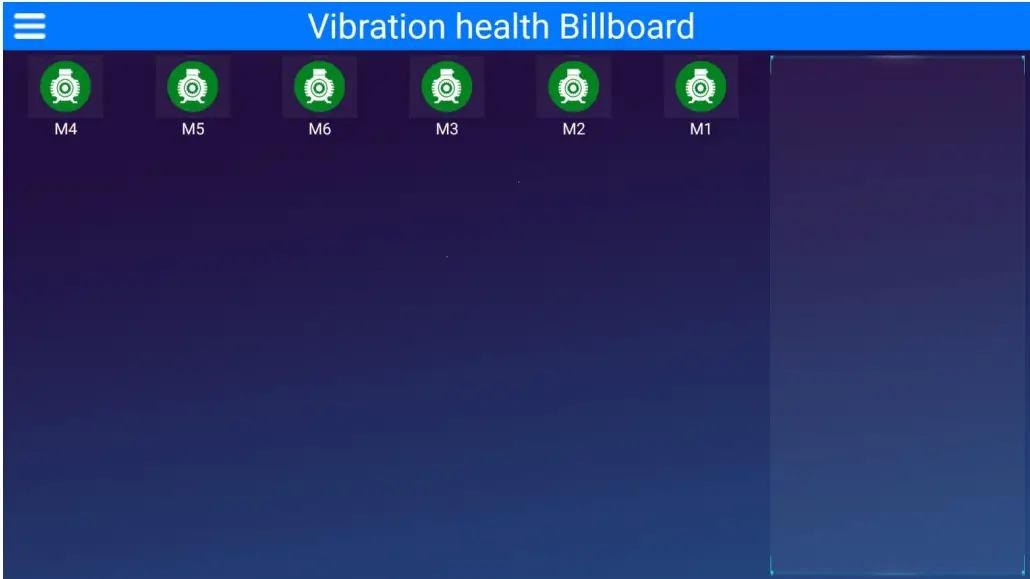
8. If there is an alarming VB-168, it will be moved forward. The vibration and temperature data measured by the VB-168 device that is alarming will be displayed on the right of the TV homepage. If there are multiple VB-168 devices that are alarming, it will be displayed in a scrolling manner.