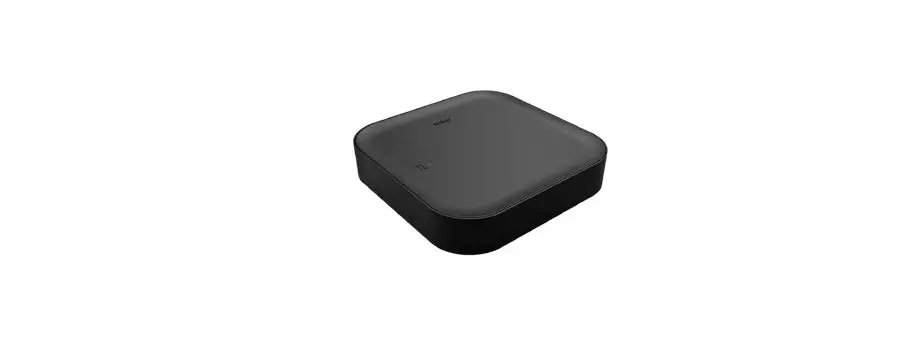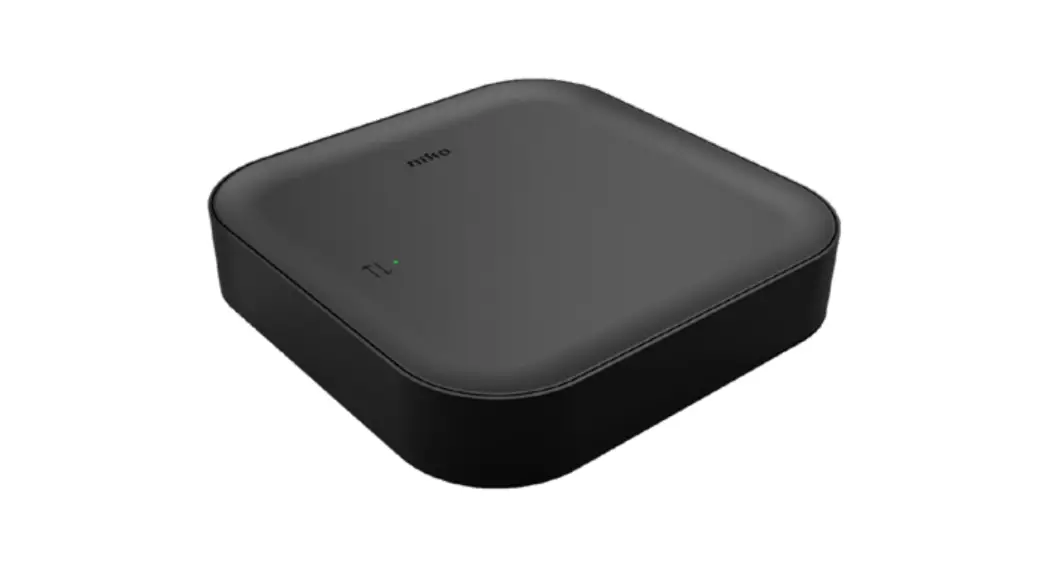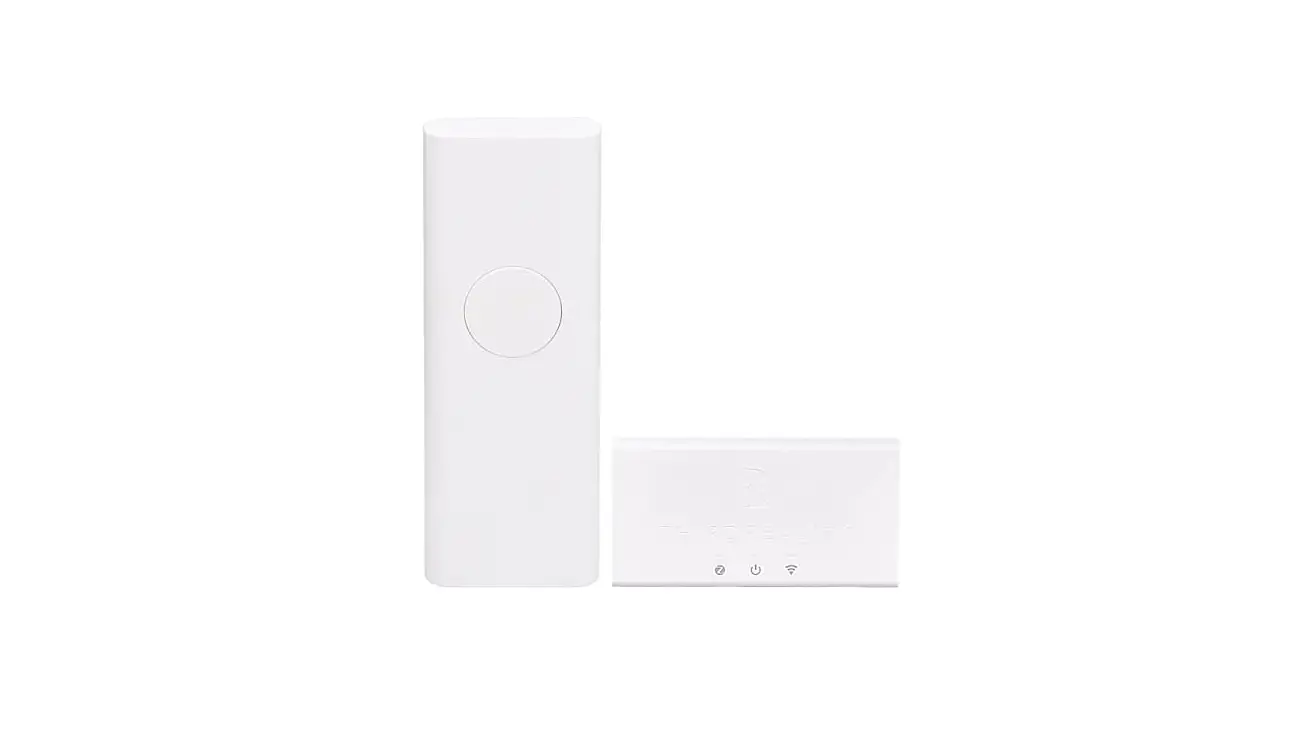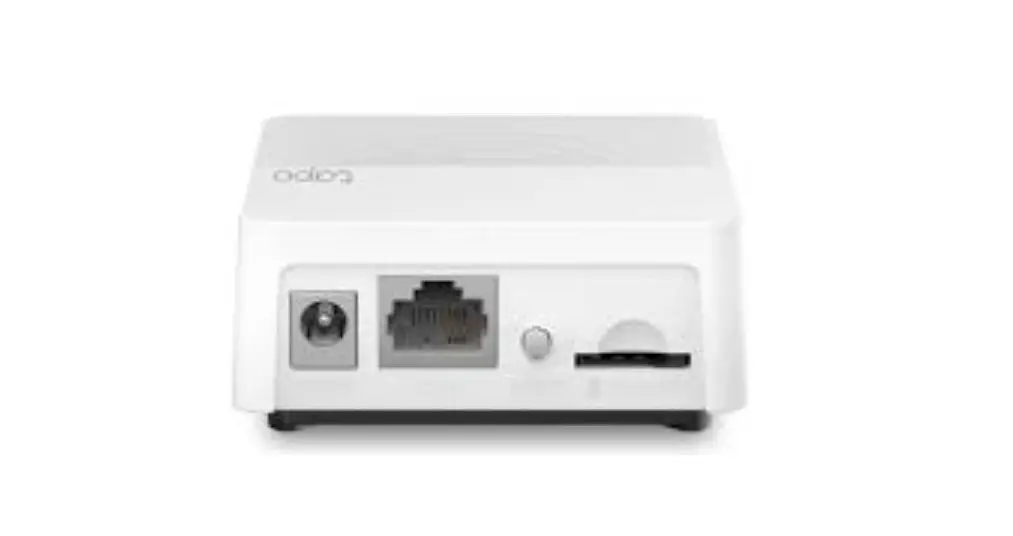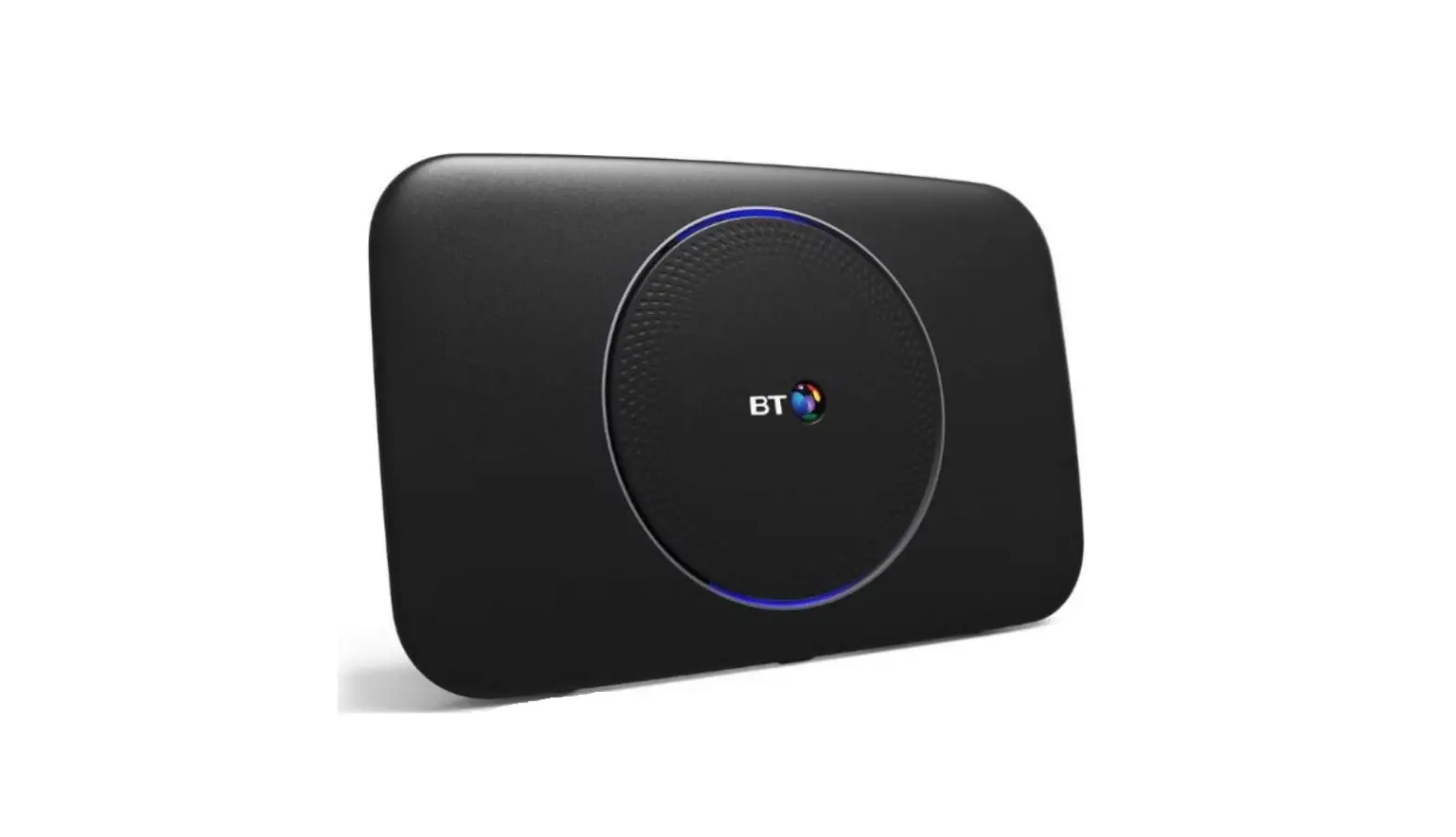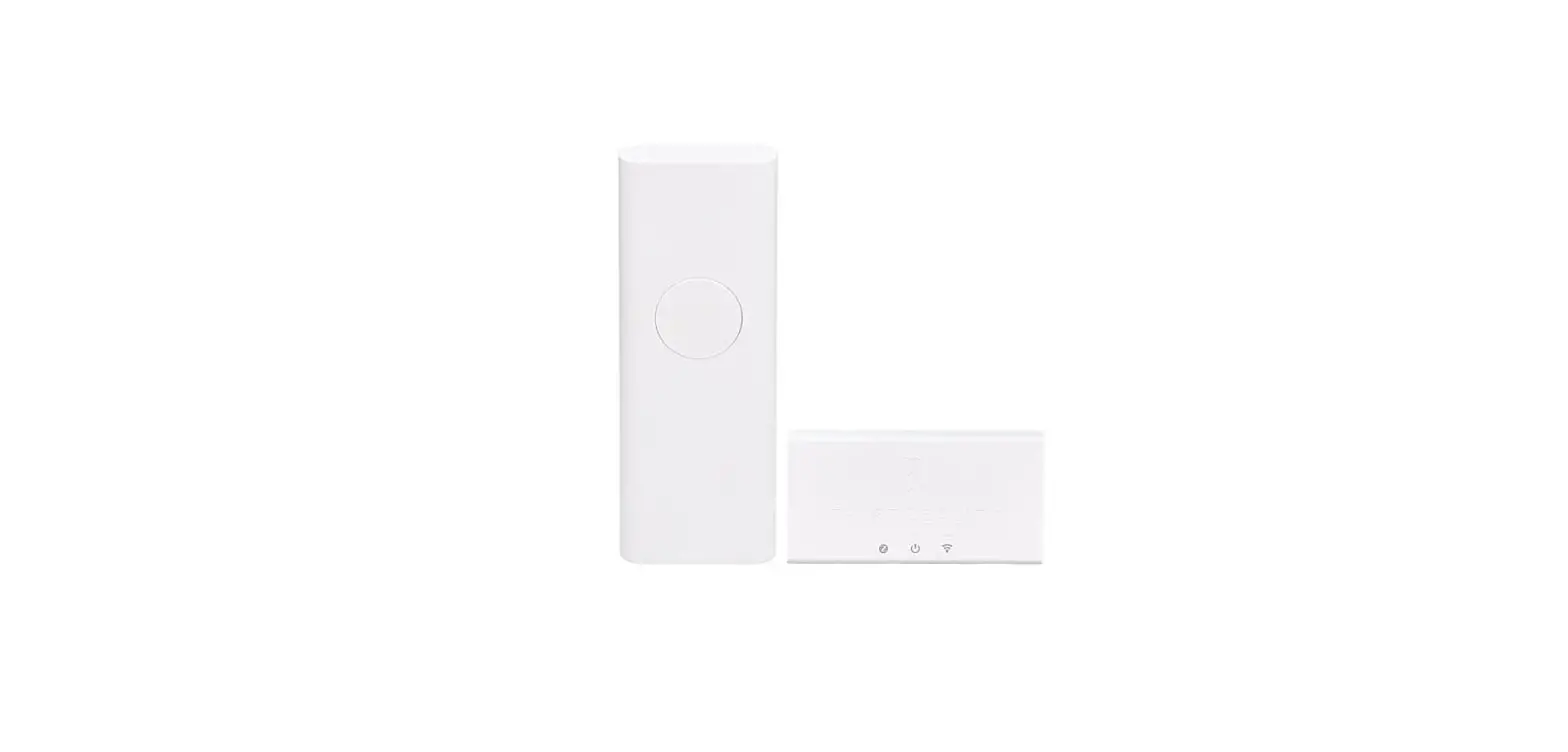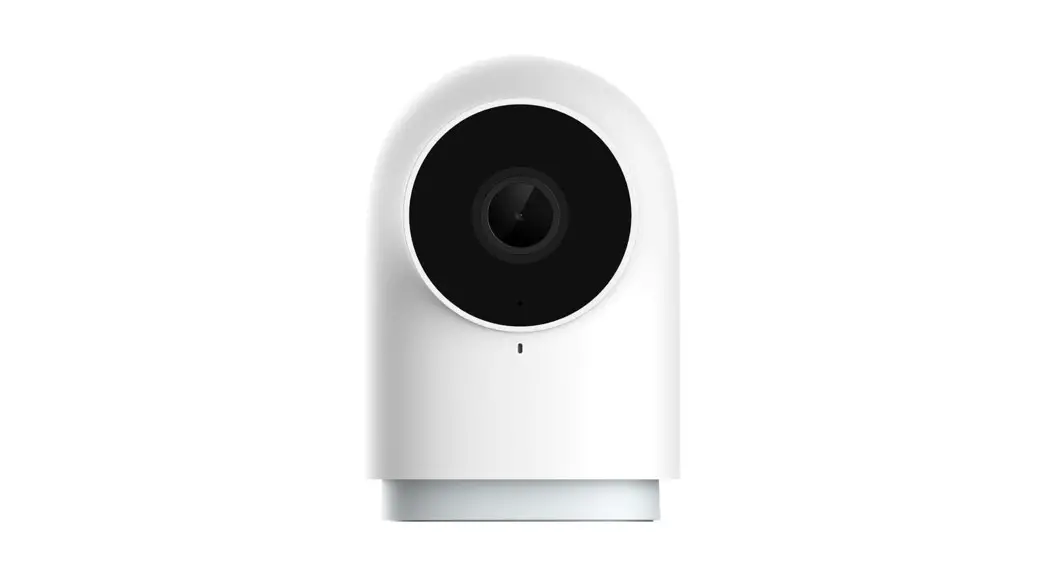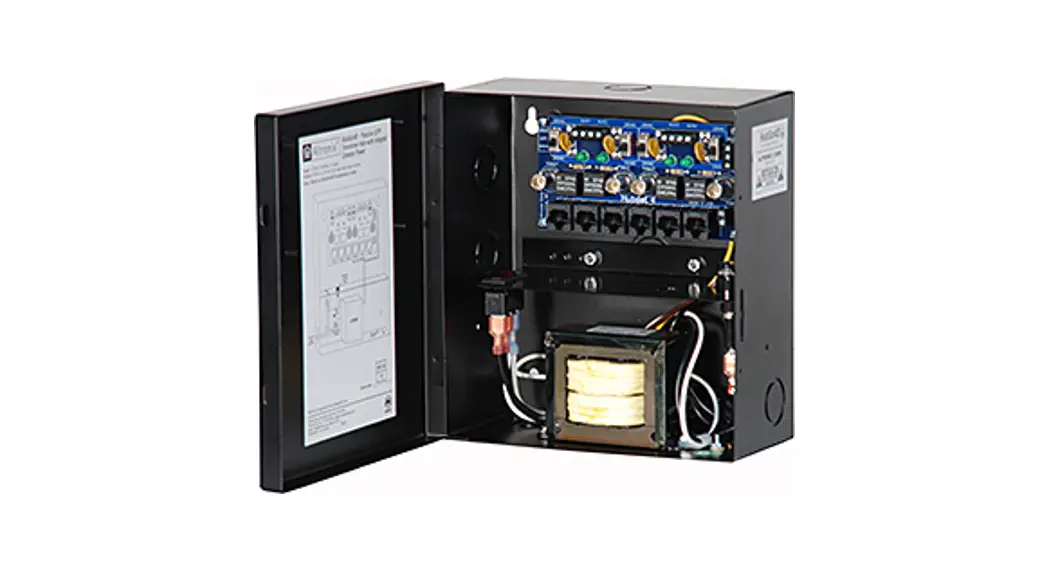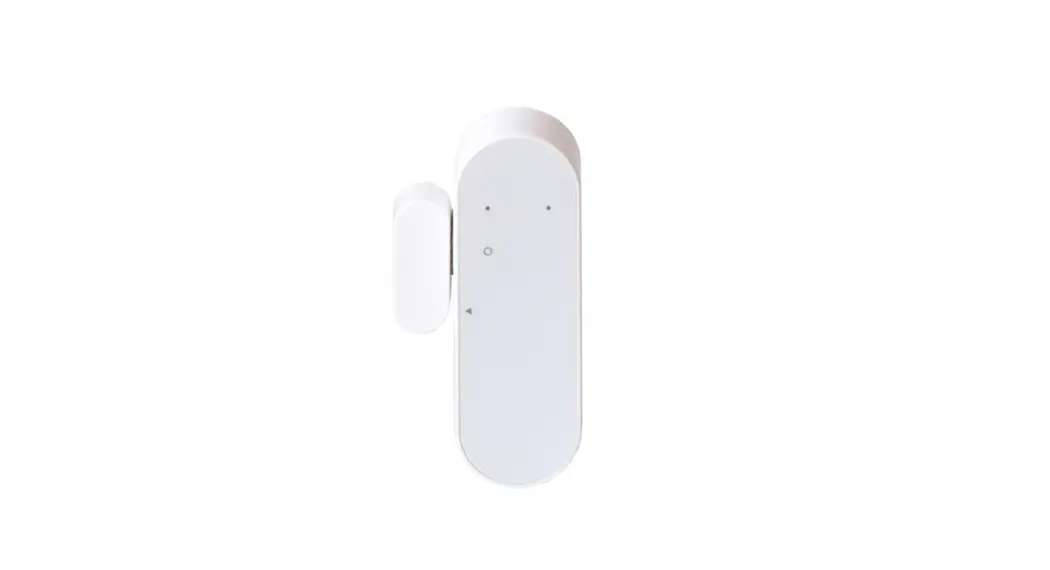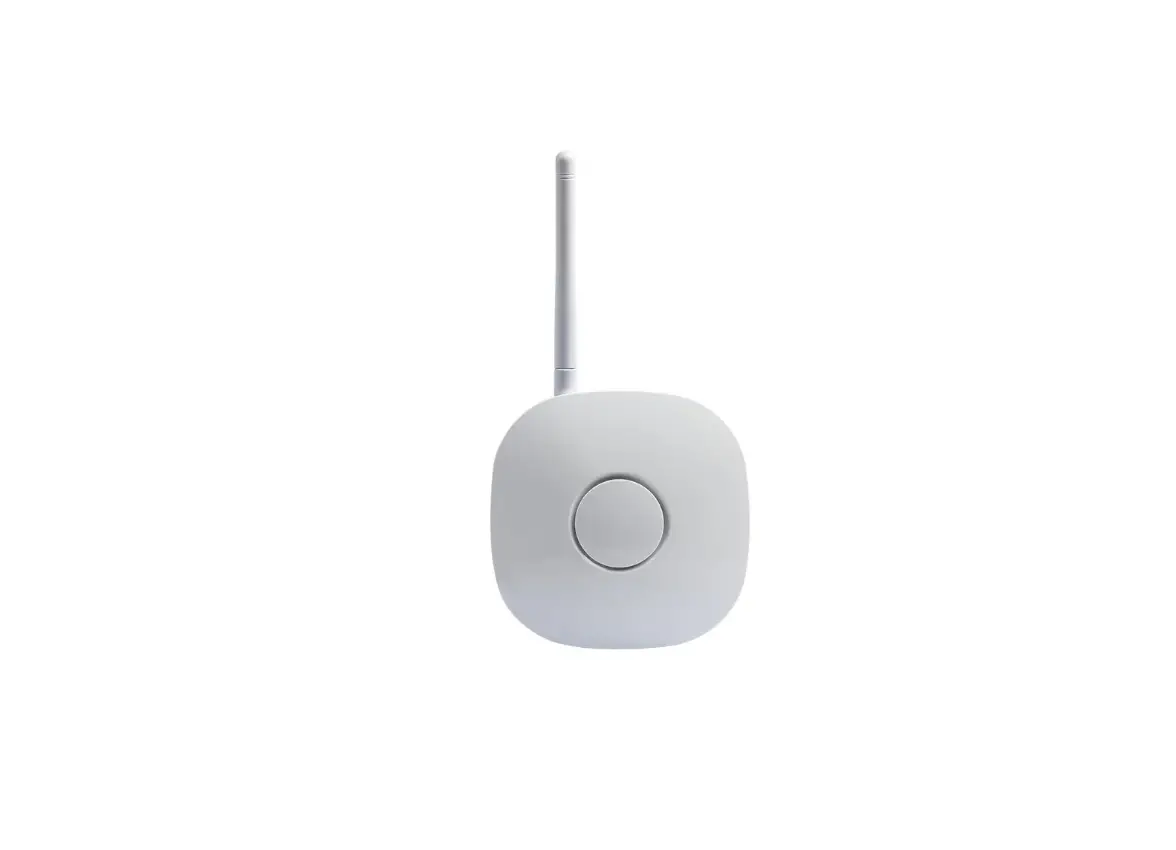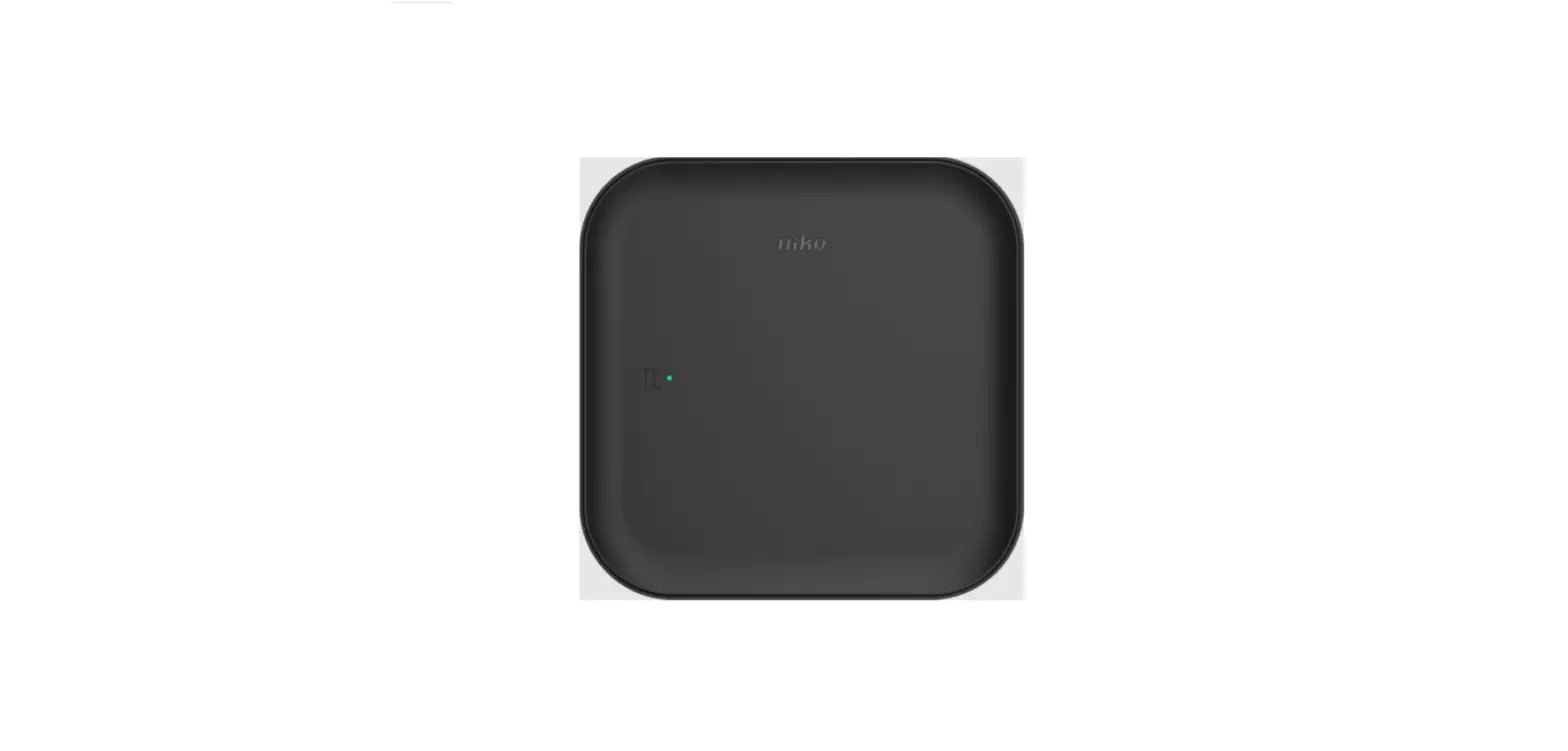

niko HGNHC2V2 Smart Hub
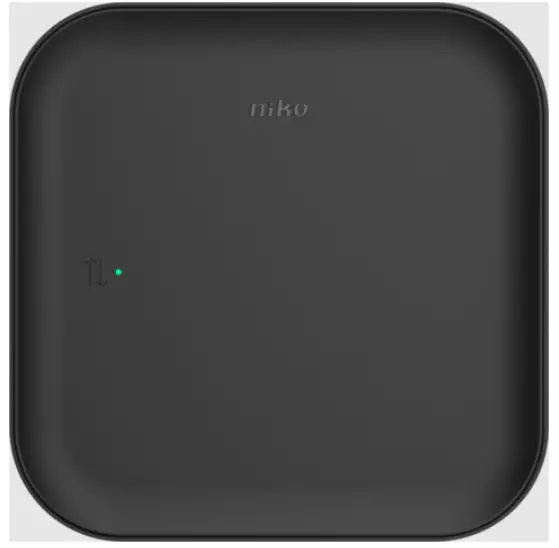
Installing the smart hub
Switch off the mains
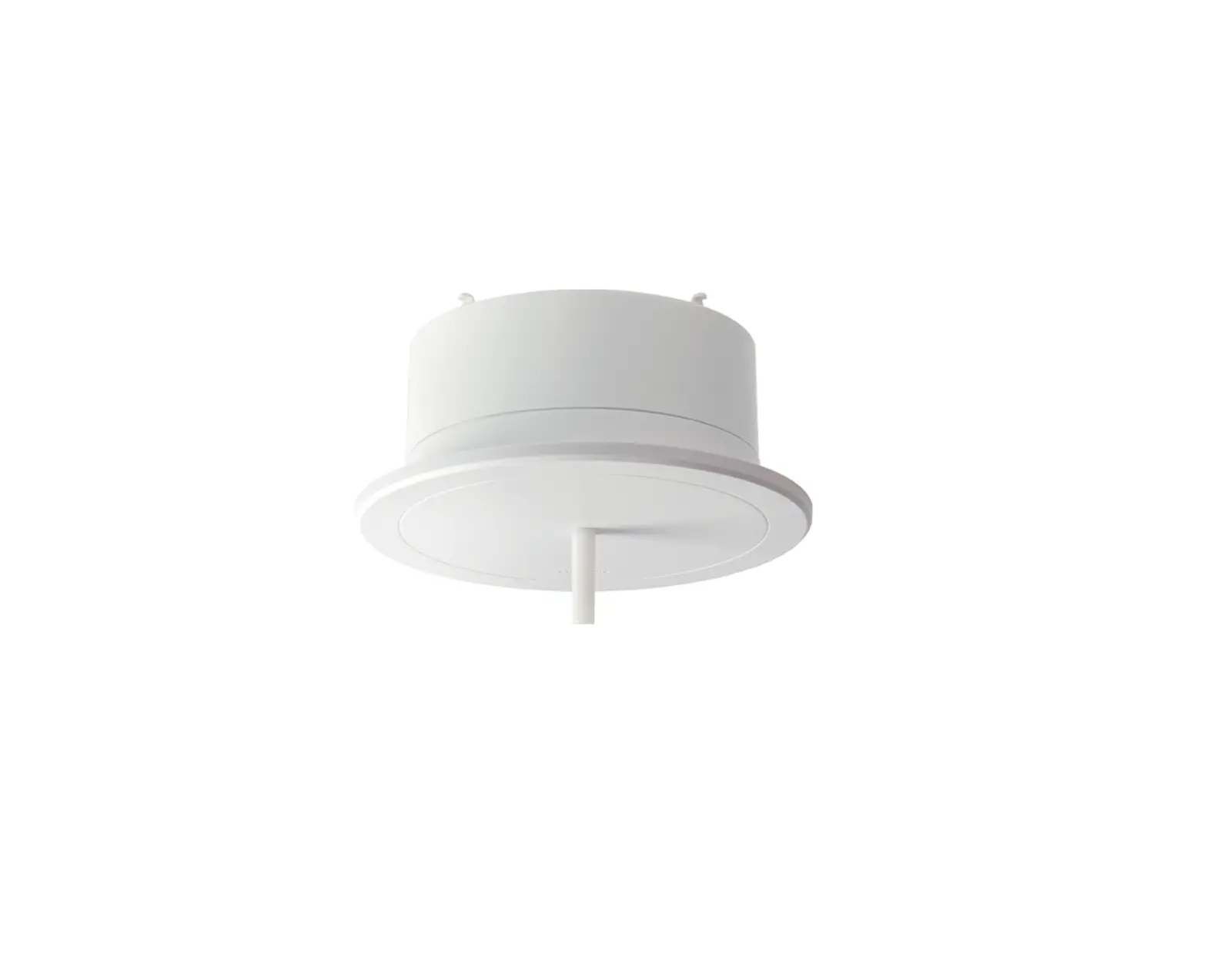
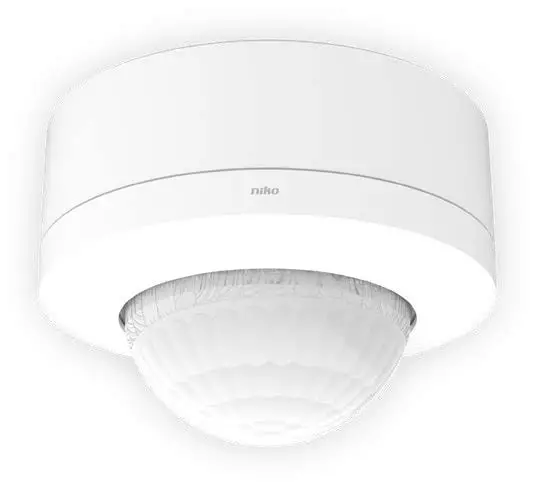
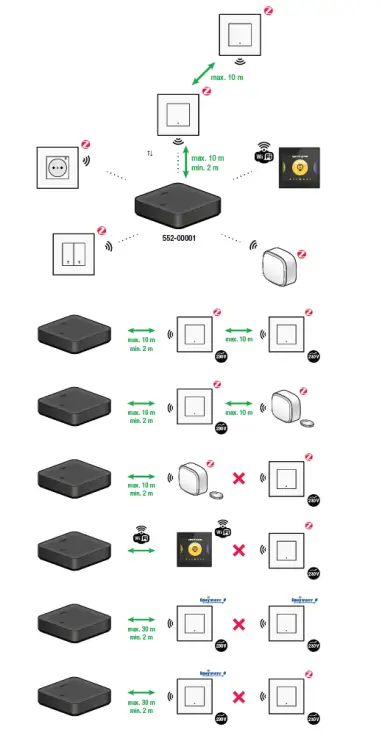
- Install all connected and/or wireless Niko devices

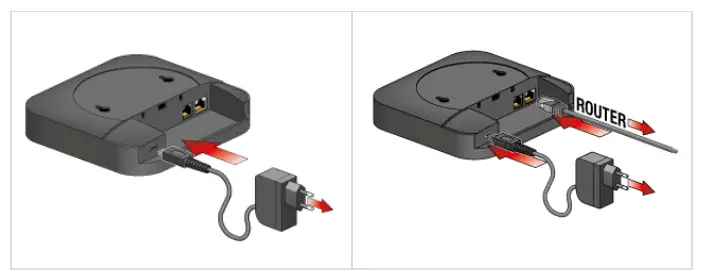
2 m * < see specifications of the specific Niko device - Connect the wireless smart hub via Wi-Fi or with a UTP cable.


- If you connected the smart hub via Wi-Fi, connect your mobile device to the following Wi-Fi network:
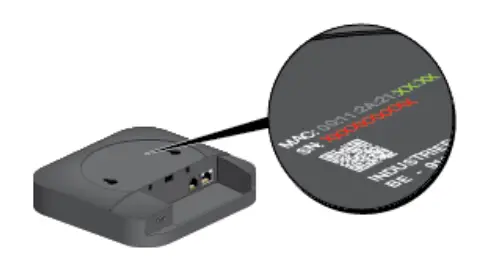
network name: “Niko” followed by the last 4 characters of the smart hub’s MAC address (XX:XX).
password: serial number of the smart hub (SN: XXXXXXXXXX).
Result: On mobile devices, the smart hub’s web portal opens automatically
- To set the smart hub’s network connection, proceed as follows:
- Open a web browser and go to the address: Nikoxxxx.local (xxxx = the last 4 characters of the smart hub’s MAC address ( XX:XX)).
On a mobile device, the smart hub’s web portal is already open. - Enter the password. The password is the smart hub’s serial number (SN:XXXXXXXXXX).
Result: An overview of all available wireless networks is shown. - Select your preferred network for the smart hub. (if applicable) Enter the password for this network.
Result: The smart hub connects to your own wireless network. The smart hub stops broadcasting its own Wi-Fi network.
- Open a web browser and go to the address: Nikoxxxx.local (xxxx = the last 4 characters of the smart hub’s MAC address ( XX:XX)).

Note: To make changes to the Wi-Fi configuration of the smart hub, restart the smart hub by cutting the power supply for a couple of minutes. The smart hub will then transmit its own Wi-Fi network again for 5 minutes