
BG-MFVS61-G2
6-input 3G-SDI / HDMI Video Mixer and
Production Switcher with Integrated Capture
USING THE UNIT SAFELY
Before using this unit, please read below warnings and precautions which provide important information concerning the proper operation of the unit. Besides, to assure that you have gained a good grasp of every feature of your new unit, read the below manual. This manual should be saved and kept on hand for further convenient reference.
Warning and Cautions
- To avoid falling or damage, please do not place this unit on an unstable cart, stand, or table.
- Operate the unit only on the specified supply voltage.
- Disconnect power cord by connector only. Do not pull on the cable portion.
- Do not place or drop heavy or sharp-edged objects on the power cord. A damaged cord can cause fire or electrical shock hazards. Regularly check the power cord for excessive wear or damage to avoid possible fire / electrical hazards.
- Ensure the unit is properly grounded at all times to prevent an electrical shock hazard.
- Do not operate the unit in hazardous or potentially explosive atmospheres. Doing so could result in fire, explosion, or other dangerous results.
- Do not use this unit in or near water.
- Do not allow liquids, metal pieces, or other foreign materials to enter the unit.
- Handle with care to avoid shocks in transit. Shocks may cause malfunction. When you need to transport the unit, use the original packing materials or alternate adequate packing.
- Do not remove covers, panels, casing, or access circuitry with power applied to the unit! Turn the power off and disconnect the power cord prior to removal. Internal servicing/adjustment of a unit should only be performed by qualified personnel.
- Turn off the unit if an abnormality or malfunction occurs. Disconnect everything before moving the unit.
Note: due to constant effort to improve products and product features, specifications may change without notice.
BRIEF INTRODUCTION
Overview
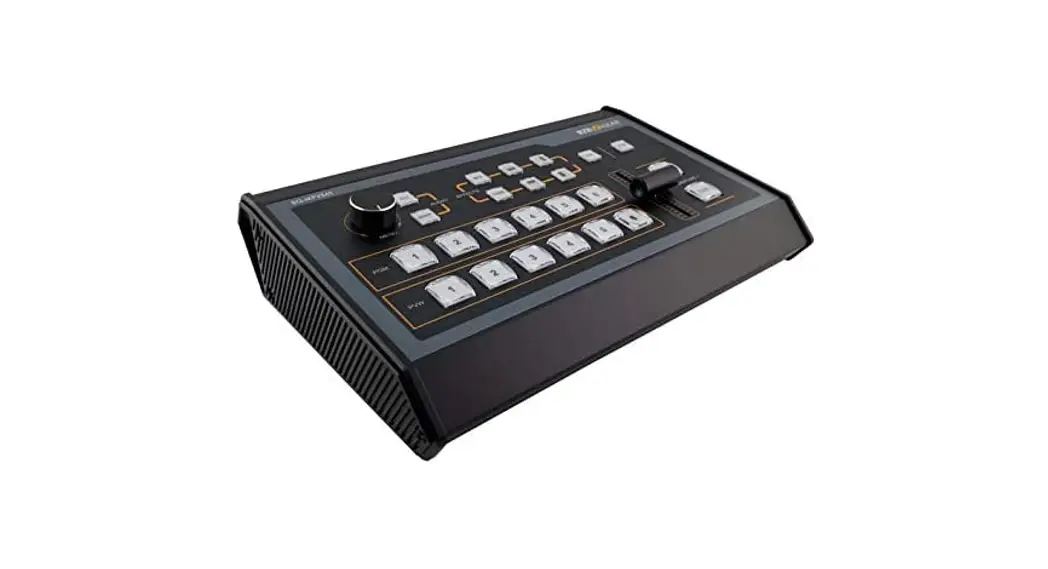
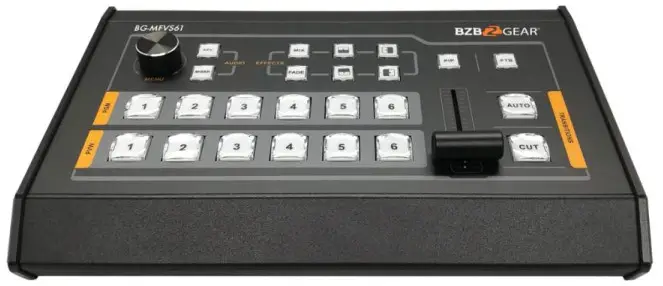
The BG-MFVS61-G2 is a compact 6-channel SDI/HDMI multi-format video switcher that allows video switching, audio mixing, and different transition effects. The inclusion of a USB 3.0 video output allows direct connection to a PC or Mac for streaming directly to platforms like YouTube and Facebook. Featuring 4 SDI inputs, 2 HDMI inputs, 2 scalable SDI outputs, and 1 scalable HDMI output this versatile unit is equipped to handle nearly any combination of equipment you can find. This cost-effective video switcher will be your perfect choice for various events production applications etc
Main Features
- 6 channel inputs:4×SDI & 2×HDMI inputs
- 1×USB type-C output, 2×SDI & 1×HDMI PGM outputs, 1×SDI & 1×HDMI multiview outputs
- Uncompressed capture for live streaming, compatible with UVC & UAC
- 1×SDI AUX output can be selected as PGM or PVW
- Multi-format support, input format auto-detected, and PGM outputs selectable
- T-Bar/ AUTO/ CUT transitions
- Mix/ Fade/ Wipe transition effects
- PIP mode size and position adjustable
- Support audio MIXING and AFV mode
- GPIO for Tally, FTB for emergency
CONNECTIONS
Rear Panel
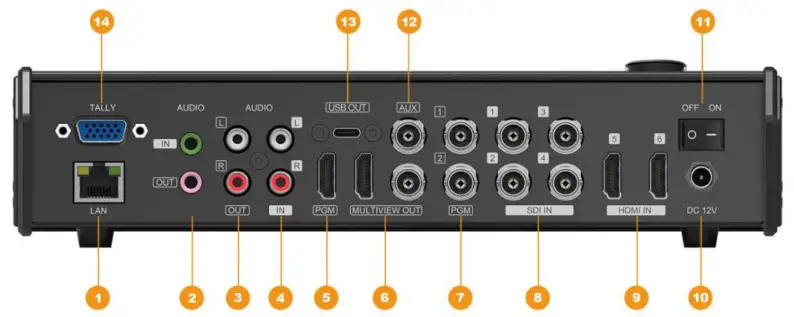
| 1 | LAN (for update) |
| 2 | 3.5mm AUDIO IN/ OUT |
| 3 | AUDIO OUT |
| 4 | AUDIO IN |
| 5 | HDMI PGM OUT |
| 6 | HDMI &SDI MULTIVIEW OUT |
| 7 | SDI AUX OUT |
| 7 | SDI PGM OUT |
| 8 | SDI IN |
| 9 | HDMI IN |
| 10 | DC 12V |
| 11 | Power Switch |
| 12 | SDI AUX OUT(for PVW/PGM) |
| 13 | USB OUT (for live streaming) |
| 14 | GPIO (for tally) |
Tally PIN Definition
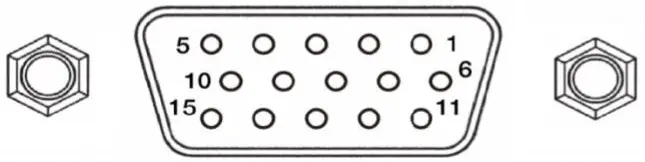
| PIN | Definition | PIN | Definition |
| 11 | PGM-IN1 | 6 | PVW-IN1 |
| 12 | PGM-IN2 | 7 | PVW-IN2 |
| 13 | PGM-IN3 | 8 | PVW-IN3 |
| 14 | PGM-IN4 | 9 | PVW-IN4 |
| 15 | PGM-IN5 | 10 | PVW-IN5 |
| 3 | PGM-IN6 | 4 | PVW-IN6 |
| 5 | GND |
SPECIFICATIONS
| Inputs | Video Inputs | 4x 3G/HD/SD-SDI. 2xHDMI |
| SDI Input Format | 1080p 60/59.94/50130/29.97/25/24123.98 1080psF 30/29.97/25/24123.98 1080i 60/59.94150 720p 60/59.94/50/30/29.97/25/24/23.98 | |
| HOW Input Format | 1080p 60159.94150130/29.97/25/24/23.98123.976 1080i 50159.94/60 720p 60/59.94150130/29.97/25/24123.98 576i 50. 576p 50 | |
| SDI Video Rate | Auto detection. SD/HD/3G-SDI | |
| SDI Compliance | SMPTE 259M/ SMPTE 292W SMPTE 424M | |
| Color Space and Precision | SDI: YUV 4:2:2, 10-bit; HOW RGB 444 8110/12bit: YUV 444 8/10/12bit: YUV 422 8/10/12bit | |
| Video Outputs | PGM Outputs | 2x 3G/HO/SD-SDI: 1xHDMI Type A |
| PGM Output Format | 1080p 60/50/30/25/24: 1080i 50/60 | |
| Multiview Output | 1x3G-SDI: 1x HDMI Type A | |
| Multiview Output Format | 1080p 60 | |
| USB Output | USB interface | 1xUSB3.0 Type-C (USB3.1 Gent up to 200MB/s) |
| Output Format | 1920×1200. 1920×1080. 1680×1050, 1440×900, 1368×768.1280×1024. 1280×960, 1280×800, 1280×720. 1024×768. 1024×576. 960×540. 856×480. 800×600, 768×576. 720×576. 720×480. 640×480. 640460 | |
| Frame Rate | Up to 60fp | |
| Supports OS | Windows 7/8/10. Linux (Kernel version 2.6.38 and above). Mac OS (10.8 and above) | |
| Software compatibility | OBS studio, Skype, ZOOM. Teams, Google Meet. Youtube Live, Quikclime Player, Face time, Wirecast. CAMTASIA. Ecamm.live. Twitch.tv. etc. (Windows) etc. | |
| Audio | Audio Input | lx 3.5mm Stereo audio: lxRCA(UR) |
| Audio Output | 1x 3.5mm Stereo audio: 1xRCA(UR) | |
| Others | GPIO | Tally |
| LAN | RJ45 | |
| Power | DC 12V. 1.8A | |
| Consumption | 522W | |
| Operation Temperature | -20%-60°C | |
| Storage Temperature | -30C-70°C | |
| Operation Humidity | 20%-70%RH | |
| Dimensions | 330×243.5x67mm | |
| Weight | 1 kg | |
| Warranty | 2-Year Limited | |
| Accessories | Accessories | 1•Power SuppN (DC12V 2A), 1•US133.0 Cable Type-C to Type-A |
FRONT CONTROL PANEL
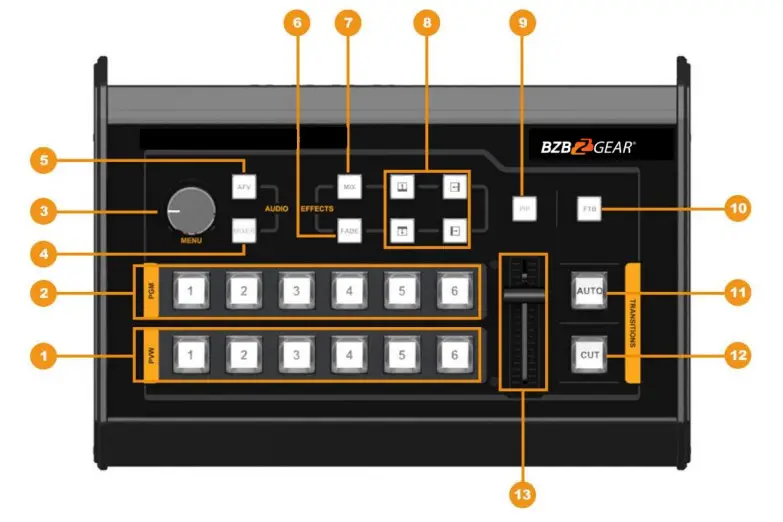
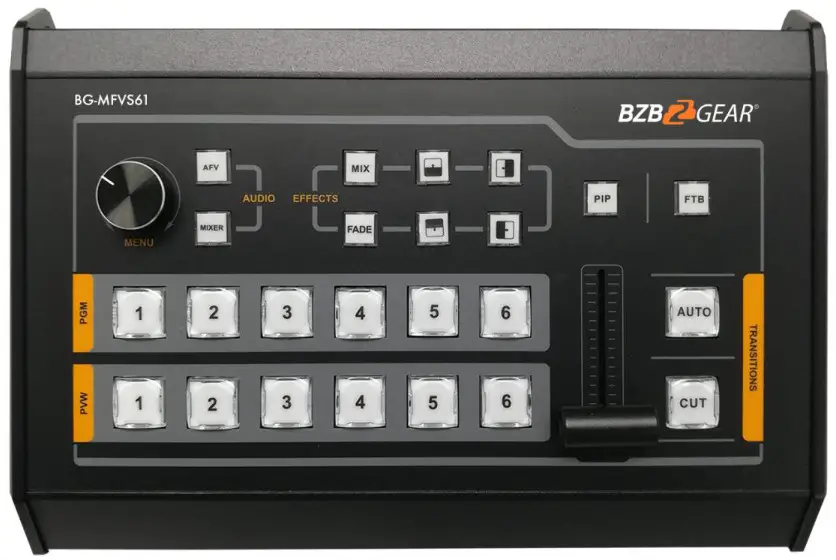
| 1 | PVW:1-6 | Select the signal source for Preview. |
| 2 | PGM:1-6 | Select the signal source for Program |
| 3 | MENU | Menu Setting |
| 4 | MIXER | Select 2-ch audio mixing |
| 5 | AFV | Audio follow video mode |
| 6 | FADE | Fade transition effect |
| 7 | MIX | Mix transition effect |
| 8 | 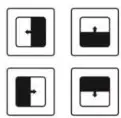 | Wipe transition effect |
| 9 | PIP | Picture in Picture |
| 10 | FTB | Fade to Black |
| 11 | AUTO | Performs an automated switch between Program and Preview. |
| 12 | CUT | Performs a simple immediate switch between Program and Preview. |
| 13 | T-bar | Manual Transition between Program and Preview. |
OPERATION INSTRUCTIONS
Multiview Output Layout
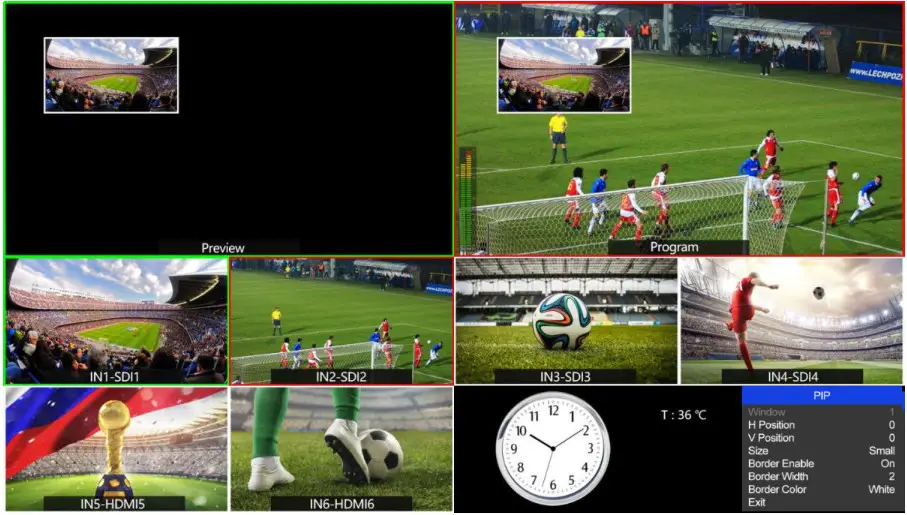
PGM and PVW (Preview and Program) are displayed as in the following image. The signal level meter of PGM audio is shown only in a multiview. SDI/HDMI PGM out has no overlays.
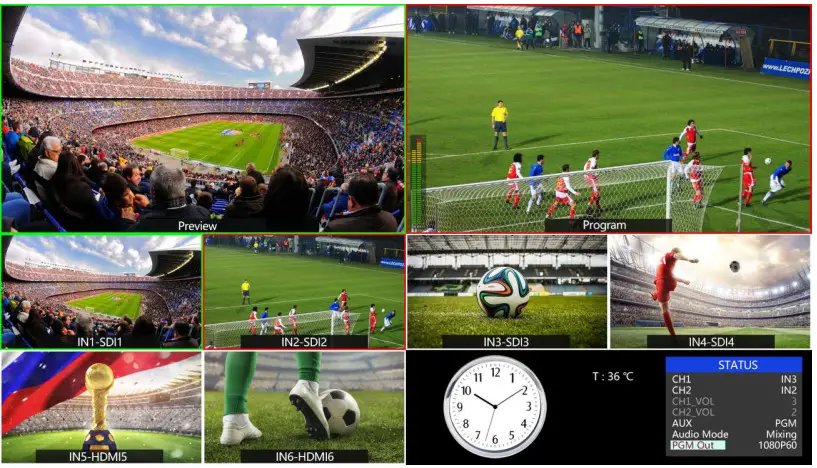
The following 6 windows come from the 6 input signals.
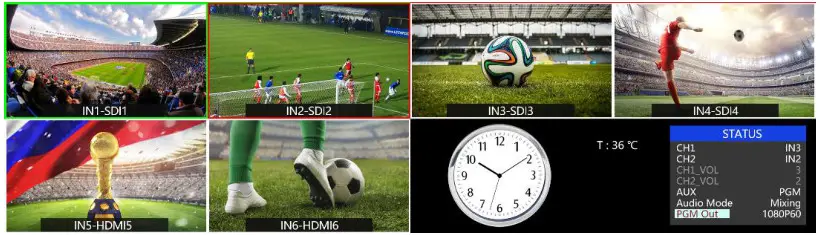
The lower right corner of the display features the menu and status information. The CH1, CH2 are the channel selection of the 2 audio sources for the audio mixer. There is a real-time Digital clock/Analog clock displayed beside the menu.
PGM PVW Switching
PGM, PVW Channel Selection
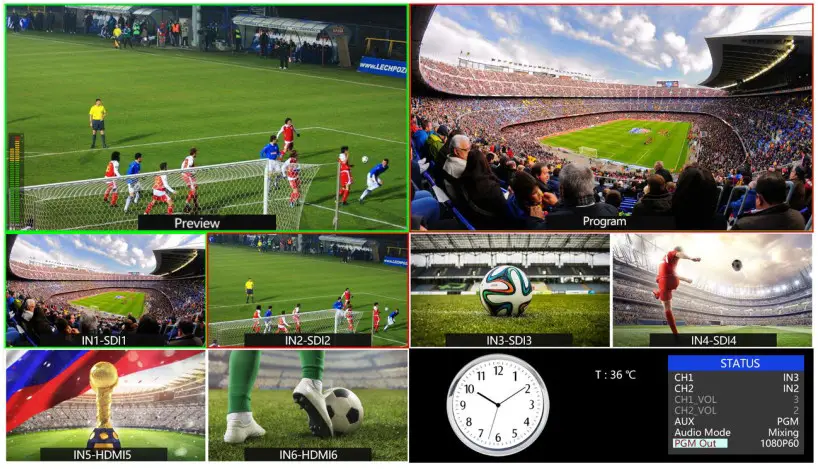
PGM and PVW buttons 1-6 in the image below correspond with the 6 windows in the image of the multiview layout. The selected button from PGM turns red, and the selected button from PVW turns green.
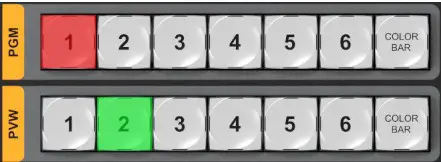
The selected PGM source will have a red border, while the selected PVW source will have a green border.
Transition Control
There are two transition control types for this video switcher: Transition without effects and Transition with effects.
- Transition without Effects
CUT performs a simple immediate switch between Preview and Program views. This is no delay seamless switching and the selected transition effect WIPE, MIX or FADE is not used. - Transition with Effects
AUTO performs an automated switch between Preview and Program views. The timing of the transition is set by the chosen speed button. The selected transition WIPE, MIX or FADE will also be used.
T-Bar manual transition performs like AUTO, but it is more flexible that the timing of the transition depends on the speed of the manual switch.
FTB (Fade to Black)
Press FTB button it will fade the current video Program source to black. The button will flash to indicate that it’s active. When pressing the button again it acts in reverse from complete black to the currently selected Program video source, and the button stop flashing. FTB is usually used for emergency situations.

Note: When the PGM window display black and keep black even after transition, please check if the FTB button flashing. Press the button again when it is flashing to stop black.
Transition Effects
MIX Transition
Pressing the MIX button selects a basic A/B Dissolve for the next transition. When the button LED turns on it is active. Then use T-Bar or AUTO to operate the transition. The MIX transition effect as below

WIPE is a transition from one source to another and is achieved by replacing the current source by another source. Press the WIPE button and the LED turns on then it is active. There are total 8 WIPE selections wiping start from different directions.
For example:
If choosing, use T-Bar or AUTO to operate the transition and the WIPE effect is as follows:
INV button is an alternative button. Press it first and then press a Direction button, the WIPE will start from an inverse direction.
FADE Transition
Fade is a transition from one source to another with fade gradually transition effect. Press the FADE button and use T-Bar or AUTO to operate the FADE transition.
Audio Mixer Setting
Audio Description
USB3.0 Live Streaming
The USB3.0 streaming output transmits the PGM output as an uncompressed video and audio signal.
The USB3.0 streaming output is based on the UVC (USB video class) and UAC (USB audio class) standards. No additional drivers need to be installed. After the installation in the operating system, the relevant video and audio devices will be added in the Windows Device Manager. There will appear two new devices:
- Under Imaging Devices: AVMATRIX USB Capture Video
- Under Audio inputs and outputs: AVMATRIX USB Capture Audio
Use a third-party Video Media Player like OBS Studio, vMix, or Windows Media Player to play and store the captured video content. The signal can also be streamed directly to Facebook or YouTube.
SDI PGM/ AUX and Multiview Output Format
The output format of multiview is fixed at 1080p60, and for PGM output it can be set in the menu. In addition to the PVW and PGM outputs, there is a selectable AUX output. The auxiliary output can easily be switched between PVW and PGM via the Menu knob. The default setting is PGM after reset. Selectable resolutions include 1080P 50/60/30/25/24Hz and 1080I 50/60Hz selectable for SDI/HDMI PGM and AUX outputs.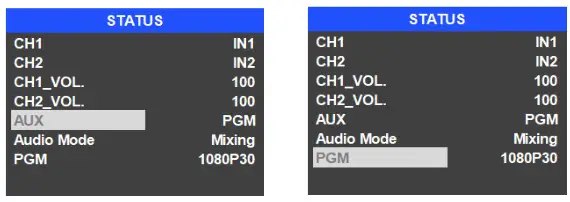
Audio Setting
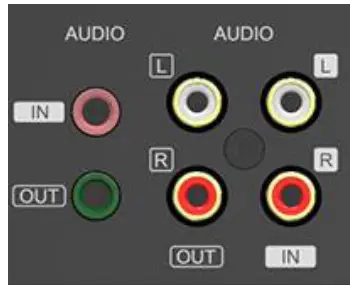
This video switcher features 1 channel L/R analog audio input & output and 1 channel 3.5mm stereo audio input and output and supports both audio following video mode and audio mixing mode.
Mixing Mode
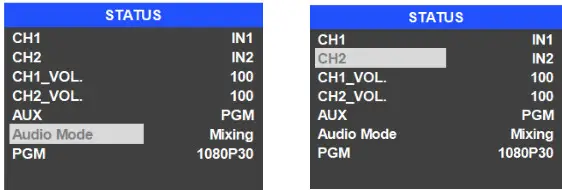
Press the MIXER button to set the audio mode as mixing. Press menu and choose audio for 2 channel audio mixing, users can select an audio source from IN1/ IN2/ IN3/ IN4/ IN5 / IN6/ Phone/ RCA IN.
AFV Mode
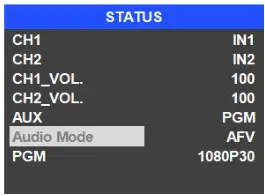
Press the AFV button to enable the audio to follow video mode. When the audio is in follow mode the audio is taken from the embedded audio of the Program video source. Users can control the audio volume by adjusting the master fader (the left one).
PIP Mode
When PIP is pressed a small image will appear on the top left corner of the PVW window as in the following image. The menu will enter an interface as shown below. The window size, position, and border of PIP cabe are set from the menu.
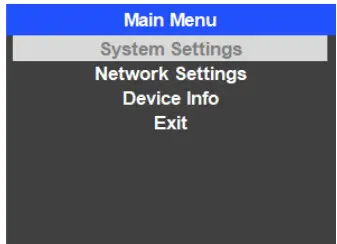
When the STATUS menu is not selected, press the MENU button to enter the main menu directly. If one of the items is selected (see below), rotate the MENU button rotate counter-clockwise to exit the choice, then Press the MENU button to enter the main menu.
System Settings
Entering system settings allows the system language to be switched between English and Chinese. From this menu, the real-time clock can also be switched between Analog or Digital.
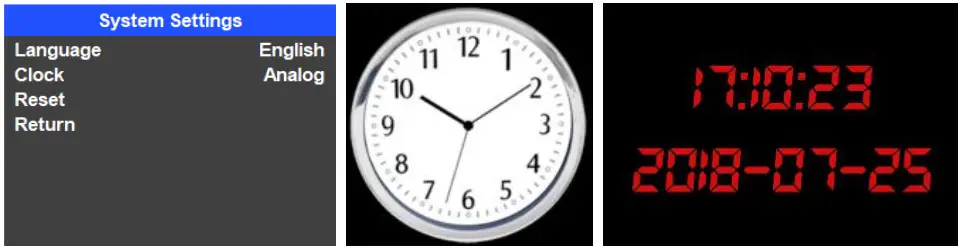
Connect the switcher to a PC and download the time control software from our website: https://bzbgear.com/knowledge-base/how-to-set-the-time-on-the-bg-mfvs-61/ Open the software and click Scan to search and connect the device, then the clock time will be changed to the same time as the PC.
Network Settings
Network
There are two ways to acquire the IP: Dynamic (IP configured by the router) and Static (set IP manually).
Select the method you need in the menu. The default setting is Dynamic.
Dynamic: Connect the video switcher to a router with DHCP, it will obtain an IP address automatically.
Make sure that the video switcher and PC are on the same local area network.
Static: Select static IP when the PC is without DHCP. Connect the video switcher directly to the PC with a network cable, set the PC’s IP address to the same IP range as the video switcher (the video switcher’s default IP address 192.168.1.215), or set the video switcher’s IP address to the same IP range as PC’s IP address.
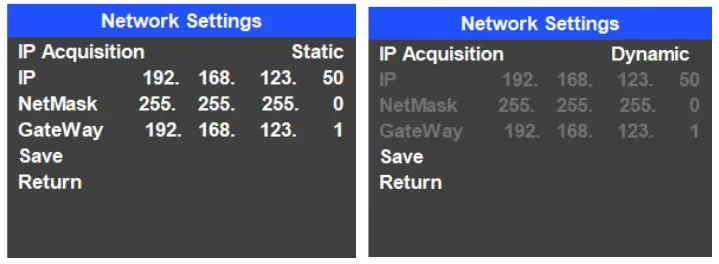
NetMask
Set the NetMask. The default setting is 255.255.255.0.
Gateway
Set the Gateway according to the current IP address. Save the configuration when finished.
Warranty
BZBGEAR wants to assure you peace of mind. All BZBGEAR cameras and camera-related products include our Stress-Free Three-Year Warranty. For complete warranty information, please visit BZBGEAR.com/warranty.
For questions, please call 1.888.499.9906 or email [email protected].
Mission Statement
BZBGEAR manifests from the competitive nature of the audiovisual industry to innovate while keeping the customer in mind. AV solutions can cost a pretty penny, and new technology only adds to it. We believe everyone deserves to see, hear, and feel the advancements made in today’s AV world without having to break the bank. BZBGEAR is the solution for small to medium-sized applications requiring the latest professional products in AV.
We live in a DIY era where resources are abundant on the internet. With that in mind, our team offers system design consultation and expert tech support seven days a week for the products in our BZBGEAR catalog. You’ll notice comparably lower prices with BZBGEAR solutions, but the quality of the products is on par with the top brands in the industry. The unparalleled support from our team is our way of showing we care for every one of our customers. Whether you’re an integrator, home theater enthusiast, or a do-it-yourselfer, BZBGEAR offers the solutions to allow you to focus on your project and not your budget.