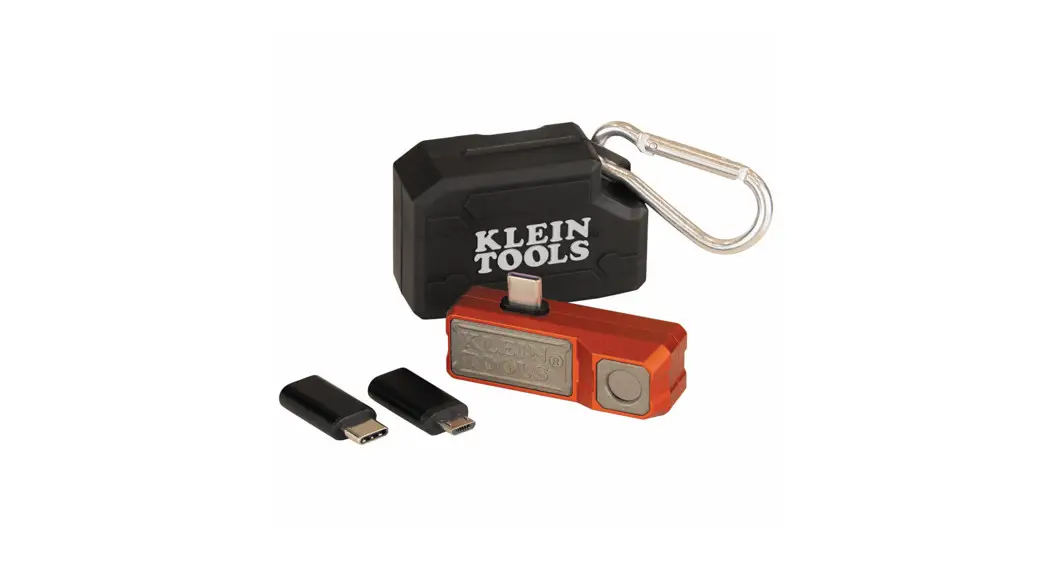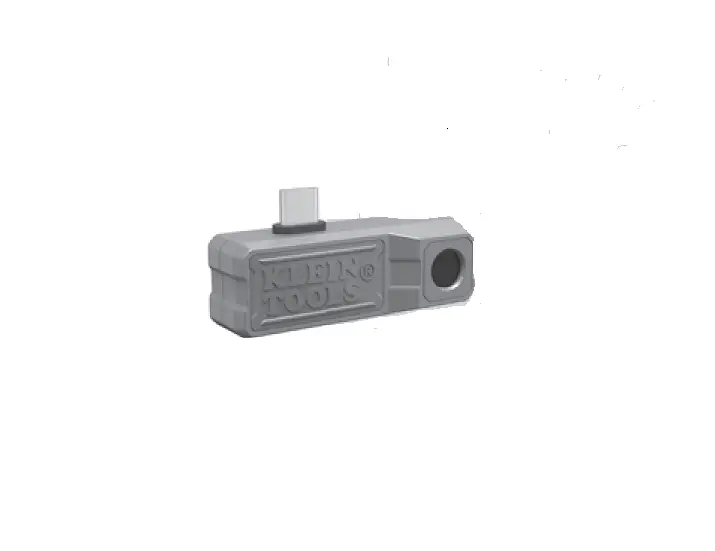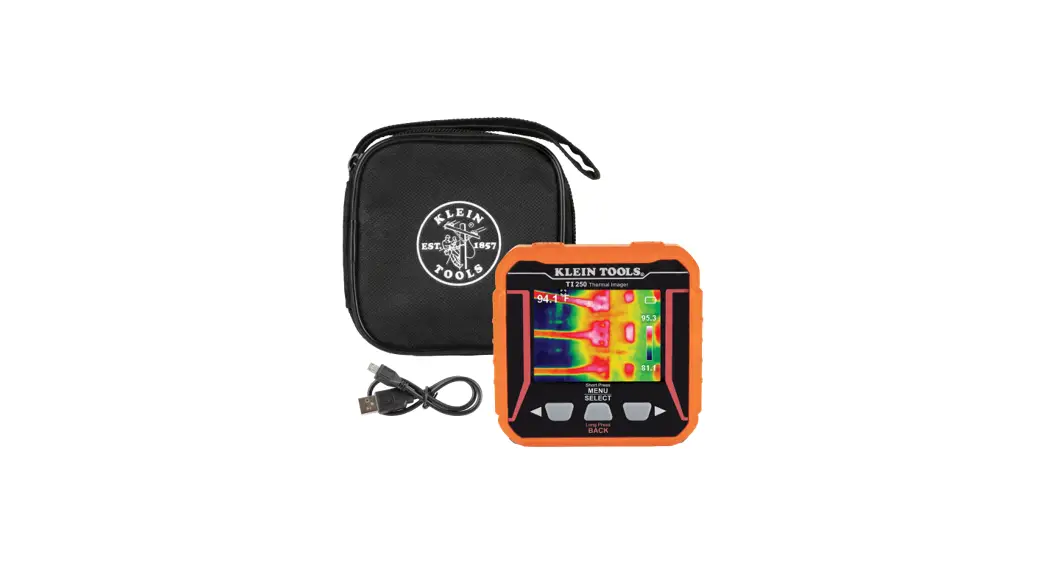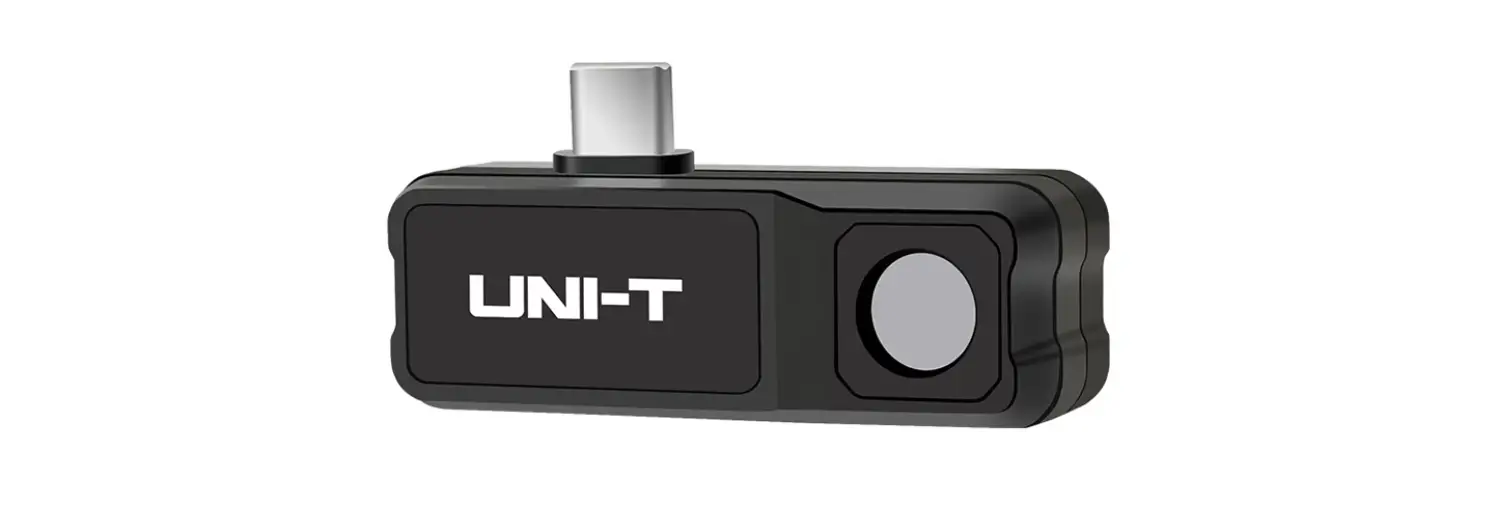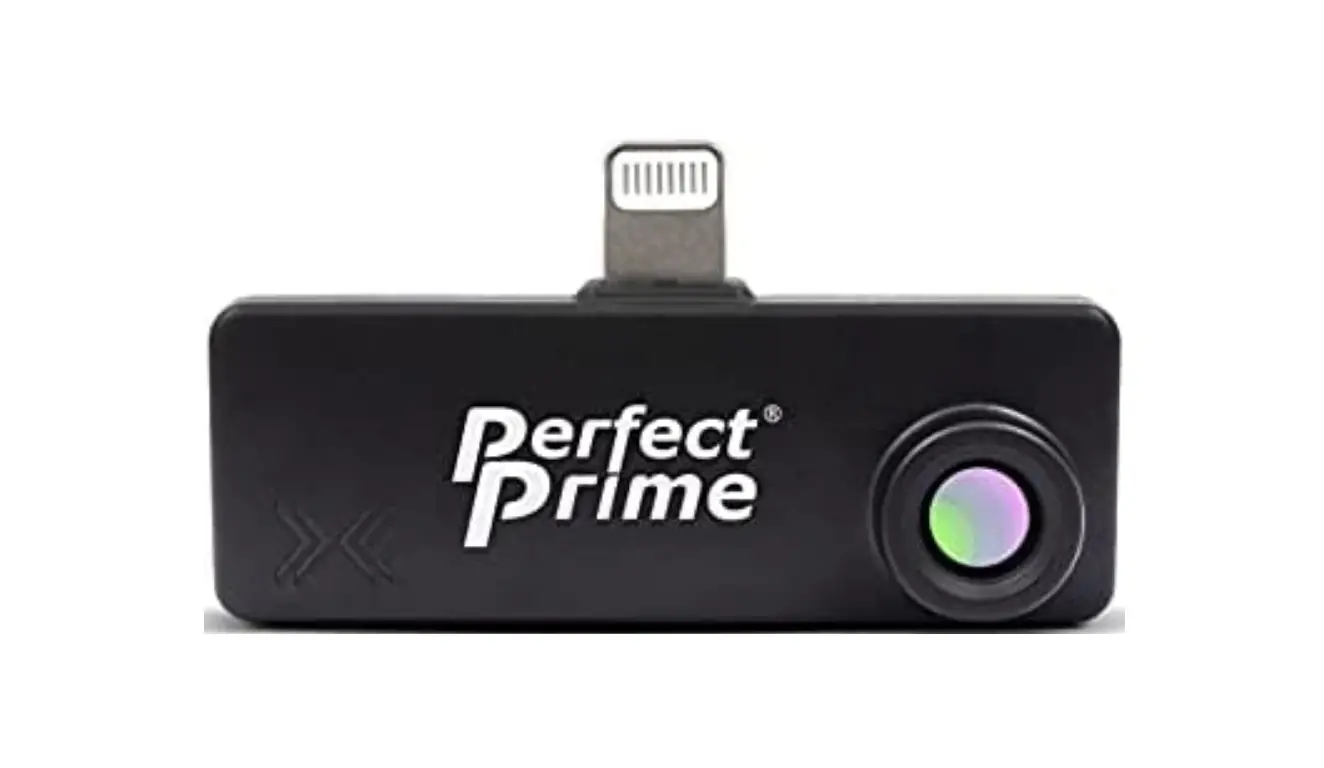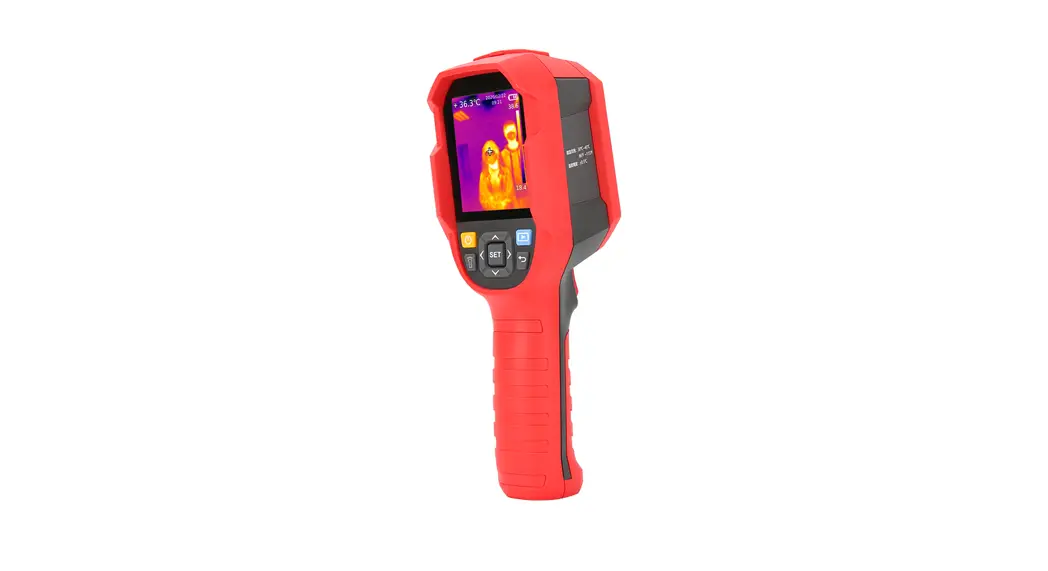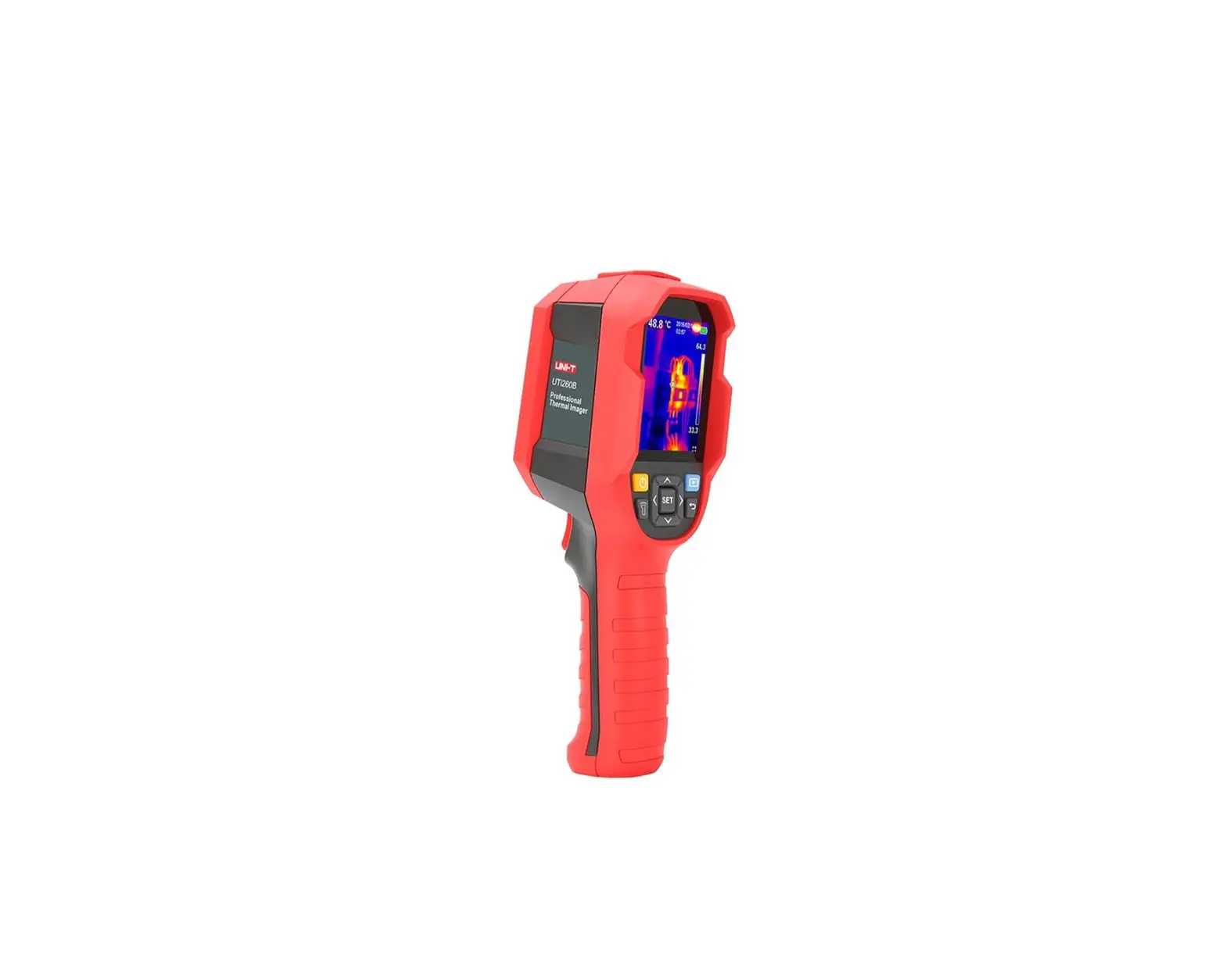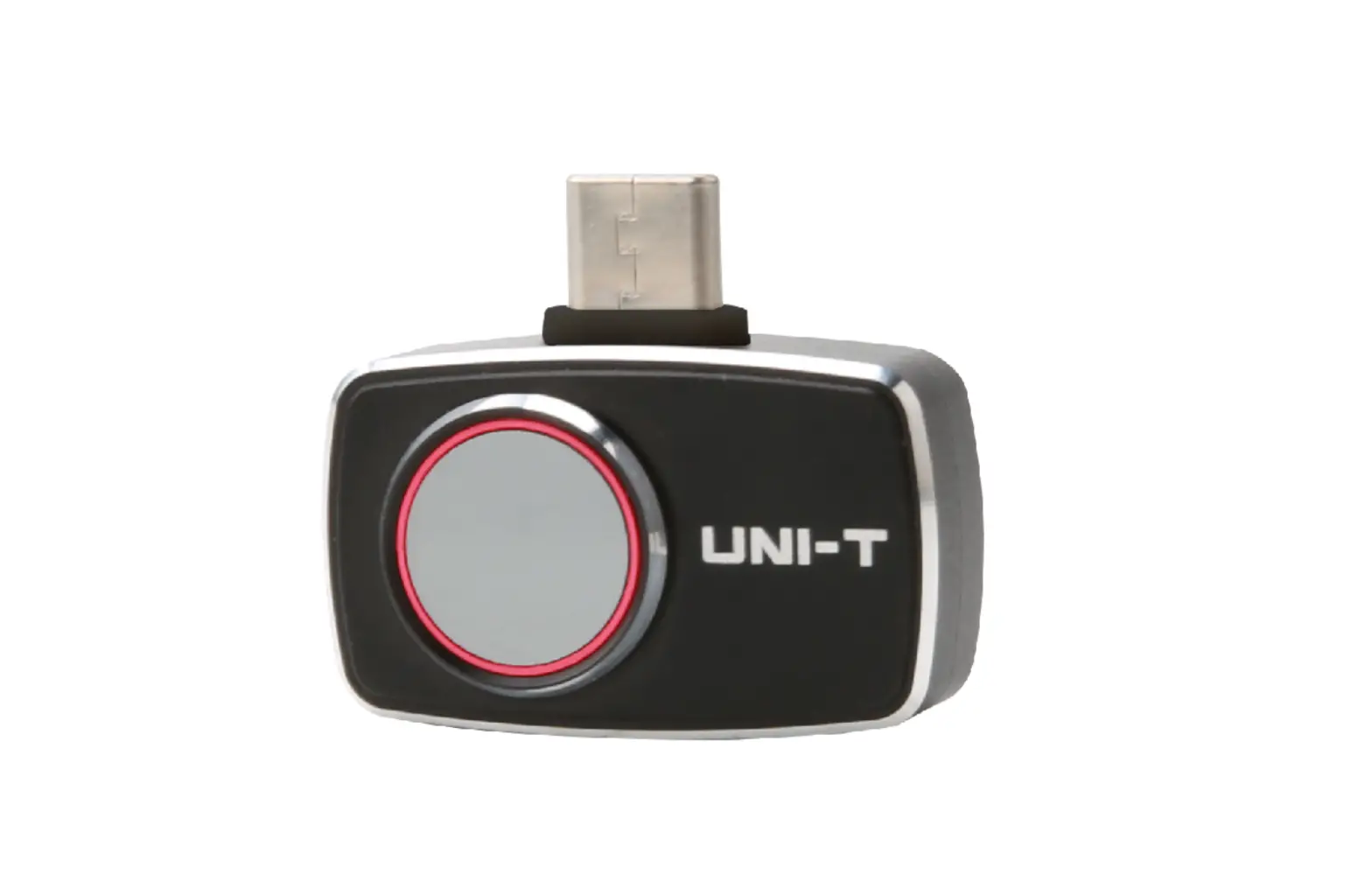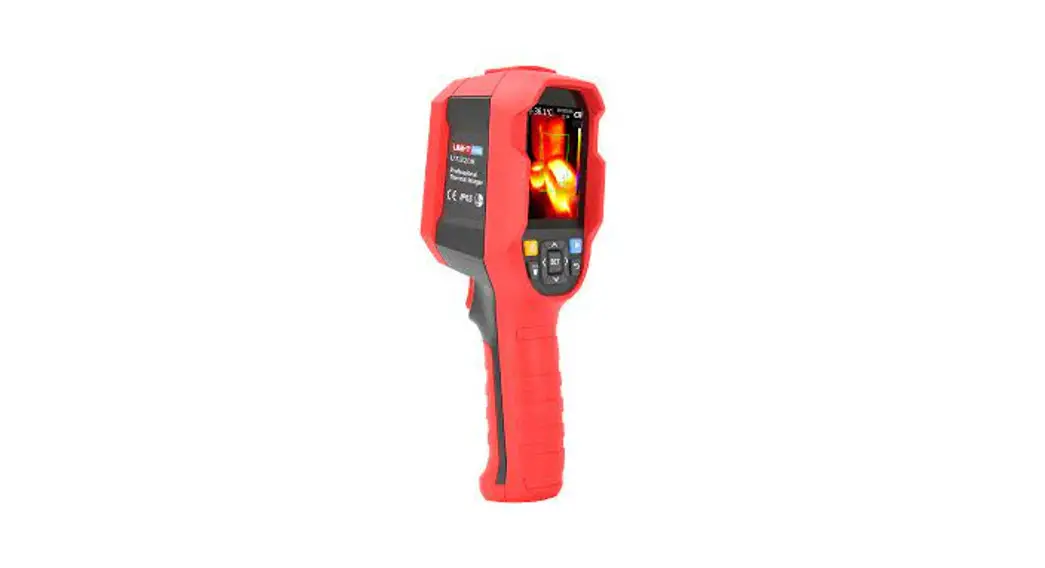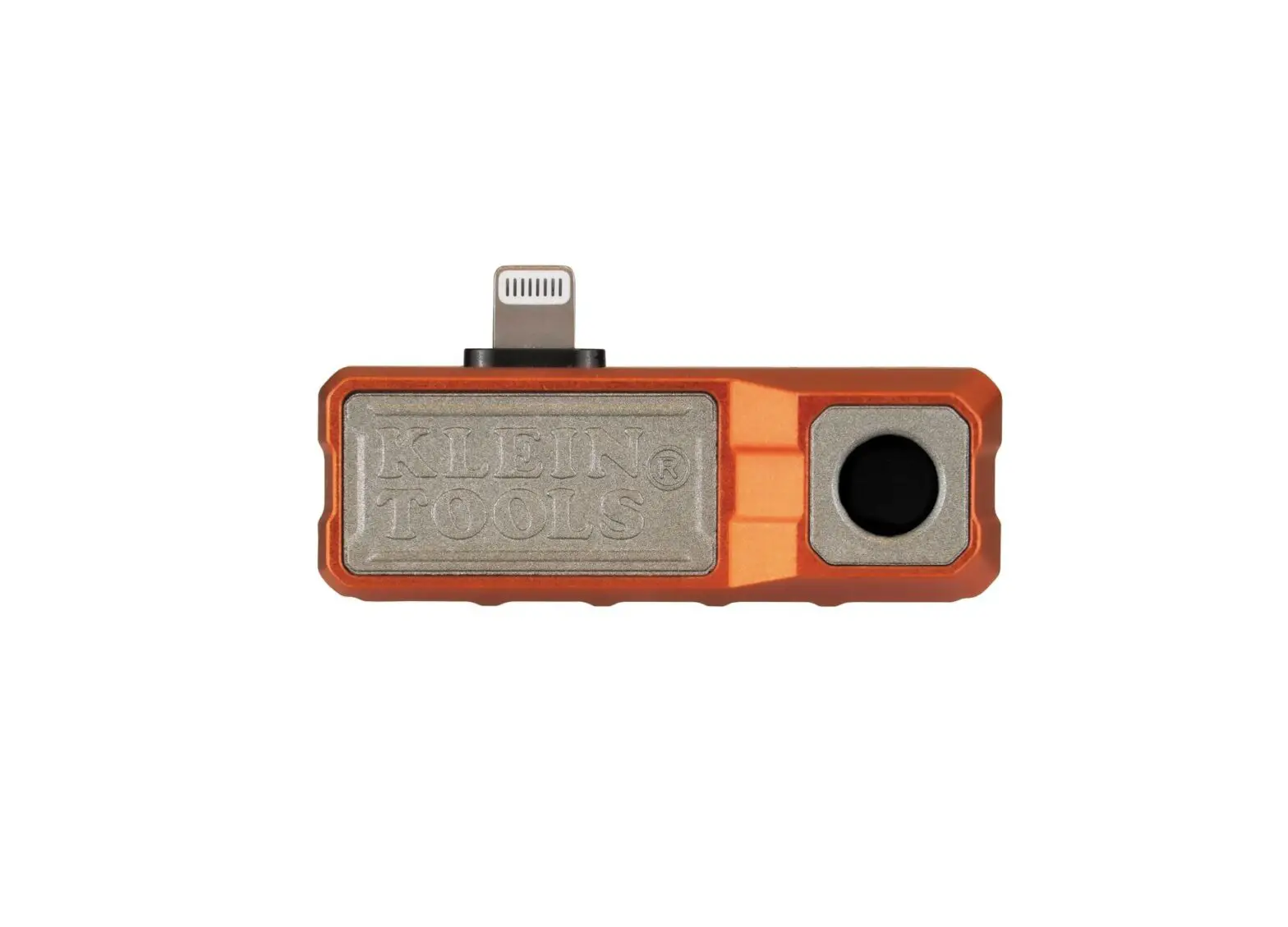
Klein Tools TI222 Thermal Imager for iOS Devices
GENERAL SPECIFICATIONS
The Klein Tools TI222 Thermal Imager allows easy capture, storage, and sharing of images and video, including time-lapse video, for instant troubleshooting on your iOS device. Excellent resolution of 10,800 pixels, with your choice of color palettes. The meter features differential temperature, touch-point temperature, and high and low temperature alarms.
TI222 is compatible with iOS devices 11 or higher with Lightning connectors. The camera output is displayed on the iOS device using the Klein Tools Thermal Imager app, available for free from the App Store.
- Environment: Indoor or outdoor
- Operating Altitude: 6562 ft. (2000 m)
- Relative Humidity: <95% non-condensing
- Operating Temp: 32°to 122°F (0°to 50°C)
- Storage Temp: 14°to 140°F (-10°to 60°C)
- Sensor Resolution: 10800 pixels
- Pixel size: 17m
- Spectral Response: 8 to 14m
- Field of View (FOV): 50°
- Frame Rate: 9 Hz
- Sensitivity: <60 mK at 25°C
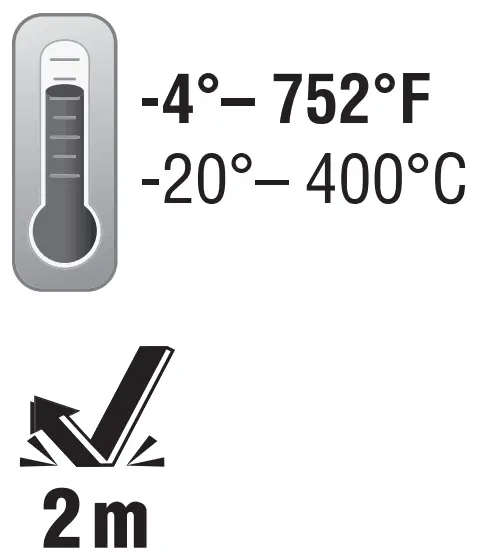
- Temperature Range: -4°to 752°F (-20°to 400°C)
- Temperature Resolution: 0.1°F, 0.1°C
- Temperature Accuracy: +/-2°or 2% (whichever is greater)
NOTE: Not calibrated below 14°F (-10°C) - Temperature Display: Differential temperature, high, center, and low crosshairs, and user-selectable temperature
- Temperature Settings: °F / °C
- Emissivity: 0.1 to 0.99 adjustable (0.95 default)
- Color Palettes: Ironbow, Rainbow, Grayscale
- Mobile Device: iOS 11 or higher
- Mobile App: App Store supported
- Image Format: JPG
- Video Format: MP4
- Dimensions: 1.07″ × 2.13″ × 0.73″ (27.2 × 54.0 × 18.5 mm)
- Weight: 1.08 oz. (30.7 grams)
- Pollution degree: 2
- Drop Protection: 6.6 ft. (2m)
Specifications subject to change.
App Store, iPhone, and Lightning are registered trademarks of Apple Inc., registered in the U.S. and other countries.
IOS is a trademark or registered trademark of Cisco in the U.S. and other countries and is used by Apple, Inc. under license.
 WARNINGS
To ensure safe operation and service, follow these instructions
- Read the instructions to ensure safe operation.
- Always wear approved eye protection.
- Do not use if the housing is damaged in any way.
- DO NOT use if the Lightning connector/adapter is damaged in any way.
- There are no user-serviceable parts inside. DO NOT open or attempt to repair.
NOTE: Do not point the camera at the sun or any other strong energy source. This can affect the accuracy of the camera or cause damage to the sensor
CAUTION
- Burn Hazard. Reflective materials may have a higher actual temperature
than the measured temperature. Set emissivity to match the object being measured (see Emissivity section).
SYMBOLS ON TESTER
| Warning or Caution |
 | Read Instructions |
 | Conforms with European Economic Area directives |
 | UKCA – United Kingdom Conformity Assessment |
 | Do not place equipment and its accessories in the trash |
FEATURE DETAILS
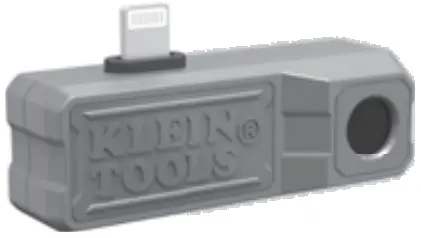
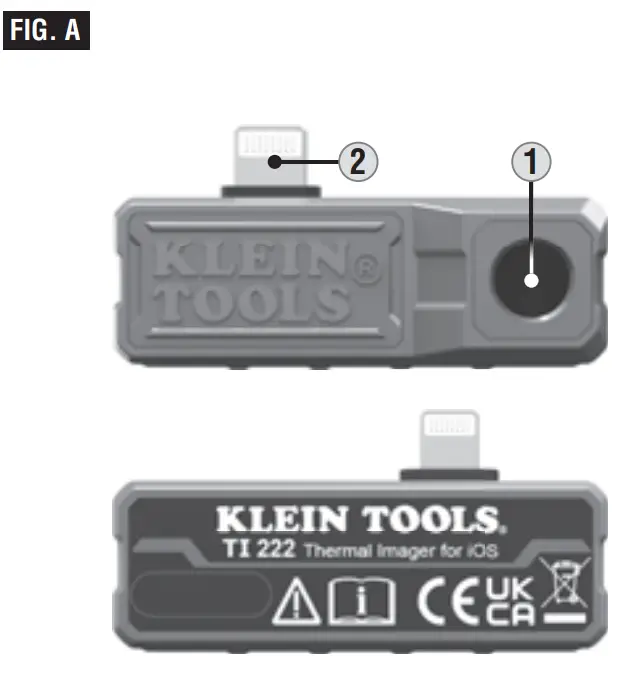
- Camera
- Lightning Connector

DISPLAY DETAILS
LIVE MODE SCREEN
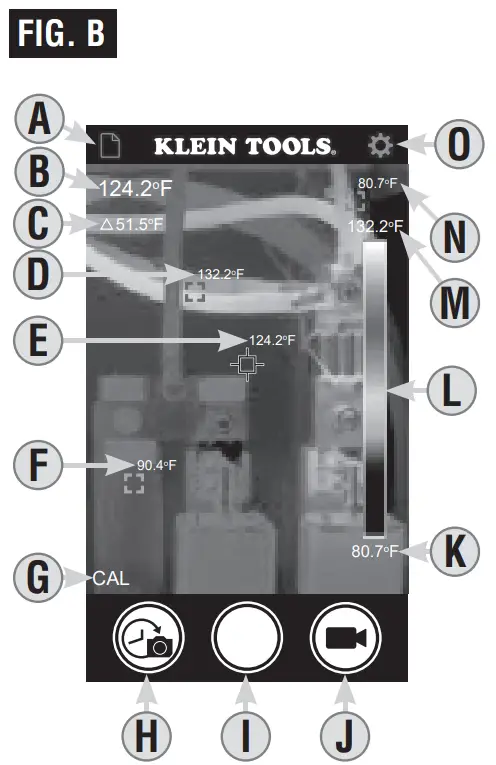
A. Photo/Video GalleryB. Center Point TemperatureC. Differential TemperatureD. Red Marker (High Temperature)E. White Marker (Center Point Temperature)F. Gray Marker (User-Selectable Temperature)G. Calibrating IconH. Time-Lapse Video Capture ButtonI. Photo Capture ButtonJ. Video Capture ButtonK. Lowest TemperatureL. Live Temperature Color PaleteM.Highest TemperatureN. Green Marker(Low Temperature)O. Settings
TIME-LAPSE MODE SCREEN
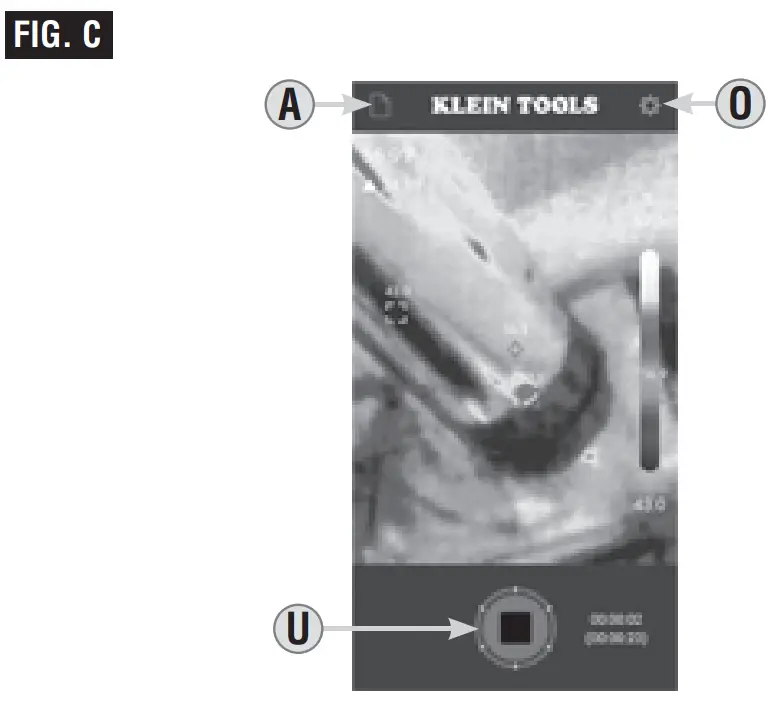
A. Photo/Video GalleryO. SettingsU. Stop Button
VIDEO MODE SCREEN
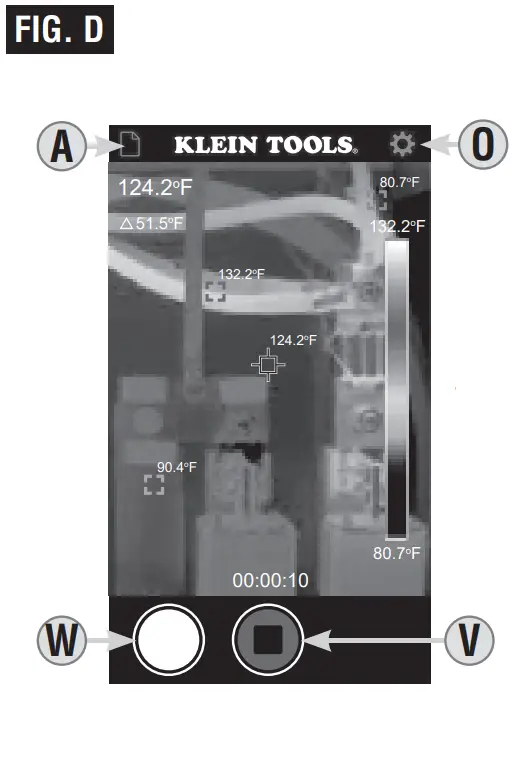
A. Photo/Video GalleryO. SettingsV. Stop ButtonW. Photo Capture Button
GALLERY MODE SCREENS
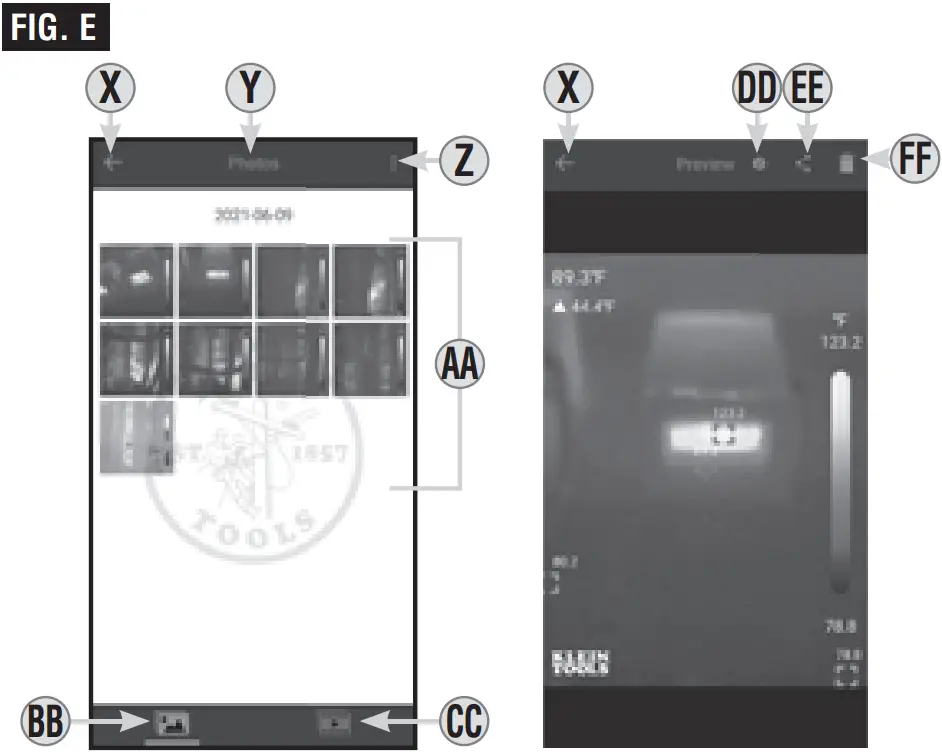
X. Previous Screen IconY. Active Menu (Photo or Video Gallery)Z. More Selection OptionsAA. FilesBB. Photo GalleryCC. Video GalleryDD. File InformationEE. Copy/Share Selected File(s)FF. Delete Selected File(s
SETTINGS SCREEN
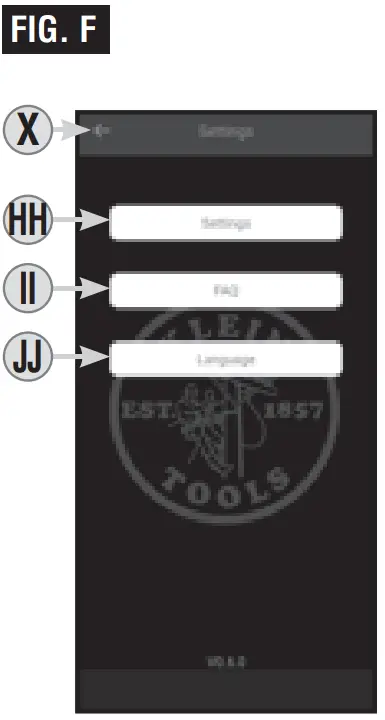
X. Previous Screen IconHH. Camera Settings ButtonII. Frequently Asked Questions ButtonJJ. Language Button
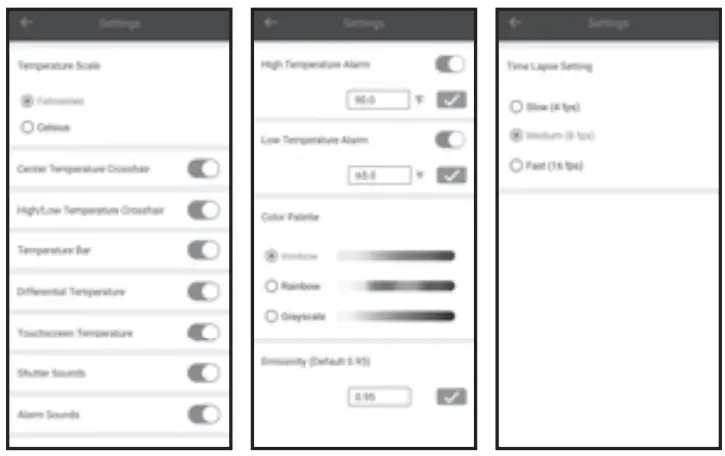
CAMERA SETTINGS SCREENS HH
OPERATING INSTRUCTIONS
DOWNLOADING THE APP
The Klein Tools Thermal Imager app is required for functionality. The app is available for free from the App Store, or by scanning the QR code below.
CONNECTING YOUR DEVICE
- Turn on your iOS device.
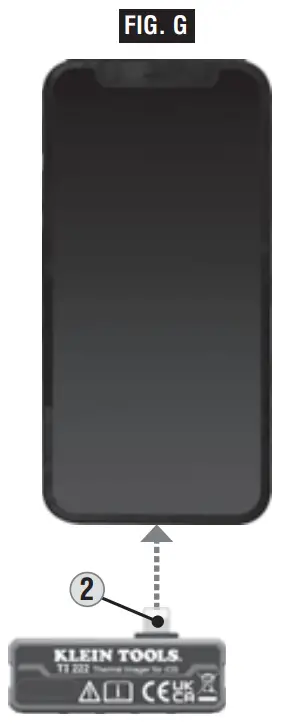
- Insert the Lightning connector
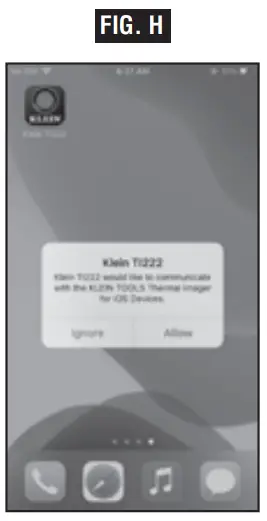
2directly into your device (FIG. G). NOTE: Fits phone cases up to 1/16″ (1.5 mm) thick. Phone cases thicker than 1/16″ (1.5 mm) may require removal of case for secure connection. - Connecting your device will automatically open the app, and a popup will ask for confirmation: Klein TI222 would like to communicate with the Klein Tools Thermal Imager for iOS Devices.” Tap “Allow” (FIG. H).


Scan QR code for free download of the Klein Tools TI222 app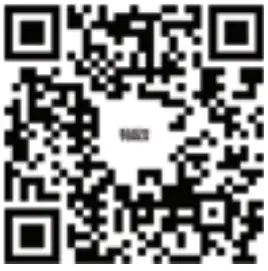
OPERATING INSTRUCTIONS
PHOTO CAPTURE
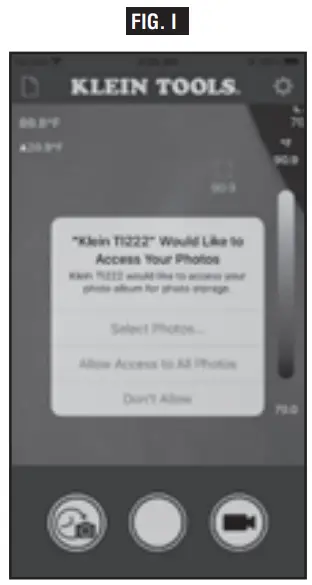
While in Live View mode (see FIG. B), aim the Camera 1 at the subject to be photographed and tap the Photo Capture button I to take a photo.
NOTE: When the first photo is captured, the app will ask permission, “Klein TI222 would like to access your photos”. Tap “Allow Access to All Photos” (FIG. I).
TIME-LAPSE VIDEO CAPTURE (FIG. C)
- While in live view mode (see FIG. B), aim the Camera
1at the subject to be recorded. - Tap the Time Lapse Video Button
Hto begin recording time-lapse video capture. - To stop recording and exit Time Lapse mode, tap the Stop Button
U.
VIDEO CAPTURE (FIG. D)
- While in Live View mode (see FIG. B), aim the Camera
1at the subject to be recorded and tap the Video Capture buttonJ.
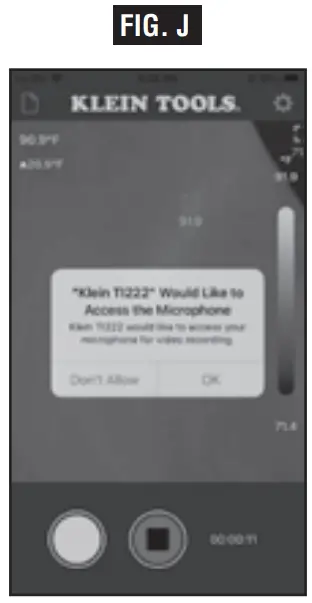
NOTE: Before the first video is captured, the app will request permission, “Klein TI222 Would like to Access the Microphone”. Tap “OK” (FIG. J). - Tap the Photo Capture Button
Wwhile recording is active to capture still images of the subject. - To stop recording and Exit Video Capture mode, tap the Stop button
V.
VIEWING AND MANAGING PHO TOS AND VIDEO FILES
To access the photo and/or video galleries, tap the Photo/ Video Gallery icon A , then select the Photo Gallery BB or Video GalleryCC . To select multiple files or all files at once, tap the “More Selection Options” button Z .
Tap on a file AA to view. Once a file is selected, you can tap the “File Information” iconDD to show additional information about the file, the “Share” icon EE to view your device’s options for file sharing, or the “Delete” button FF to delete the file. Touch and hold a file AA to enable multiple selections. To exit the Photo/Video mode, tap the “Previous” icon X to return to Live View mode.
ADJUSTING SETTINGS (FIG. F)
While in Live View mode (see FIG. B), tap the Settings icon O and tap one of the buttons to view/adjust the following settings:
Camera Settings HH:
- Temperature Scale: Select °F or °C (default is °F)
- High/Low Temperature Crosshair: On/Off (default is On)
- Center Temperature Crosshair: On/Off (default is On)
- Temperature Bar: On/Off (default is On)
- Differential Temperature: On/Off (default is On)
- Touchscreen Temperature: On/Off (default is On)
- Shutter Sounds: On/Off (default is On)
- Alarm Sounds: On/Off (default is On)
- High/Low Temperature Alarm: Select Temperature, On/Off, enter temperature from -4 to 752°F (-20 to 400°C)
- Color Palette: Select Ironbow, Rainbow, or Grayscale (default is Ironbow)
- Emissivity: Enter emissivity from 0.01 to 0.99 (default is 0.95)
- Time Lapse: Change capture interval by selecting either slow (4 fps), medium (8 fps), or fast (16 fps) (default is medium (8 fps)).
Frequently Asked Questions (FAQ) II :
- Helpful tips for using the Thermal Imager
Language JJ :
- Select English, Spanish, or French
EMISSIVITY
Emissivity is a measure of the ability of a surface to emit thermal energy by radiation. Different types of surfaces (metals, masonry, wood, etc.) emit thermal energy through radiation at different efficiencies. Accordingly, these materials have different emissivity coefficients which must be considered in order to make accurate measurements with an infrared thermometer.
Emissivity on the TI222 may be adjusted from 0.01 to 0.99 to enable accurate measurement of the temperature of most types of materials. Generally speaking, shiny bright surfaces such as chrome, white boards, etc. exhibit lower emissivity than flat black materials.
For guidance only, the chart on the next page may be used to estimate emissivity for many different types of materials. However, the emissivity of surfaces is dependent upon many parameters such as surface finish, temperature, shape of the object, etc.
This chart should be used for guidance only.
| Material | Emissivity |
| Asphalt | 0.93 |
| Red brick | 0.93 |
| Gray brick | 0.75 |
| Porcelain ceramic | 0.92 |
| Fired clay | 0.91 |
| Rough concrete | 0.94 |
| Cotton cloth | 0.77 |
| Smooth glass | 0.92 – 0.94 |
| Granite | 0.45 |
| Gravel | 0.28 |
| Smooth ice | 0.97 |
| Smooth white marble | 0.56 |
| Black paint | 0.96 |
| Hard rubber | 0.94 |
| Wood | 0.80 – 0.90 |
| Matte copper | 0.22 |
| Commercial sheet aluminum | 0.09 |
| Cold rolled steel | 0.75 – 0.85 |
Find a comprehensive list of emissivity values in the app’s FAQ section or visit www.kleintools.com/emissivity.
CLEANING
Be sure unit is not connected to a device and wipe with a clean, dry lint-free cloth. Do not use abrasive cleaners or solvents.
STORAGE
Do not expose to high temperatures or humidity. After a period of storage in extreme conditions exceeding the limits mentioned in the General Specifications section, allow unit to return to normal operating conditions before using.
FCC & IC COMPLIANCE
See this product’s page at www.kleintools.com for FCC compliance information
Canada ICES-003 (B) / NMB-003 (B)
WARRANTY
DISPOSAL / RECYCLE
 | Do not place equipment and its accessories in the trash. Items must be properly disposed of in accordance with local regulations. Please see www.epa.gov/recycle for additional information. |
CUSTOMER SERVICE
KLEIN TOOLS, INC.
450 Bond Street
Lincolnshire, IL 60069
1-800-553-4676
[email protected]
www.kleintools.com

 Reduce, Reuse, Recycle | US EPA
 kleintools.com/emissivity