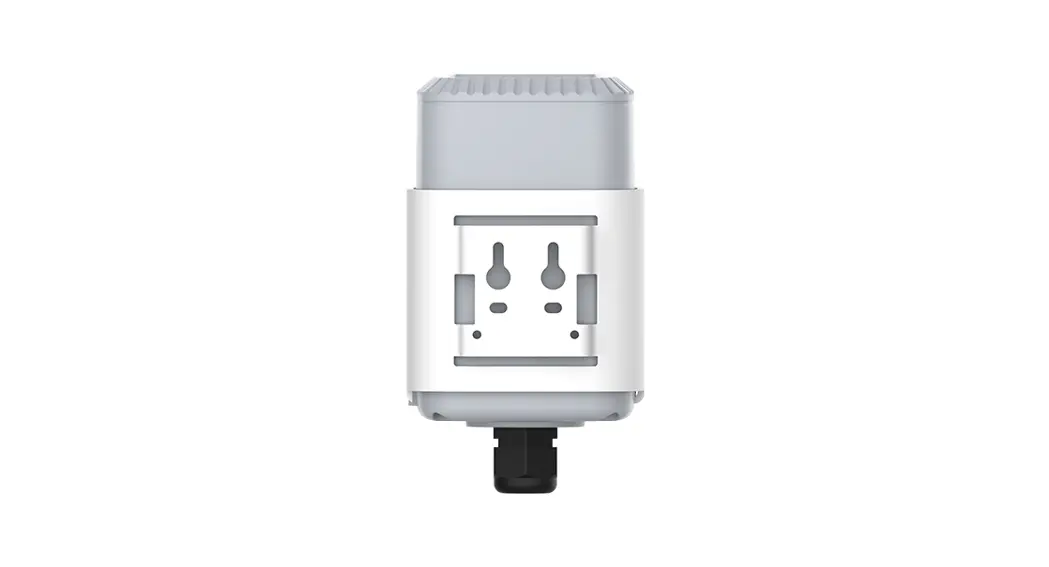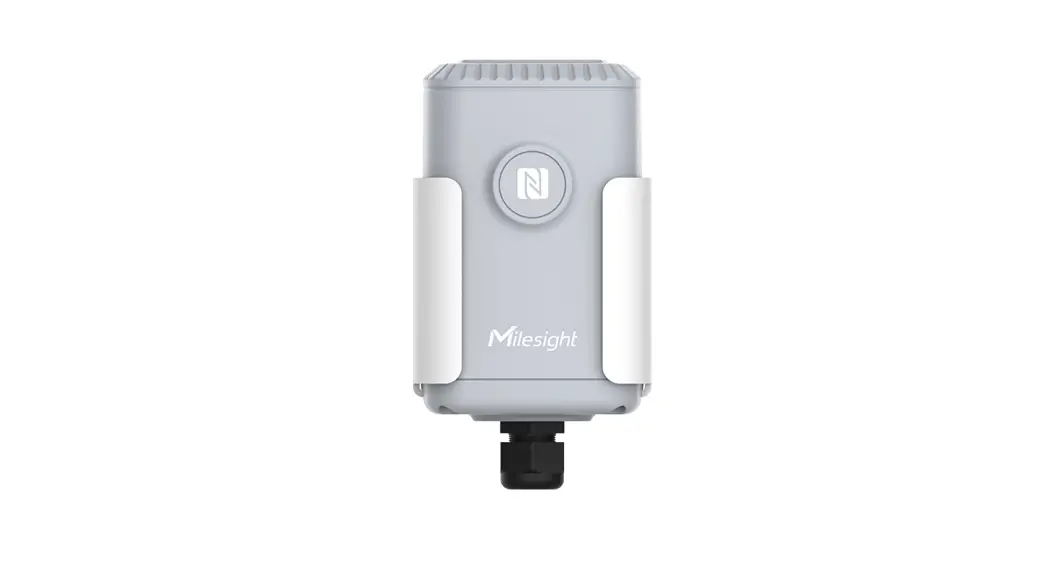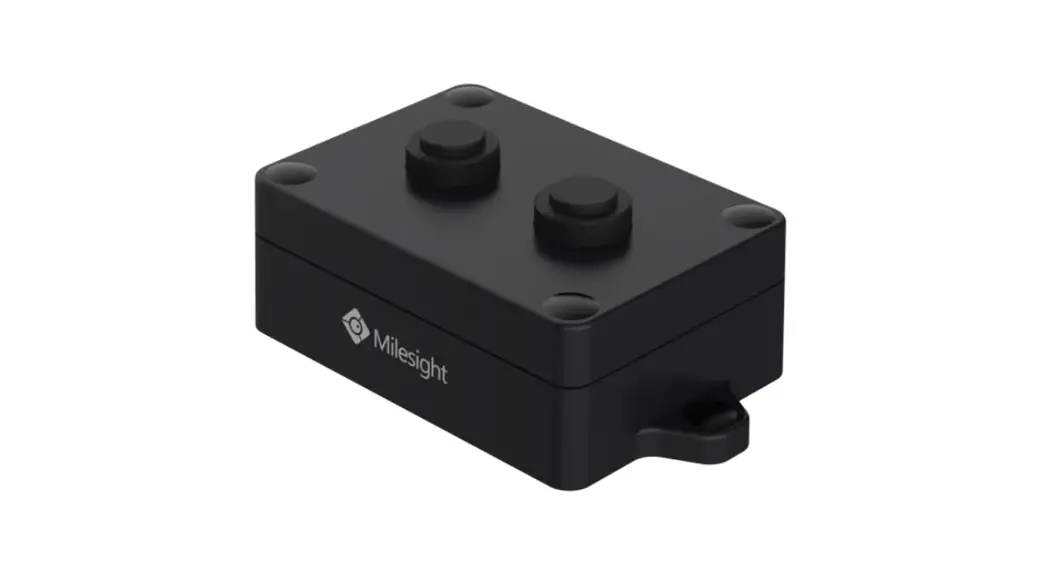

Ultrasonic Distance
Sensor
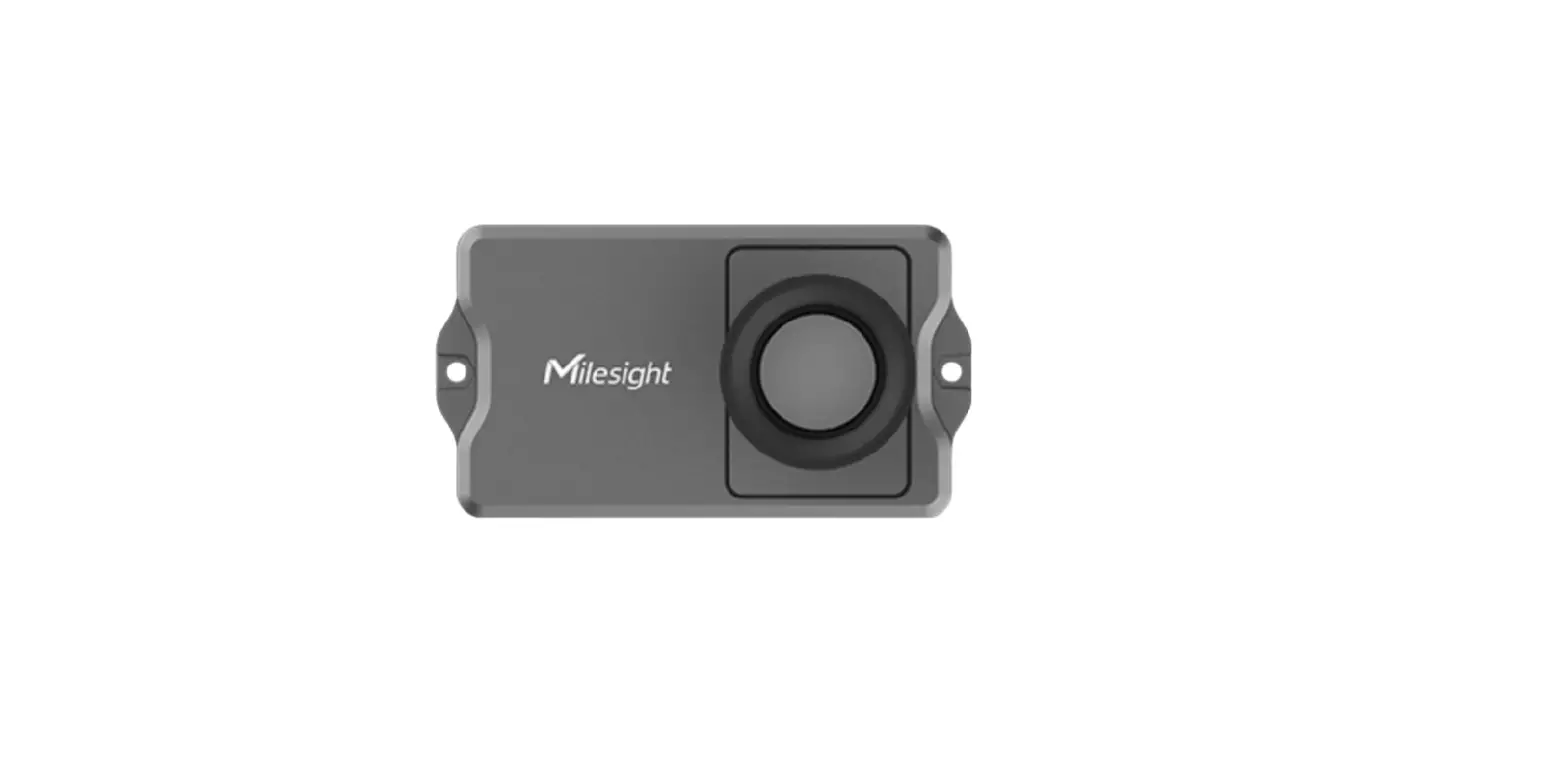
EM310-UDL
User Guide
Safety Precautions
Milesight will not shoulder responsibility for any loss or damage resulting from not following the instructions of this operating guide.
- The device must not be disassembled or remodeled in any way.
- The device is not intended to be used as a reference sensor, and Milesight won’t should responsible for any damage which may result from inaccurate readings.
- Do not place the device close to objects with naked flames.
- Do not place the device in where the temperature is below/above the operating range.
- The device must never be subjected to shocks or impacts.
Declaration of Conformity
EM310-UDL is in conformity with the essential requirements and other relevant provisions of the CE, FCC, and RoHS.
Copyright © 2011-2021 Milesight. All rights reserved.
All information in this guide is protected by copyright law. Whereby, no organization or individual shall copy or reproduce the whole or part of this user guide by any means without written authorization from Xiamen Milesight IoT Co., Ltd.
 For assistance, please contact
Milesight technical support:
Email: [email protected]
Tel: 86-592-5085280
Fax: 86-592-5023065
Address: 4/F, No.63-2 Wanghai Road,
2 nd Software Park, Xiamen, China
Revision History
| Date | Doc Version | Description |
| August 25, 2021 | V 1.0 | Initial version |
Product Introduction
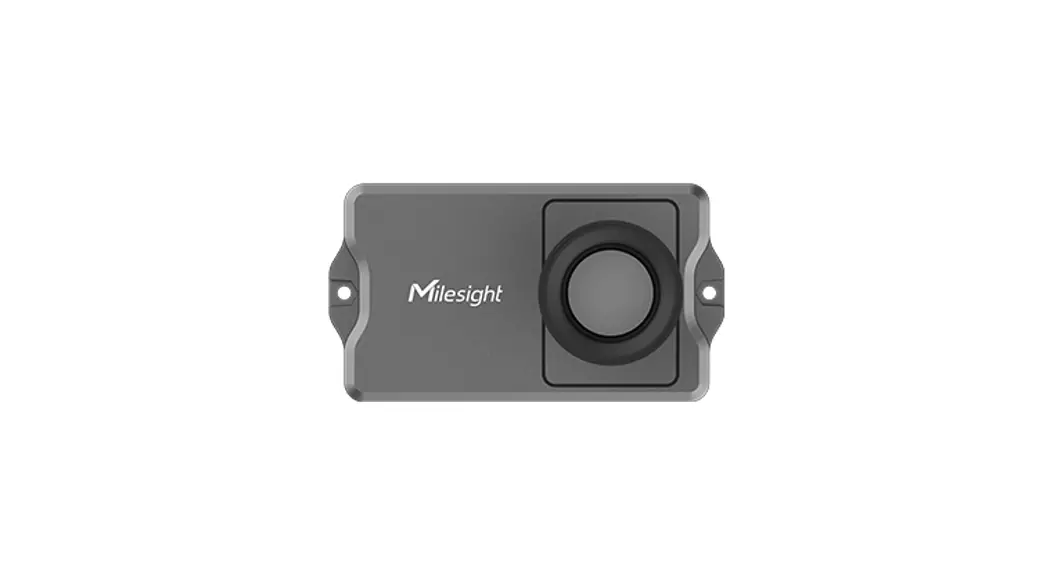
Overview
Features
- 3 to 450 cm wide measuring range with short bind zone
- Support temperature compensation for high accuracy
- Up to 15 km communication range
- Easy configuration via NFC
- Standard LoRaWAN support
- Milesight IoT Cloud compliant
- Low power consumption with 7000mAh replaceable battery®
Hardware Introduction
Packing List
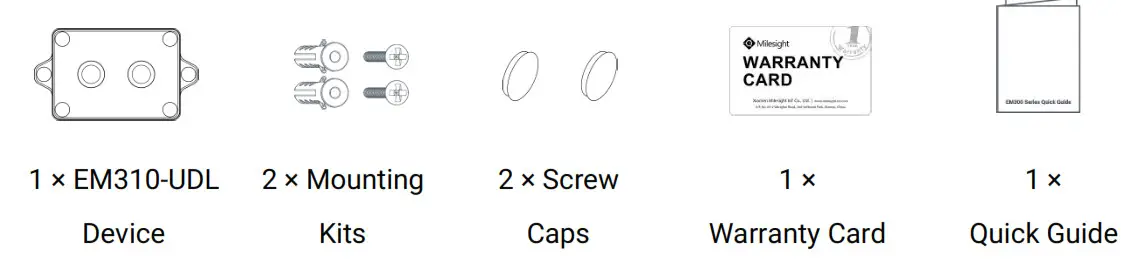
 If any of the above items is missing or damaged, please contact your sales representative.
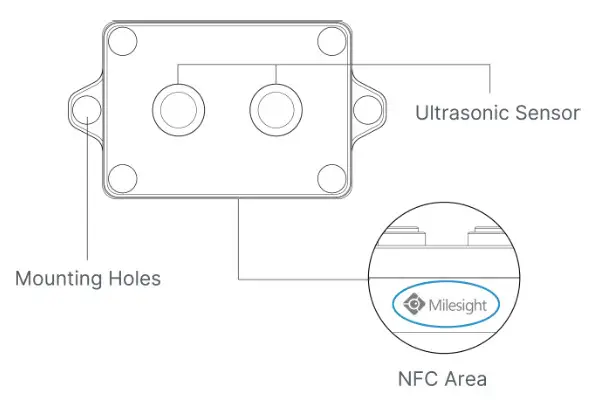
Hardware Overview
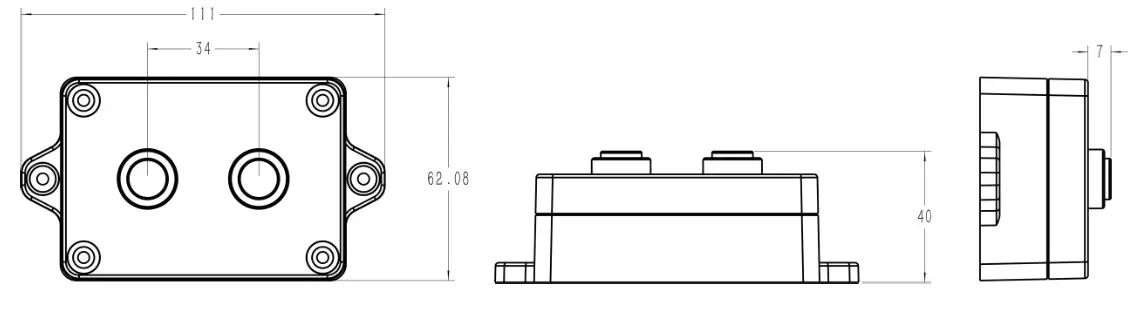
Dimensions (mm)
EM310-UDL can be switched on/off via NFC. Besides, users can use the power button to switch on/off and reset the device manually.
| Function | Action | LED Indication |
| Switch On | Press and hold the button for more than 3 seconds. | Off → On |
| Switch Off | Press and hold the button for more than 3 seconds. | On → Off |
| Reset | Press and hold the button for more than 10 seconds. | Quickly Blinks |
| Check On/Off Status | Quickly press the power button. | Light On: Device is on |
| Light Off: Device is off |
Operation Guide
NFC Configuration
EM310-UDL can be configured via NFC.
- Download and install “Milesight ToolBox” App from Google Play or App Store.
- Enable NFC on the smartphone and open the “Milesight ToolBox” App.
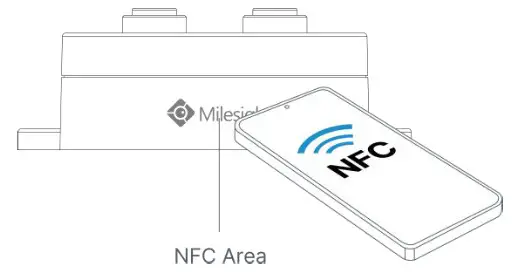
- Attach the smartphone with NFC area to the device to read the basic information.

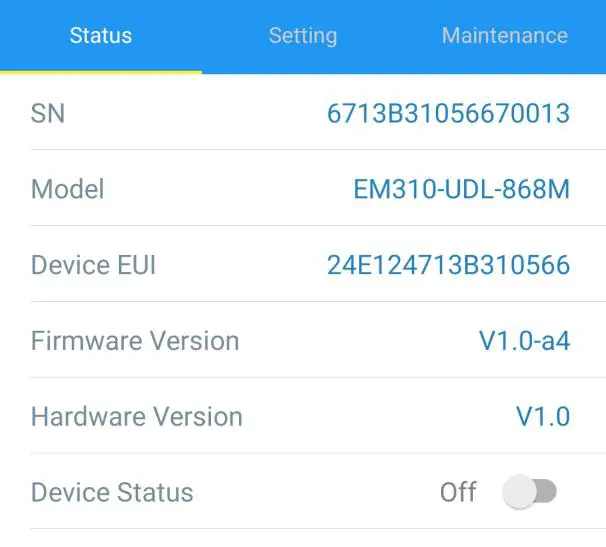
- Basic information and settings of devices will be shown on ToolBox if it’s recognized successfully. You can switch on/off the device by tapping the button on the Device Status. In order to protect the security of devices, password validation is required when configuring via unused phones. The default password is 123456.

- Tap “Read” button to check the current status and sensor data of the device.
- Tap “Write” button to write all your settings to the device.
Note:
- Ensure the location of the smartphone NFC area and it’s recommended to take off the phone case.
- If the smartphone fails to read/write configurations via NFC, keep the phone away and back to try again.
- EM310-UDL can also be configured by a dedicated NFC reader provided by Milesight IoT or you can configure it via TTL interface inside the device.
LoRaWAN Settings
LoRaWAN settings is used for configuring the transmission parameters in LoRaWAN ® network.
Basic LoRaWAN Settings:
Go to Device -> Setting -> LoRaWAN Settings of ToolBox App to configure join type, App EUI, App Key and other information. You can also keep all settings by default.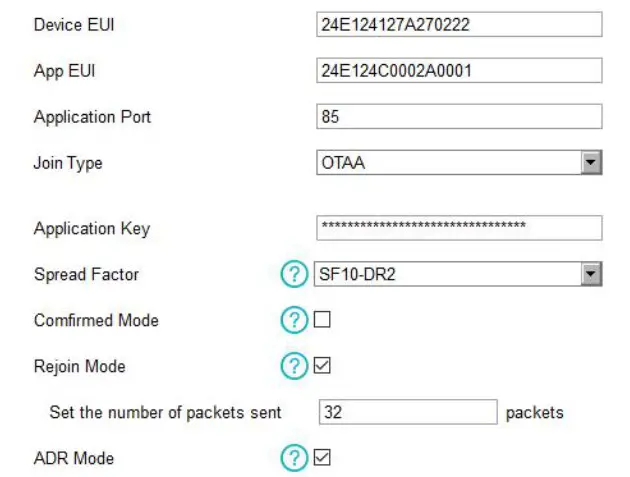
| Parameters | Description |
| Device EUI | Unique ID of the device which can also be found on the label. |
| App EUI | Default App EUI is 24E124C0002A0001. |
| Application Port Join Type | The port used for sending and receiving data, the default port is 85. |
| Application Key Device Address | OTAA and ABP mode are available. |
| Network Session | Appkey for OTAA mode, default is 5572404C696E6B4C6F52613230313823. |
| Key | Devendra for ABP mode, default is the 5th to 12 the digits of SN. |
| Application | Nwkskey for ABP mode, default is 5572404C696E6B4C6F52613230313823. |
| Session Key | Appskey for ABP mode, default is 5572404C696E6B4C6F52613230313823. |
| Spread Factor | If ADR is disabled, the device will send data via this spread factor. |
| Confirmed Mode | 0 |
| Rejoin Mode | Reporting interval ≤ 30 mins: device will send specific mounts of LoRaMAC packets to check connection status every 30 mins; If no reply after specific packets, the device will re-join. Reporting interval > 30 mins: device will send specific mounts of LoRaMAC packets every to check connection status every reporting interval; If no reply after specific packets, the device will re-join. |
| ADR Mode | Allow network server to adjust data rate of the device. |
| Tx Power | Transmit power of the device. |
Note:
- Please contact sales for device EUI list if there are many units.
- Please contact sales if you need random App keys before purchase.
- Select OTAA mode if you use Milesight IoT cloud to manage devices.
- Only OTAA mode supports rejoin mode.
Go to Setting -> LoRaWAN Settings of ToolBox App to select the supported frequency and select channels to send uplinks. Make sure the channels match the LoRaWAN ® gateway.
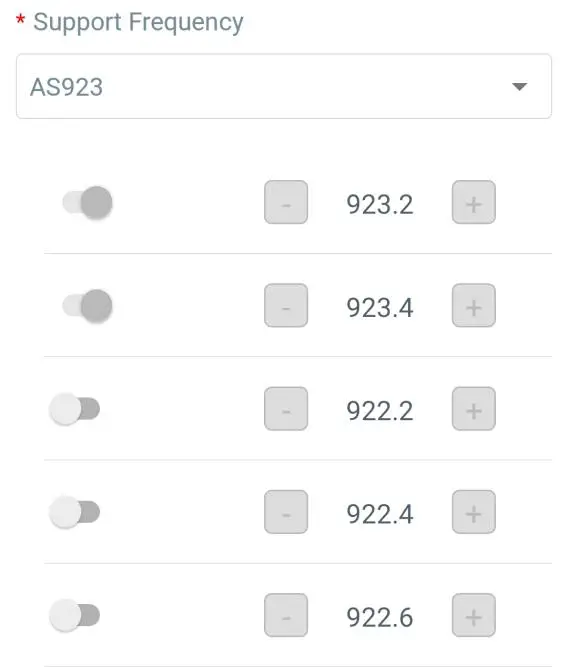
1, 40: Enabling Channel 1 and Channel 40
1-40: Enabling Channel 1 to Channel 40
1-40, 60: Enabling Channel 1 to Channel 40 and Channel 60
All: Enabling all channels
Null: Indicates that all channels are disabled
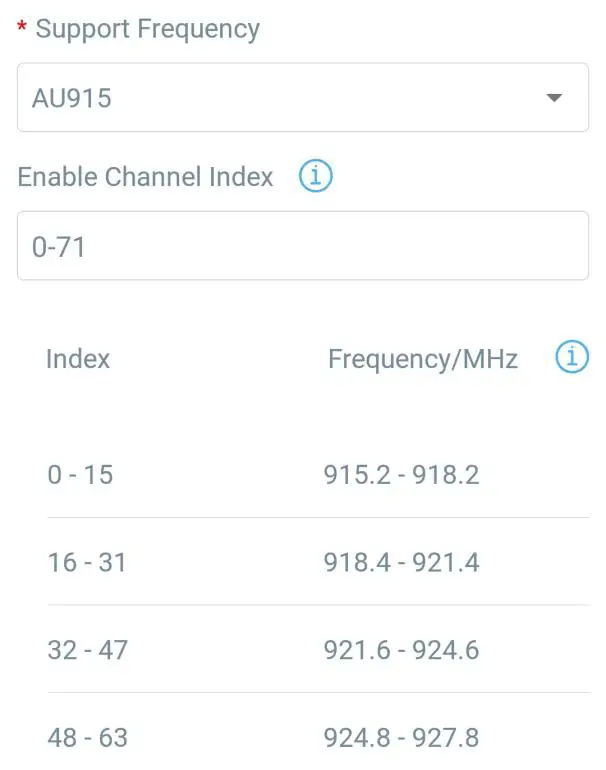
For -868M model, the default frequency is EU868;
For -915M model, the default frequency is AU915.
Go to “Device -> Setting -> General Settings of ToolBox App to change the reporting interval, etc.
| Parameters | Description |
| Reporting Interval | Reporting interval of transmitting data to a network server. Default: 10 mins Range: 1-1080 mins |
| Tilt & Distance Switch | sWhen detected the horizontal offset angle of the device is greater than 20°, stop the distance measurement. |
| Change Password | Change the password for ToolBox App or software to access this device. |
Advanced Settings
3.4.1 Calibration Settings
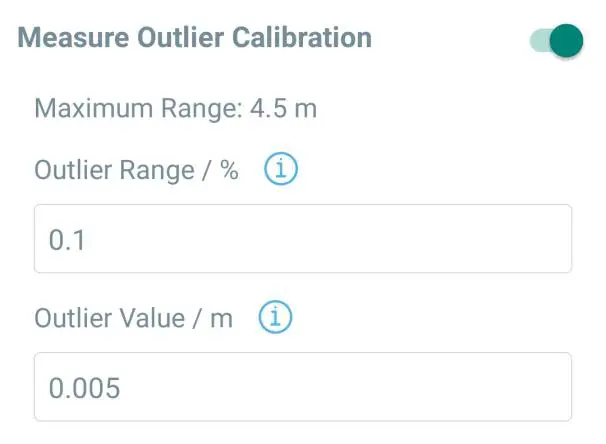
Go to Device -> Setting -> Calibration Settings of ToolBox App to enable calibration. EM310-UDL supports two calibration types:
- Numerical Calibration: users can define calibration values to correct every distance.

- Measure Outlier Calibration: users can define either outlier range or value. When the device distance value exceeds the outlier range (or value) compared to last value, the device will measure the distance again.

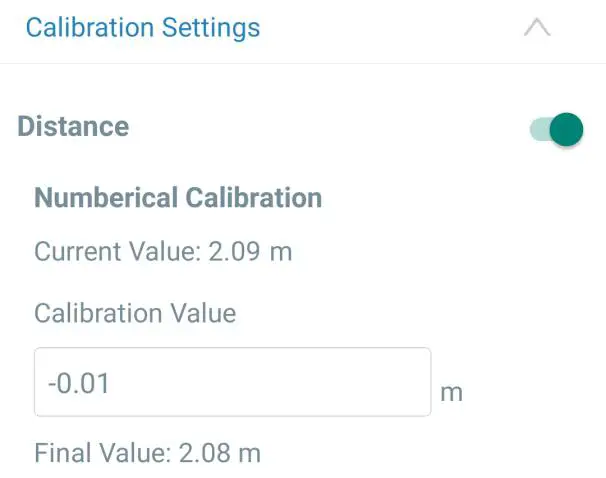
3.4.2 Threshold Settings
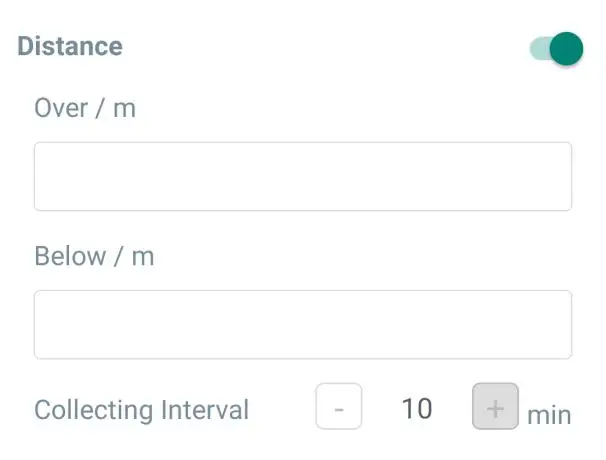
Go to Device -> Setting -> Threshold Settings of ToolBox App to enable the threshold settings and input the distance threshold. EM310-UDL will detect whether the distance reaches the threshold according to the collecting interval. If the threshold is triggered, it uploads the current data once instantly.
Maintenance
3.5.1 Upgrade
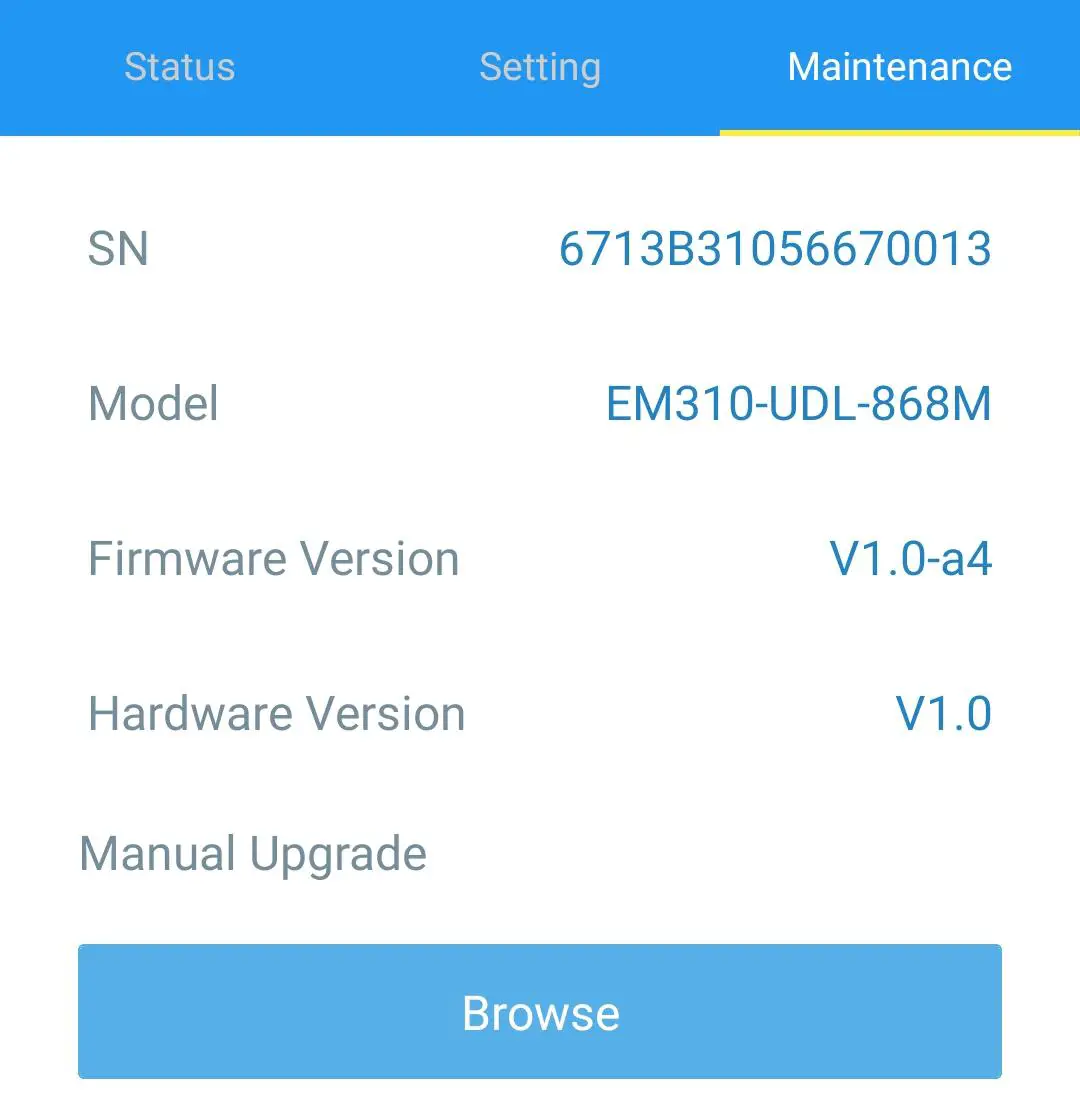
- Download firmware from the Milesight website to your smartphone.
- Open Toolbox App and click “Browse” to import firmware and upgrade the device.
Note:
- Operation on ToolBox is not supported during a firmware upgrade.
- Only Android version ToolBox supports the upgrade feature.

3.5.2 Backup
EM310-UDL support configuration backup for easy and quick device configuration in bulk.
Backup is allowed only for devices with the same model and LoRa frequency band.
- Go to the “Template” page on the App and save current settings as a template. You can also edit the template file.
- Select one template file saved in the smartphone and click “Write”, then attach to another device to write configuration.

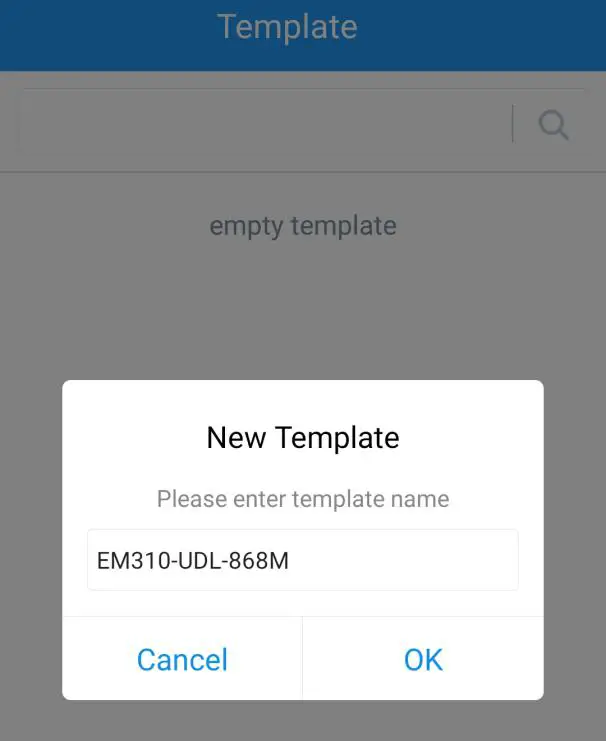
Note: Slide the template item left to edit or delete the template. Click the template to edit the configurations.
3.5.3 Reset to Factory Default
Please select one of the following methods to reset device:
Via Hardware: Hold on power button (internal) for more than 10s.
Via Toolbox App: Go to “Device -> Maintenance” to click “Reset”, then attach smartphone with NFC area to the device to complete reset.
Installation
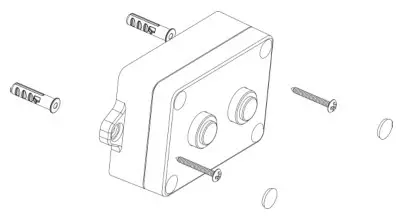
- Fix the wall plugs into the wall, then fix the device to the wall plugs with screws.
- Cover the screws with screw caps.

Installation location:
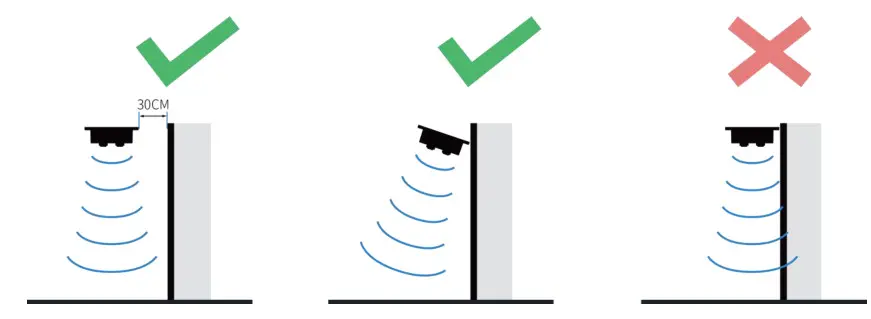
- Ensure the location of the device is within the communication range of the LoRaWAN gateway and keep it away from metal objects.
- The device must sit in a horizontal position on top of the object so that it has a clear path to the object.
- Place devise in where it is far away from the side-wall more than 30 cm and without internal obstructions that block the ultrasonic signal. If the device has to install on the sidewall, please ensure the ultrasonic sensor direction point away from the wall.
Milesight IoT Cloud Management
EM310-UDL can be managed by Milesight IoT Cloud platform. Milesight IoT cloud is a comprehensive platform that provides multiple services including device remote management and data visualization with the easiest operation procedures. Please egister a Milesight IoT Cloud account before operating following steps.
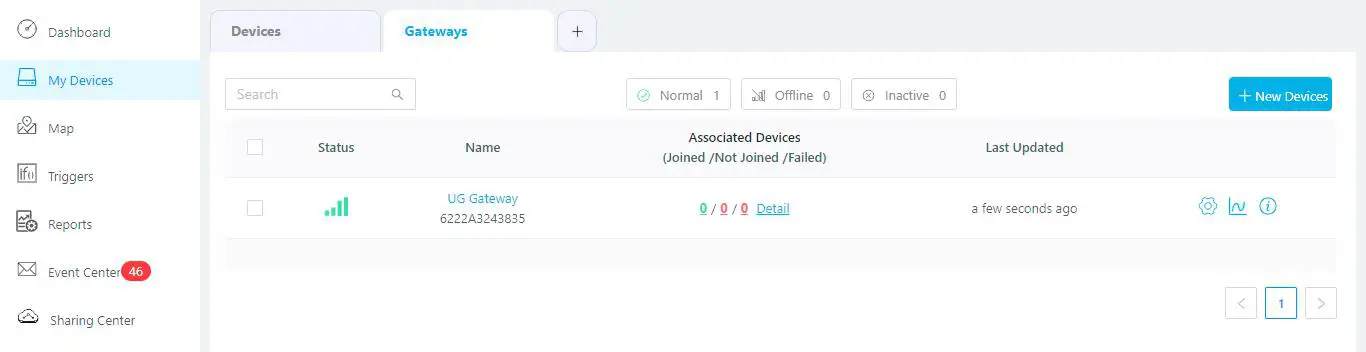
- Ensure Milesight LoRaWAN gateway is online in Milesight IoT Cloud. For more info about connecting gateway to cloud please refer to gateway’s user guide.

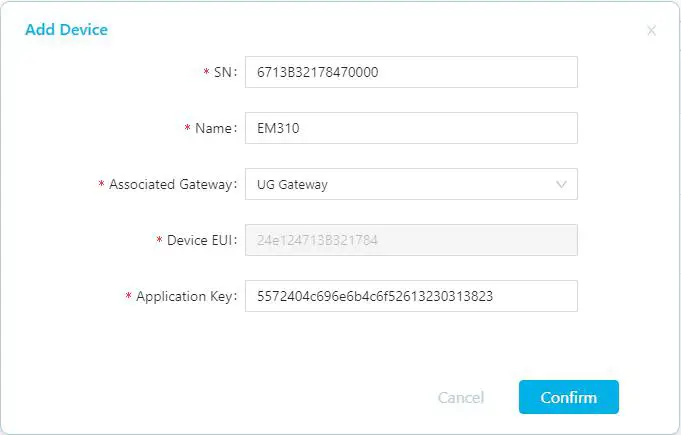
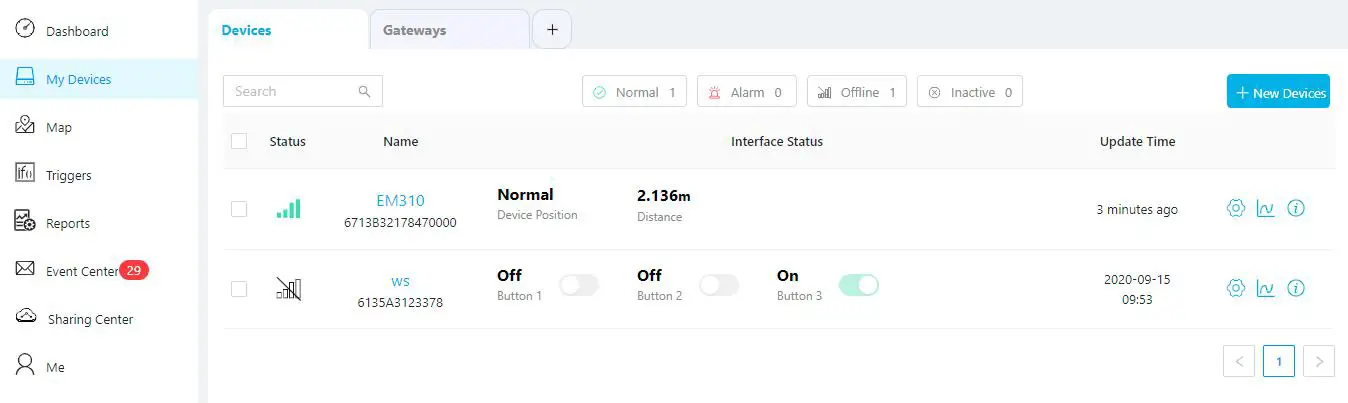
- Go to the “My Devices” page and click “+New Devices”. Fill in the SN of the device and select an associated gateway.

- After the device is online in Milesight IoT Cloud, you can check the data via webpage or mobile App and create a dashboard for it.

Device Payload
All data are based on following format (HEX):
| Channel1 | Type1 | Data1 | Channel2 | Type2 | Data2 | Channel 3 | … |
| 1 Byte | 1 Byte | N Bytes | 1 Byte | 1 Byte | M Bytes | 1 Byte | … |
For decoder examples please find files on https://github.com/Milesight-IoT/SensorDecoders.
Basic Information
EM310-UDL reports basic information of sensor whenever it joins the network.
| Channel | Type | Description |
| ff | 01(Protocol Version) | 01=>V1 |
| 09 (Hardware Version) | 01 40 => V1.4 | |
| 0a (Software Version0b | 01 14 => V1.14 | |
| 0b (Power On) | Device is on | |
| 0f (Device Type) | 00: Class A, 01: Class B, 02: Class C | |
| 16 (Device SN) | 16 digits |
Example:
| ff0bff ff0101 ff166713b31056670013 ff090100 ff0a0100 ff0f00 | |||||
| Channel | Type | Value | Channel | Type | Value |
| ff | 0b (Power On) | ff (Reserved) | ff | 01 (Protocol Version) | 01 (V1) |
| Channel | Type | Value | Channel | Type | Value |
| ff | 16 (Device SN) | 6713b31056 670013 | ff | 09 (Hardware version) Type | 0100 (V1.0) |
| Channel | Type | Value | Channel | Type | Value |
| ff | 0a (Software version) | 0100 (V1.0) | ff | 0f (Device Type) | 00 (Class A) |
Sensor Data
EM310-UDL reports sensor data according to reporting interval (10 mins by default).
| Channel | Type | Description |
| 1 | 75(Battery Level) | UINT8, Unit: % |
| 3 | 82 (Distance) | UINT16, Unit: mm |
| 4 | 00 (Device Position) | 00: Normal (horizontal offset angle < 20°) 01: Tilt (horizontal offset angle ≥ 20°) |
Example:
| 01 75 62 03 82 44 08 04 00 00 | |||||
| Channel | Type | Value | Channel | Type | Value |
| 1 | 75 (Battery) | 62 => 98% | 3 | 82 (Distance | 44 08 => 08 44 = 2116 mm = 2.116 m |
| Channel | Type | Value |
| 4 | 00 (Device Position) | 00=Normal |
Downlink Commands
EM310-UDL supports downlink commands to configure the device. The application port is 85 by default.
| Channel | Type | Description |
| ff | 03 (Set Reporting Interval) | 2 Bytes, unit: s |
Example: Set reporting interval as 20 minutes.
| ff03b004 | ||
| Channel | Type | Value |
| ff | 03 (Set Reporting Interval) | b0 04 => 04 b0 = 1200s = 20 minutes |
 GitHub - Milesight-IoT/SensorDecoders