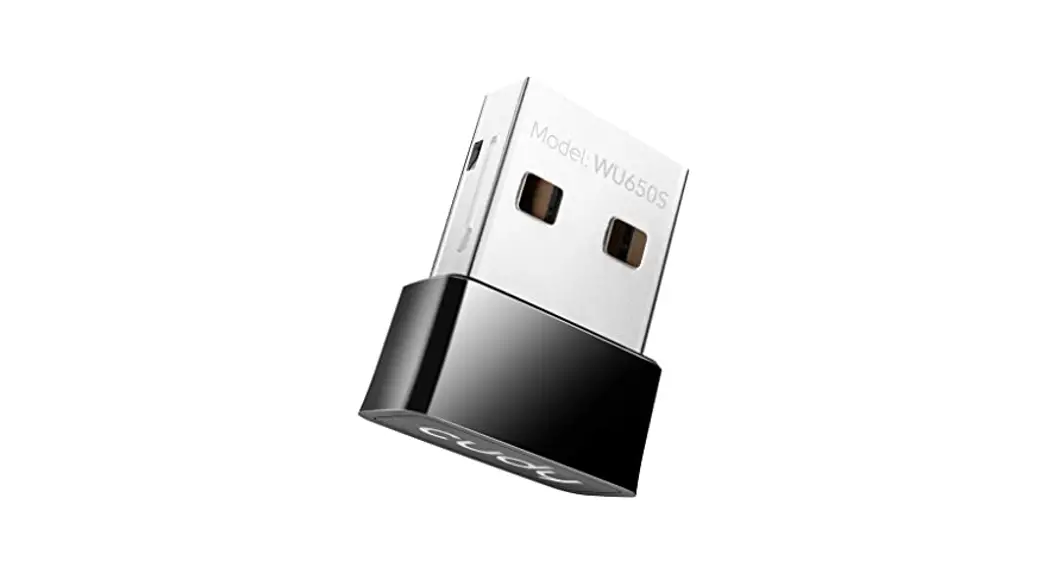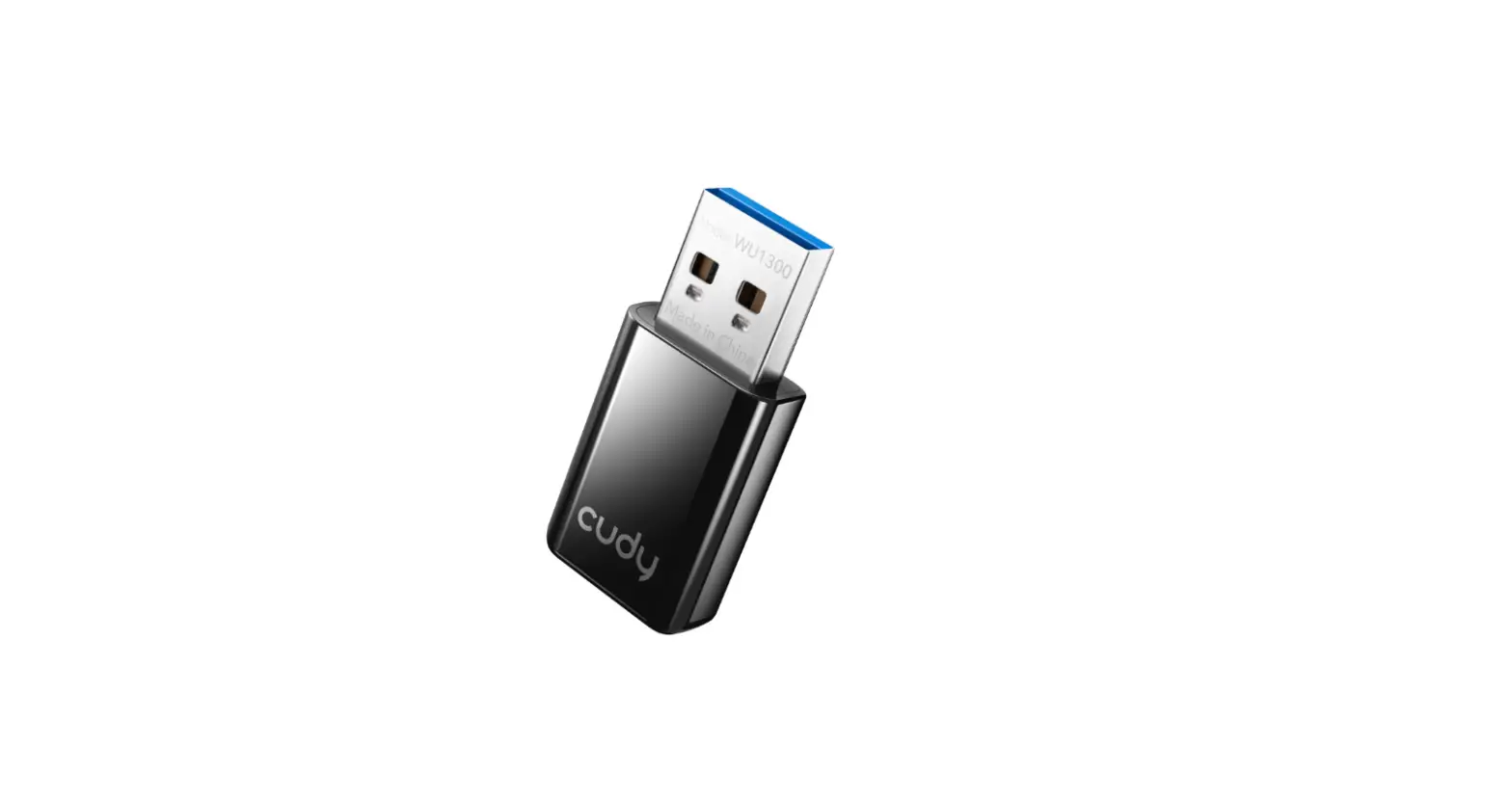

How to install RTL88x2BU with Ubuntu 18.04/20.04
(WU1200/WU1300/ WU1300S/WU1400)
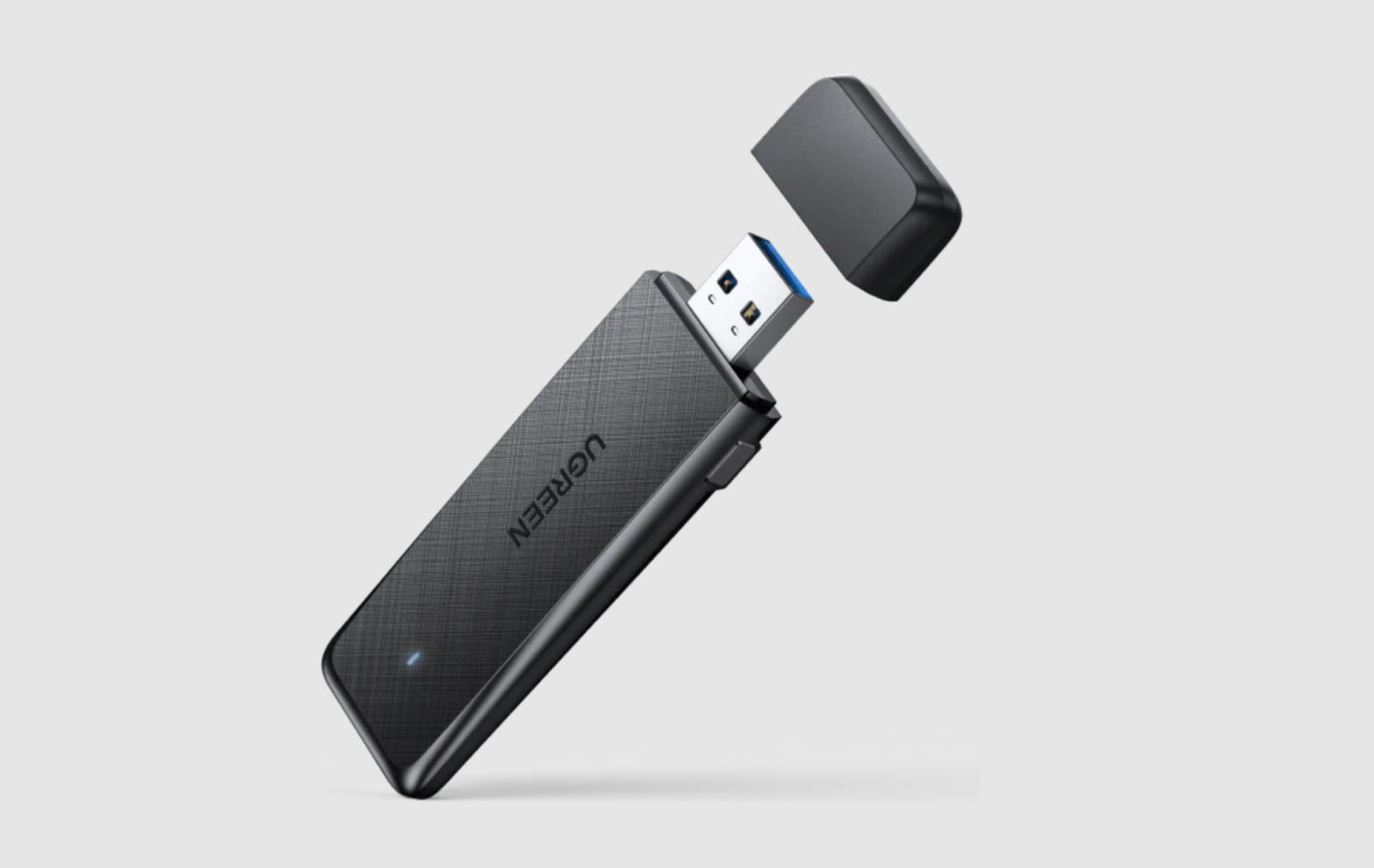
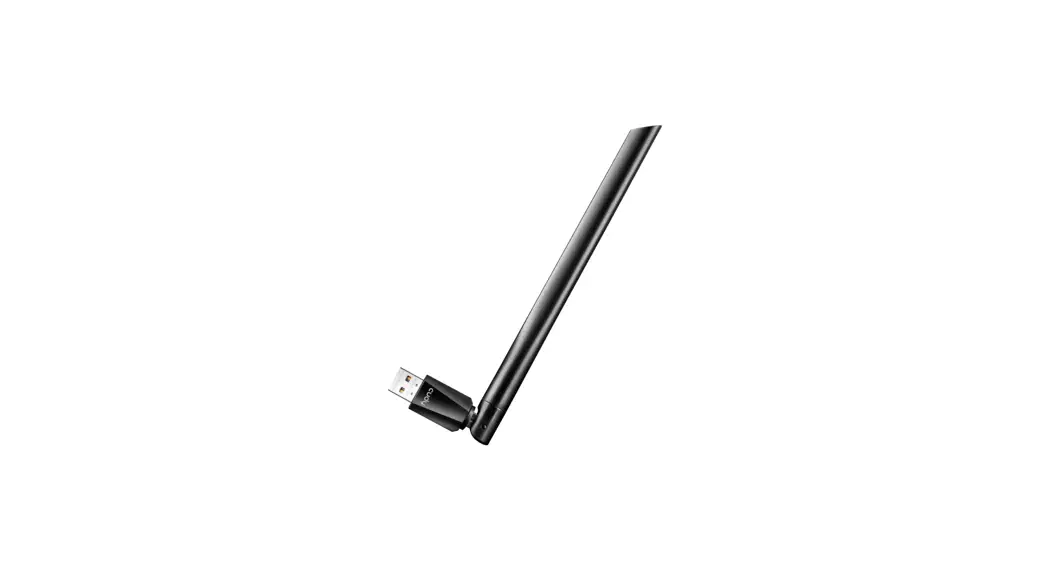
WU1200 USB Wifi Adaptor
- Check your driver.
Make sure you’ve got the driver, which should be rtl88x2bu_linux.zip for your USB adapter.
If it is not, write email to [email protected] and ask for this driver. - Login your Ubuntu 18.04/20.04, and enter your working directory.
For example:
root@ubuntu:/home/colin/project #
Don’t use the complex directory name.
Especially don’t use a directory whose name include BLANK.
Maybe you can create the same directory as “/home/colin/project”. - Copy the driver into your working directory. And unpack this file with command of “unzip rtl88x2bu_linux.zip”.
For example: root@ubuntu:/home/colin/project# unzip rtl88x2bu_linux.zip - A new folder “./rtl88x2bu_linux” will be created in your working directory.
- Enter the directory of “project/rtl88x2bu_linux”, and run “sudo make” with root authority.
For example:
root@ubuntu:/home/colin/project# cd rtl88x2bu_linux
root@ubuntu:/home/colin/project/rtl88x2bu_linux# sudo make - After the above step succeeds, run “sudo make install”.
For example:
root@ubuntu:/home/colin/project/rtl88x2bu_linux# sudo make install - Run “sudo modprobe -r 88x2bu”.
For example:
root@ubuntu:/home/colin/project/rtl88x2bu_linux# sudo modprobe -r 88x2bu - Run “sudo modprobe 88x2bu”.
For example:
root@ubuntu:/home/colin/project/rtl88x2bu_linux# sudo modprobe 88x2bu - Done
Summary(Installation command):
root@ubuntu:~# cd /home/colin/project
(Notes:This directory contains the zip file of driver.)
root@ubuntu:/home/colin/project/# unzip rtl88x2bu_linux.zip
root@ubuntu:/home/colin/project/# cd rtl88x2bu_linux
root@ubuntu:/home/colin/project/rtl88x2bu_linux# sudo make
root@ubuntu:/home/colin/project/rtl88x2bu_linux# sudo make install
root@ubuntu:/home/colin/project/rtl88x2bu_linux# sudo modprobe -r 88x2bu
root@ubuntu:/home/colin/project/rtl88x2bu_linux# sudo modprobe 88x2bu
FAQ.
Q: Linux prompts “modprobe: ERROR: could not insert ’88x2bu’ : Operation not permitted” while run the command “sudo modprobe 88x2bu” . How to fix the issue?
– A: It may be caused by the setting of Secure Boot in the BIOS of your computer.
– Please try to disable this option and then retry to run the command.
Q: The driver is not installed when the computer reboots. How to fix the issue?
– A: Try to add a new line into “/etc/modules”, which should be as like as below.
– Warning:The string is “88x2bu” but not “88x2bu”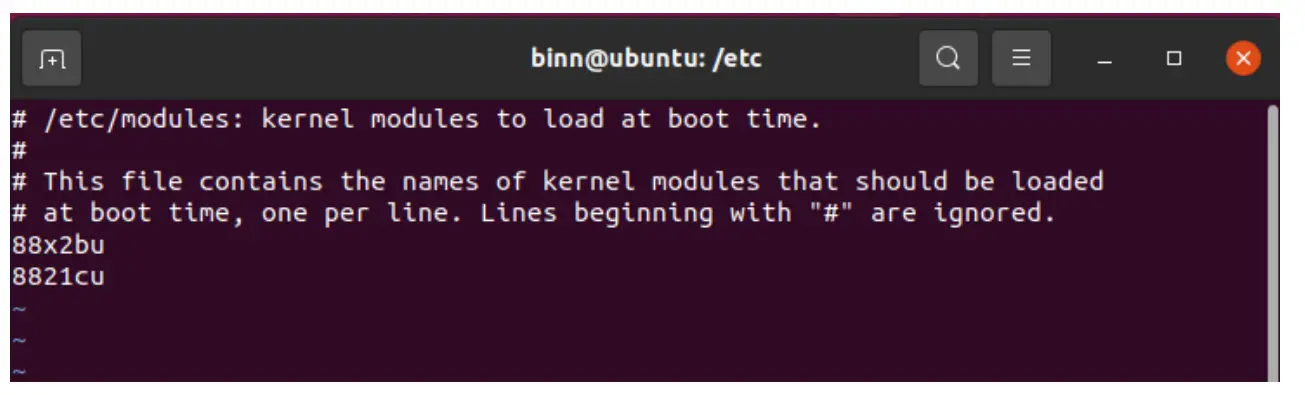 -.If more than one “88x2bu” have been added into /etc/modules, please edit this file and remove the redundant string of 88x2bu.
Linux Driver Installation Guide
www.cudy.com
 Cudy Official Website