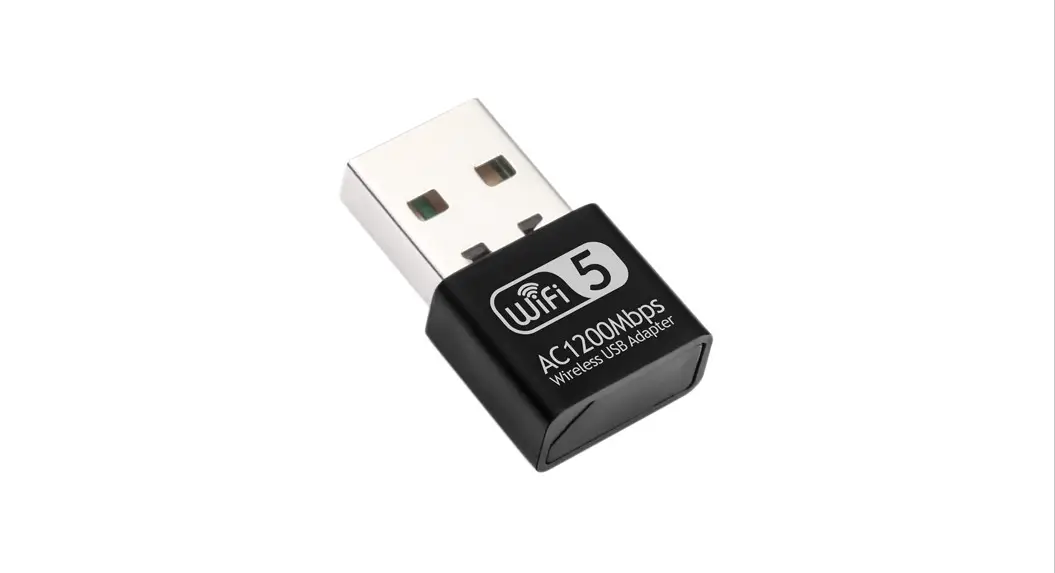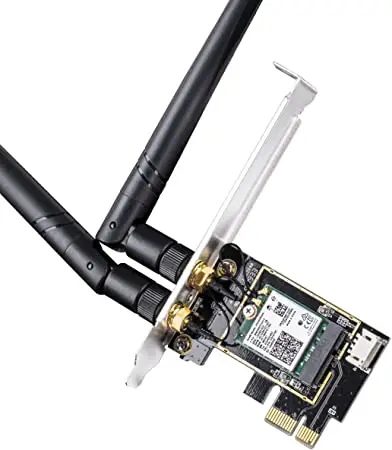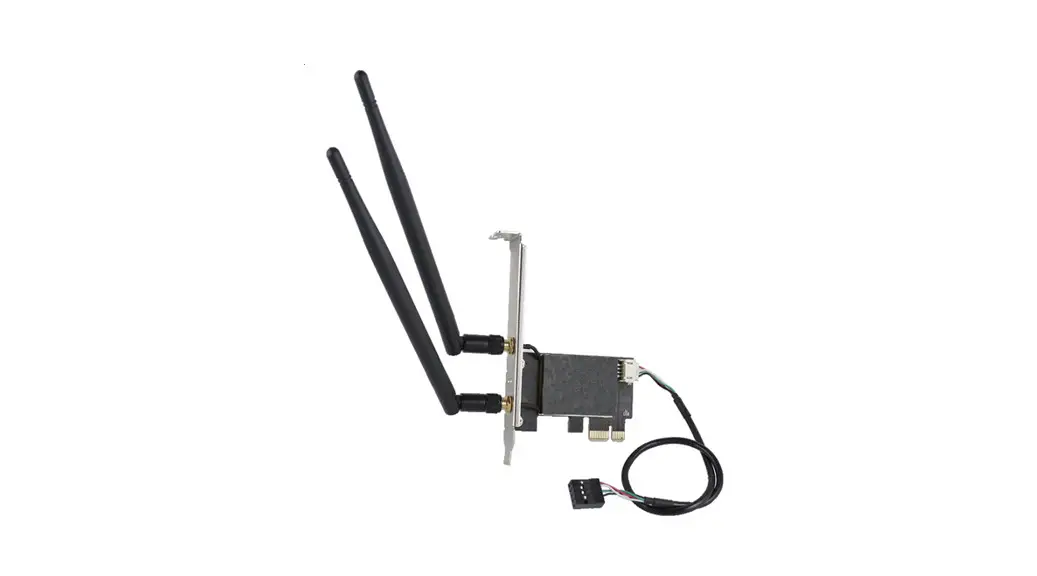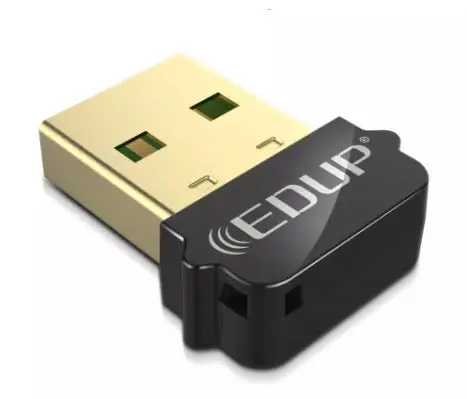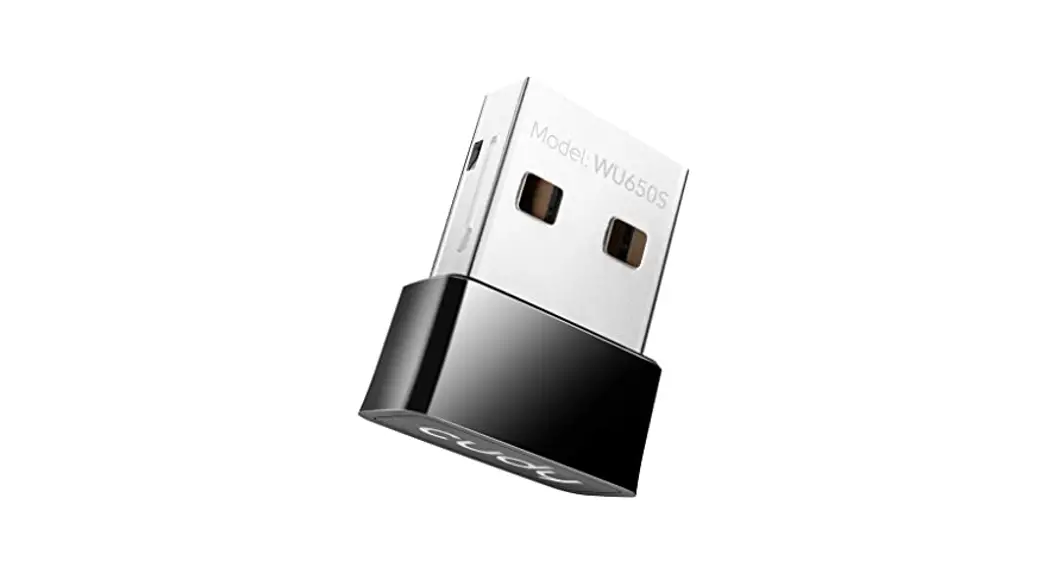
 WU650 WLAN Adapter
Installation Guide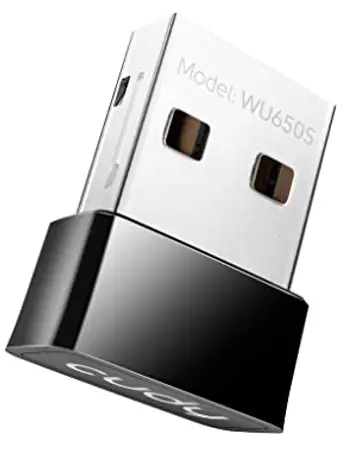
WU650 WLAN Adapter
Quick Installation Guide Email: [email protected]
 Driver & Manual: www.cudytech.com/download
Driver Installation
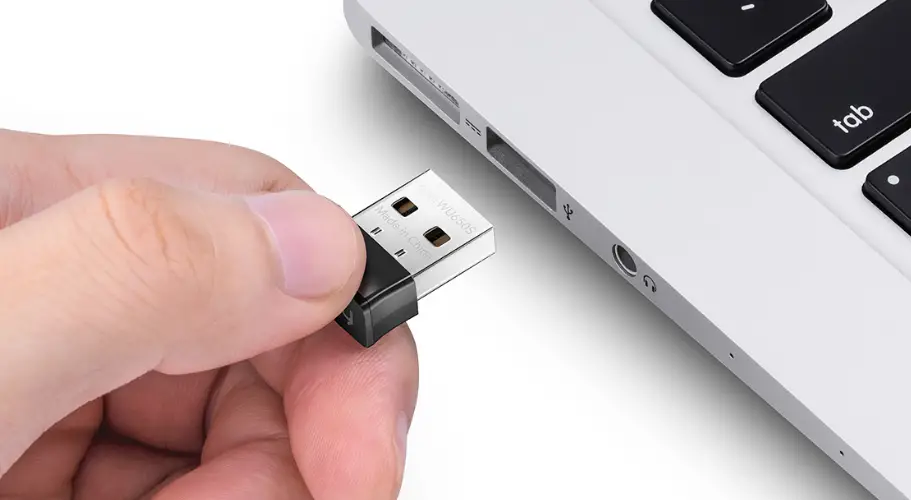
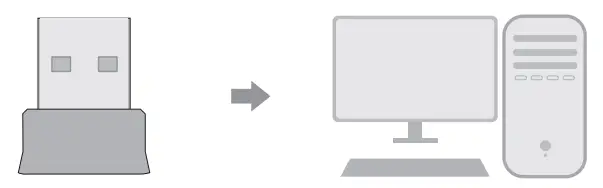
- Please insert the usb adapter directly into the computer’s USB port.

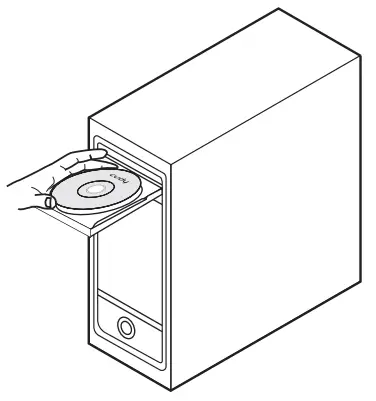
- Put the CD into the computer drive.

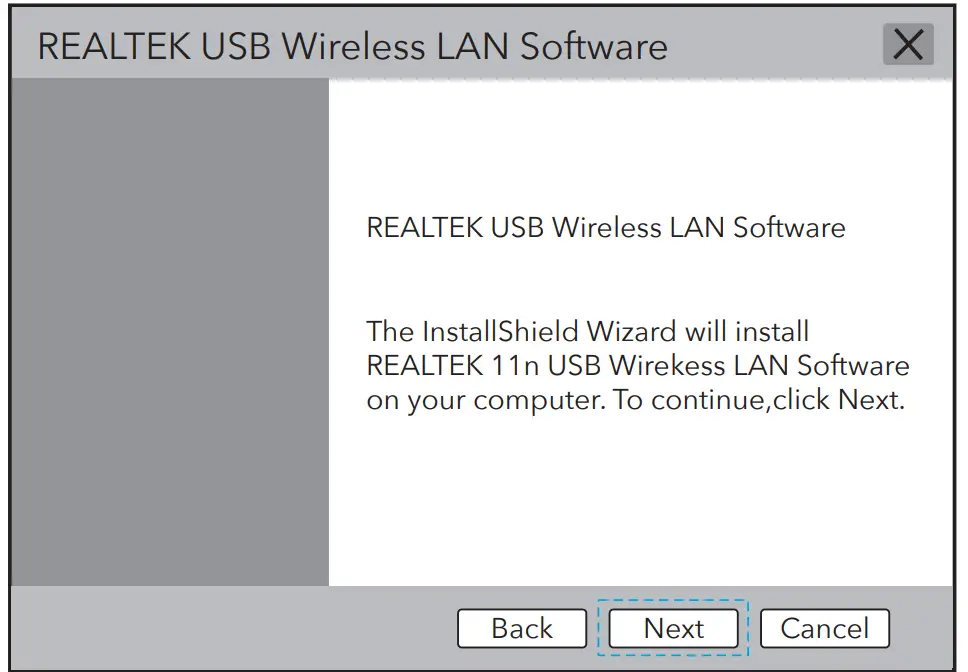
- Open the driver folder and double click the installation file “Setup.exe”. Click “Next”to finish the installation.

- After finishing the installation, in the lower right corner of the taskbar, [REALTEK Client Management Software
 ] appears, indicating the installation succeed.
 ] appears, indicating the installation succeed.
WiFi Adapter Mode
- Double-click ”
 ” REALTEK USB Wireless LAN Utility.
 - Click on the upper menu “Available Network”, select the wireless network SSID you want to connect to.

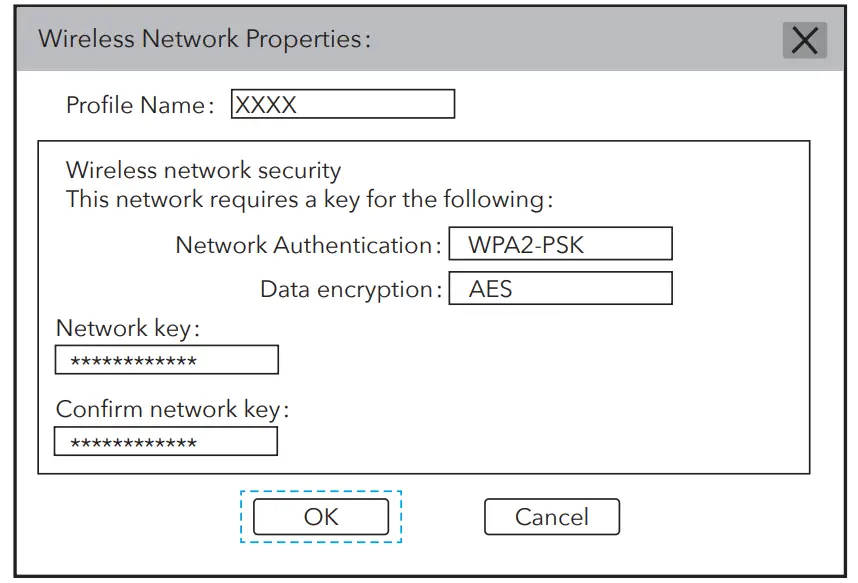
- Enter the network key, confirm the network key, click “OK” as shown below:

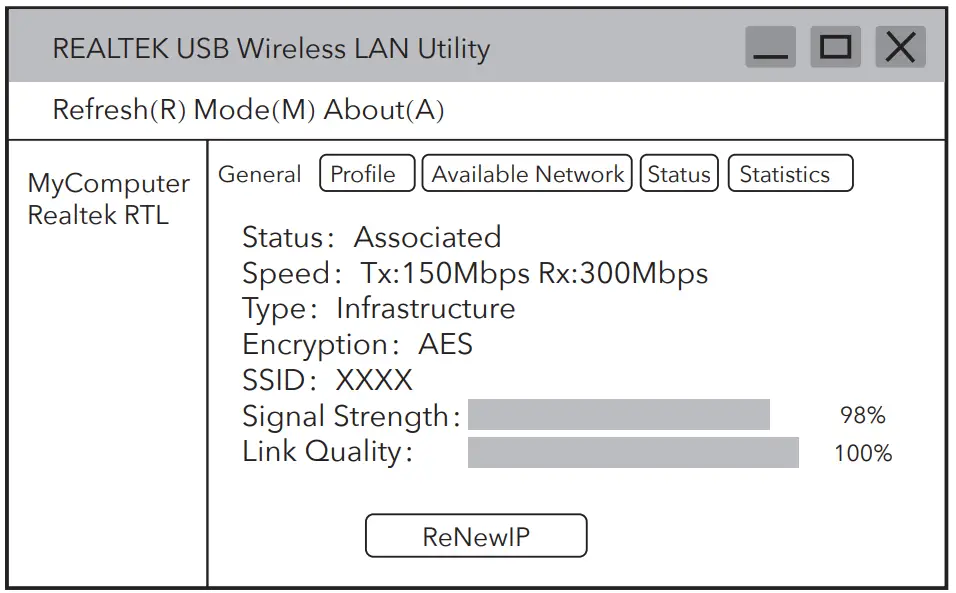
- After the connection is successful, the signal strength and link quality are displayed, as shown below:

 ” REALTEK USB Wireless LAN Utility.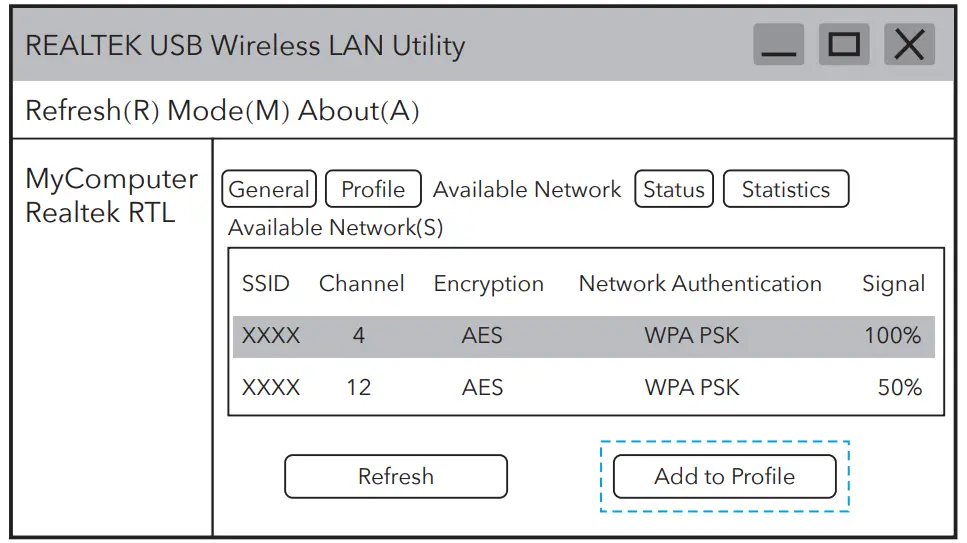
Soft AP Mode
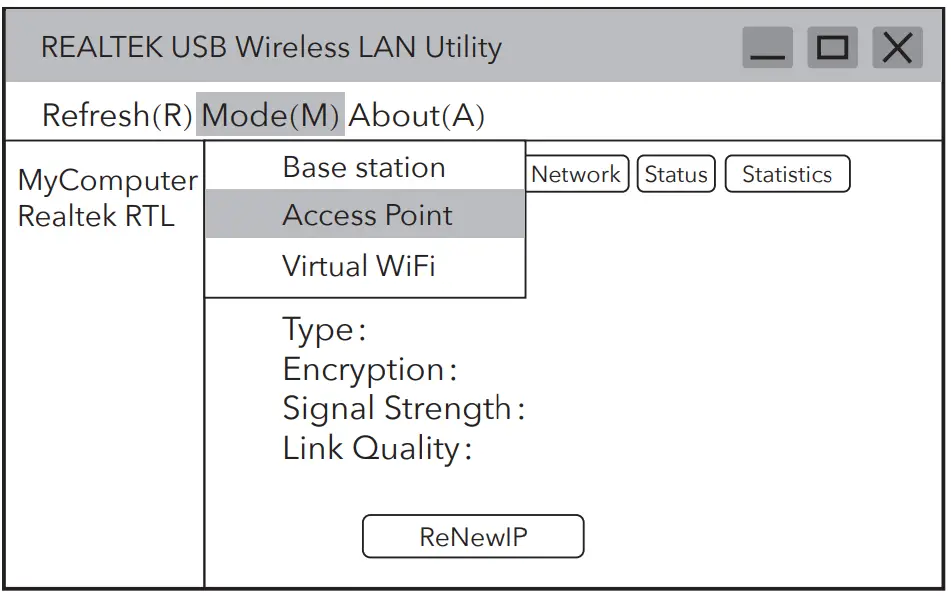
- Click on the management software menu [Mode] to select [Access Point], as shown below:

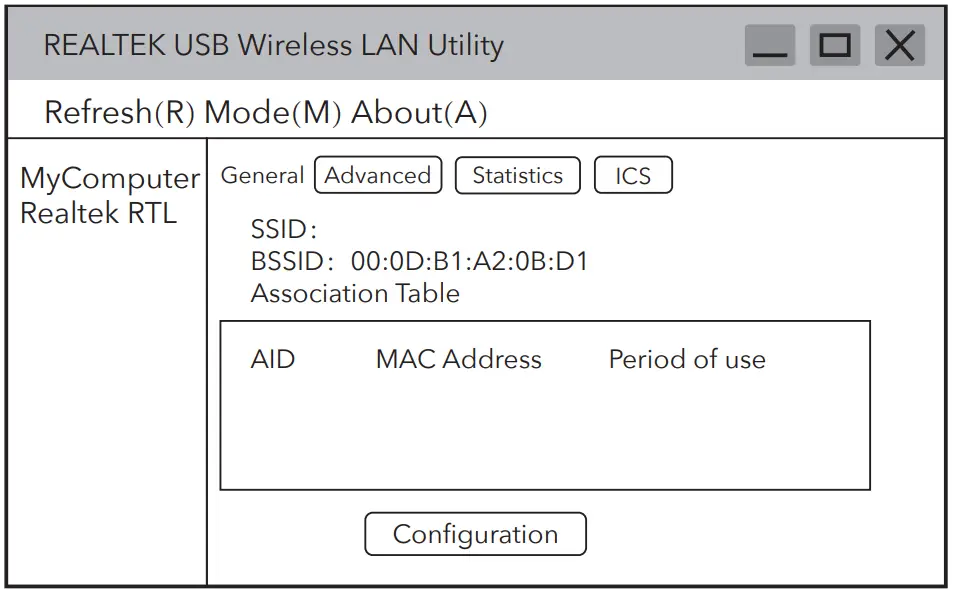
- After switching to access point mode, the SSID displays the name of the computer, asshown below:

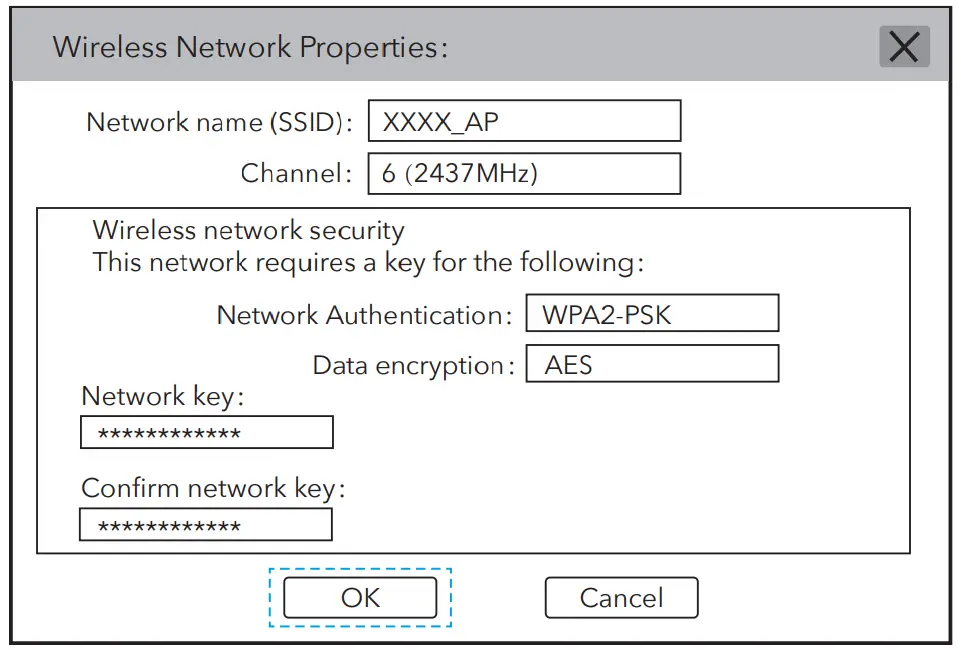
- Click on the image above “Configuration” to open the Wireless Network Properties Settings dialog to set the network name (SSID), channel, encryption algorithm and
password. Click “OK”.
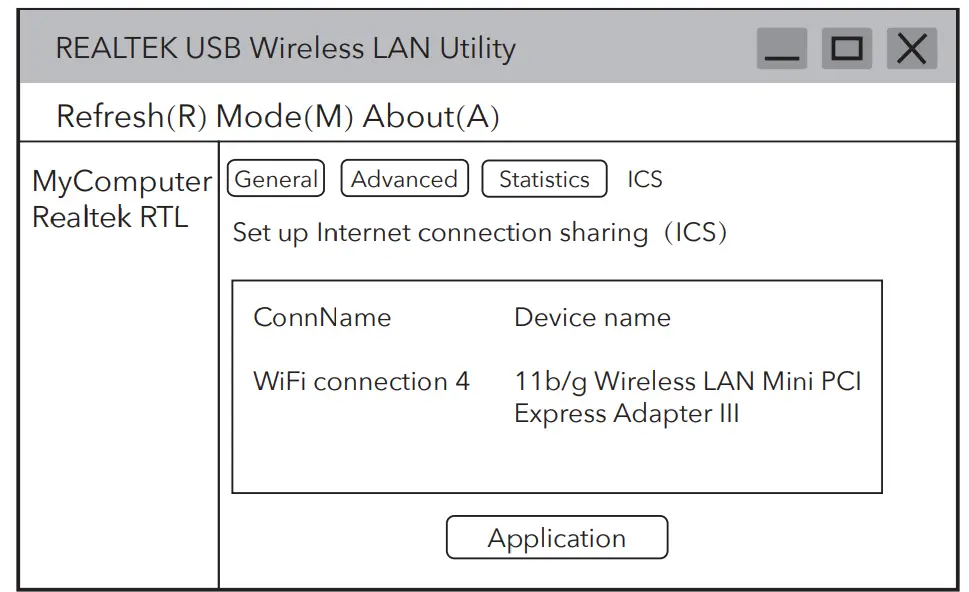
- Click “ICS” to select the network connected to your computer, click “Application” , as shown below:

EU Declaration of Conformity
Cudy hereby declares that the device is in compliance with the essential requirements and other relevant provisions of directives 2014/53/EU, 2009/125/EC and 2011/65/EU.
The original EU declaration of conformity may be found at http://www.cudytech.com/ce.

 Cudy CE