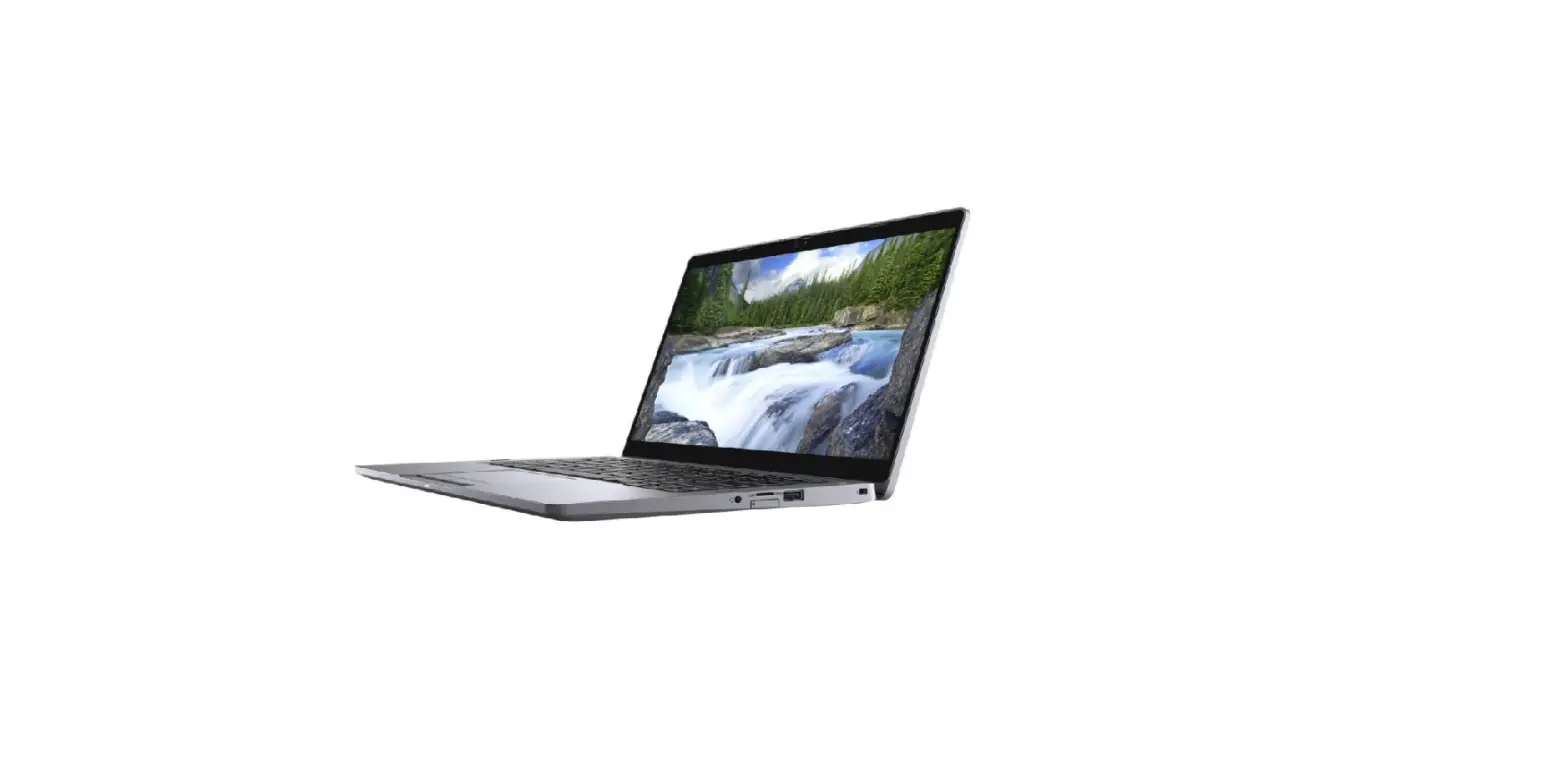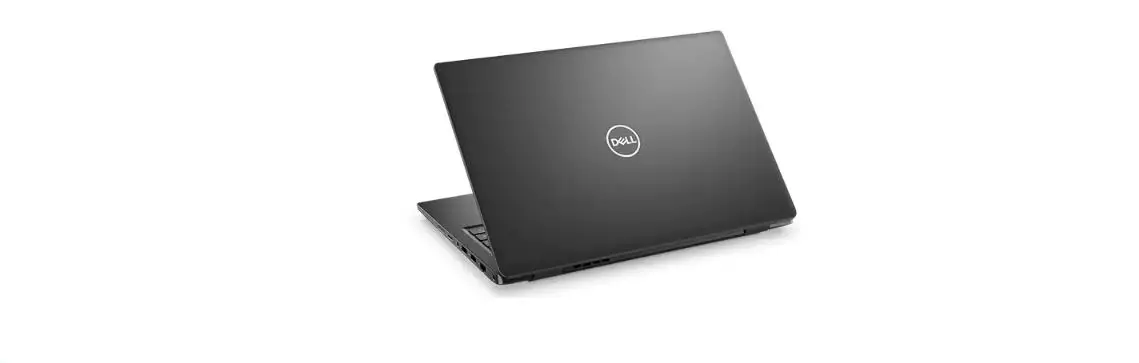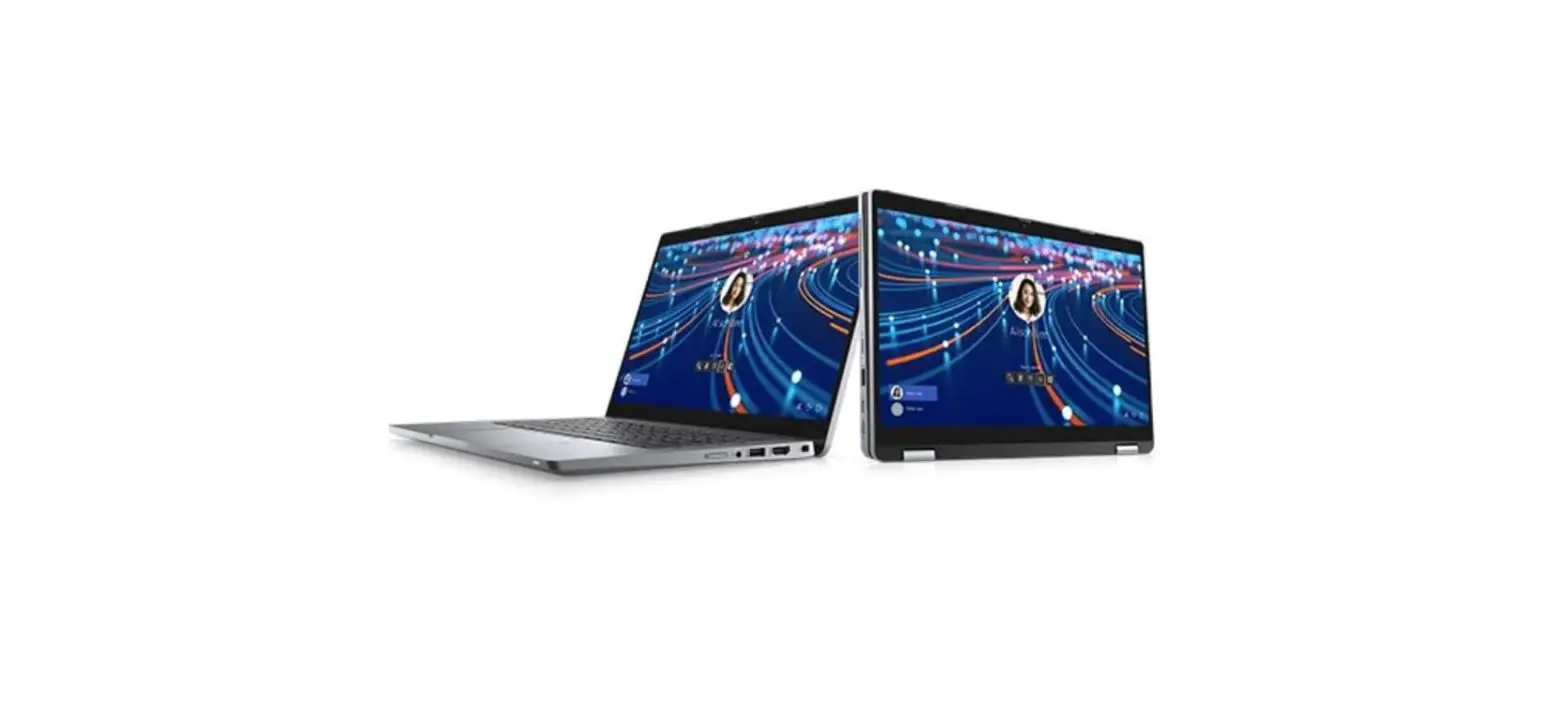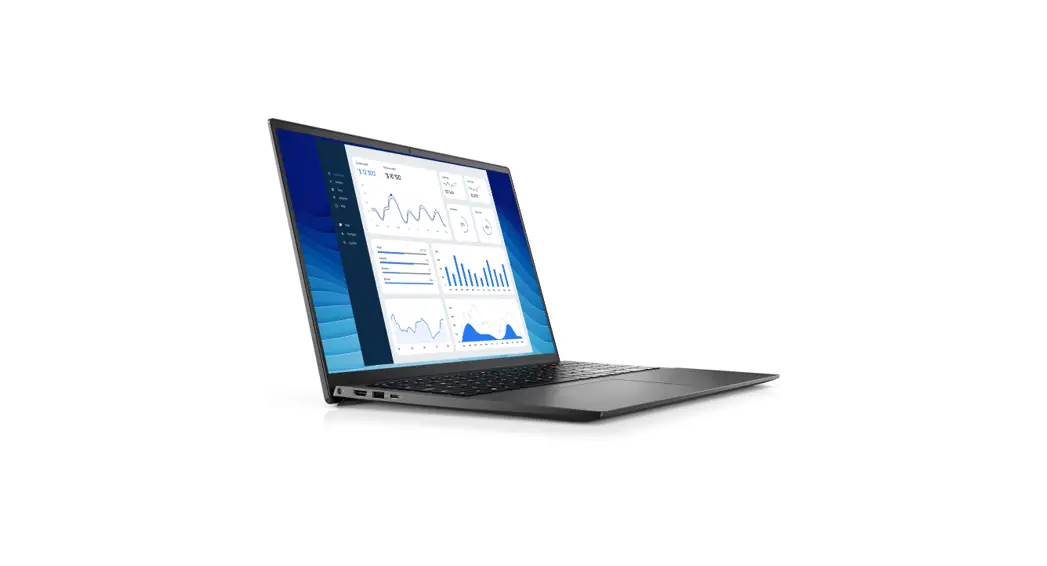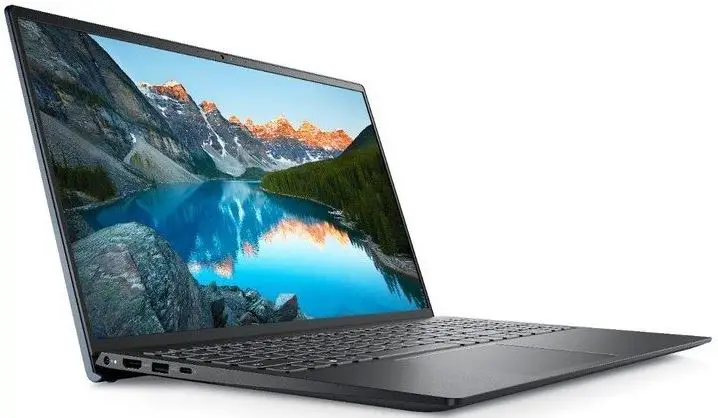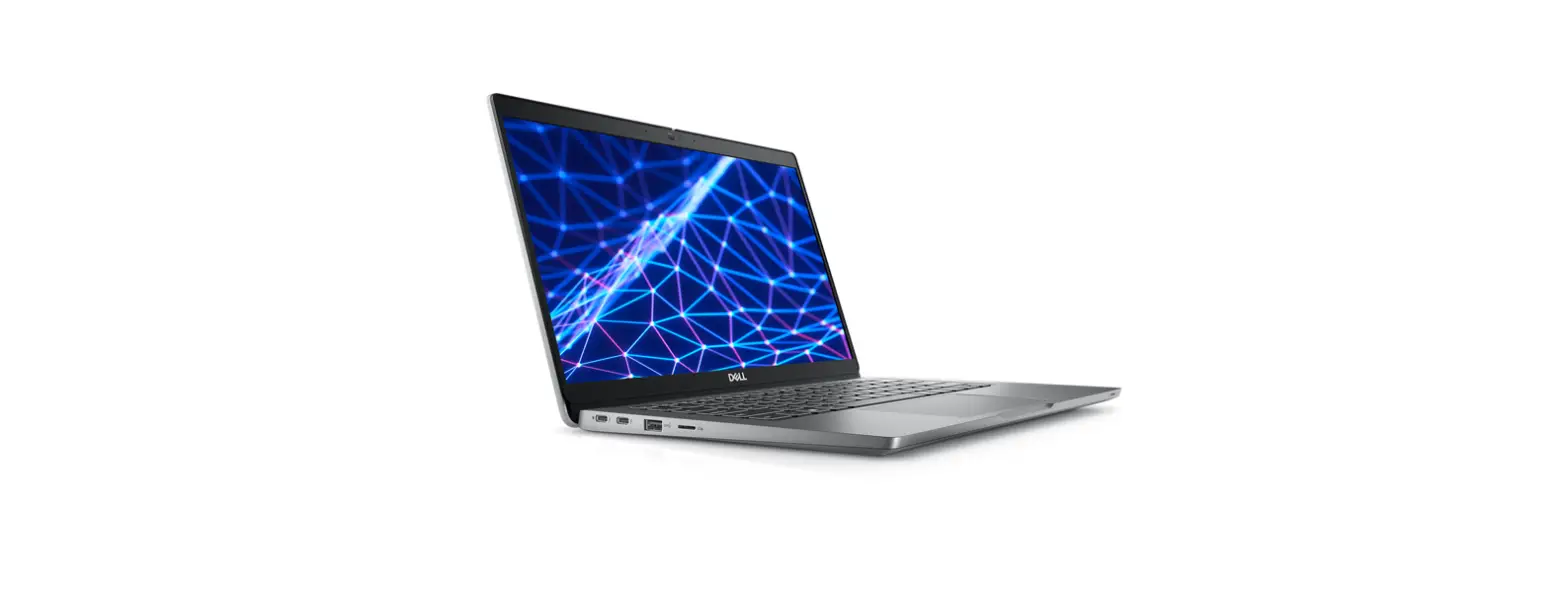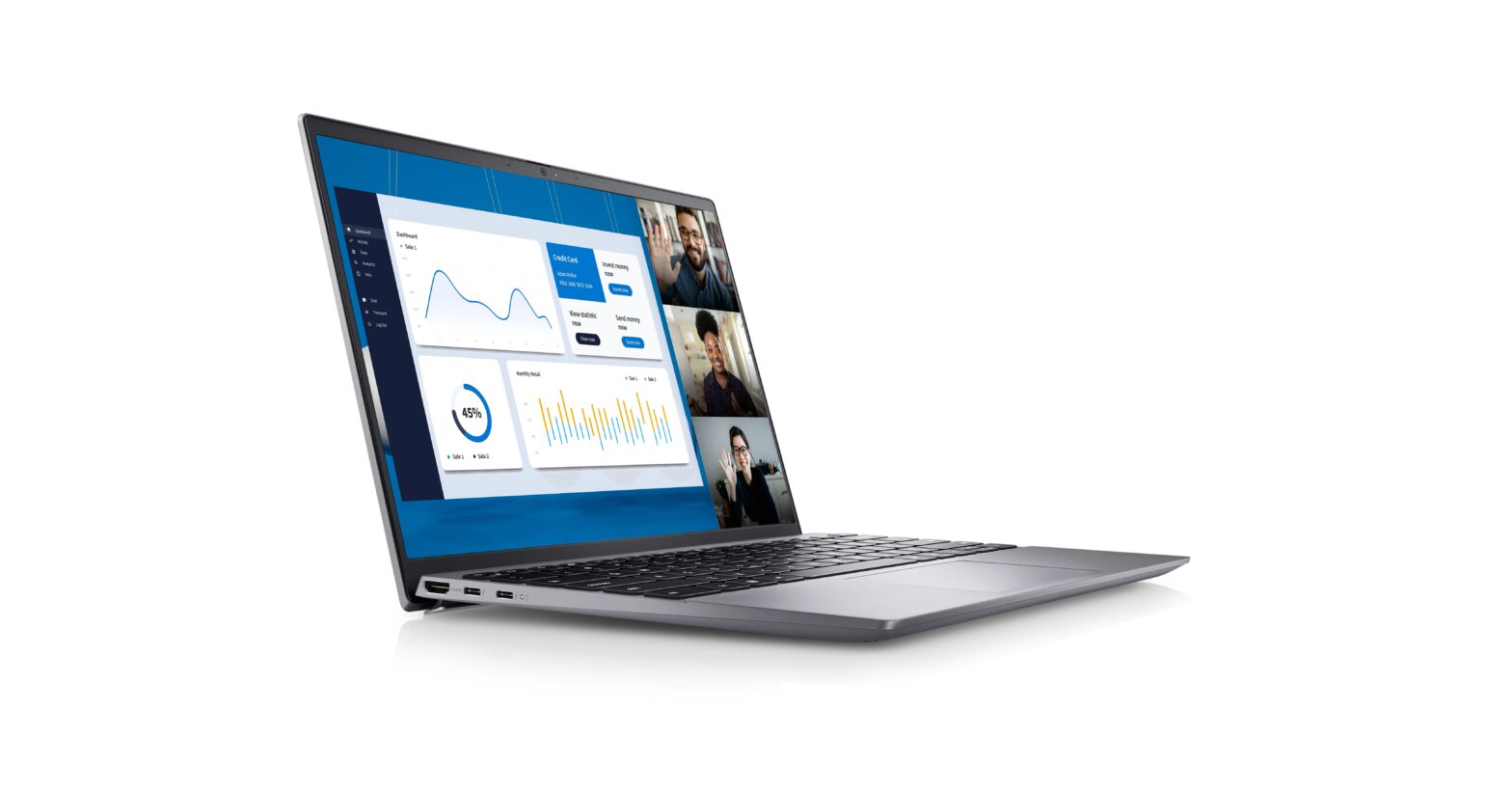

Vostro 5320
Setup and Specifications
Regulatory Model: P156G
Regulatory Type: P156G001
March 2022
Rev. A01
 A NOTE indicates important information that helps you make better use of your product.
 A CAUTION indicates either potential damage to hardware or loss of data and tells you how to avoid the problem.
 A WARNING indicates a potential for property damage, personal injury, or death.
Set up your Vostro 5320
The images in this document may differ from your computer depending on the configuration you ordered.
1. Connect the power adapter and press the power button.
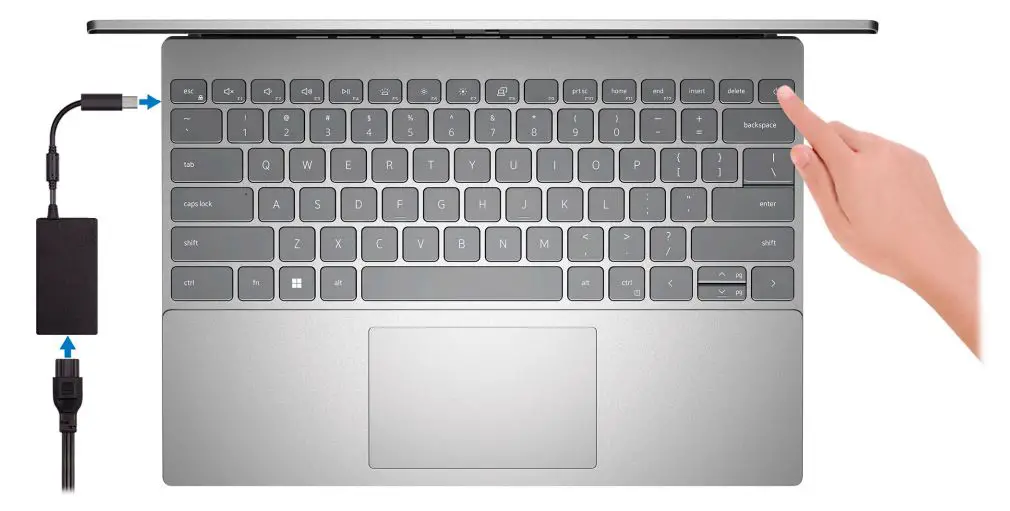
To conserve battery power, the battery might enter power saving mode. Connect the power adapter and press
the power button to turn on the computer.
2. Finish operating system setup.
Follow the on-screen instructions to complete the setup. When setting up, Dell recommends that you:
- Connect to a network for Windows updates.
 If connecting to a secured wireless network, enter the password for the wireless network access when
prompted. - If connected to the internet, sign-in with or create a Microsoft account. If not connected to the internet, create an
offline account. - On the Support and Protection screen, enter your contact details.
3. Locate and use Dell apps from the Windows Start menu—Recommended.
Table 1. Locate Dell apps (continued)
| Resources | Description |
 | Dell Product Registration Register your computer with Dell. |
 | Dell Help & Support Access help and support for your computer. |
 | My Dell Centralized location for key Dell applications, help articles, and other important information about your computer. It also notifies you about the warranty status, recommended accessories, and software updates if available. |
 | Support Assist Support Assist is the smart technology that keeps your computer running at its best by optimizing settings, detecting issues, removing viruses and notifies when you need to make system updates. Support Assist proactively checks the health of your system’s hardware and software. When an issue is detected, the necessary system state information is sent to Dell to begin troubleshooting. Support Assist is preinstalled on most of the Dell devices running Windows operating system. For more information, see Support Assist for Home PCs User’s Guide on www.dell.com/serviceabilitytools.
|
 | Dell Update Updates your computer with critical fixes and latest device drivers as they become available. For more information on using Dell Update, search in the Knowledge Base Resource at www.dell.com/support. |
 | Dell Digital Delivery Download software applications, which are purchased but not preinstalled on your computer. For more information on using Dell Digital Delivery, search in the Knowledge Base Resource at www.dell.com/support. |
Views of Vostro 5320
Front
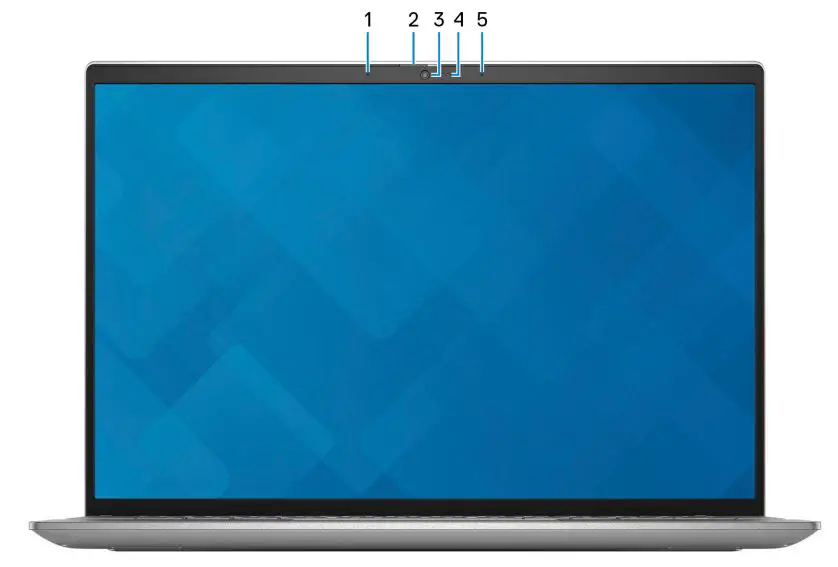
- Left microphone
Provides digital sound input for audio recording and voice calls. - Privacy shutter
Slide the privacy shutter to cover the camera lens and protect your privacy when the camera is not in use. - Camera
Enables you to video chat, capture photos, and record videos. - Camera-status light
Turns on when the camera is in use. - Right microphone
Provides digital sound input for audio recording and voice calls.
Right

1. USB 3.2 Gen 1 port
Connect devices such as external storage devices and printers. Provides data transfer speeds up to 5 Gbps.
2. Headset port
Connect headphones or a headset (headphone and microphone combo).
Left
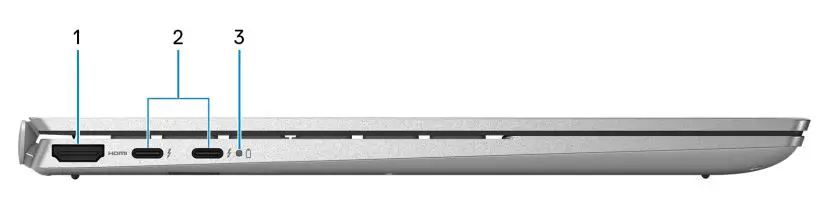
1. HDMI port
Connect to a TV, external display or another HDMI-in enabled device. Provides video and audio output.
2. Thunderbolt 4.0 port with Power Delivery and DisplayPort (2)
Supports USB4, DisplayPort 1.4, Thunderbolt 4 and also enables you to connect to an external display using a display adapter. Provides data transfer rates of up to 40 Gbps for USB4 and Thunderbolt 4.You can connect a Dell Docking Station to the Thunderbolt 4 ports. For more information, see the knowledge base article 000124295 at www.dell.com/support. A USB Type-C to DisplayPort adapter (sold separately) is required to connect a DisplayPort device. USB4 is backward compatible with USB 3.2, USB 2.0, and Thunderbolt 3. Thunderbolt 4 supports two 4K displays or one 8K display.
3. Battery-status light
Indicates the battery-charge status.
Solid white—Power adapter is connected and the battery has more than 5% charge.
Amber—Computer is running on battery and the battery has less than 5% charge.
Off—Power adapter is disconnected or the battery is fully charged.
Top
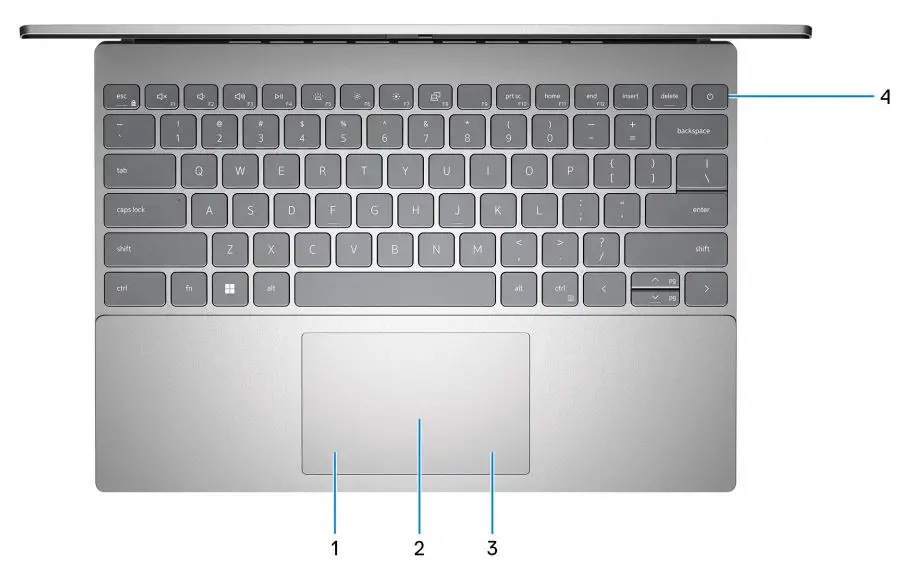
1. Left-click area
Press to left-click.
2. Touchpad
Move your finger on the touchpad to move the mouse pointer. Tap to left-click and two fingers tap to right-click.
3. Right-click area
Press to right-click.
4. Power button with optional fingerprint reader
Press to turn on the computer if it is turned off, in sleep state, or in hibernate state.
When the computer is turned on, press the power button to put the computer into sleep state; press and hold the power button for four seconds to force shut-down the computer.
If the power button has a fingerprint reader, place your finger on the power button to log in.
You can customize power-button behavior in Windows. For more information, see Me and My Dell at
www.dell.com/support/manuals.
Bottom
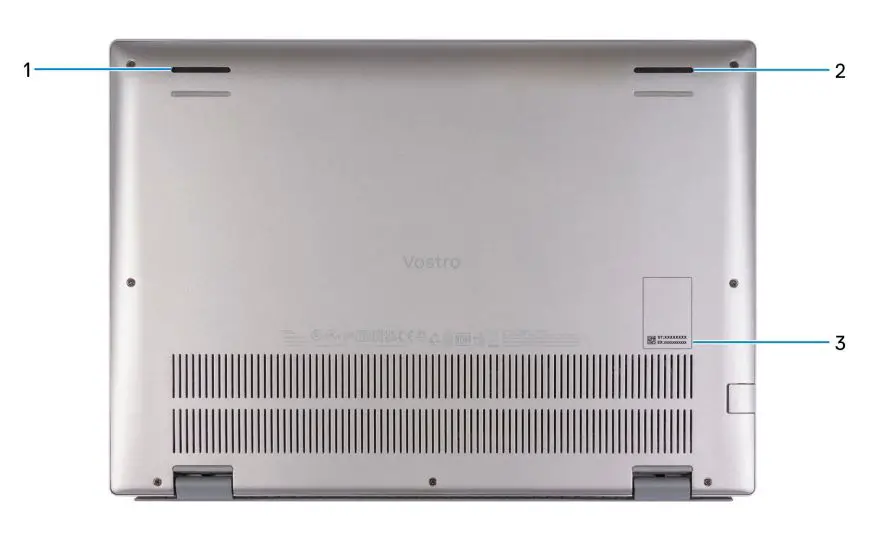
1. Left speaker
Provides audio output.
2. Right speaker
Provides audio output.
3. Service Tag label
The Service Tag is a unique alphanumeric identifier that enables Dell service technicians to identify the hardware components in your computer and access warranty information.
Battery charge and status light
The following table lists the battery charge and status light behavior of your Vostro 5320.
Table 2. Battery charge and status light behavior
| Power Source | LED Behavior | System Power State | Battery Charge Level |
| AC Adapter | Off | S0 – S5 | Fully Charged |
| AC Adapter | Solid White | S0 – S5 | <Fully Charged |
| Battery | Off | S0 – S5 | > Low to Fully Charged |
| Battery | Solid Amber (590+/-3 nm) | S0 – S3 | <= Low/Critical |
- S0 (ON) – The computer is turned on.
- S3 (Sleep) – The computer is in sleep mode.
- S4 (Hibernate) – The computer consumes the least power compared to all other sleep states. The computer is almost at an
OFF state, except for a trickle power. The context data is written to hard drive. - S5 (OFF) – The computer is in a shutdown state.
Specifications of Vostro 5320
Dimensions and weight
The following table lists the height, width, depth, and weight of your Vostro 5320.
Table 3. Dimensions and weight
| Description | Values |
| Height: | |
| Front height | 14.35 mm (0.56 in.) |
| Rear height | 15.65 mm (0.62 in.) |
| Width | 296.68 mm (11.68 in.) |
| Depth | 213.50 mm (8.40 in.) |
| Weight
| 1.30 kg (2.86 lb) – maximum |
Processor
The following table lists the details of the processors supported by your Vostro 5320.
Table 4. Processor
| Description | Option one | Option two | Option three | Option four |
| Processor type | 12th Generation Intel Core i5-1240P | 12th Generation Intel Core i7-1260P | 12th Generation Intel Core i5-1235U | 12th Generation Intel Core i3-1215U |
| Processor wattage | 28W | 28W | 15W | 15W |
| Processor core count | 12 | 12 | 10 | 6 |
| Processor thread count | 8 | 8 | 12 | 8 |
| Processor speed | Up to 4.40 GHz | Up to 4.70 GHz | Up to 4.40 GHz | Up to 4.40 GHz |
| Processor cache | 12 MB | 18 MB | 12 MB | 10 MB |
| Integrated graphics | Intel Iris Xe Graphics | Intel Iris Xe Graphics | Intel Iris Xe Graphics | Intel UHD Graphics |
Chipset
The following table lists the details of the chipset supported by your Vostro 5320.
Table 5. Chipset
| Description | Values |
| Chipset | Intel 600 Series Chipset |
| Processor | 12th Generation Intel Core i3/i5/i7 |
| DRAM bus width | 32-bit |
| Flash EPROM | 32 MB |
| PCIe bus | Up to Gen3.0 |
Operating system
Your Vostro 5320 supports the following operating systems:
- Windows 11 Pro, 64-bit
- Windows 11 Pro National Academic, 64-bit
- Windows 11 Home, 64-bit
Memory
The following table lists the memory specifications of your Vostro 5320.
Table 6. Memory specifications
| Description | Values |
| Memory slots | Onboard memory |
| Memory type | LPDDR5 |
| Memory speed | 4800 MHz |
| Maximum memory configuration | 32 GB |
| Minimum memory configuration | 8 GB |
| Memory configurations supported | ● 8 GB, 2 x 4 GB, LPDDR5, 4800 MHz, dual-channel, integrated ● 16 GB, 2 x 8 GB, LPDDR5, 4800 MHz, dual-channel, integrated ● 32 GB, 2 x 16 GB, LPDDR5, 4800 MHz, dual-channel, integrated |
External ports
The following table lists the external ports on your Vostro 5320.
Table 7. External ports
| Description | Values |
| USB ports | ● Two USB Type-C Thunderbolt 4 ports with Display Port and Power Delivery ● One USB 3.2 Gen 1 port |
| Audio port | One Universal audio jack |
| Video port/ports | One HDMI 1.4 port |
| Media-card reader | Not supported |
| Power-adapter port | Two USB Type-C Thunderbolt 4 ports with Display Port and Power Delivery |
| Security-cable slot | Not supported |
Internal slots
The following table lists the internal slots of your Vostro 5320.
Table 8. Internal slots
| Description Values | Values |
| M.2 | ● One M.2 2230 slot for WiFi and Bluetooth combo card ● One M.2 2230/2280 slot for solid-state drive
|
Wireless module
The following table lists the Wireless Local Area Network (WLAN) modules supported on your Vostro 5320.
Table 9. Wireless module specifications
| Description | Option one | Option two |
| Model number | Intel AX211 | Intel AX201 |
| Transfer rate | Up to 2400 Mbps | Up to 2400 Mbps |
| Frequency bands supported | 2.4 GHz/5 GHz/6 GHz | 2.4 GHz/5 GHz |
| Wireless standards | ● WiFi 802.11a/b/g ● Wi-Fi 4 (WiFi 802.11n) ● Wi-Fi 5 (WiFi 802.11ac) ● Wi-Fi 6 (WiFi 802.11ax) | ● WiFi 802.11a/b/g ● Wi-Fi 4 (WiFi 802.11n) ● Wi-Fi 5 (WiFi 802.11ac) ● Wi-Fi 6 (WiFi 802.11ax) |
| Encryption | ● 64-bit WEP ● 128-bit WEP ● AES-CCMP ● TKIP | ● 64-bit WEP ● 128-bit WEP ● AES-CCMP ● TKIP |
| Bluetooth | Bluetooth 5.2 | Bluetooth 5.2 |
Audio
The following table lists the audio specifications of your Vostro 5320.
Table 10. Audio specifications
Description | Values | |
| Audio controller | Realtek ALC3204 | |
| Stereo conversion | Supported | |
| Internal audio interface | High definition audio interface | |
| External audio interface | ● Universal audio jack ● HDMI 1.4b port | |
| Number of speakers | 2 | |
| Internal-speaker amplifier | Supported | |
| External volume controls | Keyboard shortcut controls | |
| Speaker output: | ||
| Average speaker output | 2 W | |
| Peak speaker output | 2.5 W | |
| Subwoofer output | Not supported | |
| Microphone | Digital-array microphones | |
Storage
This section lists the storage options on your Vostro 5320.
Your Vostro 5320 supports one of the following storage configurations:
- One M.2 2230 solid-state drive
- One M.2 2280 solid-state drive
Table 11. Storage specifications
| Storage type | Interface type | Capacity |
| M.2 2280, Class 40 solid-state drive | PCIe NVMe Gen4 x4, up to 64 Gbps | Up to 2 TB |
| M.2 2230, Class 35 solid-state drive | PCIe NVMe Gen4 x4, up to 64 Gbps | Up to 1 TB |
Keyboard
The following table lists the keyboard specifications of your Vostro 5320.
Table 12. Keyboard specifications
| Description | Values |
| Keyboard type | ● Standard keyboard ● Standard backlit keyboard |
| Keyboard layout | QWERTY |
| Number of keys | ● United States and Canada: 79 keys ● United Kingdom: 80 keys ● Japan: 83 keys |
| Keyboard size | X=19.05 mm key pitch Y=18.05 mm key pitch |
| Keyboard shortcuts | Some keys on your keyboard have two symbols on them. These keys can be used to type alternate characters or to perform secondary functions. To type the alternate character, press Shift and the desired key. To perform secondary functions, press Fn and the desired key.
For more information, see Keyboard shortcuts. |
Camera
The following table lists the camera specifications of your Vostro 5320.
Table 13. Camera specifications
| Description | Values | |
| Number of cameras | One | |
| Camera type | FHD Camera | |
| Camera location | Front camera | |
| Camera sensor type | CMOS sensor technology | |
| Camera resolution: | ||
| Still image | 2.07 megapixel | |
| Video | 1920 x 1080 (HD) at 30 fps | |
| Diagonal viewing angle | 82 degrees | |
Touchpad
The following table lists the touchpad specifications of your Vostro 5320.
Table 14. Touchpad specifications
| Description | Values | |
| Touchpad resolution: | >300 DPI | |
| Touchpad dimensions: | ||
| Horizontal | 105 mm (4.13 in.) | |
| Vertical | 65 mm (2.56 in.) | |
| Touchpad gestures | For more information about touchpad gestures available on Windows, see the Microsoft knowledge base article at support.microsoft.com. | |
Power adapter
The following table lists the power adapter specifications of your Vostro 5320.
Table 15. Power adapter specifications