
EMC
Vostro 15 3515
Setup and Specifications
Regulatory Model: P112F
Regulatory Type: P112F005
June 2021 Rev. A00
Notes, cautions, and warnings NOTE: A NOTE indicates important information that helps you make better use of your product.
 CAUTION: A CAUTION indicates either potential damage to hardware or loss of data and tells you how to avoid the problem.
 WARNING: A WARNING indicates a potential for property damage, personal injury, or death.
© 2021 Dell Inc. or its subsidiaries. All rights reserved. Dell, EMC, and other trademarks are trademarks of Dell Inc. or its subsidiaries. Other trademarks may be trademarks of their respective owners.
Set up your Vostro 15 3515
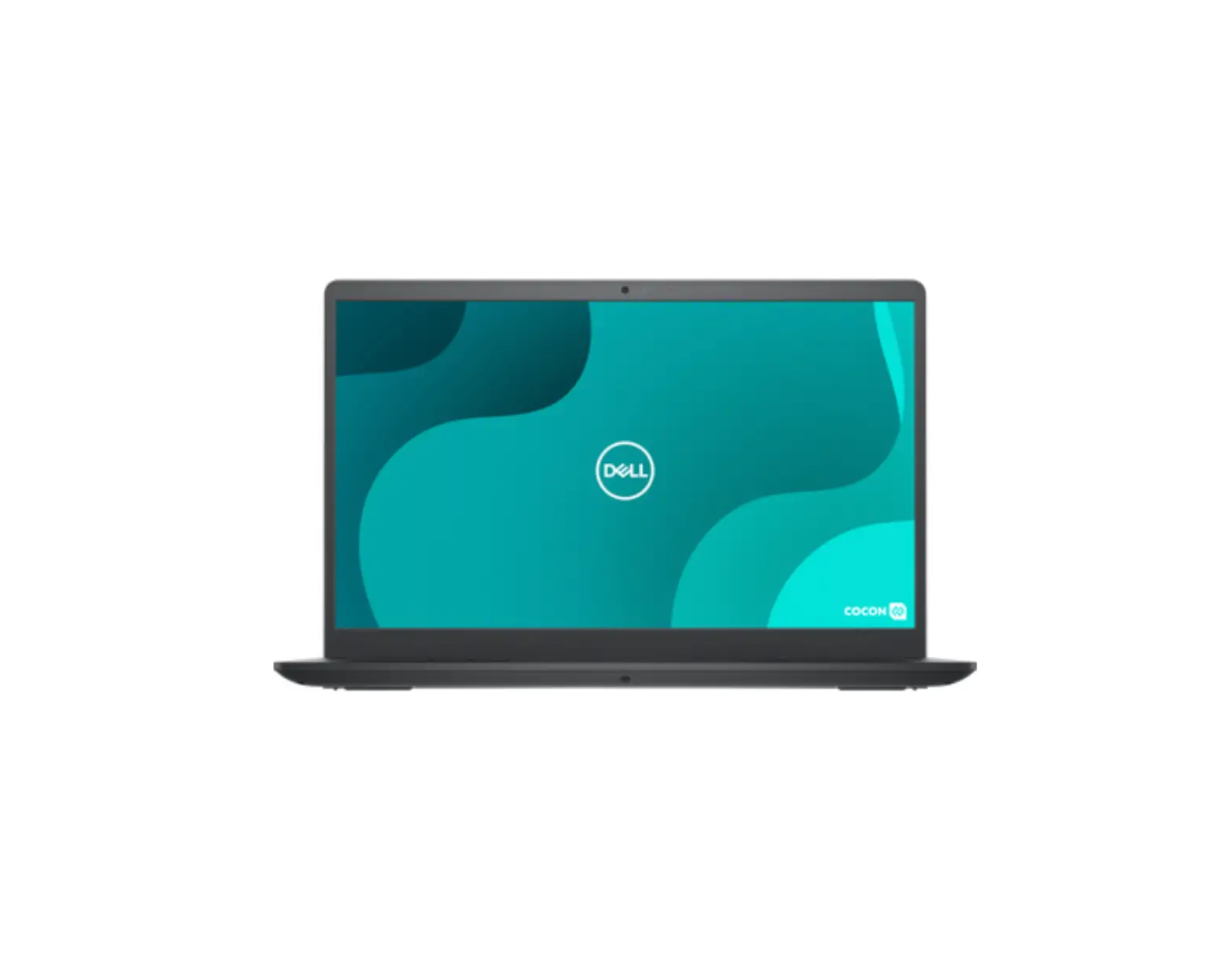
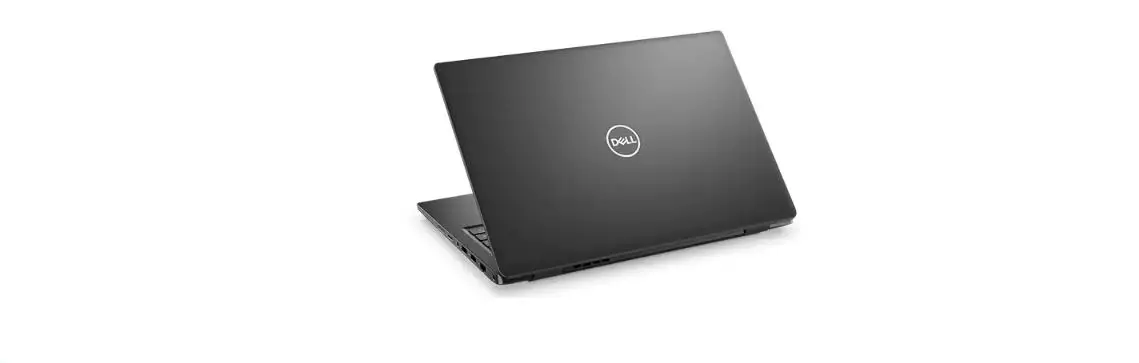
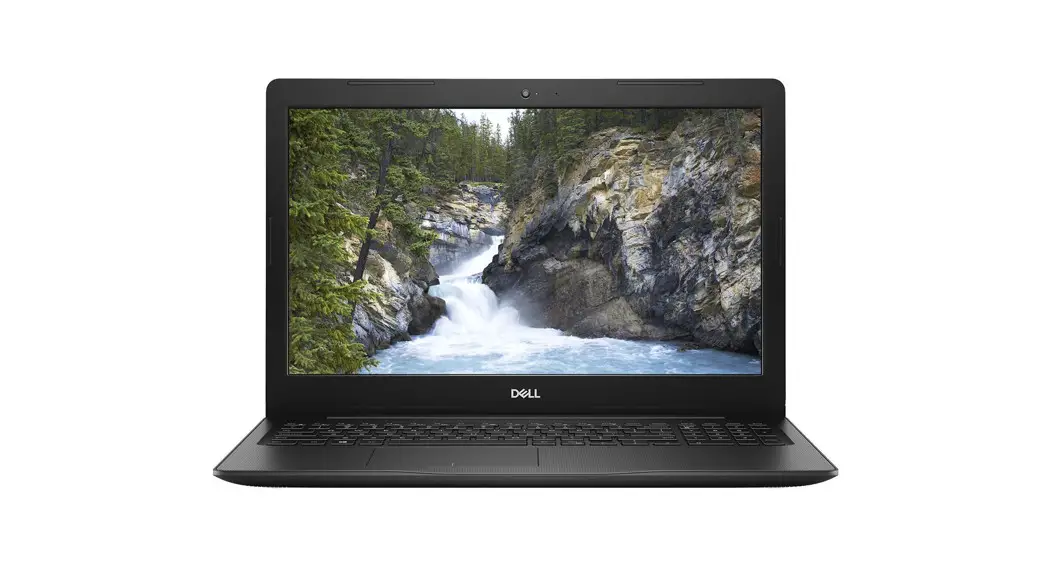
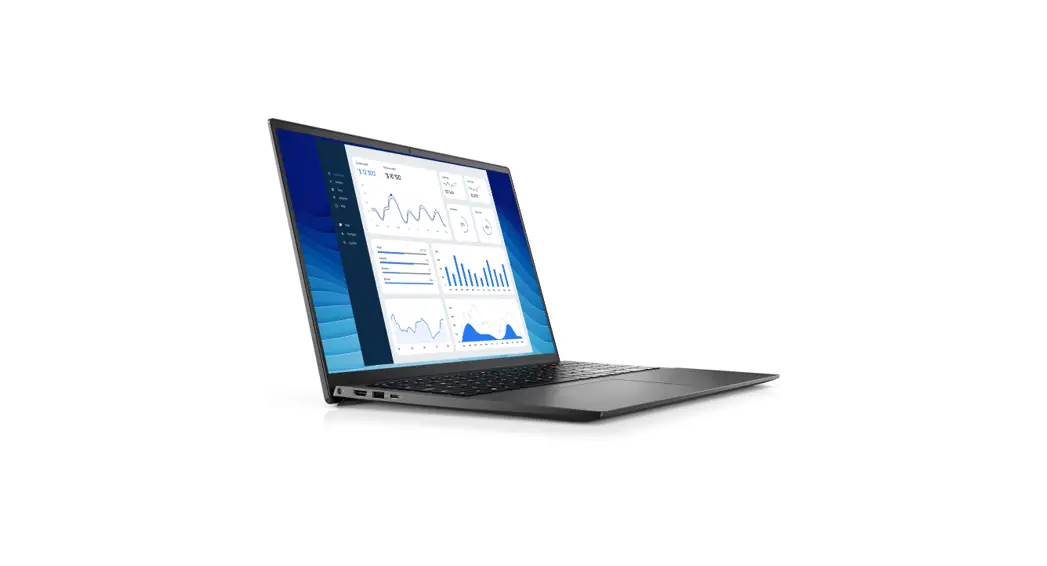
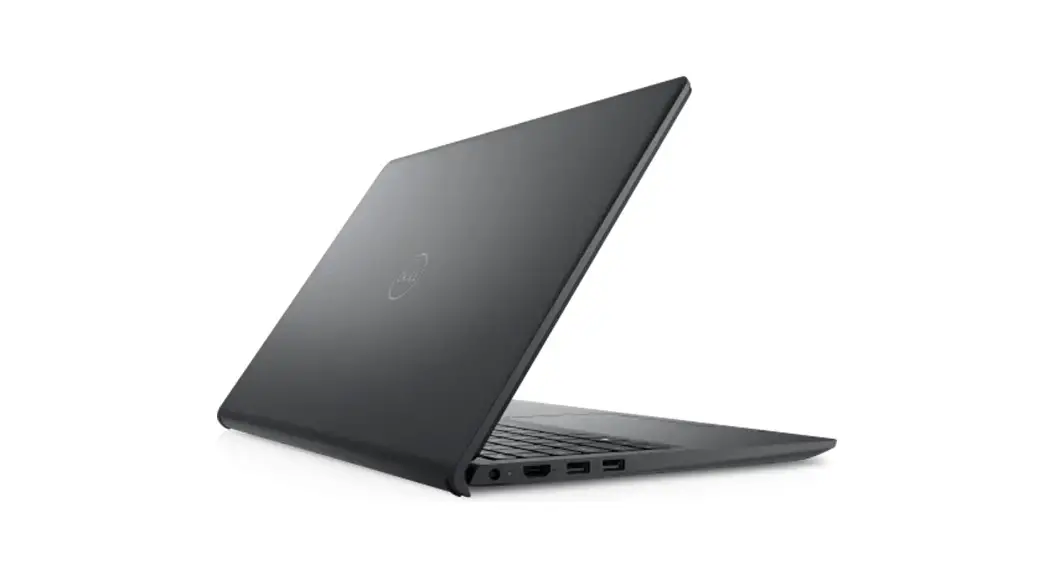
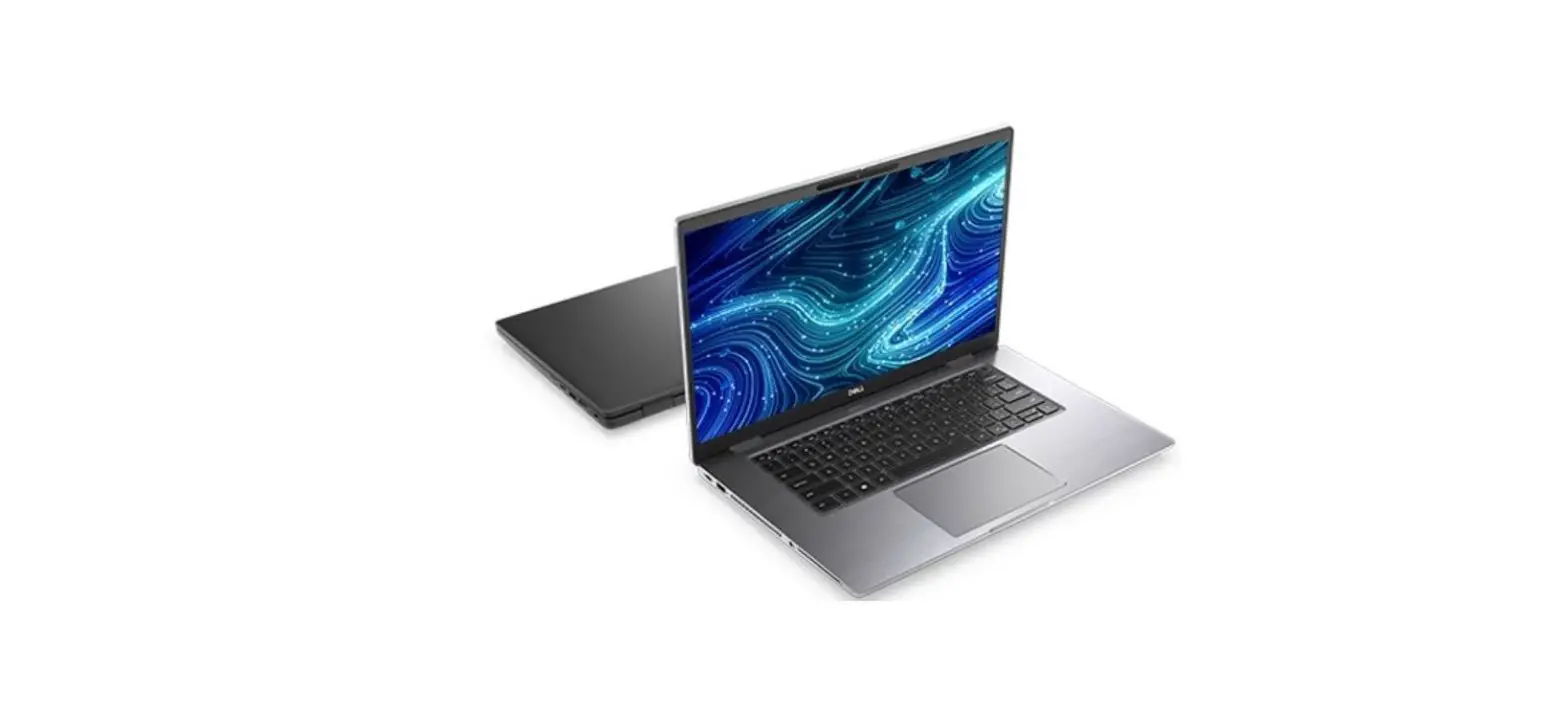
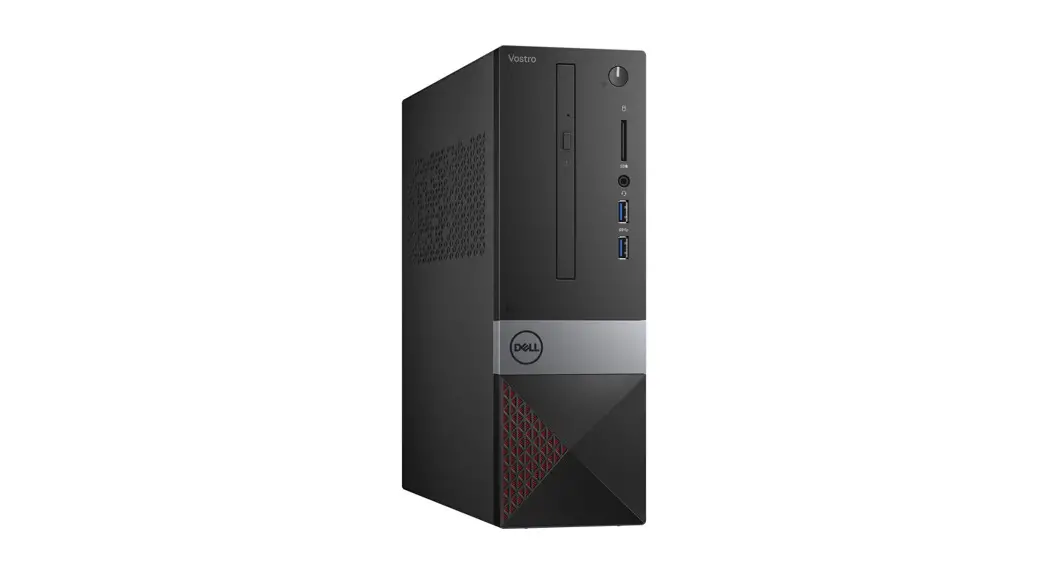
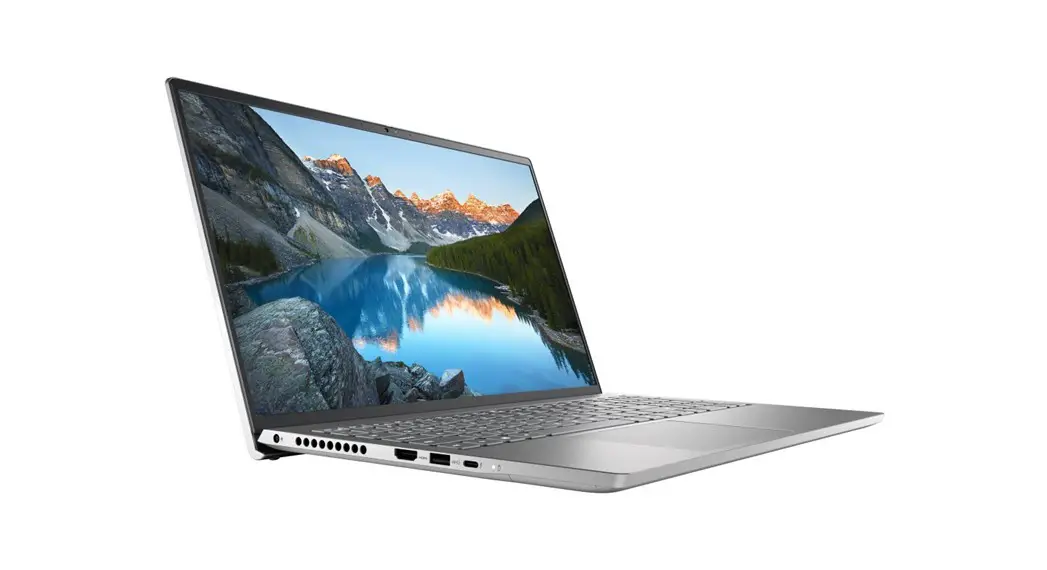
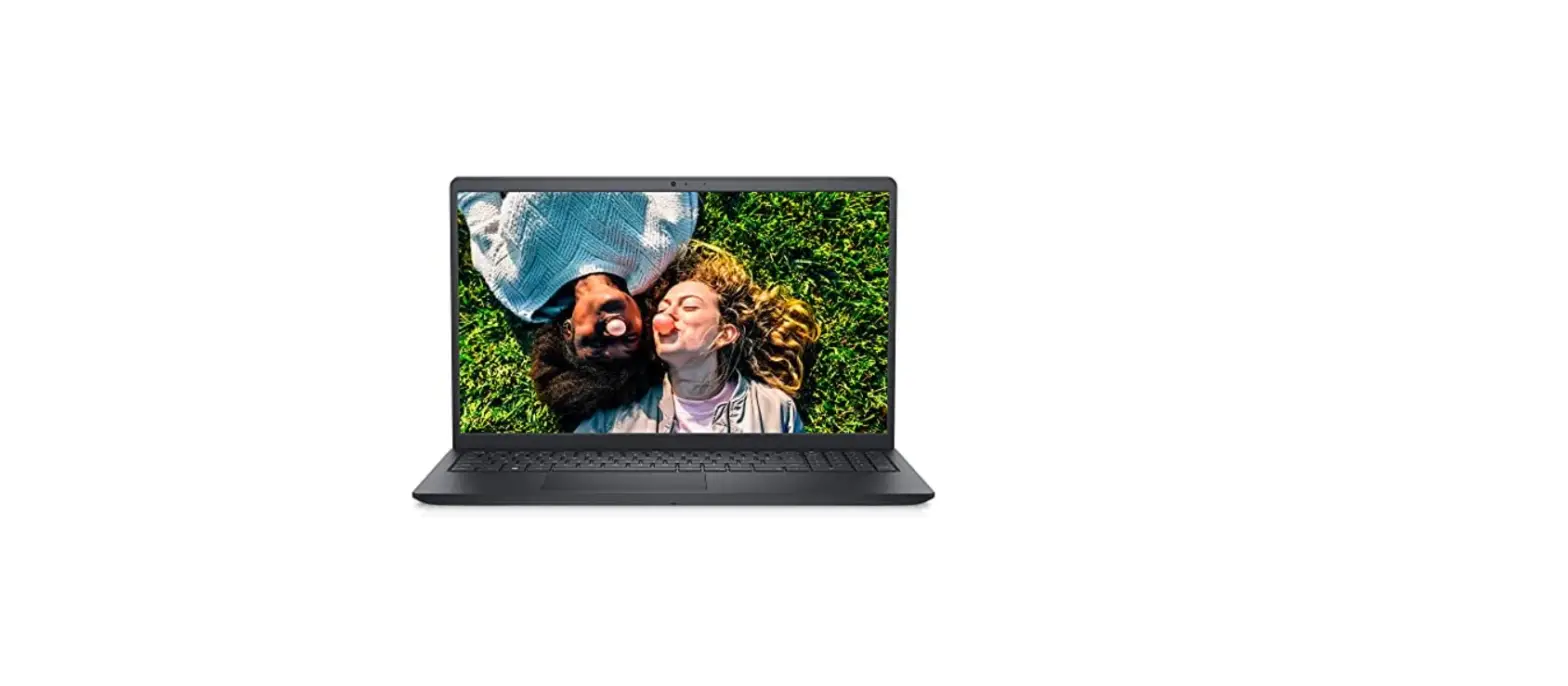
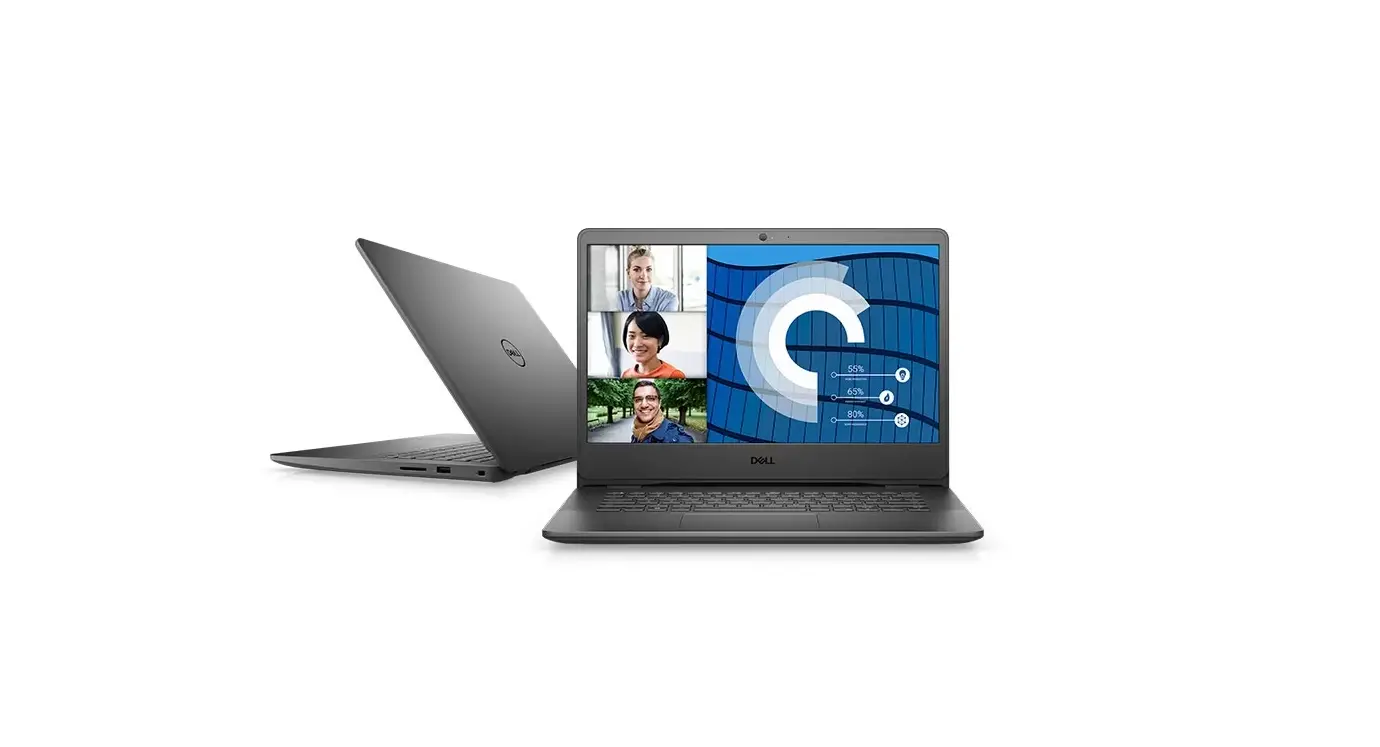
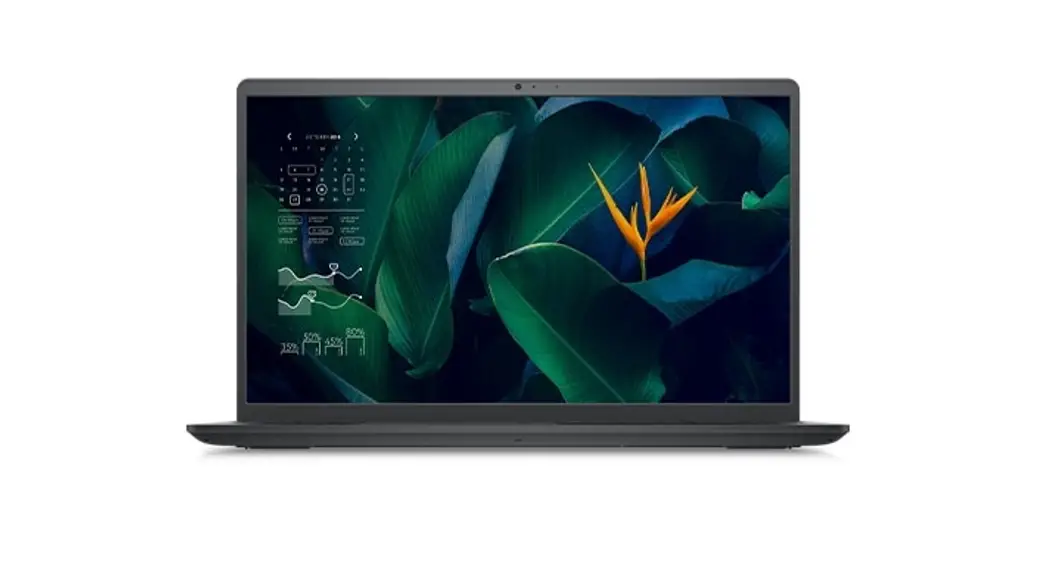
NOTE: The images in this document may differ from your computer depending on the configuration you ordered.
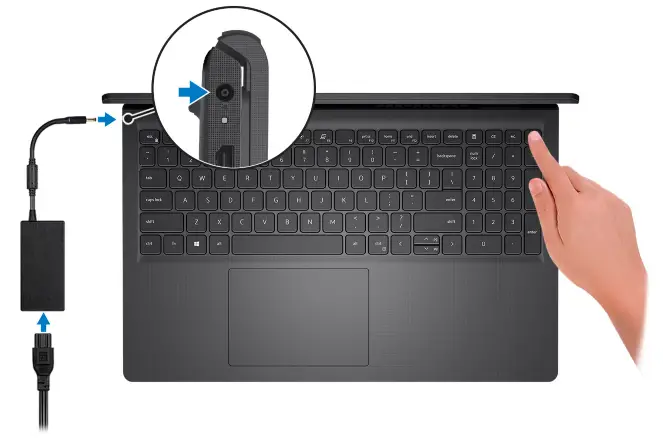
- Connect the power adapter and press the power button.

 NOTE: To conserve battery power, the battery might enter power-saving mode. Connect the power adapter and press the power button to turn on the computer.
 - Finish operating system setup.
For Ubuntu:
Follow the on-screen instructions to complete the setup. For more information about installing and configuring Ubuntu, see the knowledge base articles SLN151664 and SLN151748 at www.dell.com/support.
For Windows: Follow the on-screen instructions to complete the setup. When setting up, Dell recommends that you:
● Connect to a network for Windows updates. NOTE: If connecting to a secured wireless network, enter the password for the wireless network access when prompted.
● If connected to the internet, sign-in with or create a Microsoft account. If not connected to the internet, create an offline account.
● On the Support and Protection screen, enter your contact details. - Locate and use Dell apps from the Windows Start menu—Recommended.
Table 1. Locate Dell apps
Resources | Description |
| Dell Product Registration Register your computer with Dell. |

Table 1. Locate Dell apps (continued)
Resources | Description |
| Dell Help & Support Access help and support for your computer. |
|
| SupportAssist SupportAssist is the smart technology that keeps your computer running at its best by optimizing settings, detecting issues, removing viruses and notifies when you need to make system updates. SupportAssist proactively checks the health of your system’s hardware and software. When an issue is detected, the necessary system state information is sent to Dell to begin troubleshooting. SupportAssist is preinstalled on most of the Dell devices running the Windows operating system. For more information, see SupportAssist for Home PCs User’s Guide on www.dell.com/serviceabilitytools. NOTE: In SupportAssist, click the warranty expiry date to renew or upgrade your warranty. |
| Dell Update Updates your computer with critical fixes and latest device drivers as they become available. For more information about using Dell Update, see the knowledge base article SLN305843 at www.dell.com/support. |
| Dell Digital Delivery Download software applications, which are purchased but not pre-installed on your computer. For more information about using Dell Digital Delivery, see the knowledge base article 153764 at www.dell.com/support. |


Topics:
- Right
- Left
- Top
- Front
- Bottom
- Battery Charge and Status LED
Right
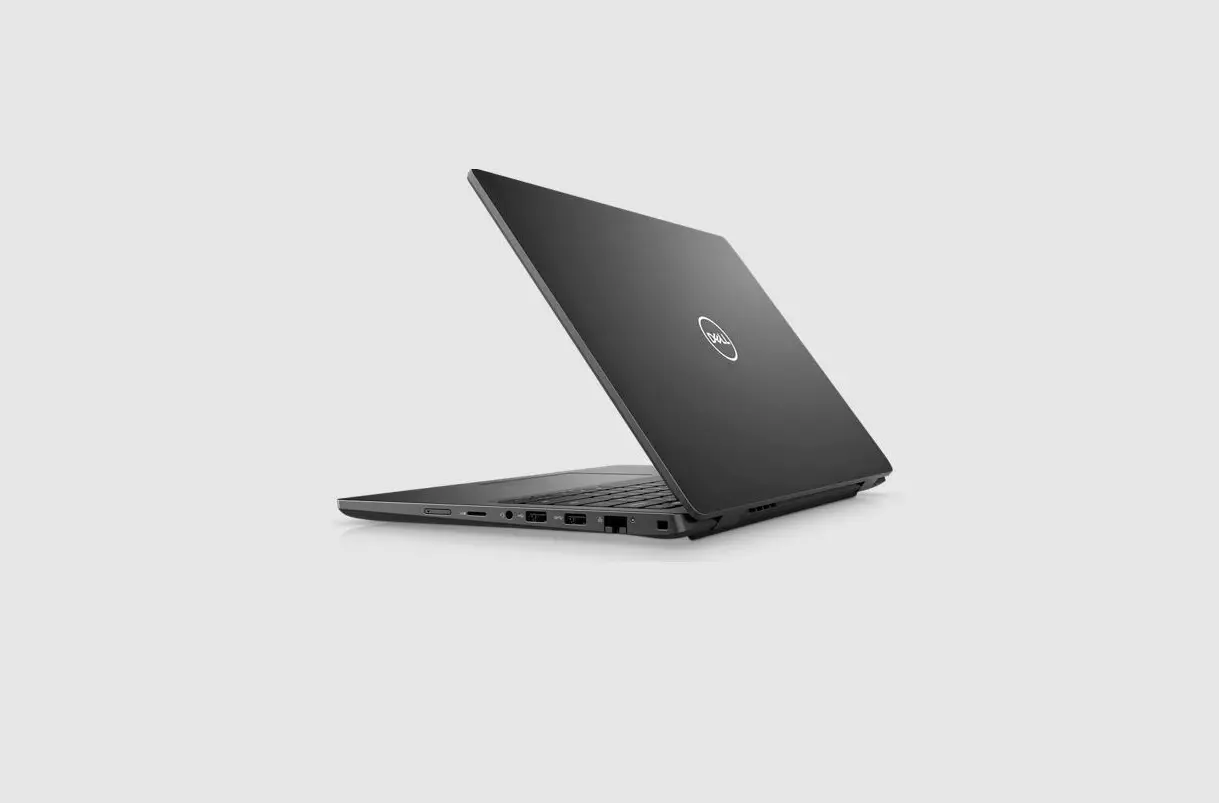
 SD-card reader slot
Reads from and writes to the SD card. The computer supports the following card types:
● Secure Digital (SD)
● Secure Digital High Capacity (SDHC)
● Secure Digital Extended Capacity (SDXC)- One USB 2.0 port
Connect devices such as external storage devices and printers. Provides data transfer speeds up to 480 Mbps. - Network Port
Connect an Ethernet (RJ45) cable from a router or a broadband modem for network or Internet access. - Headset jack
Connect headphones or a headset (headphone and microphone combo). - Wedge-shaped security slot
Connect a security cable to prevent unauthorized movement of your computer.
 SD-card reader slot
Left

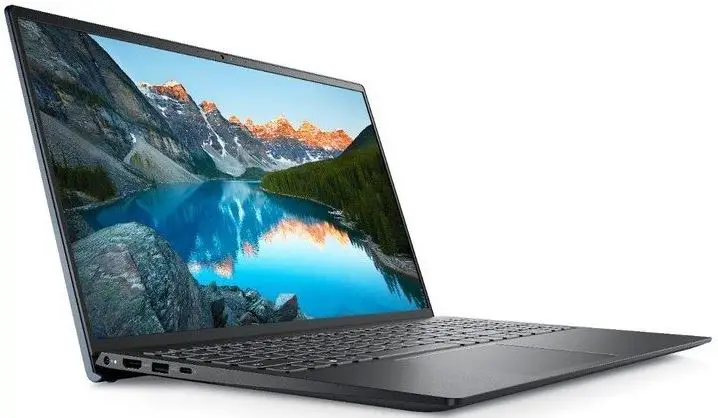
- DC-in port
Connect a power adapter to provide power to your computer and charge the battery. - Diagnostic LED
Provides diagnostics information and is used for troubleshooting. - HDMI 1.4 port
Connect to a TV, external display or another HDMI-in-enabled device. Provides video and audio output. NOTE: Maximum resolution supported over HDMI port is 1920 x 1080 @60 Hz. (No 4K/2K output). - One USB 3.2 Gen 1 port
Connect devices such as external storage devices and printers. Provides data transfer speeds up to 5 Gbps. The number of ports may vary on systems configured with integrated and discrete graphics. - One USB 3.2 Gen 1 port
Connect devices such as external storage devices and printers. Provides data transfer speeds up to 5 Gbps. The number of ports may vary on systems configured with integrated and discrete graphics.
Top
 Power button with optional fingerprint reader
Press to turn on the computer if it is turned off, in a sleep state, or in hibernate state.
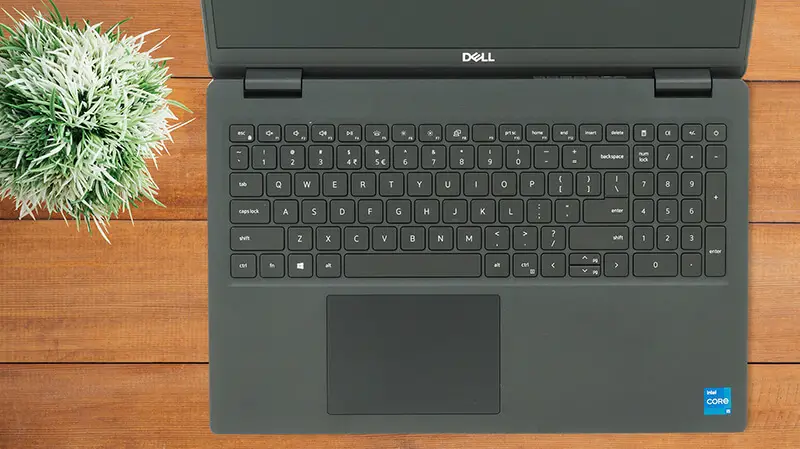
When the computer is turned on, press the power button to put the computer into a sleep state; press and hold the power button for 10 seconds to force shut down the computer. If the power button has a fingerprint reader, place your finger on the power button to log in.- Keyboard
- Touchpad
Move your finger on the touchpad to move the mouse pointer. Tap to left-click and two fingers tap to right-click.
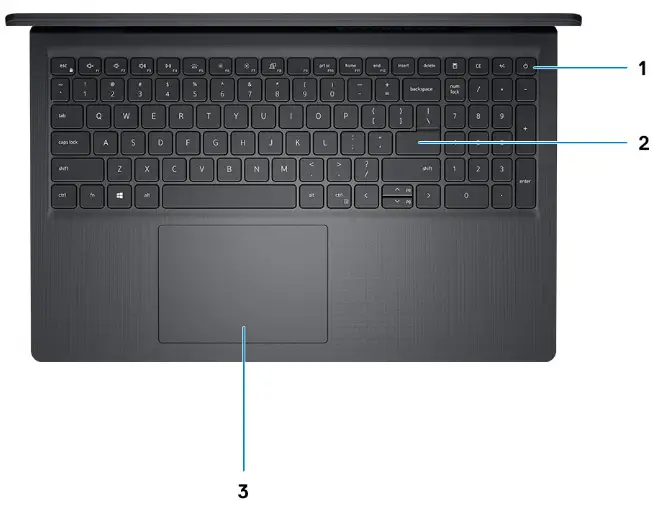 Power button with optional fingerprint reader
Front
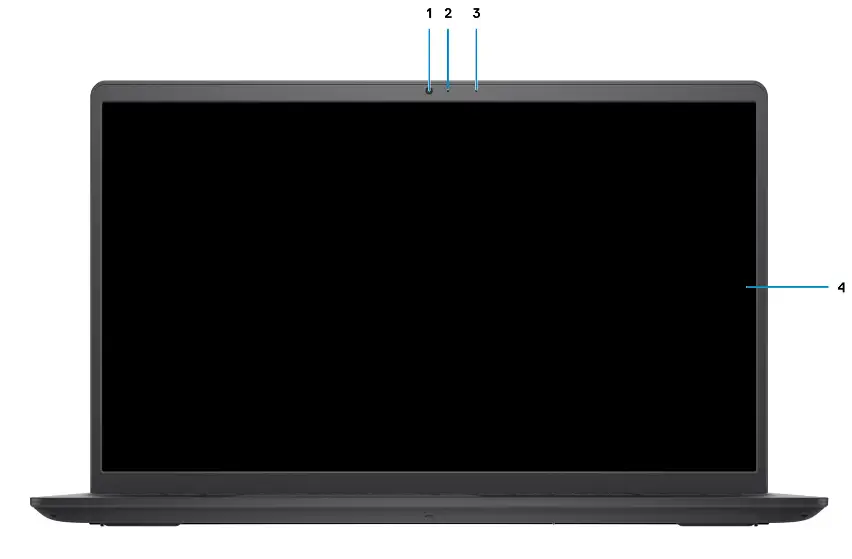
- Camera
Enables you to video chat, capture photos, and record videos. - Camera Status LED
Turns on when the camera is in use. - Microphone
Provides digital sound input for audio recording, voice calls, and so on. - LCD Panel
Bottom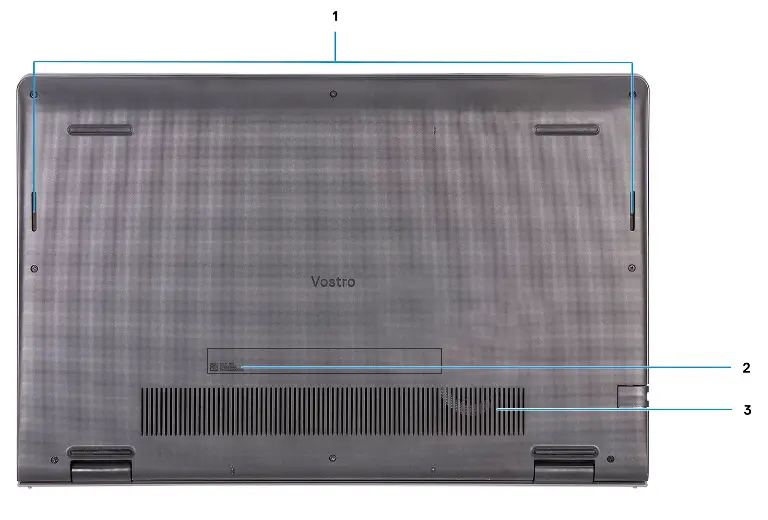
- Speakers
Provides audio output. - Service Tag
The Service Tag is a unique alphanumeric identifier that enables Dell service technicians to identify the hardware components in your computer and access warranty information. - Air vents
Battery Charge and Status LED
Table 2. Battery Charge and Status LED Indicator
| Power Source | LED Behavior | System Power State | Battery Charge Level |
| AC Adapter | Off | S0 – S5 | Fully Charged |
| AC Adapter | Solid White | S0 – S5 | < Fully Charged |
| Battery | Off | S0 – S5 | 11-100% |
| Battery | Solid Amber (590+/-3 nm) | S0 | < 10% |
- S0 (ON) – The system is turned on.
- S4 (Hibernate) – The system consumes the least power compared to all other sleep states. The system is almost at an OFF state, expect for a trickle power. The context data is written to a hard drive.
- S5 (OFF) – The system is in a shutdown state.
Specifications of Vostro 15 3515
Topics:
| • Dimensions and weight | • Media-card reader |
| • Processor | • Keyboard |
| • Chipset | • Camera |
| • Operating system | • Touchpad |
| • Memory | • Power adapter |
| • External ports | • Battery |
| Internal slots | • Display |
| • Ethernet | • Fingerprint reader |
| • Wireless module | • GPU—Integrated |
| • Audio | • Sensor and control specifications |
| • Storage | • Operating and storage environment |
Dimensions and weight
The following table lists the height, width, depth, and weight of your Vostro 15 3515.
Table 3. Dimensions and weight
| Description | Values | |
Height: | ||
| Front height | 17.50 mm (0.66 in.) | |
| Rear height | 17.50 mm (0.66 in.) | |
| Width | 358.50 mm (14.11 in.) | |
| Depth | 235.56 mm (9.27 in.) | |
| Starting weight NOTE: The weight of your computer depends on the configuration ordered and manufacturing variability. | 1.70 kg (3.75 lb) | |
Processor
The following table lists the details of the processors supported by your Vostro 15 3515.
Table 4. Processor
| Description | Option one | Option two | Option three | Option Four | Option Five |
| Processor type | AMD Athlon Silver 3050U | AMD Ryzen 3 3250U | AMD Ryzen 5 3450U | AMD Ryzen 5 3500U | AMD Ryzen 7 3700U |
| Processor wattage | 15 W | 15 W | 15 W | 15 W | 15 W |
| Processor core count | 2 | 2 | 4 | 4 | 4 |
| Processor thread count | 2 | 4 | 8 | 8 | 8 |
| Processor speed | 2.3 GHz to 3.2 GHz | 2.6 GHz to 3.5 GHz | 2.1 GHz to 3.5 GHz | 2.1 GHz to 3.7 GHz | 2.3 GHz to 4.0 GHz |
| Processor cache | 4 MB | 4 MB | 4 MB | 4 MB | 4 MB |
| Integrated graphics | AMD Radeon Graphics | AMD Radeon Graphics | AMD Radeon Graphics | AMD Radeon Graphics | AMD Radeon Graphics |
Chipset
The following table lists the details of the chipset supported by your Vostro 15 3515
Table 5. Chipset
| Description | Option one | Option two |
| Processors | AMD Athlon series | AMD Ryzen series |
| Chipset | Integrated | Integrated |
| DRAM bus width | Two channels, 64-bit | Two channels, 64-bit |
| Flash EPROM | 16 MB | 16 MB |
| PCIe bus | Up to Gen 3 | Up to Gen 3 |
Operating system
Your Vostro 15 3515 supports the following operating systems:
- Windows 10 Home, 64-bit
- Windows 10 Professional, 64-bit
- Windows 10 Pro – Academic, 64-bit
- Ubuntu Linux 20.04 LTS, 64-bit
Memory
The following table lists the memory specifications of your Vostro 15 3515.
Table 6. Memory specifications
| Description | Values |
| Memory slots | Two SODIMM |
| Memory type | DDR4 |
| Memory speed | 2400 MHz |
| Maximum memory configuration | 16 GB |
| Minimum memory configuration | 4 GB |
| Memory size per slot | 4 GB, 8 GB, 16 GB |
| Memory configurations supported | ● 4 GB, 1 x 4 GB, DDR4, 2400MHz ●8 GB, 2 x 4 GB, DDR4, 2400MHz ●8 GB, 1 x 8 GB, DDR4, 2400MHz ● 16 GB, 2 x 8 GB, DDR4, 2400MHz ● 16 GB, 1 x 16 GB, DDR4, 2400MHz |
External ports
The following table lists the external ports of your Vostro 15 3515.
Table 7. External ports
| Description | Values |
| Network port | One RJ 45 10/100/1000 Mbps |
| USB ports | ● Two USB 3.2 Gen1 Type-A ports ● One USB 2.0 Type-A port |
| Audio port | Headset jack |
| Video port | One HDMI 1.4 port |
| Media-card reader | One SD card slot |
| Power-adapter port | 4.5 mm barrel-type |
| Security-cable slot | One Wedge-shaped lock slot |
Internal slots
The following table lists the internal slots of your Vostro 15 3515.
Table 8. Internal slots
| Description | Values |
| M.2 | ● One M.2 2230 slot for Wi-Fi |
Table 8. Internal slots
| Description | Values |
| ● One M.2 slot for 2230/2280 solid-state drive NOTE: To learn more about the features of different types of M.2 cards, see the knowledge base article 000144170 at www.dell.com/support. |
Ethernet
The following table lists the wired Ethernet Local Area Network (LAN) specifications of your Vostro 15 3515.
Table 9. Ethernet specifications
| Description | Values |
| Model number | Integrated Realtek RTL8111H |
| Transfer rate | 10/100/1000 Mbps |
Wireless module
The following table lists the Wireless Local Area Network (WLAN) modules supported on your Vostro 15 3515.
Table 10. Wireless module specifications
| Description | Option one | Option two |
| Model number | Qualcomm QCNFA435 | Realtek RTL8821CE |
| Transfer rate | Up to 433 Mbps | Up to 433 Mbps |
| Frequency bands supported | 2.4 GHz/5 GHz | 2.4 GHz/ 5 GHz |
| Wireless standards | ● WiFi 802.11a/b/g ●Wi-Fi 4 (Wi-Fi 802.11n) ●Wi-Fi 5 (Wi-Fi 802.11ac Wave 2) | ● WiFi 802.11a/b/g ● Wi-Fi 4 (Wi-Fi 802.11n) ● Wi-Fi 5 (Wi-Fi 802.11ac) |
| Encryption | ● 64-bit/128-bit WEP ●AES-CCMP ● TKIP | ● 64-bit/128-bit WEP ● AES-CCMP ●TKIP |
| Bluetooth | Bluetooth 4.1 | Bluetooth 5.0 |
Audio
Table 11. Audio specifications
| Description | Values | |
| Controller | Realtek ALC3204 | ● Cirrus CS8409 ● Cirrus (CS42L42 + TI SN005825) |
| Stereo conversion | Supported | Supported |
Table 11. Audio specifications (continued)
| Description | Values | |
| Internal interface | HDA (High definition audio) | HDA bridge + CS42L42 audio codec |
| External interface | Headset jack | Headset jack NOTE: 3.5 mm Headset jack functionality varies by model configuration. For best results, use Dell-recommended audio accessories |
| Speakers | Two | Two |
| Internal-speaker amplifier | Supported | Supported |
| External volume controls | Keyboard shortcut controls | Keyboard shortcut controls |
| Speaker Output Average | 2 W | 2 W |
| Speaker Output Peak | 2.5 W | 2.5 W |
| Subwoofer output | Not supported | Not supported |
| Microphone | Single digital microphone | Single digital microphone |
Storage
This section lists the storage options on your Vostro 15 3515.
Your computer supports one of the following configurations:
- 2.5-in. 5400 RPM, SATA hard drive
- M.2 2230/2280 for a solid-state drive
The primary drive of your computer varies with the storage configuration. For computers: - 2.5-in. 5400 RPM, SATA hard drive
- M.2 2230/2280 for a solid-state drive
Table 12. Storage specifications
| Storage type | Interface type | Capacity |
| 2.5-in. 5400 rpm, hard drive | SANTA | 2 TB |
| M.2 2230 solid-state drive | PCIe NVMe 3×4 | Upto 1 TB |
| M.2 2280 solid-state drive | PCIe NVMe 3×4 | Upto 2 TB |
Media-card reader
The following table lists the media cards supported by your Vostro 15 3515.
Table 13. Media-card reader specifications
| Description | Values |
| Media-card type | One SD card |
Table 13. Media-card reader specifications (continued)
| Description | Values |
| Media-cards supported | ●Secure Digital (SD) ●Secure Digital High Capacity(SDHC) ●Secure Digital Extended Capacity(SDXC) |
| NOTE: The maximum capacity supported by the media-card reader varies depending on the standard of the media card installed in your computer. | |
Keyboard
The following table lists the keyboard specifications of your Vostro 15 3515.
Table 14. Keyboard specifications
| Description | Values |
| Keyboard type | ● Standard keyboard ● White Backlight keyboard |
| Keyboard layout | QWERTY |
| Number of keys | ● the United States and Canada: 101 keys ●United Kingdom: 102 keys ●Japan: 105 keys |
| Keyboard size | X=18.7 mm key pitch Y=18.05 mm key pitch |
| Keyboard shortcuts | Some keys on your keyboard have two symbols on them. These keys can be used to type alternate characters or to perform secondary functions. To type the alternate character, press Shift and the desired key. To perform secondary functions, press Fn and the desired key. NOTE: You can define the primary behavior of the function keys (F1–F12) by changing Function Key Behavior in the BIOS setup program. |
Camera
The following table lists the camera specifications of your Vostro 15 3515.
Table 15. Camera specifications
| Description | Values | |
| Number of cameras | One | |
| Camera type | HD RGB camera | |
| Camera location | Front Camera | |
| Camera sensor type | CMOS sensor technology | |
| Camera resolution: | ||
| Still image | 0.92 megapixel | |
Table 15. Camera specifications (continued)
| Description | Values | |
| Video | 1280 x 720 (HD) at 30 fps | |
| Diagonal viewing angle: | 78.6 degrees | |
Touchpad
The following table lists the touchpad specifications of your Vostro 15 3515.
Table 16. Touchpad specifications
| Description | Values | |
| Touchpad resolution: | ||
| Horizontal | 305 | |
| Vertical | 305 | |
| Touchpad dimensions: | ||
| Horizontal | 115 mm (4.52 in.) | |
| Vertical | 80 mm (3.15 in.) | |
| Touchpad gestures | For more information about touchpad gestures available on Windows 10, see the Microsoft knowledge base article 4027871 at support.microsoft.com. | |
Power adapter
The following table lists the power adapter specifications of your Vostro 15 3515.
Table 17. Power adapter specifications
| Description | Values | |
| Type | 65 W | |
| Connector dimensions: | ||
| External diameter | ●2.9 mm x 4.5 mm | |
| Internal diameter | ● 2.9 mm x 4.5 mm | |
| Input voltage | 100 VAC x 240 VAC | |
| Input frequency | 50 Hz x 60 Hz | |
| Input current (maximum) | 1.70 A | |
| Output current (continuous) | 3.34 A | |
| Rated output voltage | 19.50 VDC | |
| Temperature range: | ||
| Operating | 0°C to 40°C (32°F to 104°F) | |
Table 17. Power adapter specifications (continued)
| Description | Values | |
| Storage | -40°C to 70°C (-40°F to 158°F) | |
| CAUTION: Operating and storage temperature ranges may differ among components, so operating or storing the device outside these ranges may impact the performance of specific components. | ||
Battery
The following table lists the battery specifications of your Vostro 15 3515.
Table 18. Battery specifications
| Description | Option one | Option two | ||
| Battery | type | 3-cell, 41 Whr, lithium-polymer battery | 4-cell, 54 Whr, lithium-polymer battery | |
| Battery | voltage | 11.25 VDC | 15.0 VDC | |
| Battery weight (maximum) | 0.19 kg (0.41 lb) | 0.24 kg (0.54 lb) | ||
| Battery | dimensions: | |||
| Height | 206.40 mm (8.12 in.) | 271.90 mm (10.70 in.) | ||
| Width | 82.00 mm (3.22 in.) | 82.00 mm (3.22 in.) | ||
| Depth | 5.75 mm (0.22 in.) | 5.75 mm (0.22 in.) | ||
| Temperature range: | ||||
| Operating | 0°C to 35°C (32°F to 95°F) | 0°C to 35°C (32°F to 95°F) | ||
| Storage | -40°C to 65°C (-40°F to 149°F) | -40°C to 65°C (-40°F to 149°F) | ||
| Battery | operating time | Varies depending on operating conditions and can significantly reduce under certain power-intensive conditions. | Varies depending on operating conditions and can significantly reduce under certain power-intensive conditions. | |
| Battery charging time (approximate) NOTE: Control the charging time, duration, start and end time, and so on using the Dell Power Manager application. For more information on the Dell Power Manager see, Me and My Dell on www.dell.com. | 4 hours (when the computer is off) | 4 hours (when the computer is off) | ||
| Coin-cell battery | NA | NA | ||
| CAUTION: Operating and storage temperature ranges may differ among components, so operating or storing the device outside these ranges may impact the performance of specific components. | ||||
Display
The following table lists the display specifications of your Vostro 15 3515.
Table 19. Display specifications
| Description | Option one | Option two | |
| Display type | High Definition (HD) | Full High Definition (FHD) | |
| Display-panel technology | Twisted Nematic (TN) | Wide Viewing angle (WVA) | |
| Display-panel dimensions (active area): | |||
| Height | 193.54 mm (7.62 in.) | 193.54 mm (7.62 in.) | |
| Width | 344.23 mm (13.60 in.) | 344.23 mm (13.60 in.) | |
| Diagonal | 394.90 mm (15.50 in.) | 394.90 mm (15.50 in.) | |
| Display-panel native resolution | 1366 x 768 | 1920 x 1080 | |
| Luminance (typical) | 220 nits | 220 nits | |
| Megapixels | 1.05 M | 2.07 M | |
| Color gamut | NTSC 45% Typ. | NTSC 45% Typ. | |
| Pixels Per Inch (PPI) | 100 | 141 | |
| Contrast ratio (min.) | 400:1 | 400:1 | |
| Response time (max.) | 25 ms | 35 ms | |
| Refresh rate | 60 Hz | 60 Hz | |
| Horizontal view angle (min.) | 40 degrees (Left/Right) | 80 degrees (Left/Right) | |
| Vertical view angle (min.) | 10 degrees (Up) / 30 degrees (Down) | 80 degrees (Up/Down) | |
| Pixel pitch | 0.252 x 0.252 mm | 0.17925 x 0.17925 mm | |
| Power consumption (max.) | 4.2 W | 4.2 W | |
| Anti-glare vs glossy finish | Anti-glare | Anti-glare | |
| Touch options | No | No | |
Fingerprint reader
The following table lists the fingerprint-reader specifications of your Vostro 15 3515.
Table 20. Fingerprint reader specifications
| Description | Values |
| Fingerprint-reader sensor technology | Capacitive |
| Fingerprint-reader sensor resolution | 500 dpi |
Table 20. Fingerprint reader specifications (continued)
| Description | Values |
| Fingerprint-reader sensor pixel size | 80 x 64 |
GPU—Integrated
The following table lists the specifications of the integrated Graphics Processing Unit (GPU) supported by your Vostro 15 3515.
Table 21. GPU—Integrated
| Controller | External display support | Memory size | Processor |
| AMD Radeon Graphics | ●One HDMI port | Shared system memory | ● AMD Athlon Gold/Silver ● AMD Ryzen 3 ● AMD Ryzen 5 ● AMD Ryzen 7 |
Sensor and control specifications
Table 22. Sensor and control specifications
| Specifications |
| 1. Hall Effect Sensor (Detects when the lid is closed) |
Operating and storage environment
This table lists the operating and storage specifications of your Vostro 15 3515.
Airborne contaminant level: G1 as defined by ISA-S71.04-1985
Table 23. Computer environment
| Description | Operating | Storage |
| Temperature range | 0°C to 35°C (32°F to 95°F) | -40°C to 65°C (-40°F to 149°F) |
| Relative humidity (maximum) | 10% to 90% (non-condensing) | 0% to 95% (non-condensing) |
| Vibration (maximum)* | 0.66 GRMS | 1.30 GRMS |
| Shock (maximum) | 110 G† | 160 G† |
| Altitude range | -15.2 m to 3048 m (4.64 ft to 10000 ft) | -15.2 m to 10668 m (4.64 ft to 35000 ft) |
| CAUTION: Operating and storage temperature ranges may differ among components, so operating or storing the device outside these ranges may impact the performance of specific components. | ||
* Measured using a random vibration spectrum that simulates user environment.
† Measured using a 2 ms half-sine pulse when the hard drive is in use.
ComfortView
WARNING: Prolonged exposure to blue light from the display may lead to long-term effects such as eye strain, eye fatigue, or damage to the eyes.
Blue light is a color in the light spectrum which has a short wavelength and high energy. Chronic exposure to blue light, particularly from digital sources, may disrupt sleep patterns and cause long-term effects such as eye strain, eye fatigue, or damage to the eyes.
ComfortView mode can be enabled and configured using the Dell CinemaColor application.
ComfortView mode complies with TÜV Rheinland’s requirement for low blue light displays.
Low blue light: Dell ComfortView software technology reduces harmful blue light emissions to make extended screen time easy on your eyes.
To reduce the risk of eye strain, it is also recommended that you:
- Position the display at a comfortable viewing distance between 20 and 28 inches (50 and 70 cm) from your eyes.
- Blink frequently to moisten your eyes, wet your eyes with water, or apply suitable eye drops.
- Look away from your display, and gaze at a distant object at 20 ft (609.60 cm) away for at least 20 seconds during each break.
- Take an extended break for 20 minutes every two hours.
Keyboard shortcuts
NOTE: Keyboard characters may differ depending on the keyboard language configuration. Keys that are used for shortcuts remain the same across all language configurations.
Some keys on your keyboard have two symbols on them. These keys can be used to type alternate characters or to perform secondary functions. The symbol that is shown on the lower part of the key refers to the character that is typed out when the key is pressed. If you press shift and the key, the symbol shown on the upper part of the key is typed out. For example, if you press 2, 2 is typed out; if you press Shift + 2, @ is typed out.
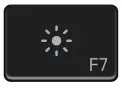
The keys F1-F12 at the top row of the keyboard are function keys for multi-media control, as indicated by the icon at the bottom of the key. Press the function key to invoke the task represented by the icon. For example, pressing F1 mutes the audio (refer to the table below).
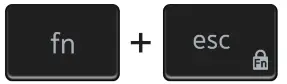
However, if the function keys F1-F12 are needed for specific software applications, multi-media functionality can be disabled by pressing Fn + Esc. Subsequently, multi-media control can be invoked by pressing Fn and the respective function key. For example, mute audio by pressing Fn + F1.
NOTE: You can also define the primary behavior of the function keys (F1–F12) by changing Function Key Behavior in BIOS setup program.
Table 24. List of keyboard shortcuts
Function key | Redefined key (for multimedia control) | Behavior |
|
| Mute audio |
|
| Decrease volume |
|
| Increase volume |
|
| Play/Pause |
|
| Toggle keyboard backlight (optional) NOTE: Non-backlight keyboards have F5 function key without the backlight icon and does not support toggle keyboard backlight function. |
|
| Decrease brightness |

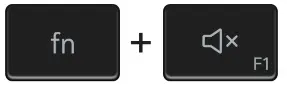
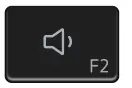
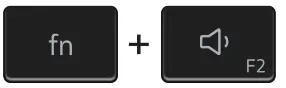
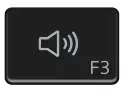
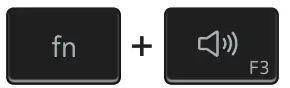
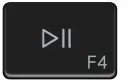
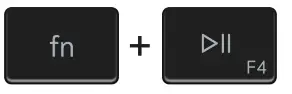
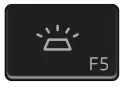
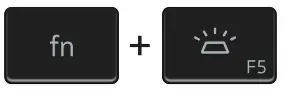
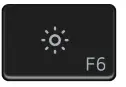
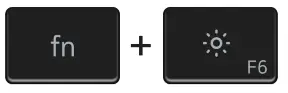
Table 24. List of keyboard shortcuts (continued)
| Function key | Redefined key (for multimedia control) | Behavior |
|
| Increase brightness |
|
| Switch to an external display |
|
| Print screen |
|
| Home |
|
| End |
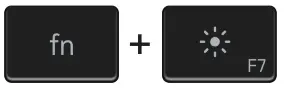
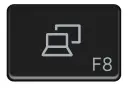
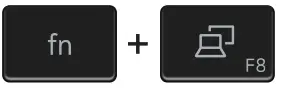
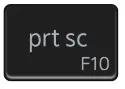
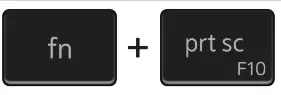
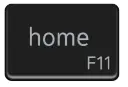
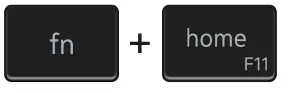
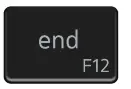
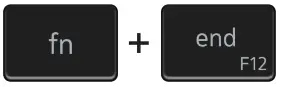
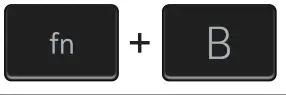
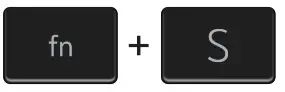
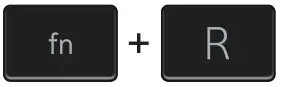
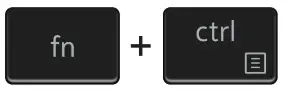
The Fn key is also used with selected keys on the keyboard to invoke other secondary functions.
Table 25. List of keyboard shortcuts
| Function key | Behavior |
| Pause/Break |
| Toggle scroll lock |
| System request |
| Open application menu |
| Toggle Fn-key lock |
Getting help and contacting Dell
Self-help resources
You can get information and help on Dell products and services using these self-help resources:
Table 26. Self-help resources
| Self-help resources | Resource location |
| Information about Dell products and services | www.dell.com |
| My Dell app |  |
| Tips |  |
| Contact Support | In Windows search, type Contact Support, and press Enter. |
| Online help for operating system | www.dell.com/support/windows |
| Access top solutions, diagnostics, drivers and downloads, and learn more about your computer through videos, manuals and documents. | Your Dell computer is uniquely identified by a Service Tag or Express Service Code. To view relevant support resources for your Dell computer, enter the Service Tag or Express Service Code at www.dell.com/support. For more information on how to find the Service Tag for your computer, see Locate the Service Tag on your computer. |
| Dell knowledge base articles for a variety of computer concerns | 1. Go to www.dell.com/support. 2. On the menu bar at the top of the Support page, select Support > Knowledge Base. 3. In the Search field on the Knowledge Base page, type the keyword, topic, or model number, and then click or tap the search icon to view the related articles. |
Contacting Dell
To contact Dell for sales, technical support, or customer service issues, see www.dell.com/contactdell. NOTE: Availability varies by country/region and product, and some services may not be available in your country/region. NOTE: If you do not have an active Internet connection, you can find contact information about your purchase invoice, packing slip, bill, or Dell product catalog.
Getting help and contacting Dell