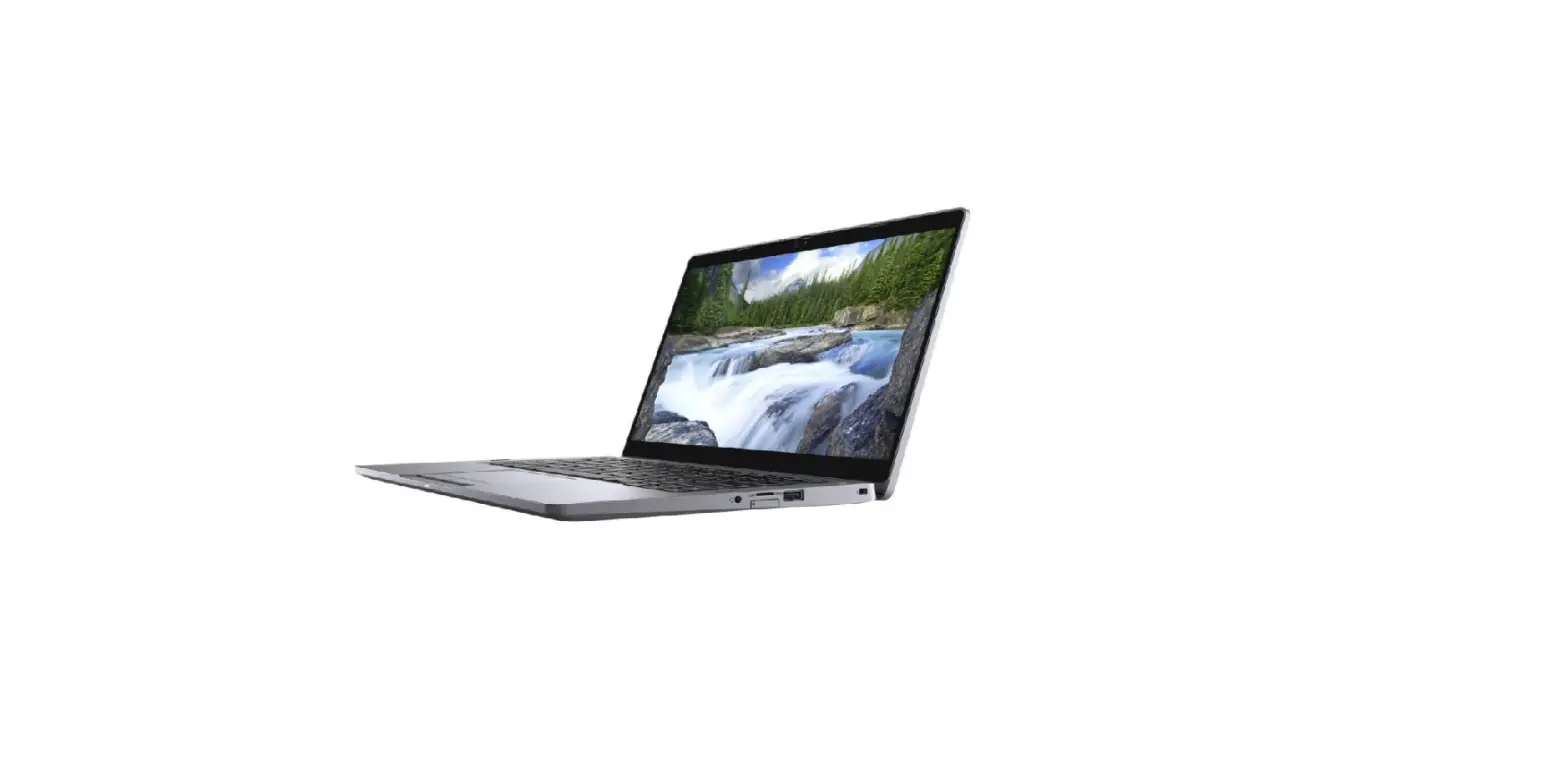

DELL Latitude 5310 Laptop
Notes, cautions, and warnings
NOTE: A NOTE indicates important information that helps you make better use of your product.
CAUTION: A CAUTION indicates either potential damage to hardware or loss of data and tells you how to avoid the problem.
WARNING: A WARNING indicates a potential for property damage, personal injury, or death.
Set up your computer
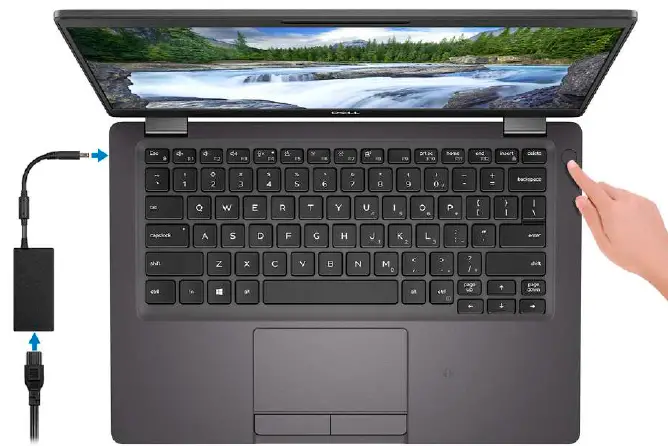
- Connect the power adapter and press the power button.
- NOTE: To conserve battery power, the battery might enter power saving mode.
- Finish Windows system setup.
- Follow the on-screen instructions to complete the setup. When setting up, Dell recommends that you:
- Connect to a network for Windows updates.
- NOTE: If connecting to a secured wireless network, enter the password for the wireless network access when prompted.
- If connected to the internet, sign-in with or create a Microsoft account. If not connected to the internet, create an offline account.
- On the Support and Protection screen, enter your contact details.
- Locate and use Dell apps from the Windows Start menu—Recommended.
Locate Dell apps
| Dell apps | Details |
 | Dell Product Registration Register your computer with Dell. |
 | Dell Help & Support Access help and support for your computer. |
 | SupportAssist Proactively checks the health of your computer’s hardware and software. NOTE: Renew or upgrade your warranty by clicking the warranty expiry date in SupportAssist. |
 | Dell Update Updates your computer with critical fixes and important device drivers as they become available. |
 | Dell Digital Delivery Download software applications including software that is purchased but not preinstalled on your computer. |
- Create recovery drive for Windows.
NOTE: It is recommended to create a recovery drive to troubleshoot and fix problems that may occur with Windows.
For more information, see Create a USB recovery drive for Windows.
Create a USB recovery drive for Windows
Create a recovery drive to troubleshoot and fix problems that may occur with Windows. An empty USB flash drive with a minimum capacity of 16 GB is required to create the recovery drive.
NOTE
- This process may take up to an hour to complete.
- The following steps may vary depending on the version of Windows installed. Refer to the Microsoft support site for latest instructions.
- Connect the USB flash drive to your computer.
- In Windows search, type Recovery.
- In the search results, click Create a recovery drive.
- The User Account Control window is displayed.
- Click Yes to continue.
- The Recovery Drive window is displayed.
- Select Back up system files to the recovery drive and click Next.
- Select the USB flash drive and click Next.
- A message appears, indicating that all data in the USB flash drive will be deleted.
- Click Create.
- Click Finish.
For more information about reinstalling Windows using the USB recovery drive, see the Troubleshooting section of your product’s Service Manual at www.dell.com/support/manuals.
Chassis overview
Topics
- Display view
- Left view
- Right view
- Palmrest view
- Bottom view
Display view
- Array microphone
- Camera shutter
- Camera (Optional)
- Camera status LED
- Array microphone
- LCD panel
- Battery indicator LED
Left view
- Power connector port
- USB 3.2 Gen 2 (USB Type-C) port with DisplayPort/ Thunderbolt (optional)
- HDMI port
- USB 3.2 Gen 1
- Smart card reader (optional)
Right view
- Universal Audio Jack
- microSD card reader
- micro-SIM card slot (Optional)
- USB 3.2 Gen 1 port with PowerShare
- Network port
- Wedge-shaped lock slot
Palmrest view
- Power button with optional fingerprint reader (FPR)
- Keyboard
- NFC/Contactless smart card reader (Optional)
- Touchpad
Bottom view
- Thermal vent
- Service tag label
- Speakers
Technical specifications
NOTE: Offerings may vary by region. The following specifications are only those required by law to ship with your computer. For more information about the configuration of your computer, go to Help and Support in your Windows operating system and select the option to view information about your computer.
Dimensions and weight
| Description | Values | |
| Height: | ||
| Front | 17.53 mm (0.69 in.) | |
| Rear | 19.72 mm (0.78 in.) | |
| Width | 305.70 mm (12.00 in.) | |
| Depth | 207.50 mm (8.17 in.) | |
| Weight (maximum) | 1.24 kg (2.73 lb) NOTE: The weight of your computer depends on the configuration ordered and the manufacturing variability. | |
Processors
| Description | Values | ||||
| Processors | 10th Generation Intel Core i3-10110U processor | 10th Generation Intel Core i5-10210U processor | 10th Generation Intel Core i5-10310U processor | 10th Generation Intel Core i7-10610U processor | 10th Generation Intel Core i7-10810U processor |
| Wattage | 15 W | 15 W | 15 W | 15 W | 15 W |
| Core count | 2 | 4 | 4 | 4 | 6 |
| Thread count | 4 | 8 | 8 | 8 | 12 |
| Speed | 2.1 GHz to 4.1 GHz | 1.6 GHz to 4.2 GHz | 1.7 GHz to 4.4 GHz | 1.8 GHz to 4.9 GHz | 1.1 GHz to 4.9 GHz |
| Cache | 4 MB | 6 MB | 6 MB | 8 MB | 12 MB |
| Integrated graphics | Intel UHD Graphics | Intel UHD Graphics | Intel UHD Graphics | Intel UHD Graphics | Intel UHD Graphics |
Chipset
| Description | Values |
| Chipset | Integrated in the processor |
| Processor | 10th Generation Intel Core i3/i5/i7 |
| DRAM bus width | 64-bit |
| Flash ROM |
|
| PCIe bus | Up to Gen3 |
Operating system
Your Latitude 5310 supports the following operating systems:
- Windows 10 Home (64-bit)
- Windows 10 Professional (64-bit)
- Ubuntu 18.04 LTS
Memory
The following table lists the memory specifications of your Latitude 5310:
| Description | Values |
| Slots | Two SoDIMM slots |
| Type | DDR4 |
| Speed | 2667 MHz |
| Maximum memory | 32 GB |
| Minimum memory | 4 GB |
| Memory size per slot | 4 GB, 8 GB, 16 GB |
| Configurations supported |
|
Ports and connectors
| Description | Values |
| External: | |
| Network | Flip-Down RJ45 |
| USB |
|
| Audio | One Universal Audio Jack |
| Video | HDMI 1.4 DP over USB Type-C |
| Media card reader | uSD slot |
| SIM card | uSIM card with tray (optional) |
| Smart card | Smart card reader slot (optional) |
| Docking port | Type-C docks |
| Power adapter port | 7.4 mm barrel |
| Security | Wedge-shaped lock slot |
| Internal: | |
| M.2 |
|
Communications
Ethernet
| Description | Values |
| Model number |
|
| Transfer rate | 10/100/1000 Mbps |
Wireless module
| Description | Values | |
| Model number | Intel AX201 | Qualcomm QCA61x4A (DW1820) |
| Transfer rate | Up to 2400 Mbps | Up to 867 Mbps |
| Frequency bands supported | 2.4 GHz/5 GHz | 2.4 GHz/5 GHz |
| Wireless standards |
|
|
| Encryption |
|
|
| Bluetooth | Bluetooth 5.1 | Bluetooth 5.0 |
Audio
| Description | Values |
| Controller | Realtek ALC3254 |
| Stereo conversion | Supported | |
| Internal interface | High-definition audio | |
| External interface | Universal Audio Jack | |
| Speakers | Two | |
| Internal speaker amplifier | Supported (audio codec integrated) | |
| External volume controls | Keyboard shortcut controls | |
| Speaker output: | ||
| Average | 2 W | |
| Peak | 2.5 W | |
| Subwoofer output | Not supported | |
| Microphone | Dual-array microphones | |
Storage
Your computer supports the following configuration:
- One M.2 2230/2280 solid-state drive
| Form factor | Interface type | Capacity |
| M.2 2230, Gen 3 PCIe NVMe, Class 35 SSD | Gen 3 PCIe x4 NVMe | 128 GB, 256 GB, 512 GB |
| M.2 2280, Gen 3 PCIe NVMe, Class 40 SSD | Gen 3 PCIe x4 NVMe | 256 GB, 512 GB, 1 TB |
| M.2 2280, Gen 3 PCIe NVMe, FDE SSD | Gen 3 PCIe x4 NVMe | 256 GB, 512 GB |
Media-card reader
| Description | Values |
| Type | One uSD card slot |
| Cards supported | uSD 4.0 |
Keyboard
| Description | Values |
| Type |
|
| |
| Layout | QWERTY |
| Number of keys |
|
| Size | X=18.05 mm key pitch Y=18.05 mm key pitch |
| Shortcut keys | Some keys on your keyboard have two symbols on them. These keys can be used to type alternate characters or to perform secondary functions. To type the alternate character, press Shift and the desired key. To perform secondary functions, press Fn and the desired key. |
Camera
| Description | Values | |
| Number of cameras | One | |
| Type | HD resolution | |
| Location | Front | |
| Sensor type | CMOS sensor technology | |
| Resolution: | ||
| Still image | 1280 x 720 megapixel | |
| Video | HD resolution (1280 x 720) at 30 fps | |
| Diagonal viewing angle | 78.6 degrees | |
Touchpad
| Description | Values | |
| Resolution: | ||
| Horizontal | 1103 | |
| Vertical | 615 | |
| Dimensions: | ||
| Horizontal | 91.90 mm (3.62 in.) | |
| Vertical | 51.40 mm (2.02 in.) | |
Touchpad gestures
For more information about touchpad gestures for Windows, see the Microsoft knowledge base article 4027871 at support.microsoft.com.
Power adapter
| Description | Value | ||
| Type | E5 65W | E5 90W | E5 65W |
| Diameter (connector) | 7.4 mm Barrel | 7.4 mm Barrel | Type-C connector (Optional) |
| Input voltage | 100 VAC to 240 VAC | 100 VAC to 240 VAC | 100 VAC to 240 VAC |
| Input frequency | 50 Hz to 60 Hz | 50 Hz to 60 Hz | 50 Hz to 60 Hz |
| Input current (maximum) | 1.5 A | 1.6 A | 1.7 A |
| Output current (continuous) | 3.34 A | 4.62 A | 20 V/3.25 A(Continuous) 15 V/3 A (Continuous) 9.0 V/3 A (Continuous) 5.0 V/3 A(Continuous) |
| Rated output voltage | 219.50 VDC | 19.50 VDC | 20 VDC/15 VDC/9 VDC/5 VDC |
| Temperature range: | |||
| Operating | Charge:0°C to 40°C (32°F to 104°F) | Charge:0°C to 40°C (32°F to 104°F) | Charge:0°C to 40°C (32°F to 104°F) |
| Storage | Charge: -40°C to 70°C (-40°F to 158°F) | Charge: -40°C to 70°C (-40°F to 158°F) | Charge: -40°C to 70°C (-40°F to 158°F) |
Battery
| Description | Values | |||
| Type | 3-cell lithium-ion 42 WHr ExpressCharge | 4-cell lithium-ion 60 WHr ExpressCharge | 4-cell lithium-ion 60 WHr with Long Life Cycle | |
| Voltage | 11.40 VDC | 7.60 VDC | 7.60 VDC | |
| Weight (maximum) | 0.19 kg (0.42 lb) | 0.27 kg (0.60 lb) | 0.23 Kg (0.51 lb) | |
| Dimensions: | ||||
| Height | 95.90 mm (3.78 in.) | 95.90 mm (3.78 in.) | 95.90 mm (3.78 in.) | |
| Width | 200.50 mm (7.89 in.) | 238 mm (9.37 in.) | 238 mm (9.37 in.) | |
| Depth | 5.70 mm (0.22 in.) | 5.70 mm (0.22 in.) | 5.70 mm (0.22 in.) | |
| Temperature range: | ||||
| Operating | Charge: 0°C to 45°C (32°F to 113°F); Discharge:0°C~70°C(32°F to 113°F | Charge: 0°C to 45°C (32°F to 113°F); Discharge:0°C~70°C(32°F to 113°F) | Charge: 0°C to 45°C (32°F to 113°F); Discharge:0°C~70°C(32°F to 113°F) | |
| Storage | -20°C to 65°C (4°F to 149°F) | -20°C to 65°C (4°F to 149°F) | -20°C to 65°C (4°F to 149°F) | |
| Operating time | Varies depending on operating conditions and can significantly reduce under certain power- intensive conditions. | Varies depending on operating conditions and can significantly reduce under certain power-intensive conditions. | Varies depending on operating conditions and can significantly reduce under certain power-intensive conditions. | |
| Charging time (approximate) | ● Standard charge: 0°C to 50°C: 4 hours ● Express Charge: 0°C to 15°C: 4 hours; 16°C to 45°C: 2 hours; 46°C to 50°C: 3 hours NOTE: Control the charging time, duration, start and end time, and so on using the Dell Power Manager application. For more information on the Dell Power Manager see, Me and My Dell on https://www.dell.com/ |
NOTE: Control the charging time, duration, start and end time, and so on using the Dell Power Manager application. For more information on the Dell Power Manager see, Me and My Dell on https://www.dell.com/ |
LLC battery only supports the standard charge. NOTE: Control the charging time, duration, start and end time, and so on using the Dell Power Manager application. For more information on the Dell Power Manager see, https://www.dell.com/ | |
| Life span (approximate) | 300 discharge/charge cycles | 300 discharge/charge cycles | 1year/300 discharge/Charge 3 years/1000 discharge/ Charge | |
| Coin-cell battery | CR-2032 | CR-2032 | CR-2032 | |
| ExpressCharge | Supported | Supported | Supported | |
Display
| Description | Values | |
| Type |
| |
| Panel technology | HD: Twisted Nematic (TN), FHD: Wide Viewing Angle (WVA) | |
| Luminance (typical) |
| |
| Dimensions (active area): | ||
| Height | 165.24 mm (6.51 in.) | |
| Width | 293.76 mm (11.57 in.) | ||
| Diagonal | 337.04 mm (13.27 in.) | ||
| Native resolution | HD: 1366 x 768, FHD: 1920×1080 | ||
| Megapixels | HD: 1.04M, FHD:2.07M | ||
| Color gamut | HD: 45% NTCS, FHD:72% NTSC | ||
| Pixels Per Inch (PPI) | HD: 118, FHD: 166 | ||
| Contrast ratio (min) | HD: 300:1, FHD:600:1 | ||
| Response time (max) | 35 ms | ||
| Refresh rate | 60 Hz | ||
| Horizontal view angle | HD: +/- 40 degrees, FHD: +/- 80 degrees | ||
| Vertical view angle | HD: +10 / -30 degrees, FHD:+/- 80 degrees | ||
| Pixel pitch | HD:0.215 mm, FHD:0.153 mm | ||
| Power consumption (maximum) | HD: 2.85 W, FHD:4.5 W | ||
| Anti-glare vs glossy finish | Anti-glare | ||
| Touch options | Integrated Touch (optional) | ||
Fingerprint reader
| Description | Values |
| Sensor technology | Capatative |
| Sensor resolution | 500 dpi |
| Sensor area | 5.25 mm x 6.9 mm |
| Sensor pixel size | 108 x 88 |
Video
| Integrated graphics | |||
| Controller | External display support | Memory size | Processor |
| Intel UHD Graphics | HDMI 1.4 / DP over USB Type-C | Share System Memory | CML-U |
Computer environment
Airborne contaminant level: G1 as defined by ISA-S71.04-1985
| Description | Operating | Storage |
| Temperature range | 0 °C to 35 °C (32 °F to 95 °F) | -40 °C to 65 °C (-40 °F to 149 °F) |
| Relative humidity (maximum) | 10 % to 80 % (non-condensing) | 0 % to 95 % (non-condensing) |
| Vibration (maximum)* | 0.66 GRMS | 1.30 GRMS |
| Shock (maximum) | 140 G† | 160 G† |
| Altitude (maximum) | -15.2 m to 3048 m (4.64 ft to 5518.4 ft) | -15.2 m to 10668 m (4.64 ft to 19234.4 ft) |
- * Measured using a random vibration spectrum that simulates user environment.
- † Measured using a 2 ms half-sine pulse when the hard drive is in use.
Sensor and control specifications
- Specifications: Hall Effect Sensor (Detects when the lid is closed)
Security
| Feature | Specifications |
| Trusted Platform Module (TPM) 2.0 | Integrated on the system board |
| Firmware TPM | Optional |
| Windows Hello Support | Yes, optional fingerprint on power button Optional IR camera |
| Cable lock | Noble lock |
| FIPS 140-2 certification for TPM | Yes |
| ControlVault 3 Advanced Authentication with FIPS 140-2 Level 3 Certification | Optional (FPR, SC and CSC/NFC) |
| Fingerprint Reader Only | Touch Fingerprint reader in power button tied to ControlVault 3 |
| Contacted Smart Card and ControlVault 3 | Optional (FIPS 201 Smart card reader certification/SIPR) |
Security Software
| Specifications |
| Dell Client Command Suite |
| Optional Dell Data Security and Management Software Dell Client Command Suite Dell BIOS Verification Optional Dell Endpoint Security and Management Software VMware Carbon Black Endpoint Standard VMware Carbon Black Endpoint Standard + Secureworks Threat Detection and Response Dell Encryption Enterprise Dell Encryption Personal Carbonite VMware Workspace ONE Absolute® Endpoint Visibility and Control Netskope Dell Supply Chain Defense |
Keyboard shortcuts
NOTE: Keyboard characters may differ depending on the keyboard language configuration. Keys that are used for shortcuts remain the same across all language configurations.
List of keyboard shortcuts
| Keys | Primary Behavior | Secondary Behavior (Fn + Key) |
| Fn + Esc | Escape | Toggle Fn-key lock |
| Fn + F1 | Mute audio | F1 behavior |
| Fn + F2 | Decrease volume | F2 behavior |
| Fn + F3 | Increase volume | F3 behavior |
| Fn + F4 | Mic Mute | F4 behavior |
| Fn + F5 | Keyboard backlight NOTE: Not applicable for non- backlight keyboard. | F5 behavior |
| Fn + F6 | Decrease screen brightness | F6 behavior |
| Fn + F7 | Increase screen brightness | F7 behavior |
| Fn + F8 | Display Toggle (Win + P) | F8 behavior |
| Fn + F10 | Print Screen | F10 behavior |
| Fn + F11 | Home | F11 behavior |
| Fn + F12 | End | F12 behavior |
| Fn + Right Ctrl | Emulates Right Click | — |
Software
This chapter details the supported operating systems along with instructions on how to install the drivers.
Downloading Windows drivers
- Turn on the laptop.
- Go to Dell.com/support.
- Click Product Support, enter the Service Tag, and then click Submit.
- NOTE: If you do not have the Service Tag, use the auto detect feature or manually browse for your laptop model.
- Click Drivers and Downloads.
- Select the operating system installed on your laptop.
- Scroll down the page and select the driver to install.
- Click Download File to download the driver.
- After the download is complete, navigate to the folder where you saved the driver file.
- Double-click the driver file icon and follow the instructions on the screen.
System setup
CAUTION: Unless you are an expert computer user, do not change the settings in the BIOS Setup program.
Certain changes can make your computer work incorrectly.
NOTE: Before you change BIOS Setup program, it is recommended that you write down the BIOS Setup program screen information for future reference.
Use the BIOS Setup program for the following purposes:
- Get information about the hardware installed in your computer, such as the amount of RAM and the size of the hard drive.
- Change the system configuration information.
- Set or change a user-selectable option, such as the user password, type of hard drive installed, and enabling or disabling base devices.
Boot menu
Press <F12> when the Dell logo appears to initiate a one-time boot menu with a list of the valid boot devices for the system. Diagnostics and BIOS Setup options are also included in this menu. The devices listed on the boot menu depend on the bootable devices in the system. This menu is useful when you are attempting to boot to a particular device or to bring up the diagnostics for the system. Using the boot menu does not make any changes to the boot order stored in the BIOS.
The options are:
- UEFI Boot:
- Windows Boot Manager
- Other Options:
- BIOS Setup
- BIOS Flash Update
- Diagnostics
- Change Boot Mode Settings
NOTE: For most of the System Setup options, changes that you make are recorded but do not take effect until you restart the system.
- Keys: Navigation
- Up arrow: Moves to the previous field.
- Down arrow: Moves to the next field.
- Enter: Selects a value in the selected field (if applicable) or follow the link in the field.
- Spacebar: Expands or collapses a drop-down list, if applicable.
- Tab: Moves to the next focus area.
- Esc: Moves to the previous page until you view the main screen. Pressing Esc in the main screen displays a message that prompts you to save any unsaved changes and restarts the system.
Boot Sequence
Boot sequence enables you to bypass the System Setup–defined boot device order and boot directly to a specific device (for example: optical drive or hard drive). During the Power-on Self-Test (POST), when the Dell logo appears, you can:
- Access System Setup by pressing F2 key
- Bring up the one-time boot menu by pressing F12 key.
The one-time boot menu displays the devices that you can boot from including the diagnostic option. The boot menu options are:
- Removable Drive (if available)
- STXXXX Drive
- NOTE: XXXX denotes the SATA drive number.
- Optical Drive (if available)
- SATA Hard Drive (if available)
- Diagnostics
NOTE
- Choosing Diagnostics, displays the SupportAssist screen.
- The boot sequence screen also displays the option to access the System Setup screen.
System setup options
NOTE: Depending on the and its installed devices, the items listed in this section may or may not appear.
General options
| Option | Description |
| System Information | Displays the following information:
|
| Battery Information | Displays the battery status health and whether the AC adapter is installed. |
| Boot Sequence | Allows you to specify the order in which the computer attempts to find an operating system from the devices specified in this list. |
| UEFI Boot Path Security | This option controls whether or not the system will prompt the user to enter the Admin password when booting a UEFI boot path from the F12 Boot Menu.
|
| |
| Date/Time | Allows you to set the date and time settings. Changes to the system date and time take effect immediately. |
System information
| Option | Description |
| Integrated NIC | Allows you to configure the on-board LAN controller.
|
| SATA Operation | Allows you to configure the operating mode of the integrated hard drive controller.
|
| Drives | Allows you to enable or disable the various drives on-board:
|
| Smart Reporting | This field controls whether hard drive errors for integrated drives are reported during system startup. The Enable Smart Reporting option is disabled by default. |
| USB Configuration | Allows you to enable or disable the integrated USB controller for:
All the options are enabled by default. |
| Thunderbolt Adapter Configuration | This section allows Thunderbolt Adapter Configuration.
|
| USB PowerShare | This option configures the USB PowerShare feature behavior.
This feature is intended to allow users to power or charge external devices, such as phones and portable music players, using the stored system battery power through the USN PowerShare port on the notebook, while the notebook is in a sleep state. |
| Audio | Allows you to enable or disable the integrated audio controller. The option Enable Audio is selected by default.
Both the options are selected by default. |
| Keyboard Illumination | This field lets you choose the operating mode of the keyboard illumination feature. The keyboard brightness level can be set from 0% to 100%. The options are:
|
| Keyboard Backlight Timeout on AC | The Keyboard Backlight Timeout dims out with AC option. The main keyboard illumination feature is not affected. Keyboard Illumination will continue to support the various illumination levels. This field has an effect when the backlight is enabled. The options are:
|
| Keyboard Backlight Timeout on Battery | The Keyboard Backlight Timeout dims out with the Battery option. The main keyboard illumination feature is not affected. Keyboard Illumination will continue to support the various illumination levels. This field has an effect when the backlight is enabled. The options are:
|
| Unobtrusive Mode |
When enabled pressing Fn+Shift+B will turn off all light and sound emissions in the system. Press Fn+Shift+B to resume normal operation. |
| Miscellaneous Devices | Allows you to enable or disable the following devices:
|
| MAC Address Pass-Through |
The feature replaces the external NIC MAC address (in a supported dock or dongle) with the selected MAC address from the system. The default option is to use the Passthrough MAC address. |
Video
Option Description
LCD Brightness: Allows you to set the display brightness depending up on the power source—On Battery and On AC. The LCD brightness is independent for battery and AC adapter. It can be set using the slider.
NOTE: The video setting is visible only when a video card is installed into the system.
Security
| Option | Description |
| Admin Password | Allows you to set, change, and delete the admin password. |
| System Password | Allows you to set, change, and delete the system password. |
| Internal HDD-2 Password | This option lets you set, change, or delete the password on the system’s internal hard disk drive (HDD). |
| Strong Password | This option lets you enable or disable strong passwords for the system. |
| Password Configuration | Allows you to control the minimum and maximum number of characters allowed for an administrative password and the system password. The range of characters is between 4 and 32. |
| Password Bypass | This option lets you bypass the System (Boot) Password and the internal HDD password prompts during a system restart.
NOTE: The system will always prompt for the system and internal HDD passwords when powered on from the off state (a cold boot). Also, the system will always prompt for passwords on any module bay HDDs that may be present. |
| Password Change | This option lets you determine whether changes to the System and Hard Disk passwords are permitted when an administrator password is set. Allow Non-Admin Password Changes – This option is enabled by default. |
| UEFI Capsule Firmware Updates | This option controls whether this system allows BIOS updates via UEFI capsule update packages. This option is selected by default. Disabling this option will block BIOS updates from services such as Microsoft Windows Update and Linux Vendor Firmware Service (LVFS) |
| TPM 2.0 Security | Allows you to control whether the Trusted Platform Module (TPM) is visible to the operating system.
|
| Absolute | This field lets you Enable, Disable or Permanently Disable the BIOS module interface of the optional Absolute Persistence Module service from Absolute Software.
|
| OROM Keyboard Access | This option determines whether users are able to enter Option ROM configuration screen via hotkeys during boot.
|
| Admin Setup Lockout | Allows you to prevent users from entering Setup when Admin password is set. This option is not set by default. |
| Master Password Lockout | Allows you to disable master password support Hard Disk passwords need to be cleared before the settings can be changed. This option is not set by default. |
| SMM Security Mitigation | Allows you to enable or disable additional UEFI SMM Security Mitigation protections. This option is not set by default. |
Secure boot
| Option | Description |
| Secure Boot Enable | Allows you to enable or disable Secure Boot feature ● Secure Boot Enable Option is not selected. |
| Secure Boot Mode | Allows you to modify the behavior of Secure Boot to allow evaluation or enforcement of UEFI driver signatures. ● Deployed Mode (default) ● Audit Mode |
| Expert key Management | Allows you to manipulate the security key databases only if the system is in Custom Mode. The Enable Custom Mode option is disabled by default. The options are:
If you enable the Custom Mode, the relevant options for PK, KEK, db, and dbx appear. The options are:
NOTE: If you disable the Custom Mode, all the changes made will be erased and the keys will restore to default settings. |
Intel Software Guard Extensions
| Option | Description |
| Intel SGX Enable | This field specifies you to provide a secured environment for running code/storing sensitive information in the context of the main OS. Click one of the following options:
|
| Enclave Memory Size | This option sets SGX Enclave Reserve Memory Size Click one of the following options:
|
Performance
| Option | Description |
| Multi Core Support | This field specifies whether the process has one or all cores enabled. The performance of some applications improves with the additional cores.
|
| Intel SpeedStep | Allows you to enable or disable the Intel SpeedStep mode of processor.
This option is set by default. |
| C-States Control | Allows you to enable or disable the additional processor sleep states.
This option is set by default. |
| Intel TurboBoost | Allows you to enable or disable the Intel TurboBoost mode of the processor.
This option is set by default. |
| Hyper-Thread Control | Allows you to enable or disable the HyperThreading in the processor.
|
Power management
Option /Description
- AC Behavior: Allows you to enable or disable the computer from turning on automatically when an AC adapter is connected.
- Default setting: Wake on AC is not selected.
- Enable Intel Speed Shift Technology: Enable Intel Speed Shift Technology
- Default setting: Enabled
Auto On Time: Allows you to set the time at which the computer must turn on automatically. The options are:
- Disabled
- Every Day
- Weekdays
- Select Days
- Default setting: Disabled
USB Wake Support: Allows you to enable USB devices to wake the system from Standby.
NOTE: This feature is only functional when the AC power adapter is connected. If the AC power adapter is removed during Standby, the system setup removes power from all the USB ports to conserve battery power.
- Enable USB Wake Support
Wireless Radio Control: If Enabled, this feature will sense the connection of the system to a wired network and subsequently disable the selected wireless radios (WLAN and/ or WWAN).
- Control WLAN radio – is disabled
Wake on LAN: Allows you to enable or disable the feature that powers on the computer from the Off state when triggered by a LAN signal.
- Disabled
- LAN Only
- LAN with PXE Boot
- Default setting: Disabled
Block Sleep: This option lets you to block entering to sleep in OS environment. When enabled system won’t go to sleep.
Block Sleep: is disabled
Peak Shift: This option enables you to minimize the AC power consumption during the peak power times of day. After you enable this option, your system runs only in battery even if the AC is attached.
- Enable peak shift—is disabled
- Set battery threshold (15% to 100%) – 15 % (enabled by default)
Advanced Battery Charge Configuration: This option enables you to maximize the battery health. By enabling this option, your system uses the standard charging algorithm and other techniques, during the non work hours to improve the battery health.
- Enable Advanced Battery Charge Mode- is disabled
Primary Battery Charge Configuration
Allows you to select the charging mode for the battery. The options are:
- Adaptive—enabled by default
- Standard—Fully charges your battery at a standard rate.
- ExpressCharge—The battery charges over a shorter time using Dell’s fast charging technology.
- Primarily AC use
- Custom
If Custom Charge is selected, you can also configure Custom Charge Start and Custom Charge Stop.
NOTE: All charging mode may not be available for all the batteries. To enable this option, disable the Advanced Battery Charge Configuration option.
POST behavior
Option /Description
- Adapter Warnings: Allows you to enable or disable the system setup (BIOS) warning messages when you use certain power adapters.
- Default setting: Enable Adapter Warnings
- Numlock Enable: Allows you to enable the Numlock option when the computer boots.
- Enable Network. This option is enabled by default.
- Fn Lock Options: Allows you to let hot key combinations Fn + Esc toggle the primary behavior of F1–F12, between their standard and secondary functions. If you disable this option, you cannot toggle dynamically the primary behavior of these keys. The available options are:
- Fn Lock—enabled by default
- Lock Mode Enable/Secondary—enabled by default
- Lock Mode Disable/Standard
- Fastboot: Allows you to speed up the boot process by bypassing some of the compatibility steps. The options are:
- Minimal
- Thorough—enabled by default
- Auto
- Extended BIOS POST Time: Allows you to create an extra preboot delay. The options are:
- 0 seconds—enabled by default.
- 5 seconds
- 10 seconds
- Full Screen Log: Enable Full Screen Logo—not enabled
- Warnings and errors: Prompt on warnings and errors—enabled by default
- Continue on warnings
- Continue on warnings and errors
Manageability
Option /Description
- Intel AMT Capability: Allows you to provision AMT and MEBx Hotkey function is enabled, during the system boot.
- Disabled
- Enabled – by default
- Restrict MEBx Access
- USB Provision: When enabled Intel AMT can be provisioned using the local provisioning file via a USB storage device.
- Enable USB Provision – disabled by default
- MEBX Hotkey: Allows you to specify whether the MEBx Hotkey function should enable, during the system boot.
- Enable MEBx hotkey—enabled by default
Virtualization support
Option /Description
- Virtualization: This field specifies whether a virtual Machine Monitor (VMM) can utilize the conditional hardware capabilities provided by Intel Virtualization Technology.
- Enable Intel Virtualization Technology—enabled by default.
- VT for Direct I/O: Enables or disables the Virtual Machine Monitor (VMM) from utilizing the additional hardware capabilities provided by Intel® Virtualization technology for direct I/O.
- Enable VT for Direct I/O – enabled by default.
- Trusted Execution: This option specifies whether a Measured Virtual Machine Monitor (MVMM) can utilize the additional hardware capabilities provided by Intel Trusted Execution Technology. The TPM Virtualization Technology, and the Virtualization technology for direct I/O must be enabled to use this feature.
- Trusted Execution – disabled by default.
Wireless
Option /Description
Wireless Device Enable: Allows you to enable or disable the internal wireless devices.
- WLAN
- Bluetooth
All the options are enabled by default.
Maintenance screen
Option /Description
- Service Tag: Displays the Service Tag of your computer.
- Asset Tag: Allows you to create a system asset tag if an asset tag is not already set. This option is not set by default.
- BIOS Downgrade: This controls flashing of the system firmware to previous revisions. Option ‘Allow BIOS downgrade’ is enabled by default.
- Data Wipe: This field allows users to erase the data securely from all internal storage devices. Option ‘Wipe on Next boot’ is not enabled by default. The following is list of devices affected:
- Internal SATA HDD/SSD
- Internal M.2 SATA SDD
- Internal M.2 PCIe SSD
- Internal eMMC
- BIOS Recovery: This field allows you to recover from certain corrupted BIOS conditions from a recover file on the user primary hard drive or an external USB key.
- BIOS Recovery from Hard Drive—enabled by default
- Always perform integrity check—disabled by default
- First Power On Date: This option lets you set the Ownership date.
- Set Ownership Date—disabled by default
System logs
Option /Description
- BIOS Events: Allows you to view and clear the System Setup (BIOS) POST events.
- Thermal Events: Allows you to view and clear the System Setup (Thermal) events.
- Power Events: Allows you to view and clear the System Setup (Power) events.
Updating the BIOS in Windows
It is recommended to update your BIOS (System Setup) when you replace the system board or if an update is available.
NOTE: If BitLocker is enabled, it must be suspended prior to updating the system BIOS, and then re enabled after the BIOS update is completed.
CAUTION: If BitLocker is not suspended before updating the BIOS, the next time you reboot the system it will not recognize the BitLocker key. You will then be prompted to enter the recovery key to progress and the system will ask for this on each reboot. If the recovery key is not known this can result in data loss or an unnecessary operating system re-install. For more information on this subject, see Knowledge Base Article: https://www.dell.com/support/kbdoc/000134415/.
- Restart the computer.
- Go to Dell.com/support.
- Enter the Service Tag or Express Service Code and click Submit.
- Click Detect Product and follow the instructions on screen.
- If you are unable to detect or find the Service Tag, click Choose from all products.
- Choose the Products category from the list.
- NOTE: Choose the appropriate category to reach the product page.
- Select your computer model and the Product Support page of your computer appears.
- Click Get drivers and click Drivers and Downloads.
- The Drivers and Downloads section opens.
- Click Find it myself.
- Click BIOS to view the BIOS versions.
- Identify the latest BIOS file and click Download.
- Select your preferred download method in the Please select your download method below window, click Download File.
- The File Download window appears.
- Click Save to save the file on your computer.
- Click Run to install the updated BIOS settings on your computer.
- Follow the instructions on the screen.
Updating BIOS on systems with BitLocker enabled
CAUTION: If BitLocker is not suspended before updating the BIOS, the next time you reboot the system it will not recognize the BitLocker key. You will then be prompted to enter the recovery key to progress and the system will ask for this on each reboot. If the recovery key is not known, this can result in data loss or an unnecessary operating system reinstall. For more information about this subject, see Knowledge Article: Updating the BIOS on Dell Systems With BitLocker Enabled.
Updating your system BIOS using a USB flash drive
If the system cannot load into Windows, but there is still a need to update the BIOS, download the BIOS file using another system and save it to a bootable USB Flash Drive.
NOTE: You will need to use a bootable USB flash drive. Please refer to the following article for further details How to Create a Bootable USB Flash Drive using Dell Diagnostic Deployment Package (DDDP)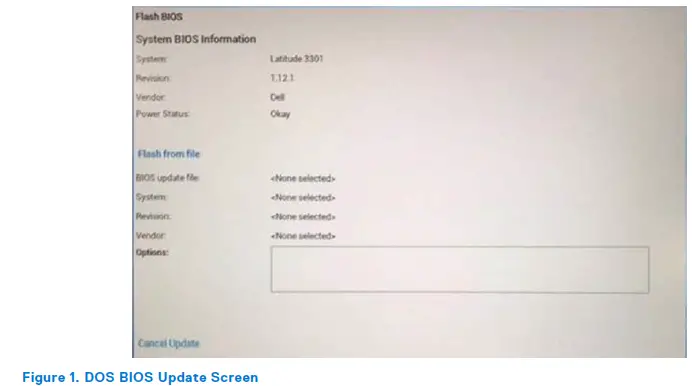
- Download the BIOS update .EXE file to another system.
- Copy the file e.g. O9010A12.EXE onto the bootable USB flash drive.
- Insert the USB flash drive into the system that requires the BIOS update.
- Restart the system and press F12 when the Dell splash logo appears to display the One Time Boot Menu.
- Using arrow keys, select USB Storage Device and click Enter.
- The system will boot to a Diag C:\> prompt.
- Run the file by typing the full filename, for example, O9010A12.exe and press Enter.
- The BIOS Update Utility will load. Follow the instructions on screen.
System and setup password
| Password type | Description |
| System password | Password that you must enter to log on to your system. |
| Setup password | Password that you must enter to access and make changes to the BIOS settings of your computer. |
You can create a system password and a setup password to secure your computer.
CAUTION
- The password features provide a basic level of security for the data on your computer.
- Anyone can access the data stored on your computer if it is not locked and left unattended.
NOTE: System and setup password feature is disabled.
Assigning a system setup password
You can assign a new System or Admin Password only when the status is in Not Set. To enter the system setup, press F2 immediately after a power-on or reboot.
- In the System BIOS or System Setup screen, select Security and press Enter.
- The Security screen is displayed.
- Select System/Admin Password and create a password in the Enter the new password field.
- Use the following guidelines to assign the system password:
- A password can have up to 32 characters.
- The password can contain the numbers 0 through 9.
- Only the following special characters are allowed: space, (”), (+), (,), (-), (.), (/), (;), ([), (\), (]), (`).
- Use the following guidelines to assign the system password:
- Type the system password that you entered earlier in the Confirm new password field and click OK.
- Press Esc and a message prompts you to save the changes.
- Press Y to save the changes.
- The computer reboots.
Deleting or changing an existing system setup password
Ensure that the Password Status is Unlocked (in the System Setup) before attempting to delete or change the existing System and Setup password. You cannot delete or change an existing System or Setup password, if the Password Status is Locked. To enter the System Setup, press F2 immediately after a power-on or reboot.
- In the System BIOS or System Setup screen, select System Security and press Enter. The System Security screen is displayed.
- In the System Security screen, verify that Password Status is Unlocked.
- Select System Password, alter or delete the existing system password and press Enter or Tab.
- Select Setup Password, alter or delete the existing setup password and press Enter or Tab.
- NOTE: If you change the System and/or Setup password, re enter the new password when prompted. If you delete the System and Setup password, confirm the deletion when prompted.
- Press Esc and a message prompts you to save the changes.
- Press Y to save the changes and exit from System Setup. The computer restarts.
Getting help
Contacting Dell
NOTE: If you do not have an active Internet connection, you can find contact information on your purchase invoice, packing slip, bill, or Dell product catalog.
Dell provides several online and telephone-based support and service options. Availability varies by country and product, and some services may not be available in your area. To contact Dell for sales, technical support, or customer service issues:
- Go to Dell.com/support.
- Select your support category.
- Verify your country or region in the Choose a Country/Region drop-down list at the bottom of the page.
- Select the appropriate service or support link based on your need.
Regulatory Model: P97G
Regulatory Type: P97G001
April 2021
Rev. A02
© 2020 – 2021 Dell Inc. or its subsidiaries. All rights reserved. Dell, EMC, and other trademarks are trademarks of Dell Inc. or its subsidiaries. Other trademarks may be trademarks of their respective owners.
References
 Support | Dell US
 Microsoft Support
-
Manuals | Dell US
-
Microsoft Support
-
Microsoft Support
-
Touch gestures for Windows - Microsoft Support
-
Computers, Monitors & Technology Solutions | Dell USA
-
Updating the BIOS on Dell Systems With BitLocker Enabled | Dell US
-
How to Create a Bootable USB Flash Drive using Dell Diagnostic Deployment Package (DDDP) | Dell US
-
Updating the BIOS on Dell Systems With BitLocker Enabled | Dell US
-
Manuals | Dell US
 Support | Dell US
 Microsoft Support
 Manuals | Dell US