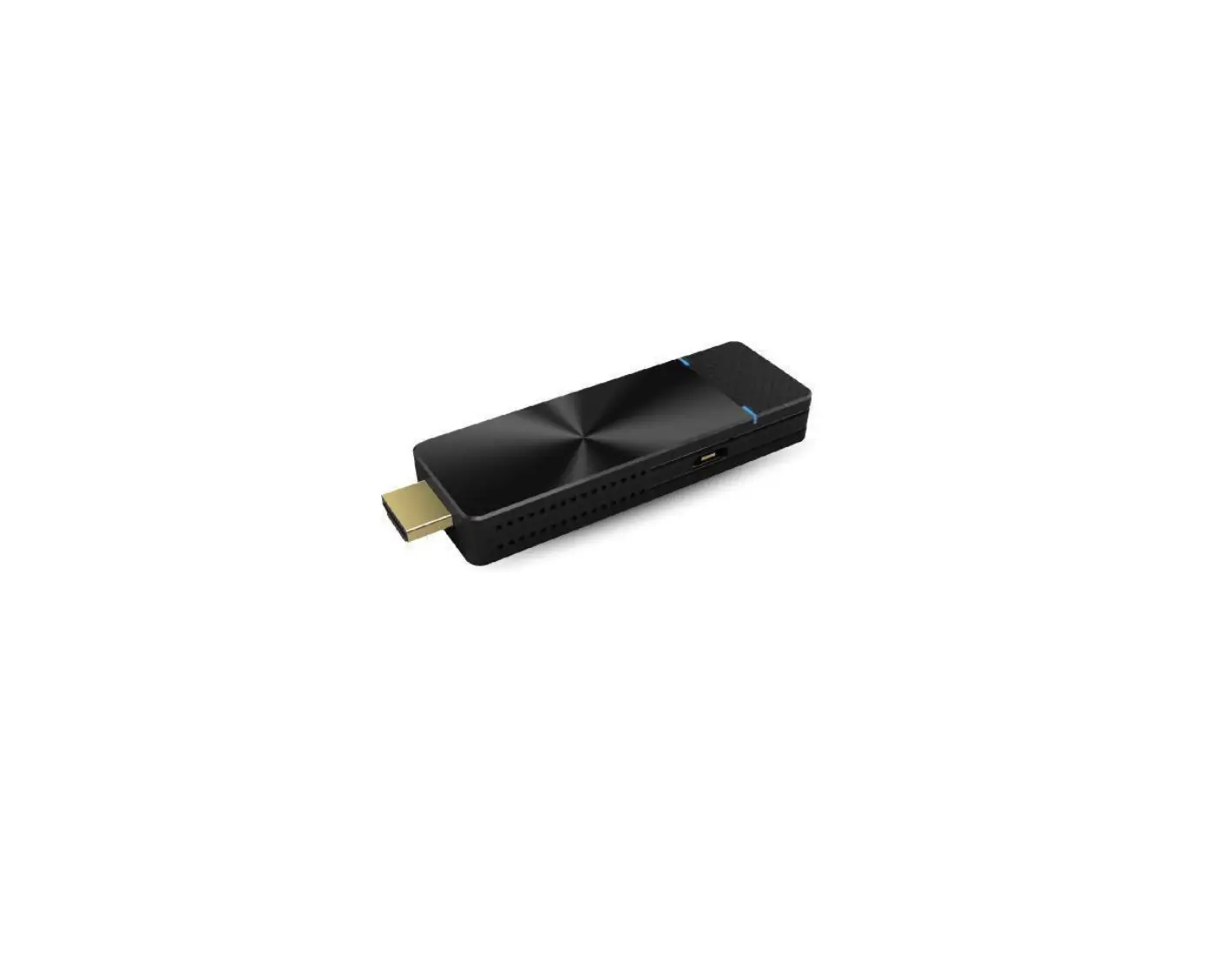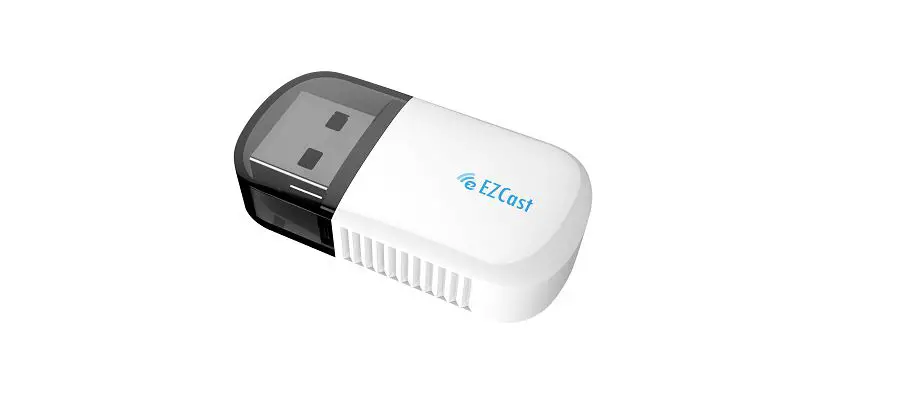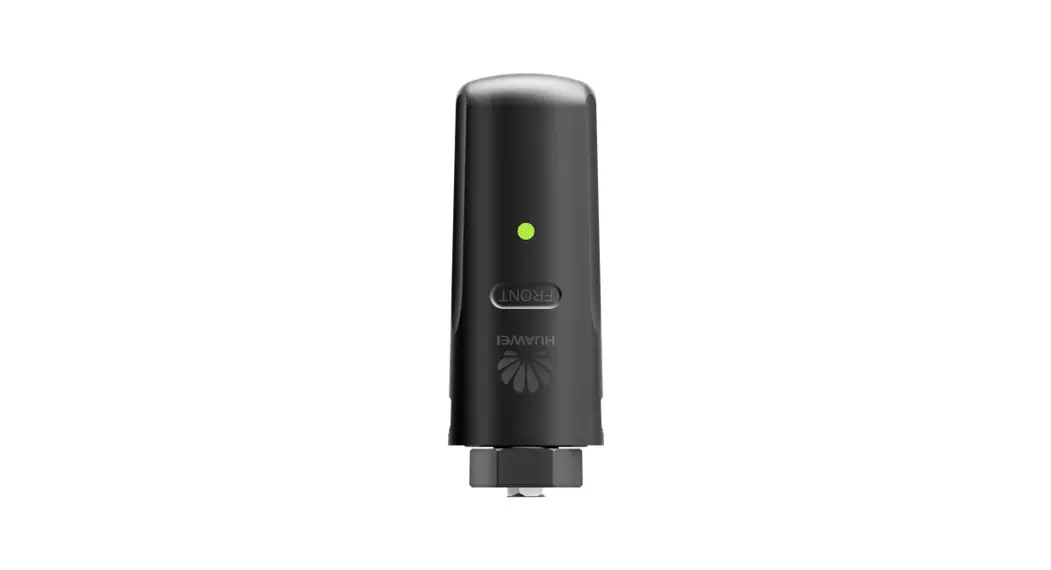
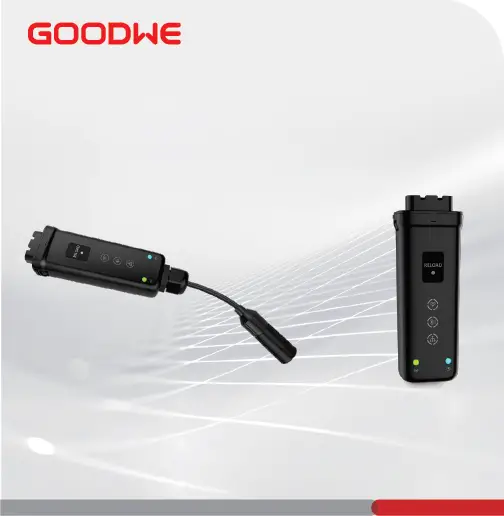
Ezlink3000 Smart Dongle
Quick Installation Guide
Smart Dongle
(Ezlink3000)
V1.1-2022-12-30
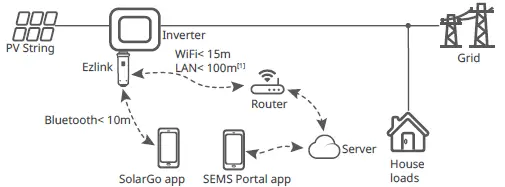
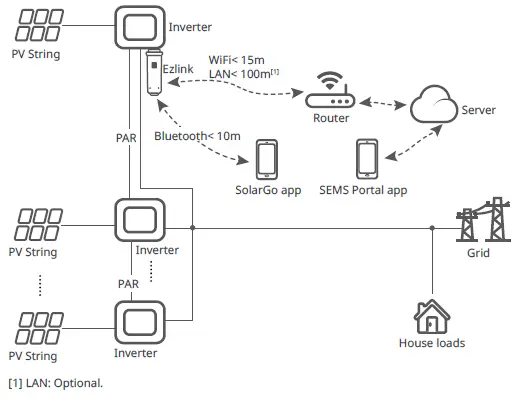
01 Applications
Single Inverter
Multiple Inverters
02 Installation
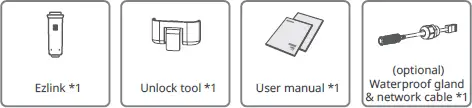
Packing List
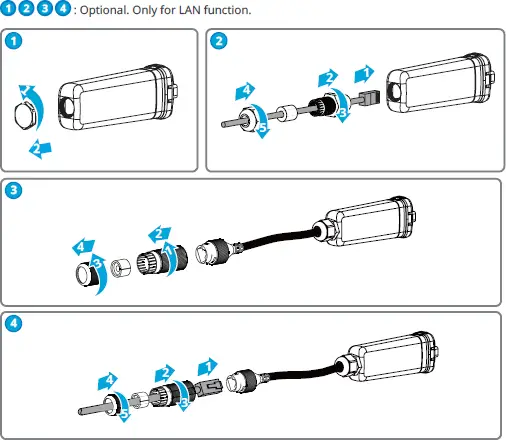
Installing the Dongle
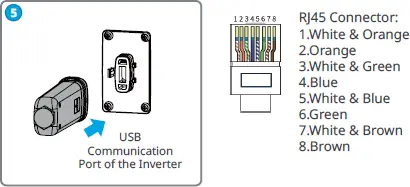
03 Power On
Step 1 Power on the inverter.
Step 2 Power on the router.
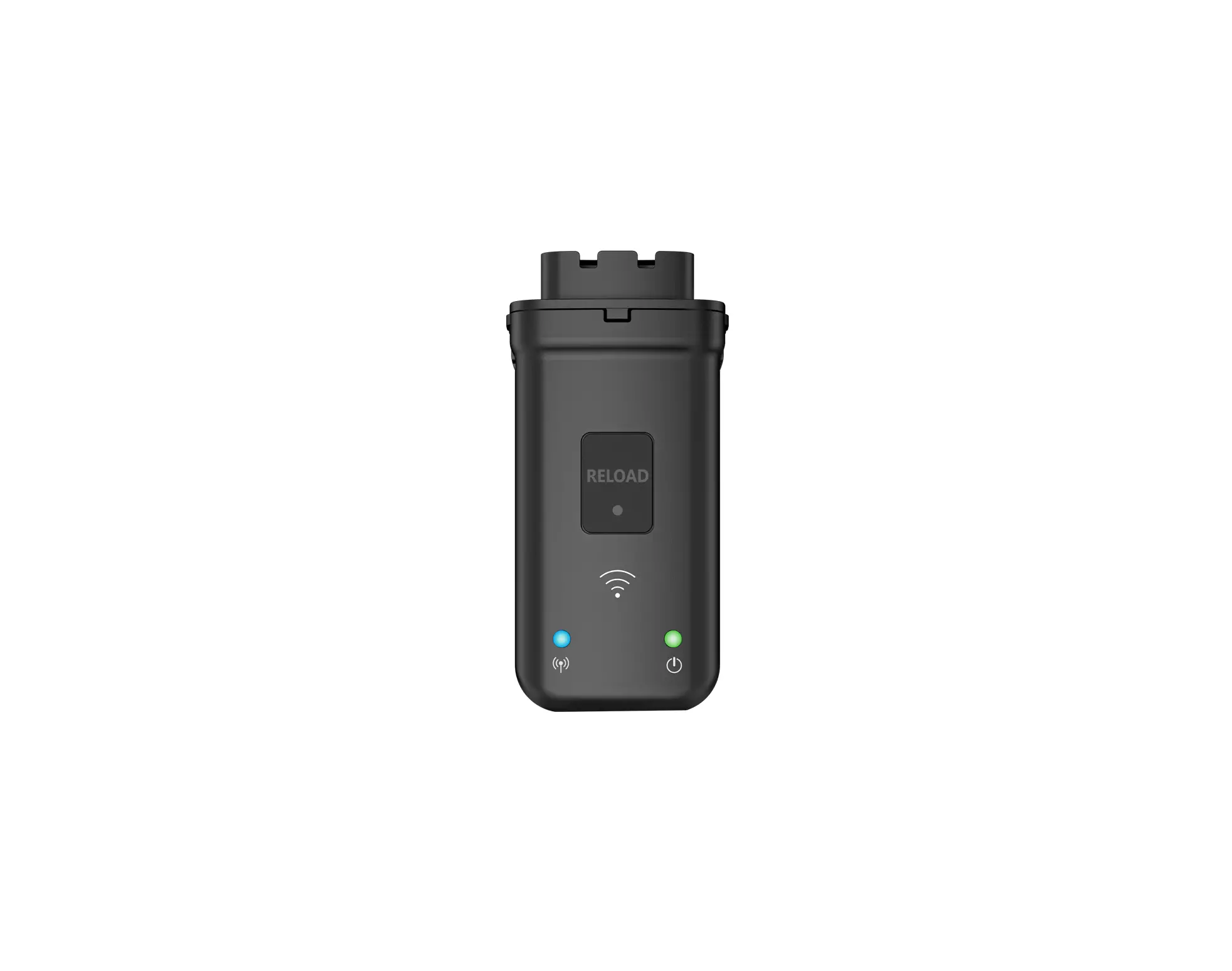
Step 3 Check communication status of the Ezlink through indicators.
Note: Check the indicators on the Ezlink and the inverter to confirm the communication
status of the device.
Indicator/Silkscreen | Color | Status | Description |
| Blue | Blink | The Ezlink is working properly. |
OFF | The inverter is powered off. | ||
| Green | ON | The Ezlink is connected to the server. |
Blink 2 | The Ezlink is not connected to the router. | ||
Blink 4 | The router is not connect to the internet. | ||
RELOAD | – | – | Short press to restart the Ezlink. Long press for 5 seconds to restore factory settings. |


04 Commissioning via SolarGo App
Step 1 Download and install SolarGo app.
The UI may be different due to the app version
upgrade. Scan the QR code for latest SolarGo app user
manual.
Step 2 Connect the app and the device.
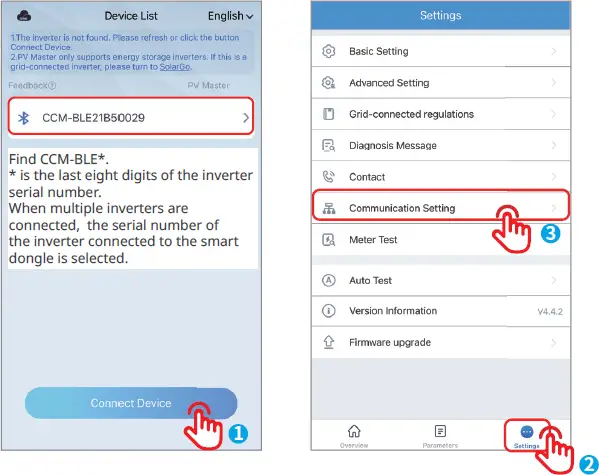
 Step 3 (Optional) When multiple inverters are parallel connected,
scan the QR code or click Parallel Inverter System Solution User
Manual for more details.
Step 4 Set communication settings of the device.
• The interface may differ depending on the communication method.
• Make sure that the WiFi RSSI value is higher than -60, -50 or higher is recommended.
When the RSSI value is less than -60, you should move the router closer to the device,
remove the obstacle, or add a repeater to improve the signal strength.
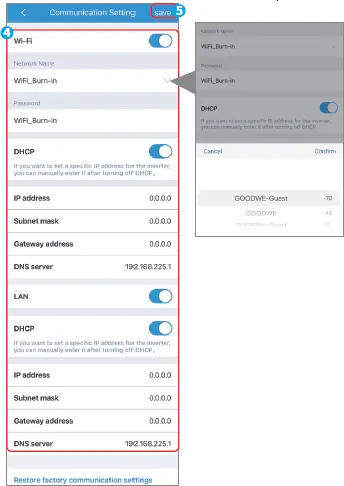
No. | Name | Description |
1 | WiFi Network | Select WiFi based on the actual connecting. |
2 | Password | WiFi password for the actual connected network. |
3 | DHCP | • Enable DHCP when the router is in dynamic IP mode. • Disable DHCP when a switch is used or when the router is in static IP mode. |
4 | IP Address | • Do not configure the parameters when DHCP is enabled. • Configure the parameters according to the router or switch information when DHCP is disabled. |
5 | Subnet Mask | |
6 | Gateway Address | |
7 | DNS Server |
05 Device Replacement
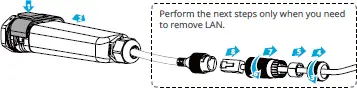
Step 1 Prepare a new device before replacing the old Ezlink.
Step 2 Remove the Ezlink using the Unlock Tool.
Step 3 Install the new device.
Step 4 Refer to the Quick Installation Guide to configure the new device.
06 Troubleshooting
No. | Problem | Solutions |
1 | Cannot find CCM BLE** | 1. Make sure that the inverter is powered on and the Ezlink device is connected properly. 2. Make sure that the smart device is within the communication range of the Ezlink device. 3. Restart the inverter or short press to restart the Ezlink. |
2 | Unable to connect to CCM-BLE** | 1. Make sure that no other smart device is connected to CCM-BLE**. 2. Restart the inverter or short press to restart the Ezlink, then reconnect CCM-BLE**. |
3 | Indicator double blink | 1. Make sure that the router is powered on. 2. Make sure that the LAN cable is connected tightly. |
Quick Installation Guide V1.1-2022-12-30
4 | Indicator quadruple blink | 1. Make sure that the cables are connected properly, and the router can access the internet. 2. If the problem persists, contact the after sales service. |
5 | Indicator off | Check whether the inverter is powered on. |
07 Technical Data
Model | Ezlink3000 | |
General Parameters | Connection Interface | USB |
Ethernet Interface (Optional) | 10/100Mbps self-adaption, Communcation distance ≤100m | |
Bluetooth | Bluetooth 5.1 | |
Installation | Plug-and-play | |
Indicator | LED Indicator | |
Dimensions (W × H ×D mm) | 153 × 49 × 32 | |
Weight (g) | 130 | |
Ingress Protection Rating | IP65 | |
Power Consumption (W) | ≤2 | |
Operation Mode | STA | |
Wireless Parameters | WiFi Communication | 802.11 b/g/n(2.412GHz-2.484GHz) |
Environment Parameters | Operating Temperature Range (°C) | -30 ~ +60 |
Storage Temperature Range (°C) | -30 ~ +70 | |
Relative Humidity (non condensing) | 0-100% | |
Max. Operating Altitude (m) | 4000 | |
For more information, scan the QR codes below.
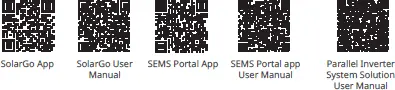
SolarGo App SolarGo User Manual
SEMS Portal App
SEMS Portal app User Manual
Parallel Inverter System Solution User Manual
Website
GoodWe Technologies Co., Ltd.
No. 90 Zijin Rd., New District, Suzhou, 215011, China
[email protected] 340-00647-01 Local Contacts
 固德威——以光伏逆变器为核心的整体解决方案服务商