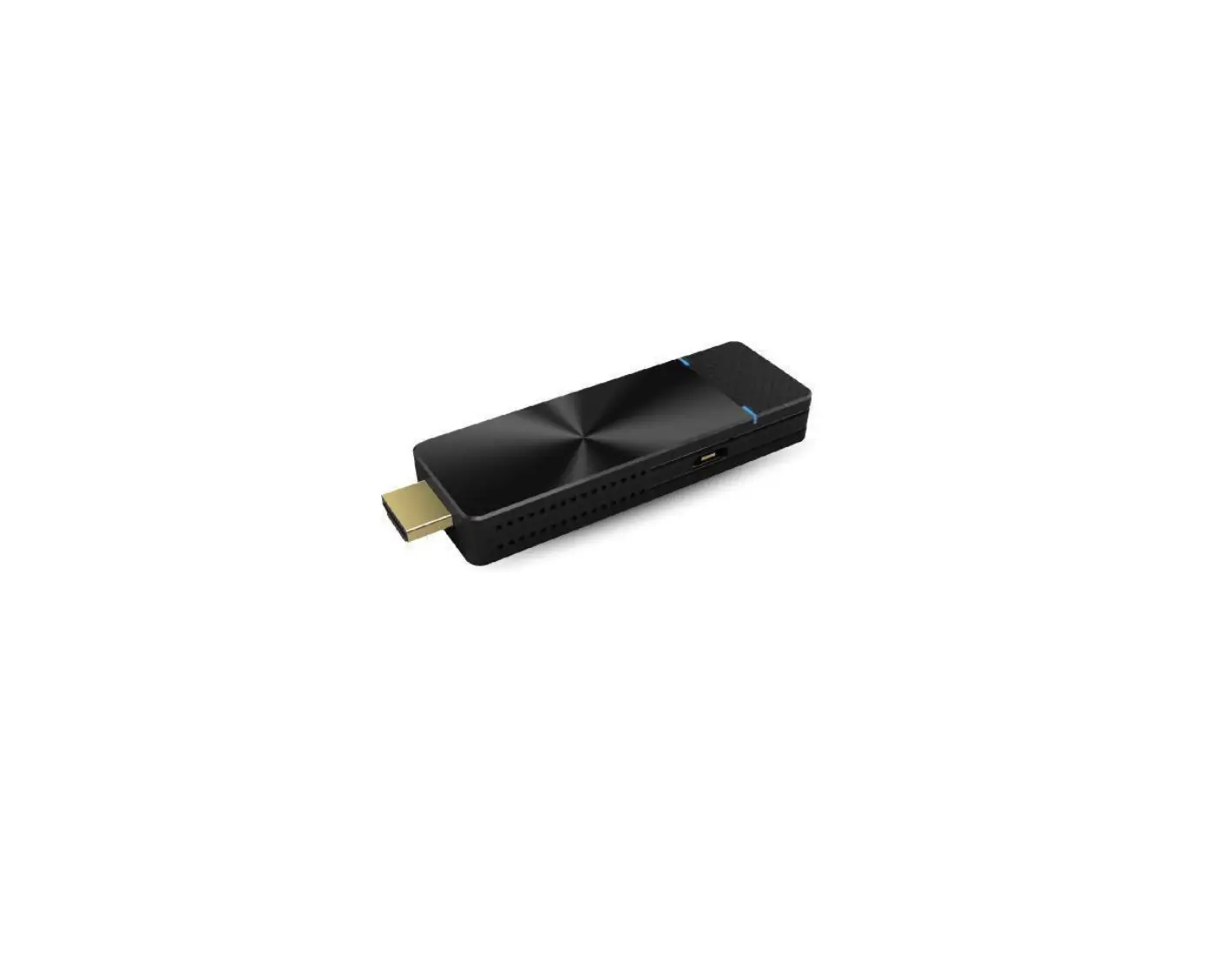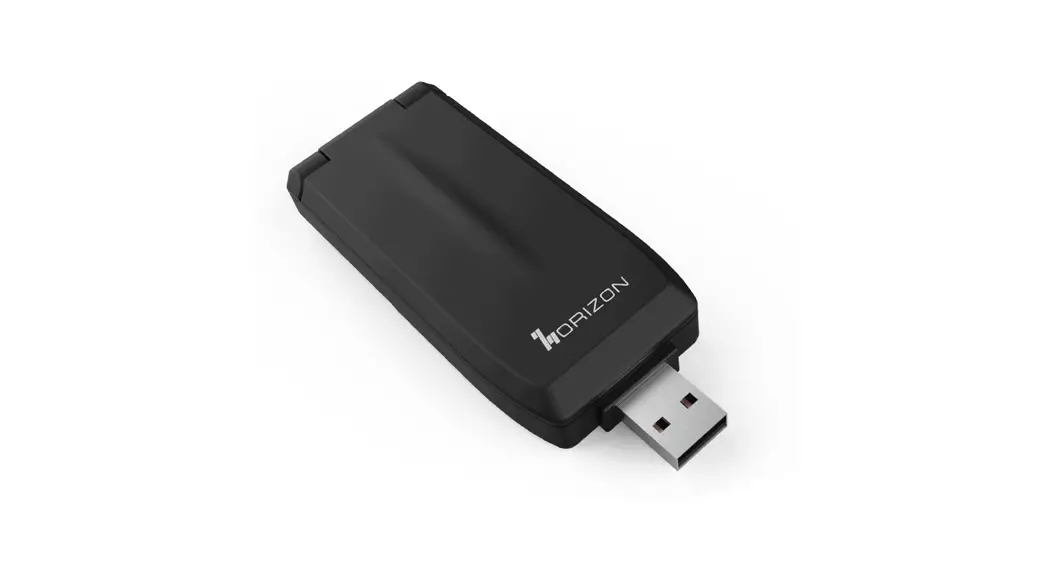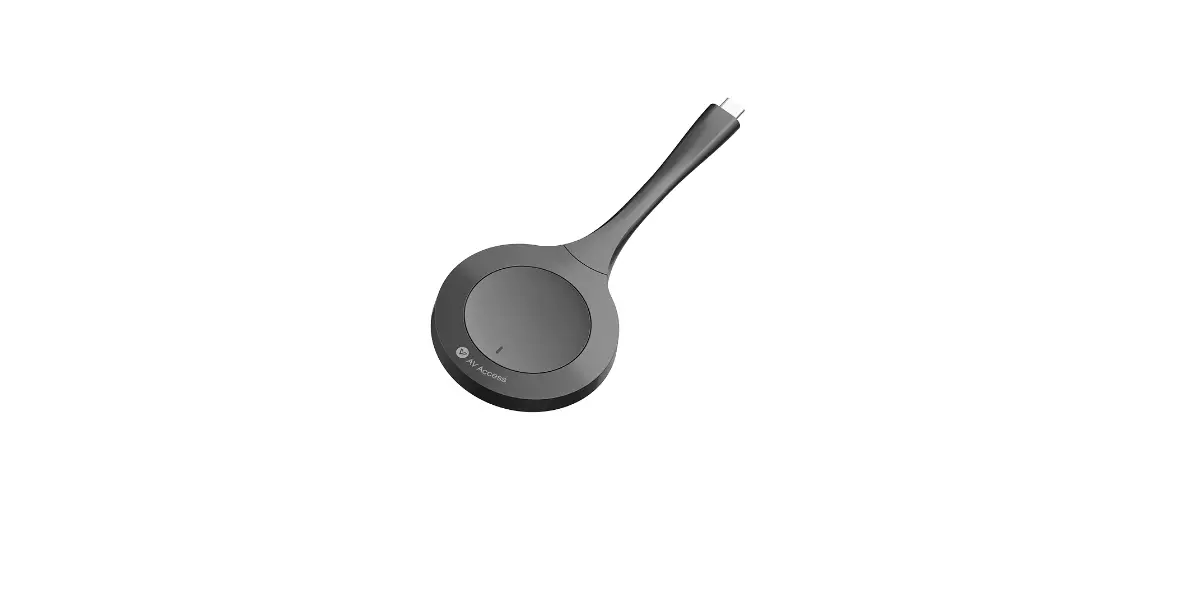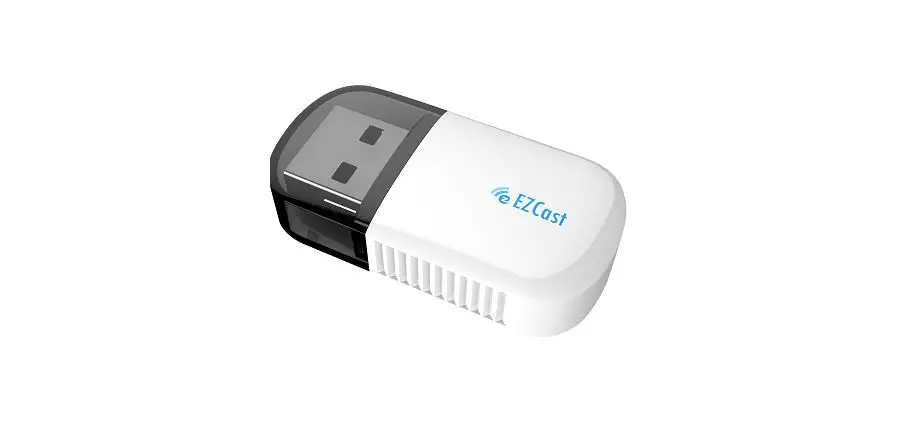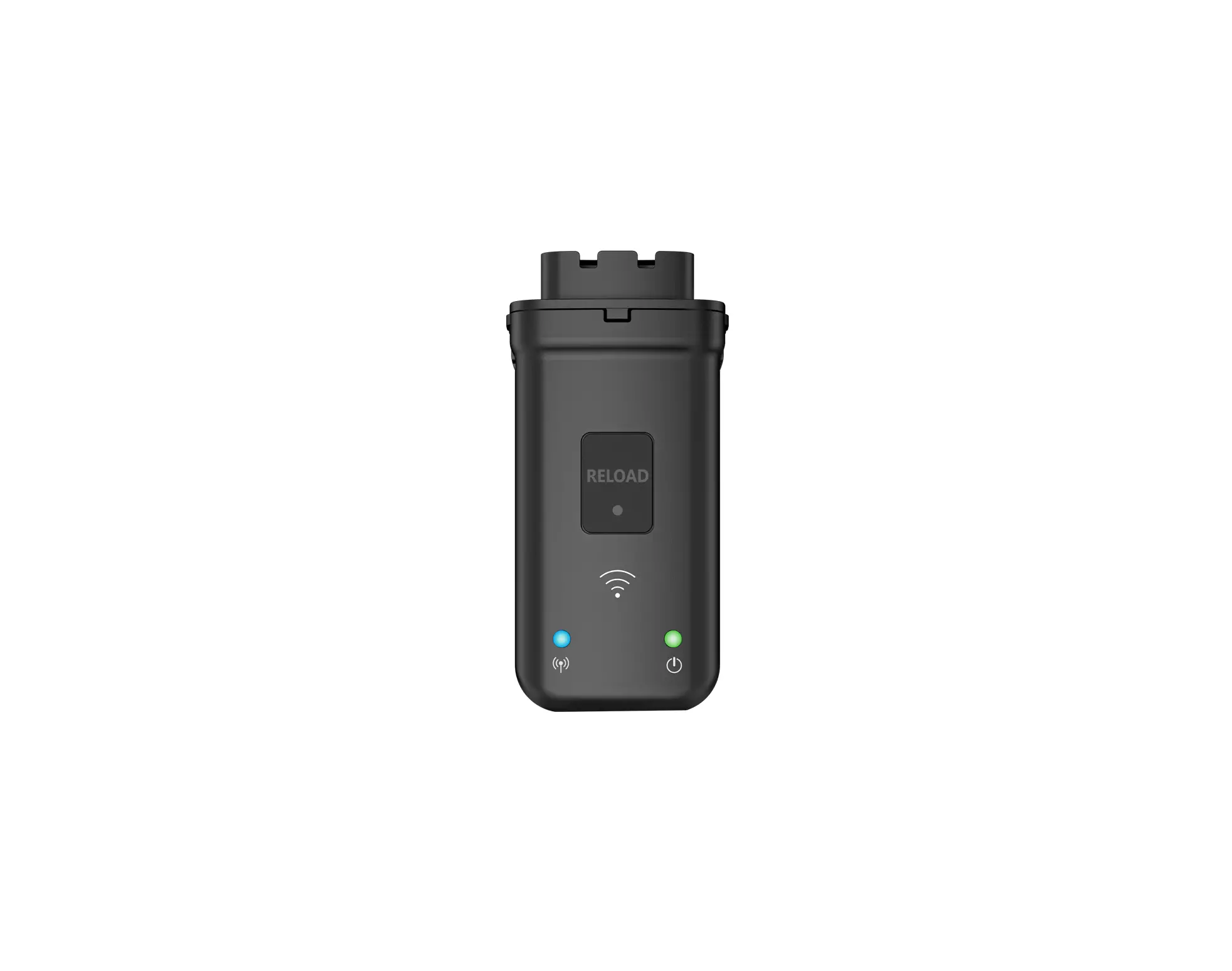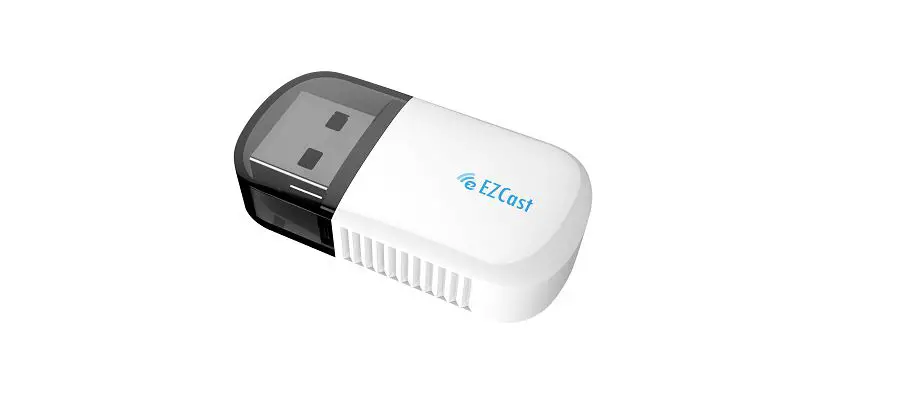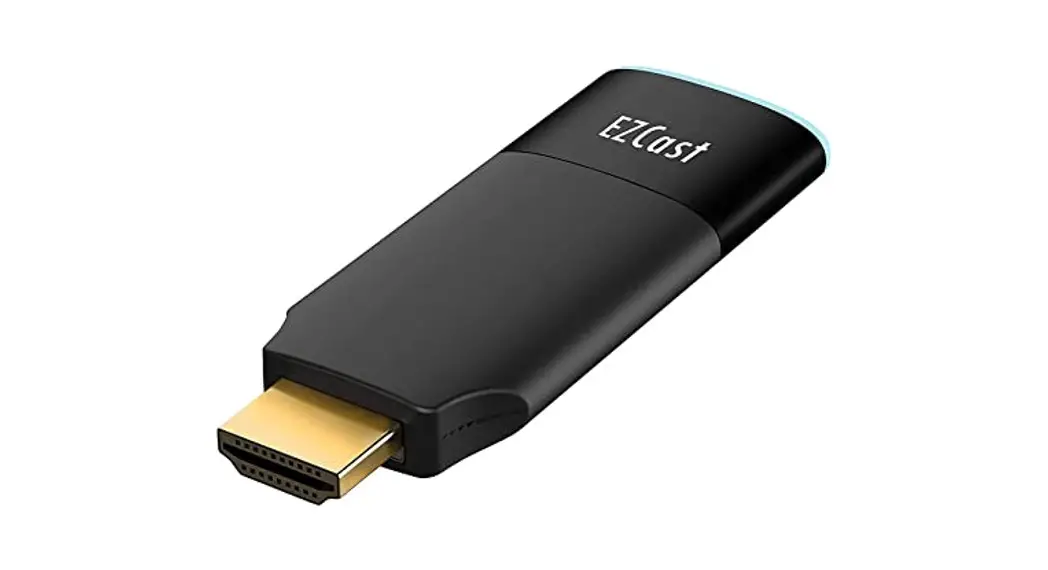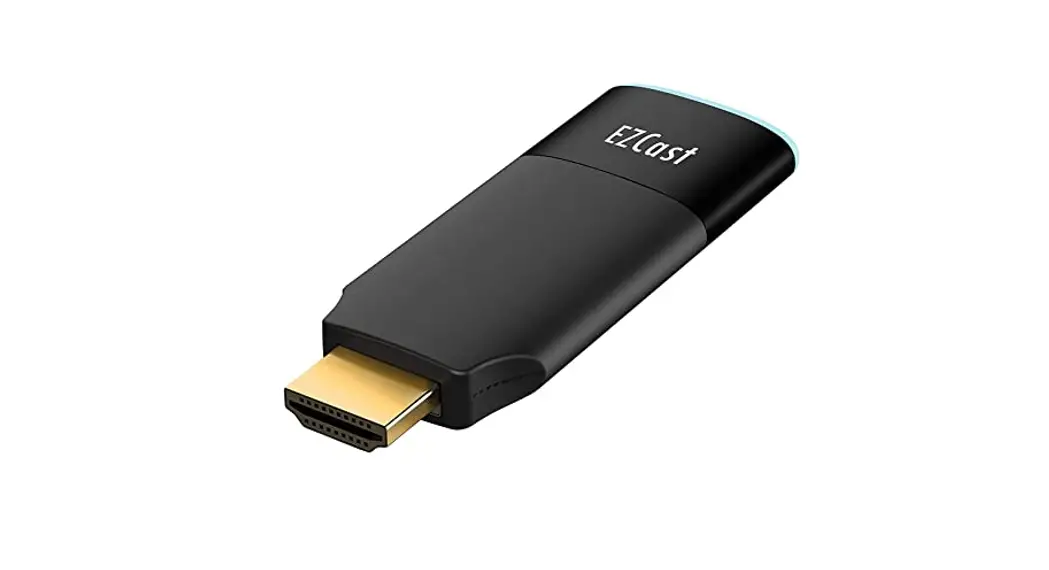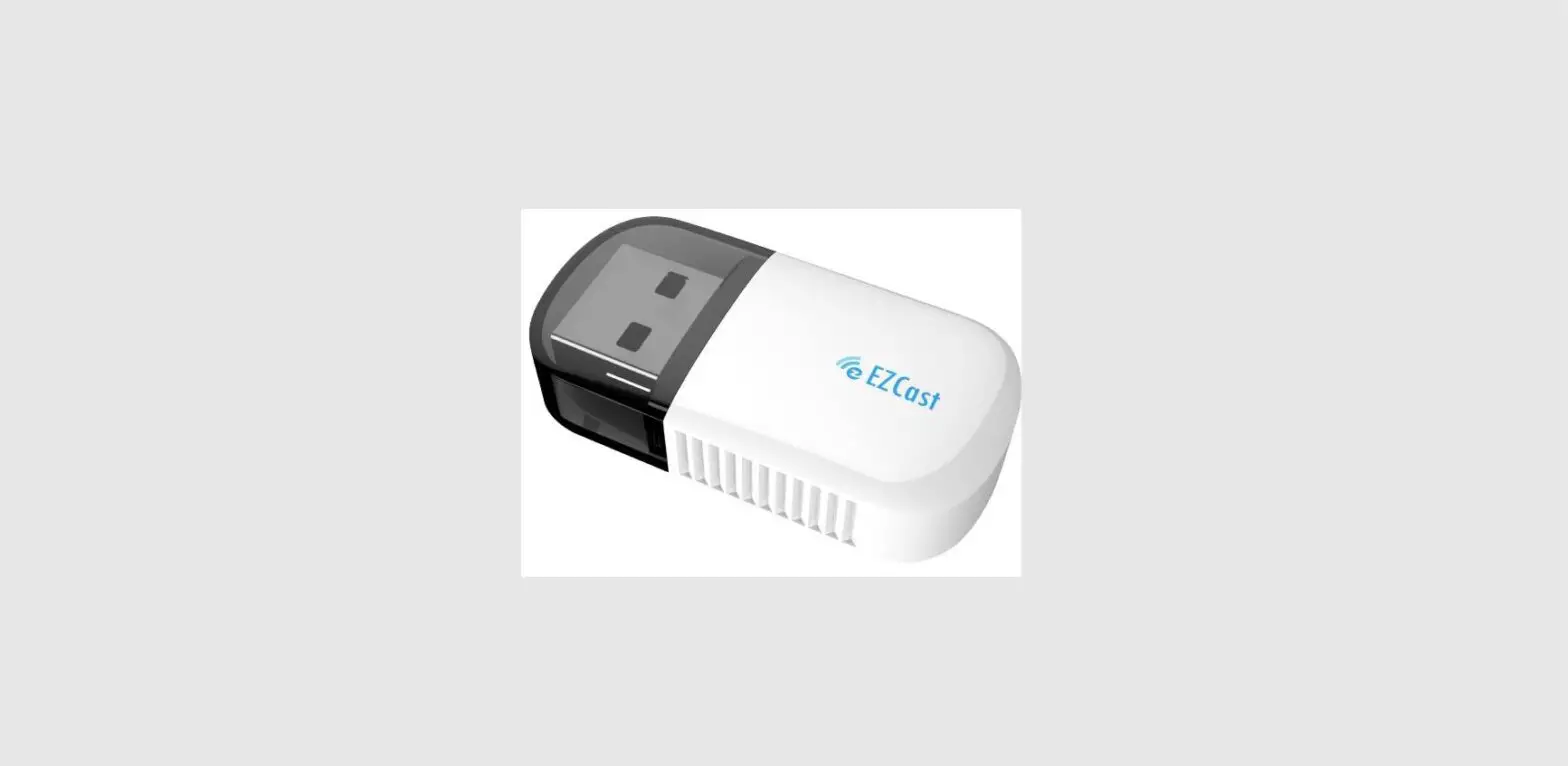
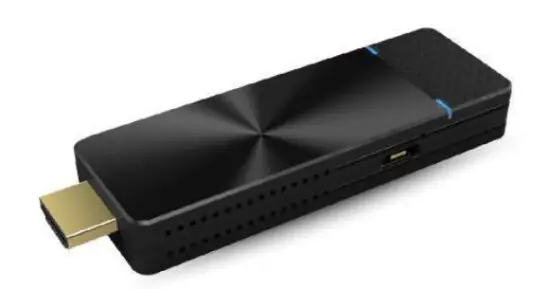
 PD10 Pro Dongle II
User Guide
Multi-Screen Broadcasting with ProCast
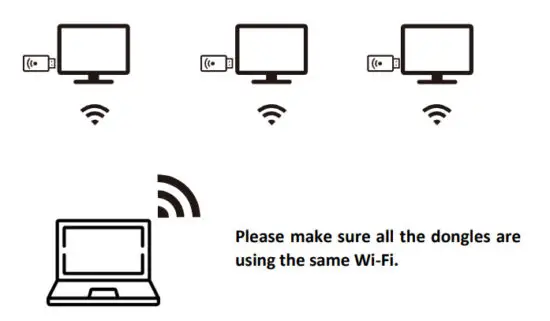
Users may use one laptop as a casting source and mirror other external displays. Please note that Multi-screen broadcasting is only compatible with Windows and macOS.
Also, DO NOT open EZCast Pro App and ProCast at the same time.
Before using Multi-screen broadcasting, make sure all your dongles connected to screens are using the same Wi-Fi.
Please note that with the rising number of connected devices, the lower bandwidth will be.
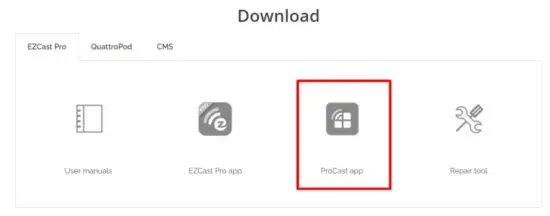
i. Download ProCast App from our website and install it. Please note that ProCast only supports Windows and macOS.
 ii. After installation is completed, open the ProCast App.
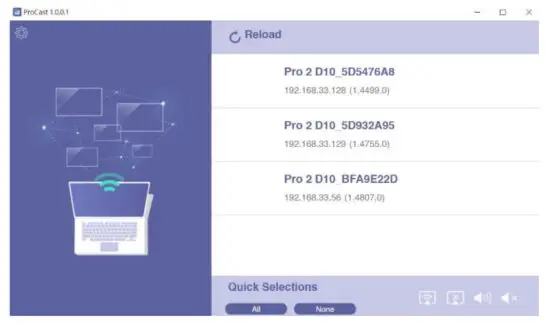
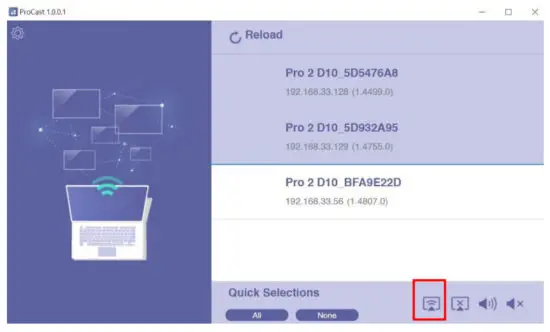
iii. Select the dongles that are connected to output screens. By clicking  at the bottom right of the page, you may start casting.
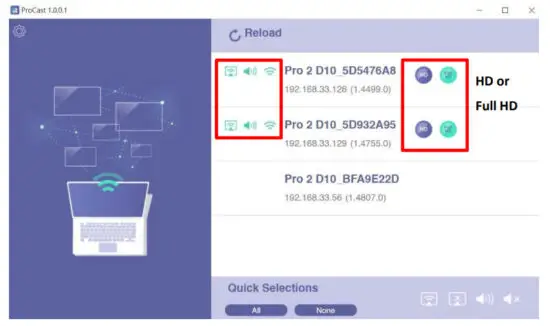
iv. Once connected, you may see the green icons in the upper middle of the page. Users may switch the output quality between HD and Full HD, by clicking the icons.
v. By selecting your dongle and clicking the icons at the bottom right of the page, the user may do the following settings.
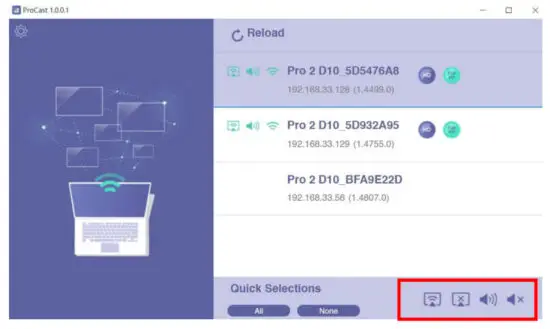
| Connect: Start broadcasting |
 | Disconnect: Stop broadcasting |
 | Sound-On: Turn on the sound |
 | Sound-Off: Turn off sound |
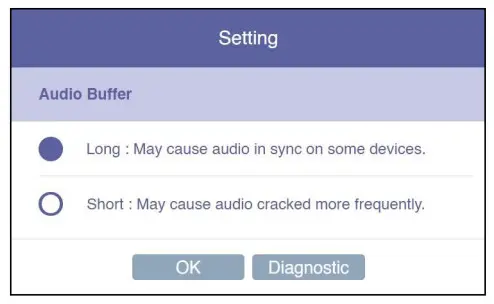
By clicking icon at the upper left, we provide users with a setting option and diagnostic tool.
Audio Buffer
a. Long: With a longer buffer, may provide a better audio streaming experience
b. Short: May cause audio cracked more frequently
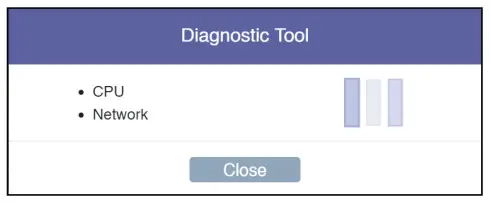
Diagnostic Tool:
Based on the user’s CPU and Network performance, the Diagnostic Tool will calculate the ideal number of connected external displays.
Please note that the mirror performance may change under different scenarios. For example, a static presentation will perform better than 4K video streaming.
 Download EZCast Pro Apps