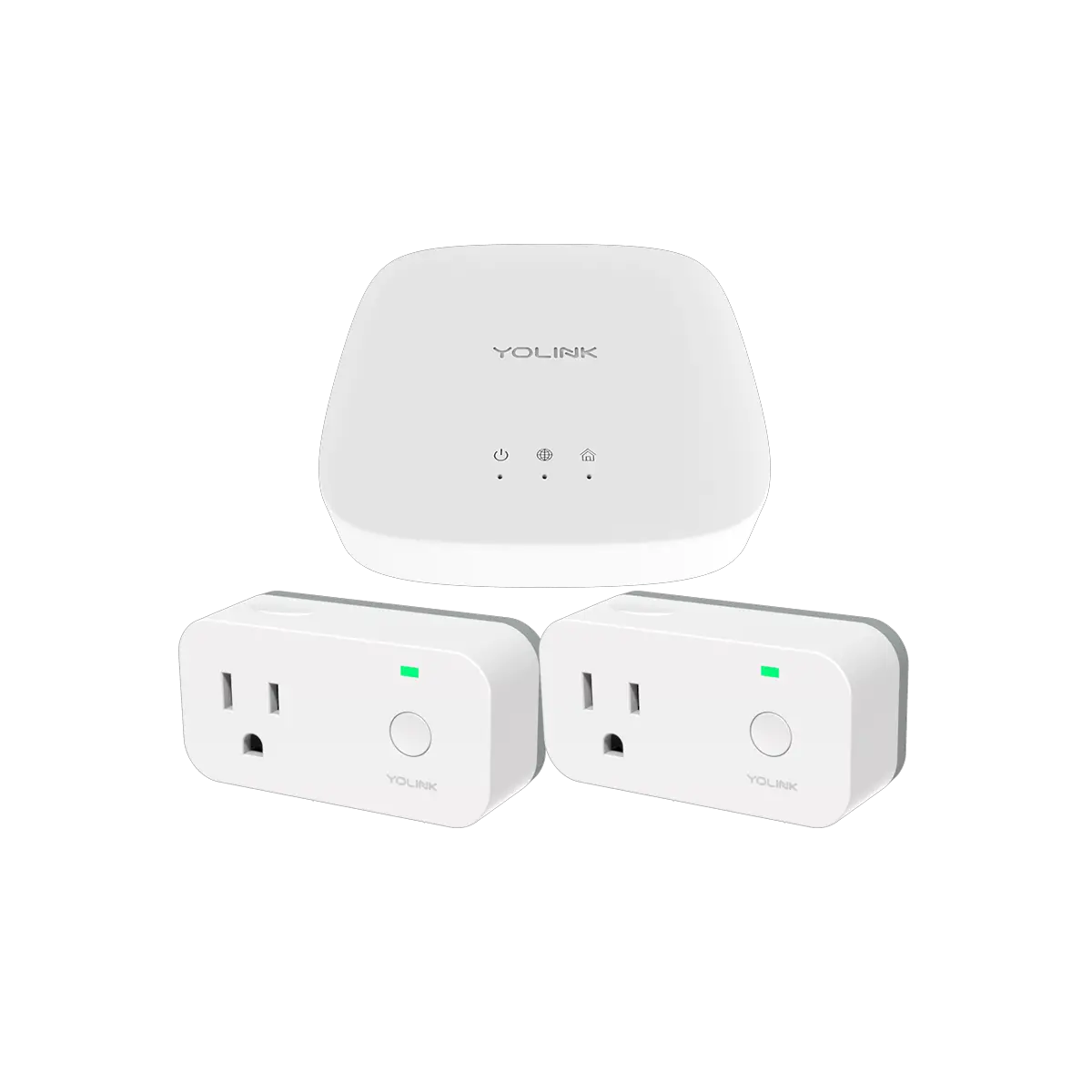
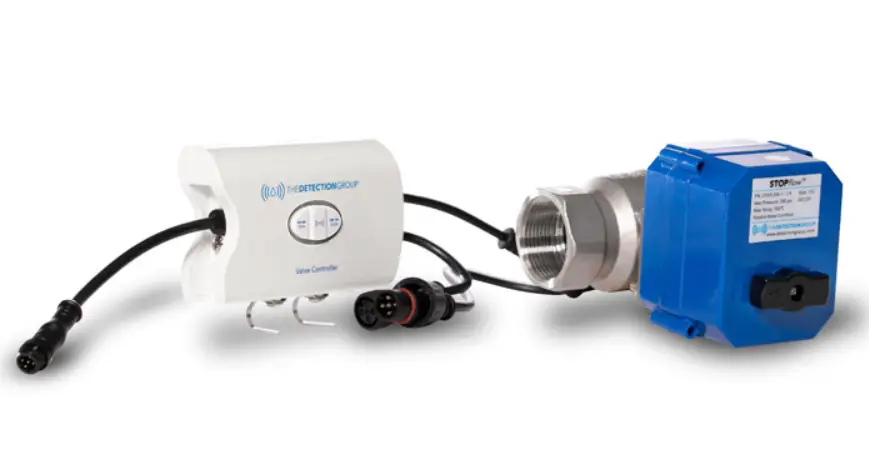
YS5001-UC X3 Valve Controller and Motorized Valve Kit
Product Information
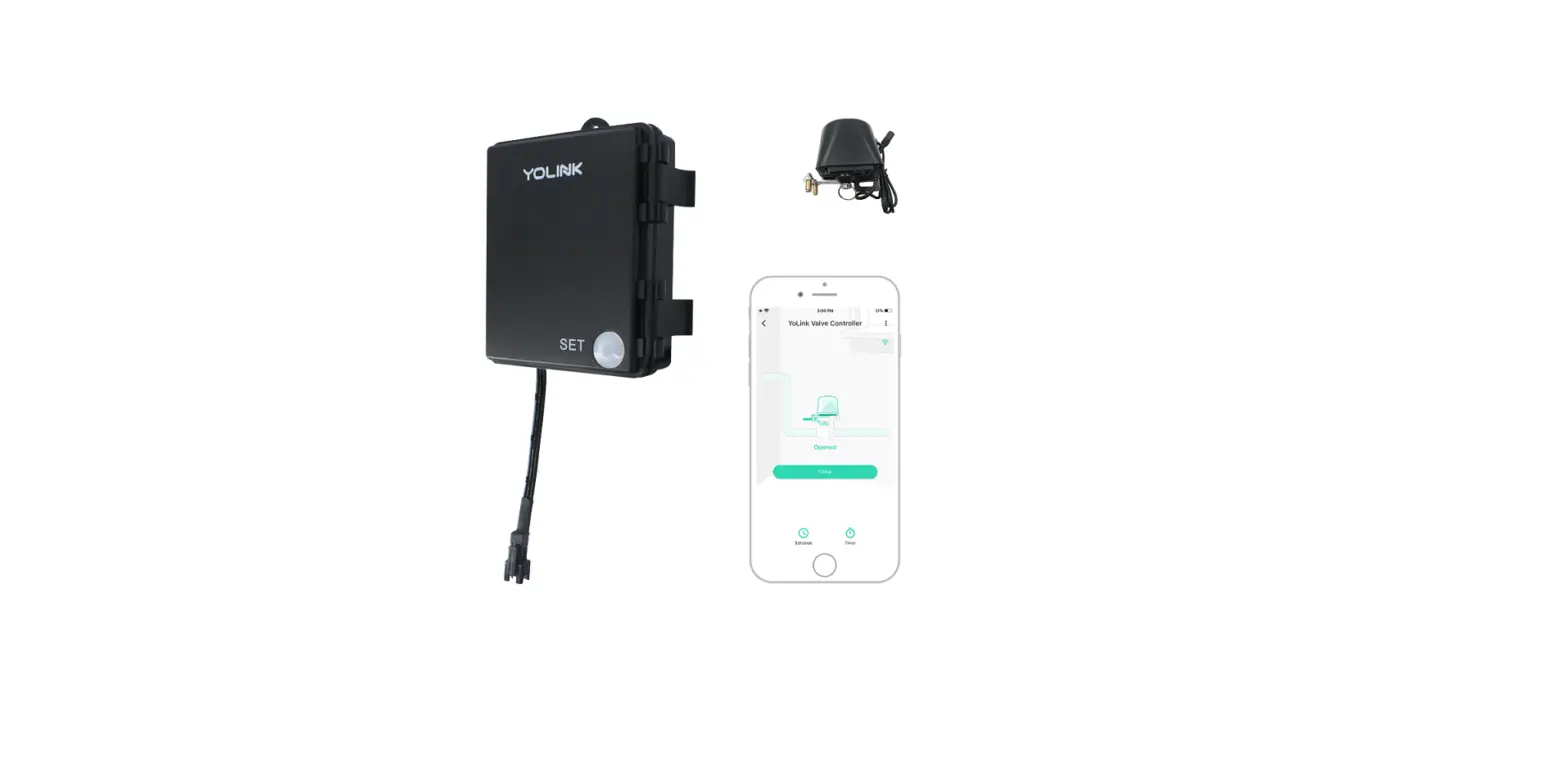
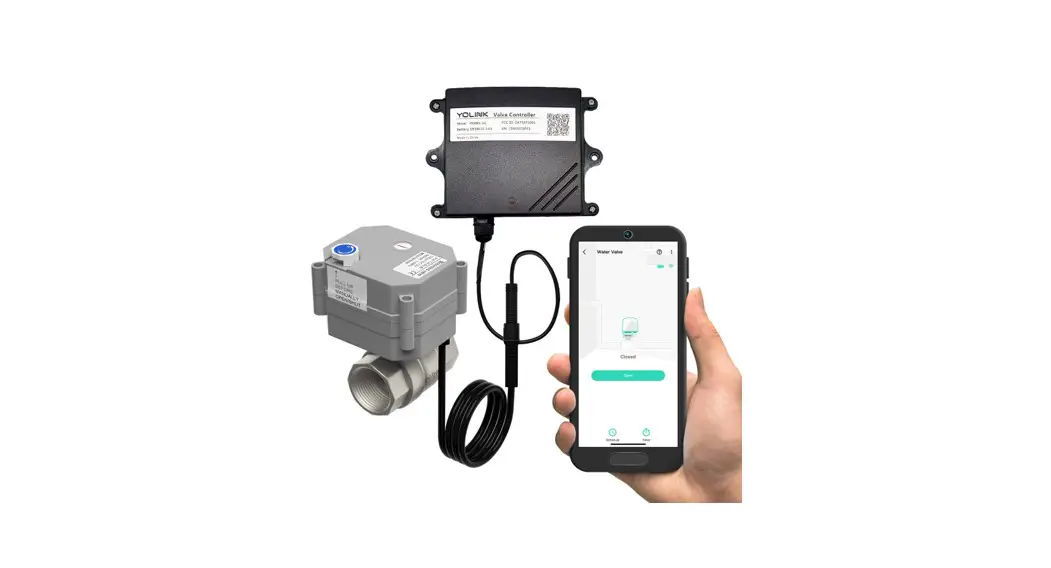
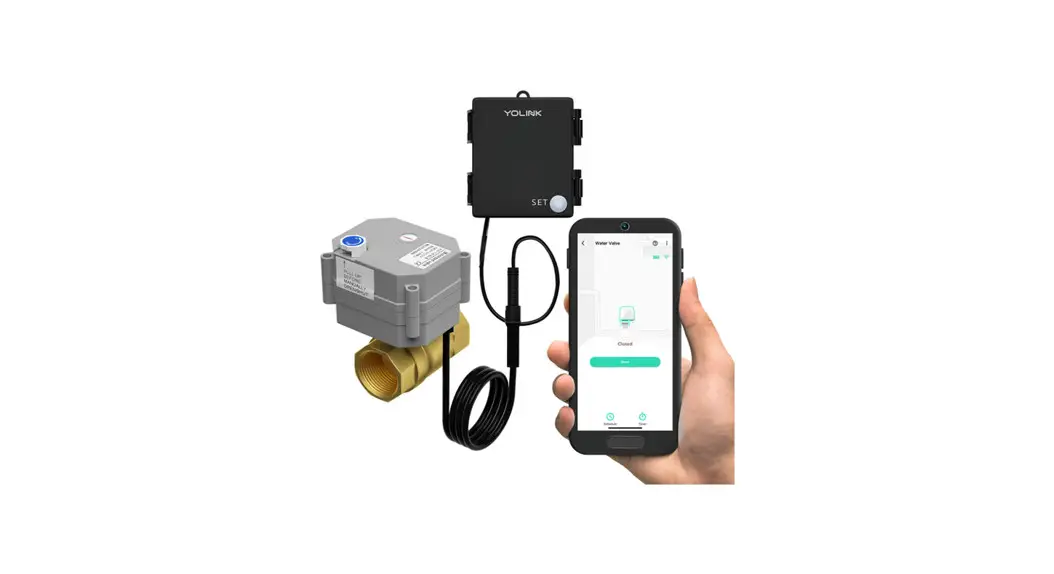
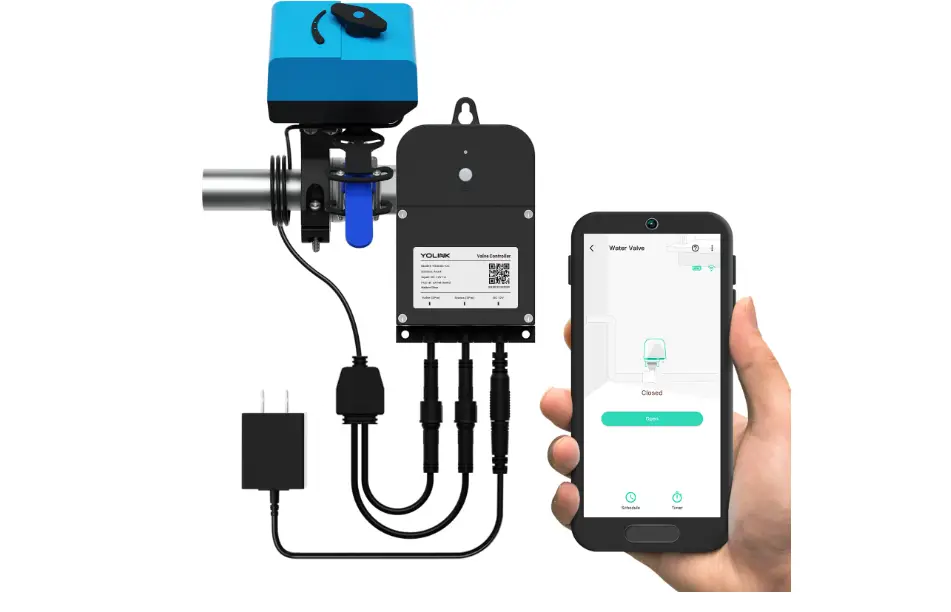
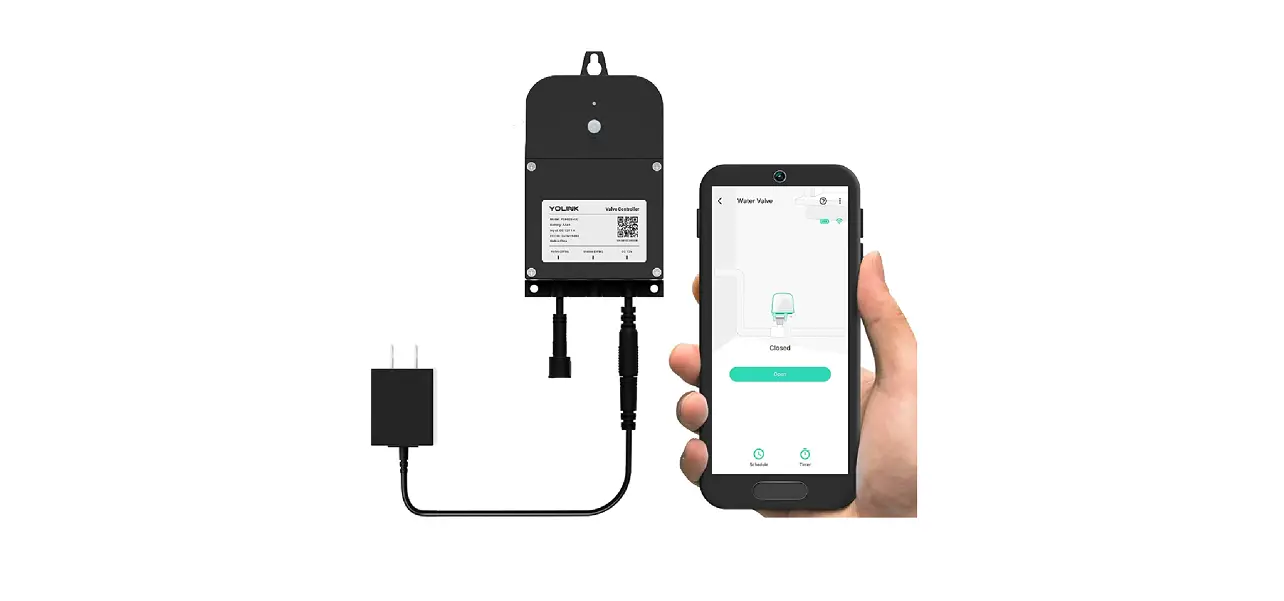
The X3 Valve Controller & Motorized Valve Kit (YS5001-UC
& DN##) is a smart home automation product that allows remote
control of your water supply. The valve controller connects to the
internet via a YoLink Hub or SpeakerHub, and it does not connect
directly to your WiFi or local network. The kit includes a 12VDC
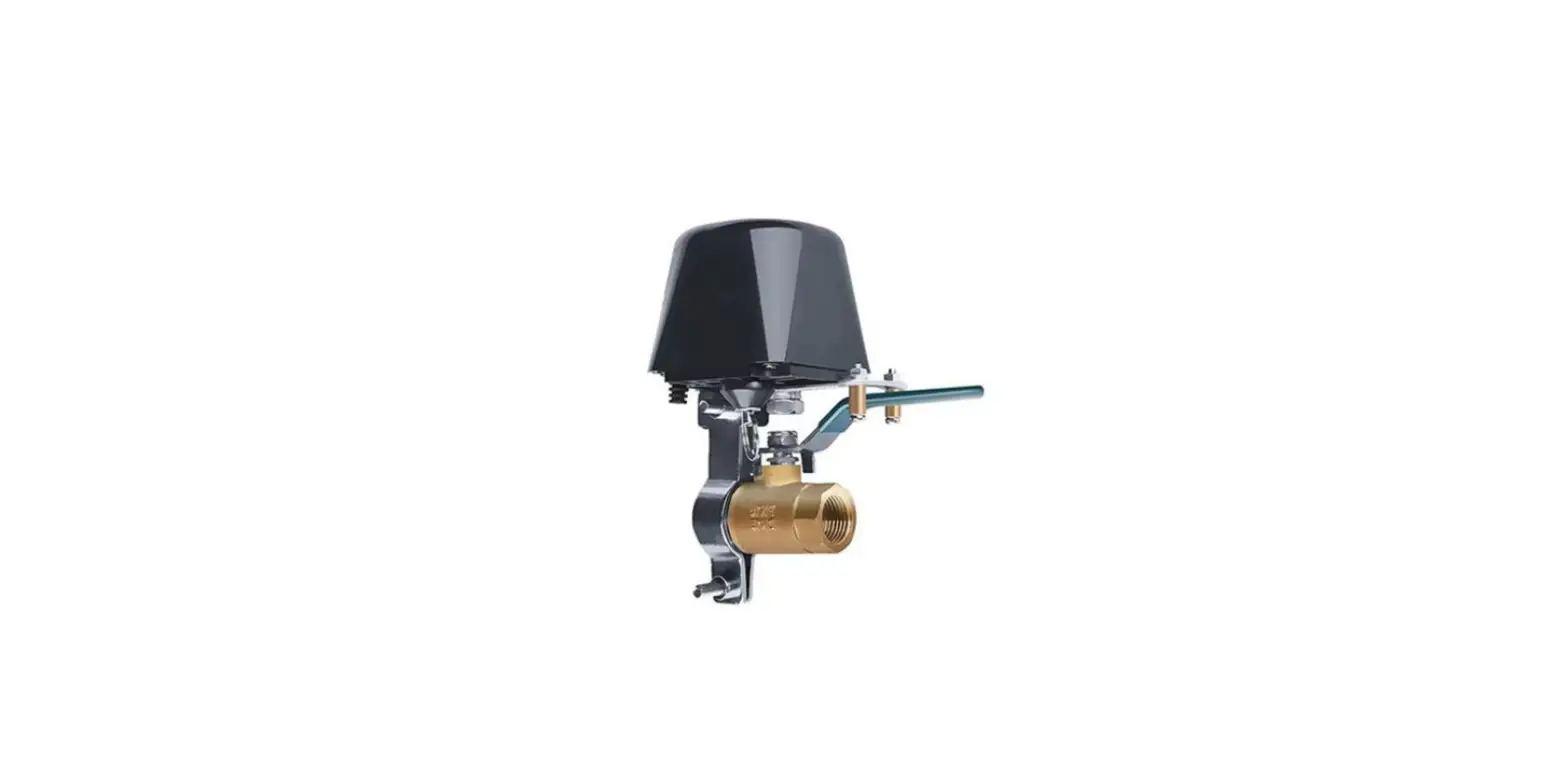
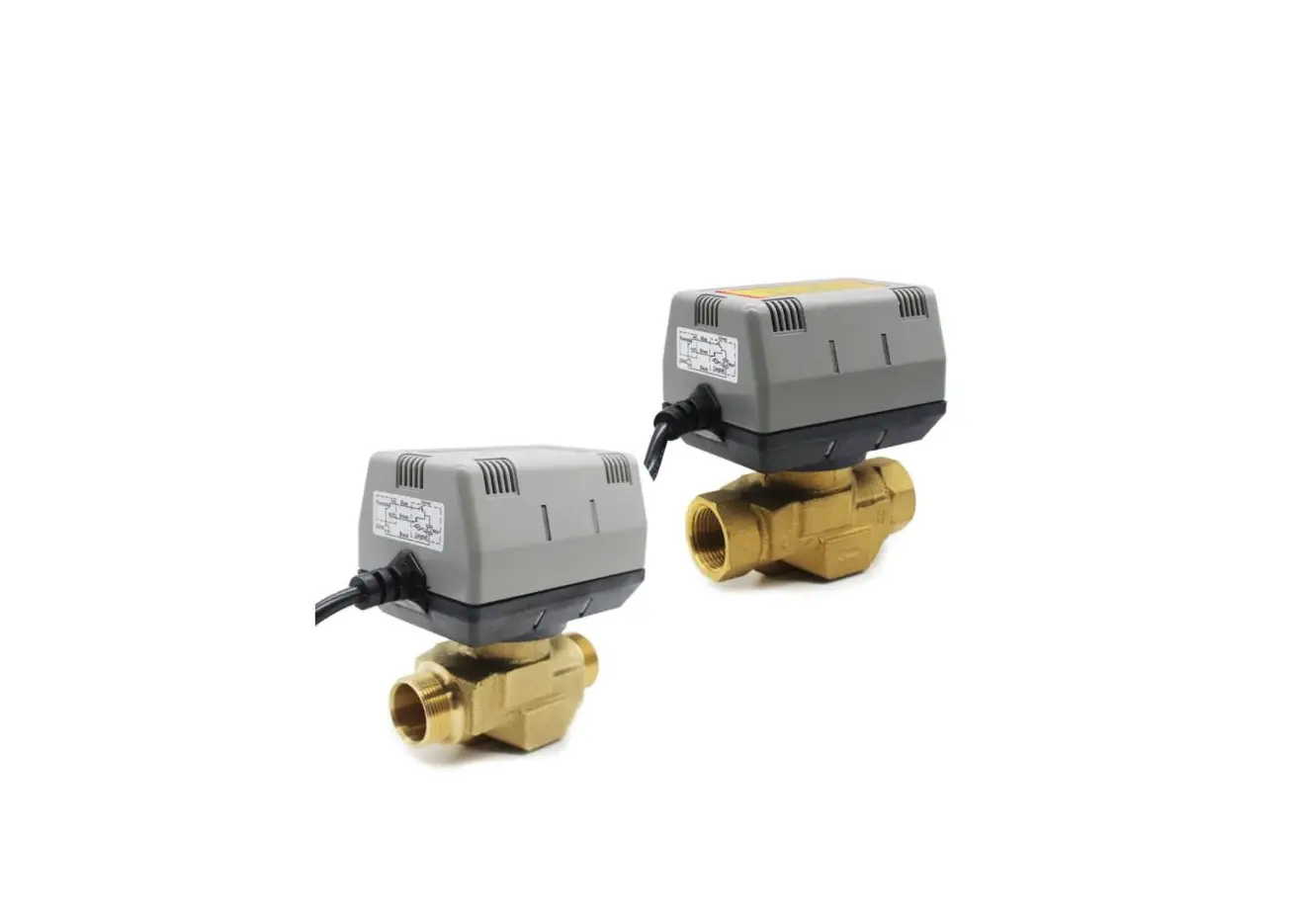
non-smart motorized valve that is designed to work with the X3
Valve Controller or YoLink-approved valve control products.
Product Usage Instructions
- Download the full Installation & User Guide by scanning the
QR code provided in the quick start guide or visit the X3 Valve
Controller Product Support Page at
https://shop.yosmart.com/pages/x3-valve-controller-product-support
for additional resources, such as videos and troubleshooting
instructions. - Check the environmental range information in the specifications
before installing the valve controller and motorized valve
outdoors. If installed outdoors, it should be protected from rain
and direct sunlight by an enclosure or overhead cover. - Ensure that a YoLink Hub or SpeakerHub is installed and online
for remote access to the device from the app and for full
functionality. - Install the motorized valve using the required items listed in
the quick start guide, including pipe wrench, locking pliers,
copper pipe cutting tool, pipe fittings/adapters, thread seal tape,
sandpaper, drill with drill bits, wall anchors, medium Phillips
screwdriver, and marker or pencil. - Insert 4 x AA batteries (pre-installed) into the X3 Valve
Controller and attach the valve control cable to the motorized
valve. - Pair the X3 Valve Controller with the motorized valve by
pressing and holding the SET button until the LED blinks green
quickly. The LED will turn solid green when the pairing is
complete. - Use the YoLink app to remotely control the valve or set up
automation rules for the valve controller. - If you experience any problems with your installation or
products, or if you have any questions that the manual does not
answer, contact YoLink customer support.
B Before You Begin
Please note: this is a quick start guide, intended to get you started on the installation of your X3 Valve Controller. Download the full Installation & User Guide by scanning this QR code:
Installation & User Guide
X3 Valve Controller & Motorized Valve Kit
YS5001-UC & DN##
Quick Start Guide Revision Feb. 06, 2023
You can also find all current guides and additional resources, such as videos and troubleshooting instructions, on the X3 Valve Controller Product Support Page by scanning the QR code below or by visiting:
https://shop.yosmart.com/pages/ x3-valve-controller-product-support
A Welcome!
Thank you for purchasing YoLink products! We appreciate you trusting YoLink for your smart home & automation needs. Your 100% satisfaction is our goal. If you experience any problems with your installation, with our products or if you have any questions that this manual does not answer, please contact us right away. See the Contact Us section for more info.
Thank you!
Eric Vanzo Customer Experience Manager
The following icons are used in this guide to convey specific types of information:
Very important information (can save you time!)
Pour des instructions en
Fr
français, scannez les codes
QR dans la section suivante.
Para obtener instrucciones en
Es
español, escanee los códigos
QR en la siguiente sección.
Product Support Support produit Soporte de producto
Your X3 Valve Controller connects to the internet via one of our hubs (original YoLink Hub or the SpeakerHub), and it does not connect directly to your WiFi or local network. In order for remote access to the device from the app, and for full-functionality, a hub is required. This guide assumes the YoLink app has been installed on your phone, and a YoLink Hub or SpeakerHub is installed and online.
If installing the X3 Valve Controller and motorized valve outdoors, please refer to the environmental range information in the specifications found on the X3 Valve Controller product support page. While this product can be installed outdoors, to ensure years of trouble-free operation, it should be protected from rain and direct sunlight by an enclosure or overhead cover.
C In the Kit
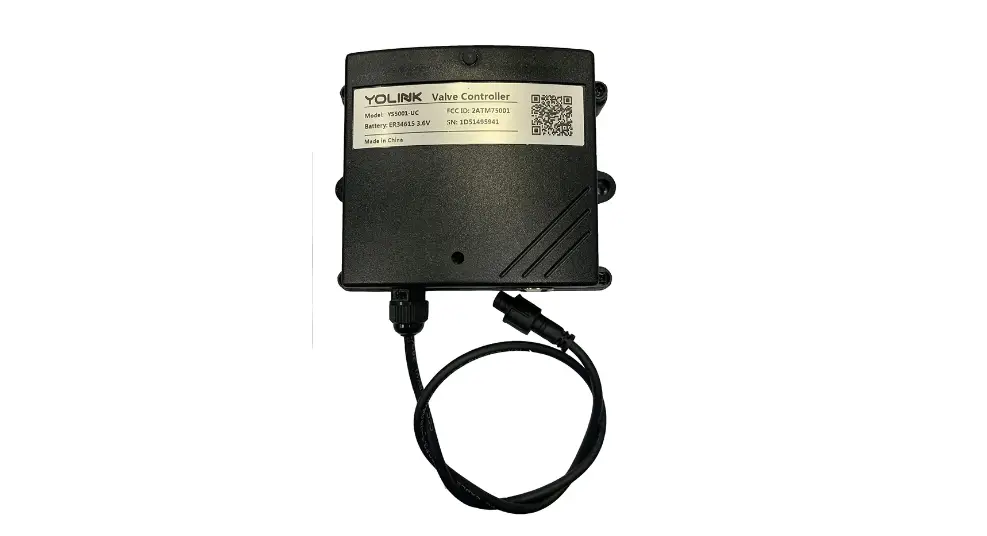
X3 Valve Controller
Phillips Head Screws(3)
4 x AA Batteries (Pre-Installed)
Motorized Valve
D Required Items
These tools or items may be required:
Pipe Wrench
Locking Pliers
Copper Pipe Cutting Tool
Pipe Fittings /Adapters
Thread Seal Tape
Sandpaper
Drill with Drill Bits
Wall Anchors
Medium Phillips Screwdriver
Marker or Pencil
E
Get to Know Your X3 Valve Controller
Status LED
Enclosure Clamp Latches
SET Button
Valve Control Cable
LED Behaviors
Blinking Red Once, Then Green Once Device Start-Up
Blinking Red And Green Alternately Restoring to Factory Defaults
Blinking Red Once Valve Closing
Quick Blinking Red Twice Valve is Closed
Blinking Green Once Valve Opening
Quick Blinking Green Control-D2D Pairing in Progress
Quick Blinking Red Control-D2D Unpairing in Progress
Slow Blinking Green Updating
Fast Blinking Red Once Every 30 Seconds Low Battery, Replace Batteries Soon
Quick Start Guide
F
Get to Know Your Motorized Valve
The valve included in this kit is a 12VDC non-smart motorized valve. Use only this valve or YoLink-approved valve control products, such as the Bulldog Valve Robot. Do not use with non-YoLink valve products.
Manual Control Knob Lift, then turn either clockwise to shut the valve or counterclockwise to open the valve
Valve Position Indicator Window indicates the current position of the valve. “O” indicates open, “S” indicates shut
Valve Control Cable
Add Your Valve Controller G 2 to the App
1. Tap Add Device (if shown) or tap the scanner icon:
Scanner icon
2. Approve access to your phone’s camera, if requested. A viewfinder will be shown on the app.
H
Install the X3 Valve Controller
Preparing for installation:
Determine where you will install your X3 Valve Controller. Typically, it should be wall-mounted, no farther away from the motorized valve than the length of the cables allow (if you have purchased optional extension cables, the valve controller can be installed at a location separate from the motorized valve).
Note: Use of the 12VDC power adapter is optional, but in that case, batteries are required. If the power adapter is used, batteries are optional.
Determine how you will mount the valve controller to the wall, and have hardware and anchors appropriate for the wall surface on hand.
Mark the valve controller’s three screw hole locations on the wall first, if desired, ensuring a level installation. Hang the valve controller from the top-most screw, then secure the valve controller to the wall by inserting the remaining two screws. Finally, tighten all three screws, as needed.
I
Install the Motorized Valve
1. Shut-off the water serving the pipe where the valve is to be installed. Drain the water from the pipe, by turning on a faucet, or by other method as required.
2. Depending on the adapter fitting used, measure the length of pipe that must be cut, and mark the cut lines on the pipe, as shown below.
I
Install the Motorized Valve, Continued.
3. Cut the water pipe through the mark using a pipe cutting tool, then remove the cut section of pipe, as shown below.
4. Sand both ends of cut pipe, removing any burrs or rough edges. Use care handling the cut edges, which may be sharp! Wipe off the cut section of pipe with a clean cloth. 5. Install your adapter fittings in the pipe ends, per the manufacturer instructions.
6. Wrap each adapter’s threaded end with thread seal tape, per the tape manufacturer’s instructions, as shown below.
7. Install the Smart Motorized Valve on the adapter fittings, ensuring a secure connection at each fitting, as shown below.
J
Power Up, Final Connections & Testing
1. The Valve Controller will appear offline until it is turned on and it wirelessly connects to a YoLink hub. Turn on the X3 Valve Controller by pressing the SET button until you see the LED blink (red, then green, indicates the Valve Controller 2 has connected to the cloud).
2. In the app, verify the X3 Valve Controller is indicated as online.
3. Connect the valve controller’s valve control cable to the control cable of the motorized valve.
4. Connect the valve controller’s valve status cable to the valve status cable of the motorized valve.
5. If using the power adapter, and before plugging in the power adapter to the AC power outlet, connect the valve controller’s 12VDC input cable to the power adapter cable. Plug in the power adapter at the wall outlet.
6. Test the X3 Valve Controller and motorized valve by pressing the SET button and listening for the smooth closing/opening of the valve, and by checking the water flow at a faucet. The water should be completely turned off while the valve is in the shut position.
7. Test the operation of the VX3 Valve Controller from the app. From the Rooms or Favorite screen, locate your X3 Valve Controller, tap the image, then tap Close to turn off the water, and tap Open to turn it on.
K Contact Us
We are here for you, if you ever need any assistance installing, setting up or using a YoLink app or product! Need help? For fastest service, please email us 24/7 at [email protected] Or call us at 831-292-4831 (US phone support hours: Monday – Friday, 9AM to 5PM Pacific) You can also find additional support and ways to contact us at: www.yosmart.com/support-and-service Or scan the QR code:
Support Home Page
Finally, if you have any feedback or suggestions for us, please email us at [email protected] Thank you for trusting YoLink! Eric Vanzo Customer Experience Manager
Refer to the full installation and user guide to complete the setup of your X3 Valve Controller and Bulldog Valve Robot.
15375 Barranca Parkway Ste. J-107 | Irvine, California 92618
© 2022 YOSMART, INC IRVINE, CALIFORNIA
8. At the water valve or point of disconnection, turn the water on again.
9. Verify there are no leaks and no visible water on the motorized valve.
 Facebook icon