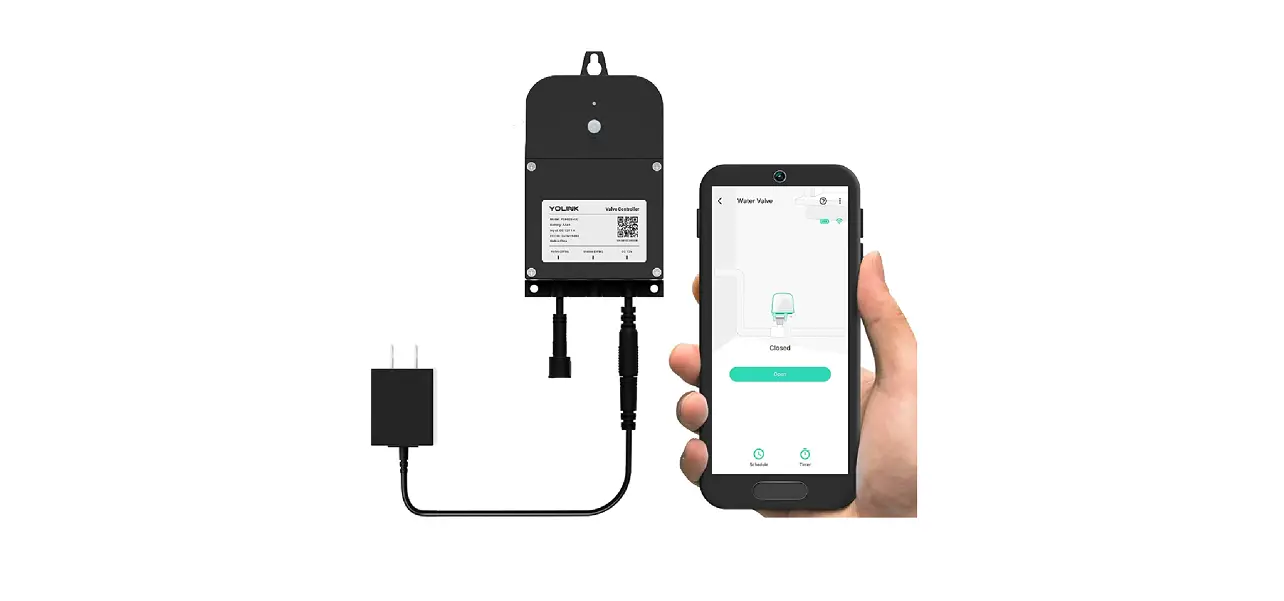
YS4102-UC Smart Sprinkler Controller
Product Information
| Product Name | Smart Sprinkler Controller |
|---|---|
| Model Number | YS4102-UC |
| Manufacturer | YoLink |
| Quick Start Guide Revision | Jan. 17, 2023 |
| Required Items | Screwdrivers (Medium Phillips and Extra Small Straight), Wire Strippers or Cutters, Wall Anchors |
Product Usage Instructions
To use the Smart Sprinkler Controller, please follow these
steps:
- Ensure you have the following items ready: Screwdrivers (Medium
Phillips and Extra Small Straight), Wire Strippers or Cutters, and
Wall Anchors. - If you are new to YoLink, install the YoLink app on your phone
or tablet from the appropriate app store. - Connect your Smart Sprinkler Controller to a YoLink hub
(SpeakerHub or the original YoLink Hub) using the provided
Base. - Make sure your YoLink hub is installed and online.
- Replace your existing sprinkler controller with the Smart
Sprinkler Controller. - Connect a 1 amp 24VAC transformer or power supply (not
included) to the Smart Sprinkler Controller. - Open the YoLink app on your smartphone or tablet.
- Follow the app instructions to connect the Smart Sprinkler
Controller to your YoLink hub. - Once connected, you can access all settings by pressing the
Menu button on the Smart Sprinkler Controller. - Use the Navigate button to scroll through the settings and the
Mode button to switch between 3 Watering Modes: Auto, Manual, and
Off.
If you have any problems with the installation or have any
questions, please refer to the full Installation & User Guide
or contact YoLink customer support.
09:35 AM 11-01-2019 Wednesday
ZONE 1 2 3 4 5 6
08:00 A
Mon Tue Wed Thu Fri Sat Sun
05:00 P
AUTO
00Hrs
1
MENU MODE DALAY ZONE
Smart Sprinkler Controller
YS4102-UC
Quick Start Guide Revision Jan. 17, 2023
A Welcome!
Thank you for purchasing YoLink products! We appreciate you trusting YoLink for your smart home & automation needs. Your 100% satisfaction is our goal. If you experience any problems with your installation, with our products or if you have any questions that this manual does not answer, please contact us right away. See the Contact Us section for more info.
Thank you!
Eric Vanzo Customer Experience Manager
User Guide Conventions
The following icons are used in this guide to convey specific types of information:
Very important information (can save you time!)
Good to know info but may not apply to you
Pour des instructions en
Fr
français, scannez les codes
QR dans la section suivante.
Para obtener instrucciones en
Es
español, escanee los códigos
QR en la siguiente sección.
B Before You Begin
Please note: this is a quick start guide, intended to get you started on the installation of your Sprinkler Controller. Download the full Installation & User Guide by scanning this QR code:
Installation & User Guide
You can also find all guides and additional resources, such as videos and troubleshooting instructions, on the Sprinkler Controller Product Support page by scanning the QR code below or by visiting:
https://shop.yosmart.com/pages/ sprinkler-controller-product-support
Product Support Support produit Soporte de producto
Your Smart Sprinkler Controller connects to the internet via a YoLink hub (SpeakerHub or the original YoLink Hub), and it does not connect directly to your WiFi or local network. In order for remote access to the device from the app, and for full functionality, a hub is required. This guide assumes the YoLink app has been installed on your smartphone, and a YoLink hub is installed and online (or your location, apartment, condo, etcetera, is already served by a YoLink wireless network).
The Smart Sprinkler Controller is intended to replace an existing sprinkler controller. A 1 amp 24VAC transformer or power supply is required, but not included.
C In the Box
E
Get to Know Your Smart Sprinkler Controller, Cont.
1 2 3 4 5 6 MCC R
Smart Sprinkler Controller
Base
&
Wall Screws (4) & Quick Start Guide Drywall Anchors (4)
D Required Items
Medium Phillips Extra Small Straight
Screwdriver
Screwdriver
RCCM6 5 4 3 2 1
R: Live wire; C: Common wire M: Master valve; 1-6: Zone wires
RCCM6 5 4 3 2 1
F Install the App
If you are new to YoLink, please install the app on your phone or tablet, if you have not already. Otherwise, please proceed to the next section
Scan the appropriate QR code below or find the “YoLink app” on the appropriate app store.
Wire Strippers or Cutters
Wall Anchors
E
Get to Know Your Smart Sprinkler Controller
09:35 AM 11-01-2019 Wednesday
ZONE 1 2 3 4 5 6
08:00 A
Mon Tue Wed Thu Fri Sat Sun
05:00 P
AUTO
00Hrs
1
MENU MODE DALAY ZONE
Menu Button Access to all Settings
Navigate Button
Mode Button Switch between 3 Watering Modes (Auto, Manual, Off)
09:35 AM 11-01-2019 Wednesday
ZONE 1 2 3 4 5 6
08:00 A
Mon Tue Wed Thu Fri Sat Sun
05:00 P
AUTO
00Hrs
1
MENU MODE DALAY ZONE
Delay Button Switch to delay upcoming watering times
Zone Button Switch to view watering process for each available zone
Apple phone/tablet Android phone or iOS 9.0 or higher tablet 4.4 or higher
Open the app and tap Sign up for an account. You will be required to provide a username and a password. Follow the instructions, to set up a new account. Allow notifications, when prompted.
You will immediately receive a welcome email from [email protected] with some helpful information. Please mark the yosmart.com domain as safe, to ensure you receive important messages in the future.
Log in to the app using your new username and password.
The app opens to the Favorite screen. This is where your favorite devices and scenes will be shown. You can organize your devices by room, in the Rooms screen, later.
Add Your Sprinkler G Controller to the App
1. Tap Add Device (if shown) or tap the scanner icon:
Scanner icon
2. Approve access to your phone’s camera, if requested. A viewfinder will be shown on the app.
RCCM6 5 4 3 2 1
3. Hold the phone over the QR code so that the code appears in the viewfinder. If successful, the Add Device screen will be displayed. You can change the device name and assign it to a room later. Tap Bind device. If successful, a screen similiar to the one shown below will be displayed. Tap Done.
Sprinkler Controller
H Installation
1. Turn off, remove or disconnect the 24VAC power supply to be used for your new Sprinkler Controller.
2. If you are replacing an existing controller, identify and label all of the existing wires. It may help later if you take a picture of the wires before you remove any.
3. Using care to not let any wires fall back into the wall (if applicable), loosen the wires and remove them from the existing controller.
9. Gently push the sprinkler controller onto the base. You may hear an audible snap. Ensure the controller is fully-seated on the base, by gently pulling at the edges of the controller. Uneven gaps between it and the wall may indicate the controller is not properly secured to the base.
10. Turn on the 24VAC transformer or power supply. The Sprinkler Controller should turn on, and the display should illuminate.
Refer to the full Installation & User Guide, to complete the setup and configuration of your Sprinkler Controller.
I Contact Us
We are here for you, if you ever need any assistance installing, setting up or using a YoLink app or product!
Need help? For fastest service, please email us 24/7 at [email protected]
Or call us at 831-292-4831 (US phone support hours: Monday – Friday, 9AM to 5PM Pacific)
You can also find additional support and ways to contact us at: www.yosmart.com/support-and-service
Or scan the QR code:
Master
Zone 5 Zone 4 Zone 3 Zone 1 Zone 2
C – From Valve
C – 24V AC R – 24V AC
Zone 6
4. Place the controller base at the desired location, then mark (with pencil, tape, etc.) an outline of the controller on the wall for future reference.
5. Mount the base by screwing it in to the wall, using the supplied screws (or your own specialty anchors and screws, as needed).
6. Loosen the terminal screws on the mounting plate, preparing them for the wiring.
7. Working with one wire at a time, connect the wiring in the correct order to their respective terminals. If needed, re-strip the end of the wire, so that the conductor makes an electrical connection with the terminal screw. Tighten each screw before moving to the next.
8. Gently tug on each wire, to ensure the wire is secured and not loose.
1 2 3 4 5 6MCCR
24V AC
Water Source
Master Valve
Valve 1
Valve 2
Valve 3
Valve 4
Valve 5
Valve 6
Zone 1
Zone 2
Zone 3
Zone 4
Zone 5
Wiring Diagram
Zone 6
Support Home Page
Finally, if you have any feedback or suggestions for us, please email us at [email protected] Thank you for trusting YoLink! Eric Vanzo Customer Experience Manager
15375 Barranca Parkway Ste. J-107 | Irvine, California 92618
© 2022 YOSMART, INC IRVINE, CALIFORNIA
 Facebook icon
 Facebook icon