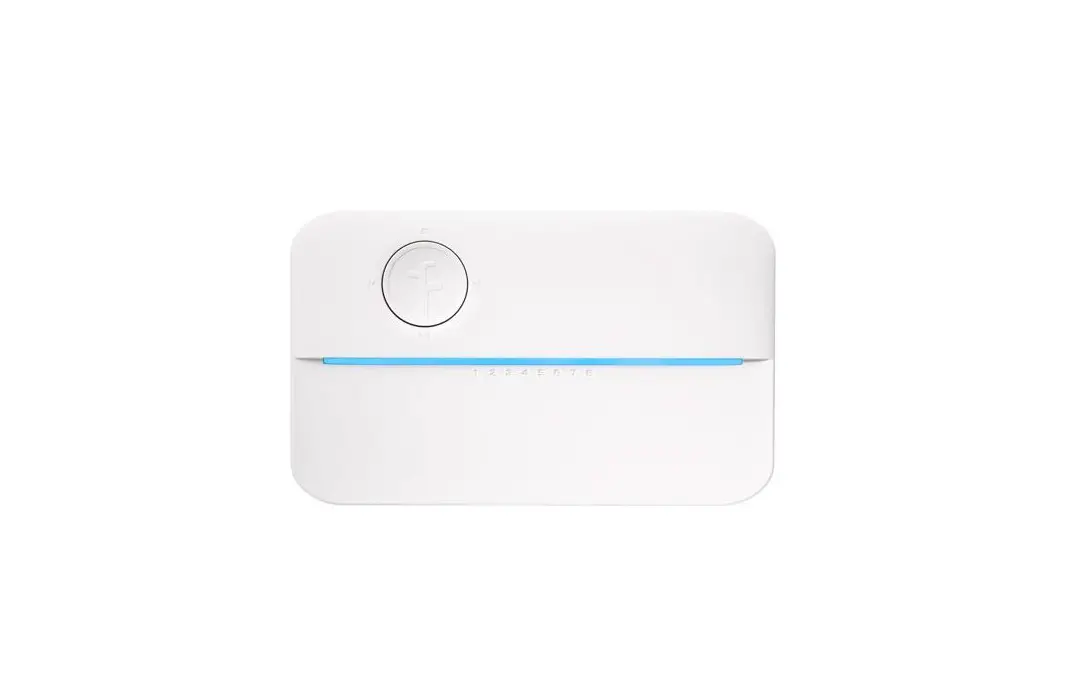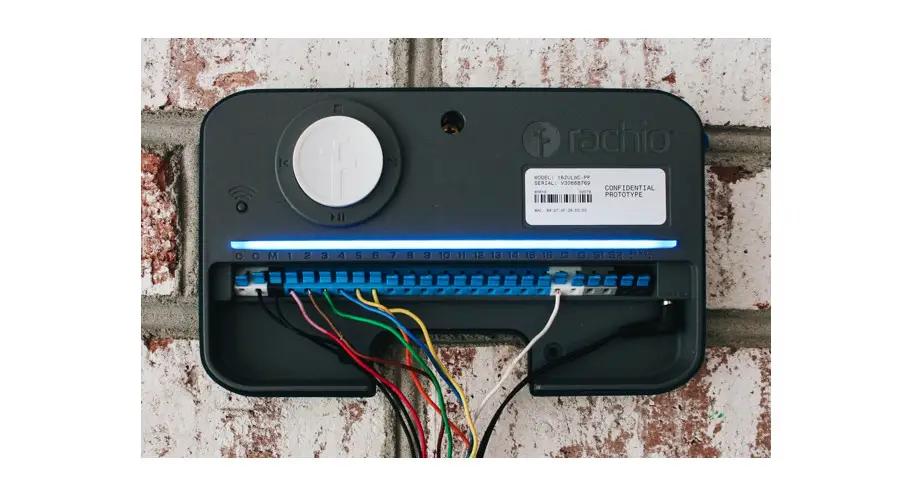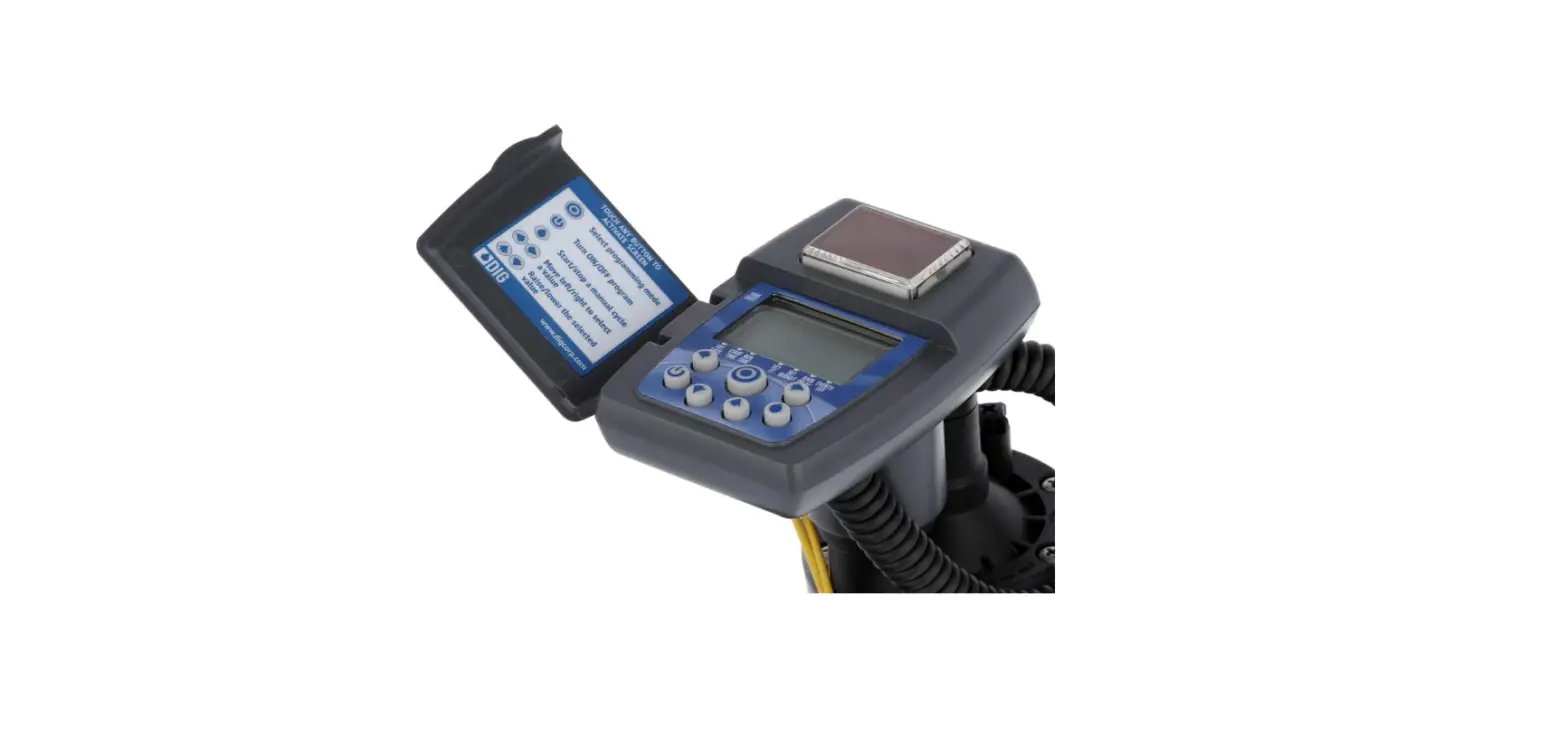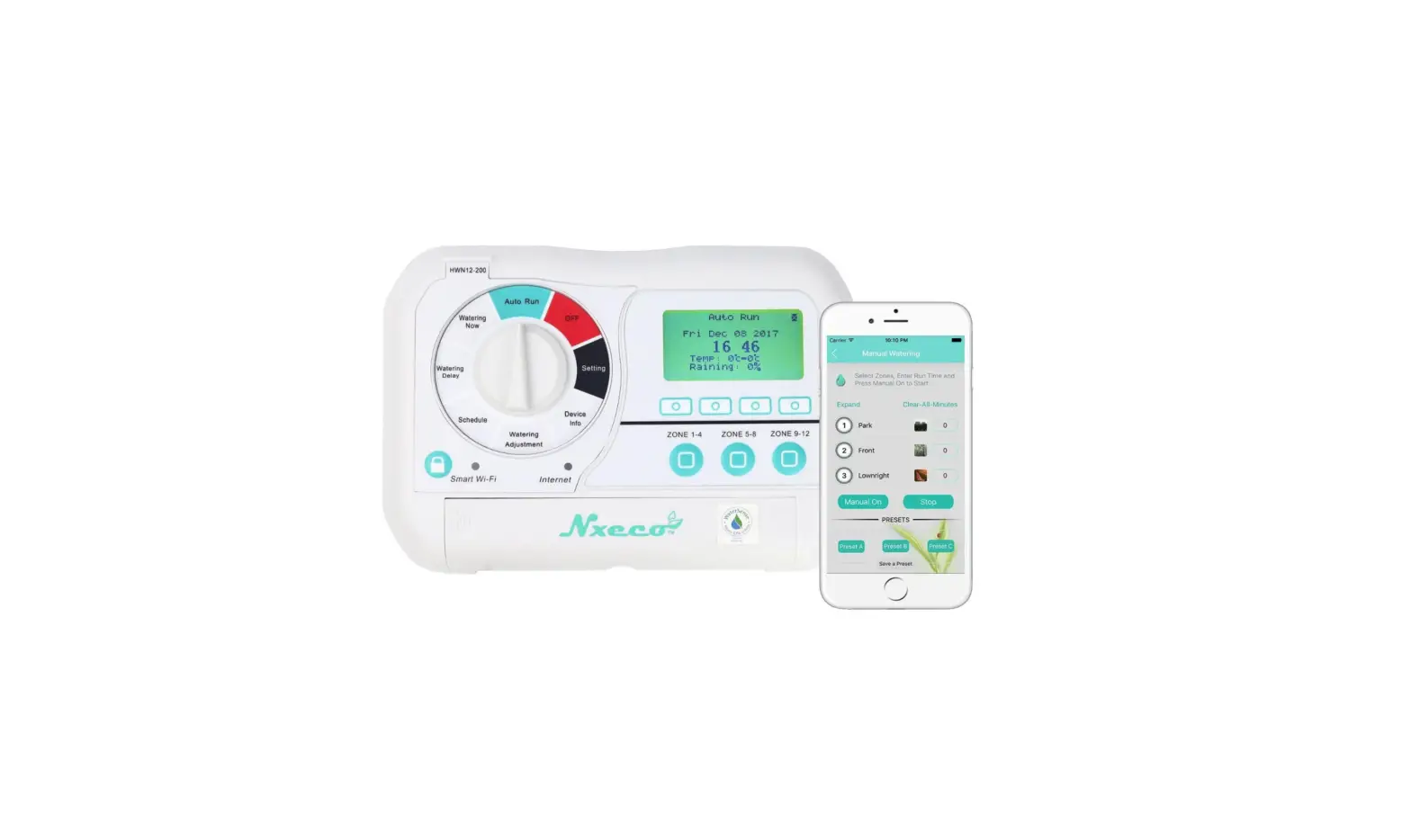

NxEco HWN12-200 Smart Irrigation Sprinkler Controller
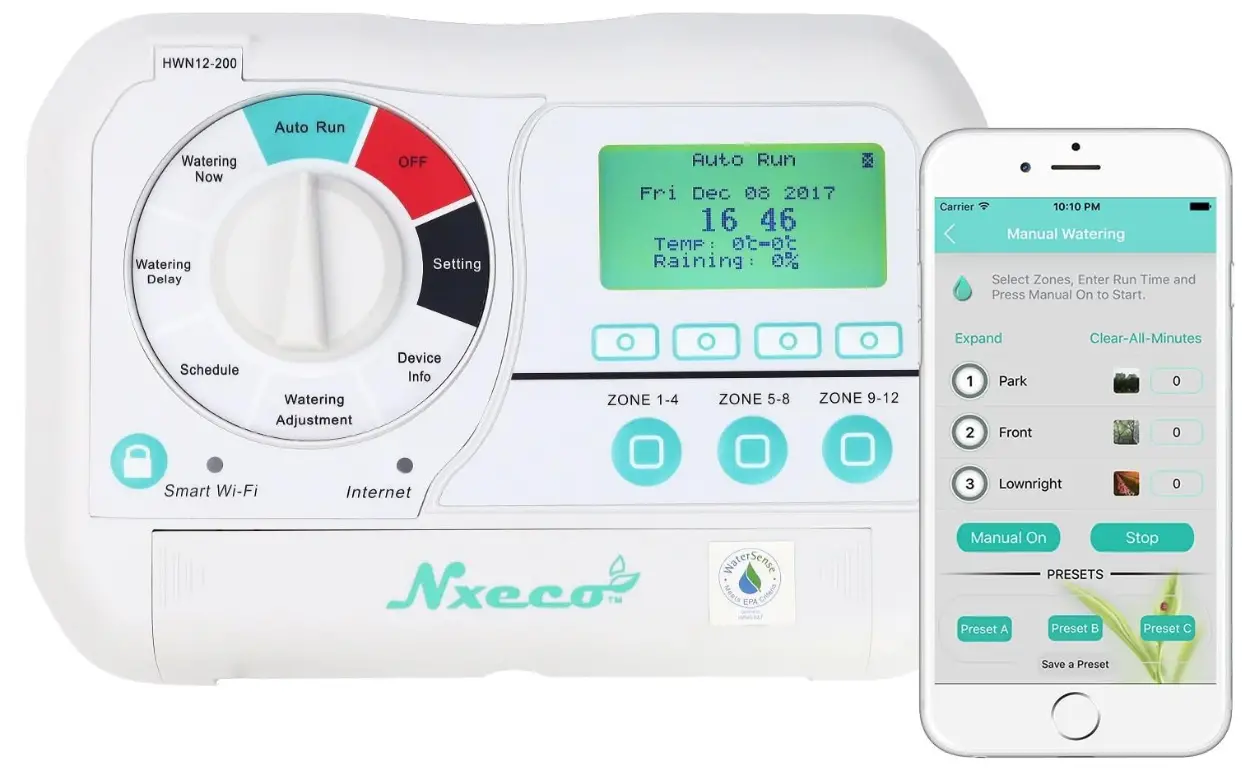
NxEco Panel Features
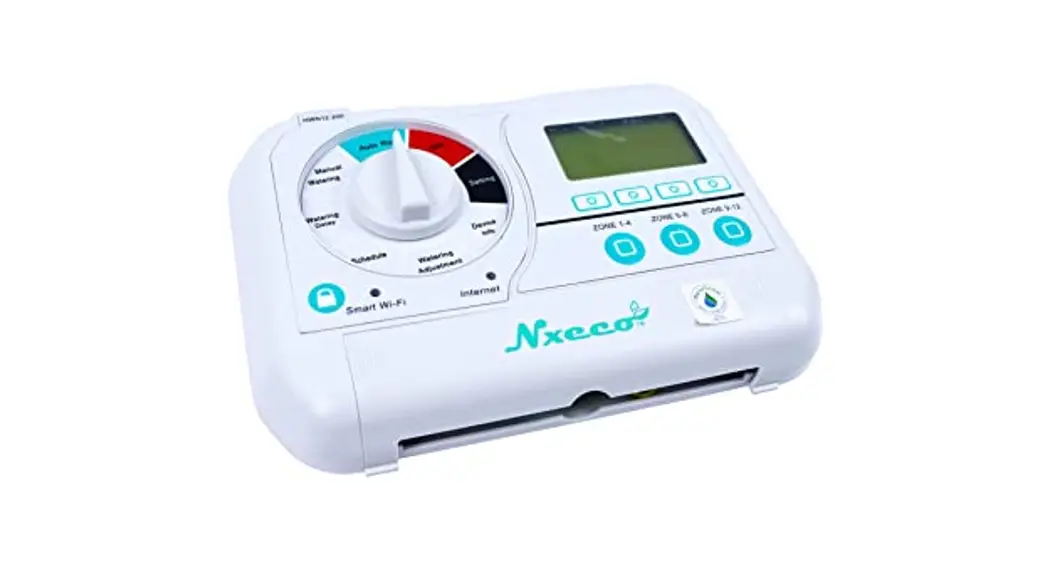
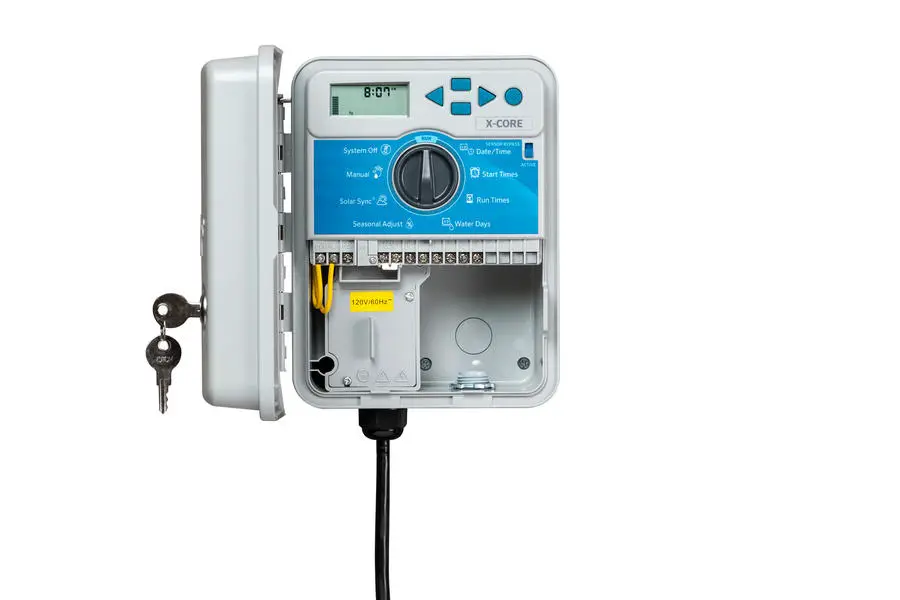
The panel consists of a dial with eight settings, eight buttons, two LED lights, and a display window.
Dial Settings: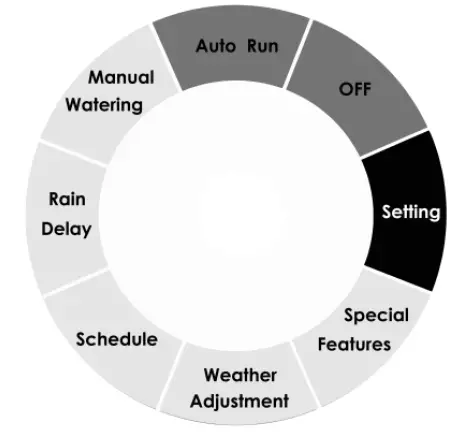
| Dial Setting | Function |
| OFF | · Shuts off watering |
| Auto Run | · Runs programmed watering · Let’s smart terminals (smart phone, tablet, PC, etc.) operate this controller |
| Manual Watering | · Initiates instant watering · Runs watering on a zone by zone basis |
| Rain Delay | · Delays watering up to 72 hours |
| Schedule | · Sets up basic watering schedules manually |
| Weather Adjustment | · Checks the auto-setting watering adjustment % though server within weather conditions · Changes the water % manually and keeps this watering adjustment 24 hrs |
| Special Features | · Checks the special features from NxEco web page |
| Setting | · Sets up Date and/or Clock manually · Accesses Smart Wi-Fi to securitized AP · Registers NxEco controller on cloud server |
Button List:
| Button Name | Sign | Function |
| Zone 1-4 | ZONE 1-4 | · Setup Zone 1, Zone 2, Zone 3, Zone 4 |
| Zone 5-8 | ZONE 5-8 | · Setup Zone 5, Zone 6, Zone 7, Zone 8 |
| Zone 9-12 | ZONE 9-12 | · Setup Zone 9, Zone 10, Zone 11, Zone 12 |
| Operation One |  | · Setup |
| Operation Two | | · Setup |
| Operation Three | | · Setup |
| Operation Four | | · Setup |
| Smart Wi-Fi |  | · Sets up Wi-Fi access security |
LED List:
| LED Name | Sign | Function |
| Smart Wi-Fi |  Smart Wi-Fi | · Off: Wi-Fi access off · Flashing: Controller attempting to establish Wi-Fi connection with the router · On: Wi-Fi access to AP successful |
| Internet | Internet | · Off: Fail to Internet · On: Link to Internet established |
Panel Operation
Quick Setup Guide
Follow the steps in the below guide and begin enjoying the convenience and cost savings enabled by your new NxEco Irrigation Controller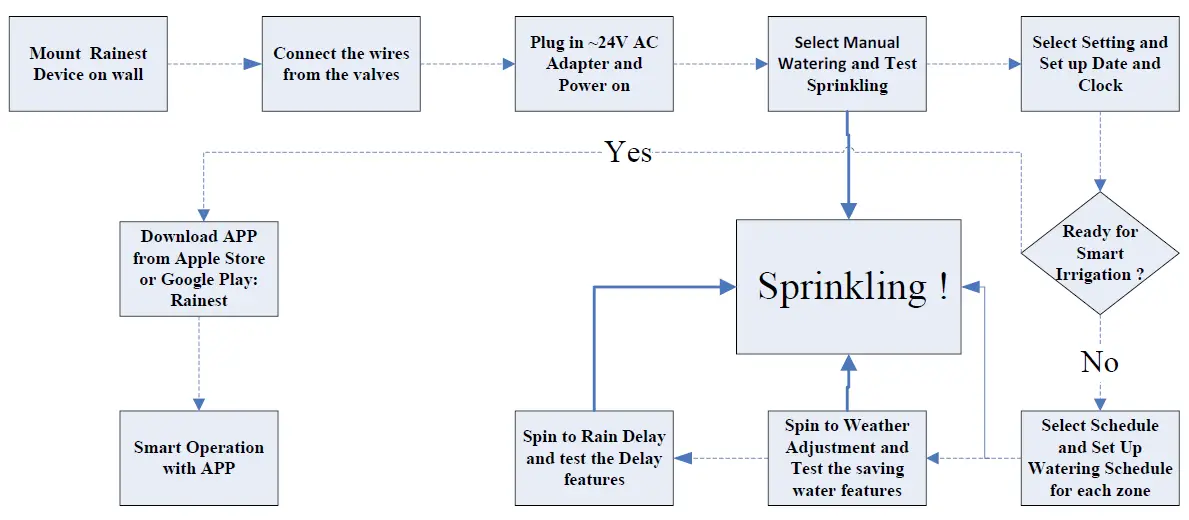
Manual Watering
This operation immediately irrigates a selected zone.
- STEP1: Spin the dial to Manual Watering. The LED screen shows as:
 The zones are numbered 1 – 12. The times are in minutes
 - STEP2: Press the appropriate zone range button repeatedly as needed to select the desired zone.
- STEP3: The display window will indicate uses for the four buttons above the zone range buttons. Use the plus and minus (+ / -) buttons to set the watering runtime for that zone. Pressing the reset button will set the time back to zero.
- STEP 4: Repeat STEP 2 and 3 until all of your zones are set up.
- STEP 5: Press the START button.
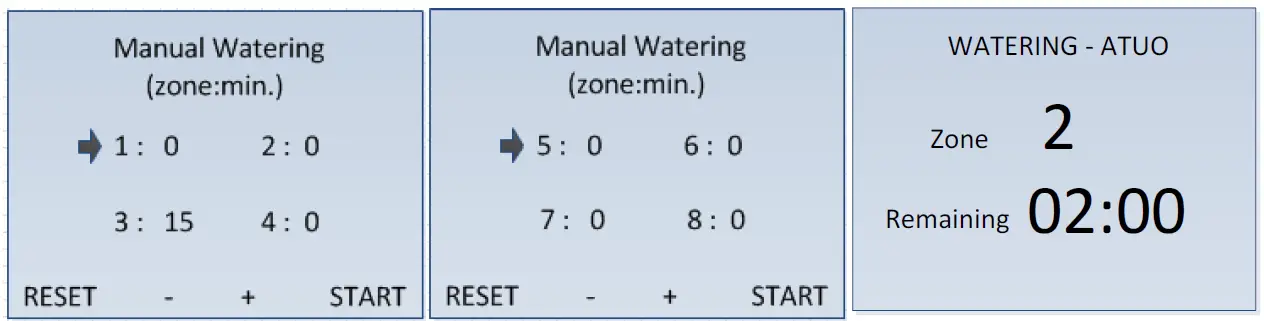 The zones are numbered 1 – 12. The times are in minutes
Note that when the start button is pressed the watering cycles for all programmed zones will begin immediately, starting with the lowest-numbered zone and then running sequentially to the highest-numbered zone. In order to water only a single zone, all of the other zones need to be set to zero.
Setting
Select Setting and the LED screen shows as: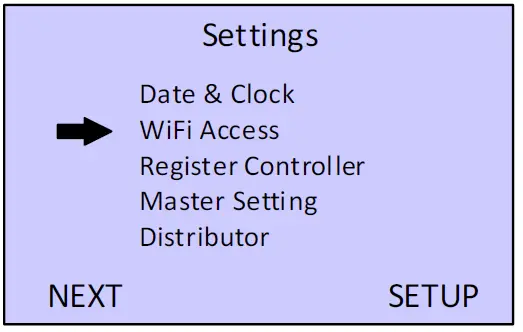
Setting Date and Clock
The first step is to set the correct time.
If the controller is connected to the internet, the date and time will be set up automatically, otherwise, follow these steps for manual setup:
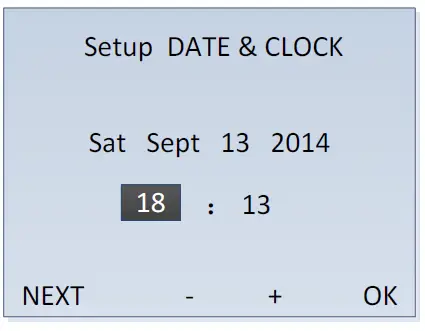
- STEP1: move the arrow, using the NEXT button, to Date & Clock and then press SETUP. The LED screen shows as:

- STEP 2: Use the buttons for NEXT and the plus and minus symbols to set the date and time. Press OK when done.
Setting Wi-Fi Access
This section builds up a wireless connection between the Wi-Fi module embedded in the controller and a secure Wi-Fi router.
Tips: If you would like to start the wireless access and cloud service later, you may skip this section at this time.
Please note that in order to complete this setup you will need to install the NxEco application (APP) on your iOS or Android device.
- STEP1: Move the arrow Wi-Fi Access and press the SETUP button
 The LED screen shows as:
- STEP2: Open the NxEco APP on your iOS or Android based device and sign in, or register if this is your first time. Once you are in the APP go to the Smart Wi-Fi page.
- STEP3: Please refer the WiFi connection steps on APP. One step by step. A short time after the WiFi connection is established, the green Internet LED should turn on. The NxEco controller is now ready to communicate with the NxEco server, once it is registered.
 The controller has connected to WiFi Router: XXXXx (Eq. 23348)
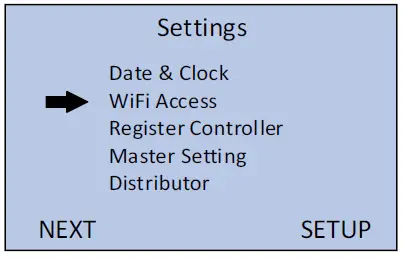 The LED screen shows as: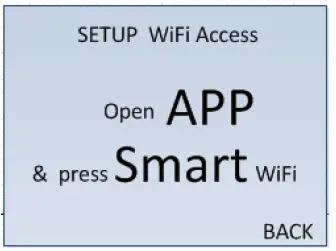
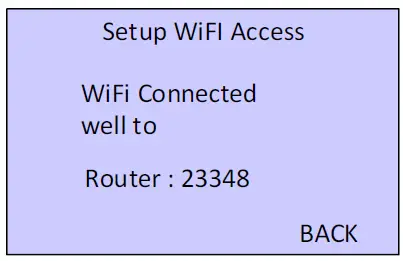 The controller has connected to WiFi Router: XXXXx (Eq. 23348)
Register Device
Tips: If you would prefer to register your device with the NxEco server at a later time, you can skip this section. However, the cloud based features of the NxEco controller will not be enabled until you complete this process.
- STEP1: Move the arrow to Register Device and press the SETUP button.
 The LED screen will show a serial number (S/N) and a Password The LED screen will show a serial number (S/N) and a Password S/N: AAAABBBBCCCC (e.g.) Password: z6E31 (e.g.)
- STEP2: Open the NxEco APP and go to the Add Device page.
TIP: Make sure the Internet LED (green) is ON. - STEP3: Enter the device S/N and the one-time passport. Press Add on the App screen.
- Please wait 1-2 minutes.
- If this device is registered successfully, the LED screen shows as:

- STEP4: If not, please repeat STEP3. Make sure that the password and serial number obtained in STEP1 are entered into the APP correctly.
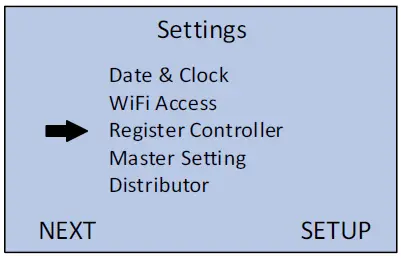 The LED screen will show a serial number (S/N) and a Password The LED screen will show a serial number (S/N) and a Password S/N: AAAABBBBCCCC (e.g.) Password: z6E31 (e.g.)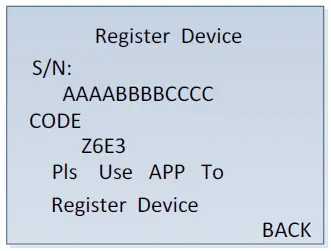
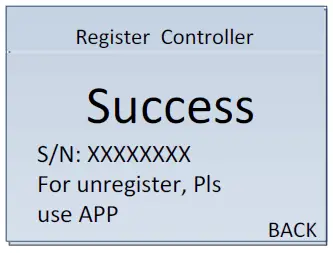
This is a one-time, randomly created password and it can only be used for this registration.
Master Setting
User could set up the Master Valve manually. The following septs are useful to setup the Master value
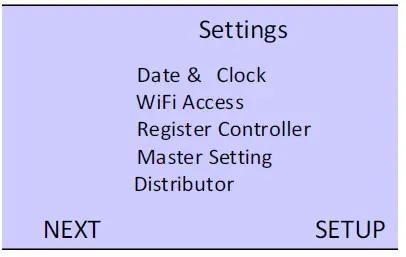
- STEP1: Move the arrow to Master Setting and press the SETUP button.

- The LED screen will show the following message: Set 12th zone as master valve?

- The LED screen will show the following message: Set 12th zone as master valve?
- STEP2: Press OK, Zone #12 is set as Master Valve. The LCD is shown as:
 If you want to move the master valve, you could press OK.
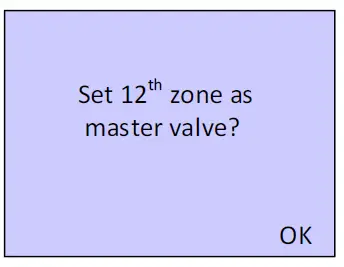
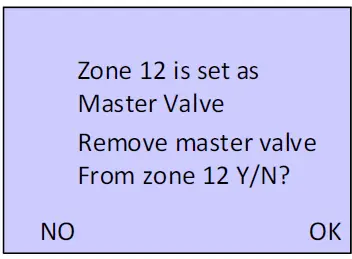 If you want to move the master valve, you could press OK.
Scheduling
Follow this procedure to set up, modify, and review watering schedules for the zones.
- STEP 1: Select Schedule and the LED screen shows
 As a 24-zone extension is added. The LCD may be shown as:
 SYNC is one special function button. As press it, the schedules saved in the cloud are synced to the controller at once.
 - STEP 2: Press the EDIT button to move to the Set Timer screen. The LED screen shows as:

- Use the NEXT button to choose the field you wish to modify. That field will be highlighted.
- You may set up as many as four watering times (#a, #b, #c, #d) for each zone per day. The default start-times shown can be modified by using the plus and minus buttons. Watering only occurs when a runtime has been set.
- Press OK when done working on the plan for that zone
- STEP 3: Go to the Week screen and chose the prescribed day(s)-of- the week and press ADD.
 Or go to Month Screen and chose the prescribed day(s)-of-month as press ADD
- Press OK when done working on the plan for that zone. The LED screen is shown as:
- Press Next to choose the other zone number.
If no runtime or day in one week is set, as OK is pressed, the LED screen shows as: Select BACK to return to the Set Timer / Week screen, or select CANCEL to return to the Schedule screen.
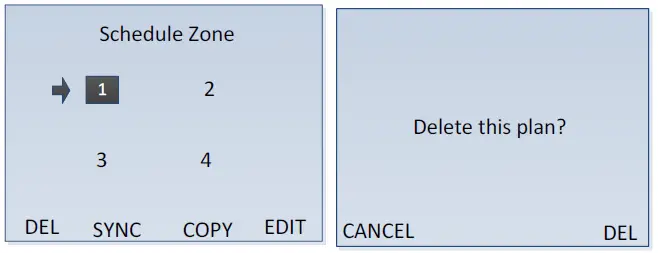
- STEP 4: If pressing DEL in the following left screen, it means to delete the scheduled plan on the chosen zone. The LED shows the right screen:
 Continue to delete the plan, and press DEL. If not, press CANCEL.
 - STEP 5: There is an easy way to copy the schedules from one zone to another zone.
- In the left screen and the arrow on the highlighted zone 1, press copy. The right screen shows:

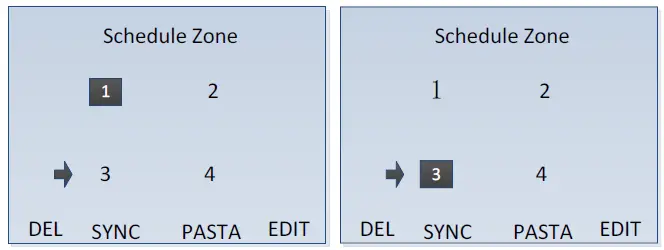
- Move the arrow to any other zone such as in the following left screen, and press PASTE. The schedule on zone 1 is pasted on another zone:

- In the left screen and the arrow on the highlighted zone 1, press copy. The right screen shows:
- STEP 7: As set up all of your zones, return to AutoRun.
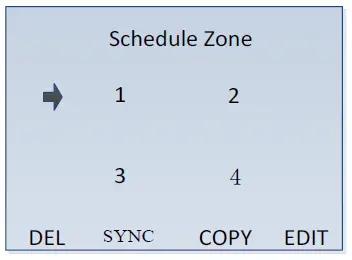 As a 24-zone extension is added. The LCD may be shown as:
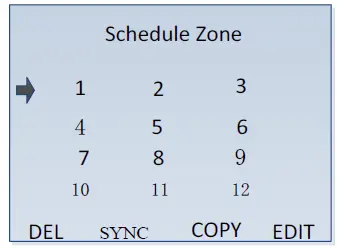 SYNC is one special function button. As press it, the schedules saved in the cloud are synced to the controller at once.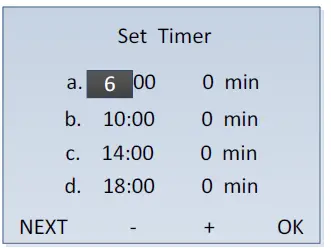
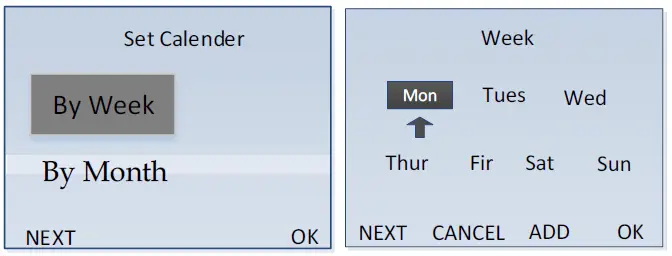 Or go to Month Screen and chose the prescribed day(s)-of-month as press ADD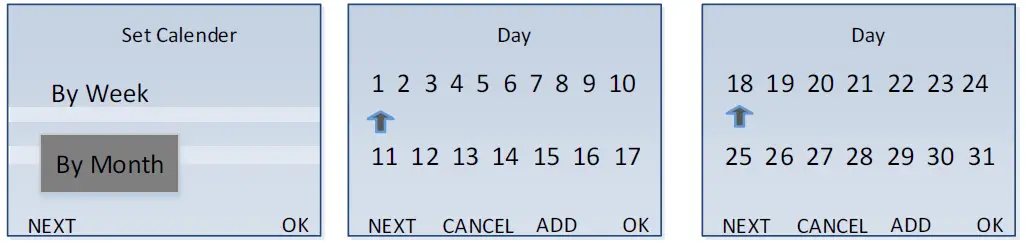
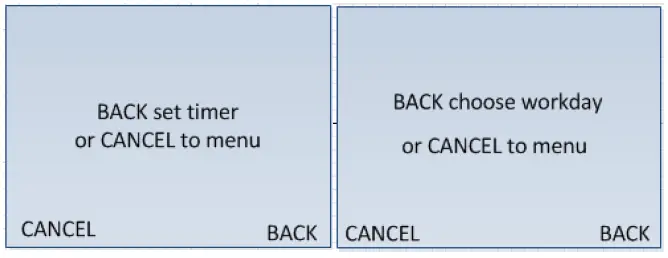 Select BACK to return to the Set Timer / Week screen, or select CANCEL to return to the Schedule screen.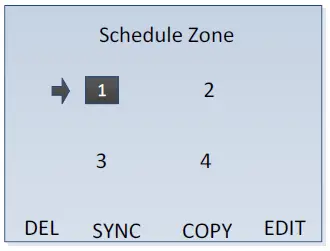
 Continue to delete the plan, and press DEL. If not, press CANCEL.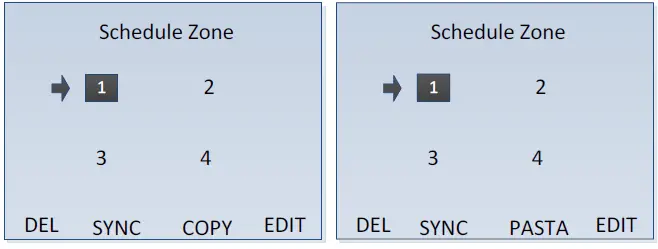
Rain Delay
Follow this procedure to delay scheduled watering.
The Rain Delay setting serves two purposes:
- Setting up a period to pause all scheduled watering, up to a maximum of 72 hours.
- Checking on the remaining time left in a programmed delay.
- STEP 1: Select Rain Delay. If the following LED screen shows as:
 It means 4 hrs. rain delay still reminded in the controller.
 - STEP 2: Press the ( + ) or ( – ) button to increase or decrease the delay time. Finally, press OK.
 Saving successfully sign shows up for 2 sec.
 - STEP 3: Back to AutoRun. Then, all of the scheduled sprinklings are paused for the above delay hours.
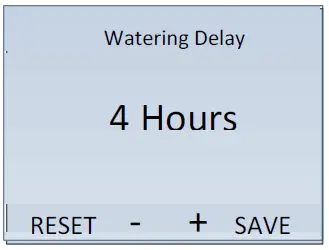 It means 4 hrs. rain delay still reminded in the controller.
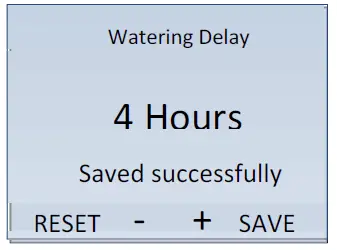 Saving successfully sign shows up for 2 sec.
Weather Adjustment
The Weather Adjustment serves two purposes:
- Check the auto Weather-based Watering adjustment % from the cloud.
- Modify daily Weather-based Watering adjustment % manually
- STEP1: Select Weather Adjustment. The LED screen shows as:
 Weather-based watering adjustment % for today and the following 4 days are on screen, which may be sourced from NxEco server or modified previously.
 - STEP2: As points on day, user could adjust watering adjustment% by (+) or (-) button. The maximum amount is 150%. Press Ok. The adjustment is saved.
 “Saving successfully” sign shows up 2 sec.
Tip: The watering adjustment amount means the watering runtimes are % of the previously scheduled runtimes.
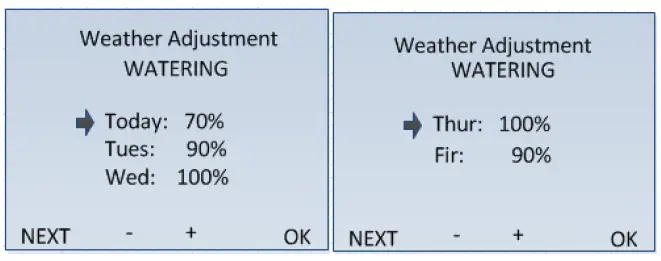 Weather-based watering adjustment % for today and the following 4 days are on screen, which may be sourced from NxEco server or modified previously.
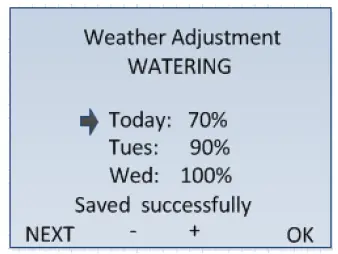 “Saving successfully” sign shows up 2 sec.
Auto Run
The AutoRun setting enables the implementation of scheduled operations, access to the NxEco server, and communication with users via mobile networks.
Select AutoRun. The LED screen shows as: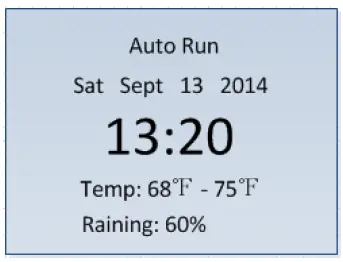 The bottom two lines are the local daily weather forecast: Temporary Temperature and the chance of precipitation.
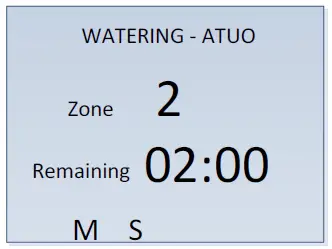
- As manual watering, the LCD screen shows as
 M: indicates the Zone 12 set as one for Master Valve
S: indicates the sensor is active now. If S is not shown, the sensor is nonactive - When scheduled watering occurs, the LED screen changes to show operational data.

- Eq.: Zone #2 is sprinkling now and the remaining sprinkling time is 2:00 min.
- M: indicates the Zone 12 set as one for Master Valve
- A (B)(C)(D): indicates which schedule program (A or B, C, or D) is running now.
 M: indicates the Zone 12 set as one for Master Valve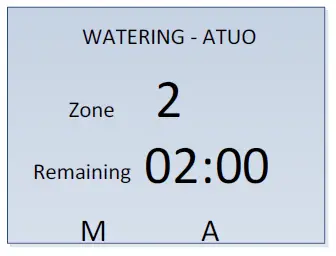
OFF
When OFF is selected on the dial, all of the irrigation control functions are off. The LED screen shows as: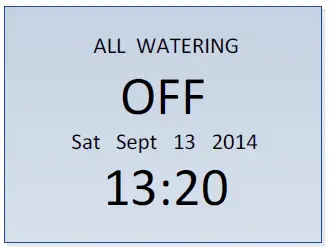
Controller Features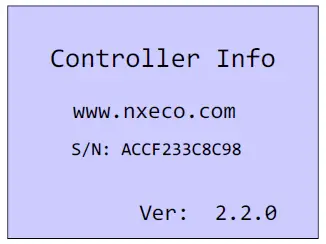
The LED screen lists the S/N number (e.g.: ACCF233C8C98), and firmware version (e.g.: Ver: 1.6.1). More features and applications could be found at www.nxeco.com
Tech and Service Support
- NxEco, Inc. www.NxEco.com
- Email: [email protected]
- Tel: 949-813-7909.
FREQUENTLY ASKED QUESTIONS
DOWNLOAD THE PDF LINK: NxEco HWN12-200 Smart Irrigation Sprinkler Controller Operation Manual