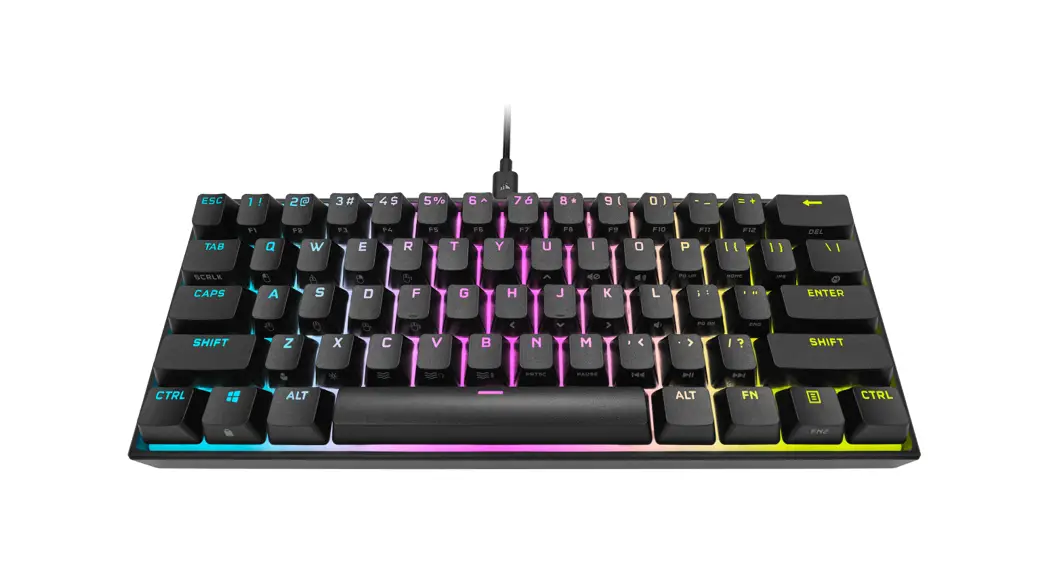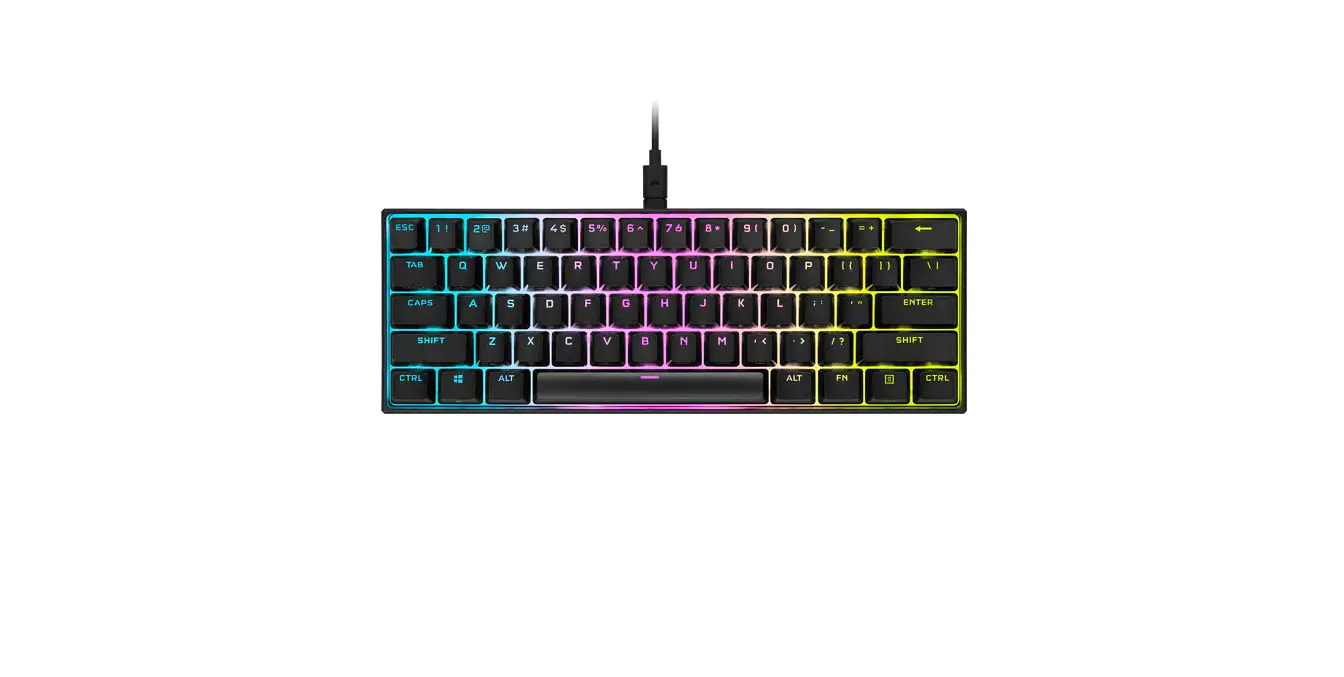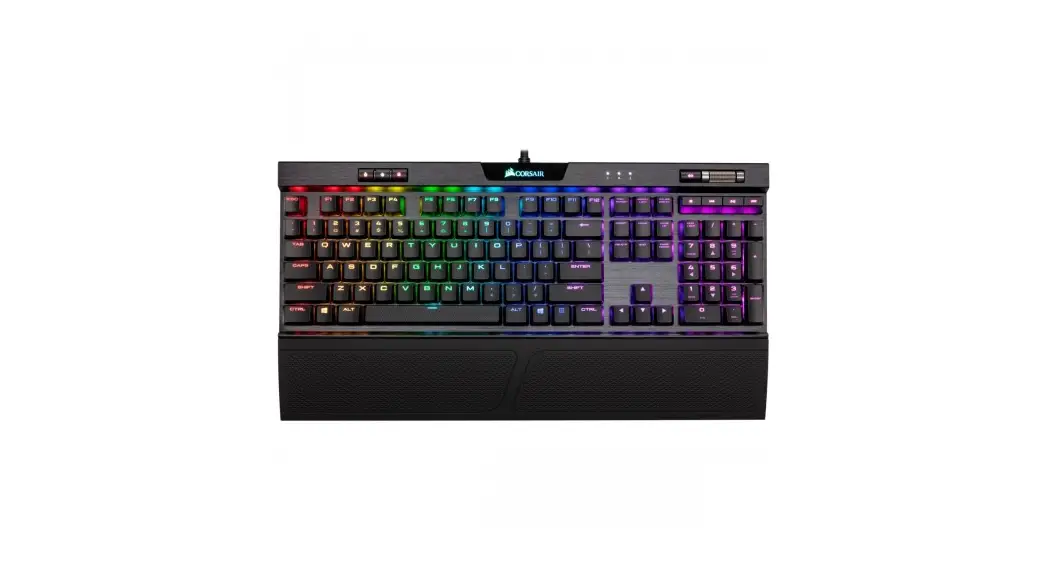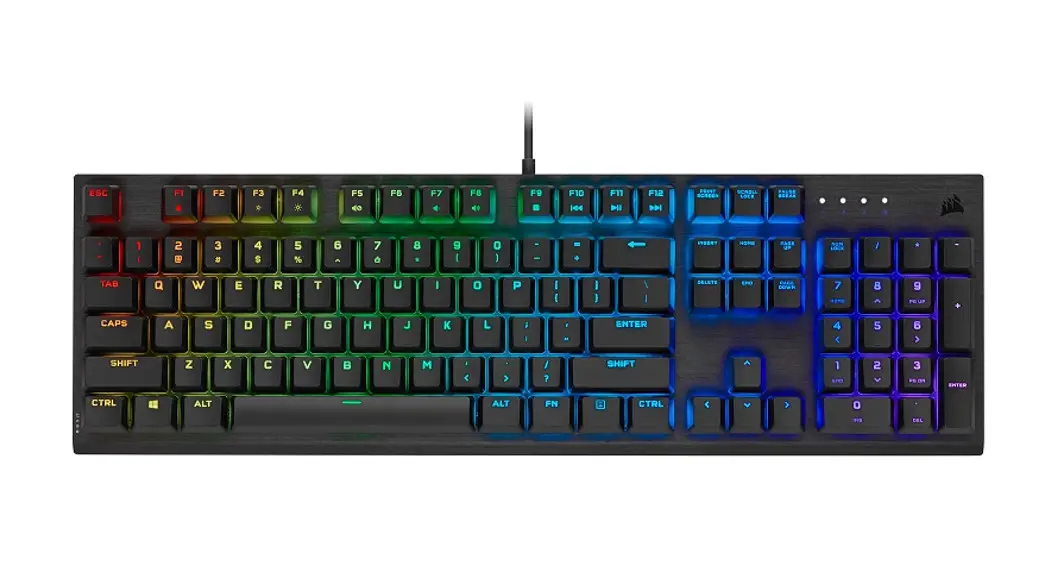

K60 RGB PRO LOW PROFILE
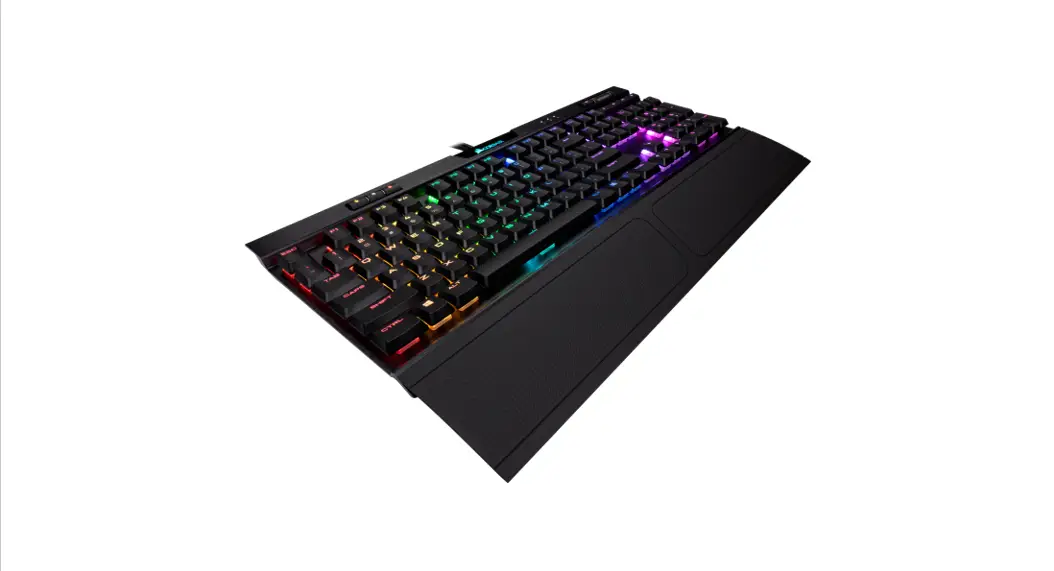
K60 RGB PRO LOW PROFILE
Mechanical Gaming Keyboard
| WEB: corsair.com PHONE: (888) 222-4346 SUPPORT: support.corsair.com | BLOG: corsair.com/blog FORUM: forum.corsair.com YOUTUBE: youtube.com/corsairhowto |
| © 2020-2021 CORSAIR MEMORY, Inc. All rights reserved. CORSAIR and the sails logo are registered trademarks in the United States and/or other countries. All other trademarks are the property of their respective owners. Product may vary slightly from those pictured. 49-002176 AB |  | |
GETTING TO KNOW YOUR KEYBOARD
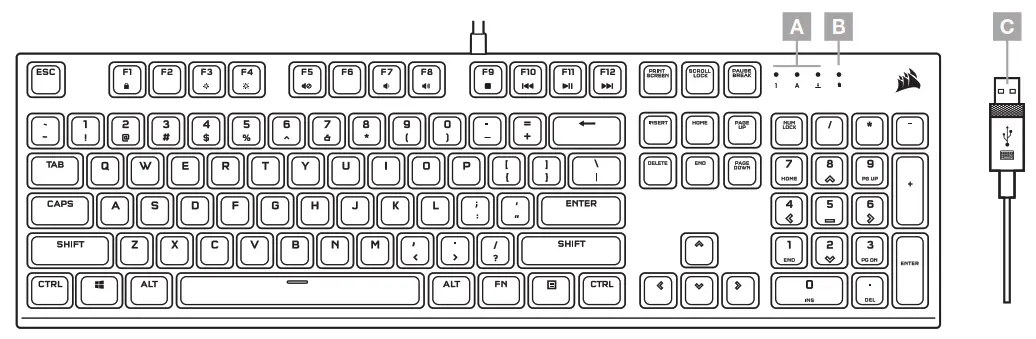
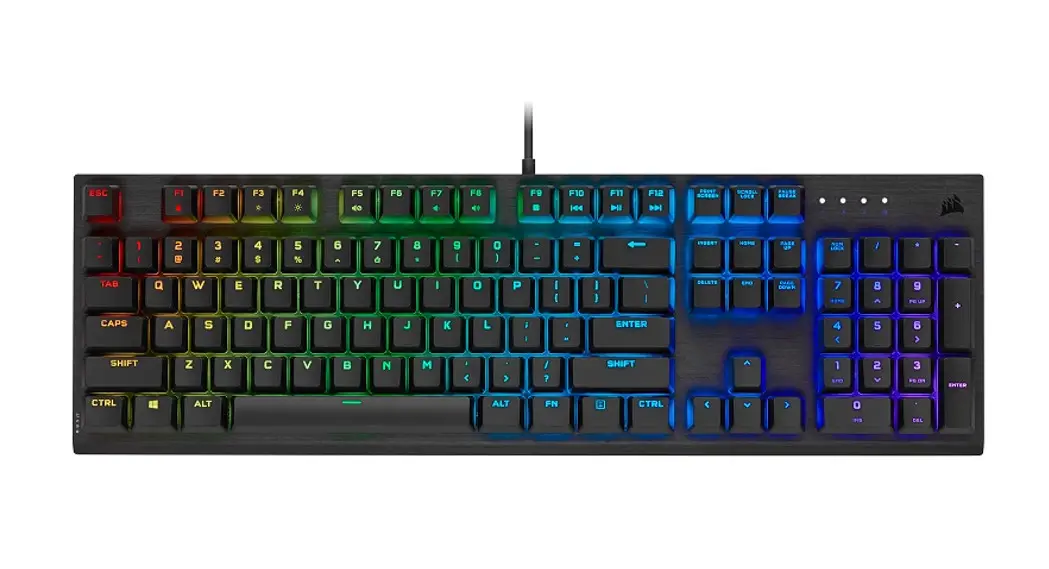
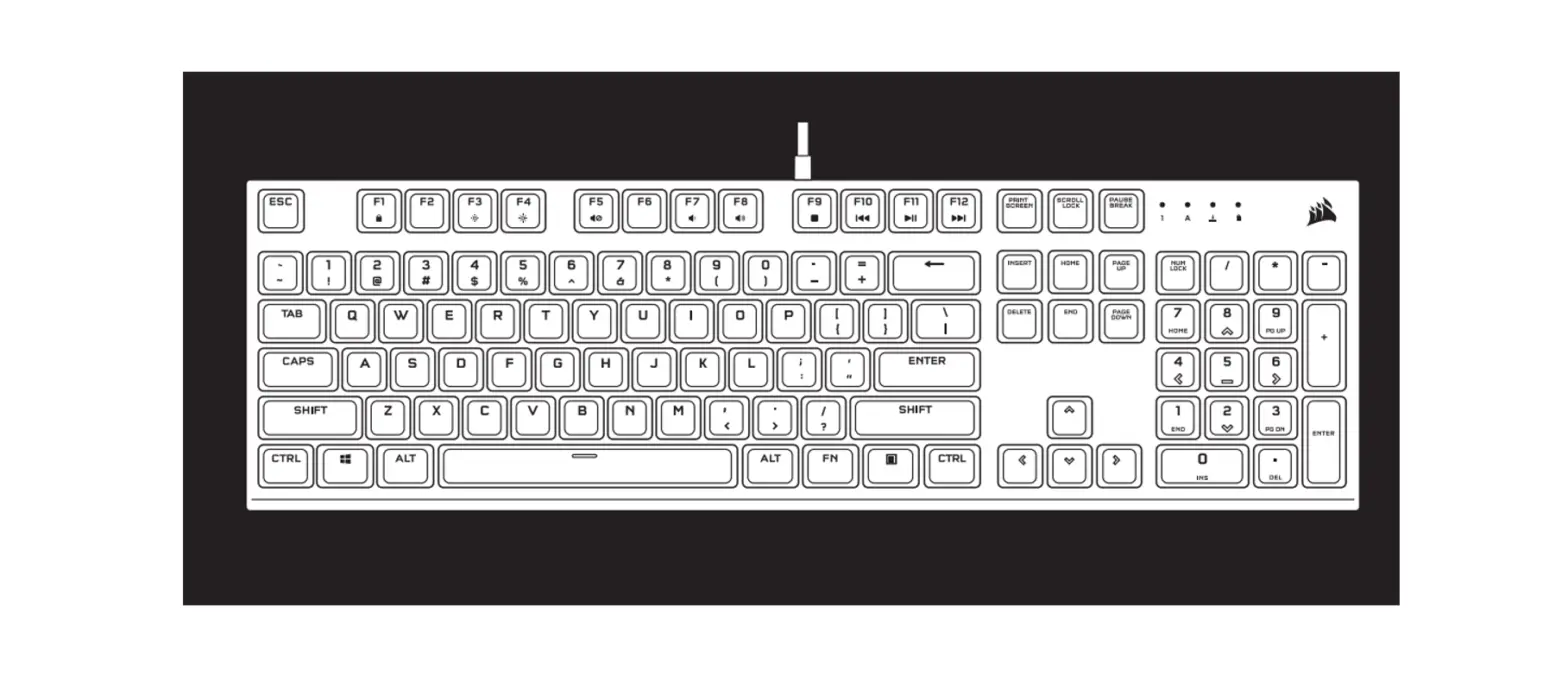
A — NUM, CAPS, AND SCROLL LOCK INDICATORS
B — WIN LOCK INDICATOR
C — USB KEYBOARD CONNECTOR
SETTING UP YOUR KEYBOARD
Connect keyboard USB connector (C) to an available USB 3.0 or better Type-A port on your Windows® PC, Apple Mac®, or Microsoft Xbox One® .*
*www.corsair.com/xbox-one-support
SOFTWARE MODE
When iCUE is running the keyboard operates in software mode and is controlled by iCUE.
Install iCUE on a Windows®
PC to connect all of your CORSAIR iCUE compatible products together in a single interface, giving you complete control of everything from lighting to powerful macros. Download iCUE from www.corsair.com/downloads.
When playing iCUE-integrated games your RGB lighting dynamically reacts to in-game actions and events in real-time. Learn more at www.corsair.com/icue.
ONBOARD LIGHTING / FUNCTION SHORTCUTS
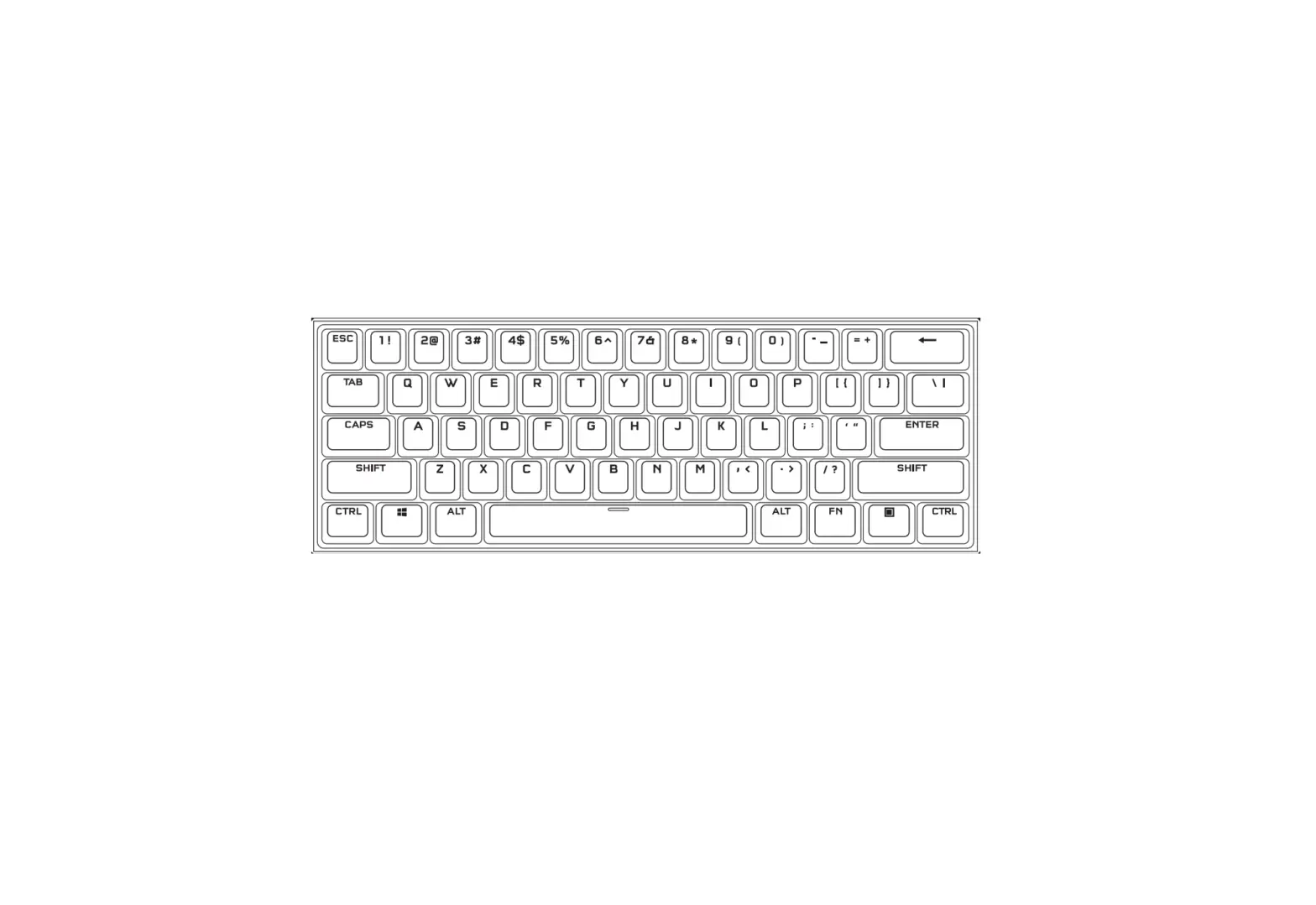
Keyboard lighting effects can be controlled via the onboard shortcuts below when iCUE is not running or the keyboard is connected to a device that does not support iCUE.
SHORTCUT | LIGHTING EFFECT |
| FN + 1 | Spiral Rainbow |
| FN + 2 | Rain |
| FN + 3 | Rainbow Wave |
| FN + 4 | Visor |
| FN + 5 | Type Lighting (Per-Key) |
| FN + 6 | Type Lighting (Ripple) |
| FN + 7 | Color Shift |
| FN + 8 | Color Pulse |
| FN + 9 | Color Wave |
| FN + 0 | Static Color (Press To Cycle Colors) |
SHORTCUT | FUNCTION |
| FN + F1 | Toggle Win Lock |
| FN + F3 | Decrease Backlighting Brightness |
| FN + F4 | Increase Backlighting Brightness |
| SHORTCUT | FUNCTION |
| FN + ` | Reset To Onboard Stored Effect |
| FN + – | Reduce Effect Speed* |
| FN + = | Increase Effect Speed* |
| FN + [ | Rotate Effect Left* |
| FN + ] | Rotate Effect Right* |
*Functions supported on select effects.
SHORTCUT | FUNCTION |
| FN + F5 | Mute |
| FN + F7 | Decrease Volume |
| FN + F8 | Increase Volume |
| FN + F9 | Stop Playback |
| FN + F10 | Last Track |
| FN + F11 | Play / Pause |
| FN + F12 | Next Track |
FACTORY RESET
To clear the onboard memory, hold the ESC key while plugging in the USB keyboard connector (C), then release the ESC key after two seconds. The keyboard will then power on normally and be reset to factory defaults.
References
 PC Components | Gaming Gear | CORSAIR
-
Corsair Blog - Corsair Community
-
Home - Corsair Community
-
CORSAIR Downloads | CORSAIR iCUE Software
-
CORSAIR Downloads | CORSAIR iCUE Software
-
iCUE Software | Drivers | Software | CORSAIR
-
CORSAIR Supports Xbox One with Gaming Keyboards and Mice
-
corsair.com/xbox-one-support*
 PC Components | Gaming Gear | CORSAIR
 Home - Corsair Community
 CORSAIR Downloads | CORSAIR iCUE Software