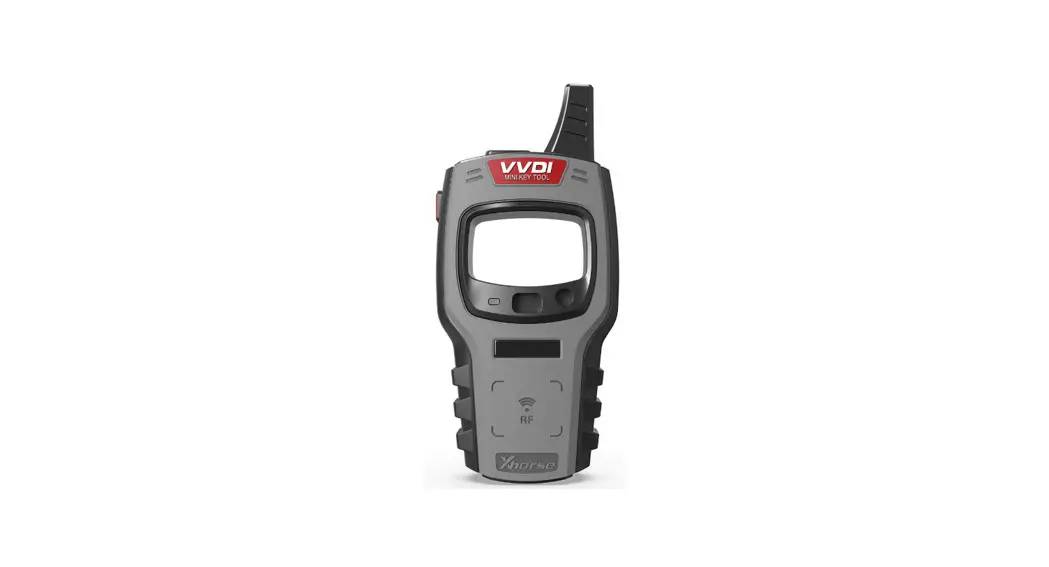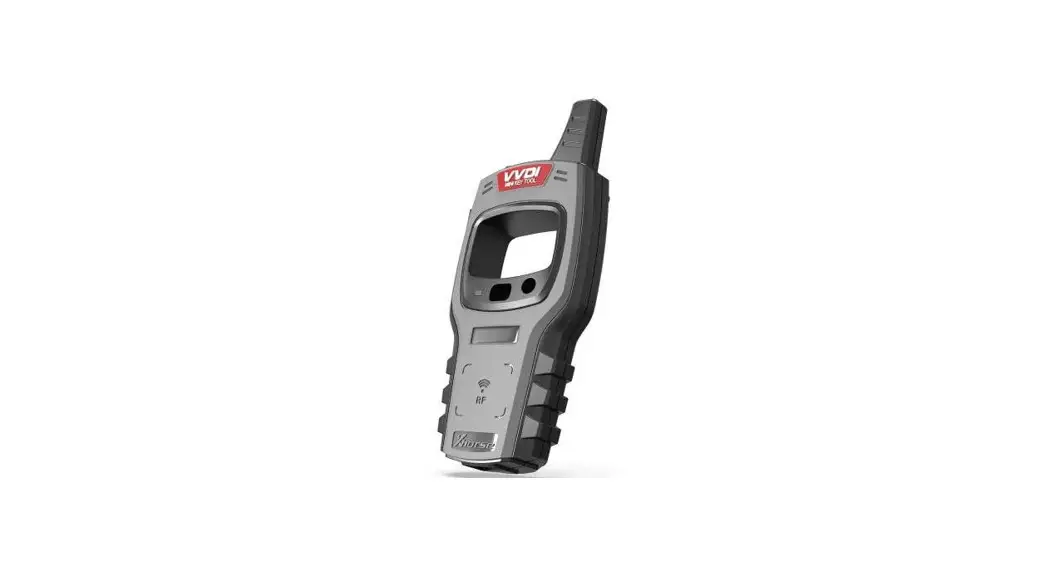

 CSS-00017 VVDI Mini Key Tool
User Manual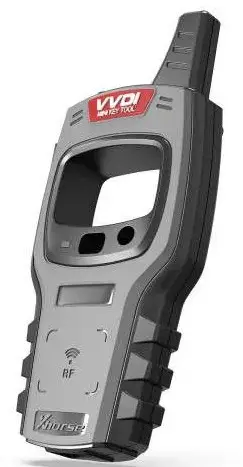
Xhorse VVDI Mini Key Tool User Manual
VVDI Mini Key Tool quick reference guide: how to use and how to connect the device to your phone.
CSS-00017 VVDI Mini Key Tool
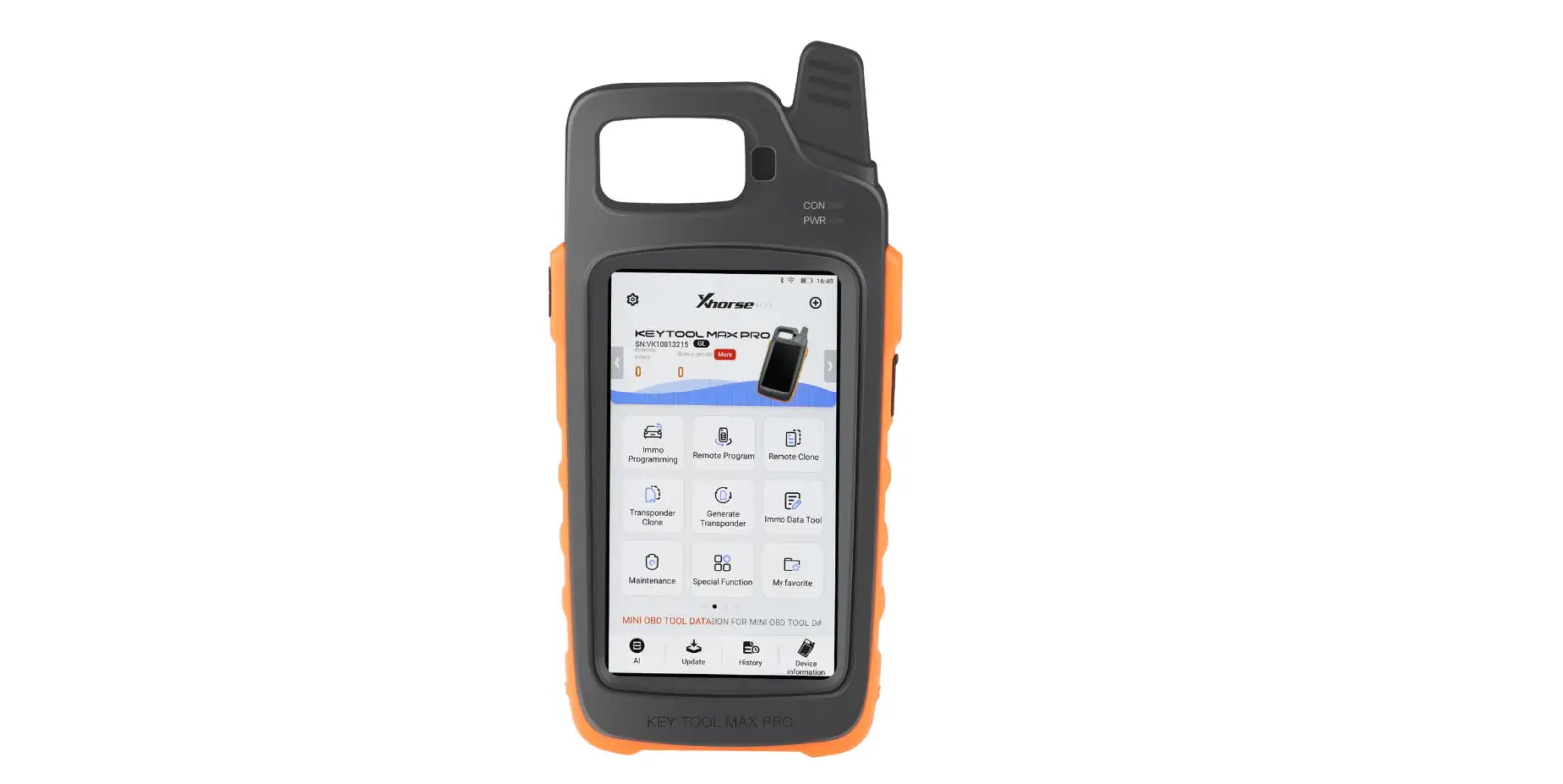
Mini key tool overview: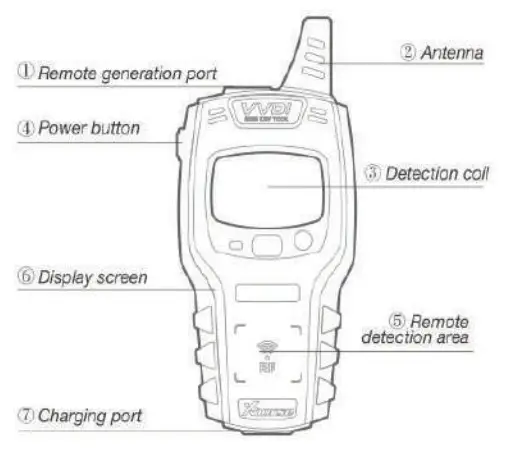 Start: press and hold the power button for 1 second
Shut down: press and hold the power button for 4 seconds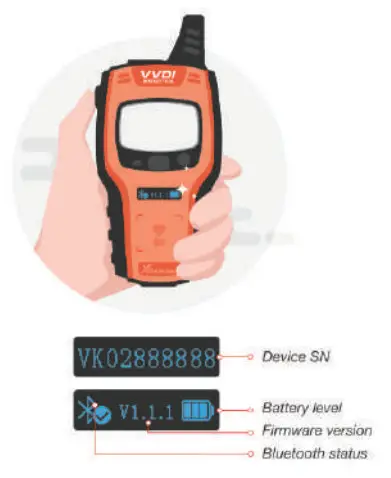 Transponder detection: press the power button for 1 second
Frequency test: press and hold the power button for 2 seconds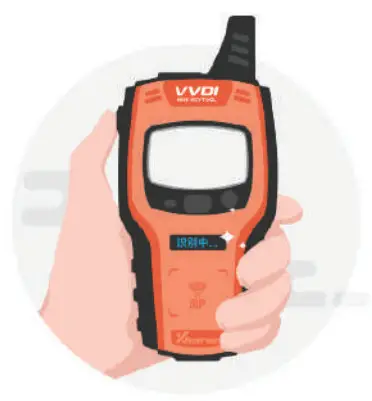
How to connect the device to your phone:
Step1. Download the app from Google Play or Apple app Store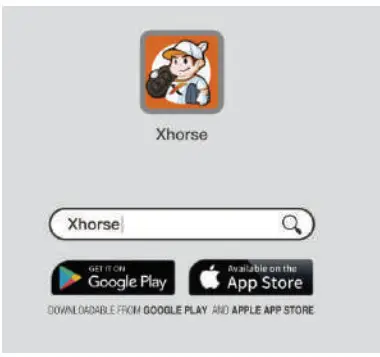
Step2. Enter the main interface of app and click “add device” to connect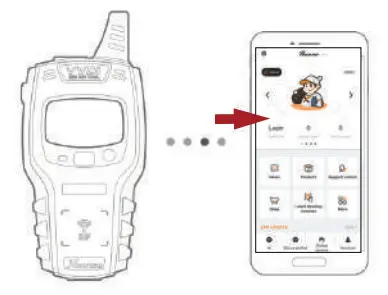 Step3. Bluetooth must be turned on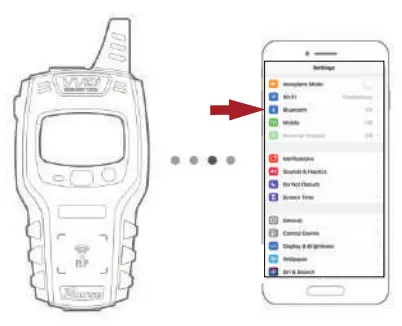
Step4. Click “search for new device” and pair the device according to SN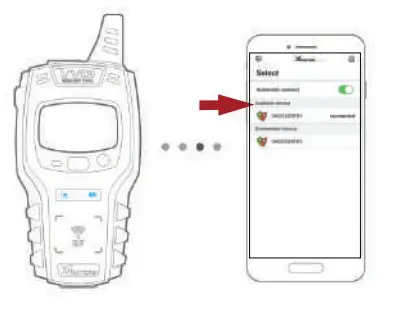
Step5. Enter the main interface of app and click ‘’Account’’
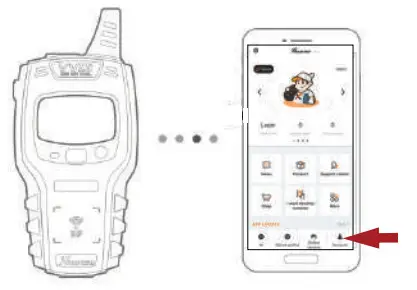
Step6. Login, receive verification code, enter new password, submit and login again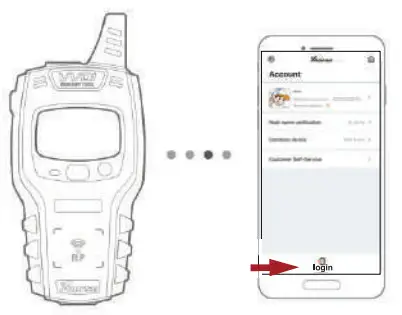
Reading, cloning transponders and generation:
Step1. Transponder clone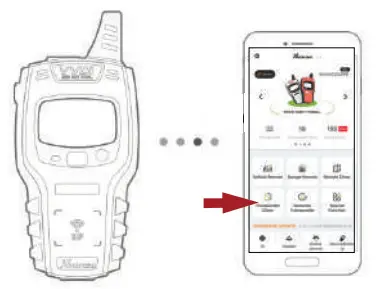 Step2. Read transponder
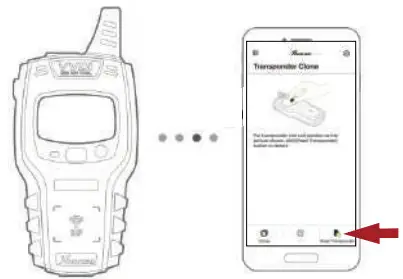
Step3. Clone transponder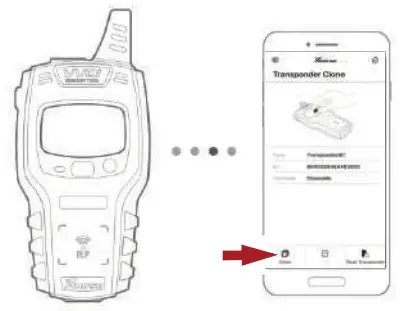
Step4. Select transponder
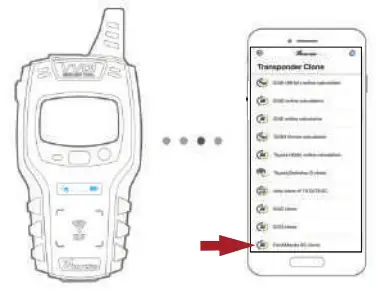
Step5. Follow prompts and start clone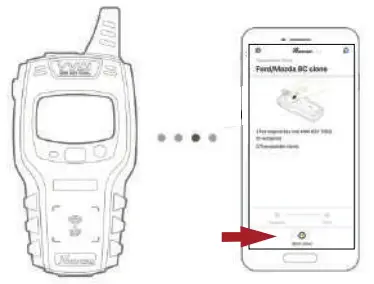
Step1. To generate transponder using VVDI super chip and follow the prompts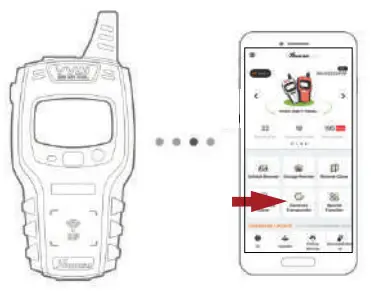
Remote generation:
Step1. Vehicle remote
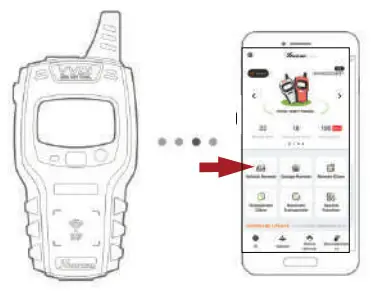
Step2. Select manufacturer or model of vehicle
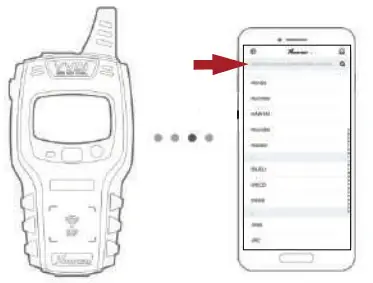
Step3. Type proxy for all proximity smart remotes
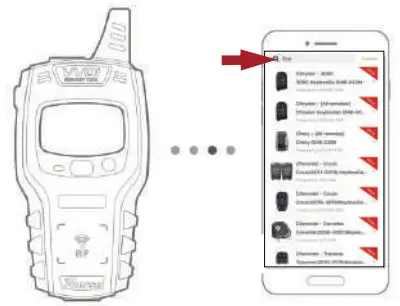
Step4. Generate remote and follow prompts for wired, wireless, super remote or proxy remote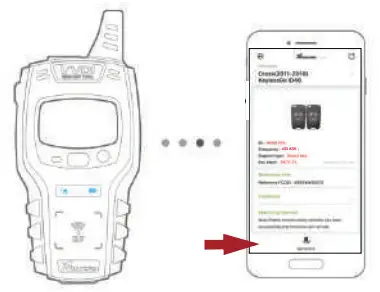
CONTACT
 | SALES 1300KEYGUY [email protected] |
 | ORDER BY SMS 1300KEYGUY SMS 0402 242 942 |
 | TECH SUPPORT 0431 294 981 |
 | FIND US www.thekeyguys.com.au |
 | LOCATION 1/1029 Manly Road Tangela, 4173 |
PRODUCED BY: 
THE KEY GUYS
 The Key Guys - Xhorse, VVDI, KeyDIY, Autel Australia Distributor Car Keys