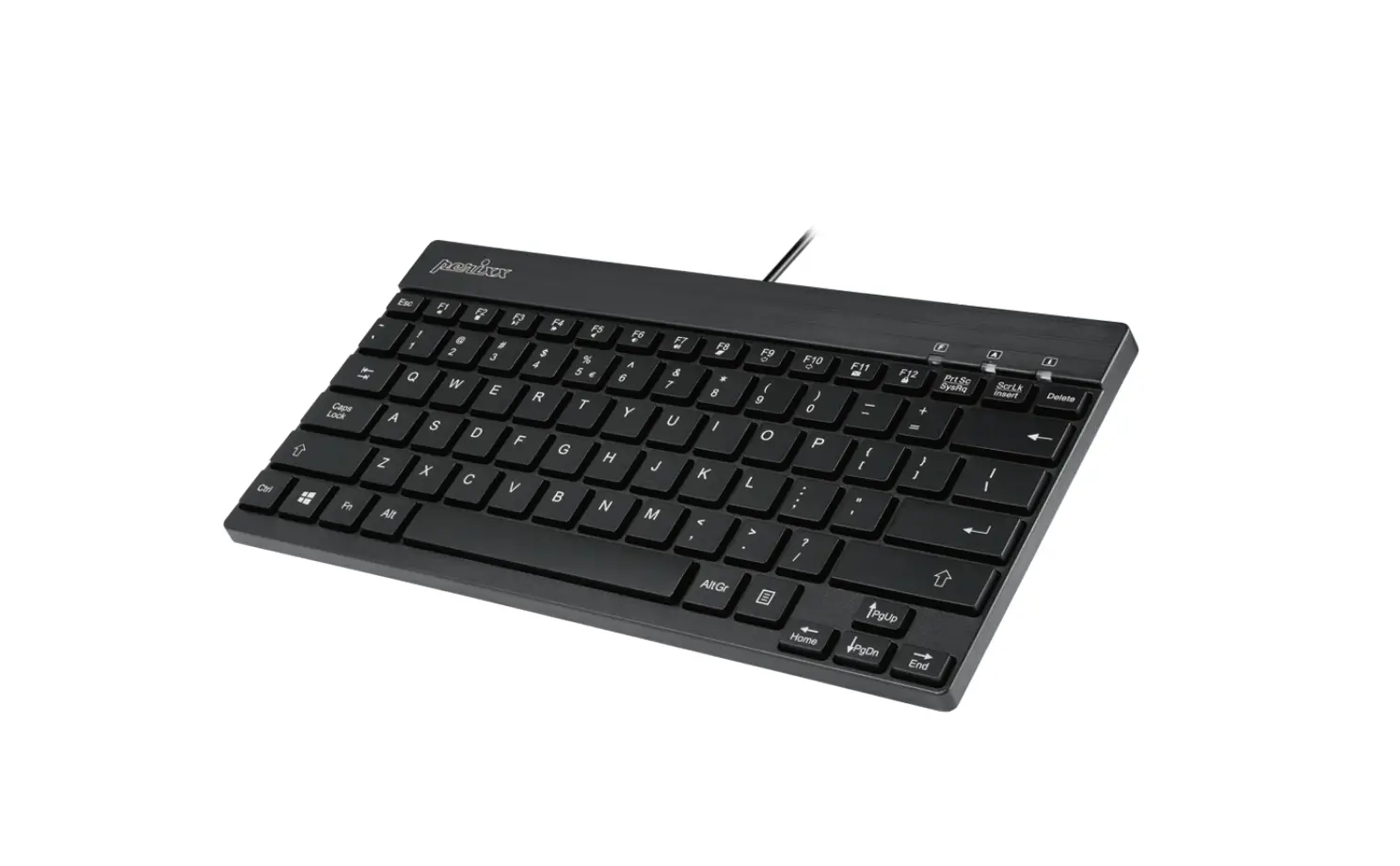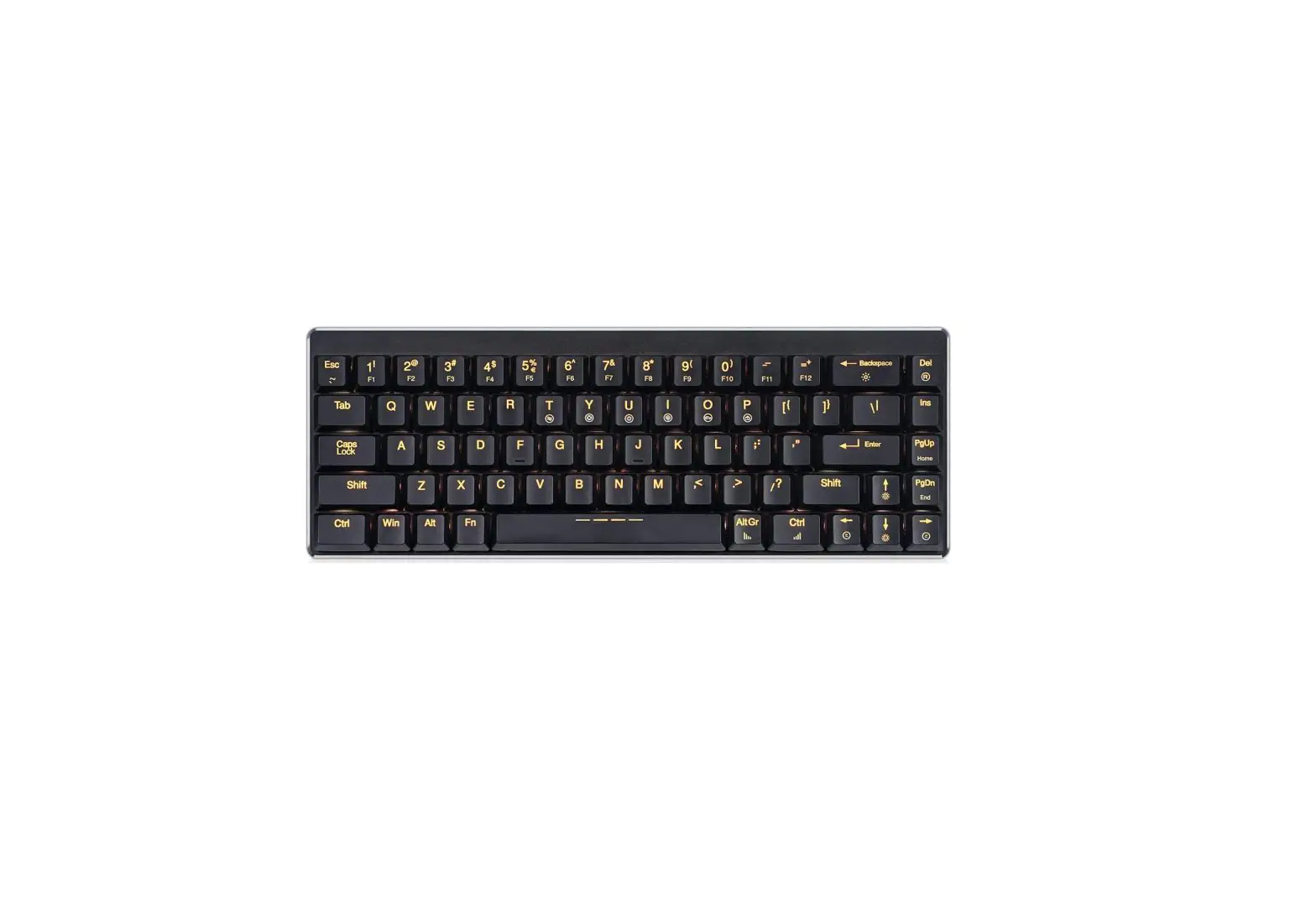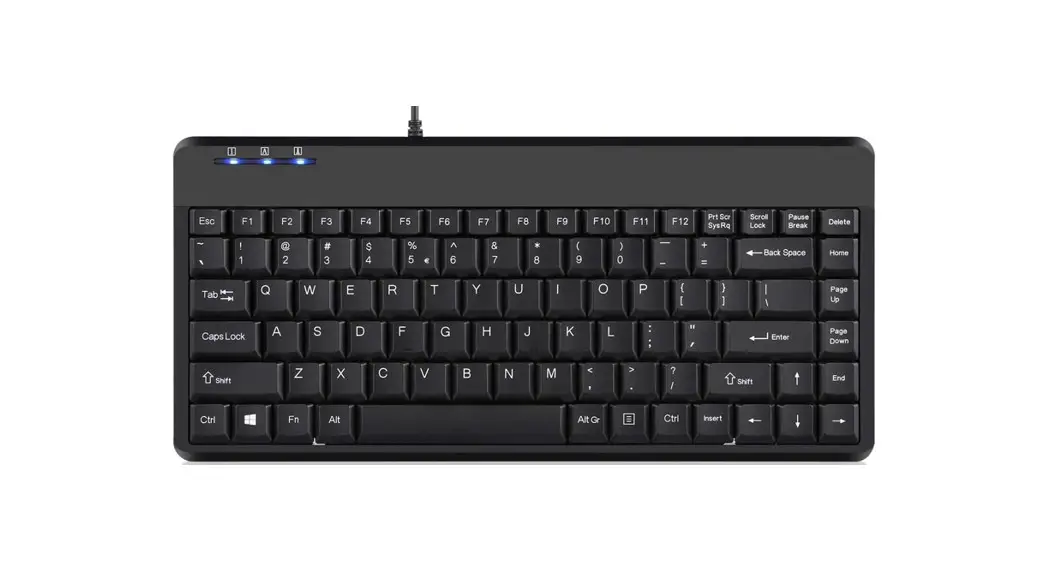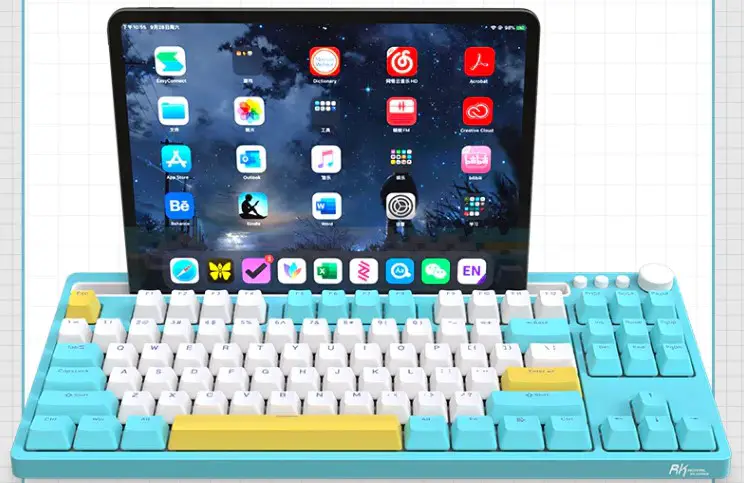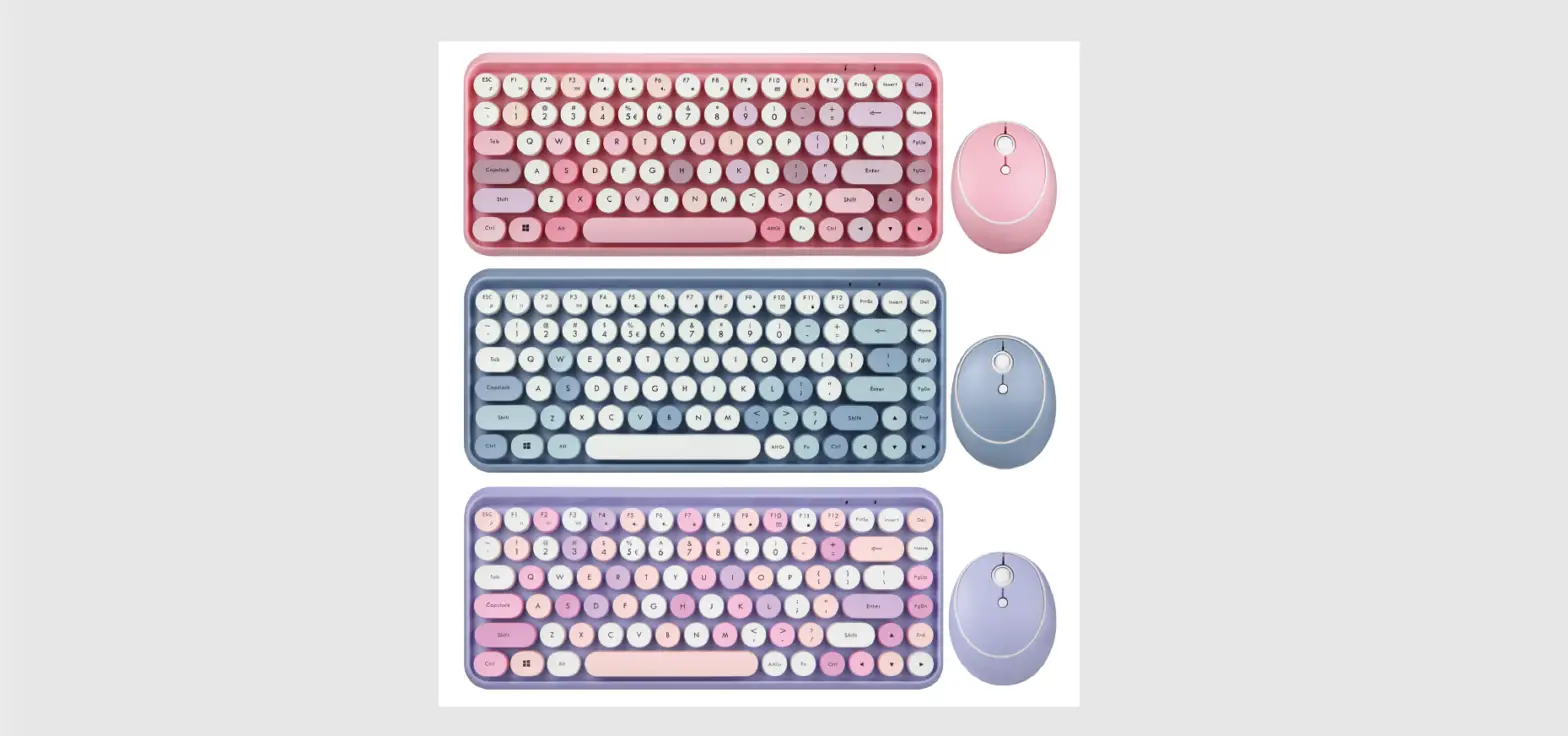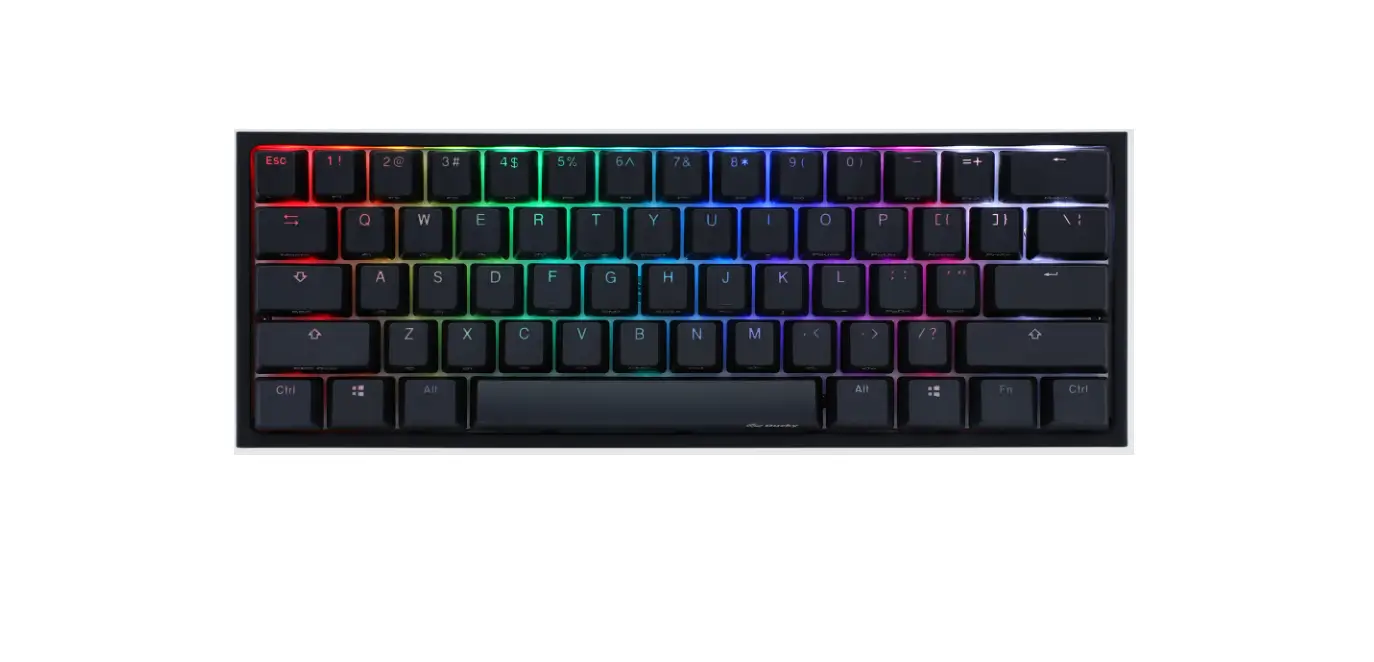

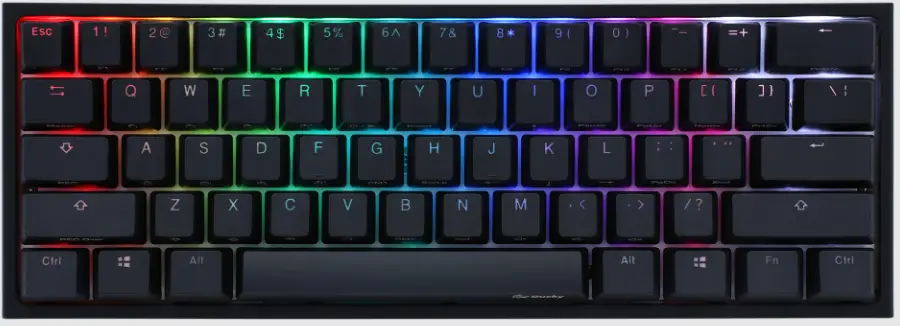
Brumtech PR-02 Mini Keyboard
Safety Precautions
Safety Matters
To avoid injury, death of personnel or damage to the equipment the operator must refer to the explanations in this User’s Manual.
Battery: There is a lithium-ion rechargeable battery in this device. Don’t water this device, or put it in a humid environment for a long time or the device will be damaged.
Attention to traffic safety
(CAR PC): Do not use the device while driving. When you want to use it, please park your car.
Turn off this device on planes
- This Electronic wireless product can disturb the communications systems of planes.
- Please turn if off before boarding.
In vicinity of dangerous goods to be shut down
In gas station and close to fuel and chemical agents and other hazardous materials areas, please turn the device off.
Turn off this device in a hospital
Please turn the device off in areas with “no wireless device” indication.
- Wireless devices may interfere with implanted cardiac pacemakers, hearing aids and other
- Medical implant devices.
Interference
- All wireless devices may be subject to interference, thus affecting the performance of this product
Accessories
Only use factory specified parts. Please use the supplied travel charging cable. the use of other charging devices may be dangerous.
Overview
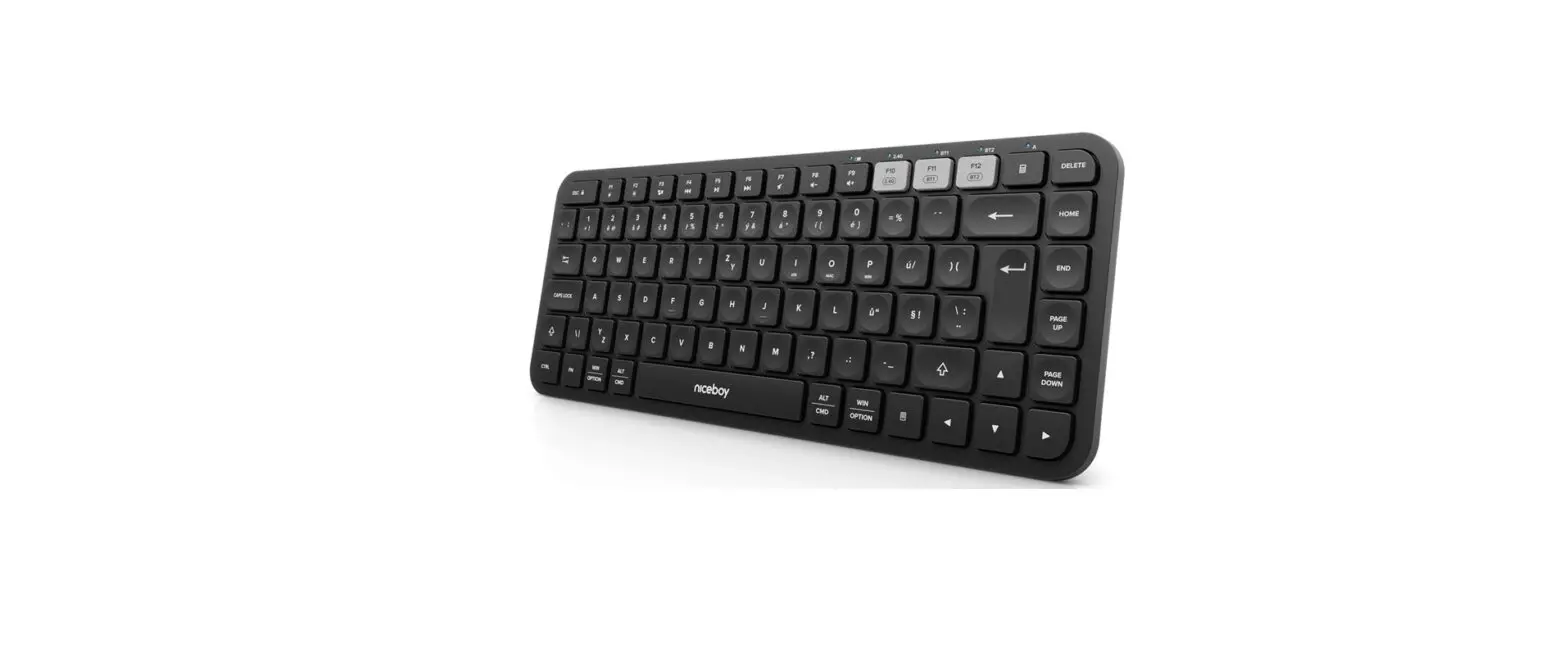
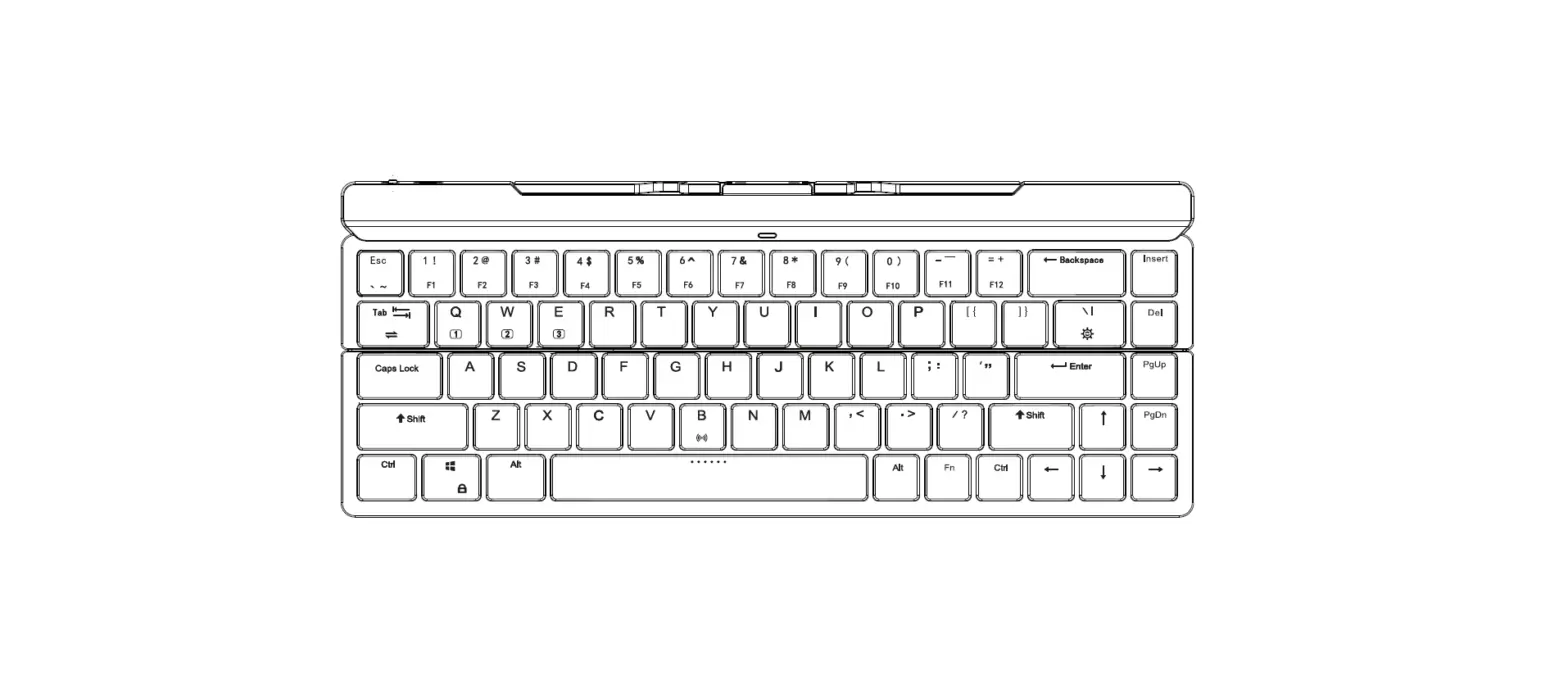
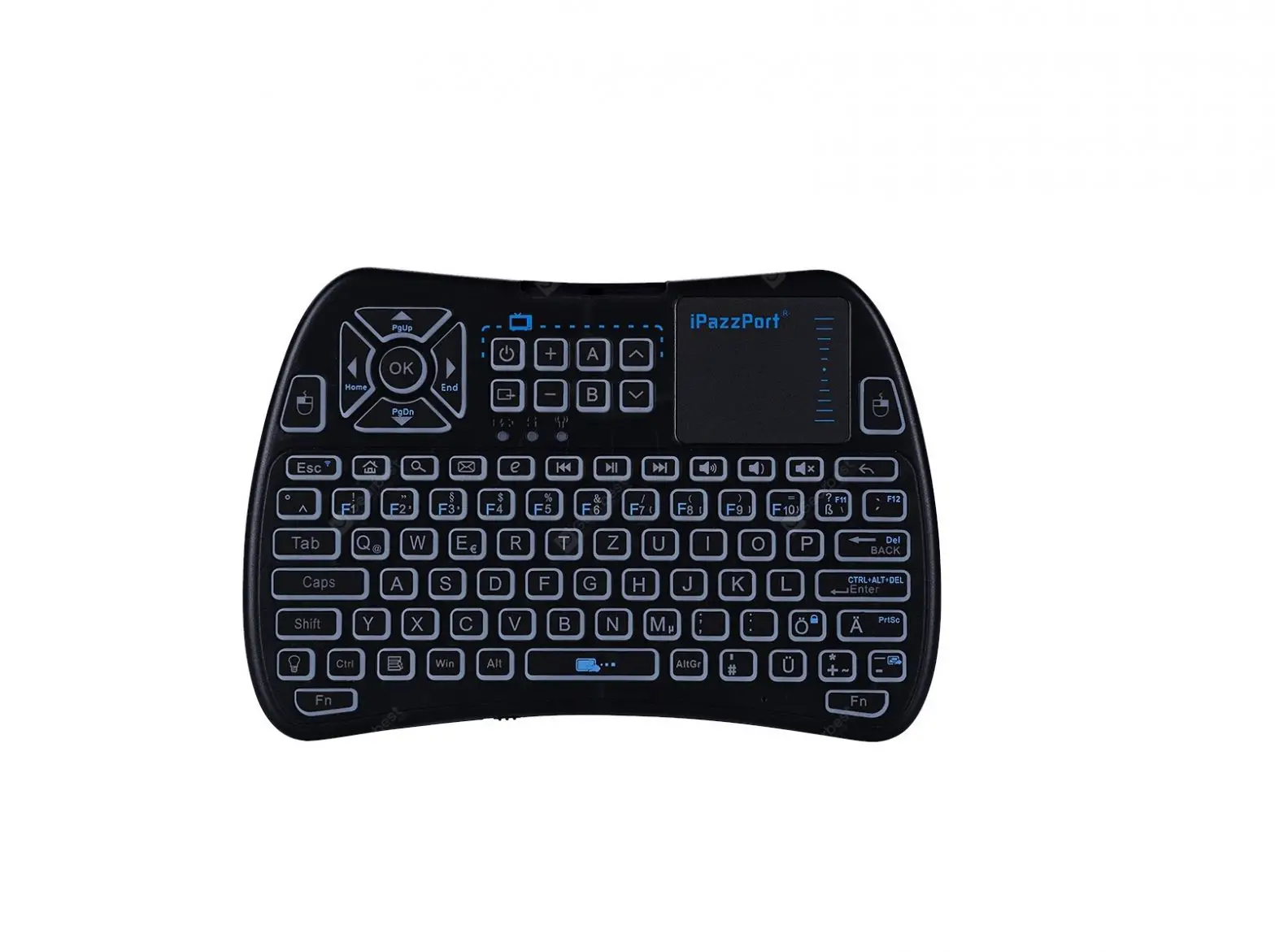
This is a wonderful combo, 2.4GHz Wireless mini QWERTY keyboard, Touch Pad and presenter combo, with USB interface receiver. This product is used by the USA Cypress program, with low power consumption, touch sensitive advantages. This product consists not only of normal wireless keyboard keys, but also of multimedia control keys and PC gaming control keys. It has built-in programmable smart touch pad-the world’s first Touchpad which can be used in horizontal and vertical directions. It has two kinds of power mode: dry battery / lithium battery. It has power indicator, RF signal indicator, CAPSLOCK, light, low-voltage indicator, keyboard backlight.
Introduction
Connecting the receiver
- Open the gift box and pick up USB receiver form back cover of the remote.
- Insert to the devices with a standard USB interface. The keyboard is found and installed automatically.
NOTE: When the battery is low, the low-voltage light will blink to warn the user. The unit will be automatically turned off if the battery has been depleted.
Auto sleep and wake feature
The keyboard also features an auto sleep and auto wake mode. If there is a long period of inactivity, the keyboard will automatically go into a sleep mode. During the sleep mode, the user can wake the unit up by pressing any key. The 2.4 GHz receiver and keyboard’s RF indicator will continue to flash and will not power down.
Switching off the keyboard after use
After finishing using the keyboard, push the switch to the off position. This turns off the power of the keyboard. The USB receiver should be plugged out from the PC and then inserted back in the keyboard so it is being kept safely.
Charging the battery
- The device with a lithium-ion battery, please use only approved data lines and chargers. Note: Fully charge the unit before operating for the first time. This device can be used when charging, but will extend the charging time;
- When the battery is low, the low-voltage light will flash to warn the user. The unit will automatically turn off if the battery has been depleted.
- When the state of the dry battery is used, the power charge is not valid.
Technical parameters
Specification
- Measurements (L x W x H): 151mm x 92mm x 20mm
- Weight (grams): 138g
- Operational Range: up to 10 meters/ 30 feet
- Transmit power : +4db Max.
- Operation voltage: 3.3V(Li-ion)/ 3.0V (AAA battery)
- Operation current: < 10mA
- Charging current: < 300mA
- Sleep current: < 1mA
Computer system requirements
- HID compatible device
- Terminal with USB port
- Windows 2000
- Windows XP
- Windows Vista ,Windows CE, Windows 7,Windows 8
- Linux(Debian-3.1,Redhat-9.0 Ubuntu-8.10 Fedora-7.0 tested)
- Android OS (with standard USB interface)
Maintenance
- Do not attempt to disassemble the device or replace rechargeable battery. Doing so will void the warranty.
- The battery will discharge if stored for a long period of time without usage.
- Use the specified charger. Disconnect the device after the battery has been fully charged. Overcharging the battery will shorten the life span of the battery.
- Do not expose the device in extreme heat or cold. Extreme temperatures will cause the life span of the battery to shorten.
- Use only a damp cloth with mild soap to clean the device. Solvents and other cleaning agents may cause damage to the device.\
Troubleshooting
Below are some basic troubleshooting scenarios for the device. Please contact support from the place of purchase if you are unable to resolve any issues with the device.
| Problem | Possible issue | Solution |
|
Unit does not respond. |
1. Low battery power.
2. Unit is not turned on. | 1. Charge the device for at least 15 minutes. 2. Check if the switch selected to the matching position |
|
Keyboard cannot establish a connection to the receiver. |
1. The receiver may not be inserted correctly. 2. Possible wireless interference with another device. | 1. Disconnect and reconnect the receiver to the USB port. 2. Change the channel of the device by pressing and holding the Fn+ Tab key for 1 second and let the unit reconnect. |
|
The mouse pointer moves erratically and/or unresponsive. | 1. Device may not be within optimal range of the receiver 2. Dust or oil on the touchpad. |
1. Bring the unit closer to the receiver. 2. Clean the touchpad with a damp cloth. |
|
The unit does not charge. |
1. Defective battery.
2. Check connections. | 1. Contact your local dealer for replacements. 2. Verify if the device is securely connected to the charger. |
FCC Statement
This equipment has been tested and found to comply with the limits for a Class B digital device, pursuant to part 15 of the FCC Rules. These limits are designed to provide reasonable protection against harmful interference in a residential installation. This equipment generates, uses and can radiate radio frequency energy and, if not installed and used in accordance with the instructions, may cause harmful interference to radio communications. However, there is no guarantee that interference will not occur in a particular installation. If this equipment does cause harmful interference to radio or television reception, which can be determined by turning the equipment off and on, the user is encouraged to try to correct the interference by one or more of the following measures
- Reorient or relocate the receiving antenna.
- Increase the separation between the equipment and receiver.
- Connect the equipment into an outlet on a circuit different from that to which the receiver is connected.
- Consult the dealer or an experienced radio/TV technician for help.
Caution: Any changes or modifications to this device not explicitly approved by the manufacturer could void your authority to operate this equipment. This device complies with part 15 of the FCC Rules. Operation is subject to the following two conditions: (1) This device may not cause harmful interference, and (2) this device must accept any interference received, including interference that may cause undesired operation.
RF Exposure Information
The device has been evaluated to meet general RF exposure requirements. The device can be used in portable exposure condition without restriction.