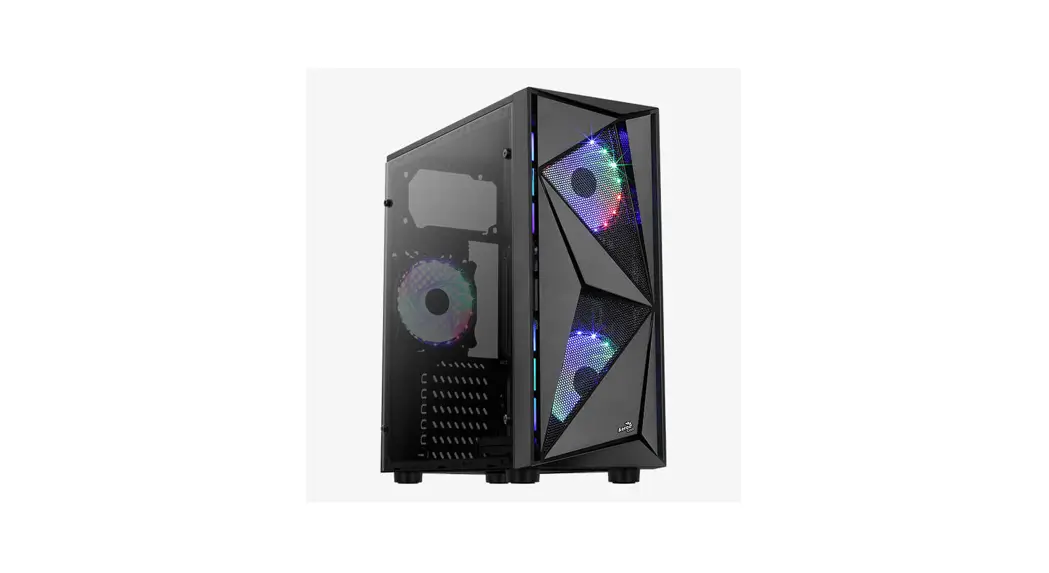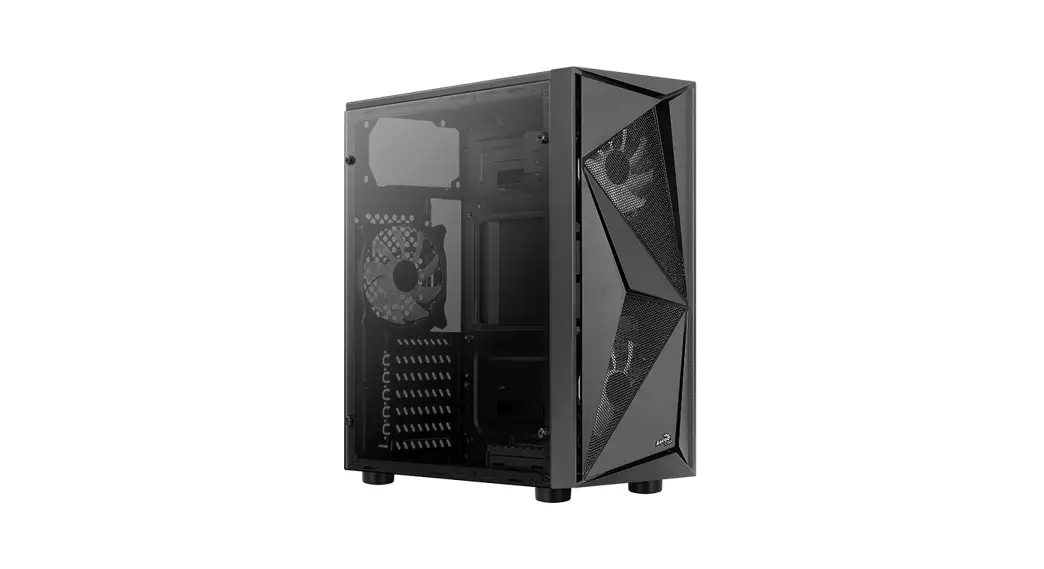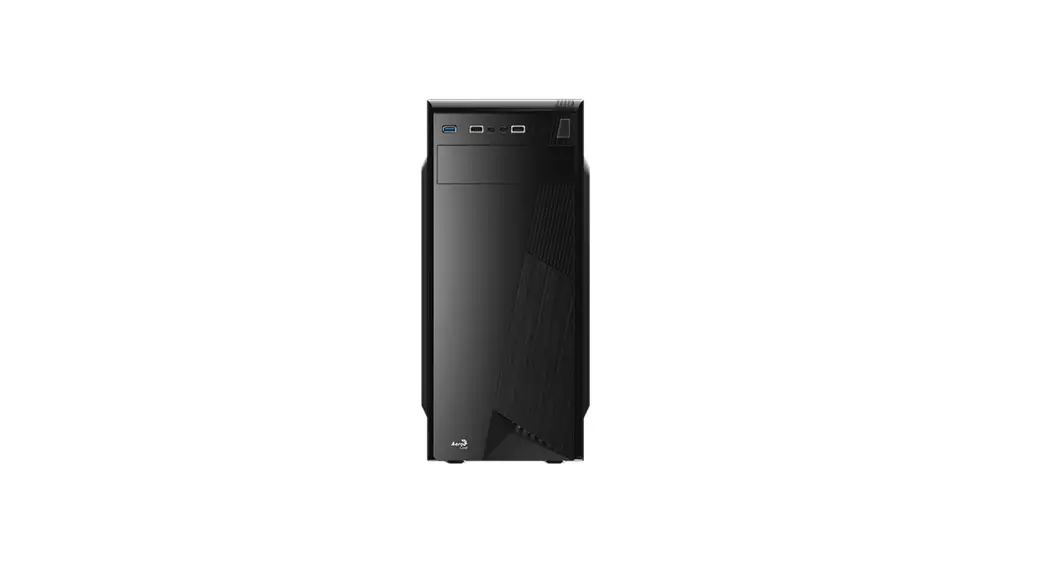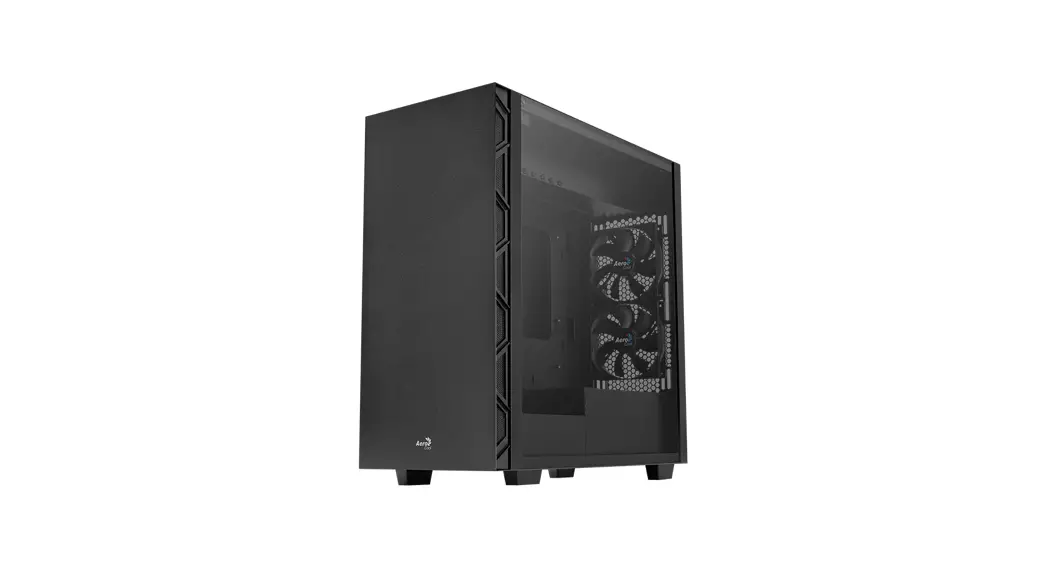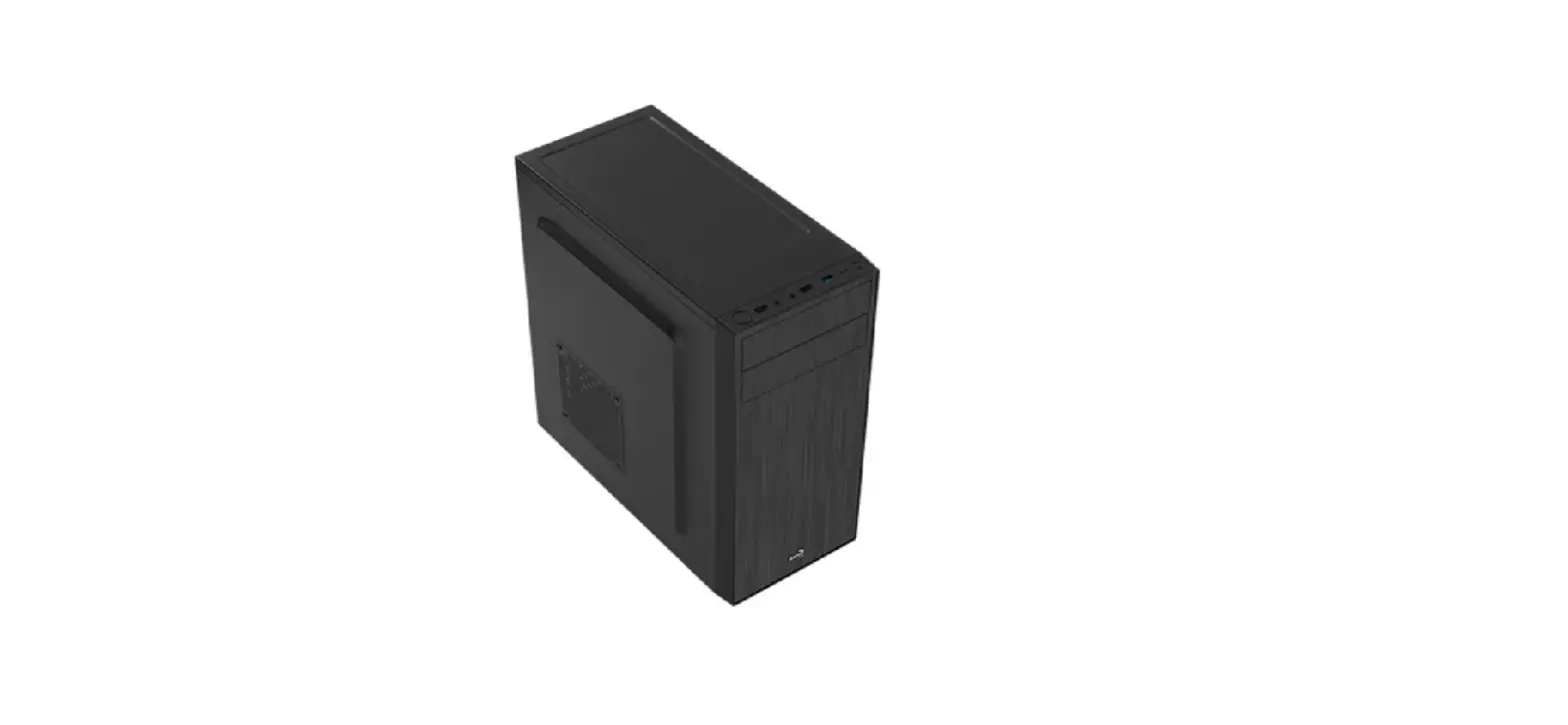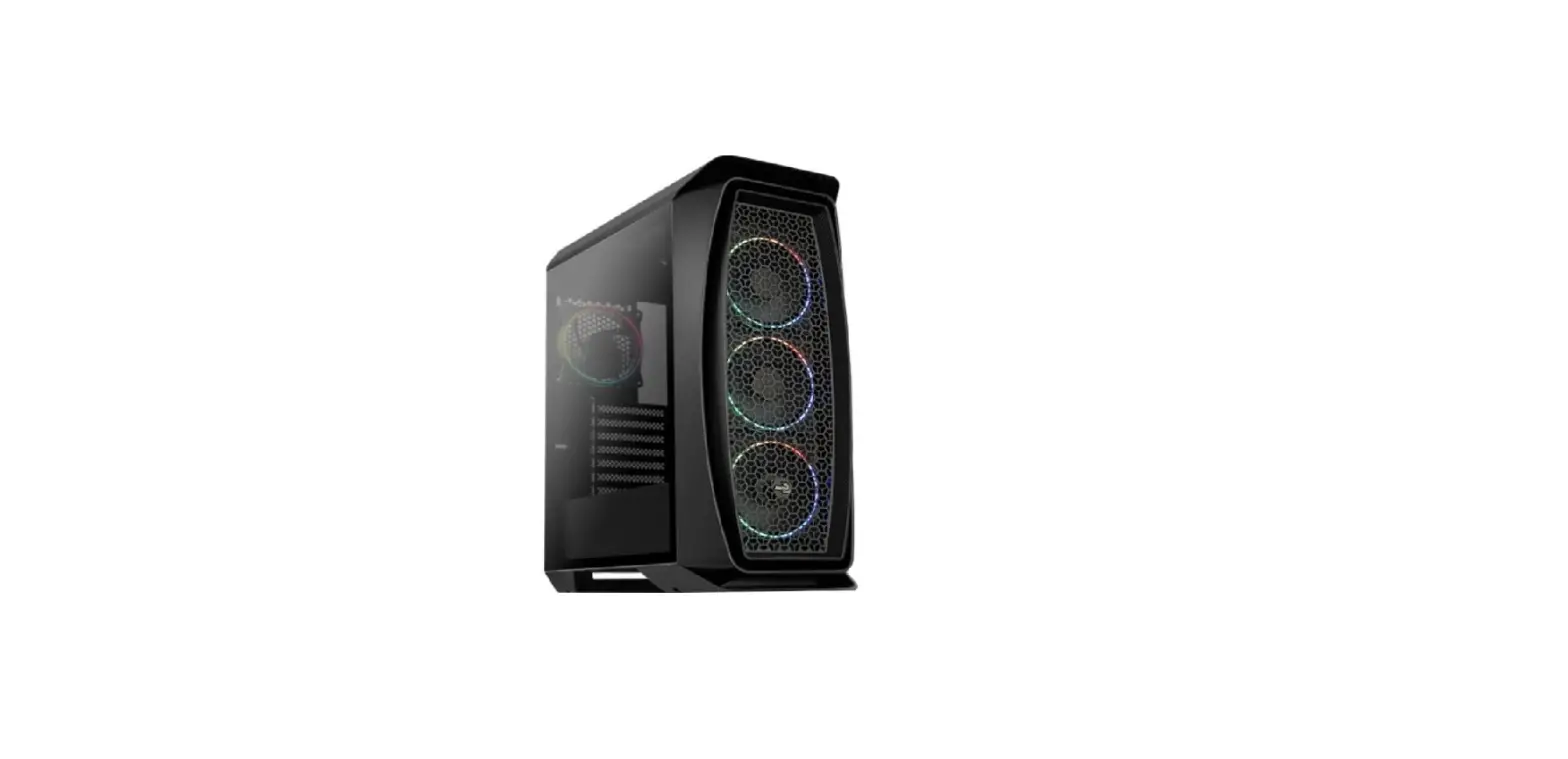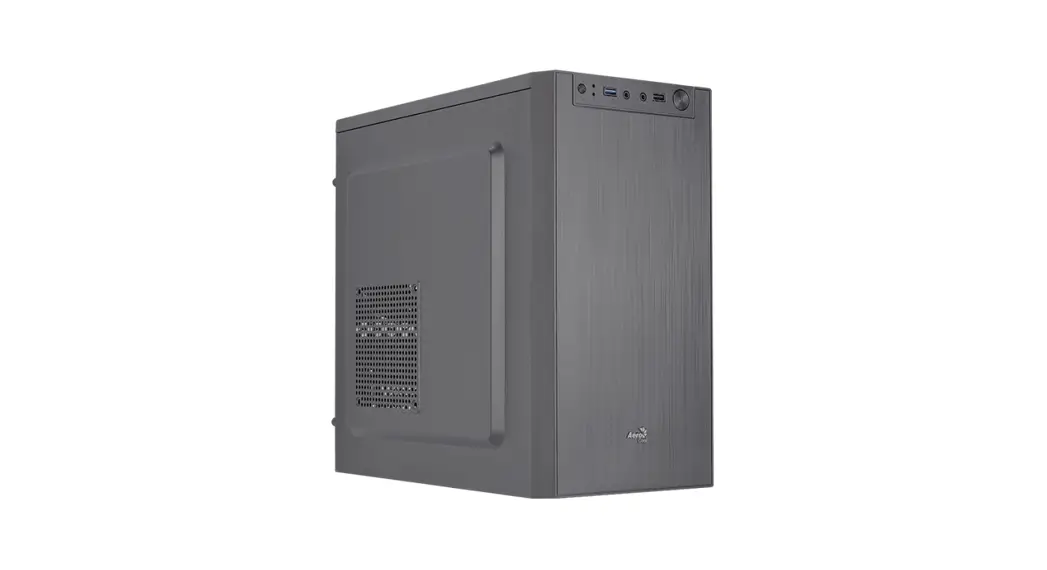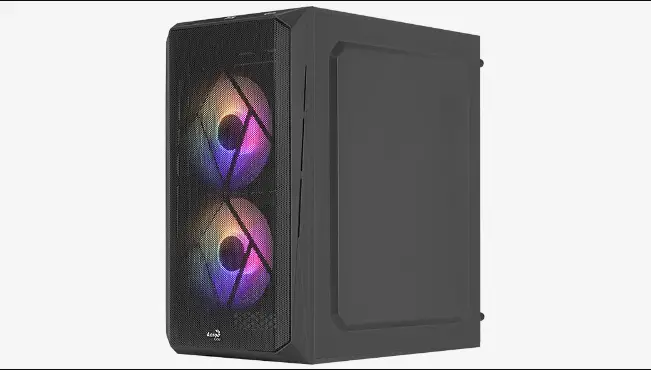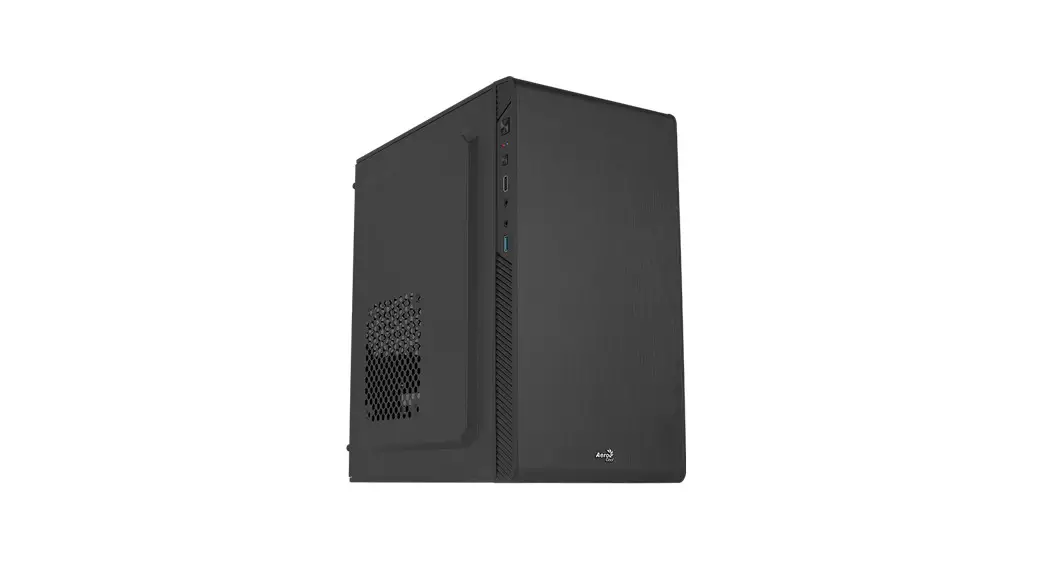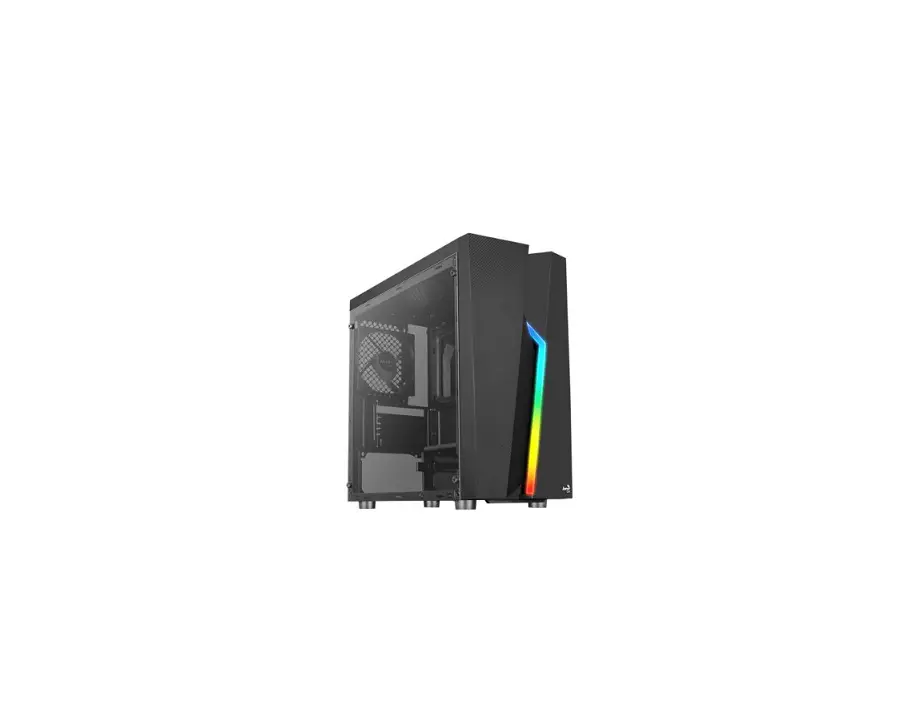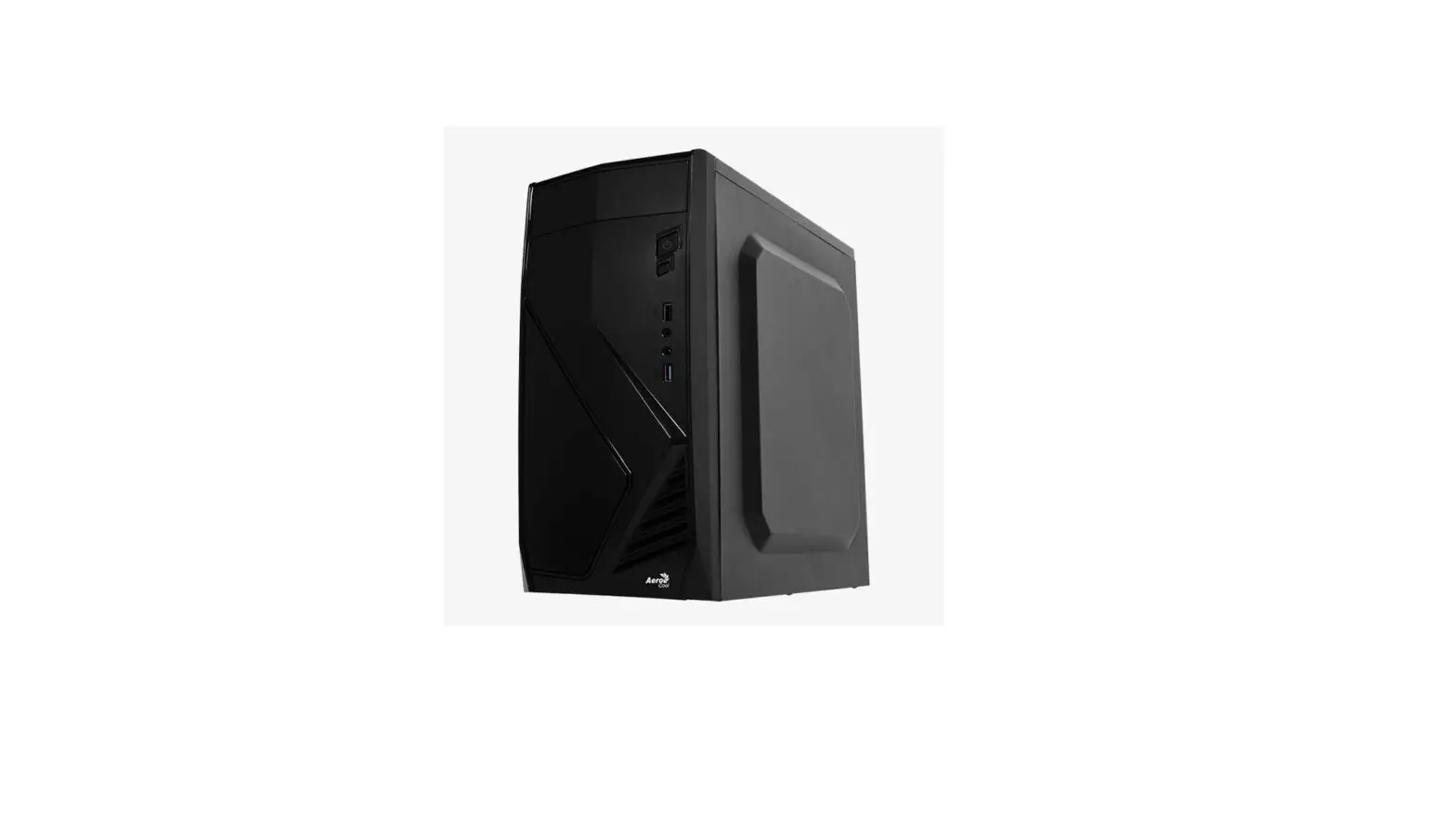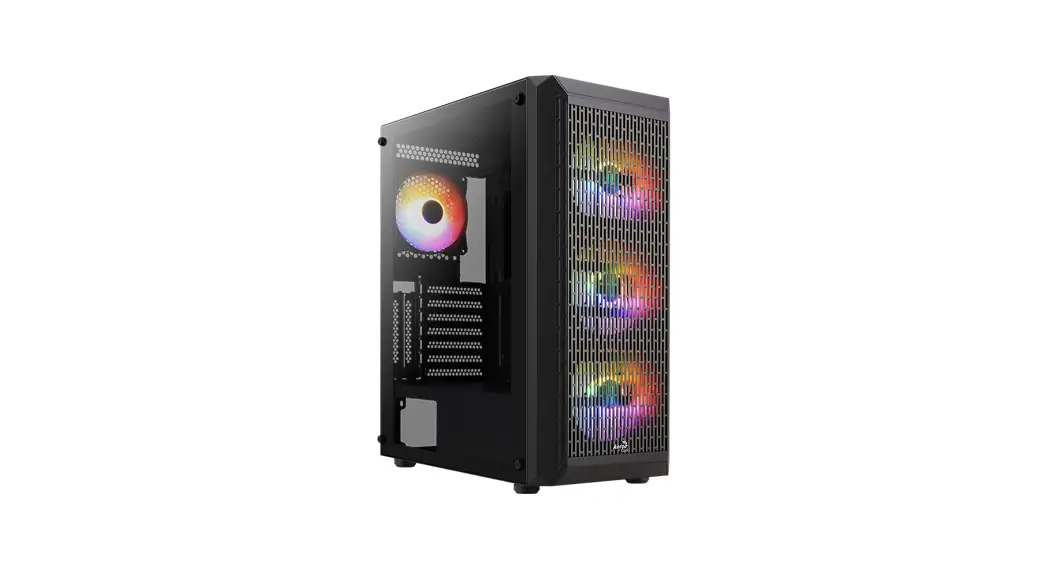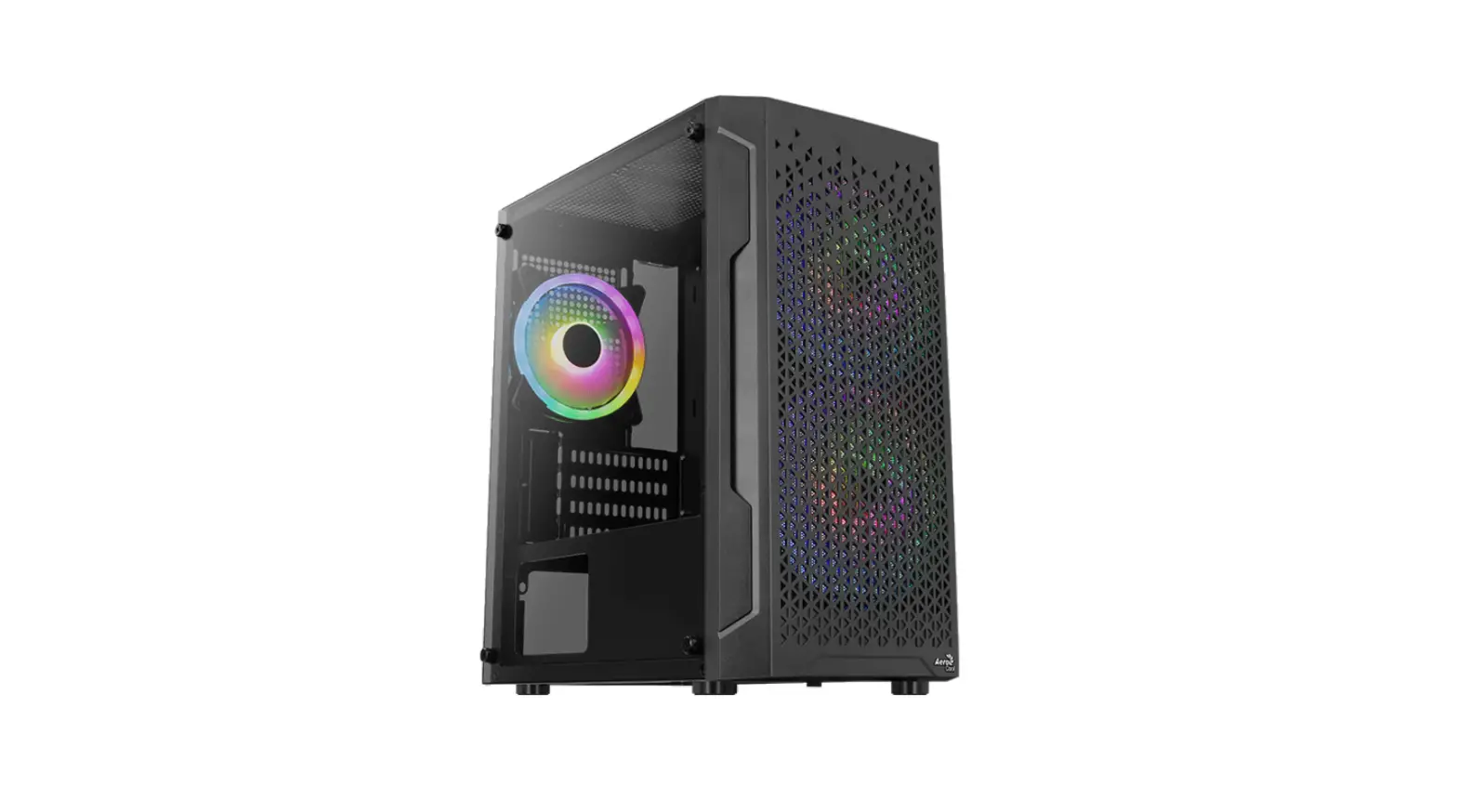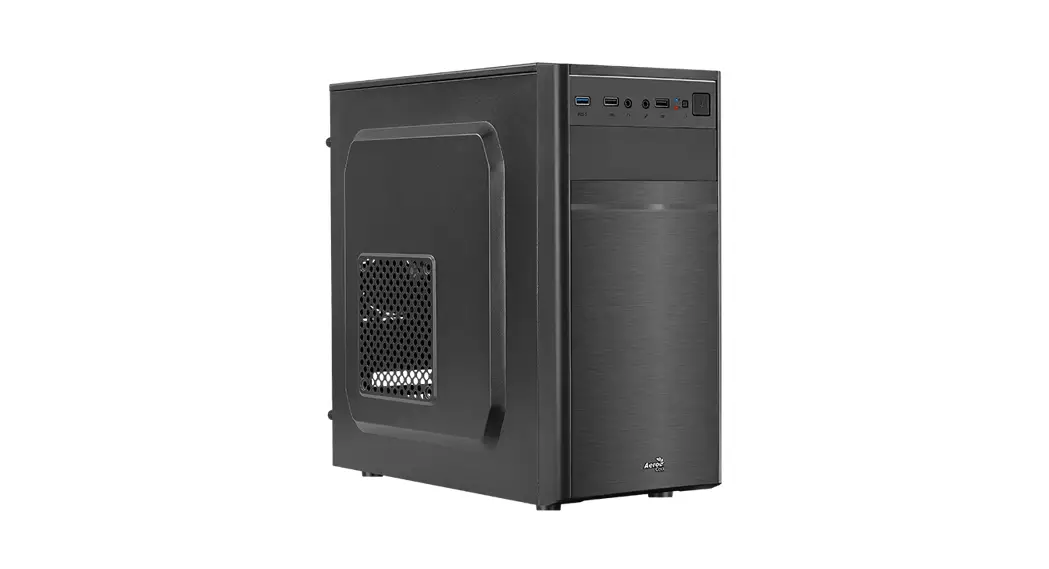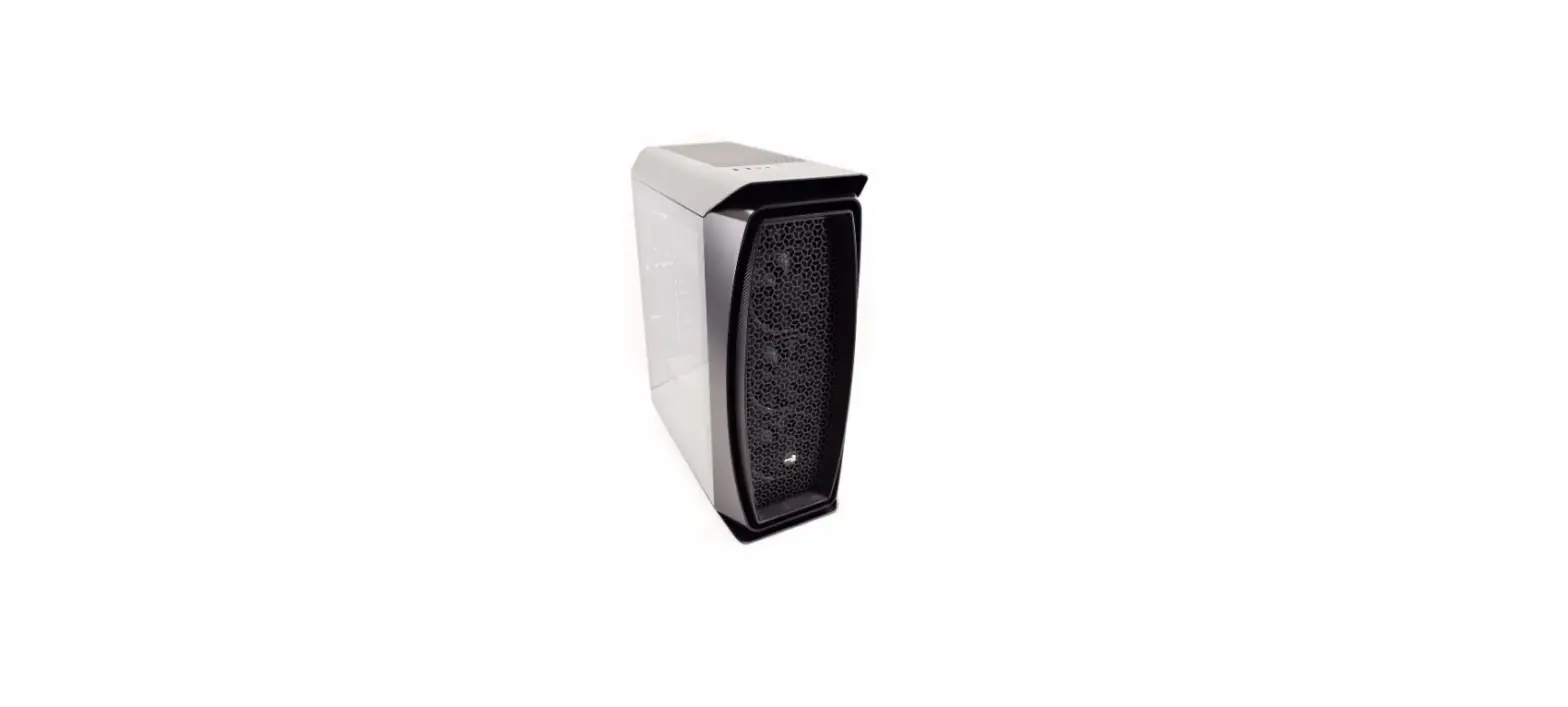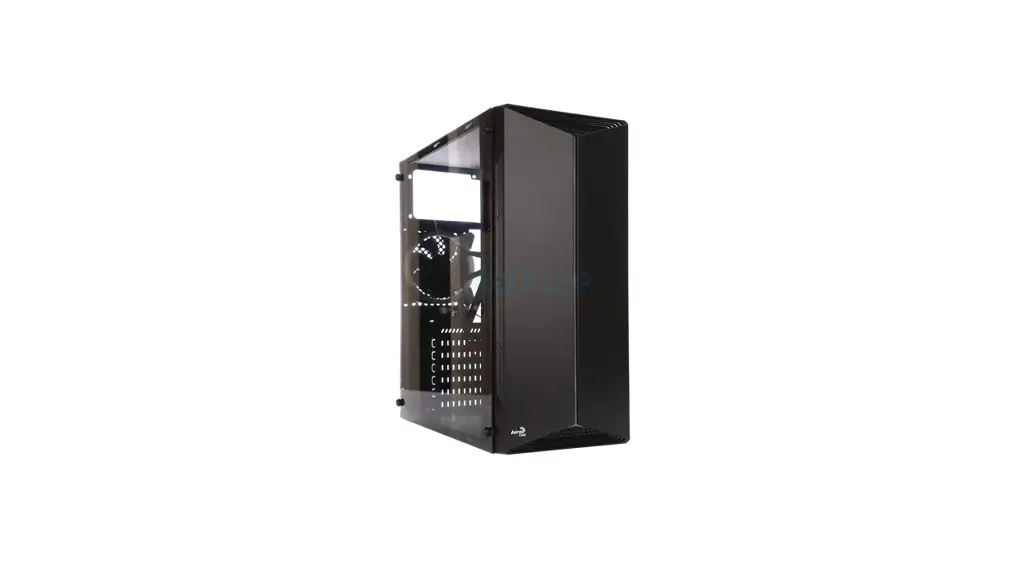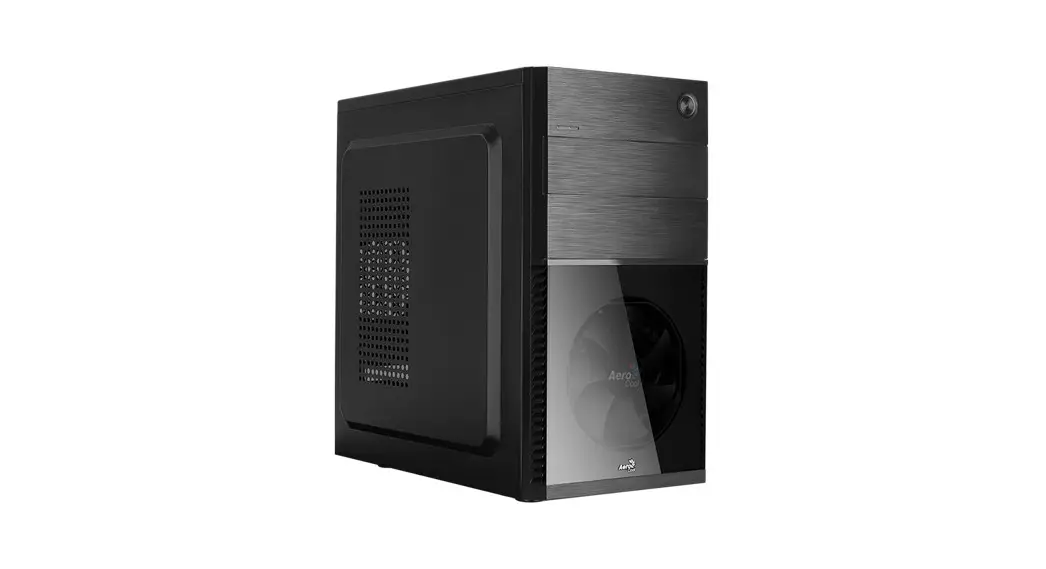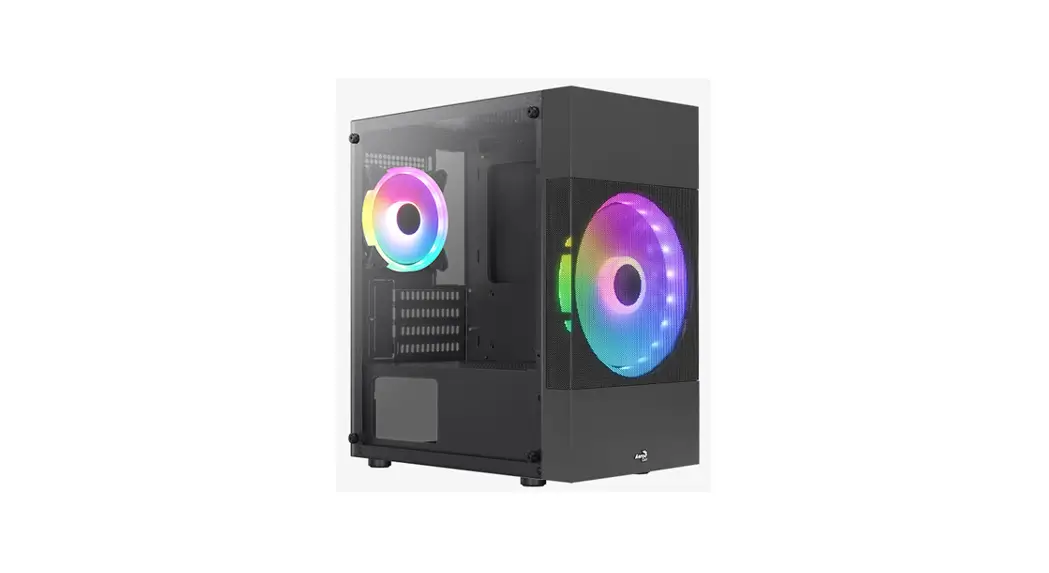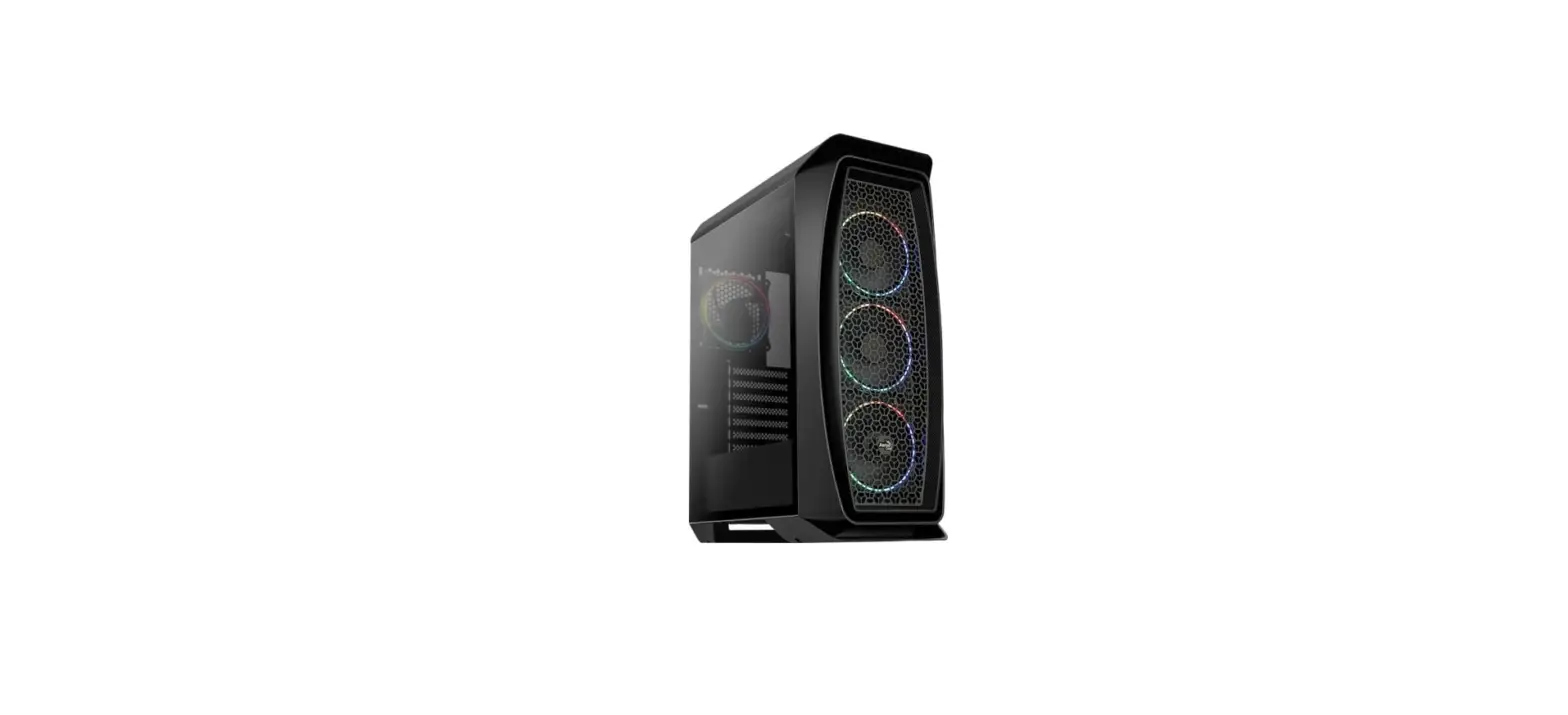

AeroCool Glider Acrylic Mid Tower Case
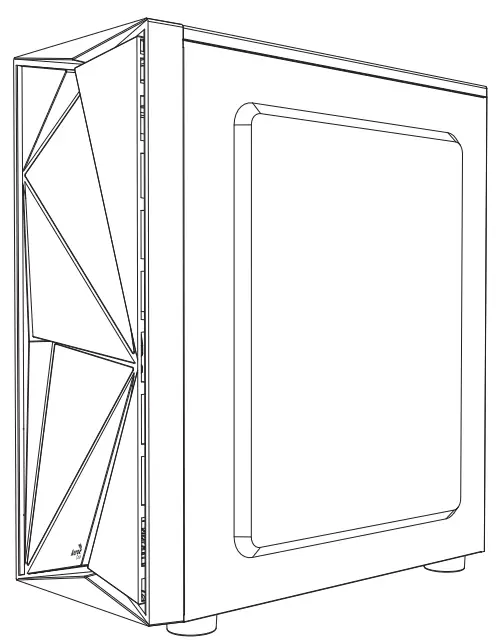
Product Information
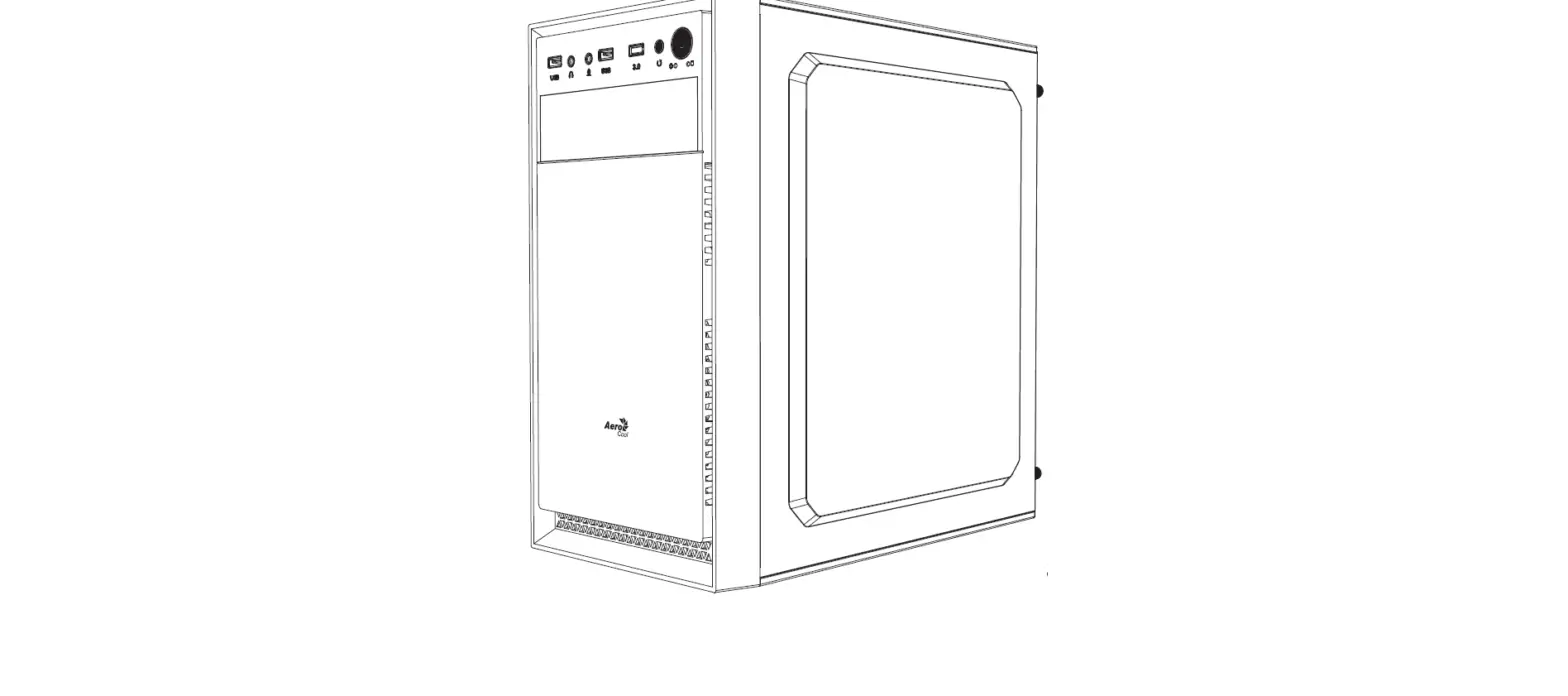
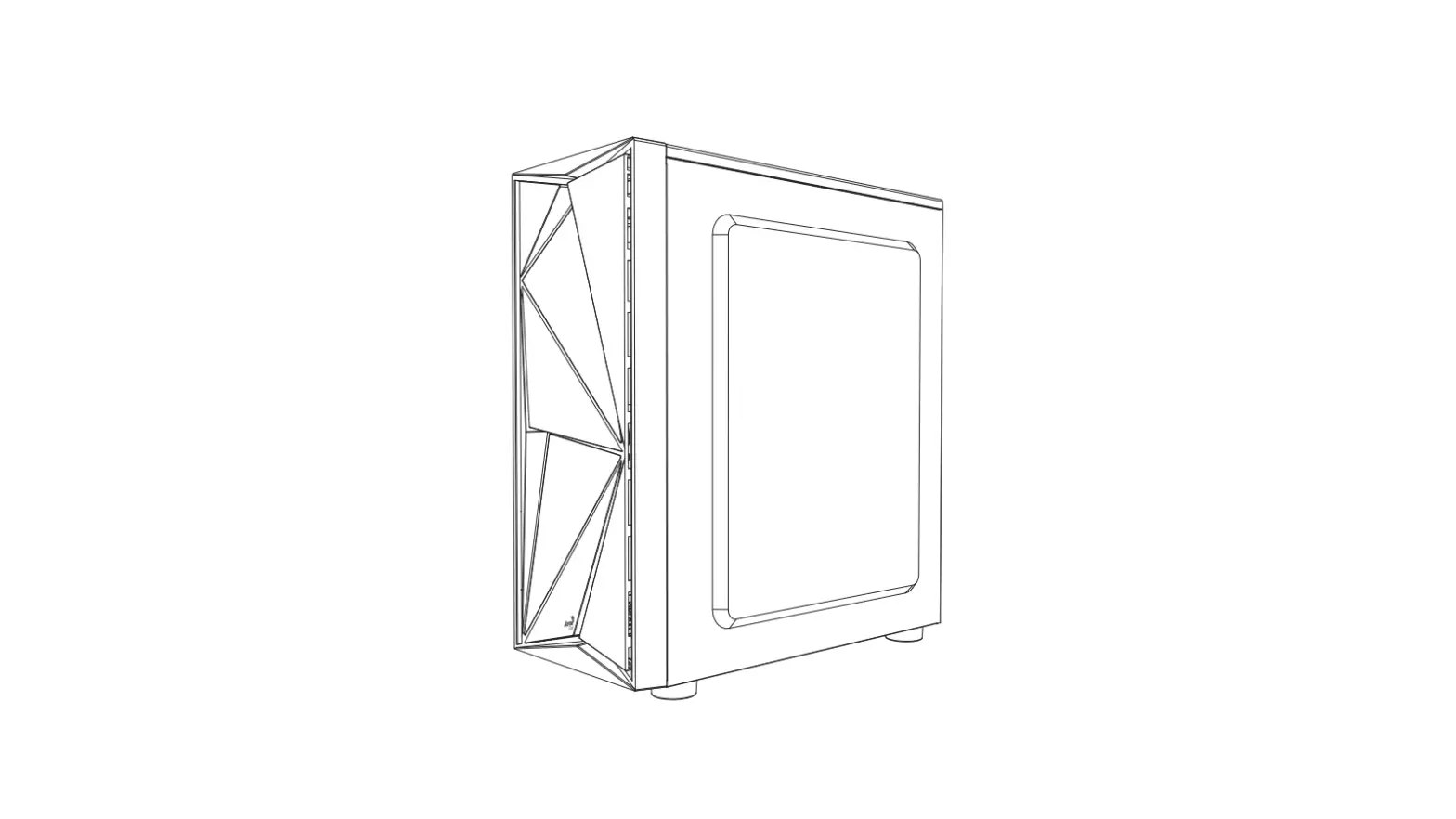
The product is a computer case that supports the installation of various components such as hard disk drives, solid-state drives, radiators, fans, and I/O panels. It also comes with USB 2.0 and 3.0 ports, audio jacks, and a reset button.
Supported Components
- 1 x 3.5-inch hard disk drive
- 3 x 2.5-inch solid-state drives
- 1 x front radiator
- 1 x rear radiator
- 1 x front fan
1 x rear fan
- Side fans (number not specified)
Compatibility
The specifications may vary depending on the region. Contact the local retailer to confirm compatibility with specific components.
Product Usage Instructions
Installation of Hard Disk Drive and Solid-State Drives
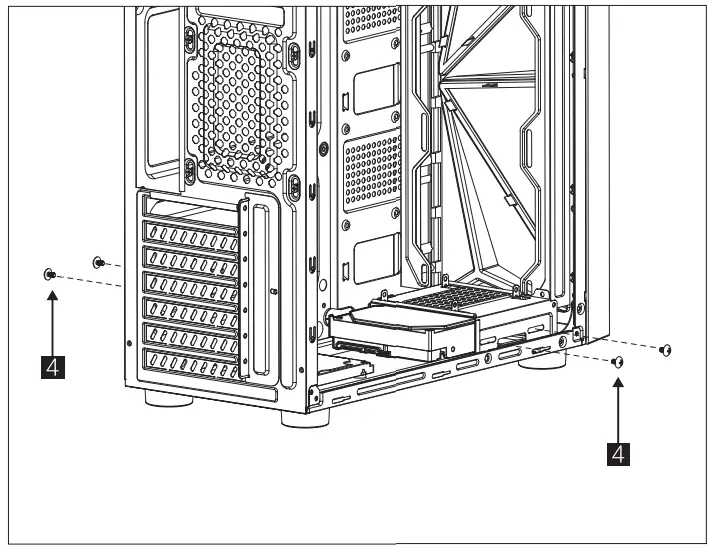
- For installing the hard disk drive, follow the guide mentioned in step 4 of the user manual.
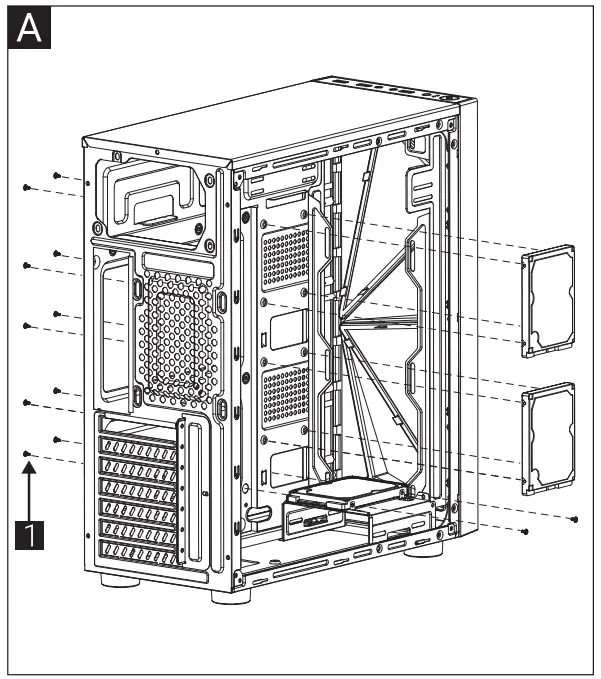
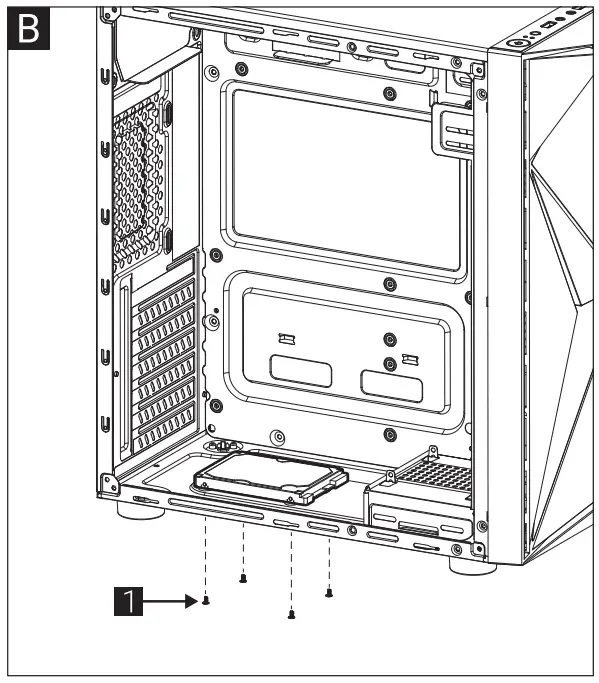
- To install the solid-state drives, follow either guide (5a) for installing three drives or guide (5b) for installing one drive.
Installation of Radiators and Fans
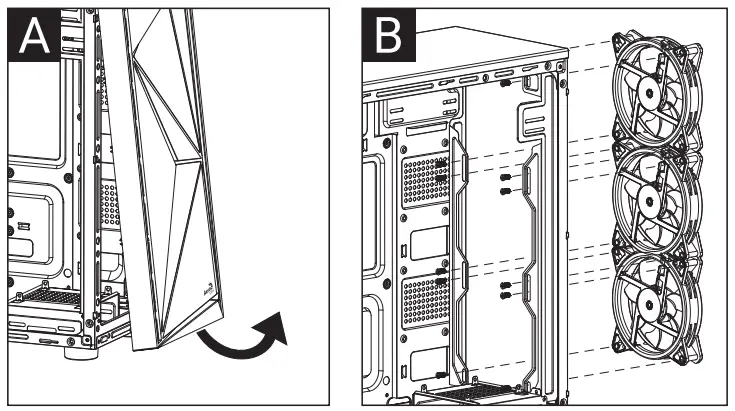
- For installing the front radiator, follow guide (6a) mentioned in the manual.
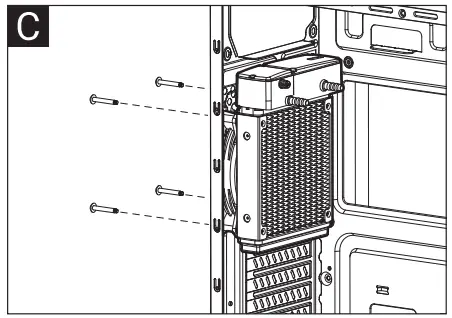
- To install the rear radiator, follow guide (6b) in the manual.
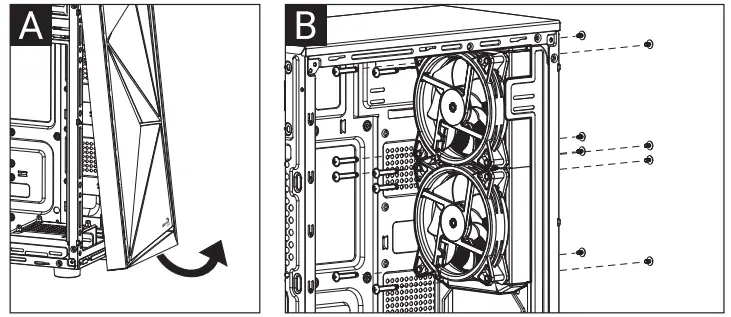
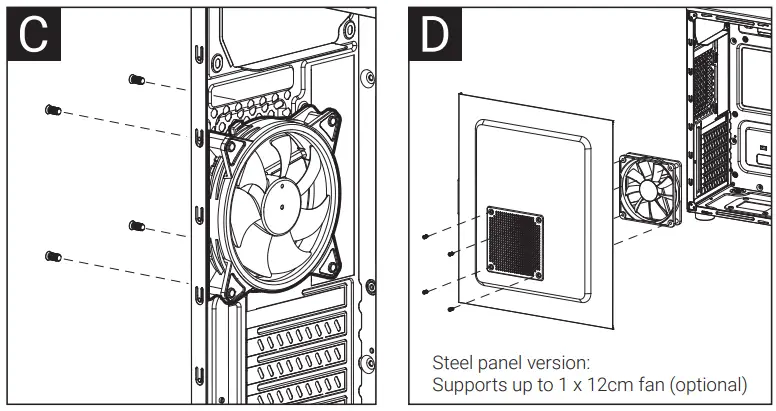
- After installing the radiators, install the corresponding fans by following guides (7a), (7b), and (7c) for the front, rear, and side fans, respectively.
- If you have the steel panel version of the case, you can optionally install one 12cm fan.
Installation of I/O Panel
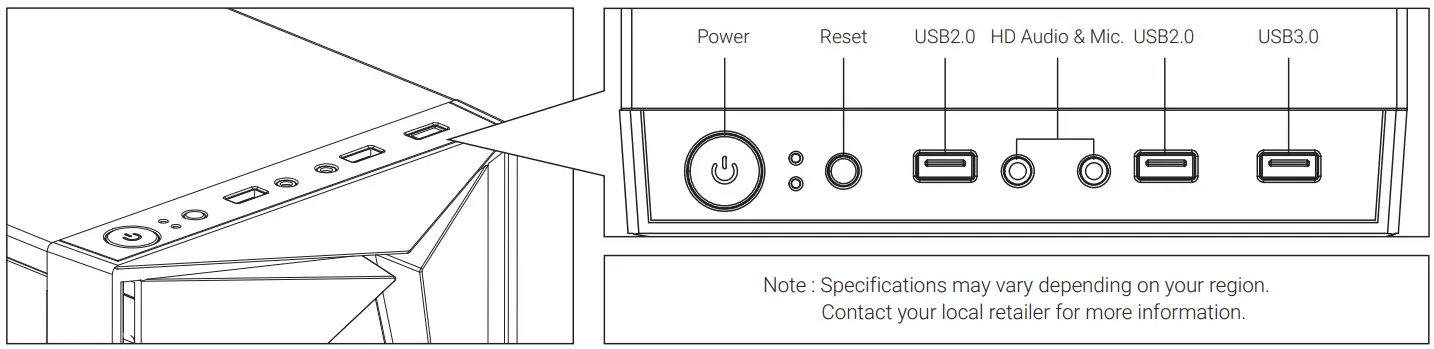
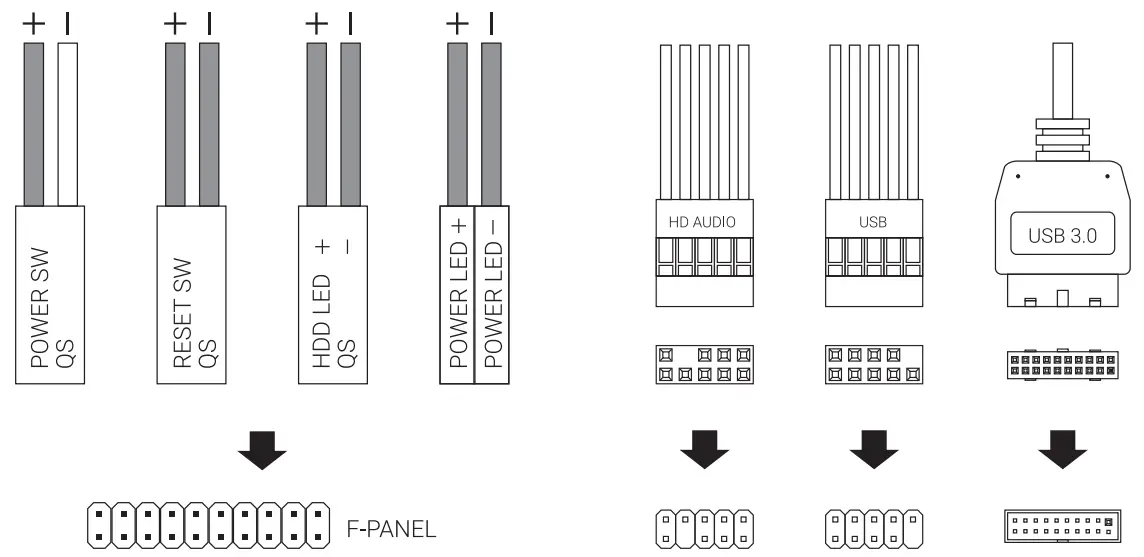
- The case comes with a built-in I/O panel that includes USB 2.0, USB 3.0, audio jacks, and a reset button.
- Connect the corresponding cables from the motherboard to the I/O panel.
Front 1/0 Panel Cable Connection
Front Panel Connector
{Please refer to the motherboard’s manual for further instructions).
Note : Specifications may vary depending on your region. Contact your local retailer for more information.
Accessory Bag Contents
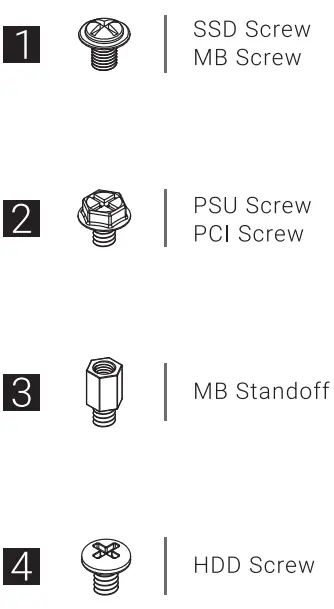
How to install Guide
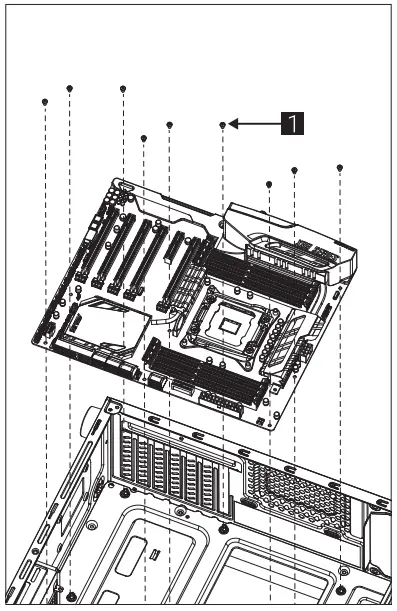
- STEP (1) Install Motherboard

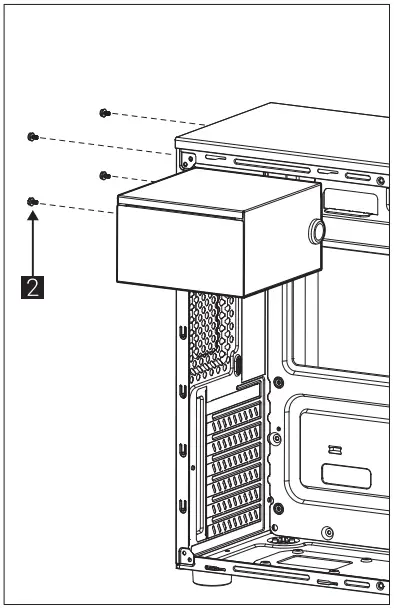
- STEP (2) Install PSU

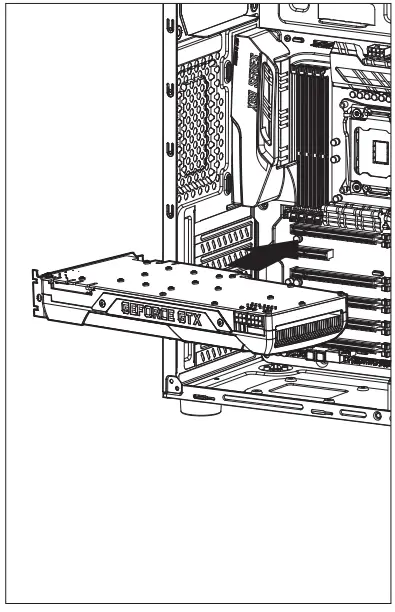
- STEP (3) Install Add-on Card

- STEP (4) Install 3.5” HDD x 1

- STEP (5a) Install 2.5” SSD x 3

- STEP (5b) Install 2.5” SSD x 1

- STEP (6a) Install Front Radiator x 1

- STEP (6b) Install Rear Radiator x 1

- STEP (7a) Install Front Fan

- STEP (7b) Install Rear Fan
- STEP (7c) Install Side Fans

I/O Panel