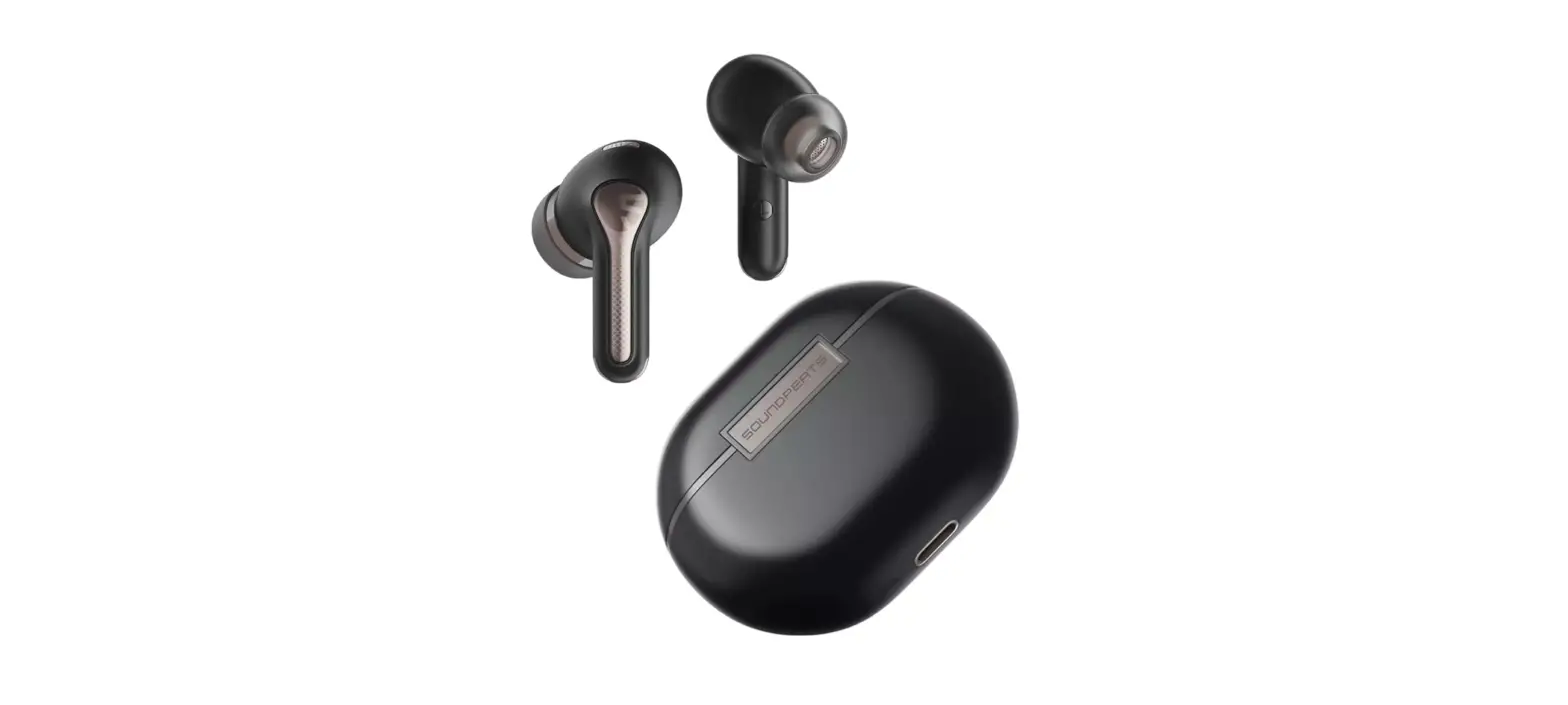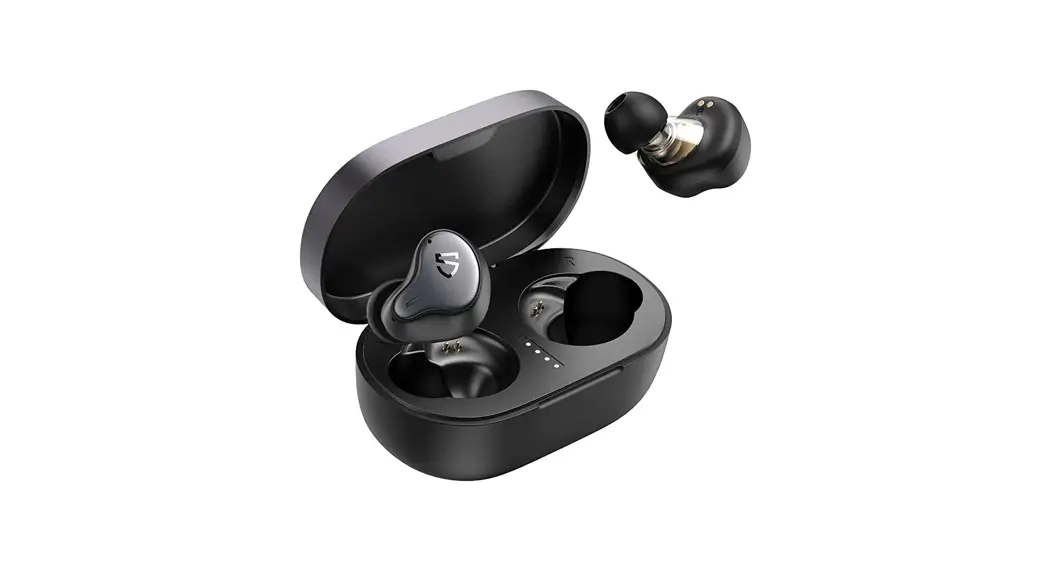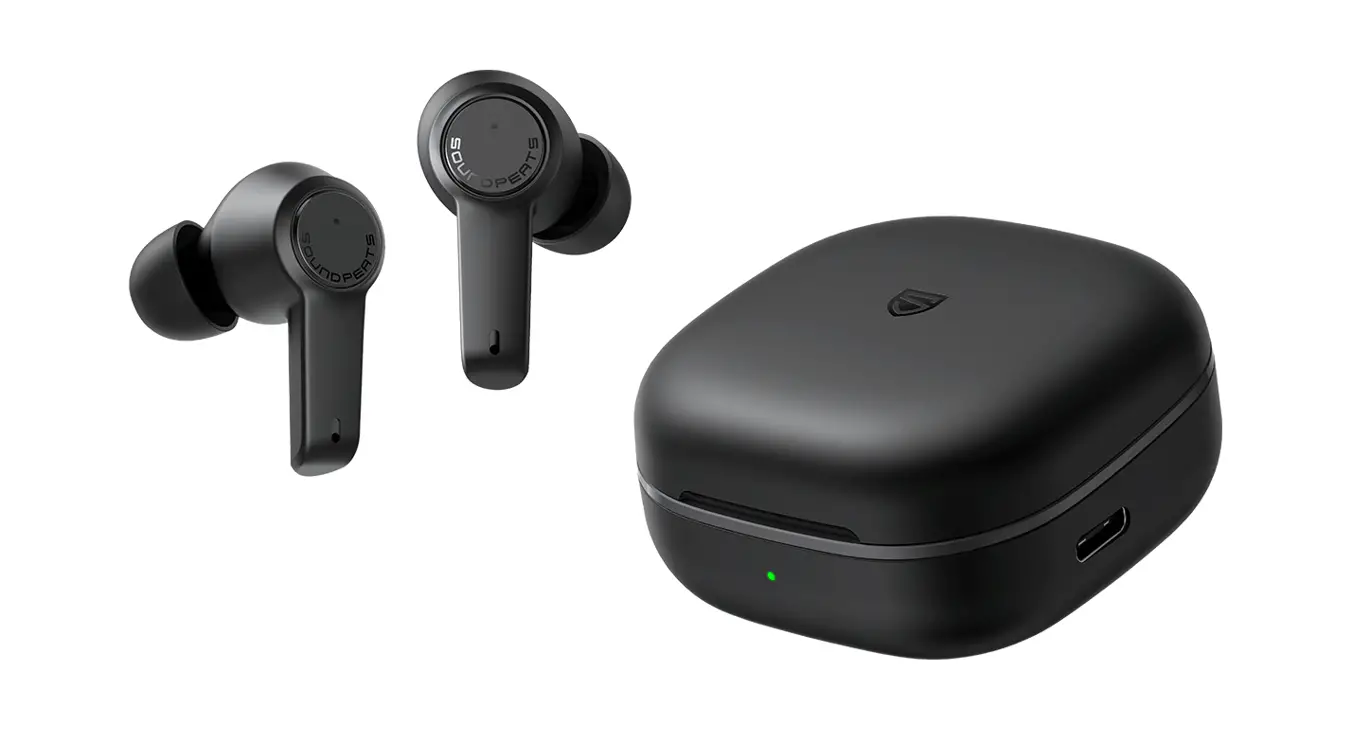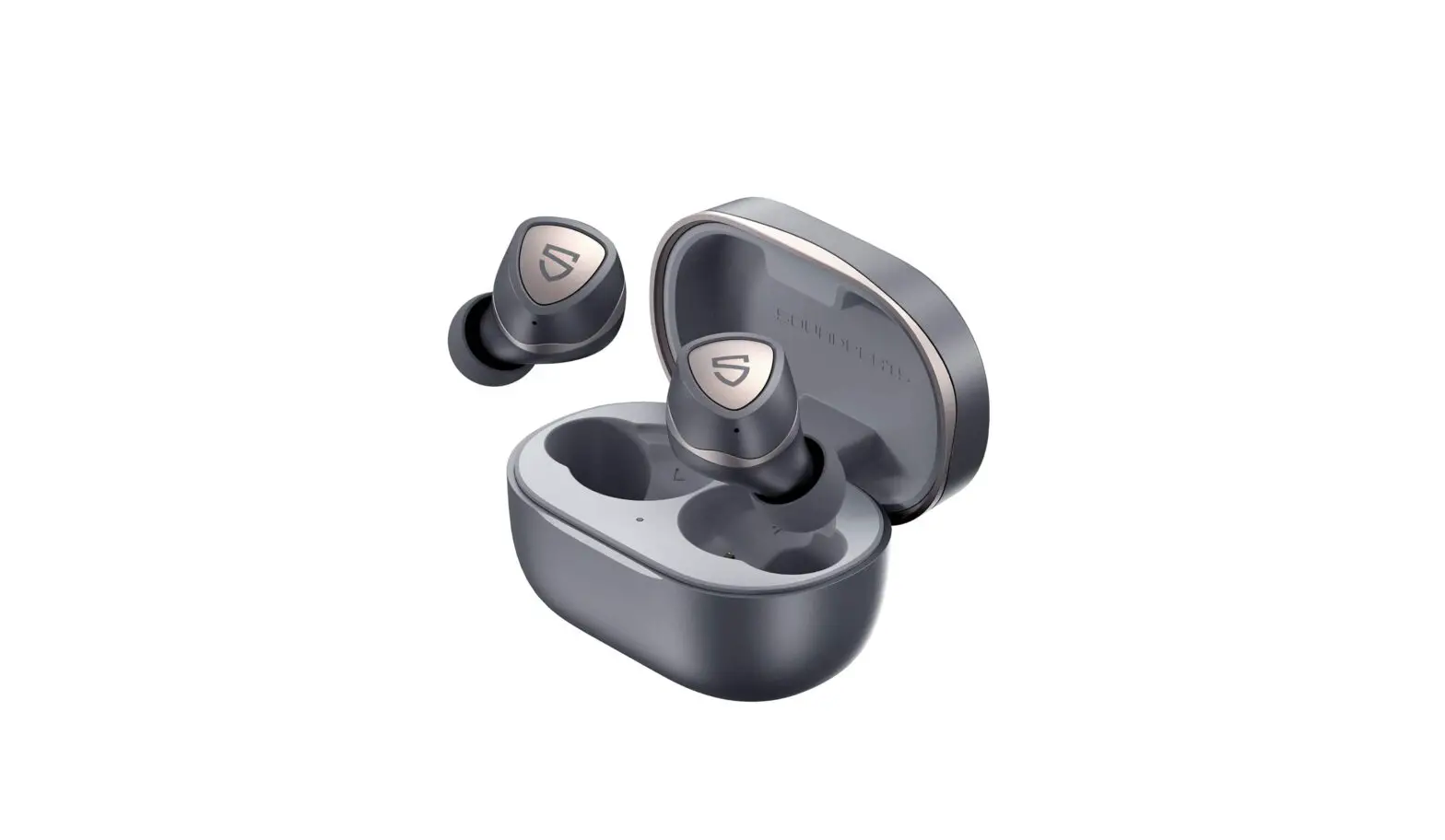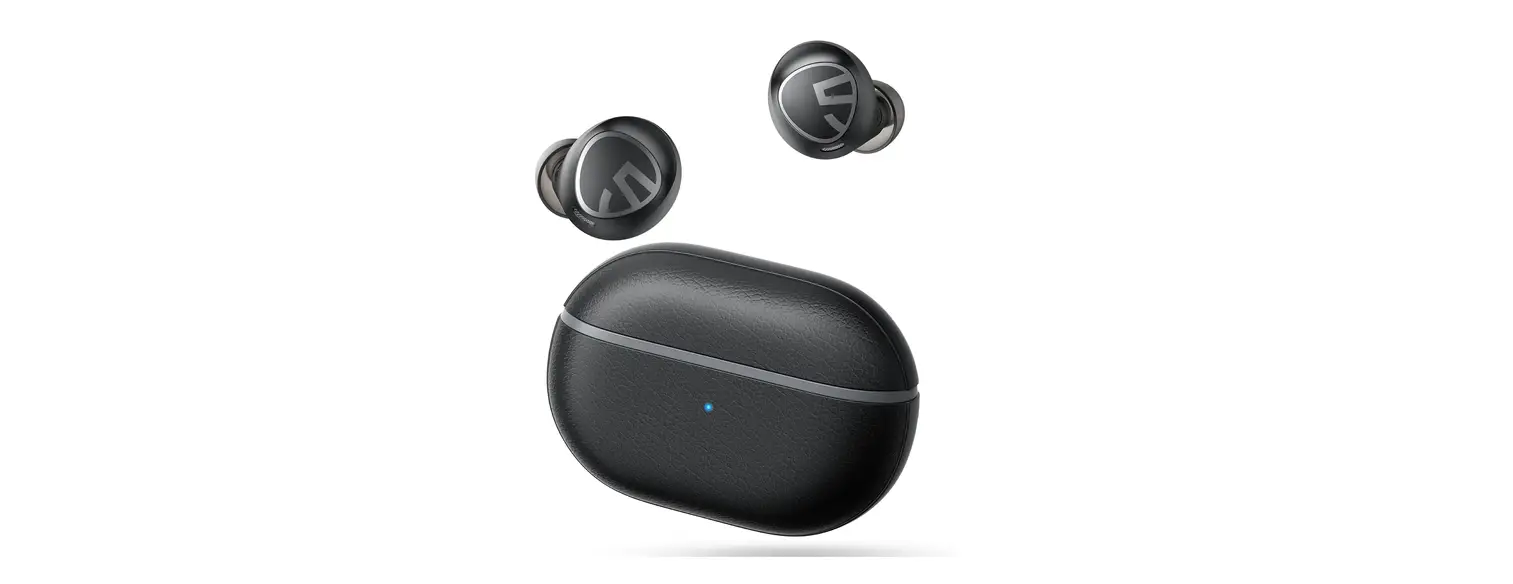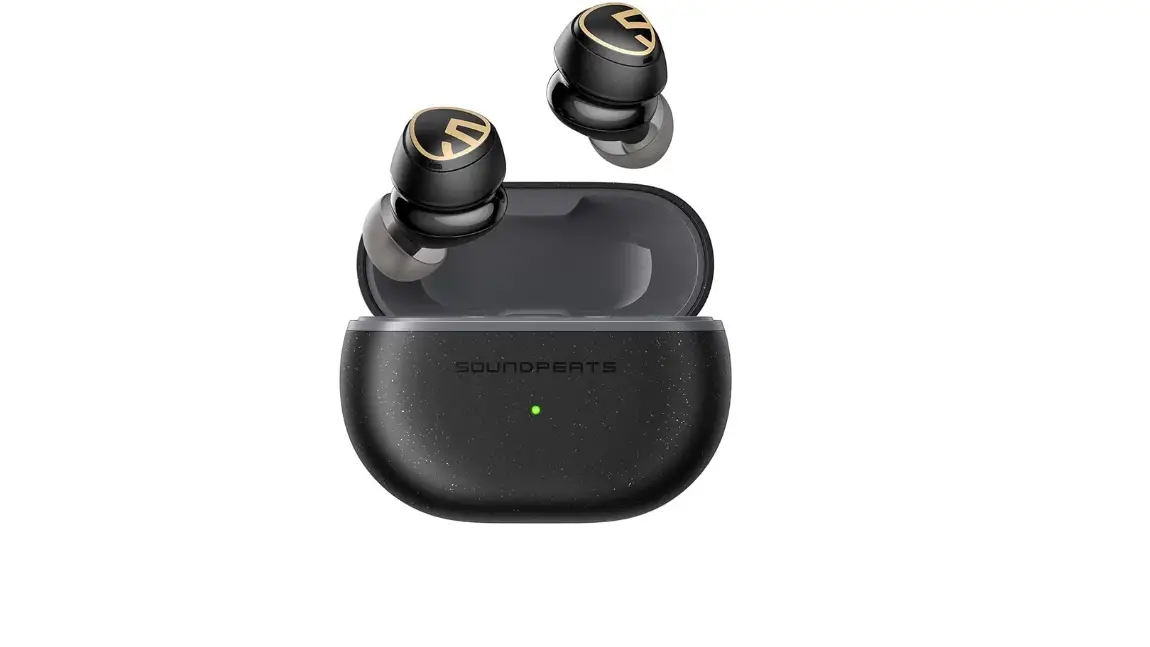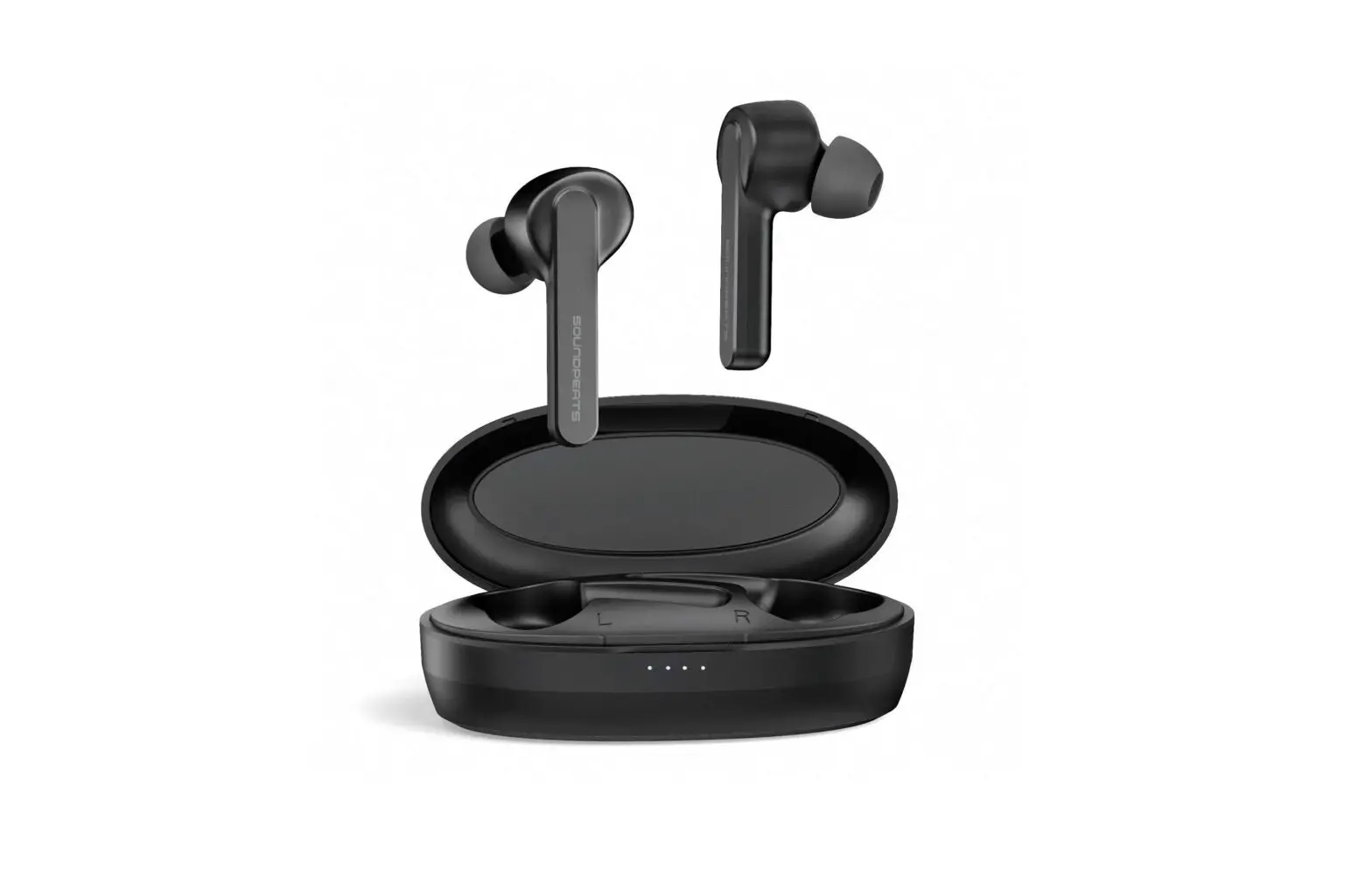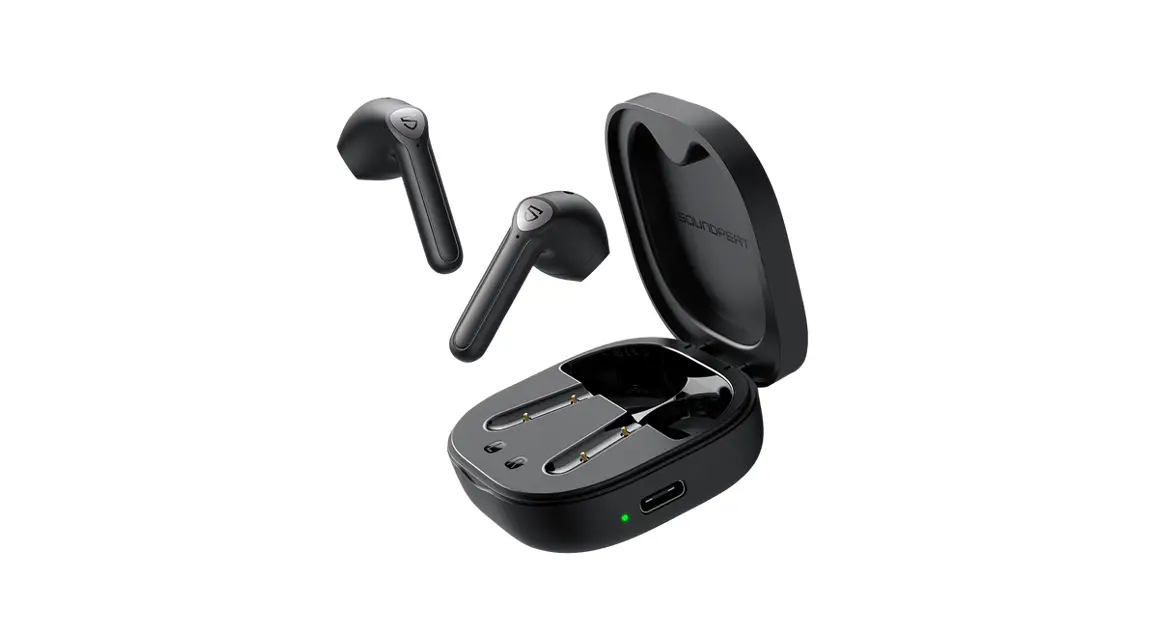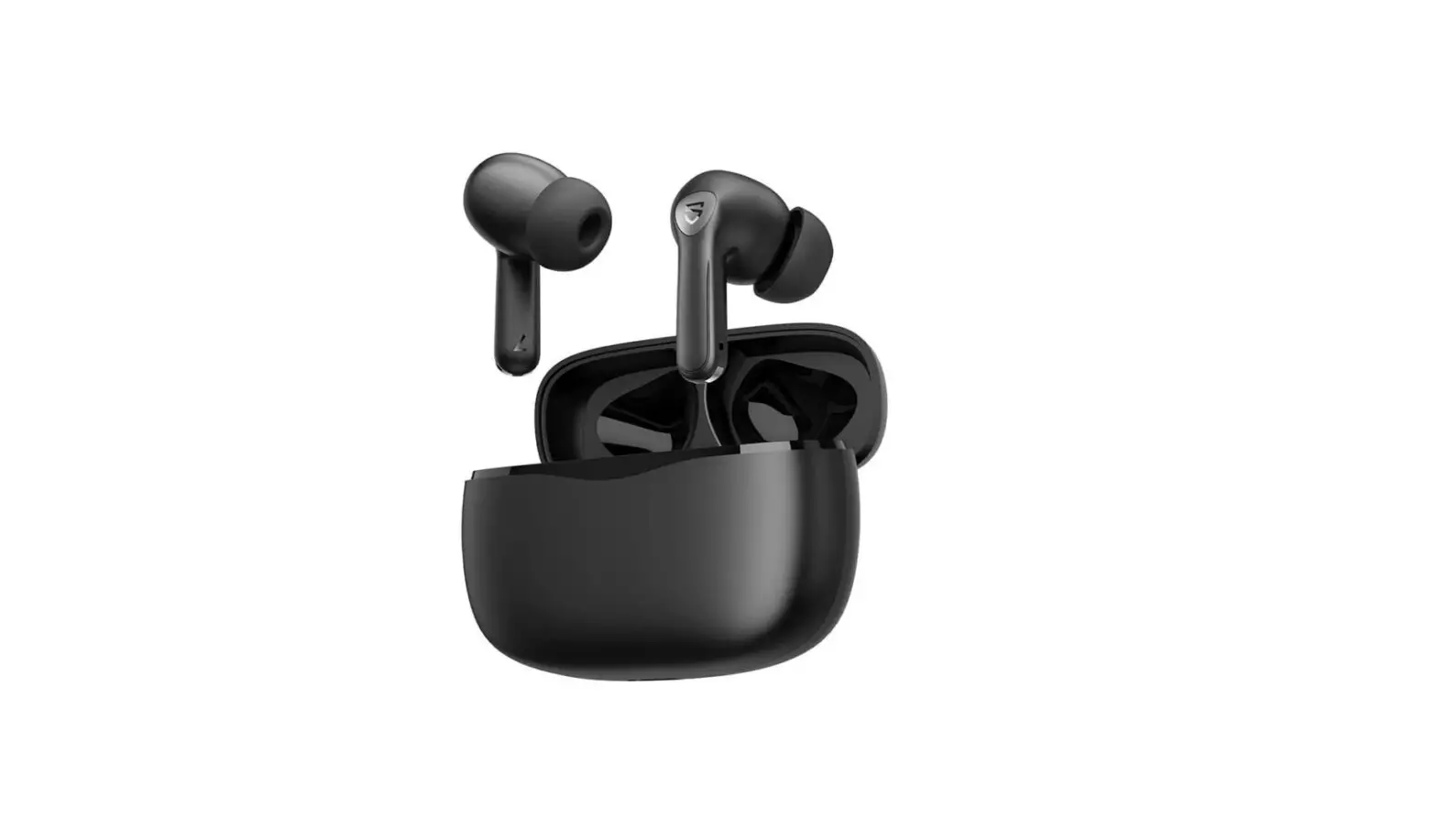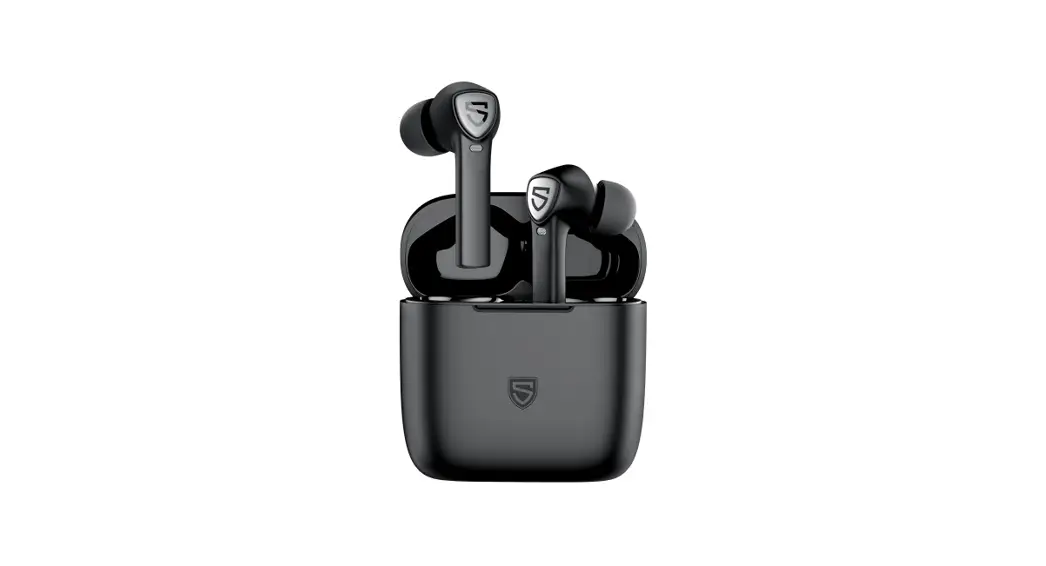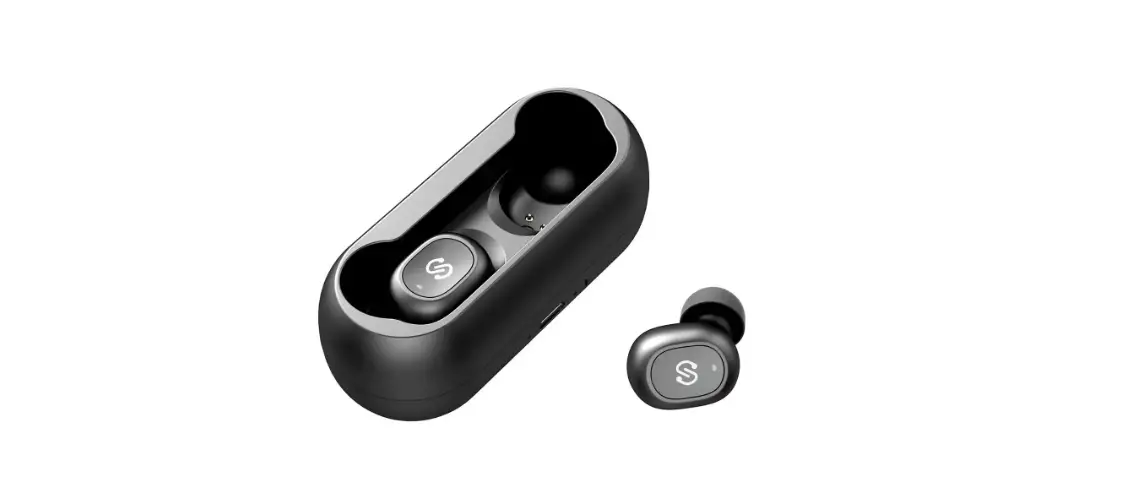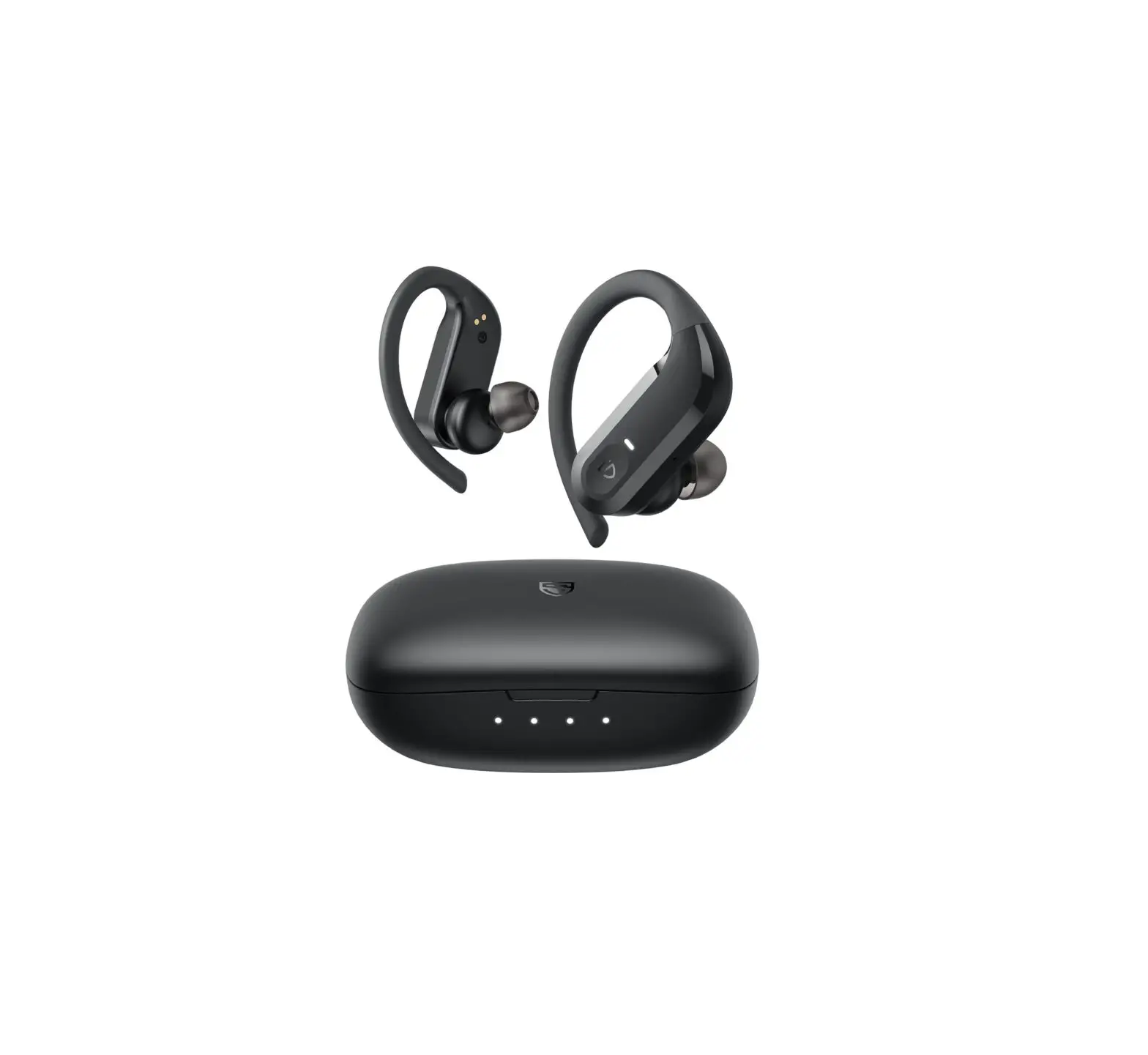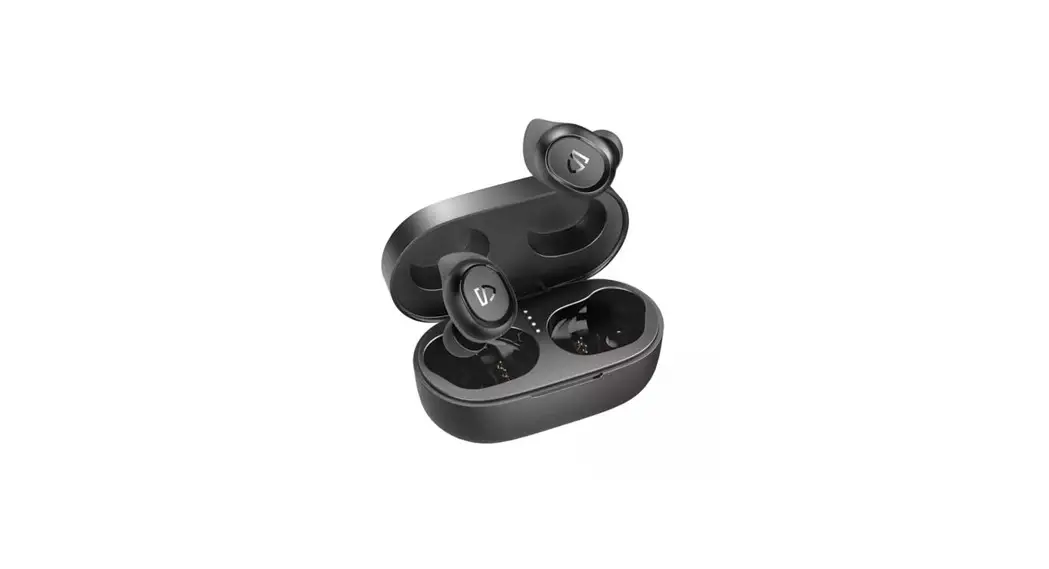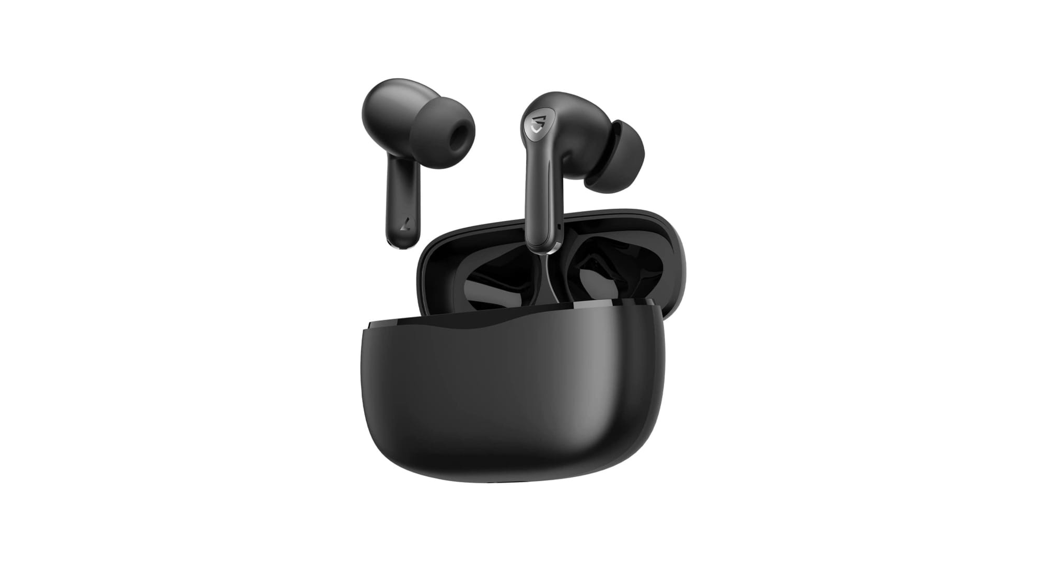

SoundPEATS Capsule3 Pro
Wireless Earbuds
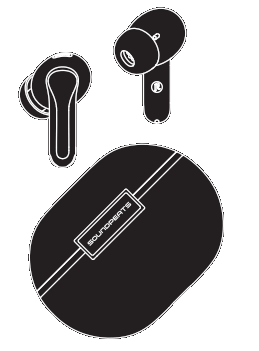
First Start
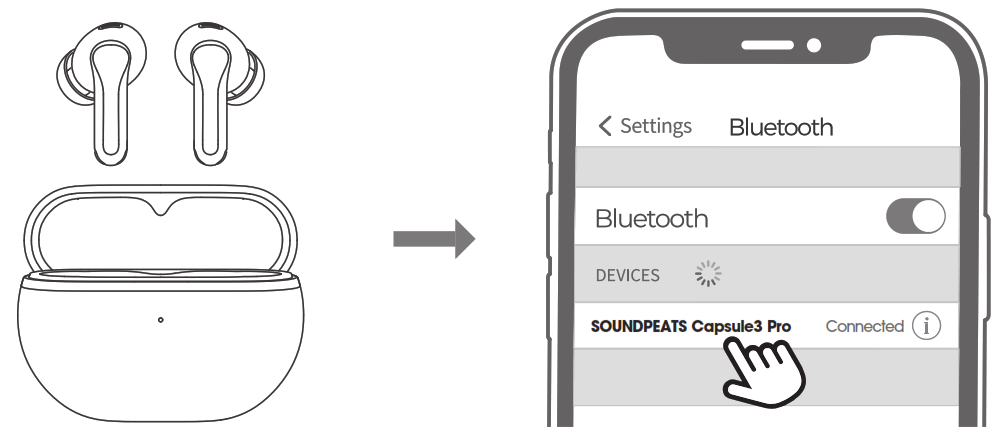
- Please open the charging case, take out the two earbuds, and tear or the insulating fllm on the earbuds charging contacts, then put the earbuds back into the charging case and keep the lid open. Long press the button on the charging case for 3 seconds at the same time until the LED indicator on charging case blinking with white light, which indicates that the earbuds have entered pairing mode.
- Turn on the bluetooth of your device, and please choose“SOUNDPEATS Capsule3 Pro”in the list to pair, then the earbuds will connect with your device.
Reset
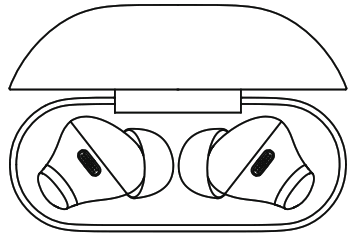
- Put both earbuds into the charging case properly, and the indicator of the charging case fashes twice.
- Then, with the lid of the charging case open, long press the button on the charging case for10 seconds until the LED indicators of the charging case fash white and red light alternately twice, the reset is completed.
- Close the lid of charging case and open it again, the earphones are activated.
Product Diagram
Wearing
Touch Control
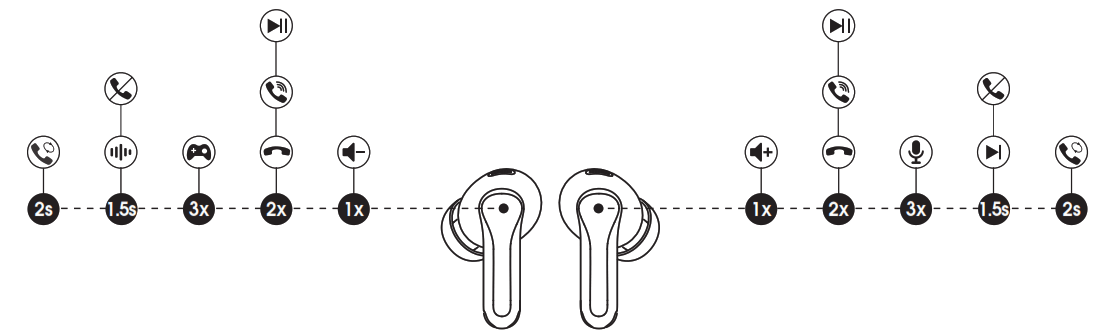
| Power on | Automatically: Open the charging case, the earbuds will automatically power on. Manually: Long press the touch button for 1.5 seconds |
| Power Off | Automatically: Place the earbuds back into the charging case and close the lid. Manually: Long press the touch button for 10 seconds |
| Play/Pause | Double tap the touch button |
| VolLme- VolLrne+ | Tap the left touch button once Tap the right touch button once |
| Play Next | Long Pre. the right touch button for 1.5 seconds |
| Answer/Hang Lp phone cal | Double tap the touch button |
| Reject phone call | Long press the touch button for 1.5 seconds |
| Swffch between two calls | Long press the touch button for 2 seconds |
| Manuciy enter into palling | Long press the button on the charging case for 3 |
| mode | seconds |
| Activate voice assistant | Triple tap the right touch button |
| Enter/Ed Gcme Mode | Triple tap the left touch button |
| Noise reduction/trcnsperency | Long press the left touch button for 1.5 seconds |
Q&A
– Display remaining power of the charging case:
100%-50% remaining power shows green light
49%-10% remaining power shows yellow light
Under 10% remaining power shows red light
When charging the charging case, the indicator light indicates:
0-19% remaining power, red light fashes slowly
20%-69% remaining power, yellow light fashes slowly
70%-99% remaining power, green light fashes slowly
100% remaining power, green light stay on.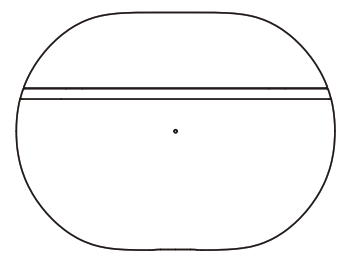
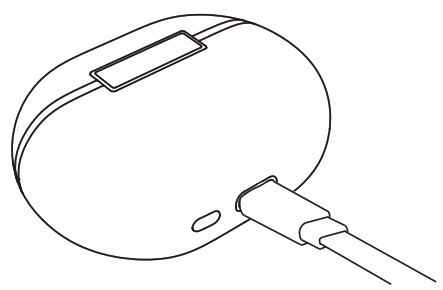
– 1.Connect with a Type-C charging adapter to charge the charging case.(Charging current is not greater than 1A).
2.When not using for a long time, please charge it once every three months at least.
– 1.The charging case has no remaining power. The earphone will not power off in charging case when charging case has no power.
2.Make sure the earphones are properly placed in the charging case and the charging metal piece and pin are clean. Please try to clean the charging contact area between the charging box and the earphones with a soft cloth.
FCC Statement
This equipment has been tested and found to comply with the limits for a Class B digital device, pursuant to Part 15 of the FCC rules. These limits are designed to provide reasonable protection against harmful interference in a residential installation. This equipment generates uses and can radiate radio frequency energy and, if not installed and used in accordance with the instructions, may cause harmful interference to radio communications. However, there is no guarantee that interference will not occur in a particular installation. If this equipment does cause harmful interference to radio or television reception, which can be determined by turning the equipment off and on, the user is encouraged to try to correct the interference by one or more of the following measures:
— Reorient or relocate the receiving antenna.
— Increase the separation between the equipment and receiver.
— Connect the equipment into an outlet on a circuit different from that to which the receiver is connected.
— Consult the dealer or an experienced radio/TV technician for help.
This device complies with part 15 of the FCC rules. Operation is subject the following two conditions: (1) This device may not cause harmful interference. (2) this device must accept any interference received, including interference that may cause undesired operation. Changes or modifcations not expressly approved by the party responsible for compliance could void the user’s authority to operate the equipment
IC ID
This device complies with Industry Canada licence-exempt R. standard(s). Operation is subject to the following two conditions: (1) this device may not CCM55 interference, and (2) this device must accept any interference, including interference thatmay cause undesired operation of the device,
RF warning statement: The device has been evaluated to meet general RF exposure requirement The device can be used in portable exposure condition without restriction.
IC ID: 27785-YK004
FCC ID: 2AFTU-DD032 MADE IN CHINA
MANUFACTURER
Shenzhen SoundSOUL Information Technology
Company Limited
Room 1308-1309, Building B, Huihai Square,
Chuangye Road, Longhua District, Shenzhen,
China. 518109
 [email protected]
 www.soundpeats.com
EC REP
Company; Qing UG(haftungsbeschränkt)
Address: Undinestr. 7, 12203 Berlin Germany
UK REP
TANMET INT’L BUSINESS LTD
9 Pantygraigwen Road, Pontypridd, Mid Glamorgan, CF37 2RR,UK
[email protected]
 SOUNDPEATS TrueWireless Earbuds & Headphones for Sound.