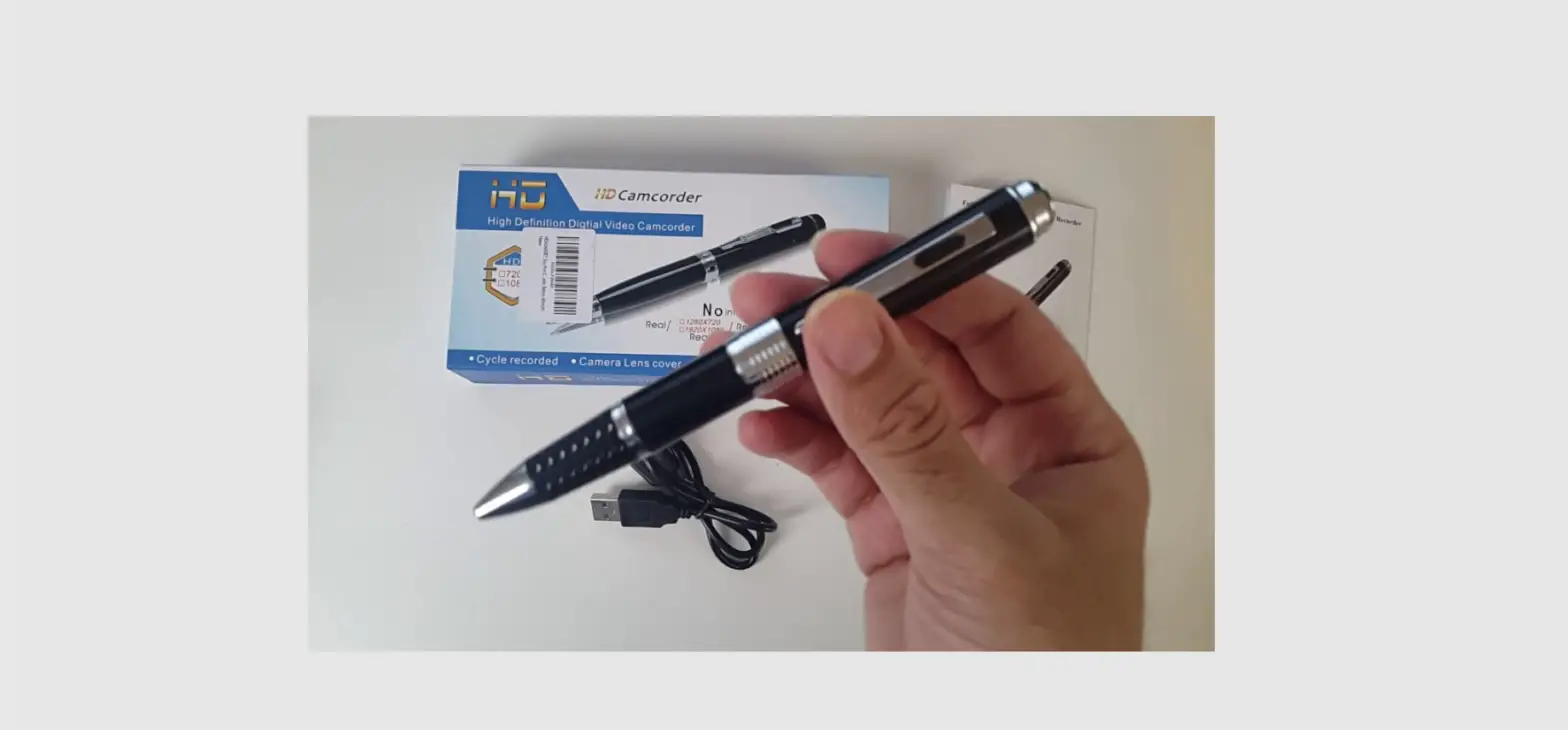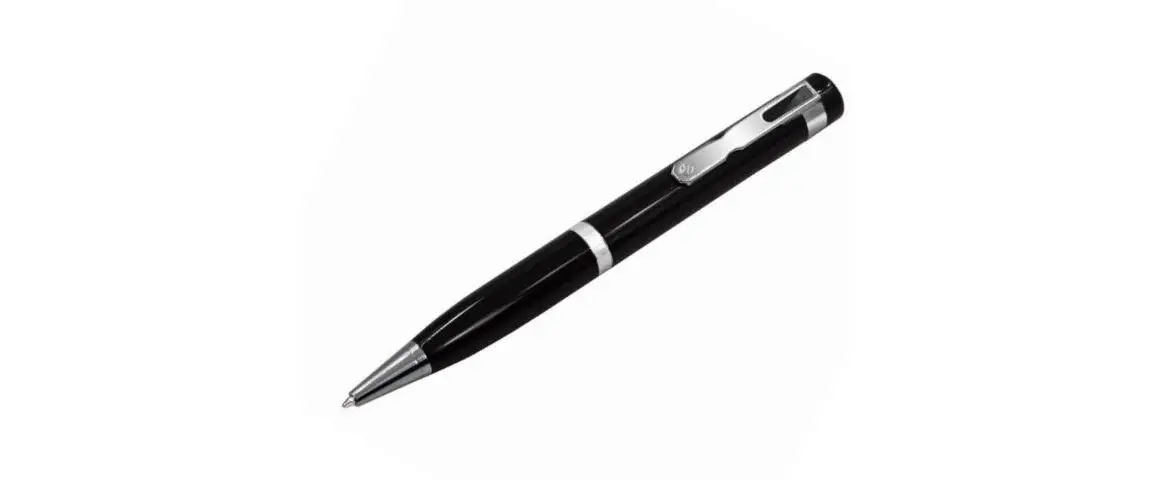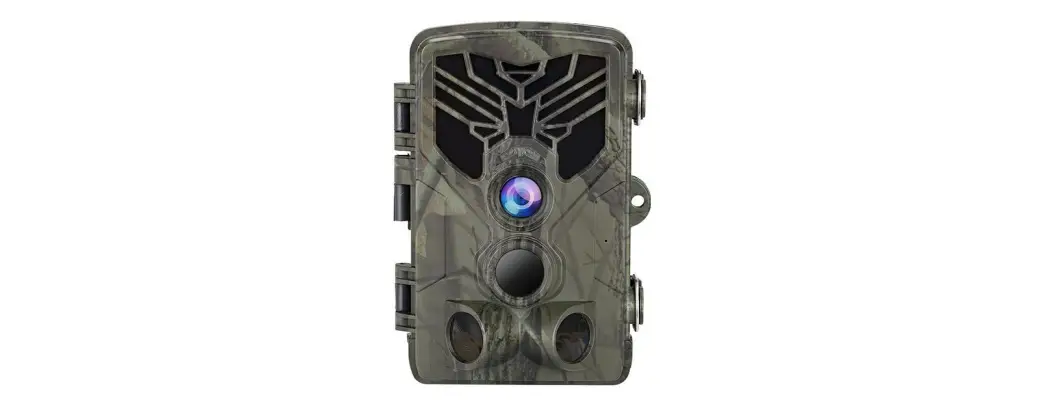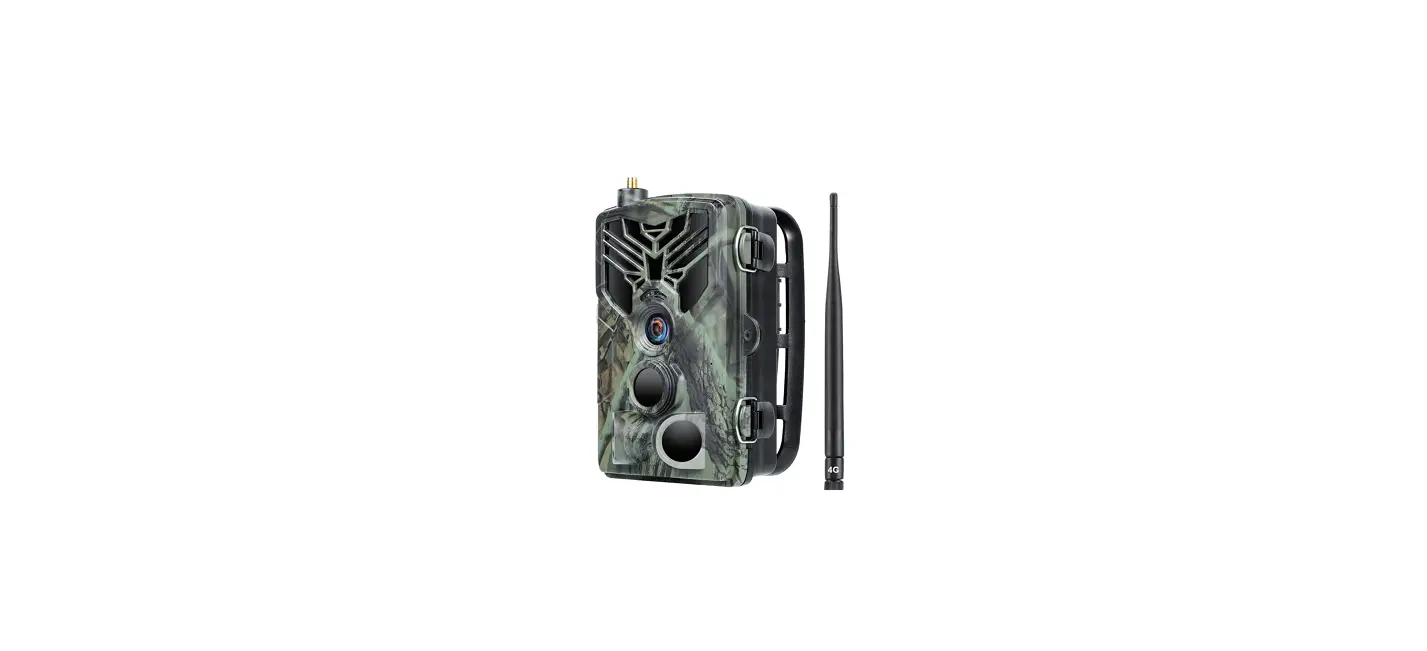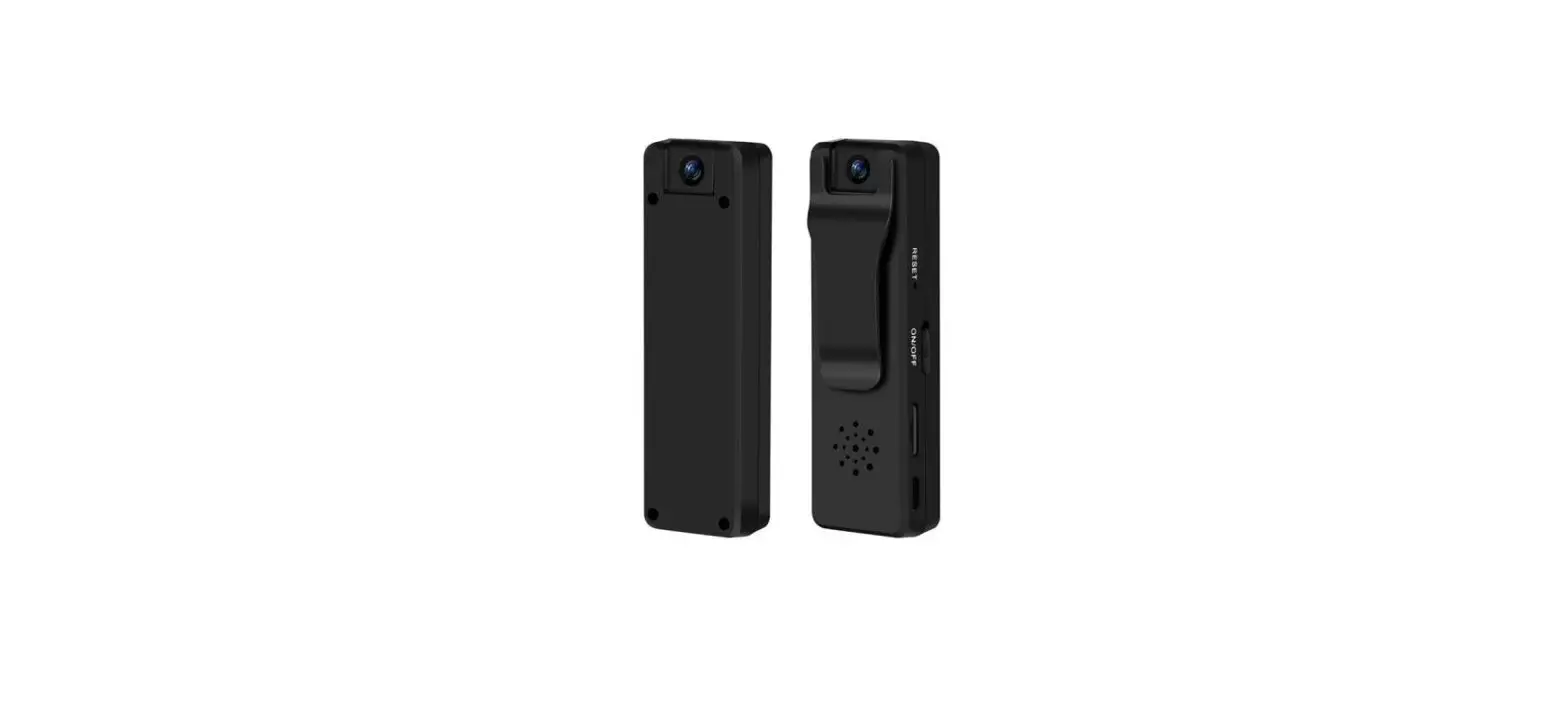

SUNSKY RD03 1080P HD WiFi Surveillance Camera Recorder Pen with Clip
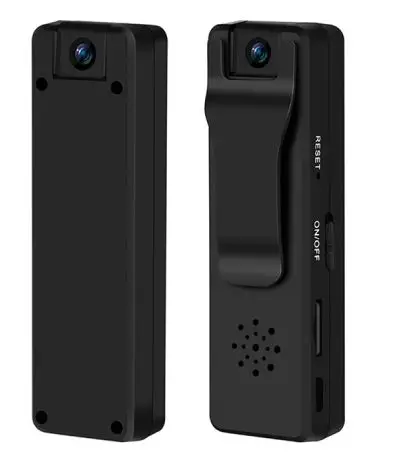
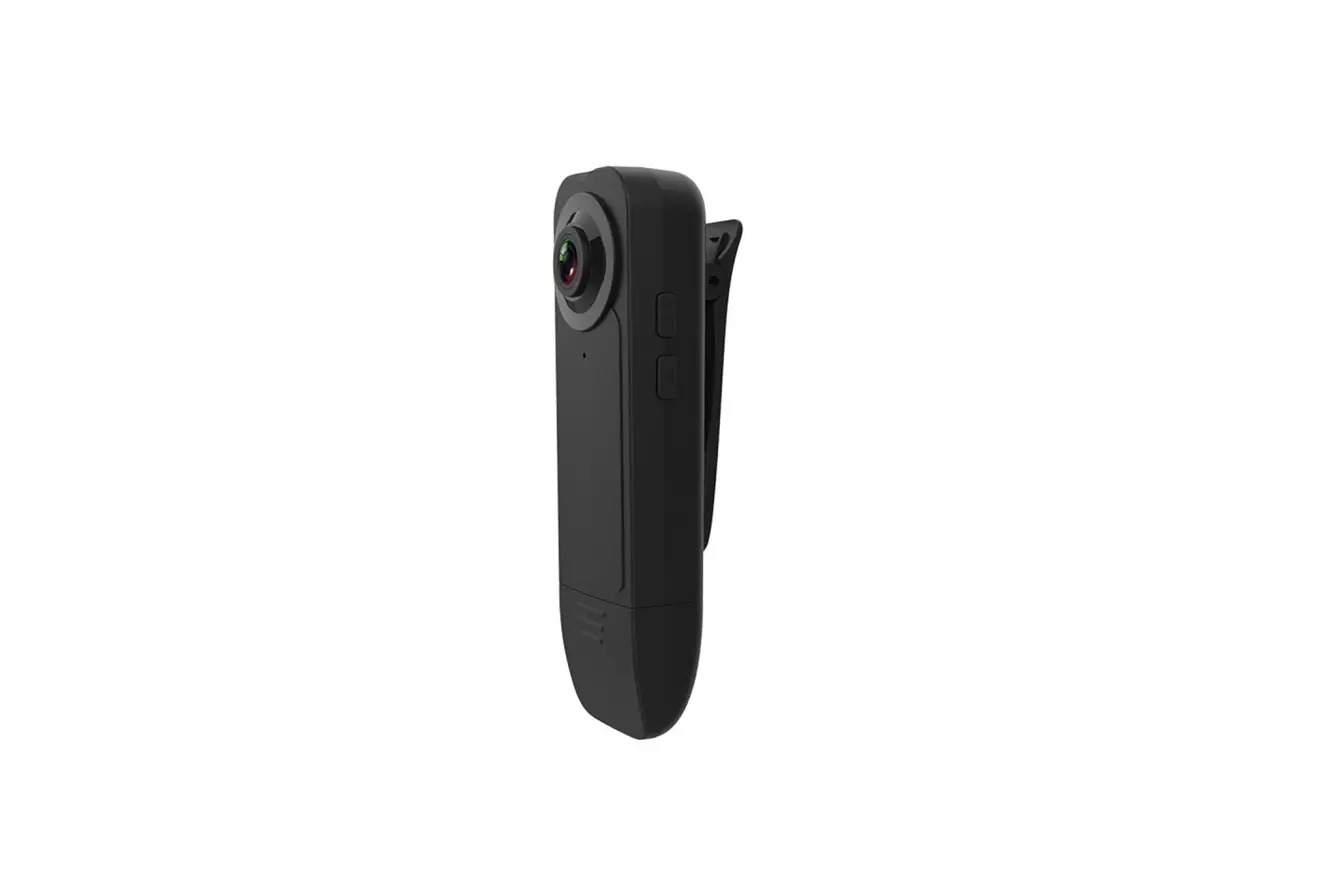
Appearance
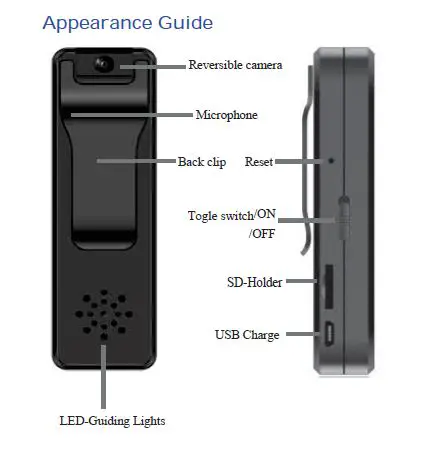
Charge
- Please use a 500-1000mA charger to charge the device. When charging, the red indicator is steady on, and when fully charged, the green indicator is steady on.
- During the charging process, the device is turned on and can work while charging.
Turn on the device
- Press the power button to start the machine. After starting the machine, the blue indicator light flashes continuously and quickly, and the device enters the state to be connected.
- Note: If the blue indicator is slow flashing/always on or cannot be connected, long-press the reset button for 5 seconds to reset.
Install APP
- Download and install JXLCAM APP, Android system in Google play search download. For easy installation, easily scan the following QR code installation.
- Note: during installation, you need to open all permissions of the APP, otherwise the APP will not work properly.
Please select APP to download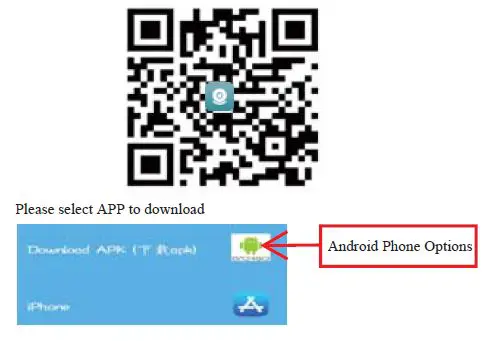
Local mode
Open your phone’s WiFi list and connect to ACCQ…… After success, open the APP page and click AP as shown below to watch the video.
Note: When there is no WiFi in the environment, AP mode can be used for the connection. The effective distance of this mode is no more than 10M,which can realize localized video viewing.
- First, confirm that there is an available WIFI signal near the device, turn the device on, the blue indicator light flashes quickly, and the device enters the state to be connected. (Note: only support 2.4G band WIFI signal)

- Unable to connect successfully when power is low.
- When connecting to the network, place the device as close to the router as possible. If the nearby available WiFi signal is weak, the connection cannot be successful or the screen will be closed after a successful connection.
- open the APP and follow the steps below

- Click “···” to connect to the local
- 2.4G WIFI band, enter the password and then go to the next step
- Click “… “to connect to the camera WIFI hotspot and add the camera
- Click”Cancel”

- Waiting for the connection
- Click”Next”
- You can change the name or not, and then click “Next”
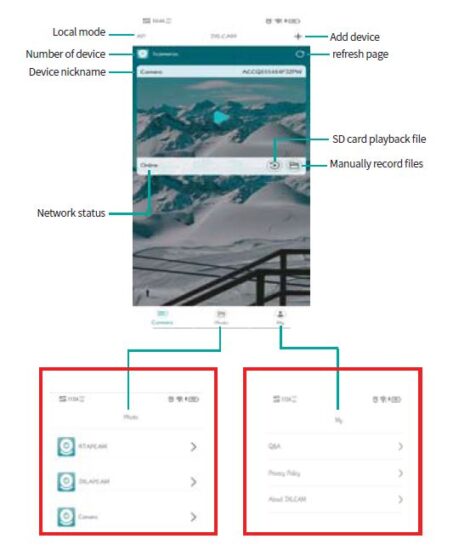
- Check out the video preview on the home page
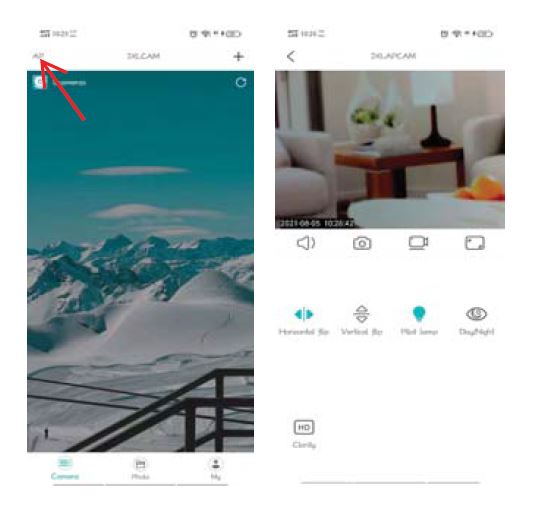
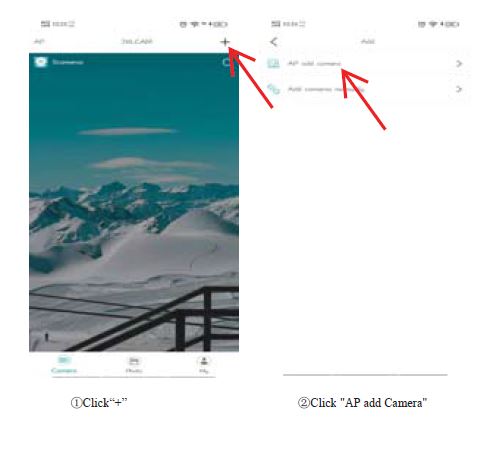
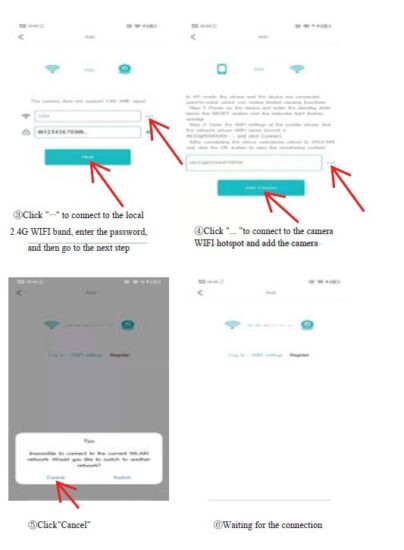
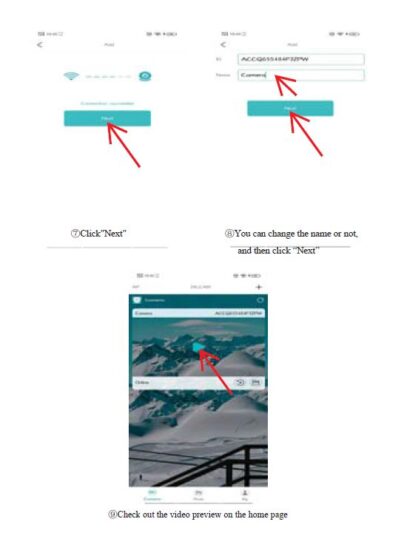
Description of ICONS and buttons on the home page
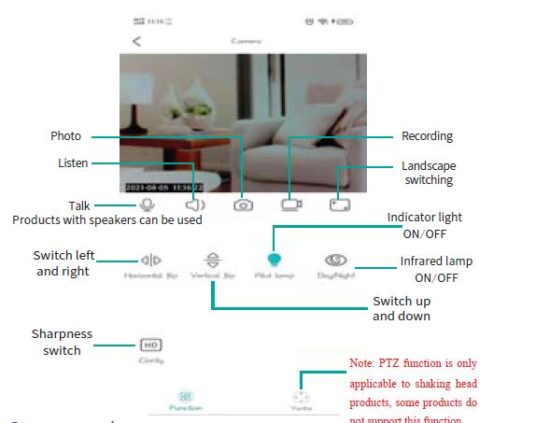
Description of ICONS and buttons on the video page
Storage card
If you need to store video content, you need to install an SD card. This machine supports loop video recording
NOTE
- When the device fails to configure the network, please check whether the router and WiFi password is configured correctly (the device does not support WIFI signals in the 5.8G band). After confirming that it is correct, you can press and hold the reset button until the device indicator ashes quickly, restore the factory settings, and reconfigure the network.
- When the software homepage shows that the device is offline, you can check whether the device is normally powered on, and click the refresh icon in the upper right corner to refresh.