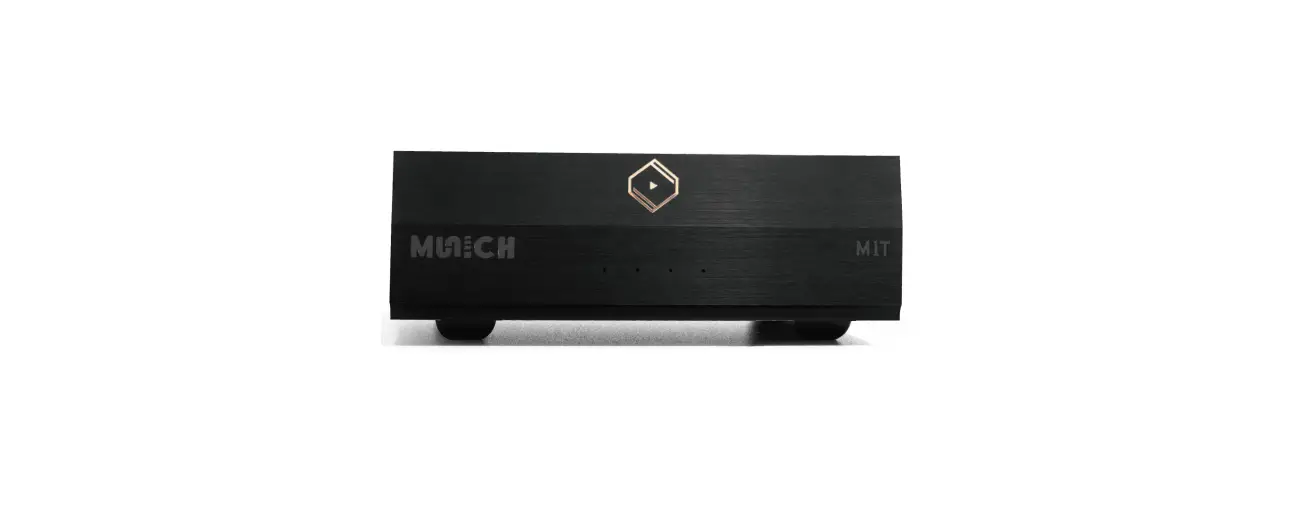
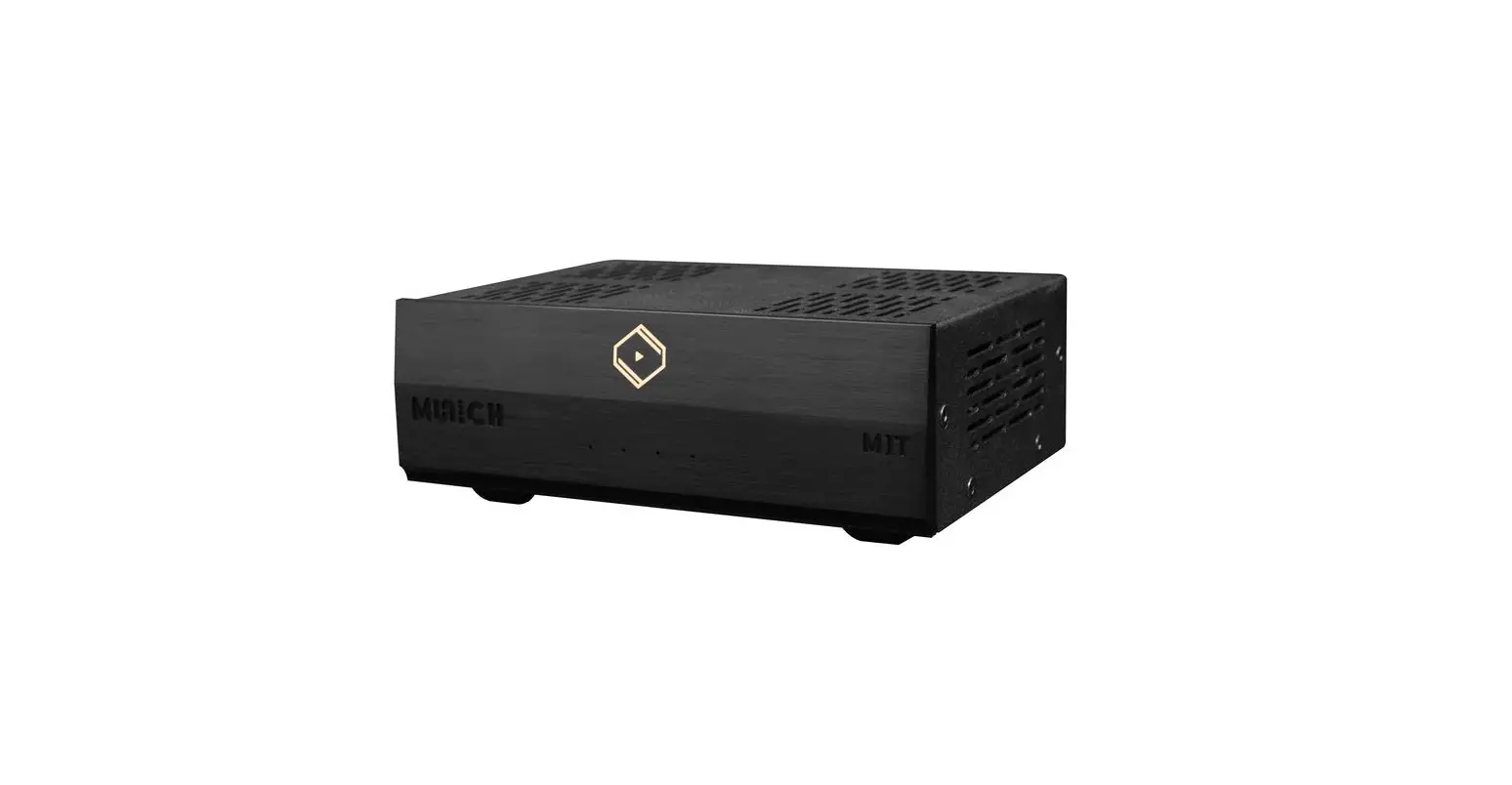
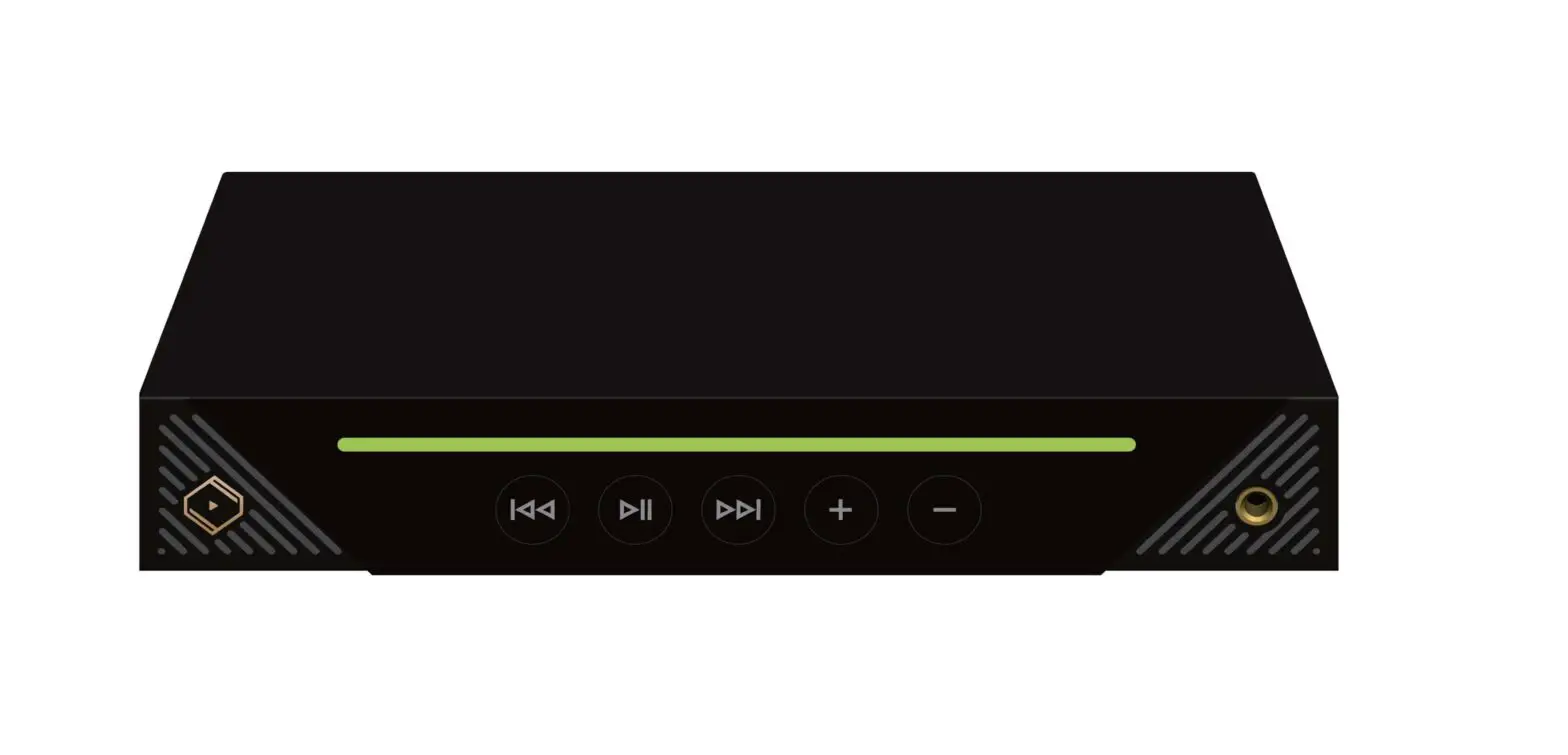
Rhein Z1 v2 Audiophile Grade Roon Music
Product Information: Roon Server on Z1
Roon Server is a software that allows you to manage and play
your music collection on the Z1 device. The Z1 device is a
multi-function audio device that can be used as a Roon Server, Roon
Ready Player, and USB DAC. With Roon Server installed on Z1, you
can stream your music from a variety of sources and enjoy
high-quality sound through your audio system.
Requirements:
- Mobile device with Roon Remote app and VitOS Manager app
installed - Z1 device
- USB DAC connected to Z1
- Mobile device and Z1 connected to the same network
Step-by-Step Usage Instructions:
Step 1: Install Roon Server to Z1, and configure Audio Selector
in Z1.
- Power on Z1 and use VitOS Manager app with mobile device to
discover the Z1. - In the Applications section of the main page, check the status
of Roon Server. If the status is Not Installed, click on > to
enter the Roon Server page. - Click on Install to install Roon Server to this Z1.
- Wait until the installation is finished and it shows the status
of Roon Server is Running, which indicates Roon Server is up and
running. - Configure the Audio Selector to choose Roon Server as Audio
Source. Click on Change and choose Roon Server to make Roon Server
use the USB DAC connected to this Z1.
Step 2: Use Roon Remote app to control Z1 to playback
music.
- Open Roon Remote app and wait for Rhein Z1 V2 being shown in
the discover page. Click on Connect to connect to the Roon Server
of Z1 and enter the login page. - Enter the e-mail address and password of your Roon account and
click on Login to enter the setup wizard to setup basic
configurations. - Enable the USB DAC connected to this Z1. Click on the Menu
button at the upper-left corner to enter the menu. Click on
Settings to enter the settings page. Slide the menu bar at the
upper side to find Audio page header. Click on Audio to enter the
audio setting page. Find the USB DAC connected to this Z1 under the
Connected to Core section and click on Enable to enable this USB
DAC.
With these simple steps, you can enjoy your music collection
through Roon Server on Z1 with high-quality sound.
How To Use Roon Server on Z1
Z1 + Roon Server
Before using Roon Server, please make sure your mobile device has Roon Remote app and VitOS Manager app installed. And make sure your mobile device is connected to the same network that Z1 resides.
Step 1: Install Roon Server to Z1, and configure Audio Selector in Z1.
Power on Z1 and use VitOS Manager app with mobile device to discover the Z1. What below shows the screenshot of the VitOS Manager discover page.
When the Z1 is found, click on “Manage” to enter the main page of this Z1.
In the Applications section of main page, check the status of Roon Server. If the status is “Not Installed”, you will need to install Roon Server to this Z1. Click on “>” to enter the Roon Server page.
Click on “Install” to install Roon Server to this Z1.
Wait until the installation is finished and it shows the status of Roon Server is “Running”, which indicates Roon Server is up and running. Below screenshots show the Roon Server page and main page.
Be noted to configure the Audio Selector to choose Roon Server as Audio Source. Click on “Change” and choose Roon Server to make Roon Server to use the USB DAC connected to this Z1.
Step 2: Use Roon Remote app to control Z1 to playback music
Use Roon Remote app with the mobile device to connect and control Z1. The following describes how to connect to Z1 with Roon Remote app.
Connect the Z1 and login with Roon account
Open Roon Remote app and wait for Rhein Z1 V2 being shown in the discover page. Click on “Connect” to connect to the Roon Server of Z1 and enter the login page..
Click on “Connect” to enter the login
Enter the e-mail address and password of your Roon account and click on “Login” to enter the setup wizard to setup basic configurations.
Enable the USB DAC connected to this Z1
Click on the Menu button at the upper-left corner to enter the menu. Click on “Settings” to enter the settings page. Below screenshots shows the menu.
Slide the menu bar at the upper side to find “Audio” page header. Click on “Audio” to enter the audio setting page. Find the USB DAC connected to this Z1 under the “Connected to Core” section and click on “Enable” to enable this USB DAC.
Reference:
Understanding the relationship between Roon Server and Z1
The Z1 with Roon Server installed, plays two roles in different scenarios. Below figures shows these two scenarios.
Scenario 1: Z1 as Roon Server
Z1 as Roon Server Remote Control
Roon Ready Player
Roon Remote app
Amplifier
Earphone Amplifier
Speaker
Earphone
Scenario 2: Z1 as Roon Server and Roon Player
Remote Control
Z1 as Roon Server and Roon Player
Roon Remote app
USB DAC
Amplifier
Earphone Amplifier
Speaker
Earphone