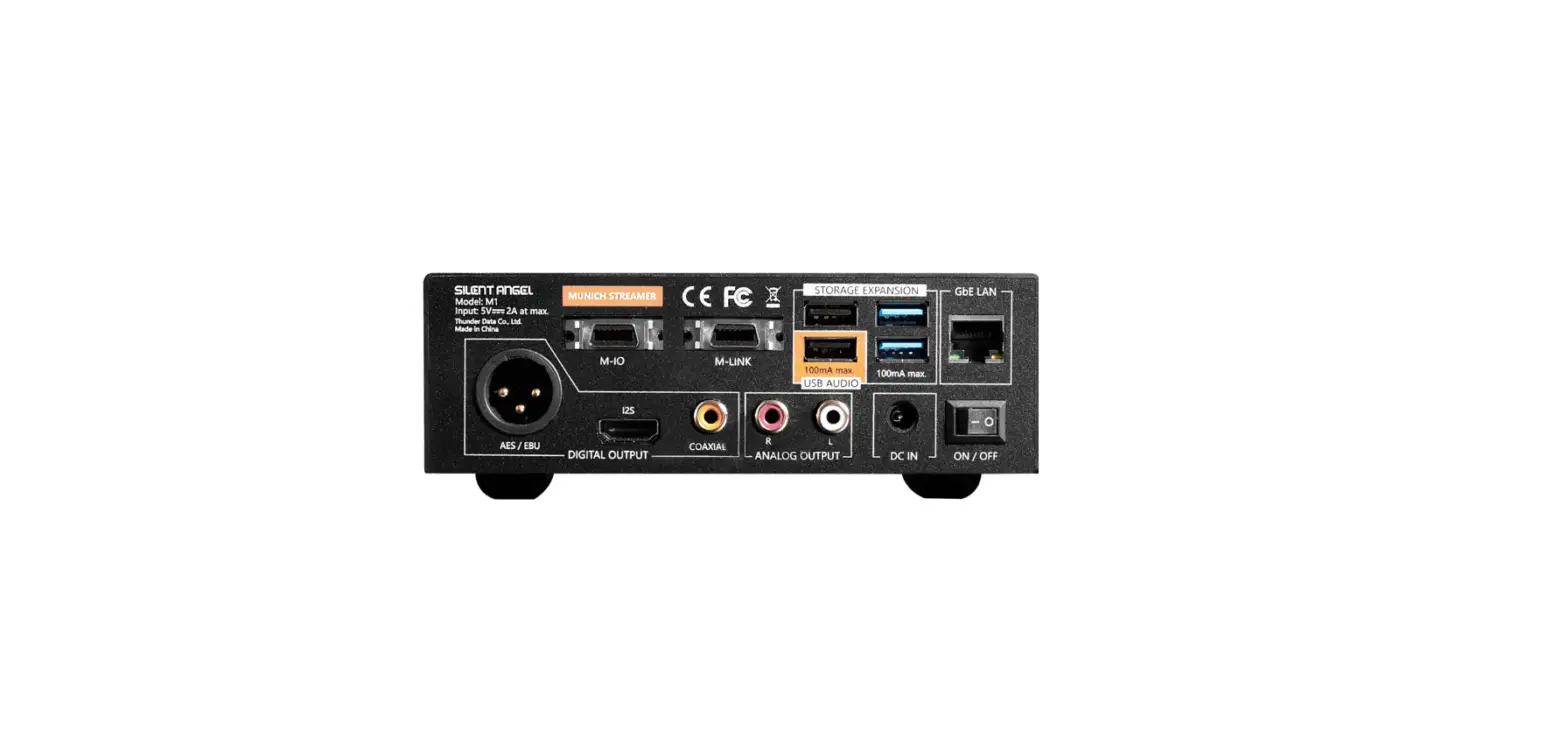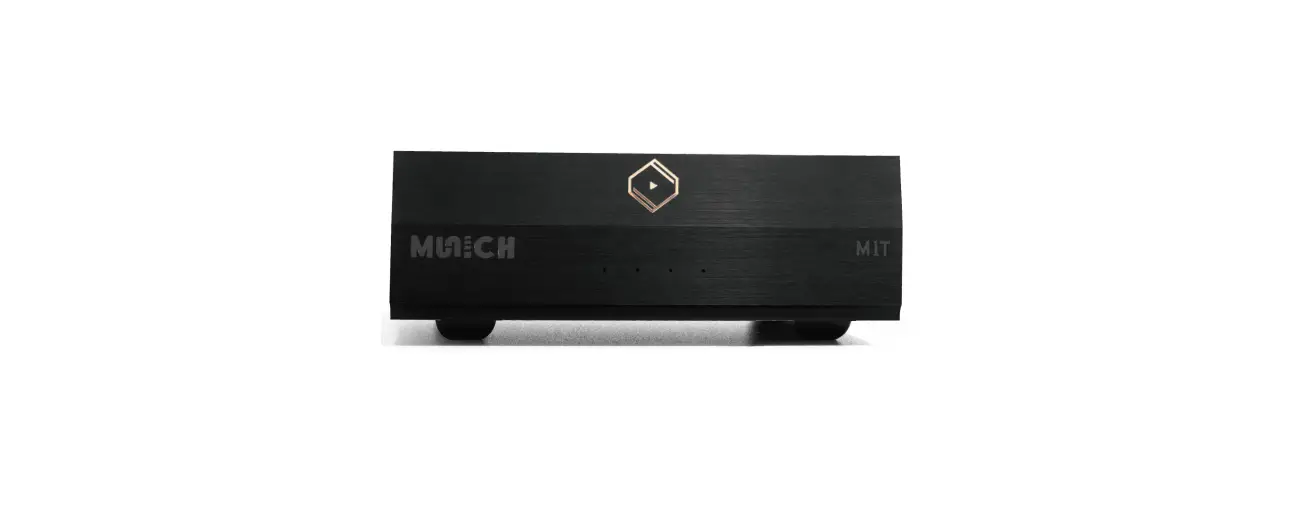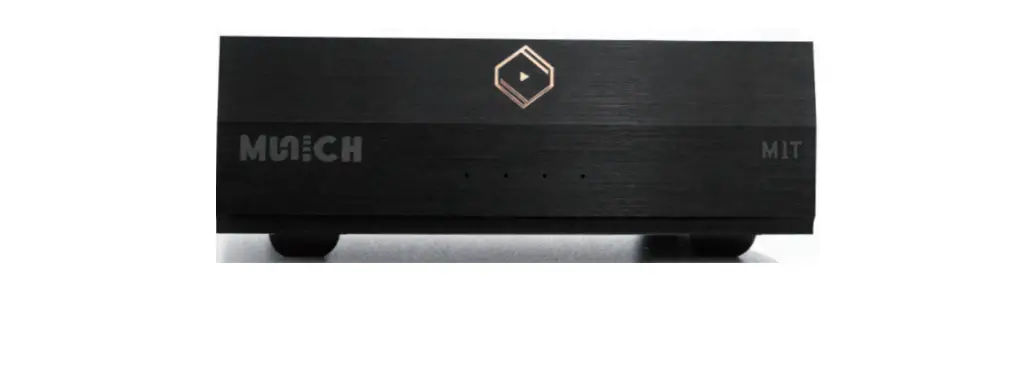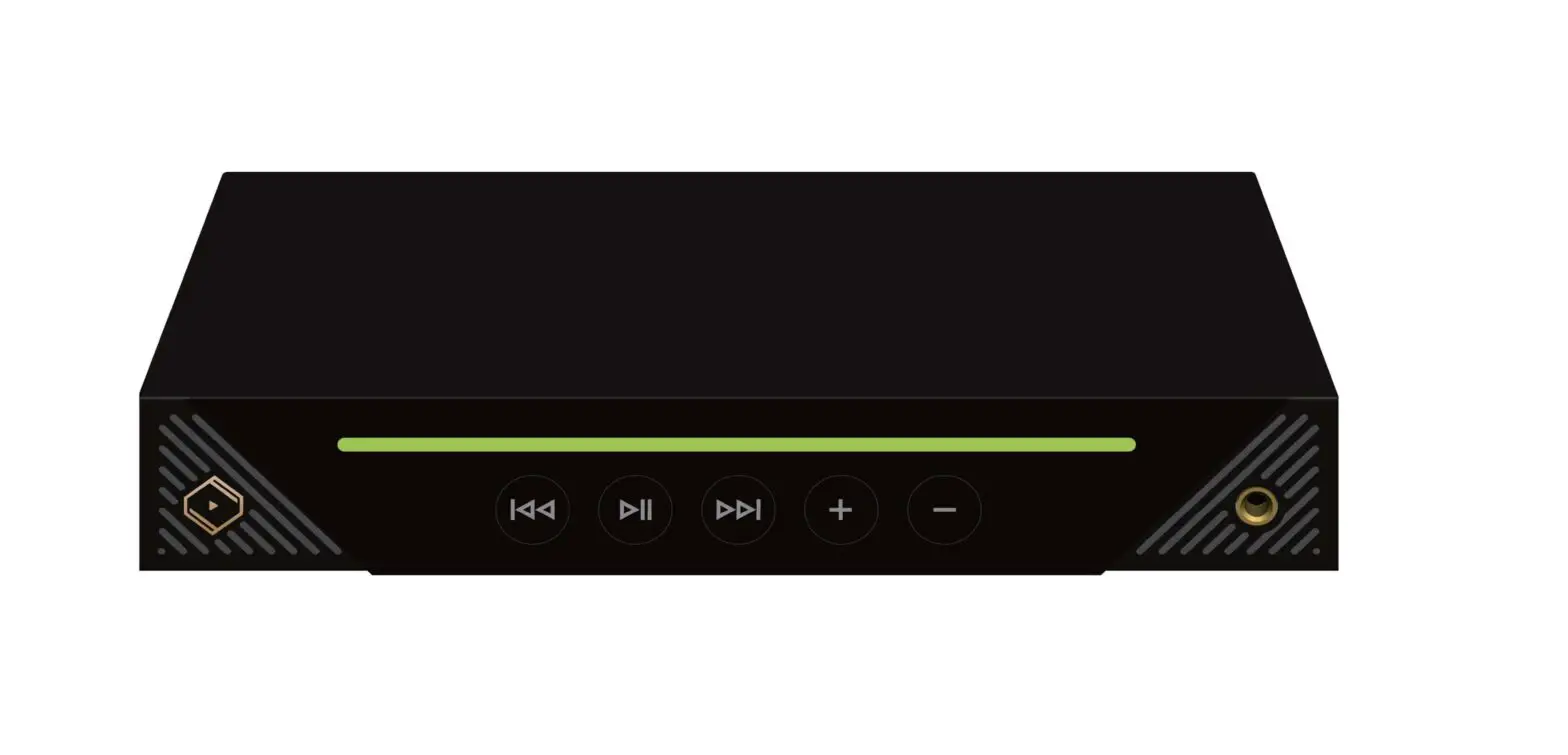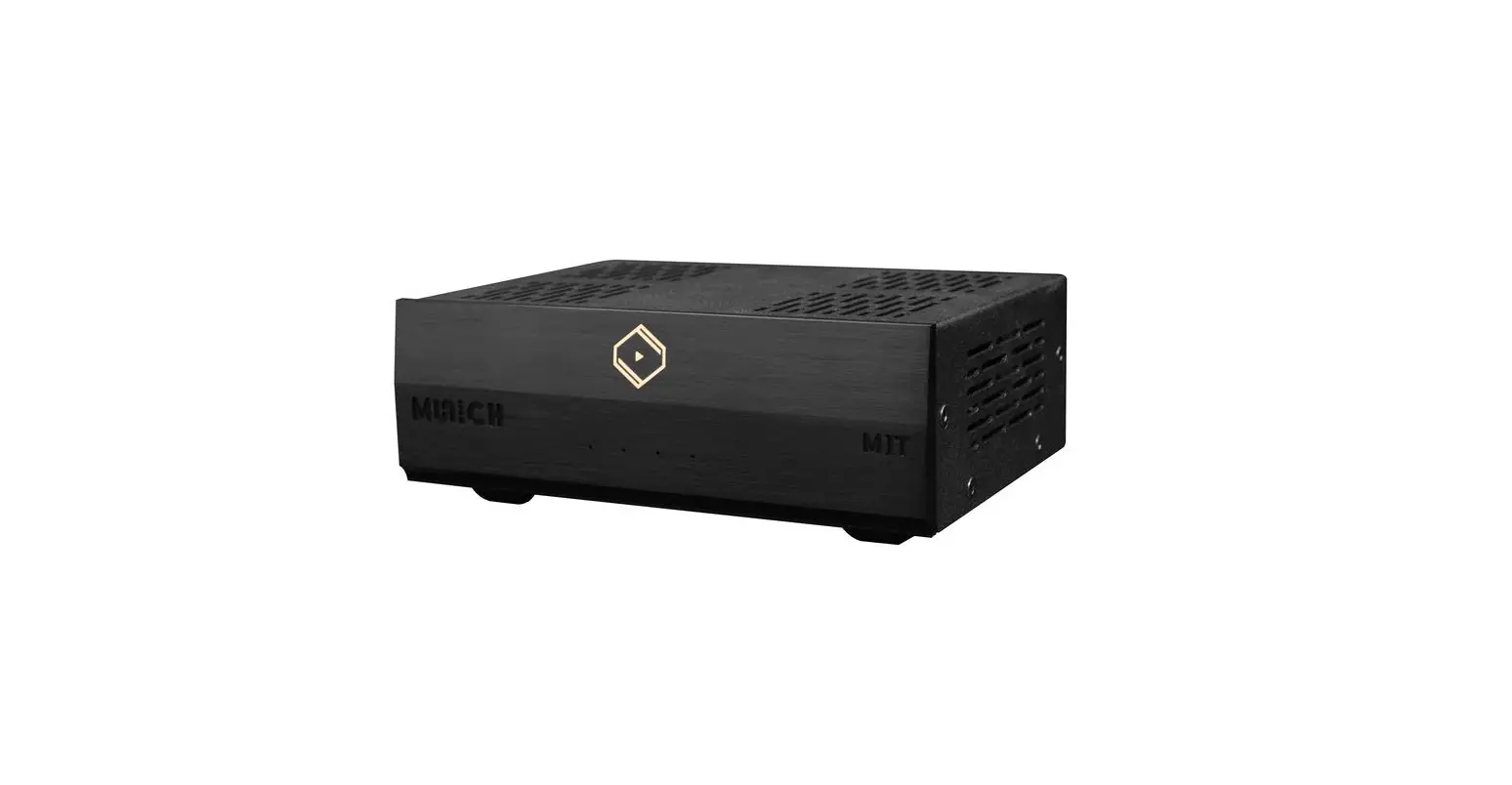

SILENT ANGEL M1T Music Streamer Transport
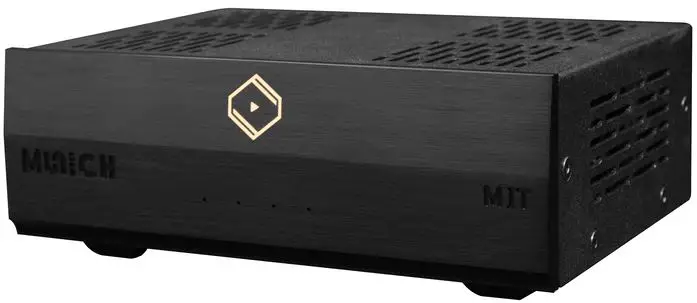
Product Information
- Product Name: Silent Angel M1/M1T
- Support: Interim Tidal Support
- Date: 2023/04/21
- Version: V1.0
Interim Tidal Support of Silent Angel M1/M1T Before you begin
- Make sure your M1 or M1T is connected to power and internet.
- A desktop and an Android or iOS-based device (Cellphone or Pad) connected to the same local area network (i.e., the same router of your home or office) as your M1 or M1T.
- Make sure your M1 or M1T is powered on.
Step-by-Step Guide
There are three options for your convenience, i.e., using an Android-based phone, iPhone, or Roon Server.
Product Usage Instructions
Option 1: Install BubbleUPnP on your Android-based cellphone
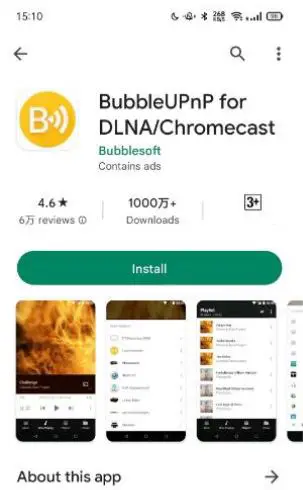
- Download and install the BubbleUPnP App from Google Play or your favorite application store.

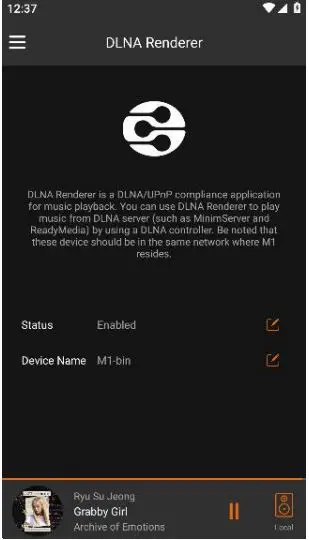
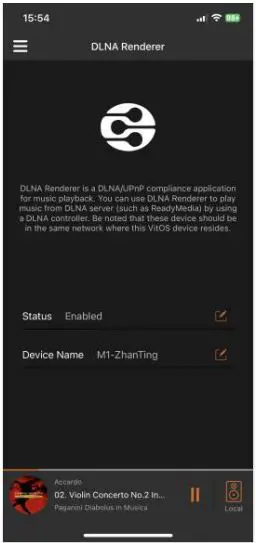
- In the VitOS Orbiter App, make sure the DLNA Renderer service is enabled.

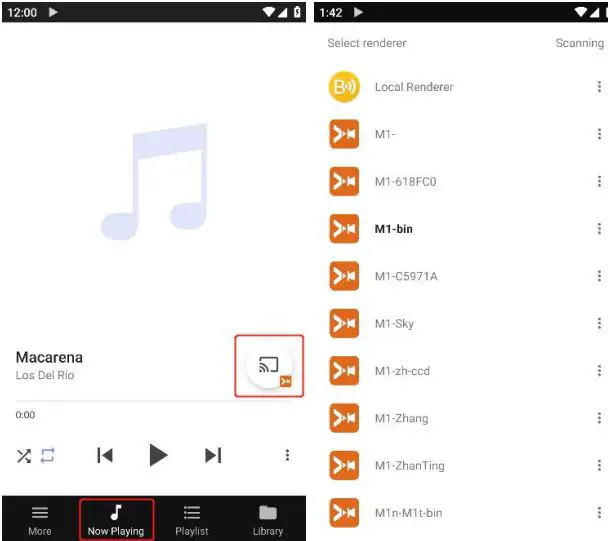
- Open the BubbleUPnP App, click on “Now Playing” option on the bottom, and select your Silent Angel device.

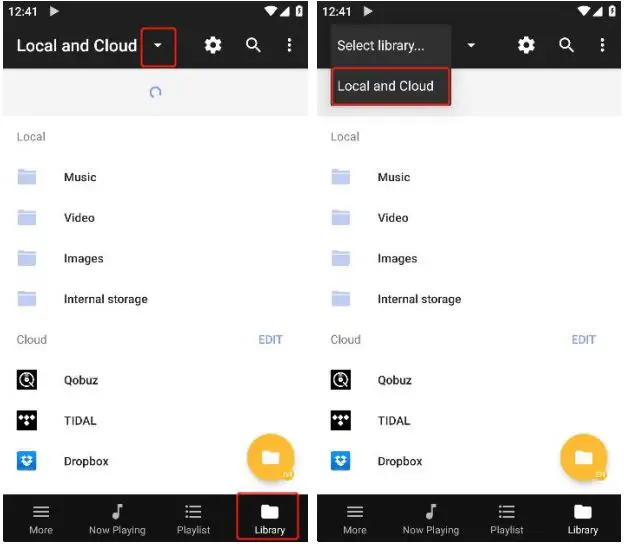
- Click on “Library” option on the bottom, select “Local andCloud” on the drop-down menu on the top.

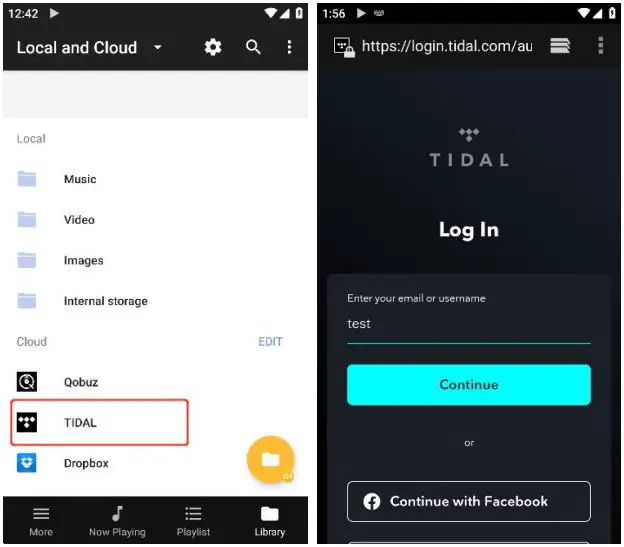
- On “Local and Cloud” window, select “TIDAL” and enter your Tidal account information to log in.

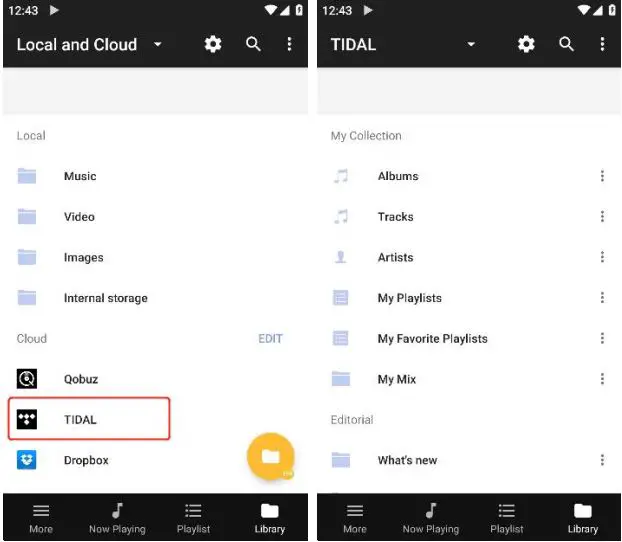
- After successful login, click on “TIDAL” to enjoy Tidal service.

Option 2: Use Mconnect on your iPhone to play Tidal music
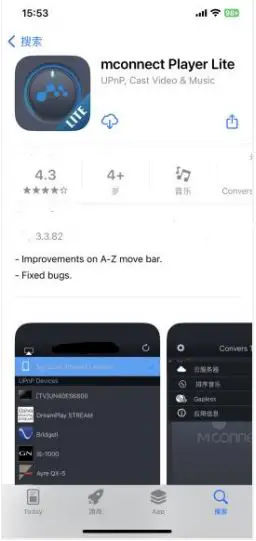
- Download and install the Mconnect Player Lite App from the App Store.
The App Strore may look like this:
- Make sure VitOS Orbiter App has DLNA Renderer enabled.

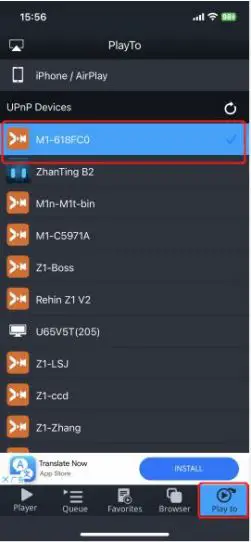
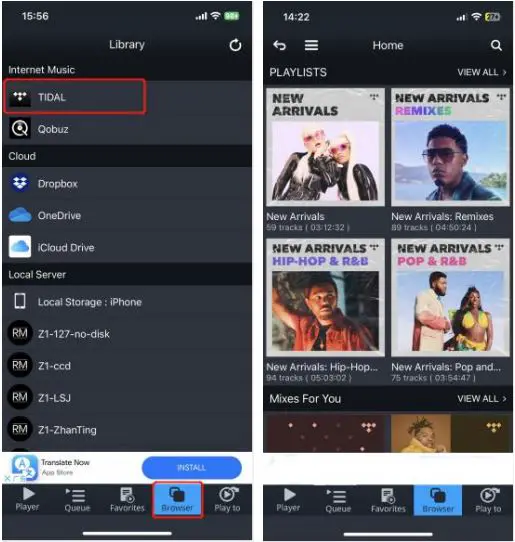
- Open the Mconnect Player Lite App, click on “Play to”, then find your M1/M1T device.

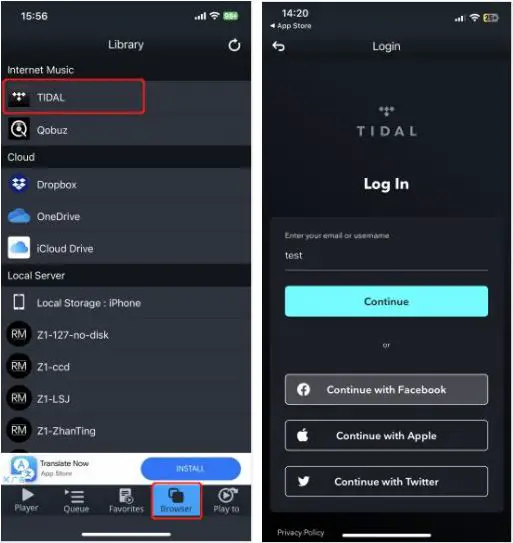
- Click on “Browser” at the bottom, find and select TIDAL. Then enter your Tidal account information to log in.

- After successful login, you can enjoy Tidal service.

Option 3: Play music on Tidal using your desktop with Roon Server
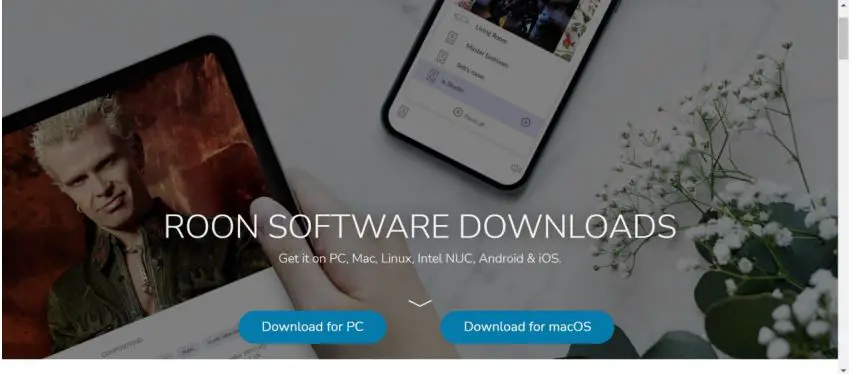
- Install Roon Server by downloading it from the following link: https://roonlabs.com/downloads

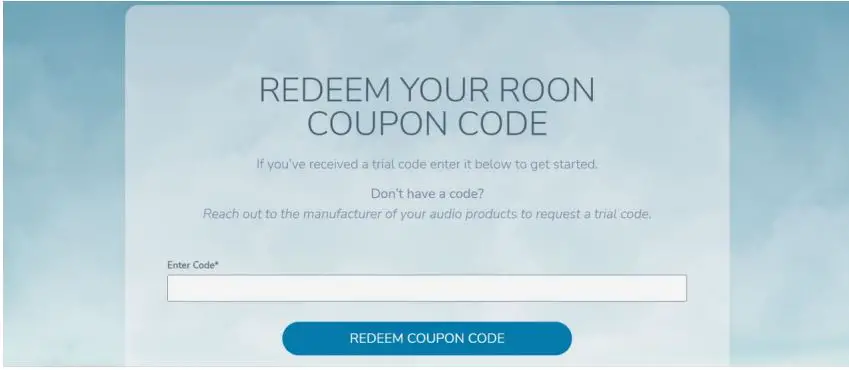
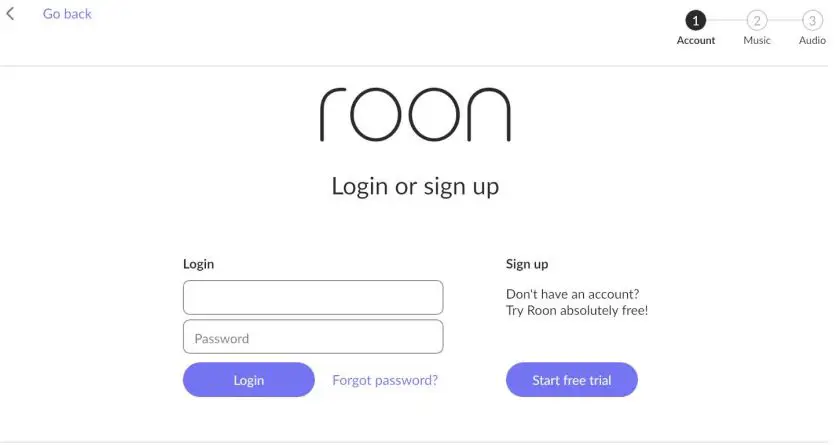
- Register with Roon and get a 60-day free trial coupon from Silent Angel. Enter the redemption code where appropriate.
- Roon Registration: https://roonlabs.com/create?from=checkout
- Coupon Redemption: https://roonlabs.com/coupon
Claiming your coupon:- If the package of your device includes a free-trial coupon, you can see the redemption code after scratching off the cover-up area of the coupon.
- Otherwise, send an email to:[email protected], tell us the device model and serial number of your device, as well as where you bought it. We will send you a code via email.

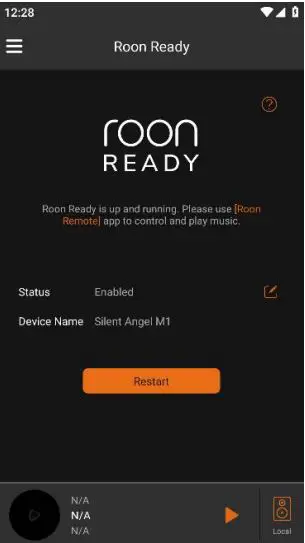
- In the VitOS Orbiter mobile App, make sure the Roon Ready option is enabled.

- Log on to the Roon Server installed on your desktop.

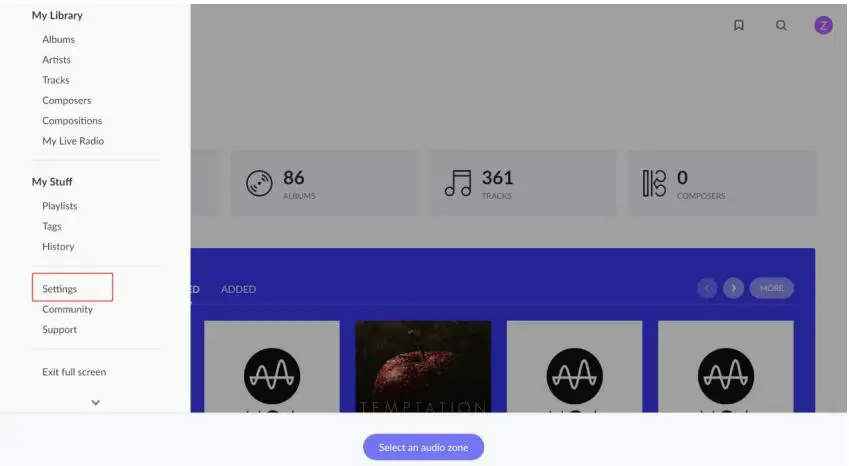
- On the Roon Server, click on the menu icon on the upper-right corner, find and select Settings as shown below:

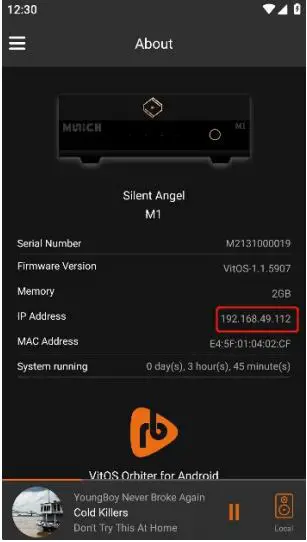
- In the VitOS Orbiter App, write down the IP address shown in the About window.

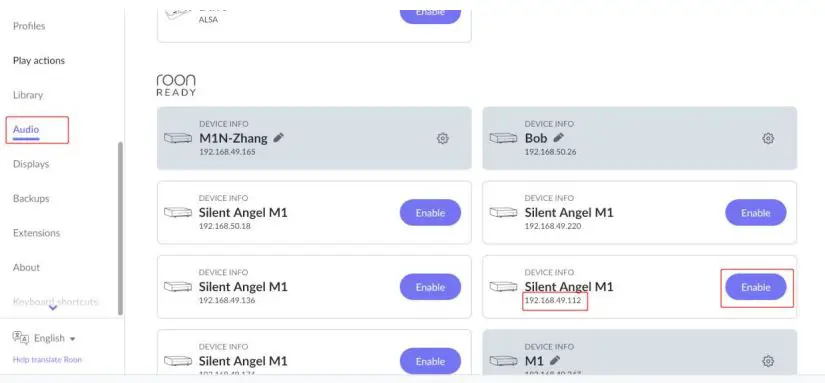
- Click on the “Audio” option, find the device with the IP address you wrote down in Step 1.4, then click on “Enable”.

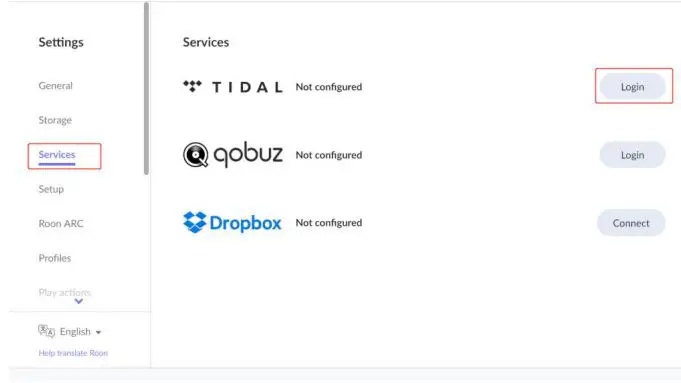
- On the Settings window, click on “Services”, and click on “Login” button next to Tidal.

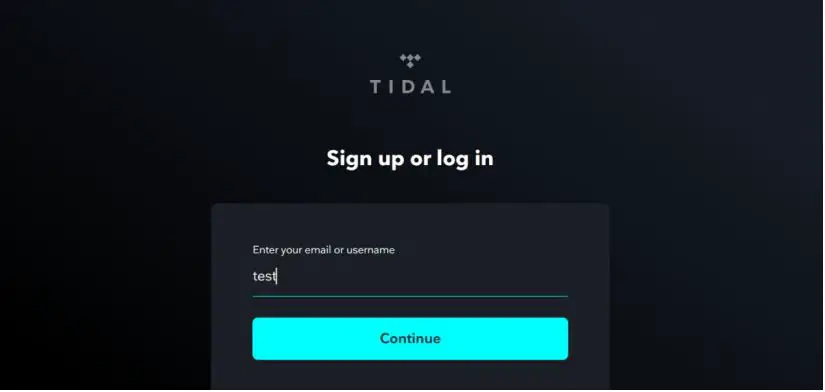
- It will bring you to the Login Window of Tidal. You can now enter your Tidal account information and log in.

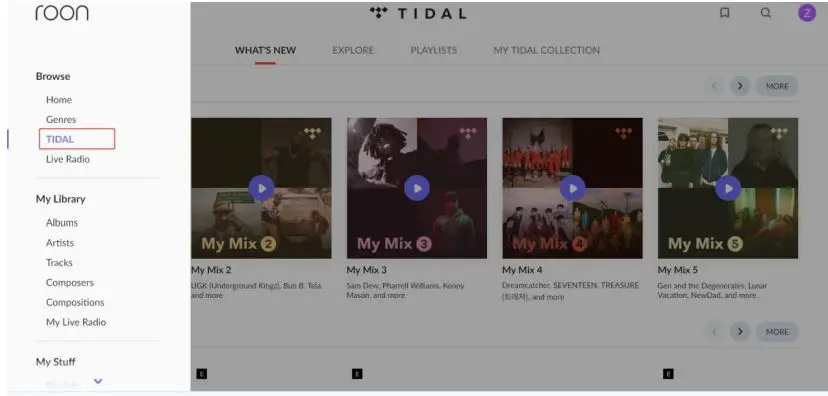
- After successful login to Tidal, find the “TIDAL”option on the right side of the Roon server window, you are now ready to enjoy Tidal service.

 Redeem your Roon coupon code