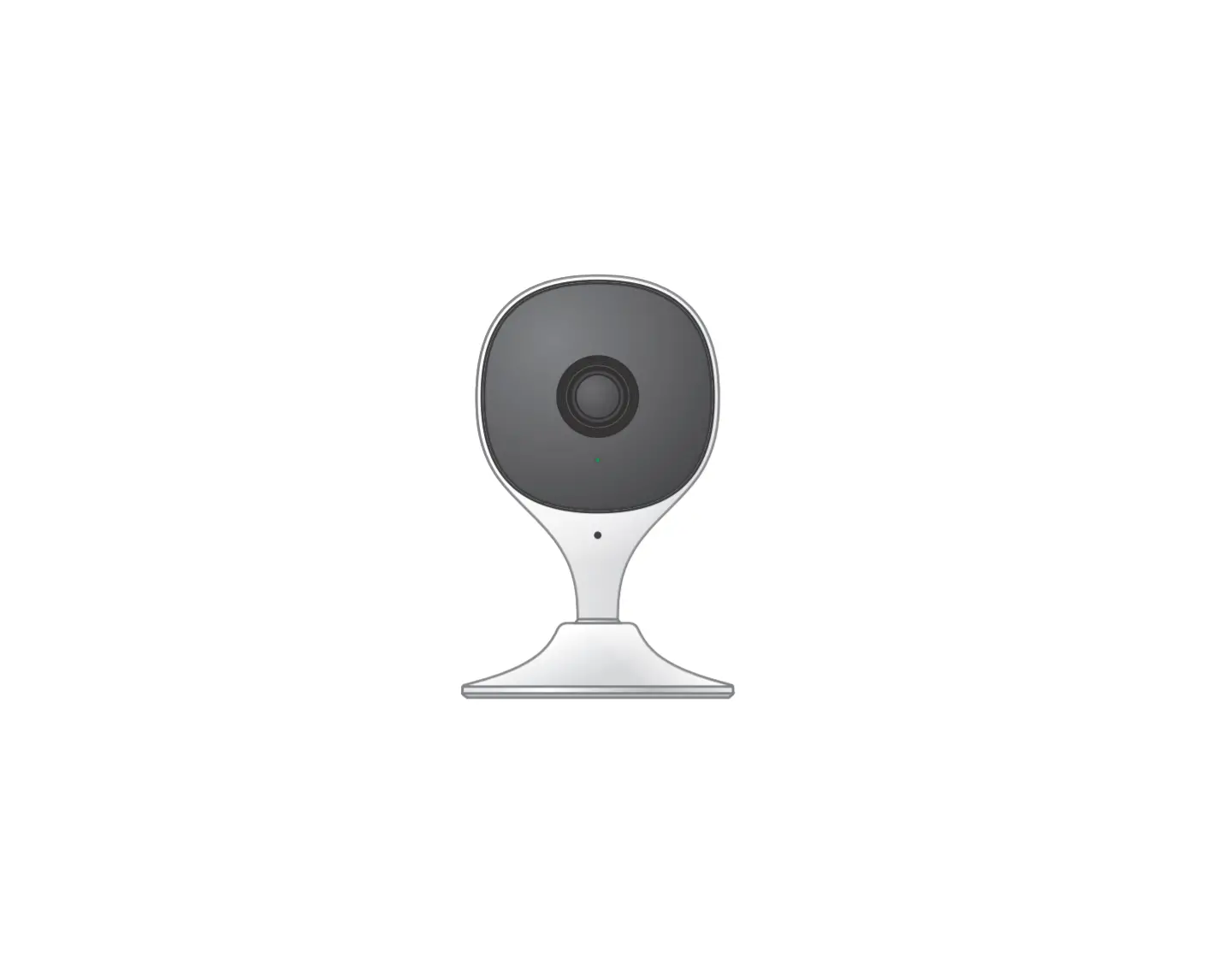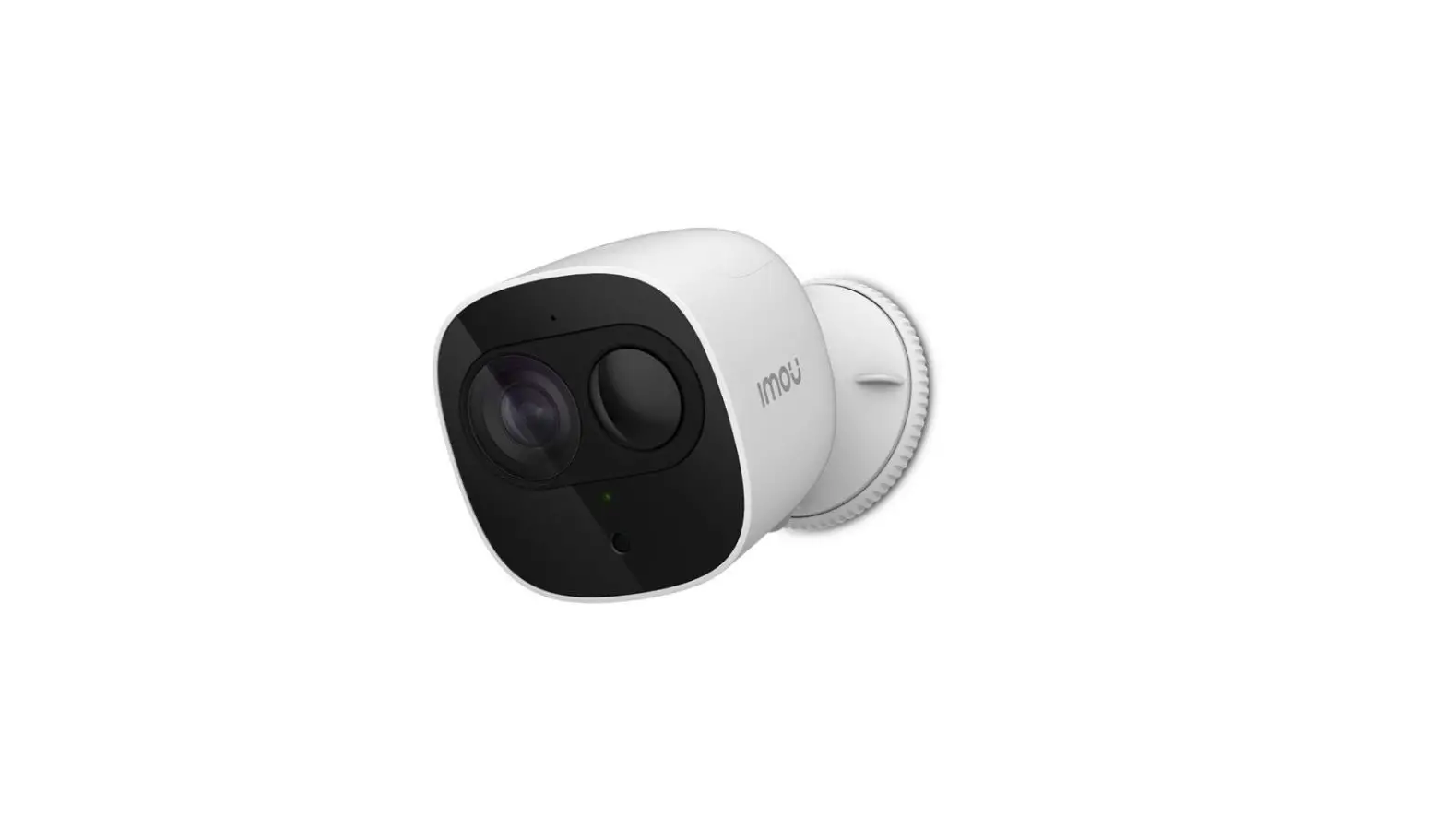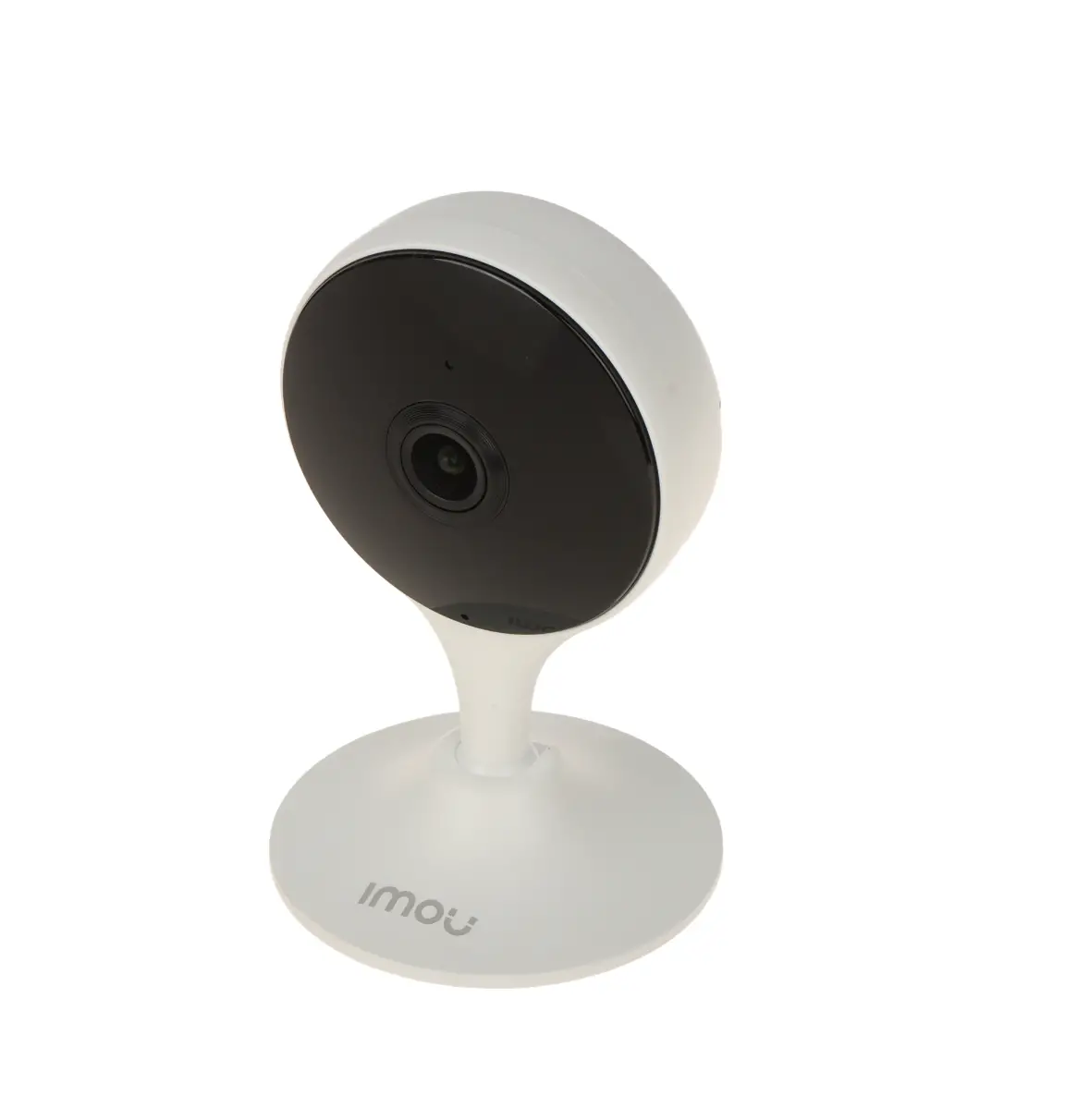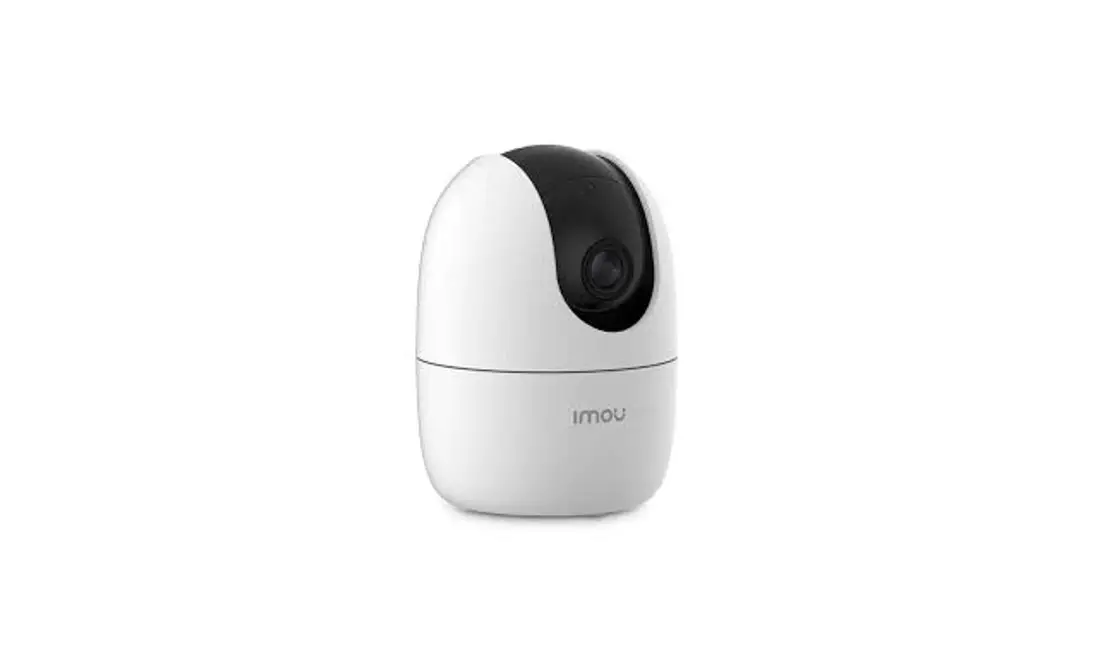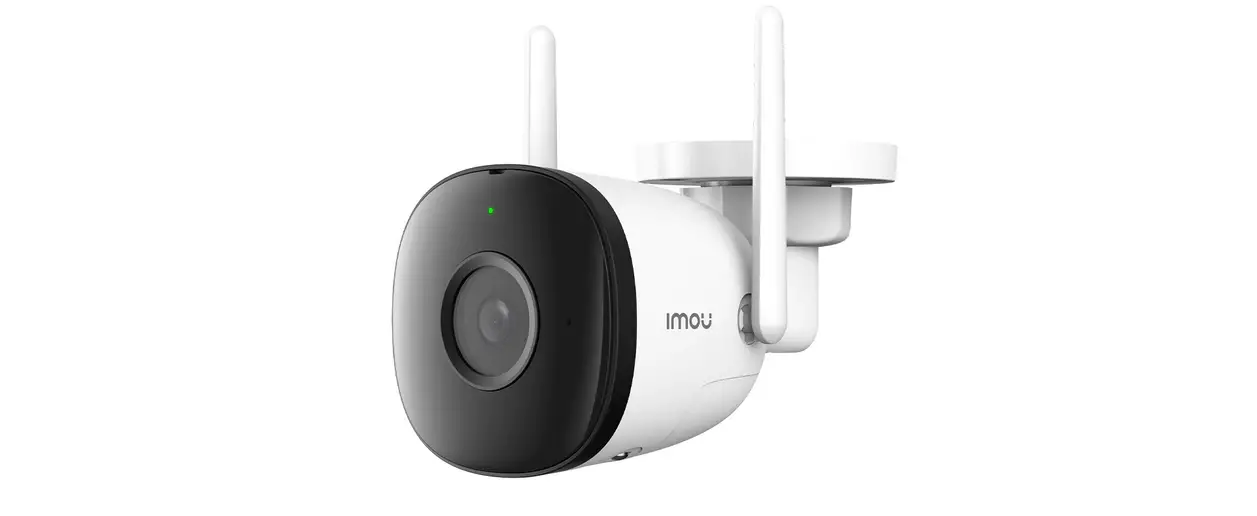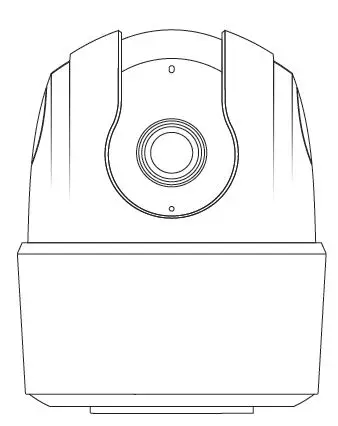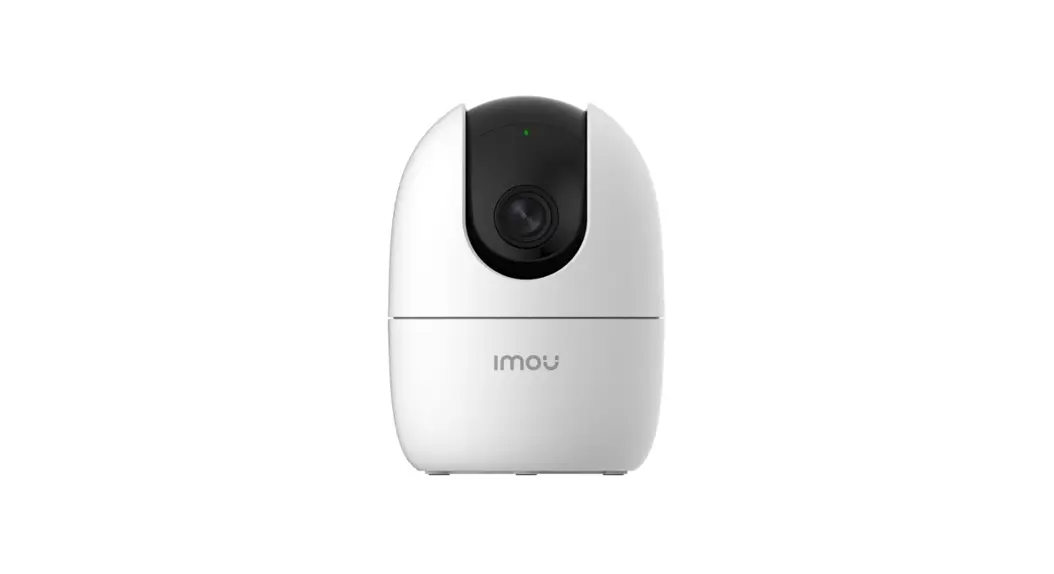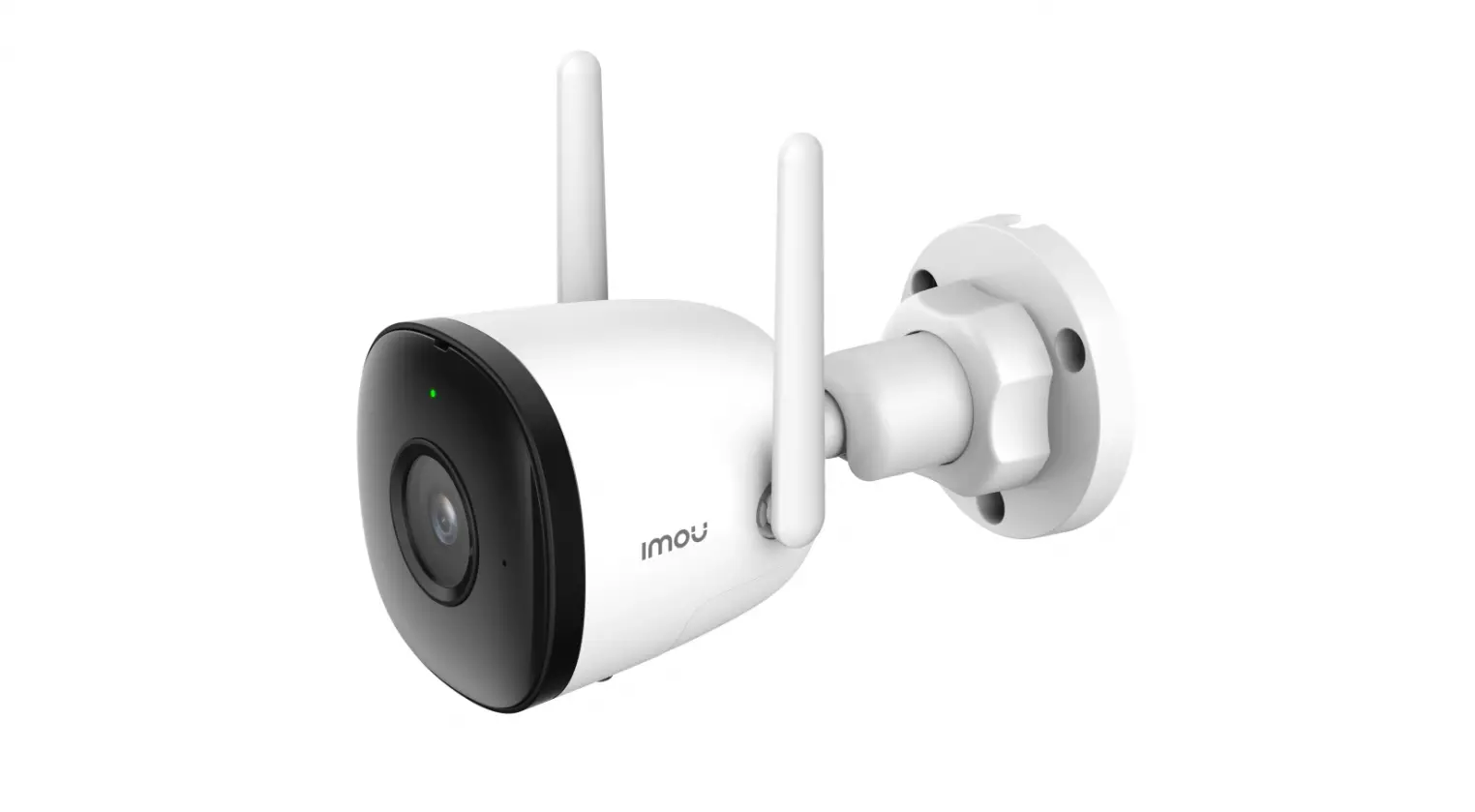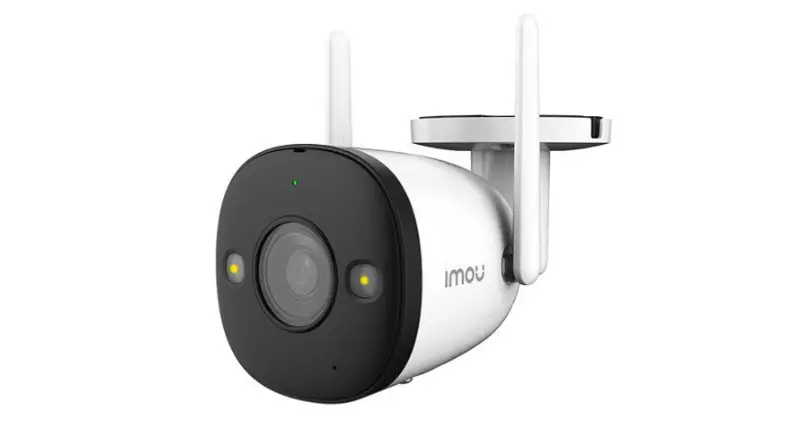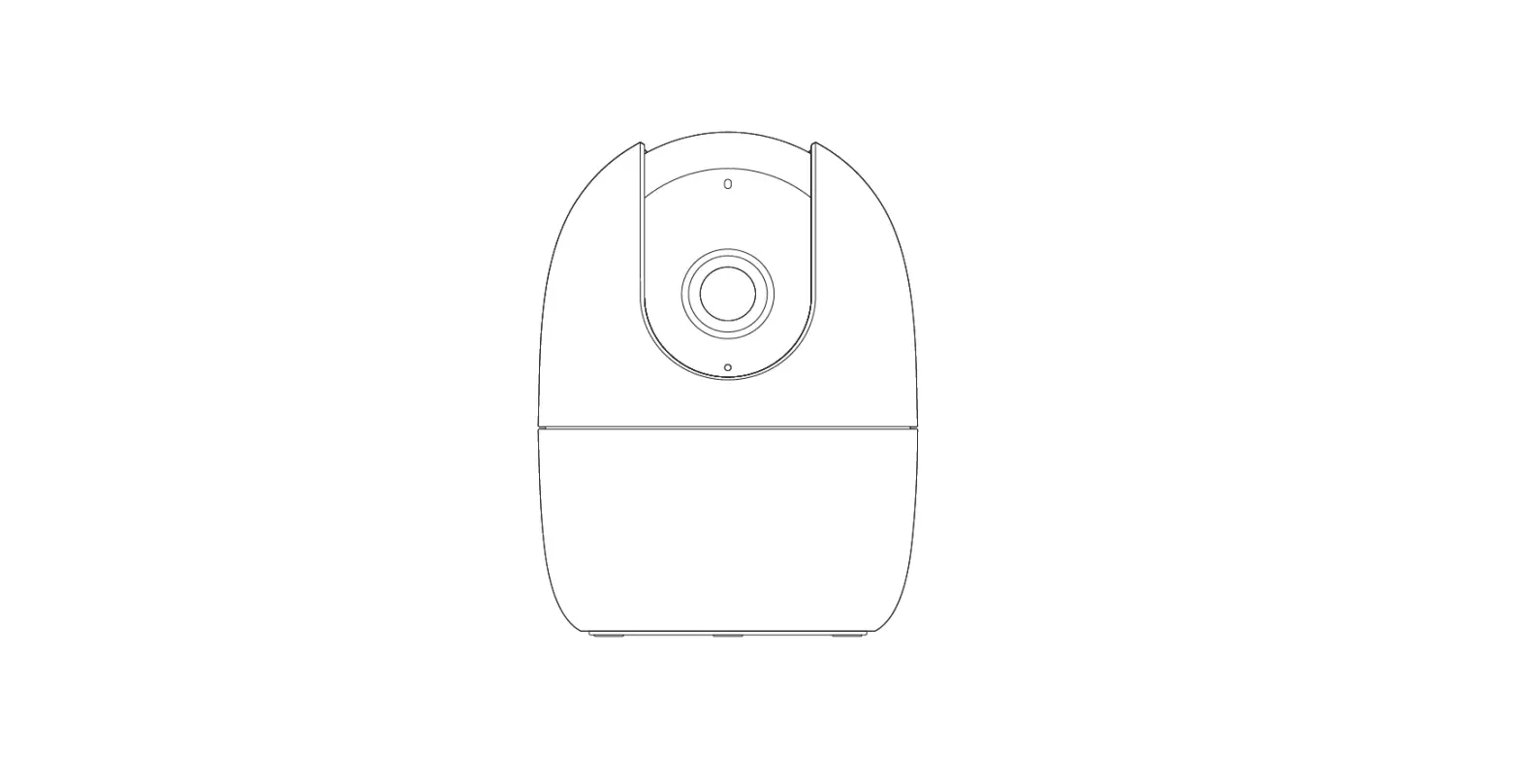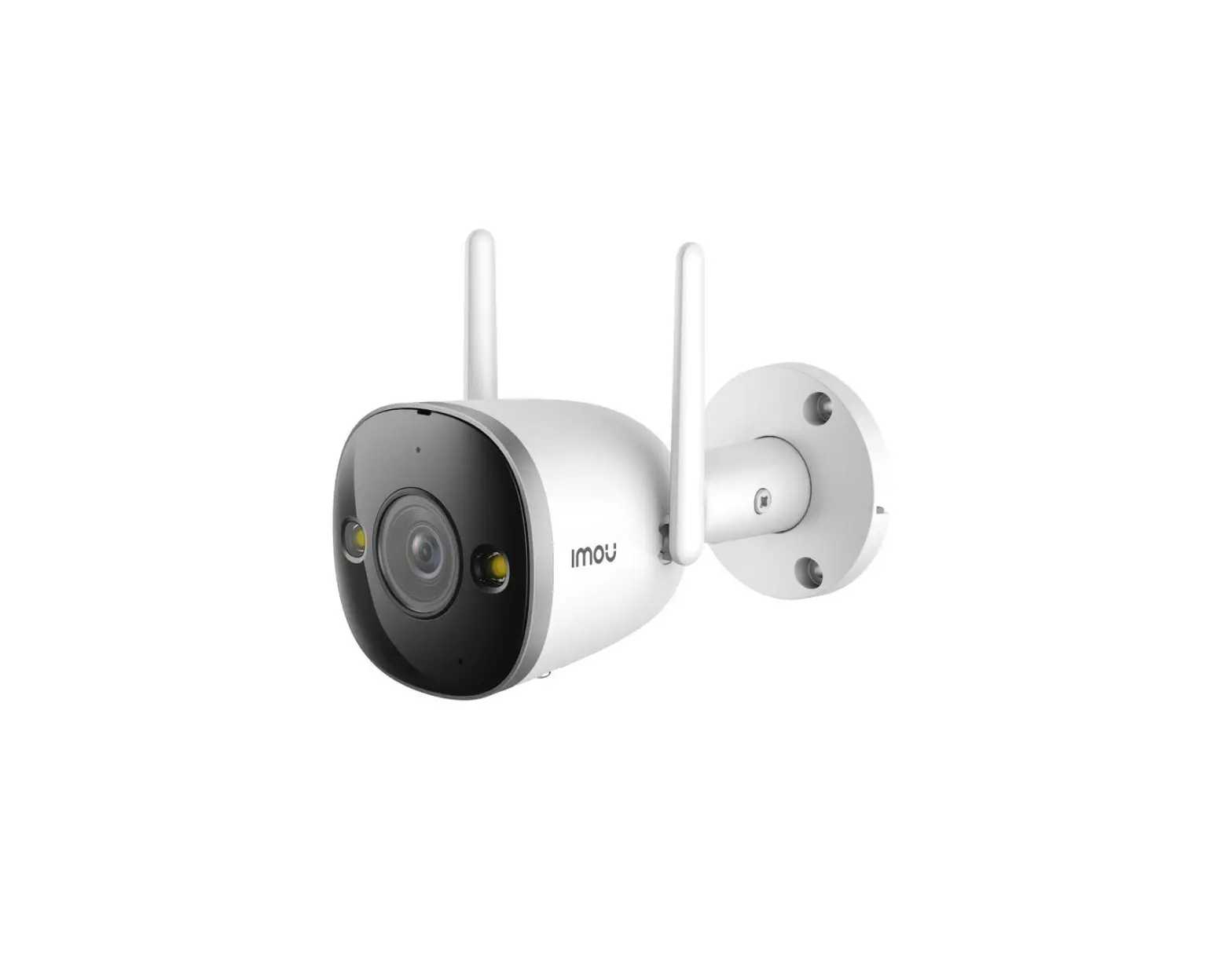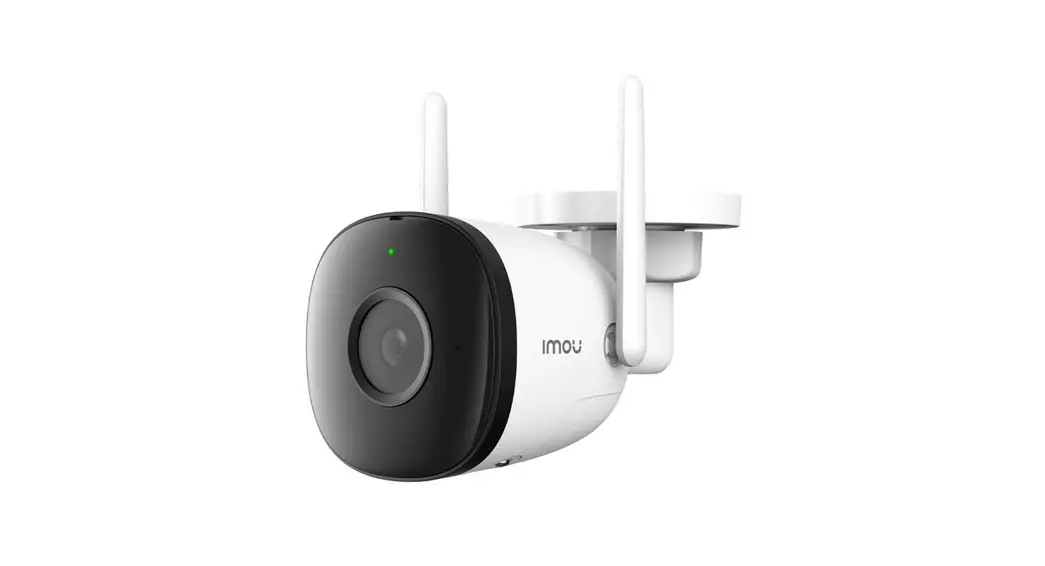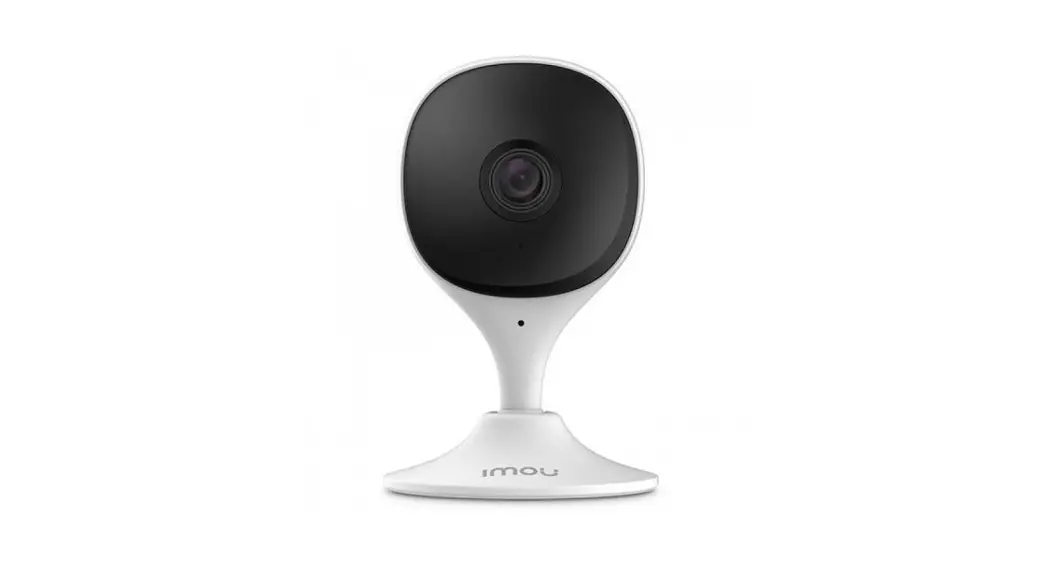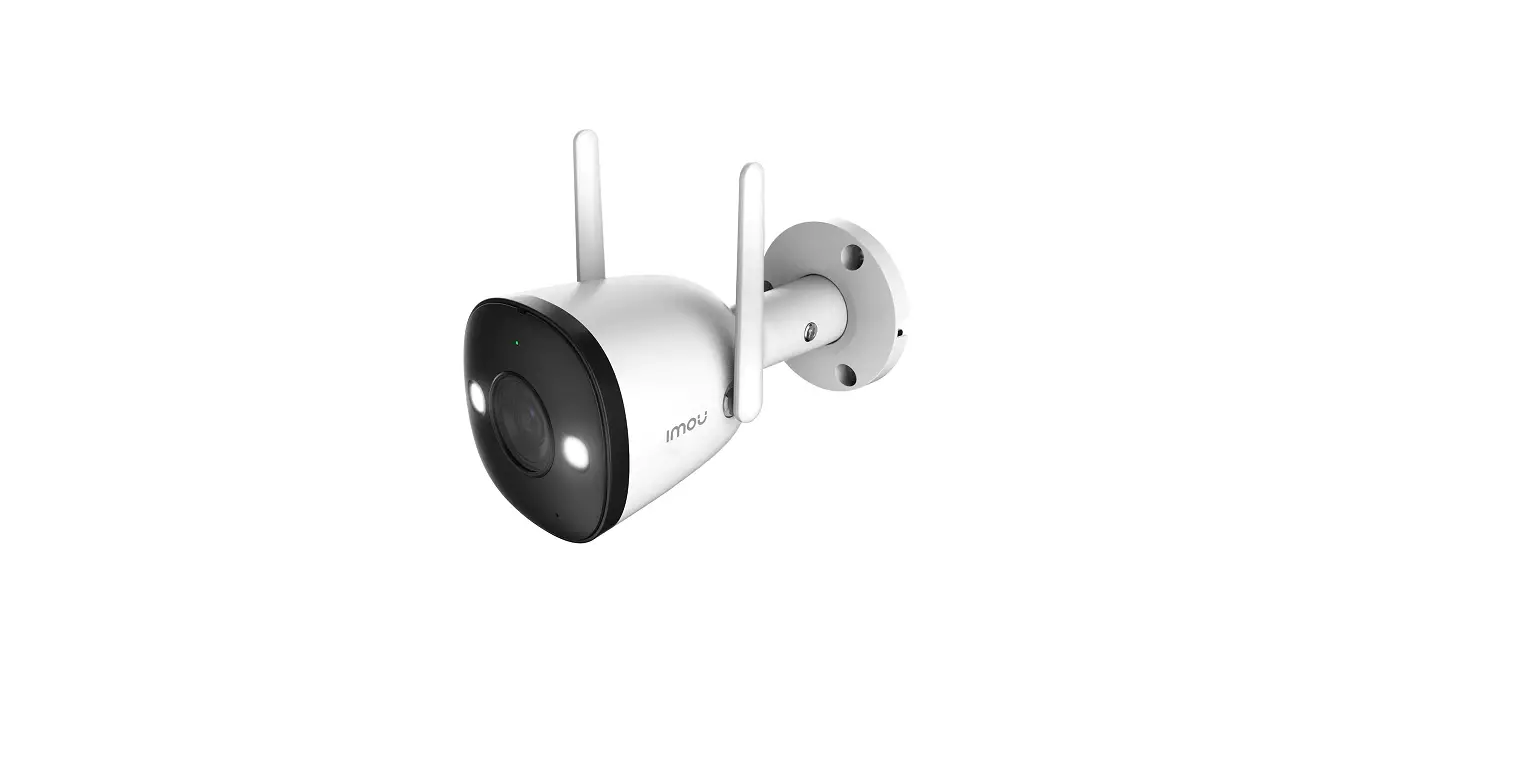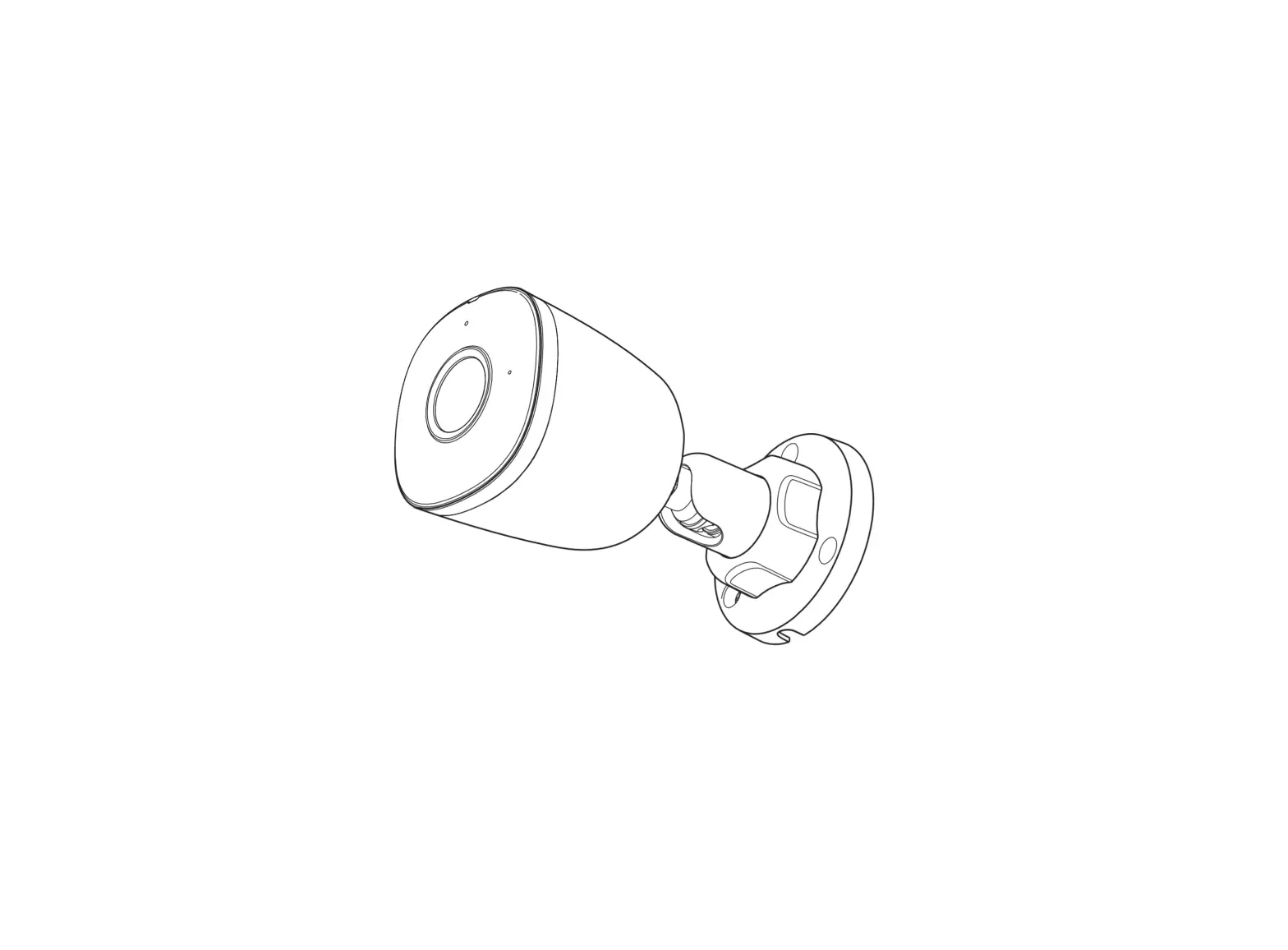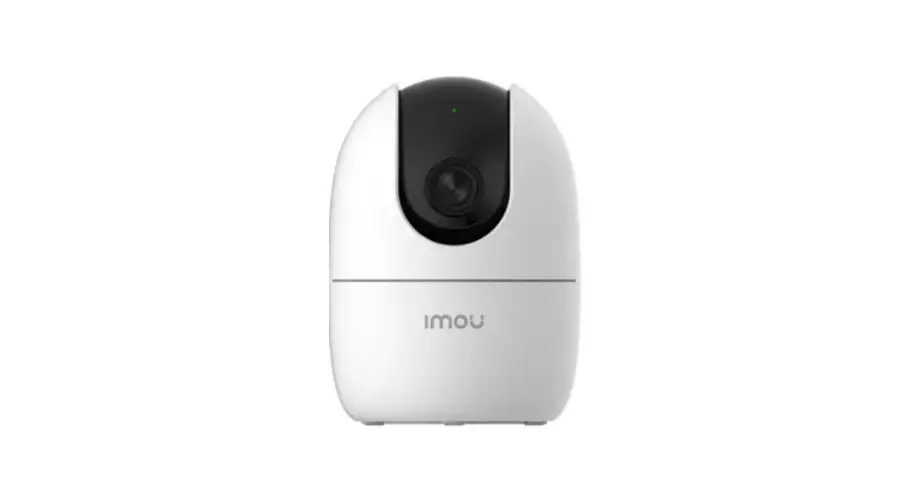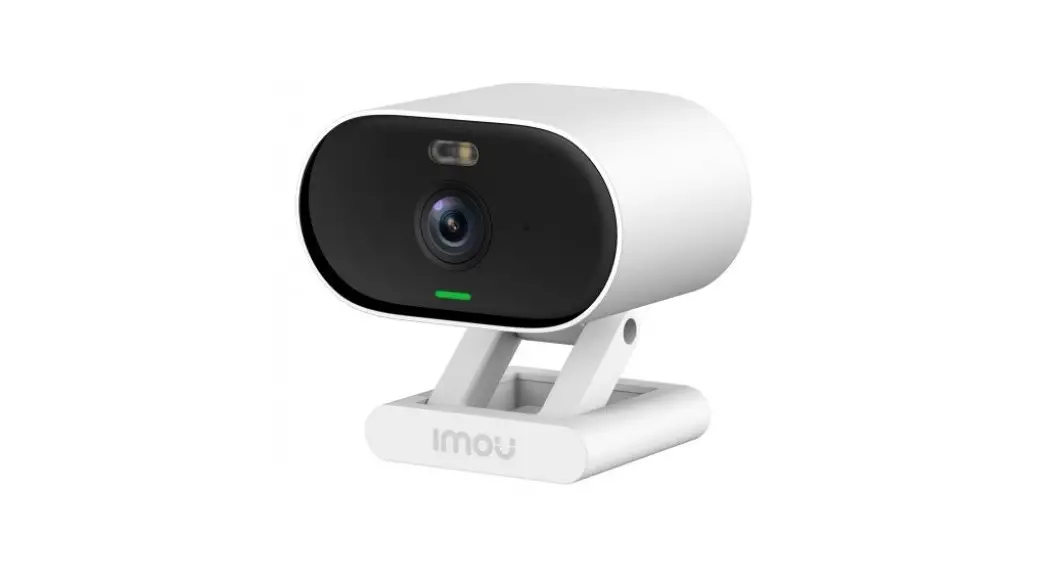
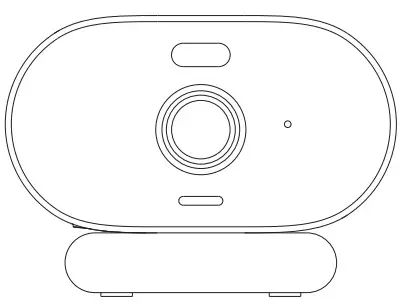
 IPC-C22FP Versa WiFi Camera
User Guide
 |  [email protected] [email protected] https://en.imoulife.com/support/help https://en.imoulife.com/support/help https://en.imoulife.com https://en.imoulife.com @imouglobal @imouglobal |
 http://mobile.easy4ipcloud.com/imou/detect.html
Power On the Camera
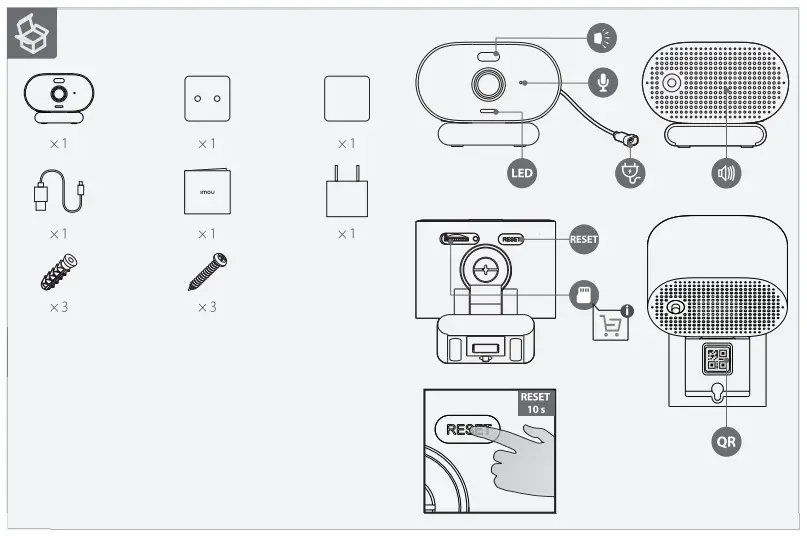
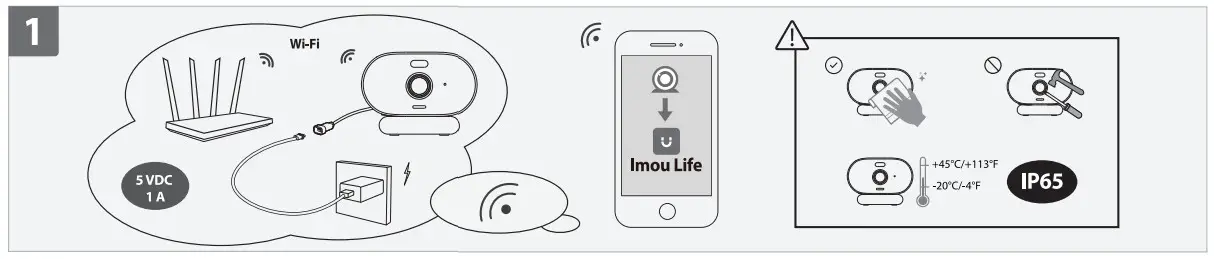
Connect the camera to power (see part 1).
Get the lmou Life App
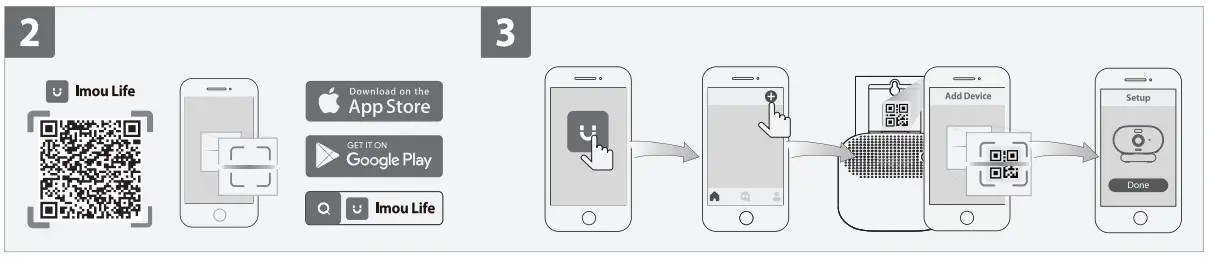
Scan the QR code on part 2 or search for “mou Life” to download and install the app. Create an account and log in.
Set Up the Camera
Scan the QR code on the body of the device or on the cover of this guide with the app, and then follow on-screen instructions to complete the setup (see part 3).
Install the Camera
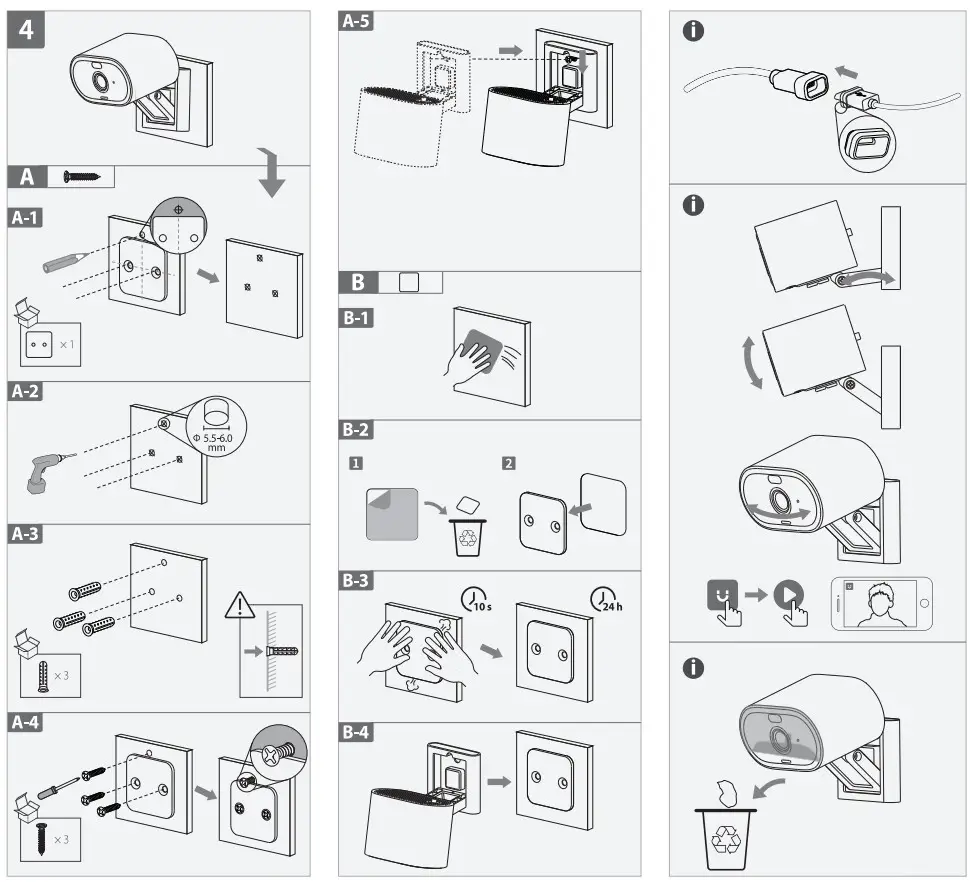
Make sure the mounting surface is strong enough to hold three times the weight of the camera. For a detailed installation process, please see part 4.
| LED Status | Device Status |
| Off | • Poweroff • LED turned off |
| Solid red | • Booting • Device malfunction |
| Flashing red | • Network disconnected • Failed to set up the device |
| Flashing green | Ready to set up the device |
| Solid green | Operating correctly |
| Flashing green and red | Updating firmware |
 In case you need to reset the camera, press and hold the reset button for IO s until the LED turns solid red.