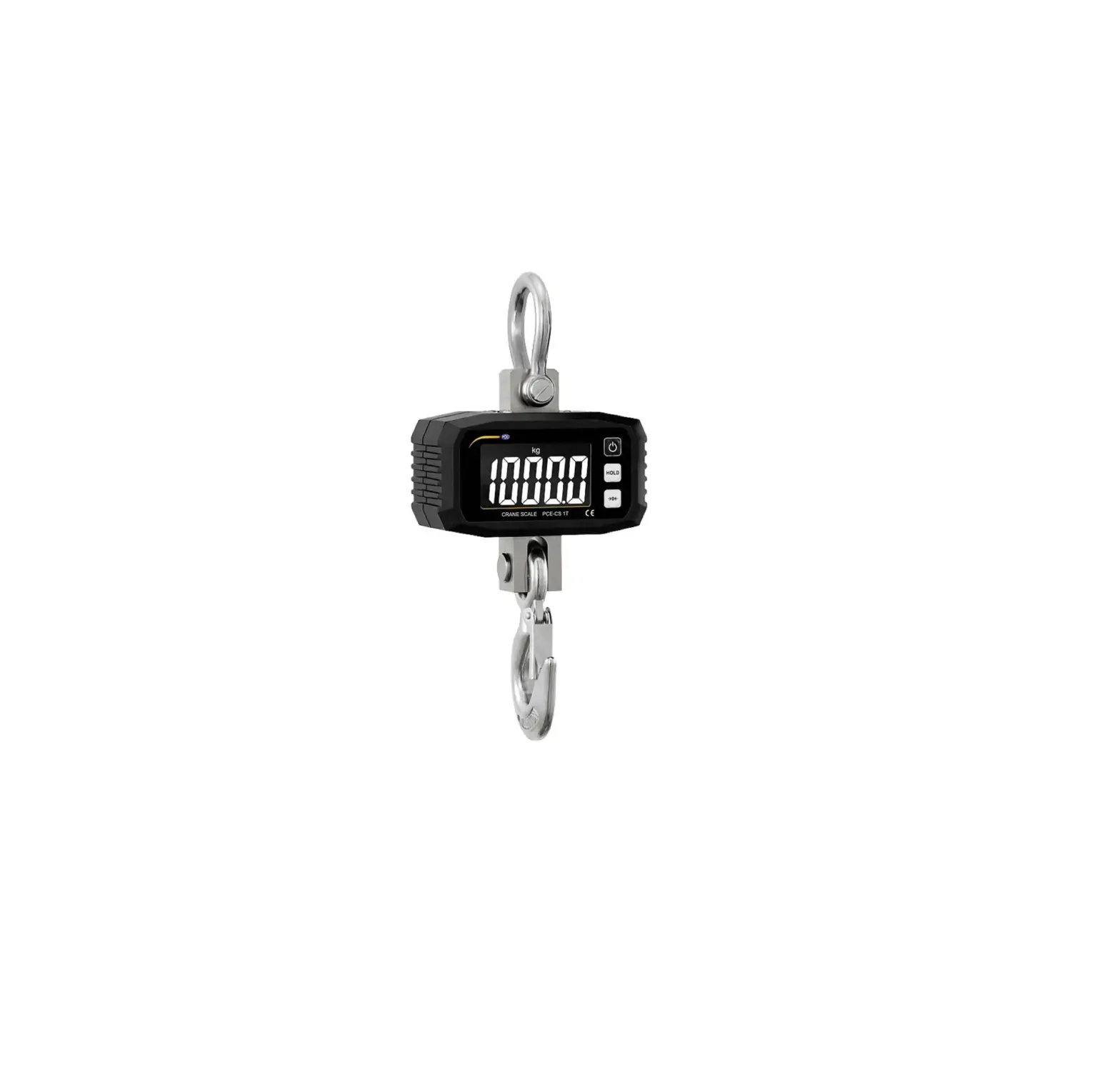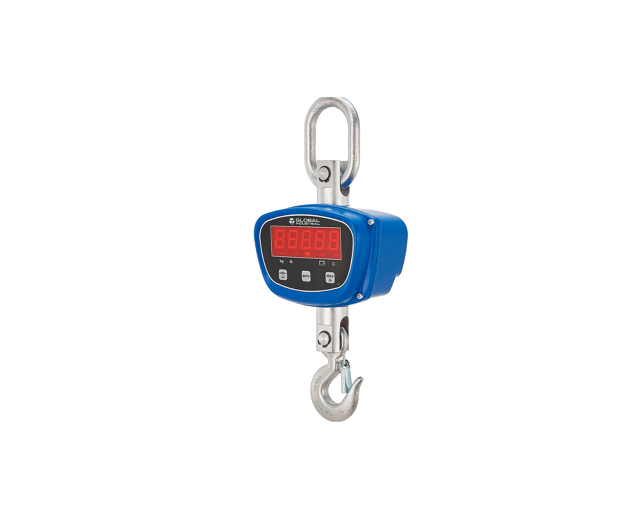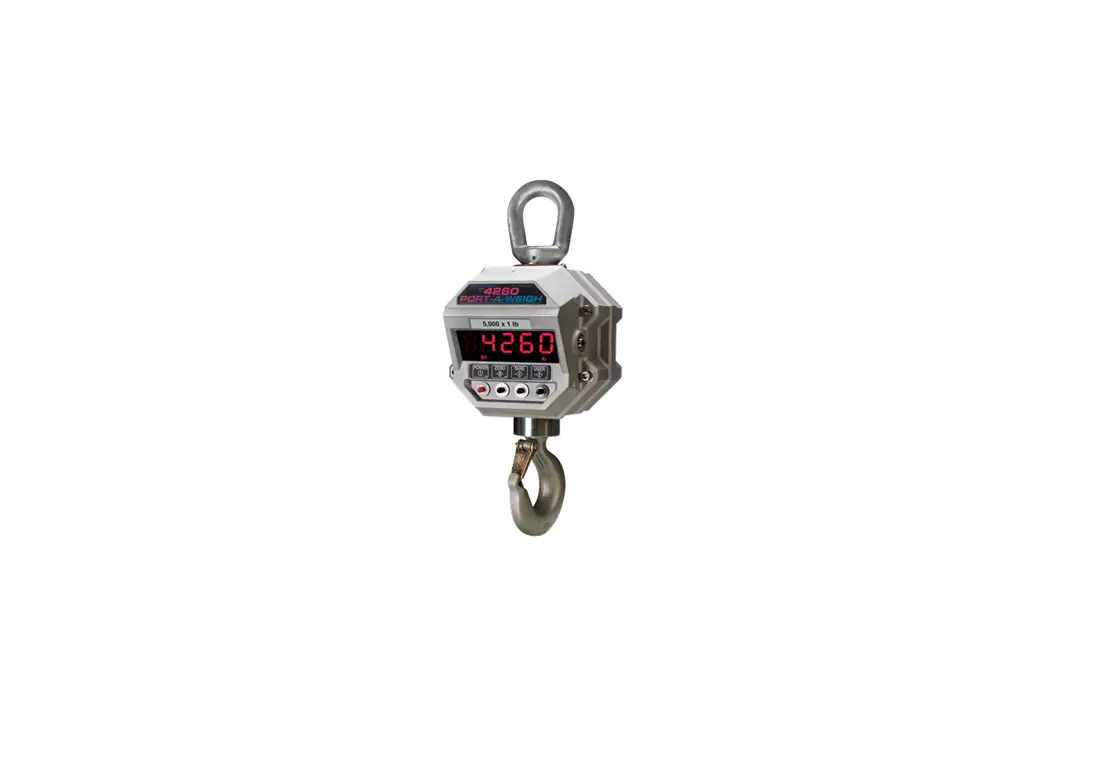

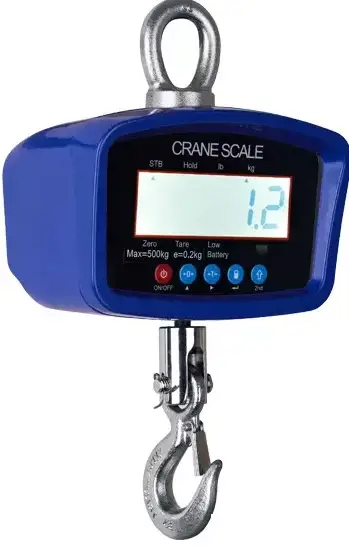
sellEton Scales SL-924 Crane Scale
SAFETY PRECAUTIONS
- For safe operation of the weighing scale, please follow these instructions:
- Calibration inspection and maintenance of the scale are prohibited, bynon-professional staff
- Please ensure that the scale hangs securely
- The scale is a piece of static sensitive equipment; Please cut off power during electrical connections
- Touching the internal components by hand is prohibited
- DO NOT exceed the rated load limit of the unit
- DO NOT hang on the unit
- DO NOT use this product if any of the components are cracked
- DO NOT use for purposes other then weight taking
- To avoid damaging the battery do not keep the charger plugged in once the battery is fully charged
- Make sure the weight is not over the Max capacity as it could damage the load cellinside
- Material that has a static electric charge could influence the weighing. Discharge the static electricity of the samples, if possible. Another solution to the problem isto wipe the scale with an anti-static agent
Please take anti-static prevention measures
Any accumulated charge on the body of the human operator should be discharged first before opening the protective container with ESDS devices inside. The discharge can be accomplished by: ●
Putting a hand on a grounded surface or, ideally, by wearing a grounded Anti-static wrist Strap and an Anti-static Mat
PREPARATION & SET UP
- Plug into a wall outlet to avoid interference with other wirings
- Turn on the scale while there is no load
- Calibration may be required before weighing when the scale is initially installed removed from a location
FEATURES
- LED or LCD display option
- Multiple weighing units: kg/lb
- Gross/Tare/Hold/Zero
- Economical, lightweight and handheld general purpose crane scale
- Features and easy to red backlit LCD or ultra bright LED display
- Powered using a rechargeable battery pack (up to 80 hours) and AC adapter
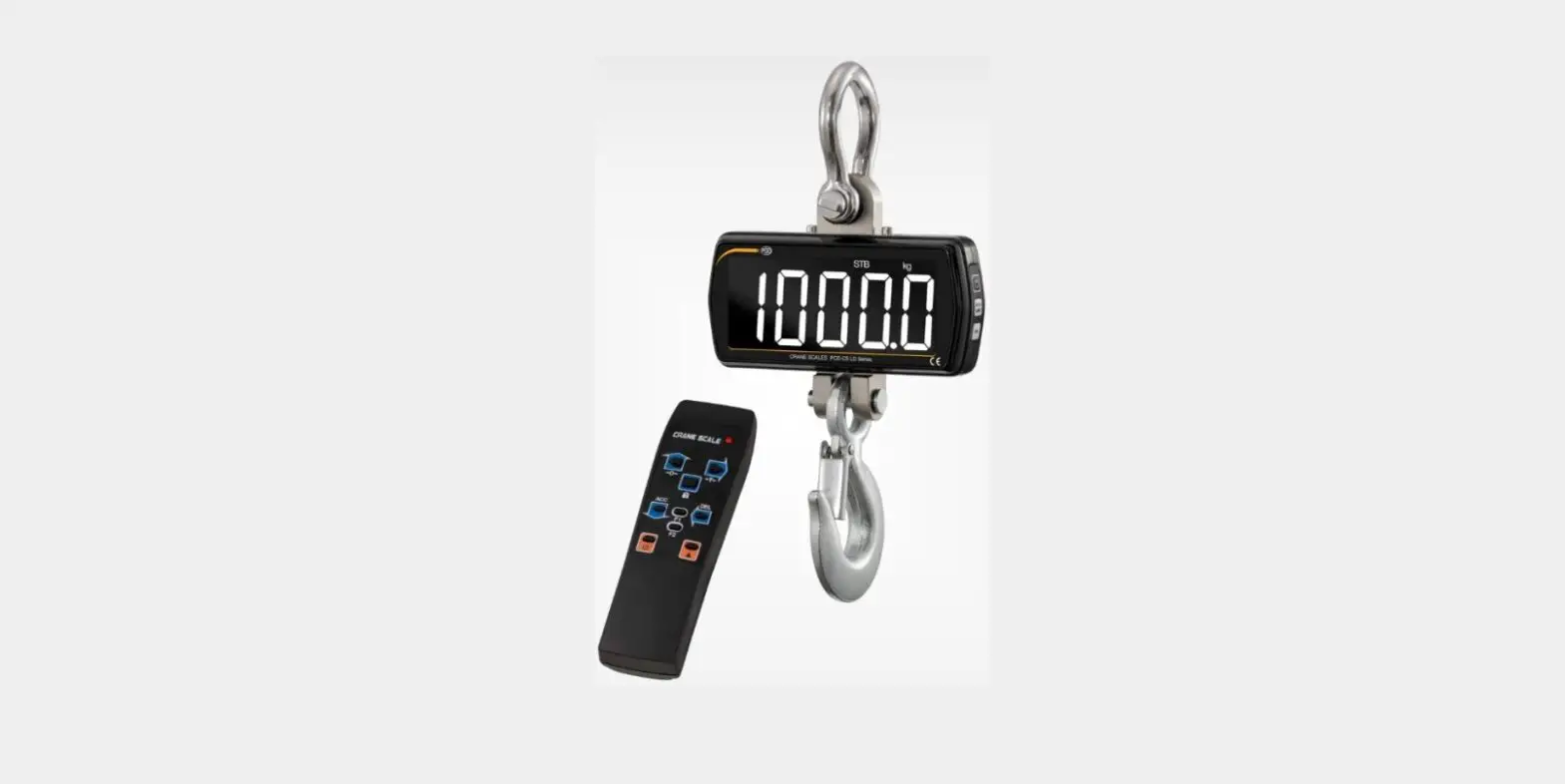
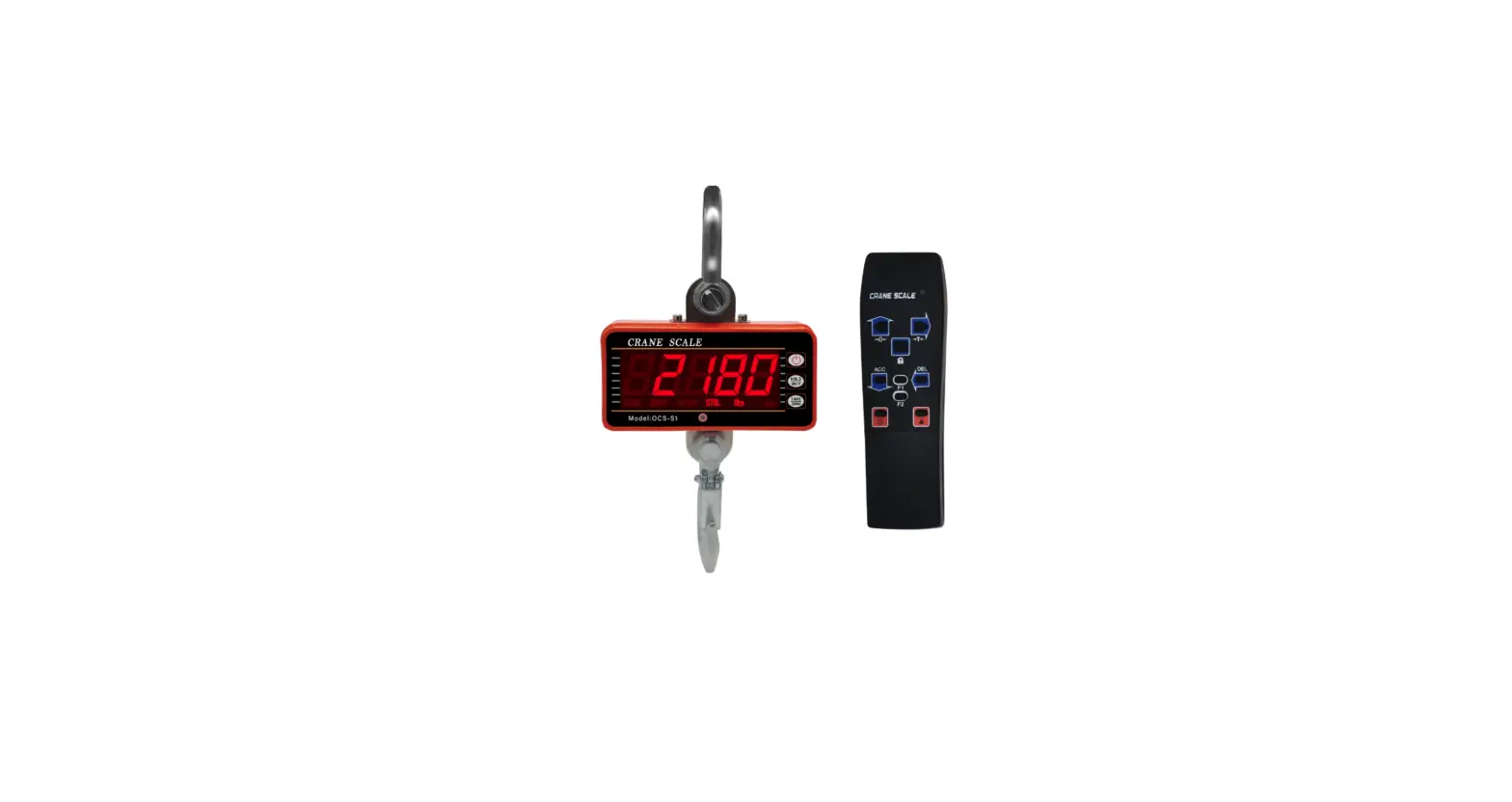
- The standard remote controller allows the user to change units, clear measurements,zero and tare out weight
- A remote controller can capture peak weight at a distance of up to 100 feet (30m)
- The wireless remote control has Hold function
- Low battery reminder
- Automatic power off/power-saving mode
Technical Parameters
- Accuracy class: Class III
- Tare Range: 100% max. capacity
- Initial Zero Range: ± 10% max. capacity
- Manual Zero Range: ± 2% max. capacity
- Zero Range: 45 F.S.
- Overload: 100 F.S
- Display: 6 digit LED/LCD work height 1.5”
- Battery: 6V/10Ah, 6V/5Ah, or 6V/3.2Ah lead acid battery
- Charger: AC110V Input, DC9V/1500mA output
- Operation temperature: -10 °C ~ +40 °C
- Operation humidity: ≤90%RH
- Storage temperature: -40 °C ~ +70 °C (32-104°F)
SPECIFICATIONS
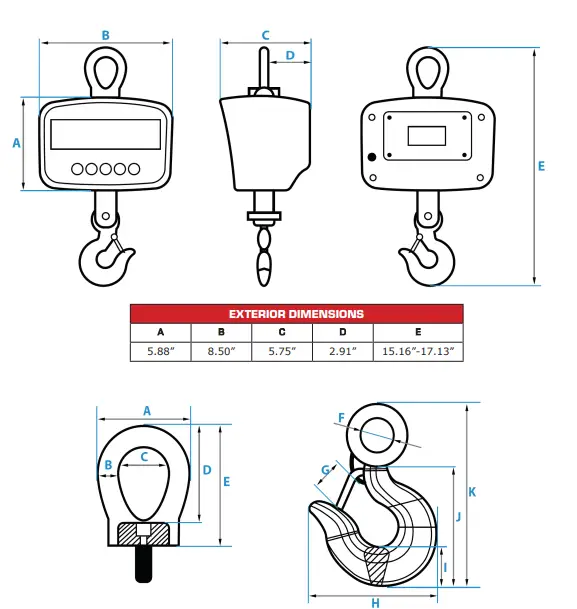
| HOOK DIMENSIONS | ||||||||||
| A | B | C | D | F | G | H | I | J | K | |
| UP TO 2,000 LBS. | ||||||||||
| 2.55” | 0.60” | 1.35” | 2.65” | 3.25” | 0.90” | 0.90” | 2.92” | 0.96” | 3.15” | 4.92” |
| OVER 2,000 LBS. | ||||||||||
| 2.55” | 0.60” | 1.35” | 2.65” | 3.25” | 1.22” | 1.15” | 3.57” | 1.25” | 3.90” | 6.50 |
POWER SUPPLY
Adapter AC
The scale is powered by an adapter, plug the adapter directly into the “DC” pin located at the back of the scale. We recommend to plug into a wall outlet to avoid interference with other wirings. A 110-220V AC adapter should be provided with your scale. Please use only the AC adapter provided to prevent damage to your scale.
Battery
SL-924 comes with a rechargeable battery, please charge the internal battery fully be-fore first time use for 10-12 hours to prevent low voltage resulted from left leakage of battery. Once charged the battery should last for 45 hours. An AC adapter should be provided with your scale. Please use only the AC adapter provided to prevent damage to your scale. To keep the battery in best condition, fully discharge the battery every month by leaving the scale on until the scale powers off, and then recharge fully. If the battery is not going to be used for a long period of time it is recommended to remove it to avoid leakage.
On SL-924A
When the Battery is low the battery scale light flashes redDuring charging the red light will stay lit
ON SL-924B
symbol will indicate battery’s chargesymbol indicates that the battery needs to be charged
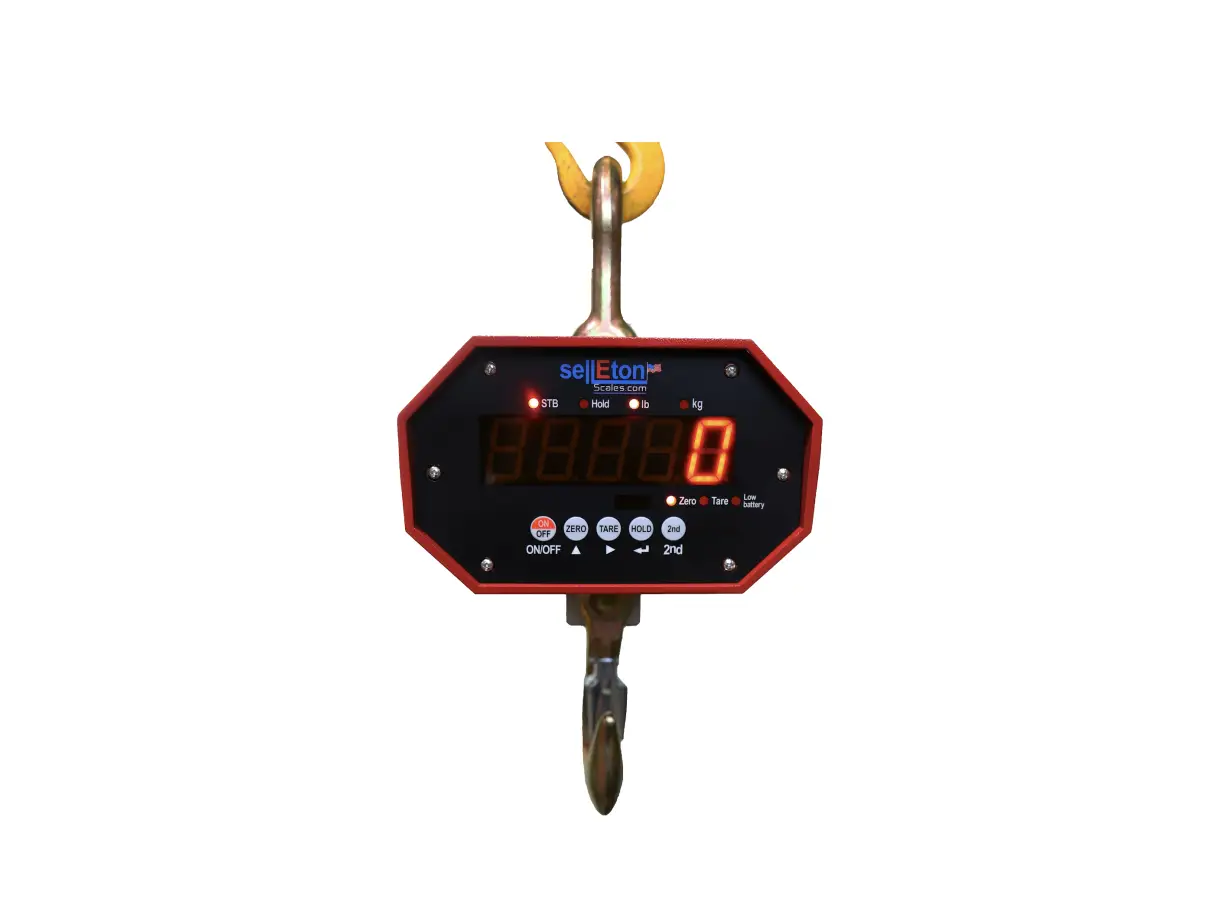
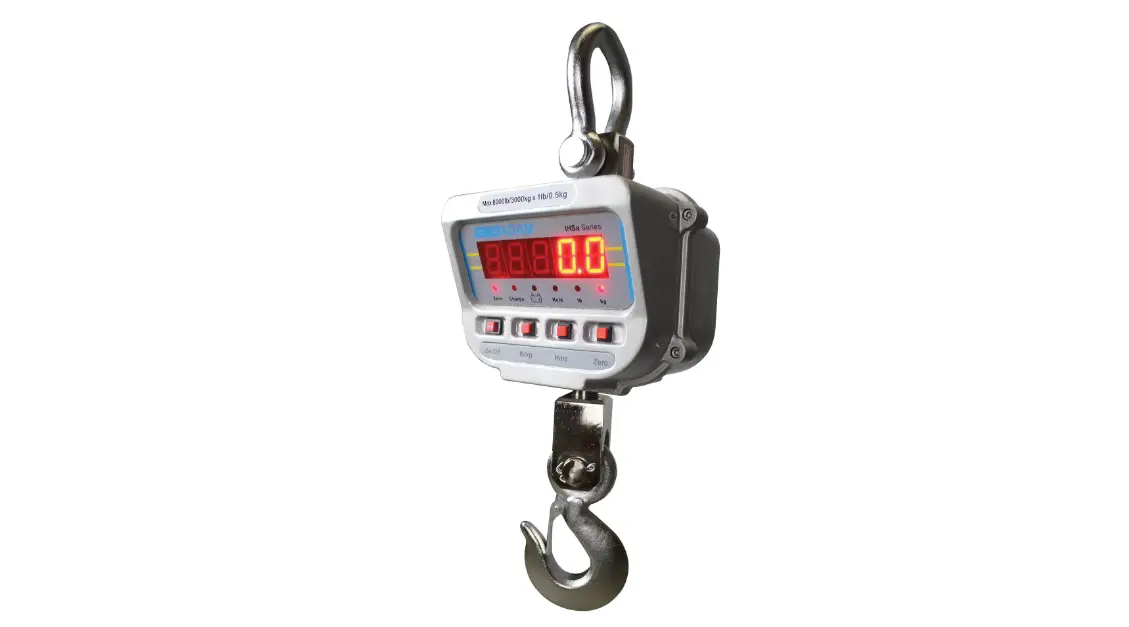
SL-924A (LED)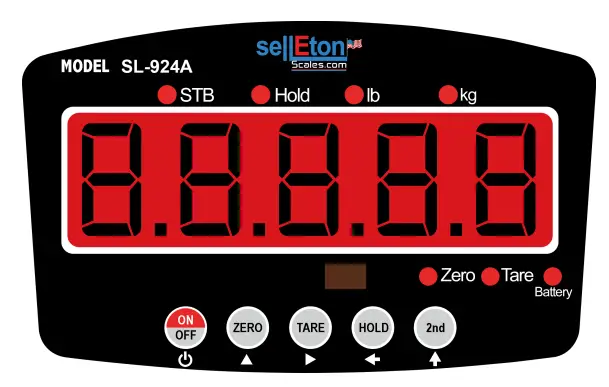
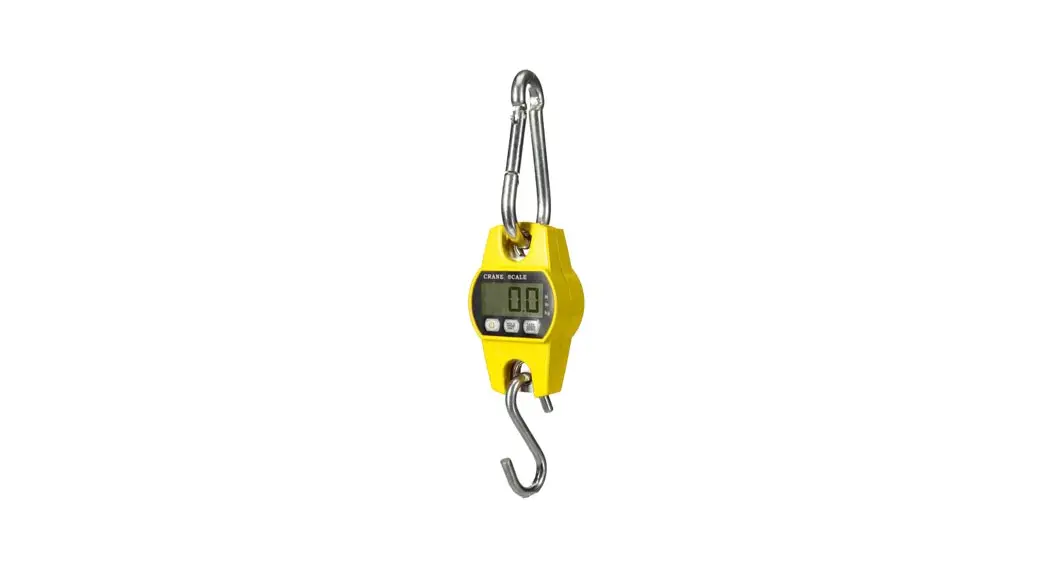
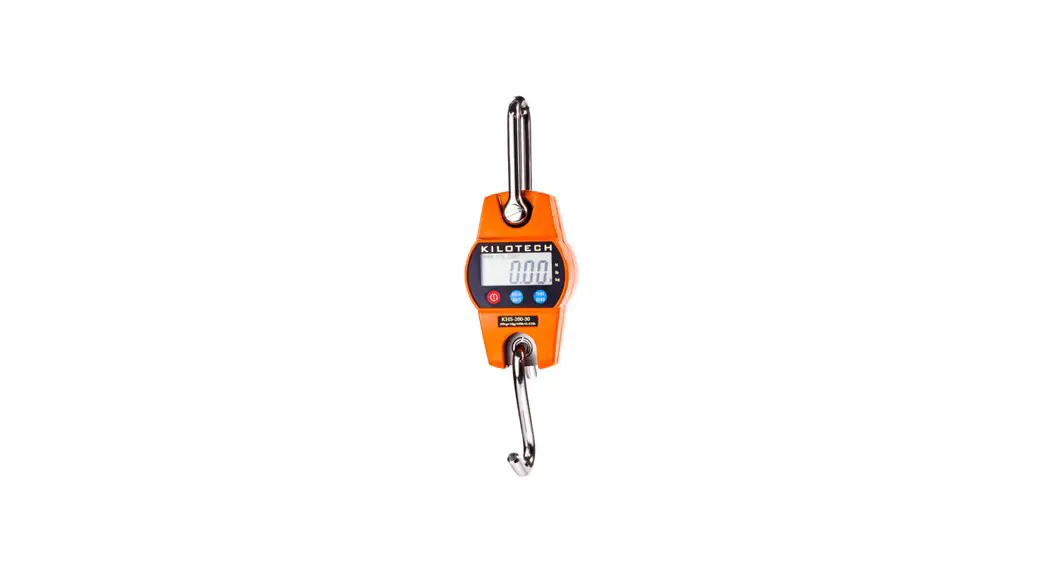
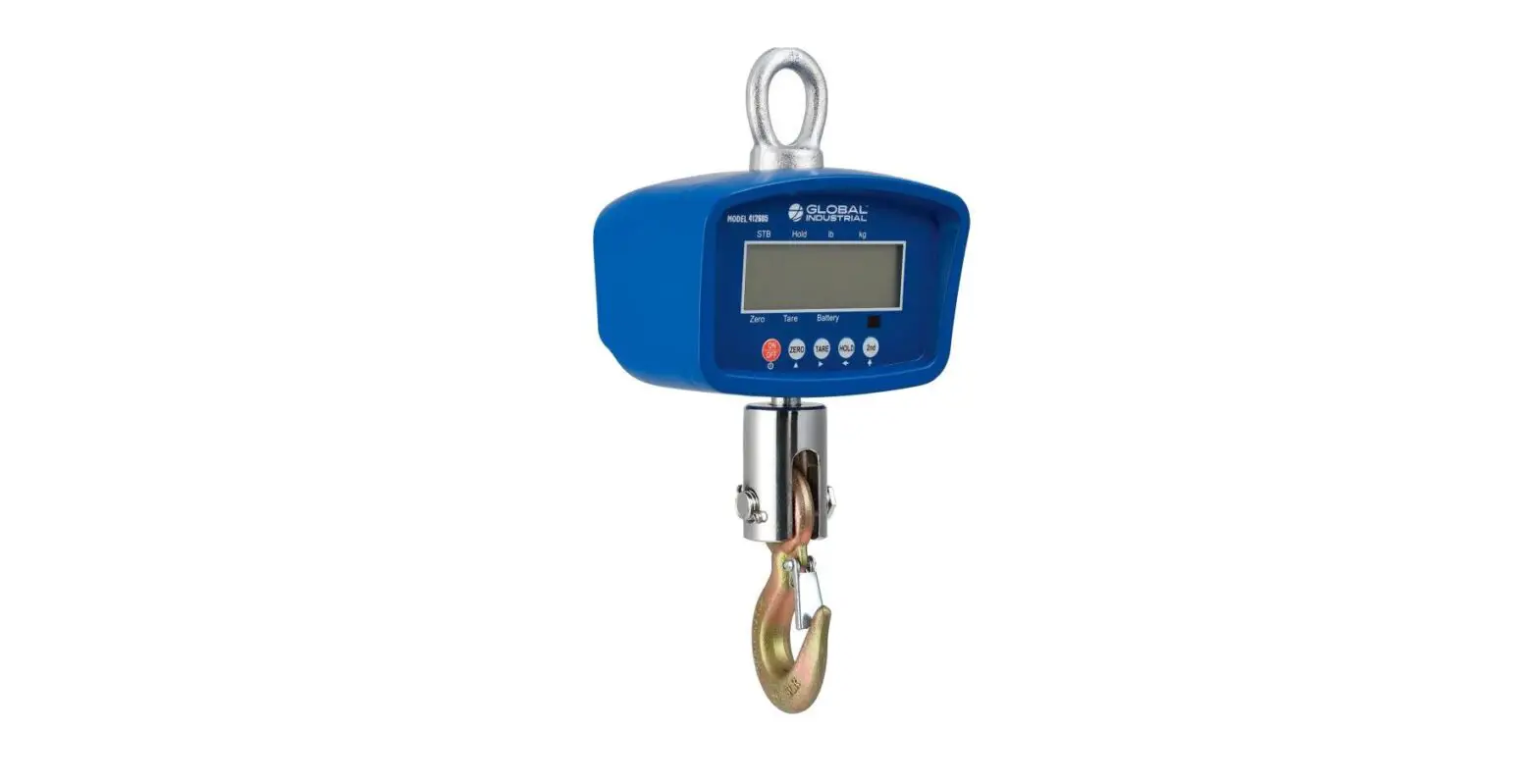
SL-924B (LCD)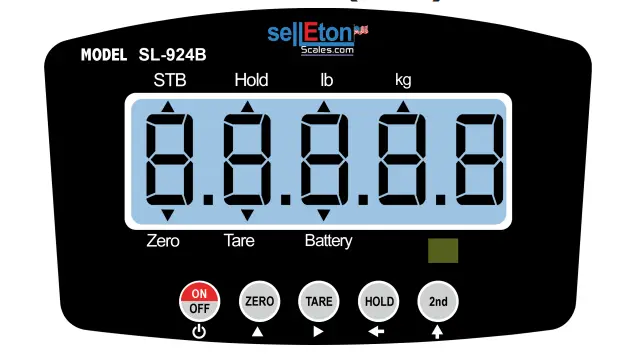
DISPLAY AND KEY DESCRIPTION
| ON/OFF | Powers the Scale On or Off if held for 2 seconds |
| ZERO | Zero’s the scale |
| TARE | 1. Resets the scale to zero when there is something on the scale 2. Clears the tare to see the gross weight |
| HOLD | Holds the weight |
| 2ND | Enters 2nd Mode |
| STB | Shows that the weight is stable |
| hold | Shows you are in Hold mode |
| lb | The weight is shown in pounds |
| kg | The weight is shown in kilograms |
| Zero | Shows you have zeroed the scale |
| Tare | Shows you are in Gross weighing mode |
| Battery | Flashes red = low battery, Solid red = charging |
| Power | |
| Up Arrow Key | |
| Right Arrow Key | |
| Return/Enter | |
| Enter 2nd Mode |
| REMOTE KEY DESCRIPTIONS | |||||
| KEY | Weighing Mode | 2nd Mode | Data Input | Parameter Settings | |
| Turns off scale | Exit | Exit | |||
| Zero | Unit change | Add 1 | Page up | ||
| DEL | Clear last accumulation | Clear all the accumulations | Confirm | ||
| Hold | Parameter Setting | Enter to next step | |||
| Tare | Preset tare weight | Cursor flashing to the right | |||
| ACC | Accumulate | Reduce 1 | Page down | ||
| F1 | Check the accumulation | Check battery | |||
| F2 | Serial interface send the data once | Set the serial interface | |||
| F3 | Check the last weight | Check the internal code | |||
| F4 | Store the weight | ||||
| F5 | Reserved | ||||
OPERATING INSTRUCTIONS
Power On/Off
Turn on the power by pressing the power button for 2 seconds. Once on, thescale will flash the voltage and then begin to auto-check and count down from 0-9sequentially before entering the weighing modeNote: Anything on the scale before powering on will automatically be tared out.
Zeroing
The zero function is used only when the scale is empty and is not at gross zero dueto material build up (such as a chain or rope)
Pressing the ZERO key will reset your scale to 0
Depending on what your manual zero range parameter is set to, you can zero outany number within your set selection, after that you will receive an error and willneed to tare out the weight
Unit Selection
To switch between measuring units (kg/lb) press the 2nd key followed by the zero key to switch between units
Tare Function
- The Tare function is used when you only wish to see the current change in weight, not the entire amount of weight that is on the scale
- When the scale is in gross mode pressing the TARE key will Tare the current weight on the scale and enter the net mode
- For example, if you are using a chain add the chain to the scale, press tare and the display will show the tare symbol and reset back to 0
- Add your product to the scale to weigh without the weight of the chain
- To exit Tare mode press the TARE key again to enter gross mode and you will seethe total weight of the container and the product
- Note: If you remove the chain the scale will show the minus weight of the chain
To use a pre-set tare weight
- Press 2nd key, then press the TARE key; the display should now show [00000]
- Using the arrow keys, input the tare weight value
- Press Hold key to confirm and enter net weighing mode
Hold
- Manual Hold: Grabs the current weight and holds it so it will not change/fluctuate.
- While weighing, press the Hold key and the scale will hold the current weight on the screen until HOLD is pressed again
Accumulation
- The accumulation function is used to add multiple weights and total them together
- In weighing mode load the first weight, once stable press the ACC button on the remote to enter the accumulation mode and accumulate the first weight
- The display should show [ACC] if it shows [noACC] then the weight exceeded the upper limit
- Remove your first load and add your second load to the scale; press ACC
- Repeat the previous step until all loads you want to accumulate have been added to the scale
- Note: In case of a mistake. Press DEL to clear the last accumulation data;the display should show [deL]; if not it will display [nodeL]
- Press F1 to total your weights, the display should show [n###] (the number of weights you are adding together) then it will display the total accumulated weightfor 3 seconds and return to weighing mode
- To clear the data, press the 2nd key and the display should show [2nd], then press DEL to clear all the accumulation data, and the display should show[CLEAr]
Weight Display
- Press F4, the display should show [StorE], and save the current weight value
- Press F3, the display should show [LASt0], use the arrow keys to choose a serialnumber (most recent weights save as 0, the first weight saves as 9)
- Press HOLD to display the corresponding weight for 2 seconds, then it will goback to the weighing mode
CALIBRATION PROCEDURE
- Power on the crane scale
- Press 2nd key and the display should show [2nd ]
- Press 2nd key again and the display should show [PASS-] then [00000]
- Use the arrow keys to enter the password “07650”
- Press the HOLD key to confirm
- A password error above will make the scale return to weighing mode, while a correct password will let the user continue to set units, and limits and perform calibration
- Next the display should show [Un kg], which means the unit is set to KG
- Press the ZERO key to change the display to [UN Lb] and then press HOLD to confirm. It should now show [FS 0#], referring to the table below
- User can press ZERO to change the setting and HOLD to confirm
Display Max. Cap Division Min. Calibration Weight needed FS 0.1 500 lb 0.1 lb 50 lbs FS 0.2 1,000 lb 0.2 lb 100 lbs FS 0.3 1,500 lb 0.2 lb 150 lbs FS 0.5 2,000 lb 0.5 lb 200 lbs FS 01 3,000 lb 0.5 lb 300 lbs - The display should show [CALon]; Press HOLD to enter calibration mode or press to exit calibration mode
- If calibration mode is entered, then it should display [LoAd0] for zero calibration; with no load on the scale, wait for the stable light to turn on, then press HOLDto confirm (scale may take a few minutes to fully stabilize)
- The display should show [ 0] to complete zero calibration. Press to exit calibration mode or press HOLD to continue
- If continued the display should show [LoAd1] for loading a calibration weight; after2 seconds the display should show [00000]; Using the arrow keys, enter the calibration weight that you will be using (remember that you need at least 10% of the max capacity you set, but the more the better)
- Add the calibration weight to the scale
- Wait for the stable light to turn on and press HOLD to confirm
- The display should now show [EnD ]; Press HOLD to return to weighing mode
- If the display does not show the value of the calibration weight you used, the scale will need to be calibrated again
GRAVITATIONAL ACCELERATION FACTOR CORRECTION
- During calibration, when the display shows [CALon], press TARE to enter into gravitational acceleration factor correction
- It defaults to 1.0000 and controls the relationship to the weight in direct proportion
- Use the arrow keys to modify the parameters then press HOLD to confirm
- The display should now show [EnD ], press HOLD to confirm
- Note: after weight calibration, the gravitational acceleration factor reverts to thedefault value of 1.0000. If the work site is lack of weights, press modify the gravitational acceleration factor to adjust the weight
SCALE PARAMETER SETTINGS
| Function | Parameter | Settings/Options | Default |
| Display Division | E | 0.02 = 0.02 kg/lb 0.05 = 0.05 kg/lb 0.1 = 0.1 kg/lb 0.2 = 0.2 kg/lb 0.5 = 0.5 kg/lb 1 = 1 kg/lb 2 = 2 kg/lb | 1 |
| Automatic Power Off | off | 0 = turn off auto power off 10 = power off automatically if no change within 10 min. 30 = power off automatically if no change within 30 min. 60 = power off automatically if no change within 60 min. 90 = power off automatically if no change within 90 min. | 10 |
| Power Saving Mode (idle mode) | idl | 0 = turn off power saving setting 10 = turn off display if no change within 10 minutes 30 = turn off display if no change within 30 minutes 60 = turn off display if no change within 60 minutes 90 = turn off display if no change within 90 minutes | 30 |
| Kg/LB Conversion | UnS | 0 = turn off kg/lb conversion 1 = turn on kg/lb conversion | 1 |
| Manual Zero Range | zero | 0 = turn off manually zero setting and initial zero setting 1 = Initial zero range ±10% max capacity Manual zero range ±2% max capacity 2 = Initial zero range ±100% max capacity Manual zero range ±100% max capacity | 2 |
| Filter Intensity | FIL | 0 – turn off filter intensity 1 = weak 2 = moderate 3 = strong | 1 |
| Stable Intensity | Stb | 0 = weak 1 = moderate 2 = strong | 1 |
| Warning Tone | beep | 0 = turn off warning tone 1 = turn on warning tone | 1 |
| Display Brightness | ledb | 1 = light 2 = moderate 3 = dark | 1 |
| Zero Tracking Speed | zts | 0 = no zero tracking 1 = ±0.5% max capacity 2 = ±1% max capacity 3 = ±2% max capacity 4 = ±5% max capacity |
- To enter calibration/parameter settings, follow the procedure below:
- Power on the crane scale
- Press the 2nd key and the HOLD key at the same time the display should show [2nd]
- Press the HOLD key to confirm and enter into the next step
- Use the arrow keys to change the parameter settings
- Press the ON/OFF key to save and exit settings at any time
TROUBLESHOOTING
Checking the Battery LifePress 2ndthen press F1, the display should show [U 6.##] battery power level for 2 seconds and then go back to weighing modeInternal Code CheckingPress 2ndand the display will show [2nd], then press F3 to display the internal code, only used in maintenance and debugging.To exis press 2nd key and the display will show [2nd], then press F3 to go back to weighing mode
Screen Display and Instructions
| Error | Reason | Solution |
| Err6 | Exceed zero range | Check the crane load |
| U 628 | Battery Power | |
| uuuuu | Overload | |
| nnnnn | Lower than the minimum value | Reduce the weight |
| 2nd | 2nd mode, weit foe combination key | |
| off | Power off | |
| ACC | Accumulate | |
| noACC | Cannot be accumulated | |
| del | Clear the last accumulation value data | |
| nodel | Cannot be cleared | |
| ClEAr | Clear all the accumulation data | |
| StorE | Save the display value data | |
| LASt0 | Check the weight serial number |
 Industrial Scales | SellEton Scales