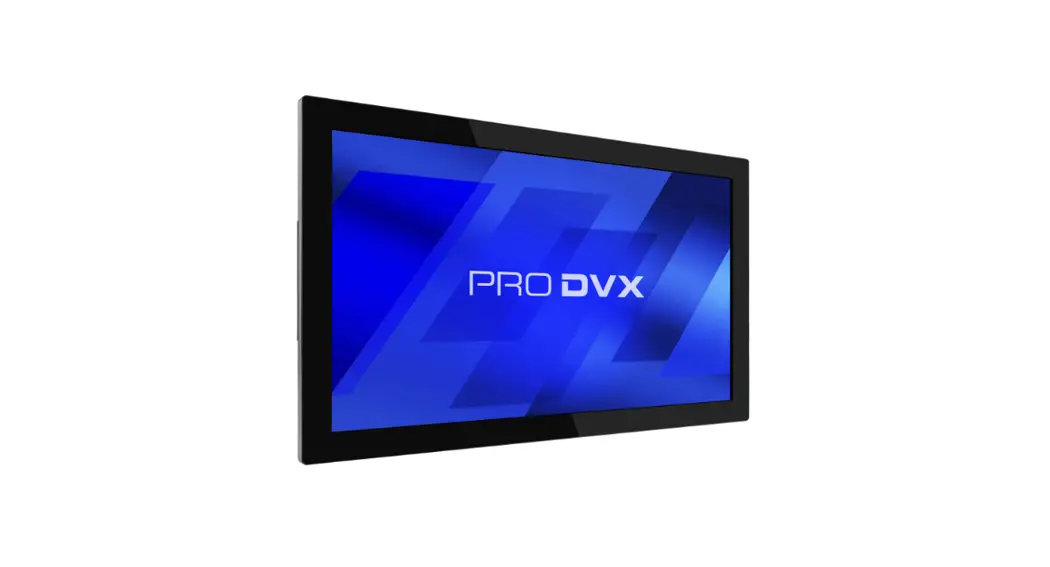
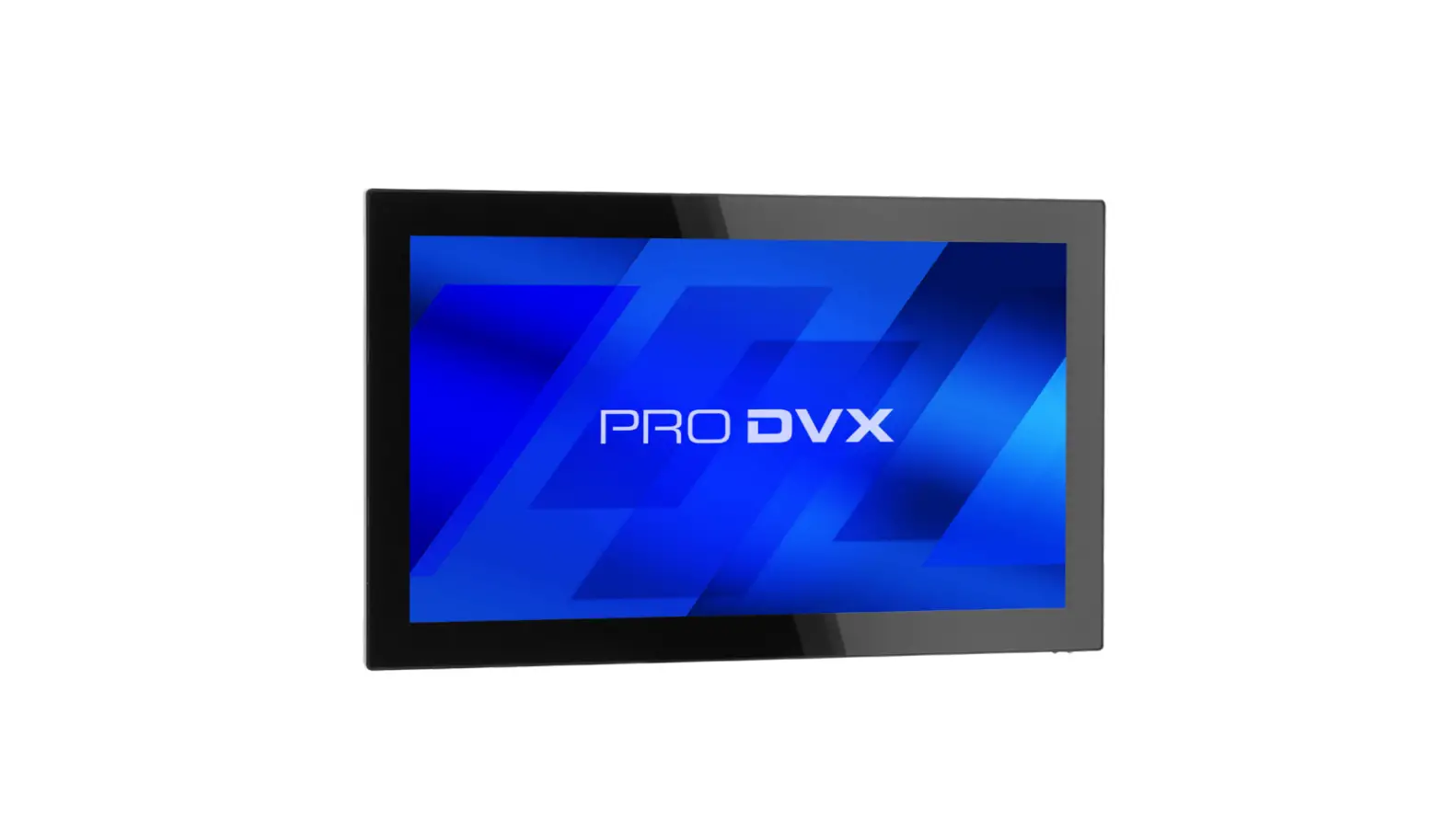
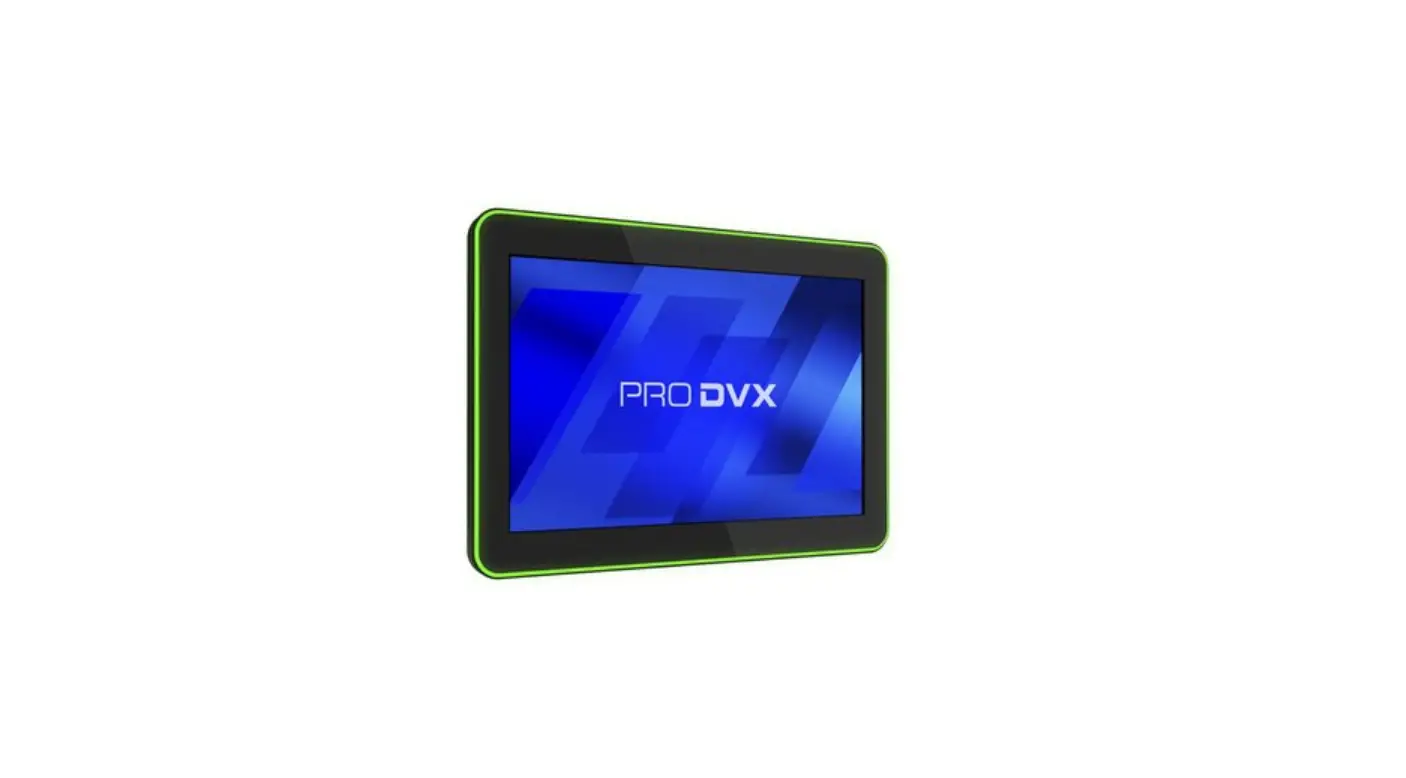
APPC-22XP-R23 Android 8 Display PoE Inshop Digital
Product Information:
The APPC-22XP R23 is a Panel PC that comes with a quick start
guide. It is recommended to refer to the website or scan the
QR-code provided for more detailed product information. The package
includes the Panel PC and the quick start guide. Please note that
tools necessary for installation are not included.
Product Usage Instructions:
- Step 1: Take the contents out of the box and
ensure that all components are present. - Step 2: Install the wall/glass mount or desk
stand according to the instructions provided in the designated
mount/stand manual. - Step 3: Connect to the Internet either through
Wi-Fi or PoE+. - Step 4: If applicable, install and configure
your preferred application.
The Panel PC has the following ports and buttons:
- On/off switch
- 12 V DC-in
- LAN port
- Audio port
- 3.5 mm S/PDIF port
- USB-C port
- Mini HDMI out
- COM port 2
- COM port 1
- USB 3.0 port
- USB 2.0 port
The bottom view of the Panel PC includes:
- Speaker
- VESA 100 mounting frame
- SD-card slot with USB 2.0 port
- Speaker
- Volume + and – buttons
- Back/home button
- Pogo pin connector
- Scroll up/down button
The backside of the Panel PC includes quick connection settings
and optional accessory ports:
- Step 1: Plug in the PoE+ cable or power
adapter to turn on the display. If using PoE+ for both power and
data, this is the final step. If you prefer to connect to Wi-Fi,
swipe up in the home menu to access the app drawer. - Step 2: In the settings menu, go to Network
& internet, located at the top of the menu. - Step 3: In the Network & internet menu,
select Wi-Fi. - Step 4: Turn on Wi-Fi and select the desired
Wi-Fi network to connect to the Internet. Note: If using ADB,
remember to turn off the ADB functionality after use.
Optional Accessories:
The APPC-22XP R23 Panel PC supports optional accessories such
as:
- Landscape or portrait orientation
- Barcode scanner
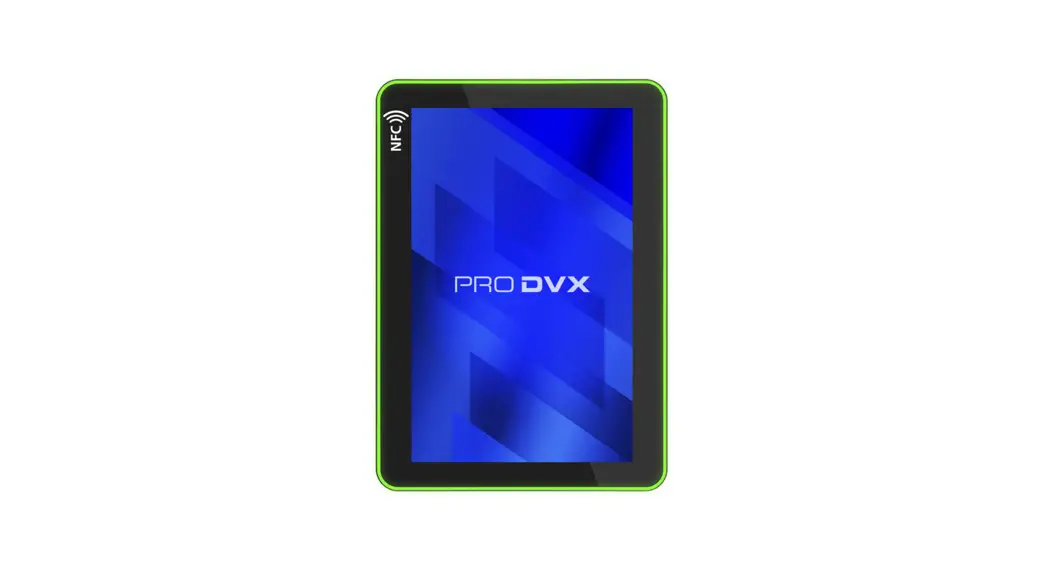
- NFC module
- Camera
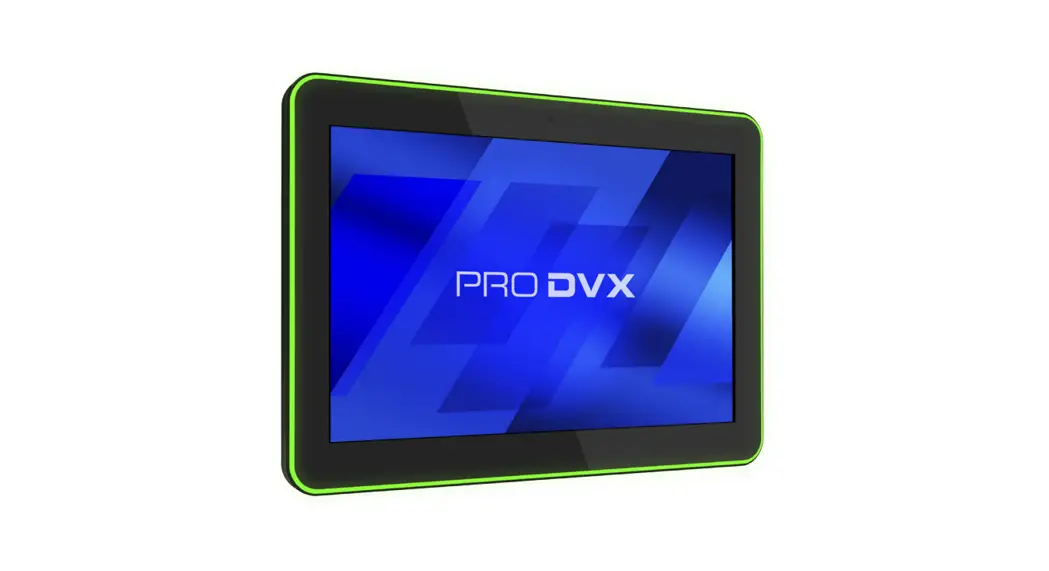
- RGB LED bar
Caution and Warning:
Please note that this product contains a battery. For proper
replacement of the battery, return the product to a certified
repair center. Disposal of the battery can be dangerous.
Changes or modifications to this unit not expressly approved by
the party responsible for compliance could void the user’s
authority to operate the equipment.
Correct Disposal:
This product should not be disposed of with other household
waste. To prevent harm to the environment and human health, recycle
it responsibly. Return your used device using the return and
collection systems or contact the reseller where the product was
purchased for safe recycling.
FCC & CE RF Radiation Exposure Statement:
To maintain compliance with the FCC & CE’s RF exposure
guidelines, place the product at least 20cm away from nearby
persons.
Quick start guide
APPC-22XP R23
The information in this document is subject to change without notice. © 2023 ProDVX Europe B.V. All rights reserved.
Please check the website or scan the QR-code for more product information. www.prodvx.com/support
APPC-22XP R23 Quick start guide
This package contains:
Tools necessary but not included
Panel PC
Quick start guide
*Please note that it is prefered not to use power tools to attach the device to the mount or stand.
How to start:
Step 1: Take contents out of the box, make sure all components are present. Step 2: Install wall/glass mount or desk stand, check designated mount/stand manual for instructions. Step 3: Connect to Internet through Wi-Fi or PoE+. Step 4: If applicable, install and configure preferred application.
On / off switch 12 V DC-in LAN port
Audio port 3.5 mm S/PDIF port
USB-C port Mini HDMI out
COM port 2 COM port 1 USB 3.0 port USB 2.0 port
Bottom view
Speaker
VESA 100 mounting frame
SD-card slot with USB 2.0 port
Speaker
Volume + and –
Back / home button
Pogo pin connector
Scroll up / down
Backside
Quick connection settings
Step 1: Plug in PoE+ cable or power adapter to turn on display. If using PoE+ for both power and data, this was the final step. If connection to Wi-Fi is preferred, swipe up in the home menu to arrive in the app drawer. Once there, select Settings.
Step 2: In the settings menu, go to Network & internet, located at the top of the menu.
Step 3: In the Network & internet menu, select Wi-Fi.
Step 4: Turn on Wi-Fi and select desired Wi-Fi network to connect to internet. Note: If using ADB, please remember to turn off the ADB functionality after use.
Optional accessories
Landscape
Portrait
Barcode scanner NFC module
Camera
RGD LED bar
Caution: Please note this product contains a battery. Please return the product to a certified repair center for proper replacement of the battery; Disposal of a battery can be dangerous.
WARNING: Changes or modifications to this unit not expressly approved by the party responsible for compliance could void the user’s authority to operate the equipment.
NOTE: This equipment has been tested and found to comply with the limits for a Class A digital device, pursuant to part 15 of the FCC Rules. These limits are designed to provide reasonable protection against harmful interference when the equipment is operated in a commercial environment. This equipment generates, uses, and can radiate radio frequency energy and, if not installed and used in accordance with the instruction manual, may cause harmful interference to radio communications. Operation of this equipment in a residential area can cause harmful interference in which case the user will be required to correct the interference at his own expense.
This device complies with Part 15 of the FCC Rules. Operation is subject to the following two conditions: (1) This device may not cause harmful interference, and (2) this device must accept any interference received, including interference that may cause undesired operation.
Europe/UK EU/UK Declaration of Conformity This device complies with the essential requirements of the Radio Equipment Directive (2014/53/EU). The following test methods have been applied in order to prove presumption of conformity with the essential requirements of the Radio Equipment Directive This equipment is compliant with Class A of EN55032. In a residential environment this equipment may cause radio interference.
Correct Disposal of this product. This marking indicates that this product should not be disposed with other (household) waste. To prevent possible harm to the environment or human health from uncontrolled waste disposal, recycle it responsibly to promote the sustainable reuse of material resources. To return your used device, please use the return and collection systems or contact the reseller where the product was purchased. They can take this product for environmental safe recycling.
“FCC & CE RF Radiation Exposure Statement Caution: To maintain compliance with the FCC & CE’s RF exposure guidelines, place the product at least 20cm from near by persons.”
The suitable temperature for the ProDVX Display and accessories is 0°C-45°C.