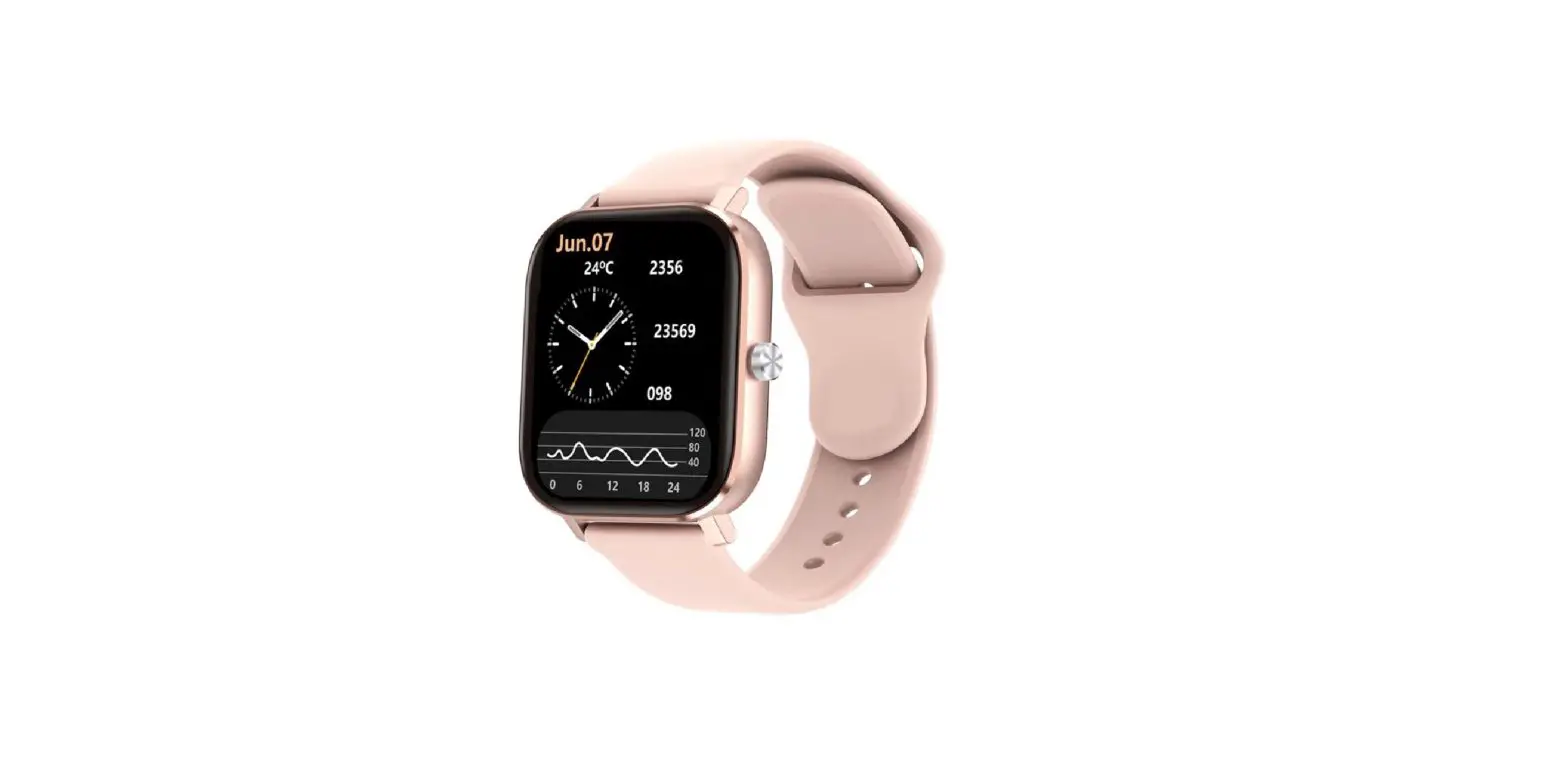
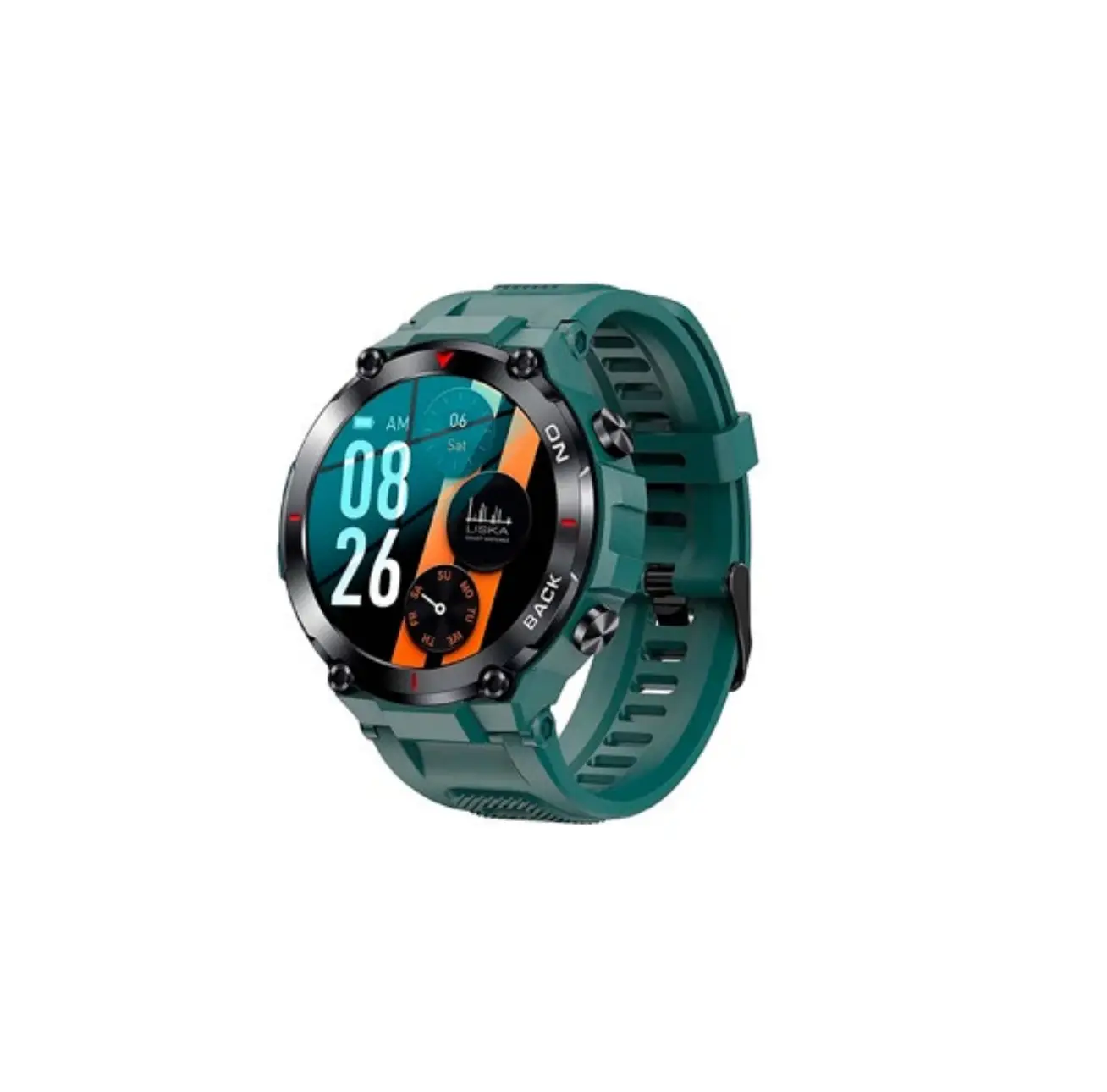
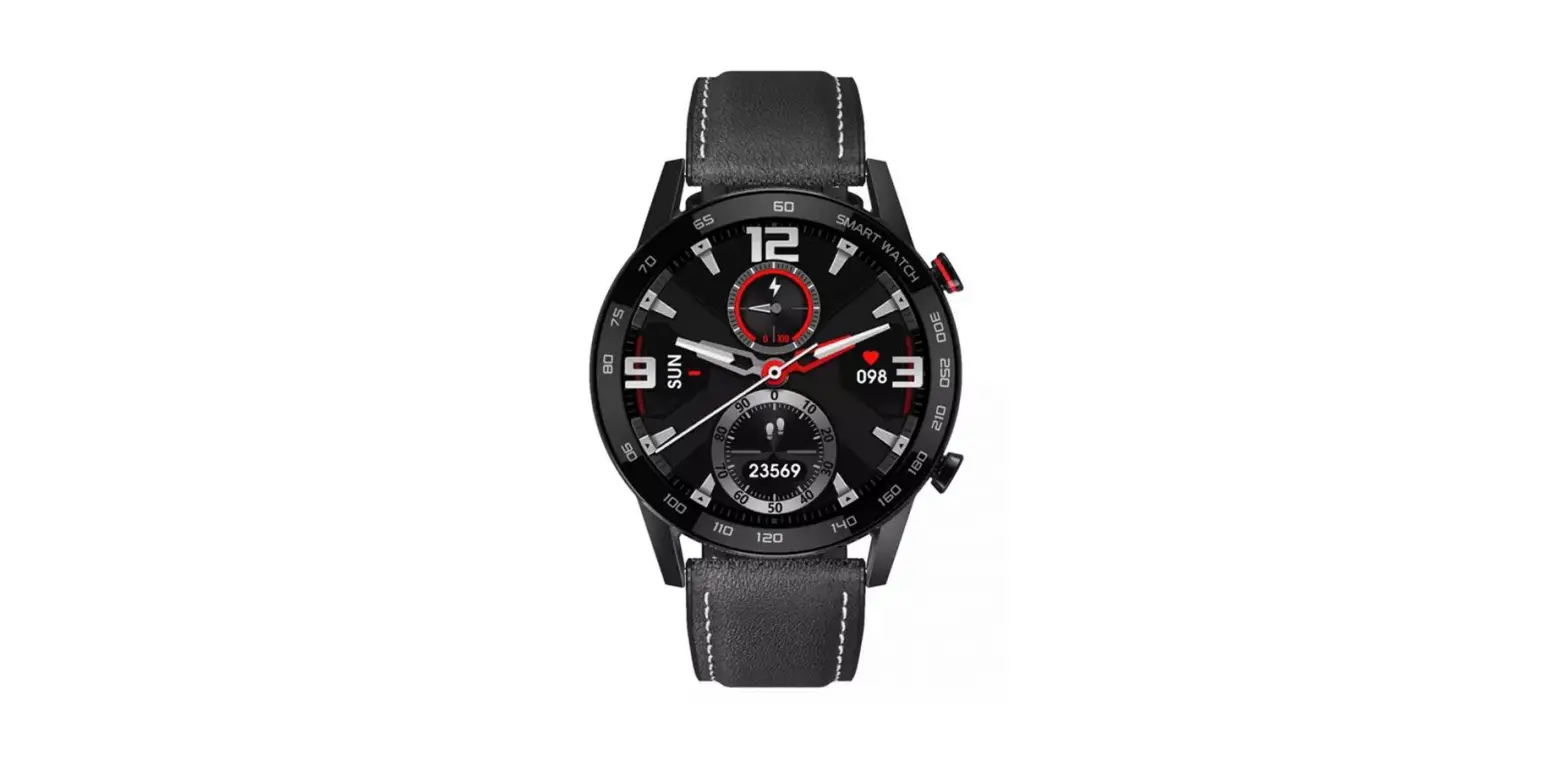
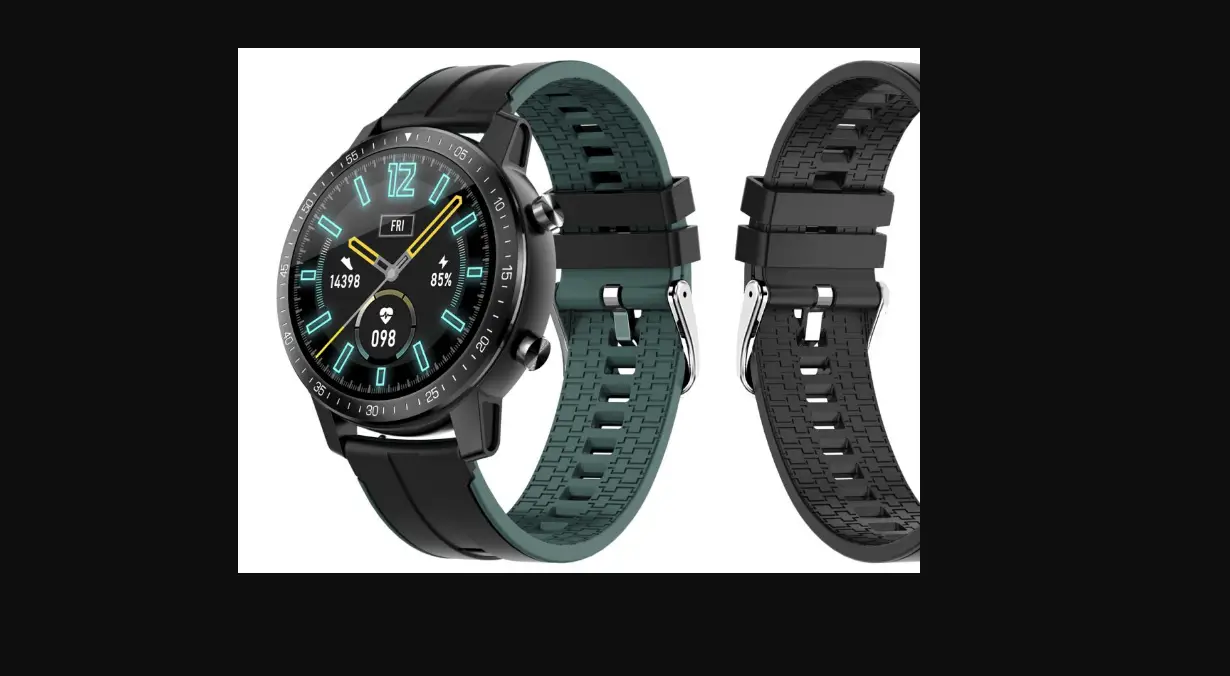
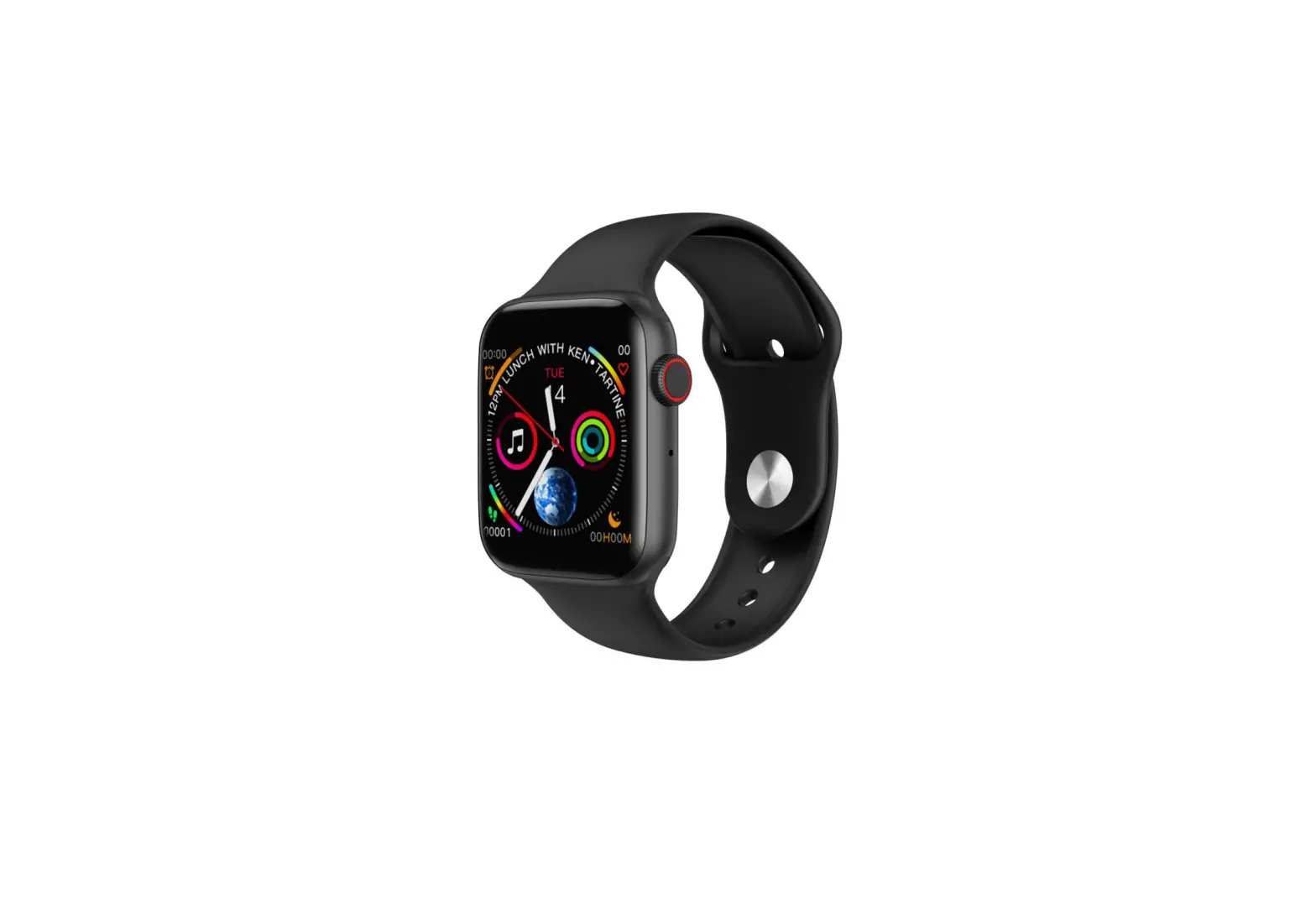
SV-37FC Smart Watches
Product Information
The SV-37FC is a smartwatch with various functions and features.
It has a full touch screen interface and supports swipe gestures
for navigation. The watch has a return key and a sports key for
quick access to different functions. It also supports Bluetooth
connectivity for pairing with Android and iOS devices. The watch
can track steps, measure heart rate, monitor sleep, and has
multiple sports modes. Additionally, it can display real-time
weather information when connected to the app.
Charging and Activation
Before using the watch for the first time, it needs to be
activated while charging. To start charging, use the magnetic
charger provided and connect it to the USB 5V 1A charging head or a
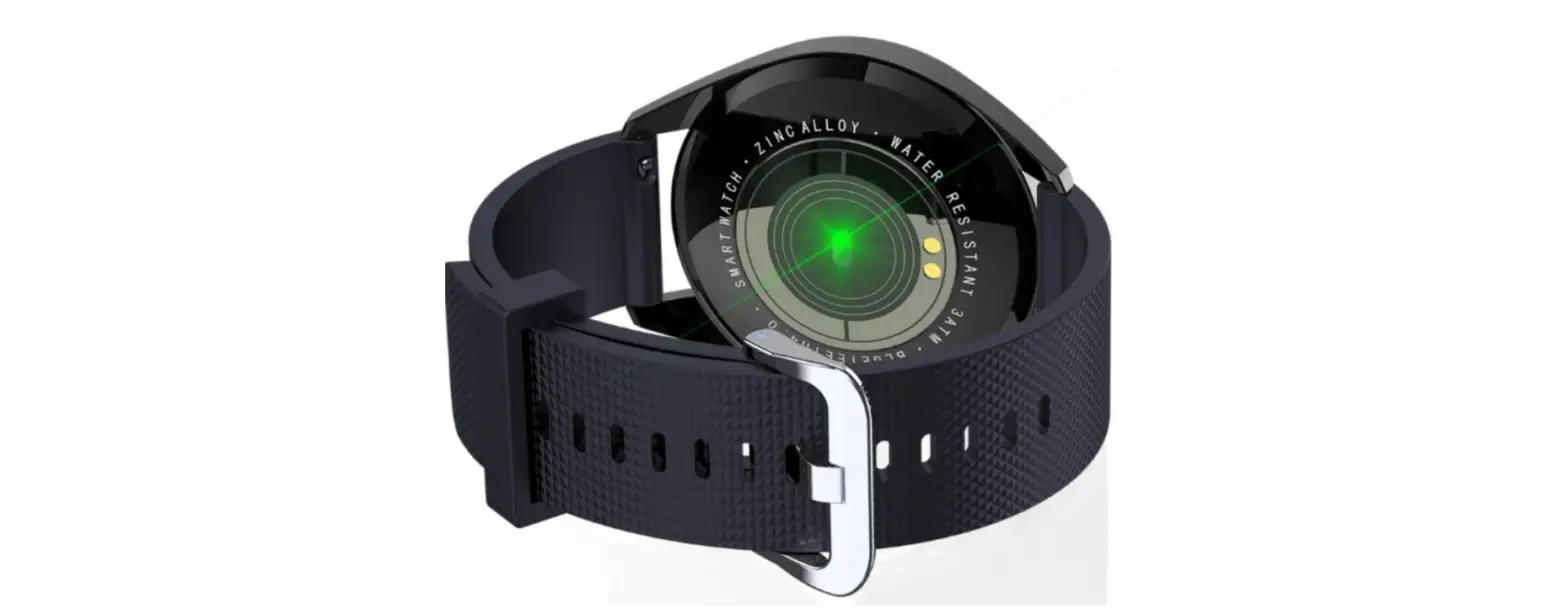
computer USB interface. Place the charger on the back of the watch
and ensure a proper connection.
Bluetooth Connection Guide – Android
- Open the FitCloudPro app and click on “Start Search” at the
bottom of the page. - Find the device named “Raptor 2” in the list of searched
devices and click on “Connect” on the right. - During the connection, the phone interface will display “Pair
with Raptor Call”. Check “Allow access to contacts and call logs”
and click “Pair”.
Bluetooth Connection Guide – iOS
Note: The following instructions are for changing the watch face
after a successful Bluetooth connection.
To change the watch face, long press for 3 seconds with your
finger on the sphere interface. Slide left and right to select the
desired watch face style. Click on the selected watch face to apply
it. After a successful Bluetooth connection, go to the app’s watch
face library, watch face center, and custom watch face to further
customize the watch face.
Step Counting
The watch can record the total number of steps taken in the last
24 hours as well as the number of steps for each period. More
detailed step data can be viewed on the phone app.
Heart Rate Monitoring
To measure the current heart rate, enter the heart rate icon
interface. The watch will display the current heart rate value and
the heart rate status for each period. More detailed analysis and
data logs can be viewed on the phone app.
Sleep Monitoring
The watch can record and display the total sleep duration, deep
sleep duration, and light sleep duration. More detailed analysis
and data logs can be viewed on the phone app.
Call Mode
When the call mode is enabled, you can access various
call-related features:
- Call Records: Record the calls you have made.
- Common Contacts: Communicate by phone with frequently used
contacts. - Dial: Make calls using the keypad.
Sports Modes
The watch offers 20 sports modes to choose from. To start an
exercise, click on the exercise interface and select the desired
sport mode such as walking, running, swimming, and more. The watch
will display data such as time, number of steps, heart rate,
calories burned, and mileage during the exercise. More detailed
analysis and data logs can be viewed on the phone app.
Weather
After connecting the watch to the app, the weather interface
will display real-time weather temperature and weather type. It
also shows the weather forecast for the current day and the next
three days. Please ensure a stable connection to the app to receive
updated weather information.
Instructions SV-37FC
Function menu 1
Function menu 2
Full touch: Swipe down to go to setting status bar, swipe up to see notice, swipe left to go to main functional interface, swipe right to go to split screen menu.
Return key Short press on the home page to go to the style interface, double click on the style interface to switch the style, short press on other interfaces to return to the home page. Long press: long press to turn off (long press to turn on in the off state)
Sports key Short press in the home page to turn off the screen, short press in other pages to return to the previous level. Long press: long press to go to the sports list (long press to turn on in the off state)
-Charging and activation of the watch
Before the first use of the watch it can be activated while charging. Please use the magnetic charger to start charging on the back of the watch, connect the other end of the charging cable to the USB 5V 1A charging head or computer USB interface.
-Bluetooth connection guide – Android
1. Open the FitCloudPro app and click “start search” at the bottom of the page. 2. Find the device named Raptor 2 in the list of searched devices and click Connect on the right. 3. During the connection, the phone interface displays “Pair with Raprot Call”, check “Allow access to contacts and call logs”, and click Pair.
-Bluetooth connection guide – IOS
1. Open the FitCloudPro app and click “Start Search” at the bottom of the page. 2. Find the device named Raptor 2 in the list of searched devices and click Connect on the right. 3. Click or “Pair with Raptor 2”. 4. Swipe down on the watch face interface to enter the setting bar. status, click the headset icon to enter Bluetooth pairing mode. 5.0. 5. Go to iPhone setting: Bluetooth interface, select the device called Raprot Call and connect. After the watch is paired, the watch will automatically connect to the phone and you can sync the data by pulling down on the data page of the app.
Watch face settings Long press for 3 seconds with your finger on the sphere interface to go to the sphere change interface, slide left and right to change the sphere to be selected, click the selected sphere to change the different watch face styles; After the bluetooth connection is successful, please go to APP – watch face library – watch face center – custom watch face.
Count steps You can record the total number of steps in the last 24 hours and the number of steps for each period. More detailed data can be viewed on the phone app.
Heart rate Before heart rate monitoring, first confirm that the watch fits properly on the wrist (one finger width between the wrist and the watch is recommended), heart rate monitoring should be worn tight to avoid light leakage and so it can be detected effectively, then go to heart rate measurement section, during the process, the wrist is required to remain still, enter the heart rate measurement interface, the bottom green light will light to start the measurement, and there will be a vibration reminder when the measurement is completed in about 45 seconds. If `the watch is not worn’ appears, you need to wear it again.
Enter the heart rate icon interface to measure the current value of heart rate; Displays the current value of the heart rate interface and the status of the heart rate in each period; More detailed analysis and data logs can be viewed on the phone app.
Sleep monitor. It can record and display the total sleep duration, deep sleep duration and light sleep duration. More detailed analysis and data logs can be viewed on the phone app.
Call mode When the call mode is on you can go 1. Call records, you can record the calls you have made; 2.Common contact, you can communicate by phone with frequently used contacts 3.Dial, you can make any calls you need with the keypad.
Click the exercise interface to go to the sports interface, choose to walk, run, climb, walk, basketball, swim, badminton, football, elliptical machine, yoga, table tennis, jump rope, tennis, baseball, Rugby, Hula Hoop, Golf, Long Jump, Sit-ups, Volleyball 20 sports modes to choose from. To start the exercise, the time, number of steps, heart rate, calories, mileage and other data will be displayed. More detailed analysis and data logs can be viewed on the phone app.
Blood pressure: Before blood pressure monitoring, first confirm that the watch fits properly on your wrist (one finger width between the wrist and the watch is recommended). Blood pressure monitoring should be worn tight to avoid light leakage so that it can be detected effectively, then go to the blood pressure monitoring section, during the measurement process, the wrist is required to remain still, when entering the room blood pressure measurement interface, the bottom green light will turn on to start the measurement, and there will be a vibration reminder when the measurement is completed within 30 – 60 seconds. The measurement is a measurement based on PPG technology; Enter the blood pressure icon interface to measure the current value of blood pressure; The more detailed analysis and data logs can be viewed on the phone app.
Blood oxygen Before blood oxygen monitoring, first confirm that the watch fits snugly on the wrist (one finger width between the wrist and the watch is recommended), the blood oxygen monitoring should be worn tightly to avoid leakage light so that it can be detected effectively, then go to the blood oxygen monitoring section, during the measurement process, the wrist is required to remain still, when entering the blood oxygen measurement interface, the bottom green light will turn on to start the measurement, there will be a vibration reminder when the measurement is completed within 30-60 seconds. The measurement is a measurement based on PPG technology; Go to the section of oxygen in the blood to measure the current value of oxygen in the blood; The more detailed analysis and data logs can be viewed on the phone app.
Climate After connecting the watch in the APP, this weather interface displays the real-time weather temperature and weather type; Shows the weather of the day and the next three days: Weather forecast information must be connected to the app to get the data. If the connection is disconnected for a long time, the weather information will not be updated.
Control the music After connecting the watch with the APP, you can control the phone’s music player pause and start, volume adjustment and song switching. When the phone is playing music, you can use the watch to control the phone to play/pause, previous song and next song.
Timer You can click the corresponding duration to quickly time the time, you can also click the custom button to set the time. Click the start button to start the timer, click the pause button to pause the timer, and click the reset button to reset the timer to zero.
Alarm clock Smart watch alarm can be set in the app, single alarm can be set. the loop clock, you can set up to 5 alarms. After the set time is up, the watch will display the alarm icon and vibrate.
Messages and notifications The watch can receive notifications and reminders of incoming calls that are displayed on the mobile phone. After the connection of the watch and the APP, open the relevant information in the APP, the watch can receive the corresponding message push, and save up to the latest 15 messages.
Other watch functions include: stopwatch, find phone, female function, settings, etc.
Setting Configuration features include menu styles. (screen display, battery, vibration intensity, language, QR code, password, system)
Sedentary reminder You can open in the APP device > sedentary reminder after opening, you can set the start time, end time and the period of do not disturb.
Warranty:
We do not advise immersion of watches and we do not accept their return as a guarantee, since we consider them only IMPERMEABLE. We also do not recommend having a shower with it, as the hot water vapor can affect both the battery and the clock module. Also avoid sudden changes in temperature.