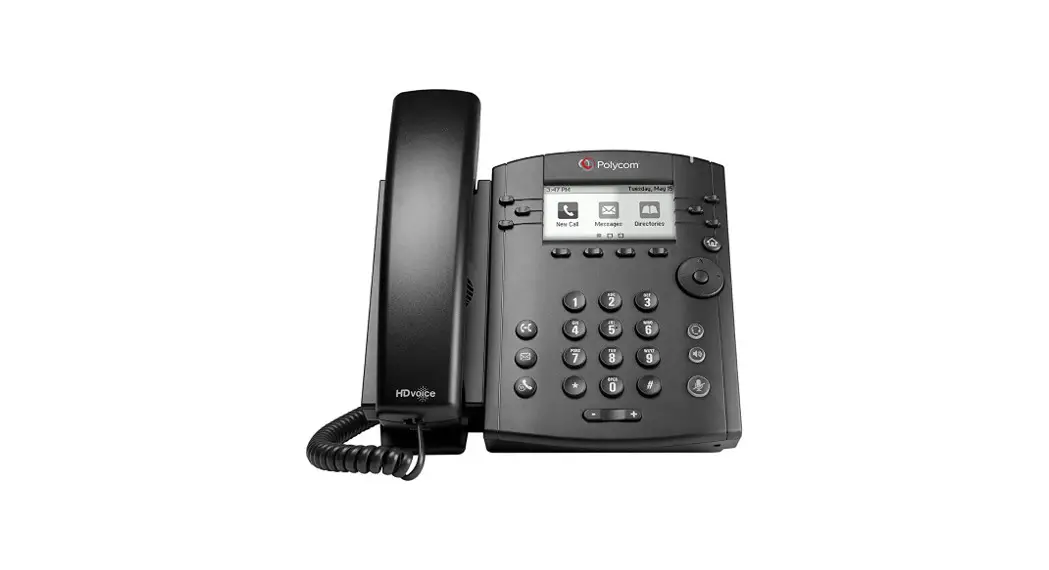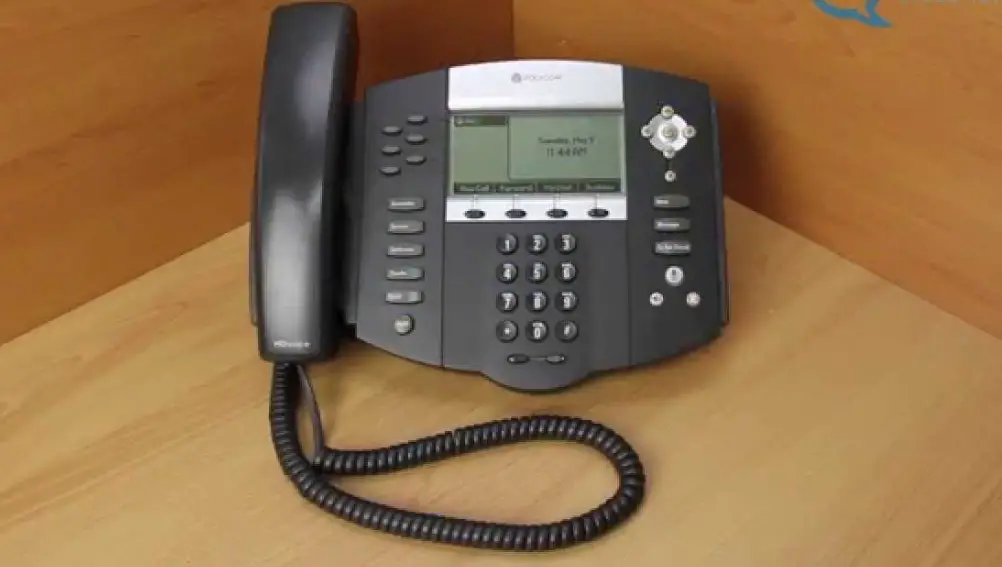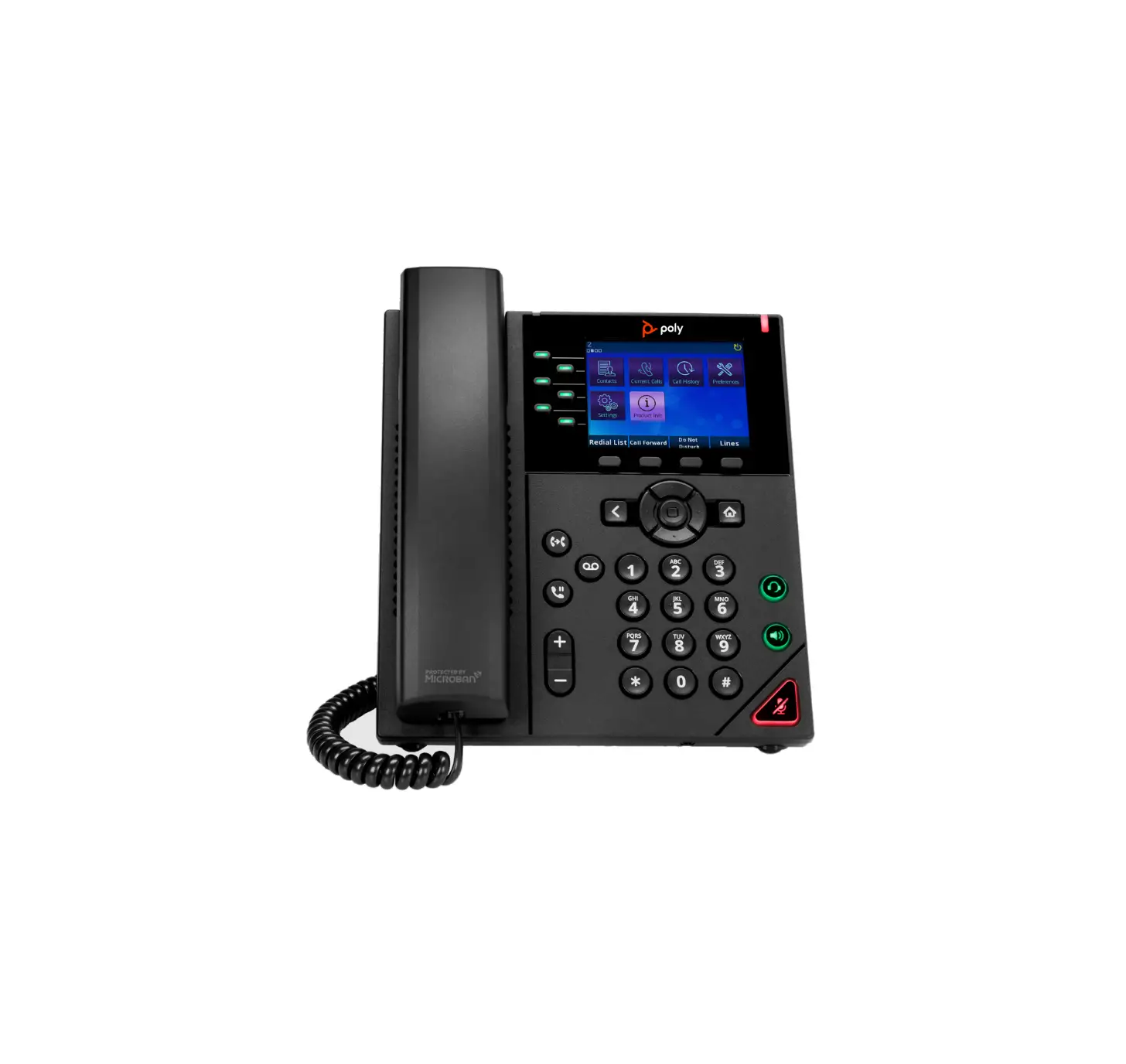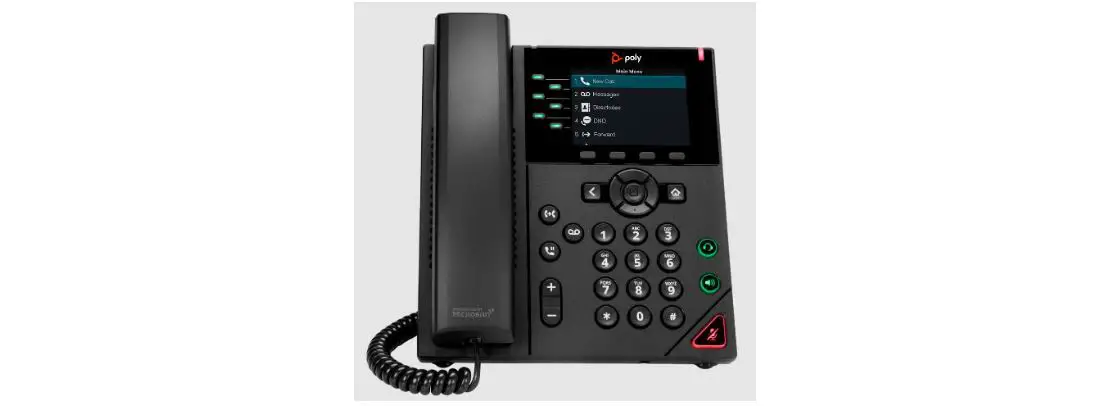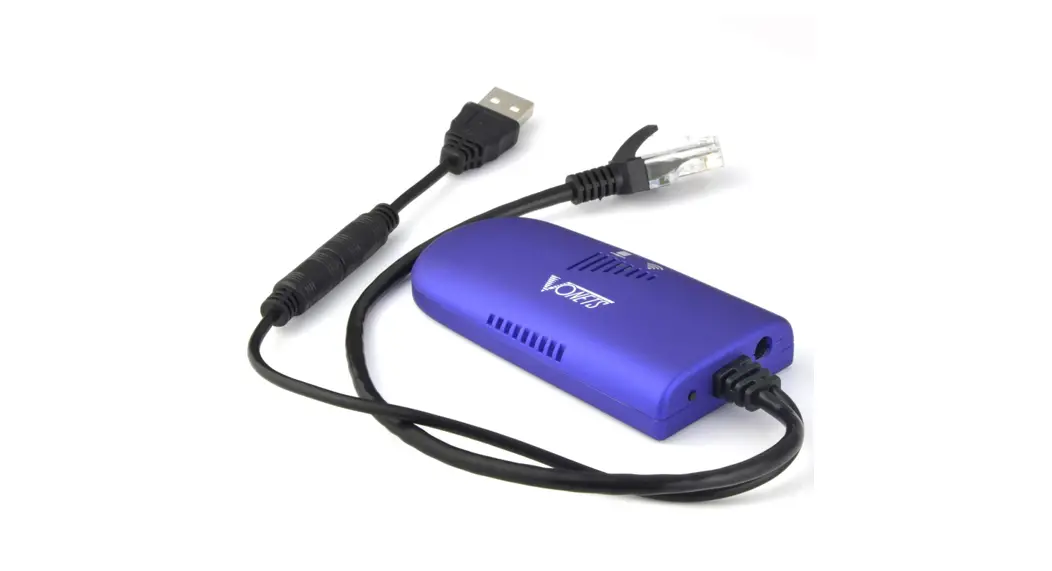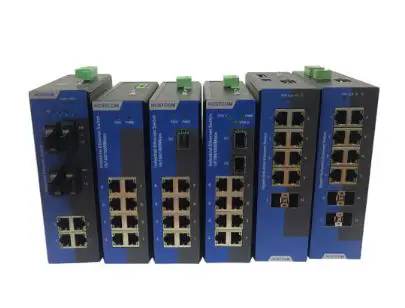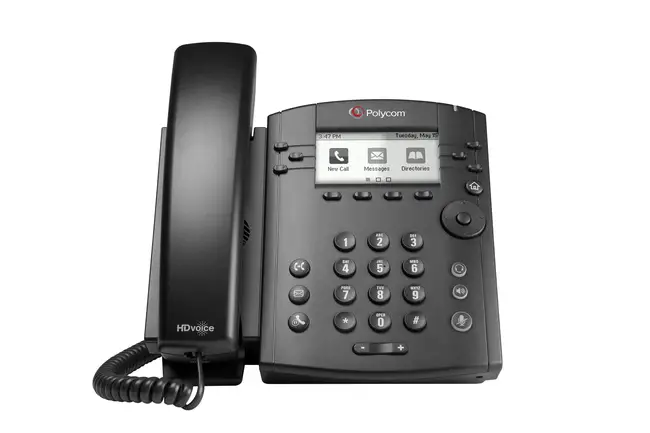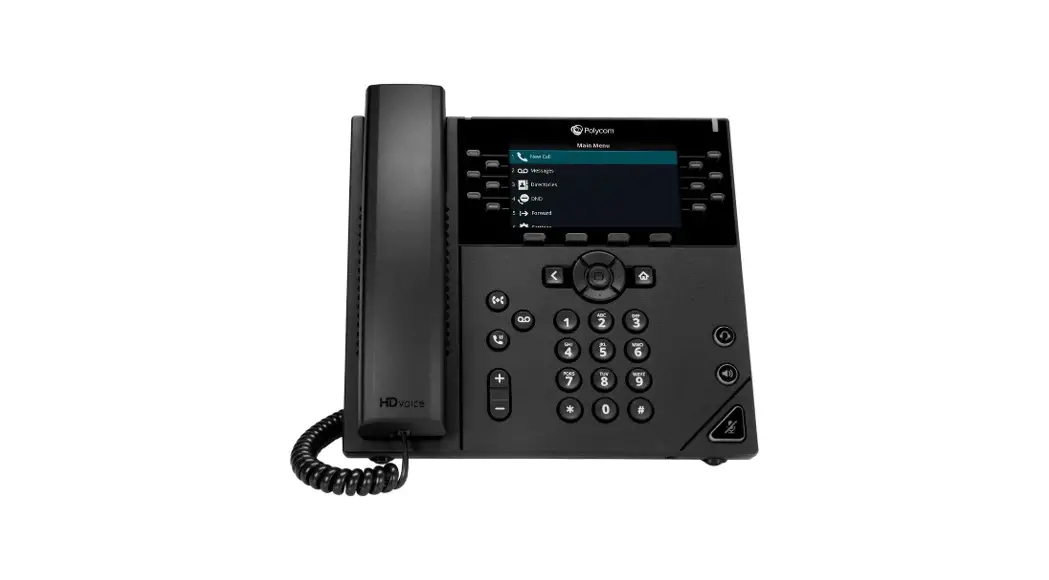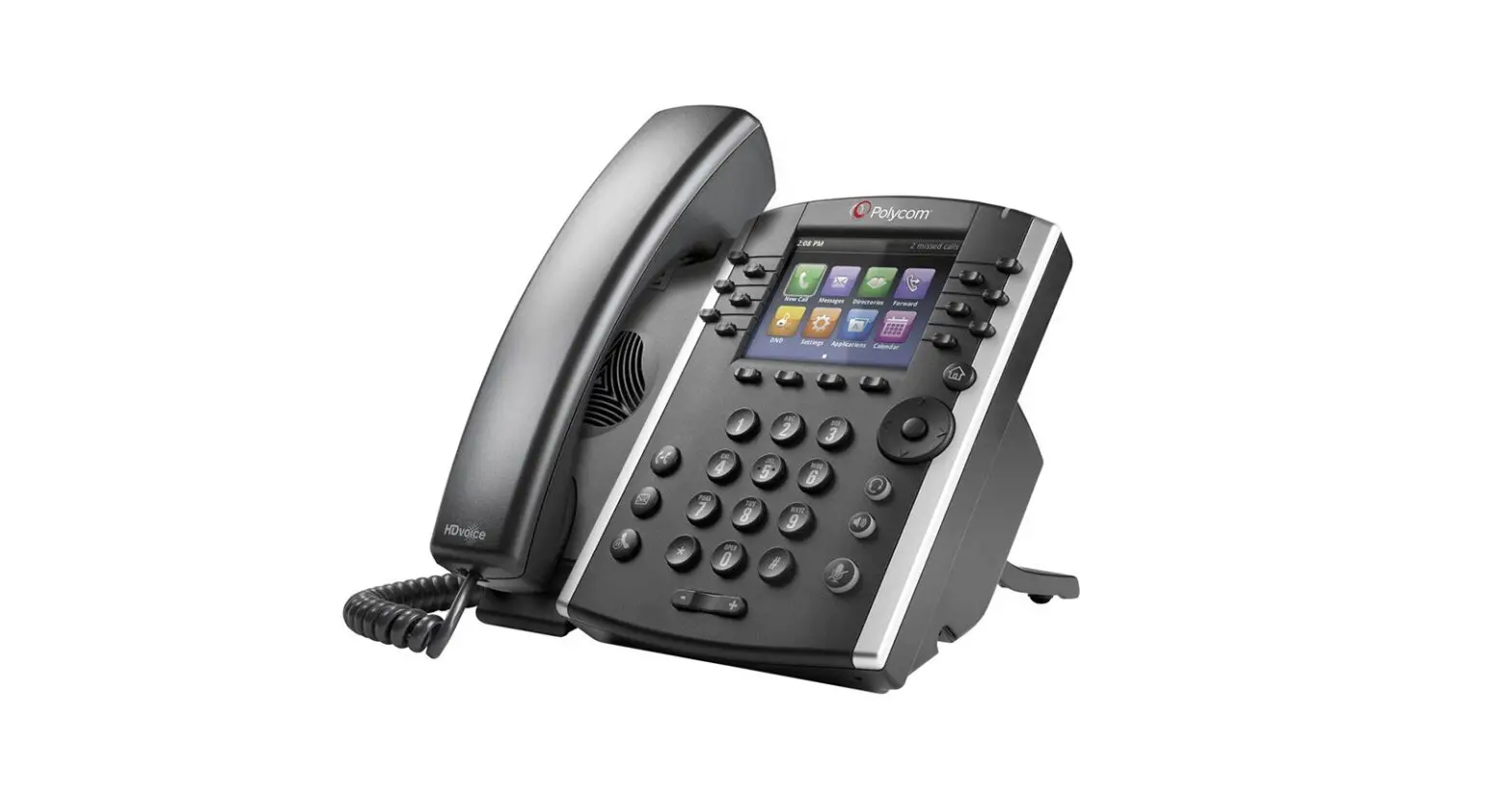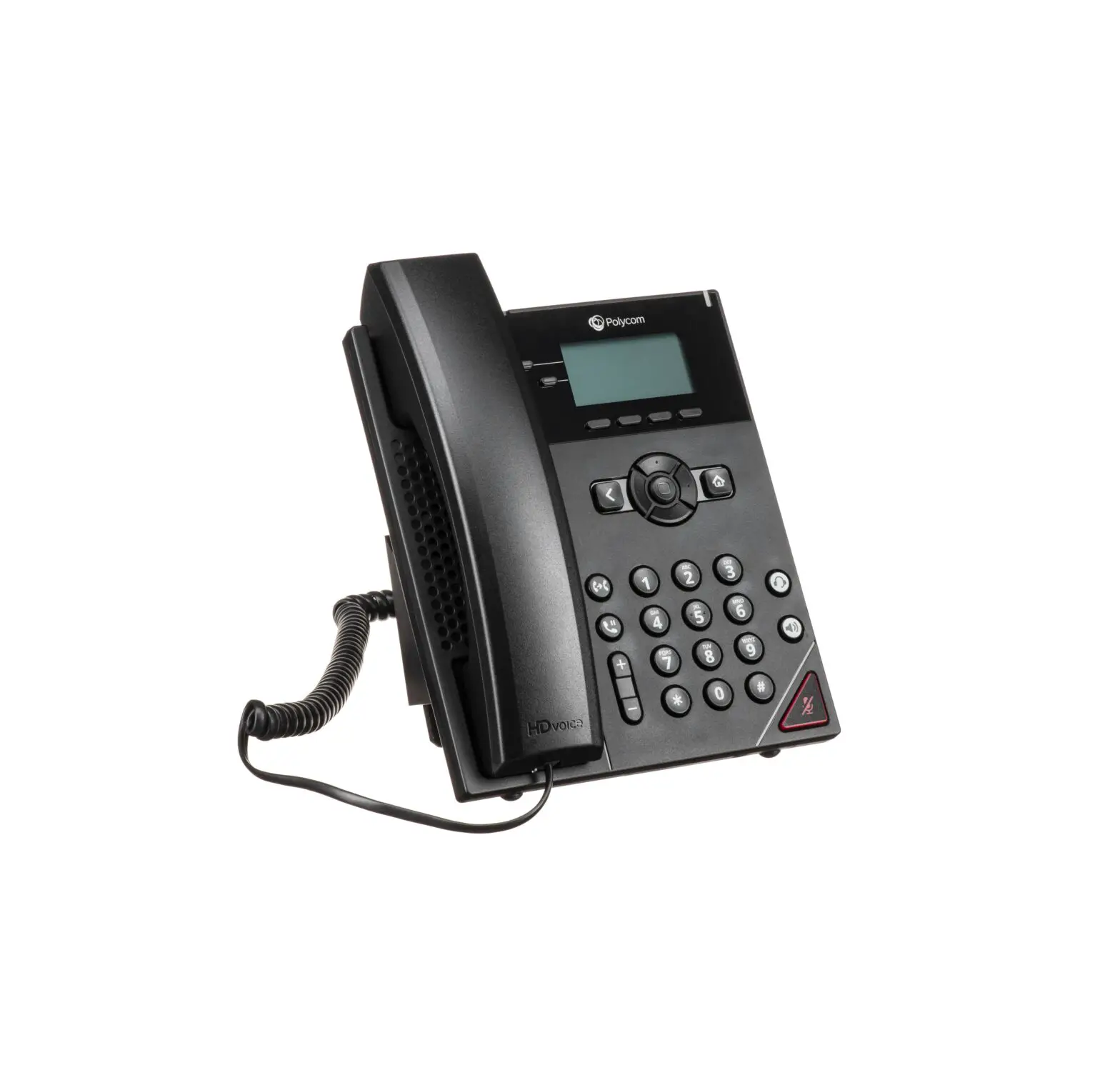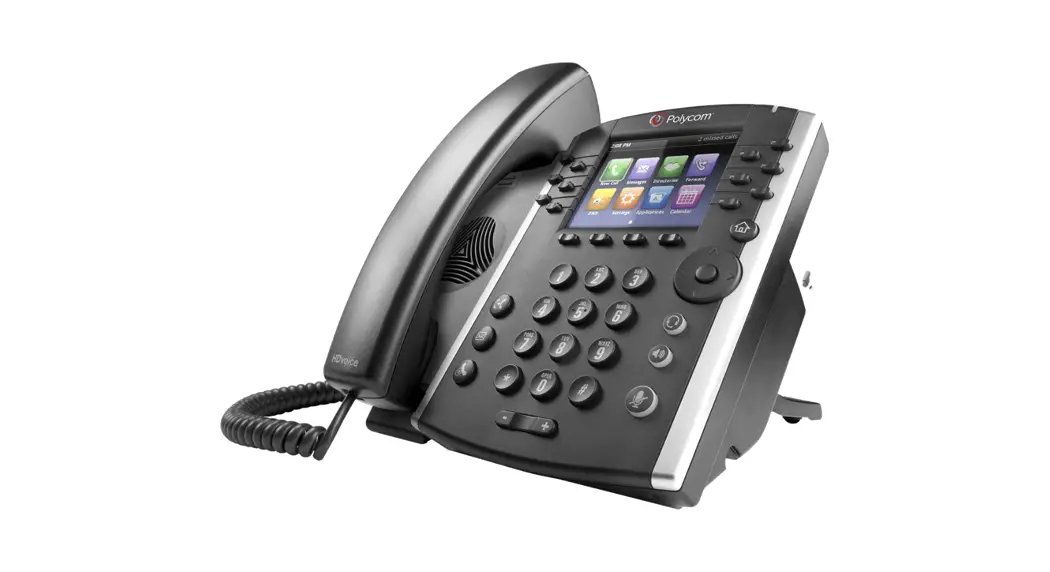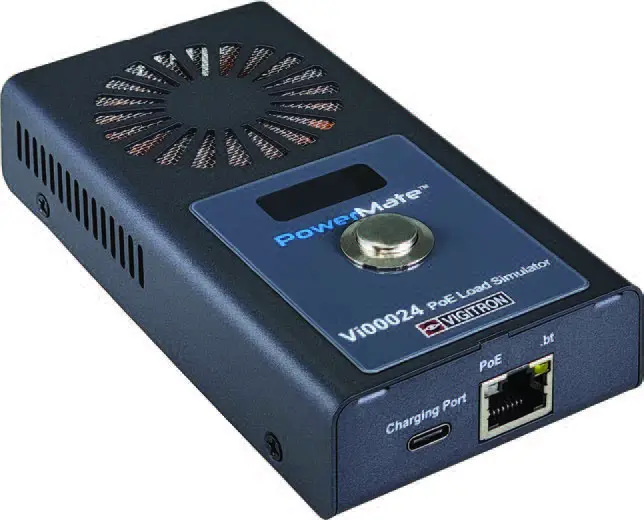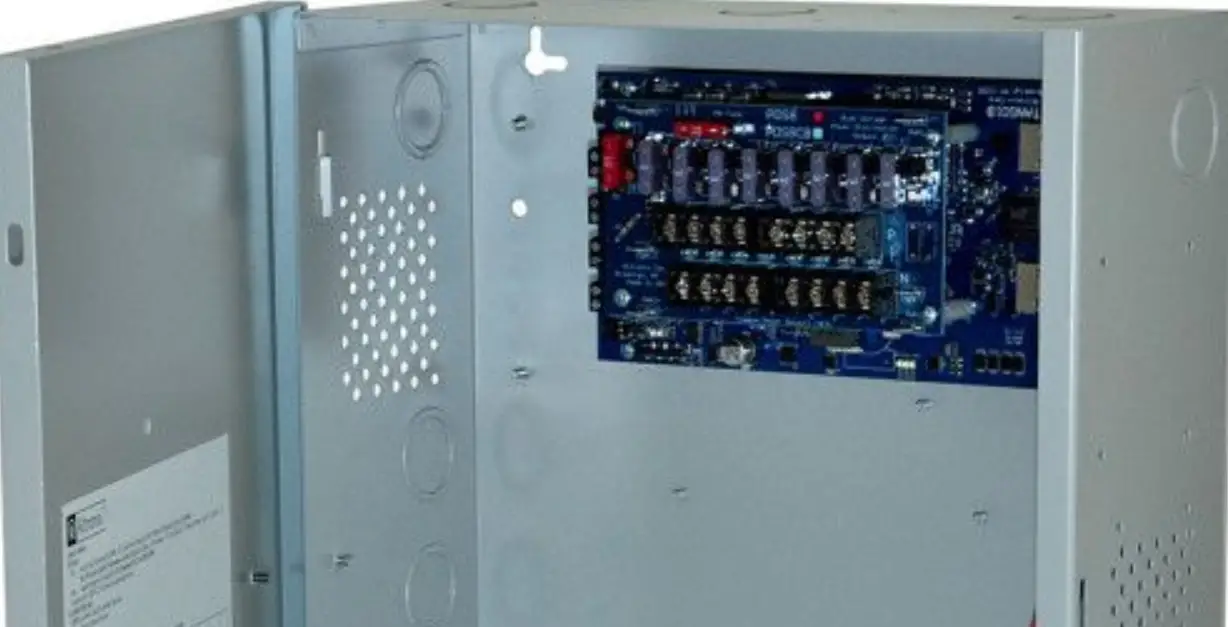

POLYCOM VVX 500 12-line Business Media Phone POE, Power Supply
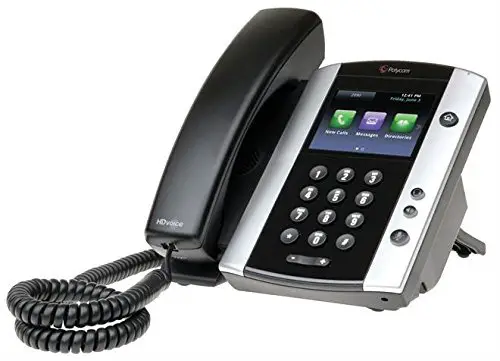
GET TO KNOW YOUR PHONE
- Soft Keys: These appear as they are needed. For example, if you are in a conference call, the soft keys display functions related to the conference function.
- Line Keys: Located to the left and right of the phone screen, the line keys indicate the status of your lines and associated activity.
ABOUT THE TOUCHSCREEN
Tap to select and highlight screen items. To scroll, touch the screen, and swipe your finger up, down, right or left. To go back to a previous screen, tap Bac
PLACING CALLS
Enter the phone number FIRST, then press Dial, pick up the handset, or press  or
or 
ANSWERING CALLS
- To answer with the speakerphone, press
 or tap Answer. To answer with the handset, pick up the handset. To answer with a headset, press
- To answer a new call while on an active call, press Answer. The current call will automatically be placed on hold
VOICEMAIL
- An envelope
 , adjacent to a Line key, indicates that you have voicemail. You will also see the vaicemail indicator light blinking in the upper right hand corner.
 - Tap the designated VM button and follow the prompts.
 , adjacent to a Line key, indicates that you have voicemail. You will also see the vaicemail indicator light blinking in the upper right hand corner.
CALL HOLD AND RESUME
During a call, tap the Hold soft key. Press the Resume soft key to resume the call.
CALL TRANSFER
During a call, tap the Transfer soft key to place the active call on hold.
To transfer a call unannounced:
Tap Blind in the upper right-hand corner and then dial the number or extension to automatically transfer the call.
To announce the transfer:
Place a call to the party to which you want to transfer the cal. After speaking with the second party, tap Transfer again to complete the transfer.
PLACING CONFERENCE CALLS
- Call the first party, and after the call connects, select Confrnc.
- You will now have an active three-way conference call.
- Then dial and connect with the second party and press Confrnc again.
- Press Hold to hold all participants.
- Press End Call to remove yourself from the call but keep the other participants connected.
- Press Split to end the conference and hold all participants.
MUTING THE MICROPHONE
During a call, press  other parties can’t hear you.
- To disable Mute, press
 again.
 - This applies to calls using the handset, headset, and speakerphone..
ADJUSTING VOLUME
- To change call volume, press
 ETD during a call.
 - To change the ringer volume, press when the phone is idle or ringing.
 ETD during a call.
You can also view short how-to videos about all of these topics at arvig.net/hostedpbx
 hostedpbx | My Arvig
 Poly | Video Conferencing, Conference Phones & Headsets | Poly, formerly Plantronics & Polycom