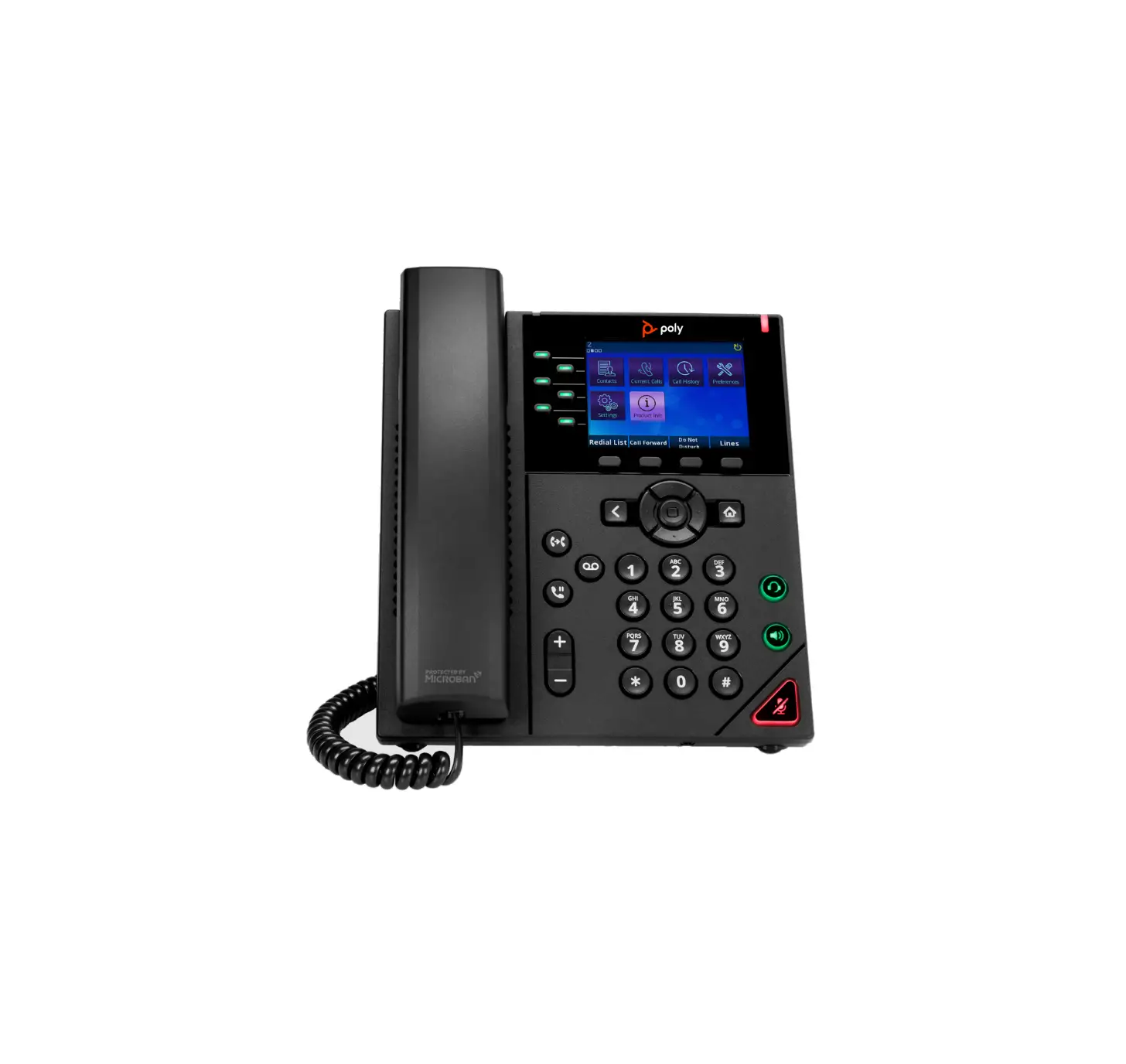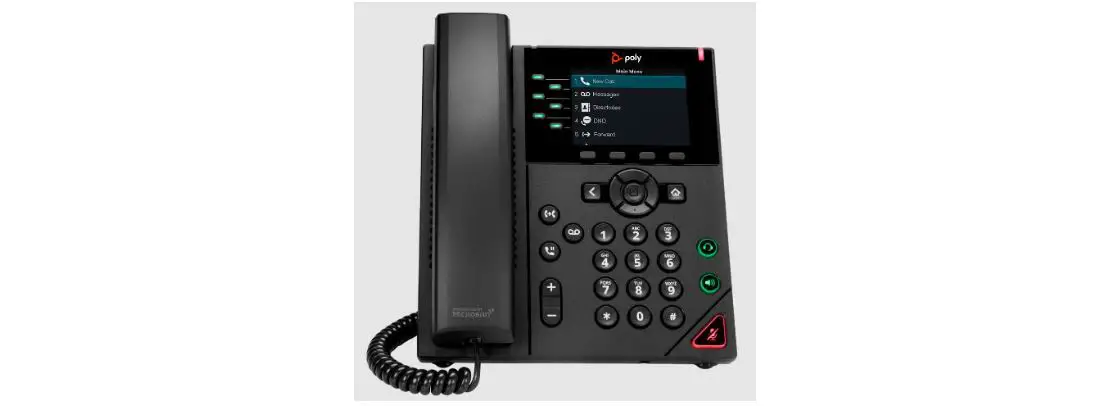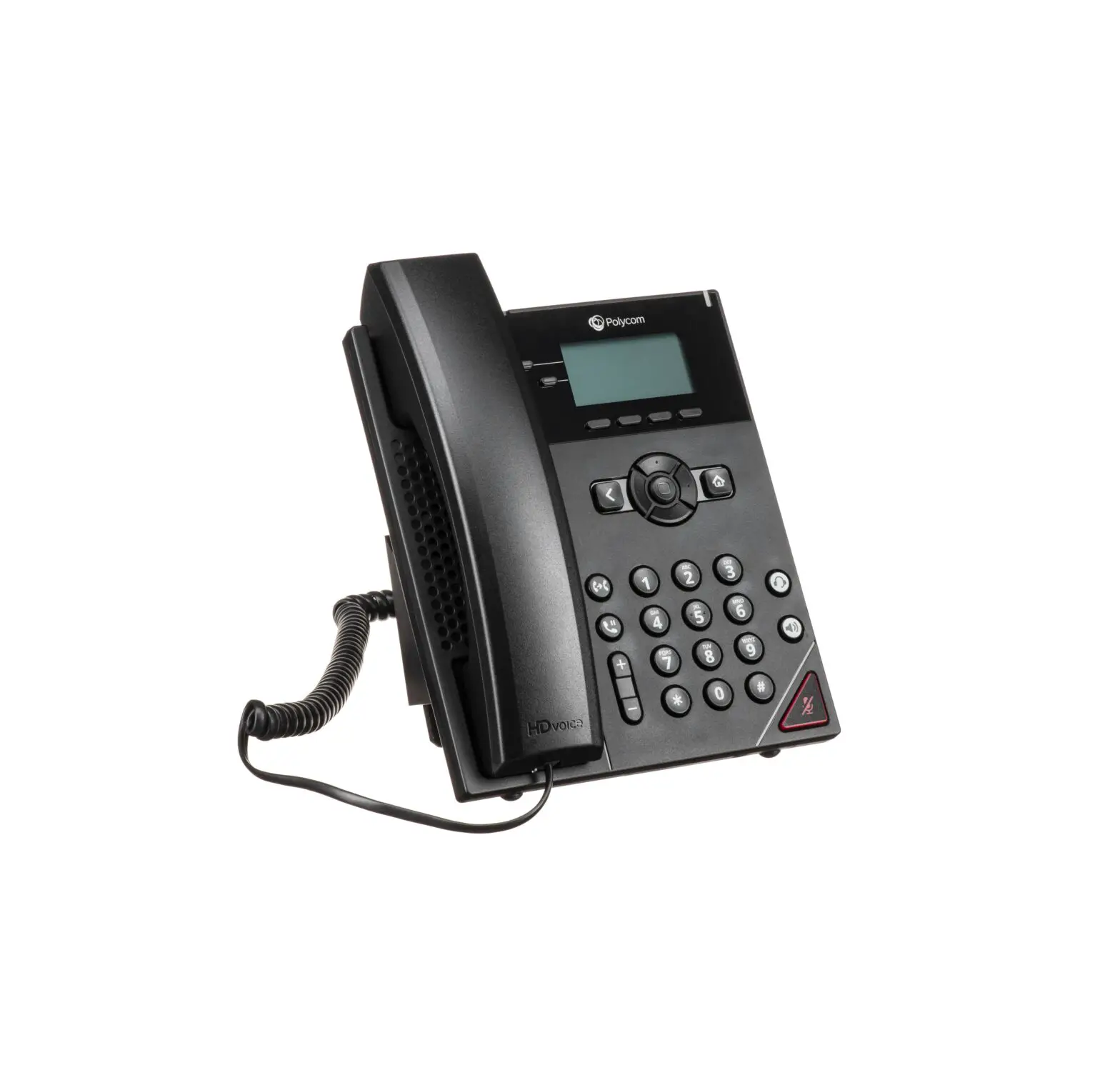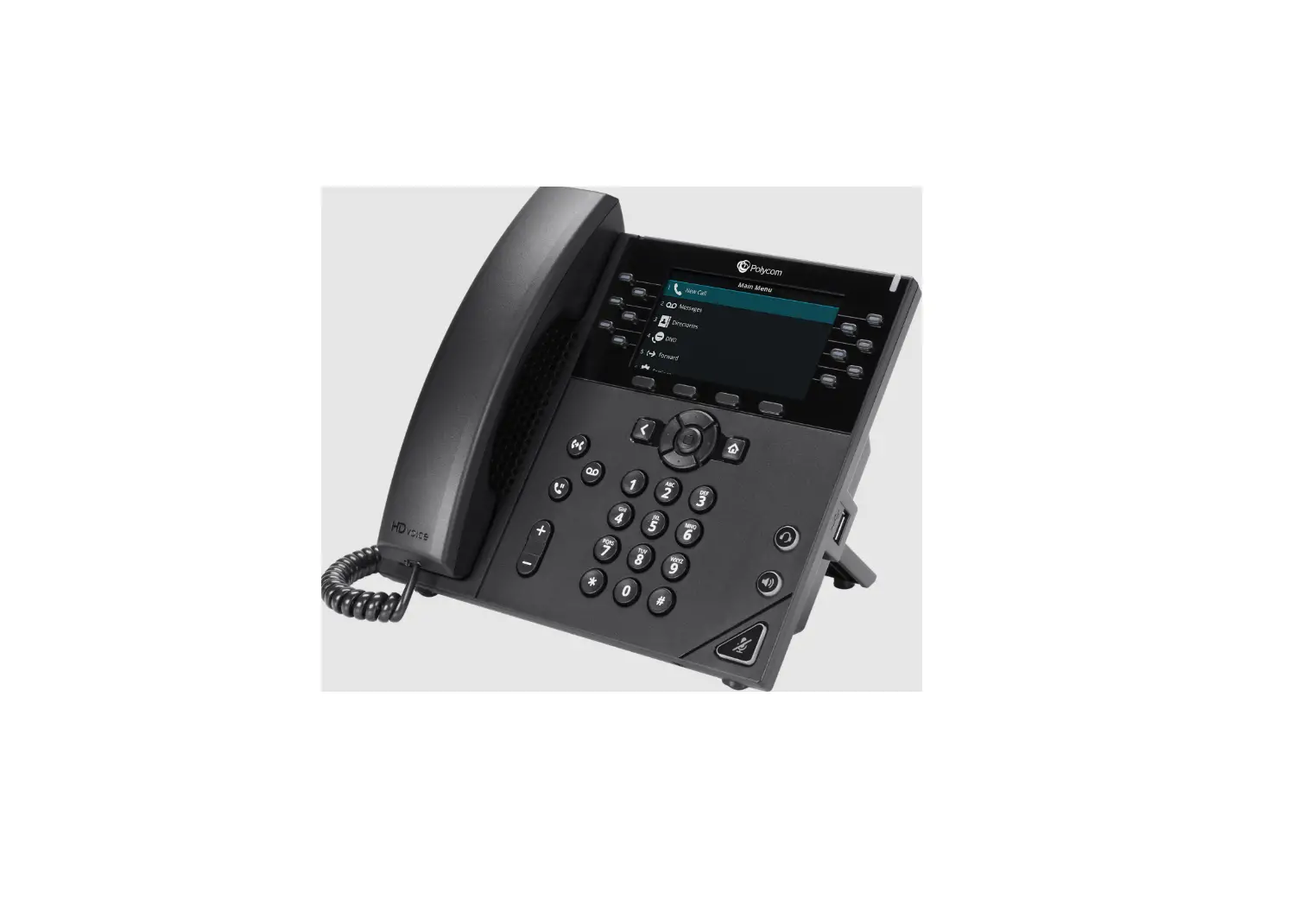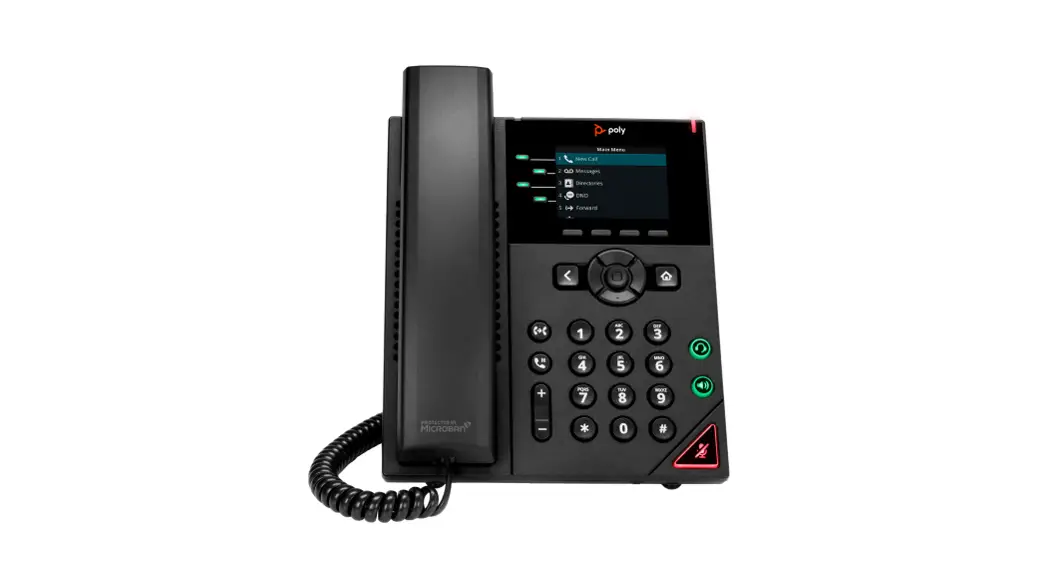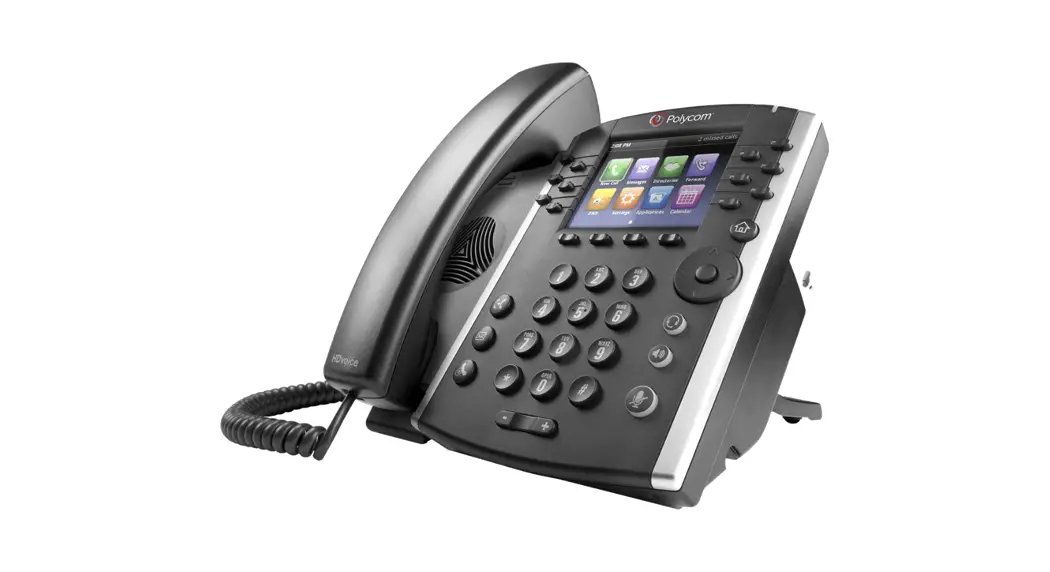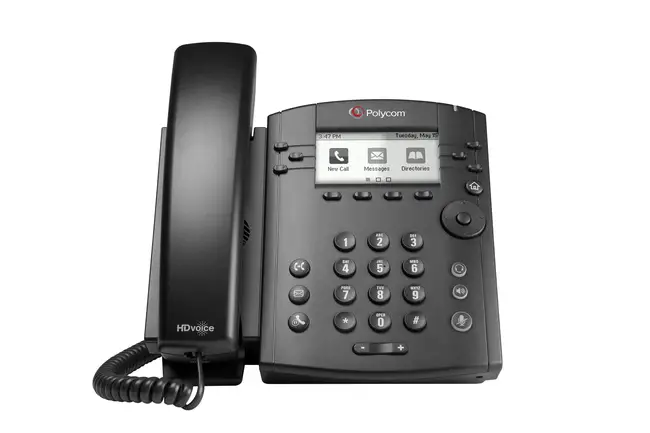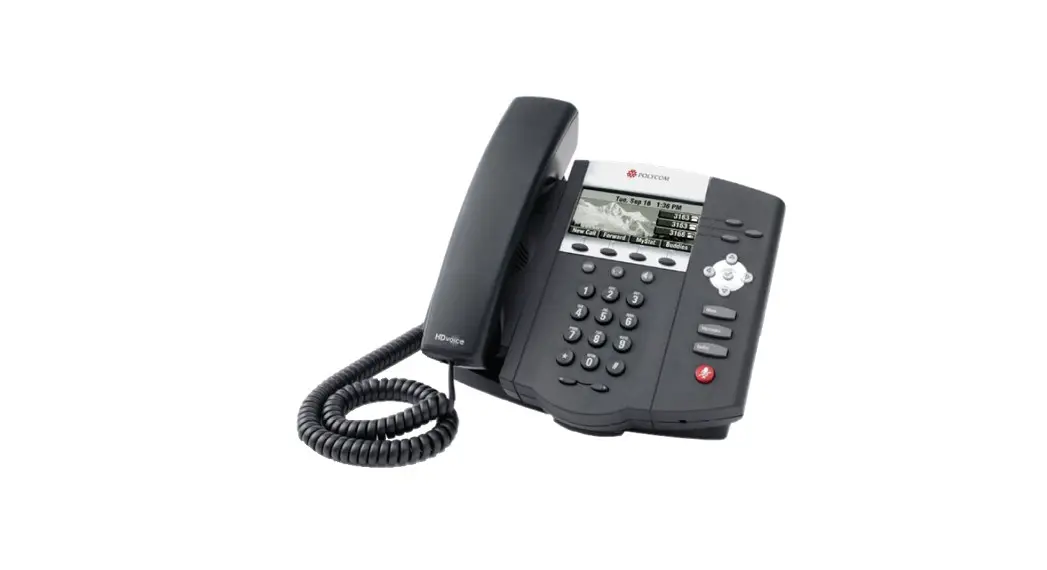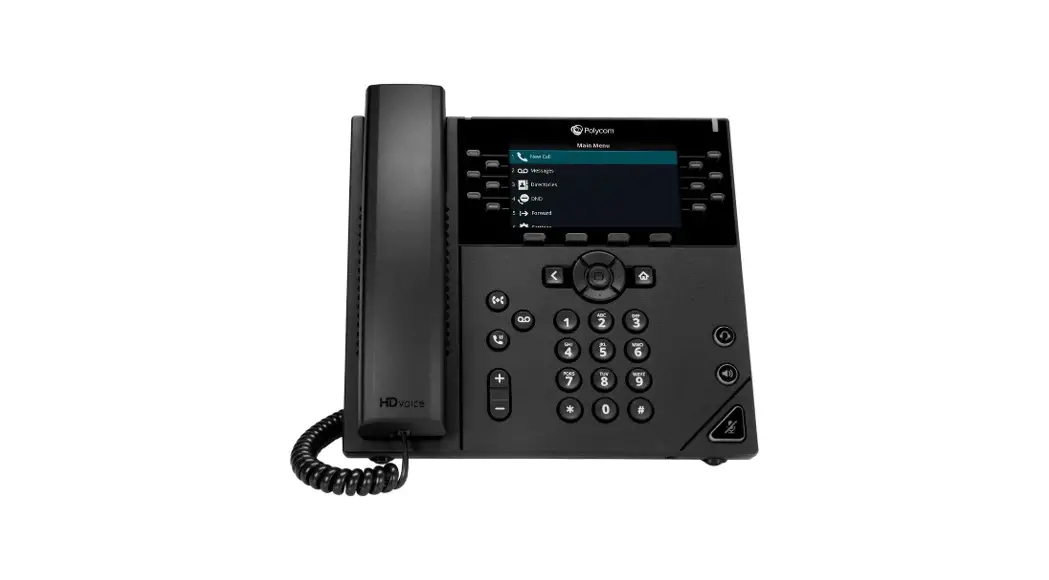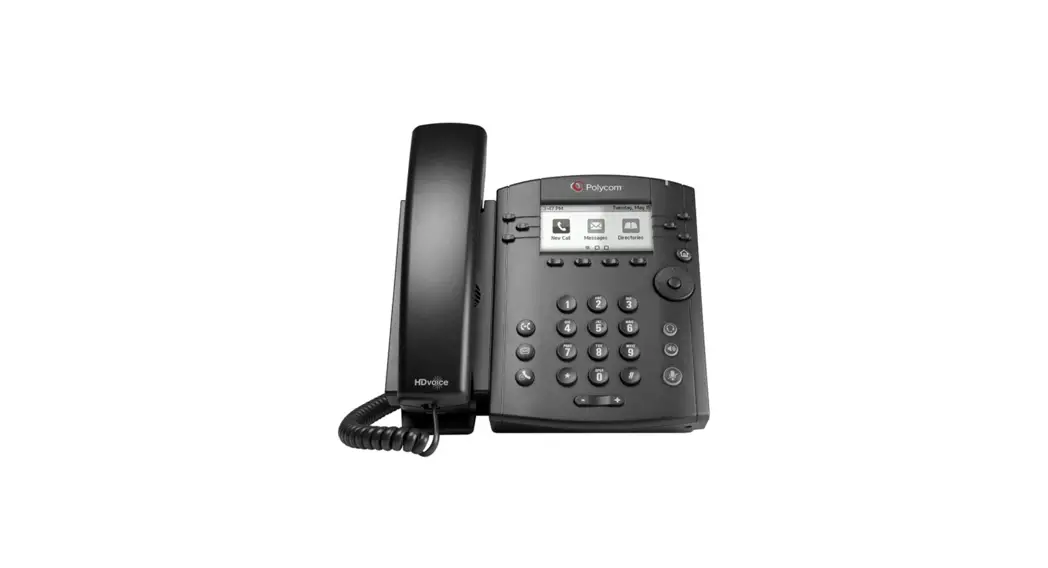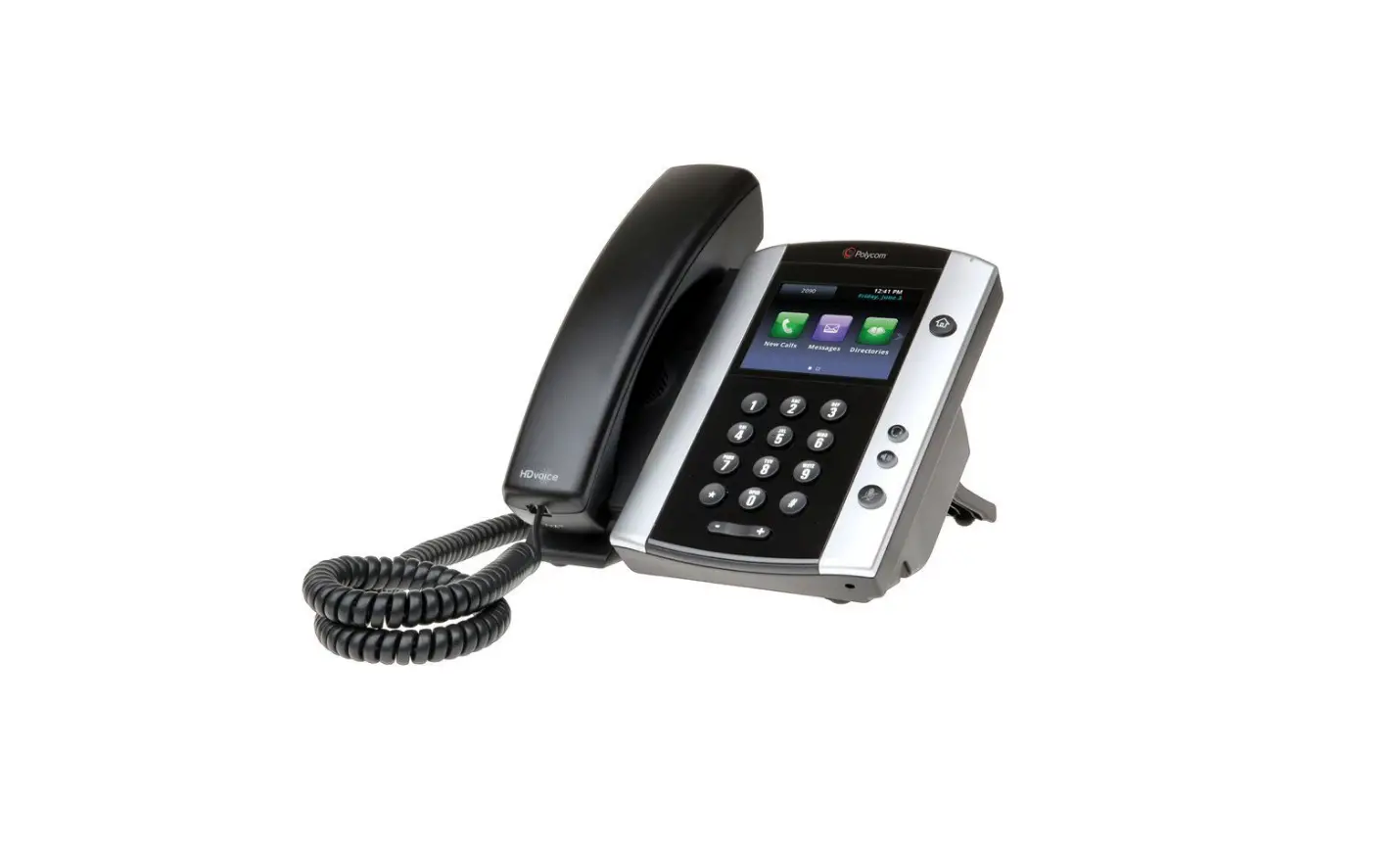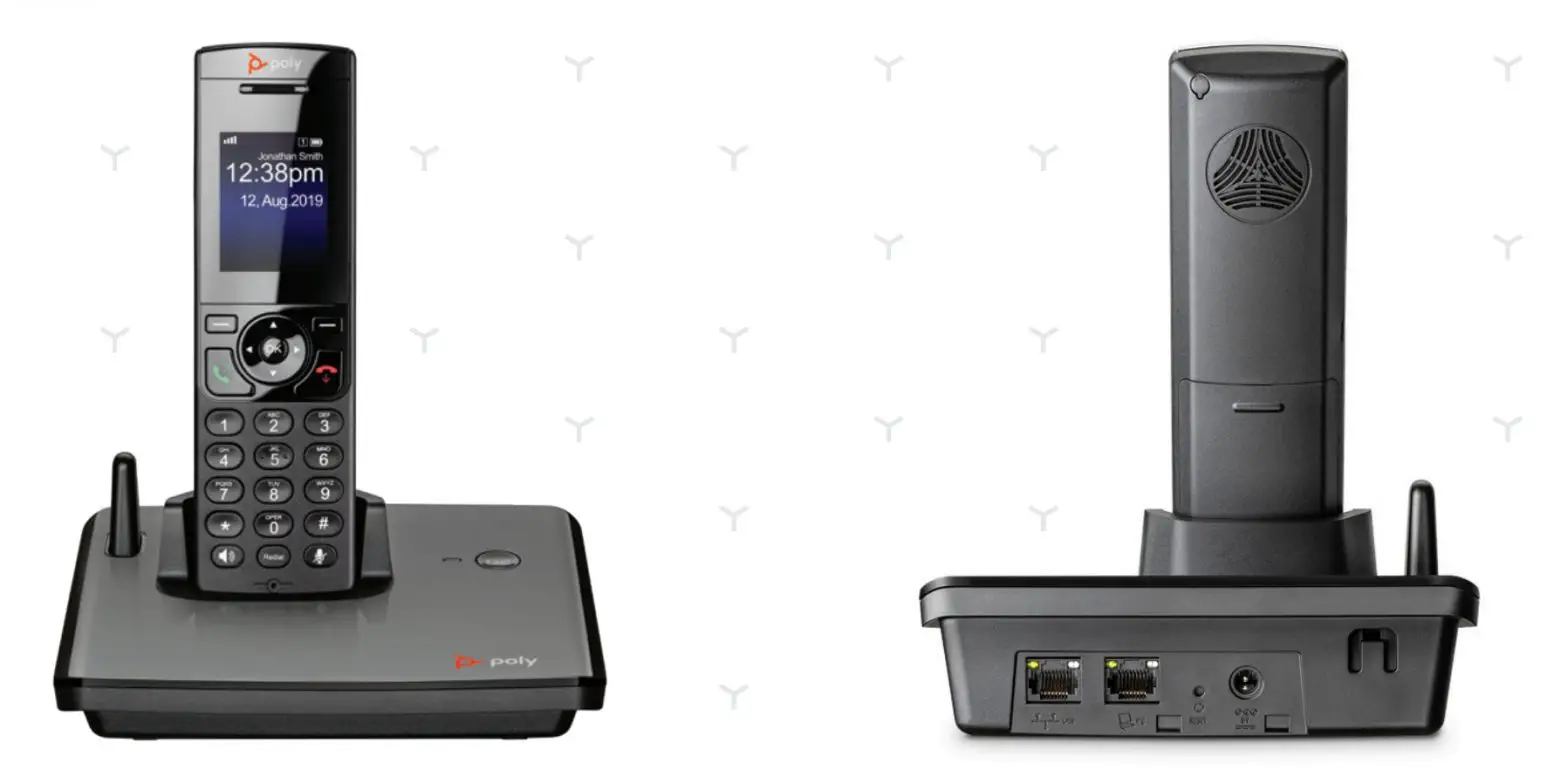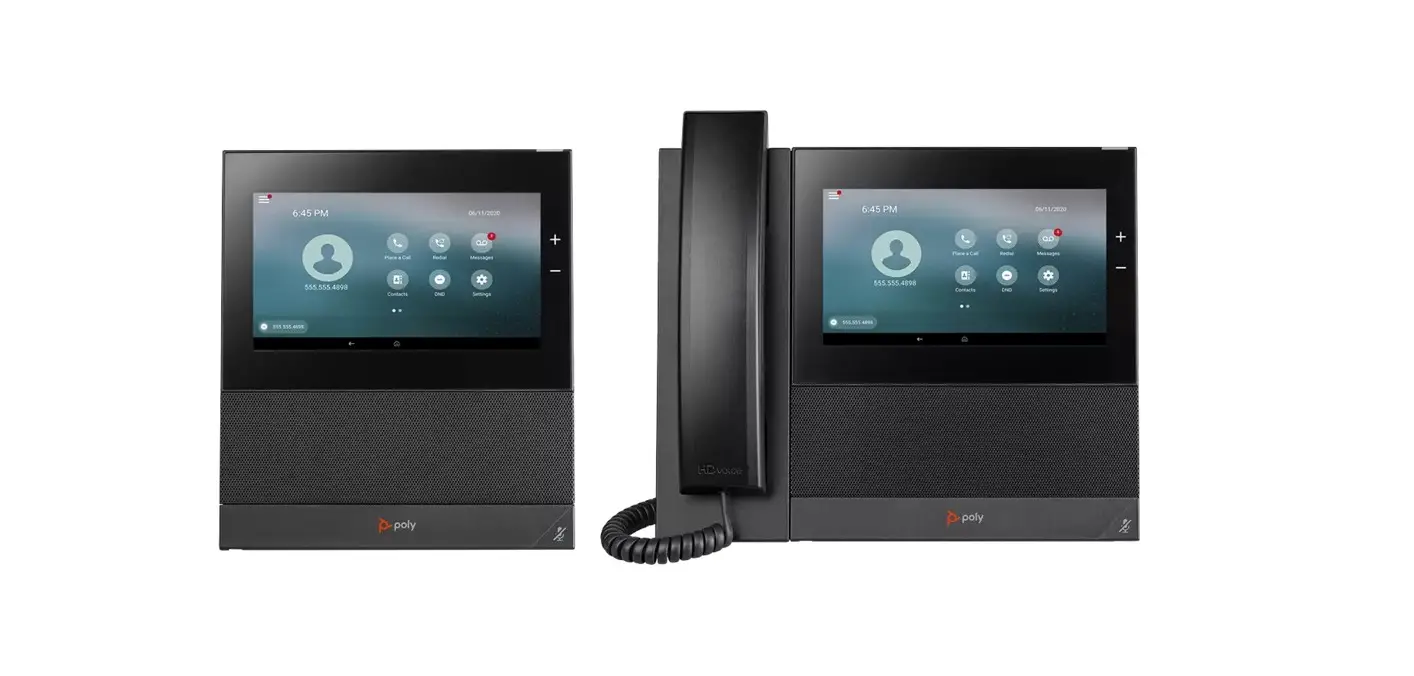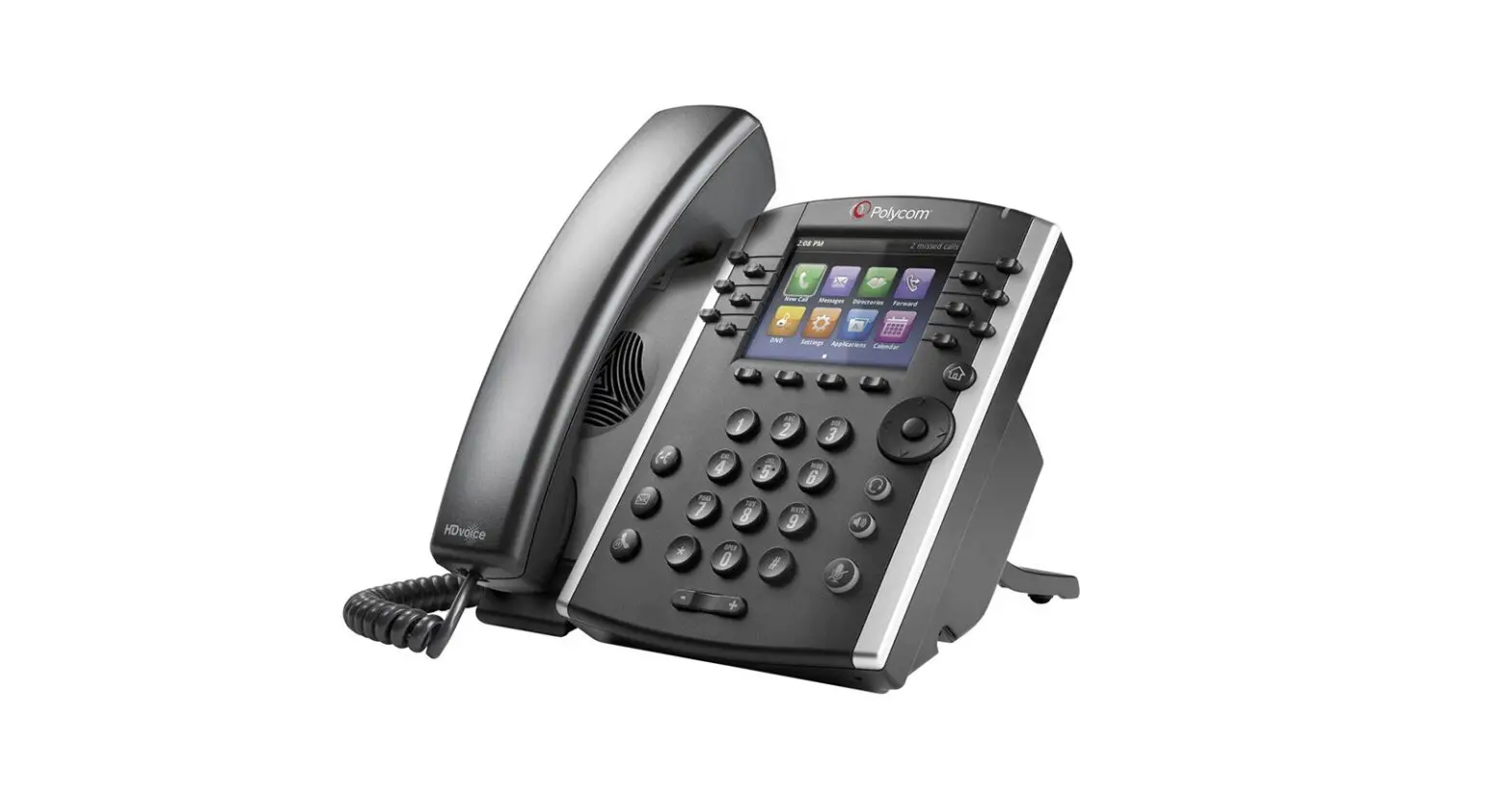

POLYCOM VVX 300 Powerful 6-line phone system
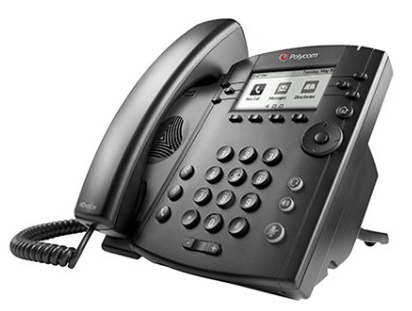
GET TO KNOW YOUR PHONE
+ Soft Keys: These appear as they are needed. For example, if you are in a conference call, the soft keys display functions related to the conference function.
+ Line Keys: Located to the left and right of the phone screen, the line keys indicate the status of your lines and associated activity.
HOME VIEW
- + Home View displays icons that can be tapped to access phone functions.
- + From Home View, press
 to display either Lines, Calls or Active Call View.
 to display either Lines, Calls or Active Call View.
PLACING CALLS
- + Enter the phone number FIRST, then press Dial, pick up the handset, or press
 or
or  .
.
ANSWERING CALLS
+ To answer with the speakerphone, press or tap Answer. To answer with the handset, pick up the handset. To answer with a headset, press
 . To answer a new call while on an active call, press Answer. The current call will automatically be placed on hold.
VOICEMAIL
+ An envelope,  , adjacent to a Line key, indicates that you have voicemail. You will also see the voicemail indicator light blinking in the upper right hand corner.
+ Tap the designated VM button and follow the prompts.
CALL HOLD AND RESUME
+ During a call, tap the Hold soft key. Press the Resume soft key to resume the call.
CALL TRANSFER
+ During a call, tap the Transfer soft key to place the active call on hold. To transfer a call unannounced: + Tap Blind in the upper right-hand corner and then dial the number or extension to automatically transfer the call.
To announce the transfer: + Place a call to the party to which you want to transfer the call. After speaking with the second party, tap Transfer again to complete the transfer.
PLACING CONFERENCE CALLS
- + Call the first party, and after the call connects, select Confrnc. You will now have an active three-way conference call.
- + Then dial and connect with the second party and press Confrnc again. + Press Hold to hold all participants.
- + Press End Call to remove yourself from the call but keep the other participants connected. + Press Split to end the conference and hold all participants.
MUTING THE MICROPHONE
- +During a call, press
 other parties can’t hear you. +To disable Mute, press gain.
 - +This applies to calls using the handset, headset, and speakerphone.
 other parties can’t hear you. +To disable Mute, press
 ADJUSTING VOLUME
+To change call volume, press ED during a call. To change the ringer volume, press when the phone is idle or ringing. You can also view short how-to videos about all of these topics at arvig.net/hostedpbx.
 hostedpbx | My Arvig
 Poly | Video Conferencing, Conference Phones & Headsets | Poly, formerly Plantronics & Polycom