 FOR BUSINESS™
Unison Poly 311/250/450
User Guide
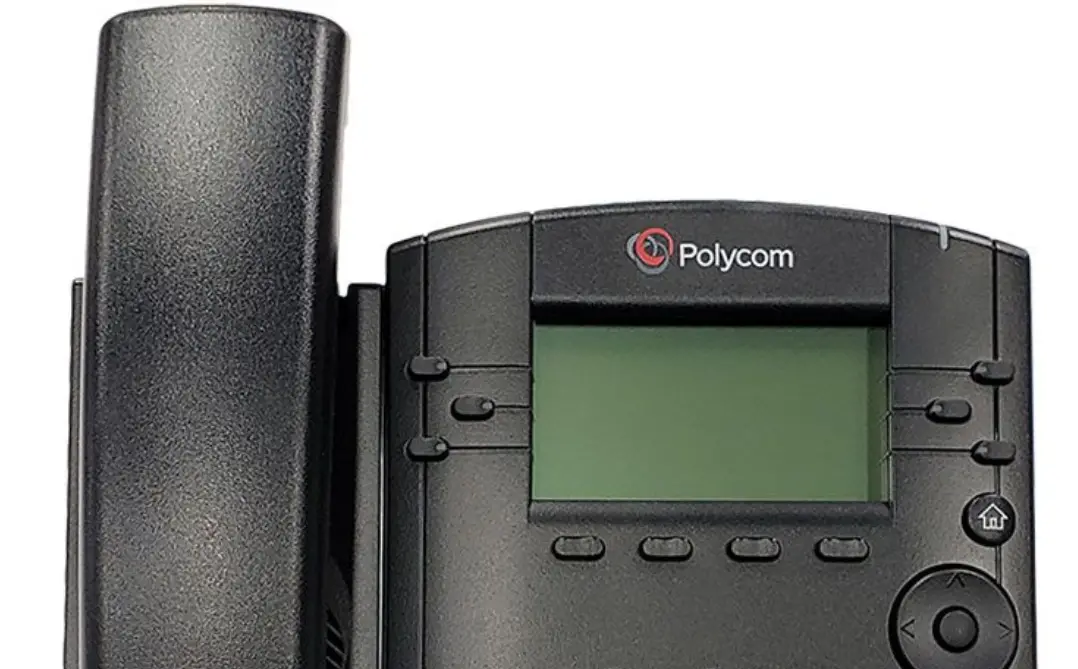
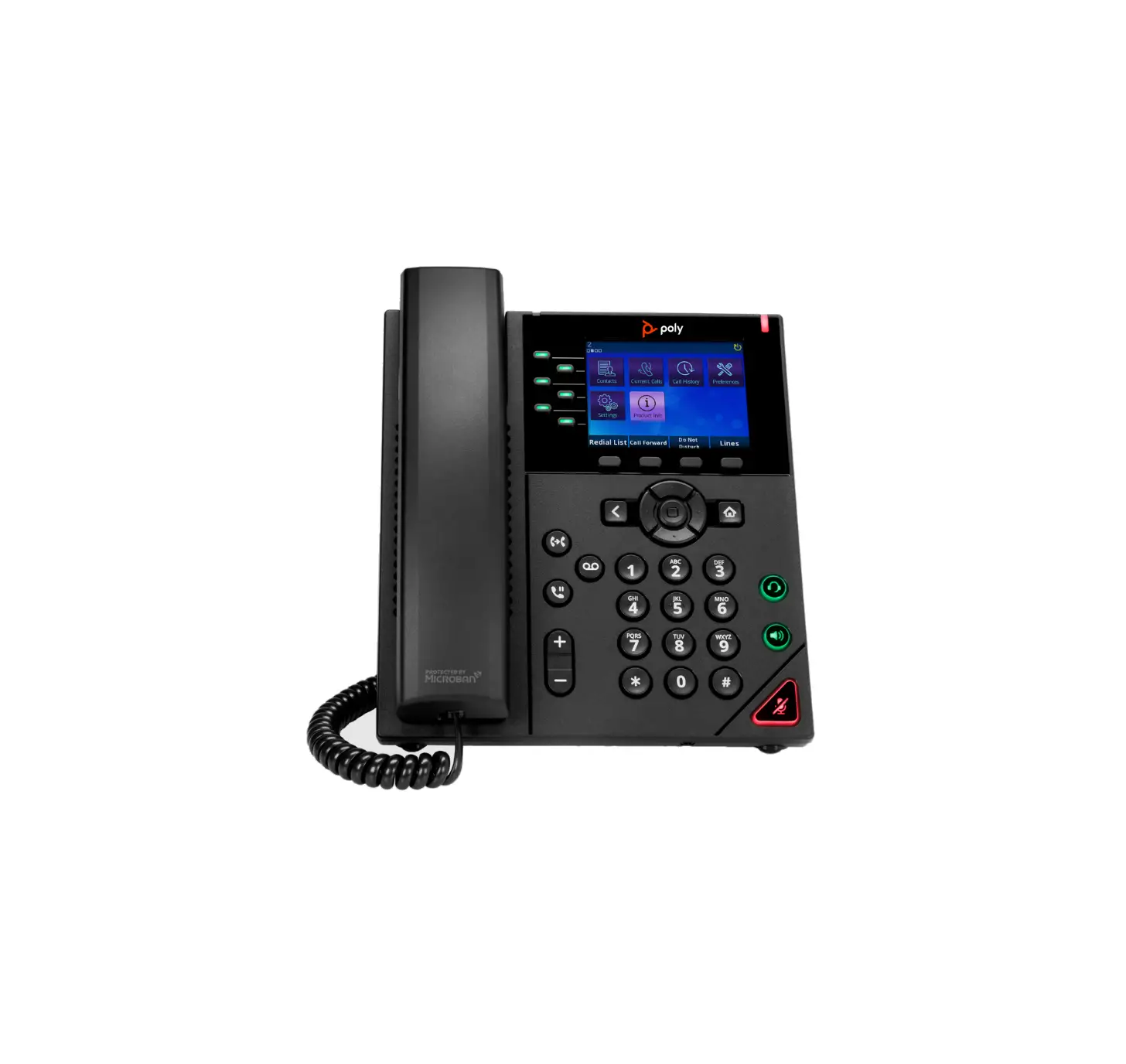
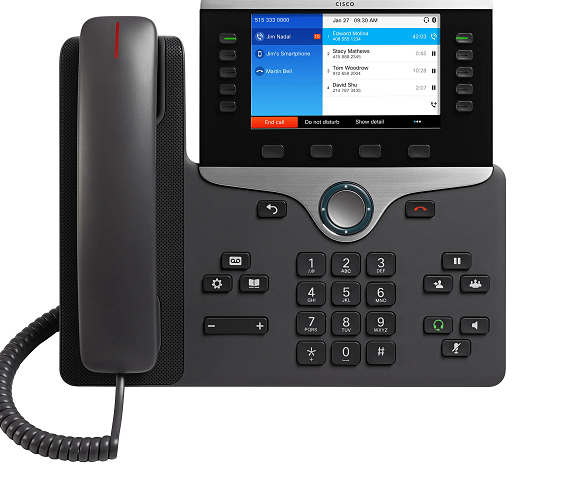
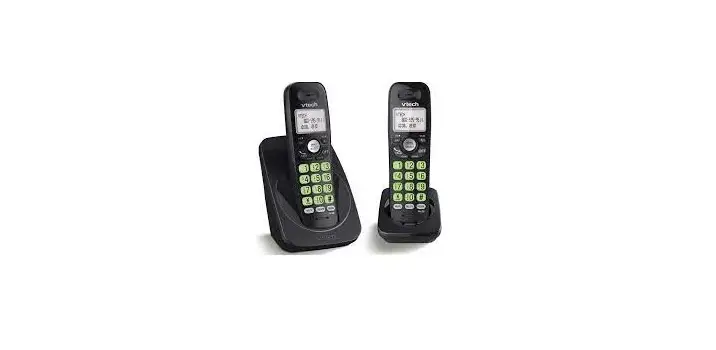
Poly 311 Diagram
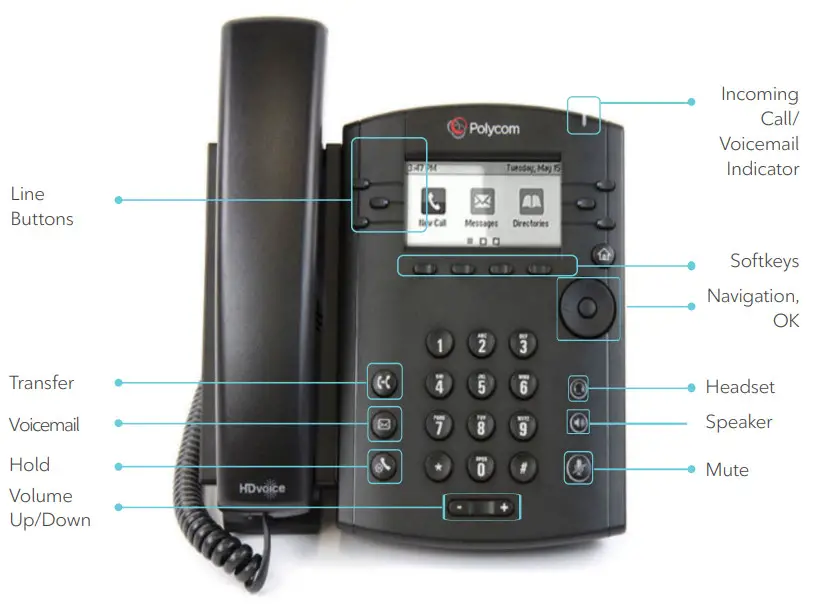
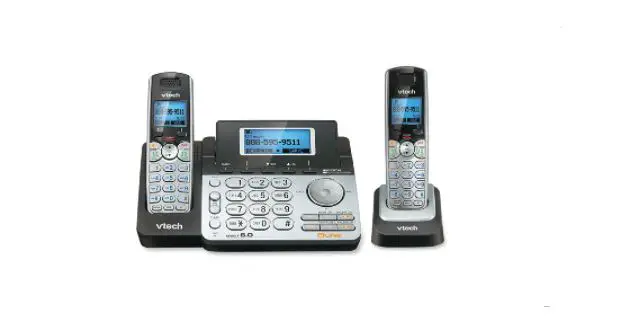
Poly 250 Diagram
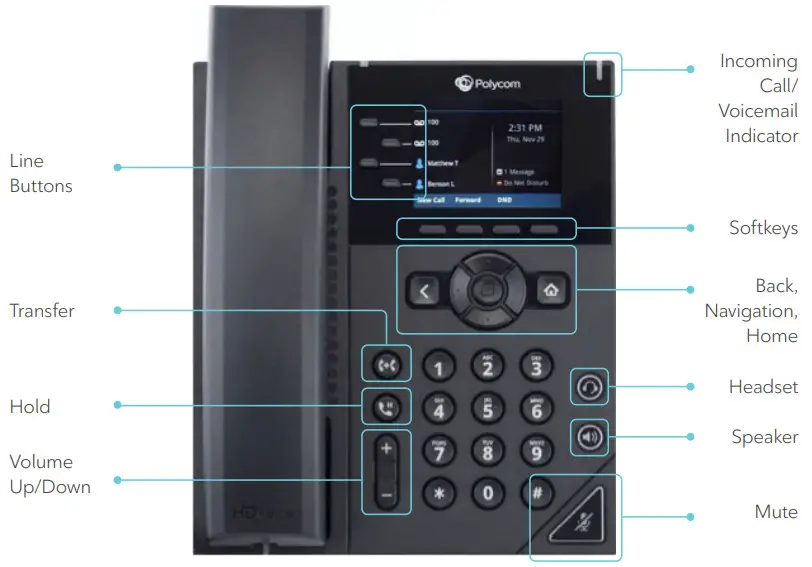
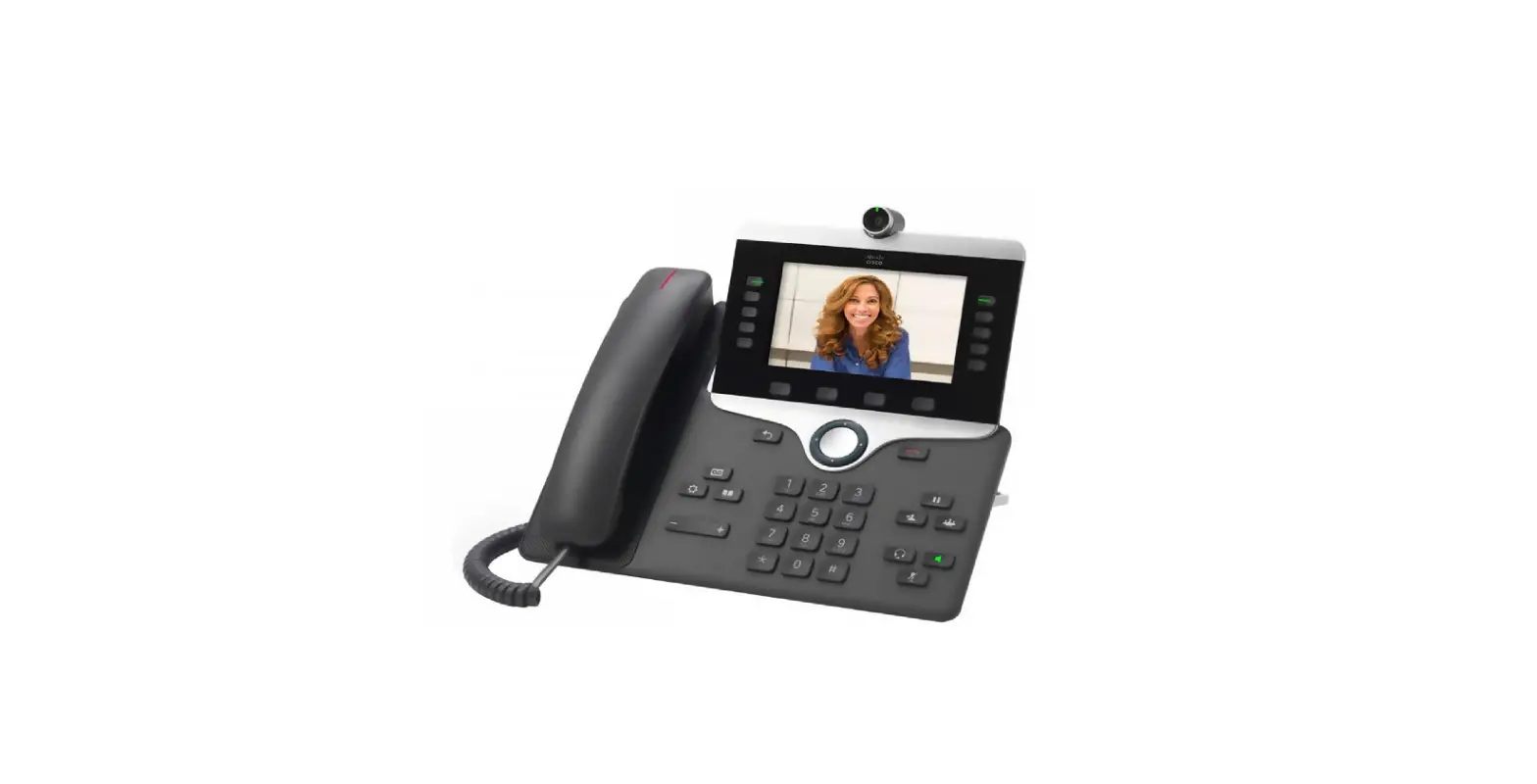
Poly 450 Diagram
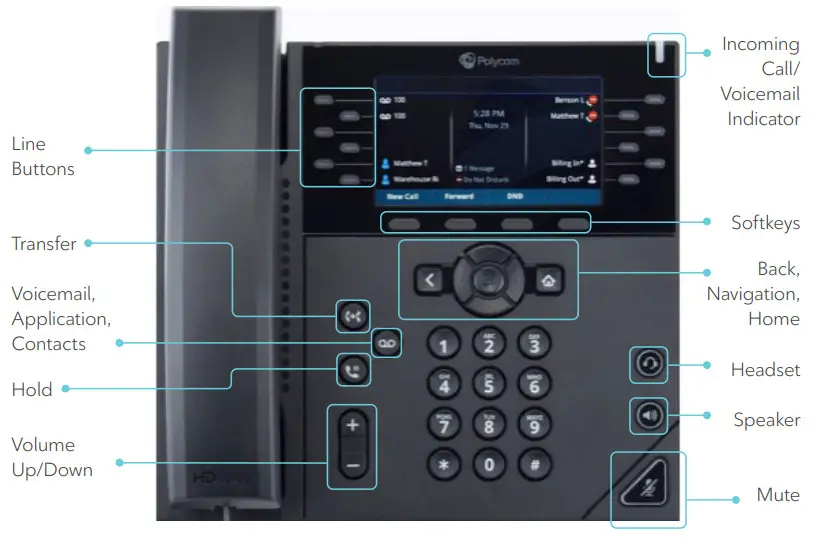
Answering Calls
› If you are not on a call you can; Pick up the handset, press  or
or  , or press the
  softkey
› If you are on a call, press the softkey, the other call will automatically go on hold
Making Calls
› If you are not on a call you can; Pick up the handset, press or or select
› To place the call press the  softkey
End Calls
› When on an active call you can pick up the handset, press or or press the  softkey
› **Any call that is on hold will first need to be resumed and then ended as per above.
Hold Call
› When on an active call press the hold button on the phone or the  softkey
› To resume the call press the hold button on the phone or the softkey
Pull Call
› When not on a call OR when a current call is on hold, press the  softkey or dial *11
› The call will be pulled to the phone.
Transfer Call
› When on an active call press the  or press the
  softkey
› Enter the number to transfer to in the dialer screen (if you are entering a 4 digit extension you will need to press the  softkey)
› Press the softkey immediately to blind transfer
› Press the softkey once the line is picked up to complete a warm transfer
Retrieving Voicemail
› You will know you have a voicemail as the voicemail indicator (upper right corner) will blink when the phone is not ringing. You will also get the number of voicemails in your VM box on the lower right corner of your screen.
› VVX250: There is no dedicated voicemail button on this phone model. To access your voicemail box, please dial *98
› VVX405: To access your VM press the button OR dial *98
› VVX311: To access your VM press the  button OR dial *98
Conference Calls
› When on an active call press the  button on the phone or the softkey
› Press the  softkey (you may need to press the
  softkey if you do not see it)
› Dial the number of the person you want to join the conference. Once the other caller has answered, press the softkey
› Repeat the process to add more people to the conference… up to five additional
› If you have calls on hold or that come in and would like to join them into the conference use the Navigation  keys to highlight the call and press the
  softkey
Call Logs and Directories
View Received/Missed/Placed Calls
› From the home screen, using the navigation buttons do the following to access call lists
› Down Key – Missed Calls
› Left Key – Received Calls
› Right Key – Placed Calls
› You can dial from the call log by selecting the entry using the navigation pad and pressing the softkey
› You can view information about the call (Date, Time, Call
Duration, Name) by pressing the  softkey
› Add the number and name to your local contacts by pressing the  softkey
› You can sort the list by pressing the  softkey (Ascending/Descending, Name/Time)
› You can change the type of call displayed (All Calls, Missed, Received and Outgoing) by pressing the  softkey
Contact Directory
The Contact Directory are contacts that are stored in your phones memory and backed up to our servers. This directory IS NOT shared with your Unison Softphone
Please note that if we need to reinitialize your account due to technical issues your local contacts will be lost
Access the Contact Directory
From the home screen, using the navigation buttons select Directories, than Contact Directory
In Contact Directory you can
› Search for Contacts
› View information about a contact by pressing the softkey
› While viewing the contact you can delete or edit the contact by pressing the  or
or  softkeys
› You can dial from the directory by selecting the entry using the navigation pad and pressing the softkey
› Add a new contact by pressing the  softkey pressing Save when done. You can put the following into a contact
| › First and Last Name › Phone or Contact Number › Job Title › Speed Dial or Favorite Index | › Label if you don’t want to use First and Last Name for speeddials › Assign a unique ring › Auto Reject the call › Divert it to another number |
Enable/Disable DND
› Press the  softkey (you may need to press the softkey to see it)
› You will see your line keys change to 
› Repeat the process to turn DND off
Return to the Home Screen
› From any screen you can press the  button to return to the main/home screen
Rogers Unison | Poly 311/250/450 | User Guide