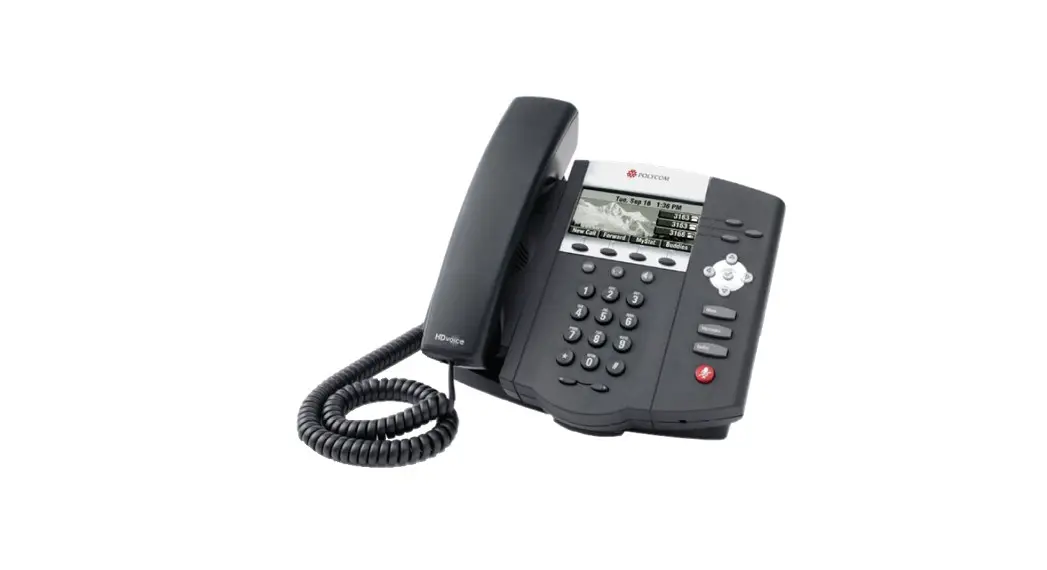
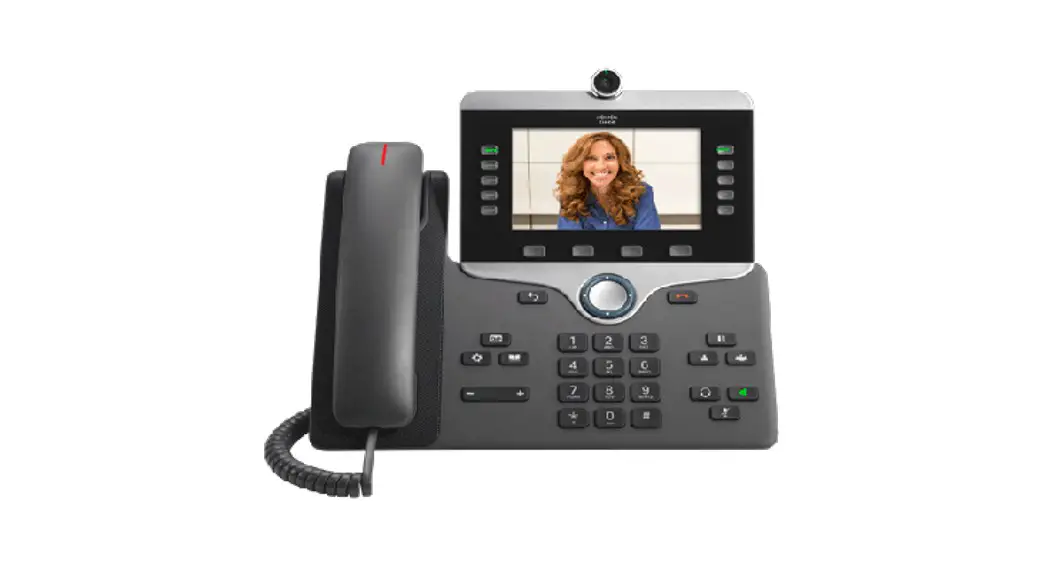
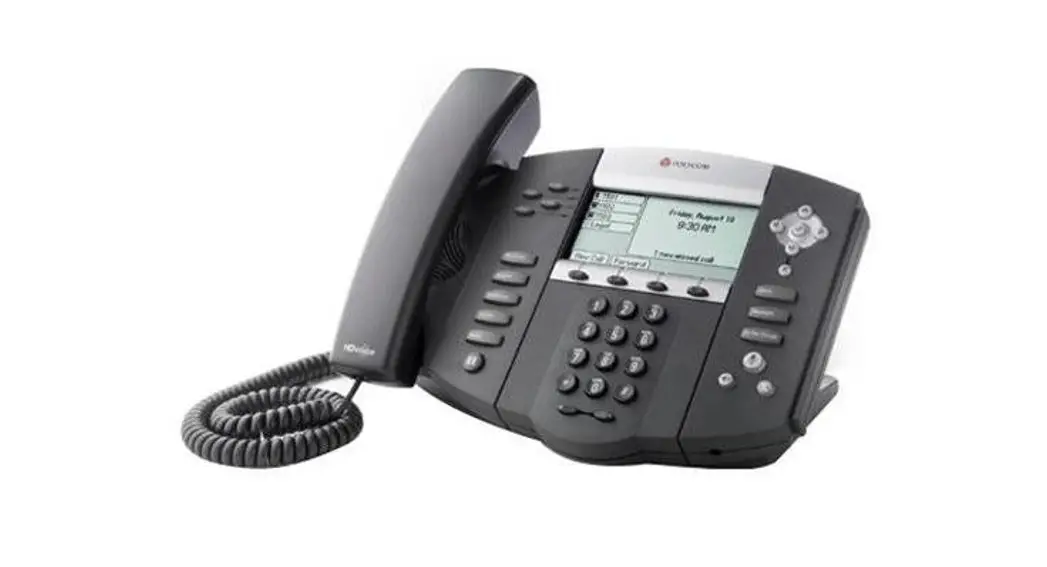
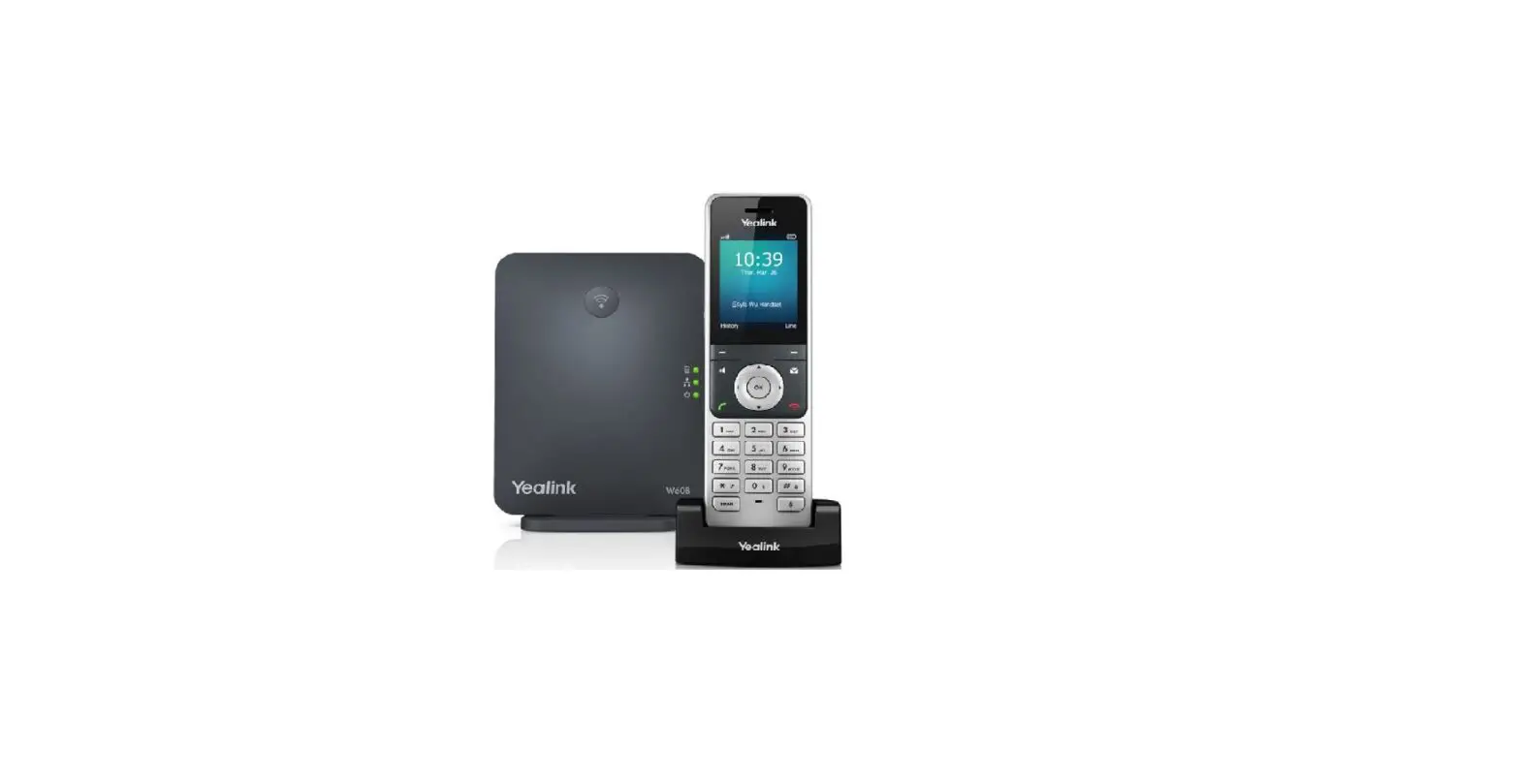
Business Phone
Rogers Business Phone Features
The Rogers Business Phone provides several features that are
managed using specific codes dialed from your phone. These features
include:
- Blind Transfer: This feature allows you to
transfer an active call to another recipient without speaking to
them first. To use this feature, press the transfer button, enter
the recipient’s phone number, wait for the call to end, and hang
up. - Caller ID: This feature allows you to display
your name and number when making outgoing calls. To enable or
disable your outgoing caller ID, press the caller ID button. - Voicemail Management: This feature allows you
to access your voicemail messages, greetings, and mailbox options.
To access this feature, press the voicemail management button and
enter your voicemail password. - Attended Transfer: This feature allows you to
transfer an active call to another recipient after speaking with
them first. To use this feature, press the transfer button, enter
the recipient’s phone number, speak with them, and then hang up to
complete the transfer. - Call Waiting: This feature allows you to
receive incoming calls while on an active call. To enable or
disable call waiting, press the call waiting button. - Do Not Disturb: This feature allows you to
disable incoming calls. To enable or disable this feature, press
the Do Not Disturb button.
Features Management Portal
The Features Management portal is divided into two sections:
Peer features and call forwarding rules.
Peer Feature Section
The Peer Feature section allows you to enable or disable
voicemail and inbound fax-to-email. You can also set the email
address for voicemail-to-email delivery and the voicemail ring time
within this section.
Call Forwarding Rules Section
The Call Forwarding Rules section allows you to set up, manage,
and enable or disable call forwarding options. Once a rule is
created, it can be enabled or disabled from the phone by dialing
*741, but any changes to the call forwarding rules must be made
within the portal.
There are two types of call forwarding rules:
- Unconditional: When enabled, all calls will be
forwarded at all times regardless of circumstances. - Failover / Busy: When enabled, calls will be
forwarded when the peer returns a busy signal.
It is important to note that the call forwarding rules feature
is disabled by default, and any call forwarding rules must be
configured and enabled in the portal before they can be used.
Rogers Business Phone User Guide
Rogers Business Phone Features
The highlights below are managed using feature codes dialed from your phone.
Blind Transfer
Press
to initiate a blind transfer from an
active call. After hearing the transfer prompt
and dial tone, immediately enter the transfer
recipient’s phone number and then wait for
the call to end and hang up. The call will then
be blind transferred to the recipient.
Caller ID
Press
to enable your outgoing
callerID and display your name and number.
Press
to disable your outgoing
callerID and display you as anonymous. This
feature is enabled by default and will display
the phone number associated to the line.
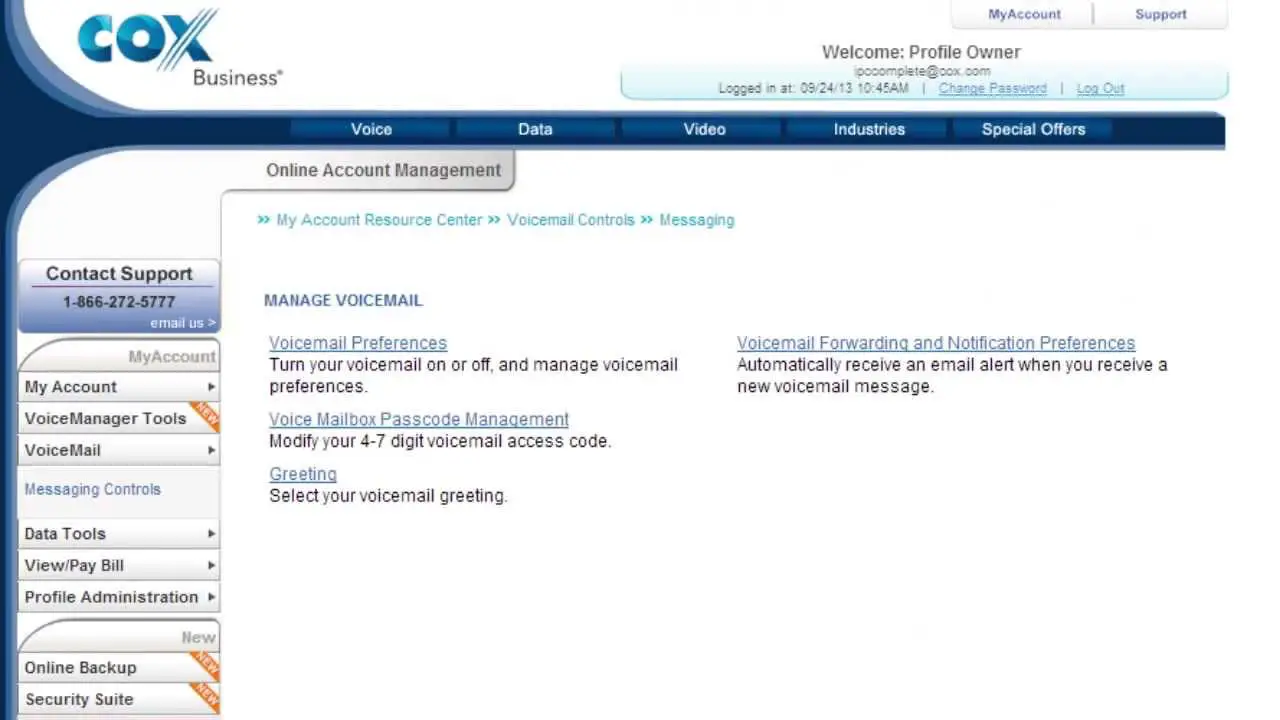
Voicemail Management
Press
to access your Voicemail
Management feature. Once prompted, enter
your voicemail password (default password
is 1234) to then review and manage your
voicemails, greetings, and mailbox options.
Follow the steps below to access the voicemails remotely: · Dial your mailbox number
(telephone number) for which voice mail messages need to be retrieved
· Once the greeting starts playing, press during the greeting, before the beep to enter the voicemail box
· When prompted, enter the voice mail password (default password is 1234) to authenticate voicemail box access
· Follow the prompts and options to listen to voice mail messages and manage the mailbox
Attended Transfer
Press
to initiate an attended transfer
from an active call. After hearing the transfer
prompt and dial tone, immediately enter the
transfer recipient’s phone number. The initial
caller will then be put on hold and you will
be connected to the transfer recipient. Once
ready to transfer the call, hang up and the
initial caller will be connected to the transfer
recipient. If the transfer recipient doesn’t
answer, or ends the call before you do,
the original call will be returned to you.
Call Waiting
Press
to enable your Call Waiting.
Press
to disable your Call waiting.
This feature is enabled by default and
should be left on in most cases.
Do Not Disturb
Press
to enable the Do Not Disturb
feature. Press
to disable the Do Not
Disturb feature. This feature is disabled by
default and should be left off in most cases.
2 Rogers Business Phone Features | User Guide
Features management portal
The Features Management portal is separated into two sections. Peer features and call forwarding rules.
PEER FEATURE SECTION
Voicemail
Voicemail can be enabled/disabled by toggling the button. The email address used for voicemail-to-email delivery and the voicemail ring time can be set and modified within this section.
Fax
The inbound fax-to-email can be enabled/ disabled by toggling the button. The email address for fax-to-email delivery can be set and modified within this section. This feature is disabled by default.
3 Rogers Business Phone Features | User Guide
Call forwarding rules section
In this feature the call forwarding options can be set up, managed, and enabled/ disabled. Once a rule is created it can also be enabled/disabled from the phone by dialing *741, but any changes to the call forwarding rules must be made within the portal. This feature is disabled by default, and any call forwarding rules must be configured and enabled in the portal before they can be used.
Unconditional
When enabled, all calls will be forwarded at all times regardless of circumstances.
Example Rule: Ring for (seconds) 30, when CallerID is [blank], extension status is [Any], and call status was [Any].
Failover / Busy
When enabled, calls will be forwarded when the peer returns a busy signal.
Example Rule: Ring for (seconds) 30, when CallerID is [blank], extension status is [Any], and call status was [`Busy’]
No Answer
When enabled, calls will be forwarded when the peer rings for more than 30 seconds without answer.
Example Rule: Ring for (seconds) 30, when CallerID is [blank], extension status is [Any], and call status was [`No Answer].
4 Rogers Business Phone Features | User Guide
Selective
When enabled, calls will be forwarded only when the specified telephone number is calling. In the example, a call from (111) 555 1234 will trigger the forward.
Example Rule: Ring for (seconds) 30, when CallerID is [`1115551234′], extension status is [Any], and call status was [Any].
Emergency Redirect / Unavailable
When enabled, calls will be forwarded when the peer is unavailable (e.g., disconnected from the network).
Example Rule: Ring for (seconds) 30, when CallerID is [blank], extension status is [`Unreachable’], and call status was [Any].
Find Me / Follow Me
When enabled, calls will ring both the destination telephone number as well as the peer.
Example Rule: Ring for (seconds) 30, when CallerID is [blank], extension status is [Any], and call status was [Any].
Other / Complex
A complex rule does not fit into any of the specific types mentioned above, and can be any other combination of the available options.
5 Rogers Business Phone Features | User Guide
Additional features
Multiline Hunt
You can assign a pilot number and create hunt group for your incoming calls to be routed. If pilot number is busy, call routes to next available number in hunt group or Voicemail. The hunt group can be set up at the time of activation (when requested). Changes can be made to hunt groups by calling Rogers Business Care. This feature cannot be managed through feature management portal.
Visual Call Waiting
This feature enables you to see the number of call waiting in queue. The feature is a combination of Call Waiting + Call Display. This feature is always enabled and managed by the desk phone, no code is required.
3-way Calling
This feature allows users to initiate a conference using desk phone. You have the ability to add 3rd party to established 2-party call. This feature is always enabled and managed by the desk phone, no code is required.
Toll Block
You have the option to block Toll calls. The following Toll Block options can be activated by calling Rogers Business Care and requesting for Toll Block services and providing details as requested by the agent.
· Block chargeable outgoing calls made to US/Canada (i.e. outside the extended local calling area)
· Block international outgoing calls · Block all chargeable calls US/Canada
(outside extended local calling area) and International
6 Rogers Business Phone Features | User Guide