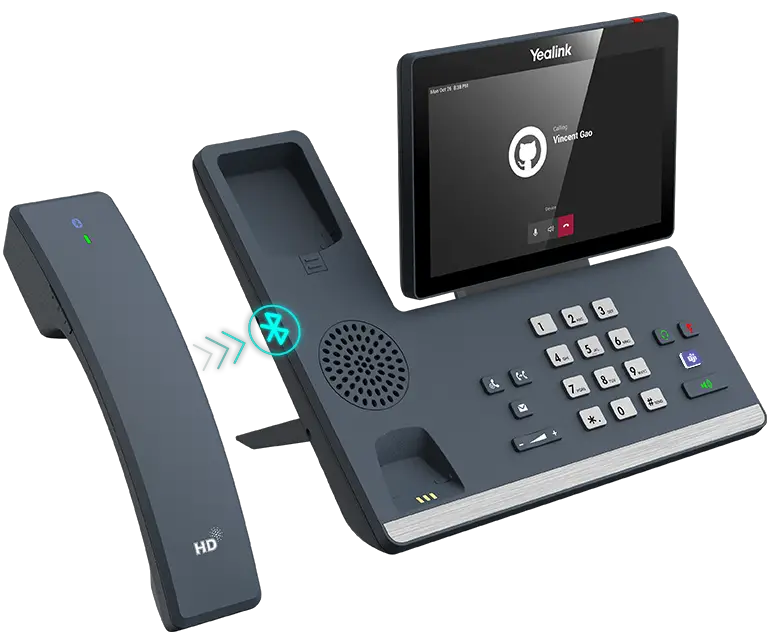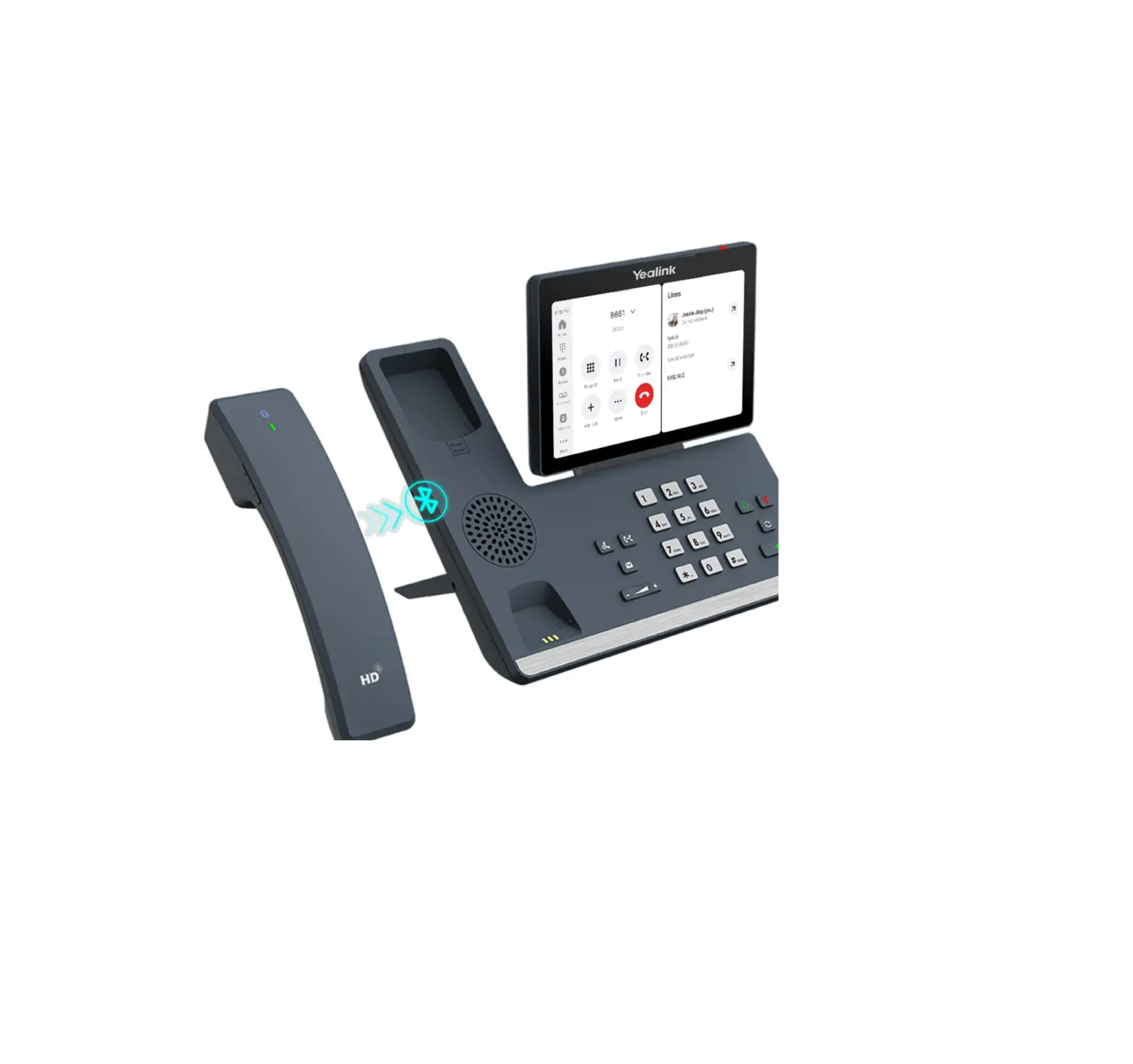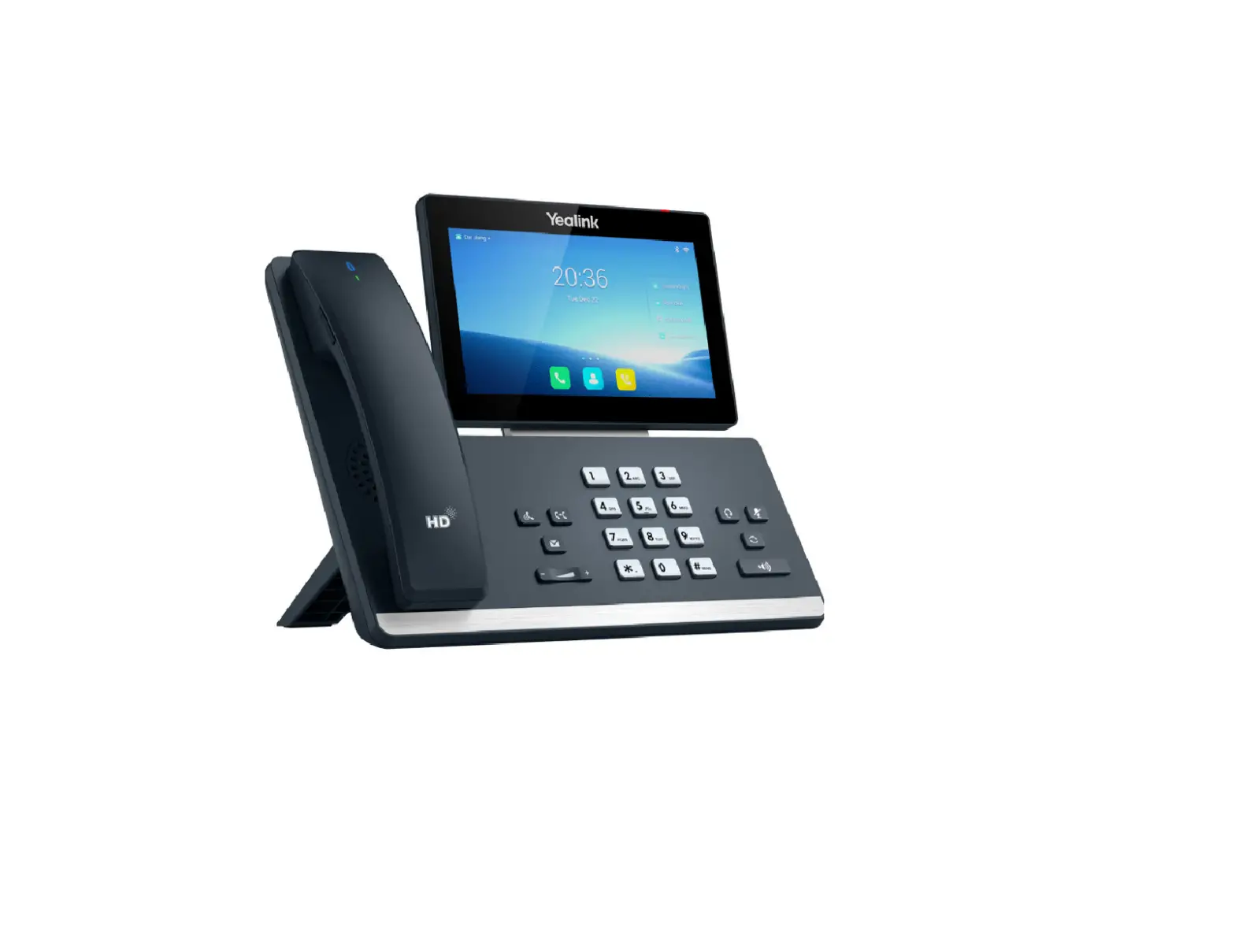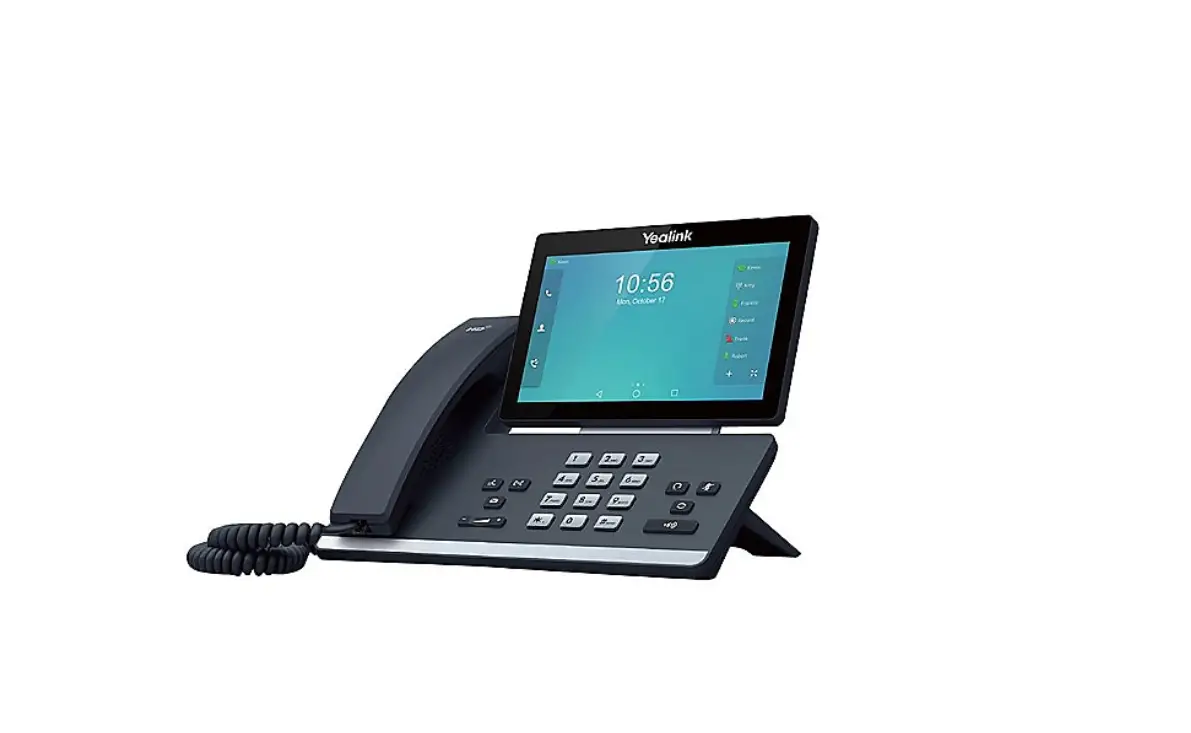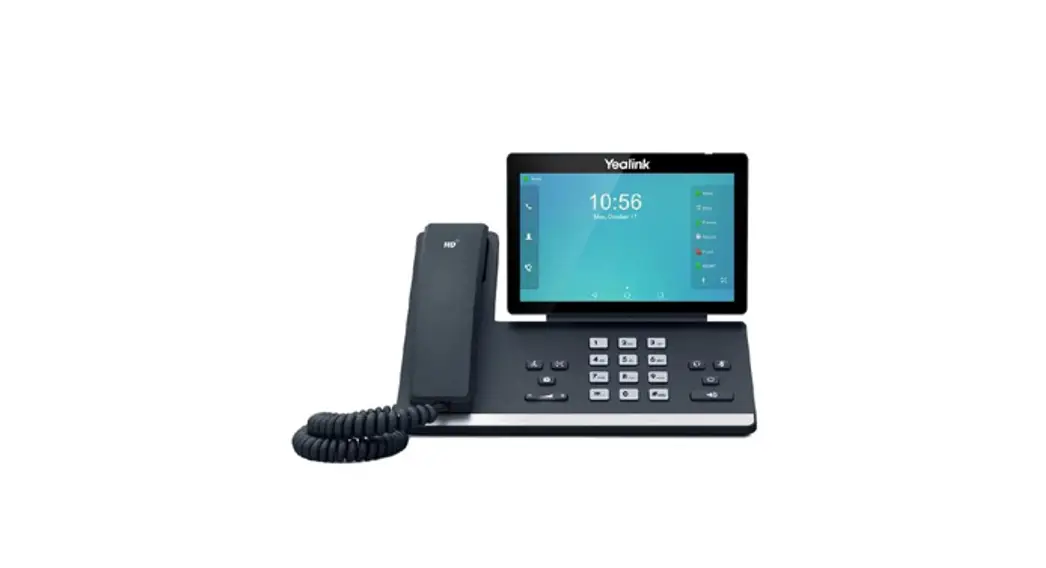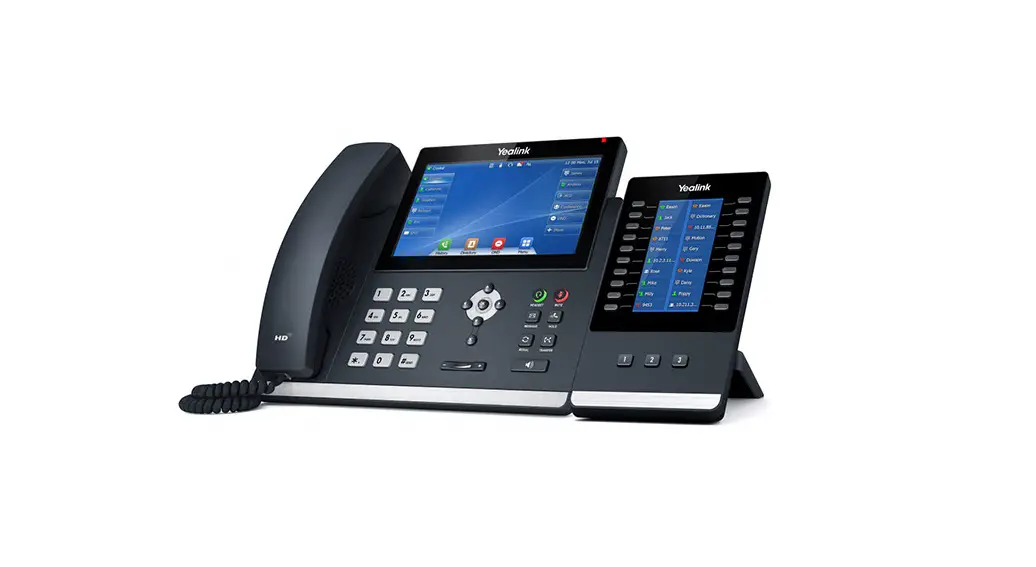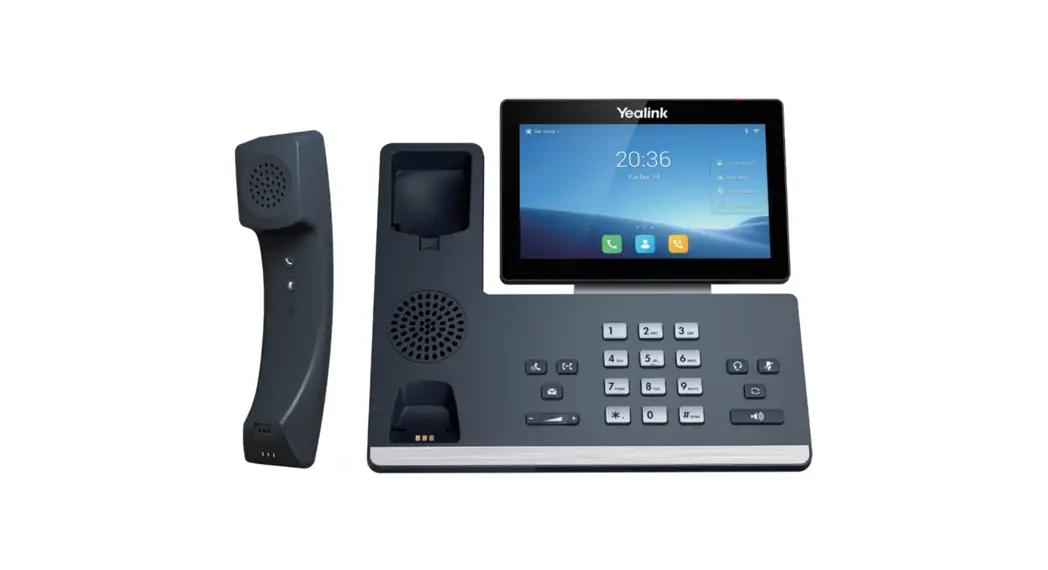
 T58W Pro Smart Business Phone
User Guide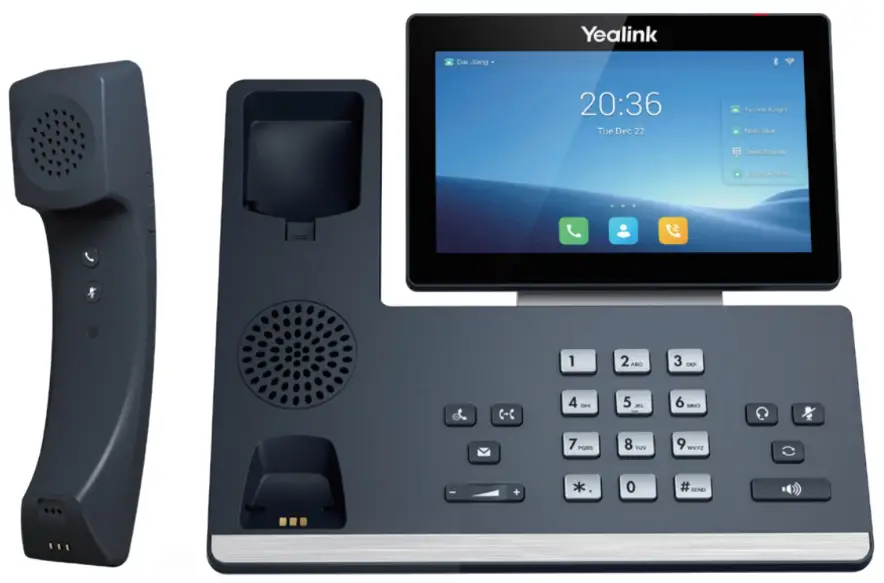
T58W Pro Smart Business Phone
Available features may vary. Provided feature set based on the original order and the system administrator’s requests for each deployment. Please contact your system administrator or Telesystem directly to discuss any additions to the system.
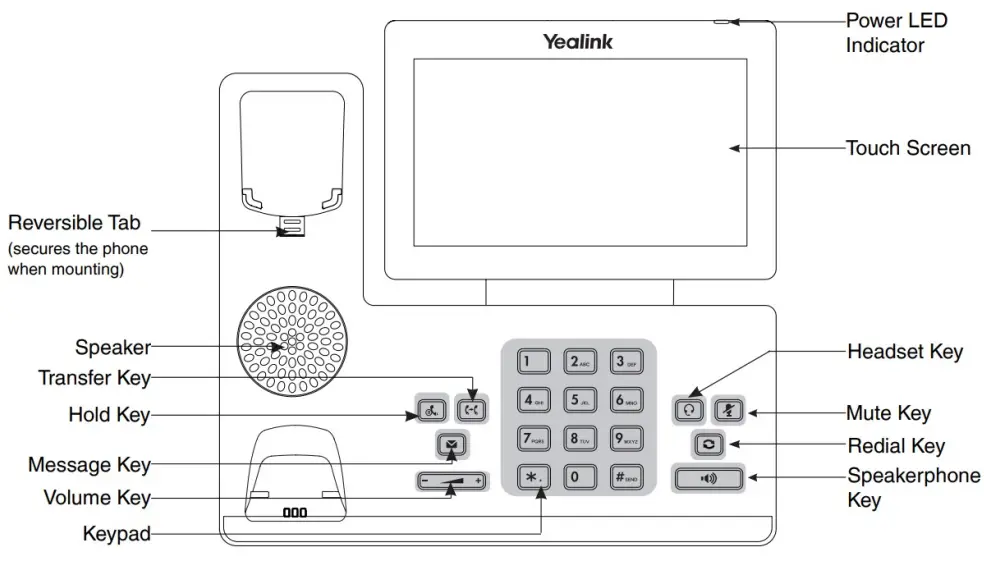
MAKING A CALL
Using the handset:
- Pick up the handset.
- Enter the number using the keypad and then press the Call
 soft key.
 soft key.
Using the speakerphone:
- With the handset on-hook, press

- Enter the number, then press the Send soft key.
Using the headset:
- With the headset connected,
 to activate the headset mode.
 - Enter the number, and then press the Send soft key.
Note: During a call you may alternate between headset, hands-free speakerphone and handset modes by pressing the Headset key or Speakerphone key or by picking up the handset. Headset mode requires a headset be connected to the phone.
ANSWERING A CALL
Using the handset:
Pick up the handset.
Using the speakerphone:
Press 
Using the headset:
Press 
Note: You may ignore an incoming call by pressing the Reject soft key.
ENDING A CALL
Using the handset:
Hang up the handset or press the End Call soft key.
Using the speakerphone:
Press or the End Call soft key.
REDIAL
Using the headset:
Press the End Call soft key.
Press  to enter the Placed Calls list. Press
  or
or  to select the desired call, then press or the Send soft key.
Press twice when the phone is idle to call the last dialed number.
MUTING A CALL
Press  to mute the microphone during a call.
Press again to un-mute the call.
VOLUME ADJUSTMENT
Press  during a call to adjust the receiver volume of the handset/speakerphone/headset.
Press when the phone is idle to adjust the ringer volume.
RING TONE
- Press the Menu soft key when the phone is idle, then select Basic > Sound > Ring Tones.
- Press
 or
or  to select the desired ring tone.
 - Press the Save soft key to accept the change.
PUTTING A CALL ON HOLD
Press  or the Hold soft key during an active call. To resume a held call, press the Resume soft key.
If there is only one call on hold, press or the Resume soft key.
If there is more than one call on hold, press or to select the desired call and then press or the Resume soft key.
CALL PARK AND RETRIEVE
Call Park
- While on an active call, press the More
 soft key
 - Select the Park soft key on the screen

- Follow the voice prompts
- Enter the extension plus # where the call will be parked
 soft key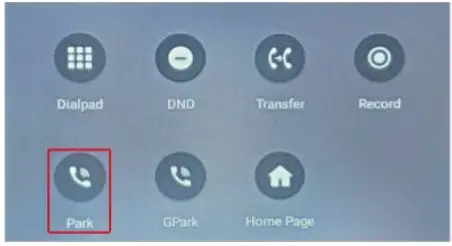
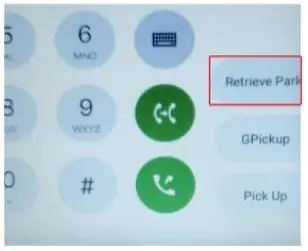
Retrieve
- To retrieve a parked call, press the Call button
- Press the Retrieve Park soft key on the right side menu

- Enter the extension plus # where the call is parked
TRANSFERING A CALL
There are two ways to transfer a call: Blind Transfer and Announced Transfer.
Blind Transfer:
- While on an active call, press the More soft key
- Press the Transfer soft key on the screen

- Enter the ext or number the call will be transferred to
- Press the Blind Transfer
 button
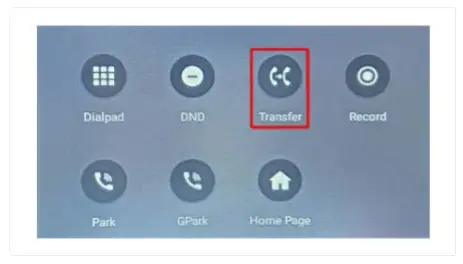
 button
Announced Transfer:
- While on an active call, press the More soft key
- Press the Transfer soft key on the screen
- Enter the ext or number the call will be transferred to
- Press the Blind Transfer
 button
 button
CONFERENCE CALL
- Press the Invite
 soft key during an active call
 - The call is placed on Hold
- Enter the ext or number of the second party, then press the Plus
 key
key - Press OK in the Selected Members popup screen

- Press the Call
 button to initiate the conference
 soft key during an active call
 key
key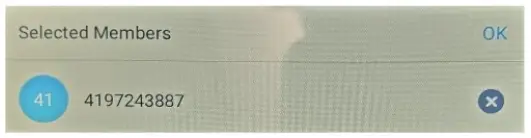
 button to initiate the conference
Note: You may split the conference call into two individual calls by pressing the Split soft key
VOICE MAIL
The Message Waiting Indicator on the idle screen indicates that you have new voice messages waiting. The Message key LED lights up in red.
1.888.808.6111
www.telesystem.us